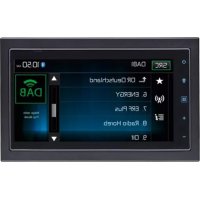
520 DAB - Car radio MAC AUDIO - Free user manual and instructions
Find the device manual for free 520 DAB MAC AUDIO in PDF.



| Product Type | 2 DIN multimedia car radio with DAB+ tuner |
| Brand / Model | MAC Audio / 520 DAB |
| Chassis dimensions (W x H x D) | 178 x 100 x 162 mm |
| Net weight | 2.0 kg (with cables and DAB+ antenna) |
| Power supply | 11 – 16 V DC, negative ground, 15 A mini-ATO fuse |
| Max output power | 4 x 50 W (total 200 W) |
| Display | 7 inches (17.8 cm diagonal), TFT LCD touchscreen, resolution 800 x 480 (WVGA) |
| Radio tuner | FM (87.5 – 108 MHz) and AM (522 – 1620 kHz), RDS |
| DAB+ tuner | Band III (174.928 – 239.200 MHz) and L-band (1.452960 – 1.490624 GHz), FAKRA antenna included |
| Bluetooth | Version 2.1, profiles HFP, A2DP, AVRCP, with external microphone |
| USB ports | 1 x USB 2.0 rear (500 mA charging), FAT32 compatible, supports up to 32 GB, formats MP3, WMA, AAC, WAV, MPEG, AVI, JPEG, etc. |
| AUX / AV input | Composite audio/video input (RCA) |
| Reverse camera input | Yes, with automatic switching in reverse |
| Audio outputs | 5 x RCA line (front, rear, subwoofer), 2 V RMS / 200 ohms |
| Equalizer | 10 bands (31.25 Hz – 16 kHz), presets and user setting, Loudness |
| Navigation | Compatible with MAC 500 NAV SET kit (sold separately), iGO Primo 2 software |
| Steering wheel control | Compatible with Dietz UNICAN, PAC SWI-PS, Metra ASWC (adapter required) |
| Display languages | French, English, German |
| Operating temperature | 0 °C to 60 °C |
| Maintenance | Clean with a clean silicone cloth and neutral detergent; avoid water and alcohol |
| Safety | Do not use video function while driving (except reverse camera); moderate volume to avoid masking warning signals |
| Warranty period | 2 years (excluding wear parts, damage due to improper installation) |
Frequently Asked Questions - 520 DAB MAC AUDIO
User questions about 520 DAB MAC AUDIO
0 question about this device. Answer the ones you know or ask your own.
Ask a new question about this device
Download the instructions for your Car radio in PDF format for free! Find your manual 520 DAB - MAC AUDIO and take your electronic device back in hand. On this page are published all the documents necessary for the use of your device. 520 DAB by MAC AUDIO.
USER MANUAL 520 DAB MAC AUDIO
The Bluetooth® word mark and logos are registered trademarks owned by Bluetooth SIG, Inc. and any use of such marks by Mac Audio is under license. Other trademarks and trade names are those of their respective owners.
At the end of the product's useful life, please dispose of it at appropriate collection points provided in your country.
EON (Enhanced Other Networks)
natural_image
Close-up of a black remote control panel with four function icons (power, location, grid) on the right side (no text or symbols beyond icons)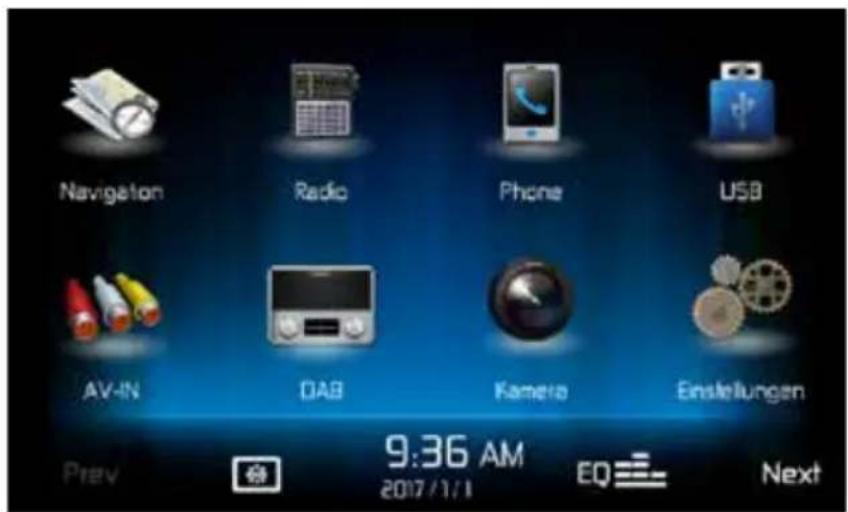
natural_image
Close-up of a black plastic clip holding a cable, no visible text or symbolsFreisprechmikrofon
Thank you for choosing an MAC AUDIO product. We hope you will find the instructions in this owner's manual clear and easy to follow. If you take a few minutes to look through it, you'll learn how to use all the features of your new MAC AUDIO MAC 520 DAB Mobile Multimedia Receiver for maximum enjoyment.
INTENDED USE
This unit is designed to be installed into a 2.0 DIN dashboard opening of a car with 12V battery voltage and negative ground. Please read through the instruction manual carefully before starting to install the device. For the installation of the MAC 520 DAB receiver into the car we recommend to turn to a specialist. Do not try to open this receiver and repair this receiver. Repairs must always be conducted by qualified specialists.
DECLARATION OF CONFORMITY CE
Hereby, Magnat Audio-Produkte GmbH declares that the MAC 520 DAB is in compliance with the essential requirements and other relevant provisions of directive 2014/53/EU. The Declaration of Conformity can be found at http://www.mac-audio.de in the download area of the MAC 520 DAB.
CONTENTS
Safety Precautions 56
General information 56
Features 57
Optional equipment 58
Front panel Controls and Indicators 59
External Devices 60
Quick Start Guide 61
Audio Equalizer Controls Menu 63
System Settings 65
Radio Tuner Operation 71
DAB Mode 76
MP3 Operation 83
USB Operation 84
AV-IN Operation 88
Bluetooth Operation 89
Navigation Quick Start 96
Rear Camera Operation 99
Steering Wheel Controls (SWC) 100
Troubleshooting 102
Specifications 104
Care and Maintenance 105
SAFETY PRECAUTIONS
- Do not mount the unit in a place which would make it difficult to operate and use whilst driving, thereby impairing your safety.
- Road traffic safety is always of paramount importance. You should only ever use the car radio if you are able to control your vehicle safely and are aware of the current traffic situation.
- If you have any difficulty reading the display or you are unable to operate the car radio, park your car and then adjust the settings.
- As a driver, you must not use any applications during the journey that could distract you from the road ahead (e.g. entering a destination for navigation, viewing images or videos, etc.).
- The announcements made by the navigation system are to be followed while taking the corresponding traffic rules into account (e.g. road signs, give way signs, rights of way, etc.).
- Listening to music at high volume can damage your hearing.
- In order to hear warning sounds (e.g. police sirens, fire sirens, etc.) do not select an excessive volume.
- Do not increase the volume when the car radio has been muted (e.g. when selecting the BT function).
- To avoid accidents, never use the video function whilst driving (with the exception of the video function for the rear view camera). Use while driving is prohibited by law.
- Using an incorrect fuse may damage the unit or cause it to catch fire.
- The unit must not be disassembled or modified.
• To prevent personal injury from electric shock or fire, protect the unit from moisture and water.
GENERAL INFORMATION
- In the event of a malfunction, please read the instructions in the 'Troubleshooting' section.
- Only use data media in a standard format
FEATURES
Please read the instruction manual for this product before using. The documentation provided will allow the user to fully enjoy all the features of your new MAC AUDIO MAC 520 DAB Mobile Multimedia Receiver. Please read all of the instructions before beginning the installation and save this manual for future reference. We recommend having your MAC AUDIO MAC 520 DAB installed by a reputable installation shop.
MP3 / WMA
- Display of album picture (ID3-tag compatible)
- Directory search (MP3 / WMA only)
- Playback of up to 20000 MP3 and WMA files
• Max. USB stick size: 32GB
• Audible Forward / Reverse Track Search - Random and Repeat
- Play, Pause, Stop, Next Track and Previous Track
AM / FM Tuner
- RDS (Radio Data System): AF (Alternative Frequencies), CT (Clock Time), EON (Enhanced Other Networks), PS (Programme Service), PTY (Programme Type), RT (Radio Text), TA (Traffic Announcements)
• 30 station presets (18FM/12AM) - Auto stereo/mono
- Local/distance
- Auto Store
DAB+ Tuner
• Supports the formats DAB, DAB+ and DMB-A
• Supports Band-III, L-Band
- 3 DAB bands
- Saves up to 30 stations
- Ensemble / service search
- PTY search
• Auto Scan / Service Scan / automatic and manual search function
• TA (traffic announcements)
• Supports Ensemble / Service Label, Dynamic Label
• DAB-RDS switching (DAB-DAB/DAB-RDS/DAB-OFF/DAB-ALL)
- Including DAB aerial for optimum reception
NAV ready
• NAV ready: Navigation possible with separately available navigation kit MAC 500 NAV-SET
- Navigation Mix Mode
Bluetooth®
- Hands-free operation via separate microphone
- Audio streaming
- Bluetooth® module with AVRCP/A2DP profile
Monitor
- Screen size: 17 cm / (6.8") LCD TS (Touch Screen) with LED backlight
- Screen type: high definition TFT LCD display
• Resolution: 1,152,000 sub pixels, 800 (W) x 480 (H), WVGA
Chassis
• 2.0 DIN (Import / ISO-DIN Mountable)
Personal Color Adjustment (Color illustrations / background)
- 2 RGB light settings (keyboard / background illumination): blue / red
Wallpaper Selection:
- 5 Selectable Wallpaper Backgrounds
General
- Rear USB 2.0 input with 500 mA charge current (playback of music/video files via USB stick)
- Rear auxiliary audio/video input (Composite)
• Video input for rear view camera (normal and opposite hand) - 5 line audio outputs: 2x front, 2x rear and subwoofer (2 V RMS)
• Video output for TFT monitor - SWC (Steering Wheel Control) connection via optionally available adapter (compatible with Dietz UNICAN (art. no. 66030) with cable (art. no. 66405), PAC (Pacific Accessory Corporation) SWI-PS with Metra ASWC interface profile)
• 10-Band equalizer - Sub X-over frequencies 80 / 120 / 160 Hz
- Programmable volume control for each audio source
- Calibration mode for touch screen
• DIN chassis dimensions: 178 x 100 x 162 mm
• Multi-language OSD (German, English, French) - Push to Talk function (voice control) for Android / iPhone mobiles
- Display with 4-fold dimming and auto blackout function
OPTIONAL EQUIPMENT
Rear Camera RVC1
The MAC 520 DAB is “camera ready.” Before accessing any camera features, you must purchase and install a rear video camera.
FRONT PANEL CONTROLS AND INDICATORS
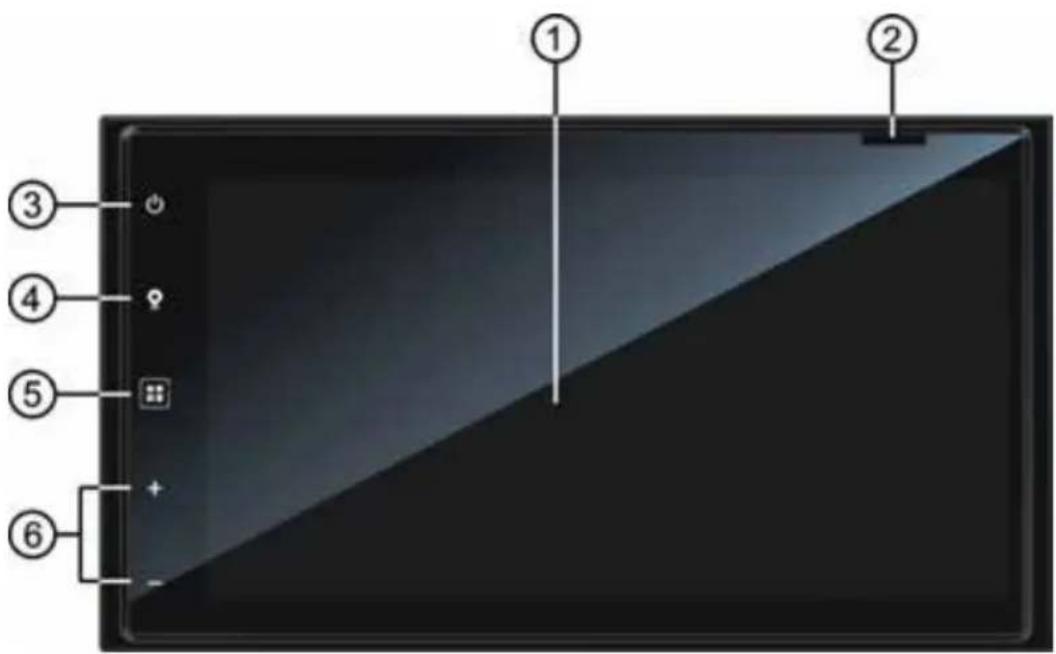
MAC 520 DAB Controls and Indicators
- LCD screen and touch screen: Touch icons on this screen to access menus or control functions.
- Micro SD card slot: Used to insert the microSD card containing the navigation software.
- Power on/off ( ⏻ ) button / Volume ( ⏱ ) button / mute button: Press to turn the unit ON. Press and hold to turn the unit off. Press the button momentarily to mute the audio. Press the button again to restore the audio.
- NAV Button: Press to toggle back and forth between the navigation and currently selected source.
- Menu Button: Press this button to access the Main touch screen menu.
- Press these buttons to adjust the volume.
EXTERNAL DEVICES
AV-IN
AV-IN is used for playback of audio/video from an external device connected through RCA connectors located on the back of the unit.
You can connect an external audio/video device to the unit.
- Connect the external device with an appropriate AV cable.
- Touch the MENU button to display the main menu.
- Touch [AV-IN] to access external device.
NOTE: Audio/Video device must be connected to the unit using an audio/video adapter cable that is available separately.
NOTE: Video will only play when the vehicle parking brake is engaged. the parking brake must be connected for this feature to operate.
QUICK START GUIDE
Turning the Unit ON or OFF
Press the Power On/Off ( ⏻ button on the front panel to turn the unit ON. Press and hold this button for 2 seconds to turn the unit off.
Selecting an Audio/Video Source, Bluetooth, Steering Wheel Controls or Backup Camera
To select an audio/video source:
-
Press the front panel MENU button to view the main menu screen.
-
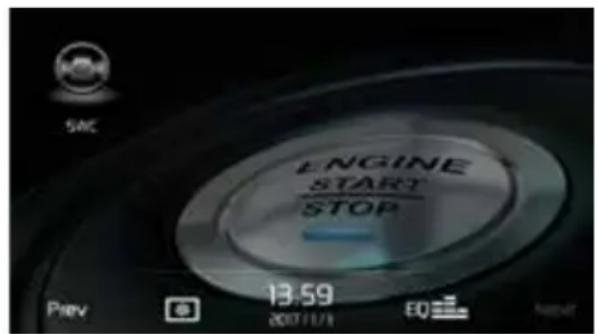
Touch the desired source icon on one of the two main menu screens. Screen 1 of 2: Navigation, Radio, Phone, USB, AV-IN, DAB, Camera, Settings. Touch Next at the bottom of the screen to access Screen 2 of 2: Steering Wheel Controls (SWC).
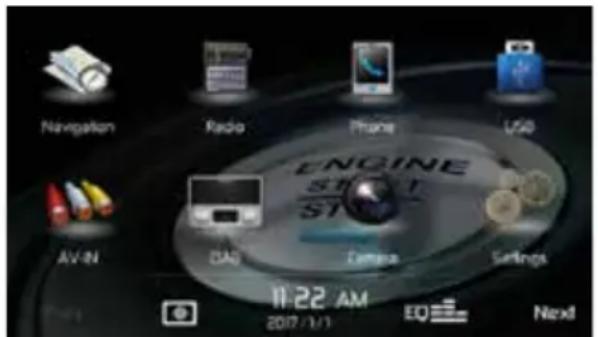
Screen 1 Screen 2
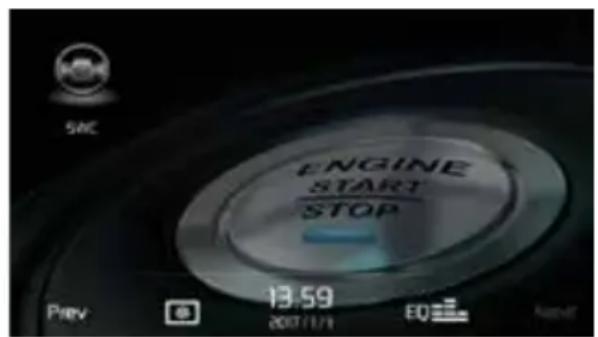
MAC 520 DAB Main Menu Screen
System Settings Adjustment
To access and adjust system settings:
Touch the Settings (💡) icon on the Main Menu screen to enter the SETTINGS MENU. Adjustments can be made in the Sub-menus.
Volume Adjustment
To increase or decrease the volume level, press the + or - button on the front panel. The unit's front panel screen will display the volume level for 2 seconds. The volume level ranges from 0 to 50.
Muting the Audio
Briefly press the button on the front panel to mute the audio from the unit. Mute icon is displayed on the LCD screen. Press the front panel rotary encoder knob again to restore the audio volume to its previous level. Adjusting the volume cancels the mute function.
Equalizer Controls
Equalizer (EQ): Adjustment can be made after entering one of the audio/video sources (Radio, USB, AV-IN, DAB or Phone).
Touch the Equalizer (EQ) icon to view the Equalizer Control Screen to make adjustments to the audio Balance and Fade levels or to turn the Loudness option ON or OFF. Touch the SRC icon to return to the current source.
Resetting the System
To correct an improper operation, reset the device to the factory settings in the RESET menu. After a system reset, the unit restores all factory default settings.
Parking Brake Inhibit
When the pink "Parking" wire is connected to the vehicle Parking Brake circuit, the front TFT monitor will display video when the Parking Brake is engaged.
Adjusting Equalizer Controls
The Equalizer adjustment screen allows the user to easily adjust the audio system to meet the acoustical characteristics of the vehicle. The acoustical characteristics vary depending on the type of vehicle and measurements.
For example: proper setting of the audio controls can improve the speakers frequency response to compensate for cabin.
The Balance/Fade levels and Loudness ON/OFF option of a selected audio/video source (Radio, USB, AV-IN, DAB, BT) is also adjusted through the Equalizer adjustment screen.
Equalizer (EQ) (10 Band)
- Touch the Equalizer (EQ) icon to view and select a desired preset setting (Optimal, Classic, Rock, Jazz, Techno or Pop) or Flat setting.
Note: The equalizer will automatically change to "USER" when individual audio functions are adjusted.
- Select a desired frequency range slide bar to be adjusted (31.25, 62.5, 125, 250, 500, 1K, 2K, 4K, 8K or 16K).
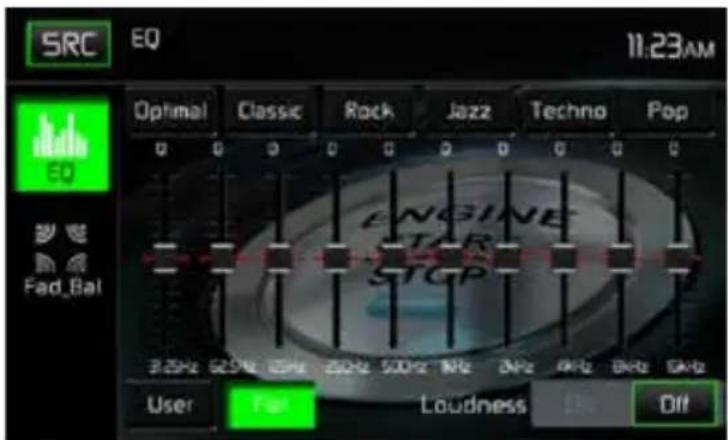
Equalizer Adjustment Screen
- Touch and move the slide bar Up or Down to adjust the frequency sound level settings from -10 to +10.
User Settings
Touch the User icon to customize each of equalizers 10 frequency bands.
Flat Setting
Touch the Flat icon to set the equalizers 10 band frequencies to the midpoint.
Loudness Setting
Touch the buttons ON or OFF to turn the loud option. The loud option automatically alters the frequency response curve of audio to make it sound more natural when played at a lower volume level.
Exiting the Equalizer
To exit the Equalizer menu touch the SRC icon to return to the current source.
Fader-Balance
Touch the FAD-BAL icon on the left side of the equalizer screen to display the balance/fader screen.
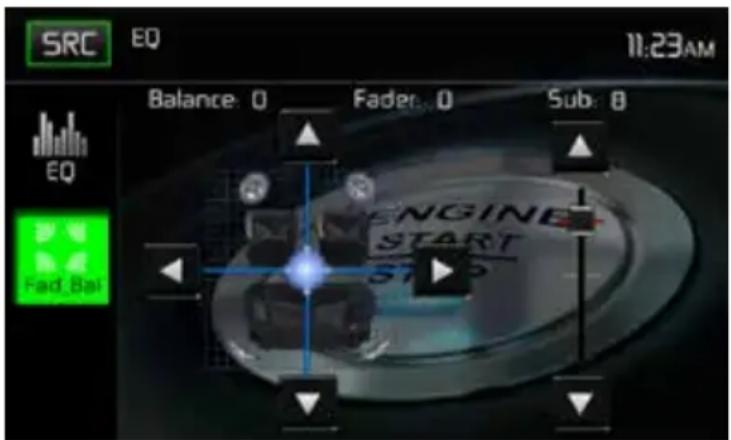
Fade-Balance Adjustment Screen
Balance
This feature is used to balance the audio output levels between the left and right side of the vehicle. Touch the ◀ or ▶ icons to change the balance control settings -20 (Left) to +20 (Right). The setting can also be changed by touching screen within the grid to move the sphere.
Fader
This feature is used to fade the audio output levels between the front and rear of the vehicle. Touch the ▲ or ▼ icons to change the fade control settings -20 (Rear) to +20 (Front). The setting can also be changed by touching screen within the grid to move the sphere.
Sub (Subwoofer)
This feature is used to reduce or increase the subwoofer sound level. Touch the slide bar ▲ or ▼ icons to adjust the settings.
Exiting the Balance-Fader
To exit the balance-fader touch the SRC icon on the top left corner of the screen.
SYSTEM SETTINGS
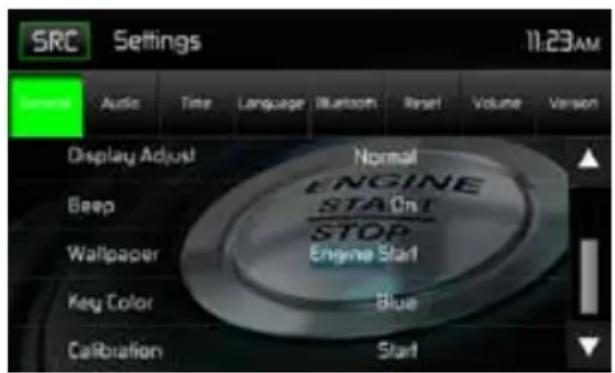
To access System Settings, touch the 🎨 icon on the Main Menu screen. There are 8 System Settings Sub-menus (General, Audio, Time, Language, Bluetooth, Reset, Volume, Version) that are used to adjust the performance of each option of the MAC 520 DAB. The Version Sub-menu is for information only. Touch a desired Sub-Menu and the Sub-menu will appear highlighted. The features available for adjustment will appear on the screen.
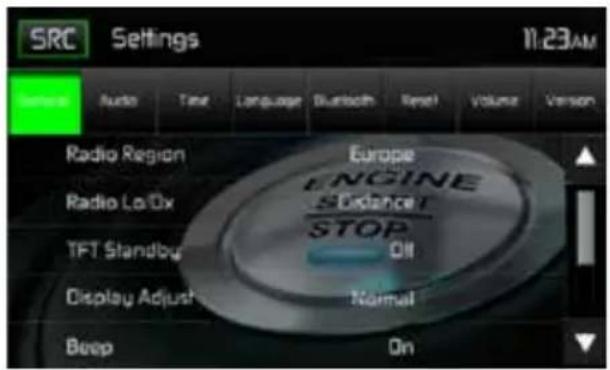
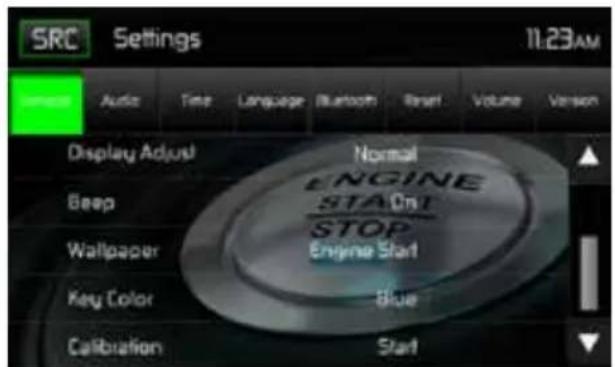
System Settings Screens
Adjusting a Sub-Menu feature
- Touch the Sub-Menu feature to be adjusted.
- Touch the ▲ or ▼ icon to view the previous or next feature page, if applicable.
- Touch the desired feature option once to make selection then touch again to confirm the selection.
General Sub-menu features
Radio Region: USA, China, Japan, Europe, Europe (LW), and Orient (OIRT)
Europe frequencies:
• AM Frequency Spacing - 9 kHz
• AM Frequency Band - 522 kHz \~ 1620 kHz
• FM Frequency Spacing - 50 kHz
• FM Frequency Band - 87.5 MHz \~ 108 MHz
Radio Lo/Dx: Touch the Distance or Local to increase or decrease radio tuning sensitivity to receive local or distant stations.
TFT Standby: Touch OFF, 10s or 20s to set the unit's front panel TFT LCD screen to stay ON continuously or to blackout the screen after 10 or 20 seconds.
Display Adjust: Touch Night, Dark, Normal or Bright to adjust the brightness of the screen. If the orange cable of the ISO connector is connected to the vehicle electronics, the brightness of the screen automatically changes to NIGHT when the vehicle is switched on
Beep: Touch ON or OFF to turn the selection confirmation beep ON or OFF.
Wallpaper: Touch Engine Start, Blue Haze, Green Cubes, Red Swirl or Tribal to select the TFT LCD wallpaper. Touch again to confirm and set the wallpaper.
Key Colour: Touch RED or BLUE to change the backlight of the controls.
Calibration
The Touch Screen Calibration adjustment is used to set the parameters of the touch screen to ensure that when the screen is touched, it corresponds to the feature desired.
Note: Never use a pen or sharp object to calibrate the touch screen as this will damage the panel.
- Touch the Calibrate Start icon and the first screen will appear with instructions.
- Follow the instructions on the screen touching and momentarily holding finger or a stylus to the center of the target for 2 seconds. Repeat as the target moves to each corner of the screen and finally to the center.
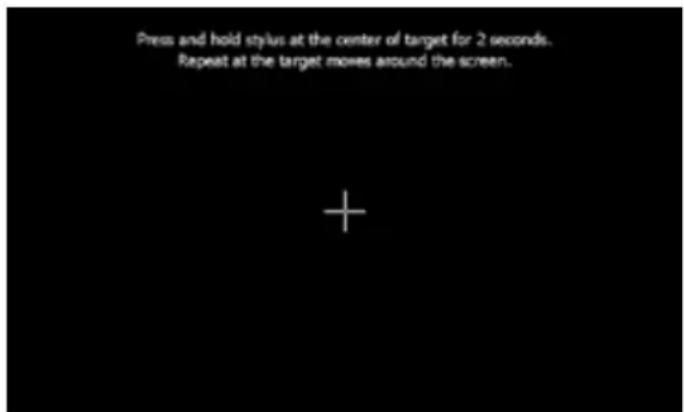
Calibration Screen
- The second screen will appear:
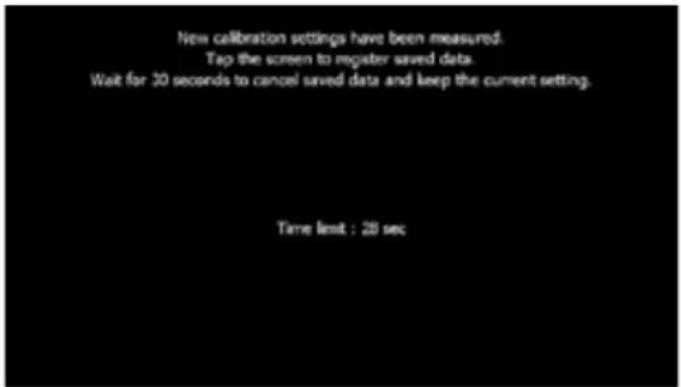
Calibration Screen Confirmation
- If the screen is touched, the new calibration parameters will be accepted. If the screen is not touched within thirty seconds, the new parameters will be disregarded.
Audio Sub-menu features
The Audio Sub-menu is used to turn the Subwoofer output ON or OFF and to select a Subwoofer crossover frequency.
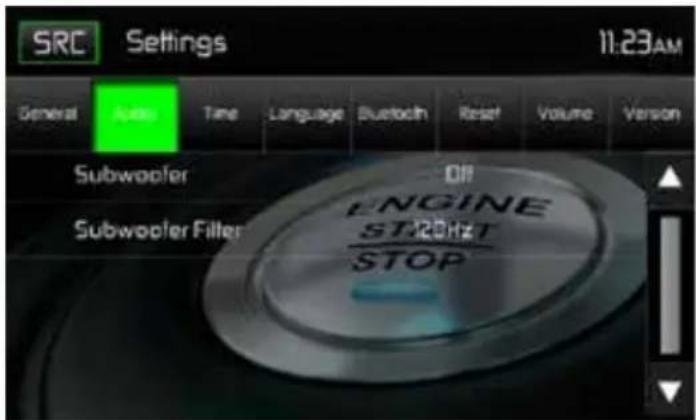
Audio Sub-menu Screen
Subwoofer: Touch ON or OFF to turn the subwoofer output ON or OFF.
Subwoofer Crossover: Touch a crossover frequency (80Hz, 120Hz or 160Hz) to set a cut-off frequency for the subwoofer's low-pass filter (LPF).
Time Sub-menu features
The clock appears in the top right corner of the screen during certain operations.
Note: The AM/PM indication will change as you continue to adjust the hour past 12.
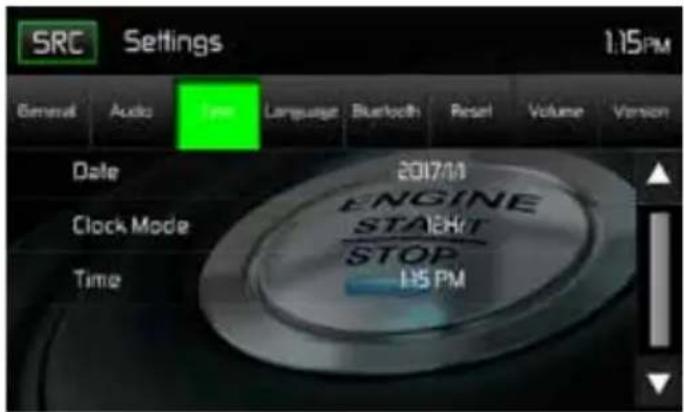
Time Sub-menu Screen
Date: Touch the Date icon and use the ▲ or ▼ icons to set the day, month, and year. After setting the date, touch Save. The date will appear to the right of the DATE icon.
Clock Mode: Touch 12Hr to set the clock display to 12 hour time intervals using AM and PM. Touch 24Hr to set the clock display to a 24 hour time interval (or military time).
Time: Touch the Time icon and use the ▲ or ▼ icons to set the hour, minute, and either AM or PM. After setting the time, touch Save. The time will appear to the right of the TIME icon.
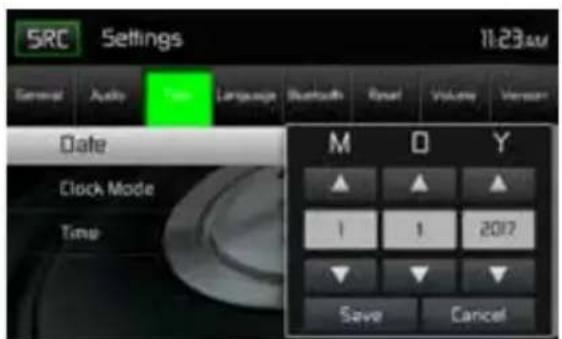
Date Settings Time Settings
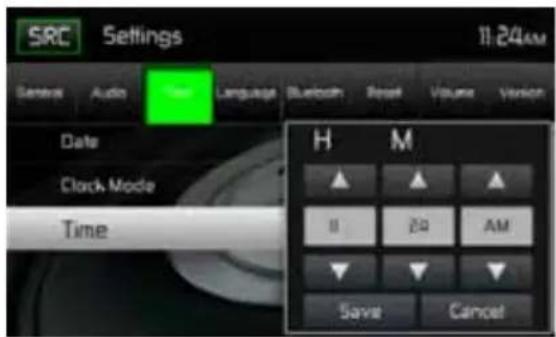
Date and Time Setting Screens
Language Sub-menu features
On Screen Display (OSD): Touch English, German or French to select the language for the OSD Display.
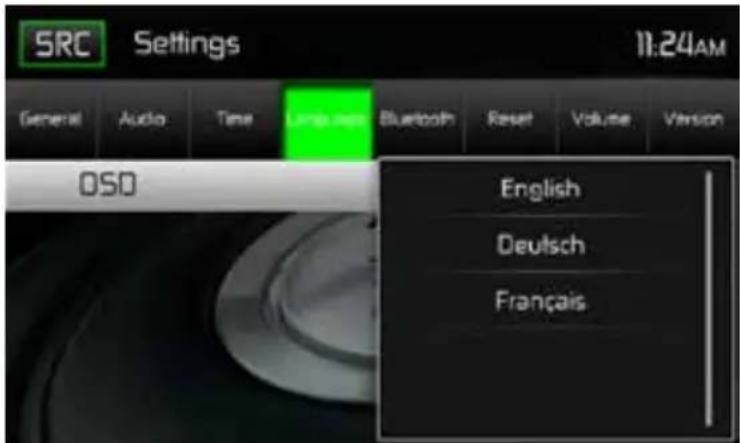
Language Sub-menu Screen
BLUETOOTH Sub-menu features
The Bluetooth audio capabilities can be used for wireless phones hands free applications. Before attempting to use the Bluetooth functions on this unit, please make sure the wireless phone to be connected supports Bluetooth functions.
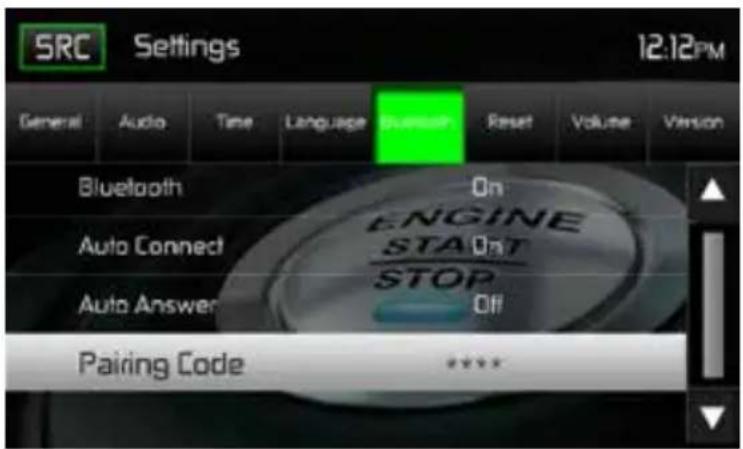
Bluetooth Pairing Code Screen 2
Bluetooth: Touch ON or OFF to turn the Bluetooth function ON or OFF.
Auto-Connect: Touch ON or OFF to turn the Bluetooth Auto-Connect function ON or OFF.
Auto-Answer: Touch ON or OFF to turn the Bluetooth Auto-Answer function ON or OFF.
Pairing: This feature allows the user to create a unique 4 digit code for pairing Bluetooth devices to the unit. The factory default pairing code is "0000".
-
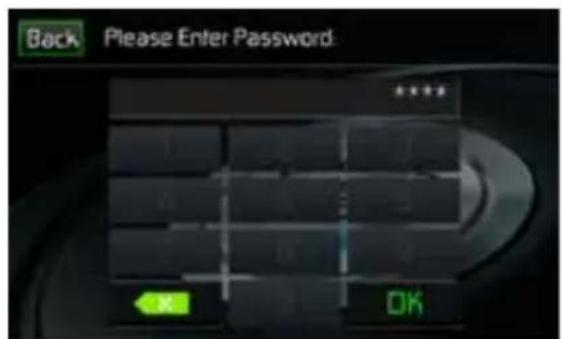
Touch the Paring Code icon and the Pairing Code entry screen will appear.
-
Use the keyboard to enter a unique 4-digit Pairing Code.
Note: If a wrong digit is entered touching the arrow will remove the number.
- Touch OK to confirm 4 digit pairing code.
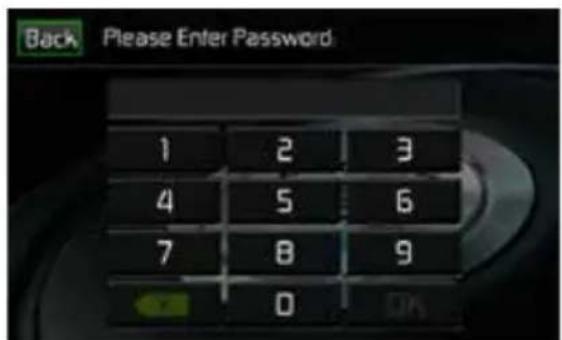
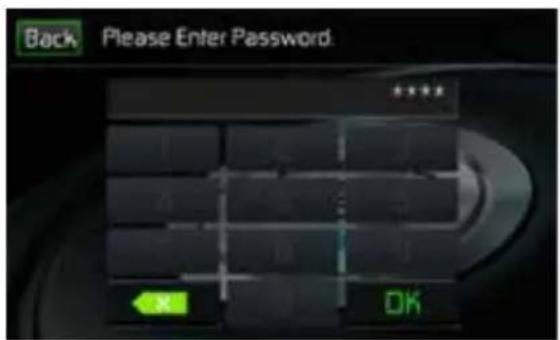
Pairing Code Entry Screen Pairing Code Confirmation Screen
Pairing Code Screens
RESET Sub-menu features
Load Factory: This feature allows the user to "Reset" to restore the factory default settings.
VOLUME Sub-menu features
The Volume Sub-menu allows the user to increase or decrease the relative volume of the audio output of each source individually.
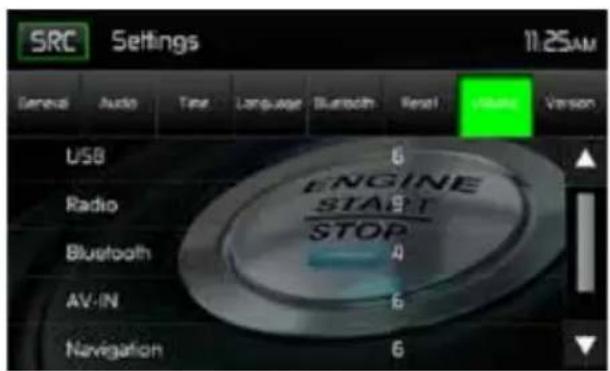
Volume Sub-menu Screen 1
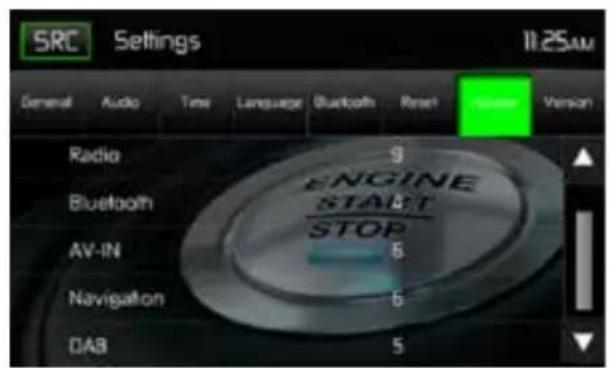
Volume Sub-menu Screen 2
Volume Sub-menu Screens
Touch the desired source icon to enter the setting, then use the ▲ or ▼ icons increase or decrease the relative volume level between 0 to 12.
VERSION Sub-menu features
The Version Sub-menu is used to identify the model and resident operating system as well as the hardware and software versions.
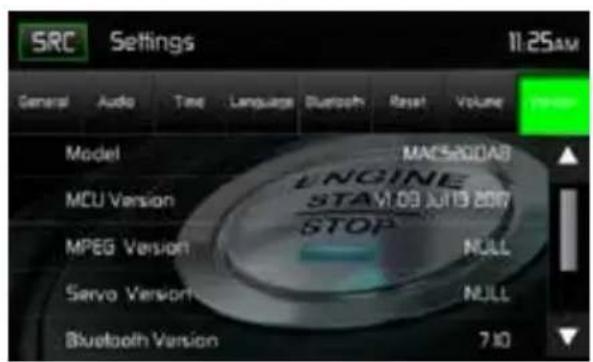
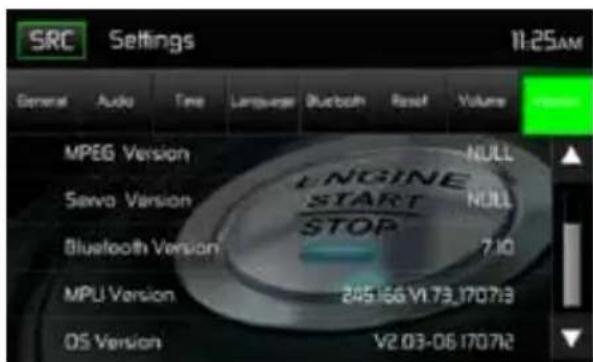
Version Sub-Menu Screen 1 Version Sub-Menu Screen 2
Version Sub-Menu Screens 1 and 2
Exiting the System Settings Menu
To exit the System Settings menu and resume normal playback, touch the SRC icon on the screen.
From the main menu screen touch the radio icon. The radio tuner display screen appears.
Radio Tuner TFT Display
The on-screen icons and touch key areas are outlined below.
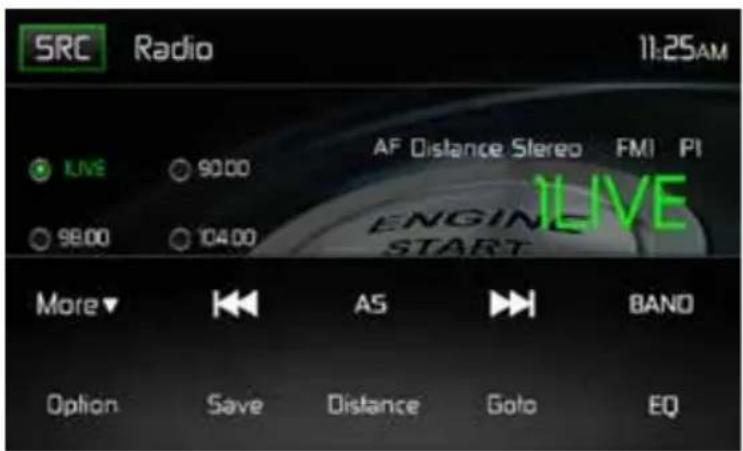
Radio Tuner TFT Display Screen
SRCIcon: Touch to view the SOURCE MENU and select a new playback source.
Radio: Displays the current source.
Time Display: This indicator displays the time as entered by the user in the Settings Menu.
Preset List: Provides a display of the preset frequencies. Touch to recall a preset station. The radio can store 6 FM1, 6 FM2, 6 FM3, 6 AM1, and 6 AM2 frequency presets.
Local/Distance: Displays the local distant setting.
Stereo: Displays stereo radio signal reception.
FM1: Displays the current preset frequency band.
P1 through P6: Displays the current preset frequency within the preset frequency band that currently playing.
1LIVE: Displays the radio station/frequency that is currently playing.
More (▲/▼): Touch the ▲/▼ icons to display the next or previous page of the Tuner menu.
(◀◀) Previous/Manual Seek: Touch this icon to momentarily seek the previous available radio station. Touch and hold this icon to manually tune the radio in 50kHz (for FM) or 9kHz (for AM) increments. Default mode is resumed after 10 seconds of inactivity.
( AS ) Auto Store: Touch to automatically search and store all strong stations.
(▶▶) Next/Manual Seek: Touch this icon to momentarily seek the next available radio station or touch and hold to manually tune the radio in 50kHz (for FM) or 9kHz (for AM) increments. Default mode is resumed after 10 seconds of inactivity.
Band: Touch to change between AM/FM bands.
Option: Touch this icon to display the Options screen.
Save: Touch this icon to save a radio station frequency in one or all six preset stations on FM band 1, 2, 3 or AM band 1 and 2.
Local/Distance: Touch to select and activate local and distant station reception. When the Local function is on, only radio stations with a strong local radio signal are played.
Direct Entry: Touch this icon to the display the Direct Entry Screen.
( EQ ) Equalizer: Touch this icon to access the Equalizer Control Menu.
Option Screen
Touching the Options icon will display the following RDS, AF, EON, TA, TA Volume, CT and PTY functions on the Tuner TFT LCD display screen.
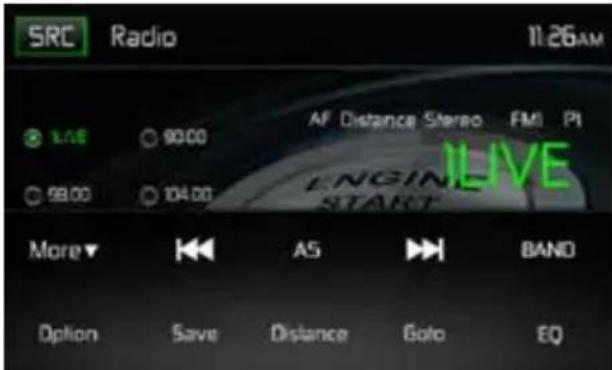
Radio Tuner Option Screen
RDS Basics
Radio Data System (RDS) enables traffic reports to be received and provides many facilities, including enabling the radio station name to be displayed on the radio display.
Touch on the selected option to change the setting.
• [RDS]: To turn on or off "RDS" function.
- [AF]: To turn on or off "AF" function.
- [CT]: To turn on or off "Clock Time" synchronization function.
• [EON]: To turn on or off "EON" function.
• [TA]: To turn on or off "TA" function.
• [PTY]: To show PTY list.
• [VOL]: Touch [ ◀] / [▶] to adjust TA volume.
AF
The receiver can automatically switch to an alternative frequency (AF) of the same station if the reception becomes poor. Press the OFF/ON touch-point to turn the automatic scanning for alternative frequencies of an RDS broad-cast station off and on.
EON (Enhanced Other Networks)
When EON data is received, the EON indicator lights and the TA and AF functions are enhanced. TA: Traffic information can be received from the current station or stations in other network.
AF: The frequency list of preset RDS stations is updated by EON data. EON enables the radio to make fuller use of RDS information. It constantly updates the AF list of preset stations, including the one that currently tuned into. If you preset a station around the area at your home, you will later be able to receive the same station at an alternative frequency, or any other station serving the same program, EON also keeps tracking of locally available TP (Traffic Program) stations.
TA
Press the TA ON/OFF button to switch the priority for traffic announcements on or off.
VOL (TA Volume)
In the OPTION menu, press the TA VOL button. Adjust the desired volume with the◀ or ▶button. Press the OPTION button. The radio menu is displayed again, the set volume is stored.
CT ON/OFF
(Clock Time, RDS feature) When enabled the radio system clock is synchronized with broadcasters time signal setting the clock automatically. In some regions where daylight savings time is not adhered to, the system clock will be off by 1 hour. In these cases, set CT to OFF and manually set the clock.
PTY
Program type (PTY) allows users to find similar programming by genre. Touch the PTY icon to access the program type search screen. If no matched PTY has been found, the unit will return to the original radio frequency.
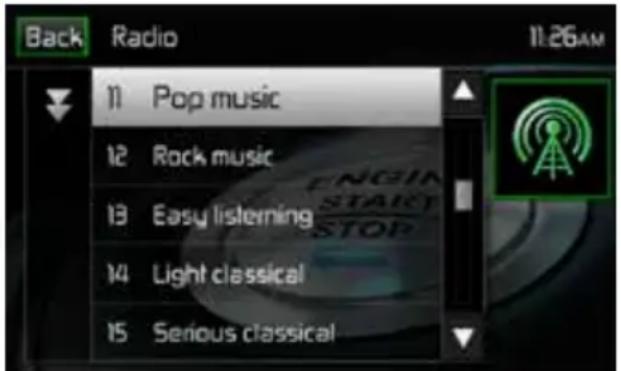
PTY Screen
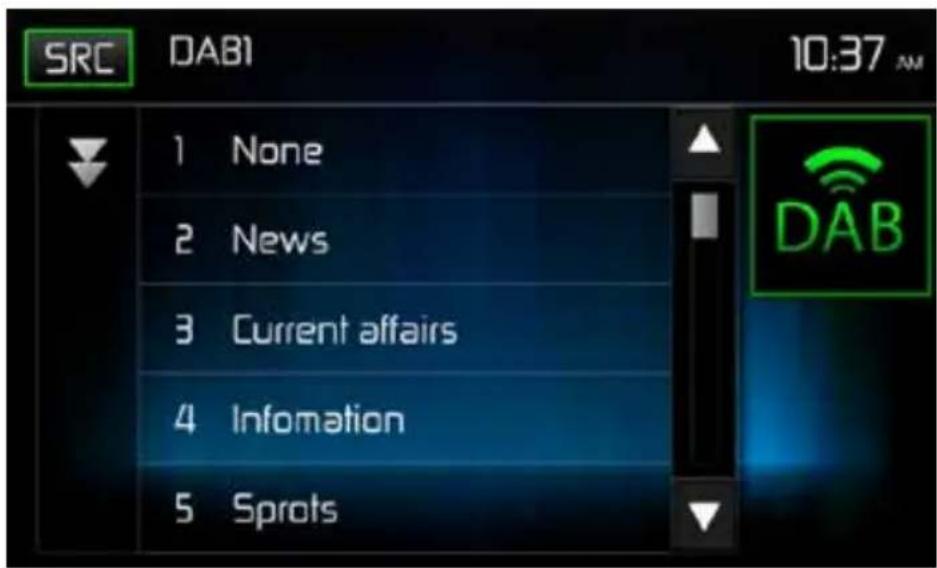
There are 27 categories in the PTY function.
| 1. None 8. Adult Hits | 15. Jazz 22. Personality | ||
| 2. News 9. Soft Rock | 16. Classic 23. Public | ||
| 3. Info 10. Top 40 | 7. RGB 24. College | ||
| 4. Sports 11. Country | 18. Soft RGB 25. Weather | ||
| 5. Talk 12. Oldies | 9. Language 26. Test | ||
| 6. Rock | 13. Soft | 20. Religious Music | 27. Alert |
| 7. Classic Rock | 14. Nostalgia | 21. Religious Talk |
Direct Entry Tuning
When the Direct Entry icon is touched the Direct Entry Screen appears. The user can enter the desired radio station frequency using the on-screen number pad. After entering the radio station frequency touch the OK icon. If a wrong digit is entered touching the green arrow will remove the number. After touching OK the radio will tune to the entered station. Playback will begin.
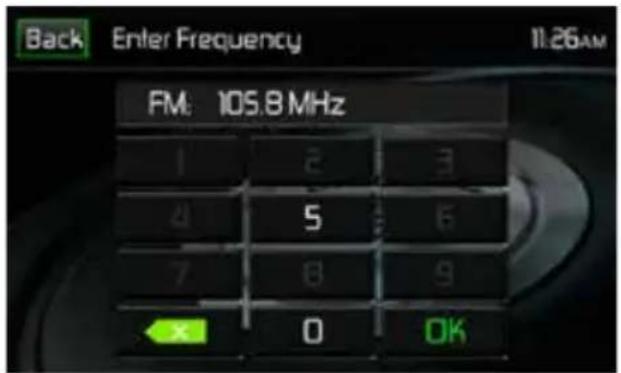
Radio Direct Entry Screen
Using Preset Stations
Six numbered preset icons store and recall stations for each band. All six stored stations (P1 through P6) for the current band appear on the screen.
Storing a Station
- Select a band (if needed), then tune to a desired radio station frequency.
- Touch the on-screen Save icon. The following screen will appear.

Preset Save Screen
- Touch the preset number in which you would like to store the current station. The station frequency is displayed at the top of the menu. The preset number will appear highlighted. The station frequency will be stored in the highlighted preset. The station will be displayed on the Tuner TFT LCD screen. A station can also be stored by touching and holding the preset icon to store the station currently tuned as a preset.
Recalling a Station
- Select a preset band (if needed).
- Touch an on-screen preset icons (P1 through P6) to select the corresponding stored station.
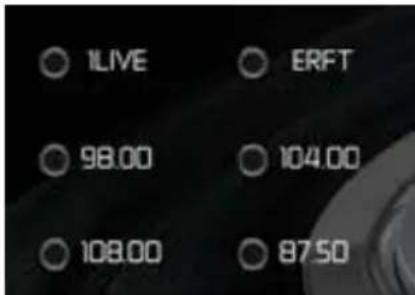
Preset Station Screen
Auto Store (AS)
To select six strong stations and store them in the current band. This feature is most useful when travelling in an area where you are not familiar with the local stations.
- Select a band (if needed).
- Touch the AS icon to activate the Auto Store function. FM Band 1 will be filled if enough stations are detected. The AM Bands function in a similar manner. As new stations are found they will replace stations already stored in that band.
Note: If stations have already been set as favorites, activating the Auto-Store feature will erase those stations and enter the new strong stations.
Local/Distance Radio Station Seeking
When the Local function is on, only radio stations with a strong local radio signal are played. To activate the Local function in the AM/FM tuner mode, touch the More on the Tuner TFT LCD screen. The Local/Distance icon is revealed. Touch Local or Distance to turn the local/distance function on or off. When the Local or Distance function is active, the Local or Distance indicator at the top of the screen is illuminated.
DAB MODE
natural_image
Close-up of a black electronic device's front panel showing control buttons (power, gender) and a grid icon (no text or symbols)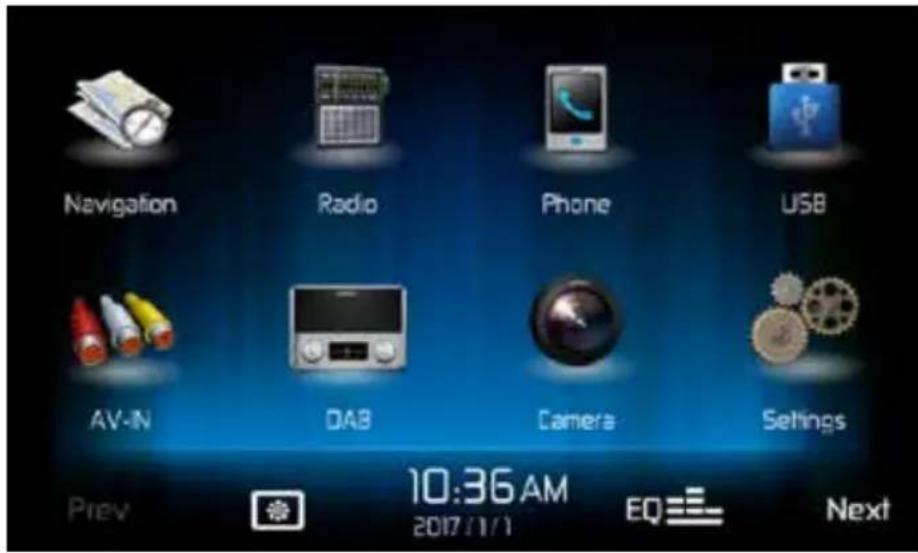
Press the menu button of the receiver MAC AUDIO MAC 520 DAB in order to access the main menu, and then on the DAB icon in the main menu.
DAB -MENU
The following buttons are at the bottom in the menu:
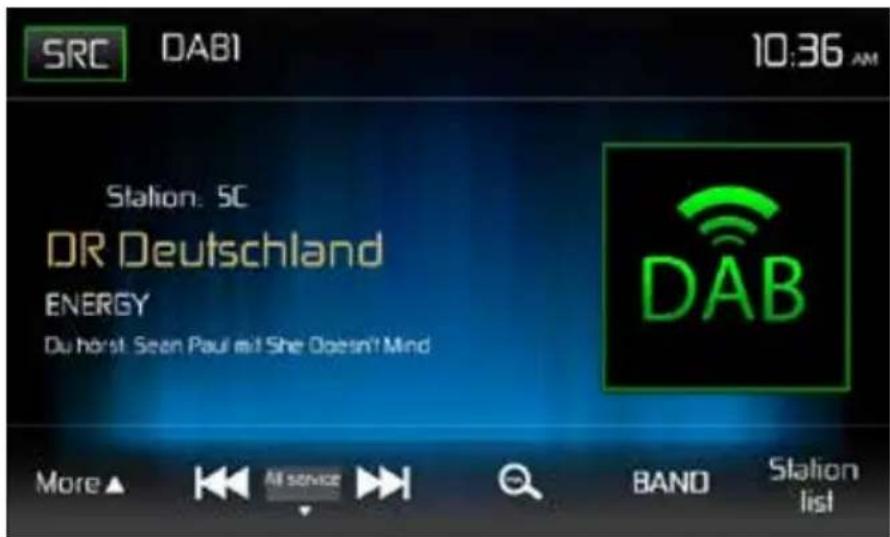
More Touch this icon in order to have more functions displayed
I<< Scan the station list backwards
Manual Scan mode settings: Manual, All service, Preset, Current
I Scan the station list forwards

Automatic station storage
BAND Selection of the DAB bands. There is a choice of 3 DAB bands.
The current band is displayed at the top left in the display.
Station list Displays the favourite list, the different station groups and the station list.
After pressing the "more" button, more functions appear:
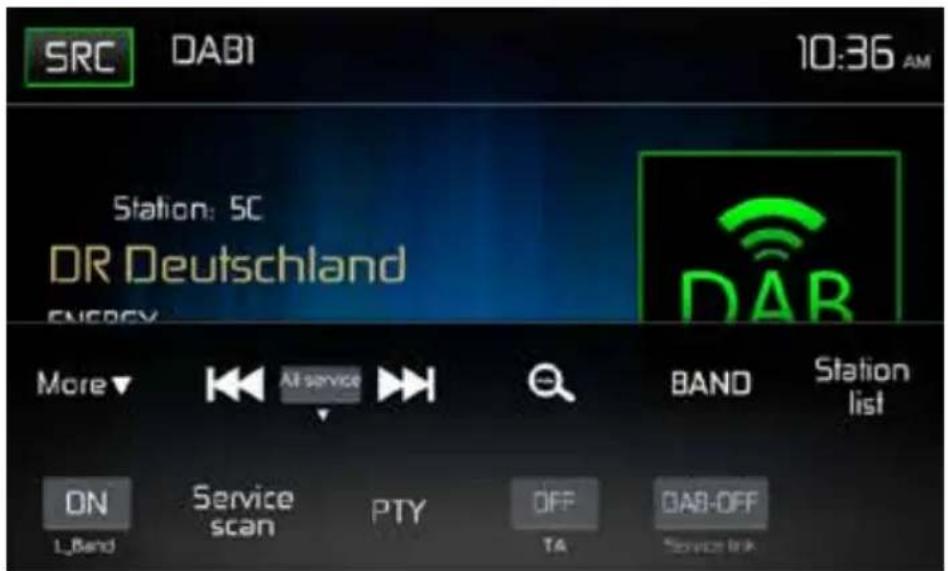
L_Band Switching the L Band on / off
Service Scan Searches for all available stations / station programs
PTY Station search according to program type
TA Switches the traffic announcements on / off
Service link Selection of DAB-DAB, DAB-RDS, DAB-ALL, DAB-OFF
SERVICE LINK SETTINGS
DAB-DAB In event of poor DAB reception signal, the DAB Box switches to another DAB frequency.
DAB-RDS Switches to the station of the same UKW name in event of poor DAB reception signal.
DAB-ALL This setting includes the DAB-RDS as well as the DAB-DAB function.
DAB-OFF No switching to another frequency in event of poor DAB reception signal.
STATION SEARCH
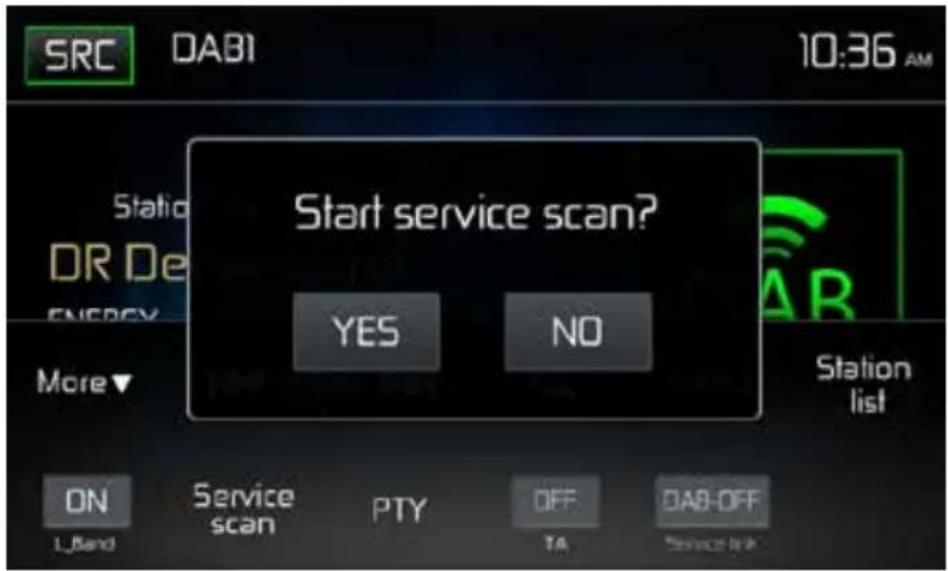
SERVICE SCAN
The Service Scan is used for starting for the first time and when entering a transmission area in order to find new stations. With Service Scan, all station names and station groups are deleted except for the favourite list in case a DAB signal can be received. If no DAB signal can be received then the favourite lists are also deleted. The station names and station groups are renewed by the station names that can be received in a better quality. Press on the button "More", and then on "Service Scan". Then confirm the start with the "Yes" button and wait until the scan process has finished.
AUTOMATIC SAVING
Press the 🔒 -button for the automatic search of stations. Now a window appears with the text "Autostore Yes / No". Confirm the start of the automatic search with "Yes". Now the station lists are refreshed. Wait until the search process is completed. If you want to cancel the search process, press one of the buttons of the radio menu.
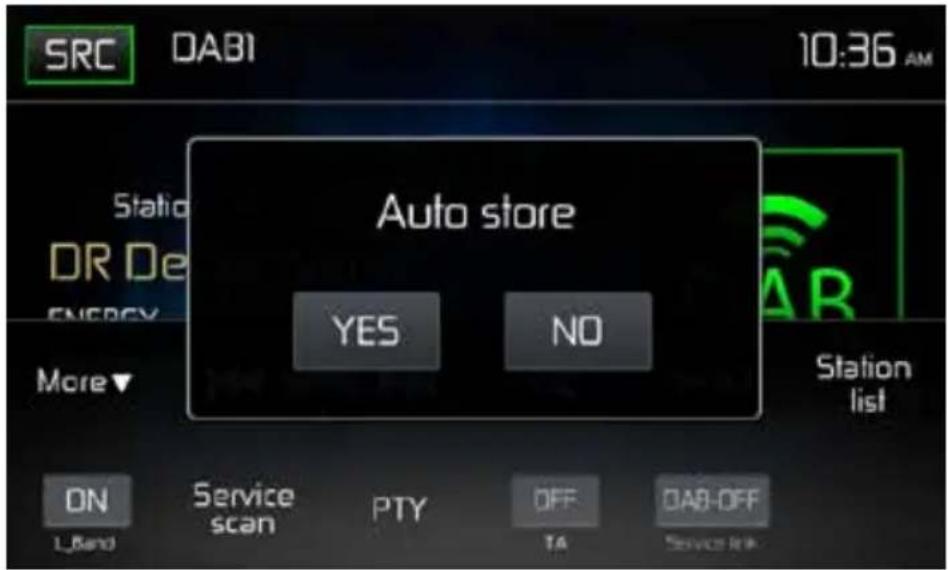
Note: The device is equipped with 3 DAB bands for storing stations.
The favourite station list in band DAB3 is overwritten by starting the Auto Store function and a station from each station group is saved in the favourite list.
OTHER SEARCH FUNCTIONS
All service: calls up the stations from all station lists with exception of the favourite list
Preset: calls up the stations from the favourite list according to sequential numbering
Current: calls up the stations from the running station group
Manual: manual search. The reception frequency is changed gradually with the manual search and the channel received is displayed. Press the I<< or >>I button to search down or up.
In order to search for the next station, keep the I<< or >>I button pressed for 2 seconds. If you want to stop the search process, press one of the buttons of the radio menu or keep the button I<< or >>I pressed again for 2 seconds.
Note: The DAB receiver stops the search process as soon as a station has been found in good reception quality and then plays it back.
DISPLAY THE STATION LISTS WITH DISPLAY OF THE STATION GROUP
Press the menu point "Station list" and then the (A) icon.
Now view the station groups here: DR Deutschland (nation wide programmes in Germany) / Radio for NRW (regional programmes). Select a group from the view of the station names of this group by pressing on the icon for the station groups, “1st DR Deutschland” here.
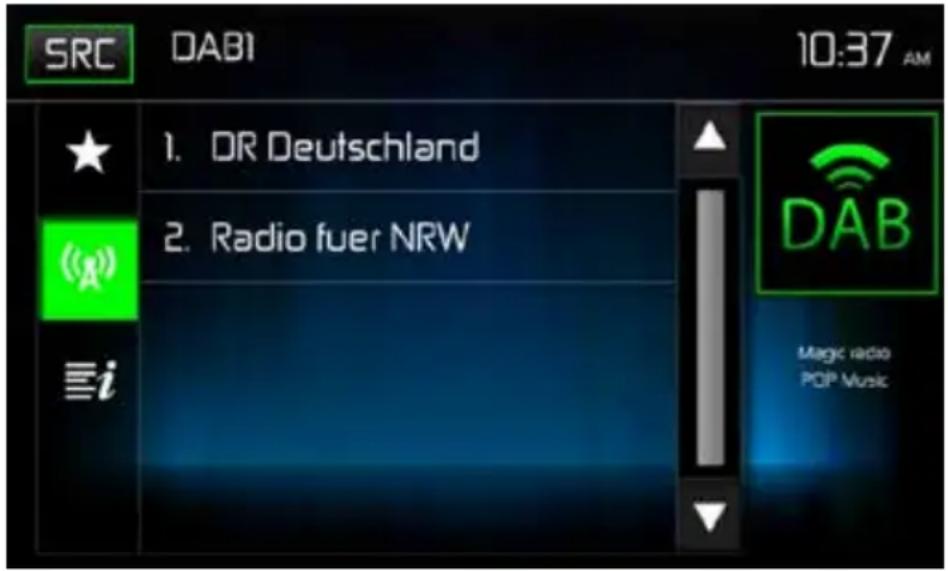
Now the name of the station group appears in the top line, and underneath the station names of this station group.
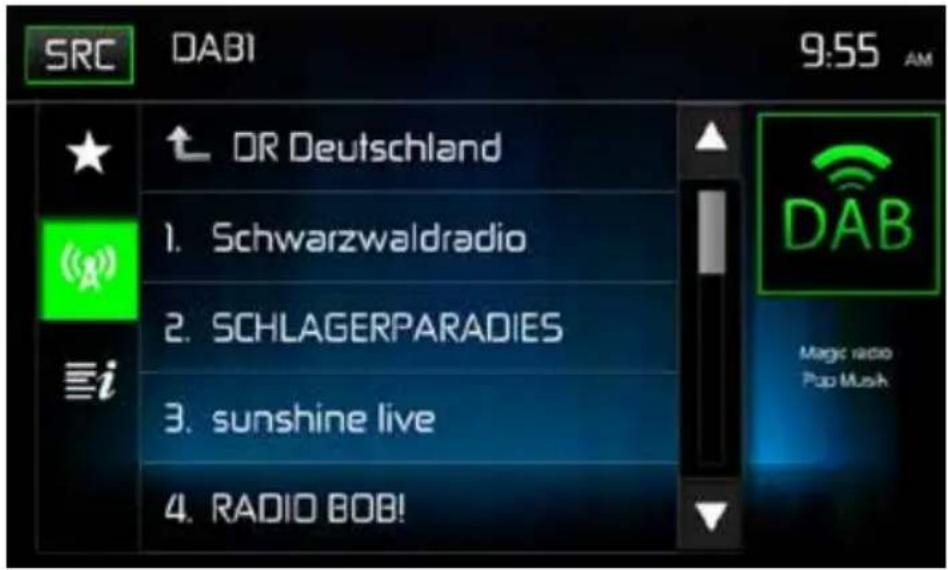
Now you can select the station by pressing on the station desired.
Then press on the DAB icon at the top right in order to return to the DAB menu with the display of more information for the station and the current title.
DISPLAY OF THE STATION LISTS
Press the menu point "Station list" and then the ☐ button to display the station.
Stations from the station group are displayed in which stations currently transmitting are found.
FAVOURITE LISTS / MANUAL SAVING
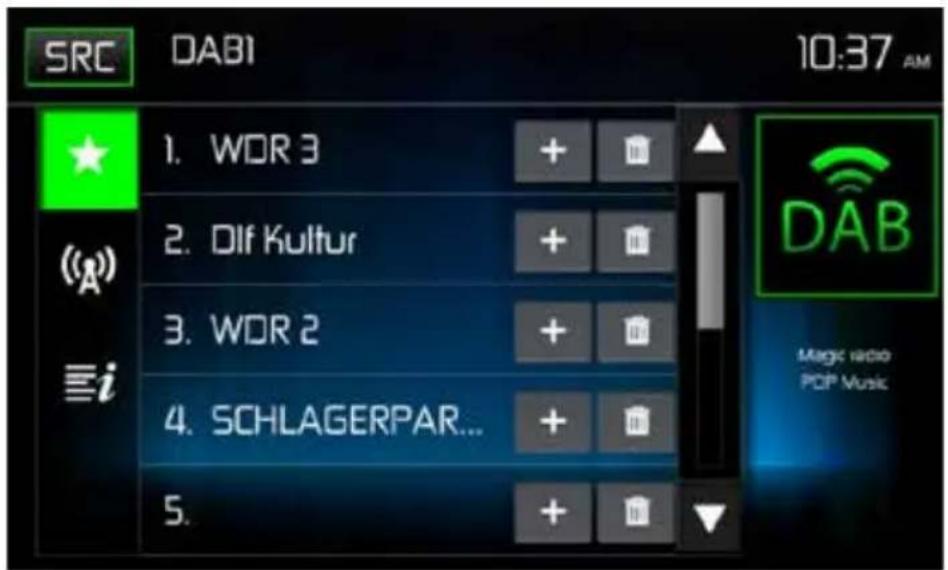
SAVING
Press the icon "Station list" in the menu bar at the bottom right.
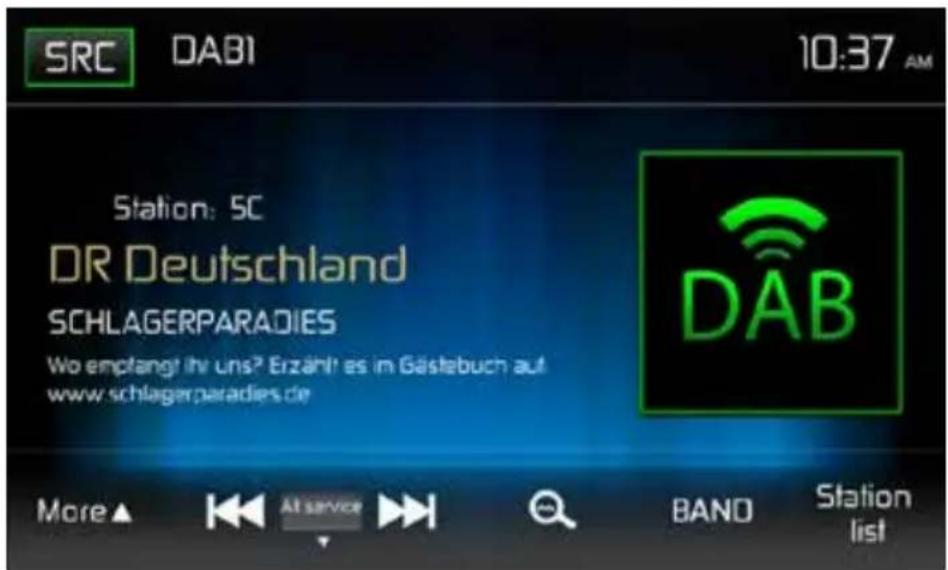
Select a station from the station list under the menu point


Then press the star button in order to access the favourite list.
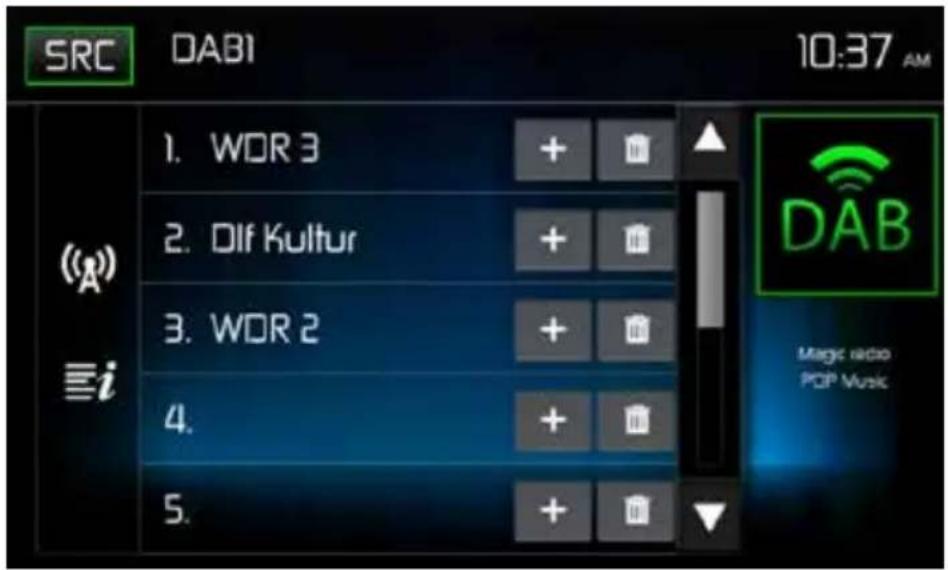
Select a position. Press on the plus icon of the desired position.
The station is now saved at the desired position.
Here in the example, the station "SCHLAGERPARADIES" is at position 4.
CALLING UP THE STORED STATIONS
Press the icon "Station list" in the menu bar at the bottom right.
Press on the ★ icon, and then the desired station.
Press on the DAB icon to return to the DAB menu.
DELETING STORED STATIONS
Press the icon "Station list" in the menu bar at the bottom right.
Press on the 📄 icon to delete the respective position.
STATION SEARCH ACCORDING TO PROGRAM TYPE
In the DAB menu, press on the PTY icon in order to open the search menu.
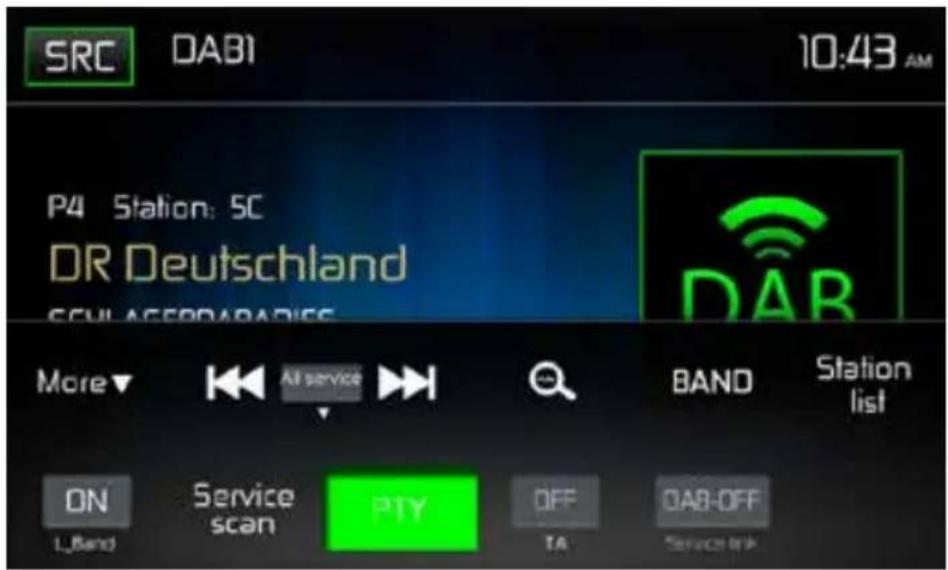
Touch a category. The search for respective stations starts and stops once a station has been found.
MP3 Operation
MP3 is a format for storing digital audio. An audio CD-quality song can be compressed into the MP3 format with very little loss of quality, while taking up much less space.
MP3 Format Compatibility
The file naming formats listed below are compatible with this unit:
- ISO 9660 – file name: 12 characters, file extension: 3 characters
- ISO 9660 – file name: 31 characters, file extension: 3 characters
- Joliet – 64 characters
If the file or folder name does not conform to ISO 9660 file system standards, it may not be displayed or played back correctly.
Use the following settings when converting audio data for your USB stick:
• Transfer Bit Rate: 128kbps
• Sampling Frequency: 48kHz
MP3 Playing Order
When selected for play, files and folders are accessed in the order they were written on the USB stick. As a result, the order in which they are expected to be played may not match the order in which they are actually played. You may be able to set the order in which MP3/WMA files are to be played by writing them onto a USB stick with their file names beginning with play sequence numbers such as "01" to "99".
USB OPERATION
The unit will read the audio/video files on USB sticks automatically.
NOTE: USB sticks must be formatted to FAT32.
Inserting/Removing a USB Device or microSD Card
Note: The microSD card slot on the front panel is used for the navigation software only. The USB input is located on the rear of the device.
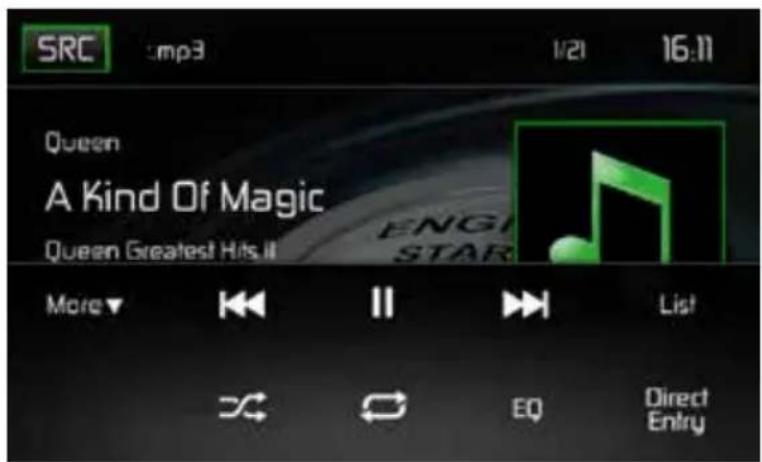
USB Operation
From the main menu screen touch the USB icon.
USB Main Menu
The on-screen icons and touch key areas are outlined below.
USB Main Menu
SRC Icon: Touch this icon to return to the Main Menu Screen.
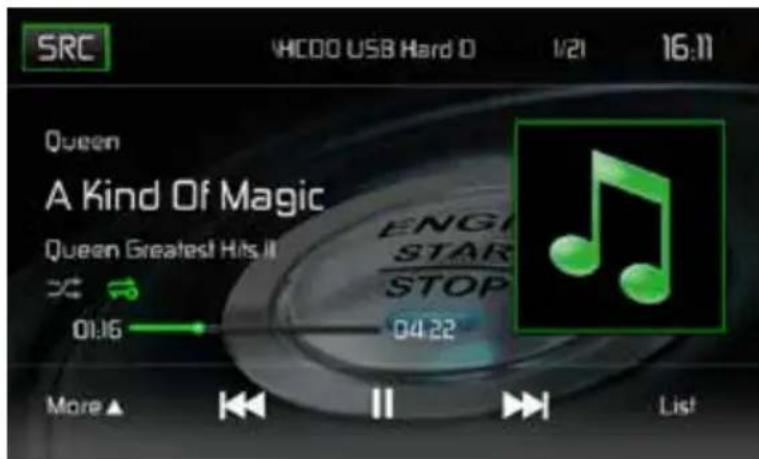
Display: Displays current track information.
Track Number: Lists the current audio track playing and the total number of audio tracks in audio mode. Lists the current video folder and the total number of video folders in video mode.
Time Display: This indicator displays the time as entered by the user in the Settings Menu.
More (▲/▼): Touch the ▲/▼ icons to display the next or previous page of the USB menu.
(◀◀) Previous: Touch this icon to play the previous track.
(▶/II) Play/Pause: Touch this icon to begin playback. Touch this icon again to pause playback.
(▶▶) Next: Touch this icon to play the next track.
List: Touch this icon to access the list of audio and video files contained on the USB device. Touch a folder icon and the contents of the folder will be displayed. Touch a desired track icon twice and the track will begin playing.
(✗) Shuffle: Touch this icon to play audio or video tracks in a random order. The icon will light on the main TFT LCD screen.
(○) Repeat:
In audio mode touch this icon to repeat playback of the current audio track. The icon on the main TFT LCD screen will light and a small letter A will appear below the icon and all the audio tracks will repeat.
Touch this icon again and the content of a folder will repeat. The icon [ ⟶ ] will appear.
Touch this icon again and single track will repeat. The icon on the TFT LCD screen will light and small number 1 will appear below the icon.
Touch the icon again the repeat function will be cancelled. The icon on the main TFT LCD screen will dim and playback of the remainder of the tracks will resume.
In video mode touch this icon during playback to repeat the current track. The icon on the main TFT LCD screen will light and small number 1 will appear below the icon and the track will repeat. Touch the icon again to repeat all the tracks will repeat. The icon on the main TFT LCD screen will light and small letter A will appear below the icon and all the tracks will repeat.
Touch the icon again the repeat function will be cancelled. The icon on the main TFT LCD screen will dim and playback of the remainder of the tracks will resume.
( EQ ) Equalizer: Touch this icon to access the Equalizer Control Menu.
Direct Entry: Touch this icon to the display the Direct Entry Screen.
USB Micro SD List
Touching the List icon will display the USB List Screen. The USB List Screen illustrates the audio and video files present in the USB device. The contents are divided into folders and various file types. The file types consist of audio and video files. Touching the folder icon will display the files present in the folder.
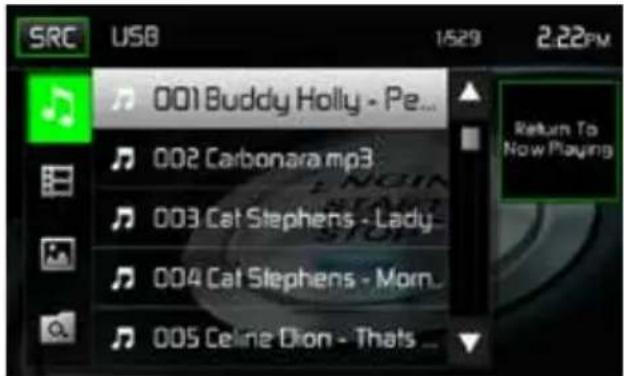
USB List Screen
(♪) Audio Files: Touch the audio file icon to display the audio files. Touch the audio file icon to select a track. Touch the audio file icon again to confirm and playback will begin.
(日) Video Files: Touch the video file icon to display the video files. Touch the video file icon to select a video file. Touch the video file icon again to confirm and playback will begin.
( ) Image Files (JPEG etc): Touch the image icon to display a folder or individual JPEG files. Touch the image icon to select a folder or an individual JPEG file. In the case of a JPEG folder touch the folder icon twice and the contents of the folder will be displayed. Touch the JPEG image icon to select and view an individual JPEG file.
( ) Folders: Touch the icon to display the folder/file hierarchy. Touch the folder icon and the contents of the folder will be displayed. Touch the file's icon to select a file. Touch the icon again to confirm and open the file.
Direct Entry
When the Direct Entry icon is touched the Direct Entry Screen appears. The user can manually select a track by touching the corresponding number. After entering the track numbers touch the OK icon. If a wrong digit is entered touching the arrow will remove the number. After touching OK playback will begin.
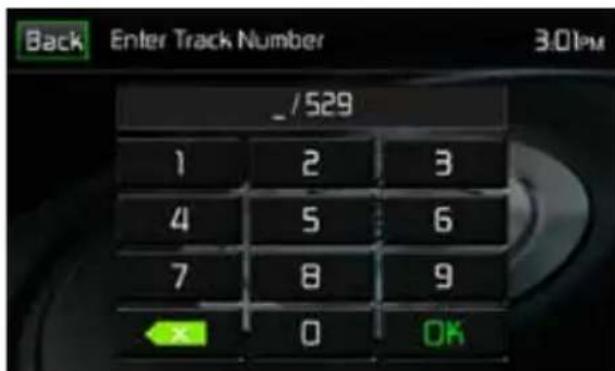
USB Track Direct Entry Screen
Moving through Tracks
Touch the Next (▶)icon to advance to the next track on the USB device.
Touch the Previous (◀◀) icon to move to the previous track on the USB device.
Pausing Playback
Touch the Play/Pause (▶)icon to suspend or resume playback.
PIC: When the PIC icon is touched the picture adjust screen appears. Touch this icon during playback to adjust the color brightness, contrast, saturation and hue. The levels can be adjusted to suit the users preferences. The adjustments are accomplished by touching the + or - icons to decrease or increase the desired setting. The settings have range of 1 to 20.
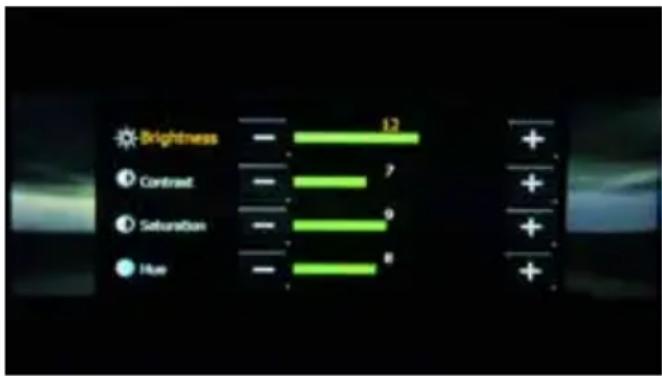
bar
| Category | Value | |---|---| | Brightness | 12 | | Contrast | 7 | | Saturation | 9 | | Hue | 8 |USB Picture Adjust Screen
Note: The Picture Adjustment Screen will turn OFF automatically if no adjustment is made within five seconds or if any other part of the screen is touched.
AV-IN OPERATION
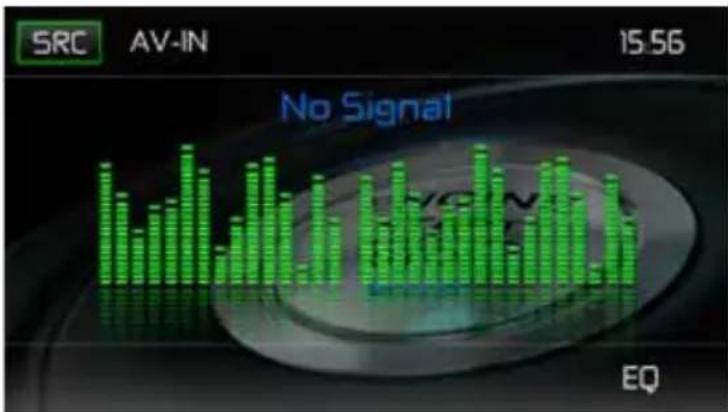
bar
| Channel | Value | | ------- | ----- | | 1 | 15.56 |AV-IN
AV-IN is used for playback of audio/video from an external device connected through RCA connectors located on the back of the unit. The unit can increase or decrease the volume of the connected device. All other controls are done on the connected device.
Note: Audio/Video device must be connected to the unit using an audio/video adapter cable that is available separately.
Note: Video will only play when the vehicle parking brake is engaged. This is designed to meet European standards and laws. The brake must be connected for this feature to operate.
NOTE: The distance between this unit and your cellular phone must be 8 feet (2.4 meters) or less for sending and receiving voice and data via Bluetooth wireless technology.
Please make sure your mobile phone supports Bluetooth® functions (Headset or Handsfree profiles or both). Adhere to the following guidelines for successful operation.
- Before using Bluetooth® functions, you must pair your mobile phone to the MAC 520 DAB head unit (see "Pairing the Bluetooth® System with Your Mobile Phone and Head Unit"). To ensure the best reception for pairing and re-connection, please make sure the mobile phone battery is fully charged before you begin.
- Try to perform pairing within a few minutes of the mobile phone being turned on.
- Once the unit has been paired with the mobile phone, the unit's model number, "MAC520DAB", will be displayed on the mobile phone.
- To achieve the best performance, always keep the mobile phone within 3 meters of the head unit.
• Always keep a clear path between the mobile phone and the head unit. Never place a metal object or any other obstacle between the mobile phone and the head unit. - Some mobile phones may have a "Power Saving Mode" option. PLEASE DO NOT use the power saving mode with the MAC 520 DAB.
- Before accepting or making a call, make sure your mobile phone's "Bluetooth® function" is turned on.
- To ensure the best conversation quality/performance, stay within one meter of the microphone when talking.
- To manually disconnect the mobile phone from the head unit, press the "Chain Link" icon on the Bluetooth® user interface (next to the mobile phone name) and the Bluetooth® will be "disconnected", but still paired.
Bluetooth User Interface
The on-screen icons and information for Bluetooth® functions are outlined below.
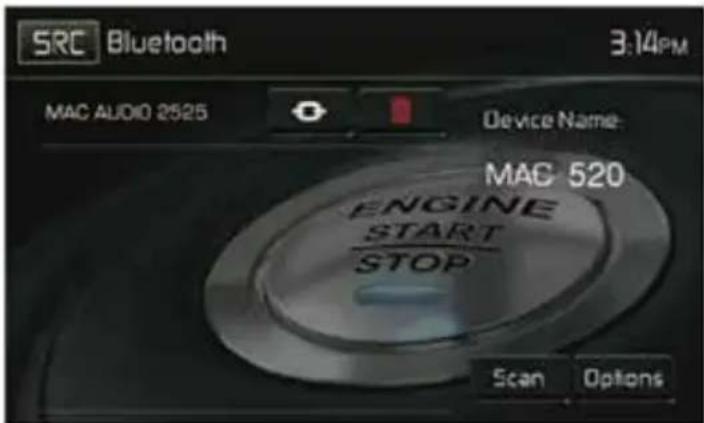
Bluetooth User Interface Screen
SRC Icon: Touch this icon to return to the Main Menu Screen.
Bluetooth: Displays the current source.
MAC AUDIO 2525: Indicates the device that is paired with the unit.
(●): Indicates whether the unit is connected with a Bluetooth® device. Touch to connect to a Bluetooth® device.
(☐): Touch to disconnect from a Bluetooth® device.
MAC520DAB Device Name: Provides the name that will appear on the Bluetooth® device.
Scan: Touch the icon to search for Bluetooth® devices.
Options: Touch to display the Bluetooth® options page.
The user can make or receive phone calls with BT enabled phones through the unit. The user can also listen to music from a BT enabled device.
Pairing BT Devices
To connect your BT phone to the unit, the user needs to pair the phone to the unit. Pairing only needs to be done once per phone. The user can pair up to five (5) phones. Use your mobile phone to begin the BT pairing process.
- Touch the MENU button on the front panel to access the source menu.
- Touch the BT icon on the source menu and the Bluetooth® user interface screen will appear.
- Touch the Options icon and the following screen will appear:
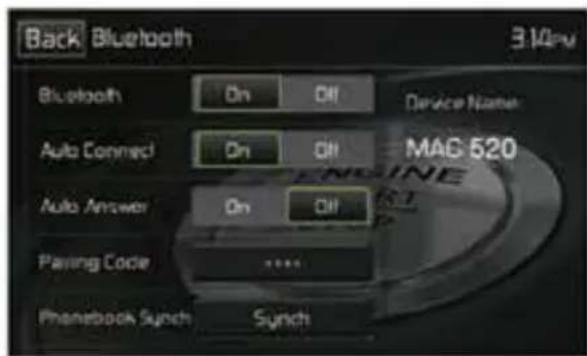
Bluetooth Option Menu
- On the Options submenu set the Bluetooth function to ON.
- On the Options submenu set the Auto Connect function to ON.
- Set the mobile phone Bluetooth® discover mode to ON.
Note: Some discovery modes have a time limit usually a minute before they are automatically turned OFF.
- Touch the "Scan" icon on the unit's Bluetooth® user interface screen. Available devices will appear with the "Pair" icon next to it.
- Touch the "Pair" icon on the unit's Bluetooth® user interface screen.
- A prompt to pair or bond should appear on your mobile phone. Accept the request and initiate the process.
NOTE: Some mobile phones require a “pass key” or pairing code to connect. If your phone requires a pass key or pairing code, you will need to enter this number. The default pairing code for many mobile phones is “0000”. The default code for the unit is “0000”.
- A prompt to enter a PIN number or passkey for the unit should appear. The default passkey for the unit is "0000".
- At this point a prompt stating pairing successful should appear. Another prompt should appear asking connect to the unit, Yes or NO. Touch Yes. The mobile phone and the unit should connect. The mobile phone should display a message similar to "Device Connected" and the mobile phone and the unit are now connected. MAC520DAB will appear on the mobile phone list of devices.
Managing Incoming Calls
When connected to a Bluetooth® mobile phone, the unit will mute audio output, pause CD play, and change to the Bluetooth® screen below when a call is received. The incoming phone number or assigned name for that number will appear on the screen. An audible tone will sound from the unit and a graphic display will appear on the front panel.
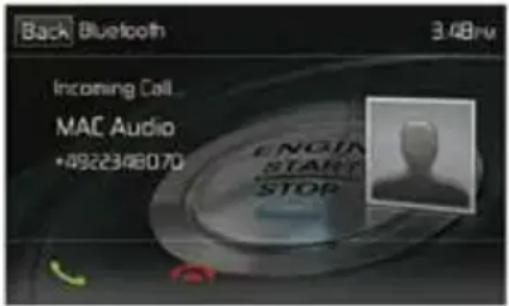
Bluetooth Incoming Call Screen
- icon: Touch to answer an incoming call.
- 📞 icon: Touch to end an incoming call.
Making an Outgoing Call
Outgoing calls can be performed in two manners. The outgoing call can be direct dialed using the front panel keypad or by touching either the Phonebook or Call History icons, selecting a name and touching the phone number.
Direct Dialing:
- Press the front panel MENU button and then touch the BLUETOOTH icon to access the Bluetooth® main menu. The following screen will appear:
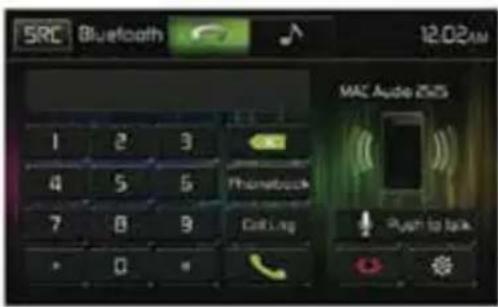
Bluetooth Direct Dial Screen
- Use the 0-9, */+, and # icons to input the phone number. If necessary touch the green arrow icon to clear the last digit or the entire number and start over.
- After entering the phone number, touch the 🔔 icon to dial the call. The number dialed will be displayed on the screen.
- To end the call, touch the icon.
Answering an Incoming Call
To answer an incoming call touch the icon. For best reception, speak loudly and clearly into the units microphone. To end the conversation, touch the icon.
Rejecting an Incoming Call
Touch the To Phone icon to reject an incoming call. The call will revert to your mobile phone and be left for voice mail.
Volume Control
To increase or decrease the volume level of an incoming call, turn the rotary knob on the front panel or press the VOL+/VOL- icons on the remote control.
Audio Mute
To mute the phone call audio from the unit when a call is received, press the front panel rotary knob. Press the front panel rotary knob again and phone call audio will be restored to the unit.
Call Log
The call log consists of dialed numbers, received calls and missed calls (in the car).
Note: Not all wireless phones allow access to missed, received or dialed calls and some will not allow uploading of your wireless phone's address book.
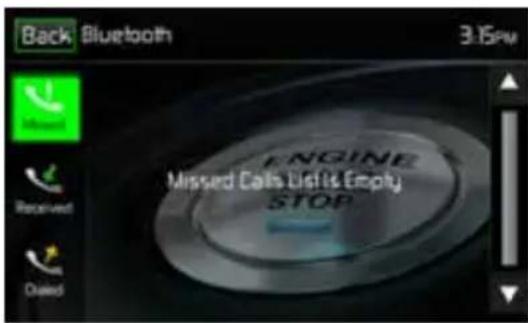
Bluetooth Call Log Screen
Missed Calls List: The Missed Calls List retrieves the list of missed numbers from your wireless phone if your wireless phone allows the function. The last missed number is the first number on the list. Touch the Missed Calls menu option to view the list. To make a call from the Missed Calls list, touch the call's name. Touch the phone number and it will be dialed.
Received Calls: The Received Calls list retrieves the received numbers stored on your wireless phone if your wireless phone allows the function. To access the Received list, touch the Received Calls menu option. The last received number is the first number on the list. To make a call from the Received Calls list, touch the name. A new screen will appear with the name on the top and the phone number below. Touch the phone number and it will be dialed.
Dialed Calls: The Dialed Calls list retrieves the list of dialed numbers from your wireless phone if your wireless phone allows the function. The last dialed number is the first number on the list. Touch the Dialed Calls menu option to view the list. To make a call from the Dialed Calls list, touch the name. A new screen will appear with the name on the top and the phone number below. Touch the phone number and it will be dialed.
Call Transfer
While talking, to transfer audio from the unit back to the mobile phone, touch the To Phone icon. You can only transfer a call after it has been answered. Touching the To Device icon will return the audio from the mobile phone to the unit.
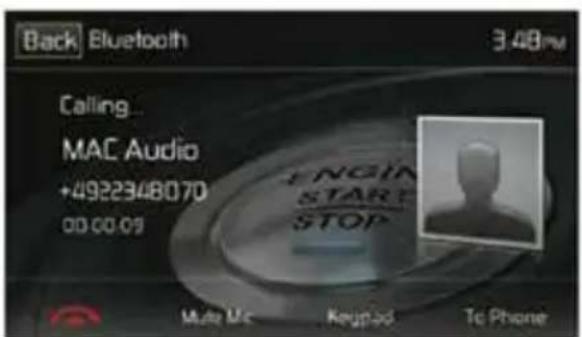
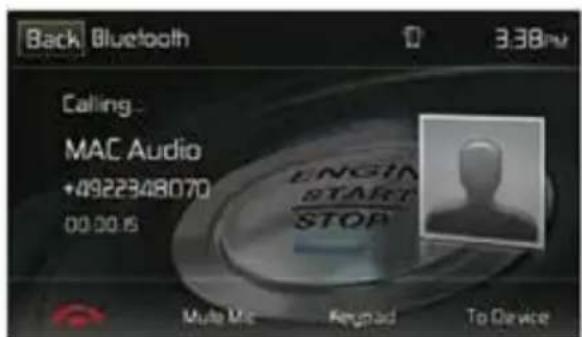
Transfer to Phone Screen Transfer to Radio Screen
Push to Talk
Press this button to enable the voice control function of the mobile. The voice control function is dependent on the software of each mobile. Please make sure the mobile is connected to the Internet.
Bluetooth Music Function
Bluetooth® provides an Advanced Audio Distribution Profile (A2DP) profile for streaming music from a mobile phone or a portable multimedia player (PMP), sometimes referred to as a MP3 player. The unit allows you to play back audio files from your mobile phone or a PMP using a Bluetooth® connection.
Note: Please quit A2DP mode before attempting to make a phone call, as unexpected results may occur depending on your mobile phone model.
The unit can control a Bluetooth® audio player via Advanced Audio Distribution Profile (A2DP) or Audio/Video Remote Control Profile (AVRCP). Bluetooth® audio players (or Bluetooth® adapters) compatible with these profiles can be connected to this unit. The following screen is used for streaming music.
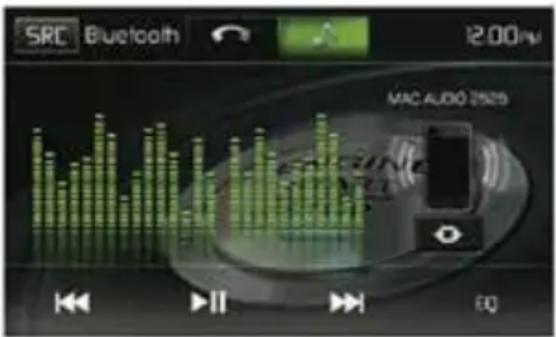
Bluetooth Audio Control Screen
While listening to audio the following functions are available:
- Pause/Play( ▶II ) icon: Touch to pause playback. Touch again to resume playback.
- Previous (◀◀) icon: Touch to play the previous track.
- Next (▶) Icon: Touch to play the next track.
Functionality varies depending on the profile used:
- A2DP: Stream audio from your Bluetooth® compatible audio player and listen to the music through the unit.
- AVRCP: Play back, pause, select songs, etc. while streaming audio from your Bluetooth® compatible audio player to the unit.
Note: Song information (e.g. elapsed playing time, song title, song index, etc.) cannot be displayed on this unit. Since there are a number of Bluetooth® audio players available on the market, operations with your Bluetooth® audio player while using this unit may vary greatly. Please refer to the instruction manual that came with your Bluetooth® audio player.
When there is an incoming call, the song will be paused. After the incoming call is finished, the screen will return to the music function screen and playback will continue.
Hands-Free Microphone
The enclosed hands-free microphone should be installed in your vehicle in an accessible location that provides optimum voice reception. For best reception, speak loudly and clearly.
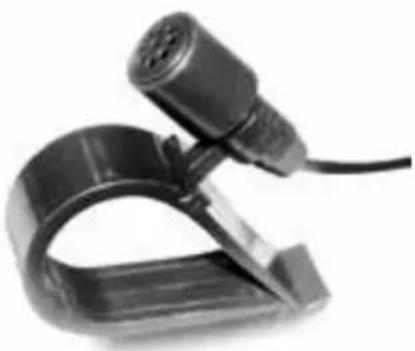
natural_image
Close-up of a black plastic clamp with a connector and cable, no visible text or symbolsHands-Free Microphone
NAVIGATION QUICK START
The MAC 520 DAB is "navigation ready." Before accessing any navigation features, you must purchase the navigation kit MAC 500 NAV-SET.
The following procedure provides a quick overview of the Navigation mode. A complete Navigation Manual is available on our website www.mac-audio.de.
NOTE: Before operating your iGO Primo 2 software, please carefully read and follow the instructions provided in the Navigation Owner's Manual. Make sure that you are familiar with the system's features and know how to operate the system.
Step 1 - Access the navigation function:
You can access the navigation function by pressing the MENU button and then the Navigation icon in the Main Menu.
Step 2 - Start Up/Access the Main Menu:
When using the navigation software for the first time, the initial setup process starts automatically. Do as follows:
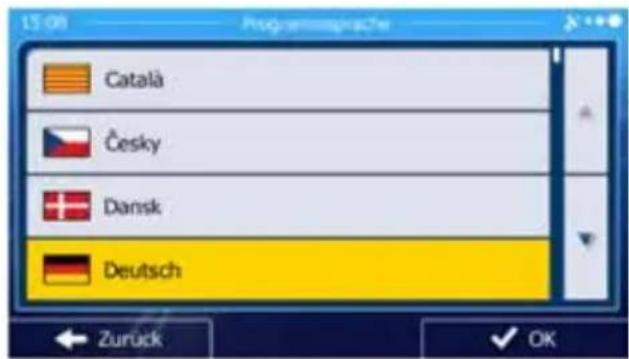
Select the written language of the application interface.
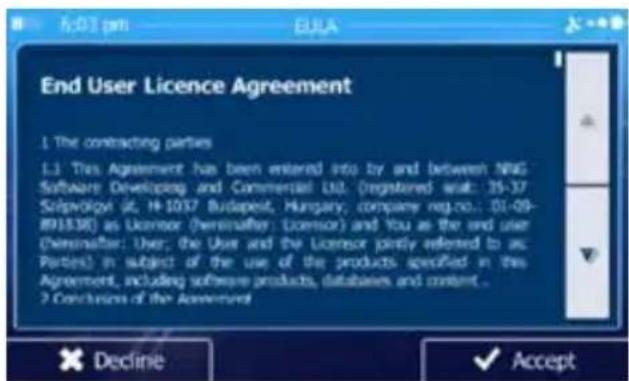
Read the End User Licence Agreement. Press to continue:
- You are now asked whether you allow the software to collect usage information and GPS logs that may be used for improving the application and the quality and coverage of maps. Press to allow the anonymous statistics or disable this function. Later you can turn
them on or off individually in Log collection settings
- The Configuration wizard starts. Press

to continue.

Select the language and speaker used for voice guidance messages.

If needed, modify the time format and the unit settings. You can also change them later in REGIONAL SETTINGS.

If needed, modify the default route planning options. You can also change them later in ROUTE SETTINGS.
The Initial Setup is now complete. The Configuration wizard can be restarted later from the Settings menu.
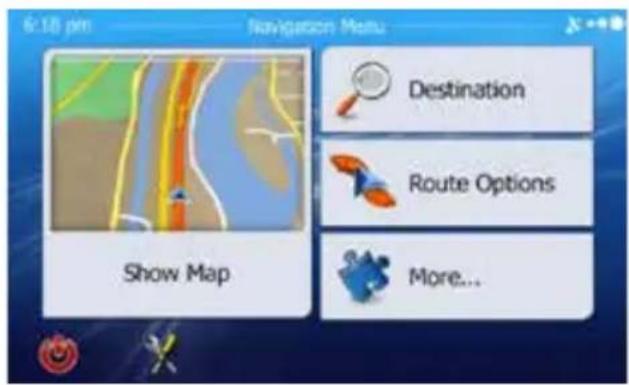
After the initial setup is completed, the Navigation menu appears:
Step 3 - Select a Destination:
You have many ways to select a destination. Select by touching screen:
Address: Tap FIND and then FIND ADDRESS. Travel to address entered using on-screen keypad.
Point of Interest: Press FIND and then FIND PLACES. Browse or search for point of interest.
History: Press FIND to see previous destinations.
Favourites: Press FIND and then FAVOURITES. Travel to favourite location.
Coordinates: Travel to a destination specified by coordinates. Press FIND, MORE, and then COORDINATE.
Place on Map: Press FIND and then FIND ON MAP. Browse the map to choose the destination and press the desired destination on the touchscreen. Press SELECT and the system will calculate a route to that destination.
Step 4 - Map/Guide Along Route
Proceed to the highlighted route and drive while the iGo primo 2 software provides guidance to your destination.
Step 5 - Arriving at Your Destination
When you are near your destination, the destination is indicated by a checkered flag symbol ☐.
Exiting the navigation mode
Press ON/OFF icon in the Main Menu of the navigation system to exit the navigation mode.
Latest Map Guarantee
To get the latest map data you have 30 days from the first GPS positioning to download the data free of charge from the website www.naviextras.com.
To get the updated map data, you need to download the Toolbox software from the website www.naviextras.com and a micro USB card reader.
Generate a backup of the navigation SD card before you update the map data.
This unit is "camera ready." Before accessing any camera features, you must install a rear video camera.
When the camera is not installed and the function is accessed by the gear selector being placed in reverse or by the unit's menu, the message "No Signal!" will be displayed and the following screen will appear.
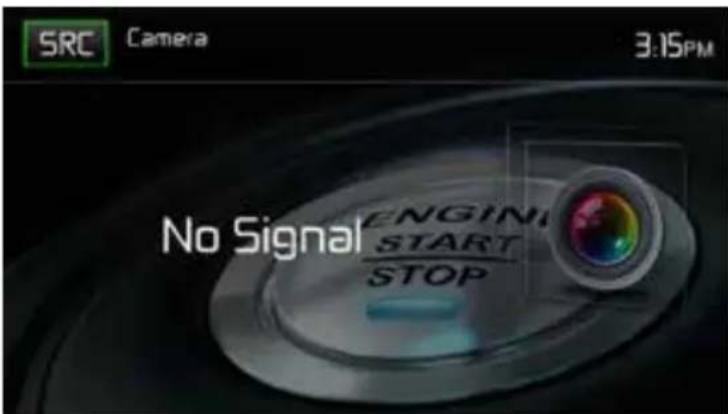
Rear Camera Screen
When the camera is installed, the rear view image of what is behind the vehicle will appear when the vehicle is placed in reverse gear. When leaving reverse gear, the unit displays the previous screen.
STEERING WHEEL CONTROLS (SWC)
(if equipped)
The MAC 520 DAB is compatible with following steering wheel control adapters: Dietz UNICAN + cable, PAC (Pacific Accessory Corporation) SWI-PS and Metra ASWC. A 3.5 mm female connector (labeled "SWC Interface") on the back of the head unit allows connectivity to the adapters. Please refer to the instructions included with the adapters for detailed installation information.
Note: Not all OE steering wheel functions may be supported by the MAC 520 DAB.
The following controls are available for most vehicles:
| 1. Volume Up (+) 4. Seek Up (Next) 7. Preset (+) 10. Call/reject | |||
| 2. Volume Down (-) 5. Seek Down (Prev) 8. Preset (-) 11. Navigation | |||
| 3. Mute 6. Source 9. Band 12. Undefined | |||
To access the SWC Controls for programing, touch the SWC icon on the second page of the Main Source Menu.
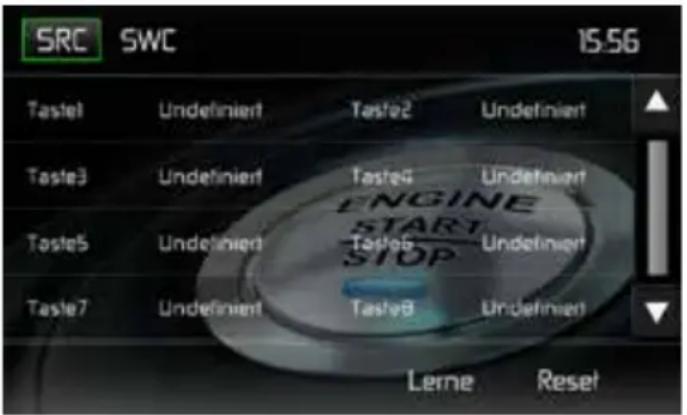
Up to 8 steering wheel control functions can be programmed via the built-in SWC interface. Not all functions may be supported for each vehicle.
- Popular OE steering wheel functions are already pre-programmed from the factory. If your vehicle does not support the exact same functions already pre-programmed, you will need to clear / reset the SWC interface and program in the exact functions of your vehicle. To clear / reset the SWC interface, press and hold "Reset" for 2 seconds.
- To begin programming the SWC interface after it has been cleared / reset, press a key 1 \~ 8, then press a function. The name of the selected function should appear next to the Key number programmed (Key 1 Volume +, etc.). Continue programming in this manner until all of the OE steering wheel control functions are completed.
Note: Functions 1 \~ 8 must be assigned to a function on the OE steering wheel. For example, if the OE steering wheel does not support Preset + and Preset -, then these functions must be cleared / reset in order for the other functions to work correctly.
-
To "learn" the programming completed in step 2 above, press the "LEARN" icon. You will then be prompted to push each button on the OE steering wheel (for 1 second), so the unit can learn the corresponding function.
-
SWC learning / programming is now complete.
TROUBLESHOOTING
| Problem Cause Corrective Action | ||
| GENERAL | ||
| Unit will not power on Radio Fuse open Install new fuse with | correct rating | |
| No/low audio output Improper audio output connection Check wiring and correct | ||
| Poor sound quality or distortion | Pirated disc is in use Use original copy | |
| Speaker power rating not compatible with unit | Connect proper speakers | |
| Speaker is shorted Check speaker contact | ||
| Unit resets itself when engine is off | Incorrect connection between ACC and positive battery wire | Check wiring and correct |
| TFT Monitor | ||
| No image Incorrect connection to parking brake wire | Check wiring and correct | |
| Flashing image or interference appears on screen | Improper video signal connections Check wiring and correct | |
| Prolonged image or improper height/width ratio display | Improper aspect ratio setup | Use correct aspect ratio setting |
| TUNER | ||
| Weak station searching | Auto antenna is not fully extended Extend | antenna fully or connect the auto antenna control cable properly |
| Auto antenna not properly connected O | connect the auto antenna control cable properly | |
| LOCAL function is activated Turn LOCAL function off | ||
| MP3 | ||
| Interruption occurred during playback | File is damaged/bad recording Recreate | USB stick with good files |
SPECIFICATIONS
Video
Input: 1Vp-p (75-ohm)
Format: NTSC, PAL (auto-detection)
Output: 1Vp-p (75-ohm)
FM tuner
Tuning Range: 87.5MHz - 108MHz
Mono Sensitivity (-30dB): 9dBf
Quieting Sensitivity (-50dB): 15dBf
Alternate Channel Selectivity: 70dB
Signal to Noise Ratio @ 1 kHz: 58dB
Image Rejection: 80dB
Stereo Separation @ 1 kHz: >30dB
Frequency Response: 30Hz - 15 kHz, -3dB
AM tuner
Tuning Range: 530 kHz - 1620 kHz
Sensitivity (-20dB): 15uV
Signal to Noise Ratio @ 1 kHz: 50dB
Image Rejection: 60dB
Frequency Response: 50Hz - 2 kHz, -3dB
DAB+ Tuner
BAND III (Europe): 174.928 MHz -239.200 MHz (channel 5A - channel 13F)
L-BAND (Europe): 1.452960 GHz - 1.490624 GHz (channel LA – channel LW)
Sensitivity: -100 dBm (Band III) / -100 dBm (L-BAND)
Tuning precision: 40dB
DAB antenna connector type: FAKRA
USB Interface
Rear USB 2.0 input with 500 mA charge current
Max. USB Stick size: 32 GB
Multimedia Audio files: MP3, AAC, WAV, WMA
Multimedia Video files: MPEG1, MPEG2, MPEG4, H.264, AVI, FLV, JPEG, PNG, GIF
Max. resolution: 1080 p
Max. bit rate: 40 Mbps
Bluetooth module
MTK Bluetooth Chip MT6622
BT 2.1 standard
AVRCP profile (Audio/Video remote Profile)
A2DP profile (Advanced Audio Distribution Profile)
Automatic pairing of up to 5 mobile phones
GPS receiver
Antenna connector type: FAKRA
NAV ready: Navigation possible with separately available navigation kit MAC 500 NAV-SET
Monitor
Screen Size: 17 cm / 6.8" (Measured diagonally), 16:9 Widescreen
Screen Type: TFT Liquid Crystal Display (LCD) active matrix
Resolution: 1,152,000 pixels, 800W (x3) X 480H WVGA
General
5 Line audio outputs: 2x front, 2x rear and subwoofer (4 V RMS / 200 ohms)
10-band equalizer
Power Output: max. 4 x 50 Watt (total: 200 Watt)
Power Supply: 11 to 16VDC, negative ground
Power Antenna (Blue): 500mA max, current limited protection
Operating Temperature: 0°C \~ 60°C
Fuse: 15 Ampere, Mini ATO
DIN chassis dimensions: 178 x 100 x 162 mm
Weight: 2,0 kg (incl. all cable adapters and DAB+ antenna)
*Specifications subject to change without notice.
CARE AND MAINTENANCE
-
Use only a clean silicone cloth and neutral detergent to clean the front panel or monitor. A rough cloth and non-neutral detergent (such as alcohol) may result in scratching or discoloration.
-
Do not get water or cleaning fluids on the unit.
-
If the temperature inside the player gets too hot, a protective circuit automatically stops play of the disc. If this occurs, allow the unit to cool before operating the player again.
-
Never insert anything other than a 12 cm (5") compact disc into the player as the mechanism can be damaged by foreign objects.
-
Do not attempt to use a 8 cm (3") CD-Single disc in this unit, either with or without an adaptor, as damage to the player and/or disc may occur. Such damage is not covered by the Warranty on this product.
-
The CD player may not operate properly in extreme hot or cold. If such conditions occur, allow the interior of the vehicle to reach a normal temperature before using player.
-
When the vehicle warms up during cold weather or under damp conditions, condensation may appear on the LCD panel. Should this occur, the screen will not operate properly until the moisture has evaporated.
-
We suggest you use a cleaning disc in this unit more frequently than in the unit in your home due to the environmental conditions of the vehicle.
DÉCLARATION DE CONFORMITÉ CE
Screen 1 Screen 2
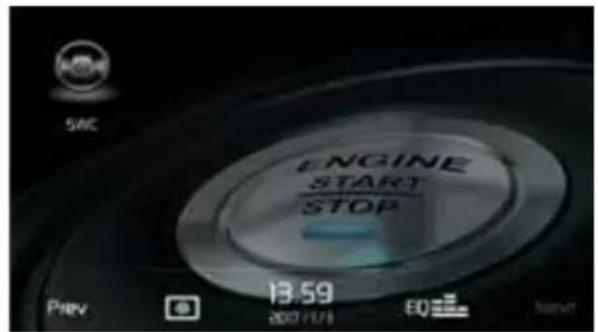
Equalizer Adjustment Screen
Écran d'étalonnage
EON (Enhanced Other Networks)
natural_image
Close-up of a black electronic device's front panel showing control buttons and a grid icon (no readable text or symbols)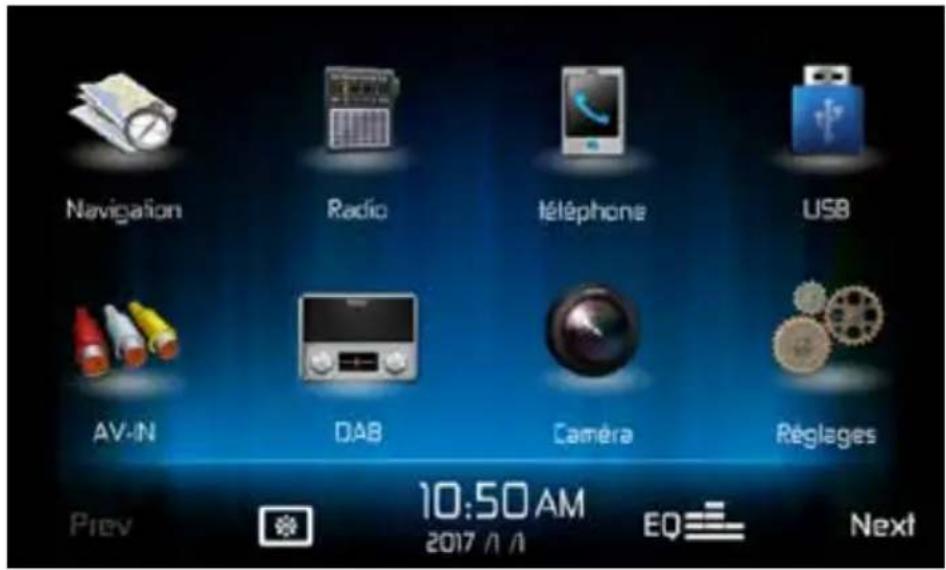
MÉMORISATION AUTOMATIQUE
bar
| Category | Value | |---|---| | Brightness | 12 | | Contrast | 7 | | Saturation | 9 | | Hue | 8 |Écran de composition directe Bluetooth
natural_image
Close-up of a black plastic clamp or clip device with a cable, no visible text or symbolsMicrophone mains-libres
DÉMARRAGE RAPIDE DE LA NAVIGATION
Profile AVRCP (Audio/Video remote Profile)
Profile A2DP (Advanced Audio Distribution Profile)
Récepteur GPS
MAC 520 DAB Controls and Indicators
Screen 1 Screen 2
MAC 520 DAB Schermata del menu principale
EON (Enhanced Other Networks)
Schermata PTY
natural_image
Close-up of a black electronic device's right-hand panel showing control buttons (power, location, grid) with no visible text or symbols.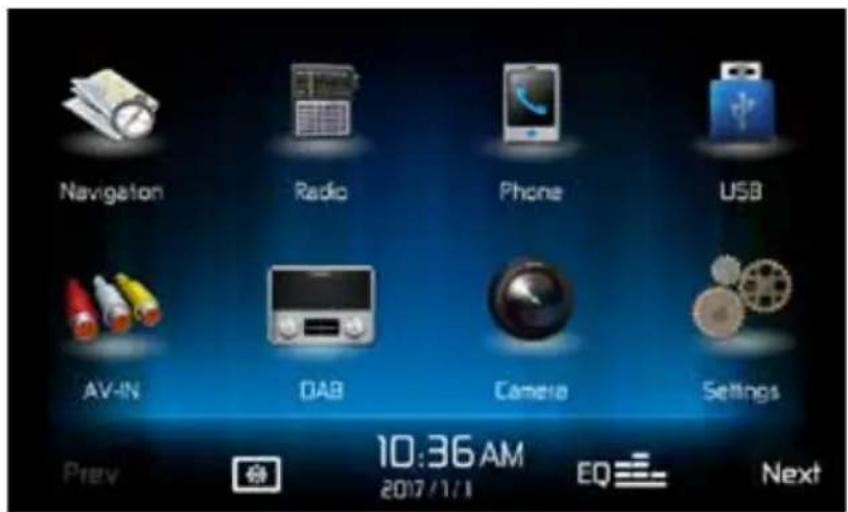
Funzionamento MP3
Menu principale USB
bar
| Category | Value | |---|---| | Brightness | 12 | | Contrast | 7 | | Saturation | 9 | | Fluor | 8 |natural_image
Close-up of a black plastic clamp with a connector and cable (no visible text or symbols)Microfono vivavoce
Leggi End User Licence Agreement. Premi per continuare:
Max. bit rate: 40 Mbps
Bluetooth Modul
MTK Bluetooth Chip MT6622
BT 2.1 Standard
Profilo AVRCP (profilo remoto audio / video)
Congratulations! You have made a wise selection in becoming the owner of a MAC AUDIO Mobile Video equipment. Due to high quality MACAUDIO Mobile Video products have earned an excellent reputation through the western world. And this high quality standard enables us to grant a 2-years warranty for MACAUDIO Mobile Video products.
The equipments are checked and tested continuously during the entire production process. In case you have problems with your MAC AUDIO HiFi equipment, kindly observe the following:
- The guarantee period commences with the purchase of the component and is applicable only to the original owner.
- During the guarantee period we will rectify any defects due to faulty material or workmanship by replacing or repairing the defective part at our discretion. Further claims, and in particular those for price reduction, cancellation of sale, compensation for damages or subsequential damages, are excluded. The guarantee period is not altered by the fact that we have carried out guarantee work.
- Unauthorized tampering with the equipment will invalidate this guarantee.
- Consult your authorized dealer first, if guarantee service is needed. Should it prove necessary to return the component to the factory, please insure that • the component is packed in original factory packing in good condition • the quality control card has been filled out and enclosed with the component • your enclose your receipt as proof of purchase.
- Excluded from the guarantee are: • Illuminates • Wear parts • Shipping damages, either readily apparent or concealed (claims for such damages must be lodged immediately with forwarding agent, the railway express office or post office). • Scratches in cases, metal components, front panels, etc. (You must notify your dealer directly of such defects within three days of purchase.) • Defects caused by incorrect installation or connection, by operation errors (see operating instructions), by overloading or by external force.
- Equipments which have been repaired incorrectly or modified or where the case has been opened by persons other than us. • Consequential damages to other equipments. • Reimbursement of cools, without our prior consent, when repairing damages by third parties • Batteries and battery packs.
F


- EON (Enhanced Other Networks)
- INTENDED USE
- DECLARATION OF CONFORMITY CE
- CONTENTS
- SAFETY PRECAUTIONS
- GENERAL INFORMATION
- FEATURES
- MP3 / WMA
- AM / FM Tuner
- DAB+ Tuner
- NAV ready
- Bluetooth®
- Monitor
- Chassis
- Personal Color Adjustment (Color illustrations / background)
- Wallpaper Selection:
- General
- OPTIONAL EQUIPMENT
- Rear Camera RVC1
- FRONT PANEL CONTROLS AND INDICATORS
- EXTERNAL DEVICES
- AV-IN
- QUICK START GUIDE
- Turning the Unit ON or OFF
- Selecting an Audio/Video Source, Bluetooth, Steering Wheel Controls or Backup Camera
- System Settings Adjustment
- Volume Adjustment
- Muting the Audio
- Equalizer Controls
- Resetting the System
- Parking Brake Inhibit
- Adjusting Equalizer Controls
- Equalizer (EQ) (10 Band)
- User Settings
- Flat Setting
- Loudness Setting
- Exiting the Equalizer
- Fader-Balance
- Balance
- Fader
- Sub (Subwoofer)
- Exiting the Balance-Fader
- SYSTEM SETTINGS
- Adjusting a Sub-Menu feature
- General Sub-menu features
- Calibration
- Audio Sub-menu features
- Time Sub-menu features
- Language Sub-menu features
- BLUETOOTH Sub-menu features
- RESET Sub-menu features
- VOLUME Sub-menu features
- VERSION Sub-menu features
- Exiting the System Settings Menu
- Radio Tuner TFT Display
- Option Screen
- RDS Basics
- AF
- TA
- VOL (TA Volume)
- CT ON/OFF
- PTY
- Direct Entry Tuning
- Using Preset Stations
- Storing a Station
- Recalling a Station
- Auto Store (AS)
- Local/Distance Radio Station Seeking
- DAB MODE
- DAB -MENU
- SERVICE LINK SETTINGS
- STATION SEARCH
- SERVICE SCAN
- AUTOMATIC SAVING
- OTHER SEARCH FUNCTIONS
- DISPLAY THE STATION LISTS WITH DISPLAY OF THE STATION GROUP
- DISPLAY OF THE STATION LISTS
- FAVOURITE LISTS / MANUAL SAVING
- SAVING
- CALLING UP THE STORED STATIONS
- DELETING STORED STATIONS
- STATION SEARCH ACCORDING TO PROGRAM TYPE
- MP3 Operation
- MP3 Format Compatibility
- MP3 Playing Order
- USB OPERATION
- Inserting/Removing a USB Device or microSD Card
- USB Main Menu
- (○) Repeat:
- USB Micro SD List
- Direct Entry
- Moving through Tracks
- Pausing Playback
- AV-IN OPERATION
- NOTE: The distance between this unit and your cellular phone must be 8 feet (2.4 meters) or less for sending and receiving voice and data via Bluetooth wireless technology.
- Bluetooth User Interface
- Pairing BT Devices
- Managing Incoming Calls
- Making an Outgoing Call
- Direct Dialing:
- Answering an Incoming Call
- Rejecting an Incoming Call
- Volume Control
- Audio Mute
- Call Log
- Call Transfer
- Push to Talk
- Bluetooth Music Function
- Hands-Free Microphone
- NAVIGATION QUICK START
- Step 1 - Access the navigation function:
- Step 2 - Start Up/Access the Main Menu:
- Step 3 - Select a Destination:
- Step 4 - Map/Guide Along Route
- Step 5 - Arriving at Your Destination
- Exiting the navigation mode
- Latest Map Guarantee
- STEERING WHEEL CONTROLS (SWC)
- SPECIFICATIONS
- Video
- FM tuner
- AM tuner
- USB Interface
- Bluetooth module
- GPS receiver
- CARE AND MAINTENANCE
- DÉCLARATION DE CONFORMITÉ CE
- MÉMORISATION AUTOMATIQUE
- DÉMARRAGE RAPIDE DE LA NAVIGATION
- Récepteur GPS
- Funzionamento MP3
- Bluetooth Modul
- F
Brand : MAC AUDIO
Model : 520 DAB
Category : Car radio