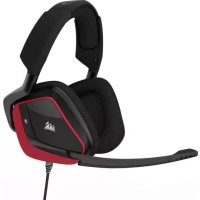
Void Pro Surround - Headphones CORSAIR - Free user manual and instructions
Find the device manual for free Void Pro Surround CORSAIR in PDF.


| Product type | Gaming headset with virtual 7.1 surround sound |
| Brand | Corsair |
| Model | Void Pro Surround |
| Connectivity | USB (fixed cable, non-detachable) |
| Audio technology | Dolby Headphone 7.1 Surround |
| Microphone | Unidirectional microphone with flexible boom and removable pop filter |
| Earphones | Microfiber ear cushions, wide and deep |
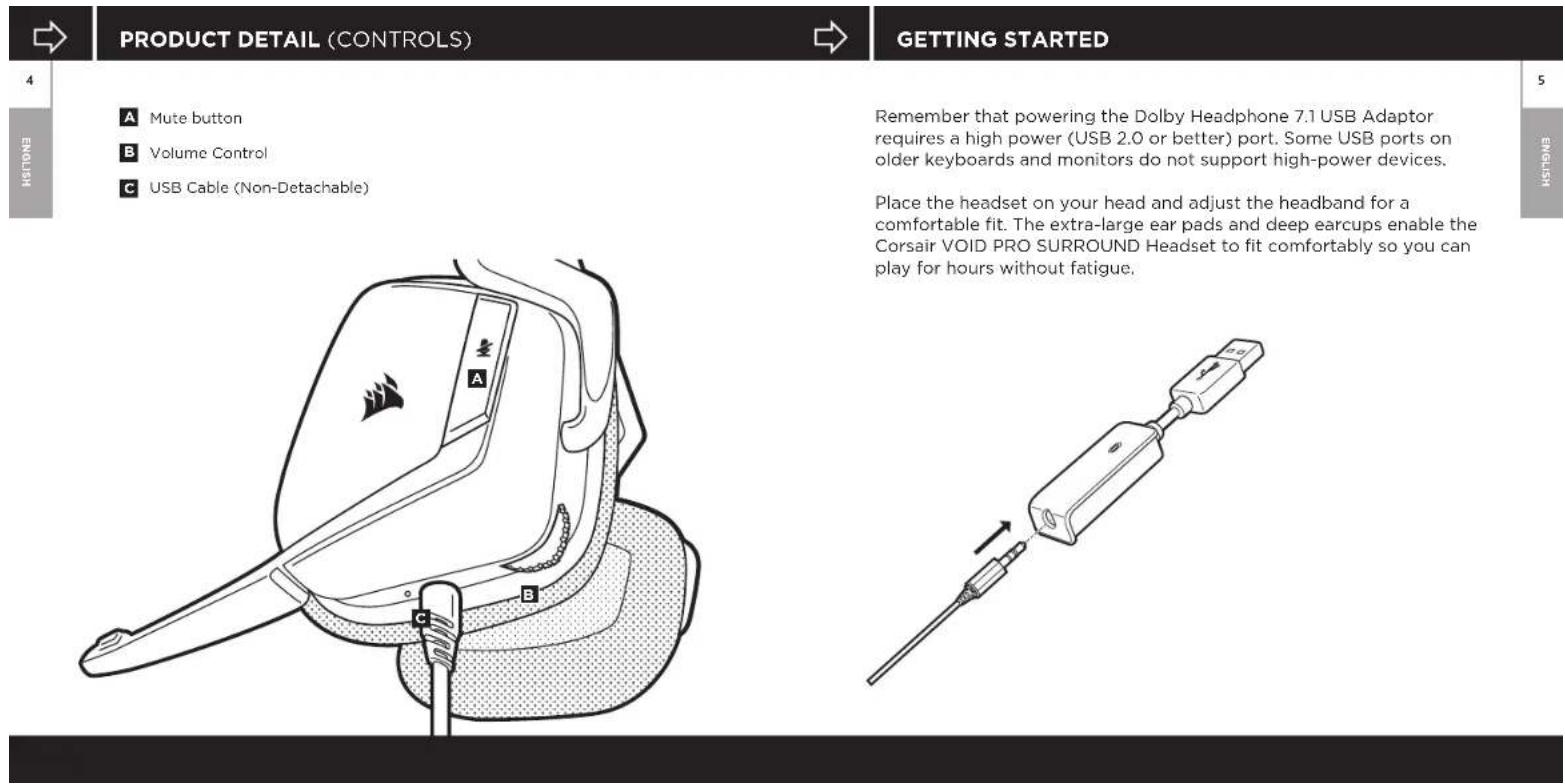
| Controls | Volume wheel, mute button |
| Software | Compatible with Corsair Utility Engine (CUE) |
| System compatibility | Windows 7, 8, 10 (USB 2.0 or higher port required) |
| Power | Via USB port (high power recommended) |
| Weight | Approximately 350 g |
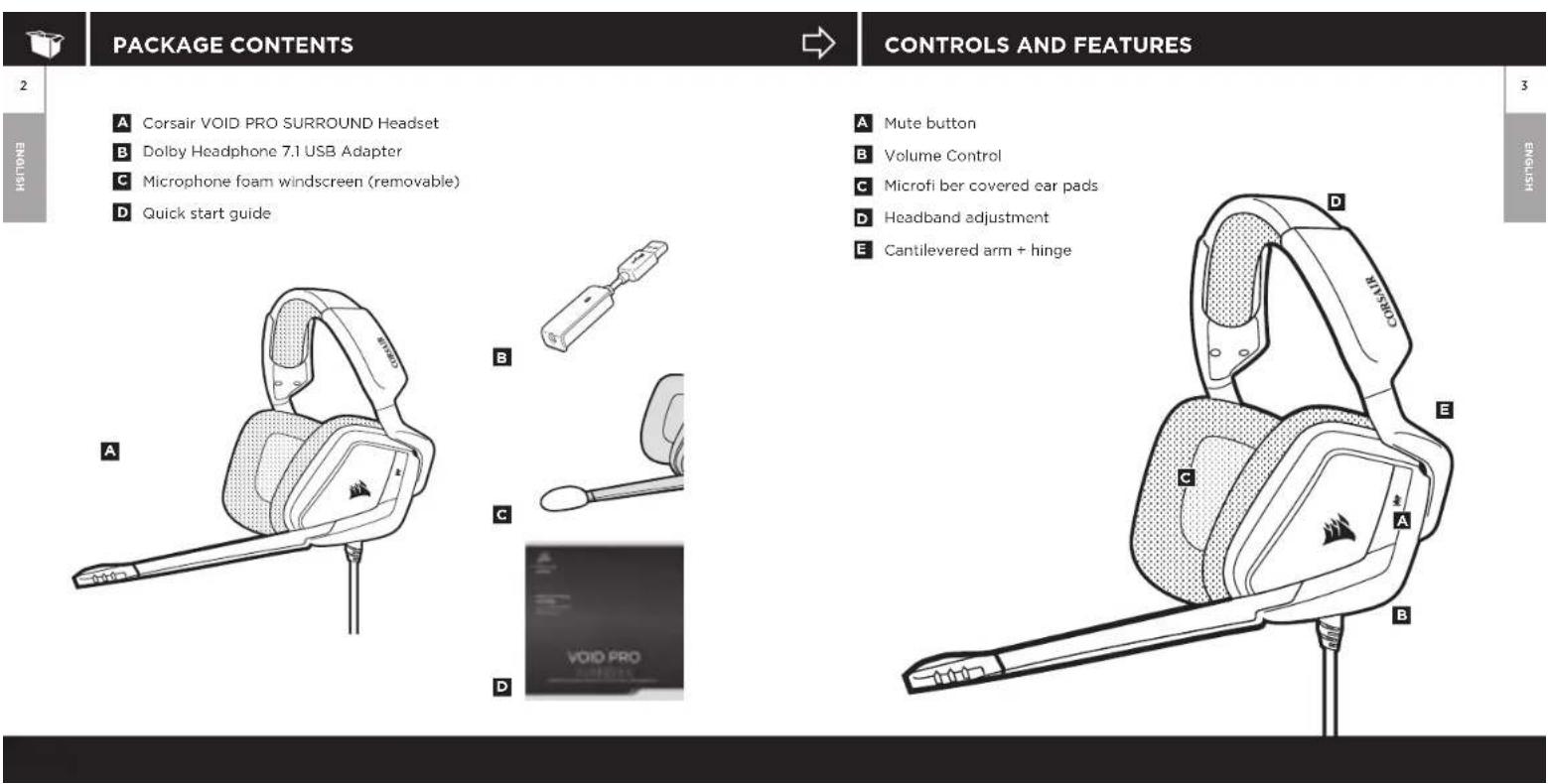
| Package contents | Headset, USB Dolby Headphone 7.1 adapter, microphone pop filter, quick start guide |
| Maintenance | Clean with a soft, dry cloth |
| Safety | Avoid prolonged listening at high volume to protect hearing |
| Recycling | Compliant with WEEE directive - do not dispose of with household waste |
Frequently Asked Questions - Void Pro Surround CORSAIR
User questions about Void Pro Surround CORSAIR
0 question about this device. Answer the ones you know or ask your own.
Ask a new question about this device
Download the instructions for your Headphones in PDF format for free! Find your manual Void Pro Surround - CORSAIR and take your electronic device back in hand. On this page are published all the documents necessary for the use of your device. Void Pro Surround by CORSAIR.
USER MANUAL Void Pro Surround CORSAIR
PREMIUM GAMING HEADSET WITH DOLBY HEADPHONE 7.1

ENGLISH 2
FRANCAIS 11
DEUTsCH 20
PORTUGUES 29
ESPAHOL 38
PYCCKN 47

CORSAIR UTILITY ENGINE

GENERAL TIPS
- Go to corsair.com/support/downloads to download the Corsair Utility Engine ('CUE') Software.
Using CUE software will enable the full feature set of the Void PRO SURROUND Headset.
Install the software on a PC running Windows 7, 8 or 10.
After installation is complete, reboot your PC, and launch CUE.
You can use it to:
- Select and customize audio equalizer (EQ) settings.
- Adjust headset volume, microphone input volume, and microphone feedback.
- Set Dolby Headphone 7.1 SURROUND sound on or off
The software's built-in documentation explains how to use the Void PRO SURROUND Headset features in greater detail.
For the best audio performance:
- Download the Corsair Utility Engine software from corsair.com/support/downloads
- Don't be afraid to use the software equalizer to adjust the audio quality to your liking. EQ presets have been provided for popular gaming and media types.
Prolonged listening at high volumes may adversely affect your hearing. Take breaks between sessions and always begin with the volume at the lowest possible level before increasing.


ADJUSTMENT
As with any audio product, reduce the volume before trying it with an audio source the first time.
You can adjust the volume with:
- The "CUE Control" is the digital volume controller on the headset at the bottom corner of your left earcup: hold or repeatedly toggle it downwards to reduce volume, and upwards in short increments to increase volume.
The standard Windows audio controller can also be used to adjust volume. - Once an audio source is playing, set the volume to a comfortable level.

MICROPHONE ADJUSTMENT
Your new Void PRO SURROUND Headset features a high performance "unidirectional" microphone designed to reject noise other than your voice, but it must be pointed directly at your mouth to function correctly.
- Bend the flexible microphone boom to best fit near to the left corner of your mouth.
- For improved voice quality, the included microphone foam windscreen may be applied over the microphone head.
- We've found that about a 30 degree bend is a good place to start, but feel free to increase or decrease this if your mic is too loud or too soft.
Enjoy your Corsair Void PRO SURROUND Headset! If you have any questions or comments, see the back panel of this guide for contact information.


10

CONTENU DU PAQUET
Vaya a corsair.com/support/downloads paradescendingel software Corsair Utility Engine (CUE)
Note on environmental protection
After the implementation of the European Directive 2002/66/EU in the national legal system, the following applies: Financial and electronic data are not allowed with digital certificates.
- Consumers are collared by view to return electrical and electronic devices at the end of their service lives to the public collecting points set up for this purpose of point of sale. Details to this are defined by the national law of the respective country. This symbol on the product, the instruction manual or the package indicates that a product is subject to these regulations by recycling.
- The number of the various parts used in the series of stilling did devices, you are making an important contribution to protecting our environment.

The manufacturer is not responsible for any radio or TV interference caused by unauthorized modifications to this equipment. Such modifications could void the user authority to operate the equipment.
ECC STATEMENT
This equipment has been tested and found to comply with the limits for a Class B digital device, pursuant to part 15 of the FCC Rules. These limits are designed to provide reasonable protection against harmful interference in a residential installation. This equipment generates, uses and can radiate radio frequency energy and, if not installed and used in accordance with the instructions, may cause harmful interference to radio communications. However, there is no guarantee that interference will not occur in a particular installation. If this equipment does cause harmful interference to radio or television reception, which can be determined by turning the equipment off and on, the user is encouraged to try to correct the interference by one or more of the following measures:
Reorient or relocate the receiving antenna.
- Increase the separation between the equipment and receiver.
Connect the equipment into an outlet on a circuit different from that to which the receiver is connected.
- Consult the dealer or an experienced radio/TV technician for help.
This device must not be co-located or operating in conjunction with any other antenna or transmitter.
Operation is subject to the following two conditions:
1. this device may not cause harmful interference, and
2. this device must accept any interference received, including interference that may cause undesired operation.

support@corsair.com
WEB
consair.com
BLOG
connair.com/blog
FORUM
forum.corsair.com
facebook.com/Corsair
Twitter.com/Corsair
YOU
youtubecom/Corsair
© 2017 Corsair Components, Inc.
All rights reserved.
Corsair and the sails logo are registered trademarks, and Corsair Gaming and the Corsair Gaming logo are trademarks of Corsair in the United States and/or other countries. All other trademarks are the property of their respective owners.
Product may very slightly from those pictured.
P/N:49-001564 Rev AA

Brand : CORSAIR
Model : Void Pro Surround
Category : Headphones