CTFX729M - Car stereo AIWA - Free user manual and instructions
Find the device manual for free CTFX729M AIWA in PDF.

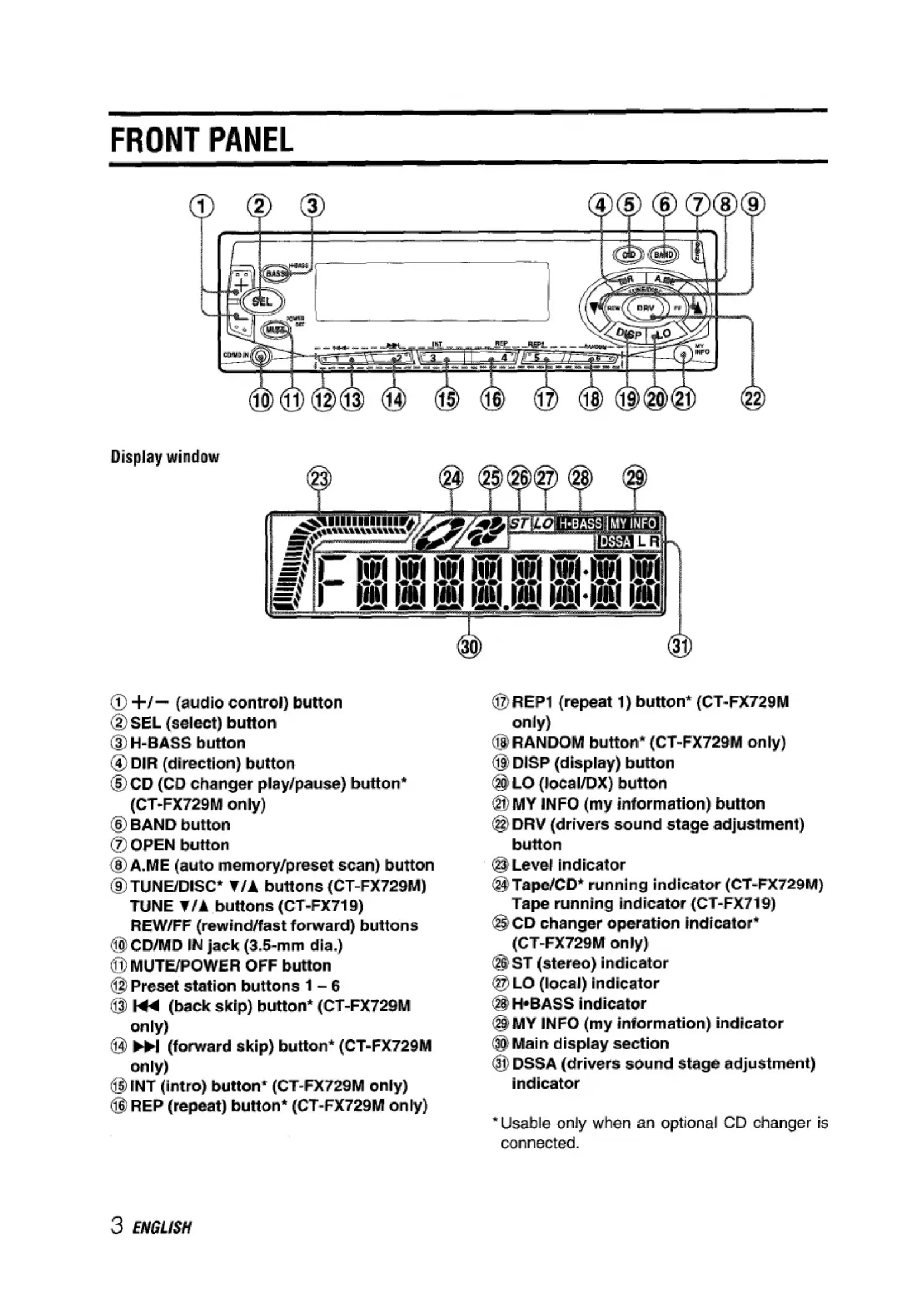


| Product type | Car stereo with cassette player and CD changer control (model CT-FX729M) |
| Brand | Aiwa |
| Model | CT-FX729M |
| Dimensions (W x H x D) | 182 x 53 x 155 mm |
| Power supply | 14.4 V DC (11 to 16 V tolerated), negative ground |
| Maximum output power | 40 W x 4 channels |
| Load impedance | 4 Ω |
| Radio functions | FM (87.5-108 MHz) and AM (530-1710 kHz), 30 station presets, local/DX search, information function (timer) |
| Cassette player | Auto-reverse playback, fast forward/rewind, ejection |
| CD changer control | Yes (compatible Aiwa ADC-EX106, ADC-M60 models), random play, repeat, intro |
| Auxiliary input | CD/MD IN jack (3.5 mm) for external player |
| Sound settings | Volume, bass, treble, balance, fader, H-BASS (enhanced bass), DRV (seat optimization) |
| Detachable front panel | Yes, with LED security indicator |
| Display | LCD display with contrast adjustment (3 levels) |
| Clock | Integrated with setting and temporary display |
| Timer function (MY INFO) | Allows programming up to 2 scheduled on/off times in radio mode |
| Remote control | Supplied (model RC-SW1) |
| Maintenance | Clean front panel with soft dry cloth; clean playback head with cleaning cassette; clean rear connector with cotton slightly soaked in alcohol |
| Safety | Detachable front panel, flashing LED indicator, spare fuse (same rating) |
| Weight | Approximately 1.2 kg (estimated) |
Frequently Asked Questions - CTFX729M AIWA
User questions about CTFX729M AIWA
0 question about this device. Answer the ones you know or ask your own.
Ask a new question about this device
Download the instructions for your Car stereo in PDF format for free! Find your manual CTFX729M - AIWA and take your electronic device back in hand. On this page are published all the documents necessary for the use of your device. CTFX729M by AIWA.
USER MANUAL CTFX729M AIWA
For your convenience, record the model number and serial number (you will find them on the right side of your set) in the space provided below. Please refer to them when you contact your AIWA dealer in case of difficulty.
Model No. CT-FX729M,CT-FX719
Serial No.
Welcome
Thank you for your purchasing this AIWA product. To optimize the performance of this unit, please read through this manual carefully.
In addition to this operating instructions manual, be sure to refer to the separate installation and connections manuals as well.
PRECAUTIONS
This unit is designed to be operated on a 12-volt DC negative-ground electrical system only.
- To prevent short-circuiting, disconnect the negative car battery terminal until the unit has been mounted and connected completely.
- When replacing the fuse, be sure to use one whose amperage rating is identical. Use of a fuse of higher amperage may cause serious damage to the unit.
- Keep screwdrivers, etc. and other metallic or magnetic objects away from the playback head.
- When your car was parked in direct sunlight resulting in a considerable rise in temperature inside the car, allow the unit to cool off before operating it.
- Keep the volume at such a level that you can hear outside warning sounds (horns, sirens, etc.).
Notes on cassettes
Do NOT expose cassettes to direct sunlight, extremely high or cold temperature or moisture. Keep cassettes away from equipment with built-in magnets to avoid unwanted noise or loss of sound quality.
Do NOT touch the tape of a cassette, as any dirt or dust will contaminate the heads.
Be sure to remove any cassette from the unit if you are not using it.
NOTE
This equipment has been tested and found to comply with the limits for a Class B digital device, pursuant to Part 15 of the FCC Rules. These limits are designed to provide reasonable protection against harmful interference in a residential installation.
This equipment generates, uses, and can radiate radio frequency energy and, if not installed and used in accordance with the instructions, may cause harmful interference to radio communications. However, there is no guarantee that interference will not occur in a particular installation. If this equipment does cause harmful interference to radio or television reception, which can be determined by turning the equipment off and on, the user is encouraged to try to correct the interference by one or more of the following measures:
Reorient or relocate the receiving antenna.
Increase the separation between the equipment and receiver.
- Connect the equipment into an outlet on circuit different from that to which the receiver is connected.
Consult the dealer or an experienced radio/ TV technician for help.
CAUTION
Modifications or adjustments to this product, which are not expressly approved by the manufacturer, may void the user's right or authority to operate this product.
TABLE OF CONTENTS
FRONT PANEL 3
DETACHING AND ATTACHING THE FRONT PANEL 4
SETTING THE CLOCK 5
RADIO OPERATION 5
PRESETTING STATIONS 6
MY INFORMATION SWITCH 8
TAPE PLAYBACK 10
SOUND ADJUSTMENTS 11
CD CHANGER PLAY (CT-FX729M only) 13
CONNECTING A PORTABLE CD/MD PLAYER OR OTHER EQUIPMENT 14
SETTING THE BEEP TONE 15
SETTING THE CONTRAST CONTROL 15
TROUBLESHOOTING (CT-FX729M only) 16
MAINTENANCE 16
SPECIFICATIONS 17
This operating instructions manual covers the CT-FX729M and CT-FX719.
Their main differences are listed below.
| CT-FX729M | CT-FX719 | |
| CD changer (optional) control function | Yes | No |
| CT-FX729M | CT-FX719 | |
| Remote control | Supplied* | Sold separately |
* Refer to the operating instructions manual supplied with the AlWA RC-SW1 remote control for details.
DEMO (Demonstration) mode
The unit has an extra display (DEMO) mode which demonstrates the display of the operation modes of the unit. The unit switches to DEMO mode automatically if you turn the unit on and leave it as it is for 5 seconds after all the connections have been completed.
To cancel DEMO mode
During DEMO mode, press and hold DISP for more than 2 seconds.
To resume DEMO mode, press and hold DISP again for more than 2 seconds.
FRONT PANEL
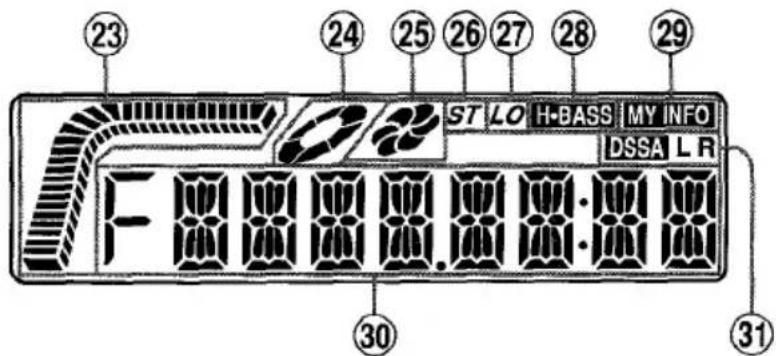
Display window
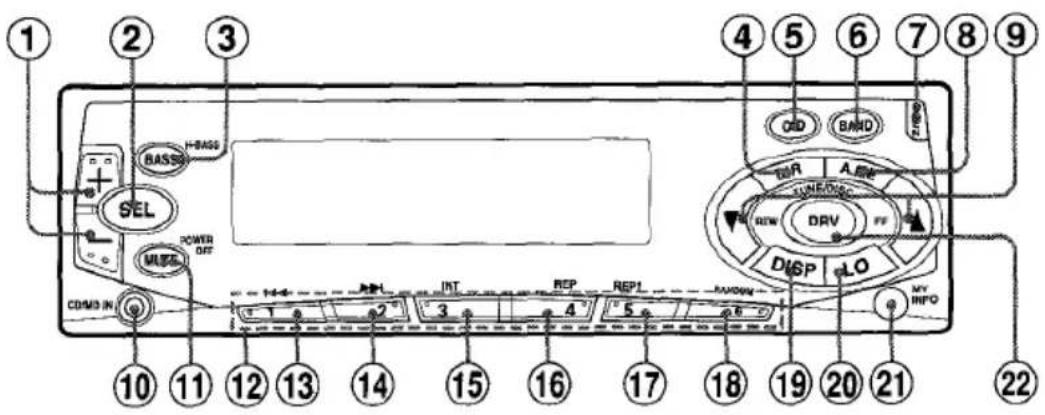
①+/- (audio control) button
② SEL (select) button
③ H-BASS button
DIR (direction) button
⑤ CD (CD changer play/pause) button (CT-FX729M only)
⑥ BAND button
⑦ OPEN button
A.ME (auto memory/preset scan) button
TUNE/DISC* / buttons (CT-FX729M) TUNE / buttons (CT-FX719) REW/FF (rewind/fast forward) buttons
CD/MD IN jack (3.5-mm dia.)
① MUTE/POWER OFF button
12 Preset station buttons 1-6
(3) (back skip) button (CT-FX729M only)
(14) (forward skip) button (CT-FX729M only)
INT (intro) button (CT-FX729M only)
16 REP (repeat) button* (CT-FX729M only)
17 REP1 (repeat 1) button (CT-FX729M only)
18 RANDOM button (CT-FX729M only)
DISP (display) button
20 LO (local/DX) button
MY INFO (my information) button
DRV (drivers sound stage adjustment) button
23 Level indicator
24 Tape/CD* running indicator (CT-FX729M) Tape running indicator (CT-FX719)
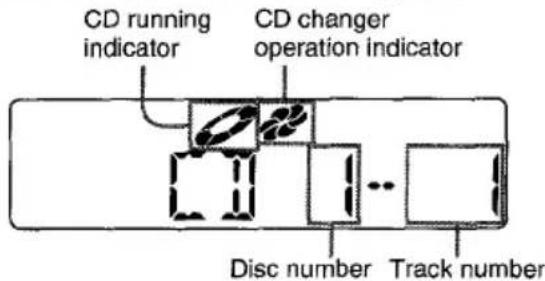
CD changer operation indicator* (CT-FX729M only)
ST (stereo) indicator
② LO (local) indicator
28 H-BASS indicator
29 MY INFO (my information) indicator
30 Main display section
DSSA (drivers sound stage adjustment) indicator
*Usable only when an optional CD changer is connected.
DETACHING AND ATTACHING THE FRONT PANEL
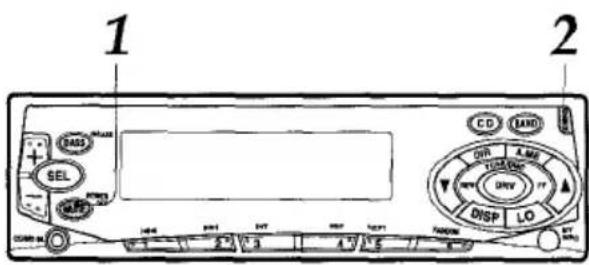
You can detach the front panel from the unit and carry it with you when you leave your car unattended.
When you carry the front panel out of your car, use the supplied carrying case.
1 Press and hold MUTE for more than 2 seconds to turn the unit off.
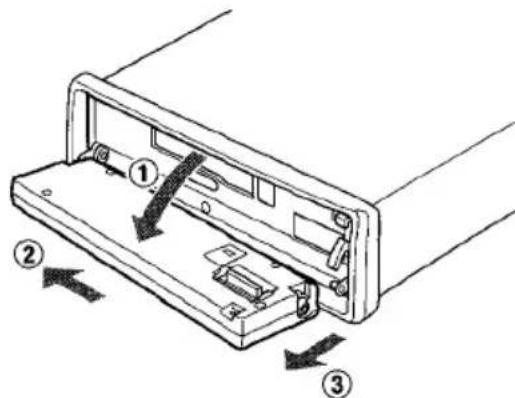
2 Press OPEN to open the front panel and pull it out as illustrated 1-3.
Notes
- When you leave the front panel open, do not put anything on the panel.
- When you carry the front panel in the carrying case, do not drop or apply mechanical shock to the panel, and never let the panel become wet.
Attaching the front panel
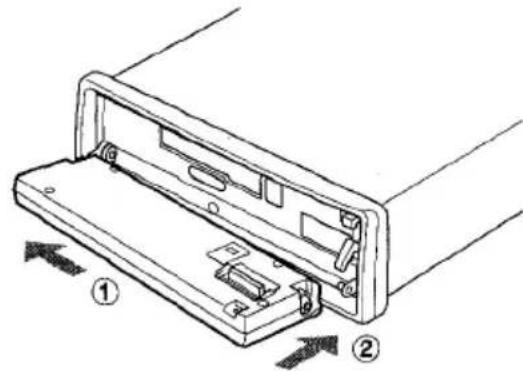
1 Fit the lower side of the front panel to its hinge pegs as illustrated 1-2.
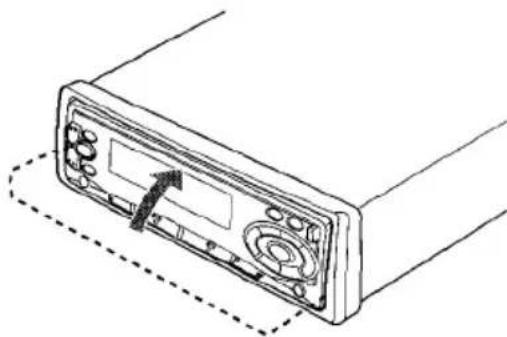
2 Close the front panel.
Notes
- Do not press OPEN by accident when you push the front panel to secure it in above procedure.
- Do not touch the connector on the reverse side of the front panel, as doing so may contaminate the connector and cause a poor connection resulting in a malfunction.
Security Lamp
When the front panel is detached, you can find an LED lamp on the front side of the unit. This lamp is designed to deter theft, and continues to flash when the front panel is detached. This unit is not equipped with any other security systems such as a security alarm, so there are limitations to its effectiveness.
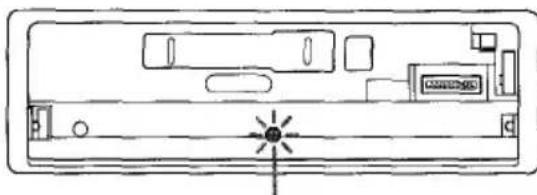
LED lamp
SETTING THE CLOCK
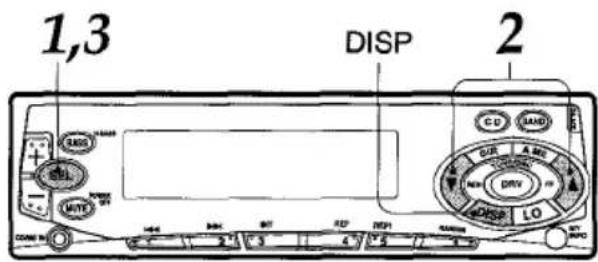
You can turn the unit on by pressing any button except OPEN on the front panel.
1 With the uniton, press and hold SEL for more than 2 seconds until the clock indication appears.
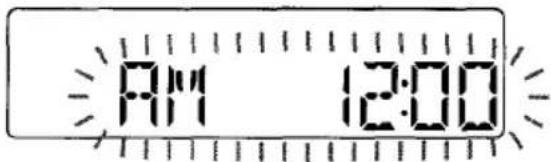
2 Press TUNE to set the hour. Press TUNE to set the minute.
3 Press SEL to start working the clock from 0 second.
Having the clock displayed while in Radio, Tape Play or CD Changer Play mode
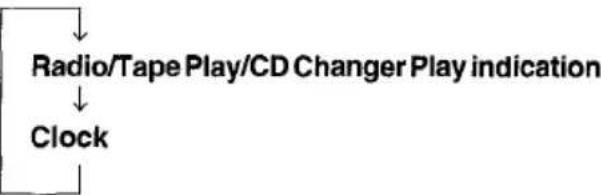
Press DISP repeatedly until the clock is displayed. The clock display appears for 5 seconds, then the unit returns to its former display.
Each time you press DISP, the display changes as follows.
RADIO OPERATION
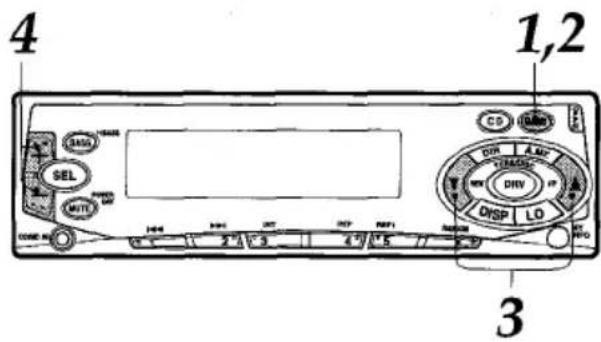
1 Press BAND to turn the radio on. The radio frequency appears.
2 Press BAND again to select the band from among F1 (FM1), F2 (FM2), F3 (FM3), A1 (AM1) and A2 (AM2).
The band indications appear cyclically in order.
F1, F2 and F3 share the same frequency range.
A1 and A2 share the same frequency range.
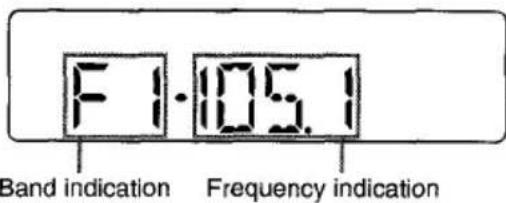
3 Press (more than 2 seconds) either TUNE or TUNE A to tune in the desired station.
The unit starts scanning and tunes in a station automatically (seek tuning).
Press TUNE to decrease and TUNE to increase the frequency.
Press the button again to cancel seek tuning. Repeat the procedure until the desired station is tuned in.
Note
If you press (less than 0.5 second at a time) either TUNE or TUNE , the frequency decreases or increases step by step.
4 Adjust the volume with + / -
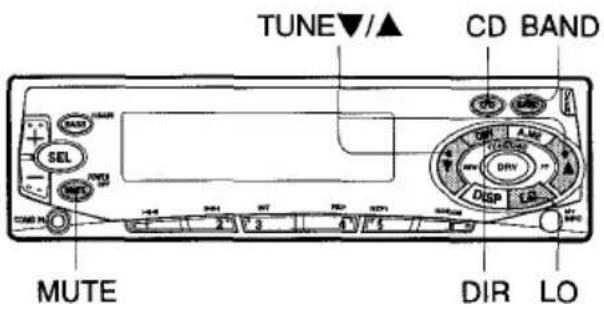
To turn the unit off
Press and hold MUTE for more than 2 seconds.
Note
The unit turns on in the last mode selected when you turned off the unit with the exceptions of pressing the following buttons.
- Pressing DIR turns on the unit in Tape Play mode.
- Pressing CD turns on the unit in CD Changer Play mode.
- Pressing BAND turns on the unit in Radio mode.
Switching modes
When the unit is in Radio or CD Changer Play mode, inserting a cassette switches the unit to Tape Play mode automatically.
LO (local/DX) button
You can use Local mode when you wish to tune in only strong stations during seek tuning. In Radio mode, press LO to select Local mode. The "LO" indicator lights up.
- Press LO to cancel Local mode and switch to DX (distance) mode.
- The "ST" (stereo) indicator lights up when the tuned-in station is broadcasting in stereo and the reception is good.
PRESETTING STATIONS
To preset stations automatically (auto memory)
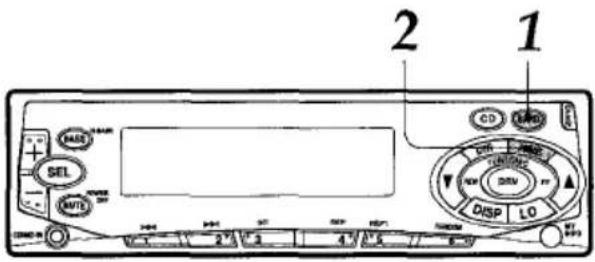
1 Press BAND to select a desired band from among F1 (FM1), F2 (FM2), F3 (FM3), A1 (AM1) and A2 (AM2).
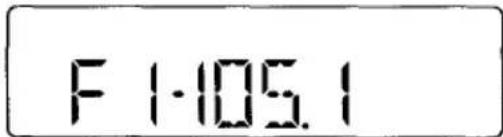
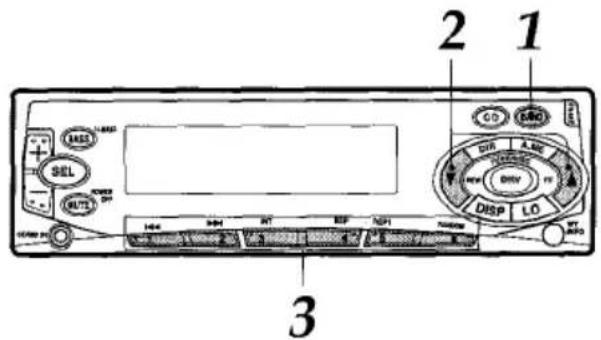
2 Press and hold A.ME for more than 2 seconds to activate the automatic presetting function.
The six strongest available stations will be stored in memory on the preset station buttons 1 to 6 in order of their signal strength. The "A MEM" indication appears while the unit is in this mode.
Use this function to automatically preset up to 6 stations each for F1, F2, F3, A1 and A2 (up to a total of 30 stations).
- When auto memory is completed, the preset stations are automatically tuned in for 5 seconds each in order.
To stop auto memory, press A.ME again.
To check the preset stations (preset scan)
- If you wish to check the preset stations, press A.ME for less than 2 seconds. The preset stations stored in memory will be tuned in for 5 seconds each in order.
- To stop this function, press A.ME again or press any of the preset station buttons 1 to 6.
PRESETTING STATIONS
To preset stations manually
You can manually preset stations that have not been selected by auto memory.
1 Press BAND to select the band from among F1 (FM1), F2 (FM2), F3 (FM3), A1 (AM1) and A2 (AM2).
2 Tune in the station that you wish to preset with TUNE or TUNE A.
3 Press one of the preset station buttons 1 to 6 for approximately 2 seconds.
The number of the pressed preset station button appears next to the frequency indication.
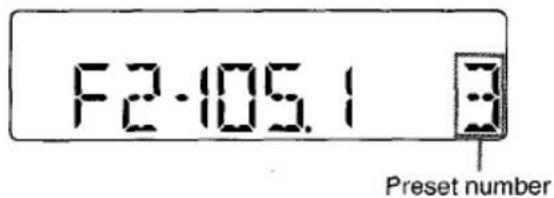
Repeat these procedures to preset up to 6 stations each for F1, F2, F3, A1 and A2.
- If you try to preset a station on a preset station button on which another station of the same band has already been preset, the previously preset station will be erased.
During presetting of stations, beeps are heard regardless of the beep on/off setting (page 15).
To tune in the preset stations
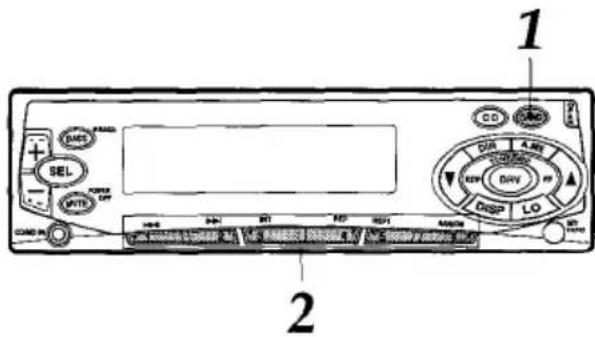
1 Press BAND to select a desired band from among F1 (FM1), F2 (FM2), F3 (FM3), A1 (AM1) and A2 (AM2).
2 Press the desired preset station button. The number of the pressed preset station button appears next to the frequency indication.
Active tuning reception control (ATRC)
This unit automatically suppresses FM noise caused by varying signal strength resulting from movement of the car.
- The built-in automatic blending circuit mixes the left and right channel signals according to the strength of the reception. At the same time, the high-cut circuit activates to maintain the sound quality.
- If the reception becomes even weaker, the unit automatically switches to Monaural mode to reduce noise.
MY INFORMATION SWITCH
You can timer-activate the radio for up to two daily radio programs. The unit turns on and off in Radio mode at the preset time automatically.
Setting the timer
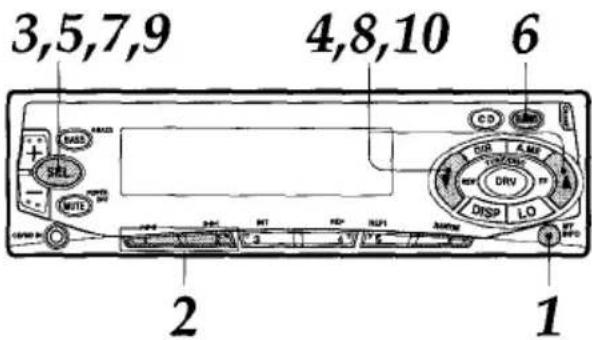
1 With the unit off, press and hold MY INFO for more than 2 seconds.
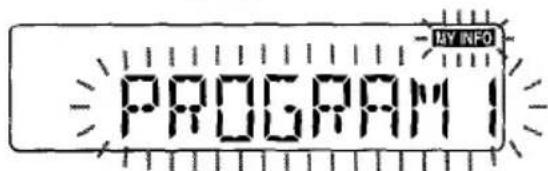
The "PROGRAM1" or "PROGRAM2" indication flashes in the display window.
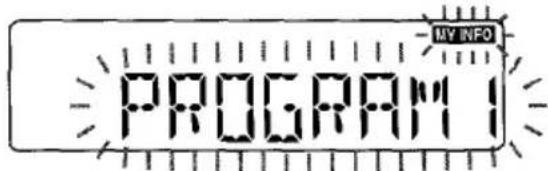
The number on which no program is preset flashes.
2 Press either of preset station button 1 or 2 to select program 1 or 2.
3 Press SEL.
The "ON TIME" indication flashes.
Press SEL again.
Timer indication flashes.
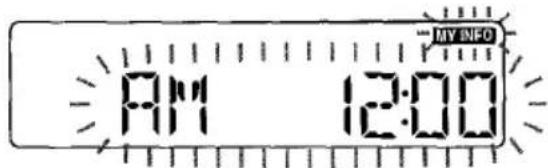
4 Set the time you wish the unit to turn on in Radio mode.
Press TUNE to set the hour.
Press TUNE to set the minute.
5 Press SEL.
The "BAND SEL" indication flashes.
Press SEL again.
Radio indication flashes.
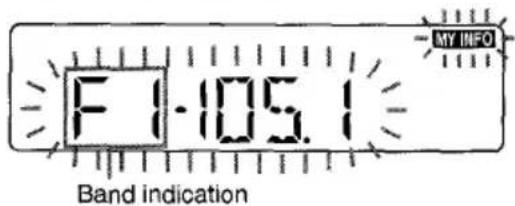
6 Press BAND to select the band.
7 Press SEL.
The "FREQ" indication flashes.
Press SEL again.
Radio indication flashes.
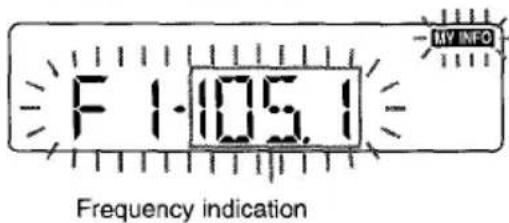
8 Tune in the station that you wish to preset with TUNE or TUNE A.
9 Press SEL.
The "OFF TIME" indication flashes.
Press SEL again.
Timer indication flashes.
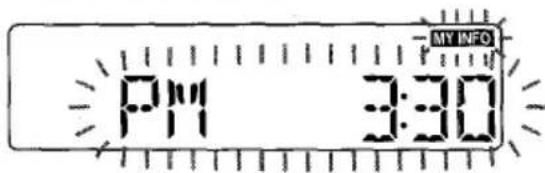
10 Set the time you wish the unit to turn off.
Press TUNE to set the hour.
Press TUNE to set the minute.
MY INFORMATION SWITCH
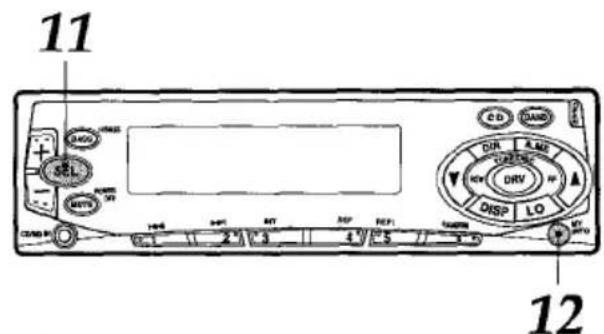
11 Press SEL.
The clock indication appears.
12 Press MY INFO.
Your setting is stored in memory and the unit turns off.
- If you preset another program, repeat all the steps from step 1.
To cancel a timer setting in progress, press and hold MUTE for more than 2 seconds.
Activating the timer
You can activate the timer for program 1 and/or program 2.
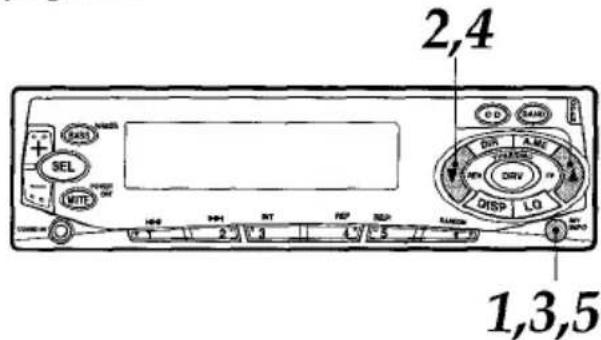
1 With the unit on, press MY INFO.
The "PRG1 ON" or "PRG1 OFF" indication (the current setting for program 1) appears.
2 Press TUNE or TUNE repeatedly until the "PRG1 ON" indication flashes.
3 Press MY INFO.
The "PRG2 ON" or "PRG2 OFF" indication (the current setting for program 2) appears.
4 Press TUNE or TUNE repeatedly until the "PRG2 ON" indication flashes.
5 Press MY INFO to activate the timer.
The "MY INFO" indicator lights up.
If you do not proceed to the next step within 5 seconds in steps 1-4, the display returns to the current source indication.
9 ENGLISH
To cancel the timer
To cancel program 1, press TUNE or TUNE repeatedly until the "PRG1 OFF" indication flashes in step 2.
To cancel program 2, press TUNE or TUNE repeatedly until the "PRG2OFF" indication flashes in step 4.
Notes
- When you preset two programs, be sure that they do not overlap.
Even if the unit is in a mode other than Radio mode, the unit switches to Radio mode and tunes in the preset radio program at the preset time automatically. When the program is over, the unit returns to the former mode automatically. - When this function is activated, TUNE / , A.ME, LO and the preset number buttons do not work for tuning in stations.
-
Even if you are listening to a radio program with this function, pressing the following buttons switches the unit to other mode:
-
Pressing BAND changes the unit to Radio mode.
Pressing DIR changes the unit to Tape Play mode. - Pressing CD changes the unit to CD Changer Play mode.
If you switch modes with these buttons, the unit does not turn off at the turn-off time of the timer. To switch to CD/MD IN mode, press DIR, CD, or BAND before connecting a portable CD/MD player, etc. to the CD/MD IN jack.
TAPE PLAYBACK
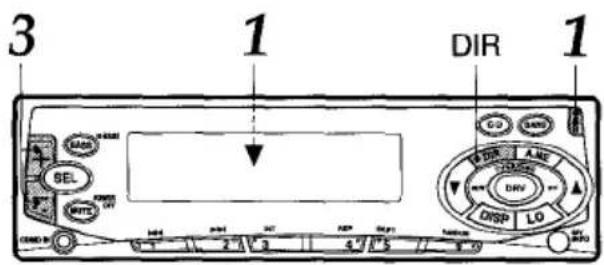
1 Press OPEN to open the front panel and insert a cassette.
Playback starts in the direction that the unit played back previously.
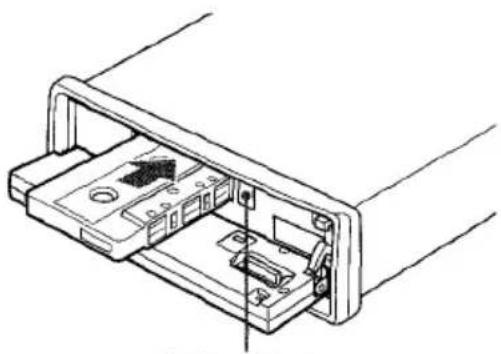
(eject) button
2 Close the front panel.
Tape running indicator
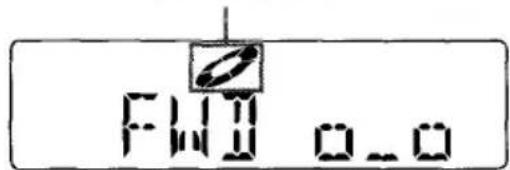
3 Adjust the volume with + / -
Notes
- If a cassette is already inserted, press DIR to start playback.
- Be sure to close the front panel after inserting or ejecting a cassette.
Press the following buttons to operate tape transport.
| To do this | Press this button |
| Eject the cassette | ▲ |
| Change the playback side Stop fast-forwarding or rewinding and resume playback | DIR |
| Fast-forward either side of the tape | FF▲ |
| Rewind either side of the tape | REW |
| Stop the tape and turn the unit off | MUTE (for more than 2 seconds) |
- At the end of the tape in Fast Forward mode, the other side of the cassette will start playing automatically.
- At the end of the tape in Rewind mode, the same side will start playing automatically.
Direction indications
| FW | Displayed when the upper side of the cassette is being played. |
| REV | Displayed when the lower side of the cassette is being played. |
Tape transport display
When you start tape playback, the transport display indicates the tape movement.
| Upper side: During playback, fast-fowardng Lower side: During rewinding | ←→ |
| Lower side: During playback, fast-fowardng Upper side: During rewinding | ↑←↓← |
During fast-forwarding or rewinding, the transport display accelerates.
Before turning the ignition off
Be sure to eject any cassette from the unit before turning the ignition off.
TAPE PLAYBACK
Switching modes
When the unit is in Radio or CD Changer Play mode, inserting a cassette switches the unit to Tape Play mode automatically.
To prevent tape problems
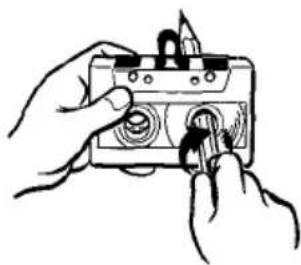
Before inserting a cassette into the unit, make sure that there is no slack in the tape. If necessary, take up the slack by inserting a pencil into the spindle hole and winding.
Tapes of 90 minutes or longer are extremely thin and easily deformed or damaged. They are not recommended.
SOUND ADJUSTMENTS
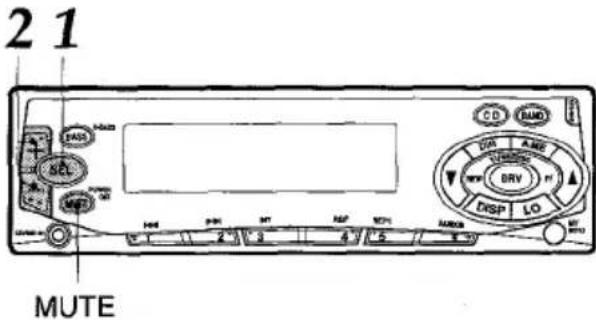
1 Press SEL to select the mode that you wish to adjust from: VOL (volume), BASS (bass), TRE (treble), BAL (balance) and FAD (fader).
The following indications appear in cyclic order.

If you do not proceed with step 2 within 5 seconds, the selected mode is canceled, and the indication returns to the current source mode.
2 Press + / - to adjust the level.
Press and hold either button to change the level rapidly.
| - | + | |
| VOL | Decreases the volume level | Increases the volume level |
| BASS | Decreases the bass level | Increases the bass level |
| TRE | Decreases the treble level | Increases the treble level |
| JRL | Decreases the level of the right speaker(s) | Decreases the level of the left speaker(s) |
| FAI | Decreases the level of the front speakers | Decreases the level of the rear speakers |
Without selecting any mode with SEL, only the volume level can be adjusted by pressing +/- .
MUTE button
Press this button to temporarily lower the volume.
Press it again to restore the previous volume.
DRV (Drivers sound stage adjustment)
You can adjust the position of sound stage and tone balance to best serve a particular seat just by pressing DRV.
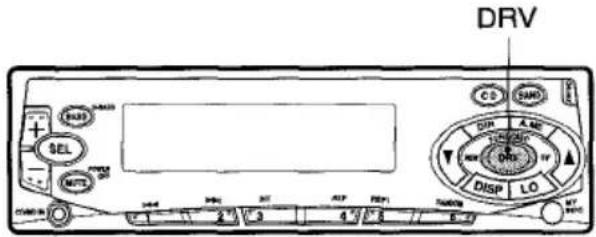
Press DRV to change the position of sound stage.
Each time you press DRV, the sound stage changes as follows.
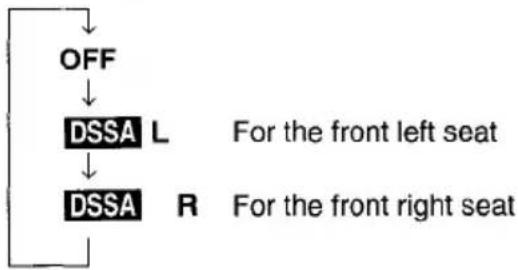
Note
When DRV is activated, you cannot adjust BAL (balance), FAD (fader), BASS (bass) and TRE (treble) modes.
H-BASS (High BASS)
You can enjoy music with strong bass sound.
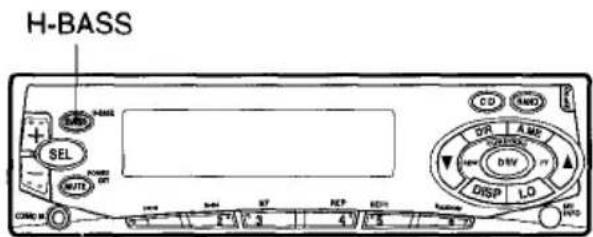
Press H-BASS to obtain powerful bass. Each time you press H-BASS, the bass sound level changes as follows.
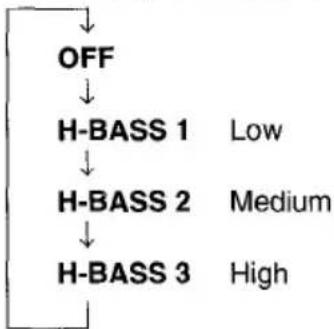
When H-BASS is activated, the "H-BASS" indicator lights up.
CD CHANGER PLAY (CT-FX729M only)
You can play discs with this unit by connecting the optional AIWA ADC-EX106, ADC-M60 CD changer. Make sure that the disc magazine loaded with the discs is inserted in the connected CD changer.
To install the unit, refer to the separate Installation and Connections manual.
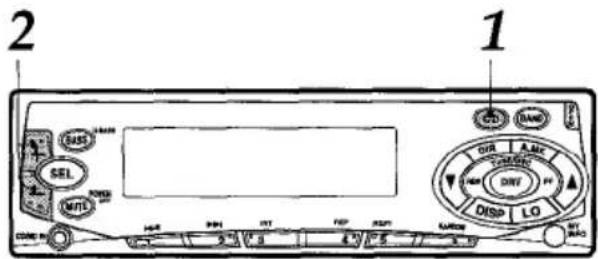
1 Press CD to start playing from disc 1. The disc and track numbers appear.
2 Adjust the volume with + / -
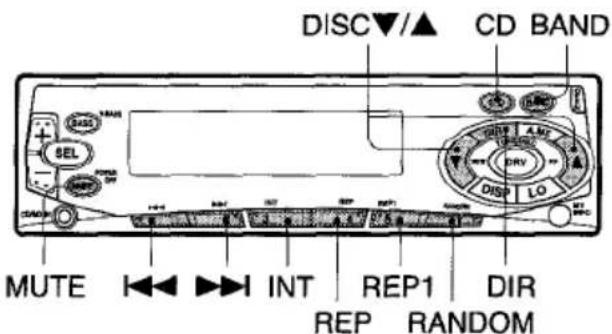
Press following buttons to operate the connected CD changer.
| To do this | Press this button |
| To pause | CD |
| To resume | CD |
To switch modes
To turn the unit off, press and hold MUTE for more than 2 seconds.
Even if the unit is in Radio or Tape Play mode, pressing CD switches the unit to CD Changer Play mode.
- If you wish to switch to another mode, press the following buttons.
- Pressing DIR switches the unit to Tape Play mode.
- Pressing BAND switches the unit to Radio mode.
To skip tracks
| Buttons | Press* | Press and hold |
| ▶▶ | Skipping to the next track | Advances rapidly Release it to resume play |
| ▶ | Skipping back to the beginning of the current track | Reverses rapidly Release it to resume play |
*Press for less than 0.5 second.
To play other disc
To start playing the previous disc in the disc magazine, press DISC .
To start playing the next disc, press DISC.
The number of the disc appears.
Repeat play
To repeat the current track, press REP1 (the "REPEAT 1" indication appears).
To repeat the current disc, press REP (the "REPEAT" indication appears).
To cancel either mode, press the same button again.
Intro play
Press INT (the "SCAN" indication appears). The first 10 seconds of each track on all the discs in the disc magazine are played in sequence.
To cancel Intro play, press INT again.
Random play (ADC-EX106, ADC-M60 only)
Press RANDOM (the "RANDOM" indication appears).
All the tracks on the current disc are played in random order.
To cancel Random play, press RANDOM again.
CONNECTING A PORTABLE CD/MD PLAYER OR OTHER EQUIPMENT
This unit is equipped with a line-level input (CD/ MD IN) jack, enabling high sound quality.
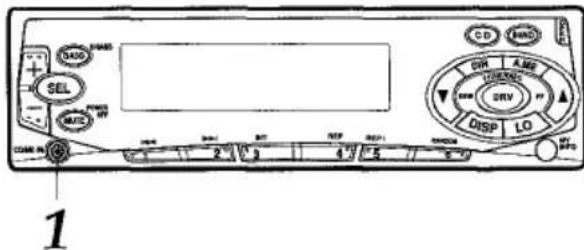
1 Connect a portable CD/MD player, etc. via the CD/MD IN jack (3.5-mm dia.) on the unit.
2 Start playback from the connected equipment.
The "CD IN" indication appears.
- For further information on the portable CD/MD player, etc., refer to the operating instructions for the equipment.
Notes
- Connecting a plug to the CD/MD IN jack cancels Radio, Tape Play and CD Changer Play mode and activates CD/MD IN mode. Disconnecting the plug cancels CD/MD IN mode and returns the unit to its former status.
- When the timer is activated (page 9), connecting a plug to the CD/MD IN jack does not switch the unit to CD/MD IN mode. Press DIR, CD, or BAND before connecting the plug to the CD/MD IN jack.
SETTING THE BEEP TONE
The unit is preset at the factory to beep each time you press any button on the front panel except OPEN. You can stop beeping by following the procedure below.
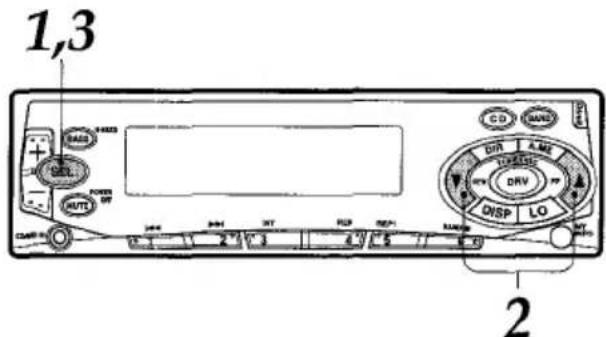
1 With the unit off, press and hold SEL for more than 2 seconds.
2 Press TUNE or TUNE repeatedly to select "BEEP ON" or "BEEP OFF".
3 Press SEL.
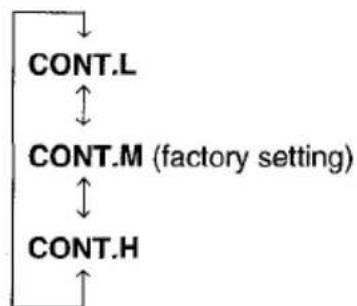
SETTING THE CONTRAST CONTROL
You can change the contrast of the display.
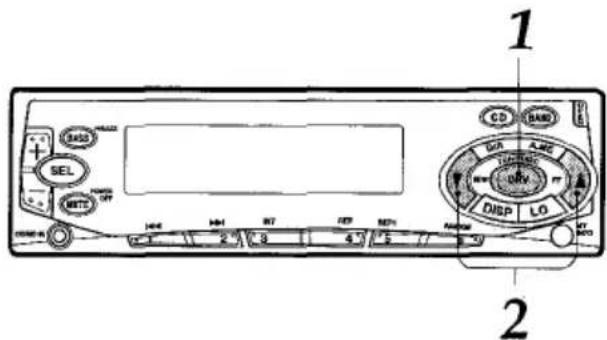
1 With the unit on, press and hold DRV for more than 2 seconds. The current contrast indication appears.
2 Press TUNE or TUNE repeatedly to select the contrast from among the following three levels.
TROUBLESHOOTING (CT-FX729M only)
Error codes
In the following cases the corresponding error code indication appears. Follow the suggestions below to solve the problem. If the error code indication does not disappear, consult an AIWA service center.
ERROR01 The disc magazine is not properly inserted in the CD changer. Reinsert the magazine. Refer to the instruction manual for the CD changer.
ERROR02 No discs are loaded in the disc magazine. Insert discs properly. Refer to the instruction manual for the CD changer.
ERROR03 Focus error. Check that the discs are loaded properly in the disc magazine (right side up, etc.).
ERROR04 Problem with the CD changer. Reset the unit by pressing the reset button. If this does not solve the problem, consult an AIWA service center.
ERROR05 The CD changer is overheated. Allow the changer to cool off by moving the vehicle out of direct sunlight.
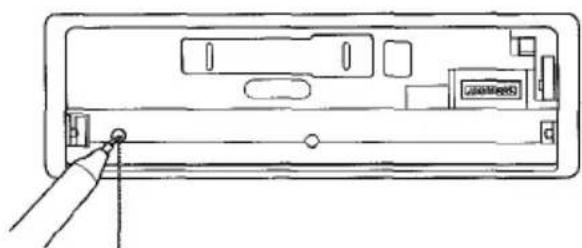
Reset button
The Reset button is visible when you detach the front panel. Try pressing this button if a connected CD changer does not operate properly. To press this button, use the tip of a pointed object such as a pencil or toothpick.
Note that all your setting stored in memory, however, will be erased by pressing this button.
Reset button
MAINTENANCE
Cleaning the front panel
When the front panel is soiled, wipe the surface of the panel with a soft, dry cloth.
Cleaning the tape head
Use a cleaning cassette to clean the playback head and capstans approximately once a month. If the playback head is dirty, the high tones may not be reproduced properly.
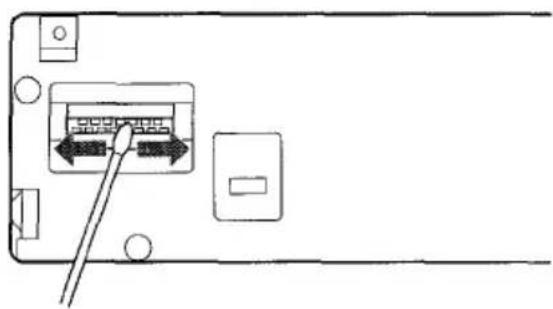
Cleaning the connector
The connector on the reverse side of the front panel needs to be cleaned occasionally. Wipe the surface of the connector with a cotton swab slightly moistened with alcohol.
SPECIFICATIONS
RADIO SECTION
(FM)
Frequency Range: 87.5 MHz - 108 MHz (100-kHz steps) 87.5 MHz - 108 MHz (50-kHz steps)
Usable Sensitivity: 12.7 dBf
50 dB Quieting Sensitivity: 17.2 dBf
IF Rejection: 80 dB
Frequency Response 30 Hz - 15,000 Hz
S/N Ratio: 63 dB
Stereo Separation: 35 dB at 1 kHz
Alternate Channel Selectivity: 70 dB Capture Ratio 3 dB
(AM)
Frequency Range. 530 kHz - 1,710 kHz (10-kHz steps) 531 kHz - 1,602 kHz (9-kHz steps)
Useable Sensitivity: 30 V (30 dB)
TAPE SECTION
Tape Speed: 4.8 cm/sec. (1 7/8 ips)
S/N Ratio 50 dB
Frequency Response: 40 Hz - 14,000 Hz
Stereo Separation: 40 dB
FF/REW Time 95 sec. (C-60)
AUDIO SECTION
Max. Power Output: 40 W × 4 channels
CD/MD IN INPUT
Input sensitivity (load impedance)
CD/MD IN: 500 mV (10 kΩ)
GENERAL
Power-Supply Voltage: 14.4 V (11 to 16 V allowable), DC, negative ground
Load Impedance: 4 Ω
Tone Control: Bass ±10 dB at 100 Hz Treble ±10 dB at 10 kHz
Preamp Output Voltage (load impedance): CT-FX729M: 40 V (10 kΩ) CT-FX719: 2.2 V (10 kΩ)
Installation size: 182 (W) × 53 (H) × 155 (D) mm (7 1/4 (W) × 2 1/8 (H) × 6 1/8 (D) inches)
Accessory supplied: Carrying case (1)
- Specifications and external appearance are subject to change without notice due to product improvement.