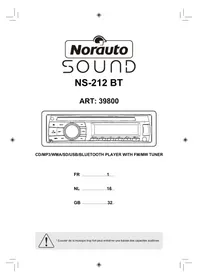
NS212 BT - Car stereo NORAUTO - Free user manual and instructions
Find the device manual for free NS212 BT NORAUTO in PDF.



| Product type | Car radio |
| Brand | Norauto |
| Model | NS212 BT |
| Dimensions | 188 x 58 x 163 mm |
| Power supply | 12 V DC (11-16 V) |
| Rated current | < 10 A |
| Fuse | 15 A |
| Output power | 4 x 50 W max |
| Speaker impedance | 4 Ω |
| Radio bands | FM 87.5-108 MHz, MW 522-1620 kHz |
| Station memory | Up to 30 preset stations |
| Compatible audio formats | MP3, WMA (with ID3 tag) |
| Playback media | CD, USB, SD card, AUX input (3.5 mm jack) |
| Wireless connectivity | Bluetooth (A2DP, AVRCP, hands-free) |
| Equalizer | Yes, presets and customizable (CUSTOM) |
| Detachable panel | Yes, anti-theft system |
| RDS functions | AF, TA, REG, CT, EON |
| Maintenance | Clean with a dry, clean cloth |
| Package contents | Instruction manual, mounting frame, nut, connection cable, removal key, 4 M5×6 mm screws |
| Weight | Approximately 0.5 kg |
Frequently Asked Questions - NS212 BT NORAUTO
User questions about NS212 BT NORAUTO
0 question about this device. Answer the ones you know or ask your own.
Ask a new question about this device
Download the instructions for your Car stereo in PDF format for free! Find your manual NS212 BT - NORAUTO and take your electronic device back in hand. On this page are published all the documents necessary for the use of your device. NS212 BT by NORAUTO.
USER MANUAL NS212 BT NORAUTO
text_image
Diagram of a CD-ROM front panel with labeled ports and buttons, showing internal components like MENU, DSP, AMS, and navigation keys.text_image
183mm 52mmtext_image
Mounting bolt Rubber cushion Remove the two screws Trim plate Main unit Mounting sleeveOPERATION
$$ O F F < - > P O P < - > C L A S S I C < - > R O C K < - > J A Z Z < - > C U S T O M $$
EON (Enhanced Other Networks)
General Notes for Bluetooth
natural_image
Two technical diagrams showing a device with labeled parts (no text or symbols present)text_image
ANTENNA Microphone Rear Right Line-out (Red) SUBOUT (Blue) Rear Left Line-out (White) B 1 3 5 7 2 4 6 8 1 3 5 7| A Compartment | |
| No. | Pin Definition |
| A1 | NC |
| A2 | NC |
| A3 | NC |
| A4 | Battery + |
| A5 | AMP Remote |
| A6 | NC |
| A7 | ACC+ |
| A8 | Ground |
| B Compartment | |
| No. | Pin Definition |
| B1 | Rear Right(+) |
| B2 | Rear Right(-) |
| B3 | Front Right(+) |
| B4 | Front Right(-) |
| B5 | Front Left(+) |
| B6 | Front Left(-) |
| B7 | Rear Left(+) |
| B8 | Rear Left(-) |
VEILIGHEIDSVOORZORGEN
text_image
Illustration showing a person crossed out of a chair with a 'X' symbol, indicating a blocked or invalid action.natural_image
Illustration of hands holding a device with a cross mark, no text or symbols presenttext_image
Diagram showing a device with a 'X' symbol and an open control panel, accompanied by a hand holding a cable.text_image
Diagram of a CD-ROM front panel with labeled ports and buttons, showing numbered labels for identification.USB/SD/MMC/MP3-WEERGAVE
natural_image
Diagram of a device with a rectangular housing and a small electronic component, no text or symbols present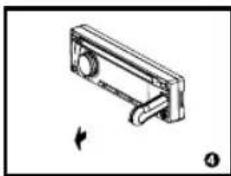
natural_image
Technical line drawing of a mechanical bracket component with no visible text or symbolsUSB/SD/MMC-nota's
(Digital Rights Management)
CD/MP3/WMA WERKING ANT
natural_image
Two views of a mechanical component with arrows indicating direction (no text or symbols)PTY Reception ( Program Type )
text_image
ANTENNA Rear Right Line-out (Red) SUB OUT (Blue) Rear Left Line-out (White) B 1 3 5 7 2 4 6 8 1 3 5| A Compartment | |
| No. | Pin Definition |
| A1 | NC |
| A2 | NC |
| A3 | NC |
| A4 | Battery + |
| A5 | AMP Remote |
| A6 | NC |
| A7 | ACC+ |
| A8 | Ground |
| B Compartment | |
| No. | Pin Definition |
| B1 | Rear Right(+) |
| B2 | Rear Right(-) |
| B3 | Front Right(+) |
| B4 | Front Right(-) |
| B5 | Front Left(+) |
| B6 | Front Left(-) |
| B7 | Rear Left(+) |
| B8 | Rear Left(-) |

INSTALLATIEGIDS
Installatie-opening
text_image
183mm 52mmInstallation Procedures
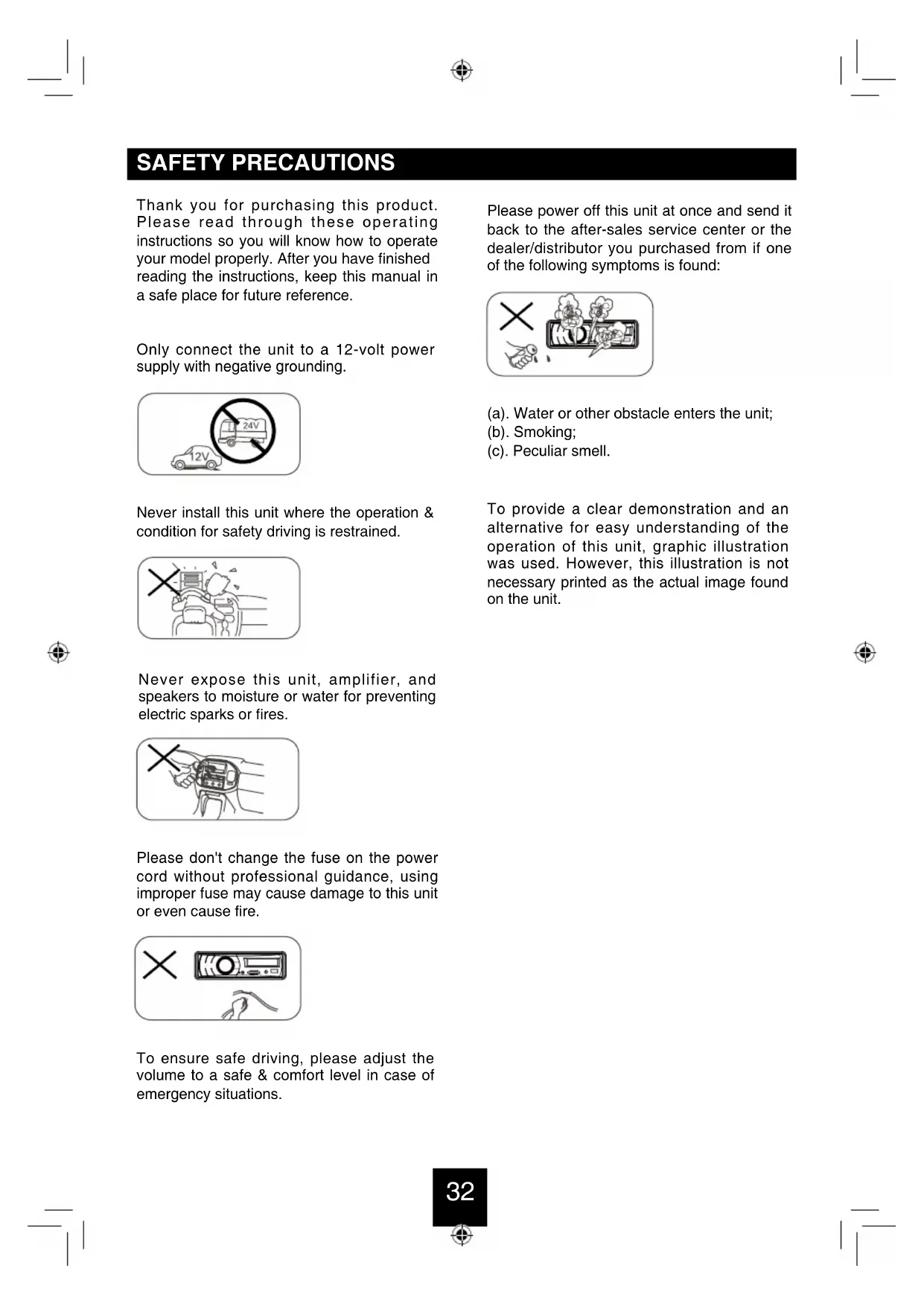
Thank you for purchasing this product. Please read through these operating instructions so you will know how to operate your model properly. After you have finished reading the instructions, keep this manual in a safe place for future reference.
Only connect the unit to a 12-volt power supply with negative grounding.
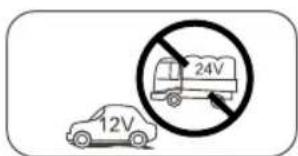
text_image
12V 24VNever install this unit where the operation & condition for safety driving is restrained.
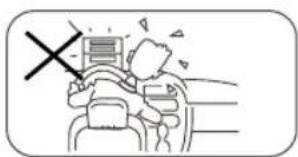
text_image
Diagram showing a person using a device with a cross symbol, indicating no usage or absence of a device.Never expose this unit, amplifier, and speakers to moisture or water for preventing electric sparks or fires.
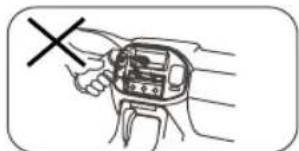
natural_image
Hand holding a device with a cross mark, no visible text or symbolsPlease don't change the fuse on the power cord without professional guidance, using improper fuse may cause damage to this unit or even cause fire.
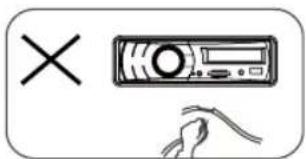
text_image
Diagram showing a device with a 'X' symbol and a hand holding a cable, indicating cancellation or error.To ensure safe driving, please adjust the volume to a safe & comfort level in case of emergency situations.
Please power off this unit at once and send it back to the after-sales service center or the dealer/distributor you purchased from if one of the following symptoms is found:
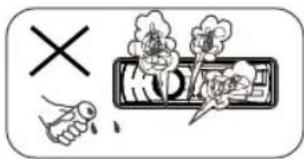
text_image
X KID(a). Water or other obstacle enters the unit;
(b). Smoking;
(c). Peculiar smell.
To provide a clear demonstration and an alternative for easy understanding of the operation of this unit, graphic illustration was used. However, this illustration is not necessary printed as the actual image found on the unit.
FEATURES
WMA and MP3 Compatibility
It is possible to playback WMA and MP3 files.
About WMA
The unit can playback WMA data.
Windows Media and the Windows logo are trade marks or registered trademarks of Microsoft Corporation in the United States and/or other countries.
This unit may not operate correctly depending on the application used to encode WMA files.
About MP3
Supply of this product only conveys a license for private, non-commercial use and does not convey a license nor imply any right to use this product in any commercial (i.e. revenue-generating) realtime broadcasting (terrestrial, satellite, cable and/or any other media), broadcasting/streaming via internet, intranets and/or other networks or in other electronic content distribution systems, such as pay-audio or audio-on-demand applications. An independent license for such use is required. For details, please visit http://www.mp3licensing.com.
PANEL CONTROLS
Power ON: Press [ ◎MUTE] button to turn on the unit.
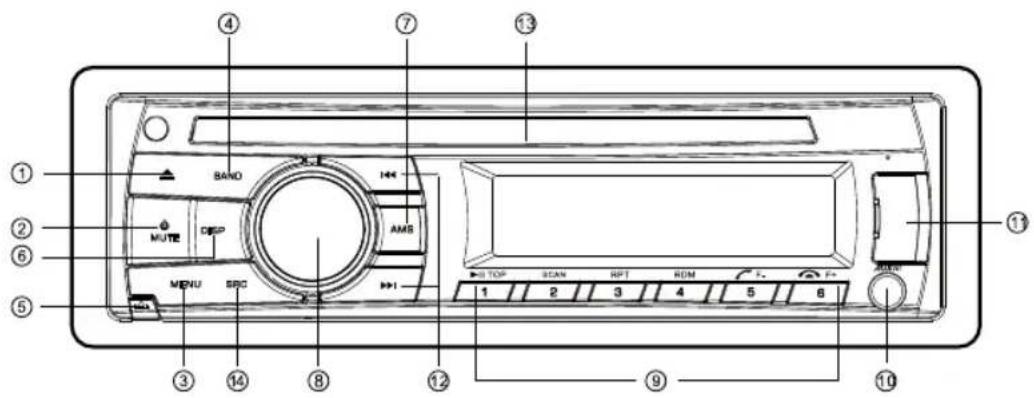
text_image
Labeled diagram of a CD-ROM device showing front panel, buttons, and control panel with numbered parts-
- Press to eject disc.
-
- Power / Mute
-
- MP3/WMA DISC mode - Search function.
- SD/MMC mode – Search function.
- CD mode – No function.
- AUX mode – No function.
- USB mode – Search function
- RADIO mode – PTY function.
-
- Band switch (in Radio mode)
-
- Unlock the front panel.
-
- Display switch
- System setup (long press)
-
- Scan play / Preset scan
- Auto memory store (long press)
-
- Adjust volume level / Confirm (press)
-
- Button 1: Play / Pause / Top play (long press) / Preset station 1
- Button 2: Scan play / Preset station 2.
- Button 3: Repeat play / Preset station 3.
- Button 4: Random play / Preset station 4.
- Button 5: Previous folder / Preset station 5. /MP3 track -10 down (long press)
- BT mode – Dial/Answer / Transfer call
- Button 6: Next folder / Preset station 6. /MP3 track +10 up (long press)
- BT mode – Reject / Terminate call
10.- Aux-in jack
11.- USB connector
12.- Previous / next track
- Seek + / - (long press)
13.- Disc slot
14.- Toggle the audio source
GENERAL OPERATION
Power On/Off Button
Press the [↓MUTE] button to turn the unit on when the vehicle ignition switch is on. Press and hold the button to turn the unit off.
Adjust Volume level
Rotate the knob to adjust volume level. Rotate it clockwise to increase and anticlockwise to decrease the volume.
Audio Mute
Press the [☐ /MUTE] button to mute the volume from the system. "MUTE" will appear on the display panel and the volume will be muted. Press the [☐ /MUTE] button again, or rotate or press the knob to return the volume level to the setting in use before the Mute function was activated.
Mode Button (SRC)
Press the [SRC] button to change between Radio, DISC (when disc is in), USB (when USB is connected), Card(when SD/MMC card is in), A2DP (when BT is connected) or AUX play.
Auxiliary Input
To access an auxiliary device:
- Connect the portable audio player to the AUX interface on the front panel.
- Press the [SRC] button to select Aux-In mode.
Press SRC again to cancel Aux-In mode and go to the next mode.
Display Selector (DISP)
Prest the [DISP] button to display the clock time, the time will display at all times. Prest the [DISP] button again to turn back previous mode.
SOUND SETTING
Press and hold the [MENU] button to enter sound effect setting mode. First press shows current EQ, then rotate the knob to changes BEAT EQ in this order:
$$ \begin{array}{l} \text {OFF < - > POP < - > CLASSIC < - > ROCK < - >} \ \text {JAZZ < - > CUSTOM} \end{array} $$
Rotate the knob to changes CUSTOM, and press the knob, the press [◀◀] or [▶▶] button to select it including: BAS-G -> TRE-G , rotate the knob to select a value. BAS-G / TRE-G: (-7)- (+7)
Press and hold the [MENU] button to enter sound effect setting mode, then press [or [▶] button to select USER preset including: BALANCE -> FADER -> LOUD, rotate the knob to select a value. BALANCE:LEFT 1-7->CENTRE->RIGHT 1-7 FADER:FRONT 1-7->CENTRE->REAR 1-7 LOUD: ON/OFF
During radio play, press the [BAND] button to choose between three FM, two MW bands.
Up Tuning
Press the seek up [▶] button to tune stations upward step-by-step. The current frequency will be shown in digital format on the display panel.
Press and hold the seek [▶▶] button to the next available station.
Down Tuning
Press the seek down [ ◀◀◀ ] button to tune stations downward step-by-step.
Press and hold the seek down [◀◀◀] button to the previous available station.
Auto Memory Store
Press the [AMS] button to automatically select six stations and store them in the current band. The new stations replace stations already stored in that band.
IMC/MP3 Playback
- Loading SD/MMC Card Insert the SD/MMC card into the slot. The unit will play the music automatically and the LCD will show CARD.
- Take out SD/MMC Card Push SRC button and switch to non CARD mode, slightly press SD/MMC card, take out the card when it was popped out.
- Loading USB equipment Open the rubber cap, insert the USB into the connector and the unit play the music in the USB storer automatically, and the LCD will show USB.
- Take out USB equipment Push the SRC button and switch to non USB mode, then take off the USB storer, close the rubber cap.
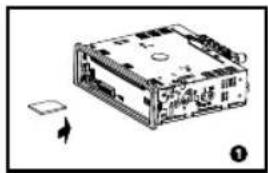
natural_image
Diagram of an electronic device with a component and directional arrow, no visible text or symbols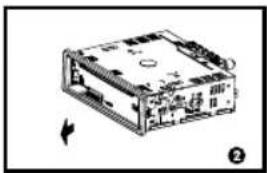
natural_image
Diagram of an electronic device casing with internal components and a directional arrow indicating movement (no text or symbols)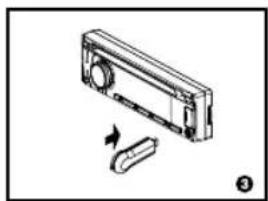
natural_image
Diagram of a device with a rectangular housing and a USB flash drive, showing no text or symbols.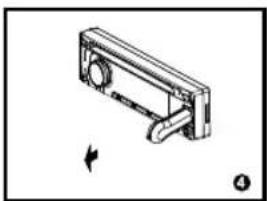
natural_image
Technical line drawing of a mechanical clamp or bracket component with a rotation arrow (no text or symbols)USB/SD/MMC Notes
USB functions (flash memory type) MP3 music play
- SD/MMC card support.
- USB flash memory 2 in 1 (SD/MMC) support.
- Fat 12/fat 16/fat 32 is possible.
-
File name : 32 byte/dir name : 32 byte/tag name : 32 byte
-
Tag (ID3 tag ver 2.0)
-
title/artist/album : 32 byte support.
-
Multi card reader not support.
-
USB 1.1 support, USB 2.0 support (It can not support USB 2.0 speed. Just, get the same speed with USB 1.1).
Not all kinds of USB devices are compatible with the unit.

Note:
Not all USB devices are compatible with the unit.
CD/MP3/WMA OPERATIONS
This unit can play back MP3/WMA files
Notes:
If you play a WMA file with active DRM (Digital Rights Management), no audio is output.
To disable DRM
(Digital Rights Management)
When using Windows Media Player 9/10/11, click on Tool -> Options -> Copy music tab, then under Copy settings, unclick the Check box for Copy protect music. Then, reconstruct files.
Personally constructed WMA files are used at your own responsibility.
Precautions when creating MP3/WMA file
Usable sampling rates and bit rates
-
MP3: Sampling rate 8 kHz-48 kHz, Bit rate 8 kbps-320 kbps / VBR
-
WMA: Bit rate 8 kbps-320 kbps
File extensions
-
Always add a file extension ".MP3", ".WMA" to MP3, WMA file by using single byte letters. If you add a file extension other than specified or forget to add the file extension, the file cannot be played.
-
Files without MP3/WMA data will not play. The files will be played soundlessly if you attempt to play files without MP3/WMA data.
* When VBR files are played, the play time display may differ the play location.
* When MP3/WMA files are played, a little no sound part is caused between tunes.
Logical format (File system)
-
When writing MP3/WMA file on a CD-R disc or CD-RW disc, please select "ISO9660 level 1, 2 or Joliet or Romeo" or Apple ISO as the writing software format. Normal play may not be possible if the disc is recorded on another format.
-
The folder name and file name can be displayed as the title during MP3/WMA play but the title must be within 32 single byte alphabetical letters and numerals (including an extension).
-
Do not affix a name to a file inside a folder having the same name.
Folder structure
A disc with a folder having more than 8 hierarchical levels will be impossible.
Number of files or folders
- Up to 999 files can be recognized per folder.
Up to 3000 files can be played.
-
Tracks are played in the order that they were recorded onto a disc. (Tracks may not always be played in the order displayed on the PC.)
-
Some noise may occur depending on the type of encoder software used while recording.
Eject function
Just pressing the [▲] button, ejects the disc even if the power to the unit was not turned on.
Notes:
- If you force a CD into before auto reloading, this can damage the CD.
- If a CD (12 cm) is left ejected for 15 seconds, the CD is automatically reloaded (Auto reload).
Listening to a disc already loaded in the unit
Press the [SRC] button to select the CD/MP3/WMA mode.
When the unit enters the CD/MP3/WMA mode, play starts automatically.
Loading a CD
Insert a CD into the center of the CD SLOT with label facing up. The CD plays automatically after loading.
Notes:
- Never insert foreign objects into the CD SLOT.
- If the CD is not inserted easily, there may be another CD in the mechanism or the unit may require service.
- Discs without the DIS or OISE mark and CD-ROMs cannot be played by this unit.
- Some CD-R/CD-RW discs may not be usable.
CD/MP3/WMA OPERATIONS
Pausing play
-
Press the [1] button on the front panel or the [▶/II TOP] button on the remote control to pause play. "PAUSE" appears in the display.
-
Press the above button again to resume CD play.
Displaying CD titles
This unit can display title data for MP3/WMA disc.
When SCROLL is OFF, each time you press the [DISP] button to change the title display.
MP3/WMA disc
FILE --> FOLDER --> TITLE --> ARTIST --> ALBUM
Notes:
- If MP3/WMA disc is not input TAG, "NO TITLE" appears in the display.
- Only ASCII characters can be displayed in Tags.
Selecting a track
Track-up
- Press the [▶] button to move to the beginning of the next track.
- Each time you press the ▶▶▶] button, the track advances to the beginning of the next track.
- For MP3/WMA disc, press and hold the [6] button (1 sec.) to move ahead to +10 tracks.
Track-down
- Press the [◀◀] button to move back to the beginning of the current track.
- Press the [◀◀] button twice to move back to the beginning of the previous track.
- For MP3/WMA disc, press and hold the [5] button (1 sec.) to move back to -10 tracks.
Fast-forward/Fast-reverse
Fast-forward
Press and hold the [▶]button.
Fast-reverse
Press and hold the [◀]button.
* For MP3/WMA discs, it takes some time until the start of searching and between tracks. In addition, some error may occur in the play time.
Folder select
This function allows you to select a folder containing MP3/WMA files and start playing from the first track in the folder.
- Press the [5] or [6] button.
Press the [5] button to move the previous folder. Press the [6] button to move the next folder. - To select a track, press the [◀◀] or [▶▶▶] button.
Search Function
Press the [MENU], then rotate the knob to choose FOLD SCH or TRK SCH.
Direct Song/File Access
- Press the knob to enter the track list search mode.
- Turn the knob to select a digit.
- Press the knob to confirm entry and the tens digit will flash.
- Turn the knob to select digit.
- Repeat above steps to enter the hundreds and thousands digit, if necessary.
NOTE: The unit will only allow the selection of digits that correspond with the number of files on the media you are searching. - Once the track number appears on the screen, press the knob to play the selected song/file.
Searching Folders/Files
- Press the knob to enter the folder list search mode.
- Turn the knob to select a file or folder, press the [MENU] botton to turn back the previous folder.
- Press the knob to enter the search mode. And then the list appears in the display.
- Turn the knob to select a track or folder.
- If there is a track, press the knob to play. If there is a folder, press the knob to go on searching.
* When play back MP3 / WMA file, this function is performed in the current folder.
Top function
The top function resets the CD player to the first track of the disc. Press and hold the [1] button (1 sec.) to play the first track (track No.
1) on the disc.
* In case of MP3/WMA, the first track of the
CD/MP3/WMA OPERATIONS
current folder will be played.
Other various play functions
Scan play
This function allows you to locate and play the first 10 seconds of all the tracks recorded on a disc.
Press the [2] button to perform scan play.
Repeat play
This function allows you to play the current track repeatedly or play a track currently being played in the MP3/WMA folder repeatedly.
CD:
- Press the [3] button once or more until "RPT ON" appears on the LCD to perform repeat play.
- Press [3] button repeatedly until "RPT OFF" appears on the LCD to cancel repeat playback.
Random play
This function allows you to play the current track random play being played in the MP3/WMA folder.
CD:
- Press the [4] button "RDM ON" appears on the LCD to perform random play.
- Press the [4] button repeatedly until "RDM OFF" appears on the LCD to cancel random playback.
TI-THEFT SYSTEM
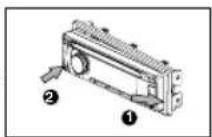
This unit is equipped with a detachable panel. Removing this panel makes the radio totally inoperable.
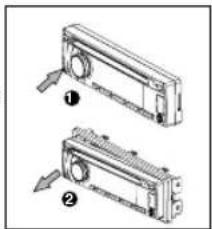
Remove the detachable panel
- Press button.
- Hold the part popped out and pull the panel out.
- Gently press the button of the case and open the cover. Place the panel into the case and take it with you when you leave the car.
natural_image
Technical line drawing of two mechanical components with arrows indicating assembly or movement (no text or symbols)Install detachable panel
- Fix right part of face plate in the panel slot of the unit.
- Press down the left side of the face plate until it clicks into the panel slot.
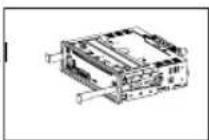
Remove the unit
- Switch off the power of the unit.
- Remove the panel and the trim plate.
- Insert both Remova Keys into the hole on the front of the set until they lock.
- Pull out the unit.
BLUETOOTH OPERATIONS

Note:
For your safety, avoid talking on the phone as much as possible while driving.
Bluetooth is a wireless transmission way for short distance. The built-in Bluetooth can connect with the mobile phones having Bluetooth function.
After connecting, you can control your mobile phone through the unit.
Pairing
Use this function to establish a connection between the unit and your mobile phone.
- Turn on the unit.
- Turn on Bluetooth function of your mobile phone, keep phone within 3 meters to the unit and start to search for Bluetooth devices.
- After the name of the Bluetooth module "BLUETOOTH" appears on the pairing list of your mobile phone, select it. At this time, a pairing code is required. Enter the pairing code "1234", and the Bluetooth pairing will process automatically. Some mobile phones may instruct you to select connect or disconnect, please select connecting.
Receive
- After pair successfully, if there is a call incoming, the unit switch to BT mode automatically.
- Press[5/ ] button to receive.
- Press[6/ ] button to hang up.
Call Transfer
During talking, press [5/7] button to transfer audio from the unit to your mobile phone.

Note:
Some mobile phones will transfer audio from the unit to themselves once the incoming call is answered.
BT Audio
To listen to audio from a bluetooth device and control playback with the unit.
- Press SRC button repeatedly to select A2DP mode.
- To play or pause, press [1 > || TOP] .
Selecting a track
Track-up
Pressthe[ ] button to move to the beginning of the next track.
Track-down
Pressthe[ ]Button to move to the beginning of the previous track.
Music Mode
A2DP
A2DP is short for Advanced Audio Distribution Profile. The mobile phones supporting this function can transmit stereo audio, whereas the ones not supporting this function can transmit mono audio only.
General Notes for Bluetooth
-
For some types of mobile phones, during our test, after the mobile phones appear connection successful, the unit still appear waiting for pairing. At this time you must find the unit's Bluetooth module name "BLUETOOTH" on the pairing list on your mobile phone and select connecting in the submenu, then the unit will appear CONNECT. Otherwise, there is no voice coming out when communicating, though the mobile phone has already displayed CONNECT. Some mobile phones, when it play back A2DP, you must find the unit name in the phone's menu and reconnect (check your mobile phone whether has the A2DP & AVRCP functions).
-
When pairing, some types of mobile phone hint that how to operate, for example, when you make a phone call by the unit, if the mobile phone voice doesn't be transferred to the unit, no voice comes out.
-
Depending on the mobile phone, if private mode is selected, when you make a phone call by the unit, or receive, the voice would be transferred to the mobile phone. But sometime the Bluetooth maybe disconnect till the communication ends, then connects your mobile phone to the unit automatically. Some mobile phones maybe need pair again.
-
For mobile phone, the Bluetooth device name must be primary symbols or numbers. Otherwise, some unpredictable issues
BLUETOOTH OPERATIONS
may occur during the Bluetooth devices connecting and making phone call.
- After CONNECT, if no sound produced, please check whether the Bluetooth stereo audio on the phone switched ON.
RDS (RADIO DATA SYSTEM)
RDS service availability varies with areas. Please understand if RDS service is not available in you area, the following service is not available.
RDS Basics
AF (Alternative Frequency): When the radio signal strength is poor, enabling the AF function will allow the unit to automatically search another station with the same PI (Program Identification) as the current station but with stronger signal strength.
PS (Program Service name): The name of station will be display instead of frequency.
AF Mode: Long press the [DISP] to enter menu mode, then Press [◀◀r [ ]▶▶ button to show AF mode, rotate the knob to select AF ON or OFF.
AF on: AF function is activated.
AF off: AF function is disabled.
Remark: AF indicator on LCD will flash until RDS information is received. If RDS service is not available in your area, turn off the AF mode.
REG Mode: Long press the [DISP] to enter menu mode, then Press [ ] button to show AF mode, rotate the knob to select REG mode on and off.
REG on: AF function will implement the regional code (of the PI) and only stations in the current region can be tuned automatically.
REG off: AF function will ignore the regional code(of the PI) and stations in the other regions can also be tuned automatically.
CT Service (Clock Time)
When receiving an RDS station, the CT (Clock Time) service automatically adjusts the time.
Traffic Announcements
Some RDS FM stations periodically provide traffic information.
TP (Traffic Program Identification)
Broadcasting of traffic information.
TA (Traffic Announcements Identification)
Radio announcements on traffic conditions.
TA Mode: Press the [MENU] for more than 2 seconds to turn on/off the TA function.
When TA mode is turned on, the TA indicator
will blink. When traffic announcement is received, the TA indicator will display. The unit will temporarily switch to the tuner mode (regardless of the current mode) and begin broadcasting the announcement at TA volume level. After the traffic announcement is over, it will return to the previous mode and volume level. When TA is turned on, SEEK, SCAN, AMS function can only be received or saved when traffic program identification (TP) code is received.
EON (Enhanced Other Networks)
When EON data is received, the EON indicator lights and the TA and AF functions are enhanced.
TA: Traffic information can be received from the current station or stations in other network.
AF: The frequency list of preset RDS stations is updated by EON data. EON enables the radio to make fuller use of RDS information. It constantly updates the AF list of preset stations, including the one that currently tuned into. If you preset a station around the area at your home, you will later be able to receive the same station at an alternative frequency, or any other station serving the same program, EON also keeps track of locally available TP stations for quick reception.
PTY Reception ( Program Type )
RDS FM stations provide a program type identification signal.
Example: news, rock, info, sport, etc.
PTY Type Preset
Press the [MENU] to enter PTY mode. Rotate the knob to select the desired program type. Then press the knob to confirm.
MENU FUNCTION
At all mode, press and hold [DISP] button to enter system setup. Press [◀◀r [ ] ▶▶▶ button to select options, rotate the knob to adjust.
AF ON/OFF mode
Rotate the knob to choose AF ON or OFF.
TA ON/OFF mode
Rotate the knob to choose TA ON or OFF.
REG ON/OFF mode
Rotate the knob to choose REG ON or OFF.
DX/LO (RADIO mode)
Rotate the knob to choose radio local or distant at RADIO mode.
- LO: Only stations with strong signal can be received.
- DX: Stations with strong and weak signals can be received.
STEREO/MONO mode
Rotate the knob to choose FM STEREO or MONO.
SCROLL ON/OFF
Rotate the knob to choose SCROLL ON or OFF.
For track information that is longer than the display panel:
When SCROLL is ON, the LCD will display ID3 TAG information cyclely, e.g: TRACK->FOLDER->FILE->ALBUM->TITLE->ARTIST->TRACK->...
When SCROLL is OFF, the LCD will display one of the ID3 TAG information, the default is TRACK, but user can adjust it to other ID3 TAG information by press [DISP] button.
BEEP ON/OFF
Rotate the knob to choose button beep sound ON or OFF.
12/24H
Rotate the knob to choose time format: 12 or 24 hour.
AUTO CON ON/OFF (BT mode)
Rotate the knob to choose AUTOCONNECT ON or OFF.
* The factory default setting is "ON".
S-WOOFER: ON/OFF
Rotate the knob to choose subout woofer ON or OFF.
CLOCK
Press the knob to enter clock setting mode, rotate the knob to set clock, press [ ] button to select hour or minute, press and hold the knob to confirm.
DEVICE CONNECTIONS
Wiring Diagram
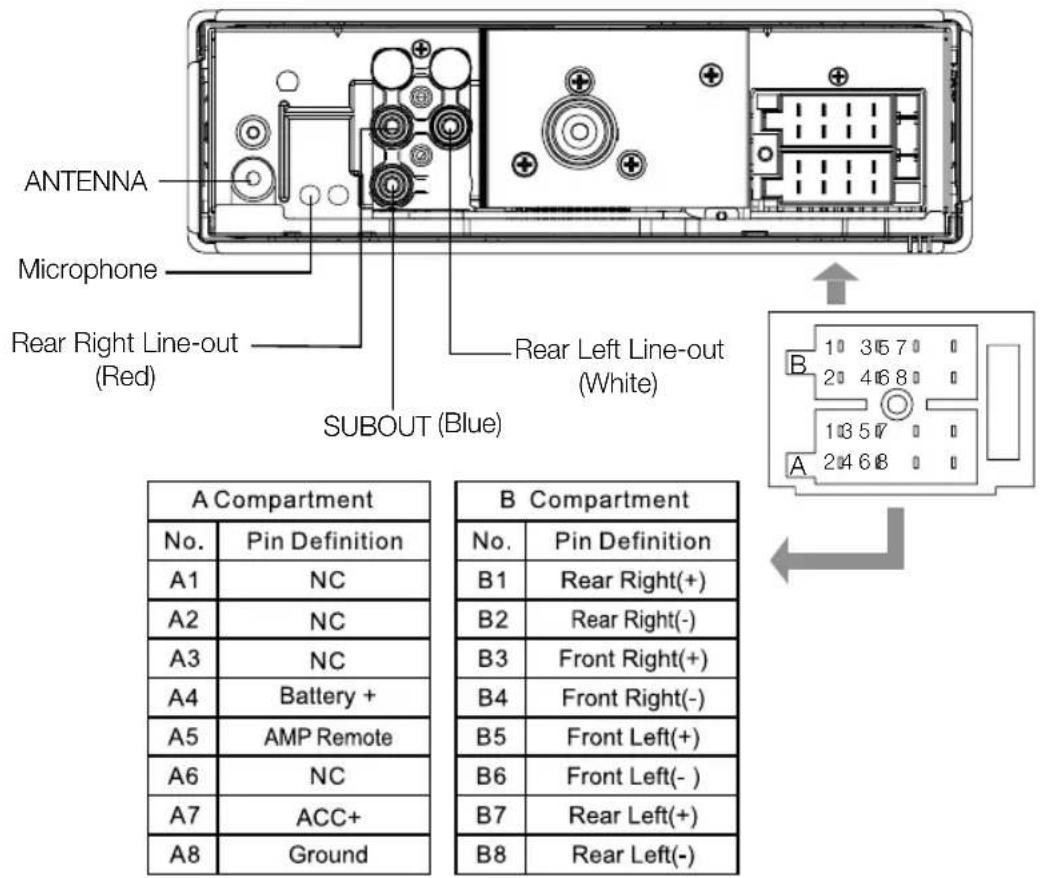
text_image
ANTENNA Microphone Rear Right Line-out (Red) SUBOUT (Blue) Rear Left Line-out (White) A Compartment No. Pin Definition A1 NC A2 NC A3 NC A4 Battery + A5 AMP Remote A6 NC A7 ACC+ A8 Ground B Compartment No. Pin Definition B1 Rear Right(+) B2 Rear Right(-) B3 Front Right(+) B4 Front Right(-) B5 Front Left(+) B6 Front Left(-) B7 Rear Left(+) B8 Rear Left(-)
INSTALLATION GUIDE
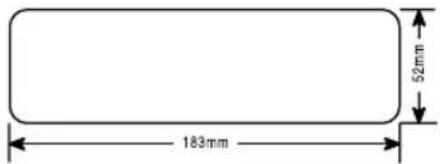
Installation Opening
This unit can be installed in any dashboard having an opening as shown below. The dashboard should be 4.75mm - 5.56mm thick in order to be able to support the unit.
text_image
183mm 52mmIf the opening is too small, carefully cut or file as necessary until the sleeve easily slides into the opening. Do not force the sleeve into the opening or cause it to bend or bow. Check for sufficient space behind the dashboard for the unit chassis.
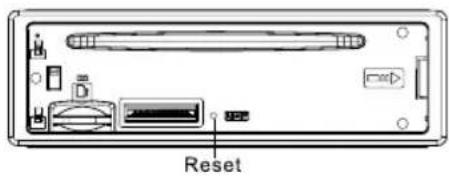
Reset
Press the RESET button with a pointed object to reset the unit to the original status.
Note: Press the RESET button will erase the clock setting and stored stations.
text_image
ResetInstallation Procedures
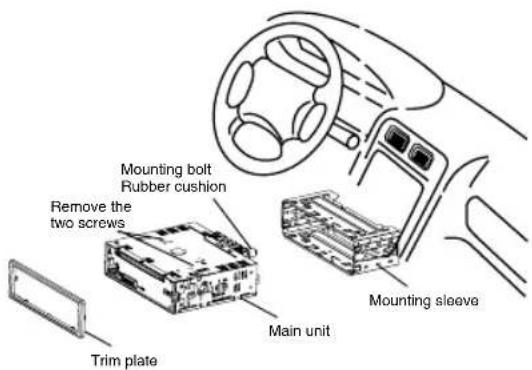
- If relevant, remove any other audio system from the car.
- Insert the mounting sleeve into the dashboard. Fix it firmly in place by folding down the metal tabs.
- Perform the required electrical connections.
- Then check that everything works before installing the main unit.
- Remove the two screws on the top of the unit, otherwise, the unit will not work.
- Install the car radio in the dashboard using the supplied screws (M5x6mm).
- Attach the outer trim frame. If you are not sure how to install this unit correctly, contact a qualified technician.
text_image
Mounting bolt Rubber cushion Remove the two screws Trim plate Main unit Mounting sleeveTROUBLESHOOTING
If you suspect something is wrong, immediately switch power off. Immediately stop using it and call the store where you purchased it. Never try to repair the unit yourself because it is dangerous to do so.
| Problem Possible cause | Solution | |
| General | ||
| The unit will not switch on. | Car ignition is not on.Cable is not properly connected.Fuse is burnt. | Turn your car key in the ignition.Check cable connection.Replace fuse with a new fuse of the same capacity. |
| No sound | Volume is set at minimum or the mute function is on. | Check the volume or switch the mute function off. |
| The unit or screen does not function normally. | The unit system is unstable. P | Press the RESET button. |
| TUNER mode | ||
| Unable to receive stations. | The antenna is not connected properly. | Connect the antenna properly. |
| Poor quality reception of radio station. | The antenna is not fully extended or it is broken. | Fully extend the antenna and if broken, replace it with a new one. |
| Preset stations are lost. | The battery cable is not properly connected. | Connect the permanent live on the unit to the permanent live on the vehicle. |
| USB/SD/MMC mode | ||
| Unable to insert USB device or SD/MMC card. | The memory card or USB device has been inserted the wrong way round. | Insert it the other way around. |
| The USB device or SD/MMC card cannot be read. | NTFS format is not supported. | Check that the USB/SD/MMC file system is in FAT or FAT32 format.Due to different formats, some models of USB storage devices or MP3 players may not be read. |
SPECIFICATIONS
General
Power supply: 12VDC (11V-16V), Test voltage 14.4V, negative ground
Maximum power output: 50W x 4 channels
Continuous power output: 20W x 4 channels (4 10% T.H.D.)
Suitable speaker impedance: 4-8ohm
Pre-Amp output voltage: 2.0V (Play mode: 1KHz, 0dB, 10K load) Ω
Fuse: 15A
Dimensions (WxHxD): 188 x 58 x 163mm
Weight: 1.7kg
Aux-in level: ≥slant 300mV
FM Stereo Radio
Frequency range: 87.5-108.0MHz
Usable sensitivity: 8dBμ
Frequency response: 30Hz-15KHz
Stereo separation: 30dB(1KHz)
Image response ratio: 50dB
IF response ratio: 70dB
Signal/noise ratio: >55dB
AM(MW) Radio
Frequency range 522-1620KHz
Usable sensitivity (S/N=20dB) 30dBμ
Components
Mounting sleeve 1
Machine screws M5x6 mm 4
Mounting bolt (50mm) 1
Trim plate 1
Removal key 2
Operating Instructions 1
Removable face plate case 1
Rubber cushion 1

Note:
Specifications and the design are subject to change without notice due to improvements.
Norauto France 511/589 rue des Seringats 59262 Sainghin-en-Mélantois
Auto 5 Bld Paepsem 20 -1070 ANDERLECHT BELGIQUE
Noroto España SAU Centre Comercial Alban Carretera de Ademuz km 2,9 46100 BURJASSOT
Norauto Italia SPA Corso Savona 85/10024 MONCALIERI
Norauto Portugal LDA Av. dos Cavaleiros, n°49 Alfragide 2794-057 CARNAXIDE
Norauto Romania nr.7, corp Z, et.1, Sector 6, Bucuresti, 061072
Norauto Polska SP Z.O.O. Ul. Jubilerska 1004-190 WARSZAWA