 ManualGo.com
TVC1300u - TV AIWA - Free user manual and instructions
Find the device manual for free TVC1300u AIWA in PDF.


Frequently Asked Questions - TVC1300u AIWA
Download the instructions for your TV in PDF format for free! Find your manual TVC1300u - AIWA and take your electronic device back in hand. On this page are published all the documents necessary for the use of your device. TVC1300u by AIWA.
USER MANUAL TVC1300u AIWA
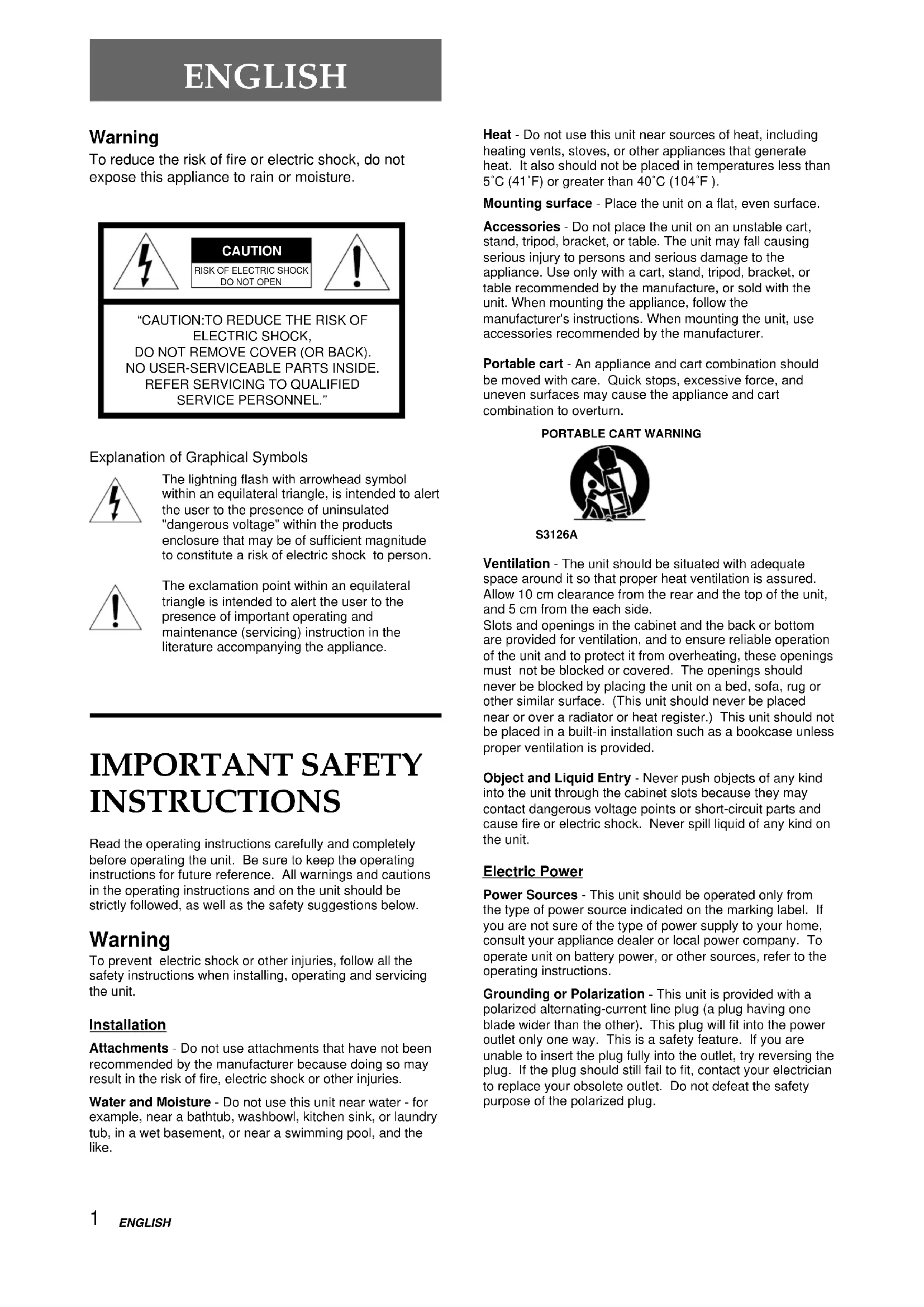
Warning To reduce the risk of fire or electric shock, do not expose this appliance to rain or moisture. Explanation of Graphical Symbols The lightning flash with arrowhead symbolwithin an equilateral triangle, is intended to alertthe user to the presence of uninsulated"dangerous voltage" within the productsenclosure that may be of sufficient magnitudeto constitute a risk of electric shock to person.The exclamation point within an equilateraltriangle is intended to alert the user to thepresence of important operating andmaintenance (servicing) instruction in theliterature accompanying the appliance. IMPORTANT SAFETY INSTRUCTIONS Read the operating instructions carefully and completelybefore operating the unit. Be sure to keep the operatinginstructions for future reference. All warnings and cautionsin the operating instructions and on the unit should bestrictly followed, as well as the safety suggestions below. Warning To prevent electric shock or other injuries, follow all thesafety instructions when installing, operating and servicingthe unit. Installation Attachments - Do not use attachments that have not beenrecommended by the manufacturer because doing so mayresult in the risk of fire, electric shock or other injuries.Water and Moisture - Do not use this unit near water - forexample, near a bathtub, washbowl, kitchen sink, or laundrytub, in a wet basement, or near a swimming pool, and thelike.“CAUTION:TO REDUCE THE RISK OFELECTRIC SHOCK,DO NOT REMOVE COVER (OR BACK).NO USER-SERVICEABLE PARTS INSIDE.REFER SERVICING TO QUALIFIEDSERVICE PERSONNEL.”CAUTIONRISK OF ELECTRIC SHOCKDO NOT OPENPORTABLE CART WARNINGS3126AHeat - Do not use this unit near sources of heat, includingheating vents, stoves, or other appliances that generateheat. It also should not be placed in temperatures less than5˚C (41˚F) or greater than 40˚C (104˚F ).Mounting surface - Place the unit on a flat, even surface.Accessories - Do not place the unit on an unstable cart,stand, tripod, bracket, or table. The unit may fall causingserious injury to persons and serious damage to theappliance. Use only with a cart, stand, tripod, bracket, ortable recommended by the manufacture, or sold with theunit. When mounting the appliance, follow themanufacturer's instructions. When mounting the unit, useaccessories recommended by the manufacturer.Portable cart - An appliance and cart combination shouldbe moved with care. Quick stops, excessive force, anduneven surfaces may cause the appliance and cartcombination to overturn.Ventilation - The unit should be situated with adequatespace around it so that proper heat ventilation is assured.Allow 10 cm clearance from the rear and the top of the unit,and 5 cm from the each side.Slots and openings in the cabinet and the back or bottomare provided for ventilation, and to ensure reliable operationof the unit and to protect it from overheating, these openingsmust not be blocked or covered. The openings shouldnever be blocked by placing the unit on a bed, sofa, rug orother similar surface. (This unit should never be placednear or over a radiator or heat register.) This unit should notbe placed in a built-in installation such as a bookcase unlessproper ventilation is provided.Object and Liquid Entry - Never push objects of any kindinto the unit through the cabinet slots because they maycontact dangerous voltage points or short-circuit parts andcause fire or electric shock. Never spill liquid of any kind onthe unit. Electric Power Power Sources - This unit should be operated only fromthe type of power source indicated on the marking label. Ifyou are not sure of the type of power supply to your home,consult your appliance dealer or local power company. Tooperate unit on battery power, or other sources, refer to theoperating instructions.Grounding or Polarization - This unit is provided with apolarized alternating-current line plug (a plug having oneblade wider than the other). This plug will fit into the poweroutlet only one way. This is a safety feature. If you areunable to insert the plug fully into the outlet, try reversing theplug. If the plug should still fail to fit, contact your electricianto replace your obsolete outlet. Do not defeat the safetypurpose of the polarized plug. ENGLISHENGLISH
OWNER'S RECORD For your convenience, record the model number and serial number (you will find them on the rear of your set) in the space provided below. Please refer to them when you contact your AIWA dealer in case of difficulty. Model No. Serial No.
UNIT (NEC SECTION 810-20)GROUNDING CONDUCTORS(NEC SECTION 810-21)GROUND CLAMPSPOWER SERVICE GROUNDINGELECTRODE SYSTEM(NEC ART 250 PART H)
ELECTRICSERVICEEQUIPMENTGROUND CLAMP Antenna Grounding According to the National Electrical Cord Overloading - Do not allow anything to rest on the power cord. Do not overload wall outlets and extension cords because this can result in fire or electric shock. Do not place the unit in an area where people will walk on the cord. Outdoor Antenna Power lines - An outside antenna system should not be located in the vicinity of overhead power lines or other electric light or power circuits, or where it can fall onto such power lines or circuits. When installing an outside antenna system, extreme care should be taken to avoid touching power lines or circuits because contact with them may be fatal. Outdoor Antenna Grounding - If an outside antenna or cable system is connected to the unit, be sure the antenna or cable system is grounded so as to provide some protection against voltage surges and built-up static charges. Section 810 of the National Electrical Code, ANSI/ NFPA No.70, provides information with regard to proper grounding of the mast and supporting structure, grounding of the lead-in wire to an antenna discharge unit, size of grounding conductors, location of antenna-discharge unit, connection to grounding electrodes, and requirements for the grounding electrode. See the figure. Lightning For added protection during a lightning storm, or when left unattended and unused for long periods of time, unplug the unit from the wall outlet and disconnect the antenna or cable system. This will prevent damage to the unit due to lightning and powerline surges. Maintenance Cleaning - Unplug the unit from the wall outlet before cleaning. Do not use liquid cleaners or aerosol cleaners. Use a damp cloth for cleaning. Damage Requiring Service Unplug the unit from the wall outlet and refer servicing to qualified service personnel under the following conditions:
1) When the power cord or plug is damaged or frayed.
2) If liquid has been spilled into the unit.
3) If the unit has been exposed to rain or water.
4) If the unit does not operate normally when following
the operating instructions. Adjust only those controls that are covered by the operating instructions because improper adjustment of other controls may result in damage to the unit and will often require extensive work by a qualified technician to restore the unit to normal operation.
5) If the unit has been dropped or the cabinet has been
6) When the unit exhibits a distinct change in
performance - this indicates a need for service. Do not attempt to service the unit yourself because opening or removing covers may expose you to high voltage or other hazards. Refer all servicing to qualified service personnel. Replacement Parts - When replacement parts are required, be sure the service technician has used replacement parts specified by the manufacturer or having the same characteristics as the original part. Unauthorized substitutions may result in fire, electric shock or other hazards. Safety Check - After completion of any service or repairs to the unit, ask the service technician to perform a safety check to ensure that the unit is in proper operating condition. Note to CATV system installer: This reminder is provided to call the CATV system installer’s attention to Article 820-40 of the NEC that provides guidelines for proper grounding and, in particular, specifies that the cable ground should be connected to the grounding system of the building, as close to the point of cable entry as practical.ENGLISH Welcome Thank you for purchasing this AIWA product. To optimize the performance of this unit, please read through this operating instructions carefully. Main features of this
- V-chip An age limitation can be set to prevent children from viewing or listening to violent scenes or programs with adult content. This unit corresponds to "TV- RATING" and "MPAA RATING." Video Enhancer This unit provides 4 modes as the multi video enhancer: NORMAL, CINEMA, GAME, and DIMMER. Closed Caption The subtitles can be displayed on the screen when a broadcast corresponding to closed caption is received. Preparation Connecting the antenna p. 4
- Preparing the remote control p. 7
- Setting the language p. 7
- Setting the channels p. 8
- Basic operations Watching a TV program p. 9
- Selecting the closed captions mode p. 10
- Selecting the AV mode p. 11
- Adjusting the picture p. 11
- Other functions Setting the V-chip p. 12
- Registering a broadcasting station name p. 14
- On-screen display p. 15
- Watching a video or other equipment p. 16
- Additional information Troubleshooting p. 16
- Specifications p. 16
- Parts and controls Table of contents p. 17
This equipment has been tested and found to comply with the limits for a Class B digital device, pursuant to Part 15 of the FCC Rules. These limits are designed to provide reasonable protection against harmful interference in a residential installation. This equipment generates, uses, and can radiate radio frequency energy and, if not installed and used in accordance with the instructions, may cause harmful interference to radio communications. However, there is no guarantee that interference will not occur in a particular installation. If this equipment does cause harmful interference to radio or television reception, which can be determined by turning the equipment off and on, the user is encouraged to try to correct the interference by one or more of the following measures: - Reorient or relocate the receiving antenna. - Increase the separation between the equipment and receiver. - Connect the equipment into an outlet on a circuit different from that to which the receiver is connected. - Consult the dealer or an experienced radio/TV technical for help. Note Modifications or adjustment to this product, which are not expressly approved by the manufacturer, may void the user's right authority to operate this product.ENGLISHConnect the antenna cable to the ANTENNA connector on the TV.If the cable is a round-type 75-ohm coaxial cable, connect it directly to the ANTENNA connector. If the cable is a flat-type 300-ohm twin-lead cable, connect it to the antenna adaptor(supplied), and connect the adaptor to the ANTENNA connector.The antenna adaptor can be taken out from the supplied telescopic antenna.Connect the AC cord to the AC wall outlet.The STANDBY indicator on the front lights. Connecting the antenna Basic connections PREPARATION
CONTINUE To Connect the supplied telescopic antenna Mount the supplied antenna in the antenna holder.Extend and adjust the ends of the antenna to get the bestsignal reception. Note For better reception, especially in outlying areas, or where ghosting or interference is a problem, use an external roof- mounted antenna. Antenna holder VIDEOAUDIO OUTPUT VIDEO INPUT ANTENNA VIDEOAUDIO OUTPUT VIDEO INPUT ANTENNA 75-ohm coaxial cable (not supplied) 300-ohm twin-lead cable (not supplied) Antenna adaptor (supplied)
Connect the cable from the CATV system to the ANTENNA connector on the TV. Connect the AC cord to the AC wall outlet. The STANDBY indicator on the front lights. Connect the cable from the CATV system to the input connector on the CATV converter. Connect the output connector on the converter to the ANTENNA connector on the TV. Connect the AC cord to the AC wall outlet. The STANDBY indicator on the front lights.
Connecting the antenna (continued) 75-ohm coaxial cable(not supplied)CATV system
Connecting a VCR or other equipment
Remove the antenna cable from the TV and connect it to the antenna input connector on the VCR. Connect the optional antenna cable to the antenna output connector on the VCR and to the ANTENNA connector on the TV. You can connect the TV and the VCR with the optional audio/video cable. Note Note For details on how to connect the VCR to the TV, consult the individual owner’s manual for the VCR. To connect a video camera or a game machine It is convenient to use VIDEO 2 IN AUDIO/VIDEO jacks on the front.
Preparing the remote control Inserting the batteries Caution To prevent damage from leakage or explosion, followthe descriptions below.• Insert the two supplied R6 (size AA) batteries with the
9 marks correctly as illustrated.• Do not mix old batteries with new ones or differenttypes of batteries.• Do not throw the batteries into a fire, apply heat tothem or take them apart.• Do not carry the batteries with keys or other metallicobjects. Note Remove the batteries when they have no more power, or whenyou do not use the remote control for a long period of time. Using the remote control Point the remote control toward the remote sensor. Notes
- The remote control may not operate when there is anyobstruction between the remote control and the remotesensor.• Strong ambient light sources such as a fluorescent lamp ordirect sunlight may cause unreliable operation.• Using a TV with the same type of infrared remote controlfacing the same direction may cause incorrect operation.• The maximum distance for effective control between theremote control and the remote sensor is 7 meters.• Although you can use the remote control within an angle ofup to 30 degrees in any direction from directly in front of theremote sensor, we recommend a narrower angle for stableoperation. Setting the language The on-screen menu can display three languages:English, Spanish and French. Press POWER to turn on the TV. The STANDBY indicator turns off. Press MENU. Press CHANNEL i/k to select SET UP, then press ENTER. The selected item is displayed in red.You can also use TV / VIDEO / ENTER on the TVinstead of ENTER on the remote control. Press VOLUME
VIDEO AUDIO VIDEO INPUT POWER PHONES TV/VIDEO VOLUME CHANNEL STANDBYENGLISH Setting the channels Before Auto Search, this unit can receive all channels in your area by pressing CHANNEL i/k repeatedly. After Auto Search, you can skip the channels which are not preset with CHANNEL i/k. Press MENU. Make sure the TV is in TV mode. Press CHANNEL i/k to select SET UP, then press ENTER. The selected item is displayed in red. Press CHANNEL i/k to select ANTENNA, then press VOLUME
/– to select TV or CABLE. TV : the program from VHF/UHF antenna CABLE : the CATV according to the connections to the ANTENNA connector Press CHANNEL i/k to select AUTO SEARCH, then press ENTER. All available channels in your area are scanned and stored in the memory of the TV. After scanning, the first located channel appears on the screen.
Adding or erasing the channels manually If the Auto Search does not set the channels correctly, add them manually for watching TV programs. Also, you can erase the unnecessary channels. Select the channel number to be erased or added using the number buttons. Press the buttons as follow: Example To select the channel 7, press 0 then 7. To select the channel 77, press 7 then 7. To select the channel 107, press +100, 0 then 7. Press MENU. Press CHANNEL i/k to select SET UP, then press ENTER. Press CHANNEL i/k to select ADD/ERASE, then press ENTER. Press VOLUME
- When the selected channel is already set, ADD appears. When it is not set, ERASE appears.
- When you add or erase channels, the picture does not change until you change the channel on the normal screen. If you want to erase or add another channel, press CHANNEL i/k to select CABLE (or TV,) then press VOLUME
/– to select the channel number to be erased or added. And press CHANNEL i/k to select ADD/ERASE, then press VOLUME
Tip To interrupt the Auto Search, press MENU. Note Once you conduct the Auto Search, the previous settings will be canceled. Number buttons 4ENGLISH Watching a TV program Press POWER to turn on the TV. Press CHANNEL i/k repeatedly or the number buttons to select the channel number. When you use the number buttons, press the button asfollows:ExampleTo select the channel 7, press 0 then 7.To select the channel 77, press 7 then 7.To select the channel 107, press +100, 0 then 7. Press VOLUME
/– to adjust the volume. To turn off the TV Press POWER. To mute the volume Press MUTE. “MUTE” apperes for a few seconds. To restore the volume, press MUTE or VOLUME
To recall a previous channel Press PREV.CH to switch back and forth between thecurrent channel and the previous one.VIDEO AUDIOVIDEO INPUTPOWERPHONESTV/VIDEOVOLUME CHANNELSTANDBY BASIC OPERATIONS
Setting the sleep timer Press SLEEP repeatedly to select the number of minutes after which to turn off. The minutes change up to 120 minutes as follows.After the set amount of time has elapsed, the TV turns thepower off. To check the remaining sleep time Press SLEEP once. The remaining time appears on thescreen. To cancel the sleep timer Press SLEEP repeatedly until "SLEEP OFF" appears. Note The remaining time appears automatically 5 minutes and 1 minute before the TV turns off. For example, 5 minutes before turning off, "SLEEP 5" appears. POWER PREV. CH CHANNEL i/k SLEEP Number buttons MUTE VOLUME
Tip To listen through the earphone, insert an earphone (not supplied) with a monaural mini plug into the earphone jack on the front. The sound from the TV speaker is muted. Note The power automatically turns off approximately 15 minutes after a television station has stopped broadcasting. Earphone jack POWER SLEEP 30 VOLUME
OFF 15 30 60 90 120ENGLISH Selecting the closed captions mode This unit can decode and display closed captioned television programs. Press CAPTION repeatedly to select the caption mode. The display changes as follows: Captions: This closed caption mode displays text on the screen in English or another language. Generally, closed captions in English are transmitted on CAPTION 1 and closed captions in other languages are transmitted on CAPTION 2. Full Screen Text: The text closed caption mode TEXT 1, TEXT 2 will usually fill the screen with a programming schedule or other information.
CAPTION OFFCAPTION 1TEXT 1 CAPTION 2TEXT 2
CAPTION 1CAPTION Notes
- After selecting a closed caption mode, it will stay in effectuntil it is changed, even if the channel is changed.• If the captions signal is lost due to a commercial or a breakin the signal, the captions will reappear when the signal isreceived again.• When selecting closed captions, the captioning might bedelayed momentarily.• If the channels are changed, the captions might be delayedmomentarily.• If using an indoor antenna or if TV reception is very poor, theclosed caption decoder text may not appear. In this case,adjust the antenna for better reception or use an outdoorantenna.• When activating the closed captioned decoder, there will bea short delay before the closed captioned text appears onthe screen.• The captions will appear in places on the screen where theywill least interfere with the picture, usually on the bottom ofthe screen. News programs will usually show three-lineclosed captions which scroll onto the screen. Most othershows provide two or three lined captions placed near thecharacter who is speaking so the viewer can follow thedialogue.• If no caption signal is received, no captions will appear, butthe television will remain in the caption mode.• Misspellings or unusual characters may occasionally appearduring closed captioning. This is normal with closedcaptioning, entered live. These transmissions do not allowtime for editing.• Some cable systems and copy protection systems mayinterfere with the closed captioned signal.• Words in italics or underlined describe titles, words in foreignlanguages or words requiring emphasis. Words that are sungusually appear enclosed by musical notes.• For television programs broadcasting with closed captions,look in your TV guide for the closed captions symbol (CC).ENGLISH Adjusting the picture You can adjust the picture settings for each AV mode. Press AV MODE repeatedly to select the AV mode to adjust. Press MENU. Press CHANNEL i/k to select PICTURE, then press ENTER. Press CHANNEL i/k to select the item to adjust. MENU P CTUREISET UPV CHI POK : ENTERSELECT :EXIT : MENU
Selecting the AV mode This unit provides 4 modes as the multi video enhancer. NORMAL: Normal setting CINEMA: Setting for watching films GAME: Setting where it causes less eyestrain DIMMER: Setting where the surrounding is darker Press AV MODE repeatedly to select the AV mode. The display changes as follows: Note Even if you change the AV mode, the sound quality does not change.
/– to adjust the setting. After 2 seconds from releasing the button, the displayreturns to step 4. To adjust the other item, complete steps 4 and
Press MENU to return to the normal screen. Tips
- To reset all the items of the selected AV mode to its initialsetting, select RESET in step 4, then press ENTER.•You can select the AV mode in step 4 instead of in step 1.CHANGE :
OTHER FUNCTIONS Setting the V-chip An age limitation can be set to prevent children from viewingor listening to violent scenes or programs with adultcontent. This unit corresponds to "TV-RATING" and "MPAARATING."To use the V-chip function, register a password at first. Registering the password Important You cannot set the V-chip if you forget the password. We recommend you write down the password and keep it in a safe place in case you forget it. Press MENU. Press CHANNEL i/k to select V CHIP, then press ENTER. Enter the password (4 digits) using the number buttons (0-9.)
” appears instead of the number. Enter the same password again for the safety. The V-chip menu appears. OK : ENTER SELECT : EXIT : MENU MENU P CTUREI SET UP
EXIT : MENU V CHIP CONFIRM PASSWORD VOLUME +/– CONTINUE Note If no button is pressed for 15 seconds in step 7, the normalscreen returns. Item BRIGHTCONTRASTSHARPCOLORIncreasing the bars makes the picturebrighterenhances thecontrastmakes the pictureclearerenhances theintensity andbrilliance of the colorDecreasing the bars makes the picturedarkerlowers the contrastmakes the picturesofterlowers the intensityand brilliance of thecolor Item TINT Movement to therightmakes the lightercolors greenerMovement to the left makes the lightercolors redderENGLISH Press CHANNEL i/k to select MPAA RATING, then press VOLUME
/– to display the desired setting. When the following movies are received, they are protected from display according to the selected setting. OFF: MPAA RATING is not set. G: Movies with no age limit PG: Movies not proper for children PG-13: Movies not proper for children of 13 years old and younger R: Movies those can be seen by children under 17 years old with their parents NC-17: Movies forbidden children under 17 years old X: Movies for adults Press CHANNEL i/k to select V CHIP, then press VOLUME
/– to display ON. Press MENU to return to the normal screen. To use the TV after the TV is protected When the program applied to the V-chip setting is received, "PROTECT BY V CHIP" is displayed. Enter the password. When the password is right, the protect will be canceled. CHANGE :
/– to display the desired setting.
- When the following programs are received, they are protected from display according to the selected setting. OFF: TV RATING is not set. TV-Y: Programs except for ones for infants TV-Y7: Programs for those older than 7 years old TV-G: Programs except for ones for children TV-PG: Programs not proper for infants TV-14: Programs not proper for children under 14 years old TV-MA: Programs forbidden children under 17 years old
- TV RATING sub menu may appear according to the selected setting. If the sub menu appears, go to step 2. If not, go to step 3. Press CHANNEL i/k to select the sub menu item, then press VOLUME
- When TV-Y7 is selected, the items below appear.
- When TV-PG or TV-14 is selected, the items below appear.
- When TV-MA is selected, the items below appear.
” appears instead of the number. Enter the same password again for the safety. Press MENU to return to the normal screen.
EXIT : MENU V CHIP CONFIRM PASSWORD Registering a broadcasting station name You can register a broadcasting station name for eachchannel. Press MENU. Press CHANNEL i/k to select SET UP, then press ENTER. Press CHANNEL i/k to select CH CAPTION, then press ENTER. Press VOLUME
/– to select the channel number you want to register a name. Press CHANNEL k to select the bar display.
- If no button is pressed for 8 seconds, the on-screen displayautomatically turns off.• Broadcasting station name appears only when the stationname is registered. Press VOLUME
to display the desired letter, then press CHANNEL k . Each press of VOLUME+ changes the display asfollows:Press VOLUME – to change the display in reverse order. Repeat steps 5 and 6 to enter a broadcasting station name. You can enter up to 4 letters. Repeat steps 4 through 7 to enter another broadcasting station name. You can enter up to 30 stations. Press MENU to return to the normal screen. Tip To cancel all letters in step 6 and 7, press CHANNEL i/k to select RESET, then press ENTER.
DISPLAY Channel number/ VIDEO indicator Broadcasting station name
CABLE125NBC Registering a broadcasting station name (continued)
Watching a video or other equipment Press TV/VIDEO on the remote control or TV/ VIDEO/ENTER on the TV to display "VIDEO 1" or "VIDEO 2" for a few seconds. VIDEO 1: input from the VIDEO 1 INPUT AUDIO/VIDEOjacks on the rearVIDEO 2: input from the VIDEO 2 IN AUDIO/VIDEOjacks on the front Set the VCR or other equipment to playback. To return to the TV program Press TV/VIDEO on the remote control or TV/VIDEO/ENTER on the TV repeatedly until the TV program appears.Also, you can return to the TV program by selecting thechannel number directly with the number buttons. To switch the GAME position directly Press GAME to select the AV mode to GAME. The TVinput mode changes to VIDEO 2 automatically. And thescreen becomes to the adequate size for games. When connecting to the AIWA VCR with the ONE-TOUCH PLAYBACK When ONE-TOUCH PLAYBACK or OTPB on the remotecontrol of VCR is pressed, this unit automatically turns onand is in the VIDEO 1 mode. However, this function doesnot operate in the following cases:• ONE-TOUCH PLAYBACK on the VCR is pressed.• The TV and VCR is not placed in the place where they canreceive the signal from the remote control simultaneously. Note For details on how to use the VCR, consult the individualowner's manual for the VCR.TV / VIDEO / ENTERTV/VIDEONumber buttons GAME
VIDEO AUDIOVIDEO INPUT
POWER PHONES TV/VIDEO VOLUME CHANNEL STANDBY Troubleshooting If the unit does not seem to operate properly, read theinstructions again, then check the following guide.There is no picture or soundThe unit is in VIDEO input mode.There is no sound.Increase the volume level.There is poor or no colorAdjust the color setting.The remote control does not operateReplace both batteries with new ones.Clicking noise sounds.Unavoidable expansion or contraction of cabinet due totemperature changes. This is not a problem. Specifications Tuner System Frequency synthesized tunerTV System NTSC-MChannel Coverage VHF: 2 to 13UHF: 14 to 69CATV: 5A, A-1 to A-5, A to W,W+1 to W+84Program Memory 181Antenna Input 75 ohms, unbalancedPicture Tube 13"Screen Size 280 (W) × 211 (H) mm (11
in.)335 mm (diagonal) (13
in.)Weight 9.5 kg (20.9 lbs.)Accessories Remote control (1)Batteries (R6/size AA) (2)Telescopic antenna with the antennaadaptor (1)Design and specifications are subject to change withoutnotice for the purpose of performance improvement. ADDITIONAL INFORMATIONENGLISH
PHONESVIDEO AUDIOTV/VIDEOVOLUMEVIDEO INPUTCHANNELSTANDBYPOWER
Parts and controls Front panel Rear panel