USER MANUAL 42PF7520D PHILIPS
Because of the advanced technology used in your Philips Digital TV and our commitment to continually providing you with the most up-to-date product performance, we would like to highlight the following.
After you turn off your TV set in a dark room, you may notice a very faint light emitted from the screen for a few minutes. This is because the TV is scanning the network for possible software updates and new services. This is normal operation and is in accordance with all stringent quality and safety standards Philips delivers.
François
Thank you for purchasing this television set.
This handbook has been designed to help you install and operate your TV set.
We would strongly recommend that you read it thoroughly.
Presentation of the television 2
Remote control 2
Digital or Analogue channels? 2
The remote control keys 3
Mode selector 4
4
Switching on for the first time 5
Understanding the information on the banner 5
Rearrange services 6
View or Listen to new TV services 6
Add new services 6
Reinstall all services 7
Testreception 7
Language and location preferences 8
Access restrictions 8
Setting up your favourite list 9
Information menu 9
Downloading new software 9
Using the Options menu 1
TV guide 1
Recording function 1
ANALOGUE
Automatic tuning of analogue programmes 12
Program sort 12
Manual tuning of analogue programmes 12
Other settings in the install menu 13
Picture settings 13
Sound adjustments 13
Feature settings 13
Screen Formats 14
Digital text 14
Analogue Teletext 15
Using in the PC monitor mode 16
Using in the HD (high definition) mode 17
Connecting peripheral equipment 18
Tips 20

Recycling
The packaging of this product is intended to be recycled. Apply to the local authorities for correct disposal.
Disposal of your old product
Your product is designed and manufactured with highly quality material and components, which can be recycled and reused. When this crossed-out wheeled bin symbol is attached to a product, it means the product is covered by the European Directive 2002/976/EC.
Please inform yourself about the localseparate collection system for electrical and electronic products.
Please act according to your local rules and do not dispose of your old products with your normal household waste. The correct disposal of your old product will help prevent potential negative consequences for the environment and human health.
Presentation of the Television
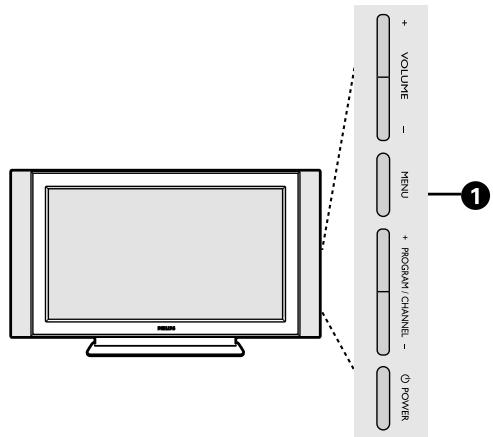
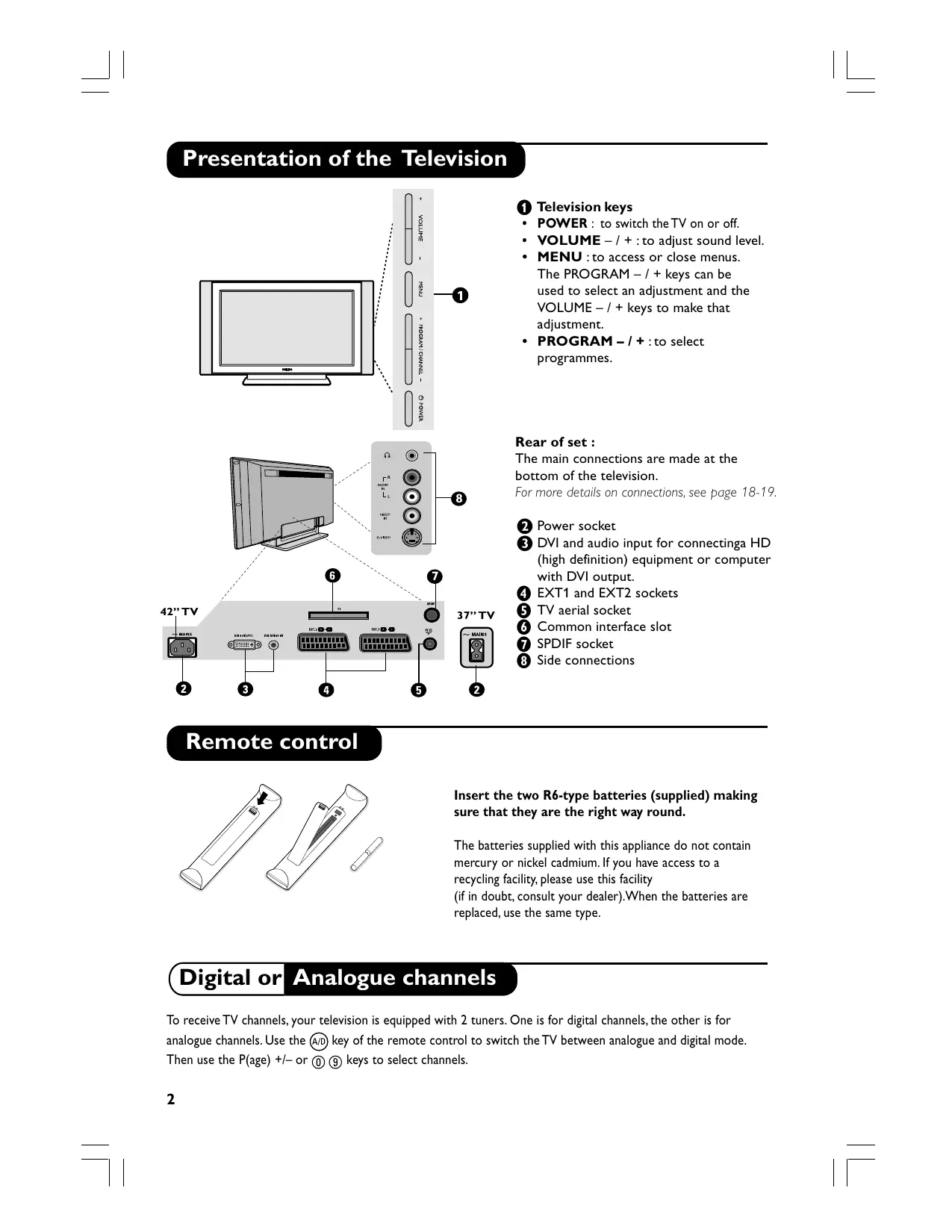
Television keys
- POWER: to switch the TV on or off.
VOLUME - / + : to adjust sound level.
- MENU : to access or close menus. The PROGRAM - / + keys can be used to select an adjustment and the VOLUME - / + keys to make that adjustment.
- PROGRAM - / + : to select programmes.
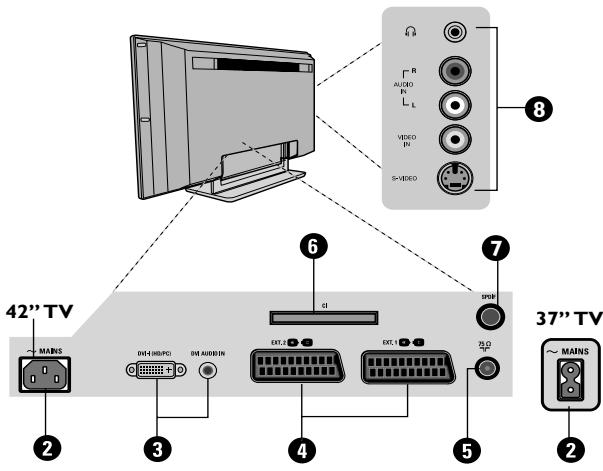
Rear of set :
The main connections are made at the bottom of the television.
For more details on connections, see page 18-19.
2 Power socket
DVI and audio input for connectinga HD (high definition) equipment or computer with DVI output.
4EXT1 and EXT2 sockets
5 TV aerial socket
6 Common interface slot
7 SPDIF socket
Side connections
Remote control
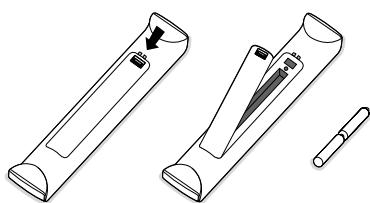
Insert the two R6-type batteries (supplied) making sure that they are the right way round.
The batteries supplied with this appliance do not contain mercury or nickel cadmium. If you have access to a recycling facility, please use this facility (if in doubt, consult your dealer). When the batteries are replaced, use the same type.
Digital or Analogue channels
To receive TV channels, your television is equipped with 2 tuners. One is for digital channels, the other is for analogue channels. Use the / D key of the remote control to switch the TV between analogue and digital mode. Then use the P(age) + / - or 0 keys to select channels.
The remote control keys
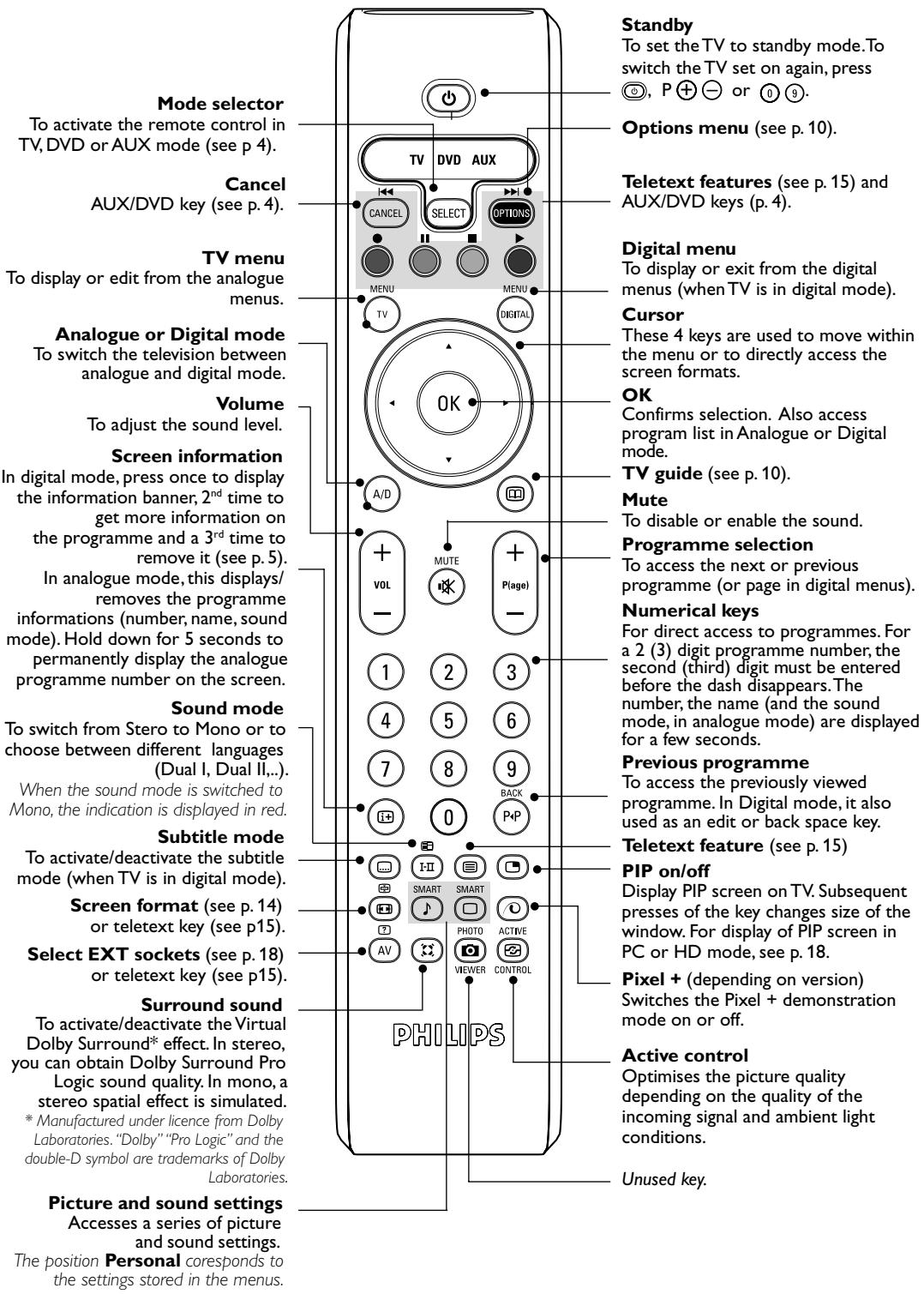
Mode selector
Press the SELECT (SELECT) key to select the required mode : DVD or AUX (amplifier). The remote control indicator lights up to display the selected mode. It switches off automatically after 20 seconds if left idle. The remote control automatically returns to TV mode.
The following keys are operational depending on the equipment :
| standby | OK | validation |
| fast rewind | ok | navigation and adjustments |
| fast forward | | |
| recording | 1 2 3 | |
| 5 6 8 | |
| 9 10 9 | digit keys |
| pause | 0 | |
| stop | + | programme selection |
| - | |
| play | I-II | audio selection |
| tv menu | | |
| cancel | OSD menu | |
Installing your television set
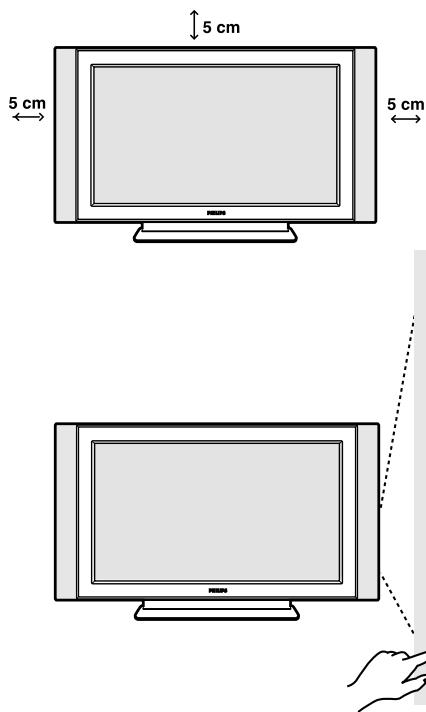
Positioning the television set
Place your TV on a solid stable surface. To avoid danger, do not expose the TV to water or a heat source (e.g. lamp, candle, radiator). Do not obstruct the ventilation grid at the rear
Connecting the aerials
- Use the aerial connection lead supplied and connect the socket situated at the bottom of the TV to your aerial socket.
- Connect the power lead to the television and the mains plug into the wall socket (220-240V/50 Hz). For connecting other appliances, see pages 18-19.
Switching on
To switch on the set, press the POWER key. A green indicator comes on and the screen lights up. Go straight to the chapter "Switching on for the first time on page 5. If the television remains in standby mode, press the P(age) + key on the remote control.
The indicator will flash when you use the remote control.
Switch on for the first time
The first time the TV set is switched on, a congratulation message will appear on screen. The language of which changes every 5 seconds. If the menu is not displayed, press and hold down the MENU key on the side of the TV set for 5 seconds to display the menu.
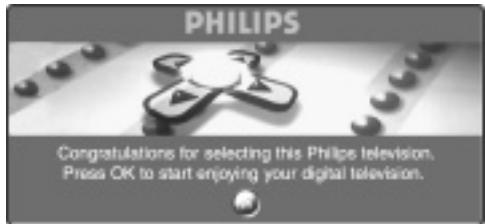
1 Press the OK key on the remote control, the moment your preferred language is visible on the screen. The Setup menu is displayed :
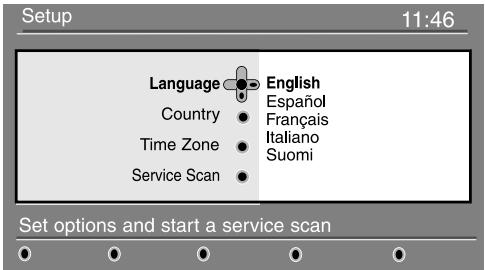
2 The language, corresponding country and time zone is now preselected according to the opening screen. However, you can still change your preferences before you start a service scan.
The language, corresponding country and time zone is now preselected according to the opening screen. However, you can still change your preferences before you start a service scan.
3 With the cursor keys, select language, country or Time zone and check if the adjustment is according to your preferences. If necessary, use the cursor keys to make your adjustment and press OK to exit.
CAUTION: if you select a wrong country, the channel numbering will not be according to the standard for your country.
Select service scan from the menu and press OK to start the installation. The service scan menu is displayed. All the digital and analogue programmes are searched for and stored automatically. When the search is complete, the menu will indicate the number of digital services and analogues programmes found.
Press the OK key twice to start watching TV. The television then displays the current programme. The installation is now complete.
NOTE : If at some point of time you decide to reset to the factory default settings, press and hold down the MENU key on the side of the TV set for 5 seconds. A congratulation message will appear on screen. Repeat steps 1 - 5 as if this was the first time you have turned on the TV.
When you select a digital programme, an information banner is displayed for a few seconds at the top of the screen.
You can also use the (+) key of the remote control to display this banner. A second press displays more information about the programme (when available).
Banner description
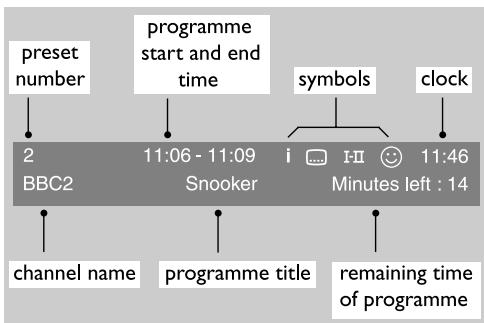
The banner contains information on the preset number, channel name, programme duration, transmission clock, programme title and the time remaining of the current programme.
Symbols description :
more information about this programme is available:press the 13 key to display or remove it.
- subtitle is available: if you want to display them, press the key or the OPTIONS key to access the options menu and select subtitles.
HII other audio languages are available and can be selected in the options menu.
the selected Favourite list is displayed in the one of the colour (red, green, yellow or blue) of the activated list.
Note: A white colour will appear if the programme is stored in one or more of the favourite list which is currently not activated.
Rearrange services
This menu allows you to change the order of the stored digital channels and radio stations.
From the digital mode, press the key to display the setup menu.
Use the key to select installation and press twice to select the Service lists menu.
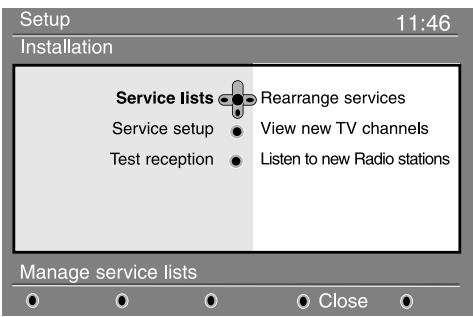
Use the keys to select Rearrange services and press.
Use the keys to select the channel you want to exchange.
Press OK to activate. If you want to uninstall the selected channel, press the red key.
Select ( ) the new channel number you want to exchange it with.
7 Press OK to confirm. The exchange is done.
Repeat the operations 4 to 7 until all the channels are in the required order.
Press the MENU key to leave the menu.
View or Listen to new services
This menu allows you to check the availability of new TV channels or new radio stations that have been launched by the broadcaster after the initial installation.
1 From the digital mode, press the MENU key to display the setup menu.
Use the key to select installation and press twice to select the Service lists menu.
Use the keys to select View new TV channels or Listen to new Radio station.
4 If new services are available, press to enter into the list and use the keys to move through the list.
Press the MENU key to leave the menu.
Add new services
This menu allows you to search for new TV channels or radio stations that have been launched by the broadcaster after the initial installation.
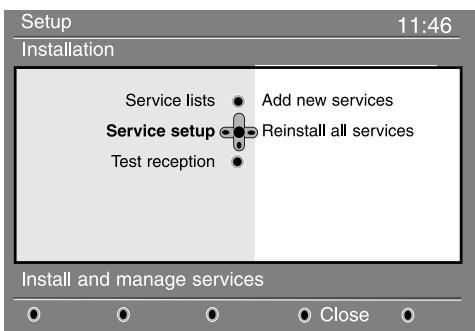
1 From the digital mode, press the MENU key to display the setup menu.
Use the key to select installation and press.
3 Select Service setup () and press
Press to select Add new services and press OK to activate the installation. The search begins and only new channels will be stored and added to the channel list menu. The percentage of the installation that has been completed and the number of channels found is displayed.
When the search is complete, select Store and press OK to accept the new services.
6 Press the MENU key to leave the menu.
Reinstall all services
This menu allows you to reinstall all the digital TV channels and radio stations.
1 From the digital mode, press the MENU DIGITAL key to display the setup menu.
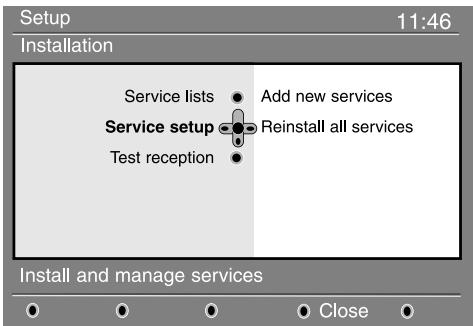
Use the key to select installation and press
3 Select Service setup () and press
4 Select Reinstall all services () and press
Press OK to start the installation.
A search is then made for all digital services which are then stored automatically. When the search is completed, the menu will indicate the number of digital services found
6 When the search is complete, press OK to store the services.
Press the MENU key to leave the menu.
Test reception
This menu allows you to check the strength of the signal you are receiving through your aerial.
1 From the digital mode, press the MENU Digital key to display the setup menu.
Use the key to select installation and press to display the installation menu.
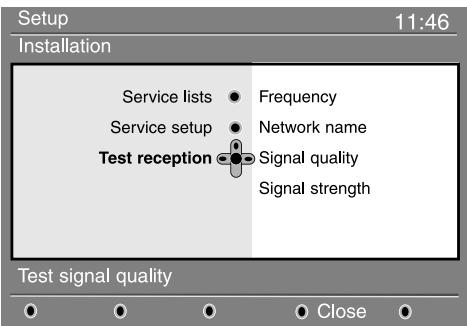
Use to select Test reception and press. You obtain an indication of the actual programme frequency, the network name, the signal quality and strength.
You now have to enter the frequency of the digital channel you want to test. Your TV magazine can provide the list of digital channel numbers. Use the table on page 20 to get the frequency.
If the signal quality and strength is poor, a message appears at the bottom of the menu prompting you to enter the frequency between the lower and the higher limit. If after keying the frequency, the reception is still poor, you can try improving, renewing, adjusting or updating the aerial. It is however advisable to contact a specialised aerial installer in order to achieve best results.
Language and location preferences
This menu allows you to select your preferred language for audio, subtitle, teletext and menu and make changes to the location (country and time zone).
1 From the digital mode, press the (eta) key to display the setup menu.
Use the key to select preferences and press.
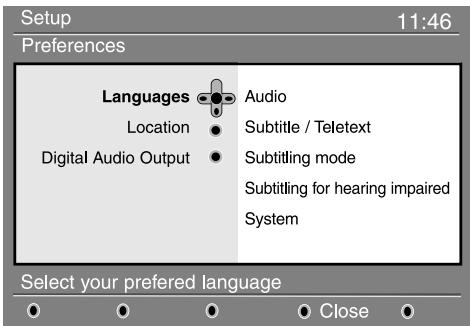
3 Select Languages, Location or Digital Audio Output () and press
Use the keys to select a setting and
press to enter into the sub-menu. Make your adjustment and press OK or to exit.
Language default settings
- Audio : to select the audio sound language.
- Subtitle/Teletext : to select the subtitle/teletext language.
- Subtitling mode: off, on or auto (subtitle only displayed in case of original audio transmission).
- Subtitles for hearing impaired : to activate or deactivate the specific subtitle for hearing impaired (if made available by the broadcaster).
- System : to select the menu language.
Location settings
- Country : to select the country where you are located.
- Time zone : to select the time zone where you are located.
Digital Audio Output settings
To select AC3 (if the amplifier supports the Dolby Digital format) or PCM (if it doesn't support Dolby Digital format).
Press the MENU key to leave the menu.
Access restrictions
This menu allows you to setup the access restrictions of the digital channels.
1 From the digital mode,press the DIGITAL key to display the setup menu.
Use the key to select Access restriction and press.
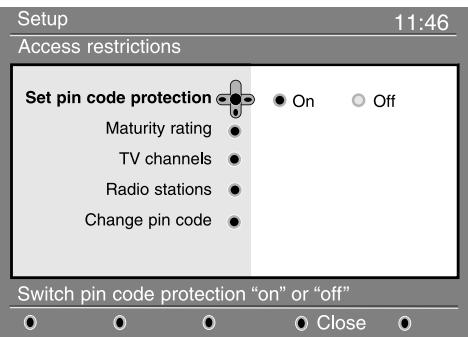
3 Press the key to enter into the Set pin code protection menu.
Use the keys to set to on and press OK to exit. You can then access the other adjustments:
Warning: the moment you use any kind of access restriction, you need to fill in the pin code when you schedule a program for recording.
Maturity rating : select your preferred rating to lock the channel. Maturity rating will only block certain programmes if the broadcaster provides data with the programme.
- TV channels : select the TV channel you want to lock and press OK.
- Radio station: select the radio station you want to lock and press OK.
- Change pin code: press to enter in the menu. Follow the on-screen instruction to change your access code.
The default pin code is 1234. If you have forgotten your personal code, you can reset to the default pin code (1234) by enter the universal code 0711.
The TV is equipped with a Common Interface (CI) slot (see p.19). A CI module can enable additional services, for example Pay TV. The Access Restrictions menu will show the CI Access Restrictions when a CI module is installed. The CI module is responsible for the messages and texts on screen. In case of failure or strange behaviour, you must call your CI service provider.
Setting up your favourite list
This menu enables you to create a favourite list with your preferred TV channels and radio stations. For example, each member of your family can create his/her own favourite list.
1 From the digital mode, press the (MEMU) key to display the setup menu.
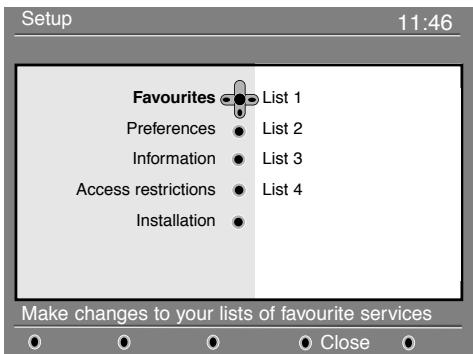
Press to enter into the favourites list menu. You have the choice to create 4 different favourite lists.
Use the keys to select your favourite list: List 1, List 2, List 3 or List 4 and press .
Use the keys to select a setting and press to enter into the sub-menu.
- Name : use the keys to move around the name display area (16 characters) and the - P(age) + keys to select the characters. When the name has been entered, press OK to exit.
- Select TV channels : use the ▲▼ keys to select your favourite TV channels and confirm with OK. Press ↓ to exit.
- Select radio stations: use the keys to select your favourite radio station and confirm with u. Press to exit.
- Add all services: press OK if you want to add all the service into your favourite list.
- Remove all services : press OK if you want to remove all the service from your favourite list.
Press the MENU key to leave the menu.
6 Your favourite list can be selected using the options menu (see next page).
This menu provides information about the software version and the installation of new software.
1 From the digital mode, press the MENU DIGITAL key to display the setup menu.
Use the key to select information and press twice.
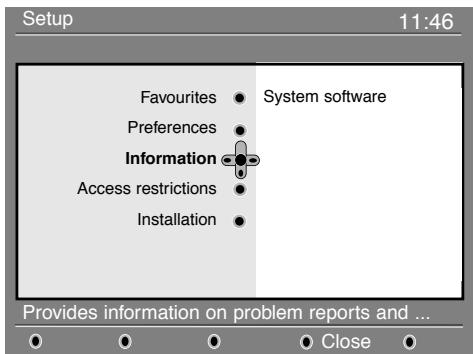
The software version is displayed.
3 You can activate the menu to automatically accept any software update of your digital TV. Normally the product will detect if an update is available while it is in standby mode. Next time the television is turned on a banner will appear at the bottom of the screen indicating new software is available. Selecting OK activates the software download. The software download menu will give a description of the software together with the date and time of the download. This may update certain menus, functions or add new features, but the general way in which the TV operate will not change. Once accepted the download will take place at the designated time and date. Note:The TV must be put into standby when the download is due in order for it to take place.
4 Press the MENU key to leave the menu.
Downloading new software
Whenever a new software is available, it is advisable to always accept and download the software. In case new software is available, you will see a message when you switch on the TV.
New software and upgrade instructions can be obtained from the website : www.philips.com/support
This menu gives you direct access to the: favourite list, the language selection and some other selections.
1 From the digital mode, press the white OPTIONS key to display the options menu.
Use the keys to select a setting and press to enter the sub-menu.
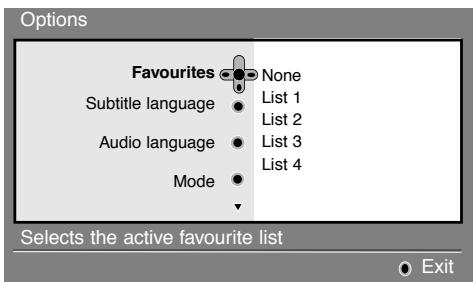
- Favourites: use the keys to select your favourite list and confirm with OK.
The "none" option deactivate any favourite list.
To create your own favourite list, see page 9.
- Subtitle language : use the likekeys to temporarily change the language and confirm with OK.
- Audio language: to temporarily change the audio sound language.
To permanently change the audio and subtitle languages, use the Preferences menu (p. 8).
Mode :you can choose to only have radio stations, TV channels or services without audio or video.
Remark: for the UK only, the TV list will contain both radio stations and TV channels.
- Banner duration : to select the duration for which the banner is visible.
3 Press the white OPTIONS key to leave the menu.
TV guide
The TV guide is an Electronic Service Guide that allows you to look up digital programmes as you would in a newspaper or TV magazine. You can navigate through the list of digital programmes and obtain detailed information on the programmes. You can also program the TV to provide a digital channel to be recorded.
1 From the digital mode,press the key to display the TV guide :
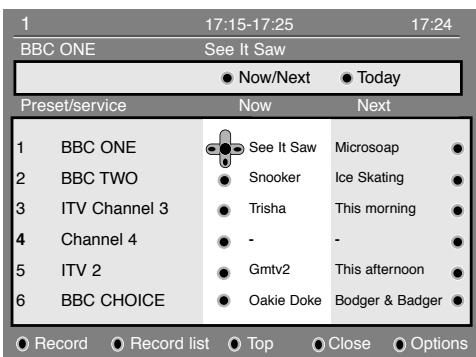
A list of all the digital programmes in the currently selected favourite list is displayed.
Use the key to enter into the Preset/service list or press to access Today list.
Use the keys to select a programme.
4 The TV guide features are displayed at the bottom of the screen. Use the coloured keys red, green, yellow, blue or white to activate them :
- Record (red key): this feature enables you to record a digital channel even the TV is in standby mode. You will still have to program your video recorder. If you wish to continue watching another digital channel after setting a timer, you can do so by changing channels in the normal way.
Important : In digital mode, if you change the channel when recording starts, the TV will record the last channel you have selected.
- Record list (green key): this menu gives the list of recording schedules. You can check, modify, delete or add a new schedule by using the cursor or coloured keys as indicated on the screen.
- Top (yellow key) : to go directly to the top of the list.
- Close (blue key) : to exit from the TV guide.
- Options (white key): with this menu, you can select your favourite list, mode or themes. Themes are areas of interest, you can for example decide to display only: drama, news, movie,...
Press the key if you want to display more information about the selected programme (if available).
6 Press the key to leave the menu.
Recording function
This feature enables you to record a digital channel while the TV is in standby mode. You will still have to program your video recorder. If you wish to continue watching another digital channel after setting a timer, you can do so by changing channels in the normal way.
IMPORTANT : The video recorder must be connected to EXT2. Please note that it is NOT possible to record one digital channel and watch another digital channel at the same time.You can however record a digital channel and watch an analogue channel on your TV, or vice versa.
1 From the digital mode,press the key to display the TV guide.
Use the key to enter into the Preset/service list or press to access Today list.
3 Press the RED key to call the Record menu.
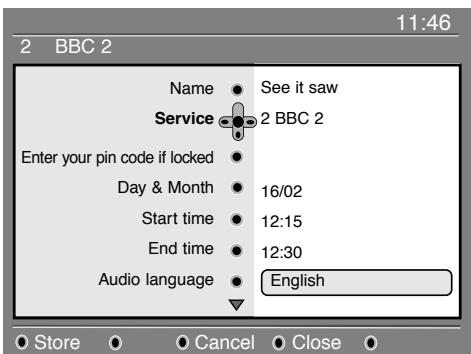
Use the keys to select a setting and press to enter into the sub-menu. Make your adjustment and press OK or to exit.
- Name: the selected programme will be displayed here.
Service: you can change the number of the programme you want to record. Press OK to confirm.
Note: it is only possible to change to a number that is in the currently selected favourite list.
- Enter your pin code if locked: enter your secret code only if you have activated the access restriction feature (see p.8). Press OK to confirm.
- Day & Month : enter the date by using the or - P(age) + keys. Press (0) to exit
- Start time : enter the start time.
- End time : enter the end time.
- Audio language: select your language and confirm with OK.
- Subtitle language : make your selection and confirm with ⑥
- Subtitles for hearing impaired : select Yes or No and confirm with OK.
- Occurrence : select Once, Daily or Weekly and confirm with OK.
Press the RED key to store your recording. The TV guide reappears. You can press the GREEN key to display the li recordings you have set.
If you have finished watching television, you must leave it in standby in order for the recording program to be activated.
IMPORTANT: never switch off the TV with the power button when a recording has been programmed, but use the standby key on the remote control.
If you wish to continue watching another digital channel after setting a timer, you can do so by changing channels in the normal way. Important: In digital mode, if you change the channel when the recording starts, the TV will record the last channel. you have selected.
3 If you are watching another digital channel when the timer is due to start, the timer alarm will sound and present you with the option of switching channels or continuing to watch the current channel.
You can also watch analogue channels while recording digital channels. Press the (A / D) key to switch the TV to analogue mode.
Automatic tuning of analogue programmes
This menu allows you to automatically search for all the analogue programmes available in your region.
1 From the analogue mode, press the (TV) (TV menu) key to display the main menu.
With Cursor ( ) keys to select Install and then Auto Store. Press and the search begins. After several minutes, the Install menu reappears automatically.
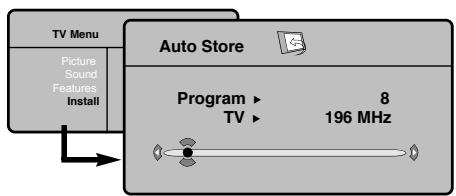
3 If the transmitter or the cable network broadcasts the automatic sort signal, the programmes will be correctly numbered.
4 If this is not the case, the programme will be numbered in descending order strating at 99, 98, 97, etc
Use the Sort menu to renumber them.
Some transmitters or cable networks broadcast their own sort parameters (region, language, etc). Where this is the case, make your choice using the keys and confirm with the key.
To exit or interrupt the search, press the key. If no picture is found, refer to the chapter entitled Tips on p.20
To exit from the menu, press key.
Program sort
Press the TV key.The TV Menu is displayed on the screen.
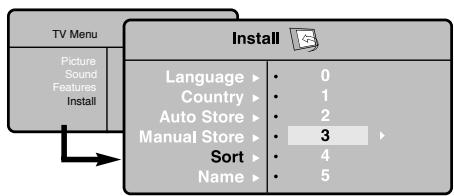
2 With the cursor, select the Install menu followed by the Sort menu.
3 Select the programme you want to move using the keys and press.
4 Then use the keys to select the new number and validate with .
Repeat steps 3 and 4 for each program you wish to renumber.
6 To quit the menus, press () .
Manual tuning of analogue programmes
This menu is used to store the programmes one at a time.
Press the (TV) (TV menu) key.
2 With Cursor ( ) keys to select Install and then Manual Store.
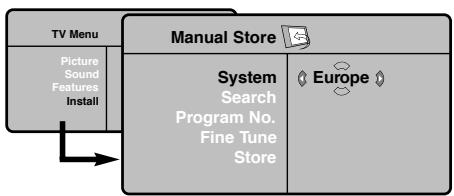
3 System: select Europe (automatic detection*) or Western Europe (BG standard), Eastern Europe (DK standard), United Kingdom (I standard) or France (LL' standard),
- Except for France (LL' standard) : in this case, select the option FRANCE.
4 Search: press key. The search starts. Once a programme is found, the scanning stops and its name is displayed (when available). Go to the next step. If you know the frequency of the required programme, this can be entered directly using the ① ⑨ keys. If no programme is found, refer to the Tips chapter on page 20.
Program No: enter the required number with the or 0 (9) (0 to 9) keys.
6 Fine Tune: if the reception is not satisfactory, adjust using the keys.
Store:press key.The programme is stored.
Repeat steps 4 to 7 for each programme to store.
9 To quit the menu, press key.
Press the (TV) (TV menu) key and select Install menu.
2 Name: If required, you can give a name to the programmes. Use the keys to move around the name display area (5 characters) and the keys and to select the characters.
When the name has been entered, use the key to exit. The name is stored.
To quit the menu, press key.
Picture settings
Press the (TV menu) key, then key. The Picture menu is displayed.
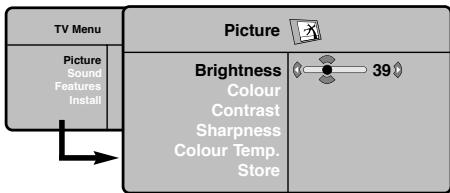
Use the keys to select a setting and the keys to adjust.
3 Once the adjustments have been made, select Store and press to store them. Press key to exit.
Description of the adjustments :
- Brightness : this changes the picture brilliance.
Colour : this changes the intensity of the colour.
- Contrast : this changes the difference between the light and dark tones
- Sharpness : this changes the picture definition.
- Colour Temp.: this changes the colour rendering: Cold (bluer), Normal (balanced) or Warm (redder).
- Store : to store the picture adjustments and settings.
Sound settings
1 Press the TV (TV menu) key, select Sound (▼) and press key. The Sound menu is displayed.
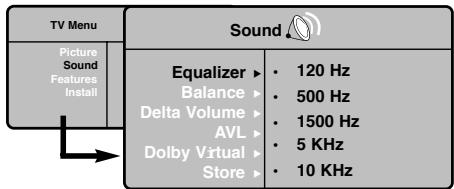
Use the keys to select a setting and the keys to adjust.
3 Once the adjustments have been made, select Store and press to store them.
4 Press key to exit.
Description of the adjustments :
Equalizer : to adjust the sound tone (from bass : 120 Hz to treble 10 kHz.
Balance : this balances the sound on the left and right speakers.
- Delta Volume : this is used to compensate any volume discrepancies between the different programmes or EXT sockets. This setting is available for programmes 0 to 40 and the EXT sockets.
AVL (Automatic Volume Leveller): this is the used to limit increases in sound, especially on programme change or advertising slots.
- Dolby Virtual: to activate/deactivate the surround sound effect. You can also access these settings with the key.
- Store : this is used to store the sound settings.
Feature settings
1 Press TV (TV menu), select Features () and press. You can adjust:
Contrast ^+ : automatic adjustment of the picture contrast which permanently sets the darkest part of the picture to black.
NR: attenuates picture noise (snow) in difficult reception conditions.
4 Sleep : to select an automatic standby period.
⑤ PIP: to adjust the size and position of the PIP screen.
6 To quit the menus, press (+)
The pictures you receive may be transmitted in 16:9 format (wide screen) or 4:3 format (conventional screen). 4:3 pictures sometimes have a black band at the left and right of the screen (letterbox format). This function allows you to optimise the picture display on screen.
Press the key to select the different modes:
This TV set is also equipped with automatic switching which will select the correct-screen format, provided the specific signals are transmitted with the programmes. NOTE : When in HD mode, the only screen format available is Widescreen.
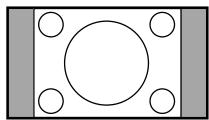
4:3
The picture is reproduced in 4:3 format and a black band is displayed on either side of the picture.
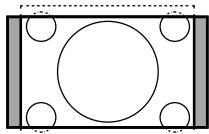
Movie Expand 14:9
The picture is enlarged to 14:9 format, a thin black band remains on both sides of the picture.
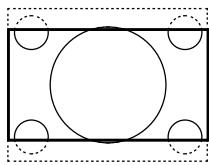
Movie Expand 16:9
The picture is enlarged to 16:9 format. This mode is recommended when displaying pictures which have black bands at the top and bottom (letterbox format).

Subtitle Zoom
This mode is used to display 4:3 pictures using the full surface of the screen leaving the sub-titles visible.
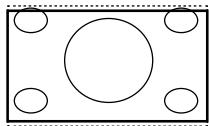
Superzoom
This mode is used to display 4:3 pictures using the full surface of the screen by enlarging the sides of the picture.
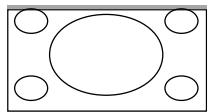
Widescreen
This mode restores the correct proportions of images transmitted in 16:9.
Note: If you display a 4:3 picture in this mode, it will be enlarged horizontally.
Digital Text
Some digital channels, which you select like any other channel, offer dedicated teletext services (for instance BBCTEXT). Some digital channels also offer information on the programme being broadcast (a message may appear at the bottom of the screen).
To use the digital teletext, follow the instructions on screen.
Depending on the service, you can be asked to use the cursor keys, the coloured keys, the Teletext On/Off key (图) and sometimes the numerical keys.
3 When you have finished watching teletext, select a different channel with P - / + keys or follow the on screen instructions to return to picture.
Teletext
Teletext is an information system broadcast by certain channels which can be consulted like a newspaper. It also offers access to subtitles for viewers with hearing problems or who are not familiar with the transmission language (cable networks, satellite channels, etc.).

| Press : | You will obtain : |
| Teletext call | This is used to call or exit teletext mode. The summary appears with a list of items that can be accessed. Each item has a corresponding 3 digit page number.
If the channel selected does not broadcast teletext, the indication 100 will be displayed and the screen will remain blank (in this case, exit teletext and select another channel). |
| Selecting a page | Enter the number of the page required using the 0 to 9 or -P(age) + keys. Example: page 120, enter 120. The number is displayed top left, the counter turns and then the page is displayed. Repeat this operation to view another page.
If the counter continues to search, this means that the page is not transmitted. Select another number. |
| Direct access to the items | Coloured areas are displayed at the bottom of the screen.
The 4 coloured keys are used to access the items or corresponding pages. The coloured areas flash when the item or the page is not yet available. |
| Contents | This returns you to the contents page (usually page 100). |
| Stop sub-page acquisition | Certain pages contain sub-pages which are automatically displayed successively. This key is used to stop or resume sub-page acquisition. The indication appears top left. |
| Double page teletext | To activate or deactivate the double page teletext display mode. The active page is displayed on the left and the following page is displayed on the right. Press you want to hold a page (i.e. the contents page). The active page is then displayed on the right. To return to normal mode, press. |
| Hidden information | To display or hide the concealed information (games solutions). |
| Enlarge a page | This allows you to display the top or bottom part of the page and then return to normal size. |
| Favourite pages | Instead of the standard coloured areas displayed at the bottom of the screen, you can store 4 favourite pages on the first 40 channels which can then be accessed using the coloured keys (red, green, yellow, blue). Once set, these favourite pages will become the default every time teletext is selected.
Press the key to change to favourite pages mode.
Display the teletext page that you want to store.
Press the coloured key of your choice for 3 seconds. The page is now stored.
Repeat the operation with the other coloured keys.
Now when you consult teletext, your favourite pages will appear in colour at the bottom of the screen. To temporarily retrieve the standard items, press . To clear everything and return the standard items as the default, press for 5 seconds. |
Using in PC monitor mode
NOTE
- When using the TV as a PC monitor, slight diagonal interference lines may be observed when it is operated under electromagnetic interference environment but will not affect the performance of this product.
- For better performance, good quality DVI cable with good noise isolation filter is recommended.
PC Mode
Your TV can be used as a computer monitor.
The PIP function lets you display a superimposed image to watch the TV channels at the same time.
The PIP function only works if your PC has a digital output. You must first of all connect the computer and adjust the resolution (see p.18).
Choosing PC mode
Press the AV key on the remote control to display the Source List.
Use the keys to select PC and then press the cursor key to switch the TV to PC mode (DVI In).
To return to TV mode, press the AV key, select
TV and validate with key.
Using PIP
While in PC mode you can call up a window for TV channels.
Attention: the PIP feature is only available if a computer is connected to the DVI In (see p. 21).
Press the key to display the PIP screen. The television image is reproduced in a small superimposed window.
Subsequent presses of the key changes the size of the window, switches to dual screen and turns PIP off.
Use the P - / + keys to change the programmes of the PIP screen.
Press the MENU key to access the specific settings of the PC monitor mode. Use the cursor to adjust them (the settings are automatically saved):
- Picture:
- Brightness / Contrast : to adjust the brightness and contrast.
- Horizontal /Vertical*: to adjust the horizontal and vertical placing of the image.
- Colour Temp.: this changes the colour rendering: Cold (bluer), Normal (balanced) or Warm (redder).
- Audio Selection: to choose the sound reproduced on the TV (PC/HD or TV).
- Features:
- Phase/Clock*: eliminates the horizontal (Phase) and vertical (Clock) interfering lines.
- Format : to choose between full screen or native format of the PC screens.
- PIP : to adjust the size and position of the PIP screen.
-
Auto Adjust*: position is set automatically.
-
Reset To Factory Setting: to return to the factory settings (default settings).
-
These adjustments are not available when a computer is connected to the DVI In .
Here is the list of the different display resolutions available on your TV :
| Digital PC (DVI-I) | 640 × 350 p | 800 × 600 p | 1152 × 864 p |
| 640 × 480 p | 832 × 624 p | 1280 × 960 p |
| 720 × 400 p | 1024 × 768 p | 1280 × 1024 p |
| Analogue PC (YPbPr) | 640 × 350 p | 720 × 400 p | 832 × 624 p |
| 640 × 480 p | 800 × 600 p | 1024 × 768 p |
Using in HD (High Definition) mode
HD Mode
The HD (High Definition) mode allows you to enjoy clearer and sharper pictures through the DVI inputs if you are using a HD receiver/ equipment that can transmit high definition programming.
You must first of all connect the HD equipment (see p.18).
Choosing HD mode
Press the AV key on the remote control to display the Source List.
Use the cursor key to select HD and then press the cursor key to switch the TV to HD mode.
To return to TV mode, press the AV key, select TV and validate with key.
Press the MENU key to access the specific settings of the HD mode. Use the cursor to adjust them (the settings are automatically saved):
Picture:
- Brightness: this changes picture brilliance.
Colour: this changes the intensity of the colour.
- Contrast: this changes the difference between the light and dark tones.
- Sharpness: this changes the picture definition.
- Colour Temp.: this changes the colour rendering: Cold (bluer), Normal (balanced) or Warm (redder).
- Store: to store the picture adjustments and settings.
Sound:
Equalizer: to adjust the sound tone (from bass: 120Hz to treble: 10kHz ).
Balance: this balances the sound on the left and right speakers.
- Delta Volume: this is used to compensate any volume discrepancies between the different programs or EXT sockets. This setting is available for programs 0 to 40 and the EXT sockets.
- AVL (Automatic Volume Leveller): this is used to limit increases in sound, especially on program change or advertising slots.
- Dolby Virtual: To activate / deactivate the surround sound effect. You can also access these settings with key 山
- Store: this is used to store the sound settings.
Features:
- Sleep (Only available on certain versions): to select an automatic standby period.
- PIP : to adjust the size and position of the PIP screen.
- Horizontal Shift : to adjust the horizontal placing of the image.
Here is the list of the different display resolutions available on your TV :
| Digital HD (DVI-I) | EDTV 480 p | HDTV 720 p | HDTV 1080 i |
| EDTV 576 p | | |
| Analogue PC (YPbPr) | 480 i | 480 p | 720 p |
| 576 i | 576 p | 1080 i |
Connecting peripheral equipment
The television has 2 external sockets situated at the back of the set (EXT1 and EXT2) and sockets on the side. Press the AV key on the remote control to display Source List and select TV or peripheral equipment connected to EXT1, EXT2/SVHS2, AV/SVHS3, PC or HD.
The EXT1 socket has audio, CVBS/RGB inputs and audio, CVBS outputs.
The EXT2 socket has audio, CVBS/S-VHS inputs and audio, CVBS outputs.
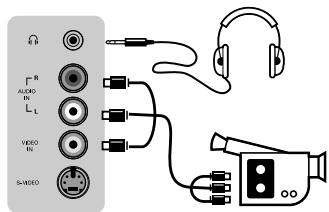
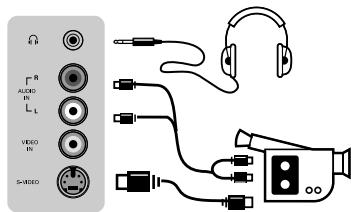
The side connections has audio inputs, CVBS/S-VHS inputs, headphone out.
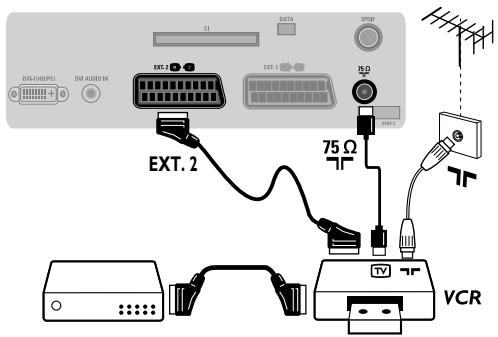
Video Recorder
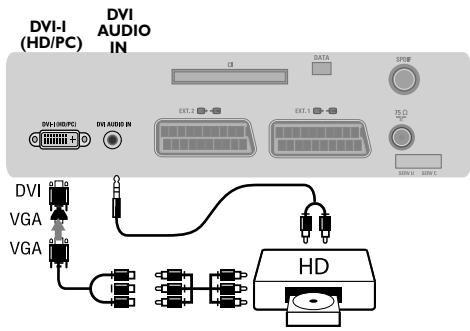
HD equipment
Computer
Video recorder (only)
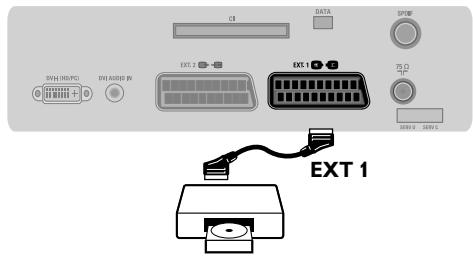
Carry out the connections shown opposite, using a good quality euroconnector cable.
If your video recorder does not have a euroconnector socket, the only connection possible is via the aerial cable. You will therefore need to tune in your video recorder's test signal and assign it programme number 0 (refer to manual store, p. 12).
To reproduce the video recorder picture, press 0 key.
Video recorder with decoder
Connect the decoder to the second euroconnector socket of the video recorder. You will then be able to record scrambled transmissions.
Make the connections as shown opposite.
With the AV key, select HD.
For more information on using HD mode see page 17.
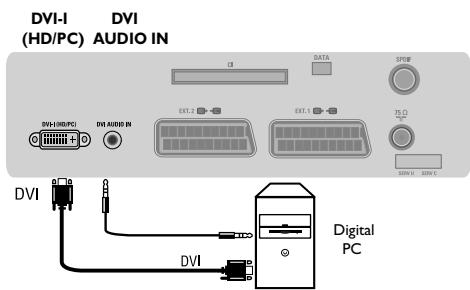
PC with DVI
Connect the monitor output (DVI) of your computer to the DVI-I In of the TV. Connect the sound output Audio out of the computer to the input DVI Audio In of the TV.
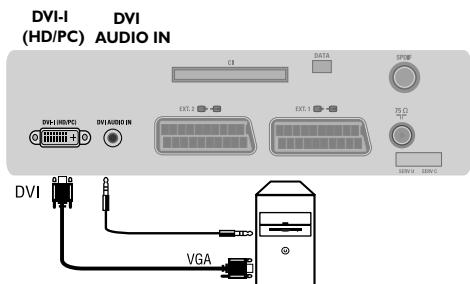
PC with VGA
Connect the monitor output (VGA) of your computer via a VGA/DVI adaptor to the DVI In of the TV. Connect the sound output Audio out of the computer to the input DVI Audio In of the TV.
For more information on using PC mode see page 16.
Connecting peripheral equipment
Other equipment
Side connections
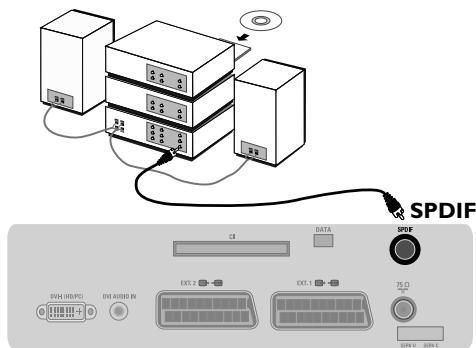
Amplifier connection
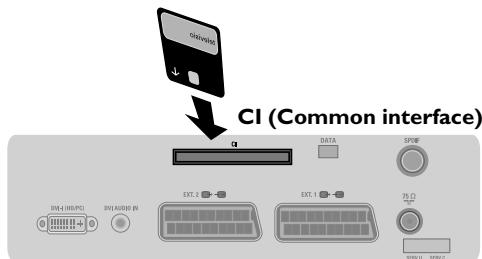
Common interface
Satellite receiver, decoder, CDV, games, etc.
Carry out the connections shown opposite.
To optimise picture quality, connect the equipment which produces the RGB signals (digital decoder, games, etc.) to EXT1, and the equipment which produces the S-VHS signals (S-VHS and Hi-8 video recorders, certain DVD drives) to EXT2 and all other equipment to either EXT1 or EXT2.
To select connected equipment
Press the AV key to select EXT1,EXT2/S-VHS2 (SVHS signals from the EXT2 socket).
Make the connections as shown opposite.
With the AV key, select AV/S-VHS3.
For a mono set, connect the sound signal to the AUDIO L (or AUDIO R) input. The sound automatically comes out of the left and right speakers of the set.
Headphones
When headphones are connected, the sound on the TV set will be cut. The VOLUME -/+ keys are used to adjust the volume level. The headphone impedance must be between 32 and 600 Ohms.
To connect to a hi-fi system, use an audio connection cable and connect the television's "SPDIF" output to a "DIGITAL IN" input on the amplifier (amplifier with coaxial digital input).
Note : If you select AC3 sound, you must have your TV connected to a Home Theatre System or amplifier. In this mode, no sound will be heard from the TV speakers directly.
A common interface is available to connect a CAM (conditional access module) and a smartcard. Please contact your service provider to get more information about these modules.
Note : the television should always be switched off before any module is inserted in the common interface slot.
Tips
| Poor reception | The proximity of mountains or high buildings may be responsible for ghost pictures, echoing or shadows. In this case, try manually adjusting your picture: see Fine Tune (p. 12) or modify the orientation of the outside aerial. If you are using an indoor aerial, reception may be difficult in certain conditions. You can improve reception by rotating the aerial. If the reception remains poor, you will need to use an external aerial |
| No picture | Have you connected the aerial socket properly? Have you chosen the right system? (p. 12). Poorly connected euroconnector cables or aerial sockets are often the cause of picture or sound problems (sometimes the connectors can become half disconnected if the TV set is moved or turned). Check all connections. |
| No sound | If on certain channels you receive a picture but no sound, this means that you do not have the correct TV system. Modify the System setting (p. 12). The amplifier connected to the TV does not deliver any sound? Check that you have not confused the audio output with the audio input. |
| PC and PIP modes don't work | Check that you have configured the computer on a compatible display resolution (see p. 18). |
| Remote control | The TV set does not react to the remote control; the indicator on the set no longer flashes when you use the remote control? Replace the battery. |
| Standby | To save power, your set is fitted with components that give it a very low power consumption when in standby mode (less than 1 W). |
| Cleaning the set | Only use a clean, soft and lint-free cloth to clean the screen and the casing of your set. Do not use alcohol-based or solvent-based products. |
| Still no results? | Disconnect the mains plug of the TV for 30 seconds then reconnect it. If your TV set breaks down, never attempt to repair it yourself: contact your dealer's after-sales service. |
Centre Frequencies Table (in KHz)
| Digital Frequency Channel | Nominal Centre Frequency KHz | Digital Frequency Channel | Nominal Centre Frequency KHz |
| 21 | .474 000 | 46 | .674 000 |
| 22 | .482 000 | 47 | .682 000 |
| 23 | .490 000 | 48 | .690 000 |
| 24 | .498 000 | 49 | .698 000 |
| 25 | .506 000 | 50 | .706 000 |
| 26 | .514 000 | 51 | .714 000 |
| 27 | .522 000 | 52 | .722 000 |
| 28 | .530 000 | 53 | .730 000 |
| 29 | .538 000 | 54 | .738 000 |
| 30 | .546 000 | 55 | .746 000 |
| 31 | .554 000 | 56 | .754 000 |
| 32 | .562 000 | 57 | .762 000 |
| 33 | .570 000 | 58 | .770 000 |
| 34 | .578 000 | 59 | .778 000 |
| 35 | .586 000 | 60 | .786 000 |
| 36 | .594 000 | 61 | .794 000 |
| 37 | .602 000 | 62 | .802 000 |
| 38 | .610 000 | 63 | .810 000 |
| 39 | .618 000 | 64 | .818 000 |
| 40 | .626 000 | 65 | .826 000 |
| 41 | .634 000 | 66 | .834 000 |
| 42 | .642 000 | 67 | .842 000 |
| 43 | .650 000 | 68 | .850 000 |
| 44 | .658 000 | 69 | .858 000 |
| 45 | .666 000 | | |
Introduction
Este producto está diseñado y fabricado con materiales y componentes de alta calidad, queSEOSEOSEOSEOSEOSEOSEOSEOSEOSEOSEOSEOSEOSEOSEOSEOSEOSEOSEOSEOSEOSEOSEOSEOSEOSEOSEOSEOSEOSEOSEOSEOSEOSEOSEOSEOSEOSEOSEOSEOSEOSEOSEOSEOSEOSEOSEOSEOSEOSEOSEOSEOSEOSEOSEOSEOSEOSEOSEOSEOSEOSEOSEOSEOSEOSEOSEOSEOSEOSEOSEOSEOSEOSEOSEOSEOSEOSEOSEOSEOSEOSEOSEOSEOSEOSEOSEOSEOSEOSEOSEOSEOSEOSEOSEOSEOSEOSEOSEOSEO SEO

Connecting the aerials
| Digitalfrequency-kanal | Nenn-Mittenfrequenz KHz | Digitalfrequency-kanal | Nenn-Mittenfrequenz KHz |
| 21 | .474000 | 46 | .674000 |
| 22 | .482000 | 47 | .682000 |
| 23 | .490000 | 48 | .690000 |
| 24 | .498000 | 49 | .698000 |
| 25 | .506000 | 50 | .706000 |
| 26 | .514000 | 51 | .714000 |
| 27 | .522000 | 52 | .722000 |
| 28 | .530000 | 53 | .730000 |
| 29 | .538000 | 54 | .738000 |
| 30 | .546000 | 55 | .746000 |
| 31 | .554000 | 56 | .754000 |
| 32 | .562000 | 57 | .762000 |
| 33 | .570000 | 58 | .770000 |
| 34 | .578000 | 59 | .778000 |
| 35 | .586000 | 60 | .786000 |
| 36 | .594000 | 61 | .794000 |
| 37 | .602000 | 62 | .802000 |
| 38 | .610000 | 63 | .810000 |
| 39 | .618000 | 64 | .818000 |
| 40 | .626000 | 65 | .826000 |
| 41 | .634000 | 66 | .834000 |
| 42 | .642000 | 67 | .842000 |
| 43 | .650000 | 68 | .850000 |
| 44 | .658000 | 69 | .858000 |
| 45 | .666000 | | |
Johdanto
Positioning the TV
For the best results, choose a position where light does not fall directly on the screen, and at some distance away from radiators or other sources of heat. Leave a space of at least 5cm all around the TV for ventilation, making sure that curtains, cupboards etc. cannot obstruct the air flow through the ventilation apertures. The TV is intended for use in a domestic environment only and should never be operated or stored in excessively hot or humid atmospheres.
General Points
Please take note of the section entitled 'Tips' at the end of this booklet.
Interference
The Department of Trade and Industry operates a Radio Interference Investigation Service to help TV licence holders improve reception of BBC and IBA programmes where they are being spoilt by interference.
If your dealer cannot help, ask at a main Post Office for the booklet "How to Improve Television and Radio Reception".
Mains connection
Before connecting the TV to the mains, check that the mains supply voltage corresponds to the voltage printed on the type plate on the rear panel of the TV. If the mains voltage is different, consult your dealer.
Important
This apparatus is fitted with an approved moulded 13AMP plug. Should it become necessary to replace the mains fuse, this must be replaced with a fuse of the same value as indicated on the plug.
-
Remove fuse cover and fuse.
-
The replacement fuse must comply with BS 1362 and have the ASTA approval mark. If the fuse is lost, make contact with your retailer in order to verify the correct type.
-
Refit the fuse cover.
In order to maintain conformity to the EMC directive, the mains plug on this product must not be removed.
Connecting the aerial
The aerial should be connected to the socket marked at the back of the set. An inferior aerial is likely to result in a poor, perhaps unstable picture with ghost images and lack of contrast. Make-shift loft or set-top aerials are often inadequate. Your dealer will know from experience the most suitable type for your locality. Should you wish to use the set in conjunction with other equipment, which connects to the aerial socket such as TV games, or a video camera it is recommended that these be connected via a combiner unit to avoid repeated connection and disconnection of the aerial plug.
Fitting the stand (if provided)
Use only the stand provided with the set, making sure that the fixings are properly tightened. A diagram showing how to assemble the stand is packed with the stand. Never use a make-shift stand, or legs fixed with woodscrews.


Be responsible Respect copyrights
Specifications are subject to change without notice.
Trademarks are the property of Koninklijke Philips Electronics N.V. or their respective owners.
2005 Koninklijke Philips Electronics N.V. All rights reserved.
www.philips.com