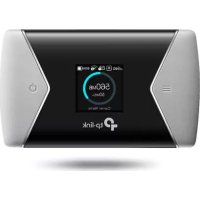
USER MANUAL M7650 TP-LINK
Quick Installation Guide
Mobile Wi-Fi

For technical support, the user guide and other information, please visit https://www.tp-link.com/support, or simply scan the QR code.

20231P-Link7106510089REV21.3
CONTENTS
01 / Deutsch
05 / English
09 / Espanol
13 / Eλληνικό
17 / Français
21 / Italiano
25 / Portugues
29 / Suomi
33 /Nederlandsl
37 / Svenska
41 / Norsk
45 / Dansk
Deutsch
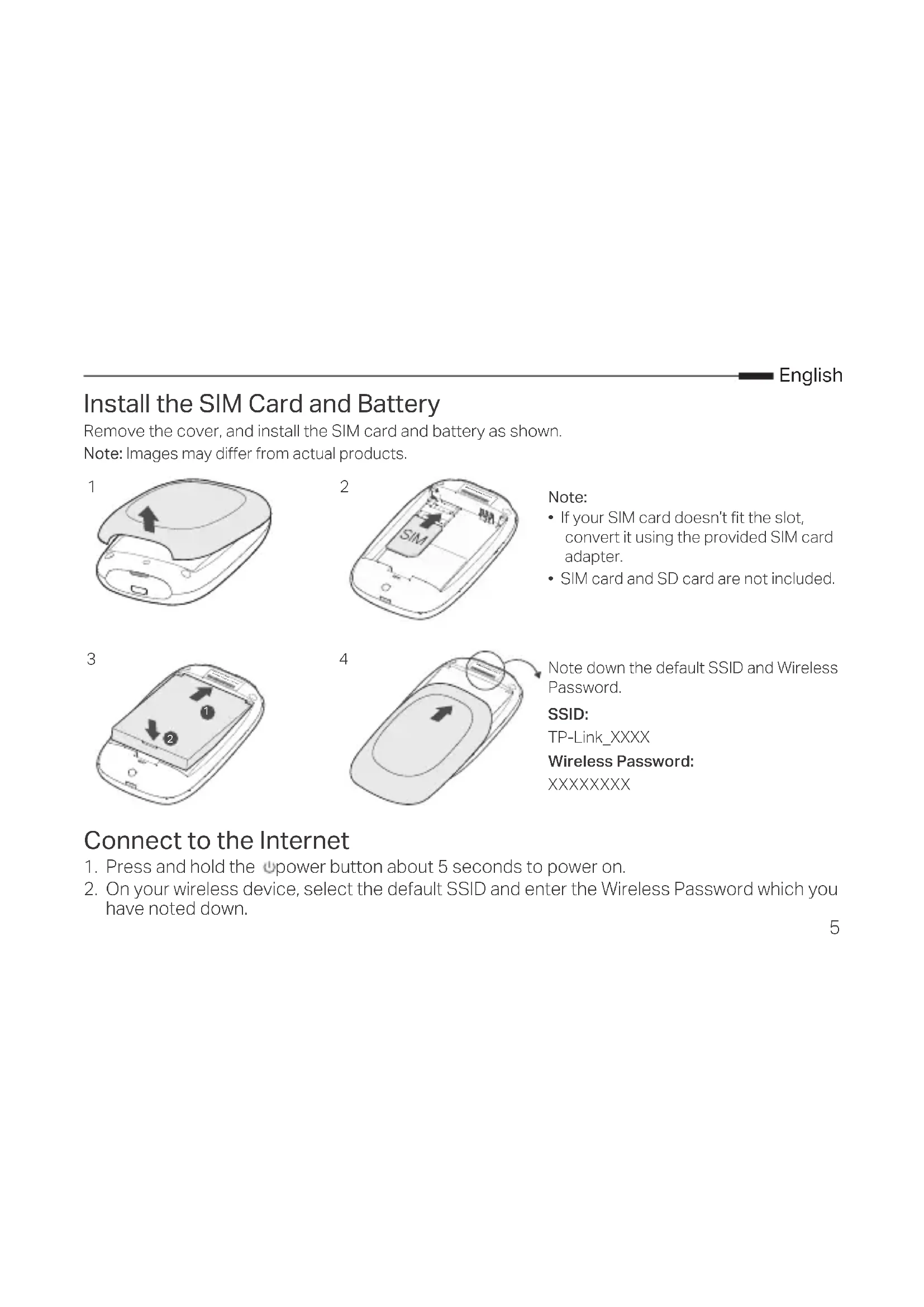
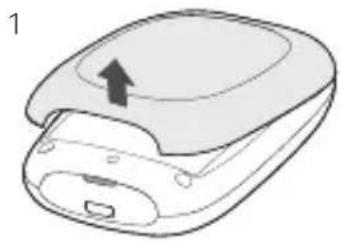
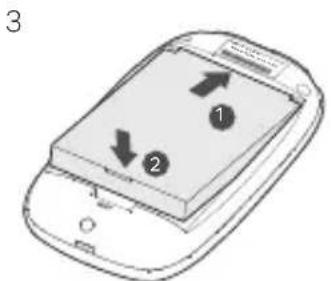
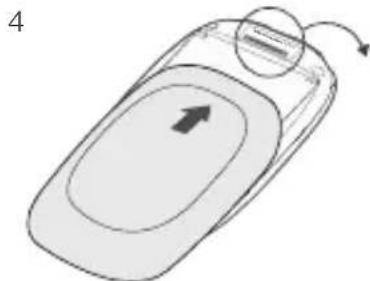
Install the SIM Card and Battery
Remove the cover, and install the SIM card and battery as shown. Note: Images may differ from actual products.
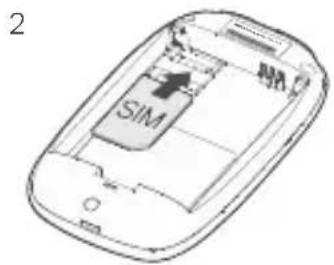
Note: If your SIM card doesn't fit the slot, convert it using the provided SIM card adapter.
- SIM card and SD card are not included.
Note down the default SSID and Wireless Password.
SSID:
TP-Link_XXXX
Wireless Password:XXXXXX
Connect to the Internet
- Press and hold the power button about 5 seconds to power on.
- On your wireless device, select the default SSID and enter the Wireless Password which you have noted down.
English
Note: We highly recommend that you change the default wireless name and password for network security.
Enjoy!
Note:
If you can't access the internet, please refer to FAQ > Q3.
- For power saving, the Mobile Wi-Fi will turn off the Wi-Fi connection if no wireless devices are connected to the Mobile Wi-Fi for 10 minutes. Press the power button to resume the Wi-Fi connection.
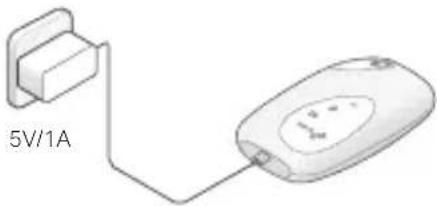
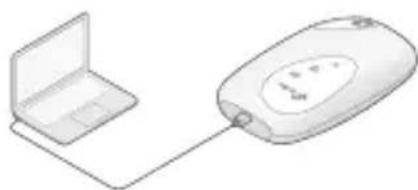
Charging Your Mobile Wi-Fi
Method 1: Via a Wall Outlet (Recommended)
Method 2: Via a Computer
tpMiFi App
Download the tpMiFi App (for iOS and Android) to conveniently manage your Mobile Wi-Fi.
- Search for the tpMiFi App from the Apple Store or Google Play, or scan the QR code.
- Connect your wireless device to the Mobile Wi-Fi.
- Launch tpMiFi. Create a password to log in, or enter admin for earlier firmware versions.
FAQ(Frequently Asked Questions)
Q1. Is there any other alternative to manage the Mobile Wi-Fi besides the tpMiFi app?
A. You can manage the Mobile Wi-Fi by using its web management page.
- Connect your Wi-Fi device to the Mobile Wi-Fi's wireless network.
- Open your web browser and type http://tplinkmifi.net or http://192.168.0.1 in the address bar. Create a password to log in, or enter admin for earlier firmware versions.
Q2. What should I do if I cannot log in to the web management page?
- Verify that your device is connected to the Mobile Wi-Fi.
- Verify that you have entered http://tplinkmifi.net or http://192.168.0.1 correctly.
- Verify that your device is set to obtain an IP address automatically.
Q3. What should I do if I cannot access the internet?
A1. Check PIN status
- Refer to Q1 to log in to the web management page on your phone. If the current SIM card status is "PIN Locked", you will need to unlock it using the PIN code.
A2. Verify the ISP parameters
- Refer to Q1 to log in to the web management page on your phone. Go to Dial-up > View Profile Details and verify the parameters (i.e. APN,Username,and Password) provided by your ISP.
- If not, return to the Dial-up page and create a new profile with the correct information, then choose the new created profile from the Profile List.
A3. Check the Data Roaming settings
- If your SIM card is operated in a roaming service area, refer to Q1 to log in to the web management page on your phone.
- Go to Dial-up and enable the Data Roaming option.
English
A4. Check Mobile Data
Refer to Q1 to log in to the web management page on your phone. Go to Dial-up to verify that Mobile Data is On. If not, enable this option.
A5. Check Data Limit
Refer to Q1 to log in to the web management page on your phone. Go to Device > Data Usage Settings to check whether your data usage has exceeded the Total/Monthly allowance.
Q4. How do I restore the Mobile Wi-Fi to its factory default settings?
- With the Mobile Wi-Fi powered on, remove the cover. Use a pin to press and hold the RESET button until the "Power Off" appears on the screen OR all LEDs turn on momentarily.
Note: Restoring the Mobile Wi-Fi to its factory defaults will clear all previous settings and you have to reconfigure it.
Wireless Password:XXXXXX
Conexión a Internet
Wireless Password:XXXXXX
Connaissance a Internet
Wireless Password:XXXXXX
Ligar à Internet
- Vá a Dial-up e ative a opçao Data Roaming.
SSID:
TP-Link_XXXX
Wireless Password:
XXXXXX
SSID:
TP-Link_XXXX
Wireless Password:
XXXXXXXXX
SSID:
TP-Link_XXXX
Wireless Password:
XXXXXX
- Keep the device away from water, fire, humidity or hot environments.
- Do not attempt to disassemble, repair, or modify the device. If you need service, please contact us.
- Do not use the device where wireless devices are not allowed.
CAUTION!
Risk of explosion if the battery is replaced by an incorrect type
CAUTION!
- Avoid replacement of a battery with an incorrect type that can defeat a safeguard.
- Avoid disposal of a battery into fire or a hot oven, or mechanically crushing or cutting of a battery, that can result in an explosion.
- Do not leave a battery in an extremely high temperature surrounding environment that can result in an explosion or the leakage of flammable liquid or gas; Do not leave a battery subjected to extremely low air pressure that may result in an explosion or the leakage of flammable liquid or gas.
Espanol
https://www.tp-link.com/en/support/ce/.
English
TP-Link hereby declares that the device is in compliance with the essential requirements and other relevant provisions of directives 2014/53/EU, 2009/125/EC, 2011/65/EU and (EU)2015/863. The original EU declaration of conformity may be found at https://www.tp-link.com/en/support/ce/.
Espanol
https://www.tp-link.com/de/support
For TP-Link Branded Products Only. For the information about warranty period, policy and procedures, please visit https://www.tp-link.com/en/support
THIS WARRANTY GIVES YOU SPECIFIC LEGAL RIGHTS, AND YOU MAY HAVE OTHER RIGHTS THAT VARY FROM STATE TO STATE (OR BY COUNTRY OR PROVINCE).
TO THE EXTENT ALLOWED BY LOCAL LAW, THIS WARRANTY AND THE REMEDIES SET FORTH ARE EXCLUSIVE AND IN LIEU OF ALL OTHER WARRANTYES, REMEDIES AND CONDITIONS.
TP-Link warrants the TP-Link branded hardware product contained in the original packaging against defects in materials and workmanship when used normally in according with TP-Link's guidelines for some period which depends on the local service from the date of original retail purchase by the end-user purchaser.
Espanol
https://www.tp-link.com/gr/support
AYTH H ETTYH\SZA Δ INEI SYTKEPIMENA NOMIKA Δ IKAIQMATA, A A MNOPEI NA EXETE KAI A AA Δ IKAIQMATA, ANA OFA ME TH NOMO EIA TOY TOIOY KATOIKIA A (KPATOY H INEPIOXH ).
AYTH H ETTYHSH KAI OI DIATAEIE THS EINAI ANOKAEISTIKEE - STO MEETO ENITPENTO BAOMO ANO THN KEIMENH NOMOEGIA - KAI H IAPOYSA ETTYHSH YNEPKEITAL OAN TON AAN ON ETTYHSEON, OPON KAI DIATAEON.
H TP-Link σ α yyyuatao tα πpoióvtα TP-Link yia ouyekpiévo xpvio kδιστημα to oioio εερατοιαπο
tny nepounviayopac tou npoiovtoc ano tov teakotavawt.
Francais
https://www.tp-link.com/pt/support
ESTA GARANTIA DA-LHE DIREITOS LEGAIS ESPECIFICOS E PODERÁ TER OUTROS DIREITOS QUE VARIAM ENTRE ESTADOS (OU ENTRE PAÍSES OU PROVINCIAS).
ATE AO LIMITE PERMITIDO PELA LEI LOCAL, ESTA GARANTIA E OS RECURSOS ESTABECIDOS SÃO
EXCLUSIVOS E SUBSTITUEM TODAS AS OUTRAS GARANTIAS, RECURSOS E CONDIQUES.
https://www.tp-link.com/en/support
DEN HÄR GARANTIN GER DIG SPECIFIKA FORMELLA RÄTTIGHER OCH DU KAN HA ANDRA RÄTTIGHER SOM VARIOERAR FRAN LAND TILL LAND (ELLER STAT ELLER PROVINS).
I DEN OMFATTNING SOM LOKALA LAGAR TILLÄTER ÅR DENNA GARANTI OCH GOTTGÖRANDEN EXKLUSIVA OCH I STÄLLET FÖR ALLA ANDRA GARANTIER, GOTTGÖRANDEN OCH VILLKOR.