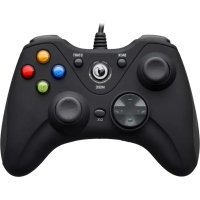
PCGC100XF - Controller Nacon - Free user manual and instructions
Find the device manual for free PCGC100XF Nacon in PDF.

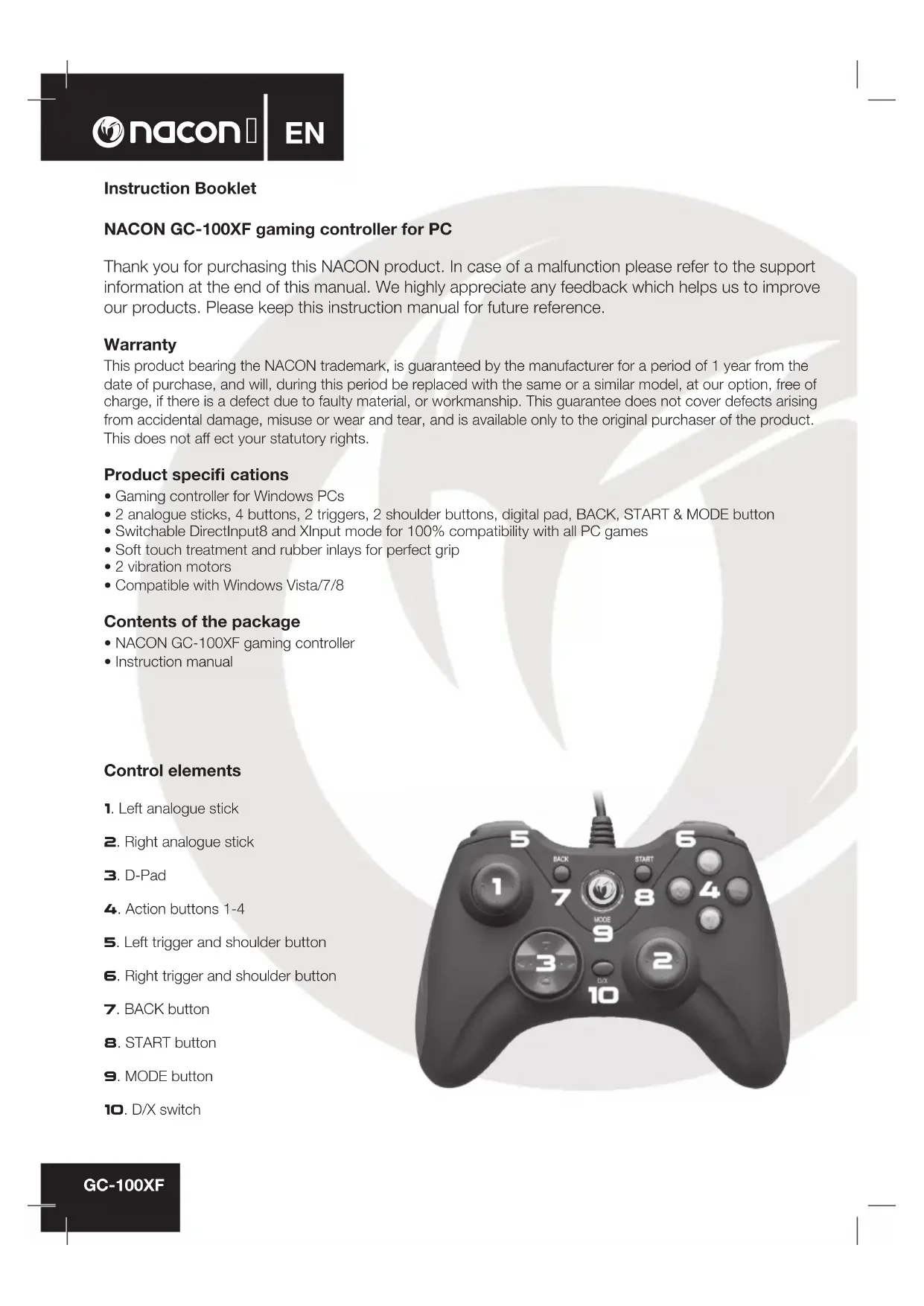


| Product type | Game controller for PC Windows |
| Model | NACON GC-100XF (PCGC100XF) |
| Dimensions (H x W x D) | 152 x 110 x 60 mm |
| Weight | 270 g |
| Cable length | Approximately 2 m |
| Connection | USB Plug & Play |
| System compatibility | Windows Vista, Windows 7, Windows 8 |
| Input modes | DirectInput8 and XInput (selectable via D/X button) |
| Buttons and controls | 2 analog sticks, 4 action buttons (1-4), 2 triggers, 2 bumpers, D-pad, BACK, START, MODE, D/X button |
| Special features | Force feedback, soft coating with rubber inserts, analog/digital modes |
| Power supply | Powered via USB port (no batteries required) |
| Care and cleaning | Soft, clean, slightly damp cloth. Do not use detergents. |
| Safety | Indoor use only. Avoid exposure to sun, moisture, shocks. Do not disassemble. No user-serviceable parts. |
| Warranty | 1 year from date of purchase (material or manufacturing defects) |
| Package contents | GC-100XF controller, instruction booklet |
Frequently Asked Questions - PCGC100XF Nacon
User questions about PCGC100XF Nacon
0 question about this device. Answer the ones you know or ask your own.
Ask a new question about this device
Download the instructions for your Controller in PDF format for free! Find your manual PCGC100XF - Nacon and take your electronic device back in hand. On this page are published all the documents necessary for the use of your device. PCGC100XF by Nacon.
USER MANUAL PCGC100XF Nacon
NACON GC-100XF gaming controller for PC
Thank you for purchasing this NACON product. In case of a malfunction please refer to the support information at the end of this manual. We highly appreciate any feedback which helps us to improve our products. Please keep this instruction manual for future reference.
Warranty
This product bearing the NACON trademark, is guaranteed by the manufacturer for a period of 1 year from the date of purchase, and will, during this period be replaced with the same or a similar model, at our option, free of charge, if there is a defect due to faulty material, or workmanship. This guarantee does not cover defects arising from accidental damage, misuse or wear and tear, and is available only to the original purchaser of the product. This does not affect your statutory rights.
Product specifications
• Gaming controller for Windows PCs
- 2 analogue sticks, 4 buttons, 2 triggers, 2 shoulder buttons, digital pad, BACK, START & MODE button
- Switchable DirectInput8 and XInput mode for 100% compatibility with all PC games
- Soft touch treatment and rubber inlays for perfect grip
• 2 vibration motors
- Compatible with Windows Vista/7/8
Contents of the package
• NACON GC-100XF gaming controller
- Instruction manual
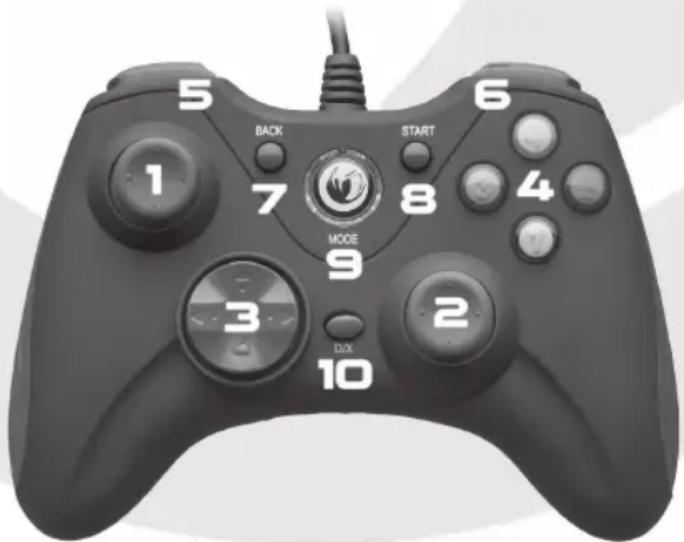
Control elements
- Left analogue stick
- Right analogue stick
- D-Pad
- Action buttons 1-4
- Left trigger and shoulder button
- Right trigger and shoulder button
- BACK button
- START button
- MODE button
- D/X switch
First-time connection with the PC
The NACON GC-100XF is a so-called Plug'n'Play device. This means that the necessary driver software should be installed automatically if you connect it to your computer for the first time. Here are the steps in detail:
- Turn on your computer, wait for it to boot and log in to your Windows desktop.
- Look for an unused USB slot on your PC and plug in the USB cable of your NACON GC-100XF controller.
- Windows will detect the new device and after a few seconds it will start the installation process for the appropriate drivers. This is shown by a small icon in the taskbar.
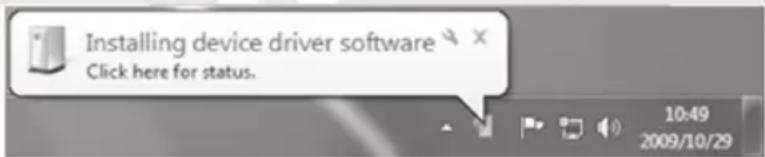
- The installation might take a while depending on the speed of your system. Once the installation is complete, you will be presented with the according message. You can now use your GC-100XF.
D/X button
There are different ways for modern computer games to communicate with your controller and vice versa. Your GC-100XF supports the two most commonly used ones: DirectInput8 and XInput. Sometimes a game only supports one of these two protocols. Since both can't be run simultaneously, your GC-100XF features the D/X button (10) to switch between these two protocols, to make sure it works with all games.
The blue LED's around the MODE button (9) indicate the current status:
- All LED's lit (full circle) indicates XInput to be used
- Partially lit LED's indicate that the DirectInput8 protocol is active
Remark: After changing the protocol, the controller needs some short time to switch, indicated by the lights turning off. Once lit again, it's fully functional with the selected protocol.
Mode button
The MODE button (9) is used in DirectInput mode to switch between two possible configurations:
If the left half of the LED circle is lit, then the controller works in analog mode, which is default. The left stick (1) will be used for analogue input, which means for example the more you push it to the right, the more your car will turn to the right in a racing game. The digital pad (3) will simply function as it is supposed to.
If the right half circle is lit, the controller uses the digital mode. The left stick (1) and the directional pad (3) will be swapped in their functions then. This may feel more appropriate depending on the game you want to play with your GC.100XF.
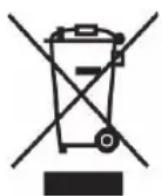
Recycling
This product should not be disposed of in normal household rubbish. Please take it to a nominated collection point. Recycling is important and will help to protect our environment from reduced landfill waste.
Important Safeguards & Precautions
- This unit is for indoor use only. Never expose to direct sunlight or wet weather conditions.
- Do not expose the unit, to splashing, dripping, rain or moisture. Do not immerse in liquid.
- Do not expose to dust, high humidity, high temperatures or mechanical shock.
- Do not use if the equipment is damaged.
- Do not disassemble; there are no serviceable parts inside.
- For external cleaning, use a soft, clean, damp cloth only. Use of detergents may damage the finish and leak inside
Ergonomics
Holding your hand in the same position for a longer period of time can lead to aching and pain. If this occurs repeatedly please consult your doctor.
- As a precaution we recommend that you take a 15 minute break every hour.
Technical Specification:
- USB controller
- Weight: 270g
• Height x Width x Depth: 152x110x60mm - Cable length: ca. 2m
Technical Helpline Information
The Technical Helpline is a live one-to-one service
Mail : support.en@nacongaming.com
Website : www.nacongaming.com
Legal lines
Windows® XP/VISTA®/7/8 are registered trademarks of Microsoft Corporation.
Email : customerservice@bigben-interactive.be
28, Avenue Ernest Solvay
1480 Tubize
www.bigben.eu
Email: customerservice@bigben-interactive.be
Email : support.it@nacongaming.com
Sito Web : www.nacongaming.com
Note legali
natural_image
Black game controller with labeled buttons (BACK, START, MODE, D/X) and a stylized logo on the front (no readable text beyond labels)http://nacongaming.com
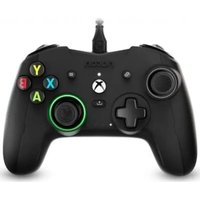
- NACON GC-100XF gaming controller for PC
- Warranty
- Product specifications
- Contents of the package
- Control elements
- First-time connection with the PC
- D/X button
- Mode button
- Recycling
- Important Safeguards & Precautions
- Ergonomics
- Technical Specification:
- Technical Helpline Information
- Legal lines
- Note legali
Brand : Nacon
Model : PCGC100XF
Category : Controller