EasyManual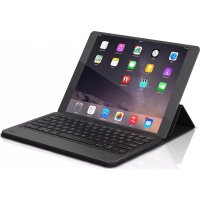
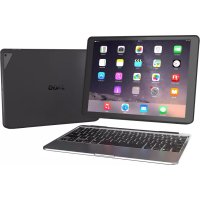
ZGUNM2BKF - Keyboard Zagg - Free user manual and instructions
Find the device manual for free ZGUNM2BKF Zagg in PDF.


| Technical Features | Wireless keyboard, Bluetooth connectivity, LED backlighting, battery life up to 30 days. |
|---|---|
| Usage | Compatible with iOS and Android devices, ideal for text input, gaming, and browsing. |
| Maintenance and Repair | Clean with a soft cloth, no harsh chemicals, built-in rechargeable battery. |
| Security | Secure connection via Bluetooth, protection against battery overcharge. |
| General Information | Compact dimensions, lightweight, ergonomic design for optimal comfort. |
Frequently Asked Questions - ZGUNM2BKF Zagg
User questions about ZGUNM2BKF Zagg
0 question about this device. Answer the ones you know or ask your own.
Ask a new question about this device
Download the instructions for your Keyboard in PDF format for free! Find your manual ZGUNM2BKF - Zagg and take your electronic device back in hand. On this page are published all the documents necessary for the use of your device. ZGUNM2BKF by Zagg.
USER MANUAL ZGUNM2BKF Zagg
Keyboard Instructions
See the important Health and Safety information on page 6 before using this product.
\* WARRANTY REGISTRATION
Your ZAGG Messenger Universal™ comes with a one-year manufacturer's warranty. In order to activate the warranty, you must register your Messenger Universal as well as keep your purchase receipt. If you purchased your Messenger Universal from Zagg.com, Zagg has already registered it and has a copy of your proof of purchase.
Need more help? Please see our FAQ section at: www.zagg.com/faq.
INTRODUCTION
Congratulations on owning the most versatile, most comfortable keyboard available. As you're about to see, the Messenger Universal is easy to use and helps you get the most from your tablet, phone, or home computer. Now you can enjoy Zagg's famous typing experience anywhere, on any device.
PAIRING YOUR DEVICES
Your Messenger Universal can pair with virtually any Apple ^ , Android ^ , or Windows ^ device - including your home computer. Here's how to pair it with whatever device you like:
-
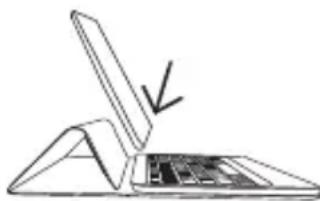
Lift the cover off the keyboard and either fold it forward along its creased lines toward your keyboard, or back toward the underside of your keyboard. Folding it forward creates a convenient stand to hold your smartphone or tablet while you work and play. Folding it back angles the keyboard for a more ergonomic feel while you type. Whichever way is best for you, when you fold the cover into place you'll feel the magnets hidden inside it connect.
-
Turn your Messenger Universal Keyboard on by moving the power switch to the On position. A green LED will light, indicating it has powered on.
-
Access the Bluetooth ^® settings on your device and ensure your Bluetooth connection is on.
-
Press your Messenger Universal's Bluetooth key. The LED will flash blue indicating your keyboard is looking to pair with your device.
-
Program your keyboard based on the type of device you are pairing. For Windows devices, press fn + W. For Apple devices press fn + I. For Android devices, press fn + A.
-
Select "ZAGG Keyboard" from your device's list of available Bluetooth devices.
-
Follow any other pairing requirements based on your device.
natural_image
Simple line drawing of a laptop with an open lid and a downward arrow pointing to the screen (no text or symbols)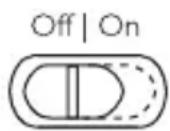
CHARGING
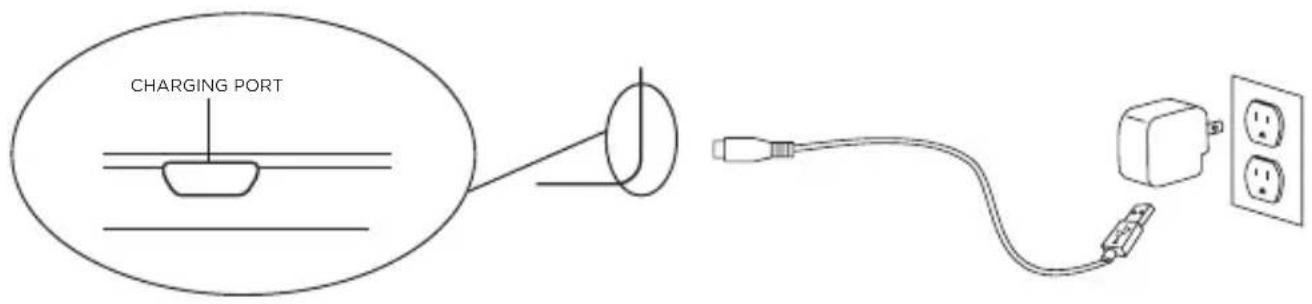
Your Messenger Universal features a powerful battery that delivers up to three months* of typing between charges. It comes with a charging cable you can use to charge it quickly whenever you need. Here's how to charge it:
- Plug the micro USB connector into the charging port located by the Power switch.
- Plug the regular USB connector into any 5V USB outlet.
- The LED will light red and stay lit until your Messenger Universal Keyboard is fully charged.
- When the LED turns off, disconnect the micro USB cable and enjoy your Messenger Universal for up to three months before you need to charge it again.
* Normal use is approximately one hour of use per day.
text_image
CHARGING PORTBATTERY LIFE
Your Messenger Universal will keep you going for months, but you can check how much power it has remaining anytime you want. To check battery life, pressfn + 📋 . The LED indicator will flash one of three ways:
- Three green flashes indicate a full battery.
- Three yellow flashes indicate approximately half battery life remaining.
- Three red flashes indicate low battery life. When your Messenger Universal Keyboard reaches critical battery level the LED will flash red once every five minutes.
To help preserve battery life, your Messenger Universal will enter hibernation mode if left on and not used for 20 minutes. Press any key to wake your keyboard.
SPECIAL FUNCTION KEYS
Your Messenger Universal features all of the special function keys you're used to that help you work and play. Here's how to use your favorite functions:
fn+Return - Returns to your last open program/app - ONLY for use with Android devices.
Home - Opens your device's home screen.
Lock - Activates and deactivates your tablet's sleep mode.
Search - Opens your device's search function.
Track Back - Tracks backward on your current playlist. Note: This key won't do anything unless you have a playlist open.
▶11 Play/Pause – Plays and pauses your current playlist.
Track Forward - Tracks forward on your current playlist. Note: This key won't do anything unless you have a playlist open.
Mute - Mutes your device's audio.
Volume Up - Increases your device's volume output.
Volume Down - Decreases your device's volume output.
* Bluetooth - Initiates Bluetooth pairing.
delete Delete - Deletes text from right to left.
start Start - Functions as the Windows key when you're using Windows devices.
alt opt Alt/Opt - Functions as the Alt or Option key depending on the device you're using.
TROUBLESHOOTING
If your device does not respond to your Messenger Universal, there may be a simple explanation such as a dead battery or an unsuccessful pairing. Please use the following to help troubleshoot your situation. If none of the following solve your issue, then please contact Zagg Customer Service and one of our trained professionals will be happy to assist you.
-
Reset your Messenger Universal Keyboard by connecting the included micro USB cable to its charging port and to your preferred 5V USB charging outlet. The LED will light green for one second and then begin flashing red. This indicates the reset process has happened. Your keyboard will then begin charging.
-
Let your keyboard charge for one minute, or until it is fully charged if it was at a critical battery level.
- Turn your keyboard on. If it is on and not functioning correctly, try turning it off and then back on.
- If the LED does not light and your keyboard still doesn't operate correctly, contact Zagg Customer Service.
- If your device gives you an error message during pairing, repeat the pairing process. If it still does not pair, reset the keyboard as described in step 1 of this troubleshooting section.
For more help, please see our FAQ section at: www.zagg.com/faq
To reach a trained customer service representative, please use one of the following:
ZAGG.com/support/contact.php | questions@zagg.com
1-800-700-ZAGG [9244] | 00-1-801-839-3906 for international customers
For unparalleled scratch protection for your device, we recommend Zagg's InvisibleShield®.
©2015 ZAGG Inc All Rights Reserved
Model Number: Messenger Universal-I-MC3WKK
PATENT PENDING | NASDAQ: ZAGG | MADE IN CHINA
Microsoft is a trademark of Microsoft Corporation in the U.S. and other countries.
Apple is a trademark of Apple Inc., registered in the U.S. and other countries.
Android is a trademark of Google Inc.
The Bluetooth® word mark and logos are registered trademarks owned by Bluetooth SIG, Inc. and any use of such marks by Zagg Inc is under license. Other trademarks and trade names are those of their respective owners.
Zagg, InvisibleShield, and Messenger Universal are trademarks of Zagg Inc.
FCC STATEMENT
This device complies with Part 15 of the FCC Rules. Operation is subject to the following two conditions: (1) This device may not cause harmful interference, and (2) this device must accept any interference received, including interference that may cause undesired operation.
This equipment has been tested and found to comply with the limits for a Class B digital device, pursuant to Part 15 of the FCC Rules. These limits are designed to provide reasonable protection against harmful interference in a residential installation. This equipment generates, uses and can radiate radio frequency energy and, if not installed and used in accordance with the instructions, may cause harmful interference to radio communications. However, there is no guarantee that interference will not occur in a particular installation. If this equipment does cause harmful interference to radio or television reception, which can be determined by turning the equipment off and on, the user is encouraged to try to correct the interference by one of the following measures:
- Reorient or relocate the receiving antenna.
- Increase the separation between the equipment and receiver.
- Connect the equipment into an outlet on a circuit different from that to which the receiver is connected.
- Consult the dealer or an experienced radio/TV technician for help.
FCC CAUTION
Any changes or modifications not expressly approved by the party responsible for compliance could void the user's authority to operate this equipment.
This transmitter must not be co-located or operating in conjunction with any other antenna or transmitter.
The product comply with the FCC portable RF exposure limit set forth for an uncontrolled environment and are safe for intended operation as described in this manual. The further RF exposure reduction can be achieved if the product can be kept as far as possible from the user body or set the device to lower output power if such function is available.
WARNING
Please read the precautions and operation information before using your keyboard or any accessories that accompany it. Retain this information for future use.
-
Take frequent breaks when using your keyboard. If you experience any discomfort, pain, tingling, numbness, or burning in your neck, shoulders, arms, wrists, hands, or any other part of the body, stop using your keyboard and consult a physician.
-
Use only micro USB chargers in connection with your keyboard.
-
Do not attempt to service your keyboard.
-
Do not disassemble or attempt to disassemble your keyboard.
-
Do not crush or puncture the keyboard.
-
Do not immerse your keyboard in water.
-
Do not put your keyboard in contact with water or other liquids as they could cause a short circuit, fire, or electric shock that could result in injury, death, or property damage.
-
Do not use liquid or aerosol cleaners or solvents on or near your keyboard. Clean only with a soft, dry cloth. Disconnect any cords before cleaning the keyboard.
-
Do not use your keyboard while operating a motorized vehicle, including automobile, boat, or airplane. Doing so could put you and others at risk of serious injury, death, or property damage.
-
Do not use or place your keyboard near any heat sources including, but not limited to, radiators, heat registers, stoves, other appliances, campfires, or barbeque grills.
-
To reduce the risk of fire or electric shock, wire or connect your keyboard to products only in the manner instructed in the documentation included herewith. Do not attempt to modify or adjust any ports. Any improper connections or adjustments may cause damage.
-
When you are ready to discard your keyboard, recycle your keyboard in a manner consistent with electronic recycling requirements or recommendations in your geographic area.
ZAGG®
Messenger
Universal™
natural_image
Line drawing of a laptop with an open lid and a downward arrow indicating compression (no text or symbols)ZAGG.com/support/contact.php | questions@zagg.com
natural_image
Line drawing of a laptop with an open lid and a downward arrow pointing to the screen (no text or symbols)zagg.com/support/contact.php | questions@zagg.com
1-800-700-ZAGG [9244] | 00-1-801-839-3906 para clientes internacionales