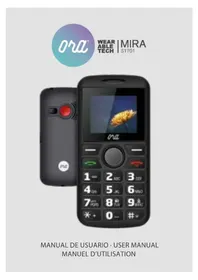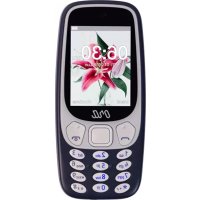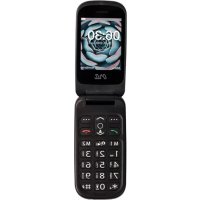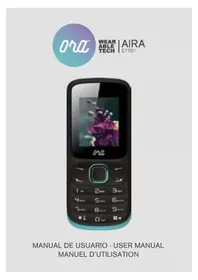
Aira E1701 - Smartphone ORA - Free user manual and instructions
Find the device manual for free Aira E1701 ORA in PDF.


| Product Type | Smartphone |
| Brand | ORA |
| Model | Aira E1701 |
| Dimensions (L x W x H) | 111 x 47 x 14.5 mm |
| Weight | 60 g |
| Network | GSM 850/900/1800/1900 MHz |
| Battery Type | Lithium-ion 5C |
| Battery Capacity | 600 mAh |
| Talk Time | Up to 2 hours |
| Standby Time | Up to 120 hours |
| Dual SIM | Yes |
| Camera | Yes (photo and video capture) |
| Bluetooth | Yes |
| FM Radio | Yes (with headphones) |
| Audio/Video Player | Yes |
| Voice Recorder | Yes (AMR, WAV) |
| Flashlight | Yes (long press 0) |
| Messaging | SMS, MMS |
| Alarm | Yes |
| Calendar | Yes |
| Games | Yes |
| Maintenance and Cleaning | Clean with a soft dry cloth. Avoid moisture and extreme temperatures. |
| Safety | Use the original battery. Do not expose to heat. PIN code lock. |
| Spare Parts and Repairability | Contact ORA after-sales service for any repairs. No user-replaceable parts available. |
Frequently Asked Questions - Aira E1701 ORA
User questions about Aira E1701 ORA
0 question about this device. Answer the ones you know or ask your own.
Ask a new question about this device
Download the instructions for your Smartphone in PDF format for free! Find your manual Aira E1701 - ORA and take your electronic device back in hand. On this page are published all the documents necessary for the use of your device. Aira E1701 by ORA.
USER MANUAL Aira E1701 ORA
Thank you for choosing an ORA mobile phone. You can use the phone by following the instructions in this manual.
The phone's keypad is designed for GSM / GPRS network conditions. It has a basic call function and also incorporates other useful features such as Bluetooth, voice switch, camera, music player, video player, radio and much more. All these functions can make your life more practical and fun.
1.2. For your safety
Read the instructions in this guide. Not following them could be dangerous. Read the complete user guide for more information.
2. Before use
2.1. Name of components and explanation
2.1.1. Technical specifications
Weight: 60 g.
Diameter: 111x47x14.5 mm
Battery: Dual protection
Network: GSM 850/900/1800/1900MHz
Battery Type: Lithium 5C
Battery Capacity: 600 mAh
Call Duration: Up to 2 hrs
Wait time: Up to 120 hrs
Notice: The performance of your phone depends on your local network operator and the use you make of it. We are not responsible for damages caused by improper use.
2.1.2. Keyboard description
1. Navigation key Left / Right
Move the cursor to the left or to the right when editing. In the standby state, press the left navigation key to go to the menu (inbox), press the right navigation key to access the menu (profiles). In the camera viewer mode, press the left / right navigation key to adjust the EV reference of -4 \~ + 4. In some secondary menus, pressing the left navigation key you can open the options menu and pressing the right, return to the previous menu.
2. Navigation key Up / Down
To view contacts, call numbers, messages and sub-menu options. Move the cursor up or down when you are editing. In standby mode, press the navigation key to access the Alarm menu.
3. Left multifunction key
To access the function that appears in the lower left corner of the screen.
4. Right multifunction key
To access the function that appears in the lower right corner of the screen.
5. Dialing key
To dial or extract the number of an incoming call. In standby
mode, press the dial key to display the call records of SIM1.
6. Hanging key
To end a call or reject incoming calls. Press and hold the same key to turn the device on or off. In most cases, pressing this key can activate the phone's idle mode.
7. Number key
Numeric keys from 0 to 9 are used to enter numbers and letters.
8. \* key
It has different functions in the multiple menus.
9. #key
It has different functions in the multiple menus.
10. Center key
In standby mode, press the key to access the main menu. In the rest of submenus, it works in the same way as the left multifunction key.
Advice: In this user manual, the phrase “press the key” refers to pressing and releasing the key immediately; “Pressing while holding the key” refers to pressing and holding it for 2 or more seconds.
2.1.3 Icon Description
| ICON DESCRIPTION | |
 | The more bars displayed, the better signal strength |
 | GPRS Connected |
 | Keypad lock |
 | Vibrate |
 | Ring and vibrate |
 | Ring |
 | Vibrate then ring |
 | Input earphone |
 | Roam Indicator |
 | SMS Indicator |
 | MMS Indicator |
 | Voice Message |
 | Setting and open alarm |
 | Open SIM1 Divert |
 | Open SIM2 Divert |
 | Miss call of SIM1 |
 | Miss call of SIM2 |
 | Battery Status |
 | Open Bluetooth |
 | Open multipurpose stopwatch |
2.2. Network connection
2.2.1. SIM card
Insert a SIM card before using your phone. The SIM card must be provided by your network operator.
All the network information is stored in the SIM card and the calendar information is also stored in that SIM card. Avoid touching the metal of the SIM card, keep it away from electricity and magnetic sources. If the SIM card is broken, the headset will not work properly either.
Warning: Before inserting or removing the SIM card, you must turn off the mobile phone. Do not insert or remove the SIM while the phone is connected to an external power source, you could damage the SIM card.
2.3. Make calls
In standby mode, press the numeric keys to enter the phone number, press the right soft key to erase if you make a mistake. If you leave it pressed for a few seconds, everything you have
written will be deleted. Press the left soft key to store the number in the phone or SIM card. Press the dial key to make a call. In the call mode, you can press the keys directly to enter the number you need. To make international calls you must press the “0” key until the international prefix “+” is displayed (“+” instead of 00).
2.4. Emergency calls
You can dial the emergency number (for example 112) with the phone locked.
2.5. Answer a call
To answer a call you must press the dial key.
2.6. End a call
To end a call you must press the key to turn the phone on or off.
2.7. Call options
Once the call is made, press the right soft key to access the Menu function.
3. Menu usage functions
3.1. Diary
You can store contact information on the SIM card or in the phone memory, this information includes the name, phone number, house number, company name, email, company phone number, fax number, birthday, selection of call tone and group call. In standby mode, press the right soft key to access the phone book and view the call log.
Note: the internal storage of the phone only allows registering 250 contacts, the SIM card will store based on its own capacity.
3.2. Messages
In standby mode, press the navigation key on the interface to select “Messages” and enter the sub-menu. Includes SMS, EMS, Chat and Voice Message Transmission and Storage Service.
3.2.1. SMS
Send text messages from the Sevice Center. The speakers support EMS and you can insert images, animations, melodies and ringtones in a message.
3.2.2. MMS
About MMS
MMS is a multimedia message service. Its peculiarity is that it supports multimedia, it can send text, images, sound and other information in multimedia format.
MMS needs the support of your network operator. Contact your service provider for more details on the invoice and adjustments.
3.2.3. Chat
This function is based on SMS.
3.2.4. Voice storage service
It will automatically redirect calls to the Voice Mail when you can not accept them, so that the person making the call can leave a message in the Voice Mail in the network service system. Dial the Voicemail number to access the records.
3.3. Audioplayer
Access to the audio player menu, navigate using the up / down key to control music, play / pause and stop. Press the left / right
navigation key to change music, press “*” and “#” to adjust the volume. Press the left soft key to access the playlist, press the pop-up of the “option” sub-menu.
3.4. Multimedia
In the status of the main menu, press the navigation key to find the multimedia menu, press the left soft key to access or press the multimedia icon to perform the same function.
3.4.1. Camera
You can capture photos or videos and store them by files on the memory card or phone storage.
3.4.2. Pictures viewer
Press the left soft key to select the photo you want and view it, navigate between styles, send, rename, delete, erase all photos or also modify the storage position.
Sort your images. Press the navigation key up / down.
3.4.3. Video recorder
The device supports the video recording function.
3.4.4. Sound recorder
This function shows the current list of recordings stored in the phone, which supports AMR and WAV files. If your phone does not have a recorder, a message will appear on the screen (Empty File).
3.4.5. Schedule FM Recorder
This phone is compatible with the FM programmed recorder function. You can configure multiple recordings.
3.4.6. Presentation of slides
You can select folders stored on the card or phone and play the archived images.
3.5. File Manager
Go to the Main Menu and select the option "File List".
* Remember that you must install a memory card.
3.6. Video player
In this menu you can see video files and, by pressing the right multifunction key, play them, send them, rename them, delete individual files or all stored ones, you can also modify the storage position. Sorts the established Bluetooth.
3.7. FM Radio
The phone supports the radio function. Insert headphones to use this function. In the radio menu, press the up / down navigation key to activate or stop the station search function. Press the navigation key left / right to activate the auto search function or, if you prefer, you can also search the stations manually.
3.8. Alarm
Acces to the main manu and choose "Tools".
3.9. Calendar
Press the navigation key up / down and right / left to edit the date and time.
3.10. Games
The phone may include some games.
3.11. Call center
Press the navigation key to use this function, then press the left soft key to access the sub-menu.
3.11.1. Call History
To view the call history go to the Main Menu and select "Call Logs".
3.11.1.1 Missed calls
This function shows the list of missed calls. Select one of them and press the left soft key to view the information in detail.
3.11.1.2. Calls dialed
This function shows the list of calls made. Select one of them and press the left soft key to see the options.
3.11.1.3. Incoming calls
This function shows the list of received calls. Select one of them and press the left soft key to view the information in detail.
3.11.1.4. Rejected calls
This function shows the list of rejected calls. Select one of them and press the left soft key to view the information in detail.
3.11.2. General Call Settings
Go to the Settings section of the Main Menu and in it you can see the different options such as call divert, call waiting, etc...
3.12. Services
3.12.1 STK \*
STK (SIM Tool Kit) is a value-added service provided by your network operator. Your phone supports this service. This function is not effective in case the SIM card or the network does not support it. For more details, contact your network operator.
3.12.2. WAP
The phone supports the WAP service. This function needs network support. For more details, contact your network operator.
3.12.3. Account data
This function needs network support. For more details, contact your network operator.
3.13. Adjustments
You can configure the phone according to your preferences.
3.13.1. Dual SIM settings
It allows to modify the connection parameters.
3.13.2. Phone Configuration
· Time and date
Set City of Origin
Set the local time on your phone.
Set Time
Set date and time from 2000 to 2030.
Set Time Format
Sets 12 or 24 hour format.
· Schedule Energy
The phone has 4 editable modes of On and Off.
Notice: the function can not be used if the On / Off modes set are the same.
3.13.4. Network Configuration
3.13.5. Security settings
Set up security information to protect your phone and SIM card against unauthorized use.
3.13.6. Factory Restoration
Enter the access password of the phone (the default number is 1234. This function will reset the device to the initial factory settings).
3.14. User Profiles
You can configure the user profiles of the phone according to your needs. The profiles that are included are: general, meeting, exterior, interior, headphones and Bluetooth.
3.15 Torch light button
You can enable/disable the torch light by long pressing the 0 button or "Tools".
4. Enter Text Mode
4.1. Keyboard Definition
Left Multifunction Key: confirm
Right Multifunction Key: return or delete
Navigation key: move the cursor or select the character entry
0 \~ 9: enter numbers or letters
# Key: change input method
* Key: in the input status, press to open the symbol insertion box
5. Warning
Improper replacement of the battery type can cause dangerous explosions.
Make sure you follow the instructions to make proper use of the battery and other components.
1. Information de base
1.1. Instructions
Please check terms and conditions of the warranty and Aftersales contact at: http://www.orawearabletech.com
ORA Wearable Tech reserves the right to make changes on the product specifications without notice.
http://www.orawearabletech.com
www.orawearabletech.com
Made in china