Mira S1701 - Smartphone ORA - Free user manual and instructions
Find the device manual for free Mira S1701 ORA in PDF.


| Product Type | Smartphone |
| Brand | ORA |
| Model | Mira S1701 |
| Weight | 75 g (with battery) |
| Screen Size | 1.77 inches |
| GSM Bands | 850/900/1800/1900 MHz |
| Battery | 800 mAh Li-ion, 3.7 V |
| Standby Time | 180 to 200 hours |
| Talk Time | 3 to 5 hours |
| Main Features | Calls, SMS, FM Radio, Bluetooth, MP3, Camera, Flashlight, Vibrator, SOS, Calendar, Calculator, Alarm, Speakerphone, Speed Dial |
| Phonebook Capacity | 300 contacts |
| SMS Capacity | 150 messages |
| Memory Card Support | MicroSD up to 16 GB |
| Power | Rechargeable Li-ion battery 800 mAh, 5 V mains charger |
| Maintenance and Cleaning | Clean with a damp cloth; do not use liquid or aerosol cleaners |
| Safety | Do not expose to water, extreme temperatures, do not disassemble, do not insert objects into slots |
| Available Languages | Multilingual |
Frequently Asked Questions - Mira S1701 ORA
User questions about Mira S1701 ORA
0 question about this device. Answer the ones you know or ask your own.
Ask a new question about this device
Download the instructions for your Smartphone in PDF format for free! Find your manual Mira S1701 - ORA and take your electronic device back in hand. On this page are published all the documents necessary for the use of your device. Mira S1701 by ORA.
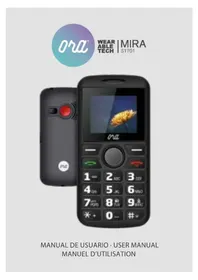
USER MANUAL Mira S1701 ORA
MANUAL DE USUARIO · USER MANUAL
MANUEL D'UTILISATION
Please read this operation instruction carefully before use. Please keep this operation instruction with care for future use.
SAFETY PRECAUTIONS
When using this unit, basic Safety Precautions should always be followed to reduce the risk of fire, electric shock, or personal injury.
- Read and understand all instructions.
- Do not use liquid or aerosol cleaners. Use a damp cloth for cleaning.
- Do not use this unit near water such as bathtub, shower or pool. Immersion of this unit in water could cause an electrical shock.
- Place the unit securely on a stable surface. Serious damage and/or injury may result if the unit falls.
- Do not cover slots and openings on the unit. They are provided for ventilation and protection against overheating.
- Install the unit in a place where nobody can walk on.
- Never push any objects through slots in this unit. This may result in the risk of fire or electric shock. Never spill any liquid on the unit.
- To reduce the risk of electric shock, do not disassemble this unit. Take the unit to authorized service center or qualified technician when service or repair work is required. Opening or removing covers may expose you to dangerous voltages or other risks. Incorrect reassembly can cause electric shock when the unit is subsequently used.
- Do not expose the unit to extreme temperatures such as areas near a hot radiator or stove or in a hot car.
- Do not place lighted objects such as candles, cigarettes on
the unit.
- Do not use this unit to report a gas leak in the vicinity of the leak.
WARNING:
To prevent the risk of fire or electrical shock, do not expose this unit to rain or any type of moisture.
MAIN FUNCTIONS
- Works with all operators (subscription or prepaid card)
- Big characters displayed on a backlit screen for a good readability
• Large keys with readable figures - “SOS” button at the back of the phone = as soon as you press the key “SOS”, the telephone will alarm and call the 5 recorded numbers in sequence and send already set SOS messages
- SMS function
- Speaking: announces number when you press key
• TF card memory support max. 16GB
• Phone book : 300 numbers - FM radio/Blut tooth
• Audio format support : MP3 - Calendar, calculator and clock with alarm
- Multi-languages
- Autonomy: 150-200 hours (depend on network) standby / 3-4 hours talk
- Flashlight function
| Call functions | Hands free Function YES | |
| Speed Dialing YES | ||
| Call History YES | ||
| Call waiting YES | ||
| Call Restriction YES | ||
| Call Forward YES | ||
| Phone Book | Capacity 300 | |
| Quick Search YES | ||
| Copy/Move between SIM & Phone | YES | |
| SMS | Capability 150 | |
| Multiple Broadcast YES | ||
| MMS Optional | ||
| GPRS Optional | ||
| Settings | Phone Language Multi-Language support | |
| Security PIN YES | ||
| Sound | Ring tone Polyphonic | melodies |
| Others | Calculator YES | |
| FM Radio/BT YES | ||
| GPS NO | ||
| Torch YES | ||
| MP3 YES | ||
| Vibration alert YES | ||
| Camera YES | ||
KEY DEFINITION
| Key Function | |
 Green Button(top left) Green Button(top left) | Displays recent calls (from main menu).Use as “ok” button to advance in menu options.Answers and connects calls. |
 Red Button(Top Right) Red Button(Top Right) | Powers phone on / off.As Back button to quit menu options.Ends Calls. |
 Arrow keys(Top Middle) Arrow keys(Top Middle) | Used for menu options by scrolling through (up, down).Press the volume keys “up” can make the volume louder.Press the volume keys “down” can make the volume softer.Press up key to open FM. |
| Number Keys | Used for inputting numbers and characters.Keys 2 - 9 and*, can be used as speed dials for quick calling.Speed Dial setting:a) To Add new contactHold the desired number key and Set Number option will be shown. Press Green Button to edit/choose the contact person. It has a condition that the contact person should have already been input in your Phonebook.b) To Edit/delete key for speed dials Scroll the Arrow key to Settings, press Green Button, and then scroll the Arrow key to Call setup option and choose Speed dial option to update the Set number. Scroll the Arrow key & select number keys to edit. |
| Number Key“1” | Number 1 for choosing, in the meanwhile, can be used for punctuation options by scrolling when messaging, |
 Flashlight Flashlight | Push up to turn on the flashlightPush down to turn off the flashlight |
 SOS key SOS key | It can be set in advance and make four emergency calls and text messages.Emergency situations:When the SOS button is pressed, the phone will issue a loud warning sound and automatically send messages to the setting SOS phone numbers.Emergency call Number setting:Scroll the Arrow key to phone book, press Green Button, and then scroll the Arrow key to SOS number option to update the emergency call numbers.Enter the call number & it can be up to 5 numbers.Emergency call Text message setting:Scroll the Arrow key to Messages, press Green Button, and then scroll the Arrow key to Emergency SMS option to update the emergency call text massage. |
START TO USE YOUR PHONE
- Insert the SIM card: remove the battery-cover, then put your SIM card in.
- Insert the memory card (max. 8GB): remove the battery-cover, place the memory card.
- Then install the battery correctly
- Charger
Add new contact to Phonebook Follow phone menu
Call center:
Enter into this menu to read the dialled calls, received calls, and Missed calls' list.\
Messages:
Enter into this menu to read inbox's messages, Write new messages, Outbox messages.
Number Key Speech:
Press the number key, the number can be read as dialingsettings—silent model is off
Key Sound Mode is ON(settings—phone setup—key sound)
Time and date:
Scroll the Arrow key to Settings, then to Phone setup option: you can set the time and date.
Language and Input method:
To choose language display and message input method
Multimedia:
Support MP3FM, Bluetooth function. Share the music after insert external T-flash card.
Scroll the Arrow key to Settings, you can see multimedia, and enter into for listening and watching.
Alarm, Calculator:
Scroll the Arrow key to Settings & then to Alarm option: you can set time for Alarm
Scroll the arrow key to settings, then calculator option: you can use calculator.
Change Ring tone:
Scroll the Arrow Key to Settings, choose Phone Setup and find "User profiles" ---"General"---"Customize"---"Tone setup"---"Incoming call" to choose the tone. Once you select the tone, e.g. ring 1, press the Green Button to confirm done.
Restore factory settings
Press password 1122 to restore the default setting.
TECHNICAL SPECIFICATIONS
Band: GSM850/900/1800/1900MHz
Dimension: 115x55.3x14mm
Weight: \~75g (with battery)
LCD: 1.77"
Standby Time: 180-200 hours depend on network
Talk Time: 3-5 hrs
Battery: 800mAh Li-ion / Voltage: 3.7V
Limited charge voltage: 4.2V
Dimension: 115x55.3x14 mm
Please check terms and conditions of the warranty and Aftersales contact at: http://www.orawearabletech.com
ORA Wearable Tech reserves the right to make changes on the product specifications without notice.
Consulter les conditions de garantie et le service après-vente: http://www.orawearabletech.com
www.orawearabletech.com
Made in china