DTB4660HDBK - Digital decoder Sunstech - Free user manual and instructions
Find the device manual for free DTB4660HDBK Sunstech in PDF.

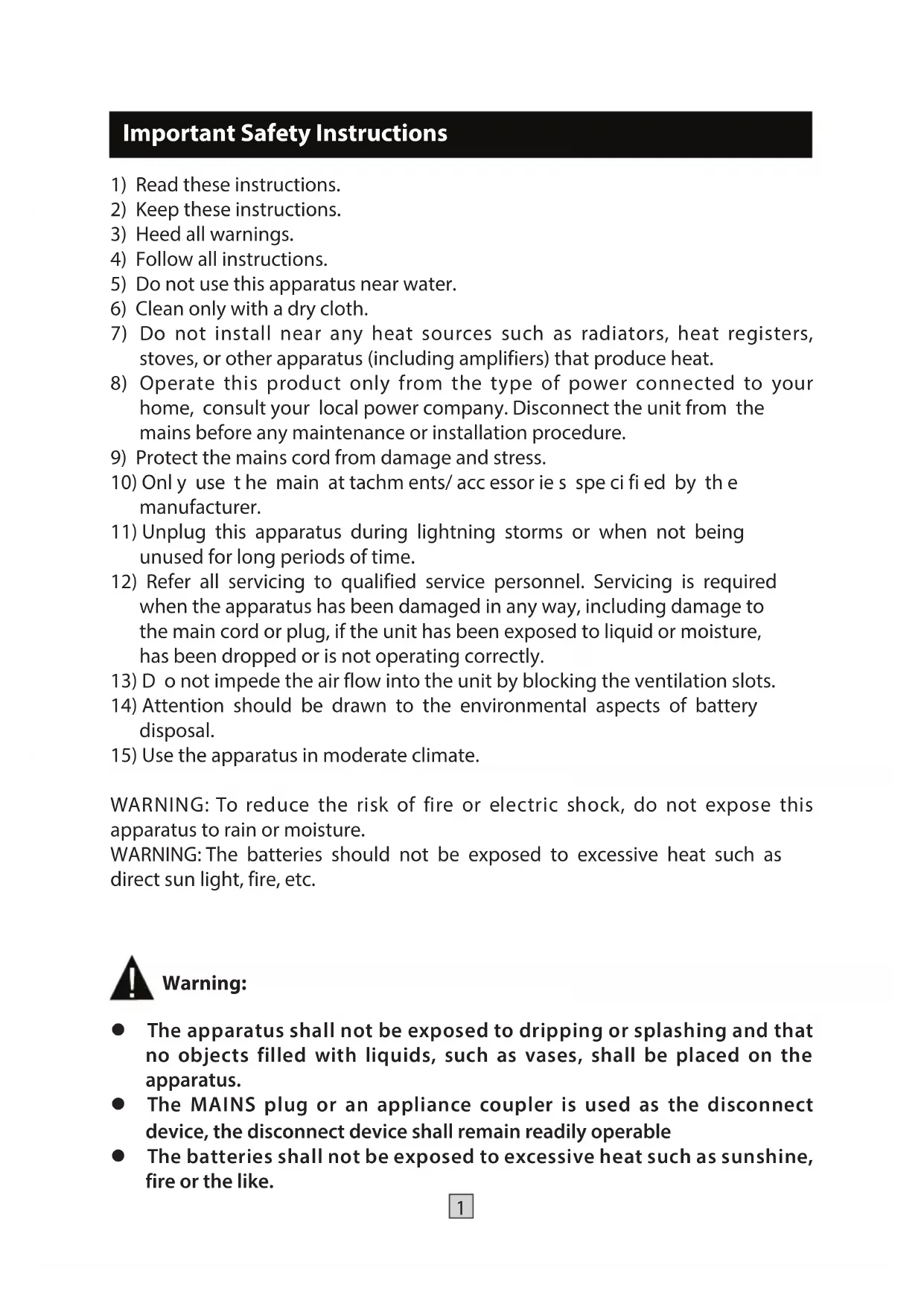


| Product type | HD digital terrestrial decoder |
| Brand | Sunstech |
| Model | DTB4660HDBK |
| Dimensions (L x W x H) | 155 x 80 x 30 mm |
| Weight | 0.13 kg |
| Power supply | DC 5V, 1.2A (mains adapter included) |
| Max power consumption | < 6 W |
| Standby consumption | < 0.5 W |
| Tuner | VHF 174-230 MHz, UHF 470-870 MHz |
| Supported video formats | MPEG-4 AVC/H.264, MPEG-2 (up to 1080p) |
| Video outputs | HDMI, SCART (Peritel) |
| Audio outputs | Analog L/R (SCART), digital coaxial |
| USB port | USB 2.0 for recording (PVR) and multimedia playback |
| Multimedia formats | MP3, JPEG, BMP, AVI, MKV |
| Max USB capacity | Up to 1 TB (with external power adapter if necessary) |
| Main functions | Recording, Timeshift, EPG, teletext, subtitles, parental control, LCN |
| Resolutions | 480i/p, 576i/p, 720p, 1080i, 1080p |
| Screen formats | 4:3, 16:9 |
| OSD languages | Multilingual (French, English, Spanish, etc.) |
| Maintenance and cleaning | Unplug before cleaning, use a soft dry cloth. Do not use liquid or aerosol cleaners. |
| Safety | Do not expose to water or humidity. Do not block ventilation openings. Use only the provided adapter. |
| Spare parts and repairability | Repair by qualified personnel only. Use identical parts to the originals. 2-year warranty. |
| General information | Double-insulated DVB-T receiver. Remote control with AAA batteries included. |
Frequently Asked Questions - DTB4660HDBK Sunstech
User questions about DTB4660HDBK Sunstech
0 question about this device. Answer the ones you know or ask your own.
Ask a new question about this device
Download the instructions for your Digital decoder in PDF format for free! Find your manual DTB4660HDBK - Sunstech and take your electronic device back in hand. On this page are published all the documents necessary for the use of your device. DTB4660HDBK by Sunstech.
USER MANUAL DTB4660HDBK Sunstech
Important Safety Instructions 1
Package Contents. 2
Safety Precautions 3
Connection Interface 6
Remote Control 7
System Connection 9
First Time Installation 10
Basic Operation 10
Program Setting. 10
Program Edit. 11
EPG (Electronic Program Guide) 12
Sort 13
LCN (Logical Channel Number) 13
Picture Setting 13
Resolution 13
TV Format 13
Channel Search 14
Auto Search. 14
Manual Search 14
Country 15
Antenna Power 15
Time Setting. 15
Time Offset 15
Country Region 15
Time Zone. 15
Option. 15
OSD Language 16
Subtitle Language 16
Audio Language 16
System Setting 16
Set Password. 16
Restore Factory Default. 17
Information. 17
USB 17
Multimedia 17
Photo Configuration. 18
Movie Configuration. 18
PVR Configuration 18
Timeshift. 19
Recording 20
Troubleshooting 21
Technical Specifications 22
Warranty conditions 23
Important Safety Instructions
1) Read these instructions.
2) Keep these instructions.
3) Heed all warnings.
4) Follow all instructions.
5) Do not use this apparatus near water.
6) Clean only with a dry cloth.
7) Do not install near any heat sources such as radiators, heat registers, stoves, or other apparatus (including amplifiers) that produce heat.
8) Operate this product only from the type of power connected to your home, consult your local power company. Disconnect the unit from the mains before any maintenance or installation procedure.
9) Protect the mains cord from damage and stress.
10) Only use the main at tachm ents/ accessories specified by the manufacturer.
11) Unplug this apparatus during lightning storms or when not being unused for long periods of time.
12) Refer all servicing to qualified service personnel. Servicing is required when the apparatus has been damaged in any way, including damage to the main cord or plug, if the unit has been exposed to liquid or moisture, has been dropped or is not operating correctly.
13) D o not impede the air flow into the unit by blocking the ventilation slots.
14) Attention should be drawn to the environmental aspects of battery disposal.
15) Use the apparatus in moderate climate.
WARNING: To reduce the risk of fire or electric shock, do not expose this apparatus to rain or moisture.
WARNING: The batteries should not be exposed to excessive heat such as direct sun light, fire, etc.

Warning:
- The apparatus shall not be exposed to dripping or splashing and that no objects filled with liquids, such as vases, shall be placed on the apparatus.
- The MAINS plug or an appliance coupler is used as the disconnect device, the disconnect device shall remain readily operable
- The batteries shall not be exposed to excessive heat such as sunshine, fire or the like.

This symbol indicates that dangerous voltages constituting a risk of electric shock are present within this unit.

This symbol indicates that there are important operating and maintenance instructions in the literature accompanying this unit.

This symbol indicates that this product incorporates double insulation between hazardous mains voltage and user accessible parts. When servicing use only identical replacement parts
Package Contents
Before installation, please check the contents of the package. The package should contain the following items:
DVB-T TV Receiver
x1 pc
Remote Control
x1 pc
3 AAABattery for the Remote Control
x1 pair
4 User Manual
x1 pc
DC Power Adapter
x1 pc
DVB-T Receiver
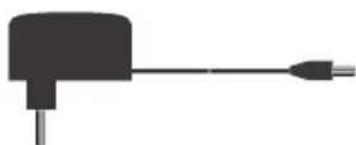
DC Adaptor
X2
AAA Battery
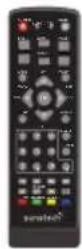
Remote Control
User Manual
Safety Precautions
Read the following recommended safety precautions carefully.
Power Source
Before plugging in for the first time, read the following section carefully.
This device should be operated only from a 220-240V AC, 50Hz outlet.
Be sure that the power supply voltage of the area be used meets the required voltage and you select the correct voltage setting for your device.
Power Cord
Do not place the set, a piece of furniture, etc on the power cord or pinch the cord. Handle the power cord by the plug. Do not unplug the appliance by pulling from the power cord and never touch the power cord with wet hands as this could cause a short circuit or electric shock. Never make a knot in the cord or tie it with other cords. The power cord should be placed in such a way that they are not likely to be stepped on. A damaged power cord can cause fire or give you an electric shock. When it is damaged and needs to be replaced, it should be done by qualified personnel.

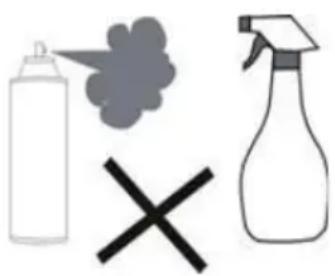

Moisture and Water
Do not use this device in a humid and damp place (avoid the bathroom, the sink in the kitchen, etc). Do not expose this device to rain or water, as this may be dangerous and do not place objects filled with liquids, such as flower vases, on top. If any solid object or liquid falls into the cabinet, unplug the connected device(s) immediately and have it checked by qualified.
Cleaning
Before cleaning, unplug this device from the wall outlet. Do not use an aggressive liquid or aerosol cleaners. Use a soft and dry cloth.
Ventilation
The slots and openings on the device are intended for ventilation and to ensure reliable operation. To prevent overheating, these opening must not be blocked or covered in anyway. When installing this unit make sure to leave space sufficient around the unit to ensure the ventilation to improve heat radiation. Do not expose the unit to extreme conditions of heat, cold or moisture.
Heat and Flames
The device should not be placed near to open flames or sources of intense heat such as an electric heater. Ensure that no open flame sources, such as candles, are placed on top of the device. Batteries should not be exposed to excessive heat such as sunshine, fire or the like.
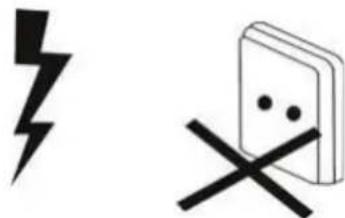
Lightning
in case of storm and lightning or when going on holiday, disconnect the power cord from the wall outlet.
Replacement Parts
When replacement parts are required, make sure that the service technician has used replacement parts, which are specified by the manufacturer or have the same specifications as the original one. Unauthorized substitutions may result in fire, electrical shock or other hazards. Please contact the brand or manufacturer that will redirect you to the nearest technical service which will supply or change the replacement parts.
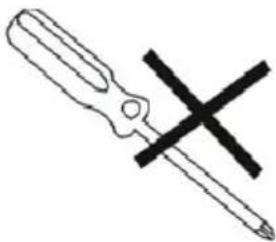
Servicing
Please refer all servicing to qualified personnel of the brand. Do not remove the cover yourself as this may result in an electric shock.
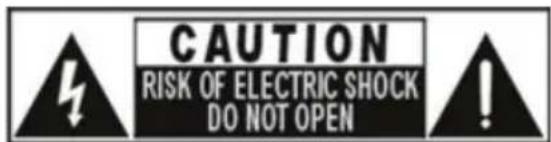
Risk of electric shock
The lightning flash with arrowhead symbol, within an equilateral triangle, is intended to alert the user to the presence of not insulate, "dangerous voltage" within the product's enclosure that may be of sufficient magnitude to constitute a risk of electric shock of persons. The exclamation point within an equilateral triangle is intended to alert the user to the presence of important operating and maintenance (servicing) instructions in the literature accompanying the appliance.


Waste Disposal
Instructions for waste disposal:
- Packaging and packaging aids are recyclable and should principally be recycled. Packaging materials, such as a plastic bag, must be kept away from children.
- Batteries, including those which are heavy metal-free, should not be disposed of with household waste. Please dispose of used batteries in an environmentally friendly manner. Find out about the legal regulations which apply in your area. Do not try to recharge batteries, can have a danger of explosion. Replace batteries only with the same or equivalent type.
This symbol on the product or on its packaging means that your electrical device should be disposed at the end of its service life, separately from your household wastes. There are separate collection systems for recycling in the EU. For more information, please contact the local authority or the dealer where you purchased the product.
Symbol for batteries
Disconnecting the Device
The mains plug is used to disconnect the device from the mains and therefore it must remain readily operable.
Headphone Volume
In your device has headphones jack, please note that excessive sound pressure from earphones and headphones can cause hearing loss.
Installation
To prevent injury, this device must be securely attached to the wall in accordance with the installation instructions when mounted to the wall (if the option is available).

Warning:
Do not leave your device in standby or operating mode when you leave your house appliance. The Standby / On button does not fully switch off this product. Moreover the device continues to consume power in standby mode. In order to separate the device completely from mains, the mains plug has to be pulled from the mains socket. Because of that the device should be set up in a way, that an unobstructed access to the
mains socket is guaranteed, so that in case of emergency the mains plug can be pulled immediately. During periods of prolonged non-use, the device should be disconnected from the mains power supply.
Electrical device not in the hands of children
Never let children use electrical devices unsupervised. Children cannot always recognize any possible dangers. Batteries / accumulators can be life threatening when swallowed. Store batteries out of the reach of children. In case of swallowing a battery, medical aid has to be sought immediately. Also keep the packaging away from children as there is danger of suffocation.
Connection Interface
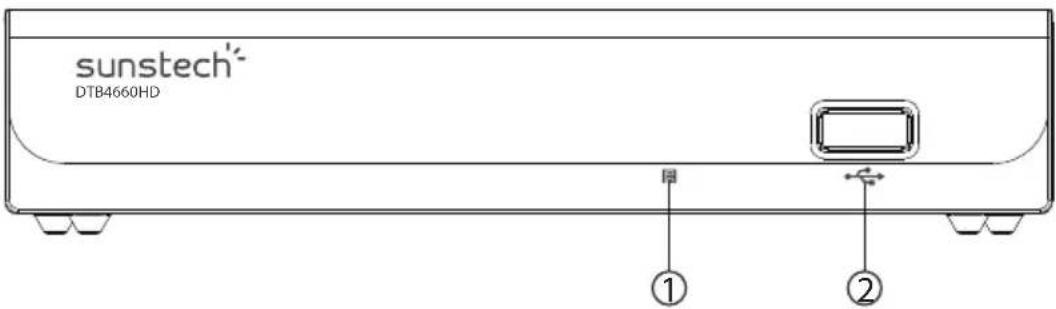
1. Front Panel
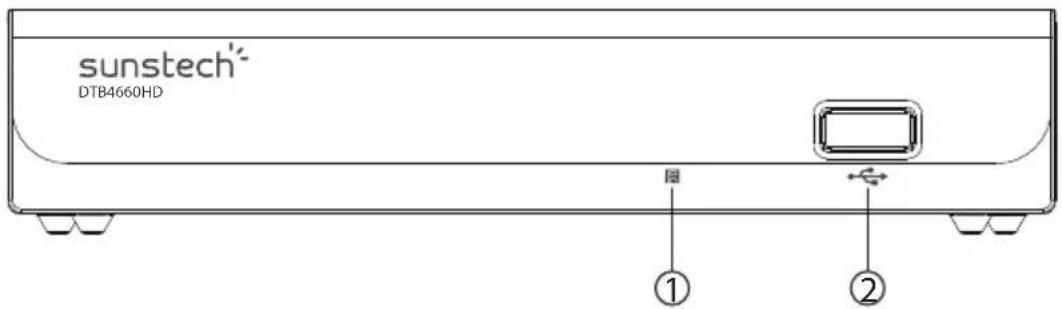
① REMOTE CONTROL SENSOR: Used to receive the signal from the Remote Control.
② USB: For software upgrade and media playback
2. Rear Panel
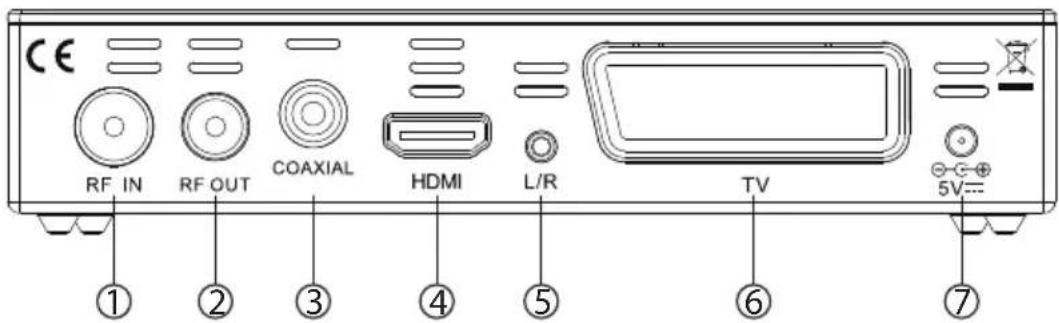
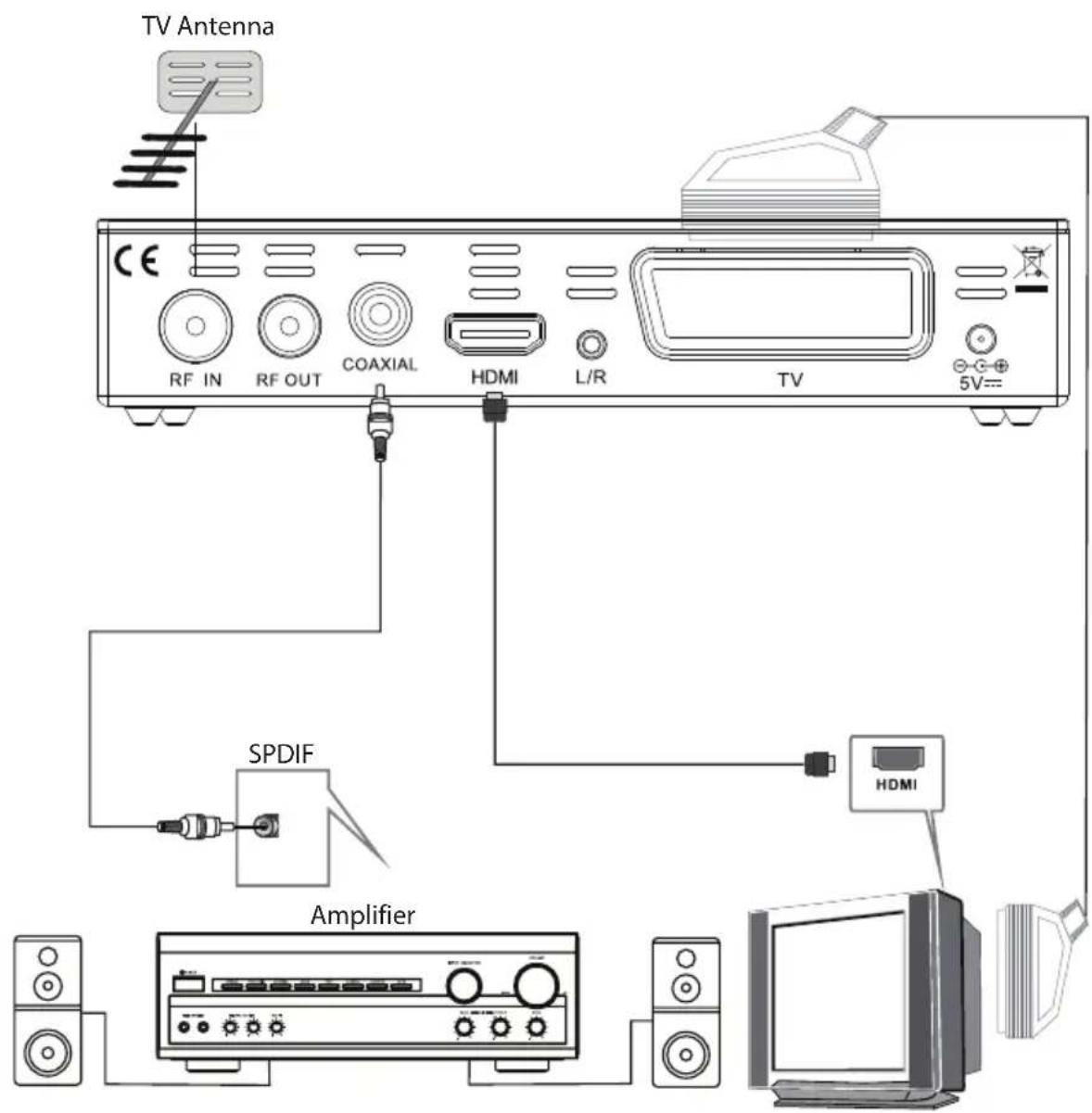
① RF IN: This socket connects to your external Aerial.
RF OUT: This socket will feed the RF signal to either your TV or another video system.
③ Coaxial: This socket outputs digital audio signal.
④ HDMI: High definition audio and video output used to connect to a HDMI device.
⑤ L/R: Analog Lift / Right audio output.
TV SCART: Analog Audio and Video output, Connects to your TV set.
5V: 5V DC power input.
Remote Control
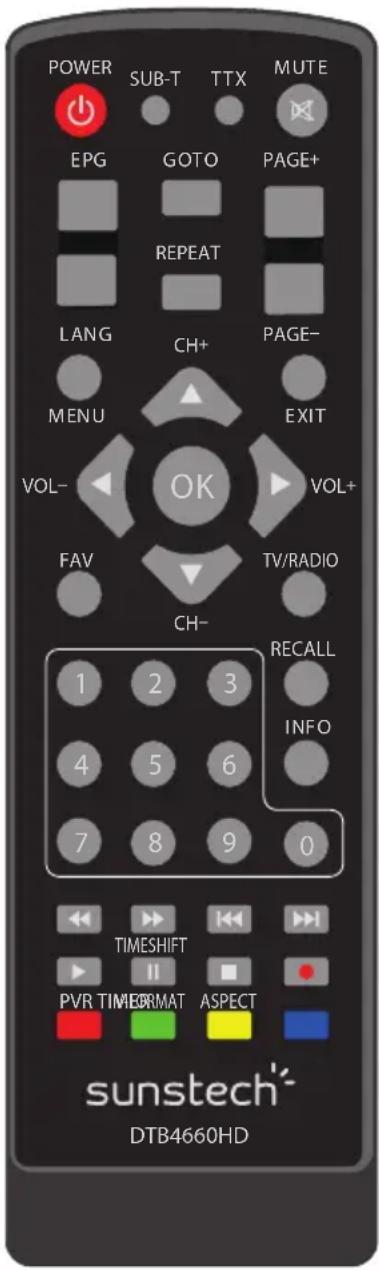
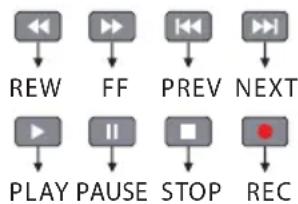
Multimedia Keys:
POWER: Switches the receiver in and out of Standby mode.
< 0> - < 9> : Numeric keys.
CH-/CH+: Program changing keys.
MENU: Display main menu on TV screen, and press again to disappear menu.
OK: To confirm current setting, or display channel list in no-menu mode.
VOL-/VOL+: To increase/ decrease volume: Press to move the cursor
EPG: Shows the Electronic Program Guide.
FAV: Displays your favorite channels list. Press FAV again to access to the other favorite lists.
V-FORMAT: Switch the HDMI 720P and 1080i.
RECALL: Go back to the previous viewed channel.
Red/green/yellow/blue: Use to navigate between pages in teletext mode and special functions in Menu or EPG.
TTX: Switch on Teletext, if current channel has this option, and use EXIT key to quit Teletext.
SUB-T: Display subtitle options (Availability depends on the channel).
LANG: Change the Audio language and Left/Right channel (availability depends on the channel).
EXIT: Use this key to quit current menu.
INFO: Display information about the current channel.
TV/RADIO: Switch between Digital Radio and DVB-T modes.
MUTE: Use this key to switch on/off volume.
PAGE+/PAGE-: To navigate inside the menus.
ASPECT: Switch 4:3/16:9.
TIMESHIFT: Use after RECORD button for timeshift.
TIMER: Use to access ON/OFF timer directly.
PVR: Use to access recorded content in USB drive.
GOTO: Goto desired time in multimedia file.
REPEAT: Repeat play multimedia file.
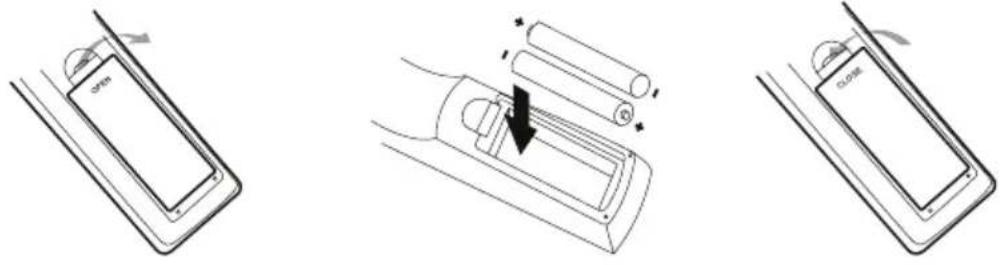
Installing the Batteries
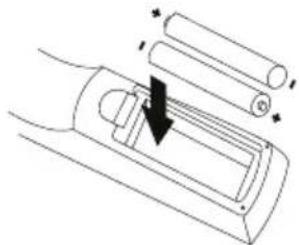
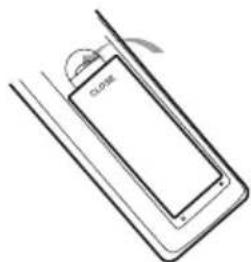
Remove the battery cover from the rear of the Remote Control and place 2 x AAA size batteries inside the compartment.
Please make sure the battery polarities match the polarity marking inside the compartment.
- Open the cover
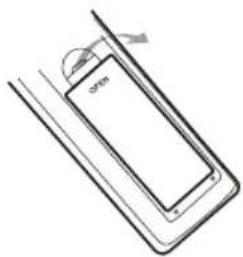
- Install batteries
- Close the cover
Using the Remote Control
To use the Remote Control, point it towards the front of the Digital Set Top Box. The Remote Control has a range of up to 7 meters from the Set Top Box at an angle of up to 60 degrees.
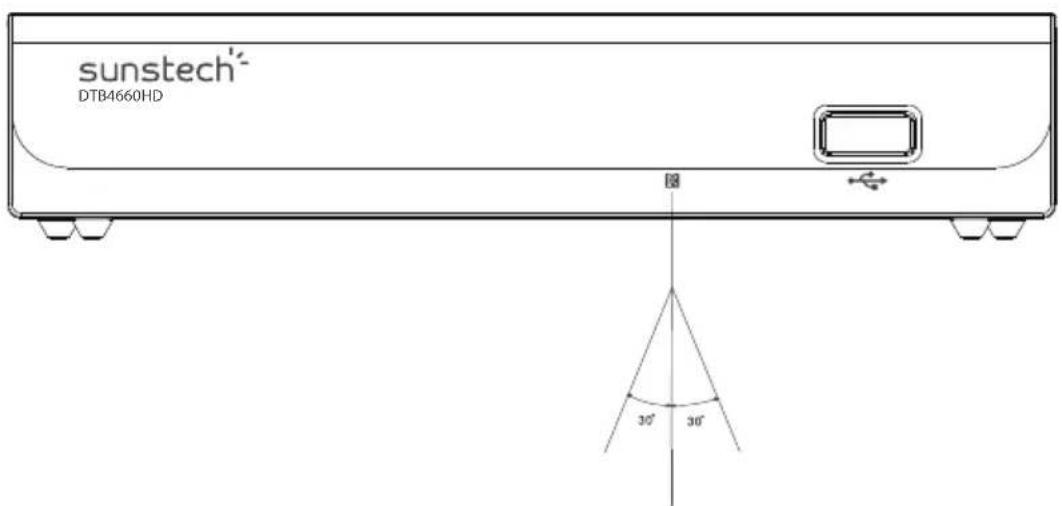
The Remote Control will not operate if its path is blocked.

Sunlight or very bright light will decrease the sensitivity of the Remote Control.
System Connection
For a basic connection from your Set Top Box to your television set, you can use SCART connection. For a higher quality connection, use a direct HDMI connection, as shown below. Connect a audio amplifier use coaxial is a optional.
First Time Installation
After all connections have been made properly, switch on TV and make sure the unit is connected to the Main Power. Press Power button to switch the unit on.
If you are using the unit for the first time or have restored the unit to Factory Default, the Installation Guide Menu will appear on your TV screen.
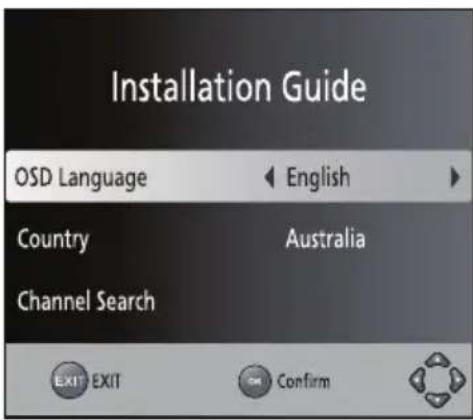
(1) [OSD Language] press RIGHT/LEFT key to select a language.
(2) [Country] press RIGHT/LEFT key to select your country of residence.
(3) [Channel search] press RIGHT or OK key to begin Automatic channel search.
(4) Once channel tuning is complete, you can begin viewing TV programs.
Basic Operation
(1) Program Manage Settings
To access the Menu, press the MENU button and select [Program]. Using the RIGHT/LEFT keys to navigate through the menu. The menu provides options to adjust the Program Manage Settings. Select an option and press OK or RIGHT to adjust that setting. Press the EXIT button to exit the Menu.
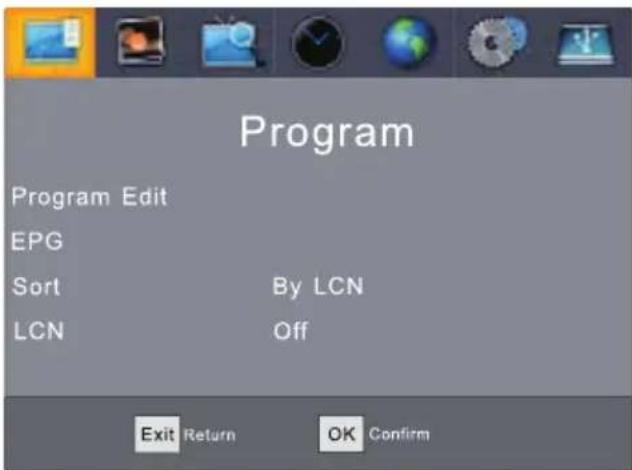
(a) Program Edit
To edit your program preferences (lock, skip, favorite, move or delete), you will need to enter the Program Edit Menu. This Menu requires a password to access. Enter the default password '000000'. The master unlock password is '888888'.
Set Favorite Channels
You can create a shortlist of favorite programs that you can easily access.
Set Favorite TV or Radio program:
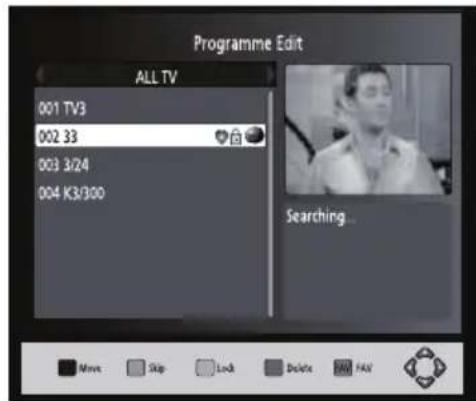
- Select your desired channel then press the FAVORITE button. A heart-shaped symbol will appear and the channel is marked as a favorite.
- Repeat the previous step to select more Favorite channels.
- To confirm and exit the Menu, press the EXIT key.
Disable Favorite TV or Radio Channel:
Select the Favorite channel and press Favorite button on the remote control to cancel.
View Favorite Channel
- While in normal viewing mode, press Favorite button and the Favorite Menu will appear.
- Press UP/DOWN to browse through your Favorite Channels.
- Press OK to select your favorite channel.
Delete a TV or Radio Program
- Select the Program and then press the BLUE button. A warning message will appear. Press OK to delete the channel.
- Repeat the previous step to select more channels to delete.
Skip TV or Radio Channel
- Select the channel you would like to skip and press the GREEN button. A skip symbol is displayed. The channel is marked as a skip.
- Repeat the previous step to skip more channels.
- To save your settings and exit the menu, press EXIT key.
Disable the Skip Channel function:
Select the Skip channel and press the GREEN button on the remote control to cancel.
Move a TV or Radio Program
- Select the preferred channel then press the RED button. A move symbol will appear.
- Press UP/DOWN to move the channel.
- Press OK to confirm.
- Repeat the above steps to move more channels.
Lock Program
You can lock selected programs for restricted viewing.
Lock a TV or Radio channel:
- Select the preferred channel then press the YELLOW button. A lock-shaped symbol is displayed. The channel is now marked as locked.
- Repeat the previous step to select more channels.
- To confirm your settings and exit the menu, press the EXIT button.
- Press the YELLOW button to disable the locked channels function.
- To view the locked channels, you will be required to enter either the default password '000000' or your last set password. The master unlock password is '888888'.
(b) EPG (Electronic program guide)
The EPG is an on-screen TV guide that shows scheduled programs seven days in advance for every tuned channel. This will be correct always that the channels send the correct EPG information and updated. Press the EPG button on the Remote Control to access the guide
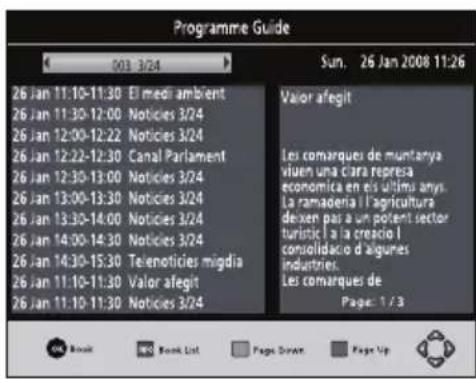
You can use the UP/DOWN key to select the preferred program. If there is more than one page of information, use the BLUE button for page up and the YELLOW button for page down.
You can select another channel's EPG by LEFT/RIGHT buttons, view details of each EPG event by INFO button or schedule a recording by OK button. (Please see page 13 of this manual for details in recording option)
(c) Sort
Sort your channels from the following options:
[By LCN]-Sort the channels in ascending order.
[By Service Name]-Sort the channels in alphabetical order.
[By service ID]-Sort the channels according to the station.
[By ONID]-Sort the channels according to ONID.
Set LCN on or off if you want to sort the channels manually.
(2) Picture Setting
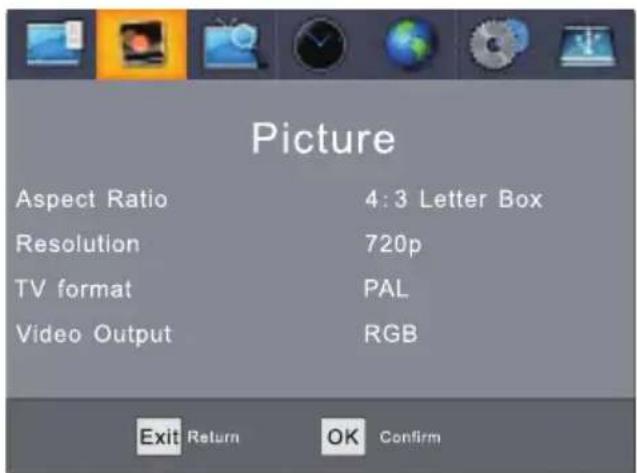
To access the Menu, press MENU then select [Picture] using the RIGHT/LEFT key. The Menu provides options to adjust the video settings. Press UP/DOWN to select an option and press RIGHT/LEFT to adjust that setting. Press EXIT to exit the menu.
(a) Resolution
You can change this setting if the picture resolution does not appear to be correct. This setting is to match the most common setting for HDMI.
[480i/480p]: for NTSC TV system.
[576i/576p]: for PAL TV system.
[720p/1080i/1080p]: for NTSC or PAL TV system.
(b) TV Format
If the picture does not appear to be correct you can change this setting. This should match most common setting for your countries TV format.
[NTSC]: for NTSC system TV.
[PAL]: for PAL system TV.
(3) Channel Search
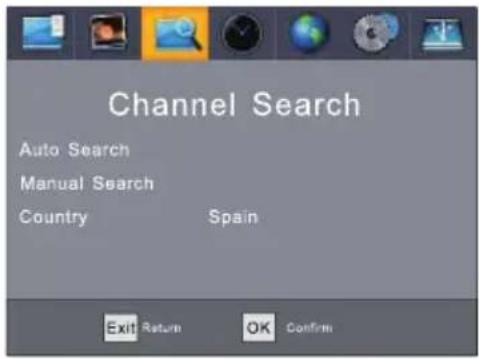
To access the menu, press MENU and select [Search Channel] using the RIGHT/LEFT keys. This Menu provides options to adjust the Search Channel settings. Press UP/DOWN to select an option and press RIGHT/LEFT to adjust the settings. Press EXIT to exit the Menu.
(a) Auto Search
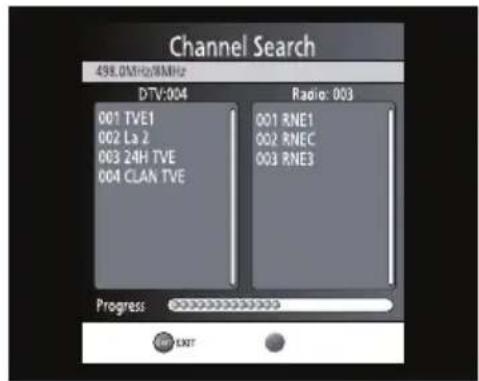
This option will automatically search for channels and save them once the scanning is complete. All previously saved channels and settings will be deleted.
- Select [Auto Search] and press OK or RIGHT to start channel search.
- To cancel channel search, press EXIT. Any channels that have been found will be saved.
(b) Manual Search
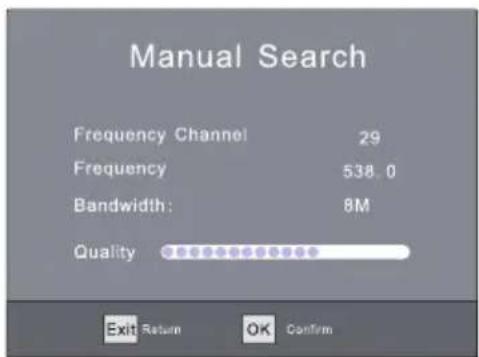
This option allows you to scan for new channels without deleting previously saved channels and settings.
-
Select [Manual Search] then press OK or RIGHT. The channel search screen will appear.
-
Press the RIGHT/LEFT key to select the channel frequency.
-
Press OK to start searching channels. If a channel is found, it will be saved and added to the channel list. If channels can not be found during searching, the unit will exit automatically.
(c) Country
Select your country of residence.
(d) Antenna Power
Enable Antenna Power if an external active
(4) Time Setting
To access the Menu, press MENU then select [Time] using the RIGHT/LEFT keys. The Menu provides options to adjust the time settings. Press UP/DOWN to select an option and press RIGHT/LEFT to adjust the settings. Press EXIT to exit the menu.
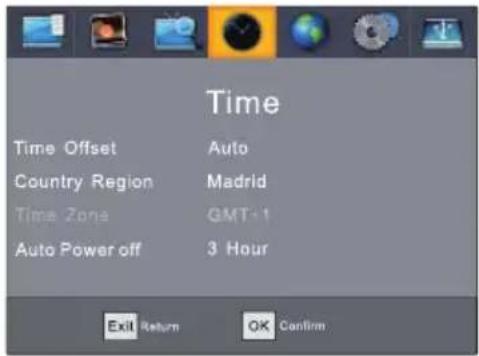
(a) Time offset
Select auto or manual for GMT offset adjustments.
(b) Country Region
Select the Country Region when [Time Offset] is set to Auto.
(c) Time Zone
Select the Time Zone Offset when [Time Offset] is set to Manual.
(d) Auto Power off
The Set Top Box (TDT) will automatically power off if there is no interaction in a time line of 3 hours.
Select sleep time.
The unit will enter standby mode after a selected time.
(5) Option
To access the Menu, press MENU and select [Option] using the RIGHT/LEFT keys. The menu provides options to adjust the OSD Language, Subtitle Language and Audio Language.
Select an option and press RIGHT/LEFT to adjust the setting.
Press EXIT to exit the Menu.
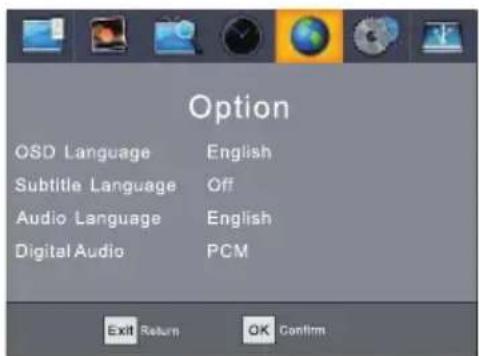
(a) OSD (On Screen Display) Language
Select an OSD language.
(b) Subtitle Language
Select the preferred subtitle language.
(c) Audio Language
Select the preferred audio language for watching TV channels.
If the language is not available, the default program language will be used.
(d) Digital Audio
If no sound from audio amplifier connected to coaxial you can change this setting.
(6) System Setting
To access the Menu, press MENU and select [System] using the RIGHT/LEFT keys. The menu provides options to adjust the system settings.
Press the UP/DOWN key to select an option and press RIGHT/LEFT to adjust the setting. Press EXIT to exit the Menu.
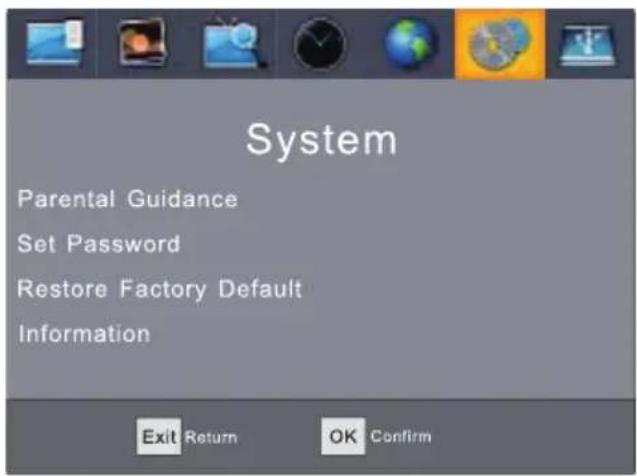
(a) Parental Guidance:
Set the age for parental control.
(b) Set password
Set or change the password for locked programs. Enter your old password or the default password '000000'. You will then be asked to enter your new password. Press OK button to confirm your new password.
Once it is confirmed, press EXIT to exit the Menu. The master unlock password is '888888'.
(c)RestoreFactoryDefault
Reset your Set Top Box to the Default Factory Settings.
In Main Menu select [Restore Factory Default] using the RIGHT/LEFT keys and press OK or RIGHT to select. Enter your password or the default password '000000' and press OK to confirm. This option will delete all preset channels and settings. The master unlock password is '888888'.
(d) Information
View model, hardware and software information.
(7) USB
To access the Menu, press the MENU button and select [USB] using the RIGHT/LEFT keys. The menu provides options to playback Music, Photo and Multimedia files. It can support AVI, MP3, JPEG and BMP formats.
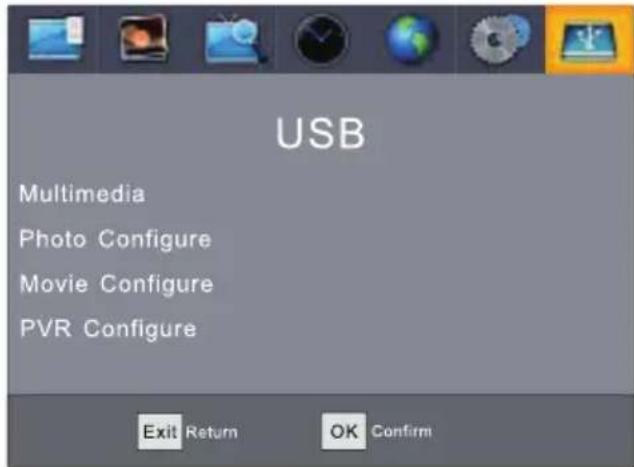
(a) Multimedia:
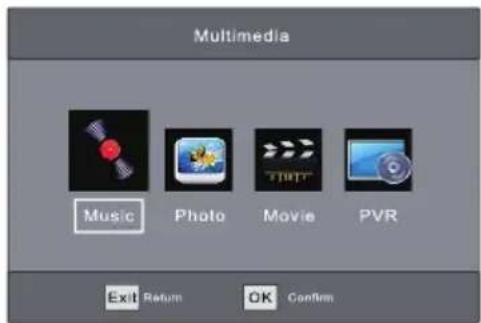
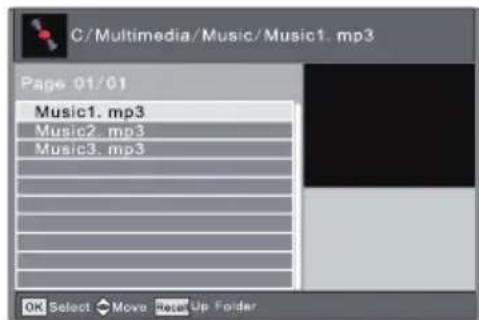
When a USB device is attached you can select from the Music, Photo, Movie or PVR options in this menu using the RIGHT/LEFT keys and OK to select. If a USB device is not connected, the warning message "No USB device is Found" will appear.
(b) Photo configure:
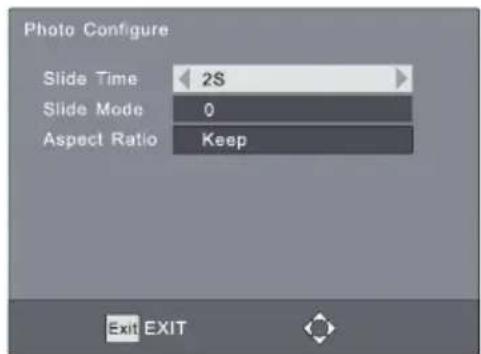
-Slide Time: adjust slide show interval to 1-8 seconds.
-Slide Mode: adjust slide show effect as mode 0-59 or random.
-Aspect Ratio:
[Keep]: Play picture in its original aspect.
[Discard]: Play picture in full screen mode.
(c) Movie Configure
-Subtitle Specific:
Select the subtitle size. Available settings are Small, Normal and Big.
-Subtitle BG:
Select the subtitle background color. Available settings are Transparent, Gray, Yellowgreen and White.
-Subtitle Font Color:
Select the subtitle font color. Available settings are White, Black, Red, Blue and Green.
Displays information of the connected USB storage device.
-Format:
Formats the connected USB device. (WARNING: THIS WILL DELETE ALL FILES!)
The most unique feature of the STB is its ability to record live TV. There are two ways you can do this. The first is to simply connect a USB storage device to your STB and press the record button on the remote. The other way is to
schedule a program to record using the blue
button or from within the EPG menu.
To schedule a recording follow the below steps:
Press the blue button on the remote.
Press the red button to add a schedule.
Adjust the settings according to the schedule of the event. (Start-End time, record/view, etc.)
Press OK button
Press EXIT button
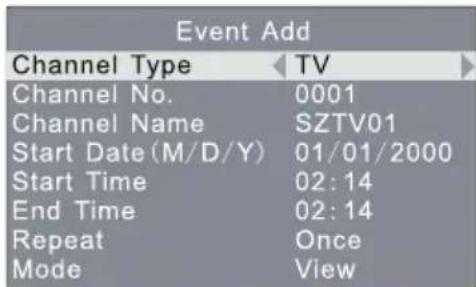
You will be able to select from the following two options:
Mode: View or Record
If at anytime you wish to delete a Scheduled event, you can press the blue button to view the list of scheduled events. Use the arrow keys on the remote to highlight the event you wish to delete then press the blue button to delete it.
The recording files can be deleted on this unit, you can go to the PVR, and press yellow button to delete it. The TV program is recorded to file at .mts format, which can be played back on this unit and PC using a suitable player, but can not be played back on DVD or PDVD.
For recording high definition TV programs, the version (and speed) of USB device should be 2.0 or above, otherwise the unit may not record the HD programs correctly.
When recording to USB stick or external hard disc on this model, you have to wait a few seconds before pushing rec. After inserting the media. Otherwise the unit can freeze in the signal. If that happens, then please take off power and connect again to fix this.
Note:
- We cannot guarantee compatibility (operation and/or bus power) with all USB mass storage devices and assume no responsibility for any loss of data that may occur when connected to this unit.
- With large amounts of data, it may take longer for the system to read the contents of a USB device.
- Some USB devices may not be properly recognized.
- Even when they are in a supported format, some files may not play or display depending on the content.
- Please use external AC-DC power adapter if the USB device current consumption larger than 500mA .
(e) Timeshift
Press [Timeshift/Pause] key first, then at any time you can press [Play] key, the unit will start playing recorded program from the start.

Press [Goto] to select playing time, play time can not exceed the current time.
Press [Fast forward]/[Fast back] to move through current recording.
Note: Time shifting is only available when USB HDD is connected to system and read/white speed is high enough to support that.
Press [Stop] key first time to end the playing mode. The unit will keep recording but will return to current time. If you press [Pause] the playback will start again from the beginning of the recording. Press [Stop] key again to stop the recording.
(f) Recording
Press [REC] key can record current program to USB dis. Press [REC] repeatedly to choice recording time. Press [INFO] key to see recording information during recording as below:
| INFO | |
| PVR Mode | RECORD |
| Disk Total Space | 31.23GB |
| Disk Free Space | 29.14GB |
| File System | FAT32 |
| Cluster Size | 16KB |
| File Name | SZTVM04-05152011-01 |
| Max Record Size | 29.17GB |
| Max Record Time | 42:16:32 |
| Record Bitrate | 202 KB/S |
| Cur Play Size | 0KB |
| Cur Record Size | 37.00MB |
Press [PVR] key to open the PVR file list. You can select recorded file and press [OK] to play the file.
Troubleshooting
| Problem | Potential Reasons What to do | |
| No picture | Power isn't connected | Connect the power |
| The power is not on Turn on | the power | |
| Screen shows "No Signal" | DVB-T cable not connected | Plug in the DVB-T cable |
| Aerial cable is faulty | Check aerial cable and connections | |
| No sound from speaker | Incorrect or no connection with an audio cable | Check the connection of the audio cable |
| Mute is activated | Turn off mute function | |
| Only sound, no image on the screen | Resolution not supported by TV set. | Press V-FORMAT button to change resolution. |
| No or incorrect connection with AV cable. | Make sure cables are connected correctly. | |
| The program is a radio program | Press <TV/RADIO> key to shift into TV mode | |
| Remote control is not responding | The battery is dead Change the battery | |
| Remote Control is not facing or close enough to the Set Top Box | Adjust the position of the Remote Control and move closer to the unit | |
| Picture is breaking up | The signal is too weak | Check aerial cable and connections |
Technical Specifications
| Item | Sub Item | Parameter |
| Tuner | Input Frequency | VHF: 174~230 MHz UHF: 470~870 MHz |
| RF Input Level | -78 ~ -20 dBm | |
| IF Bandwidth 7MHz and 8MHz | ||
| Modulation | QPSK, 16QAM, 64QAM | |
| Video | Decoder Format | MPEG4 AVC/H.264 HP@L4 MPEG2 MP@ML.HL |
| Output Format | up to 1080p | |
| Output Port | HDMI, SCART | |
| Audio | Decoder Format | MPEG-1 (Layer 1&2&3), AC3, E-AC3 |
| Audio Output | L/R (SCART) | |
| USB 2.0 | Supported Capacity | up to 1TB with an external power adaptor |
| Supported Media | MP3, JPEG, BMP, AVI, MKV | |
| Power | Supply Voltage | DC 5V 1.2A |
| Maximum Power Consumption | < 6W | |
| Standby Power Consumption | < 0.5W | |
| Weight | 0.13kg | |
| Size | 155 x 80 x 30 mm | |
Made in China
Warranty conditions
- The warranty of this product is for 2 years since the purchase date.
- The warranty will exclude breakdowns caused by bad use of the product, wrong installation or installation in not desirable places for a proper maintenance of the product, rips, updates of the products that are not the supplied by the brand, pieces wore away for its use or for not domestic or inappropriate use. Also are excluded breakdowns caused for manipulations of the products by people or companies alien to our company.
- For any request regarding the warranty terms, the purchase receipt must be attached.
Correct disposal of this Product
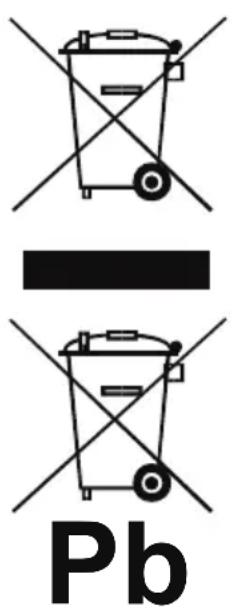
(Waste Electrical & Electronic Equipment(WEEE)
Your product is designed and manufactured with high quality materials and components which can be recycled and reused.
This symbol means that electrical and electronic equipment, at their end of life should be disposed of separately from your household waste.
Please dispose of this equipment at your local community waste collection/recycling centre.
In the European Union there are separate collection systems for used electrical and electronic products. Please help us to conserve the environment we live in!
DECLARATION OF CONFORMITY
Council Directive(s) to which conformity is declared:
Directive (2014/30/EU) - EMC
Directive (2014/35/EU) - LVD
Directive (2011/65/EU) - RoHS
Application of the Standards:
EN 55013:2013
EN 55020:2007+A11:2011
EN 61000-3-2:2014
EN 61000-3-3:2013
EN 60950-1/A2:2013
IEC62321-3-1:2013
Manufacturer's name:
AFEX SUNS, S.A.
Manufacturer's address:
c/Metall 6-8,08110,Montcada i Reixac
Type of equipment:
DVB-T
Trade:
SUNSTECH
Model no.:
DTB4660HD
(Serail number range:161200001-161203030)
We, the undersigned, hereby declare under our sole responsibility that the specified equipment is in conformity with the above Directive(s) and Standard(s)
Place: Barcelona
(Signature)
Date: 6 - December - 2016
VICTOR Planas Bas
(Full name)
General Manager
Position)
sunstech
DTB4660HD Receptor Digital de Alta Definencia
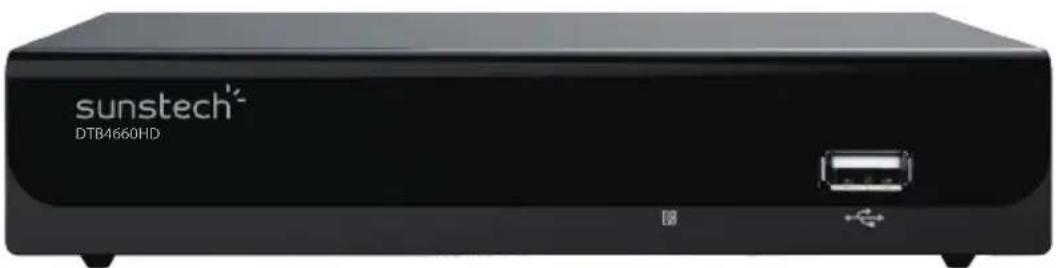
Indices
LCN (Logical Channel Number) 13
Technical Specifications 22
(a) Idioma OSD (On Screen Display)
Selezione un idioma de la OSD.
Technical Specifications
Connection Interface 1
Premiere Installation 10
Fonctionnalité 10
Specifications techniques 22
Condition de la garantie 23
Connection Interface
1. Face avant
(c) Configurer film:
Specifications techniques
Fabriqué en Chine
Directive (2011/65/EU) - RoHS
Instalar as Baterias
- Abra a tampa 2. Instalar as pilhas 3. Fecha a tampa
Uso do commando de controlo remoto

- Important Safety Instructions
- Warning:
- Package Contents
- Safety Precautions
- Power Source
- Before plugging in for the first time, read the following section carefully.
- Power Cord
- Moisture and Water
- Cleaning
- Ventilation
- Heat and Flames
- Lightning
- Replacement Parts
- Servicing
- Risk of electric shock
- Waste Disposal
- Disconnecting the Device
- Headphone Volume
- Installation
- Electrical device not in the hands of children
- Connection Interface
- Front Panel
- Rear Panel
- Remote Control
- Installing the Batteries
- Using the Remote Control
- System Connection
- First Time Installation
- Basic Operation
- Program Manage Settings
- Program Edit
- Set Favorite Channels
- Disable Favorite TV or Radio Channel:
- View Favorite Channel
- Delete a TV or Radio Program
- Skip TV or Radio Channel
- Disable the Skip Channel function:
- Move a TV or Radio Program
- Lock Program
- EPG (Electronic program guide)
- Sort
- Picture Setting
- Resolution
- TV Format
- Channel Search
- Auto Search
- Manual Search
- Country
- Antenna Power
- Time Setting
- Time offset
- Country Region
- Time Zone
- Auto Power off
- Option
- (c)RestoreFactoryDefault
- Information
- USB
- Multimedia:
- Photo configure:
- -Aspect Ratio:
- Movie Configure
- -Subtitle Specific:
- -Subtitle BG:
- -Subtitle Font Color:
- -Format:
- Note:
- Timeshift
- Recording
- Troubleshooting
- Technical Specifications
- Warranty conditions
- Correct disposal of this Product
- DECLARATION OF CONFORMITY
- Directive (2014/30/EU) - EMC
- Directive (2014/35/EU) - LVD
- Directive (2011/65/EU) - RoHS
- We, the undersigned, hereby declare under our sole responsibility that the specified equipment is in conformity with the above Directive(s) and Standard(s)
- sunstech
- Indices
- Face avant
- Configurer film:
- Specifications techniques
- Instalar as Baterias
- Uso do commando de controlo remoto
Brand : Sunstech
Model : DTB4660HDBK
Category : Digital decoder