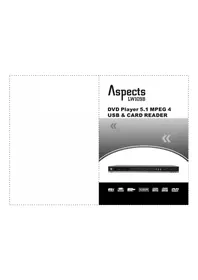
LW109B - DVD player Aspects - Free user manual and instructions
Find the device manual for free LW109B Aspects in PDF.


| Product Type | Combined DVD/VCD/CD Player |
| Brand | Aspects |
| Model | LW109B |
| Dimensions (W×D×H) | 432 × 265 × 102 mm |
| Weight | Less than 6 kg |
| Power Supply | AC 230 V, 50 Hz |
| Supported Disc Formats | DVD-VIDEO, SVCD, VCD, HDCD, CD, MP3, WMA, JPEG, MPEG4, CD-R, CD-RW, DVD+R/RW, DivX |
| Video Outputs | Composite (CVBS), S-Video, YPbPr (Component), SCART (RGB) |
| Audio Output | Digital Coaxial, Analog Stereo (RCA), Dolby Digital 5.1 channels |
| Playback Functions | Programmed playback, zoom (×2, ×3), angle, subtitles, A-B repeat, bookmark (3 bookmarks), forward/slow motion |
| Parental Control | Yes (4-digit password, default 8888) |
| Card Reader | SD / MMC / MS |
| USB Port | Yes (for MP3 devices, etc.) |
| Included Accessories | Remote control, instruction manual, warranty card |
| Security | Macrovision copy protection, auto stop, standby |
| Maintenance | Clean with a soft dry cloth; do not use alcohol, benzene or solvents |
| Operating Temperature | 0 to 40 °C |
| Ambient Humidity | 5 to 90% (without condensation) |
| Horizontal Resolution | More than 500 lines |
| Video Signal-to-Noise Ratio | Greater than 56 dB (unweighted) |
| Audio Signal-to-Noise Ratio | Greater than 90 dB |
Frequently Asked Questions - LW109B Aspects
User questions about LW109B Aspects
0 question about this device. Answer the ones you know or ask your own.
Ask a new question about this device
Download the instructions for your DVD player in PDF format for free! Find your manual LW109B - Aspects and take your electronic device back in hand. On this page are published all the documents necessary for the use of your device. LW109B by Aspects.
USER MANUAL LW109B Aspects
Portuguese manual 41-60
English manual 61-80
natural_image
Line drawing of a vertical device with a handle and control panel, no text or symbols presentE
Idioma de OSD
3.4 Surround Speakers
3.7 Center Delay
3.8 Surround Delay
Configurations relatives:
Configurations relatives
Note:
natural_image
Line drawing of a device with a handle and control panel (no text or symbols)E
Remote control sensor
utilisation
Langue OSD
3.7 Retard central
CONEXÕES BÁSICAS
natural_image
Line drawing of a vertical device with a handle and internal components (no text or symbols)E
Remote control sensor
3.7 Demora de centro
3.8 Demora de Surround
Table of contents 61
Safety Information 62
Precautions.... 63
Features 63
Accessories 64
Front Panel 64
Rear Panel 65
LED Display 66
Remote Control 67
Basic Connections 68-70
Operation Preparation 71
Operation 71
Remote Control Operation 71-72
Playback of CD/MP3/JPEG/WMA/MPEG4 discs 73
Card-reader and USB device operation 73
Menu Operation 74
Main Menu 74
-
Language 74
-
Video 75
-
Audio 76
-
Rating 77
-
Misc. 77
For Your Reference 78
Player Maintenance 78
Glossary 78
Specifications 79
Troubleshooting 80
SAFETY INFORMATION
Dear customers,
Thanks for purchasing this DVD/VCD/CD combination player. We solemnly suggest that you read the Instruction Book thoroughly before attempting to operate the unit and pay close attention to the safety precautions.
Note
This player can be used only where the power supply is AC \~230V, 50Hz.
Caution:
THIS DVD/VCD / CD COMBINATION PLAYER IS A CLASS 1 LASER PRODUCT, ON WHICH A VISIBLE LASER BEAM IS EMPLOYED AND IT COULD CAUSE RADIATION HAZARD IF IS DIRECTLY POINTED AT HUMAN BODY. BE SURE NOT TO OPEN THE EXTERNAL CABINET AND LOADER COVER DURING USING THE PLAYER.
◆ ONCE THE PLAYER IS TURNED ON, DO NOT PUT YOUR EYES CLOSE TO THE DISC TRAY OR OTHER OPENINGS TO LOOK AT THE INTERNAL PARTS.
◆ ONCE THE PLAYER IS TURNED ON, DO NOT REMOVE THE PROTECTIVE PLUG ON THE DIGITAL OPTICAL OUTPUT JACK AND LOOK INTO IT, AS THE RED LASER BEAM COMING OUT OF IT WILL DO HARM TO YOUR EYES, ESP. TO CHILDREN. ALWAYS ATTACH THE PROTECTIVE CAP ON THE JACK WHEN IT IS NOT USED.
◆ RADIOACTIVE DANGER MAY BE CAUSED IF YOU DO NOT FOLLOW THE INSTRUCTIONS REGULATED HERE FOR THE OPERATION, ADJUSTMENT OR CONTROL.
◆PLEASE CONSIGN THE MAINTENANCE TO THE PROFESSIONAL TECHNICIAN.
Warning:
◆ TO REDUCE THE RISK OF FIRE OR ELECTRIC SHOCK, DO NOT EXPOSE THIS EQUIPMENT TO RAIN OR MOISTURE.
◆ TO REDUCE THE CHANCES OF FIRE OR ELECTRIC SHOCK, AND ANNOYING INTERFERENCE, USE THERECOMMENDED ACCESSORIES.
Copy Protection
This DVD player supports Macrovision copy protection. On DVD disc that include a copy protection code, if the contents of the DVD disc are copied using a VCR, the copy protection code prevents the videotape copy from playing normalY
This product incorporates copyright protection technology that is protected by U.S. patents and other intellectual property rights. Use of this copyright protection technology must be authorized by Macrovision, and is intended for home and other limited viewing uses only unless otherwise authorized by Macrovision. Reverse engineering or disassembly is prohibited.
PRECAUTIONS & FEATURES
Precautions
Please read these precautions before operation.
Power cord cable protection
To avoid any possible malfunctions, unwanted electric shock, fire accident or personal injury, please observe the following:
◆Hold the plug and the outlet firmly when connecting or disconnecting the power cord cable.
◆ Do not connect or disconnect the power cord cable with wet hands.
◆Keep the power cord cable away from heating appliances.
◆Do not put heavy objects on the power cord cable.
◆Do not attempt to repair or reconstruct the power cord cable in any way by yourself.
◆ Remove dust, dirt, etc. on the plug periodically.
◆ If the unit happens to fall down or otherwise get damaged, cut off the power immediately and disconnect the power cord cable.
◆If smoke, malodors or certain noises are found emitting out of the unit, cut off the power and disconnect the power cord cable immediately.
Placement
Avoid exposing the unit to:
◆Direct sunlight or heat sources like heat radiator, oven etc..
◆High temperature (over 35°C) or high humidity (over 90%)
◆Excessive dust
◆High magnetic or electro-static effect.
◆Vibration, impact or tilted surface
Otherwise the internal parts may get damaged.
Non-use Periods
◆ Switch the player to Standby status, or turn it off when it is not used.
◆ Disconnect the player from the AC outlet when it will not be used for a long period of time.
No fingers or other objects put inside the player
◆Because of high voltage inside the player, touching the internal parts proves to be dangerous, and may lead to serious damage to it and even personal injury or death.
◆ Do not attempt to disassemble this player under any circumstance.
◆Do not put any foreign object other than a disc into the player.
Keeping
◆Keep the player away from flower vases, tubs, sinks, which contain water because liquids spilt into it could cause serious damage to it.
◆ Avoid bring any magnetic objects (e.g.) speakers close to the player.
Stacking
◆Place the player on a horizontal place, and do not lay anything heavy on it.
◆Do not place the player on an amplifier or other equipment, which may get hot.
Interference
Due to different receiving condition of the TV set, certain interference may emerge on the TV screen during a TV show if the player is turned on,. This does not mean a case of malfunction of the unit or the TV. When watch a TV program, you'd better to turn off the player.
FEATURES
◆Compatible with DVD-VIDEO, SVCD, VCD, HDCD, CD, MP3, WMA, JPEG, MPEG4, CD-R, CD RW, DVD+R/RW, DivX etc. discs.
◆Supports video output modes like VIDEO, S-VIDEO, Y/Pb/Pr etc. and aspect ratio of 16:9, Widescreen mode.
◆Compatible with PAL and NTSC systems.
◆ Europe SCART output:: Supports, video, RGB output as well as Screen Width and RGB output control.
◆Digital audio COAXIAL output
◆Dolby AC-3 5.1 CH output
◆Programmed playback functionality
◆Graphic operation interfaces
◆Rating setup function for various discs
◆Full-functional remote control.
◆Intelligent software update.
◆ Card-reader supports playback of MP3, WMA, JPEG and MPEG4 files on MS/ MMC/ SD cards
◆USB interface supports playback of MP3, WMA, JPEG and MPEG4 files on a USB device or MP3 player.
ACCESSORIES & FRONT PANEL
ACCESSORIES
Please check and identify the accessories:
Remote Control one piece
Instruction Book one piece
Warranty Card one piece
Front Panel
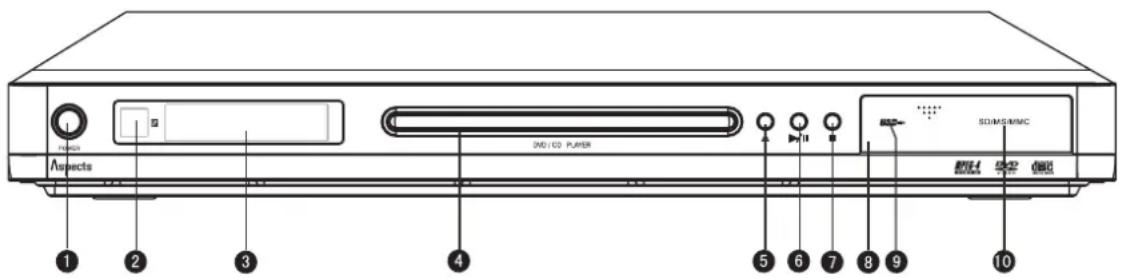
- Power switch and Standby Indicator
Once the power button is pushed, the player gets ready for normal work. - Remote control sensor
- LED display screen
It indicates the related working statuses of the player. (See page 6 for more information.) - Disc tray door
- OPEN/ CLOSE button
- PLAY/ PAUSE button
- STOP button
- Card-Reader door
- USB interface
- SD/SM/MMC card slot
REAR PANEL
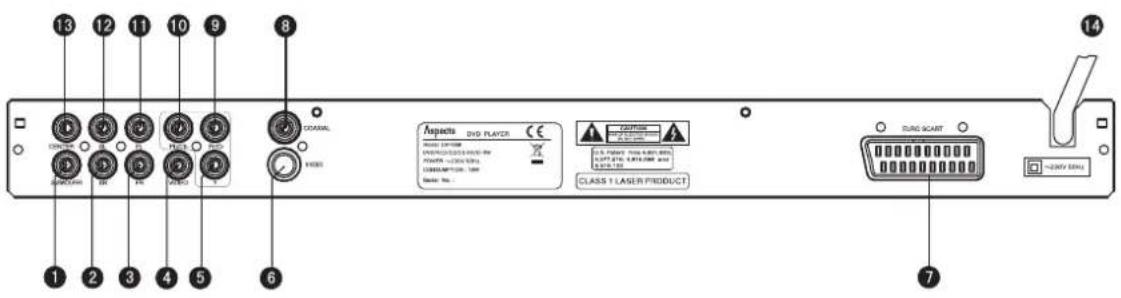
- 5.1 CH SUBWOOFER output socket:
2.5.1 CH SURROUND RIGHT output socket - 5.1 CH FRONT RIGHT output socket
- VIDEO output socket
- Progressive/ Interleaved Scan & Chromatic Aberration signal Y-axis output socket
- S-VIDEO output socket
- Europe SCART jack (supports R.G.B. signal)
- Digital audio COAXIAL output socket
- Progressive/ Interleaved Scan & Chromatic Aberration Signal Pr/Cr output socket
- Progressive/ Interleaved Scan & Chromatic Aberration Signal Pb/Cb output jack
- 5.1 CH FRONT LEFT output socket
12.5.1 CH SURROUND RIGHT output socket - 5.1 CH CENTER output socket
- AC power cord cable
Note:
Please unplug the power cord cable and keep it orderly when the player shall not be used for a long time in order to protect the power cord cable from getting scratched, which may lead to electric leakage or shock.
LED DISPLAY
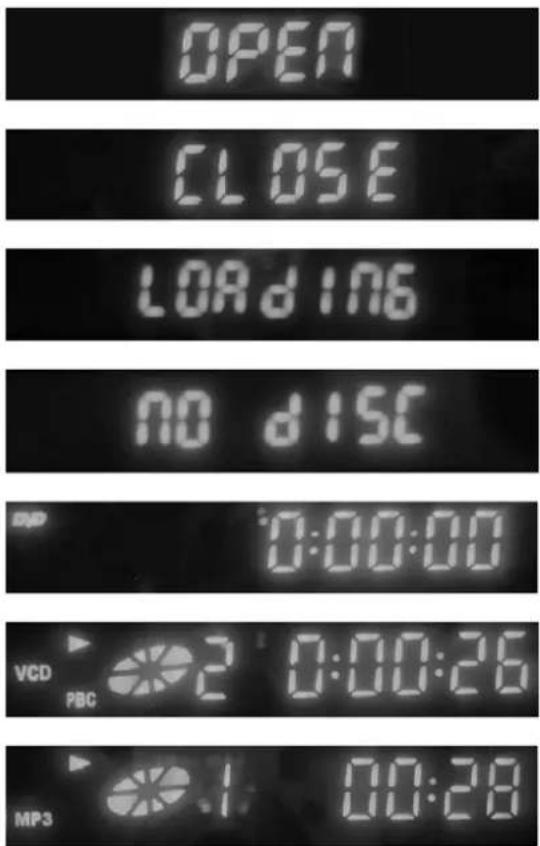
- "OPEN" indicates that the disc tray is open;
- "CLOSE" indicates that the disc tray is closed;
- "LOADING" indicates that a disc is loaded and being read;
- "NO DISC" indicates that no disc has been loaded;
- "DVD" indicates that a DVD disc is being played;
- "VCD" indicates that a VCD disc is played;
- "MP3" indicates that MP3 disc is played.
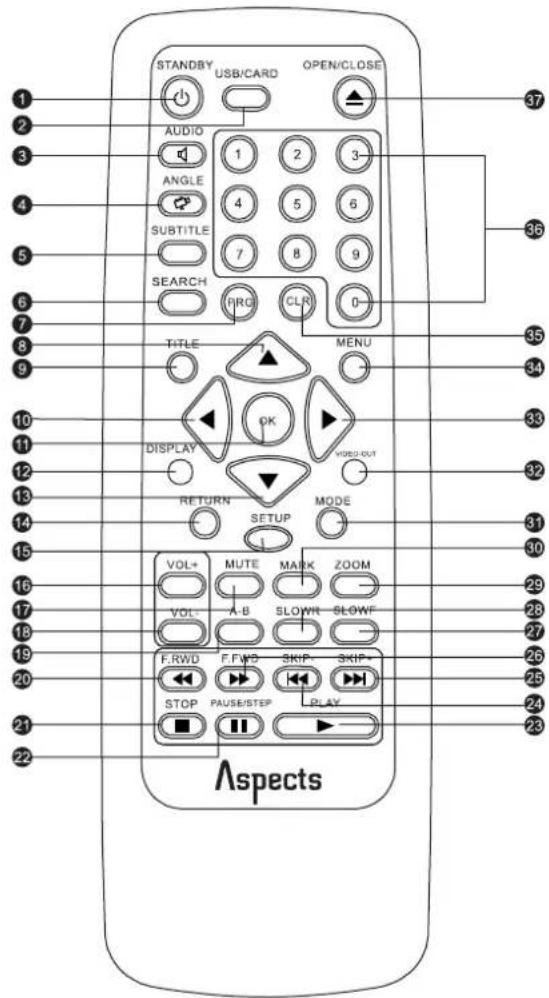
REMOTE CONTROL
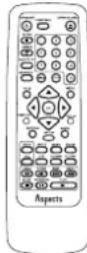
- STANDBY button
- DVD/USB button
- AUDIO button
- ANGLE button
- SUBTITLE button
- SEARCH button
- PRG(Program) button
- ▲UP button
- TITLE button
- ◀LEFT button
- OK button
- DISPLAY button
- ▼DOWN button
- RETURN button
- SETUP button
- VOL+ button
- MUTE button
- VOL-button
- A-B button
- F.RWD button
- STOP button
- PAUSE / STEP button
- PLAY button
- SKIP-button
- SKIP+/CH+ button
- F.FWD button
- SLOWF button
- SLOWR button
- ZOOM button
- MODE button
- MARK button
- VIDIO-OUT button
- ▶RIGHT button
- MENU button
- CLR button
- Numeric 0-9 button
- OPEN/ CLOSE button
Note:
◆The same buttons on the remote control and the front panel have the same function.
◆ Ensure that the player and other equipments to be connected are turned off.
BASIC CONNECTIONS
◆Peruse the Instruction Book before connecting the player with other equipments.
◆Observe the color-coding when connecting audio and video cords
It is required that this unit be connected to a TV set in only one video output mode, and it be set correspondingly, otherwise the picture quality might be affected.
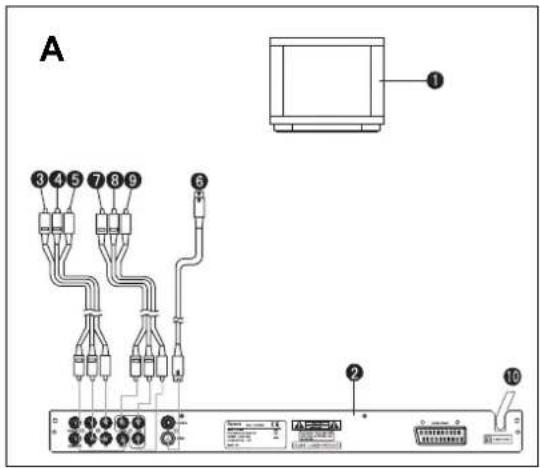
A: Connecting to a TV set
- TV set (optional)
- DVD/VCD/CD player
3.4.5. Audio/video cords (yellow, red, and white) connected to AV sockets on TV set (optional) - S-Video cable connected to a TV set (optional)
7.8.9. Video cords (green, red, and blue) connected to YUV input sockets on TV set (optional). - AC power cord cable
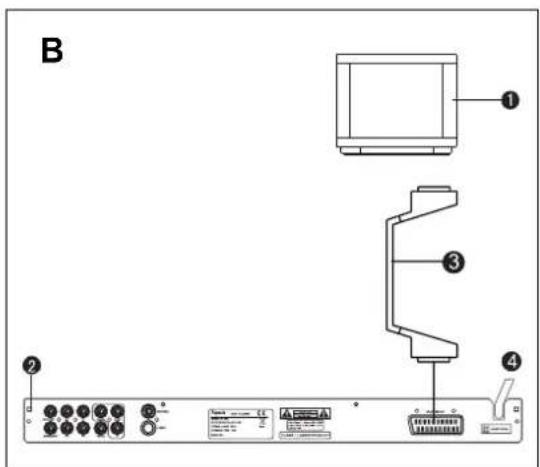
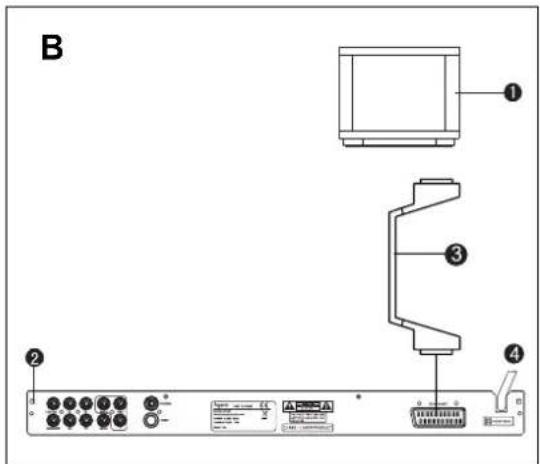
B: Connecting to TV set with SCART jack
- TV set (optional)
- DVD/VCD /CD player
- SCART cable connected to TV set (optional)
- AC power cord cable
Relevant settings:
◆ If RGB input via the SCART jack is adopted, please set "VIDEO OUTPUT" in "OSD setup menu to "RGB".
◆ If your TV set supports YUV (P-SCAN) input, please set "VIDEO OUTPUT" in Video setup menu to "P-SCAN".
◆ If you use 2 CH output to a TV set or sound equipments, please set "Center, Surround, Subwoofer" output to "OFF".
Note:
Consumers should be well aware of that not the YPbPr format of all TV sets is fully compatible with that of this player! It is because the output of this player is standard chromatic aberration signal or RGB signal, and all TV sets that don't adopt such criteria will possibly not be fully compatible with it. In that case, whenever there appear horizontal or vertical non-sync signal or distorted pictures, set the VIDEO OUT mode in OSD setup menu to S-VIDEO or Video (Component).
BASIC CONNECTIONS
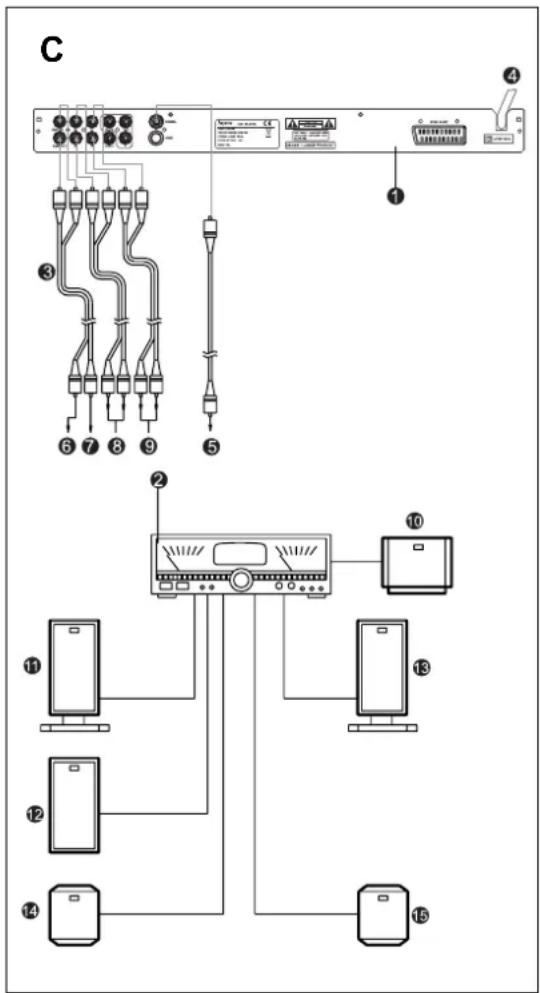
C: Connecting to audio equipments
- TV set (optional)
- DVD/CD/TUNER/AMPLIFIER combination player
- Audio cords (optional)
- AC power cord cable
- 75 Ohm coaxial cable(optional) connected to Coaxial In socket on sound equipments
- Audio cord connected to active subwoofer speaker or subwoofer input port on sound equipments
- Audio cord connected to Center speaker.
- Audio cords connected to SR/ SL speaker
- Audio cords connected to FR/ FL speaker 10\~15. 5.1CH speakers
Note:
Regarding the interconnections of sound equipments with other units, please refer to their instructions.
Relevant settings:
Note:
◆According to the sound equipment, you can choose any connection item out of No. 3, 5, and 10; any will be fine for operating the player.
◆ If the player is connected to the sound equipments by 5.1 CH, please set Front, Center, Surround (Rear) and Subwoofer item in Audio submenu to On.
When connecting the player to an external decoder or an amplifier with decoder, if a DVD disc recorded in MPEG format is played, there will be bit stream output from Coaxial output jack. Once the MPEG decoder or an amplifier with such decoder is connected with coaxial cable, theater-like sound quality will be
- Don't connect am amplifier that does not support DTS/ MPEG decoding to digital Coaxial output port, otherwise, some extreme high-level noise will possibly arise, which may do great harm to both your hearing and the speakers.
During playback of DTS discs, be sure to set the output mode to RAW accordingly, otherwise, there will be no audio signal output from the Coaxial jack.
BASIC CONNECTIONS
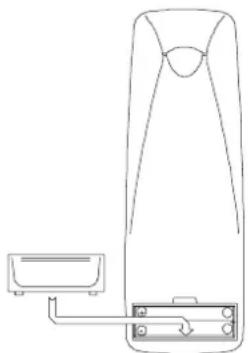
Install the batteries observing the indication of (+ / -) in the compartment as shown in Figure D
Service life of batteries
◆The batteries normally last for about one year although this depends on how often and for what operations the remote control is used.
◆ If the remote control unit fails to work even when it is operated near the player, replace the batteries for a try.
◆Use batteries (2 pieces) of size AAA.
Notes:
◆Do not use rechargeable (Ni-Cd) batteries.
◆Do not attempt to recharge, short circuit, disassemble, heat the batteries or throw them into the fire.
◆Do not drop, tramp on or impact the remote control. This may damage the internal parts or lead to malfunction.
◆Do not mix used and new batteries on the remote control.
◆If the remote control is going to be idle for a long time, remove the batteries. Otherwise, electrolyte may leak leading to malfunction and even burns if contacted with human body.
◆ Wipe away any electrolyte leakage inside the remote control, and install new batteries
◆If any electrolyte happens to contact with parts of your body, wash it off thoroughly with clean water immediately.
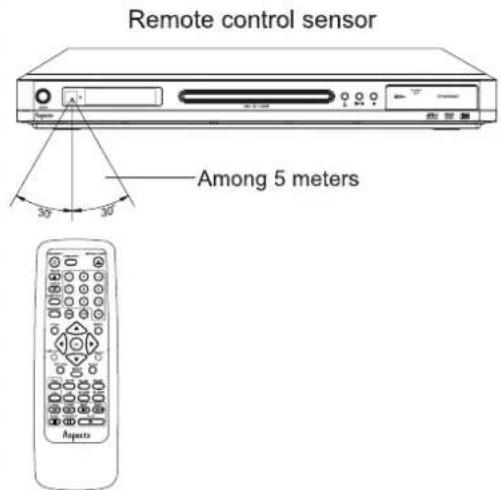
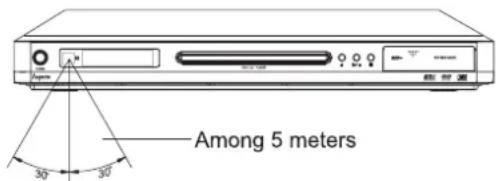
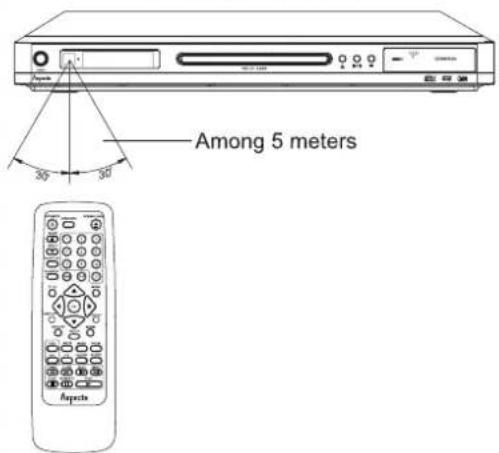
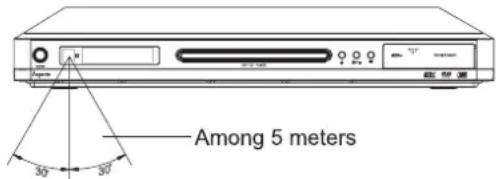
Remote control operation range (Figure E)
◆The normal operation range of the remote control is about 5m and within about 60 degree in front of the unit.
◆The effective distance varies slightly with the brightness of the room.
Note:
◆ Do not point bright lights at the remote control sensor
◆ Do not place any shield between the remote control and the sensor.
◆ Do not use this remote control while simultaneously operating the remote controls of any other equipment.
D
natural_image
Line drawing of a remote control panel with a handle and connector (no text or symbols)E
Remote control sensor
Remote Control Operation
◆STANDBY
During normal playback, press this button to switch the player to Standby status, and press it again to resume to normal condition.
Note: When the player is not going to be used for a long time, it is better to turn it off and cut off the supplier.
◆OPEN/ CLOSE
Press this button to open or close the disc tray for loading or unloading a disc. When the tray is opened, word "OPEN" will appear on top left of the monitor screen;
"CLOSE" and "Loading" will appear sequentially when the tray is closed.
◆ NUMBER (0-9)
During playback of a disc, if you want to choose a preferred track or chapter to view, press a numeric button (0-9) and SELECT button sequentially.
◆SLOWF/ SLOWR
Press SLOWF/ SLOWR button during playback to activate slow playback function either forward or backward, which supports 4 levels of speed: 1/2, 1/4, 1/6 1/8. Press PLAY button to resume to normal play.
Note: Some discs do not support such function.
◆VOL+/VOL-
During playback, press either button to bring up the volume adjustment box, which is designed to control the mains volume output as a whole so as to adapt the volume size for each channel.
Note: The Volume adjustment will be invalid for all disc when the audio signal output is digital.
◆ZOOM
During playback or in Pause status, press ZOOM button tol zoom in particular picture at 3 levels: x1, x2, x3.
Note: Some discs have no such function or have only one zooming level of x1 orx2 level.
◆MUTE
Pressing MUTE button during playback, the player shows MUTE on the monitor screen and there will be no audio output (silent). Press it again or VOL+/VOL- button to cancel MUTE operation.
◆ F.FWD/ F.RWD (▶/◀)
Pressing F.FWD/F.RWD button during playback will change the forward / rewind speed of playback. Repeated presses shall shift the speed ranging from 2x, to 4x, 8x, and 16x. To exit or cancel fast motion and resume to normal playback, press PLAY button either on the player
or the remote control.
Note: JPEG disc does not support such function.
♦ SKIP-/SKIP+ (◀/▶)
During playback, pressing SKIP-/SKIP+ button on the remote control or the front panel each time shall enable to skip backward or forward a chapter (DVD) or a track (CD) or a frame (Picture CD) correspondingly.
◆PAUSE/STEP
During playback one press of PAUSE/BAND button will switch the player to Pause status. If each more press is made, the playback shall advance by one frame /step. To resume to normal play, press PLAY button.
Note: Certain sort of discs do not support Step function.
PLAY
When the player is reading a disc, press this button to play the disc; when the player is in Pause or Stop status, you can press the button to resume to normal playback.
STOP
Press STOP button to stop playing during the playback. Once the playback is stopped, the player will memorize the condition when STOP is pressed). Press PLAY to resume to normal playback from the stop point. Press STOP button twice, memory function will be cancelled. The player will start playback from the very beginning. Such memory function only applies to the discs of which the elapsed time can be shown on this player.
SETUP
Press this button to enter Setup interface where you can set the Menu items one by one. Once the new settings are completed, the player will work under new condition (esp. when a DVD disc is loaded). The new settings remain even if the power is cut off.
RETURN
When playing VCD, SVCD discs with PBC function activated, press RETURN to get back to the Main Menu.
OK
Press this button to confirm certain menu operation or numeric input.
DISPLAY
Press DISPLAY button during the playback to show some related information of the disc (e.g. elapsed time, total length, chapter, playback status etc.).
OPERATION
VIDEO-OUT
In STOP or NO DISC status, press VIDEO-OUT button repeatedly to switch the Video Output mode from S-VIDEO to COMPONENT, RGB, P-SCAN in sequence.
Remarks: The COMPONENT video output includes CVBS and YUV outputs.
AUDIO
Press AUDIO button during playback of DVD to switch the audio languages recorded on the disc if available.
However, the options are "Left/ Right/ Stereo/ Combined Sound" during playback of VCD with this button pressed.
SUBTITLE
Press SUBTITLE button on the remote control, then on the screen shall appear Subtitle [1], meaning the current subtitle languages. Press the button again to shift to Subtitle [2], the second subtitle language. The number of languages depends on the disc. Press SUBTITLE repeatedly till Subtitle [OFF] appears to exit.
Note: This function is available only for multi-subtitle DVD disc.
ANGLE
Press ANGLE repeatedly during playing a DVD disc to view pictures from different angles if multi-angle function available.
SEARCH
During playback of DVD disc, press once the SEARCH button, there shall be a "Time/Chapters/Title" search menu on the screen, then use the numeric buttons or direction buttons to choose a desired item and input a new setting before pressing OK to confirm and start playback. As for CD disc, pressing SEARCH button once will bring up the "TRACK/TIME/DISC TIME" window. The setting operation is the same as DVD disc.
Note: Some discs do not support this function partially or entirely.
MENU
Press MENU button on the remote control during playback, the Menu of the disc(depends on the disc) will appear on the screen. Use the direction or number button to select your preferred item then press OK button to confirm the choice. Then the player will read the disc as you wish. Such function is available only for DVD disc.
TITLE
Press TITLE button when you play a DVD or Picture CD disc, a title list (depending on the disc) will be displayed on the monitor. Use direction button or numeric buttons to select your preferred title then press OK button to start playing.
PROG
Press PROG button to bring up Program interface, of which on the left are the title list of the disc, and on the right are the chapters (DVD) or tracks (VCD) list you plan to program.
- Select objects to program and play: Use direction button choose your program objects in program interface, then press OK to confirm. For DVD discs, you have to conduct program operation after your access to chapters via titles. The selected objects will be listed on the right. Once the program process is finished, press PLAY button to start program playback.
- Cancel all or part of program playback or exit program interface: Press direction button to access the Function button zone at the bottom of the interface, where you can choose any options out PLAY,CLEAR or CLEAR ALL. To quit program, you can press STOP button twice to get back to STOP status. In addition, once the tray with the disc is opened, the program process is canceled.
Note:
- With remote control, you can only conduct program for DVD chapters or VCD tracks.
- The total number of program is 16 at the most.
CLR
You can clear the unsatisfactory number input by this button during program or search operation.
MODE
Press MODE during playback, the sub-menu of MODE will appear. Use UP/DOWN button to choose one item, then press SLECT to confirm the choice. There are 2 modes (Shuffle/Off) available and 3 Repeat options (Chapter/Title/Off) for DVD disc. For VCD, there are 3 Mode options (Shuffle/PBC/Normal) and three 3 Repeat pattern (All/Single/Off) available. After setup you can push MODE to close the current window for other operation.
In STOP status, pressing MODE button will enable to select 12 items to program and activate CLEAR PROGRAM function.
Note: The MODE window of CD, MP3, and MPEG4 discs can be set via the Menu only when the discs are read
A-B REPEAT
Press A-B REPEAT button once during playback at a point (A) to commence repeat then press it again at a second point(B) to conclude. Then the repeat of playback from point (A) to (B) starts. Press "A-B" button again to cancel the repeat.
Note: Some discs have no this function.
OPERATION
MARK
Pressing MARK button during playback will activate "BOOKMARK" dialogue box. If the box is empty, you may press OK to set current time as the bookmark; if there has been one, press OK to start playback from this mark. you can delete current bookmark with "CLR" button, or open the tray to clear all preset bookmarks off.
Note:
- You can set as many as 3 bookmarks for one disc.
- JPEG, MPEG4 discs don't support such function.
REPEAT
When the DVD playback stops, press this button to set REPEAT mode: "Chapter/ Title/ Off"; and for VCD disc, the REPEAT options are "Single/ All / Off"; and "Single/ All / Off" remain for the CD, WMA, MP3, MPEG4 and JPEG discs.
Playback of CD/MP3/ JPEG /WMA/MPEG4 discs
1. Play Menu
Main Menu: Use direction button to select a sub-menu and press OK to open a FILE. Press Return button “L...” to get back to the menu at the upper level..
2. Play Mode
Press STOP button and direction button “▶” to move to Mode window on the right and select a play mode when CD, MP3, JPEG, WMA, or MPEG4 discs are played. Then press OK button to shift among the mode options: Repeat, Mode, Edit Mode, View Program, Add to Program etc.. Program operation: (The following operation can be conducted after the Edit Mode is chosen)
- Select and add to program playback:
Choose the items out of the Play Menu, then press SELECT to confirm., when the target track(s) shall be marked with a tick in the front, then get to function list on the right to select Add To Program before pressing SELECT again. Once the tick symbol(s) disappears, it indicates that the item(s) has been added up to the program list.
- Browse the Program List and Start program playback.
Move the cursor up to View Program and press OK to confirm, then BROWSER VIEW shall be displayed on the left, and the Play Menu changes into Program List showing all the programmed items. Press OK to start playback.
- EDIT and EXIT
If you want to clear off some items from the Program list, select them one by one with OK
button to confirm, they will be ticked automatically in the front; then get back to the Function Keys and choose Clear Program at the bottom of the window, the ticks disappear indicating the chosen items has been cleared off from the Program List.
If you want to cancel all program items and exit program operation, you can clear them all off as stated above, (they can be cleared only after STOP button has been pressed twice) and /or open the disc tray and close it, or cut off the power supply and reconnect it to resume to normal playback..
Note: The number of items that can be chosen to program is 10 at the most.
3. Playback control of CD, MP3, WMA, MPEG 4 discs
During playback of WMA discs, Search, Bookmark functions are unavailable, then you can use numeric buttons to choose one track/item to start playback. MPEG4 disc does not support Bookmark function either.
Note: WMA disc does not support PRO LOGIC function.
4. Playback control of JPEG disc
Via Play Menu you can conduct the following operations.
Press TITLE button to browse 9 pictures each time
Press SKIP+ button to display next picture or next page of nine pictures.
Press SKIP- button to play last picture or previous page of nine pictures.
Press PAUSE/STEP button to pause, and press PLAY to resume.
Press ZOOM button to zoom in a picture at one of three levels: Off/ X1/X2/ X 3, and you can move the picture anywhere with the direction buttons..
Press Direction button to change the camera angles of pictures: 4 angles are available:
Normal/90/180/270. Press Left button and Right button to rotate the picture in counterclockwise and clockwise direction respectively by 90 degrees each time; press the UP button to rotate the picture clockwise by 180 degrees each time, and Down button counterclockwise by 180 degrees each time.
II. Operation of Card Reader
USB devices
This player will enter DVD working status as soon as it is switched on. Only when a card is inserted, can it be switched to card reading mode by pressing DVD/CARD button on the remote control.
OPERATION
Loading a Flash Card or USB device
Load a flash card in the regulated direction into the SD/MMC/MS slot. No bending or forcible insertion is permitted, otherwise the built-in card-reader or flash card may be damaged. Different flash cards should be loaded in different ways:
- Loading a Secure Digital Card (SD card) Position the Secure Digital card with front side facing upward, pins connector downward: The edge with a gap should point to the SD/MMC/MS slot as it is inserted evenly. Note: The SD card can't be inserted if the direction is wrong.
- Loading a MMC card (Multi Media Card) Insert the card with the front side downward and pins side upward: The edge with a gap should point to the SD/ MMC/ MS slot as it is inserted evenly.
- Loading a MS (Memory Stick) card Insert the card with the front side downward and pins side upward: The edge with a gap should point to the SD/ MMC/ MS slot as it is inserted evenly.
- Loading a USB devices Insert a USB device into the player, the side that has pin connector facing down.
Operation
Insert the flash card, then press CARD/ DVD button to switch between CARD/ DVD/ USB interface, where you should choose a preferred driver or player before pushing OK to start playing. Once the word" LOAD" appears on the screen, the information of flash card shall be displayed in seconds( if no flash card loaded, the screen indicates " No card").
Notes:
The capacity and range of file folders and numbers on a card that are supported:
- File folder levels supported: two levels.
- Number of supported file folder: no more than 10 folders (i.e. 5 folders supported at each level).
- Number of supported files: no more than 100 files within one folder; or 100 bulk files max.
- Files in different format shall only be distinguished in separate folders.
- Each JPEG file must be no more than 1 Mb in capacity.
Note:
The JPEG files downloaded from the Internet or other source might be kind of distorted or abnormal except those output from a digital camera or VCR.
Note:
- Playback of various cards is the same as DVD discs. Please refer to the DVD operation for guide when playing cards.
- Card-reader and USB device does not sup-
port Nero Digital files.
Removing Cards or USB device
The cards can be removed only when the card reader is idle, or it would be better if you switch the unit to DVD mode before taking a card or USB device off; otherwise it may bring damage to the files on the card or the built-in card reader. SD/MMC/ MS card: same as above.
USB devices: Hold the USB devices evenly when unloading them.
Menu Operation
Main Menu
Press SETUP button to bring up the Main Menu which includes 5 submenu items:
◆Language
◆Video
◆Audio
◆ Rating
◆Misc
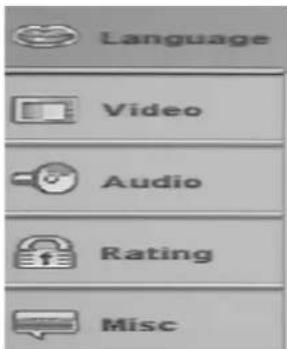
Use direction button to move the cursor up or down to select a submenu item, the press SLECT to confirm the entrance into the interface. To get back to an upper-level menu, press ◀(Left) button.
1. Language
Move here. There are 5 options under this directory:
◆OSD Language
◆ Subtitle
◆DivX Subtitle
◆Audio
◆DVD Menu
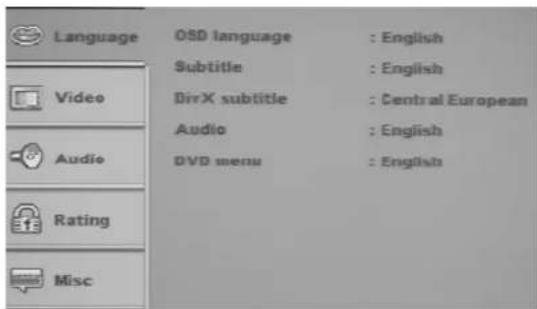
OPERATION
OSD Language
Come to this item. There are four languages: English/ Spanish/ French/ Portuguese. Use Up/ Down button to make a choice, then press OK to confirm.
Note: OSD language is designed for the Main Menu of this player. For instance, if the OSD Language is set to Spanish, the whole Main Menu will be displayed in this language.
Subtitle
There are 6 options in total here: English, Spanish, French, Portuguese, Auto, and Off. Use Up/ Down button to make a choice, and OK to confirm. If Spanish is chosen as the setting value here, it means the subtitle of the disc will be displayed in Spanish. If Auto chosen, the player will display the subtitle in the default language as per the disc; and if Off the choice, no subtitle will be displayed on the screen during playback.
DivX Subtitle
At this item there are 3 options of DivX Subtitle: Turkish/ European/ Cyrillic. Use Up/ Down button to make a choice, and OK to confirm. This setting is designed for discs in DivX format.
Audio Language
Two options are available for this setting item: English, Spanish, French and Portuguese. Use Up/ Down button to make a choice, and OK to confirm. Such setting is designed for those discs recorded in multiple languages.
DVD Menu
Four languages, English, Spanish, French and Portuguese are available for this setting. Use Up/Down button to make a choice, and OK to confirm. This setting is used for those DVD discs that support multi-language menu.
2. Video
This item has 5 submenu options:
◆Aspect Ratio
◆View Mode
TV System
◆Video out
Smart Picture
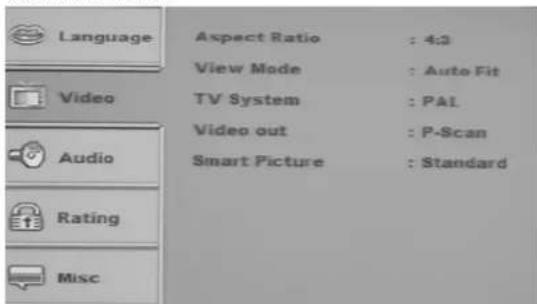
2.1 Aspect Ratio
Two options available: 4:3 and 16:9. Use Up/Down button to make a choice, and OK to confirm. If 4:3 is chosen, the display mode of the TV set will be 4:3; if 16:9 is chosen, the display mode will shift to 16:9 (wide screen).
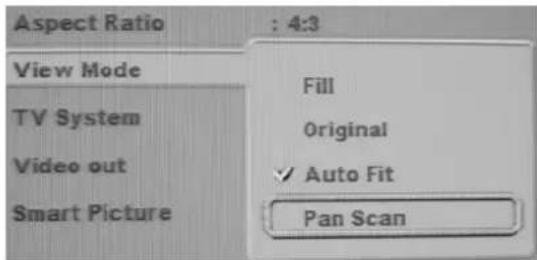
2.2 View Mode
Here you can choose any out of the 4 view modes: Fill/Original/Auto Fit/Pan Scan. Use Up/Down button to make a choice, and OK to confirm.
If you choose Fill, the display screen will be in its full size;
If Original is chosen, the display screen will be adapted to its original size;
If Auto Fit is chosen, the picture will be shown in a suitable size according to the display screen; And if Pan Scan is chosen, the display screen will switch to Pan Scan mode.
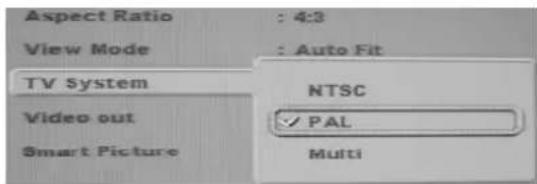
2.3 TV System
There are 3 options of TV System submenu: NTSC/PAL/MULTI. Use Up/Down button to make a choice, and OK to confirm.
If you chose NTSC, you shall have to set your TV set to NTSC system or Auto mode too, otherwise there will be abnormal colors or distorted pictures;
If you choose PAL, you will have to set you TV set to PAL or Auto, otherwise color or picture get abnormal or distorted.
If you choose Multi, the player will adapt to various TV systems.
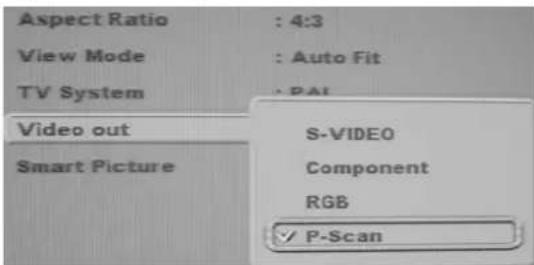
2.4 Video Out
Four options are available: S-Video/ Component/ RGB/ P-SCAN. Use Up/ Down button to make a choice, and OK to confirm.
If you choose S-Video, the Video out will be set to this mode;
If you choose Component, the Video out will be set to this mode, which is CVBS and YUV
OPERATION
together;
If you choose RGB, the video signal will be output via Europe SCART;
If you choose P-SCAN, the video signal will be output via YUV jacks in P-SCAN mode.
Remarks: No matter what is the choice, video signal can be output in CVBS mode.
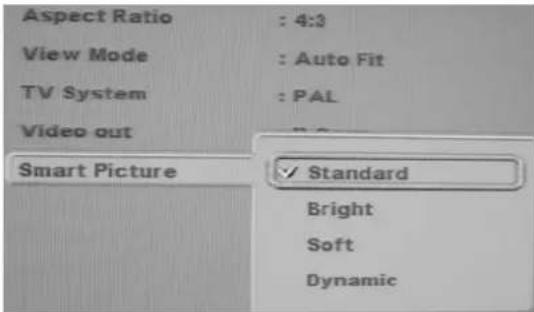
Smart Picture
There are 4 options available here: Standard/ / Bright/ Soft/ Dynamic. Use Up/ Down button to make a choice, and OK to confirm.
If choose Standard, the picture will be displayed normally;
If choose Bright, the picture will be displayed with default brightness;
If choose Soft, the picture will be displayed with soft effect;
If choose Dynamic, the picture display can be finely adapted in the following ways: Brightness/Contrast/Saturation/Hue. Press Left/Right button to adjust the picture display to the best effect.
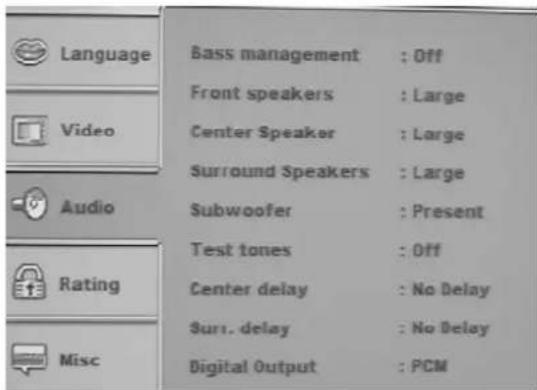
3. Audio
There are 11 submenu items under this directory:
◆Bass Management
◆Front Speakers
◆Center Speakers
◆Surround Speakers
◆Subwoofer
◆ Test Tones
◆ Center Delay
◆Surr. Delay
◆ Digital Output
◆Night Mode
◆Pro Logic
3.1 Bass Management
Move here, choose either option out of the two: On/Off, then press OK to confirm.
3.2 Front Speakers
Two options available here: Large/ Small. Use Up/ Down button to make a choice, and OK to confirm.
3.3 Center Speakers
Three options available here: Large/ Small/ None. Use Up/ Down button to make a choice, and OK to confirm.
3.4 Surround Speakers
Three options available here: Large/ Small/ None. Use Up/ Down button to make a choice, and OK to confirm.
3.5 Subwoofer
Two options available here: None /Present. Use Up/ Down button to make a choice, and OK to confirm
If choose None, there will be no output from subwoofer:
If choose Present, subwoofer output will be activated.
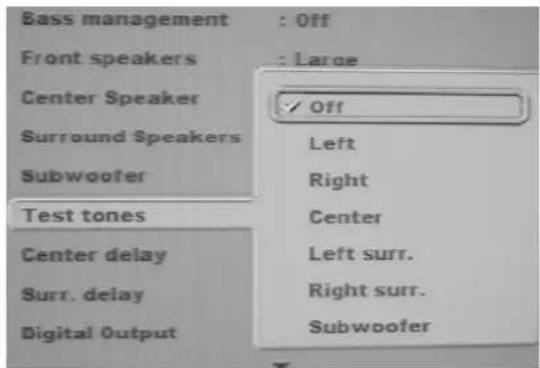
3.6 Test Tones
Seven options available here: Off/ Front Left / Front Right/
Center/ Surr. Left/ Surr. Right/ Subwoofer. Use Up/ Down button to make a choice, and OK to confirm
If choose Off, the test will be deactivate;
If choose F.L, noise is output from only the F.L speaker;
If choose F.R, noise is output from only the F.R speaker;
If choose Center, noise is output from only center speaker;
If choose S.L, noise is output from only the S.L speaker;
If choose S.R, noise is output from only the S.R speaker;
OPERATION
If choose Subwoofer, noise is output from only the subwoofer.
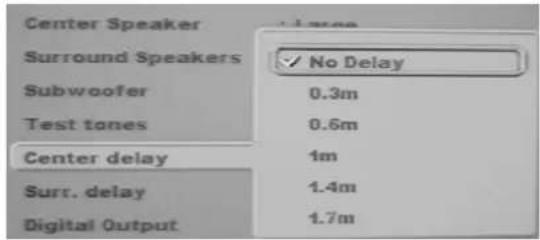
3.7 Center Delay
There are 6 options under this submenu item: No Delay/ 0.3m/ 0.6m/ 1.4m/ 1.7m. Use Up/ Down button to make a choice, and OK to confirm. If choose No Delay, the center Delay will be deactivated;
You can choose any sound distance out of 0.3m/ 0.6m/ 1m/ 1.4m/ 1.7m to adjust the delay effect.
3.8 Surround Delay
There are 6 options under this submenu item: No Delay/ 1m/ 2m/ 3m/ 4m/ 5.1m. Use Up/ Down button to make a choice, and OK to confirm. If choose No Delay, the center Delay will be deactivated;
You can choose any sound distance out of 1m/2m/3m/5.1m to adjust the delay effect.
3.9 Digital Output
There are 3 options under this submenu: Off/PCM/RAW. Use Up/Down button to make a choice, and OK to confirm.
If choose Off, Digital Output will be deactivated; If choose PCM, there will be PCM digital signal output, and Coaxial jack can be used for this purpose.
If Choose RAW, the Digital Output mode will be set RAW.
3.10 Night Mode
Two options are available for this setting: Off/ On. Use Up/ Down button to make a choice, and OK to confirm.
3.11 Pro Logic
Two options are available for this setting: Off/ On. Use Up/ Down button to make a choice, and OK to confirm.
4. Rating
Move here to choose this setting item, then press OK to confirm. Once a dialogue window appears requiring "Input the password", you can enter a four-digit number or preset password before pressing OK again to confirm. There are 3 options for this Rating setup:
Note: The original password of this player is "8888".
5. Misc
Move here to setup the following submenus:
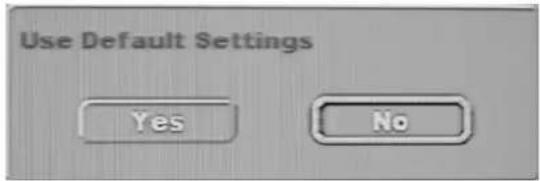
◆Use Default Settings
Move here. There will appear a dialogue window "Use default settings?" If you click Yes button in the interface, the player will resume to the original settings at the factory, and all user defined settings before will be canceled. Click No button to cancel this operation and quit current window.
FOR YOUR REFERENCE
◆Disc Maintenance
Hold a disc by the edge in case that fingerprints, dirt and scratches may cause skipping and distortion.
Be careful not to drop or bend the disc.
Do not try to close the disc tray when the disc has not been mounted properly.
Be sure to store a disc in the exclusive case.
Wipe the disc gently with a piece of slightly damp (water only) soft cloth, moving from the centre hole towards the edge. Do not use record cleaning sprays, benzene, thinner, electrostatic-proof liquid or any other solvent.
Discs may get damaged if stored in places exposed to direct sunlight or heating appliances or where is humid or dusty.
◆Player Maintenance
Be sure to turn the player off and disconnect the AC power cord before maintaining it.
Keep the player clean. If it is extremely dirty, wipe it with a dry, soft cloth.
Never use alcohol, benzene or other chemicals to clean the player. Nor use compressed air to remove dust.
Ask the professional technicians to maintain the player when certain trouble arises.
◆Glossary
ANGLE
Some DVD discs have scenes shot from different angles (e.g. from front, left and right, etc.). When such discs are played, they can be viewed from various angles by pressing the Angle button.
CHAPTER NUMBER
Number used to mark the sections of a DVD disc when it is recorded. Each section is assigned to a number, so a particular section of the title can be easily located and searched quickly with the number.
Subtitles
Printed lines of words appearing at the bottom of the screen, are translation or transcription the discourses. They are recorded on DVD discs and usually in up to 32 languages.
OSD language
Referring to the language displayed on screen to serve as operation hints of disc information.
Audio languages
Languages that are spoken by people and recorded on a compact disc. A DVD disc can be recorded in 8 languages maximum.
Time
It refers to the play time elapsed from the very beginning of the playback of a disc or a title. It can be used to search a particular scene/ part quickly (it may not work with some discs).
Title Number
Numbers recorded on a DVD disc to sort the movies as title 1, title 2 etc. when the disc contains two or more movies,. Track Numbers
These numbers are assigned to the tracks recorded on CD and VCD discs. They enable the user to locate a specific track.
FOR YOUR REFERENCE
◆Specifications
Power supply : AC \~230V, 50Hz
Ambient temperature : 0\~+40°
Ambient humidity : 5\~90% (no condensation)
Weight: : ≤6 Kg
Dimension : 432mm x 265mm x102mm
Specification of Discs played:
1. DVD-video disc
◆12cm single side, single layer
◆12cm single side, double layers
◆12cm double sides, double layers (single-layer for each side)
◆8cm single side, single layer
◆8cm single side, double layers
◆8cm double side, double layers (single-layer for each side)
2. VCD, CD, HDCD, DTS-CD, MP3, WMA, JPEG discs.
◆12cm disc
◆8cm disc
Video output:
◆output level: 1±0.2Vp-p (75 ohm)
◆horizontal resolution : >500 lines
◆Signal-to-noise ratio : >56dB (unweighted)
Linear Audio output (Load impedance: 10k ohm):
◆output level : 1.8+0.2 (1KHz 0dB)
◆ harmonic distortion : ≤ -65dB
◆ Dynamic range : >80 dB
◆ Sound-to-noise ratio : ≥90 dB
Digital audio output:
◆COAXIAL output.
FOR YOUR REFERENCE
Troubleshooting
Check the chart below to find out the problems with your player in daily use, and the solutions to them recommended here. As long as you do follow the instructions, some simple checks or operation may help solve the problems, make it resume to normal state.
If serious failures happen to the machine, please leave it for professional technician to inspect and maintain it.
Protect it from electro-static properly before maintenance, for the loader, the key IC and the laser generator are easy to apt to electro-static shock.
| Troubles Cause / Solution Suggested | |
| No power Plug the power cord | into the power jack tightly; if still no power,unplug the cord and try again in 5~10 minutes. |
| Hardly read a disc It is normal | to wait 10~20 minutes for the unit to read a disc(about30seconds for MP3 disc); .The disc is extremely dirty or badly scratched( just replace it with agood one); |
| The sound-track and subtitle language is not what selected | If no audio-track of subtitle recorded at all on a disc, there will be no language to hear and see. |
| No picture Ensure that the unit is properly connected.Ensure that AV setting of the TV set match the video output format of the unit. | |
| No sound Ensure that the unit is properly connected.Ensure that the unit is not in Mute status;Setup the audio out pattern correctly (see the Audio Output Setup for details). | |
| Picture distortion in FF or F.R motion | It is normal when the pictures are a little distorted in F.F or F.R.status. |
| Main keys (on the remote control or the unit) invalid or picture/ sound abnormal | Disconnect the AC power cord and plug it in the socket again in 5~10 minutes, then turn on the player. |
| The remote control fails to work | Make sure the batteries are correctly installed;Check whether the batteries are exhausted, if yes, replace them;Be sure to handle the remote control within its reasonable range, |
| No 4:3/16:3TV Shape Choose the identical TV Shape type setup of this unit with the TV set being used. | |
| Can not change angle | This function depends on software availability. Even if a disc has a number of angles recorded, these angles may be recorded, these angles may be recorded for specific scenes only. |
| Under progressive scan, TV set screen flashes | Check that YPbPr cord is connected with TV set YPbPr input cord properly; OSD set up for DVD player or TV set properly: Standard scan lines format of TV set is compatible with DVD player. |
| Forget password While the unit is in the stop mode, enter the setup mode and 888 for the passwordTo unlock parental setting | |
| No more audio languages or subtitles. | There is only one language available recorded on the disc. So no more choices. |