
8S2 - Speaker KRK - Free user manual and instructions
Find the device manual for free 8S2 KRK in PDF.



| Product Type | Active Studio Subwoofer |
| Brand | KRK |
| Model | 8S2 |
| Category | Loudspeaker |
| Loudspeaker Type | 8 inches (woofer) |
| Power Supply | Mains via IEC connector (cable included) |
| Main Functions | Volume, built-in crossover (4 frequencies), input sensitivity (Nominal/High), polarity (0°/180°), standby, ground lift, footswitch input |
| Audio Inputs | Stereo RCA unbalanced, XLR and TRS 1/4 balanced |
| Audio Outputs | XLR and TRS 1/4 balanced (high-pass filtered), Stereo RCA unbalanced |
| Controls | Volume, input sensitivity, polarity, standby, ground lift |
| Indicators | Green (on), Orange (standby), White (active), Amber (mute via footswitch) |
| Protection | Mains fuse (check if defective) |
| Maintenance & Cleaning | Unplug before cleaning. Use a damp cloth. Do not use liquid or spray detergents. |
| Safety | Do not expose to water or moisture. Use a grounded outlet. Do not block ventilation openings. Avoid excessive sound pressure to prevent hearing loss. |
| Spare Parts & Repairability | Fuse user-replaceable. For any other repair, return to KRK or an authorized center. Do not use non-recommended parts. |
| General Information | 3-year warranty (subject to registration within 15 days). Manufactured by KRK Systems (Gibson Pro Audio). |
Frequently Asked Questions - 8S2 KRK
User questions about 8S2 KRK
0 question about this device. Answer the ones you know or ask your own.
Ask a new question about this device
Download the instructions for your Speaker in PDF format for free! Find your manual 8S2 - KRK and take your electronic device back in hand. On this page are published all the documents necessary for the use of your device. 8S2 by KRK.
USER MANUAL 8S2 KRK
- Read instructions - All the safety and operating instructions should be read before the product is operated.
- Retain instructions - The safety and operating instructions should be retained for future reference.
- HeedWarnings - All warnings on the product and in the operating instructions should be adhered to.
- Follow Instructions - All operating and use instructions should be followed.
- Cleaning - Unplug this product from the wall outlet before cleaning. Do not use liquid cleaners or aerosol cleaners. Use a damp cloth for cleaning.
- Attachments - Do not use attachments not recommended by the product manufacturer as they may cause hazards.
- Water and Moisture - Do not use this product near water-for example, near a bath tub, wash bowl, kitchen sink, or laundry tub; in a wet basement; or near a swimming pool; and the like.
- Accessories - Do not place this product on an unstable cart, stand, tripod, bracket, or table. The product may fall, causing serious injury to a child or adult and serious damage to the product. Use only with a cart, stand, tripod, bracket, or table recommended by the manufacturer, or sold with the product. Any mounting of the product should follow the manufacturer's instructions, and should use a mounting accessory recommended by the manufacturer.

- Cart - A product and cart combination should be moved with care. Quick stops, excessive force, and uneven surfaces may cause the product and cart combination to overturn.
- Ventilation - Slots and openings in the cabinet are provided for ventilation to ensure reliable operation of the
product and to protect it from overheating. These openings must not be blocked or covered. The openings should never be blocked by placing the product on a bed, sofa, rug, or other similar surface. This product should not be placed in a built-in installation such as a bookcase or rack unless proper ventilation is provided or the manufacturer's instructions have been adhered to.
- Power Sources - This product should be operated only from the type of power source indicated on the marking label and connected to a MAINS socket outlet with a protective earthing connection. If you are not sure of the type of power supply to your home, consult your product dealer or local power company.
- Power-Cord Protection - Power-supply cords should be routed so that they are not likely to be walked on or pinched by items placed upon or against them, paying particular attention to cords at plugs, convenience receptacles, and the point where they exit from the product.
- Mains Plug - Where the mains plug or an appliance coupler is used as the disconnect device, the disconnect device shall remain readily operable.
- Lightning - For added protection for this product during a lightning storm, or when it is left unattended and unused for long periods of time, unplug it from the wall outlet and disconnect the antenna or cable system. This will prevent damage to the product due to lightning and power-line surges.
- Overloading - Do not overload wall outlets, extension cords, or integral convenience receptacles as this can result in a risk of fire or electric shock.
- Flame Sources - No naked flame sources, such as lighted candles, should be placed on the product.
- Object and Liquid Entry - Never push objects of any kind into this product through openings as they may touch dangerous voltage points or short-out parts that could result in a fire or electric shock. Never spill liquid of any kind on the product.
- Loudspeakers - Excessive sound pressure from loudspeakers can cause hearing loss.
- Damage Requiring Service - Unplug this product from the wall outlet and refer servicing to qualified service personnel under the following conditions: a. When the power-supply cord or plug is damaged.
b. If liquid has been spilled, or objects have fallen into the product.
c. If the product has been exposed to rain or water.
d. If the product does not operate normally by following the operating instructions. Adjust only those controls that are covered by the operating instructions as an improper adjustment of other controls may result in damage and will often require extensive work by a qualified technician to restore the product to its normal operation.
e. If the product has been dropped or damaged in any way.
f. When the product exhibits a distinct change in performance this indicates a need for service.
20. Replacement Parts - When replacement parts are required, be sure the service technician has used replacement parts specified by the manufacturer or have the same characteristics as the original part. Unauthorized substitutions may result in fire, electric shock, or other hazards.
21. Safety Check - Upon completion of any service or repairs to this product, ask the service technician to perform safety checks to determine that the product is in proper operating condition.
WARNING

The lightning flash with arrowhead symbol, within an equilateral triangle, is intended to alert the user to the presence of uninsulated "dangerous voltage" within the product's enclosure that may be of sufficient magnitude to constitute a risk of electric shock to persons. The exclamation point within an equilateral triangle is intended to alert the user to the presence of important operating and maintenance (servicing) instructions in the literature accompanying the appliance.

CAUTION
SK OF ELECTRIC S
ATTENTION
E CHOC ELECTRIGUE

THE EQUIPMENT MUST BE CONNECTED TO AN EARTHED MAINS SOCKET-OUTLET.
CAUTION REGARDING PLACEMENT
To maintain proper ventilation, be sure to leave a space around the unit (from the largest outer dimensions including projections) than is equal to, or greater than shown below.
Top, Bottom, Front, Rear, Left, Right Sides: 10 cm
CAUTION
Changes or modifications to this equipment not expressly approved by KKR SYSTEMS for compliance could void the user's authority to operate this equipment.
CAUTION
To prevent electric shock, match wide blade of plug to wide slot, fully insert. CAUTION
Marking and rating plate can be found at the rear panel of the apparatus.
To reduce the risk of fire or electric shock, do not expose this apparatus to rain or moisture.
The apparatus shall not be exposed to dripping or splashing and that no objects filled with liquids, such as vases, shall be placed on apparatus.
Mains plug is used as disconnect device and it should remain readily operable during intended use. In order to disconnect the apparatus from the mains completely, the mains plug should be disconnected from the mains socket outlet completely.
Battery shall not be exposed to excessive heat such as sunshine, fire or the like.
CAUTION
An appliance with a protective earth terminal should be connected to a mains outlet with a protective earth connection.
IF IN DOUBT CONSULT A COMPETENT ELECTRICIAN.
NOTES ON ENVIRONMENTAL PROTECTION
At the end of its useful life, this product must not be disposed of with regular household waste but must be returned to a collection point for the recycling.
of electrical and electronic equipment. The symbol on the product, user's manual and packaging point this out.
The materials can be reused in accordance with their markings.
Through re-use, recycling of raw materials, or other forms of recycling of old products, you are making an important contribution to the protection of our environment.
Your local administrative office can advise you of the responsible waste disposal point.

IMPORTANT: Before starting up the subwoofer, be sure all connections are made, all fader and controls should be set at their minimum levels, and all other equipment should be powered prior to powering up your KRK subwoofer. If you are connecting the subwoofer outputs to your monitors, turn monitor power on after the subwoofer.
KRK subwooers include a built-in crossover and amplifier so you only need the appropriate cables to connect one into your existing system. First, you'll need to connect a pair of cables from the stereo outputs of your audio source to the left and right RCA, XLR or 1/4'' TRS input jacks on the subwoofer. Next, hook the corresponding output jacks on the subwoofer to the inputs of your studio monitors. NOTE: If you are using the RCA inputs but either the XLR or TRS outputs you may need to adjust the INPUT SENSITIVITY to HIGH if you are not getting sufficient audio signal.
If you chose to use an external crossover with your KRK subwoofer, run your audio signal to the crossover inputs. Next, connect the low frequency output to the KRK subwoofer and the high and/or mid frequency output to your studio monitors. You will need to adjust levels on both your subwoofer and studio monitors to make sure the levels match.
Subwoofer Hook Up with Active Monitors
If you are using active (powered) monitors, use an XLR or 14 cable to connect the output of the subwoofer directly to the input of the monitor. The output marked "Left" should go to your left monitor, and the output marked "Right" should go to your right monitor.
Subwoofer Hook Up with Passive Monitors
If you are using passive (non-powered) monitors, use an XLR or 1/4'' cable to connect the output of the subwoofer directly to the input of the monitor's external power amplifier, and then connect the power amplifier speaker output to the monitors.
NOTE: DO NOT connect the speaker output of the monitor's external amplifier to the input of the subwoofer. This will cause permanent damage.
Before installing and connecting your KRK studio subwoofer, please read the description for each System Control so you are familiar with their use.

[1] VOLUME
The VOLUME knob controls the overall volume of the subwoofer. KRK recommends setting the VOLUME to the MIN position when first connecting the subwoofer to your studio monitors. Next gradually raise the VOLUME to a reasonable level to prevent damage to your hearing. You will also need to adjust the level of your studio monitors to make sure the levels match properly
[2] CROSSOVER
The KRK 8s/10s/12s studio subwooers each have a built-in CROSSOVER with four crossover frequency settings to choose from. Since studio subwooers are designed to be used with a variety of nearfield monitors, you will need to determine which setting is right for your room and application. For use with smaller monitors, KRK recommends starting with the highest frequency setting and adjusting to a lower setting as needed. For larger monitors, you may need to use the third or fourth position to find the ideal setting.
[3] INPUT SENSITIVITY
The INPUT SENSITIVITY control on your KRK 8s/10s/12s studio subwoofer has two options: NOMINAL and HIGH. These settings are designed to compensate for the differences in audio sources that can be connected to an 8s/10s/12s studio subwoofer. The NOMINAL setting works well with most studio recording applications while the HIGH setting is useful for connecting to consumer electronics like a stereo receiver.
[4] POLARITY
Subwoofoers are omnidirectional and phase issues may develop related the position of other speakers in your room. Because of this, the KRK 8s/10s/12s studio subwoofoers come equipped with a polarity switch that can be set to either 0 or 180 degrees in case a phase situation occurs.
[5] STAND-BY
The KRK 8s/10s/12s studio subwooers come with a power-saving feature called STANDBY which can be left ON or turned OFF. If the studio subwoofer does not receive sufficient signal after 30 minutes the subwoofer will mute and go into STANDBY mode. To bring the subwoofer out of STANDBY mode just provide enough audio signal to the subwoofer again but make sure to monitor the volume to keep it from being too loud on return.
[6] GROUND LIFT
Even the best studio environment can be subject to noise due to the variety of equipment that must be connected. Engaging the GROUND LIFT switch helps to reduce or eliminate this noise.
[7] UNBALANCED STEREO INPUT & OUTPUT
The KR 8s/10s/12s studio subwooers come equipped with a stereo pair of unbalanced RCA inputs and outputs. These connections are typically used in home audio and some DJ products.
[8] BALANCED TRS & XLR INPUTS
The KR 8s/10s/12s studio subwooers come equipped with both balanced stereo pairs of TRS and XLR inputs. These connections should be connected to your audio source such as the outputs of a mixer or audio interface.
[9] BALANCED TRS & XLR OUTPUTS
The KRK 8s/10s/12s studio subwooers come equipped with both balanced stereo pairs of TRS and XLR outputs. These outputs are for connecting your subwoofer to a pair of nearfield studio monitors. NOTE: The signal from this output is automatically high-passed above the CROSSOVER frequency setting.
[10] SUB & HPF BYPASS (FOOTSWITCH) [Footswitch not included]
There may be times where an engineer or producer will want to hear a mix only through their studio monitors without the studio subwoofer engaged. The KRK 8s/10s/12s studio subwoofer comes with an input for connecting an optional momentary footswitch (not included) to control this function. When the switch is activated, the subwoofer will mute and a full-range signal will be sent through the outputs to the connected studio monitors.
[11] POWER/STAND-BY LIGHT
This light is green when the subwoofer is on and will turn orange once it falls into STANDBY mode.
[12] POWER ON/OFF
The switch for turning ON a KRK 8s/10s/12s studio subwoofer is located on the back panel below the audio inputs, audio outputs, and power/standby control.
[13] IEC POWER CONNECTOR
A standard IEC-type AC Inlet Socket is used to provide power to the subwoofer. Be sure to use the power core included with the product and contact your retailer or distributor if it is missing when purchased.
[14] FUSE HOLDER
Under normal operation the fuses should not blow. A blown fuse usually indicates an overload or fault condition. To change the fuse, remove the power cord, pry off the fuse block with a small flathead screwdriver and change the blown fuses.
NOTE: If the fuses blow immediately upon power up, this indicates a fault condition and the monitor should be returned to KRK for repair.
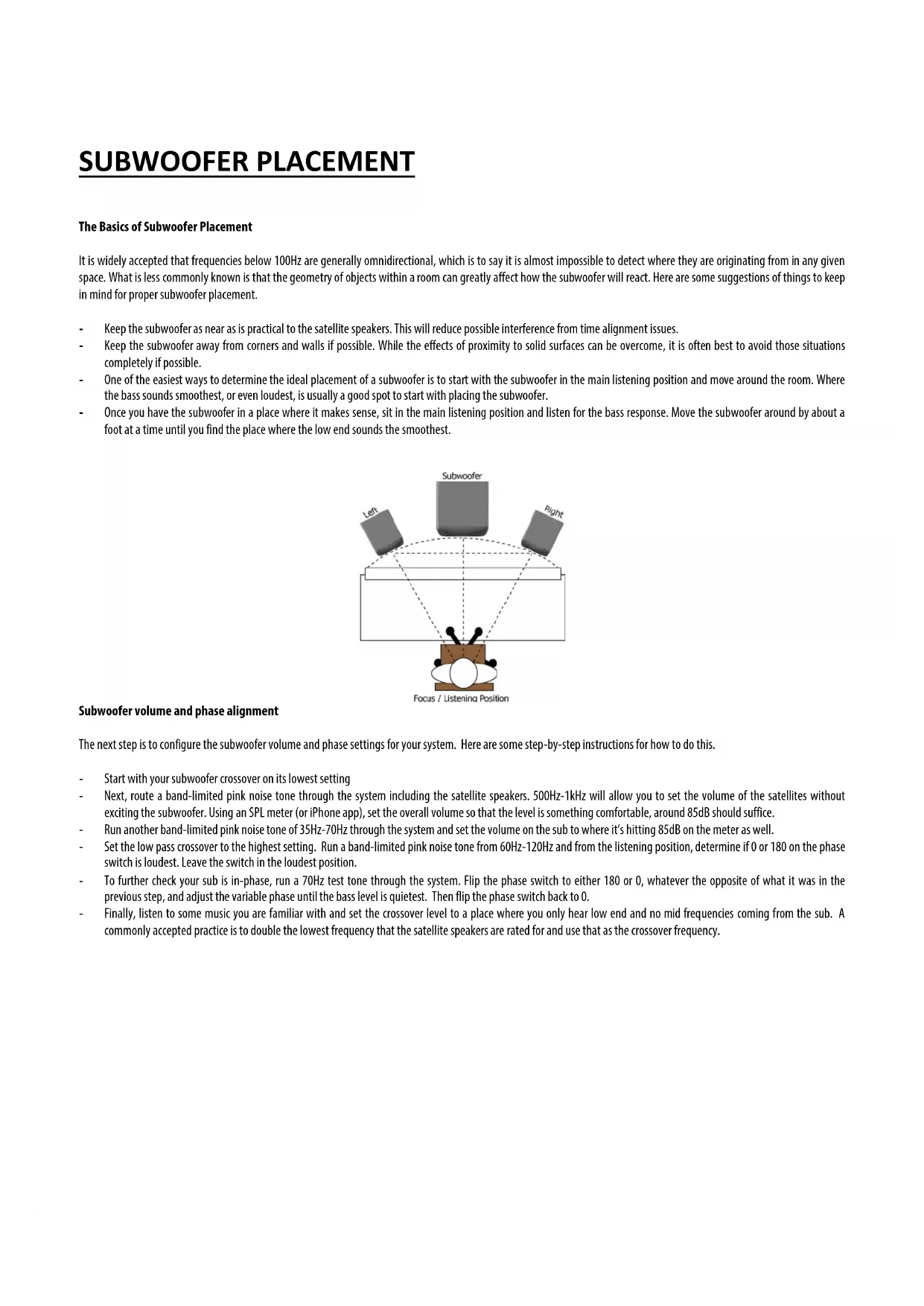
The Basics of Subwoofer Placement
It is widely accepted that frequencies below 100Hz are generally omnidirectional, which is to say it is almost impossible to detect where they are originating from in any given space. What is less commonly known is that the geometry of objects within a room can greatly affect how the subwoofer will react. Here are some suggestions of things to keep in mind for proper subwoofer placement.
- Keep the subwoofer as near as is practical to the satellite speakers. This will reduce possible interference from time alignment issues.
- Keep the subwoofer away from corners and walls if possible. While the effects of proximity to solid surfaces can be overcome, it is often best to avoid those situations completely if possible.
One of the easiest ways to determine the ideal placement of a subwoofer is to start with the subwoofer in the main listening position and move around the room. Where the bass sounds smoothest, or even loudest, is usually a good spot to start with placing the subwoofer.
Once you have the subwoofer in a place where it makes sense, sit in the main listening position and listen for the bass response. Move the subwoofer around by about a foot at a time until you find the place where the low end sounds the smoothest.
Focus / Listening Position
Subwoofer volume and phase alignment
The next step is to configure the subwoofer volume and phase settings for your system. Here are some step-by-step instructions for how to do this.
- Start with your subwoofer crossover on its lowest setting
Next, route a band-limited pink noise tone through the system including the satellite speakers. 500Hz - 1kHz will allow you to set the volume of the satellites without exciting the subwoofer. Using an SPL meter (or iPhone app), set the overall volume so that the level is something comfortable, around 85dB should suffice.
Run another band-limited pink noise tone of 35Hz - 70Hz through the system and set the volume on the sub to where it's hitting 85dB on the meter as well. - Set the low pass crossover to the highest setting. Run a band-limited pink noise tone from 60Hz-120Hz and from the listening position, determine if 0 or 180 on the phase switch is loudest. Leave the switch in the loudest position.
To further check your sub is in-phase, run a 70Hz test tone through the system. Flip the phase switch to either 180 or 0, whatever the opposite of what it was in the previous step, and adjust the variable phase until the bass level is quietest. Then flip the phase switch back to 0.
Finally, listen to some music you are familiar with and set the crossover level to a place where you only hear low end and no mid frequencies coming from the sub. A commonly accepted practice is to double the lowest frequency that the satellite speakers are rated for and use that as the crossover frequency.
If there is no power, check to see if...
Check to see if the power cord is plugged into both the IEC socket on the rear panel of the active speaker and into the AC mains. Verify that the AC mains are active by using an approved AC tester or simply connect a lamp with working light bulb. In some cases, the AC mains may be controlled by a light switch or power strip suppressor that may not be in the 'on' position.
- Verify that the power switch on the active speaker is in the 'on' position.
- Check to see if the power light is illuminated. The power light can often be found on the front panel of the monitors and the rear panel of the subwoofoers. If the power light is not illuminated, turn the power switch OFF and check the A/C mains fuse(s). The fuse is located directly below the power receptacle. Please see the user guide that came with your monitor for more information.
NEVER USE A LARGER AMPERAGE FUSE THAN IS SPECIFIED!
After the fuse has been checked and replaced, turn the power switch back on. The power light should illuminate.
- Check to see if a fuse change was needed. If you power the monitor back up and the fuse blows again, the monitor needs to be returned to the dealer or distributor where you purchased it or to KRK for servicing.
If you can't hear certain sounds...
- Repeat steps in the previous troubleshooting section above before continuing to the next steps.
- Check to see if all other audio devices using the same AC outlet are still operating.
- Check to see if the audio source cable is plugged into both the source output and the monitor input.
- Check to see if the Volume knob is turned up fully clockwise.
Check to see if the signal source (E.g. mixing console, work station, CD player, etc.) is turned up to a level that can properly send a signal to the monitors.
Check to see if the audio source is in mono or stereo, or information in the mix may also be panned differently which will result in differing cancellation. Audio heard in stereo and not heard in mono may be a result of phase cancellation due to long delays between left and right channels or polarity inversion. Avoid polarity inversion by using matching cables and use one type of input connection only. Do not use an XLR/TRS balanced input on one monitor and an RCA unbalanced input on the second monitor.
Check to see if one of the monitors is working. Exchange the audio input cable from the non-working monitor to the working unit. This will determine whether it's really the monitor, a faulty cable, or some other glitch in the audio chain.
If the monitor is still not responding, it should be returned to the dealer where you purchased it or to KRK for servicing.
If the subwoofer suddenly stops working...
- Turn the subwoofer level down or off.
- Repeat steps in the troubleshooting sections above before continuing to the next steps.
Carefully check to see if the amplifier's back plate is hot! If the monitor has been running at highest power output for an extended period of time, it could be that the unit has become overheated and the protection circuitry has shut the system down momentarily. The monitor provides maximum circuitry protection against AC power surges, amplifier overdrive, and overheating of the amplifiers. Turn the monitor off then wait 30 minutes to allow the back plate to cool down. Turn the power switch back on. - Increase the volume to check for normal operation.
If the monitor is still not responding, it should be returned to the dealer where you purchased it or to KRK for servicing.
The sound quality changes...
- Repeat steps in the previous troubleshooting section above before continuing to the next steps.
It is possible that the change in sound quality is due to changes in the room or listening position. Low frequencies (bass response) can be increased or reduced by changes such as furniture and/or large equipment placement. Try moving the speakers or listening area a different position or return the room back to where the sound quality was acceptable. - A reduction in bass frequencies may be a result of polarity inversion between the left and right channels or long delays between the left and right channels. Information in the mix may also be panned differently which will result in differing cancellation. Check the audio source and verify if one channel is polarity flipped or long delays are being used. Avoid polarity inversion by using matching cables and use one type of input connection only. Do not use an XLR/TRS balanced input on one monitor and an RCA unbalanced input on the second monitor.
- Disconnect the signal cable at the input of the monitor and adjust the volume control to the minimum setting. With power on, place your ear close to each driver (tweeter/woofer) and listen for noise (i.e., a slight hiss or hum) while slowing increasing the volume from the minimum setting. It is important that the volume is slowly adjusted from minimum setting to avoid any spike in sound levels while the ear is close to the driver (tweeter & woofer). If there's absolutely no sound whatever, it could be that the driver is at fault. It's also possible that the problem lies somewhere in the electronics.
- Play some non-distorted source material at a low volume. Carefully cover the woofer (to block the sound) without touching the diaphragm. Is the woofer producing a clean sound? If there is not a clear tonal quality or any sound at all then the woofer probably needs to be replaced.
- Verify the source signal level has not changed or source has changed. This can be tested by connecting the source headphone outputs to a set of headphones and verifying the sound is not loud or distorted. If the sound is poor at the source (preamp stage) than it is not the active speakers.
Once you have a better idea of what may be at fault then contact our service department. They will help you determine the best solution to correct your issue.
The subwoofer hisses, hums or makes other loud noises...
Make sure that the power cord is plugged snugly into the IEC socket on the rear of the monitor.
Check the connections between the signal source and the monitor. Make sure all connections are secure and that the cable is not damaged or wired incorrectly.
If you are using an unbalanced output to balanced cable conversion, make sure it is correct. The shield is connected to the unbalanced ground of the source and pins 1 and 3 of the XLR (or the sleeve and ring on the 14 TRS jack).
All audio equipment should use the same ground point. Check all other devices using the same AC output in the building like light dimmers, neon signs, TV screens, and computer monitors. These devices should not be using the same circuit.
- Verify that the signal cables are not routed near AC power lines or other EMI sources (including wall power adapters and computers).
Excessive hiss may be a result of an incorrect gain setting before the speaker connection. Verify the source signal is not noisy before connecting the monitors. This can be tested by connecting the signal source headphone outputs to a set of headphones.
Registering your merchandise will help us guarantee that you are kept up to date on our latest advances.
To Register Merchandise Purchased from an Authorized Gibson Pro Audio Dealer in the U.S.:
Please go to: http://www.gibson.com and register online.
Or you may send your warranty card to:
Gibson Customer Service
309 Plus Park Blvd.
Nashville, TN 37217
If you have any questions you may contact customer service at:
1-800-4GIBSON (1-800-444-2766)
e-mail: service@gibson.com
FOR MERCHANDISE PURCHASED FROM AN AUTHORIZED GIBSON PRO AUDIO DISTRIBUTOR OUTSIDE OF THE CONTACT THE DISTRIBUTOR FROM WHOM YOU PURCHASED YOUR MERCHANDISE FOR TO REGISTER YOUR WARRANTY AND FOR HANDLING AND RESOLUTION OF ALL WARRANTY-RELATED ISSUES.
Gibson Pro Audio Warranty
If at any time your Gibson Pro Audio product (which includes Stanton, KRK, or Cerwin Vega! brands) malfunctions as a result of faulty materials or workmanship, Gibson Pro Audio or one of Gibson Pro Audio's Authorized Service Centers in the US will repair the defect(s) or replace the merchandise, as it deems appropriate at its sole discretion.
Warranty Period (from date of Purchase as listed on the Bill of Sale):
Stanton
One (1) year for all Stanton products.
KRK
Three (3) years from all studio monitors.
One (1) year all headphones, computer audio devices, including room correction devices.
Cerwin Vega!
Five (5) years for all passive speaker systems.
Three (3) years for all active speaker systems.
Three (3) years for all mixers.
Gibson will warrant all replacement parts and repairs for ninety (90) days from the date of original shipment.
In the unlikely event that your merchandise is destroyed, lost or damaged beyond repair while in the possession of Gibson or one of Gibson Pro Audio's Authorized Service Centers for repair, Gibson will replace that merchandise with one of the same or most similar style of a value not in excess of the original purchase price of your merchandise. Any insurance covering the merchandise, including but not limited to collector's value insurance, must be carried by owner at owner's expense.
For the fastest and safest merchandise return, please use the original shipping carton and packaging materials. Gibson cannot be responsible for any damages incurred during the shipping process due to poor or inadequate packing.
THIS WARRANTY IS EXTENDED TO THE ORIGINAL RETAIL PURCHASER ONLY AND MAY NOT BE TRANSFER. SUBSEQUENT OWNERS. IN ORDER TO VALIDATE YOUR WARRANTY, AND AS A CONDITION PRECEDED TO WARRANTY COVERAGE HEREUNDER, YOU MUST REGISTER YOUR WARRANTY WITHIN FIFTEEN (15) DAYS FOLLOWING THE ORIGINAL DATE OF PURCHASE.YOUR PROOF OF PURCHASE OR SALES RECEIPT MUST ACCOMPANY ALL REQUESTS FOR WARRANTY COVERAGE.
This warranty is subject to the following limitations:
THIS WARRANTY DOES NOT COVER
- Any merchandise that has been altered or modified in any way or upon which the serial number has been tampered with or altered.
- Any merchandise whose warranty card has been altered or upon which false information has been given.
-
Any merchandise that has been damaged due to misuse, negligence, or improper operation.
-
Any merchandise that has been damaged by accident, flood, fire, lightening, or other acts of God.
- Shipping damage of any kind.
- Any merchandise that has been subjected to extremes of humidity or temperature.
- Any merchandise that has been purchased from an unauthorized dealer, or upon which unauthorized repair or service has been performed.
GIBSON MAKES NO OTHER EXPRESS WARRANTY OF ANY KIND WHATSOEVER. ALL IMPLIED WARRANTYES, INCLUDING WARRANTY OF MERCHANTABILITY AND FITNESS FOR A PARTICULAR PURPOSE, EXCEEDING THE SPECIFIC PROVISIONS OF THIS WARRANTY ARE HEREBY DISCLAIMED AND EXCUSED FROM THIS WARRANTY. SOME STATES AND/OR COUNTRIES DO NOT ALLOW THE EXCLUSION OR LIMITATION OF IMPLIED WARRANTYES SO THAT THE ABOVE MAY NOT APPLY TO YOU.
GIBSON SHALL NOT BE LIABLE FOR ANY SPECIAL, INDIRECT CONSEQUENTIAL, INCIDENTAL OR OTHER SIMILAR DAMAGES SUFFERED BY THE PURCHASER OR ANY THIRD PARTY, INCLUDING WITHOUT LIMITATION, DAMAGES FOR LOSS OF PROFITS OR BUSINESS OR DAMAGES RESULTING FROM USE OR PERFORMANCE OF THE MERCHANDISE, WHETHER IN CONTRACT OR IN TORT, EVEN IF GIBSON OR ITS AUTHORIZED REPRESENTATIVE HAS BEEN ADVISED OF THE POSSIBILITY OF SUCH DAMAGES, AND GIBSON SHALL NOT BE LIABLE FOR ANY EXPENSES, CLAIMS, OR SUITS ASISING OUT OF OR RELATING TO ANY OF THE FOREGOING.
FOR MERCHANDISE PURCHASED FROM AN AUTHORIZED GIBSON PRO AUDIO DISTRIBUTOR OUTSIDE OF CONTACT THE DISTRIBUTOR FROM WHOM YOU PURCHASED YOUR MERCHANDISE FOR THE HANDLING AND RESOLUTION OF ALL WARRANTY ISSUES. FOR THESE PURCHASES, THE ABOVE-DESCRIBED WARRANTY IS NOT APPLICABLE.
Warranty Service for Merchandise Purchased from an Authorized Gibson Pro Audio Dealer in the U.S:
In the event of malfunction of your Gibson Pro Audio merchandise, the Dealer or Owner must call Customer Service @ 1-800-4GIBSON (1-800-444-2766) and obtain a Return Authorization number from the customer service agent. No merchandise may be returned to Gibson without such prior Return Authorization, and the Return Authorization number must be written on the outside of the shipping package. The Customer Service agent will provide the address and additional shipping instructions. Owner must ship the merchandise, freight, and insurance pre-paid to the address provided by the customer service representative. Only Authorized Gibson Pro Audio Service Centers may perform warranty service and any service performed by unauthorized persons will void this warranty. Gibson disclaims liability for defects or damage caused by services performed by unauthorized persons or non-warranty service not performed by Gibson or an Authorized Gibson Pro Audio Service Center.
When contacting Gibson, you must include a complete written description of the malfunction of the merchandise. If non-warranty work is required or recommended, a quotation will be issued and must be approved by you before any non-warranty work is commenced. You should consider quotations obtained for non-warranty work immediately and advise the Authorized Gibson Pro Audio Service Center or Gibson of your wishes. You are not required to purchase non-warranty work in order to obtain service on materials covered by this warranty. Following its inspection of merchandise upon its arrival, Gibson or the Authorized Gibson Pro Audio Service Center will advise you or your dealer of the approximate date of completion. The repaired merchandise or part will be returned to you or your dealer, freight collect insured.
No representative or other person is authorized to assume for Gibson any liability except as stated in this warranty. This warranty gives you specific rights which vary from state to state or from country to country.
Warranty Service outside the United States:
To initiate a warranty repair, please contact the Authorized Gibson Pro Audio distributor from whom you purchased your merchandise and follow the distributor's return/warranty policy.
For further information, call 1-800-4GIBSON or write:
Customer Service Dept.
Gibson Customer Service
309 Plus Park Blvd.
Nashville, TN 37217
CONSIGNES DE SECURITE
COMMANDES DU PANNEAU ARRÈRE 8s/10s/12s
[1] VOLUME
[3] SENSIBILITE D'ENTREE
[13] PRISE D'ALIMENTATION IEC
CONTROLES DEL SISTEMA 8s/10s/12s
[24] SUB & HPF BYPASS (PEDAL) [pedal no incluido]