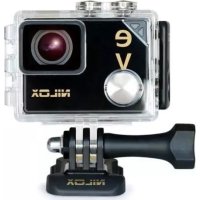
EVO 4K30 - Action Camera NILOX - Free user manual and instructions
Find the device manual for free EVO 4K30 NILOX in PDF.



| Product type | Action camera |
| Brand | Nilox |
| Model | EVO 4K30 |
| Dimensions | 52 x 40 x 26 mm |
| Weight | 67 g |
| Maximum video resolution | 4K at 30 fps |
| Maximum photo resolution | 16 MP (4608 x 3456) |
| Field of view | Ultra wide 140° |
| Digital zoom | 4X |
| Screen | 1.8 inch TFT touch screen |
| Wi-Fi | Yes, range approx 80 m |
| Bluetooth | Yes |
| Sensor | G-Sensor (motion detection) |
| Water resistance | Up to 40 m with IP68 case |
| Battery | Rechargeable lithium-ion 1050 mAh |
| Power supply | Charging via micro USB cable (power adapter not included) |
| Storage | microSD card up to 64 GB (U3 class recommended) |
| Connectivity | micro USB, micro HDMI, Wi-Fi, Bluetooth |
| Care and cleaning | Clean with a dry cloth after use in salt water. Avoid extreme temperatures. |
| Safety | Do not open the waterproof case underwater. Do not immerse without case. Avoid shocks and heat. |
| Spare parts and repairability | Nilox accessories available (mounts, cables, etc.). Battery replaceable by a professional. |
| Warranty | 1 year for professionals, 2 years for individuals (battery: 6 months) |
Frequently Asked Questions - EVO 4K30 NILOX
User questions about EVO 4K30 NILOX
0 question about this device. Answer the ones you know or ask your own.
Ask a new question about this device
Download the instructions for your Action Camera in PDF format for free! Find your manual EVO 4K30 - NILOX and take your electronic device back in hand. On this page are published all the documents necessary for the use of your device. EVO 4K30 by NILOX.
USER MANUAL EVO 4K30 NILOX
USER MANUAL
SUMMARY
PREFACE 3
PRECAUTIONS 3
DESCRIPTION....3
TECHNICAL SPECIFICATIONS 4
STRUCTURE 5
STATUS LED MEANING....5
OPERATING INSTRUCTIONS....6
INSTALLING AND CHARGING THE BATTERY 6
INSTALLING THE MICROSD CARD AND POWER ON....6
CHARGING 6
INSERTING AND REMOVING THE MEMORY CARD....6
TOUCH DISPLAY....7
ACCESS TO MENUS 7
VIDEO SETTINGS....8
PHOTO SETTINGS....9
GENERAL SETTINGS....10
LIBRARY....II
OUTPUT INTERFACES....II
HDMI VIDEO OUT......II
USB OUTPUT 12
WI-FI CONNECTION....13
CONNECTING THE PHONE AND VIDEO CAMERA....13
IOS AND ANDROID APPS AND FUNCTIONS....13
APP STRUCTURE....13
PHOTO AND VIDEO LIBRARY....13
VISUALISATION AND SOCIAL SHARING....14
TECHNICAL SPECIFICATIONS....15
PRECAUTIONS....15
PRECAUTIONS FOR THE CAMERA CASE ....15
PRECAUTIONS FOR THE 3M DUAL-SIDE FOAM TAPE ....16
GENERAL PRECAUTIONS 16
WARRANTY AND LEGAL NOTES 16
[Digitare qui]
PREFACE
Thank you for your purchase of this high-definition digital camera EVO 4K30 with the following features:
• ultra small and compact overall dimensions
- user-friendly interface
- easy to use
This manual describes how to install and use the EVO 4K30 video camera. It also provides information on use, operations, installation precautions and technical specifications for the EVO 4K30 video camera. Carefully read and understand this manual before using this video camera and keep it for future use.
PRECAUTIONS
Please observe the following points when using EVO 4K30:
- Do not drop, hit or shake the camera.
- Keep the device away from any electromagnetic source, such as magnets or electro motors, or from any other object emitting strong radio waves, like antennas. Strong magnetic fields may cause failures to the camera or damages to image and audio.
- Do not expose the camera to high temperatures or to sunlight directly.
- Keep the memory card away from electromagnetic sources, such as TVs, speakers or magnets. Do not put it in any place with potential static, as the data stored may be lost.
- If the device overheats, smokes or smells in charging, please disconnect the power supply immediately.
- Keep the camera out of the reach of children in charging, as the power cord may cause accidental suffocation or electric shock.
- Keep the camera in a cool, dry and dust-free place.
DESCRIPTION
able to perform the following functions:
• High-definition (HD) digital photos.
• Data-voice storage function.
• Real-time image display.
• Recorded video recall function.
• Photo files recall function.
• Smartphone applications for Wi-Fi control.
- 4X digital zoom.
• USB cable for battery charging.
• One-way USB 2.0 high speed data transmission from the cam to PC.
- All accessories are easy to use to facilitate shooting in any place and at any time.
Supplemented by its accessories, this product is the result of multiple patented technologies and can be used for recording anything, anytime, anywhere.
TECHNICAL SPECIFICATIONS
The EVO 4K30 highest quality video camera has the following characteristics:
- Supplied with a special purpose HD lens that supports 4K, 2.7K, 1080P, 960P, and 720P HD video recording.
- Ambarella image processor for high-performance photos and videos.
• Takes 16M pictures in 4608×3456 resolution.
• Wi-Fi function for App connection. - 4X digital zoom.
- The 1.8-inch touch screen provides simple and easy system use.
• Takes shots in multiple mode like: single shot, fast shot, continuous shot, timed shot. - Equipped with a PIV independent function that allows photo shootings while recording a video.
• Equipped with 180° display rotation function. - Can be connected to a remote screen to view recordings and videos.
- Equipped with an HDMI and AV port for easy connection to HD monitor or TV to view video files.
- Compact and fashionable design.
• High colour fidelity for clearer and more natural video images.
• Supports file reproduction, cancellation and other functions on local video camera.
• The built-in G-Sensor is able to act as a car black box. - Compatible with all Nilox accessories.
- High-capacity built-in chargeable lithium ion battery extends video recording time.
• Equipped with shock absorption functions to resist slight falls or impacts. - Comes with waterproof housing IP68, water resistant to a depth of 40 meters, and with an open structure in order to use it with the accessory range where there is no water.
- Equipped with automatic standby for energy savings and supports automatic audio and video data saving.
STRUCTURE
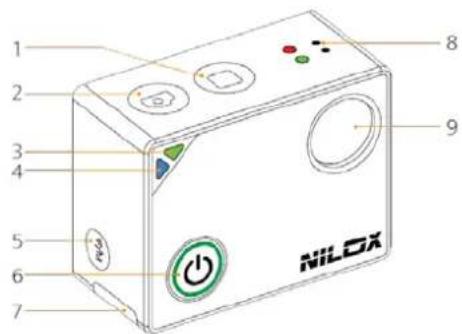
I) Stop Recording key
2) Shoot photo key
3)LI status indicator green led (it flickers during video recording)
4) Status indicator blue led Wi-Fi L2
5)Wi-Fi key
6) On and record key
7) Access to the battery
8)Microphone
9) Wide-angle lens unit
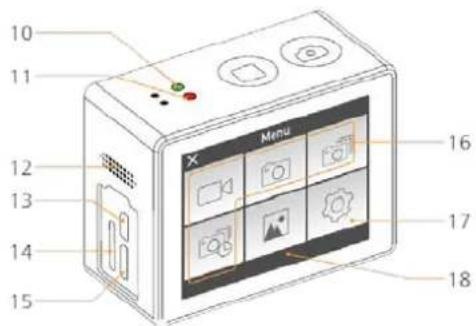
10)L1 status indicator led (it flickers during video recording)
II)L3 status indicator red led
12) Speaker
13)Micro HDMI port
14)MicroSD slot
15)One-way Micro USB port
16) Video, photo, continuous shooting and time-lapse modes
17) Settings menu
18) Photo and video view menu
STATUS LED MEANING
| LEDs | Red Led | Green Led | Blue Led | |
| Status | ||||
| Power | On | |||
| Video recording | On | Slow flashing | ||
| Audio recording | On | Slow flashing | ||
| Shoot photo | On | Single flash | ||
| Memory full | On | On | ||
| Battery charging | Slow flashing | |||
| Full power | On | |||
| Low battery | On | |||
| Data transmission | On | |||
| WI-FI on | On | Slow flashing |
OPERATING INSTRUCTIONS
INSTALLING AND CHARGING THE BATTERY
Slide the battery cover following the direction of the arrows and install the battery.
Use the Micro USB cable to charge the camera. The indicator red light (L3) will flash during the battery charge. Once the battery charge is complete, the light remains lit.
INSTALLING THE MICROSD CARD AND POWER ON
Insert the microSD card in the slot when the camera is off.
Press the power button and hold it down for 3 seconds to turn the video camera on/off; the indicator red light (L3) will remain lit.
Note: Use microSD cards with a transfer speed equal to UHS Speed Class 3 (U3) or higher.
CHARGING
Turn on the video camera and check battery status; if low, charge it.
Either a computer USB port of power adapter (not included) can be used to charge it.
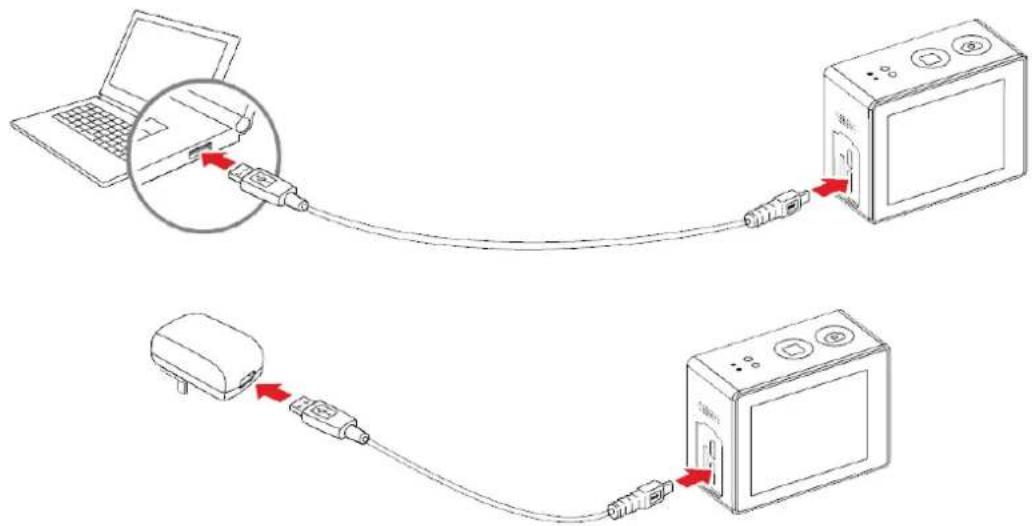
When EVO 4K30 is charged in off status, the red status led will flash slowly. When finished charging, the red led will remain on.
The charge process inhibits video camera operations.
INSERTING AND REMOVING THE MEMORY CARD
The EVO 4K30 video camera supports TF memory cards with capacity up to 64 GB.
Any type of Micro SD card can be used but we recommend high speed cards to optimise performance.
- Installation.
I. Make sure the video camera is off.
2 Insert the card in its slot, being careful that it is inserted in the correct direction until a click is heard.
[Digitare qui]
EN
- Removal.
I Turn off the video camera.
2 Press the centre of the back of the card and release it; then remove it.
TOUCH DISPLAY
The symbol that appears on the LCD Touch display is very intuitive.
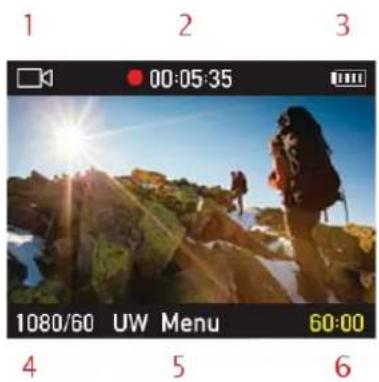
| 1 | Video recording mode | |
| 1 | Photo shooting mode | |
| 2 | 00:00:01 | Recording timer |
| 2 | 100-0088 | Number of recorded shutter clicks |
| 3 | Battery level | |
| 4 | 1080P-25 | Video resolution and view angle |
| 4 | 8M | Photo resolution and view angle |
| 5 | Menu | Main menu, touch to enter. |
| 6 | 60:00 | Remaining recording time |
| 6 | 1888 | Remaining shots |
ACCESS TO MENUS
Press on the MENU key in the centre lower part of the display to access the various menus. As an alternative, in case there is no MENU key, swipe your finger from right to left, in the centre of the display.
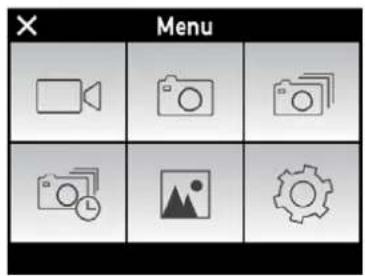
Video recording
Single shot photos
Multiple shot photos (burst mode)
Time-Lapse
Photo and video library
Settings
Swipe an icon to access its menu.
VIDEO SETTINGS
The EVO 4K30 must be in video mode to set video settings; an icon □ appears at the top left, if this is not the case, touch the video shutter key on the front

Open the settings menu from the main menu and activate the icon At this point, it is possible to vary general and video settings.
General settings are always variable in every function mode of the cam.

| X | Video Settings | |
| Video | > | |
| Video only | > | |
| Audio | > | |
| Video auto | > | |
| Videos and Photos | > | |
| Time-lapse | > | |
| Pre Video | > | |
| Video resolution | > | |
| Angle of view | > | |
| Bit-rate | > | |
| Rewrite automatically | > | |
| 180 Rotation | > | |
| Show time | > | |
-Video: Audio and video recording.
-Video only: Only to record videos without audio
-Audio: Only to record audio
-Video auto: Deferred recording start of a video:
- 5/10/20 sec.
-Videos and Photos: Lets you take photos during a video recording in Manual
- Mode/5/10/30/60 sec.
-Time-lapse: It allows to set the recording interval of time to catch a sequence of recorded frames at certain intervals. It registers any changes that slowly happen over time:
• 1/2/5/10/30 sec.
-Pre Video: a push of the shutter starts a 10 second pre-registration that will not be saved on the card; a further push starts the actual recording, that will also include the 10 seconds before the second push.
-Video resolution: Lets you select the video resolution:
- 4k@30fps/1440P@60fps or 30fps/1080P@100fps or 60fps or 30fps/960P@60fps/720P@200fps or 120fps or 60fps
-Angle of view: It allows to modify the cam wide angle extent:
• Ultra-wide/wide/medium/tight.
-Bit-rate:
- High/normal.
- Rewrite automatically: When it is activated, if the microSD card is full, it will rewrite the file in date order (starting from the oldest).
- On/Off.
-180 Rotation: It overturns the camera recording to allow the upside down editing: - On/Off.
-Show time: It allows to print the date and the time on videos and photos: - On/Off.
PHOTO SETTINGS
The EVO 4K30 must be in photo mode to set photo settings; an icon appears at the top left,
if this is not the case, touch the video shutter key on the front

Open the settings menu from the main menu and activate the icon

At this point, it is possible to vary general and video settings.
General settings are always variable in every function mode of the camera.
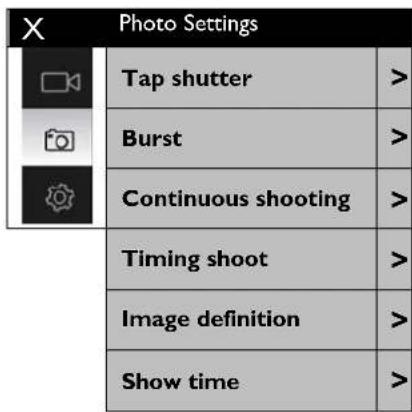
-Tap shutter: If it is activated, the user just has to touch the display to take a picture (this function is currently unavailable).
-Burst: It sets the number of shots per seconds:
• 3/6/8 shots.
-Continuous shooting: Time-lapse with images; it sets the time between sequential shots. For interrupting, press the

key
• 1/03/05/10/20 sec.
-Self timer: It allows to set the delay while shooting a picture.
• 3/5/10 sec
-Image definition:
- 16MP (4608x3456 4:3), 12MP (4000x3000 4:3), 8MP (3200x2400 4:3).
-Show time: It allows to print the date and the time on videos and photos:
- On/Off.
GENERAL SETTINGS
General parameters may be accessed in both video and photo mode.

Open the settings menu from the main menu and activate the icon

At this point, it is possible to vary general and video settings.
General settings are always variable in every function mode of the camera.
| X | General Settings | |
| Sound | > | |
| G-Sensor | > | |
| WiFi Mode | > | |
| Bluetooth Mode | > | |
| Status indicators | > | |
| Active subtitles | > | |
| Standby cam | > | |
| Standby display | ||
| TV output | > | |
| Language | > | |
| Date/time | > | |
| Format | > | |
| Initial settings | > | |
| Version | > | |
-Sound: It enables the system sounds (shoot, touches, etc.)
-G-Sensor: It activates the video recording when the user moves the cam. When the cam stays still for 3 minutes, the recording stops automatically.
-WiFi Mode: It allows to choose whether to pair a smartphone or a remote control (not included) with the cam to control it through an APP.
-Bluetooth Mode: It allows to control the cam using selfie sticks including such feature.
-Status indicators: It enables or disables the status led power light.
-Active subtitles: It allows to enable or disable all the signals that appear on the display (battery status, recording time, etc.).
-Standby cam: The cam turns off automatically after a configurable period of inactivity:
- Off/2/5/10 minutes.
-Standby display: The display is deactivated to increase the energy-saving after a configurable period of inactivity: - Off, 10/30/60 seconds.
-TV output:
- Pal/Secam
-Language: It lets you select the user language. - Date/time: Setting of cam date and time. These data will be printed on photos and videos (if the related parameter is selected).
-Format It allows to format the microSD memory card.
-Initial settings: It resets the cam values to the factory settings. Therefore, the language is reset to English.
-Version: Displays the cam firmware version.
LIBRARY
You can view what you recorded (photos, video, audio, etc.) on your EVO 4K30.
You can access the library or the main menu by clicking on the icon 📂 or, as an alternative, by swiping your finger at the centre of the display, from left to right.
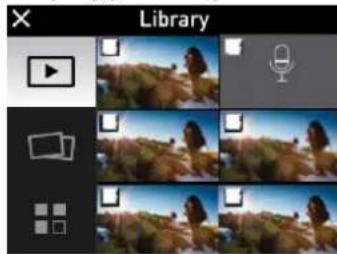
Icon ▶ leads to display the videos only, while icon □ only displays photos and icon ▪ displays both.
Touch a photo or a video to visualise them.
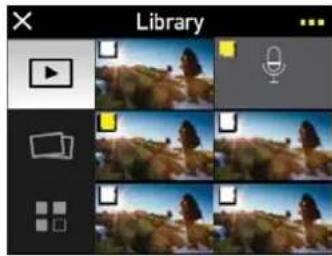
If the user pushes on every image, in the upper left, it will be highlighted by a yellow check mark.
Highlighted images and videos can be
deleted or protected from accidental cancellation.
OUTPUT INTERFACES
EVO 4K30 photo camera has I audio video output interface:
• Hdmi
and one data files output:
- Usb
HDMI VIDEO OUT
You can connect the photo camera to a video input, through the Hdmi output, by using a specific cable (not supplied).
In the meanwhile the video camera can work normally.
The display or the TV, connected to the video camera, works exactly like the TFT display of the video camera.

In this way you can see photos or videos in playback mode, or adjust the setting parameters.
Incorrect HDMI cable removal could cause EVO 4K30 video camera malfunctions. After rebooting, the EVO 4K30 video camera returns to normal conditions. This function is not available when the Wi-Fi device is on.
USB OUTPUT
The USB connection lets you:
- Give power supply to the EVO 4K30 video camera with a USB cable
- Connect the EVO 4K30 video camera to a computer in order to read the data in the memory and Micro SD card.
The icon of USB connection is displayed on the LCD screen and the green indicator blinks slowly.
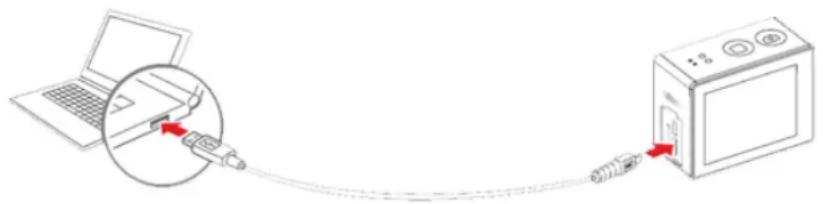
Incorrect USB cable removal could cause EVO 4K30 video camera malfunctions. After rebooting, the EVO 4K30 video camera returns to normal conditions. The USB output is one-way: data can only be transferred from the cam to PC and not vice versa.
- Image or video files cannot be recorded on the SD micro card from a PC (via USB cable).
- Image or video files saved on the SD micro card cannot be deleted from PC (via USB cable). This can only be performed on the camera.
- Files cannot be copied from a PC to the SD micro card in the camera (via USB cable).
WI-FI CONNECTION
Thanks to the built-in Wi-Fi module, EVO 4K30 can be connected to Apple or Android Smartphones and Tablets and remotely controlled.
Just download the free EVO 4K30 App to connect the device in Wi-Fi.
CONNECTING THE PHONE AND VIDEO CAMERA
• Long press the WI-Fi key on the right side of the cam
- At this point, look for new available Wi-Fi connections on your phone.
- Select F-60 EVO 4K30, the default password is Nilox1234 (capital N)
- At this point, start the App you previously downloaded on your phone.

IOS AND ANDROID APPS AND FUNCTIONS
Open the App-Store or Google-Play Store, search for the EVO 4K30 App and download it; the icon

will be displayed.
Once your EVO 4K30 and Smartphone are connected, your EVO 4K30 can be completely controlled using the APP.
The APP makes also available a library to see a preview of the saved photos and videos.
ATTENTION: FOR THE CORRECT USE OF THE CAMERA USING THE APP, THE SCREEN STAND-BY FUNCTION MUST BE DISABLED.
APP STRUCTURE
Once the APP is connected, it appears as in the picture.
In the example we show the APP for iOS; the Android APP is technically very similar.
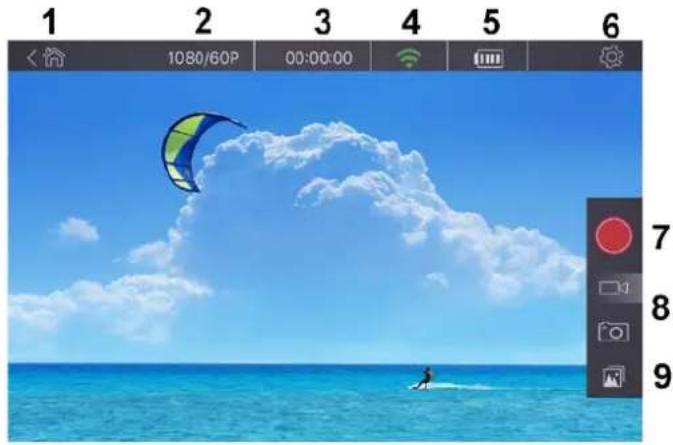
I) Exit App.
2) Video resolution, if recording a video, image resolution, in photography.
3) Video duration
4) Wi-Fi signal strength between cam and smartphone
5) Cam battery level.
6) Settings. T he cam can be totally configured from the settings menu as well as from the display menu.
7) Shutter key. By pushing the key, the video starts and stops, in case of video environment, one or more photos are taken, in photo environment.
8) Transit icons from video to photo environment.
9) Photo and video library.
PHOTO AND VIDEO LIBRARY.
[Digitare qui]
EN
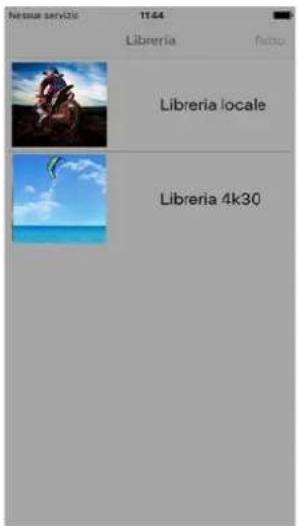
By turning the library on, you will have the possibility to visualise all photos and videos on the cam, as well as those already present on your smart phone or tablet.
We recommend you to download photos and videos from the cam on your smart phone.
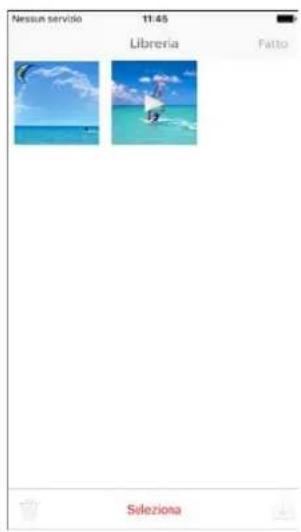
Turn your 4K30 library on and select the files to download.
First of all, select the photos and videos that will be highlighted by the check mark 🤳 then select the icon ↓ that will appear in the lower left.
VISUALISATION AND SOCIAL SHARING
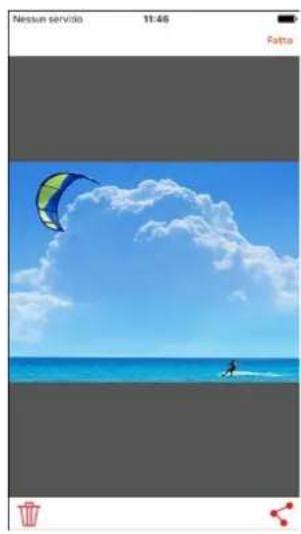
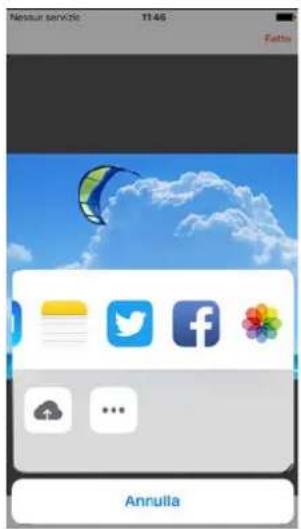
It will be possible to visualise photos and videos, once they have been downloaded from the cam on the smart phone.
By pushing icon it will be possible to send or share on your favourite social networks.
TECHNICAL SPECIFICATIONS
| Wide angle | 140° |
| Shutter opening | f/2.7 |
| Digital zoom | 4X |
| Pixel | 16 million |
| Underwater case | 40 metres |
| Video resolution | 4K/30fps, 1080P/100fps, 1440P/60fps,960P/60fps, 720P/200fps |
| Photo resolution | 16 /12 /8 MP |
| Wi-Fi coverage | About 80 metres |
| Memory device | Up to 64 GB on external Micro SD card |
| Battery capacity | 1050mAh |
| Time Lapse (Video Mode) | 1, 2, 5, 10, 30 sec. |
| Photo In Video | 5s, 10s, 30s, 60s or manual |
| Multiple shot (Burst) | 8/1, 6/1, 3/1 sec. |
| Continuous shooting | 1, 2, 3, 5, 10, 20 sec. |
| Self timer | 3, 5, 10 sec. |
| TFT Display | Integrated 1.8" Touch TFT display |
| Supported Operating System: | Windows XP SP2 /Vista, Win7, 8, 10 or above / Mac OS |
| Storage temperature | -20°C ~ 60°C |
| Working temperature | -10°C ~ 50°C |
| Dimensions | L52 × W40 × H26 MM |
| Weight | 67 g. |
Since the product is continuously improved, specifications can be subject to changes without prior notice.
PRECAUTIONS
PRECAUTIONS FOR THE CAMERA CASE
Before using EVO 4K30 video camera, pay attention to the following notice information:
The waterproof case is a precision component. Please use the following precautions:
- Do not randomly dismount and mount the O-ring of the case, keys and lens cover, otherwise the waterproof performance deteriorates.
- Do not put the case in a place where it is exposed to corrosive acid or alkaline gases and keep it away from chemical or corrosive substances.
- To prevent deformation, do not store the product for long periods in a place where temperatures are high (over 50°C) or low (-10°C).
- Do not expose to direct sunlight for long periods to prevent deterioration of waterproofing.
- Before every use, ensure that the O-ring is intact, that there are no foreign bodies on the seal, that the case is properly sealed and that the seal is watertight.
• After use in salt water, immediately rinse the case with plenty of running fresh water.
• Use a dry cloth to dry the surface and store the device in a dry and ventilated place.
PRECAUTIONS FOR THE 3M DUAL-SIDE FOAM TAPE
When using the 3M dual-side foam tape, adhere to the following precautions:
- Before fixing the 3M dual-side foam tape, select a proper surface to ensure proper contact between the foam tape and the surface.
- Before using the 3M dual-side foam tape, clean the surface and heat the foam tape, using for instance an electric blower, especially in a place where temperature is lower than 0°C.
GENERAL PRECAUTIONS
- During continuous use, the body temperature of EVO 4K30 video camera increases. The situation is normal. The camera surface may be hot after prolonged use.
- If the video camera is not used for a long time, remove and keep the battery properly and recharge it every three months to ensure the battery performance.
• During recording, the digital zoom may affect the image quality. - Shooting view angles are slightly different in different working modes of the video camera.
- If a video file is large in size, a computer or other professional players are preferred for a smooth playback.
- Cyclic recording and frequent recording/deleting operations may leave data fragments in the SD card, causing failure to file recording or saving. To solve this problem, just backup the data on an external storage and format the SD card.
WARRANTY AND LEGAL NOTES
EVO 4K30 is equipped with a rechargeable lithium ion polymer battery. To reduce the risk of fire, please do not tamper with it and avoid falls, contact with water and fire.
To avoid personal injury, electric shock, fire or damage to various parts of the product, please follow the following instructions: Do not immerse the product in water without its waterproof case.
PERSONAL SAFETY.
Do not disassemble, repair, alter or modify any part of the product. Do not touch the product with metal objects or chemicals.
Any failure to comply with what above can cause risks to the person and other people.
In case of malfunctioning of the product, please contact the technical service or a qualified supplier.
TECHNICAL SUPPORT.
This product is warranted in accordance with current legislation; please contact your dealer if you require technical assistance and / or warranty service.
INSTRUCTIONS FOR THE ENVIRONMENT.
This product may contain substances that can be harmful to the environment and to the human health, if not disposed of properly. We therefore provide you the following information in order to

prevent the release of such substances and to optimize use of natural resources. The electrical and electronic products should not be disposed of in the normal household waste, but should be properly collected in order to be correctly treated. The symbol of
[Digitare qui]
the crossed bin shown on the product and in this page reminds the need to properly dispose of the product at the end of its life. In this way you can avoid that a non-specific treatment of the substances contained in these products, or an improper use of parts of them can lead to harmful consequences for the environment and human health. Moreover, you can contribute to the recovery, recycling and reuse of many of the materials composing these products. This is why the manufacturers and distributors of electrical and electronic systems organize proper collection and disposal of the equipment themselves. At the end of the product's lifespan, please contact your dealer for instructions regarding disposal. When purchasing this product your distributor will inform you of the possibility to replace your old device with a new one, on condition that the type of product and its functions are the same or, If the dimensions are not over 25 cm, the EEE (Electrical and Electronic Equipment) can be returned without any equivalent product purchase obligation. Disposal of the product in any other way will be liable to the penalties foreseen by the laws in force in the country where the product is disposed of. Moreover, we suggest adoption of additional measures favourable to the environment: recycling the inner and outer packaging and disposing of any used batteries correctly. With your help, we can reduce the amount of natural resources used in the manufacture of electrical and electronic equipment, minimize use of landfills for product disposal and improve quality of life by preventing the release into the environment of potentially dangerous substances.
INSTALLING AND REPLACING BATTERIES.

The product contains a battery, which must be disposed of separately from general household waste. Throw the battery in the appropriate containers. Collection and recycling of batteries helps protect the environment and preserve material resources, through the recovery of valuable materials. The battery in this product might not be directly removable. If this is the case, instructions for its removal by qualified personnel can be found online at: ftp://ftp.hellatron.it (username: disposal@hellatron - password: hellatron). For your own safety, do not attempt to remove the battery. Incorrect removal of the battery could damage the battery and device, cause accidents and/or make the device unsafe. We shall not be held liable for any losses or damage caused by failure to comply with these warnings and precautions. The device and accessories shown in this manual could vary according to the country where the products are distributed.
WARRANTY INFORMATION.
• One year, if invoiced to a company or professional (with VAT number).
- Two years, if fiscal documents indicate that it was sold to a private citizen.
- Six month on the battery, regardless of the occupation of the product purchaser
- This warranty applies in the event of a defect in conformity of product features.
- Product support and warranty. Visit www.nilox.com to learn more.
WARRANTY RESTRICTIONS:
This warranty does not apply in the following cases:
- No proof of purchase (invoice or receipt).
- Tampering, forcing and damages on the hardware and screen, created for any reason.
- Other defects due to: inappropriate use, unauthorised hardware/software changes, operations or storage beyond technical product specifications; incorrect maintenance; defects due to the use of software other than that supplied and all those elements (hardware and software) not designed to be used with the product.
The above refers to legislative decree dated February 24, 2002. Implementing the 1999/44/CE Directive.
BRIEF DECLARATION OF CONFORMITY
CE This device complies with European Parliament and European Commission Directive 2014/53/EU concerning radio equipment and peripheral devices for telecommunications and their mutual recognition. The declaration of conformity is available on line at ftp:\ftp.hellatron.it (user name: declaration@hellatron - password: hellatron). This device can thus be used in all EEC countries and in all countries where Directive 2014/53/EU applies, without restrictions, except for:
Italy (IT)
This peripheral complies with the National Radio Interface and meets requirements on Frequency Assignment. The use of this device beyond the areas where the owner works requires general authorisation.
Norway (NO)
device not to be used within 20 km of Ny Alesund.

MANUALE UTENTE
SOMMARIO
PREFAZIONE....3
PRECAUZIONI....3
DESCRIZIONE....3
INSTALLARE LA SCHEDA MICROSD E ACCENSIONE....6
CARICA....6
DISPOSITIVI DI USCITA......II
USCITA VIDEO HDMI....II
USCITA USB 12
CONNESSIONE WI-FI....13
ACCOPPIAMENTO TELEFONO VIDEOCAMERA....13
APPLICAZIONE E FUNZIONALITÀ IOS E ANDROID....13
STRUTTURA DELLA APP....13
LIBRERIA IMMAGINI E VIDEO....14
VISUALIZZAZIONE E CONDIVISIONE SU SOCIAL....14
SPECIFICHE TECNICHE....15
PRECAUZIONI....15
PRECAUZIONI PER LA CUSTODIA....15
PRECAUZIONI PER IL NASTRO 3M BIADESIVO....16
PRECAUZIONI GENERALI....16
GARANZIA E NOTE LEGALI....16
PREFAZIONE
INSTALLARE LA SCHEDA MICROSD E ACCENSIONE
• Manuale/5/10/30/60 sec.
• 4k@30fps/1440P@60fps or 30fps/1080P@100fps or 60fps or 30fps/960P@60fps/720P@200fps or 120fps or 60fps
DISPOSITIVI DI USCITA
SPECIFICHE TECNICHE
• 4k@30fps/1440P@60fps o 30fps/1080P@100fps o 60fps o 30fps/960P@60fps/720P@200fps o120fps o 60fps
AUSGÄNGE
TECHNISCHEN DATEN
ESPECIFICAÇÕES TÉCNICAS
REGLAGES PHOTO....II
• 1/2/3/5/10/20 seconds.
- Off/2/5/10 minutes.
• Off/10/30/60 seconds.
-Format TV :
- Pal/Secam
DISPOSITIFS DE SORTIE


- SUMMARY
- PREFACE
- PRECAUTIONS
- DESCRIPTION
- TECHNICAL SPECIFICATIONS
- STRUCTURE
- STATUS LED MEANING
- OPERATING INSTRUCTIONS
- INSTALLING AND CHARGING THE BATTERY
- INSTALLING THE MICROSD CARD AND POWER ON
- CHARGING
- INSERTING AND REMOVING THE MEMORY CARD
- EN
- TOUCH DISPLAY
- ACCESS TO MENUS
- VIDEO SETTINGS
- BIT-RATE
- PHOTO SETTINGS
- GENERAL SETTINGS
- LIBRARY
- OUTPUT INTERFACES
- HDMI VIDEO OUT
- USB OUTPUT
- WI-FI CONNECTION
- CONNECTING THE PHONE AND VIDEO CAMERA
- IOS AND ANDROID APPS AND FUNCTIONS
- ATTENTION: FOR THE CORRECT USE OF THE CAMERA USING THE APP, THE SCREEN STAND-BY FUNCTION MUST BE DISABLED
- APP STRUCTURE
- VISUALISATION AND SOCIAL SHARING
- PRECAUTIONS FOR THE CAMERA CASE
- PRECAUTIONS FOR THE 3M DUAL-SIDE FOAM TAPE
- GENERAL PRECAUTIONS
- WARRANTY AND LEGAL NOTES
- PERSONAL SAFETY
- TECHNICAL SUPPORT
- INSTRUCTIONS FOR THE ENVIRONMENT
- INSTALLING AND REPLACING BATTERIES
- WARRANTY INFORMATION
- WARRANTY RESTRICTIONS
- BRIEF DECLARATION OF CONFORMITY
- SOMMARIO
- PREFAZIONE
- INSTALLARE LA SCHEDA MICROSD E ACCENSIONE
- DISPOSITIVI DI USCITA
- AUSGÄNGE
- DISPOSITIFS DE SORTIE
Brand : NILOX
Model : EVO 4K30
Category : Action Camera