
SA107 - Mp3 player PHILIPS - Free user manual and instructions
Find the device manual for free SA107 PHILIPS in PDF.


| Product Type | Portable MP3 Player |
| Brand | PHILIPS |
| Model | SA107 (RUSH) |
| Dimensions (L x H x D) | 70.5 x 70.5 x 17.7 mm |
| Weight (without batteries) | 65 g |
| Power supply | 2 AAA batteries (alkaline recommended) or 4.5 V DC power adapter (center positive) |
| Supported memory cards | SmartMedia 32 MB or 64 MB with ID logo (e.g., ID32MB/ID64MB) and Philips Blue SmartMedia 32 MB cards |
| Compatible audio formats | MP3 (up to 224 kbps), RealAudio (.rmx/.rmj), Wave |
| Storage capacity (example) | Up to 120 minutes of MP3 music |
| Playback functions | Play, pause, stop, track skip, fast search, repeat (1/all), random play |
| Equalizer | Normal, Jazz, Rock, Classic |
| Bookmark function | Up to 10 bookmarks per card |
| PC connectivity | USB port (Windows 98) and parallel port (ECP/EPP mode) |
| Included software | RealJukebox for music management and transfer |
| Included accessories | Headphones, USB cable, parallel cable, power adapter, SmartMedia card, case, car kit, installation CD-ROM, DATA I/O port protector, card holder, stickers |
| Safety | HOLD function to lock buttons; automatic shut-off after 15 s of inactivity; do not expose to water or excessive heat |
| Maintenance | Clean with a slightly damp cloth; do not use alcohol, ammonia, or detergent; protect from magnetic fields, humidity, and extreme temperatures |
| Warranty | Free exchange within 90 days, labor for 1 year (conditions apply) |
Frequently Asked Questions - SA107 PHILIPS
User questions about SA107 PHILIPS
0 question about this device. Answer the ones you know or ask your own.
Ask a new question about this device
Download the instructions for your Mp3 player in PDF format for free! Find your manual SA107 - PHILIPS and take your electronic device back in hand. On this page are published all the documents necessary for the use of your device. SA107 by PHILIPS.
USER MANUAL SA107 PHILIPS
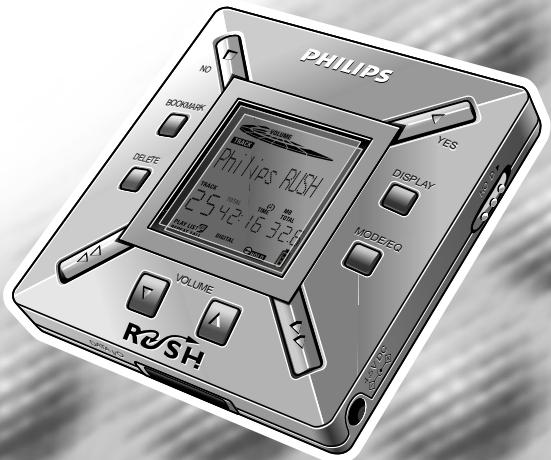
Digital Audio Player
SA 107
Toll Free Help Line
Let's make things better
PHILIPS

PHILIPS
SAFETY
Know these safety symbols

CAUTION
RISK OF ELECTRIC SHOCK DO NOT OPEN

CAUTION: TO REDUCE THE RISK OF ELECTRIC SHOCK, DO NOT REMOVE COVER (OR BACK). NO USER-SERVICEABLE PARTS INSIDE. REFER SERVICING TO QUALIFIED SERVICE PERSONNEL

This "bolt of lightning" indicates uninsulated material within your unit may cause an electrical shock. For the safety of everyone in your household, please do not remove product covering.

The "exclamation point" calls attention to features for which you should read the enclosed literature closely to prevent operating and maintenance problems.
WARNING: TO PREVENT FIRE OR SHOCK HAZARD, DO NOT EXPOSE THIS EQUIPMENT TO RAIN OR MOISTURE.
CAUTION: To prevent electric shock, match wide blade of plug to wide slot, and fully insert.
INFORMATION
For details on warranty registration, product information, instructions for use or frequently asked questions, please visit our web site:
www.rush.philips.com
for additional information and purchases.
Use 32 or 64 MB SmartMedia cards with the ID32MB or ID64MB logo only, or use Philips 32 MB Blue SmartMedia cards only.
The serial number is located inside the battery compartment, and the model number is on the back of the set.
The set complies with the Federal Communications Commission-Rules, Part 15. Operation is subject to the following two conditions:
- This device may not cause harmful interference, and
- This device must accept any interference received, including interference that may cause undesired operation.
Windows is a registered trademark of Microsoft Corporation.
Pentium is a registered trademark of Intel Corporation.
RealJukebox is a registered trademark of RealNetworks.
Corporation. Audible and AudibleReady are registered trademarks of Audible, Inc. All rights reserved. All trade names referenced are the service mark, trademark or registered trademarks of their respective manufacturers.
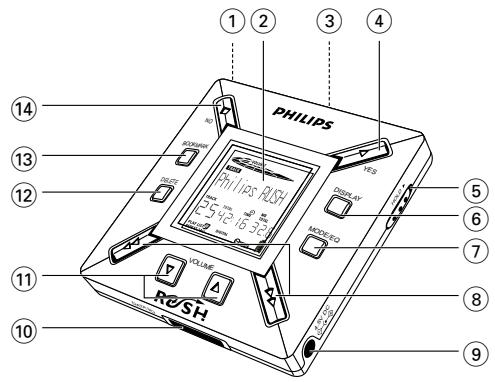
Fig. 1
1
2
3
4
IMPORTANT SAFETY INSTRUCTIONS - Read before operating equipment
This product was designed and manufactured to meet strict quality and safety standards. There are, however, some installation and operation precautions which you should be particularly aware of.
- Read these instructions - All the safety and operating instructions should be read before the appliance is operated.
- Keep these instructions - The safety and operating instructions should be retained for future reference.
- Heed all warnings - All warnings on the appliance and in the operating instructions should be adhered to.
- Follow all instructions - All operating and use instructions should be followed.
- Do not use this apparatus near water - for example, near a bathtub, washbowl, kitchen sink, laundry tub, in a wet basement or near a swimming pool, etc.
- Clean only with a damp cloth - The appliance should be cleaned only as recommended by the manufacturer.
-
Install in accordance with the manufacturers instructions. Do not block any of the ventilation openings – For example, the appliance should not be situated on a bed, sofa, rug, or similar surface or placed in a built-in installation, such as a bookcase or cabinet that may impede the flow of air through the ventilation openings.
-
Do not install near any heat sources such as radiators, heat registers, stoves, or other apparatus (including amplifiers) that produce heat.
- Only use attachments/accessories specified by the manufacturer.
- Use only with a cart, stand, tripod, bracket, or table specified by the manufacturer, or sold with the apparatus. When a cart is used, use caution when moving the cart/apparatus combination to avoid injury from tip-over.
- Refer all servicing to qualified service personnel. Servicing is required when the apparatus has been damaged in any way, such as power-supply cord or plug is damaged, liquid has been spilled or objects have fallen into the apparatus, the apparatus has been exposed to rain or moisture, does not operate normally, or has been dropped.
EL 4562-E004:99/3
CANADA
English: This digital apparatus does not exceed the Class B limits for noise emissions from digital apparatus as set out in the Radio Interference Regulations of the Canadian Department of Communications.
INDEX
CONTENTS
Safety, Information 2 + 4
Controls and connections. 3 + 6
General Information 7
Maintenance, Power Supply 8-9
Using your SmartMedia card 9-10
Switching RUSH on/off 10
Adjusting volume, sound and HOLD. 11
Display, Playing tracks. 12
Play modes, BOOKMARK 13
DELETE feature. 13-14
Carrying pouch 14
Connecting RUSH to your computer 15
RUSH installation CD-ROM 16-19
In-Car Connection 20
Troubleshooting 21-22
Technical data 23
Limited Warranty. 24-25
INDEX
CONTROLS AND CONNECTIONS
English
(PleaseserefertoFig.1onpage3)
① - 3.5mm stereo headphone jack.
② Display screen - shows status of the set and basic file details. E.g.
Mb - memory space;
kHz - sampling frequency of original recording.
kbps - compression rate of file.
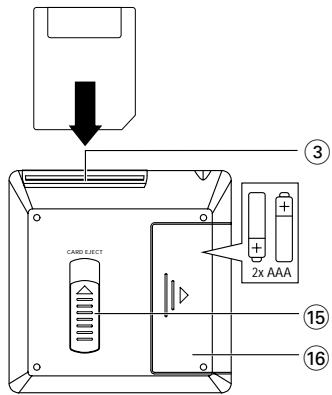
③ CARD INSERT - insert the SmartMedia card here.
(4) YES switches the set on, starts and pauses playback.
⑤ HOLD▶- locks function keys to prevent keys from being pressed accidentally.
⑥ DISPLAY - selects file details e.g. name of song, artist, album, track numbers, and elapsed playing time.
⑦ MODE/EQ
- selects shuffle and repeat options, including repeat or random order playback.
-
EQ(ualizer): select from four sound modes: Normal/ Jazz/ Rock/ Classic.
-
skips to beginning of a current/previous/next track or file;
- searches backward/ forward within a track or file.
(9) 4.5V DC - connect supplied AC/DC adapter as an option to using battery power.
DATA I/O - connect the supplied USB or parallel cable here and to the USB or parallel port of your computer.
11 VOLUME , - adjusts the volume.
(12) DELETE – deletes current tracks/ erases SmartMedia card/ clears all bookmarks.
13 BOOKMARK - sets up to a maximum of ten bookmarks within the SmartMedia card.
14 NO - switches the set off, or stops playback.
15 CARD EJECT - push up switch to eject the SmartMedia card.
16 Battery compartment - for two AAA batteries.
Environmental information
We have reduced the packaging to its minimum and made it easy to separate into two materials: cardboard (box) and polyethylene (bags).
Your set consists of materials which can be recycled if disassembled by a specialized company. Please observe the local regulations to dispose of packing materials, dead batteries and old equipment.
GENERAL INFORMATION
SUPPLIED ACCESSORIES
Make sure all items listed are in the package purchased. If any item is missing, please contact your dealer.
- one car kit
- one USB cable
- one parallel cable
- one AC/DC adapter
- one SmartMedia card with ID logo
- one protective rubber seal for the DATA I/O jack
- one SmartMedia card holder with label and chrome stickers
- one RUSH installation CD-ROM
- one set of in-ear headphones
- one carrying pouch
- two AAA, R03 or UM4 alkaline batteries
IMPORTANT SPECIFICATIONS
RUSH is a solid-state, portable, digital audio player. It can:
- play MP3 format files that you can download from the internet;
- playback digitized and compressed CD tracks, tape tracks, audio books, newspapers, sound effects, etc., that are encoded into MP3 format using RealJukebox.
Because the set is fully electronic with no moving parts and lasers, you can play music while you are moving without missing the quality.
COMPUTER SYSTEM REQUIREMENTS
- USB port with Windows 98 and for parallel port with Windows 95 and ECP/EPP mode
- Internet Explorer 3.01 or above, Netscape 4.0 or above and Internet access
Intel Pentium 200 MHz - 64MB internal memory (recommended)
Free on the personal computer: 15MB for the software, plus 1 MB for every minute of music you store on the pc - CD-ROM drive
16 bit sound card
256 color video card
TAKE CARE WHEN USING HEADPHONES
Hearing Safety: Listen at a moderate volume. Using headphones at high volume can impair your hearing.
Traffic Safety: Do not use headphones while driving or cycling as you may cause an accident.
COPYRIGHT INFORMATION
Unauthorized duplication and distribution of Internet/ CD recordings violate copyright law and international treaties. You should use the MP3 software only for personal purposes.
English
GENERAL MAINTENANCE
- To avoid damage or malfunction:
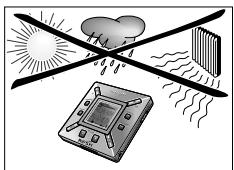
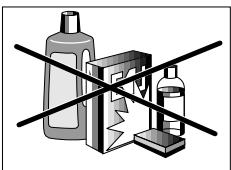
- Do not expose the set, batteries, or SmartMedia cards to strong magnetic fields, humidity, rain, sand, or excessive heat caused by heating equipment or direct sunlight.
- Do not drop the set or allow objects to fall on the set.
- Do not allow the set to contact water. Wipe the surface of the set dry if wet. Water entering the set may cause major damage.
- To clean the set, use a soft, slightly dampened chamois leather. Do not use any cleaning agents containing alcohol, ammonia, benzene, or abrasives as these may harm the set.
POWER SUPPLY
BATTERIES
1 Open the battery compartment and insert two batteries (preferably alkaline) type AAA as indicated by the + and - symbols inside the battery compartment.
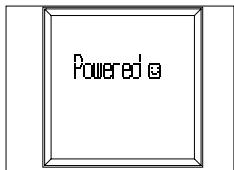
2 Close the battery compartment door. Powered appears on the display.
INDICATION OF EMPTY BATTERIES
The number of blocks inside the battery symbol indicates the power level.
- When the power level is almost empty, the symbol starts to flash. Replace the batteries or change to AC power.
- Battery Lou appears on the display if you ignore the flashing. The set will switch off automatically.
Important!
- Remove the batteries if they are dead or if the set is not to be used for more than two weeks.
- Batteries contain chemical substances, so they should be disposed of properly.
- This set does not have an on board function for rechargeable batteries.
USING YOUR SMARTMEDIA CARD
AC/DC ADAPTER
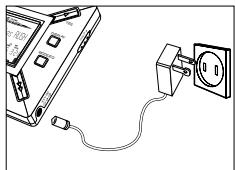
1 Make sure the local voltage corresponds to the 4.5 V adapter's voltage. The 1.3 mm center pin (in the 4.5V DC jack on the set) must connect to the positive pole of the supplied adapter with 3.5mm jack.
2 Connect the adapter to the set's 4.5V DC jack and a wall power outlet.
Powered message may appear briefly on the display.
3 Always disconnect the adapter from the AC wall power outlet if you are not using it.
(See Fig. 1 on page 3)
You can store up to 120 minutes of music on the card, erasing and overwriting as you want.
Make sure the set is off before inserting or removing the card.
- Insert a SmartMedia card into CARD INSERT with the clipped corner of the card aligned as shown on the set.
Display shows:
Blank 64 Nb - if your card is blank.
card details if card already contains files.
Urrone Card - if format is incompatible with the set.
→ No Audio Tr - the track is not an audio track or your card is blank.
- Ejecting: Slide the CARD EJECT switch up and remove the card.
PREVENTING CARD ERASURE AND OVERWRITING
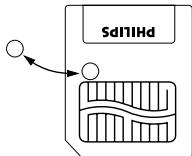
- To prevent accidental erasure or overwriting of your card, place a chrome sticker over the circle on the front of the card.
- Remove the chrome sticker to erase or overwrite your card.
- Write Protect appears on the display if you have forgotten to remove the chrome sticker and try to delete tracks or erase your card.
Notes:
- Use only 32 or 64 MB Smartmedia cards with the ID32MB or ID64MB logo only, or use Philips 32 MB Blue SmartMedia cards only.
- For further information, please visit our web site: www.rush.philips.com.
- Do not use SmartMedia cards from a digital camera or computer for your set.
After a SmartMedia card has been formatted for MP3 files, the card will not be recognized by your PC or digital camera.
SWITCHING ON/OFF, PLAYING AND PAUSING AUDIO FILES
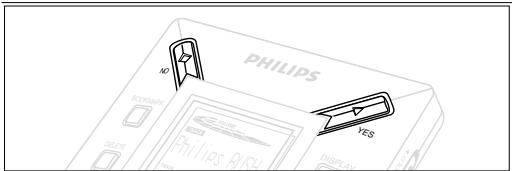
1 Press YES to switch on the set.
→ Philips RUSH appears on the display before playback starts.
If no card is inserted: Insert Card (No Card) appears.
2 Press YES briefly to pause playback. To resume playback, press YES again.
3 Press NO twice to switch off the set.
Power-saving standby mode
The set automatically switches off if no keys are pressed within 15 seconds of when playback is stopped, the end of a file is reached, or pause is activated.
Adjusting volume and sound
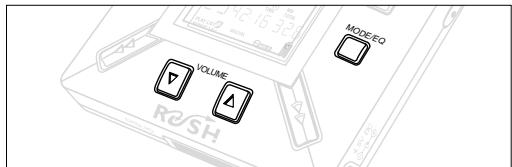
1 Press and hold VOLUME , to decrease or increase the volume.
→ The volume bar changes on the display to show the volume.
2 Press and hold MODE /EQ for two seconds to see the equalizer options: Normal/ Jazz/ Rock/ or Classic.
3 When the display shows one of the equalizer options, press MODE /EQ briefly and repeatedly to select your option.
Locking functions with HOLD
HOLD prevents the front panel keys from being pressed accidentally.
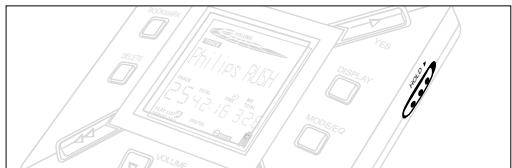
1 Push the HOLD switch to the right as indicated to lock the keys.
Display shows when activated, and the front panel keys will not function.
2 To deactivate, push the HOLD switch to the left.
- If you forget to unlock HOLD and attempt to switch the set on/off, the display shows the message: Hold Switch. You must deactivate HOLD first.
Display
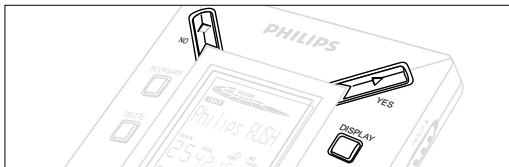
1 Press DISPLAY repeatedly to see various types of information about the items stored on the SmartMedia card:
TRACK song title
ARTIST name, if entered, or 'No Artist Info'
ALBUM title, if entered, or 'No Album Info'
CARD title, if entered, or 'No Card Info'
FILE name
Track Time
Remained Time - remaining playing time of current track
Total Time -total playing time of file
Option? - the card's technical details -
Free Memory, Total Memory, Sampling Frq.
(Frequency) and Compression rate.
2 Press YES to confirm the type of detail.
3 If you want to see the details under Option?
- Press YES again, while the display shows Option?
- Press DISPLAY briefly and repeatedly until you see your option.
Selecting a different track
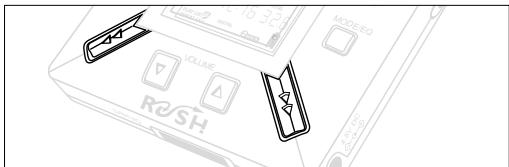
- Press or once or repeatedly until the desired track number appears in the display.
Fast searching within a track
- Press and hold or . Watch the track time to find the desired point in the track and release or .
Different play modes: REPEAT and SHUFFLE
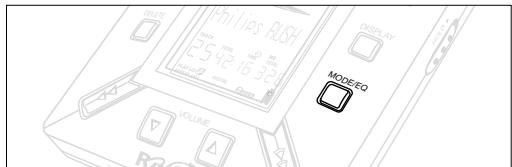
1 To select your play mode before or during playback, press MODE /EQ briefly and repeatedly to scroll through the options.
REPEAT 1 - repeats current track continuously.
REPEAT ALL - repeats all tracks stored in the selected mode continuously.
SHUFFLE -plays tracks in random order.
2 To return to normal playback, press MODE/EQ repeatedly until the various SHUFFLE/ REPEAT modes are no longer displayed.
USING BOOKMARK TO FIND YOUR FAVORITE PASSAGES
BOOKMARK allows you to start playback instantly from selected points within a file/track. You can set up to 10 bookmarks.
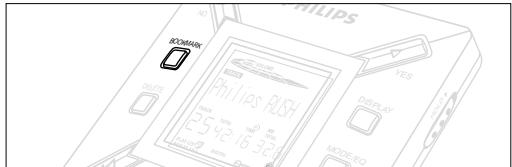
1 To set the bookmark at the desired passage, press and hold BOOKMARK for more than two seconds.
Display shows Mark Set.
2 Repeat step 1 to set other bookmarks.
3 To select a bookmark, press BOOKMARK repeatedly.
Display shows the bookmark number, 1-10, and playback starts immediately from this point.
Deleting tracks, bookmarks, and card
DELETE allows you to clear:
- all bookmarks.
- a selected track.
- an entire SmartMedia card.
English
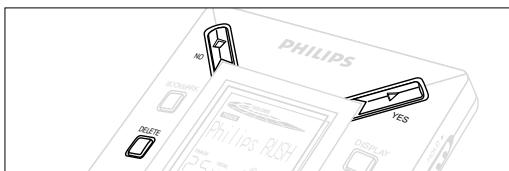
When clearing tracks or the entire card, use DELETE sparingly unless you are absolutely sure you no longer want the existing contents!
1 During playback, press YES to pause playback.
2 Press DELETE repeatedly to see the options.
Display shows in sequence Delete Track?, Erase Card? and Clear Marks?
- If you have selected Erase Card, the display shows an extra message: Are You Sure?. To continue to delete the entire card, press YES.
3 To cancel DELETE, press NO
4 To delete an item, press YES
Display shows Clearing Marks Clearing Tracks or Erasing Card and then: Track Deleted, Marks Cleared or Card Erased.
Note: If you set more than ten bookmarks, this will overwrite your original set of bookmarks.
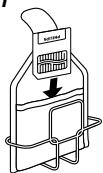
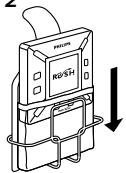
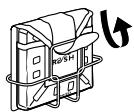
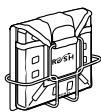
Disconnect headphones before using the pouch.
1 Store your extra SmartMedia card(s) in the pocket.
2 Insert the set into the pouch with the display screen facing the plastic square.
3 Insert the strap through the plastic square and pull strap to adjust securely.
4 Adjust elastic cords to ensure all keys are accessible.
Detachable key ring
Push back the hinge of the key ring, then hook onto a belt, ring, etc.
Belt strap
If your belt is a suitable width, thread the belt through the strap at the back of the pouch.
CONNECTING RUSH TO YOUR COMPUTER
Depending on your PC, you can choose one of 2 ways to connect RUSH to your computer.
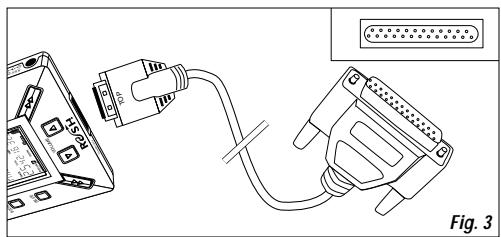
- Parallel port option (see Fig. 3)
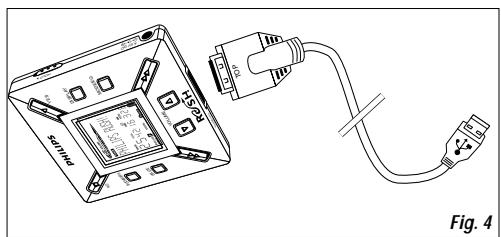
Follow steps 1-4 below. - USB port option (see Fig. 4)
Follow step 3, but connect the port/USB cable to the computer's USB port and the set.
1 Make sure your computer and the set are switched off.
2 If a printer cable is connected to the parallel port on your computer, disconnect the printer cable.
3 Connect the supplied parallel cable to the computer's respective port. Remove the protective rubber seal from the DATA I/O jack on the set, then insert the other end of the cable to DATA I/O. - IMPORTANT:
- To avoid damage to the set, check the other end of the cable is the right way up, with the side marked TOP facing up, before you insert this cable end to DATA I/O.
Always replace the protective rubber seal when not connecting RUSH to your computer. Keep the seal in the carrying pouch or a safe place when removed from the DATA I/O jack.
4 Turn on the set first, then turn on your computer.
REALJUKEBOX
English
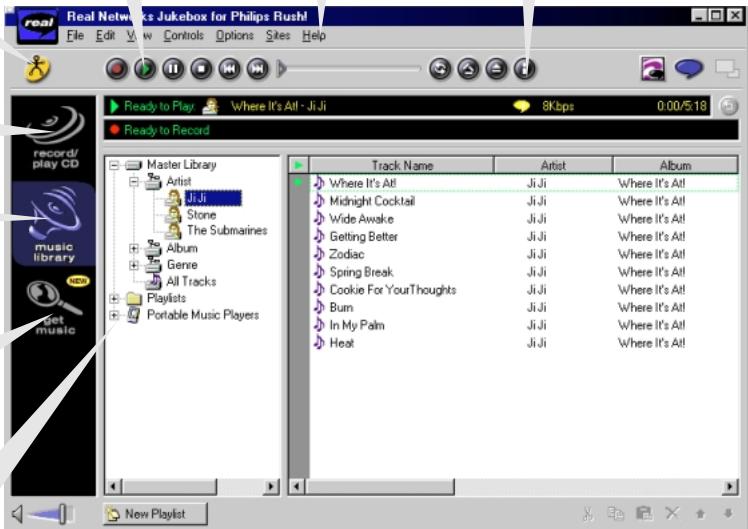
Instantly access to Philips SmartConnect website.
Put your CD collection on your PC. Record CDs at high speed (up to seven times faster than playback speed).
Create and save Playlists for any occasion. Sort and manage thousands of songs and hundreds of CDs by genre, artist, album, song title and more.
Find and download music from the Web, including MP3 songs.
Drag and drop music from RealJukebox to RUSH!
Plays the broadest range of digital music. Listen to music while you record.
Quickly and easily download and install new plug-ins and updates.
Automatically downloads CD track, artist and album information.
INSTALLING REALJUKEBOX ONTO YOUR COMPUTER
IMPORTANT
Read all the RealJukebox instructions before installing.
- Use the Help menu for more information.
RealJukebox
Install the RealJukebox software to manage your playlist selection on your personal computer. RealJukebox allows you to:
- Record from /play CDs: Records CDs at high speed onto your computer's hard drive and downloads the songs to Rush for super compact portable playback.
- Set up a music library: Automatically indexes songs by artist, album, genre, etc.
- get music: Download free songs from the Internet.
IMPORTANT
If you are using the parallel port, RealJukebox is designed to work in ECP (Printer Port) mode. Make sure your computer supports ECP mode before starting the installation by following step 1. Then to install RealJukebox, continue to steps 2-3.
- USB users: go directly to steps 2-3 to install RealJukebox.
1 Select My Computer, then click through the following items: My Computer Control panel System Device Manager Ports.
- Make sure ECP is available at Ports.
2 Insert the RealJukebox CD into your CD-ROM drive. The program setup screen will appear on your monitor.
3 Follow Install RealJukebox screen directions to install the RealJukebox software. - Click Yes on the screen to restart your computer when prompted. The software is now installed.
IF YOU ARE NOT IN ECP MODE:
- Restart your computer.
Refer to your computer instruction manual, or contact the dealer to enter BIOS set-up. - Select ECP as the parallel port mode.
IF YOUR COMPUTER DOES NOT SUPPORT ECP MODE:
Refer to your computer instruction manual, or contact the dealer to select EPP or Bi-directional mode.
Tips on using RealJukebox:
- Log onto the Internet while using RealJukebox to use all the features.
- Complete the Online Tutorial before using and recording files.
INFORMATION ON RECORDING AND ENCODING
- From the main menu, select Options, then click through: Preferences Recording Options.
- For best recording results, select Use Error Correction, then click OK.
- RUSH plays files encoded with the popular MP3, RealAudio, Wave Audio and Secure Files Setting formats. Select Encoding Options to select your recording format and quality level:
-
MP3 Audio is MPEG layer 3 Audio. Compression levels available are: 96, 64, and 56 Kbps stereo, using the supplied RealJukebox software. If you upgrade your software, Philips RUSH can play music up to 224 Kbps. This has the best sound quality, but uses the most disk space.
RealAudio is RealNetworks' audio format. This format saves your music as RealAudio (.rmx) secure or RealAudio unsecured (.rmj) files. Compression levels available are: 96, 64, and 44 stereo, and 32 Kbps mono. Among these, 96 Kbps has the best sound quality, but uses the most disk space.
Wave Audio is unencoded music that is not compressed. This format has the best quality sound but uses the largest file size, as much as 650MB per CD. -
Secure Files Setting: has two further options. Secure Files On, where files recorded with security on can only be played on the personal computer on which they were recorded. Secure Files Off allows the recorded files to be played on more than one computer.
Making MP3 files from a CD
1 Double-click to select RealJukebox from your computer.
2 Insert an audio CD into the CD-ROM drive.
Monitor display shows CD track details.
3 Select the track you want to record in MP3.
4 From Controls in the toolbar, click Record
Monitor display shows recording status. When recording is complete, the track will be stored in the Music Library.
Sending files to RUSH from your computer
1 Before connecting RUSH to your computer, insert batteries or connect the set to AC power. (See Connecting Rush to your computer.) Press YES to switch on Rush.
2 Double-click to select RealJukebox from your computer.
3 Click through the following items under Portable Players/ Storage: Philips RUSH External Flash Card
4 To transfer your MP3 files to RUSH, drag your selected file from your Music Library and drop into External Flash Card.
5 Click the Begin Transfer button, at the bottom of the screen, to copy your your selected tracks to your RUSH SmartMedia card. Monitor display shows transfer status.
Organizing the library
You can organize the Master Library into three groupings:
Artist, Album or Genre.
Enter the Master Library from the Options menu: (Options)
Preferences Music Library Master Library.
Creating a Playlist
Create a playlist for playback on your computer or to download to RUSH.
1 Click New Playlist at the bottom of the screen.
2 Type in a name for your playlist.
3 Click to select the music you want to record.
4 Drag and drop the desired songs to your playlist.
Downloading from the Internet
1 With access to Internet on your computer, click get music. RealJukebox connects you to the Internet.
2 Select your music and download it to your library and playlist.
MP3 web sites
You can find MP3 news, and download MP3 files from Internet sites. Below are examples:
Web site . address
Philips Consumer Electronics
http://www.smartconnect.philips.com/album
Emusic http://www.emusic.com
Audible Inc. http://www.audible.com
AudioExplosion, Inc. http://www.audioexplosion.com
AudioHighway.com. http://www.audiohighway.com
Big Heavy World http://www/bigheavyworld.com
MP3.com http://www.mp3.com
SINC Recordings http://www.sinrecordings.com
Songs.com http://www.songs.com
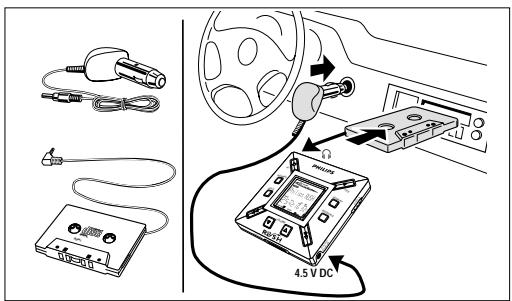
IN-CAR CONNECTION
English
IN-CAR USE (CONNECTIONS SUPPLIED OR OPTIONALLY AVAILABLE)
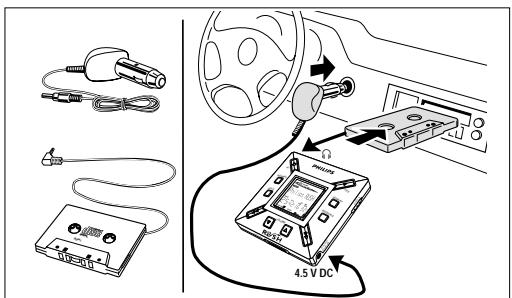
Only use the supplied car voltage converter (4.5 V, DC, positive pole to the center pin) and the car adapter cassette. Any other product may damage the set.
1 Put the RUSH on a horizontal, vibration-free and stable surface. Make sure it is a safe place, where the player is not a danger or obstacle to the driver and passengers.
2 Connect the DC plug of the voltage converter to the 4.5V DC jack of the RUSH.
3 Insert the voltage converter into the cigarette lighter jack. If necessary, clean the cigarette lighter jack to obtain a good electrical contact (only for a 12V car battery, negative grounding).
4 Turn down the volume and connect the adapter cassette plug to the jack of RUSH.
5 Carefully insert the adapter cassette into the car radio's cassette compartment.
6 Make sure the cord does not hinder your driving.
7 Start the RUSH, set VOL to 8 bar and adjust the sound with the car radio controls.
Always remove the voltage converter from the cigarette lighter jack when the RUSH is not in use.
Notes:
- Avoid excessive heat from the car heating or from direct sunlight (e.g. in a parked car in the summer).
- If your car radio has a LINE IN jack, use the LINE IN jack for the car radio connection instead of the adapter cassette. Connect the signal lead to this LINE IN jack and the jack of the RUSH.
TROUBLESHOOTING
If a fault occurs, first check the points listed below before taking the set for repair.
If you are unable to remedy a problem by following these hints, consult your dealer or service center.
WARNING: Do not open the set as there is a risk of electric shock! Under no circumstances should you try to repair the set yourself, as this will invalidate the warranty.
PROBLEM
-POSSIBLE CAUSE
- REMEDY
No display/ sound
- Batteries weak/ incorrectly inserted.
-
Correctly insert fresh batteries.
-
Loose AC adapter connection/ power supply switched off
-
Check adapter and power outlet connection. Switch on power supply at wall outlet.
-
YES not pressed long enough.
-
Press YES until display turns on.
-
Headphones not properly connected.
- Insert headphone plug into jack completely.
In car use
- Wrong playback direction of the cassette player's autoreverse feature.
- Change the autoreverse direction.
No power to external drive
- Connections loose/power supply not switched on/computer not turned on.
- Make sure all connections are secure. Switch on the power at the wall outlet. Turn on the computer.
In car use
Cigarette lighter is not powered when ignition is off.
- Switch on ignition or insert batteries.
Cigarette lighter jack is dirty.
- Clean the cigarette lighter jack.
No reaction to controls and/or display shows Hold Switch
HOLD activated.
- Switch off HOLD.
- Electrostatic discharge.
- Remove batteries and replace after several seconds.
TROUBLESHOOTING
English
SmartMedia card does not insert/ play
- Card inserted incorrectly.
- Insert according to illustration (See Fig. 1 on page 3).
- Incompatible format.
- Use MP3 format.
- Card damaged.
-
Replace card.
-
Incompatible card from a digital camera /another MP3 player.
- Use only 32MB or 64 MB SmartMedia cards with the ID32MB or ID64MB logo, or use Philips 32 MB Blue SmartMedia cards only.
USB does not connect/ function
-
An unsuitable USB cable has been used.
-
Use the supplied USB cable only.
- Cable connections incorrect or not secure.
- Check all connections are correct and well inserted between RUSH and your computer.
- USB driver not installed.
-
Check you have installed the USB driver provided from the RUSH installation CD-ROM.
-
Wrong Windows version.
- Your computer must be equipped with Windows 98.
- USB not enabled.
- Check the BIOS set-up: USB has to be enabled.
Unable to download MP3 file
- Batteries low and/ or connection between the set and computer loose.
- Check battery status and USB or parallel cable connection.
- (For parallel port users only) Parallel port not in ECP mode.
See chapter: INSTALLING REALJUKEBOX ONTO YOUR COMPUTER.
Set skips/repeats files
- SHUFFLE or REPEAT mode is active.
- Press MODE/EQ to switch off SHUFFLE / REPEAT.
Long delay between songs
- Alternating between MP3, RealAudio or Wave formats.
- Group songs by format, then transfer files to RUSH.
TECHNICAL DATA
Amplifier system
Audio out 2x5mW
S/N ratio. >60dB
Frequency response 30Hz - 16KHz
Connections
I/O Interface 26-pin mini connector, USB
DC jack 3.5 mm, 4.5V center '+
Power Supply
Batteries 2xAAA
External supply 4.5V DC
General
Weight 65 g (without batteries)
LIMITED WARRANTY
PORTABLE AUDIO
90 days Free Exchange and One Year Labour This product must be carried in for an exchange.
WHO IS COVERED?
You must have proof of purchase to exchange the product. A sales receipt or other document showing that you purchased the product is considered proof of purchase. Attach it to this owner's manual and keep both nearby.
WHAT IS COVERED?
Free Exchange: Warranty coverage begins the day you buy your product. For 90 days thereafter, a defective or inoperative product will be replaced with a new, renewed or comparable product at no charge to you. A replacement product is covered only for the original warranty period.
Labor: All parts, including repaired and replaced parts, are covered only for the original warranty period. After one year from the day of purchase, you pay for the repair of all parts and for all labor charges.
- When the warranty on the original product expires, the warranty on replacement, and all parts replaced and repaired also expires.
WHAT IS EXCUSED?
Your warranty does not cover:
- labor charges for installation or setup of the product, adjustment of customer controls on the product, and installation or repair of antenna systems outside of the product.
product repair and/or part replacement because of misuse, accident, unauthorized repair or other cause not within the control of Philips Consumer Electronics Company. -
reception problems caused by signal conditions or cable or antenna systems outside the unit.
-
a product that requires modification or adaptation to enable it to operate in any country other than the country for which it was designed, manufactured, approved and/or authorized, or repair of products damaged by these modifications.
- incidental or consequential damages resulting from the product. (Some states do not allow the exclusion of incidental or consequential damages, so the above exclusion may not apply to you. This includes, but is not limited to, prerecorded material, whether copyrighted or not copyrighted.)
- a product used for commercial or institutional purposes.
WHERE ARE EXCHANGE AND SERVICE AVAILABLE?
Exchange and warranty service are available in all countries where the product is officially distributed by Philips Consumer Electronics Company. In countries where Philips Consumer Electronics Company does not distribute the product, the local Philips service organization will attempt to provide service or a replacement product (although there may be a delay if the appropriate product or spare parts are not readily available).
BEFORE REQUESTING EXCHANGE OR SERVICE
Please check your owner's manual before requesting an exchange or service. Adjustments of the controls discussed there may save you a trip.
LIMITED WARRANTY
EXCHANGING OR SERVICING A PRODUCT IN U.S.A., PUERTO RICO OR U.S.VIRGIN ISLANDS...
Contact your dealer to arrange an exchange. Or, ship the product, insured and freight prepaid, and with proof of purchase enclosed, to the address listed below.
Small Product Service Center
Philips Service Company
907 Snapps Ferry Road, Plant 2, Building 6
Greeneville, TN 37743
Take the product to a Philips factory service center or authorized service center for repair. When the product has been repaired, you must pick up the unit at the center. Centers may keep defective parts. (In U.S.A., Puerto Rico and U.S.Virgin Islands, all implied warranties, including implied warranties of merchantability and fitness for a particular purpose, are limited in duration to the duration of this express warranty. But, because some states do not allow limitations on how long an implied warranty may last, this limitation may not apply to you.)
EXCHANGING OR SERVICING A PRODUCT IN CANADA...
Please contact Philips at:
1-800-661-6162 (French Speaking)
1-800-363-7278 (English Speaking)
(In Canada, this warranty is given in lieu of all other warranties. No other warranties are expressed or implied, including any implied warranties of merchantability or fitness for a particular purpose. Philips is not liable under any circumstances for any direct, indirect, special, incidental or consequential damages, howsoever incurred, even if notified of the possibility of such damages.)
TO GET OUT-OF-WARRANTY EXCHANGE...
In U.S.A., Puerto Rico or U.S.Virgin Islands, contact Philips Service Company at 1-800-531-0039 to obtain the cost of out-of-warranty exchange. Then carefully pack the product and ship it to the Small Product Service Center (address listed above). In Canada, call the phone number listed above under "Exchanging a Product in Canada" to obtain the cost of out-of-warranty exchange.
REMEMBER...
Please record the model and serial numbers found on the product below. Also, please fill out and mail your warranty registration card promptly. It will be easier for us to notify you if necessary.
MODEL #
SERIAL#
This warranty gives you specific legal rights. You may have other rights which vary from state/province to state/province.
Philips Service Solutions Group, P.O. Box 2976, Longview, Texas 75606, (903) 242-4800
EL6095T002/MAC5433/2000
SECURITE
(Frequency) et Compression rate.
Portable Players/Storage:
Philips RUSH External Flash Card.
Philips Consumer Electronics
http://www.smartconnect.philips.com/audio
Emusic....http://www.emusic.com
Audible Inc. http://www.audible.com
AudioExplosion, Inc... . http://www.audioexplosion.com
AudioHighway.com... http://www.audiohighway.com
Big Heavy World . . . . http://www/bigheavyworld.com
MP3.com .http://www.mp3.com
SINC Recordings . . . http://www.sincrecordings.com
Songs.com....http://www.songs.com
RACCORDEMENT EN VOITURE
UTILISATION EN VOITURE (CONNECTEURS FOURNIS OU EN OPTION)
- CAUSE POSSIBLE
- SOLUTION
Small Product Service Center
Philips Service Company
907 Snapps Ferry Road, Plant 2, Building 6
Greeneville, TN 37743 E.-U.
Philips Service Solutions Group, P.O. Box 2976, Longview, Texas 75606, E.-U., (903) 242-4800
EL6095T002/MAC5433/2000
SEGURIDAD
AudioExplosion, Inc... . http://www.audioexplosion.com
AudioHighway.com... http://www.audiohighway.com
Big Heavy World . . . . http://www/bigheavyworld.com
MP3.com .http://www.mp3.com
SINC Recordings . . . . http://www.sincrecordings.com
Songs.com. http://www.songs.com
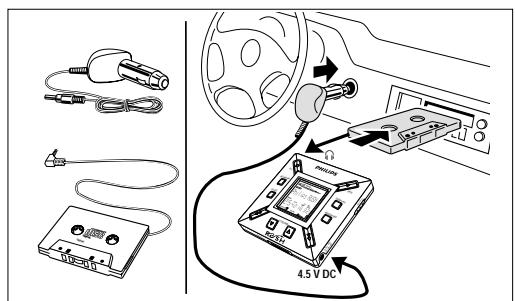
CONEXION PARA EL AUTOMOVIL
UTILIZACION EN EL VEHICULO (CONEXIONES SUMINISTRADAS O DISPONIBLES DE FORMA OPCIONAL)
- POSIBLE CAUSA
SOLUCION
No hayImagen/sonido
JQUE EXCLUYE LA GARANTIA?
Small Product Service Center
Philips Service Company
907 Snapps Ferry Road, Plant 2, Building 6
Greeneville, TN 37743
A Division of Philips Electronics North America Corporation
Knoxville, Tennessee 37914-1810, U.S.A.
Meet Philips at the Internet: http://www.philipsusa.com and http://www.rush.philips.com

Printed in China
Cmm/RM/0024
- SAFETY
- CAUTION
- INFORMATION
- IMPORTANT SAFETY INSTRUCTIONS - Read before operating equipment
- CANADA
- INDEX
- CONTENTS
- CONTROLS AND CONNECTIONS
- English
- (PleaseserefertoFig.1onpage3)
- ⑦ MODE/EQ
- Environmental information
- GENERAL INFORMATION
- SUPPLIED ACCESSORIES
- IMPORTANT SPECIFICATIONS
- COMPUTER SYSTEM REQUIREMENTS
- TAKE CARE WHEN USING HEADPHONES
- COPYRIGHT INFORMATION
- GENERAL MAINTENANCE
- POWER SUPPLY
- BATTERIES
- INDICATION OF EMPTY BATTERIES
- Important!
- USING YOUR SMARTMEDIA CARD
- AC/DC ADAPTER
- PREVENTING CARD ERASURE AND OVERWRITING
- Notes:
- SWITCHING ON/OFF, PLAYING AND PAUSING AUDIO FILES
- Power-saving standby mode
- Adjusting volume and sound
- Locking functions with HOLD
- Display
- Selecting a different track
- Fast searching within a track
- Different play modes: REPEAT and SHUFFLE
- USING BOOKMARK TO FIND YOUR FAVORITE PASSAGES
- Deleting tracks, bookmarks, and card
- Detachable key ring
- Belt strap
- CONNECTING RUSH TO YOUR COMPUTER
- REALJUKEBOX
- INSTALLING REALJUKEBOX ONTO YOUR COMPUTER
- IMPORTANT
- IF YOU ARE NOT IN ECP MODE:
- IF YOUR COMPUTER DOES NOT SUPPORT ECP MODE:
- Tips on using RealJukebox:
- INFORMATION ON RECORDING AND ENCODING
- Making MP3 files from a CD
- Sending files to RUSH from your computer
- Organizing the library
- Creating a Playlist
- Downloading from the Internet
- MP3 web sites
- Web site . address
- IN-CAR CONNECTION
- IN-CAR USE (CONNECTIONS SUPPLIED OR OPTIONALLY AVAILABLE)
- TROUBLESHOOTING
- PROBLEM
- No display/ sound
- In car use
- No power to external drive
- No reaction to controls and/or display shows Hold Switch
- SmartMedia card does not insert/ play
- USB does not connect/ function
- Unable to download MP3 file
- Set skips/repeats files
- Long delay between songs
- TECHNICAL DATA
- Amplifier system
- Connections
- General
- LIMITED WARRANTY
- PORTABLE AUDIO
- WHO IS COVERED?
- WHAT IS COVERED?
- WHAT IS EXCUSED?
- WHERE ARE EXCHANGE AND SERVICE AVAILABLE?
- BEFORE REQUESTING EXCHANGE OR SERVICE
- EXCHANGING OR SERVICING A PRODUCT IN U.S.A., PUERTO RICO OR U.S.VIRGIN ISLANDS...
- EXCHANGING OR SERVICING A PRODUCT IN CANADA...
- TO GET OUT-OF-WARRANTY EXCHANGE...
- REMEMBER...
- SECURITE
- RACCORDEMENT EN VOITURE
- UTILISATION EN VOITURE (CONNECTEURS FOURNIS OU EN OPTION)
- SEGURIDAD
- CONEXION PARA EL AUTOMOVIL
- UTILIZACION EN EL VEHICULO (CONEXIONES SUMINISTRADAS O DISPONIBLES DE FORMA OPCIONAL)
- No hayImagen/sonido
- JQUE EXCLUYE LA GARANTIA?
Brand : PHILIPS
Model : SA107
Category : Mp3 player