
Barrier T180 - Smartphone Utano - Free user manual and instructions
Find the device manual for free Barrier T180 Utano in PDF.


| Product Type | Smartphone |
| Brand | Utano |
| Model | Barrier T180 |
| Weight (with battery) | 204 g |
| Weight (without battery) | 175 g |
| Battery type | Lithium Polymer 2200 mAh |
| Talk time | 500 minutes |
| Compatible networks | WCDMA/UMTS 900/1900/2100 MHz, GSM |
| SAR (head) | WCDMA: 0.913 W/kg, GSM: 1.024 W/kg |
| Operating system | Android |
| Rear camera | Yes |
| Front camera | Yes |
| Number of SIM cards | 2 (slot 1: WCDMA/GSM, slot 2: GSM) |
| Memory card | MicroSD (up to unspecified capacity) |
| Connectivity | Wi-Fi, Bluetooth, GPS, headphone jack, USB |
| Package contents | Phone, 2200 mAh battery, charger, earphones, user manual, carabiner |
| Maintenance and cleaning | Clean with a soft dry cloth. Avoid liquids and moisture. |
| Safety | Complies with SAR limits. Use only approved accessories. |
| Spare parts and repairability | Removable battery and SIM card. Screws for access. Professional repair recommended. |
| General information | Robust outdoor smartphone with carabiner. Full manual available at barrier.utano-outdoor.com |
Frequently Asked Questions - Barrier T180 Utano
User questions about Barrier T180 Utano
0 question about this device. Answer the ones you know or ask your own.
Ask a new question about this device
Download the instructions for your Smartphone in PDF format for free! Find your manual Barrier T180 - Utano and take your electronic device back in hand. On this page are published all the documents necessary for the use of your device. Barrier T180 by Utano.
USER MANUAL Barrier T180 Utano
Apps for your outdoor life
Get more app-tipps at apps.utano-outdoor.com
MaBe: L 125.0mm x W 65.5mm x H 20.5mm
Standby Zeit: 420h (Single SIM), 160h (Dual SIM)
Get more app-tipps at apps.utano-outdoor.com
VOTRE TÉLÉPHONE MOBILE
Dimensions: L 125.0mm x W 65.5mm x H 20.5mm
Autonomie en veille: 420h (Single SIM), 160h (Dual SIM)
Get more app-tipps at apps.utano-outdoor.com
UW MOBIELE TELEFOON
Grotte: L 125.0mm x W 65.5mm x H 20.5mm
Apps for your outdoor life
We found some amazing apps for your best outdoor experience.
ANDROZIC OziExplorer maps for Android. Tracking, waypoints, routes, navigation.
FREE
Navigation client that uses OziExplorer maps (ozf2, ozfx3). Great for hiking, geocaching, off-reading, sailing, boating and other outdoor activities.
2
ORIENTEER
Now you can show the boy-scout how to Orienteering the next generation. Great App for Geocaching!
FREE
GPS ESSENTIALS
The Swiss army knife of GPS navigation! Navigate, manage waypoints, tracks, routes, build your own dashboard from 45 widgets.
FREE
FIREPLACE For the outdoor feeling at home.
0,89 €

If you have no freetime to go on a excursion, built up your tent and grap your android phone.
YOUR MOBILE PHONE
Mobile Phone View
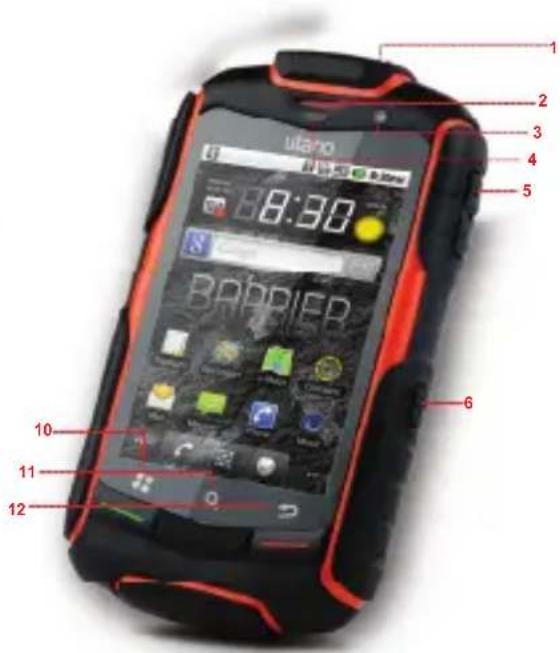
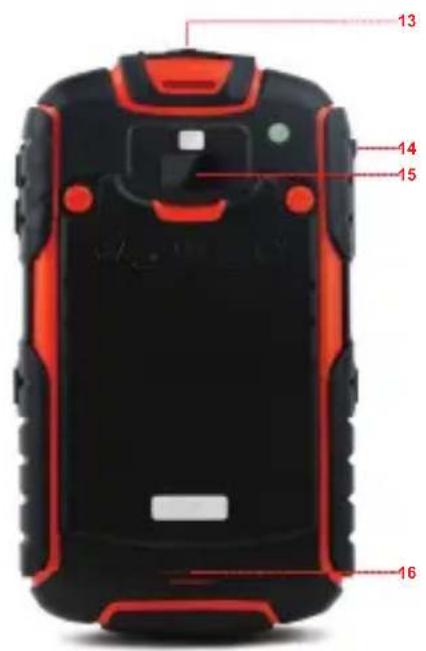
1 Power key
2 Earpiece
3 Front Camera
4 Proximity sensors
5 Volume control keys
6 Capture key
7 End key
8 Home key
9 Send key
10 Menu key
11 Search key
12 Back key
13 Headset jack
14 Charging/Data interface
15 Camera
16 Speaker
Key functions
| Power key • Press to turn on your mobile phone • Press and hold to open the Phone Options menu. • Press to lock the screen when your mobile phone is on. | |
| Send key | Press to go to the Call log screen |
| End key | Press to end a call |
| Back key | • Press to return to the previous screen. • Press to exit any application you are running. |
| Menu key | Press to open the menu on an active screen. |
GETTING STARTED WITH YOUR MOBILE PHONE
Installing the SIM Card

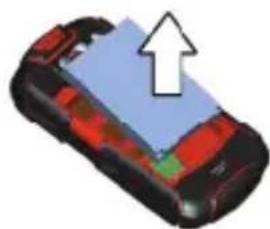
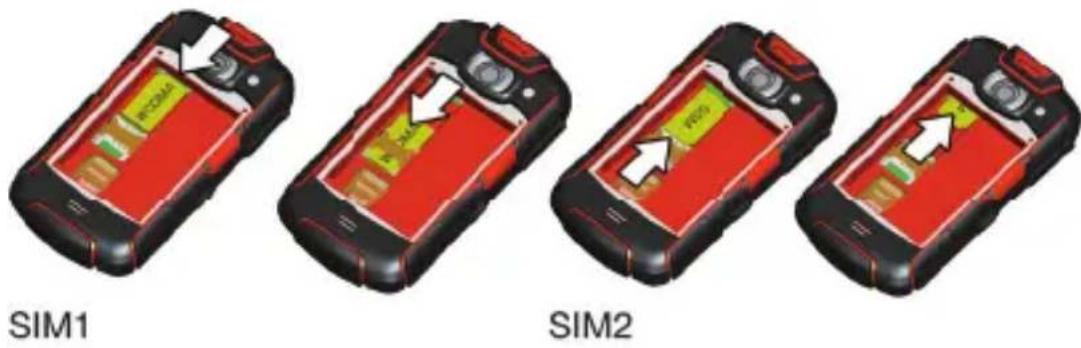
- Remove the battery cover carefully. Use a screwdriver to loosen the screws.
- Insert the SIM card as shown in the diagram and close the battery door.
- Use the Screwdriver carefully and do not overwind the screws.
Note: When inserting the SIM card, ensure that the golden contact faces downward. Card slot 1 supports WCDMA and GSM networks while card slot 2 supports only GSM networks. If you want to use a SIM card supporting WCDMA networks on your phone, insert the card in card slot 1 for better services.
NOTIFICATIONS AND STATUS INFORMATION
Notification and Status Icons
| Call in progress Call in process | using Bluetooth device | |
| Missed call New calendar | reminder | |
| More undisputed notifications | Preparing microSD card | |
| Roaming Signal strength | ||
| Airplane mode Bluetooth | ||
| Connected to another Bluetooth device | Connected to a Wi-Fi network | |
| Speaker on Sound off | ||
| Vibrate mode Microphon | ||
| Battery full Battery very | ||
| Battery is charging Music | ||
| Alarm set New email | ||
| New message |

USING A MICROSD CARD
Installing the microSD Card
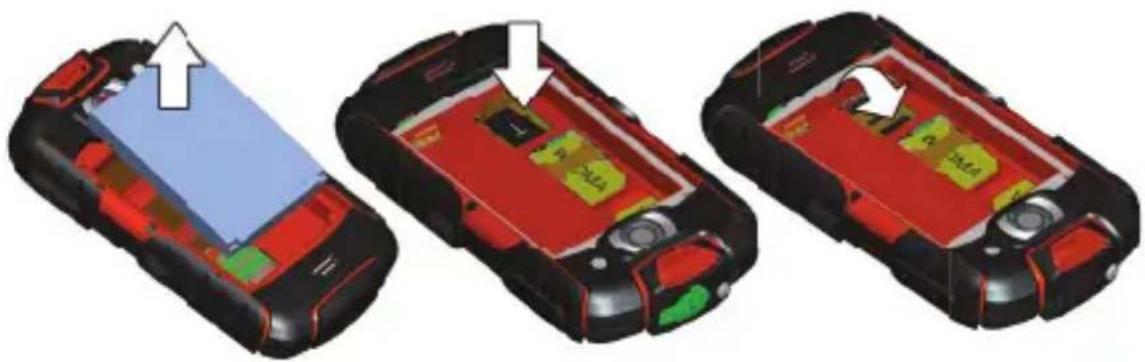
- Remove the battery cover carefully. Use a screwdriver to loosen the screws.
- Insert the microSD card as shown in the diagram and close the battery door.
- Use the Screwdriver carefully and do not overwind the screws.
Note: When inserting the microSD card, make sure that the gold contacts face towards the front of the phone.
USING THE MICROSD CARD AS USB MASS STORAGE
To transfer all your favorite music and pictures from your PC onto your mobile phone's microSD card, set the microSD card as USB mass storage.
- Connect your mobile phone to your PC with the USB cable.
- Touch Mount microSD card to your computer in the dialog box that opens to confirm that you want to transfer fi les. Your PC will detect the microSD card as a removable disk. You can now transfer fi les from your PC to your microSD card.
USING THE ONSCREEN KEYBOARD
Displaying the Keyboard Panel
Open the keyboard as follows: Touch the space where you want to write text to display the keyboard. Press to hide the keyboard.
Using the Android Keyboard
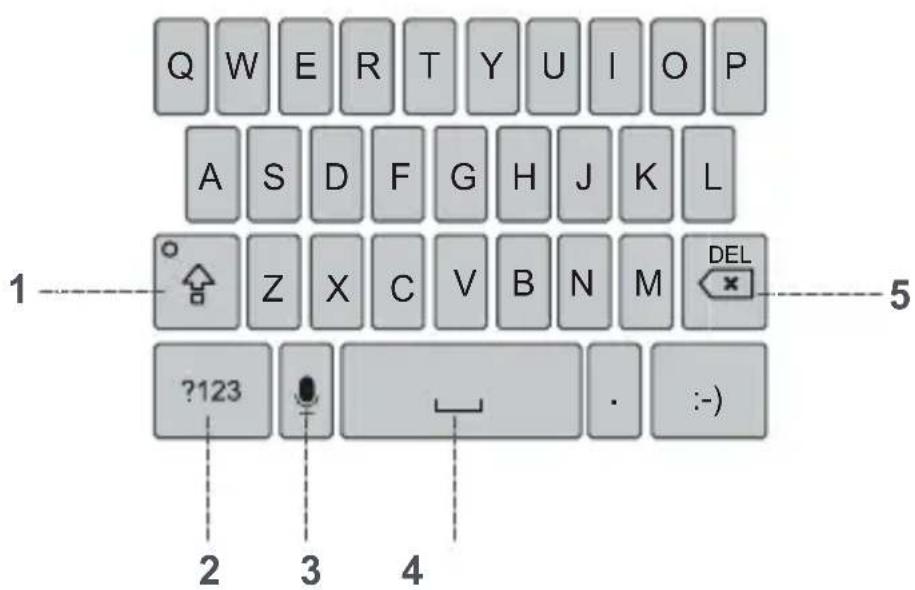
1 Touch to change from uppercase to lowercase.
2 Touch to change from text mode to symbol/ number mode. Touch again to change back.
3 Touch to turn on voice input.
4 Touch to insert a space in your text.
5 Touch to delete a character to the left of the cursor. Touch and hold to delete all characters to the left of the cursor.
Taking Photos and Recording Videos
The camera is a combination of camera and camcorder that you can use to shoot and share pictures and videos.
Opening Your Camera
- Touch > Camera to open the camera. The camera opens in landscape mode, ready to take a picture or shoot a video.
- Press on the picture capture screen to close the camera.
Capture Screen
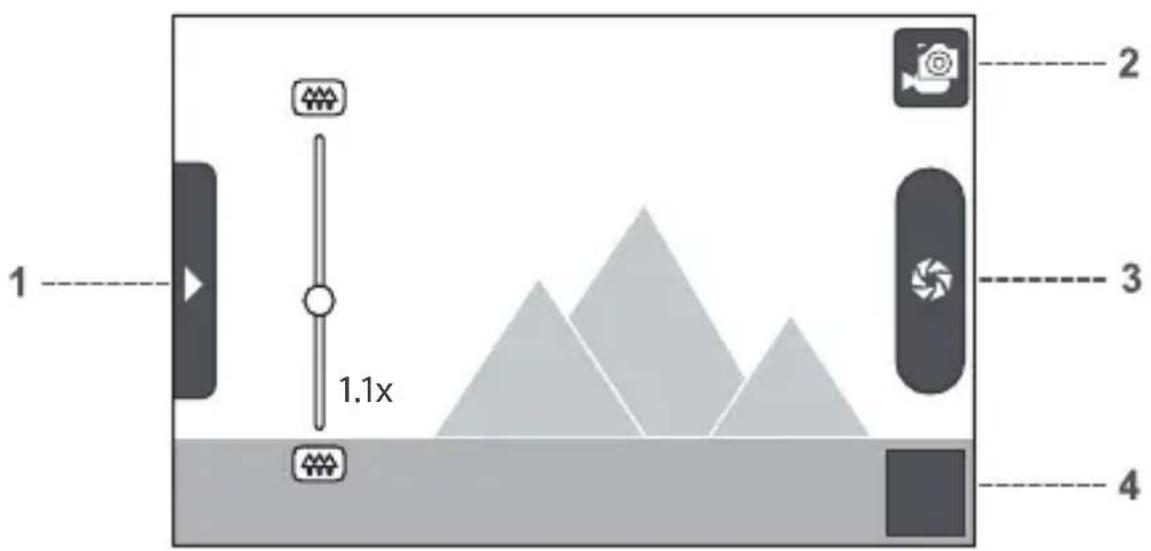
On the capture screen, touch the screen to show the zoom in or out controls.
1 Touch to open the settings panel.
2 Touch to take a photo or shoot a video.
3 Touch to shoot videos (camcorder mode) or take photos (camera mode).
4 Thumbnail of last photo. Touch to preview the photos or videos.

Taking a Photo
- Open your camera and switch to the camera mode.
- If necessary, open the settings panel to change the camera settings. The preview changes as you change the settings.
3.Compose your photo within the photo capture screen. - Touch and hold to take your photo.
Viewing Your Photos
- After taking a photo, a thumbnail of the photo you have just taken is shown in the bottom right corner of the Capture screen. Touch the thumbnail to view it.
-
Touch the onscreen button to do any of the following:
-
Touch Delete to delete the photo.
- Touch Share to send the photo in a message or post it online.
-
Touch More > Set as to set the photo as a wallpaper or a contact icon.
-
If you want to view more photos, touch the screen, and then flick right or left.
Making a Video
- Open the camera, and then switch to camcorder mode.
- If necessary, open the settings panel to change the cam-corder settings.
- Frame the scene which you want to start your video.
- Touch to start recording a video. The camcorder starts shooting the video.
- Touch to stop shooting. You can shoot another video or preview your videos.
Creating a Google Account
If you do not have a Google account, you can create one:
- After reading the setup information, touch next.
- Touch Create.
- Enter a first name, last name, and user name for your Google account, and then touch Next. The mobile phone will connect to the Google server to check whether the username is available. If the username you entered is already in use, you will be prompted to choose another one or select one from a list.
- Enter and confirm your Google account password.
- Select a security question from the drop down menu, and then enter the answer.
- Touch Create.
- When the Google Terms of Service screen appears, touch I agree, Next.
- Enter the characters that appear on the screen, and then touch Next.
Using Gmail
Gmail is Google's web-based email service. When you first set up your phone, you may have configured it to use an existing Gmail account or create a new account. The first time you open the Gmail application on your phone; your Inbox will contain the messages from your Gmail account on the web.
Opening Gmail
Touch > Gmail. The Inbox mail list appears. Any emails you decide to keep on your mobile phone will go to your Inbox folder.
Switching Between Accounts
- In the mail list, press , and then touch Accounts.
- Touch the account that contains the email you want to read.
Creating and Sending an Email
- In the mail list, press and then touchCompose.
- Enter the message recipient's email address in the "To" field. If you are sending the email to several recipients, separate the email addresses with commas. You can add as many message recipients as you want. If you want to send a copy (Cc) or a blind copy (Bcc) of the email to other recipients, press , and then touch Add Cc/Bcc.
- Enter the email subject and write your message. If you want to add a picture attachment, press, and then touch Attach to select the picture you want to attach.
- After composing your email, touch Send.
Replying To or Forwarding an Email
- In the mail list, touch the email that you want to reply to or forward, and then touch on the upper right.
- Touch Reply, Reply all, or Forward.
-
Do one of the following:
-
If you selected Reply or Reply all, enter your message.
-
If you selected Forward, specify the message recipients and add any additional text you want to include with the forwarded message.
-
Touch Send.
Using Market
Android Market provides direct access to applications and games which you can download and install on your phone.
Opening Market
- Touch > Market.
- When you open Market for the first time, the Android Market Terms of Service window will appear. Touch Accept to continue.
Searching for Applications
There are a few different ways to find applications on the Market home screen, including:
- Featured applications: Scroll horizontally to view more.
- List of applications by category: Includes subcategories, which you can sort by popularity.
List of games.
Search function. - Downloads:
Installing an Application
If you want to install a non-Market application, touch > Settings > Applications, and then select the Unknown sources check box to allow installation of the non-Market application.
- In the Market, touch Apps.
- Touch a category, and then touch the item you want to download.
- On the item details screen, read more about the application, including its cost, overall rating, and user comments. If you scroll down to the Developer Info section, you can see other applications from the same developer or link to the

developer's website.
- To install the item, touch Free and then touch OK, whichever is displayed.
- To check the progress of a download, open the notification panel. Most applications are installed within seconds. To stop an item from downloading, touch Cancel.
- After the application has been downloaded and installed on your mobile phone, the content download icon appears in the notification bar.
Uninstalling an Application
- On the Market screen, touch My apps.
- Touch the application you want to uninstall, and then touch Uninstall.
- When prompted, touch OK to remove the application from your mobile phone.
- Choose the reason for removing the application, and then touch OK.
SYNCHRONIZING
Some applications on your mobile phone give you access to the same personal information that you can add, view, and edit on your computer. If you add, change, or delete your information in any of these applications on the web, the updated information also appears on your mobile phone.
This is made possible through over-the-air data synchronization. The process occurs in the background and does not interfere with use of your mobile phone. When your phone is synchronizing, a data synchronization icon will be shown in the notification bar.
Scope of Delivery:
1 x Mobile Phone
1 x 2200mAh Polymer Lithium Ion Battery
1 x Charger
1 x Stereo-Headset
1 x Manual
1 x Carabiner
Specifications:
SAR: WCDMA:0.913 W/Kg, GSM:1.024 W/Kg
WCDMA/UMTS: 900/1900/2100 MHz
GSM:850/900/1800/1900MHz
Weight: 204g (with Battery), 175g (without Battery)
Dimensions: L 125.0mm x W 65.5mm x H 20.5mm
Standby time: 420h (single SIM), 160h (dual SIM)
Talktime: 500min
PLEASE DOWNLOAD OUR
EXTENDED MANUAL ON
BARRIER.UTANO-OUTDOOR.COM