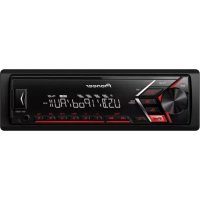
PIONEER MVHS100UI - Car stereo

MVHS100UI - Car stereo PIONEER - Free user manual and instructions

Find the device manual for free MVHS100UI PIONEER in PDF.

📄 160 pages PDF ⬇️ English EN 💬 AI Question ⚙️ Specs 🖨️ Print
Notice PIONEER MVHS100UI - page 4
Manual assistant
Powered by ChatGPT
Waiting for your message
Product information

Brand : PIONEER

Model : MVHS100UI

Category : Car stereo

SKIP

Frequently Asked Questions - MVHS100UI PIONEER

Download the instructions for your Car stereo in PDF format for free! Find your manual MVHS100UI - PIONEER and take your electronic device back in hand. On this page are published all the documents necessary for the use of your device. MVHS100UI by PIONEER.
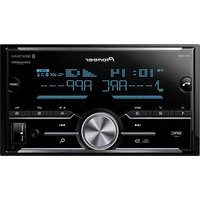
USER MANUAL MVHS100UI PIONEER

  • In the following instructions, a USB memory or USB audio player are referred to as “USB device”.
  • In this manual, iPod and iPhone are referred to as “iPod”. Table of Contents Declaration of Conformity with regard to the Radio Equipment Directive 2014/53/EU[*] MVH-S100UI, MVH-S100UB, MVH-S100UBG, MVH-S100UBA, MVH-S100UBW, MVH-S010UBEnglish:Hereby, Pioneer declares that the radio uipment type [*] is in compliance with Directive 2014/53/EU.The full text of the EU declaration of conformity is available at the following internet address: http://www.pioneer-car.eu/complianceSuomi:Pioneer vakuuttaa, että radiolaitetyyppi [*] on irektiivin 2014/53/EU mukainen.EU-vaatimustenmukaisuusvakuutuksen täy simittainen teksti on saatavilla seuraavassa internetosoitteessa: http://www.pioneer-car.eu/complianceNederlands:Hierbij verklaar ik, Pioneer, dat het type adioapparatuur [*] conform is met Richtlijn 2014/53/EU.De volledige tekst van de EU- onformiteitsverklaring kan worden geraadpleegd op het volgende internetadres: http://www.pioneer-car.eu/complianceFrançais:Le soussigné, Pioneer, déclare que l’équipement dioélectrique du type [*] est conforme à la directive 2014/53/UE.Le texte complet de la déclaration UE de conf ormité est disponible à l’adresse internet suivante: http://www.pioneer-car.eu/complianceSvenska:Härmed försäkrar Pioneer att denna typ av dioutrustning [*] överensstämmer med direktiv 2014/53/EU.Den fullständiga texten till EU-försäkran om verensstämmelse finns på följande webbadress: http://www.pioneer-car.eu/complianceDansk:Hermed erklærer Pioneer, at radioudstyrstypen [*] er i overensstemmelse med direktiv 2014/53/EU.EU-overensstemmelseserklæringens fulde tekst an findes på følgende internetadresse: http://www.pioneer-car.eu/complianceDeutsch:Hiermit erklärt Pioneer, dass der Funkanlagentyp *] der Richtlinie 2014/53/EU entspricht.Der vollständige Text der EU- onformitätserklärung ist unter der folgenden Internetadresse verfügbar: http://www.pioneer-car.eu/complianceΕλληνικά:Με την παρούσα ο/η Pioneer, δηλώνει ότι ο αδιοεξοπλισμός [*] πληροί την οδηγία 2014/53/ Το πλήρες κείμενο της δήλωσης συμμόρφωσης ΕΕ ιατίθεται στην ακόλουθη ιστοσελίδα στο διαδίκτυο: http://www.pioneer-car.eu/complianceItaliano:Il fabbricante, Pioneer, dichiara che il tipo di parecchiatura radio [*] è conforme alla direttiva 2014/53/UE.Il testo completo della dichiarazione di conformità è disponibile al seguente indirizzo Internet: http://www.pioneer-car.eu/complianceEspañol:Por la presente, Pioneer declara que el tipo de uipo radioeléctrico [*] es conforme con la Directiva 2014/53/UE.El texto completo de la declaración UE de onformidad está disponible en la dirección Internet siguiente: http://www.pioneer-car.eu/compliancePortuguês:O(a) abaixo assinado(a) Pioneer declara que o resente tipo de equipamento de rádio [*] está em conformidade com a Diretiva 2014/53/UE.O texto integral da declaração de conformidade stá disponível no seguinte endereço de Internet: http://www.pioneer-car.eu/complianceČeština:Tímto Pioneer prohlašuje, že typ rádiového ařízení [*] je v souladu se směrnicí 2014/53/EU. Manufacturer:Pioneer Corporation28-8, Honkomagome 2-chome, Bunkyo-ku, Tokyo 113-0021, JapanEU Representative’s & Importer:Pioneer Europe NVHaven 1087, Keetberglaan 1, 9120 Melsele, Belgiumhttp://www.pioneer-car.eu3En English Úplné znění EU prohlášení o shodě je k dispozici na této internetové adrese: http://www.pioneer-car.eu/complianceEesti:Käesolevaga deklareerib Pioneer, et käesolev aadioseadme tüüp [*] vastab direktiivi 2014/53/EL nõuetele.ELi vastavusdeklaratsiooni täielik tekst on ättesaadav järgmisel internetiaadressil: http://www.pioneer-car.eu/complianceMagyar:Pioneer igazolja, hogy a [*] típusú ádióberendezés megfelel a 2014/53/EU irányelvnek.Az EU-megfelelőségi nyilatkozat teljes szövege elérhető a következő internetes címen: http://www.pioneer-car.eu/complianceLatviešu valoda:Ar šo Pioneer deklarē, ka radioiekārta [*] atbilst irektīvai 2014/53/ES.Pilns ES atbilstības deklarācijas teksts ir pieejams ādā interneta vietnē: http://www.pioneer-car.eu/complianceLietuvių kalba:Aš, Pioneer, patvirtinu, kad radijo įrenginių tipas *] atitinka Direktyvą 2014/53/ES.Visas ES atitikties deklaracijos tekstas prieinamas šiuo interneto adresu: http://www.pioneer-car.eu/complianceMalti:B’dan, Pioneer, niddikjara li dan it-tip ta’ tagħmir tar- radju [*] huwa konformi mad-Direttiva 2014/53/UE.It-test kollu tad-dikjarazzjoni ta’ konformità tal-UE huw a disponibbli f’dan l-indirizz tal-Internet li ġej: http://www.pioneer-car.eu/complianceSlovenčina:Pioneer týmto vyhlasuje, že rádiové zariadenie ypu [*] je v súlade so smernicou 2014/53/EÚ.Úplné EÚ vyhlásenie o zhode je k dispozícii na tej to internetovej adrese: http://www.pioneer-car.eu/complianceSlovenščina:Pioneer potrjuje, da je tip radijske opreme [*] kladen z Direktivo 2014/53/EU.Celotno besedilo izjave EU o skladnosti je na voljo naslednjem spletnem naslovu: http://www.pioneer-car.eu/complianceRomână:Prin prezenta, Pioneer declară că tipul de chipamente radio [*] este în conformitate cu Directiva 2014/53/UE.Textul integral al declarației UE de conformitate te disponibil la următoarea adresă internet: http://www.pioneer-car.eu/complianceбългарски:С настоящото Pioneer декларира, че този тип диосъоръжение [*] е в съответствие с Директива 2014/53/ЕС.Цялостният текст на ЕС декларацията за ъответствие може да се намери на следния интернет адрес: http://www.pioneer-car.eu/compliancePolski:Pioneer niniejszym oświadcza, że typ urządzenia adiowego [*] jest zgodny z dyrektywą 2014/53/ UE. Pełny tekst deklaracji zgodności UE jest dostępny od następującym adresem internetowym: http://www.pioneer-car.eu/complianceNorsk:Herved Pioneer erklærer at radioutstyr type [*] er i amsvar med direktiv 2014/53/EU.Den fullstendige teksten i EU- amsvarserklæringen er tilgjengelig på følgende internettadresse: http://www.pioneer-car.eu/complianceÍslenska:Hér með Pioneer lýsir yfir að tegund þráðlausan únað [*] er í samræmi við tilskipun 2014/53/ESB.The fullur texti af ESB-samræmisyfirlýsingu er í oði á eftirfarandi veffangi: http://www.pioneer-car.eu/complianceHrvatski:Pioneer ovime izjavljuje da je radijska oprema tipa ] u skladu s Direktivom 2014/53/EU.Cjeloviti tekst EU izjave o sukladnosti dostupan je a sljedećoj internetskoj adresi: http://www.pioneer-car.eu/complianceTürk:Burada. Pioneer radyo ekipmani turunun [*] 2014/ 3/EU direktiflerine uyumlu oldugunu beyan eder.Avrupa uyumluluk beyaninin tam metni belirtilen nternet sitesinde mevcuttur: http://www.pioneer-car.eu/compliance Thank you for purchasing this PIONEER product To ensure proper use, please read through this manual before using this product. It is especially important that you read and observe WARNINGs and CAUTIONs in this manual. Please keep the manual in a safe and accessible place for future reference. Private households in the member states of the EU, in Switzerland and Norway may return their used electronic products free of charge to designated collection facilities or to a retailer (if you purchase a similar new one). For countries not mentioned above, please contact your local authorities for the correct method of disposal. By doing so you will ensure that your disposed product undergoes the necessary treatment, recovery and recycling and thus prevent potential negative effects on the environment and human health. WARNING
  • Do not attempt to install or service this product by yourself. Installation or servicing of this product by persons without training and experience in electronic equipment and automotive accessories may be dangerous and could expose you to the risk of electric shock, injury or other hazards.
  • Do not attempt to operate the unit while driving. Make sure to pull off the road and park your vehicle in a safe location before attempting to use the controls on the device. CAUTION
  • Do not allow this unit to come into contact with moisture and/or liquids. Electrical shock could result. Also, damage to this unit, smoke, and overheating could result from contact with liquids.
  • Always keep the volume low enough to hear outside sounds.
  • The Pioneer CarStereo-Pass is for use only in Germany. Before You Start If you want to dispose this product, do not mix it with general household waste. There is a separate collection system for used electronic products in accordance with legislation that requires proper treatment, recovery and recycling.4En
  • This product is evaluated in moderate and tropical climate condition under the Audio, video and similar electronic apparatus - Safety requirements, IEC 60065. If you experience problems Should this unit fail to work properly, please contact your dealer or nearest authorized PIONEER Service Station. MVH-S100UI/S100UB/S100UBG/S100UBA/S100UBW/ S010UB Getting Started Basic operation M.C. (multi-control) dialBAND/USB portDisplay windowSRC (source)/OFFDISP (display)Detach buttonAUX input jack (3.5 mm stereo jack) MUTE Frequently used operations
  • When this unit’s blue/white lead is connected to the vehicle’s auto-antenna relay control terminal, the vehicle’s antenna extends when this unit’s source is turned on. To retract the antenna, turn the source off. Display indication Purpose OperationTurn on the power* Press SRC/OFF to turn on the power.Press and hold SRC/OFF to turn off the power.Adjust the volume Turn the M.C. dial.Press MUTE to mute the unit. Press MUTE again or turn the M.C. dial to unmute. Select a source Press SRC/OFF repeatedly. Change the display information Press DISP repeatedly. Return to the previous display/list Press BAND/ . Return to the normal display from the menu Press and hold BAND/ .Indication Description Appears when a lower tier of the menu or folder exists.Appears when the button is pressed. Appears when the local seek tuning function is set (page 12). Appears when a traffic program is received. Appears when the TA (traffic announcements) function is set (page 12). Appears when the sound retriever function is set (page 12). Appears when the iPod control function is set (page 8).5En English Detach the front panel to prevent theft. Remove any cables and devices attached to the front panel and turn off the unit before detaching it. Important
  • Avoid subjecting the front panel to excessive shock.• Keep the front panel out of direct sunlight and high temperatures.• Always store the detached front panel in a protective case or bag. When you turn the ignition switch to ON after installation, [SET UP :YES] appears in the display. 1 Press the M.C. dial. The setup menu disappears after 30 seconds of no operation. If you prefer

ot to set at this time, turn the M.C. dial to select [NO], then press to confirm. 2 Turn the M.C. dial to select the options, then press to confirm. To proceed to the next menu option, you need to confirm your selection. Detaching the front panel Setup menu Menu Item Description LANGUAGE Select the language to display the text information from a co mpressed audio file. [ENG](English),

](Russian), [TUR](Turkish) Detach Attach 3 [QUIT :YES] appears when all the settings have been made. To return to the first item of the setup menu, turn the M. C. dial to select [QUIT :NO], then press to confirm. 4 Press the M.C. dial to confirm the settings. NOTES

  • You can cancel the menu setting by pressing SRC/OFF.
  • These settings can be made at any time from the SYSTEM settings (page 13) and INITIAL settings (page 5). 1 Press the M.C. dial to display the main menu. 2 Turn the M.C. dial to select [SYSTEM], then press to confirm. 3 Turn the M.C. dial to select [DEMO OFF], then press to confirm. 4 Turn the M.C. dial to select [YES], then press to confirm. 1 Press and hold SRC/OFF until the unit turns off. 2 Press and hold SRC/OFF to display the main menu. 3 Turn the M.C. dial to select [INITIAL], then press to confirm. 4 Turn the M.C. dial to select an option, then press to confirm. CLOCK SET Set the clock. FM STEP Select the FM tuning step from 100 kHz or 50 kHz. [100], [50] Canceling the demonstration display (DEMO OFF) INITIAL settings Menu Item Description6En NOTE The options vary depending on the unit. The tuner frequencies on this unit are allocated for use in Western Europe, Asia, the Middle East, Africa and Oceania. Use in other areas may result in poor reception. The RDS (radio data system) function only works in areas that broadcast RDS signals for FM stations. Menu Item DescriptionFM STEP Select the FM tuning step from 100 kHz or 50 kHz.[100], [50]SP-P/O MODE Select when there is a full-range speaker connected to he rear speaker output leads and there is a subwoofer connected to the RCA output.[REAR/SUB.W][SUB.W/SUB.W] Select when there is a passive subwoofer connected irectly to the rear speaker output leads and there is a subwoofer connected to the RCA output.[REAR/REAR] Select when there are full-range speakers connected to he rear speaker output leads and RCA output. If there is a full-range speaker connected to the rear speaker output leads, and the RCA output is not used, you may select either [REAR/SUB.W] or [REAR/REAR].S/W UPDATE Select to confirm the latest system information on the

DATE]Select to update the unit to the latest software and initialize the unit settings. For details on the latest software and updating, visit our website.SYSTEM RESET Select [YES] to initialize the unit settings. The unit will be restarted automatically.(Some of the settings may be retained even after setting the unit.)[YES], [NO] Radio 1 Press SRC/OFF to select [RADIO]. 2 Press BAND/ to select the band from [FM1], [FM2], [FM3], [MW] or [LW]. 3 Press a number button (1/ to 6/ ). TIP The / buttons can be also used to select a preset station when [SEEK] is set to [PCH] in the FUNCTION settings (page 12). The six strongest stations are stored on the number buttons (1/ to 6/ ). 1 After selecting the band, press the M.C. dial to display the main menu. 2 Turn the M.C. dial to select [FUNCTION], then press to confirm. 3 Turn the M.C. dial to select [BSM], then press to confirm. To seek a station manually 1 After selecting the band, press / to select a station. Press and hold / then release to seek an available station. Scanning stops when the unit receives a station. To cancel seek tuning, press / . NOTE [SEEK] needs to be set to [MAN] in the FUNCTION settings (page 12). To store stations manually 1 While receiving the station you want to store, press and hold one of the number buttons (1/ to 6/ ) until it stops flashing. Receiving preset stations Best stations memory (BSM)7En English The unit searches for a station by PTY (program type) information. 1 Press during FM reception. 2 Turn the M.C. dial to select a program type from [NEWS/INFO], [POPULAR], [CLASSICS] or [OTHERS]. 3 Press the M.C. dial. The unit begins to search for a station. When it is found, its program service me is displayed. NOTES

  • To cancel the search, press the M.C. dial.
  • The program of some stations may differ from that indicated by the transmitted PTY.• If no station is broadcasting the type of program you searched for, [NOT FOUND] is displayed for about two seconds and then the tuner returns to the original station. NOTE iPod function is not available for MVH-S100UB/S100UBG/S100UBA/S100UBW/S010UB.Disconnect headphones from the device before connecting it to the unit. USB devices (including Android™)/iPod 1 Open the USB port cover. 2 Plug in the USB device/iPod using an appropriate cable. NOTE To automatically switch to [USB] source when a USB device/iPod is connected to the unit, set [USB AUTO] to [ON] in the SYSTEM settings (page 14). Using PTY functions USB/iPod/AUX Playing back CAUTION Use an optional Pioneer USB cable (CD-U50E) to connect the USB device as any device connected directly to the unit will protrude out from the unit, which could be dangerous.Before removing the device, stop playback.AOA connectionsFor details on AOA connection, see page 10.MTP connectionA device installed with Android OS 4.0 or later can be connected to the unit via MTP, using the cable supplied with the device. However, depending on the connected device and the numbers of the files in the device, audio files/songs may not be able to be played back via MTP. Note that MTP connection is not compatible with WAV and FLAC file formats. NOTE If you use an MTP connection, [ANDROID WIRED] needs to be set to [MEMORY] in the SYSTEM settings (page 14). AUX 1 Insert the stereo mini plug into the AUX input jack. 2 Press SRC/OFF to select [AUX] as the source. NOTE If [AUX] is set to [OFF] in the SYSTEM settings, [AUX] cannot be selected as a source (page 14). You can make various adjustments in the FUNCTION settings (page 11). Note that the following operations do not work for an AUX device. To operate AUX device, use the device itself. Operations Purpose Operation Select a folder/album*1 Press 1/ or 2/ . Select a track/song (chapter) Press or . Fast forward or reverse*2 Press and hold or .8En Search for a file from a list 1 Press to display the list. 2 Tu rn the M.C. dial to select the desired file (folder) name or category, then press to confirm. 3 Tu rn the M.C. dial to select the desired file, then press to confirm. Playback starts. View a list of the files in the selected folder/category*1 Press the M.C. dial when a folder/ category is selected. Play a song in the selected folder/ cat egory*1 Press and hold the M.C. dial when a folder/category is selected. Alphabetical search (iPod only) 1 P ress to display the list. 2 Tu rn the M.C. dial to select the desired category list, then press to enter the alphabetical search

de. (Turning the M. C. dial twice also enters the alphabetical search mode.) 3 Tu rn the M.C. dial to select a letter, then press to display the alphabetical list. To cancel alphabetical search, press BAND/ . Repeat play Press 6/ . Random/shuffle play Press 5/ . Shuffle all play (iPod only) Press and hold 5/ . Pause/resume playback Press 4/PA USE. Sound retriever Press 3/S. Rtrv. [1]: Effective for low compression rates [2]: Effective for high compression

tes Return to root folder (USB only)*1 Press and hold

Purpose Operation *1 Compressed audio files only*2 When you use the fast forward or reverse function while playing a VBR file, the playback time may be not correct. Link play mode You can access songs based on the artist, album, or genre currently playing. 1 While listening to a song, press and hold to enter the link play mode. 2 Turn the M.C. dial to select the mode ([ARTIST], [ALBUM], [GENRE]), then press to confirm. The selected song/album will be played after the currently playing song. NOTE The selected song/album may be canceled if you use functions other than those from the link play mode (e.g. fast forward and reverse). iPod control You can control the unit via a connected iPod. The following iPod models are not compatible with this function. –iPod nano 1st generation, iPod with video 1 Press BAND/ during playback, then select the control mode. [CO NTROL iPod]: The unit’s iPod function can be operated from the connected iPod. [CO NTROL AUDIO]: The unit’s iPod function can only be operated by the buttons on the unit or supplied remote control. In this mode, the connected iPod cannot be turned on or off. NOTES

  • Pressing iPod can also switch the control mode (only for MVH-S100UI). Change drives in USB device (Devices that support the USB mass

torage device class protocol only) Press BAND/ . Useful functions for iPod Purpose Operation9En English

  • Switching the control mode to [CONTROL iPod] pauses song playback. Use the connected iPod to resume playback.
  • The following operations are still accessible from the unit, even if the control mode is set to [CONTROL iPod].– Pause, fast forward/reverse, song/chapter selection• The volume can only be adjusted from the unit. (APP mode is not available for MVH-S100UB/S100UBG/S100UBA/S100UBW/ S010UB.) You can enjoy listening to an application on an iPhone via the unit. In some cases, y ou can control an application by using the unit. For details on compatible devices, visit our website. Important Use of third party apps may involve or require the provision of personally identifiable information, whether through the creation of a user account or otherwise, and for certain applications, the provision of geolocation data.ALL THIRD PARTY APPS ARE THE SOLE RESPONSIBILITY OF THE PROVIDERS, INCLUDING WITHOUT LIMITATION COLLECTION AND SECURITY OF USER DATA AND PRIVACY PRACTICES. BY ACCESSING THIRD PARTY APPS, YOU AGREE TO REVIEW THE TERMS OF SERVICE AND PRIVACY POLICIES OF THE PROVIDERS. IF YOU DO NOT AGREE WITH THE TERMS OR POLICIES OF ANY PROVIDER OR DO NOT CONSENT TO THE USE OF GEOLOCATION DATA WHERE APPLICABLE, DO NOT USE THAT THIRD PARTY APP. For iPhone users This function is compatible with iPhones and iPod touches installed with iOS 5.0 or later. NOTE PIONEER IS NOT LIABLE FOR ANY THIRD PARTY APPS OR CONTENT, INCLUDING WITHOUT LIMITATION THEIR ACCURACY OR COMPLETENESS. THE CONTENT AND FUNCTIONALITY OF SUCH APPS ARE THE SOLE RESPONSIBILITY OF THE APP PROVIDER. 1 Connect this unit with the mobile device.
  • iP hone via USB (page 7) App Mode Playback of an application via the unit 2 Press SRC/OFF to select [APP]. 3 Operate the mobile device to start up the application. Basic operations You can make various adjustments in the FUNCTION settings (page 11). (MVH-S100UI is only compatible with Spotify installed on iPhone.) Spotify is a music streaming distribution service not affiliated with Pioneer.

ore information is available at http://www.spotify.com. The Spotify application is available for compatible smartphones, please visit

tps://support.spotify.com/ for the latest compatibility information. To enjoy Spotify as you drive, first download the Spotify app to your iPhone.

ou can download it on the iTunes App Store. Choose a free account or a paid Premium account, either in the app or at spotify.com. A Premium account gives you more features, like offline listening. Important

  • This product incorporates Spotify software which is subject to 3rd party licenses found here: www.spotify.com/connect/third-party-licenses.
  • For information on the countries and regions where Spotify can be used, take a look at https://www.spotify.com/us/select-your-country/. Update the firmware of the Spotify application to the latest version before use. 1 Connect this unit with the mobile device. Purpose OperationSelect a track Press or . Fast forward or reverse Press and hold or . Pause/resume playback Press BAND/ . Spotify® Listening to Spotify10En
  • iP hone via USB (page 7) 2 Press SRC/OFF to select [SPOTIFY]. 3 Launch the Spotify application on the mobile device and start playback. Basic operations You can make various adjustments in the FUNCTION settings (page 11). NOTE The available operations may vary according to the type of contents (track/album/artist/playlist/radio) you want to play.Purpose OperationSkip a track Press or . Search for a track from a list 1 Press (list) to display the list. 2 Turn the M.C. dial to select the desired category, then press to confirm.3 Turn the M.C. dial to select the desired file, then press to confirm. Playback starts.Pause/resume playback Press 4/PAUSE. Thumbs Up (Only for radio) Press 1/ . Thumbs Down (Only for radio) Press 2/ . Random play (Only for track/album/ rtist/playlist)Press 5/ .Repeat play (Only for track/album/ rtist/playlist)Press 6/ .Start a radio channel based on the ong currently being played.1 Press and hold (list) to start a radio.2 Press the M.C. dial.• This function may not be available depending on the selected song. NOTE Some functions of Spotify may not be operated from the unit. (Pioneer ARC APP for iPhone is not available for MVH-S100UB/S100UBG/ S100UBA/S100UBW/S010UB.) You can operate the unit from Pioneer ARC APP installed on an iPhone/

ndroid device. In some cases, you can control aspects of the application, such as source selection, pause, etc., by using the unit. For details on what operations are available on the application, see the

plication’s help section. WARNING Do not attempt to operate the application while driving. Make sure to pull off the road and park your vehicle in a safe location before attempting to use the controls on the application. For iPhone users This function is compatible with iPhones (iPhone 5 or later) and iPod touches

stalled with iOS 8.0 or later. You can download Pioneer ARC APP on iTunes App Store. For Android device users This function is compatible with devic es that have Android OS 4.1 or later installed and also support AOA (Android Open Accessory) 2.0. You can download Pioneer ARC APP on Google Play™. NOTE Some Android devices connected via AOA 2.0 may not work properly or emit sounds due to their own software design, regardless of the OS version.Store the information about the song currently being played.Remove the song information stored. 1 Press and hold 3/S.Rtrv. [SAVE]/[UNSAVE] appears.2 Press the M.C. dial. Using Pioneer ARC APP Purpose Operation11En English 1 Connect this unit with the mobile device.

  • i Phone/Android device via USB (page 7) Proceed to step 6 if you select the USB connection for iPhone. 2 Press the M.C. dial to display the main menu. 3 Turn the M.C. dial to select [SYSTEM], then press to confirm. 4 Turn the M.C. dial to select [ANDROID WIRED], then press to confirm. 5 Turn the M.C. dial to select [APP CONTROL] for an Android device connected via USB. If [ON] is selected in [P.APP AUTO ON] (page 14), Pioneer ARC APP on the Android device starts automatically, and all the steps are finished. NOTE If Pioneer ARC APP has not been installed on your Android device yet, a message that prompts you to install the application will appear on your Android device. Select [OFF] in [P.APP AUTO ON] to clear the message (page 14). 6 Press SRC/OFF to select any source. 7 Launch Pioneer ARC APP on the mobile device. NOTE You can also launch the application by pressing and holding the M.C. dial for iPhone. 1 Press SRC/OFF to select [ANDROID]. Basic operations Making a connection with Pioneer ARC APP Listening to music on Android Purpose OperationSelect a track Press or . Fast forward or reverse Press and hold or . You can adjust various settings in the main menu. 1 Press the M.C. dial to display the main menu. 2 Turn the M.C. dial to select one of the categories below, then press to confirm.
  • iPod-related menu items in the following tables are not available for MVH-S100UB/S100UBG/S100UBA/S100UBW/S010UB.
  • APP mode-related menu items in the following tables are not available for MVH-S100UB/ S100UBG/S100UBA/S100UBW/S010UB. The menu items vary according to the source. Pause/resume playback Press 4/PAUSE. Sound retriever Press 3/S. Rtrv.[1]: Effective for low compression rates[2]: Effective for high compression

tes Settings FUNCTION settings Purpose Operation12En Menu Item Description FM SETTING [TALK], [STANDARD], [MUSIC] Match the sound quality level with the

oadcast signal conditions of the FM band signal. (Available only when FM band is selected.) BSM Store the six strongest stations on the num ber buttons (1/ to 6/ ) automatically. REGIONAL [ON], [OFF] Limit the reception to the specific regional pro grams when AF (alternative frequencies search) is selected. (Available only when FM band is selected.) LOCAL FM: [ OFF], [LV1], [LV2], [LV3], [LV4] MW/LW: [O FF], [LV1], [LV2] Restrict the tuning station according to the signa l strength.

[ON], [OFF] Receive current traffic information if

vailable. (Available only when FM band is selected.)

[ON], [OFF] Allow the unit to retune to a different freq uency providing the same station. (Available only when FM band is selected.) NEWS [ON], [OFF] Interrupt the currently selected source with news p rograms. (Available only when FM band is selected.) SEEK [MAN], [PCH] Assign or buttons to seek the stations one by one (manual tuning) or

lect a station from the preset channels. SAVE Store the information about the song currently being played to your music list on Spotify. UNSAVE Remove the song information stored in

AVE]. S.RTRV [1] (effective for low

mpression rates), [2] (effective for high

mpression rates), [OFF] Enhance compressed audio and restore

ch sound. Not available when the FLAC file is played back

LOWER] Change the playback speed. (Not available when [CONTROL iPod] is selected in the control mode.) PAUSE Pause or resume playback. AUDIO settings Menu Item Description FADER*1 Adjust the front and rear speaker balance. Menu Item Description USB iPod iPod13En English BALANCE Adjust the left and right speaker balance. EQ SETTING [SUPER BASS], [POWERFUL], [NATURAL], [VOCAL], [CUSTOM1], [CUSTOM2], [FLAT] Select an equalizer band and level fo r further customising. Equalizer band: [80H Z], [250HZ], [800HZ], [2.5KHZ], [8KHZ] Equalizer level: [+ 6] to [–6] Select or customise the equalizer curve. [CUSTOM1] can be set separately for each source. However, each of the below combinations are set to the same setting automatically.

  • U SB, iPod, ANDROID, SPOTIFY, and APP (iPhone) [CUSTOM2] is a shared setting used for all

urces. You can also switch the equalizer by

ressing repeatedly (Only for

Cut-off frequency: [5 0HZ], [63HZ], [80HZ], [100HZ], [125HZ], [160HZ], [200HZ] Output level: [–2 4] to [+6] Slope level: [–12], [–24] Only frequencies lower than those in the sel ected range are output from the subwoofer. BASS BOOST [0] to [+6] Select the bass boost level. Menu Item Description *1 Not available when [SUB.W/SUB.W] is selected in [SP-P/O MODE] in the INITIAL settings (page 6). *2 Not available when [REAR/REAR] is selected in [SP-P/O MODE] in the INITIAL settings (page 6). *3 Not available when [OFF] is selected in [SUB.W]. You can also access to these menus when the unit is turned off. HPF SETTING Cut-off frequency: [ OFF], [50HZ], [63HZ], [80HZ], [100HZ], [125HZ], [160HZ], [200HZ] Slope level: [ –12], [–24] Only frequencies higher than the high-pass filter (HPF) cutoff are output from the speakers. SLA [+4] to [–4] Adjust the volume level for each source except FM. Each of the below combinations are set to

he same setting automatically.

  • US B, iPod, ANDROID, SPOTIFY, and APP (iPhone) SYSTEM settings Menu Item Description LANGUAGE [ENG](English), [РУС](Russian), [TUR](Turkish) Select the language to display the text information from a compressed audio file. CLOCK SET Set the clock (page 5). 12H/24H [12H], [24H] Select the time notation. Menu Item Description14En AUTO PI [ON], [OFF] Search for a different station with the same

ogramming, even if using a preset station. AUX [ON], [OFF] Set to [ON] when using an auxiliary device

Mute or attenuate sound automatically when a signal from equipment with a mute function is received. PW SAVE* [ON], [OFF] Reduce the battery power consumption. Turning on the source is the only operation allo wed when this function is on. ANDROID WIRED [MEMORY], [APP CONTROL] Select the appropriate connection method

or an Android device. P. AP P AU T O O N [ON], [OFF] Select [ON] to automatically launch Pioneer ARC APP when an Android device is connected to the unit via AOA. (Not available when [MEMORY] is selected in [ANDROID WIRED].) Menu Item Description

  • [PW SAVE] is canceled if the vehicle battery is disconnected and will need to be turned back on once the battery is reconnected. When [PW SAVE] is off, depending on connection methods, the unit may continue to draw power from the battery if your vehicle’s ignition does not have an ACC (accessory) position. USB AUTO [ON], [OFF] Select [ON] to automatically switch to

SB] source when a USB device/iPod is connected to the unit. Select [OFF] when a USB device/iPod is being connected to the unit just for charging. ILLUMINATION settings Menu Item Description DIM SETTING [SYNC CLOCK], [MANUAL] Change the display brightness. BRIGHTNESS [1] to [10] Change the display brightness. The available setting ranges differ

epending on [DIM SETTING]. Menu Item Description15En English Important

  • When installing this unit in a vehicle without an ACC (accessory) position on the ignition switch, failure to connect the red cable to the terminal that detects operation of the ignition key may result in battery drain.• Use of this unit in conditions other than the following could result in fire or malfunction.– Vehicles with a 12-volt battery and neg ative grounding.– When speaker output is used by 4 chan nels, use speakers over 50 W (maximum input power) and between 4 Ω to 8 Ω (impedance value). Do not use 1 Ω to 3 Ω speakers for this unit.– When rear speaker output is used y 2 Ω of subwoofer, use speakers over 70 W (maximum input power). * Please refer to connections for a nnection method.• To prevent a short-circuit, overheating or malfunction, be sure to follow the directions below.– Disconnect the negative terminal f the battery before installation.–Secure the wiring with cable amps or adhesive tape. Wrap adhesive tape around wiring that comes into contact with metal parts to protect the wiring.–Place all cables away from moving arts, such as the shift lever and seat rails.–Place all cables away from hot places, such as near the heater outlet.–Do not connect the yellow cable to he battery by passing it through the hole to the engine compartment.–Cover any disconnected cable nnectors with insulating tape.–Do not shorten any cables.–Never cut the insulation of the wer cable of this unit in order to share the power with other devices. The current capacity of the cable is limited.–Use a fuse of the rating prescribed.–Never wire the negative speaker cabl e directly to ground.– Never band together negative cab les of multiple speakers.• When this unit is on, control signals are sent through the blue/white cable. Connect this cable to the system remote control of an external power amp or the vehicle’s auto-antenna relay control terminal (max. 300 mA 12 V DC). If the vehicle is equipped with a glass antenna, Connections/Installation Connections ACC position No ACC position connect it to the antenna booster power supply terminal.• Never connect the blue/white cable to the power terminal of an external power amp. Also, never connect it to the power terminal of the auto antenna. Doing so may result in battery drain or a malfunction.• The black cable is ground. Ground cables for this unit and other equipment (especially, high-current products such as power amps) must be wired separately. If they are not, an accidental detachment may result in a fire or malfunction.• The graphical symbol placed on the product means direct current. This unit Power cord inputRear output or subwoofer outputFront output (Only for MVH-S100UI)Antenna inputFuse (10 A)Wired remote input (Only for MVH-S100UI)Hard-wired remote control adapter an be connected (sold separately). Power cord To power cord inputDepending on the kind of vehicle, the function of and may be different. In this case, be sure to nnect to and to .YellowBack-up (or accessory)YellowConnect to the constant 12 V upply terminal. Red Accessory (or back-up) Red Connect to terminal controlled by he ignition switch (12 V DC).Connect leads of the same colour to each other.Black (chassis ground)16En Blue/whiteThe pin position of the ISO onnector will differ depending on the type of vehicle. Connect and when Pin 5 is an antenna control type. In another type of ehicle, never connect and .Blue/whiteConnect to the system control erminal of the power amp (max. 300 mA 12 V DC).Blue/whiteConnect to the auto-antenna relay ontrol terminal (max. 300 mA 12 V DC). Yellow/black (Only for MVH-S100UI)If you use equipment with a Mute nction, wire this lead to the Audio Mute lead on that equipment. If not, keep the Audio Mute lead free of any connections.Speaker leadsWhite: Front left White/black: Front left Gray: Front right Gray/black: Front right Green: Rear left or subwoofer Green/black: Rear left or subwoofer Violet: Rear right or subwoofer Violet/black: Rear right or subwoofer ISO connectorIn some vehicles, the ISO connector y be divided into two. In this case, be sure to connect to both connectors. NOTES
  • Change the initial menu of this unit. Refer to [SP-P/O MODE] (page 6). The subwoofer output of this unit is mon aural.• When using a subwoofer of 2 Ω, be sure to connect the subwoofer to the violet and violet/black leads of this unit. Do not connect anything to the green and green/black leads. Power amp (sold separately) Perform these connections when using the optional amplifier.System remote controlConnect to blue/white cable.Power amp (sold separately)Connect with RCA cables (sold separately)To front output*Front speaker*To rear output or subwoofer outputRear speaker or subwoofer* Only for MVH-S100UI Important
  • Check all connections and systems before final installation.• Do not use unauthorized parts as this may cause malfunctions.• Consult your dealer if installation requires drilling of holes or other modifications to the vehicle.• Do not install this unit where:–it may interfere with operation of he vehicle.–it may cause injury to a passenger as a result of a sudden stop.• The semiconductor laser will be damaged if it overheats. Install this unit away from hot places such as near the heater outlet.• Opti mum performance is obtained when the unit is installed at an angle of less than 60°.• When installing, to ensure proper heat dispersal when using this unit, make sure you leave ample space behind the rear panel and wrap any loose cables so they are not blocking the vents. DIN mount installation 1 Insert the supplied mounting sleeve into the dashboard. 2 Secure the mounting sleeve by using a screwdriver to bend the metal tabs (90°) into place.DashboardMounting sleeve• Make sure that the unit is installed securely in place. An unstable installation may cause skipping or other malfunctions. When not using the supplied mounting sleeve 1 Line up the holes on the mounting bracket with the holes on the sides of the unit to attach the bracket. 2 Screw in one screw on each side to hold the unit in place. Installation Leave ample space 5 cm 5 cm17En English Tapping screw (5 mm × 9 mm, not supplied with product) Mounting bracket Dashboard or console Using the included bracket Check to make sure that the included bracket matches your particular model of vehicle and then attach it to the unit as shown below. Removing the unit (installed with the supplied mounting sleeve) 1 Remove the trim ring. Trim ring Notched tab
  • R eleasing the front panel allows easier access to the trim ring.
  • W hen reattaching the trim ring, point the side with the notched tab down. 2 Insert the supplied extraction keys into both sides of the unit until they click into place. 3 Pull the unit out of the dashboard. Screw Bracket18En The display automatically returns to the normal display.→ No operations have been made for about 30 seconds.–Perform an operation.The repeat play range changes unexpectedly.→ Depending on the repeat play range, the selected range may change when another folder or track is being selected or during fast forwarding/reversing.–Select the repeat play range

ain. A subfolder is not played back.→ Subfolders cannot be played when [FLD] (folder repeat) is selected.–Select another repeat play range.The sound is intermittent.→ You are using a device, such as a cellular phone, that may cause audible interference.–Move electrical devices that may be causing the interference away from the unit. Common AMP ERROR→ This unit fails to operate or the speaker connection is incorrect.→ The protective circuit is activated.–Check the speaker connection.–Turn the ignition switch OFF and back to ON again. If the message remains, contact your dealer or an authorized Pioneer Service Station for assistance.NO XXXX (NO TITLE, for example)→ There is no embedded text information.– Switch the display or play another ack/file. USB device/iPod FORMAT READ→ Sometimes there is a delay between the start of playback and when you start to hear any sound.– Wait until the message isappears and you hear sound.NO AUDIO→ There are no songs.–Transfer the audio files to the USB vice and connect.→ The connected USB device has security enabled. Additional Information Troubleshooting Error messages –Follow the USB device instructions to disable the security.SKIPPED→ The connected USB device contains DRM protected files.–The protected files are skipped.PROTECT→ All the files on the connected USB device are embedded with DRM.–Replace the USB device.N/A USB→ The connected USB device is not supported by this unit.–Disconnect your device and eplace it with a compatible USB device.HUB ERROR→ The USB device connected via a USB hub is not supported by this unit.–Connect the USB device directly o this unit using a USB cable.CHECK USB→ The USB connector or USB cable has short-circuited.–Check that the USB connector or SB cable is not caught in something or damaged.→ The connected USB device consumes more than maximum allowable current.–Disconnect the USB device and o not use it. Turn the ignition switch OFF and back to ACC or ON. Connect only compliant USB devices.→ The iPod operates correctly but does not charge.– Make sure the connection cable or the iPod has not shorted out (e.g., not caught in metal objects). After checking, turn the ignition switch OFF and back to ON, or disconnect the iPod and reconnect.ERROR-19→ Communication failed.– Perform one of the following erations, then return to the USB source.• Turn the ignition switch OFF and back to ON.• Disconnect the USB device.• Change to a different source.→ iPod failure.– Disconnect the cable from the od. Once the iPod’s main menu is displayed, reconnect the iPod and reset it.ERROR-23→ USB device was not formatted properly.– Format the USB device with FAT 12, FAT16 or FAT32.ERROR-16→ The iPod firmware version is old.– Update the iPod version.→ iPod failure.– Disconnect the cable from the od. Once the iPod’s main menu19En English is displayed, reconnect the iPod and reset it. STOP

  • There are no songs in the current list. –Select a list that contains songs. NOT FOUND
  • No related songs. –Transfer songs to the iPod. APP
  • The application has not started running yet. –Operate the mobile device to

tart up the application. Spotify CHECK APP

  • Connection to the Spotify application failed. –Follow the instructions that

pear on the screen. USB storage device

  • Connections via USB hubs are not supported.
  • F irmly secure the USB storage device before driving. Do not let the USB storage device fall onto the floor, where it may become jammed under the brake or accelerator pedal.
  • D epending on the USB storage device, the following problems may occur. –Operations may vary. –The storage device may not be reco gnized. –Files may not be played back

operly. –The device may cause audible int erference when you are listening to the radio. iPod

  • Do not leave the iPod in places with high temperatures.
  • F irmly secure the iPod when driving. Do not let the iPod fall onto the floor, where it may become jammed under the brake or accelerator pedal.
  • T he settings of the iPod such as the equalizer and repeat play are changed automatically when the iPod is connected to the unit. Once the iPod is disconnected, those settings will return to the original settings.
  • In compatible text saved on the iPod will not be displayed by the unit.
  • O nly the first 32 characters can be displayed as a file name (including the file extension) or a folder name. Handling guidelines Compressed audio compatibility
  • The unit may not work properly depending on the application used to encode WMA files.
  • T here may be a slight delay at the start of the playback of audio files embedded with image data, or audio files stored on a USB device with numerous folder hierarchies.
  • Rus sian text to be displayed on this unit should be encoded in one of the following character sets: –Unicode (UTF-8, UTF-16) –A character set other than Unicode

hat is used in a Windows environment and is set to Russian in the multi-language setting CAUTION

  • Pioneer cannot guarantee compatibility with all USB mass storage devices, and assumes no responsibility for any loss of data on media players, smartphones, or other devices while using this product.
  • Do not leave discs or a USB storage device in any place that is subject to high temperatures. WMA files MP3 files WAV files
  • WAV file formats cannot be connected via MTP. FLAC files
  • FLAC file formats cannot be connected via MTP. File extension .wmaBit rate 48 kbps to 320 kbps (CBR), 48 kbps to 384 kbps (VBR)Sampling frequency32 kHz, 44.1 kHz, 48 kHz Windows Media™ Audio Professional, Lossless, Voice/DRM Stream/Stream with videoNot compatibleFile extension .mp3Bit rate 8 kbps to 320 kbps (CBR), VBRSampling frequency8 kHz to 48 kHz (32 kHz, 44.1 kHz, 48 kHz for emphasis)Compatible ID3 tag version1.0, 1.1, 2.2, 2.3, 2.4 (ID3 tag Version 2.x is given priority over Version 1.x.)M3u playlist Not compatibleMP3i (MP3 interactive), mp3 PRO Not compatibleFile extension .wavQuantization bits 8 and 16 (LPCM), 4 (MSADPCM)Sampling frequency16 kHz to 48 kHz (LPCM), 22.05 kHz and 44.1 kHz (MS ADPCM)20En
  • FLAC files may not be playable, depending on the encoder. USB device
  • There may be a slight delay when starting playback of audio files on a USB storage device with numerous folder hierarchies.This unit supports only the following iPod models. Supported iPod software versions are shown below. Older versions may not be supported.Made for–iPod touch (1st through 6th generation)–iPod classic–iPod with video–iPod nano (1st through 7th neration)–iPhone 6s–iPhone 6s Plus–iPhone 6–iPhone 6 Plus–iPhone 5s–iPhone 5c–iPhone 5–iPhone 4s–iPhone 4–iPhone 3GS–iPhone 3G–iPhone• Operations may vary depending on the generation and/or software version of the iPod.• Users of iPod with the Lightning Connector should use the Lightning to USB Cable (supplied with iPod).• Users of iPod with the Dock Connector should use the CD-IU51. For details, consult your dealer.• Refer to the iPod manuals for information about the file/format compatibility.• Audiobook, Podcast: Compatible CAUTION Pioneer accepts no responsibility for data lost on the iPod, even if that data is lost while this unit is used.File extension .flacSampling frequency8/11.025/12/16/22.05/24/32/44.1/48 kHzQuantization bit rate 16 bitChannel mode 1/2 chPlayable folder hierarchyUp to eight tiers (A practical hierarchy is less than two tiers.)Playable folders Up to 500Playable files Up to 15 000Playback of copyright-protected filesNot compatiblePartitioned USB deviceOnly the first partition can be played. iPod compatibility The user cannot assign folder numbers and specify playback sequences with this unit. Sequence of audio file depends on the connected device.Note that the hidden files in a USB device cannot be played back. Example of a hierarchy iTunesApple and iTunes are trademarks of ple Inc., registered in the U.S. and other countries. Sequence of audio files FolderCompressed audio file to : Playback sequence01 to 05: Folder number Russian character chart Copyright and trademark D: Display C: Character21En English WMA Windows Media is either a registered trademark or trademark of Microsoft Corporation in the United States and/ or other countries. This product includes technology

wned by Microsoft Corporation and cannot be used or distributed without a license from Microsoft Licensing, Inc. FLAC Copyright © 2000-2009 Josh Coalson Copyright © 2011-2013 Xiph.Org

undation Redistribution and use in source and binar y forms, with or without modification, are permitted provided that the following conditions are met: –Redistributions of source code must

etain the above copyright notice, this list of conditions and the following disclaimer. –Redistributions in binary form must repro duce the above copyright notice, this list of conditions and the following disclaimer in the documentation and/or other materials provided with the distribution. –Neither the name of the Xiph.org

oundation nor the names of its contributors may be used to endorse or promote products derived from this software without specific prior written permission.

EXPRESS OR IMPLIED WARRANTIES,

INCLUDING, BUT NOT LIMITED TO, THE

IMPLIED WARRANTIES OF

CONSEQUENTIAL DAMAGES (INCLUDING, BUT NOT LIMITED TO,

DATA, OR PROFITS; OR BUSINESS

LIABILITY, OR TORT (INCLUDING

NEGLIGENCE OR OTHERWISE) ARISING

IN ANY WAY OUT OF THE USE OF THIS

SOFTWARE, EVEN IF ADVISED OF THE

eans that an accessory has been designed to connect specifically to the Apple product(s) identified in the badge, and has been certified by the developer to meet Apple performance standards. Apple is not responsible for the operation of this device or its compliance with safety and regulatory standards. Please note that the use of this acces sory with an Apple product may affect wireless performance. iPhone and Lightning are trademarks

f Apple Inc., registered in the U.S. and other countries. Siri® Works with Siri through the

icrophone. Android & Google Play Android, Google Play, and the Google Play logo are trademarks of Google Inc. Spotify® SPOTIFY and the Spotify logo are

ong the registered trademarks of Spotify AB. Compatible mobile digital devices and premium subscription required, where available, see https:// www.spotify.com. General Power source: 14.4 V DC (10.8 V to 15.1 V allowable) Grounding system: Negative type Maximum current consumption: 10.0

  • 50 W × 4 ch/4 Ω (for no
  • 50 W × 2 ch/4 Ω + 70 W × 1 ch/2 Ω (for subwoofer) Continuous power output: 22 W × 4 (50 Hz to 15 000 Hz, 5 %

D, 4 Ω load, both channels

.5 kHz/8 kHz Equalization range: ±12 dB (2 dB

00 Hz/125 Hz/160 Hz/200 Hz Slope: –12 dB/oct, –24 dB/oct Gain: +6 dB to –24 dB Phase: Normal/Reverse USB USB standard specification: USB 2.0 full speed Maximum current supply: 1 A USB Protocol: MSC (Mass Storage Class) MTP (Media Transfer Protocol) AOA (Android Open Accessory)