Smart Fun - Smartphone MTT - Free user manual and instructions
Find the device manual for free Smart Fun MTT in PDF.



| Product type | Smartphone |
| Brand | MTT |
| Model | Smart Fun |
| Operating System | Android |
| Protection | IP68 (water resistant up to 1.5 m) |
| Screen | Touchscreen, Gorilla Glass resistant to shocks and scratches |
| Camera | Rear (photo and video) |
| Dual SIM | Yes (SIM1 and SIM2 slots) |
| Memory card | MicroSD (dedicated slot) |
| Connectivity | WiFi, Bluetooth, GPS |
| Battery | Removable |
| Ringtone formats | mid, wav, mp3 |
| Maintenance | Close the I/O port before use in liquid or outdoor environment |
| Security | Screen lock by pattern, PIN code or password |
| Spare parts | Battery, battery cover, fixing screws |
| Warranty | Warranty not valid in case of rough handling |
| Technical support | Générale Télécom Services, Toulouse: 05 61 63 60 60, sav@mobiletoutterrain.com |
| Website | www.moviletoutterrain.com |
Frequently Asked Questions - Smart Fun MTT
User questions about Smart Fun MTT
0 question about this device. Answer the ones you know or ask your own.
Ask a new question about this device
Download the instructions for your Smartphone in PDF format for free! Find your manual Smart Fun - MTT and take your electronic device back in hand. On this page are published all the documents necessary for the use of your device. Smart Fun by MTT.
USER MANUAL Smart Fun MTT
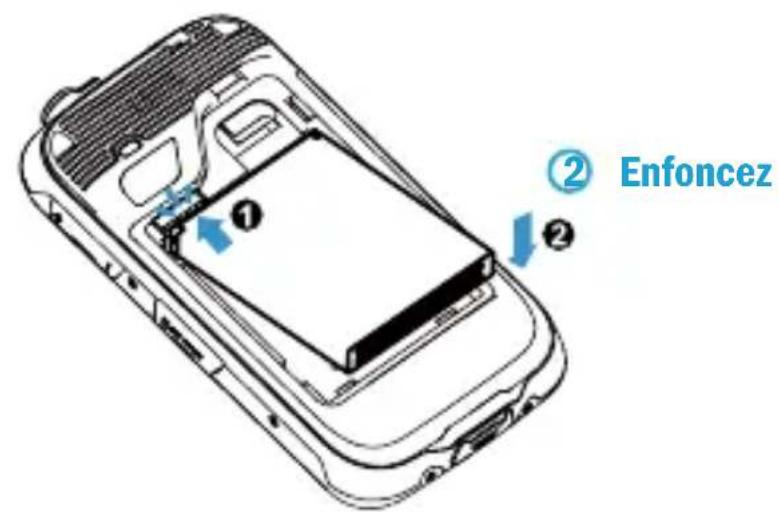
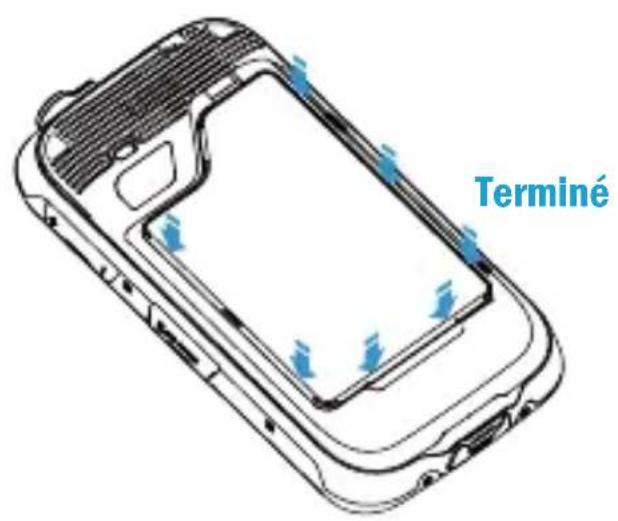
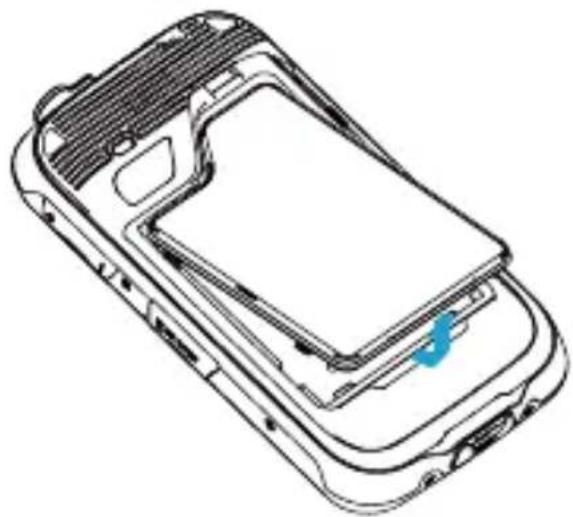
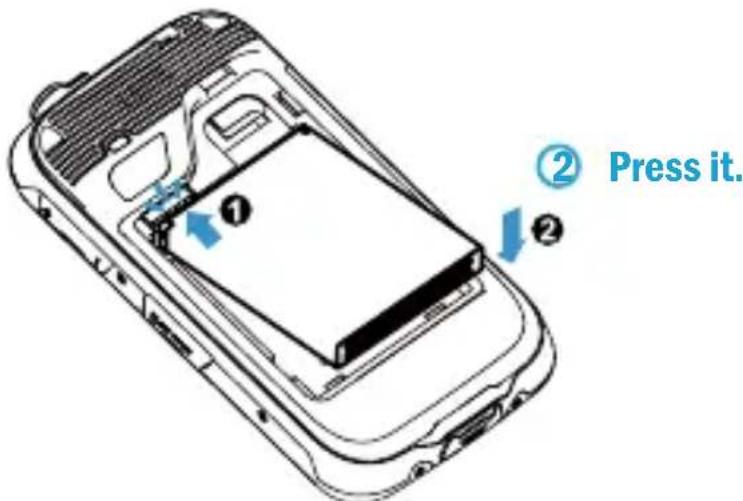
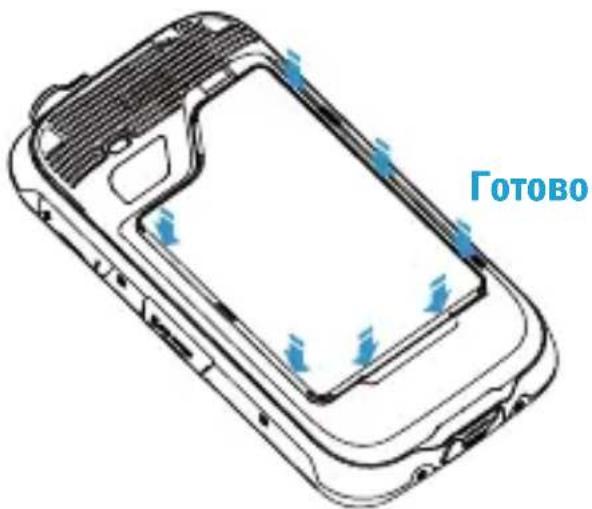
① Align them and insert the battery.
Le Corning Gorilla Class
This guide provides you to get started. For more information and support, please visit:
www.moviletoutterrain.com
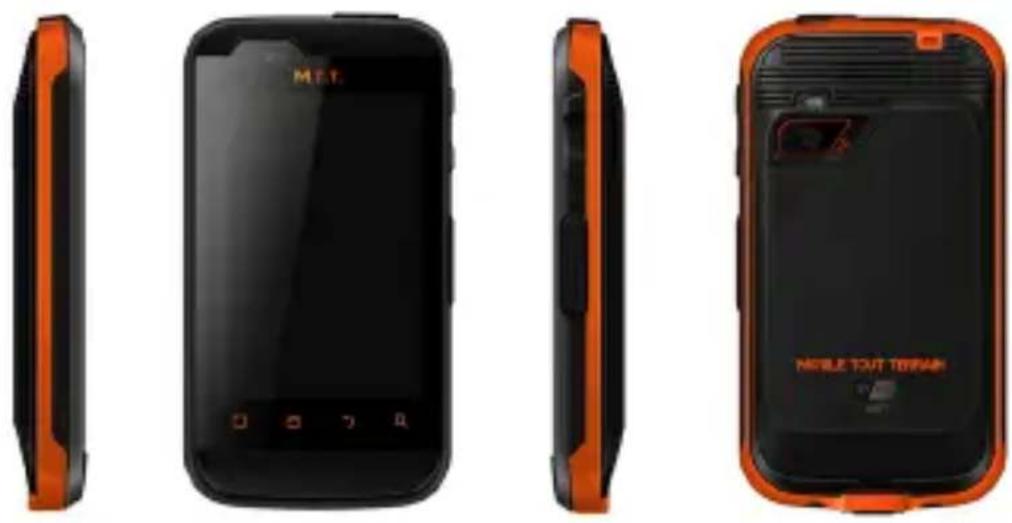
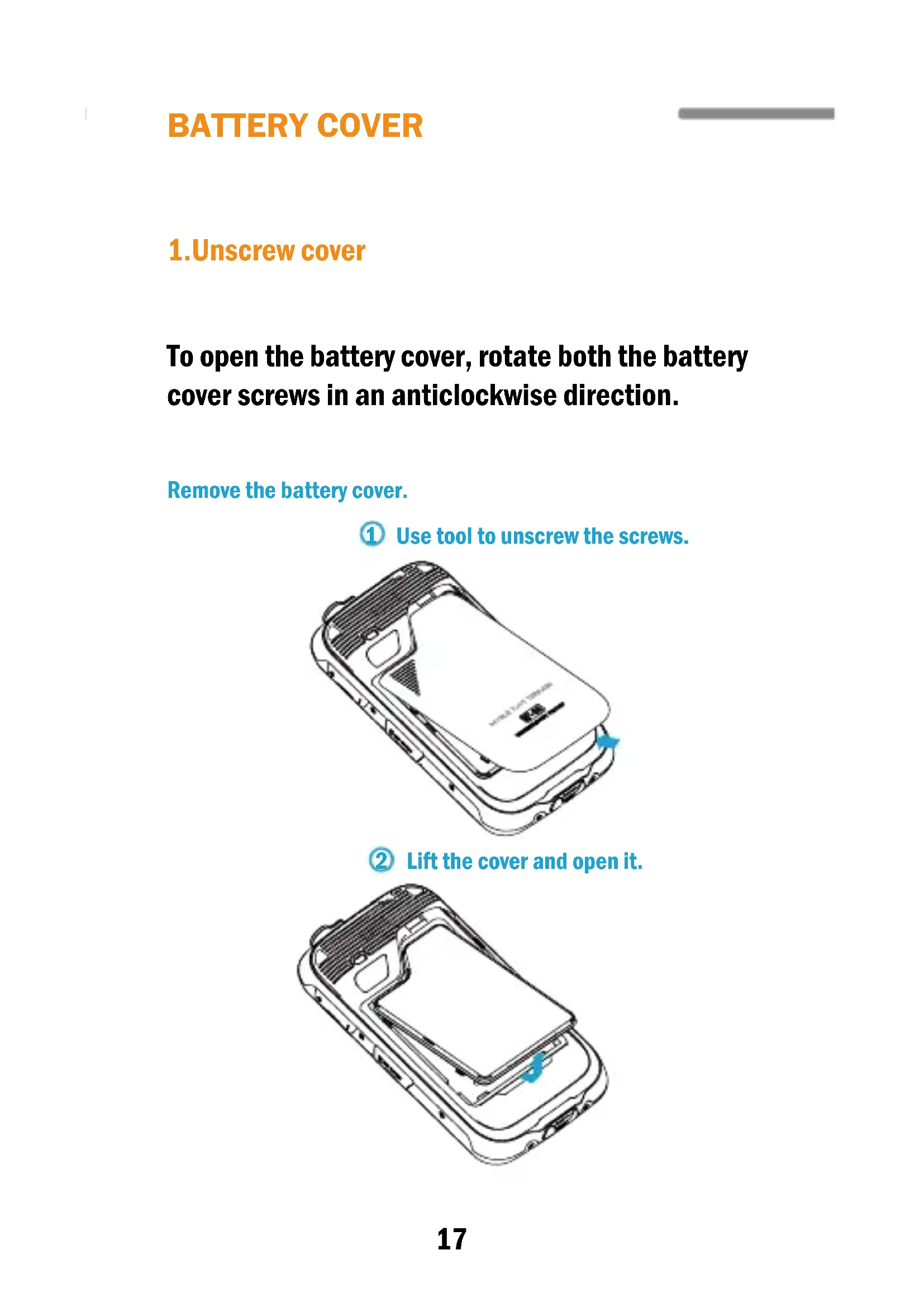
1.Unscrew cover
To open the battery cover, rotate both the battery cover screws in an anticlockwise direction.
Remove the battery cover.
Use tool to unscrew the screws.
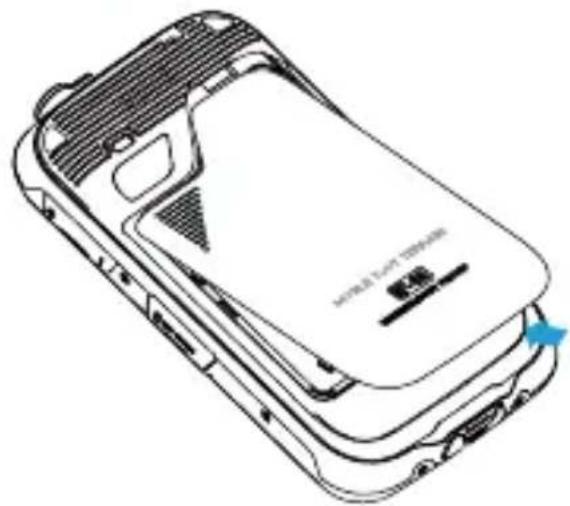
(2) Lift the cover and open it.
2.Lift cover
Lift the back cover from both sides to reveal the battery slot.
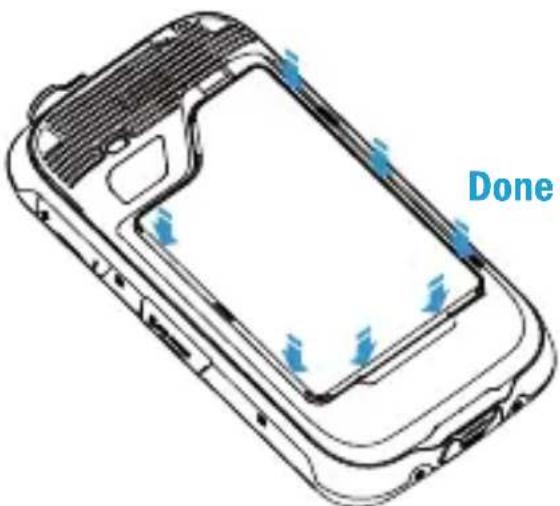
Install the battery
① Align them and insert the battery.
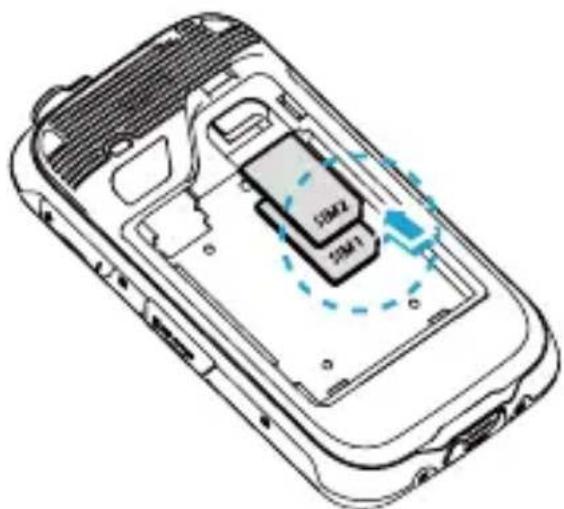
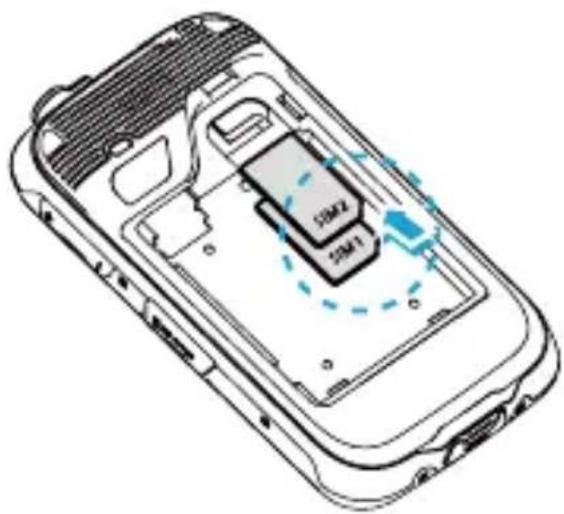
Insert SIM card into SIM1 holder.
Insert a SIM card into SIM1/SIM2 holder and push it.
Insert Micro SD card
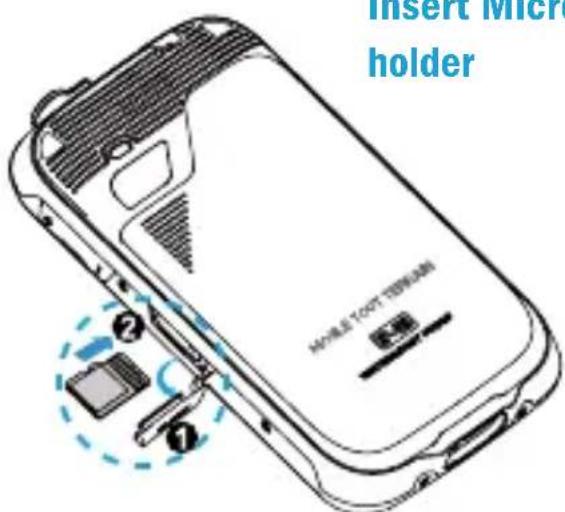
Insert Micro SD card into SD holder
Call
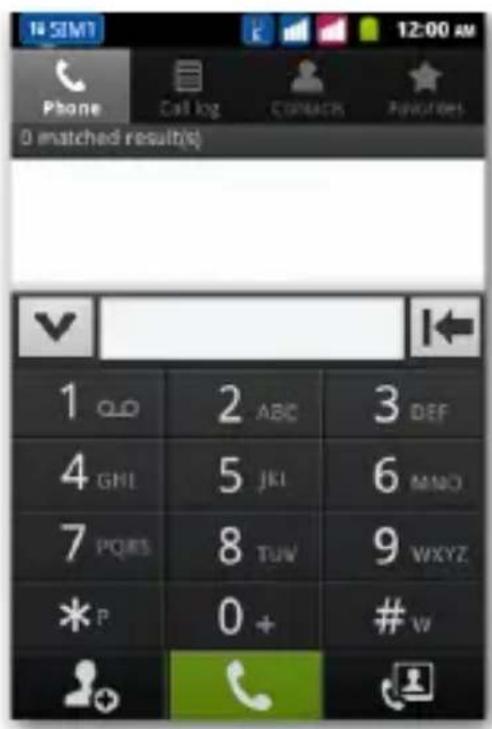
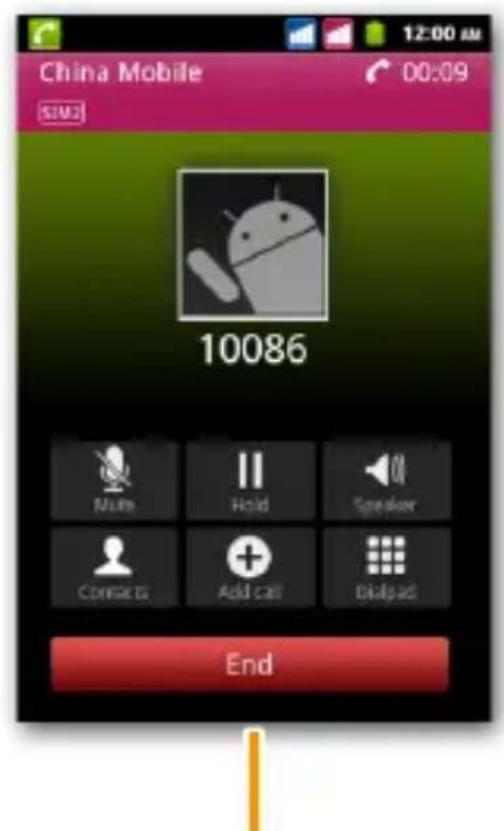
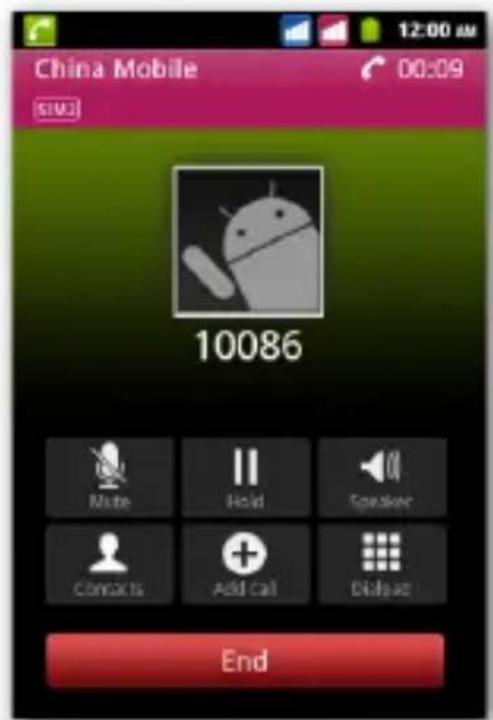
To end, press end key.
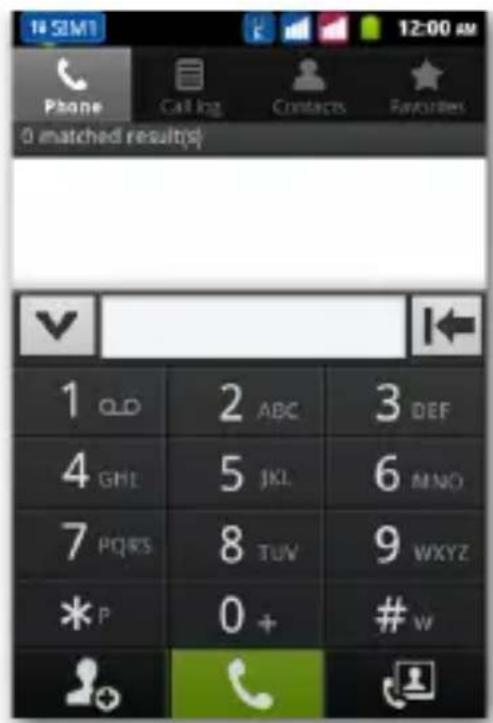
From the main screen, touch the Call Menu icon in order to open the calling screen. Use the vitrual kepad to digit the desired phone number.
Incoming call
neerg e
phone icon to the right or use the call key; to reject a call drag the red phone icon to the left or use the end key .answer.
To silence an incoming call briefly press the volume" ^+ "or - "keys on the right side of the device.
From the main screen,select Call Meun and the call log folder to access rapidly all last sent,missed and received calls.
Click onto the green icon to the right of the number to call it
Send SMS and MMS
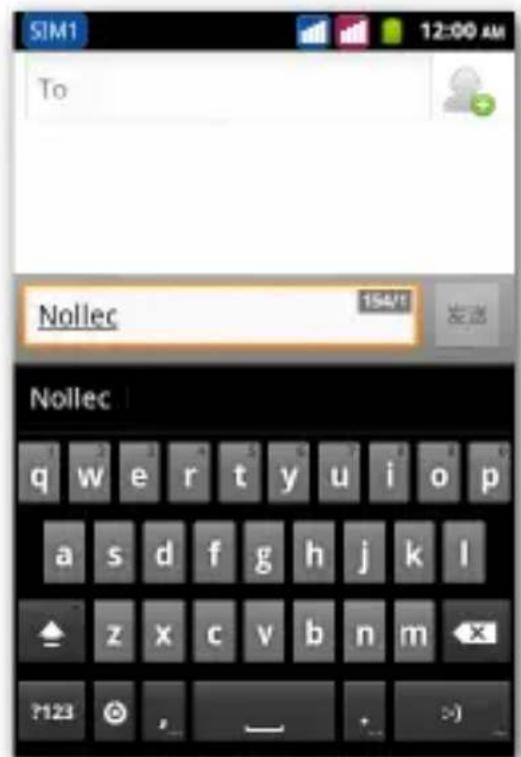
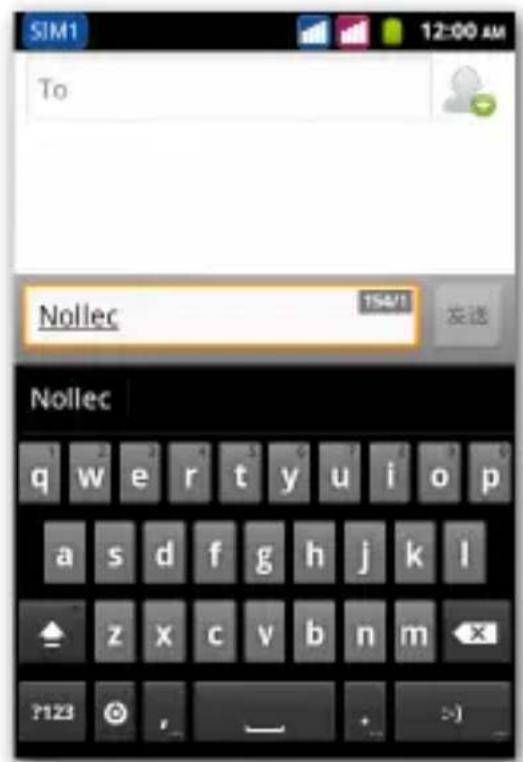
From the main screen or menu, select Messaging> Compose new message to access the text input screen.
Write the first few letters of a contact name into the recipients bar and select the desired contact from the popup contact list that will appear, or directly insert the recipient's number.
Write the text into the dedicated space .
Open the contextual menu and Attach to insert multimedia files (the message will automatically be converted into MMS)
Press either colored send key, depending on the USIM that
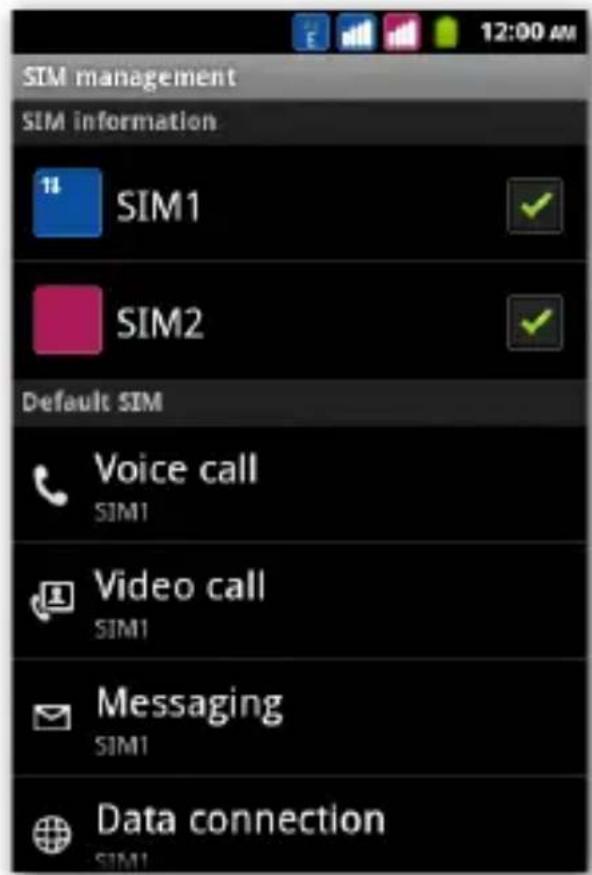
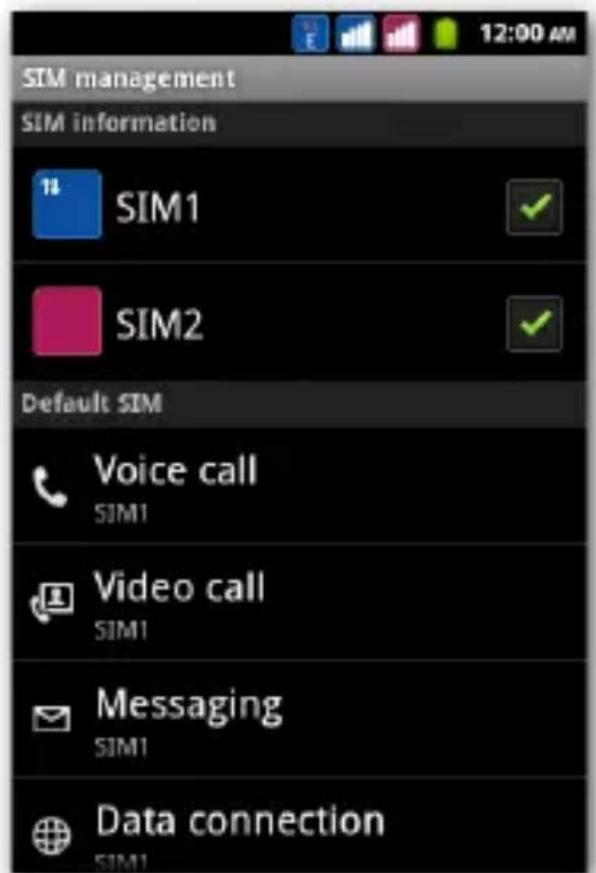
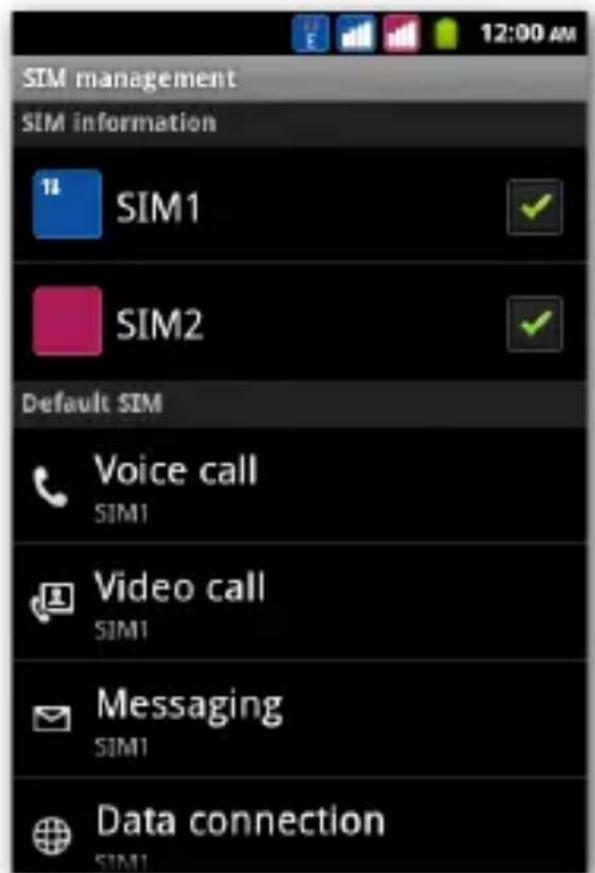
From the main menu,select Settings>SIM Management Select the "USIM1"and/or"USIM2"checkboxes to acticate/deactivate the USIM cards selectively in any moment. Select Select SIM when bootup if you want to choose wheter to activate each SIM or not at every bootup.
CAMERA
Take Picture
- Tap camera icon on main menu.
- Frame your subject.
- Focus and capture the picture.

Record video
- Tap camera icon on main menu.
- Slide the camera icon down to switch to video mode.
- Frame your subject.
- Tap the camera key to record.
- Tap the camera key again to stop recording.

TheMainMenu
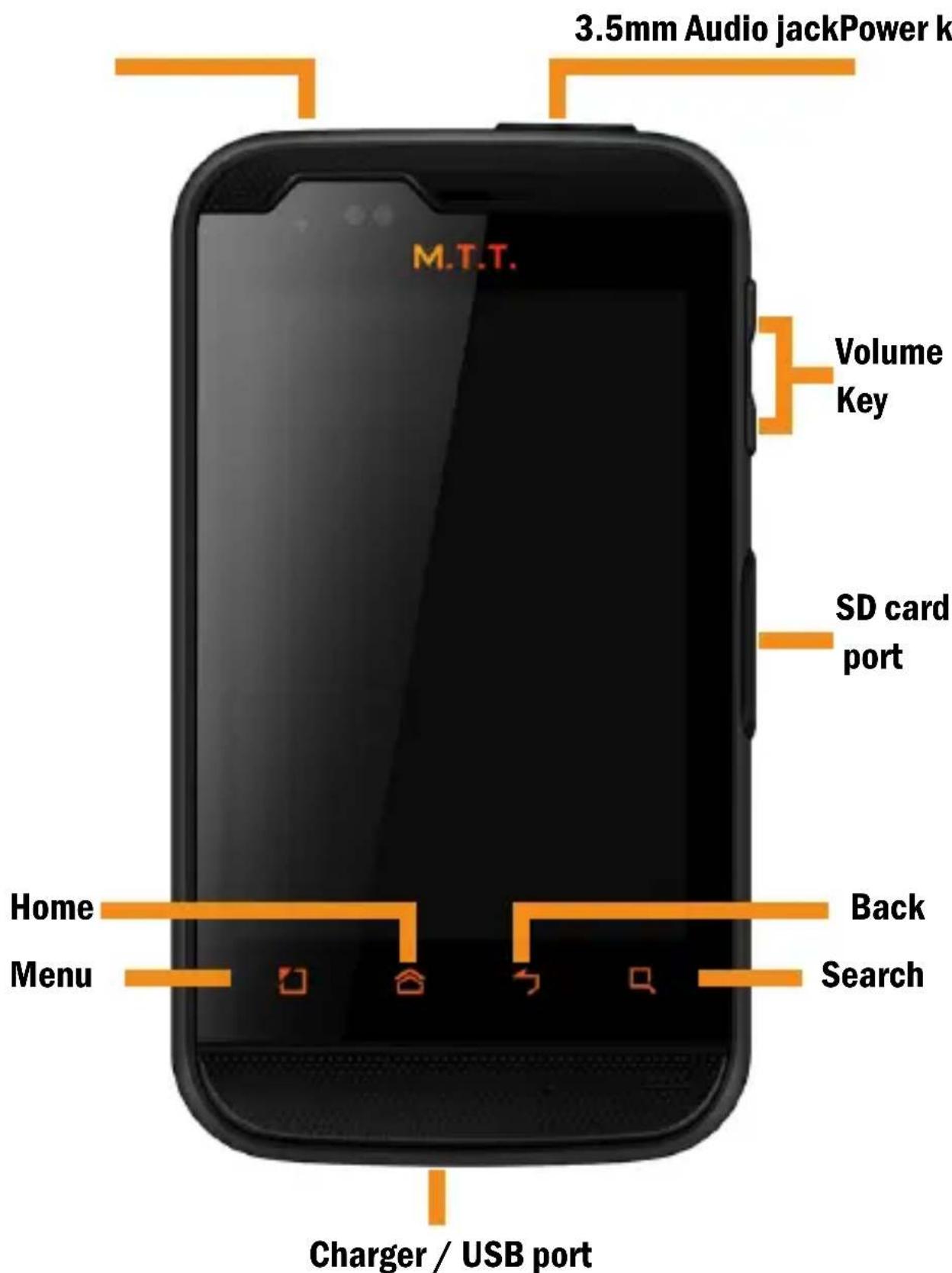
Use the touch screen by touching, pressing, sliding your finger over it. Select an application from the main menu or scroll the main menu pages up and down to find the desired one. Press the back key to get back to the previous screen or press Home to get back into the main screen.
Select a ringtone
From the main menu, select Settings>audio profiles>general. In voice call ringtone, select the desired ringtone, separately for the two USIM cards.
If you wish to set a personalized ringtone, from Music you can select a song and by pressing the contextual menu, choose Set as ringtone. After, the song will be available in the list of selectable ringtones.
Note: you can use mid, wav or *mp3 files as ringtones.
Screen lock
From the main menu, select Settings >Security>Set up screen lock. Select the desired unlocking mode(None, Pattern, PIN or Password) and confirm. In order to quickly lock the screen, briefly press on the power on/off key of the phone. To unlock it, follow the instructions on the screen.
Connectivity
The operation system requires an active data connection. If data traffic is not included in your phone contract, it could imply extra costs. In that case it is advisable to configure the internet access through WIFI. The activation/deactivation of the data traffic on the USIM is in Setting>SIM Management> Data Connection.les(the message will automatically be converted to MMS)
Connect to the Internet using WIFI
Connect to the wireless net using the WIFI function. In order to activate it, from the main menu choose Settings>Wireless and Networks> WLAN. Configure WIFI and manage the access points with the WLAN Settings. Rapid activation/deactivation is possible on the notification panel with the dedicated key. Please follow all warnings and indications concerning the use of wireless devices in areas where the use of such functions is restricted (airplanes, hospitals, etc.). Switch to offline mode when you have to use only the functions that do not need Network access.
Connecting to a Bluetooth device
Switch on the other Bluetooth device. Refer to the documentation of the device.
From the main menu, select Settings>Wireless and Networks >Blue tooth to activate Bluetooth. For a rapid activation/ deactivation use the dedicated key on the notification panel. Select Bluetooth settings>Scan for devices to find other Bluetooth devices.
Among the found devices, select the name of the device that you want to pair. The phone will try to pair the device that you want to pair. The phone will try to pair the device. eventually asking for a pairing code.
GPS geolocation
The Global Positioning System(GPS) is a system based on the satellite-related position, with global and continuous covering. In order to access the functions, select Settings>Location>use GPS satellites. Inside the same menu you can also activate Use Wireless Networks, that contributes in the position finding using the available Wireless Networks. When the GPS function is active, the phone begins to collect data from the available satellites and determines the current position. Limit the use of battery and memory by switching off the functions when you don't need it.
Technical notes
Corning Gorilla Class
M.T.T. SmartFun has a touch panel with Corning Gorilla Glass technology, a special glass made with a construction procedure that makes it extremely resistant shocks and scratches. No need to use protection films.
IP-68 protection
M.T.T. SmartFun is a IP-68 certified mobile phone, resisting extreme conditions: complete protection to dust to shocks or falls, resistance to up to1.5m deep water
Note: please check I/O port seal completely. When you use this phone in water or outdoor.
Technical Support
This product is designed as shockproof phone, however, please don't hit the phone intentionally. The brutal manipulation may bring damages to the performance of your phone, and it will be no longer under warranty.
Technical Support
Corning Gorilla Class
1 BbipOBHnTe cAOT n 6aTapeIO, BCTaBBte 6aTapeIO BCAOT.
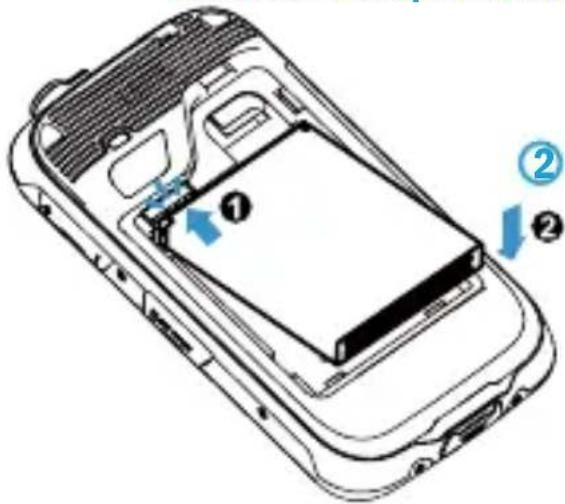
Haxmte ha 6aTapeio.
BcTaBbTe SIM KapTu B AepXaTeAb SIM1.
BcTaBbTe SIM KapTu B AepXaTeA b SIM1/ SIM2 n haxmnte Ha Hero.
Bctabte KapTu NamrTu Micro SD
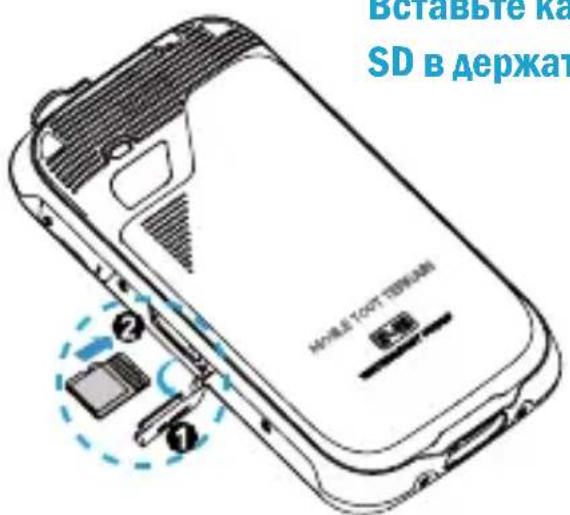
BcTaBbTe KapTu namrTu Micro SD B AepXaTeA
Ara toro 4to6bI
3aBepuHTb Bbl3OB HaxMnte KhoNkY 3aBepueHnBbl3OBa.
Haxmte Ha 3naqok Meho Bbl30Ba Ha IaABHom 3KpaHe AAn Toro 4To6bl NpeenTn Ha 3KpaH Bbl30Ba.C NOMOuBnpyaBHOI KlaBHaTypbI HabePHTe Heo6xOaHMBi Homep TeAefoHa.
BxOaIbI30B
Ara toro yto6bl OTBETnB Ha BXOaun Bbl3OB, nepaunte 3eHbI 3NaOK Bbl30Ba BnpaBO HAN HCNOAb3ynte KHOKBy Bbl30Ba; 4TO6bl OTKAnHTb Bbl3OB nepaunte KpaCHbI 3HaQK Bbl30Ba BLeBO HAN HaxMMTe KHOKNY 3aBepseHnBbl30Ba. AIA TORO 4TO6bl N3MeHNTb rPOMKOCTb CnHaAa BXOaJero Bbl30Ba HeCKoABko pa3 HaxMMTe Ha (+ + ) HAN (- - ) KHOKN peYAnpOBKn rPOMKOCTN, KOtopa paCnoLoXeHa Ha npabOHTOPoHe yCTPOINCTBa.
BbI6epHTe MeHIO Bbl30Ba Ha IaBHom 3KpaHne N nepeiAnTe B NaNKy JyPHaAa Bbl30BOB, ATOrO yTo6bl POlyuHTb DOcTyN K IOCAeHNM NepeaApecOBaHHbIM, IpOnyuSeHHbIM N NOUyeHHbIM Bbl3OBam. HaxMMte Ha 3eAlehbi 3HaQoK, paCnoAoXeHHbI CNpaBA OT HOMepa, yTo6bl OcyueCTBNTb Bbl3OB
Отправka SMS и MMS coo6цени
ДЯТOrOуTO6bI NOAUYNTb DOCTyN K эКpaHу Habopa TeKCTa Bbl6epHTe Ha rAaBHOM 3KpaHe HAn B MeHIO «06MeH coo6uEHHaMn» «Co3aTb HOBoe coo6uEHHe» (Messaging> Compose new message).
BBeHrTe NepBbIe HeckoAkbKO 6yKB Ha3BaHnKoHTaKTA B CToKe «POnUyataE» () H BbIbepHrTe Heo6XoAMMbIn KOHTaKT N3 PONBHBWeOcR BcNlBbIAuOJero CnNcKa KOHTaKTOB An60 BBeHrTe HEnocpeAdCTBeHHO Homep NoAuyataEaBBeHrTe TEKCT B CneuaNbHOe OKHO. OTKpoIte KOHTeKCTHOe MeHIO N Bbl6epHrTe «PnHKpenTb» (Attach) dAra TOrO uTo6bI Do6aBHTb MyAusbTmMeHNhBiE paAbl (coo6uHHe 6yAdet aBTOMaTHueCKN KOHbepTnpoBaHo B MMS coo6uHne). HaxMnte oAnHy n3 0603NaueHHbIX ZBeTom KhoNOK «OTnpaBHTb» (Send) B 3aBNCnMoCTn OT USIM
FB rAusbom MeHIO BbI6epHTe «HaCtpoN»> «UnpaBLeHne SIM» (Settings>SIM Management). Bbl6epHTe «USIM1» n/ HAn «USIM2» AIA TORO UTO6bI B AIO60M MOMENT NO Bbl6opy aKTHBnpoBaTb/ DeaKTHBnpoBaTb USIM KapTbI. Bbl6epHTe «Bbl6npaTb SIM npn 3arpy3Ke» (Select SIM when bootup), ecAn Bbl XOTHTe aKTHBnpoBaTb AIO6O He aKTHBnpoBaTb SIM KapTbI npn KaXdoi 3arpy3Ke.
CaeAaTb CHMMOK
- Haxmte 3ha4OK KamepbI B rAabHOM MeHIO.
- BbI6epHTe 06beKT.
- HactpoIte foKycn 3axBaTnte n3o6paXeHne c NOMOu bIO KaMepbl.

3aHncaTb BnAeO
- Haxmnte 3haqok KaMepbl B rAaBHOM MeHIO.
NTHe
BpeKHM BnAeO.
3. BbI6epHTe 06BeKT.
4. Haxmte KhoNky KamepbI dAra TORO yTO6bl Haatb CbeMky Bndeo.
5. Euple pa3 HaXMMTe KhoNky KaMepbl, AIA TORO yTO6bl OCTaHOBHTb CbeMKy BnAeo.

TaaBHoe MeHIO
YnpaBraTe ceHcOpHbIM 3KpaHOM nyTem npHKoCHOBeHHa, Haxatn I nepemeueHn IO Hemy nAlbca.
BbI6epHTe npHaoXeHHe n3 rAaBHOrO MeHIO HAn IpoKpyTne CTpaHnucy rAaBHOrO MeHIO BBepx HAn BHN3 AAn TORo YTO6bl BbI6paTb HyXhoe npHaoXeHHe. HaxMnte KhoNky «Ha3aAD» (Back) dAra TORO yTO6bl BepHyTb IpeAbDyUzni 3KpaH An6o HaxMNTe Ha 3NaQK «HaayAaBHa a CTPaHnua» (Home) dAra TORO yTO6bl BepHyTbCRA HA rAaBHbI 3KpaH.
BbI6Op cnHnAa Bbl30Ba
B rʌaBHOM MeHIO Bbl6epHrTe «HacTpoKn»> «PpOΦHAn»> «OchOBHO» (Settings>Audio profiles> General).
IpepeiTe K MeIoAnm CnHaAa Bbl30Ba, Bbl6epnte Heo6XoHMBi CNHaA Bbl30Ba OTaeA bHO AIA KaXdo USIM KapTbi.
Ecam Bbl XOTHTe yCTaHOBnTb CBOIO MeAoNDIO CNrHaAa Bbl30Ba, Bbl6epHte «My3bIka» H OTMeTbTe MeAoNDIO, HaxaB Ha KOHTekCTHOe MeHIO N Bbl6paB «YCTaHOBnTb KaK MeAoNDIO Bbl30Ba» (Set as ringtone).PocLe 3tOrO MeAoDNIA NOBNTcB CnHcKe MeAoDNIBbl30Ba, DOCTyINhBiX DIA Bbl6Opa.
Приимechанec:В Качеве MeANOДи Bbl30Ba MoxHObBbI6paTb *mid, *wav nAn *mp3 phaIabl.
Бл Okнивka заразанa
B rAaBHOM MeHIO BbI6epHTe «HacTpoKn» > «Be3oNaChocTb/ YcTaHOBHTb 6AoKNpOBky 3KpaHa» (Settings >Security>Set up screen lock). Bbl6epHTe Heo6xOaHmbl pexHM pa36AoKNpOBKn (6AoKNpOBka OTCyTCTByeT, pa36AoKNpOBka ABHXeHHeM, pa36AoKNpOBka NocLe BBOda PIN nAn npOa) n IOaTBepaNTe Bbl6Op. AIA TORO qTO6bl 6bICTpo 3a6AoKNpOBaTb 3KpaH, 6bICTpo HaxMnte Ha KhoNkY TeAeΦOHa BKA./BbIKA.
Apa36aOKnPOBKN 3KpaHa CaeDyIte HNCTpyKUHMN, KOTOpbIe OTo6paxaIOTcHa 3KpaHe.
COEANHEHNE
Ддя habдьжаше pa60ыОперационнов снсTeMbI Heo6xodmo налчne akTиВHOrO ПОКлIOUЧENЯ пЕFDAчИ ДaHHbIX.ЕсAN ФункцЯ пЕFDAчИ ДaHHbIX He BKIAUChEHa B DOROBop Ha Baш ТeАeФОH,ЗTO мОжET ПОВLEчь 3a COБОДdoПОAHHTeAыHьile pacxODbl.ВЗTom cLуаe peKOMeHdyeTcR NaCTpOHTb DoCTyP В ИНтЕрNET ПОСPEДСТВOM WiFi ПОДКlIOUЧENЯ. AKTINBaцЯ/ ДeakTNBaцЯ пЕDAчИ ДaHHbIX ДЯ USIM ocuSceTBЯETcR chepe3 «HacTpOиKN» «УпразВALEнe SIM» «CoeDAнHeNe ДЯ пЕDAчИ ДaHHbIX» (Setting>SIM Management> Data Connection) ПОДКlIOUЧENe K ИНтЕрHTу Cnomоь WIFl
BecnpoBOADHoe noaKaIOUeHne K NHTepHeTy c nOmouIbO yHKcnn WiFi.
ДАЯТOrOчTO6blaKTbBnPoBaTb 3TuФункцIOВ rAaBHOM MeHIO Bbl6epHTe «HactpoKn» «БecpOBoADhIe nOaKIoUcEHn I cTeN» WLAN (and Networks> WLAN).HactpoIte WiFi NOdKaIoucEHn e N yCTaHOBtE TOuKN DOCTyNa C NOMOUsbIO HAcTpOeK WLAN.БыICTpaJ aKTbBaun/ DeakTbBaunB03MOxHaYepe3 OKHO yBeDAOMaEHn C NOMOUsbIO CneuaNbHOn KHOJIKn. CLeaYIte BCem COo6UeHNm INHCTpykUnM B OTHOSeHN NcNoA3OBAHn EcecnpOBOADbIX yCTpoIcTB TaM, rDe NcNoA3OBaHnE 3THXФyHKUn 3aIpeSeHo (B CaMoIeTaX, yUpeXKeHnx 3dpaBOOxpaHeHn H T.A.).IpeeIHTe B pexm OfLaIn H KOrDa Bam Heo6xOdHMo NcNoA3OBaTb ToAkoTeФункUn, dApa6Otbl KOTopbIX He Tpe6yeTcAoCTyn B INHTepHET.
B HcnoAb30BaHn 3aunTHoI PAnEKN OTCyTCTByeT.
3aunta IP-68
M.T.T. SmartFun - зто мобимьньий Teleфон Суюнов Em 3auntby IP-68, ВеликийBAIOUH
IpeDeAho TJeKeIbe ycIOBna pa60TbI: IOnHaa 3aunTa OT nbIAH, yApOB H NaeHN, BOOyCToHBOcTB N B03MOXHOCTb pa60TbHa ray6nHe do 1,5 M
Ппмechане: Дя ТОTOЧТБИ NCПЛБ3OBaТБ TeJIeФОH B YСЛOBИХ KOHTaKТа C BOДОИ ИЛIN BHe ПОМЕШЕНЯ, ПОжкалуиста, y6eДNTecь, YTO ПОТ BBOДa-BbIBOДa ПЛOTHO 3aКрыт.
Texhnuécka noDepkka
AaHHbI TeAleoH YBAAeTcYdApOpnpOHybIM, ODAHko IpocHM Bac He 6HTb erO yMbIWeHNo. HeakKypaTHoe o6paueHne c TeAleoHOM MOKeT npHBecTH K HEnpaBnAbHoJ pa6Ote erO fYHKm n aHHyAnpoBaTb erO rapaHTnIO.
jz<2gglll 1dlae! 10y1 a
i 1
420 15j1 jj jj jj jj jj j
J 1
1 420
42019 1
四四四
S OBC = S BOC + S_ CBA
e 1000000000000000000000000000000000000000000
aaiiollg aolll iibieill g ciell lal yjio
<gol
J 1
buii liy jie ay aaij
a 1
gall 1234567890123456789012345678901234567890123456789012345678901234567890123456789012345678901234567890123456789
Jalil
J 1
p 1
.
S OBC = S COD + S_ BOC
Corning Gorilla Class
Jaxi a 200 M.T.T. SmartFun
G Corning Gorilla Glass
aalall aagla jil alayi paaai yolis
y
IP-68
JL Jg M.T.T. SmartFun
pI-P-68
aalldall yjil jll aolla:
1.5 1
aol
I/O 10
j 1
( a + b) ( a^2 - ab + b^2) = a^3 + b^3
iio 1
J 1
(7x) Attach nn wpn nn nn nnn.7y
777777
(nynnnn nn
xnnn,ynwn nnwn wpan nX y
(missing text here) USIM
SIM < (n) Settings,
(SIM 1) Management
"USIM2 " w/ "USIM1 " w/
USIM 7
Select SIM when bootup nx 120 .17w7
x nn nn nn nn nn nn nn nn nn nn nn nn nn nn nn nn nn nn nn nn nn nn nn nn nn nn nn nn nn nn nn nn nn nn nn nn nn nn nn nn nn nn nn nn nn nn nn nn nn nn nn nn nn nn nn nn nn nn nn nn nn nn nn nn nn nn nn nn nn nn nn nn nn nn nn nn nn nn nn nn nn nn nn nn nn nn nn nn nn nn nn nn nn nn nn nn nn nn nn nn
.7777777777777777777777777777
mnnn
.1
.2
.3

X77n77
.1
.2
.3
.4
.5

y
777,77777777777777777777777777777777777777777777777777
7777 1077
< (n) Settings, nn nn nn
General < ( Audio profiles .
Voice call ringtone -Oo, oN nn n nn. USIM
yoxn nn nn (np) Music - np) Set as ringtone nn np
nwn nnnn, nnn. (nynx
.
*.wav,*.mid
.7777770*.mp3
TOn n7y1
(777) Settings nn, wnn nn y) Set up screen lock < (n) Security < nn nn nn nn nn nn. (on nn
NNN NNNNNNNNNNNNNNNNNNNNNNNNNNNNNNNNNNNNNNNNNNNNNNNNNNNNNNNNNNNNNNNNNNNNNNNNNNNNNNNNNNNNNNNNNNNNNNNNNNNNNNNNNNNNNNNNNNNNNNN
.
nno
Corning Gorilla Class
M.T.T. SmartFun, Corning Gorilla Glass
IP-68
M.T.T. SmartFun IP-68 15
y/0n nn nn pyn .nn n nn nn nn nn nn nn nn nn nn nn nn nn nn nn nn nn nn nn nn nn nn nn nn nn nn nn nn nn nn nn nn nn nn nn nn nn nn nn nn nn nn nn nn nn nn nn nn nn nn nn nn nn nn nn nn nn nn nn nn nn nn nn nn nn nn nn nn nn nn nn nn nn nn nn nn nn nn nn nn nn nn nn nn nn nn nn nn nn nn nn nn nn nn nn nn nn.
n
,nnn-pon nno nn no