
Voxtel R300 - Walkie-talkie AEG - Free user manual and instructions
Find the device manual for free Voxtel R300 AEG in PDF.
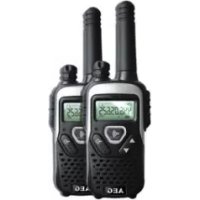


| Product Type | PMR (Private Mobile Radio) walkie-talkie |
| Brand | AEG |
| Model | Voxtel R300 |
| Power Supply | Rechargeable batteries (AA type recommended) or 9 V DC / 200 mA mains adapter |
| Number of Channels | 8 channels (frequencies 446.00625 to 446.09375 MHz) |
| CTCSS Sub-channels | 38 per channel |
| DCS Codes | 83 digital codes |
| Transmission Power | 0.5 W (maximum) |
| Maximum Range | Up to 10 km in open area |
| Main Features | VOX (voice activation), auto scan, call alert (15 tones), Roger beep, key lock, dual channel monitoring, LCD backlight |
| Display | LCD screen with indicators for channel, sub-channel, DCS code, battery level, VOX, scan, lock |
| Connectors | Combined earphone/microphone/charger socket |
| Cleaning and Maintenance | Clean with a damp cloth; do not use solvents; avoid humidity and extreme temperatures |
| Safety | Do not use with a damaged antenna; avoid explosive atmospheres; keep safety distance (5 cm from face) |
| Warranty | 24 months from the date of purchase (subject to conditions) |
| After-Sales Service | Via www.aegtelephones.eu |
| Disposal | Do not dispose of with household waste; recycle at a suitable collection point |
| Weight | Approx. 130 g (with batteries) |
| Dimensions | Approx. 150 x 55 x 30 mm |
Frequently Asked Questions - Voxtel R300 AEG
User questions about Voxtel R300 AEG
0 question about this device. Answer the ones you know or ask your own.
Ask a new question about this device
Download the instructions for your Walkie-talkie in PDF format for free! Find your manual Voxtel R300 - AEG and take your electronic device back in hand. On this page are published all the documents necessary for the use of your device. Voxtel R300 by AEG.
USER MANUAL Voxtel R300 AEG
PMR Voxtel R300/R320
P1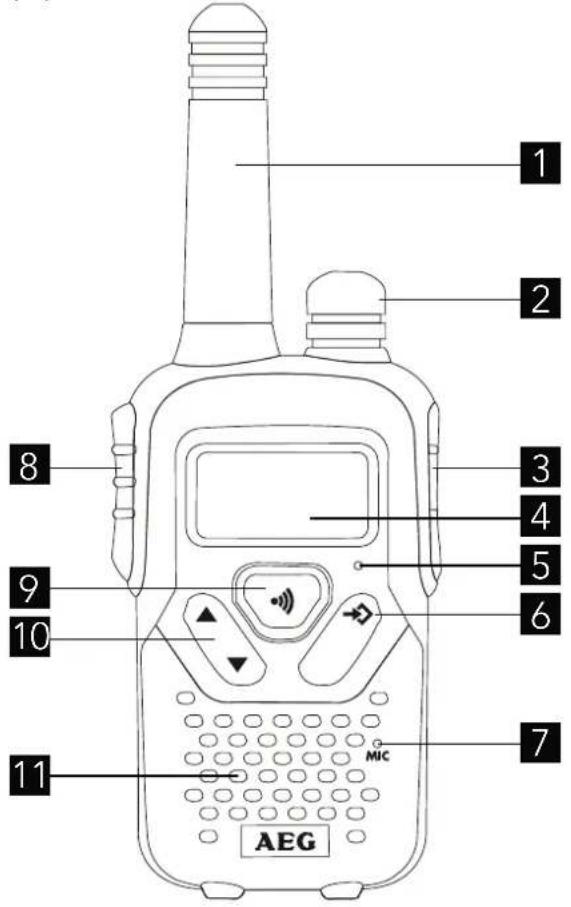
P2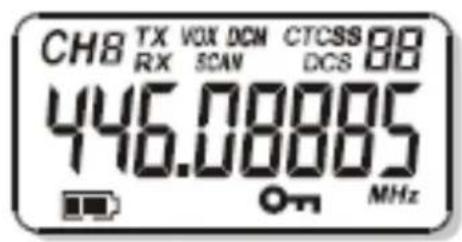
P3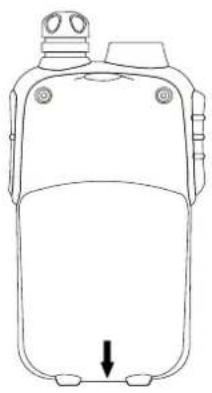

P4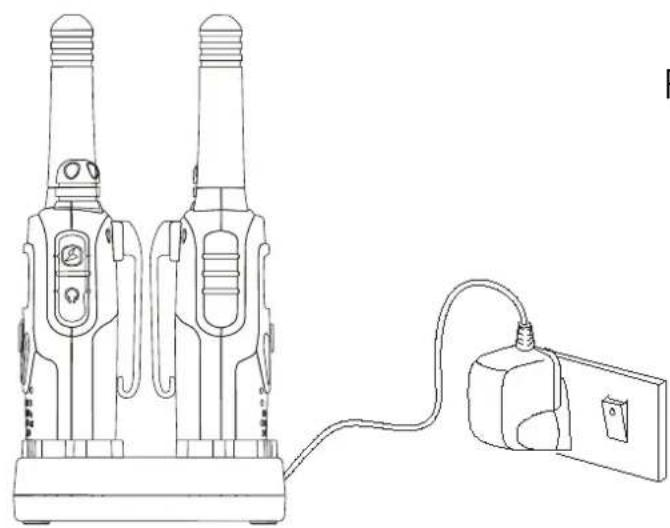
P5
1 BECAUSE WE CARE
Thank you for purchasing this product. This product has been designed and assembled with utmost care for you and the environment. This is why we supply this product with a quick installation guide to reduce the number of paper (pages) and therefore save trees to be cut for making this paper. Thank you for supporting us to protect our environment.
2 GETTING TO KNOW YOUR PMR
2.1 Handset overview (see P1)
| # Meaning | ||
| 1 | Antenna | |
| 2 | [74GB] | Power / volume switchRotate clockwise / counter clockwise to turn the unit on or off. |
| 3 | Earphone/microphone/charge jack | |
| 4 | LCD screenDisplays the current channel selection and other radio symbols. | |
| 5 | Transmit LED | |
| 6 | [KZX?] | Menu buttonPress to switch between modes. |
| 7 MIC | Microphone | |
| 8 PTT | PTT (push to talk) buttonPress and hold to transmit. | |
| 9 |  | Call buttonPress to send ringing tone to other PMR units. |
| 10 | / ▲ ▼ | Up / down buttons• Press to change channels, volume and to select settings during programming. |
| 11 | Speaker | |
2.2 LCD screen (see P2)
| Meaning | |
| 8 | Channel number.Changes from 1 to 8 as selected by the user. |
| 88 | CTCSS code.Changes from 1 to 38 as selected by the user. |
| Displays the battery change level. When the bars are reduced, the battery needs recharging. | |
| TX | Displayed when transmitting a signal. |
| RX | Displayed when receiving a signal. |
| DCM | Displayed when the dual watch function is turned on. |
| DCS | Displayed when the Digital Code System is turned on. |
| VOX | Displayed when the VOX feature is enabled. |
| SCAN | Displays when the PMR is scanning all channels. |
| Displayed when the key lock feature is activated. | |
| Displays the current speaker volume level. |
3 INSTALLATION
3.1 Removing the belt clip
- Pull the belt clip latch forward (away from the PMR).
- While pulling the belt clip latch, push up the belt clip as shown in Fig. 1.
3.2 Installing the belt clip
- Slide the belt clip into the slot as shown in Fig. 2. A "click" indicates the belt clip is locked into its position.
Belt clip latch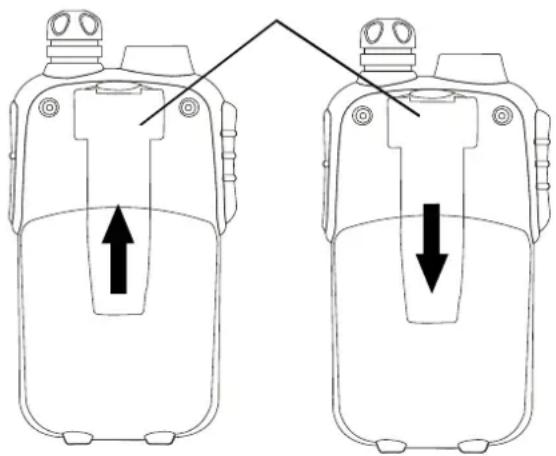
Fig. 1 Fig. 2
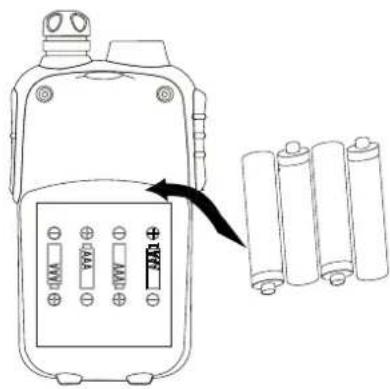
3.3 Installing the batteries (see P3)
Caution:
Observe the proper battery polarity orientation when installing batteries. Incorrect positioning can damage both the batteries and the unit.
- Slide down the battery compartment cover.
- Insert the rechargeable batteries following the orientation as shown in P3.
- Replace the battery compartment cover.
Important:
Read these safety warnings before you charge the batteries.
- When placing the PMR in the charger, use only the power supplies listed in the user instructions supplied with the devices.
- Don't try to recharge non-rechargeable batteries.
- Make sure the battery compartment cover is securely locked in place when you are charging the batteries.
- Dispose of used batteries safely and in a way that will not harm the environment. Never try to burn them or put them anywhere they could get burnt or punctured.
- Don't leave dead batteries in your PMR units. They might leak if you do and damage the PMR.
3.4 Charging the batteries
3.4.1 Using the desktop charger (model R320) (see P4)
- Insert the small plug on the end of the mains adaptor into the power-in connection jack at the back of the desktop charger.
- Plug the mains adaptor into a 240 V AC, 50 Hz main socket.
- Place the PMR units in the charge cradle in an upright position. The charge LED indicators will light up.
- It takes about 10 hours to fully recharge the batteries if they are completely run down. New batteries take up to 14 hours to fully charge.
Important:
- The unit must be charged using the mains adaptor provided. Using any other adaptor will result in non-compliance with EN60950-1 and will invalidate any approvals and warranty.
- Always turn off the PMR units when charging. This will shorten the charging time.
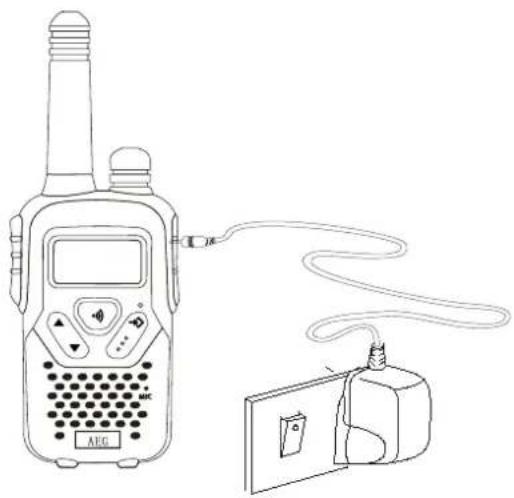
3.4.2 Using the adapter (model R300/ R320) (see P5)
- Lift the charge socket cover located on the right side of the PMR.
- Insert the round connector of the 9V DC / 200 mA adaptor into the charge jack.
- Plug the mains adaptor into a 240 V AC, 50 Hz main socket.
Important:
- Use only power supplies listed in this user instruction. Csec AC Adaptor brand ; Model -CSD0900200G power supply.
3.5 Battery meter
The battery meter is located in the left corner of the LCD screen. It appears like a battery with three bars inside. These indicate the amount of power available. When the battery level reaches its minimum level in PMR on mode, the unit will emit two beep tones and automatically the unit will power off.
The unit can detect the battery charge in 4 levels:

Battery charge at high level.
 | Battery charge at medium level. |
 | Battery charge at low level. At this level, the unit will emit a “beep” sound for every 10 seconds in normal mode.Important: Charge the unit for 10-14 hours. |
 | Battery charge at very low level. When the battery level reach its minimum level in on mode, the unit will emit two beep tone and automatically turn off the power and proceeds to watch mode. |
3.6 Battery life
The unit has a built-in power saver to make the batteries last longer. But when you are not using the units, turn them off to conserve battery power.
4 OPERATION
4.1 Transmitting range
The talk range depends on the environmental and terrain. It will be reach up to about 10 km in wide open spaces, without obstructions such as hills or buildings. Don't try to use two PMR units which are less than 1.5 m apart. Otherwise, you may have experience interference.
Important safety warning:
- To reduce radio frequency exposure when you are using your PMR, hold the unit at least 5 cm away from your face.
- Never use your unit outdoors during a thunderstorm.
- Do not use the unit in the rain.
- If your unit gets wet, turn it off and remove the batteries. Dry the battery compartment and leave the cover off for a few hours. Do not use the unit until it is completely dry.
- Keep the unit out of reach of babies and young children.
4.2 Turning the unit on/off
To turn on:
- Rotate the power button Ⓐ clockwise until the LCD screen turns on and displays the current channel.
To switch off:
- Rotate the power button Ⓞ counterclockwise until the LCD screen turns blank.
Note:
Every time you rotate the power button Ⓓ to turn on, the volume will also open. The volume level will increase or decrease by rotating the power button Ⓔ.
4.3 Changing channels
The unit has 8 available channels. To communicate with other PMR users within range, you must all have your PMR tuned to the same channel.
- Press the menu button → once; the current channel number flashes on the LCD screen.
- Press the up ▲ or down ▼ button to select the desired channel. The channel changes from 1 to 8, or vice versa.
- Press the PTT button to confirm the channel setting.
Note:
Refer to the "Channel frequency table" section of this owner's manual for detailed frequency listing.
4.3.1 Setting the CTCSS sub-channel
Each channel also has 38 sub-channels to let you set up a group of users within the same channel for more private communication. If you have set the sub-channel, you can only communicate with other PMR users tuned to the same channel and sub-channel.
To turn the sub-channel function off, simply set the sub-channel to 0 (zero). You can communicate with any PMR user set to the same channel who also turns off the sub-channel operation.
- Press the menu button twice, the current CTCSS sub-channel number flashes on the LCD screen.
- Press the up ▲ or down ▼ button to select one of the 38 CTCSS sub-channels.
- Press the PTT button to confirm the sub-channel setting.
4.3.2 Setting the DCS advanced digital code
Each channel also has 83 digital codes to let you set up a group of users for more secured private communication.
- Press the menu button 3 times. DCS code is blinking on the LCD screen.
- Press the up ▲ or down ▼ button to select the desired DCS code.
- Press the PTT button to confirm the DCS channel setting.
Transmitting and receiving
- The PMR transmission is "one way-at-a-time." While you are speaking, you cannot receive a transmission.
- The PMR is an open-license band. Always identify yourself when transmitting on the same channel.
4.4 Receiving
The unit is continuously in the receive mode when the unit is turned on and not transmitting. When a signal is received on the current channel, the RX icon will be displayed on the LCD screen and the receiver LED lights up.
4.5 Transmitting (sending a speech)
- Press and hold the PTT (push to talk) button to transmit your voice. The TX icon will be displayed on the LCD screen.
- Hold the unit in a vertical position with the microphone 5 cm away from the mouth. While holding the PTT button, speak into the microphone in a normal tone of voice.
- Release the PTT button when you have finished speaking.
4.6 Monitor
You can use the monitor feature to check for weak signals on the current channel.
- Press and hold the menu → and down ▼ buttons at the same time. The RX icon will be displayed on the LCD screen. Your PMR will pick up signals on the current channel, including background noise.
- Press the menu button → to stop the channel monitoring.
4.7 Setting the VOX (voice activated) sensitivity
In VOX mode, the unit will transmit a signal only when it is activated by your voice or other sounds around you. The unit will transmit further for 2 seconds even if you stop talking.
The level of VOX sensitivity is shown by a number on the LCD screen. At the highest level, the unit will pick up softer noise (including background noise); at the lowest level, it will pick up only louder noise.
- Press the menu button 4 times, the VOX icon will be displayed and "OF" flashes on the LCD screen.
- Press the up button ▲ to set the VOX sensitivity to the maximum level (the maximum level is 3).
- To deactivate the VOX function, press the down button ▼ until "OF" appears on the LCD screen.
- Press the PTT button to confirm your setting. VOX will steadily appear on the LCD screen as long as the VOX feature is activated.
Note:
VOX operation is not recommended if the unit will be used in a noisy or windy environment.
4.8 Activating the auto channel scan
Channel scan performs searches for active signals in an endless loop for all 8 channels, 38 CTCSS codes, and all 83 DCS codes.
- Press the menu button 5 times, the SCAN icon will display on the LCD screen.
- Press the up ▲ or down ▼ button to begin scanning channels. When an active signal is detected, channel scan pauses on the active channel.
- Press the menu button 6 times, CTCSS flashes on the LCD screen. Press the up ▲ or down ▼ button to begin scanning the CTCSS from 1-38.
- Press the menu button 7 times, DCS flashes on the LCD screen. Press the up ▲ or down ▼ button to begin scanning DCS code 1-83.
- Press the PTT button to confirm your setting.
4.9 Call alert
Your PMR can alert you to incoming signal by emitting an audible call tone.
4.9.1 Call-ring tone
You can send a call-ring tone to other PMR users to give an alert that you want to communicate with them.
- Press the call button
You will hear a ring tone for about two seconds; TX icon appears on the LCD screen. Any other units within the transmitting range and tuned to the same channel and sub-channel (if applicable) will hear the call-ring tone.
4.9.2 Selecting a call-ring tone
The unit is equipped with 15 different types of call-ring tones.
- Press the menu button → 8 times, the "C 1" icon will display and is blinking on the LCD screen.
- Press the up ▲ or down ▼ button to select the desired call-ring tone. The respective call-ring tone sound will be played when changing from one tone to another.
- Press the PTT button to confirm your setting.
4.10 Setting the Roger beep
The Roger beep is a tone which is automatically transmitted whenever the PTT button is released. This alerts the receiving party to inform that you have intentionally ended the transmission and you are now in receive mode.
- Press the menu button → 9 times, the "R0" icon will be displayed while the "ON" icon is blinking on the LCD screen.
- Press the up ▲ or down ▼ button to select the roger beep on/off.
- Press the PTT button to confirm your setting.
- Press the menu button → 9 times, the "R0" icon will be displayed while the "ON" icon is blinking on the LCD screen. - Press the up ▲ or down ▼ button to select the roger beep on/off. - Press the PTT button to confirm your setting.
4.11 Setting the key tone on or off
This feature allows the unit to emit a confirmation tone on pressing a button.
- Press the menu button → 10 times, the "T0" icon will be displayed while "ON" icon is blinking on the LCD screen.
- Press the up ▲ or down ▼ button to select the key tone on/off.
- Press the PTT button to confirm your setting.
4.12 Setting the dual watch mode
Your unit is capable of monitoring two channels, the current and another (dual watch) channel. If the unit detects a signal on either channel, it will stop and receive the signal.
- Press the menu button → 11 times, "DCM" icon will be displayed while "OF" flashes on the LCD screen.
- Press the up ▲ or down ▼ button to select the dual watch channel (1-8, except the current channel).
- Continue pressing the menu button → to change the CTCSS code.
- Press the up ▲ or down ▼ button to select the desired CTCSS code (1-38)
- Continue pressing the menu button → to change the DCS code.
- Press the up ▲ or down ▼ button to select the desired DCS code (1-83).
- Press the PTT button to confirm your setting.
5 AUXILIARY FEATURES
5.1 Key lock
The key lock feature allows the user to disable the up ▲ or down ▼ and menu ➡ buttons so that the PMR settings cannot be changed accidentally.
- To activate the key lock feature, press and hold the menu button ➡ until the key lock icon appears on the LCD screen.
- To deactivate the key lock feature, press and hold the menu button ➡ until the key lock icon disappears from the LCD screen.
Note:
The PTT, call •, and power Ⓞ buttons remain functional even if the key lock feature is activated.
5.2 LCD screen backlight
Every time a button is pressed (except PTT and call ⬤ buttons), the LCD screen backlight will illuminate for 5 seconds.
5.3 Microphone/earphone/charge jack
The unit is equipped with an auxiliary microphone, earphone, and charge jack located on the opposite side of the PTT button. For more information, check www.aegtelphones.eu.
6 SPECIFICATIONS
| Channels available 8 channels |
| CTCSS sub-channel 38 for each channel |
| Output power (TX) 0,5 W (Max) |
| Range up to 10 km |
Channel frequency table
| Channel Frequency (MHz) Channel Frequency (MHz) | |||
| 1 | 446.00625 | 5 | 446.05625 |
| 2 | 446.01875 | 6 | 446.06875 |
| 3 | 446.03125 | 7 | 446.08125 |
| 4 | 446.03125 | 8 | 446.09375 |
7 SAFETY
| ! | Damaged antennaDo not use any PMR that has a damaged antenna. If a damaged antenna comes in contact with the skin, a minor burn may result. |
| ! | Rechargeable batteriesAll batteries can cause property damage and/or bodily injury such as burns if conductive material such as jewelry, keys, or beaded chains touches exposed terminals. The material may complete an electrical circuit (short circuit) and become quite hot. Exercise care in handling any charged battery, particularly when placing it inside a pocket, purse or other container with metal objects. |
| ! | Warning for vehicles with an air bagDo not place your unit in the area over an air bag or in the air bag deployment area. Air bags inflate with great force. If a unit is placed in the air bag deployment area and the air bag inflates, the device may be propelled with great force and cause serious injury to the occupants of the vehicle. |
| ! | Potentially explosive atmospheresTurn your unit off when in any area with a potentially explosive atmosphere, unless it is a type especially qualified for such use (for example, factory mutual approved). Sparks in such areas could cause an explosion or fire resulting in injury or even death. |
| ! | BatteriesDo not replace or charge batteries in a potentially explosive atmosphere. Contact sparking may occur while installing or removing batteries and cause an explosion. |
| ! | Blasting caps and areasTo avoid possible interference with blasting operations, turn your device off near electrical blasting caps or in a “blasting area” or in areas posted: “Turn off the two way radio.” Obey all signs and instructions. |
NOTE:
Areas with potentially explosive atmospheres are often, but not always, clearly marked. They include fueling areas such as below deck on boats; fuel or chemical transfer or storage facilities; areas where the air contains chemicals or particles, such as grain, dust, or metal powders; and any other area where you would normally be advised to turn off your vehicle engine.
8
CE
DECLARATION
This product is in compliance with the essential requirements and other relevant provisions of the R&TTE directive 1999/5/EC.
The Declaration of conformity can be found on:
www.aegtelephones.eu
9 DISPOSAL OF THE DEVICE
(ENVIRONMENT)

At the end of the product lifecycle, you should not throw this product into the normal household garbage but bring the product to a collection point for the recycling of electrical and electronic equipments. The symbol on the product, user guide and/or box indicate this. Some of the product materials can be re-used if you bring them to a recycling point. By reusing some parts or raw materials from used products you make an important contribution to the protection of the environment. Please contact your local authorities in case you need more information on the collection points in your area.
Batteries must be removed before disposing of the device. Dispose of the batteries in an environmental manner according to your country regulations.
10 CLEANING AND CARE
Do not clean any part of your unit with benzene, thinners or other solvent chemicals as this may cause permanent damage which is not covered by the guarantee.
When necessary, clean it with a damp cloth.
Keep your unit away from hot, humid conditions or strong sunlight, and don't let it get wet.
11 GUARANTEE AND SERVICE
The unit is guaranteed for 24 months from the date of purchase shown on your sales receipt. This guarantee does not cover any faults or defects caused by accidents, misuse, fair wear and tear, neglect, tampering with the equipment, or any attempt at adjustment or repair other than through approved agents.
Please keep your sales (till) receipt this is your proof of guarantee.
11.1 While the unit is under Guarantee
- Pack up all parts of your unit, using the original package.
- Return the unit to the shop where you bought it, making sure you take your sales receipt.
- Remember to include the mains adapter. (if applicable)
11.2 After the Guarantee has expired
If the unit is no longer under Guarantee, contact us via www.aegtelephones.eu
4.12 Dual Channel monitor
11 GUARANTEE AND SERVICE
© 2012 Binatone Electronics International Limited
All rights reserved
Subject to availability. Rights of modification reserved.
AEG is a registered trademark used under license from AB Electrolux (publ)
www.aegtelephones.eu



- PMR VOXTEL R300/R
- BECAUSE WE CARE
- GETTING TO KNOW YOUR PMR
- HANDSET OVERVIEW (SEE P1)
- INSTALLATION
- REMOVING THE BELT CLIP
- INSTALLING THE BELT CLIP
- INSTALLING THE BATTERIES (SEE P3)
- CAUTION
- IMPORTANT
- READ THESE SAFETY WARNINGS BEFORE YOU CHARGE THE BATTERIES
- CHARGING THE BATTERIES
- USING THE DESKTOP CHARGER (MODEL R320) (SEE P4)
- USING THE ADAPTER (MODEL R300/ R320) (SEE P5)
- BATTERY METER
- BATTERY LIFE
- OPERATION
- TRANSMITTING RANGE
- IMPORTANT SAFETY WARNING
- TURNING THE UNIT ON/OFF
- TO TURN ON
- NOTE
- CHANGING CHANNELS
- SETTING THE CTCSS SUB-CHANNEL
- SETTING THE DCS ADVANCED DIGITAL CODE
- TRANSMITTING AND RECEIVING
- RECEIVING
- TRANSMITTING (SENDING A SPEECH)
- MONITOR
- SETTING THE VOX (VOICE ACTIVATED) SENSITIVITY
- ACTIVATING THE AUTO CHANNEL SCAN
- CALL ALERT
- CALL-RING TONE
- SELECTING A CALL-RING TONE
- SETTING THE ROGER BEEP
- SETTING THE KEY TONE ON OR OFF
- SETTING THE DUAL WATCH MODE
- AUXILIARY FEATURES
- KEY LOCK
- LCD SCREEN BACKLIGHT
- MICROPHONE/EARPHONE/CHARGE JACK
- SPECIFICATIONS
- CHANNEL FREQUENCY TABLE
- SAFETY
- DISPOSAL OF THE DEVICE
- (ENVIRONMENT)
- CLEANING AND CARE
- GUARANTEE AND SERVICE
- WHILE THE UNIT IS UNDER GUARANTEE
- AFTER THE GUARANTEE HAS EXPIRED
- DUAL CHANNEL MONITOR
Brand : AEG
Model : Voxtel R300
Category : Walkie-talkie