WeMove Absolute - Smartphone NGM - Free user manual and instructions
Find the device manual for free WeMove Absolute NGM in PDF.


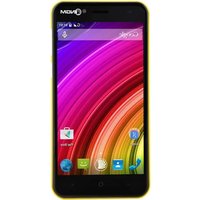
| Product type | Smartphone |
| Brand | NGM |
| Model | WeMove Absolute |
| Operating system | Android |
| Screen | Capacitive touch screen |
| Dual SIM | Yes (SIM1: UMTS/GSM, SIM2: GSM) |
| Battery type | Rechargeable lithium-ion |
| Charger | Wall charger via micro USB (original NGM recommended) |
| Memory | Micro-SD card (not included) |
| Connectivity | Wi-Fi, Bluetooth, GPS |
| Main functions | Calls, SMS/MMS, Internet, Email, GPS navigation, camera (not specified) |
| Virtual keyboard | SwiftKey |
| Ringtone | Customizable per SIM |
| Maintenance and cleaning | Wipe with a soft, dry cloth. Avoid moisture and shocks. |
| Security | Screen lock by pattern, PIN or password |
| Spare parts and repairability | Use only original NGM accessories. Contact NGM after-sales service for repairs. |
| General information | 86-page manual. Weight and dimensions not provided. |
Frequently Asked Questions - WeMove Absolute NGM
User questions about WeMove Absolute NGM
0 question about this device. Answer the ones you know or ask your own.
Ask a new question about this device
Download the instructions for your Smartphone in PDF format for free! Find your manual WeMove Absolute - NGM and take your electronic device back in hand. On this page are published all the documents necessary for the use of your device. WeMove Absolute by NGM.
USER MANUAL WeMove Absolute NGM
Copyright © 2012 NGM Italia
Welcome to NGM Android™ World! Thank you for purchasing NGM WeMove Absolute. This device allows you to access several Android features such as managing your contacts, emails, social networks and to discover the opportunities of Internet with just a single touch! It will be like having a small tablet, Smartphone and a GPS navigation system all in one, stylish device. Compared to the usual Mono SIM Smartphones available on the market, NGM WeMove Absolute offers the convenience of DUAL SIM, which has always distinguished the entire spectrum of NGM phones, i.e. the ability to concurrently manage two SIM cards and to set the preferred SIM for calls, video calls and data connection; a benefit only for NGM customers! By visiting the official NGM website at www.ngm.eu, you can appreciate the whole range of NGM mobile phones and accessories, ask for after-sales service, access the forum for technical assistance and download software updates.
Setup
Warning: insert USIM and SD Cards only after removing the battery, in order to avoid data loss.
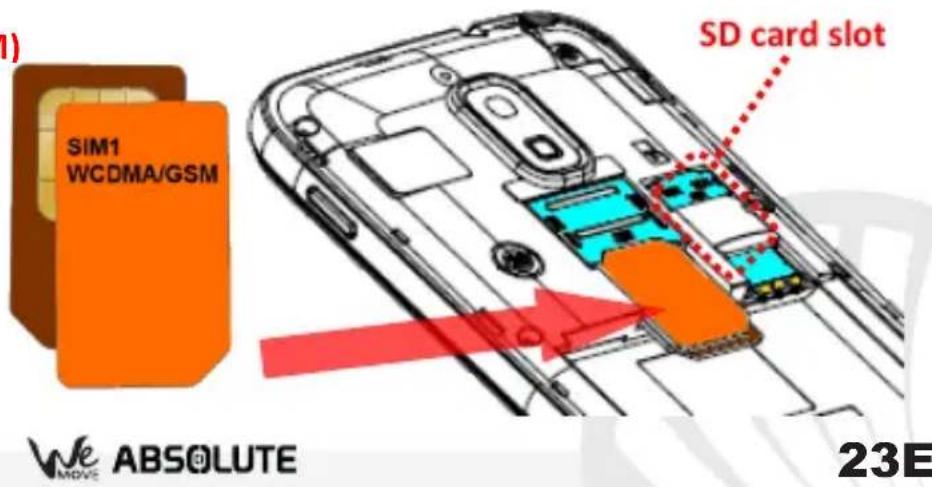
Installing the USIM cards: The USIM card stores information as your personal phone number, PIN code, carrier services numbers, contacts and other important details. To access the USIM slots, turn off the phone, take off the back cover by lifting it up from the bottom, and remove the battery. Insert your USIM cards with their golden contacts facing each other simply by sliding them into their slots; follow the illustration. Slot 1 supports WCDMA.
Installing the memory card: In order to use all functions of NGM WeMove ABSOLUTE, it is advisable to install a micro-SD card: a dedicated slot fort the memory card is placed right next to the USIM slots, in the back side of the phone. Slide in the memory card so that the gold contacts are turned downwards.
Slot above: USIM1 (UMTS o GSM)
Slot underneath: USIM2 (GSM)
Inserting the battery
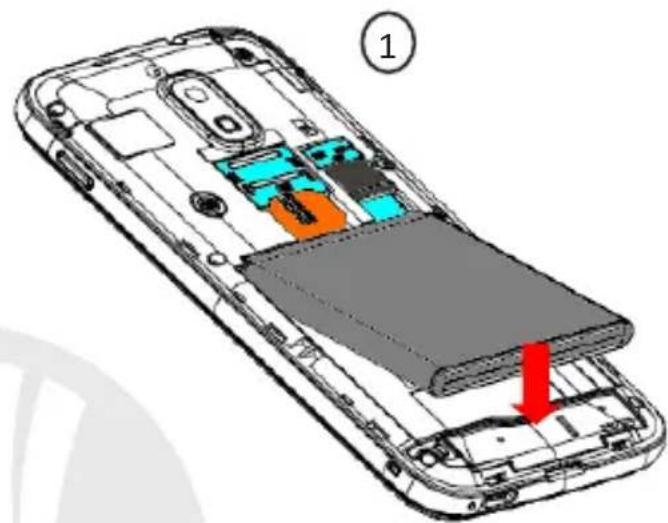
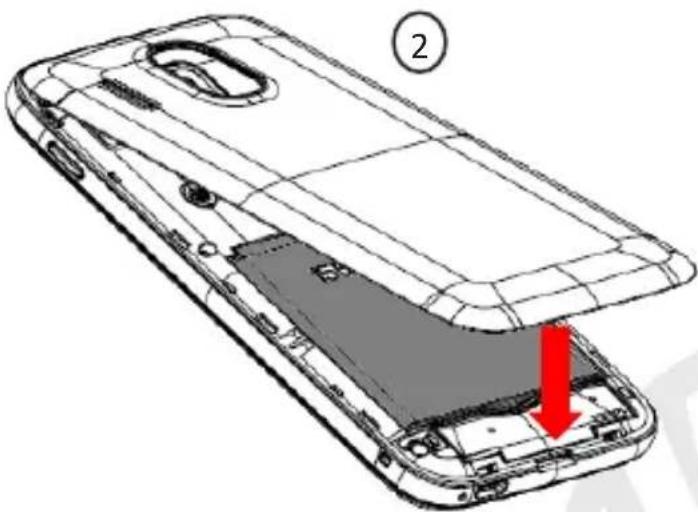
Your device is provided with a lithium-ion battery and is designed to be used exclusively with original NGM batteries and chargers. The battery must be inserted into the backside of the phone (see illustration below) with the battery contacts facing the contacts in the battery tray. When done, put the hind cover back into position as shown in the following illustrations.
24ENGLISH
WE ABSOLUTE
Charging the battery
Please charge the battery completely before starting to use the device. Use the provided USB cable, connecting one end to the provided wall socket adaptor (placed into a socket) and the other end to the USB connector placed on the bottom side of the phone. The phone can also be charged by connecting it to a PC USB port but in that case it will charge more slowly. While the battery is charging, an animation on screen will show the charging progress. Once charge is completed, the icon will be filled and the phone can be disconnected from the grid.
Warning: Do not connect the phone to a booting-up or running down PC to avoid voltage jumps. In order to preserve the correct functioning of the device and in order not to compromise warranty, the sole use of original NGM battery chargers and accessories are recommended. Please charge the battery indoors, in a dry and favorable environment. It's normal for the battery to get slightly warm during the charging process. The battery will reach its full capacity when cycled several times.
Turn on, turn off and standby
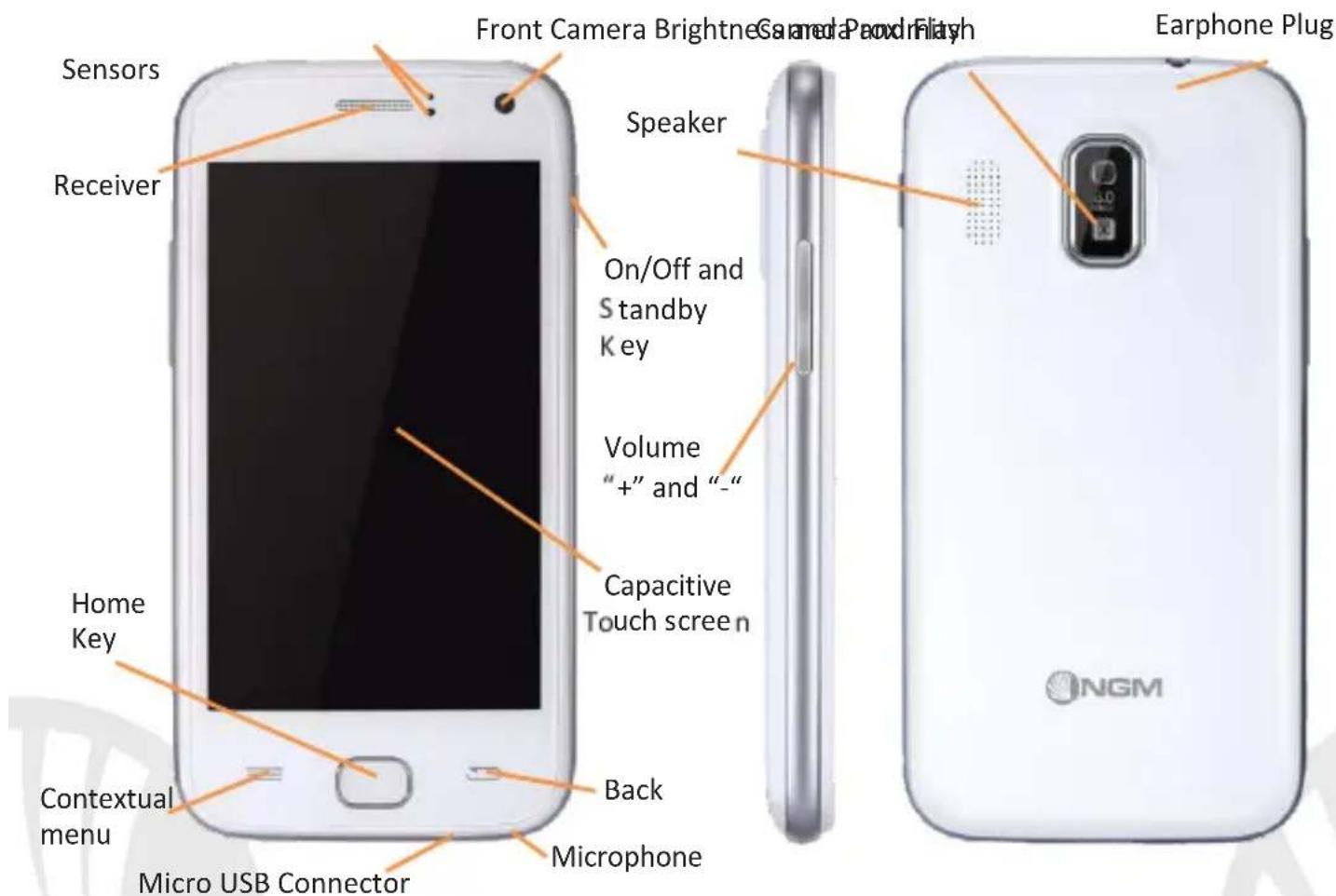
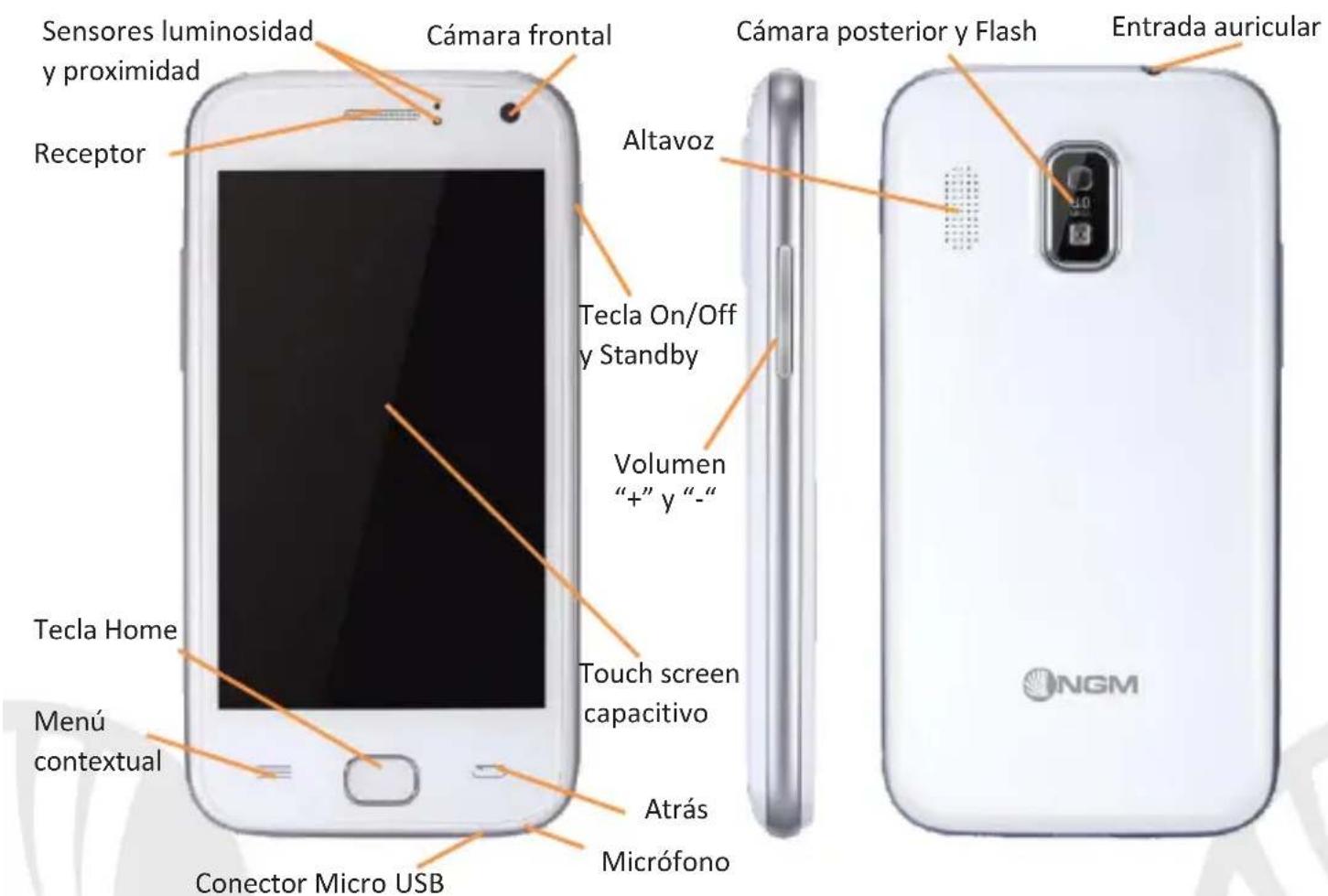
Press and hold the on/off key to turn on the phone. Press and hold the same key and confirm your intention to turn off the phone. A quick pressure of the on/off key sets the phone on standby-mode (screen off) or allows you to go back to the standby screen (see below).
The main screen: Home
Use the touch screen by touching, pressing, sliding your finger over it. The home screen is the starting point for the use of all applications of the phone. Other home screen pages are available (as indicated by the white bar), just swipe the screen left or right. These pages can be freely personalized with one's favorite applications, shortcuts and widgets. Just keep pressed the icon of the wished function in the main menu and then place it on the preferred home screen. In the same way you can customize the four shortcuts near the central menu icon. To remove an icon from the home screen, keep it pressed and drag it to the big "X" that appears in the upper part of the screen. By dragging an icon on another, you can create folders inside the home screens.
The Main Menu
Select an application from the main menu or scroll the main menu pages right and left to find other applications. Press
the back key to get back to the previous screen or press Home to get back into the main screen.
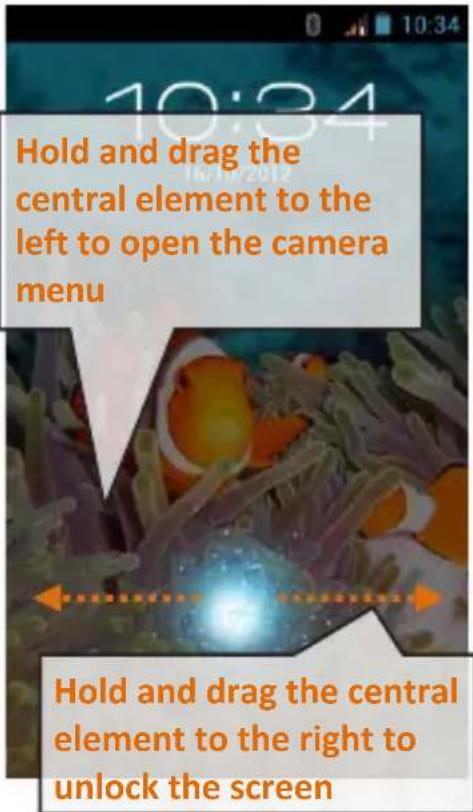
Standby Screen
Home Screen Main Menu signal intensity and battery level
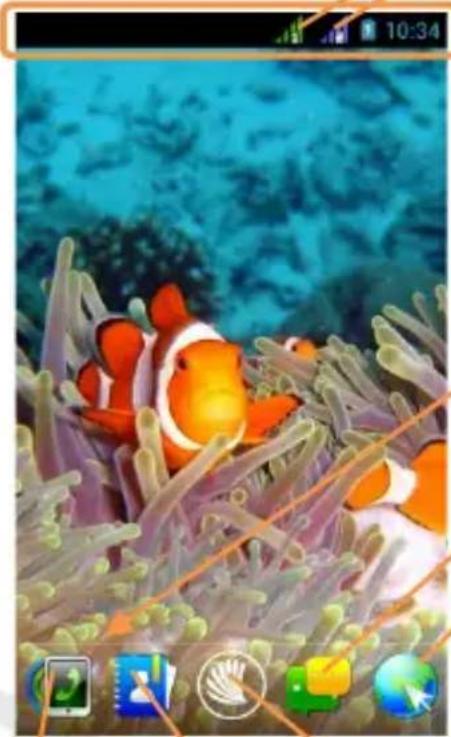
Notification Panel
Page indicator bar
Messaging
Browser
Call Menu Contacts
Main Menu
Scroll Home
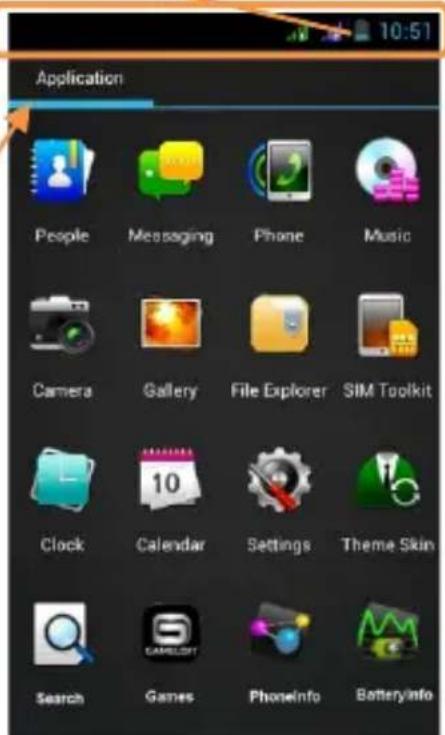
Scroll Menu
Rapid access
Notification panel: Open the notification panel by touching the upper area containing the battery and signal - intensity icons and drag it downwards. To hide the panel, push it up again starting from the bottom. In the panel you have rapid access to a list of notifications from the USIM or the System and to the control panel with 12 management and settings - widgets.
Recent apps: When you are inside any application, long press the Home icon: a list of the most recent applications that have been opened will be shown and can be directly selected.
Contextual Menu: inside some applications, press the Contextual Menu Icon (left to the Home key) to visualize a contextual menu that refers to the application with related functions.
Screen lock and vibration mode: From the main menu, select Settings > Personal > "Security" > Screen lock. Select the desired unlocking mode (None, Pattern, PIN or Password) and confirm. In order to quickly lock the screen, briefly press on the power on/off key of the phone. To unlock it, follow the instructions on the screen.
Rapid activation of vibration mode: Rapidly disable ringtones and message alerts by pressing Volume "-" until it gets to minimum and then switches to Vibration mode. By pressing "-" again, you set it Silent.
Managing the two USIM cards
From the main menu, select Settings > Wireless and networks > "SIM Management". Select the "USIM1" and/or "USIM2" operator checkboxes to activate/deactivate the USIM cards selectively in any moment. In this menu you can moreover assign custom colors to each USIM card and define the card for your voice calls, video calls or data connections.
Managing calls
From the main screen touch the call menu icon in order to open the calling screen. Use the virtual keypad to digit the desired phone number.
Select the calling icon and then choose the USIM card you want to call with.
To end the call press the end key.
To answer a call, drug the phone icon to the right; to reject a call, drug the phone icon to the left. To reject the call sending a text message, drug the phone icon upwards. To silence an incoming call, briefly press the Volume "+" o "-" keys (on the left side of the phone).
Call a number from the call history:
From the main screen select Phone Menu. Upward the virtual keypad you can view sent, missed, received and all calls.
Touch the desired number to send the call.
30ENGLISH
WE ABSOLUTE
Managing contacts
Add a new contact:
From the main screen/menu, select the Contacts icon.
Select the icon with the "+" on the bottom bar.
Select the storage (Phone, USIM1 or USIM2).
Insert Name, Number and eventual other details (if saving on the phone memory).
Confirm by selecting Save.
Add a new contact from the call history:
From the main screen, select the Call Menu.
Touch the blank contact icon near the desired number among the Missed, Received or Outgoing calls.
Choose if you want to create a new contact or add the number to an existing contact.
Enter the name and eventual other information and confirm by selecting Done.
Note: In the contextual menu of the phonebook, you can access the import/export functions and several other settings.
Set ringtones
Note: you can set ringtones in mid,wav or *mp3 formats.
From the main menu, select Settings > Device > "User Profiles" > General.
In Voice call ringtone, select the desired ringtone.
If you wish to set a personalized ringtone, from Music you can select a song and by pressing the contextual menu, choose Set as ringtone. After, the song will be available in the list of selectable ringtones.
Send and receive messages
Send SMS e MMS:
From the main screen or menu, select Messaging and select the icon with the "+" symbol to access the text input screen for a new message.
Write the first few letters of a contact name into the recipients bar and select the desired contact from the popup contact list that will appear, or directly insert the recipient's number.
Write the text into the dedicated space with the virtual keypad.
Select the Attach-Icon to insert multimedia files (the message will automatically be converted into MMS).
Press either Send key, depending on the USIM that you want to use (1 or 2).
Read SMS e MMS: when you receive a new SMS o MMS, an icon will be displayed in the notification panel of the main screen. Opening the notification panel and touching that icon, you can access the thread and read incoming messages. Anyway, you can view incoming messages on the main screen or by the Menu, selecting Messaging.
Connectivity
The operation system requires an active data connection. If data traffic is not included in your phone contract, it could imply extra costs. In that case it is advisable to configure the internet access through WiFi. The activation/deactivation of the data traffic on the USIM is in Settings > Wireless and Networks > "SIM Management" > Data Connection.
Connect to the Internet using Wi-Fi®:
Connect to the wireless net using the Wi-Fi function. In order to activate it, from the main menu choose Settings > Wireless and Networks > "Wifi" on/off. Please follow all warnings and indications concerning the use of wireless devices in areas where the use of such functions is restricted (airplanes, hospitals, etc.). Go offline when you have to use only the functions that do not need Network access
Connecting to a Bluetooth® device:
Switch on the other Bluetooth™ device. Refer to the documentation of the device.
From the main menu, select Settings > Wireless and Networks > "Bluetooth" on/off to activate Bluetooth. For a rapid activation/deactivation use the dedicated key on the notification panel.
Select Bluetooth > Search for devices to find other Bluetooth devices.
Among the found devices, select the name of the device that you want to pair. The phone will try to pair the device, eventually asking for a pairing code
Web navigation and Email management
Connect to the Internet: from the main screen or the main menu, select Browser. Write the URL into the address bar to start navigation. If you choose to navigate with the phone network data connection, please make sure to be informed about the costs or choose a "flat" data tariff with your operator. Alternatively, you can use the Wi-Fi connection (see paragraph "Connectivity").
Email: configuring a default account it will be easy to manage Email and automatically receive it on your phone. If you want to use a different Email account from the default one, you have to configure a new account selecting Email in the Main Menu.
Configuring account: In order to better manage OS Android™ functionalities, it is recommended to configure a default account. When you first power on the phone, it will guide you in configuring a default account that allows you to access OS Android™ applications like Email sync, Instant Messaging Service and Geo-localization Service.
SwiftKey text input
The default text input method is the SwiftKey keyboard. SwiftKey is an advanced predictive text input system; when writing SMS, MMS or E-mails, this mode predicts the word while you are writing it, changing it at every key pressure. During the first use, the program will suggest with popups the innovations and peculiarities of this writing system. SwiftKey has an "intelligent" Dictionary that retrieves words also from other applications in the phone, such as the phonebook or the social networks etc. For the correct use of this function, the micro-SD contained in the selling package has to be installed into the phone.
To change input methods, select Settings > Personal "Language and Input" > SwiftKey for NGM-Mobile.
Synchronization: synchronization is the most efficient approach to manage your own data, cause allows you to backup data on the device with the internet account. In case of phone loss, change or damage, no data loss will occur. Synchronization can be automatic or manual and you can turn on it in Settings >Personal: "Account and Sync." Sync operations may use an active data connection and may therefore cause extra fees. So we recommend to use WiFi connection, if available.
GPS geolocation
The Global Positioning System (GPS) is a system based on the satellite-related position determination, with global and continuous covering. The function is in Settings > Personal: > "Location services" > GPS satellites. When GPS is on, the phone begins to collect data from the available satellites and determines the current position. Fix (localization) time is variable and may be affected by several factors (clouds, high buildings, ecc). To accelerate Fix, you can activate EPO and follow the instructions (data or WiFi network is required to download predictions of satellite orbits). Limit the use of battery and memory by switching off this function when you don't need it.
The phone integrates the NGM NAVIGATION SYSTEM©, that is accessible through the main menu. For more details please visit www.ngm.eu.
Warning: the producer will not bear responsibility for any incompliance with the above guidelines or improper use of the mobile phone. The company reserves the right to modify any of the content in this user guide without previous public announcement. The content of this manual may vary from the actual content displayed in the mobile phone. In such case, the latter shall govern.
Copyright © 2012 NGM Italia
No part of this manual may be reproduced, distributed, translated, or transmitted in any form or by any means, electronic or mechanical, including photocopying, recording, or storing in any information storage and retrieval system, without the prior written permission of NGM Italia.
Bluetooth® is a registered trademark of the Bluetooth SIG, Inc. worldwide.
Wi-Fi® and the Wi-Fi logo are registered trademarks of the Wi-Fi Alliance.

ABSOLUTE
Copyright © 2012 NGM Italia
58ESPANOL
WE ABSOLUTE