Xenta TAB07200 - Tablet Yarvik - Free user manual and instructions
Find the device manual for free Xenta TAB07200 Yarvik in PDF.



Frequently Asked Questions - Xenta TAB07200 Yarvik
User questions about Xenta TAB07200 Yarvik
0 question about this device. Answer the ones you know or ask your own.
Ask a new question about this device
Download the instructions for your Tablet in PDF format for free! Find your manual Xenta TAB07200 - Yarvik and take your electronic device back in hand. On this page are published all the documents necessary for the use of your device. Xenta TAB07200 by Yarvik.
USER MANUAL Xenta TAB07200 Yarvik
Buttons & Connections
Knoppen & Aansluitingen / Tasten & Anschlusse / Boutons et connexions / Botones y conexiones / Botes e ligaoes / Przyciski i zlacza / Tlaicltka a pipojeni / Tlaicidla a pripojenia / Knapper & tilslutninger / Knappar & Ansluttingar / PAnktpa & EuVbToic / Pulsanti e collegamenti / Khonn pa3bEmb / Knapper og tilkoblinger / Gumbi in Povezave / Khonn ta poaemn / Gombok es csatlakozasok / BytoHn BpBkN / Butoane si conexiuni / Tipke i veze
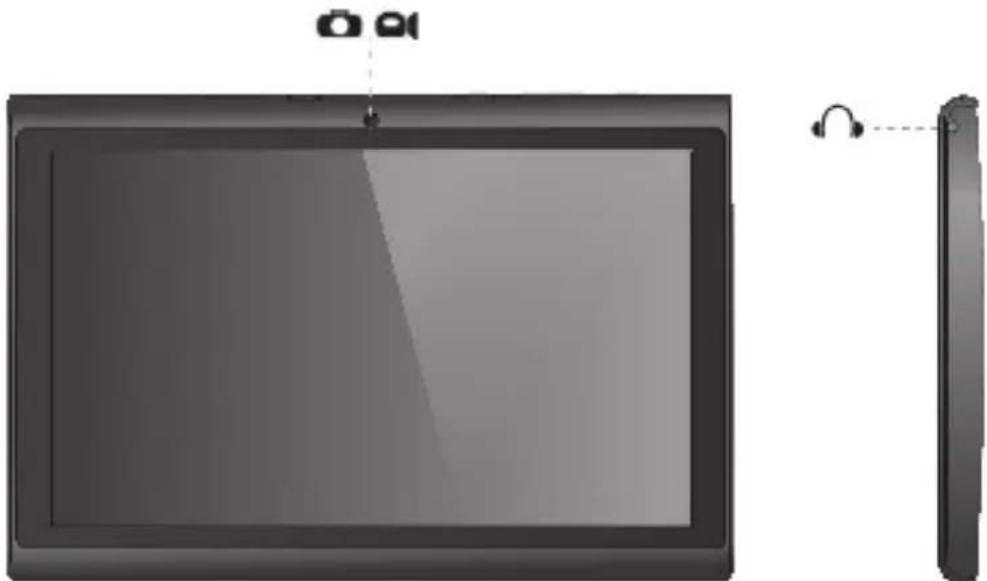
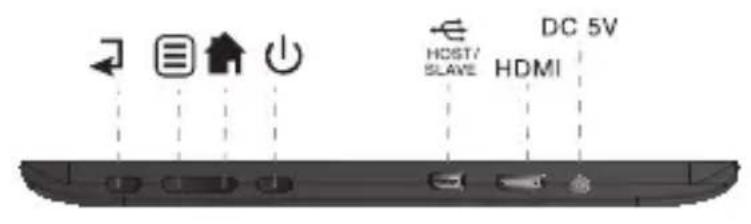
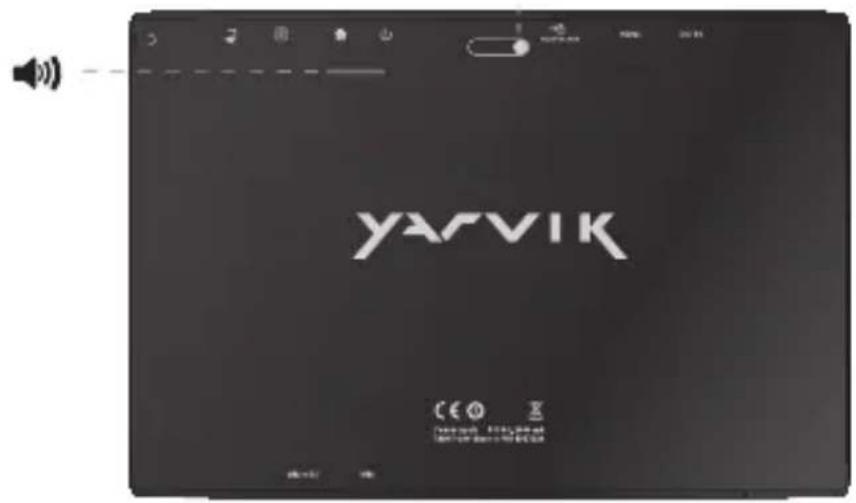
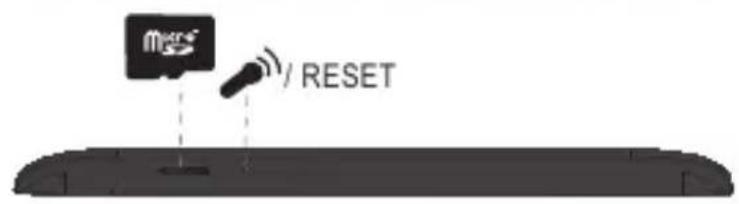
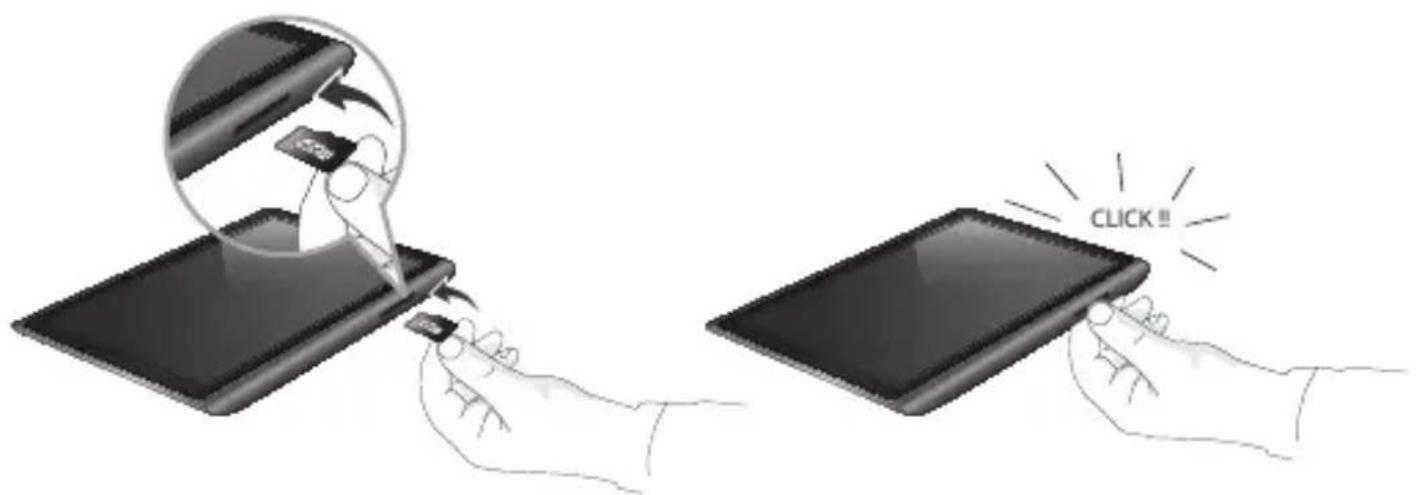
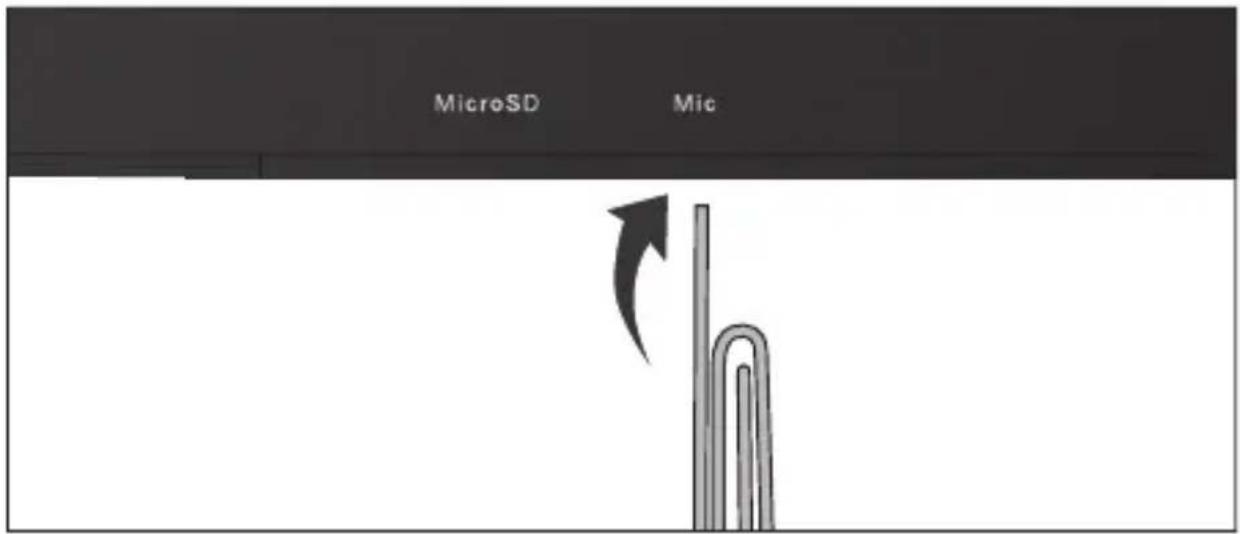
MicroSD
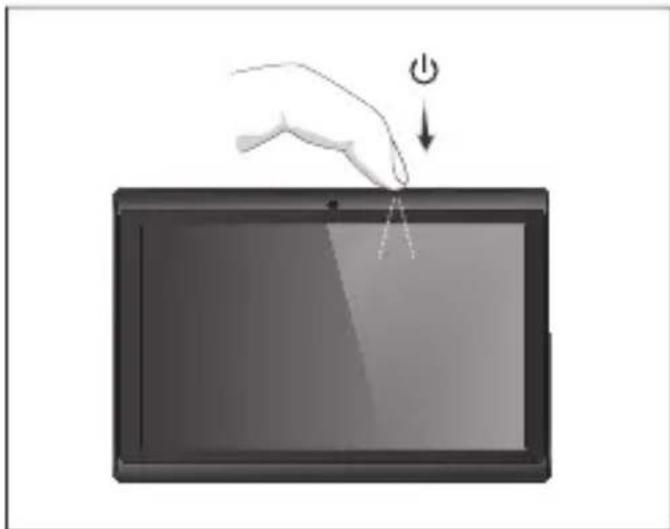
| On/Off | ||
| - Hold 3 sec. for On or Off - 3 sec. indrukken voor Aan of Uit - Zum Ein-/Ausschalten 3 Sek. drucken - Appuyez pendant 3 s pour allumer ou éteindre - Pulse durante 3 s para encender o apagar el disposicao - Mantenha premido durante 3段时间o para ligar ou desligar - Nacijsij i przytrzymaj przyze 3 sek., aby wączyć lub wączyć - Přidrženim po dobu 3 s zapináte nebo vypináte - Podržte 3 sek. pre zaputie alebo vyputie - Hold 3 sek. for On [Til] aller Off [Fra] - Hall ned 3 sekunder für Pâller Av - Kpatñóte 3 δeut. yia ενεργοποιηη (On) n απενεργοποιηη (Off) | - Tenere premuto 3 sec. per l'accensione o lo specnimento. - Yedexkubai Te B teyehne 3 dnia B klnkoyehn i nii B bikkoyehn - Trykk 3 sek. for pâller av - Držite 3 sek. za vklop ali izklop - Utpmýte npotrayom 3 c dnia ybIMKhenn abo BVMKhenn - Léflié à l'air - Nyomja 3 mp-ig a be- vagy kikapcsoláshoz - 3aipbýte 3 sek. 3a B klnkoubahe i nii M3Klouvahe - Pentru activare sau dezactivare, menţinei apăsarea timp de 3 sec. - Držite 3 sek. za uključivanje ili isključivanje | |
| Sleep/Wake | ||
| - Press 1 sec. for Sleep or Wake - 1 sec. indrukken voor Slaapstand ofuit Slaapstand - Für Betriebszustand 1 Sek. drucken - Appuyez pendant 1 s pour la mise en veille ou le réveil - Pulse 1 s para que la tableta entre en el estado de inactividad o activarla - Pressione 1 seg. para suspensão ou Wake段时间o para ligar ou desligar - Nacijsij przyze 1 sek., aby przyelaczyc w stan uispienia lub wybudzić - Stisknutim po dobu 1 s spustite režim spanku nebo probuzeni - Stlačte 1 sek. pre spanok alebo prebudenie - Tryk pâ 1 sek. til slumre-eller Wake - Tryck pâ 1 sek. für att sova eller Wake - Pârtñate 1 δeutéρólænto. yia tvny katáσταση νárpknç n Wake | - Premere 1 sec. per la funzione Sleep o Wake (Sveglia). - Haxkmaite B teyehne 1 c dnia nepexóda B cnaùpírrom 1 c dnia nepexódy y cnaúpírpojønn abo - Trykk 1 sek. for standby erer gà ut av standby - Pritisnite 1 sek. za spanje ali bujenje - Hatackaiene npotrayom 1 c dnia nepexódy y cnaúpírpojønn abo - Nyomja 1 mp-ig az alváshoz vagy felébresztéshez - Hatachete 1 sek. 3a zacnbahe i nii cb6ykaene - Pentru stare de repaus sau reactivare, apàsati temp de 1 sec. - Pritisnite 1 sek. za spavanje ill budenje uredaja | |
| Built-in Camera | - Built-in Camera - Ingebouwde Camera - Integriere Kamera - Caméra intégrada - Camara incorpORA - Wbudowana kamera - Zabudovany fotoparát - Zabudovany fotoparát - Indbygget kamera - Inbygd kamera - Evzωμatωμένη Káμε | - Fotocamera integrata - Bстpoenvая камер - Innebygget kamera - Vgrajena kamera - Вsyювая камер - Адзул - Beépitett kamera - Врадана камер - Camerä incorporata - Slušalice - Ugrăna kamera | |
| Built-in Microphone | - Built-in Microphone - Ingebouwde microfoon - Integriertes Mikrofon - Microphone intégré - Microfono integrado - Microfone incorpORA - Wbudowany mikrofon - Zabudovany mikrofon - Zabudovany mikrofon - Indbygget mikrofon - Inbygd mikrofon | - Evzωμatωμέvo Míkρóφωνo - Microfono integrato - Bстpoenv�ьй мікрοфон - Innebygget mikrofon - Vgrajeni mikrofon - Вsyюваньй мікрοфон - Адзул - Beépitett mikrofon - Врадана мікрοфон - Microfonet incorpORA - Ugrădeni mikrofonn | |
| Home | - Press 1 sec. for Home screen - 1 sec. indrukken om那儿 het Home scherm te gaan - 1 Sek. drücken, um den Startbildschirm aufzurufen - Appuyez pendant 1 s sur la page d'accueil. - Pulse durante 1 s para acceder a la pantalla de inizio - Prima durante 1 secondo para ver o Menu principal - Nacijsnij przyez 1 sek., aby wyświelmetć ekran domowy - Stiskutim po dobu 1 s se dostanete na domovskou obrazovku - Stlachte na 1 sek. na domácej obrazovke | - Tryk 1 sek. for skærmen Home [Hjem] - Tryck i 1 sek. für hem-skärm - Патήστε 1 δειτ. γία την Αρχική οθόνη (Home) - Premere 1 sec. per la schermata Home. - Нажимае в точенье 1 сдя nepexóda к галовому зкpanу - Trykk 1 sek. for startskjermen - Paina alhaalla 1 sekunnin ajan alkunäytöön siirtymiseksi - Натскайе пotingуrom 1с, заоб népeети Na rofolhničý ekpan - Натскайе пotingуrom 1с, заоб népeети Na rofolhničý ekpan - Натскайе пotingуrom 1с, за- népeети Na rofolhničý ekpan - Натскайе пotingуrom 1с, за- népeети Na rofolhničý ekpan - Натскайе пotingуrom 1с, за- népeети Na rofolhničý ekpan - Натскайе пotingуrom 1с, за- népeети Na rofolhnižć ekpernyö megjelenitéséhz - Натскайе за 1 sek. за ( ekpan | |
| - Pentru ecranul de莅ceput,apăsătij timp de 1 sec. | - Pritisnite 1 sek. za početni zaslón | ||
| Appsrunning | - Hold 2 sec. for Apps running- 2 sec. indrukken voorgeactiveerde Apps-Für aktive Apps 2 Sek. drucken- Appuyez pendant 2 s pour lancerles applications-Pulse durante 2 s para verlas aplicaciones que se estanecujetecjuspecuaciónPrima durante 2段时间a paraver as Aplicações em execuçao-Naciñnj i przytrzymaj przyez 2sek.,aby uruchomic aplicacije-Pñdrženim po dobu 2 s zobraite spušćné aplicace-Podržte 2 sek. pre spustenié aplicáciè-Hold 2 sek. for korende apps-Häll i 2 sek. für Appar som körspatráte2670000000000000000000000000000000000000000000000000000000000000000000000000000000000000000000000000000 | - Tenere premuto 2 sec. perl'ésecuzione delle App.- Ydepχивайte в тучене 2 сдязancycka prinnoхеньи-Trykk 2 sek. for apne programme-Pidä alhaalla 2 sekunnin ajankäytössä olevien sovellustenaivaamiseksi-Ytrρимуитп探测гом 2с,цобзancyсти поррамn-Nуомja 2mp-ig a fútoalkalmazások megelenitéséhz-Задьхтеса 2с ek. забotingиprinnoхеньи-Pentru activarea aplicàtlor,aşteptaṭi timp de 2 sec.Držite 2 sek. za trenutno aktiveneapplikacije | |
| Return toprevious | - Return to previous-Terug maar vorige-Zurück-Rétour au préçédent-Volver al elemento anterior-Voltar ao anterior-Powrot do poprzedniago-Návrat k předchozimu-Návrat k predchádžajúcim-Retur til forrige-Átergà till foregäende-Eπιστρούη σε προγόμενo | - Funzione Return to previous(Torna indietro)-Bepnytbcskprédebyduzyme-Gà tlibake til forrige-Palaa edellseen-Повернени на nonepeändinenkpanh-العربية الحسانيç-Vissza az elžožhoź-Врьшане кьm п徳шен-Revenire la precedenta-Povratak na prethodnu | |
| Menu | - Shows Menu-Toont Menu-Zeigt das Menu an-Afficher le menu-Muestra el menu-Mostra o menu | -Wyświetla menu-Zobrazi nabidku-Zobrazi ponuku-Viser menu-Visar meny-Empavíζι to Mevoú | |
| - Visualizza il menu -Οτόβαχενηme menho -Viser meny -Avaa valikon -Вidiobpaşntn mehno | - Виошрацу мени - Menu megjelenitése - Показа вмену - Afişare meniu - Prikazuje izbornik | ||
| Speaker Mono | -Built-in Speaker -Ingebouwde speaker -Integrierter Lautsprecher -Haut-parleur intégré -Altavoz integrado -Altlo-falante embutido -Wbudowany glošnik -Zabudovany reproduktor -Zabudovany reproduktor -Indbygget højttaler -Inbyggd högtalare | -Evσωματωμένο ηχείο -Altoparlante integrato -Встpoевни динамн -Innebygget høytaler -Zvočnik Mono: Vgrajeni zvočnik -Bбуховany dинамн -слеса -Beépitett hangszóró -В registrен високогорту -Difuzor incorporat -Ugradeni zvučnik | |
| Headphones 2.5 mm | -Headphones -Hoofdtelefoon -Kopfhörer -Casque -Auricular -Auscultadores -Sluchawki -Sluchátka -Sluchadlá -Hovedtelefoner -Hörlunar | -Akouotíká -Cuffie -Hayushnik -Hodetelefoner -Slušalke -Habyushnik -Složaçak, às -Fejhallgató -Cnyшank -Căști -Slušalice | |
| USB | -Mini USB Port -Mini USB Poort -Mini-USB-Anschluss -Port mini USB -Puerto mini USB -Porta Mini USB -Port mini USB -Miniport pro USB -Mini USB port -Mini-USB-port -Mini-USB-port -Mini USB-port -Mini USB-port | -Оύρa Mivi USB -Porta mini USB -Пopt Mini USB -Mini USB-port -Vrata Mini USB -Пopt Mini USB -Mini USB port -Mini USB port -Mini USB port -Mini port USB -Mini USB sučelje | |
| MicroSD *Up to 64 GB | - MicroSD Slot | - Slot per MicroSD | |
| - MicroSD Slot | - Разьем за kapты MicroSD | ||
| - MicroSD-Einschub | - MicroSD spur | ||
| - Emplacement carte MicroSD | - Režа za MicroSD | ||
| - Ranura para tarjetas MicroSD | - Гиадо за kapтуnam'ятì | ||
| - Ranhura para cartão MicroSD | - MicroSD | ||
| - Gniazdo karty MicroSD | - MicroSD ličá | ||
| - Slot pro MicroSD | - MicroSD nyilás | ||
| - Slot na Micro SD kartu | - СLOT з MicroSD kapту | ||
| - MicroSD-stik | - MicroSD Slot | ||
| - MicroSD-kortplats | - MicroSD utor | ||
| - Yтобожи̂ MicroSD | |||
| HDMI | 1080p | - Mini HDMI Out | - 'Eçóðoc Mívi HDMI |
| - Mini HDMI Uit Mini | - Uscita mini HDMI | ||
| - HDMI-Ausgang | - Böxod Mini HDMI | ||
| - Sortie mini HDMI | - Mini HDMI ut | ||
| - Salida mini HDMI | - Izhod Mini HDMI | ||
| - Saïda Mini HDMI | - Böxid Mini HDMI | ||
| - Wyjsscie mini HDMI | - Mini HDMI Out ψ | ||
| - Minivystup HDMI | - Mini HDMI kimenet | ||
| - Mini HDMI vystup | - Mini HDMI IVbod | ||
| - Mini-HDMI-udgang | - Işire Mini HDMI | ||
| - HDMI-utgång | - Mini HDMI izlaz | ||
| Power Adapter | - Power Adapter | - Tropoðotíkó Peúpatóç | |
| - Voodingsadapter | - Alimentatore | ||
| - Netzteil | - Ädantep nihtanma | ||
| - Adaptateur électrique | - Stromforsyning | ||
| - Adaptador de corriente | - Napajalnik | ||
| - Adaptador de corrente | - Ädantep kinbelenha | ||
| - Zasilacz sieciowy | - Schülfözati adapter | ||
| - Sifový adapér | - Hálózati adapter | ||
| - Siéový adapér | - 3axpanbaúd ajanterp | ||
| - Strømadapter | - Adaptor | ||
| - Nätadapter | - Naponski adapter | ||
| Reset | - Reset button | - Przycisk resetowania | |
| - Reset knop | - Tlačitko Vymazat | ||
| - Reset-Taste | - Tlačidlo resetovania | ||
| - Bouton de réinitialisation | terställningsknapp | ||
| - Botón Reset (Restablecer) | - Knappen Reset [Nulstil] | ||
| - Botão Reiniciar | - Återställningsknapp | ||
| - Плήktro Etnavapopáç | |||
| - Pulsante Reset | ponastavitev | - Бутон Нуншаре | |
| - Конка сбраса | - Конка скидань | - Buton de resetare | |
| - Reset-knapp | - зулларыярш | - Tipka za resetiranje | |
| - Gumb za | - Visszaállitás gomb | ||
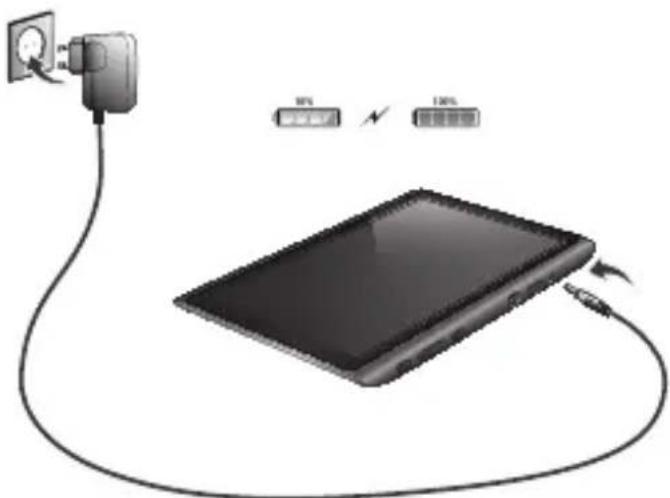
Charging
Opladen / Laden / Chargement / Carga / Carregamento / Ladowanie / Nabijeni / Nabijanie / Opladning / Laddning / Φόρποι / Carica / 3apáκα / Lading / Polnjenje / 3apádkéнэ akymynrtopa / Töltés / 3apexdane / Incarcare / Punjenje
- Use only the supplied AC adapter
- Gebruik alleen de bijgeleverde AC adapter
- Verwenden Sie ausschließlich das mitgelieferte Netzeil
- Utilisez seulement l'adaptateur CA fourni
- Use exclusively el adaptor de corriente de CA incluido
- Utilize apenas o adaptordo de CA fornecido
- Korzystaj tylko z dostarczonego zasilacza pradu zmiennego
- Pouziveje pouze doday AC adapter
- Použivajte iba dodany siefový adapter
- Brug kun den medfalgende AC-adapter
- Använd endast den medfoljande natadaptern
*Xpnoiouoioe pOvo ro npaeoxevo rpoobotko AC - Utilizzare solo l'adattatore CA fornito.
- Mcnonb3yWE TOIbKO BXOJRAH B KOMNNEKT CTeBOH aADANTep
- Bruk bare medfolgende AC*adapter
- Uporabite le prilozeni napajalnik AC
BnKOpNCTOByHTe TINbKN TOI 6NOK XNBNEHH, 10 BxOaNTb DO
KOMNNEKTY NOCTaAHHRA
- Csak a mellekelt halózati adaptert használáj
M3non3BaIte cAmO cdoCTaBENr AC aadantep
*Utilizai numai adaptorul CA furnizat - Koristile samo isporučeni naponski adapter
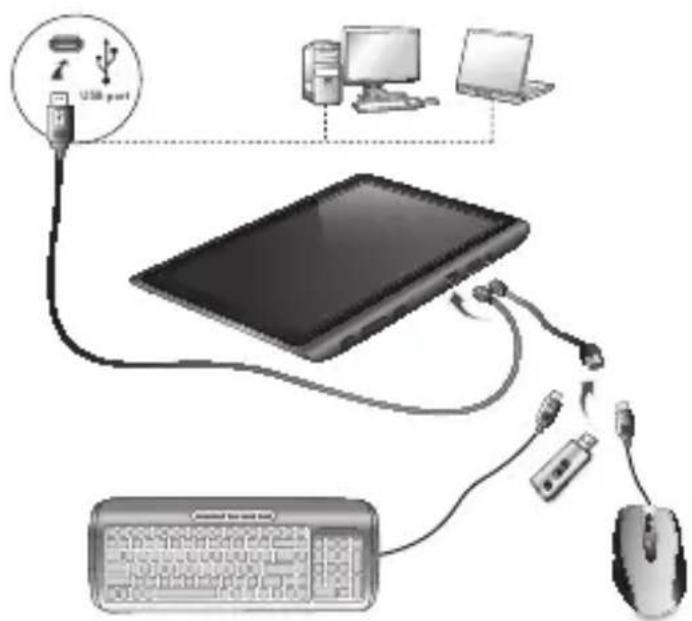
USB
-USB host cable
-USB host kabel
-USB Host Kabel
- Cable USB hote
- Host USB cable
- Cabo de anfítrão USB
- Hosta USB kabel
-USB host kabel
-USB host kabel
- USB-vaertskabel
-USB-vardkabel
-Kaaiwo Kevtpikou UtoKoyi (host) USB
- Cavo host USB
-USB-Ka6enb nna
noKIOHnBHeHHx yCTPOHCTB
- USB vertskabel
-Gostiteljski kabel USB
-USB-Kabenb nixnHHeHH 30BhiHix npctpoiB
USB - USB host kabel
-USB xoct k66en
Cablu host USB
-USB kabel za domacina
Android Home Screen
Android Home scherm / Android Startbildschirm / Page d'accueil Android / Pantalla de inicio de Android / Ecrá principal do Android / Ekran domowy systemu operacyjngo Android / Domovská obravovka Android / Omáca obravovka Android / Skærmen Android Home [Android Hjem] / Android Startskärm / H Apxikn Oóvntou Android (Home) / Schermata Home di Android / Φлавный захан Android / Android startskjerm / Domaci zaslon Android / Φловный захан Android / Android kezdoképernyo / Haçanen ekpan ha Android / Ecran de inceput Android / Android početni zaslon
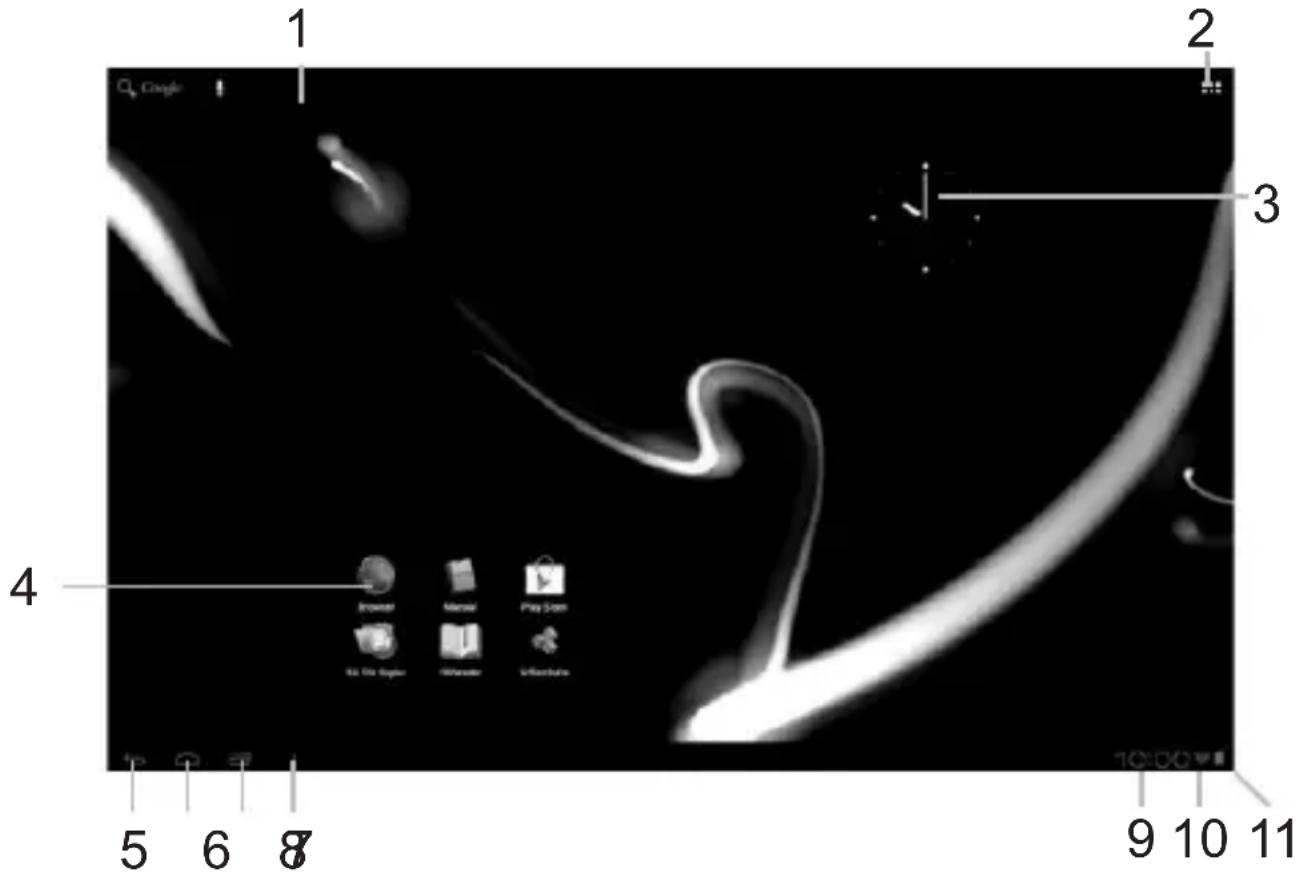

- On the bottom of the Xenta screen you can always find the status bar. The status bar contains both system information and function buttons.

3 Getting on the Internet
Internet instellen / Zugriff auf das Internet / Accès à Internet / Como acceder a Internet / Aceder à internet / Lactzenie z Internetem / Pripojeni k internetu / Pripojenie k internetu / Atkommen pa internetet / Ga ut pa Internet / SuVb60n 0to Internet / Collegamento a Internet / POnkIoueHne K INTepHeTy / Koble til Intemett / Kako se povezati na internet PIIKnUoyenHdo IInTepHeTy / JG / Kapcsolodas az Intemetre / Cbbp3BaHe KbM INTepHer / Conectare la Internet / Spajanje na Internet
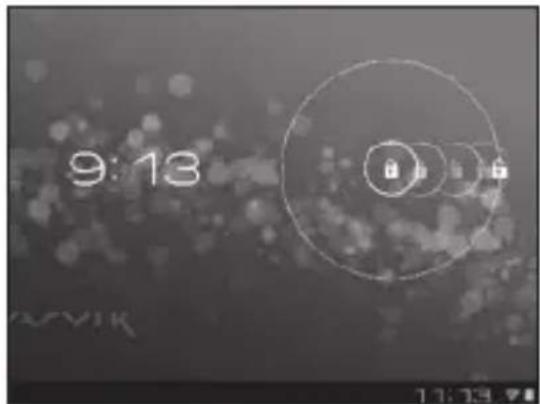
- Slide the lock bar (A) to the right (B) to unlock
Schuif de vergrendeling (A)aar rechts (B) voor ontgrendelen
Spersymbol (A) zum Entsperren nach rechts (B) schieren - Faites glisser la barre de verrouillage (A) vers la droite (B) pour déverrouiller.
- Deslice la barra de bloqueo (A) hacía la
d e r e c h a (B) para desbloqueapebdispoyataaH
- Arraste oCADEADO (A) para a direita (B) para desbloquear
- Przeciagnij pasek blokady (A) do sprawej (B), aby odblokować
- Pretażením zamykaci lipty (A) směrem doprava (B) odemkněte zařizení
Posunte listu uzamknutia (A) doprava (B) a odomknite
Glid lasebjaelken (A) til hore (B) for at lase op
Skjut laslist (A) till hoger (B) for att lasa upp
Σρετηγραμήκλειδωματος (A) προς τα δεξία (B) γιαξεκλειδωμα - Fare scorrere la barra di blocco (A) versus destra (B) per sbloccare.
-перетянтete6eryhok(A)Виразв(OB(B)дя pa36лokupobkn - Stryk láselinjen (A) mot hóyre (B) for á lase opp
-
Povlecite zaklepno vrstico (A) v desno (B) in odklenite
-перетгніть повзунок (A) правору (B) дя -
1
- Csúsztassa el a lezáró gombot (A) jobbra (B) a feloldáshoz
- ΠльзHeTe Лenta 3a 3aknIOUBaHe (A) NaЯсHo (B), 3a Дa OTKlnOuHTe
- Pentru deblocare, glisaşi bara de blocare (A) spre dreapta (B)
- Kliznite prstom preko ikone za zakljucavanje (A) udesno (B) kako biste otključali
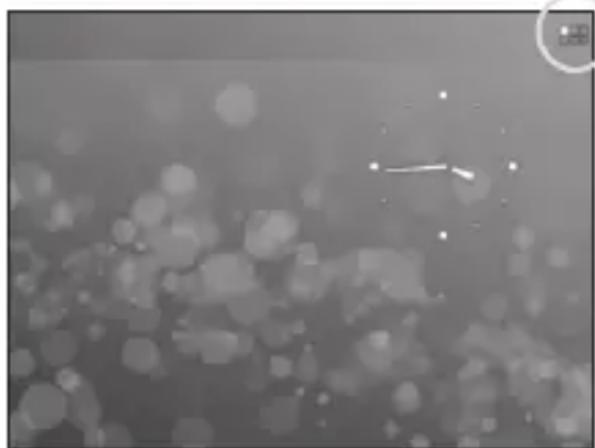
- Press the app and widget button
- Druk op de App⁺/widget-knop
- Druk op de app widget-knop
App- und Widget-Schaltfläche drucken. - Appuyez sur le bouton d'applications et de widgets.
- Pulse el botón de la aplicación y del widget
- Prima o botão de aplicações e widgets
- Naciśnij przyczisk menu aplikacje i widgetów
- Stiskněte tlacítko pro aplikaci a nástroj
- Stlačte tlacidlo aplikácie a miniaplíkácie
Tryk pa app- og widget-knappen
Tryck pa' app- och widget-knapp - Παποτε to kouμπi εφαρμoyωv kai γραφικων σθοιχείων
Premere il pulsante della appe del widget.
Haxmnte KhoNky npJIOxEHN uBnKeTOB - Trykk app- og widget-knappen
-
Pritisnite gumb za aplikacije in pripomočke
-
Hatnchitb KnaBiyy nporpam Ta BiJxetIb
012g jlc - Nyomja meg az „alkalmazások és widgetetak" gombot
HaTnucheTe 6yToHa 3a npuOKeHnI rpaФnHn eJemEHn - Apasati pe aplicatie si pe butonul widget
-
Pwr i ts n i te tipku za aplikaci
-
Press Settings menu
Klik op Settings (Instellingen) - Settings-MENU drucken
- Appuyez sur Menu paramétres
- Pulse el menu Settings (Configuración)
- Prima o Menu de definições
- Nacijsnij przycisk menu ustawien
- Stiskněte nabídku Nastavení
Stlačte ponuku Nastavenia
Tryk pa menuen Settings [Indstillinger]
TryckpAlstallningsmenyn - NaTnOTe To eVou Settings (PuθμioεiS)
Premere il menu Settings (Impostazioni).
Haxmte Meio Settings (hactpoek) - Trykk Settings-menyen
- P r i t i s n i t e meni Settings (Nastavitev)
- Hatncihb MeHIO Settings (yctaHOBOK)
15
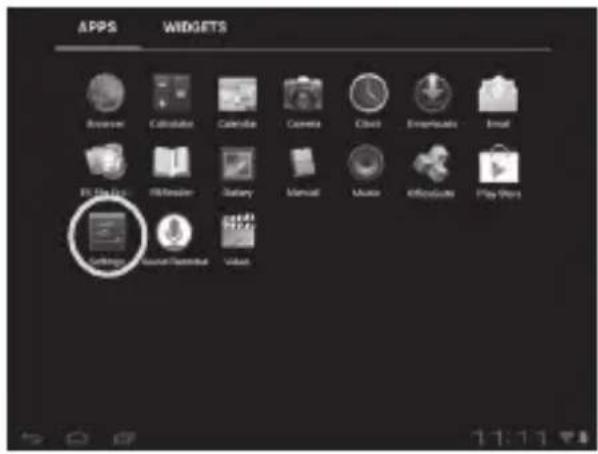
- Nyomja meg a Settings (Beallitások) menüt
HaTnCHeTe MeHIO Settings (HactpouKn) - A p ā s a t i pe meniul Settings (Set
- Pritisnite izbornik Settings (Postavke)
3 Slide the On/Off button to "On"
Schuif de Aan/uit-knop op "Aan"
Ein/Aus-Schaltfläche auf „On“ (“An”) schieben.
- Faites glisser le bouton marche/arrêt pour l'allumer.
- Deslice el botón On/Off (Activado/Desactivado) hasta la posición "On" (Activado)
- Deslize o botão On/Off (Ligar/Desligar) para a posicao "On" ("Ligado")
- Przeciagnij przyȩcznik do poźycji „On" ("Wt.")
- Pretáhněte tlacitko Zap./Vyp. na „On“ (“Zap.”)
Posunte yvpinae do polohy "On" (Zap.)
Glid knappen On/Off [Til/fra] til "On" [Til]
Skjut Pá/Av-knappen till “Pá”
4.1. Non secured, Tap the network of your choice.
- Niet beveiligd, tik op het netwerk van uw keuze.
- Bei ungesichertem Netzwerk auf das gewünschte Netzwerk tippen.
- Non sécurisé, Sélectionnez le réseau de votrechoix.
- No protegida, pulse la red a la que desee conectarse.
- Se não estiver protegida, toque numa rede à sua escolha.
- Niezabezpieczona; dotknij wybranej sieci.
- Nezabezpečeno, klepněte na libovolnou sít'.
- Nezabezpečene,Poklepte na siet podla vlastného vyberu.
- Ikke sikret. Tap på foretrukket netværk.
- Icke saker, Peka pa det natverk du vill valja.
Xwpiacaaia,ayyigTe to eTIOuNTo 6kTuO.
Non protetta, selezionare la rete che si desidera. - Ecni ceTb Non secured (He3aunueHa), Bby6epnte ee.
- Usikret nett, trykk på onsket nettverk.
- Non secured (Nezavarovano), Dotaknite se Želenega omrežja.
-Якwo mepeka Non secured (he3axnueHa), Bn6epitb ii.

- Non secured (Nem biztonságos), érintse meg a kivant halózatot.
Ako e Non secured (He 3aunTeHa), HaTncheTe Bbpxy Mpeka no n36op. - Reţea Non secured (Nesecurizata), inscrieti reteaua alesă.
Non secured (Neosigurane) mreze, dodirnite naziv mreze
4.2. Secured Network, Type password then press Connect.
- Beveiligd network, vul wachtwoord in en klik op Connect (Verbinden).
- Bei gesichertem Netzwerk Kennwort eingeben und Connect (Verbinden) drucken.
Réseau sécurisé, tapez le mot de passer puis appuyezsur « Connect » (Connector). - Si la red está protegida, &, escribe la contraseña y pulse Connect (Conectar).
Se foruma rede protegida, digite a palavrapasse eareth prima Connect (Ligar). - Zabezpieczona siec; wpwadz Password (Haslo) i nacinij Connect (PoJacz).
- Zabezpecená sít, napiSTE Password (Heslo), poté stisknéte Connect (Připojit).
- Zabezpećená siet', napíste Password (Heslo) a potom stlačte Connect (Pripojit).
- Sikret netværk. Indtast adgangskode, og tryk derefter på Connect [Tilsnut].
Skyddat nätverk, ange lösenordet och tryck sedan på Connect (Anslut). - Δíktuo με ασφαλεια, πληκτρολογήσε TOV κωδικό πρόσβασης και πατησε Connect (Σύνδεση).
- Rete protetta, digitare la password, quando premere Connect (Connetti).
- Ecni cetb Secured (3aunueHa), BBeiTe napoi, a 3atem haxmnte KhoNky Connect (noDKIIOUeHn).
- Sikret nett, skriv inn passord og trykk Connect.
Secured Network (Zavarovano omrežje), Vtipkajte geslo in pritisnite Connect (Poveži).
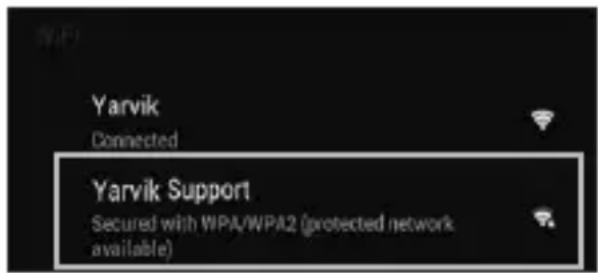
-ЯкwoМерекaSecured(3axuheHa),BVeDiTb napoIbTaHATnCHITbKnaBiuyConnect (iDKNIOUeHHra).
- 1c bai jai yjai aol5 aioi a Connect
Secured (Biztonságos) halózat, adja meg a jelszó tés érintse meg a Connect (csatlakozás) gombat.
Secured (3aunTeHa) mpeka, Hanuwe ternapoIata n cneT TOBa HATnCHete Connect (Cbbp3BaHe).
- Reţea Secured (Securizata), inscrieti parola, apoi apăsăti pe Connect (Conectare).
Secured (Osigurane) mreze, upisite lozinku i pritisnite Connect (Spoji)
- Check Wi-Fi connection.
- Controller Wi-Fi verbinding.
- WLAN-Verbindung überprüfen.
- Vérifiez la ae la connexión Wi-Fi.
- Verifique a ligaçao Wi-Fi.
- Sprawdź stan polączenia Wi-Fi.
- Kontrola Wi-Fi pripojeni.
- Skontrolujte pripojenie Wi-Fi.
- Kontroller Wi-Fi-tilslutning.
- Kontrollera Wi-Fi-anslutning.
- Eλεγετησύνδεοη Wi-Fi.
- Controllare la connessione Wi-Fi
- Sjekk den tradløse tikkoblingen.
Preverite Wi-Fi povezavo. - Pi e pe B i p T e Wi-Fi-niДключеня.
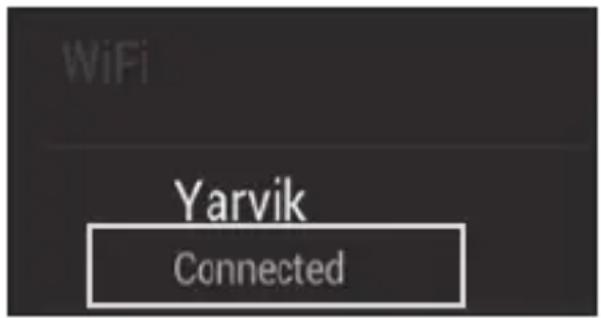
Wi-Fi. JUaJ no g
Ellenorizze a Wi-Fi kapcsolatot.
- IpoBepkaHaWi-Fi Bpb3ka.
Verificati conexiunea Wi-Fi.
He. Provjerite Wi-Fi vezu.

- With The Browser App you can now browse the internet.
-
Met de Browser App=kunt u nu het internet op.
-
Mit dem Browser-App können Sie im Internet surfen.
- Avec l'application du navigateur, vous pouvez maintainant naviguer sur Internet.
- Con la aplicación Browser (Navigador) podrá navegar por Internet.
- Com a aplicação Browser (Navigador), podeOOTAO navegar na internet.
- Za pomocę aplikacje Browser (Przeglądarka)要去s surfowac po Internecie.
- Pomoci Browser (Prohlizene) aplikaci muzete brouzdat po internetu.
- Pomocou aplikácie Browser (prehliadača) si možete teraz prezerat internetové stranky.
- Med browser-app'en kan du navigere på internettet.
- Med webbläsarappen kan du nu surfa på Internet.
-Me TnV εφαρμογή Browser μπορείτε πλέον vα Εξερευνησετε to Internet. - Con la app Browser ora è possible navigare su Internet.
-
Tenepb c nomoou Browser (6pay3epa) moxho npnctyntb K 630py INtepheTa.
-
Med Browser-applikasjonen (nettleseren) kan du na surfe på Internett.
- Z aplikacimiento brskalnika lahko zdaj brskate po internetu
- Tenep MoxHa po3noaTn nepeRJaD Be6-caTtB IInTePHeTi 3a DOnomOroO Browser (6pay3epa).
- Browser
-A Browser (Böngészö) alkalmazásokkal nem böngészhet az Interneten. - Cera mojete da cbpnpaTe B INHTepHc Browser (bpay3bpa).
- Cu aplicata Browser puteti acum să navigati pe Internet.
- Pomocu aplikacje Browser (Preglednik) sada要去 pregledavati internetske sadrzej.
When a Problem Occurs
Problemen oplossen / Problembehandlung / Dépannage / Si se produce un problème / Quando ocorrre um problema / W raisie problemow / Pri vzniku problemu / Ak sa vyskytne problem / Nár der opstar et problem / Nár att problem uppstár / Otav Σμβει Káπio Ipóβλημα / Se si verifica un problema / При BO3нкновенп поблемы / Nár det oppstar problemer / Ko se pojavi težava / Y pazi BnHKnHeHH npo6Iem / āl< ào >aic / Hiba eseten / При npo6Iemn / In cazul in care apare o problema / Kad se pojavi problem

Your Tablet acts much slower than normal, doesn't react well or freezes. Restart the tablet using the On/Off button. All data/settings will be saved, the tablet will only shutdown. Afterwards hold the On/ Off button until the tablet starts up again.

J 1 J 1 J 1 J 1 J 1 J 1 J 1 J 1 J 1 J 1 J 1 J 1 J 1 J 1 J 1 J 1 J 1 J 1 J 1 J 1 J 1 J 1 J 1 J 1 J 1 J 1 J 1 J 1 J 1 J 1 J 1 J 1 J 1 J 1 J
HU
1 Hold for 10 seconds
10 secondengedrukt houden
10 Sekunden gedrück halten
- Appuyez pendant 10 secondes
- Mantenga pulsado durante 10segundos
- Mantenha premidos durante 10 segundos
- Przytrzymaj przytez 10 sekundy
Pridrzte po dobu 10 sekund
10 sekundy podrzte
Hold i 10 sekunder
Hallnedi10sekunder
Kpatnote yia 10 eutepeAeTTa
- Tenere premuto 10 secondi.
- YdepxnBaIte B TeueHne 10 cekyHd.
Holdinnei10sekunder.
Drzite 10sekunde
- Ytpmmynt npotrarom 10 ckyHd.
10
Tartsa 10 masodpercig
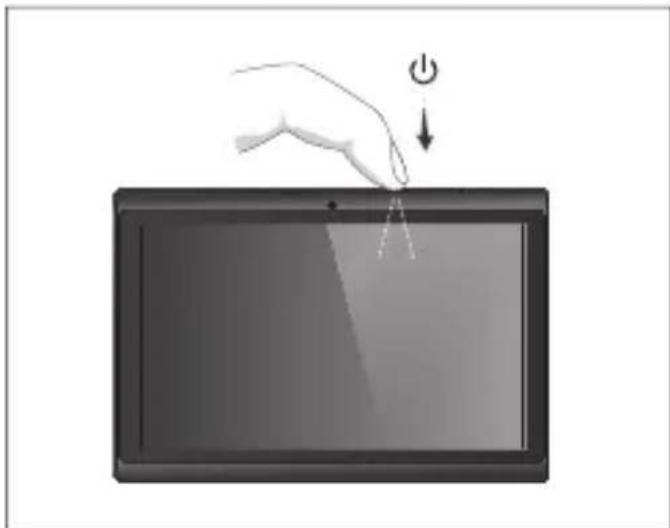
3aDpBxKTe 3a 10 cekyHn.
Asteptati 10 secunde.
Drzite 10 sekundi.
2 OR
Start up after Soft Reset
- To Start up: Hold for 5 seconds, tablet will start up
- Tablet weeopstarten:5 secondindrukken,Tablet start op
-Einschalten: 5 Sekunden gedrück halten; das Tablet startet - Pour démarrer : appuyez pendant 5 s, la tablette se met en marche
- Para iniciair el dispositiivo: mantenga pulsado el boton durante 5segundos y la tablea se encenderá
- Para arrancar: Mantenha premido durante 5 segundose o tablet arranca
- Aby uruchomic: Nacisnij i przytrzymaj przytez 5 sekundy; tablet uruchomi sie
- Spusteni: Pridrzte po dobu 5 sekund, tablet se spusti
- Spustenie: Podrzej 5 sekundy a tablet sa spusti
- Start: Hold i 5 sekunder, og tablet'en vil starte
- For att starta: Hall intryckt i 5 sekunder, och surfplattankommen att starta
- Ia Ekkivn: Kpatnate Tnatmuevo yia 5 deutepeAETTA kai n taTtAe Taekivnei
- Per l'avvio: tenere premuto 5 secondi, il tablet si avvia.
-Haayano paobtby: ydepXnBaIte B TeueHne 5 cekyHd. T06bl BKIOUYTH nnaHwET. - For à partir: Holdinne i 5 sekunder, tableten starter opp
-
Držite gumb vklop/izklop 5 sekunde in tablčni računalnik se bo zagnal
-
Po3noaTn po60Ty: ytpmyTe npotraom 5 c dna yBIMKHeHH nnaHweta.
1 5 5 - Az inditáshoz: Tartsa 5 masodpercig, hogy a tabla elinduljon
-3a da cTaptnpate: 3aDpbkTe 3a 5cekyHn, Ta6neTa 电 cTaptnpa - Pentru a demara:mentionand apasat timp de 5 secunde, tablea se va activa.
- ZaPokretanje:Drzite 5 sekunde,tablet ce se poukrenuti
EC Declaration of Conformity
We,
YARVIK
Ampereweg 3
2627BG Delft
The Netherlands
Declare under our sole responsibility that the product:
Brand name YARVIK
Model no. : TAB07-200
Product description : Xenta 7" tablet
Compliance with the essential requirements
of the following Directives is declared:
-EMC DIRECTIVE : 2004/108/EC
-LVD DIRECTIVE : 2006/95/EC
-R&TTE DIRECTIVE 1999/5/EC
-ROHS DIRECTIVE 2011/65/EU
To which this declaration is based on with full conformance to the following European norms and standards:
Tablet
-EMC:EN55022:2006+A1:2007
EN 55024:1998 + A1:2001 + A2:2003
Signed, Delft, 04-04-2013
YARVIK

R. Ramaekers,
Purchase Director
Important information
C E ①
Wireless LAN-Regulatory information
Depending on the model, the wireless LAN built-in into tablet devices can only be used in the following countries: Austria, Belgium, Bulgaria, Czech Republic, Denmark, Finland, France, Germany, Greece, Hungary, Iceland, Ireland, Italy, Luxembourg, the Netherlands, Norway, Poland, Portugal, Romania, Slovakia, Slovenia, Spain, Sweden, Switzerland, Turkey and the United Kingdom.
Conditions of use
When using the IEEE 802.11b/g/n Wireless LAN standard, channels 1 to 13 (2.4 GHz ...2.4835 GHz) are selectable for both indoor and outdoor use, however with restrictive conditions applying in France, Italy and Norway, as follows:
- France: When using this product indoor, all channels can be used without restrictions. Outdoor only channels 1 to 6 are allowed. This means that in Peer-to-Peer, the WLAN feature can only be used outside if the peer sets up the communication on an authorized channel (i.e., between 1 & 6). In infrastructure mode, please make sure the access point is configured to a channel from 1 to 6 before setting up the connection.
- Italy: Use of the RLAN network is governed: Disposal of Old Electrical & Electronic
with respect to private use, by the Legislative Decree of 1.8.2003, no. 259 ("Code of Electronic Communications"). In particular Article 104 indicates when the prior obtainment of a general authorization is required and Art. 105 indicates when free use is permitted;
with respect to the supply to the public of the WLAN access to telecom networks and services, by the Ministerial Decree 28.5.2003, as amended, and Art. 25 (general authorization for electronic communications networks and services) of the Code of electronic communications. - Norway: Use of this radio equipment is not allowed in the geographical area within a radius of 20km from the centre of Ny-Alesund, Svalbard.
WEEE Symbol Information
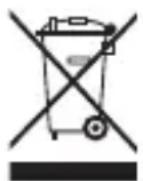
Correct Disposal of This product (Waste Electrical & Electronic Equipment).
(Applicable in the European Union and other European countries with separate collection systems).
This marking shown on the product or its literature indicates that it should not be disposed with other household wasted at the end of its working life. To prevent possible harm to the environment or human health from uncontrolled waste disposal, please separate this from other types of wastes and recycle it responsibly to promote the sustainable reuse of material resources. Household users should contact either the retailer where they purchased this product, or their
local government office, for details of where and how they can take this item for environmentally safe recycling.
Business users should contact their supplier and check the terms and conditions of the purchase contract. This product should not be mixed with other commercial wastes of disposal.
Disposal of waste batteries (applicable in the European Union and other European countries with separate collection systems)
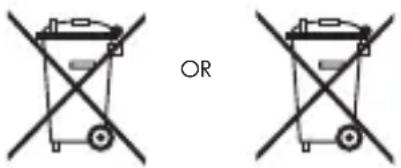
Either of the symbols shown next may appear on the battery or on the packaging to indicate that the battery provided with this product shall not be treated as household waste. On certain batteries this symbol might be used in combination with a chemical symbol. The chemical symbols for mercury (Hg) or lead (Pb) are added if the battery contains more than 0.0005% mercury or 0.004% lead. By ensuring these batteries are disposed of correctly, you will help prevent potentially negative consequences for the environment and human health which could otherwise be caused by inappropriate waste handling of the battery. The recycling of the materials will help to conserve natural resources. In case of products that for safety, performance or data integrity reasons require a permanent connection with an incorporated battery, this battery should be replaced by qualified service staff only. To ensure that the battery will be treated properly, hand over the product at end-of-life to the applicable collection point for the recycling of electrical and electronic equipment.
For all other batteries, please view the section on how to remove the battery from the product safely. Hand the battery over to the applicable collection point for the recycling of waste batteries. For more detailed information about recycling of this product or battery, please contact your local Local government Office, your household waste disposal service or the shop where you purchased the product.
Pb
When travelling to and within the United States of America, please be aware that the U.S. Department of Transportation (DOT) recently published new regulations that apply to passengers travelling with lithium metal batteries and lithium-ion batteries.
For detailed information, visit http://safetravel.dot.gov/whats_new_batteries.html.
Safety Information
Yarvik Tablet device
- Yarvik is not responsible for any interference that you may experience or that may be caused when operating this device.
-
Warning: We strongly advise to connect this device to a earthed wall socket when charging.
-
Opening or dismantling the main unit or any of its accessories, for whatever reason, could lead to damages that are not covered by the guarantee.
- To avoid electrical shock, do not open the cabinet. Refer servicing to qualified personnel only.
- To prevent fire or shock hazard, do not expose your tablet device or any of its accessories to rain or moisture.
- Do not use or store your tablet device in a location subject to heat sources, such as radiators or air ducts; direct sunlight; excessive dust; moisture or rain; mechanical vibration or shock; strong magnets or speakers that are not magnetically shielded; excessively high and low temperatures; and high humidity.
- Turning off your tablet device with the power button does not disconnect the device completely from mains voltage. To disconnect it completely, unplug the AC adapter or the power cord from mains. The socket-outlet shall be installed near the equipment and shall be easily accessible.
- Audio and picture distortion may occur if this equipment is positioned in close proximity to any equipment emitting electromagnetic radiation.
- This apparatus is also designed for IT power system with phase to phase voltage 230V, for customers in Norway.
- Observe the following precautions to provide adequate air circulation and to ensure normal reliable operation:
- Do not use the tablet device and/or the AC adapter while covered or wrapped in cloth. Ensure the AC adapter operates in a clear environment.
- Turn off the tablet device before putting the device into a bag or a carrying case.
- Do not use your tablet device directly on your lap. The temperature of the base of the unit will rise during normal operation and over time could result in discomfort or burns.
- Do not use your tablet device while walking. Listening to music with headphones or watching the LCD screen while walking may lead to an unexpected accident and result in personal injuries.

- Using connected headphones on the tablet device for too long and/or setting the audio volume up too high when using headphones may cause serious hearing damage.
- Avoid strong beating of or to the product.
- Don't operate the touch screen of the tablet device with sharp objects, as this may result in scratching the screen surface.
- Only use permitted batteries, chargers and accessories with your tablet device. The use of any other products with the device can be dangerous and may violate the warranty regulations.
- Only use a slightly wet cotton cloth to clean the device, and only use water to wetten the cotton cloth. The tablet device should not be cleaned with any sort of (glass) cleaning aid.
Wireless functionality
-
If radio interference with other devices occurs while using your tablet device, do not use the wireless functionality. Use of the wireless functionality may cause a malfunction of the devices, resulting in an accident.
-
In some situations or environments, the use of the wireless functionality might be restricted by the proprietor of the building or responsible representatives of the organization, for example on board airplanes, in hospitals or in any other environment where the risk of interference with other devices or services is perceived or identified as harmful. If you are uncertain about the policy applying to the use of wireless functionality in a specific organization or environment, you are encouraged to first ask for authorization prior to switching it on. Consult your physician or the manufacturer of personal medical devices (pacemakers, hearing aids, etc.) regarding any restrictions on the use of wireless functionality.
- If using wireless functionality near a pacemaker, make sure it is at least 19 inches / 50 cm away from the pacemaker.
- Due to the transmission and reception properties of wireless communications, data can occasionally be lost or delayed. This can be due to the variation in radio signal strength that results from changes in the characteristics of the radio transmission path. Yarvik will not be held responsible for damages of any kind resulting from the delays or errors in data transmitted or received via wireless functionality, or failure of wireless functionality to transmit or receive such data.
- If the equipment does cause harmful interference to radio/TV reception, which can be determined by turning the equipment off and on, the user is encouraged to try to correct the interference by one or more of the following measures: reorient or relocate the receiving antenna, increase the distance between the sender and the receiver, consult the dealer or an experienced radio/TV technician for help. Yarvik will not be responsible for any radio/TV interference nor for any other undesired effect.
Wireless LAN Security
Creating security settings for the Wireless LAN is extremely important. Yarvik assumes no responsibility for any security problems that may arise from the use of the Wireless LAN.
Battery pack
Do not charge the battery pack in any way other than as described in the Start guide or as designated by Yarvik in writing.
AC adapter
- It is highly recommended that you use a genuine Yarvik AC adapter supplied by Yarvik for your product.
- This AC adapter is intended for use with the tablet device IT products only.
- Do not place the AC adapter in contact with your skin. Remove the AC adapter away from your body if it becomes warm and causes discomfort.
RoHS
This products has been certified as RoHS Compliant.
Dimensions, specifications, images & illustrations
All dimensions, specifications, images and illustrations are subject to change without prior notice.
http://safetravel.dot.gov/whats_new_batteries.html.
Dimensions, specifications, images et illustrations
Please consult the legal information available on your Tablet under Settings - About device - Legal information or visit http://source.android.com/source/licenses.html for more information (internet connection required)
Please visit our website for CE declaration: www.yarvik.com

facebook.com/yarvik

twitter.com/yarvikce

youtube.com/yarvikce

forum.yarvik.com
YARVIK
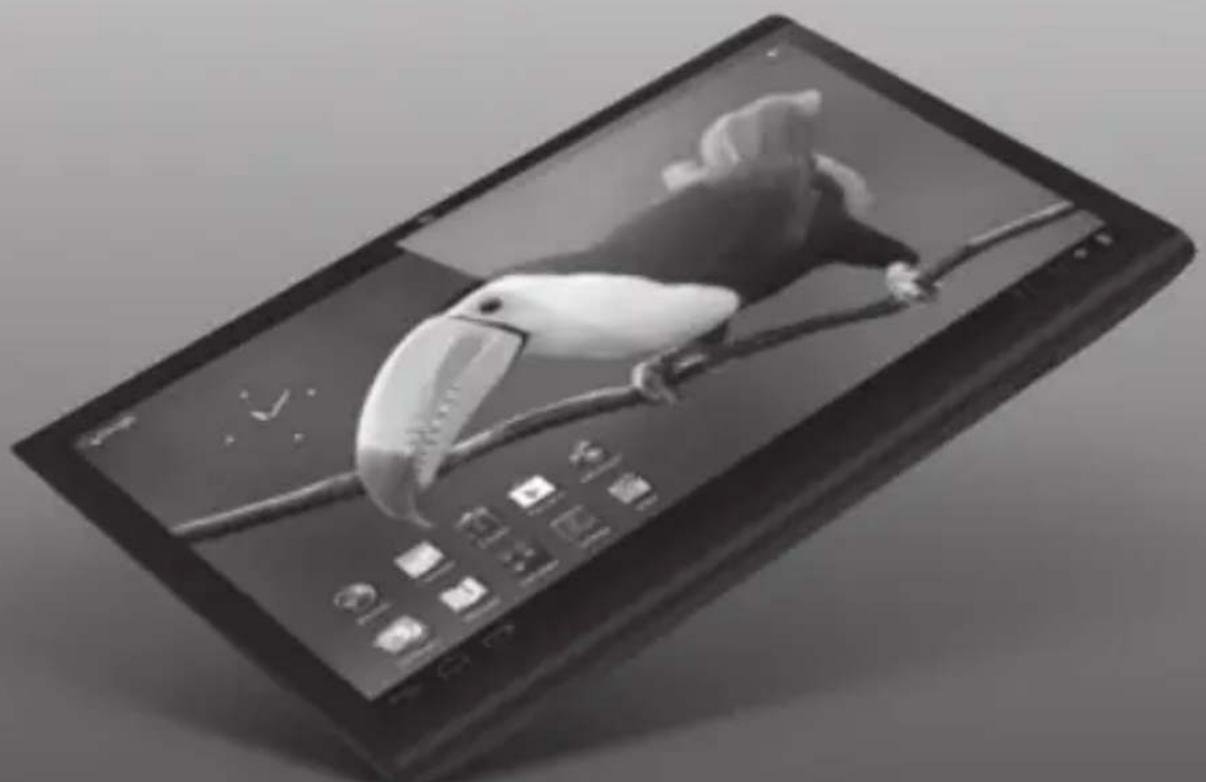
Xenta 7ic
Xenta 7ic
Factory Reset
Reset waar fabrieksinstellenen
Reset der Werkseinstellungen
Réinitialisation par défaut
Restauración d0e configuración de fabrica
Reposicao de fabrica
Przywracanie ustawien fabrcznych
Obnoveni továrního nastaveni
Resetovanie na nastavenia z tovarne
Fabriksnulstilling
Fabriksaterställing
Eπαναφορά σε Πυθμίαεις ἐργοσταίου
Reset delle impostazioni predefinite
C6poc napamempoe κ 3naehuŋm no ymonuŋo
Factory reset (Tilbakestille til fabrikinnstlinger)
Tovarníka ponastavitev
Скudosусяхусянок do smандармнux 3aobdcbkux 3naehb
Gyári visszaállitas
Hулupahe кьм φаб puч hu hacmpouku
Restabilirea configuraţiei implicite din fabricătie
Tvornicko resetiranje
Factory Reset
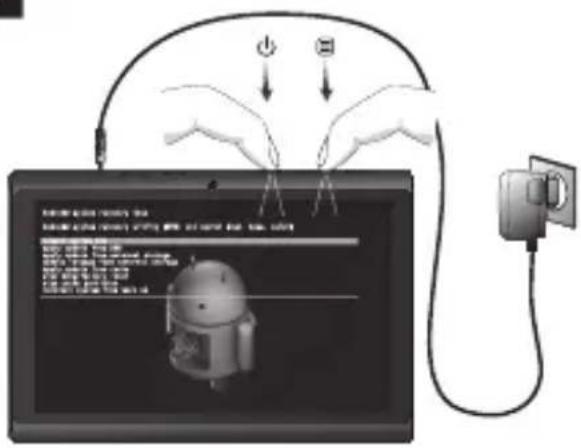
EN Your Tablet acts much slower than normal, doesn't react well or freezes even after the Soft Reset.
In this case you need to do a complete "Factory Reset". If you perform a "Factory Reset", all data/ settings will be lost and the tablet will return to its factory settings.
Also if you have a password protection on the tablet and you forgot the password. The only way to access the tablet is by doing a "Factory Reset". The Factory Reset is as follows:
Factory Reset Execution
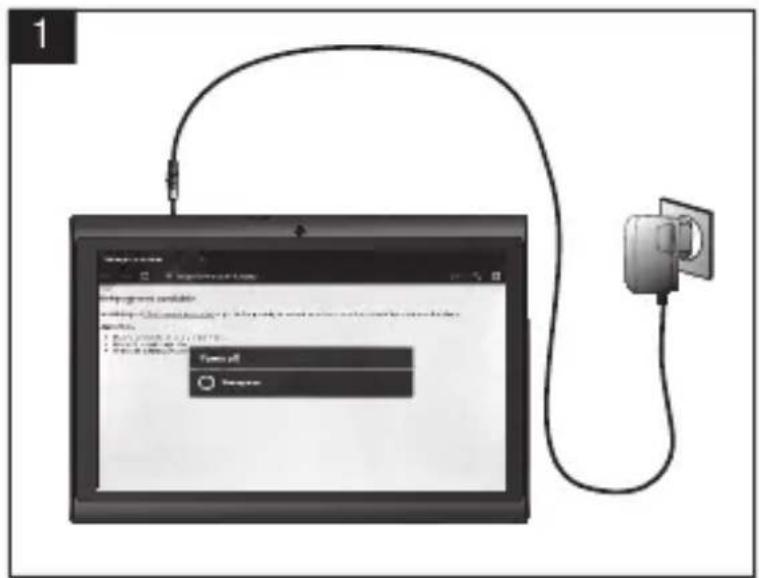
1 Turn Tablet completely OFF before starting Factory Reset.
Schakel de tablet volledig UIT voor u een fabrieksresetuitvoert.
- Tablet vor dem Rücksetzen auf die Werkseinstellungen vollständig AUS schalten.
- Éteignez complètement la tablette avant de démarrer la réinitialisation par défaut.
- Apague la tableta totalmente antes de,iniciar el proceso de restablecimiento de fabrica.
- Desligue completeness o tabletantes de起初 uma Reposicao de fabrica.
- Przed Rozpoczeciem procedury przywracania ustawien fabrycznych calkowicie WYLACZ tablet.
- Pred spustěním obnovéni na vyrobní nastavení zcela VYPNÉTE tablet.
Pred začatim resetovania na nastavenia z tovarne tablet uplne vypnite.
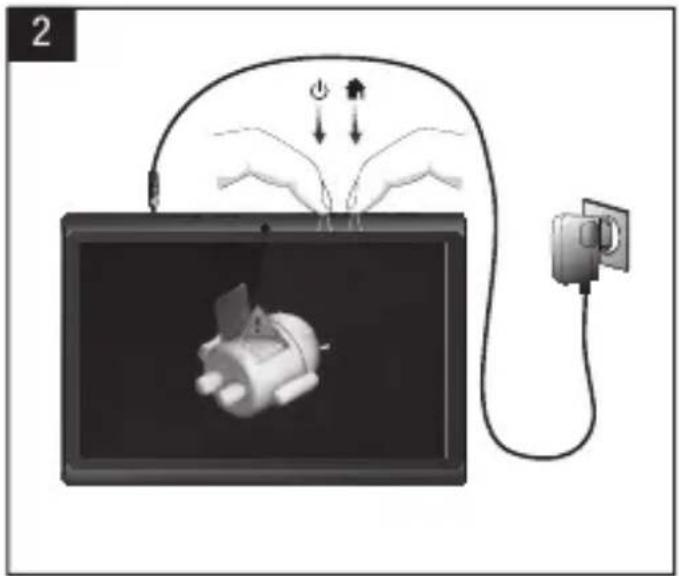
2 Hold for 6 seconds
- 6 secondengedrukt houden
- 6 Sekunden gedrückt halten
- Appuyez pendant 6 secondes
- Mantenga pulsado durante 6segundos
- Mantenha premidos durante 6 segundos
- Przytrzymaj przy bez 6 sekundy
- Pridrzte po dobu 6 sekund
-6 sekundy podrzte
Hold i6 sekunder - Hall nd i 6 sekunder
KpatnoTe yia 6 outepeoAeTTa
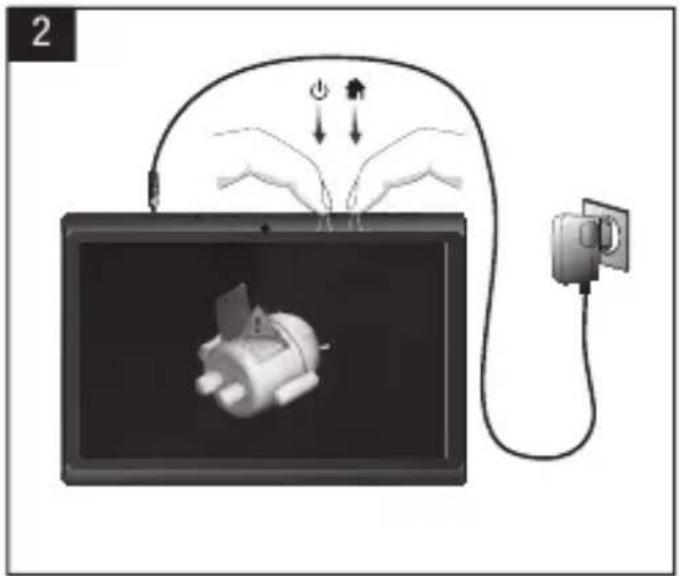
3



Hold for 2 seconds
3 Hold for 2 seconds
- 2 seconden ingedrukt houden
- 2 Sekunden gedrück halten
- Appuyez pendant 2 secondes
- Mantenga pulsado durante 2segundos
- Mantenha premidos durante 2segundos
- Przytrzymaj przy bez 2 sekundy
- Pridrzte po dobu 2 sekund
- 2 sekundy podržte
Hold i 2 sekunder
Hallnedi2sekunder
KpatnoTe yia 2 eutepeoAeTTa
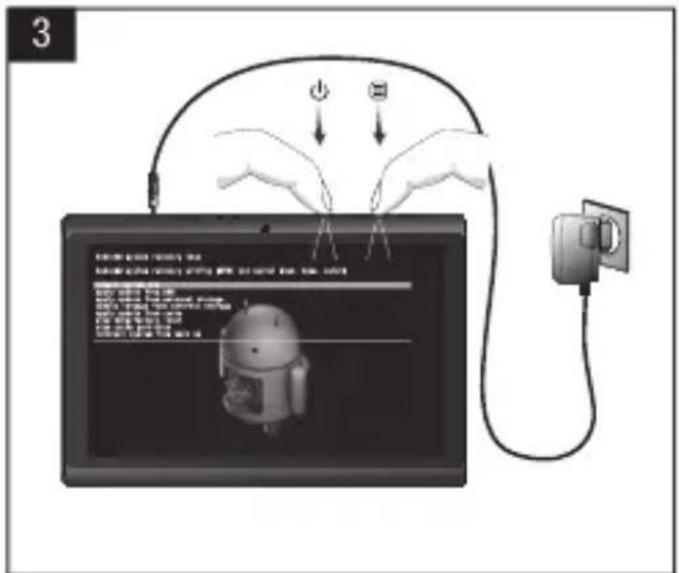
3 Now you are in system recovery mode.
- Nu bent u in systeemherstelmodus aanbeland.
- Sie befinden sich im System-Wiederherstellungsmodus.
- Vous étés désormais en mode de récapération de système.
- Ahora ya se encuesta en el modo de recuperación del sistema.
- Está ahora no modo de recuperação do sistema.
-
Urzadzenie przywracania systemu.
Nyni jste v rezimu obnovy systému. -
Teraz sa nachadzate v rezime obnovenia systému.
-
Nu er du i systemgendannelsestilstand.
-
Nu ar du i systematerstellningslage.
Tupa Bpiokote oE kataaota an atokataaotaon ouotmuato.
4 With (hold for 3 seconds) scroll down to Wipe data/factory reset.
- Gebruik de (3 seconden ingedrukt houden) knop en scroll maar beneden om data te wissen/factory reset (fabrieksreset).
- Mit der (3 Sekunden gedrückt halten) -Taste abwarts zum Eintrag Wipe data/ factory reset (Datum loschen/ Werkseinstellungen) gehen.
- À l'aide du bouton (Appuyez pendant 3 secondes), faites défiler vers le bas et Sélectionnez Supprimer les données/ réinitialisation par défaut.
- Con el botón de (Mantenga pulsado durante 3segundos),desplácese hacer abajo hasta Wipe data/factory reset (Borrado de datos/Restablecimiento de fabrica).
- Com o botão (Mantenhao premidos durante 3 segundos), boa ate Wipe data/ factory reset (Limpar os dados/ reposicao de fabrica).
- Przewin przyciskiem (Przytrzymaj przy bez 3 sekundy) w dót do Wipe data/factory reset (Usń dane/przywracie ustawien fabrycznych).
Tlacitkem (Pridrzte po dobu 3 sekund) skrolujte dolu pro Wipe data/ factory reset (Smazani dat/obnoveni na vyrobni nastaveni).
Tlacidlom (3 sekundy podrzte) skrolujte dole pre Wipe data/factory reset (Odstranit udaje/resetovat na nastavenia z tovarne).
Med (Hold i 3 sekunder) rul ned til Wipe data/factory reset [Ryd data/ fabriksnulstilling].
- Bläddra ner med (Häll ned i 3 sekunder) till Wipe data/factory reset (Radera-uppgifter/fabriksäterställning).
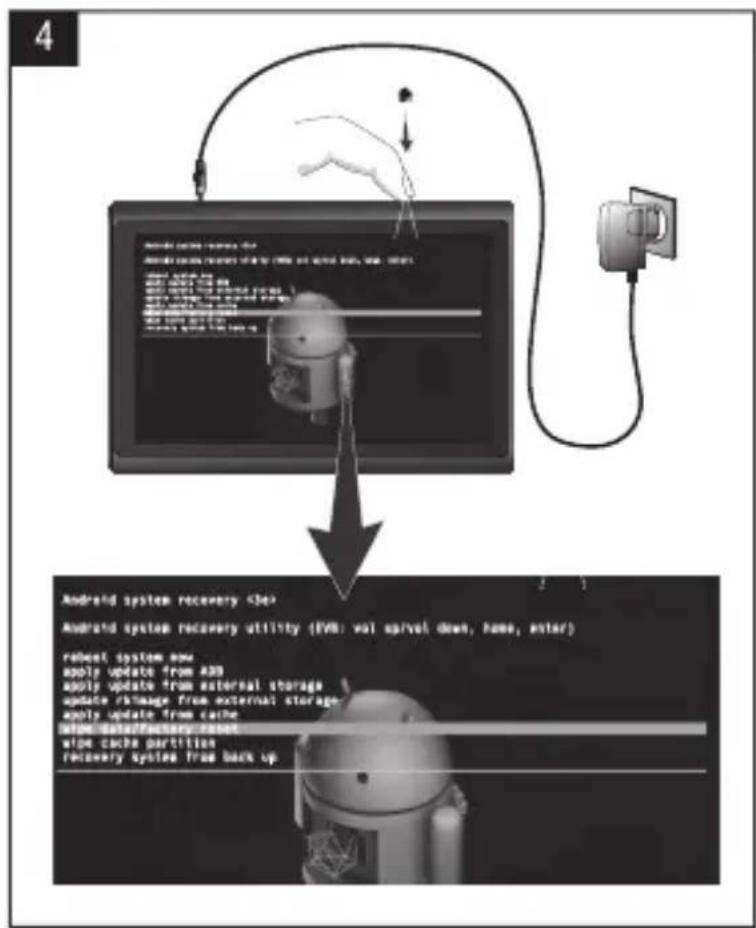
Me to nKpo (KpatnoTe yia 3
8eutepoAenT),kivnEite npoc ta kato
otny eiloyn Wipe data/factory reset
(Eaieyn d60evw/vanapopa o
puOioic epyoataiou).
5 Press On/Off button to enter factory reset.
- Druk op de Aan/Uit knop om fabrieksresetuit te voeren.
- Ein-/Aus-Taste drucken, um zum Reset der Werkseinstellungen zu wechseln.
- Appuyez sur le bouton marche/arrêt pour effectuer la réinitialisation d'usine.
- Pulse el botón de encendido y apagado para acceder al restablecimiento de fabrica.
- Prima o botão On/Off (Ligar/Desligar) para entra em factory reset (reposicao de fabrica).
- Nacisnij wylacznik, aby przyjec do przywracania ustawien fabrycznych.
- Stisknutim tlacitka zapnout/vypnout spustte obnoveni na vyrobni nastaveni.
- Ak chcete resetovat na nastavenia z tovarne, stlachte vypinač.
Tryk pa knappen On/Off [Til/fra] for at abne fabriksnulstilling
Tryck pa On/Off-knappen for att oppna
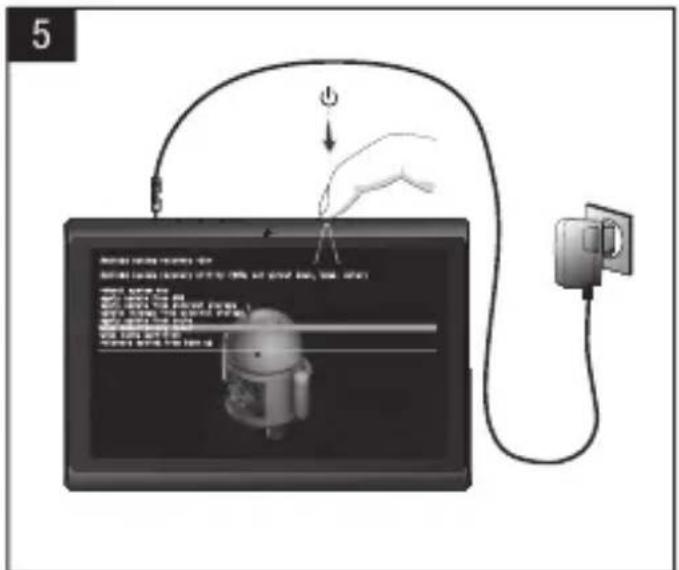
7 After factory reset has performed, scroll down with button to reboot system now. Press On/Off button to enter reboot system now.
Factory Reset Execution
1 Spagnere il tablet prima di avviare il reset delle impostazioni predefinite
- Chayana nonHOCTbIO BblKnHouHTe nnahwet.
- Slå tableten helt AV for start av Factory Reset.
Pred začetkom tovarníške ponastavitve, popolnama izklopite tablčni računalnik.
Cnoatky nobHicTIO BmKHiTb nHaHwET.
1
Kapcsolja KI a tablat a gyari visszaallitas elvégzese elott.
- IN3KJIIOUcETE HANbIHO Ta6JeTa npedn da npemHete KbM HyInpaHe KbM 0abpnuHnte HAcTpoiKn.
STINGETI total tableta inainte de a demara restabilirea configuratie implicite din fabricatie.ite.
Potpuno ISKLJUCITE tablet priseNgu započnete tvornickim resetiranjem
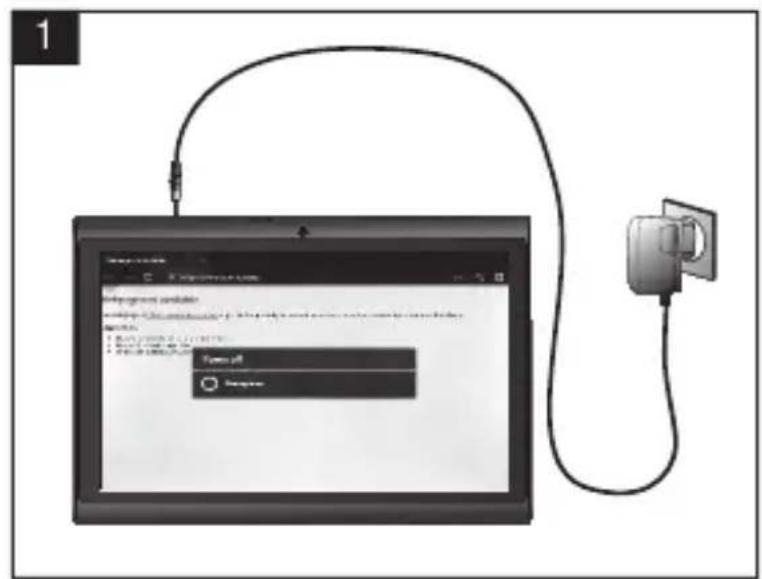

2


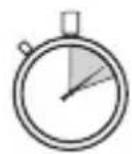
Hold for 6 seconds
2 Tenere premuto 6 secondi.
- YdepxmbaTe B TeueHne 6 cekyHn.
Holdinnei6sekunder.
- Držite 6 sekunde.
- Ytpmyte npotraom 6 cekyHd.
6
Tartsa 6 masodpercig
3aapbxte 3a6cekyHn.
Astepta 6 secunde.
Drzite 6 sekundi.
3



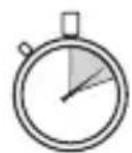
Hold for 2 seconds
2 Tenere premuto 2 secondi.
- YdepxnBaIte B TeueHne 2 cekyHd.
Holdinnei2sekunder.
- Drzite 2 sekunde.
- Ytpmyte npotraom 2 cekyhd.
21
Tartsa 2 masodpercig
- 3aapbxte 3a 2 cekyHn.
- Astepta 2 secunde.
Drzite 2 sekundi.
3