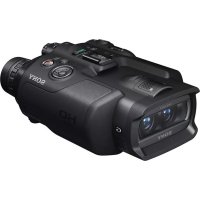
DEV5K - Binoculars SONY - Free user manual and instructions
Find the device manual for free DEV5K SONY in PDF.



| Product Type | Binoculars with digital recording |
| Brand | Sony |
| Model | DEV5K |
| Dimensions (approx.) | Not specified in the manual (estimate: approx. 200 x 180 x 100 mm) |
| Weight | 1400 g (including NP-FV100 battery, with lens cap and eyecup) |
| Power | Rechargeable InfoLITHIUM V series battery (NP-FV100) or AC adapter |
| Video recording | 2D and 3D (AVCHD), up to 1920x1080, max bitrate 28 Mbps |
| Photo recording | Up to 7.1 Mpx (3072x2304), 4:3 and 16:9 formats |
| Viewfinders | 2x electronic viewfinders, 0.45 inch, 1,226,880 pixels, diopter adjustment -3.5 to +3.5 |
| Magnification | 0.8x - 20x (2D with digital zoom), 0.5x - 5.4x (3D) |
| GPS | Built-in (DEV5/5K) for geotagging |
| Storage media | Memory Stick PRO Duo, SD/SDHC/SDXC (Class 4 or higher) |
| Connectivity | USB, HDMI, A/V output, external microphone, headphone |
| Battery life (NP-FV100) | Continuous 2D recording: 360 min, observation: 395 min |
| Maintenance and cleaning | Clean the lens with a soft cloth; avoid chemicals; store in a dry, ventilated place |
| Safety | Do not expose to rain or moisture; do not use while walking; observe battery precautions |
| Supplied accessories | NP-FV100 battery, AC adapter/charger AC-VQV10, cables, strap, lens cap, eyecups, CD-ROM with software |
| Reparability | Contact an authorized Sony center; do not disassemble yourself |
Frequently Asked Questions - DEV5K SONY
User questions about DEV5K SONY
0 question about this device. Answer the ones you know or ask your own.
Ask a new question about this device
Download the instructions for your Binoculars in PDF format for free! Find your manual DEV5K - SONY and take your electronic device back in hand. On this page are published all the documents necessary for the use of your device. DEV5K by SONY.
USER MANUAL DEV5K SONY
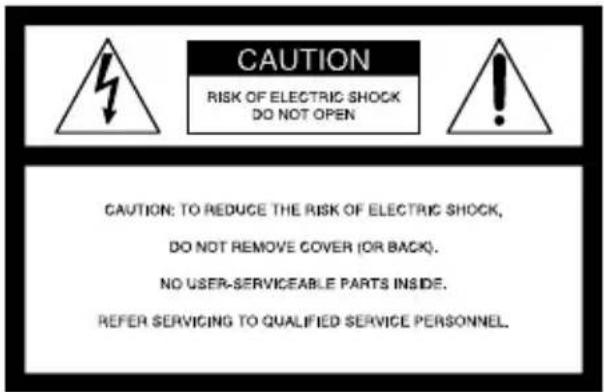
The model and serial numbers are located on the bottom. Record the serial number in the space provided below. Refer to these numbers whenever you call upon your Sony dealer regarding this product.
Model No. DEV-
Serial No.
Model No. AC-
Serial No.
WARNING
To reduce fire or shock hazard, do not expose the unit to rain or moisture.
Do not expose the batteries to excessive heat such as sunshine, fire or the like.
CAUTION
Battery pack
If the battery pack is mishandled, the battery pack can burst, cause a fire or even chemical burns. Observe the following cautions.
- Do not disassemble.
- Do not crush and do not expose the battery pack to any shock or force such as hammering, dropping or stepping on it.
- Do not short circuit and do not allow metal objects to come into contact with the battery terminals.
- Do not expose to high temperature above 60^ (140^) such as in direct sunlight or in a car parked in the sun.
- Do not incinerate or dispose of in fire.
- Do not handle damaged or leaking lithium ion batteries.
- Be sure to charge the battery pack using a genuine Sony battery charger or a device that can charge the battery pack.
-
Keep the battery pack out of the reach of small children.
-
Keep the battery pack dry.
- Replace only with the same or equivalent type recommended by Sony.
- Dispose of used battery packs promptly as described in the instructions.
Replace the battery with the specified type only. Otherwise, fire or injury may result.
AC Adaptor
Do not use the AC Adaptor placed in a narrow space, such as between a wall and furniture.
Use the nearby wall outlet (wall socket) when using the AC Adaptor. Disconnect the AC Adaptor from the wall outlet (wall socket) immediately if any malfunction occurs while using this product.
Even if this product is turned off, AC power source (mains) is still supplied to it while connected to the wall outlet (wall socket) via the AC Adaptor.
Note on the power cord (mains lead)
The power cord (mains lead) is designed specifically for use with this product only, and should not be used with other electrical equipment.
Excessive sound pressure from earphones and headphones can cause hearing loss.
For customers in the USA
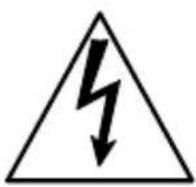
This symbol is intended to alert the user to the presence of uninsulated "dangerous voltage" within the product's enclosure that may be of sufficient magnitude to constitute a risk of electric shock to persons.

This symbol is intended to alert the user to the presence of important operating and maintenance (servicing) instructions in the literature accompanying the appliance.
IMPORTANT SAFETY INSTRUCTIONS
SAVE THESE INSTRUCTIONS.
DANGER - TO REDUCE THE RISK OF FIRE OR ELECTRIC SHOCK,
CAREFULLY FOLLOW THESE
INSTRUCTIONS.
- Read these instructions.
- Keep these instructions.
Heed all warnings. - Follow all instructions.
- Do not use this apparatus near water.
- Clean only with dry cloth.
- Do not block any ventilation openings. Install in accordance with the manufacturer's instructions.
- Do not install near any heat sources such as radiators, heat registers, stoves, or other apparatus (including amplifiers) that produce heat.
- Do not defeat the safety purpose of the polarized or grounding-type plug. A polarized plug has two blades with one wider than the other. A grounding type plug has two blades and a third grounding prong. The wide blade or the third prong are provided for your safety. If the provided plug does not fit into your outlet, consult an electrician for replacement of the obsolete outlet.
- Protect the power cord from being walked on or pinched particularly at plugs, convenience receptacles, and the point where they exit from the apparatus.
- Only use attachments/accessories specified by the manufacturer.
- Use only with the cart, stand, tripod, bracket, or table specified by the manufacturer, or sold with the apparatus. When a cart is used, use caution when moving the cart/apparatus combination to avoid injury from tip-over.

- Unplug this apparatus during lightning storms or when unused for long periods of time.
- Refer all servicing to qualified service personnel. Servicing is required when the apparatus has been damaged in any way, such as power-supply cord or plug is damaged, liquid has been spilled or objects have fallen into the apparatus, the apparatus has been exposed to rain or moisture, does not operate normally, or has been dropped.
- If the shape of the plug does not fit the power outlet, use an attachment plug adaptor of the proper configuration for the power outlet.
Representative plug of power supply cord of countries/regions around the world.

A Type (American Type)

B Type (British Type)

BF Type (British Type)

B3 Type (British Type)

C Type (CEE Type)

SE Type (CEE Type)

O Type (Ocean Type)
The representative supply voltage and plug type are described in this chart.
Depend on an area, Different type of plug and supply voltage are used.
Attention: Power cord meeting demands from each country shall be used.
- For only the United States
Use a UL Listed, 1.5 - 3m (5-10 ft.), Type SPT-2 or NISPT-2, AWG no. 18 power supply cord, rated for 125V7A , with a NEMA 1-15P plug rated for 125V15A .
Europe
| Countries/regions Voltage Frequency (Hz) Plug type | ||
| Austria 230 50 C | ||
| Belgium 230 50 C | ||
| Czech 220 50 C | ||
| Denmark 230 50 C | ||
| Finland | 230 50 C | |
| France | 230 50 C | |
| Germany | 230 50 C | |
| Greece | 220 50 C | |
| Hungary | 220 50 C | |
| Iceland 230 50 C | ||
| Ireland | 230 50 | C/BF |
| Italy | 220 50 C | |
| Luxemburg | 230 50 C | |
| Netherlands | 230 50 C | |
| Norway | 230 50 C | |
| Poland | 220 50 C | |
| Portugal | 230 50 C | |
| Romania | 220 50 C | |
| Russia | 220 50 C | |
| Slovak | 220 50 C | |
| Spain | 127/230 | 50 C |
| Sweden | 230 50 C | |
| Switzerland | 230 50 C | |
| UK | 240 50 | BF |
Asia
| Countries/regions Voltage Frequency (Hz) Plug type | |||
| China 220 50 A | |||
| Hong Kong | 200/220 | 50 | BF |
| India | 230/240 | 50 C | |
| Indonesia | 127/230 | 50 C | |
| Japan | 100 | 50/60 | A |
| Korea (rep) | 220 60 C | ||
| Malaysia | 240 50 | BF | |
| Philippines | 220/230 | 60 | A/C |
| Singapore | 230 50 | BF | |
| Taiwan 110 60 A | |||
| Thailand | 220 50 | C/BF | |
Countries/regions Voltage Frequency (Hz) Plug type
Vietnam 220 50 A/C
Oceania
Countries/regions Voltage Frequency (Hz) Plug type
Australia 240 50 O
New Zealand 230/240 50 O
North America
Countries/regions Voltage Frequency (Hz) Plug type
Canada 120 60 A
USA 120 60 A
Central America
Countries/regions Voltage Frequency (Hz) Plug type
Bahamas 120/240 60 A
Costa Rica 110 60 A
Cuba 110/220 60 A/C
Dominican (rep) 110 60 A
El Salvador 110 60 A
Guatemala 120 60 A
Honduras 11060A
Jamaica 11050A
Mexico 120/12760A
Nicaragua 120/240 60 A
Panama 110/22060A
South America
Countries/regions Voltage Frequency (Hz) Plug type
Argentina 220 50 C/BF/O
Brazil 127/220 60 A/C
Chile 22050 C
Colombia 120 60 A
Peru 220 60 A/C
Venezuela 12060 A
Middle East
Countries/regions Voltage Frequency (Hz) Plug type
Iran 22050 C/BF
Iraq 22050 C/BF
Israel 23050 C
Saudi Arabia 127/220 50 A/C/BF
Turkey 22050 C
UAE 24050 C/BF
Africa
Countries/regions Voltage Frequency (Hz) Plug type
Algeria 127/220 50 C
Congo (dem) 22050 C
Egypt 22050 C
Ethiopia 22050 C
Kenya 24050 C/BF
Nigeria 23050 C/BF
South Africa 220/23050 C/BP
Tanzania 230 50 C/BF
Tunisia 22050 C
Read this first
Before operating the unit, please read this manual thoroughly, and retain it for future reference.
For customers in the U.S.A. and CANADA
RECYCLING LITHIUM-ION BATTERIES
Lithium-Ion batteries are recyclable. You can help preserve our environment by returning your used rechargeable batteries to the collection and recycling location nearest you.

For more information regarding recycling of rechargeable batteries, call toll free 1-800-822-8837, or visit http://www.rbrc.org/
Caution: Do not handle damaged or leaking Lithium-Ion batteries.
Battery pack
This device complies with Part 15 of the FCC Rules. Operation is subject to the following two conditions: (1) This device may not cause harmful interference, and (2) this device must accept any interference received, including interference that may cause undesired operation.
This Class B digital apparatus complies with Canadian ICES-003.
For the customers in the U.S.A.
UL is an internationally recognized safety organization.
The UL Mark on the product means it has been UL Listed.
If you have any questions about this product, you may call:
Sony Customer Information Center 1-800-222-SONY (7669).
The number below is for the FCC related matters only.
Regulatory Information
Declaration of Conformity
Trade Name: SONY
Model No.: DEV-3, DEV-5, DEV-5K
Responsible Party: Sony Electronics Inc. Address: 16530 Via Esprillo, San Diego, CA 92127 U.S.A.
Telephone No.: 858-942-2230
This device complies with Part 15 of the FCC Rules. Operation is subject to the following two conditions: (1) This device may not cause harmful interference, and (2) this device must accept any interference received, including interference that may cause undesired operation.
CAUTION
You are cautioned that any changes or modifications not expressly approved in this manual could void your authority to operate this equipment.
Note
This equipment has been tested and found to comply with the limits for a Class B digital device, pursuant to Part 15 of the FCC Rules.
These limits are designed to provide reasonable protection against harmful interference in a residential installation.
This equipment generates, uses, and can radiate radio frequency energy and, if not installed and used in accordance with the instructions, may cause harmful interference to radio communications. However, there is no guarantee that interference will not occur in a particular installation. If this equipment does cause harmful interference to radio or television reception, which can be determined by turning the equipment off and on, the user is encouraged to try to correct the interference by one or more of the following measures:
- Reorient or relocate the receiving antenna.
- Increase the separation between the equipment and receiver.
- Connect the equipment into an outlet on a circuit different from that to which the receiver is connected.
- Consult the dealer or an experienced radio/ TV technician for help.
The supplied interface cable must be used with the equipment in order to comply with the limits for a digital device pursuant to Subpart B of Part 15 of FCC Rules.
For the customers in Canada (For DEV-5)
This device complies with RSS-310 of Industry Canada. Operation is subject to the condition that this device does not cause harmful interference.
Notice for customers in the United Kingdom
A moulded plug complying with BS 1363 is fitted to this equipment for your safety and convenience.
Should the fuse in the plug supplied need to be replaced, a fuse of the same rating as the supplied one and approved by ASTA or BSI to BS 1362, (i.e., marked with an 品 or mark) must be used. If the plug supplied with this equipment has a detachable fuse cover, be sure to attach the fuse cover after
you change the fuse. Never use the plug without the fuse cover. If you should lose the fuse cover, please contact your nearest Sony service station.
FOR CUSTOMERS IN EUROPE
CE
Hereby, Sony Corporation, declares that this DEV-5/5K Digital Recording Binoculars is in compliance with the essential requirements and other relevant provisions of the Directive 1999/5/EC. For details, please access the following URL: http://www.compliance.sony.de/
Notice for the customers in the countries applying EU Directives
The manufacturer of this product is Sony Corporation, 1-7-1 Konan Minato-ku Tokyo, 108-0075 Japan. The Authorized Representative for EMC and product safety is Sony Deutschland GmbH, Hedelfinger Strasse 61, 70327 Stuttgart, Germany. For any service or guarantee matters please refer to the addresses given in separate service or guarantee documents.
ATTENTION
The electromagnetic fields at the specific frequencies may influence the picture and sound of this unit.
This product has been tested and found compliant with the limits set out in the EMC Directive for using connection cables shorter than 3 meters (9.8 feet).
Notice
If static electricity or electromagnetism causes data transfer to discontinue midway (fail), restart the application or disconnect and connect the communication cable (USB, etc.) again.

Disposal of Waste Electrical and Electronic Equipment for business use (Applicable in the European Union and other European countries with separate collection systems) (DEV-5K)
This symbol on the product or on its packaging indicates that this product shall not be treated as household waste. Instead it shall be handed over to the applicable take-back scheme for the recycling of electrical and electronic equipment. By ensuring this product is disposed of correctly, you will help prevent potential negative consequences for the environment and human health, which could otherwise be caused by inappropriate waste handling of this product. The recycling of materials will help to conserve natural resources. For more detailed information about recycling of this product, please contact your local Sony office or visit Sony Europe's web site for business customers: http://www.pro.sony.eu/environment
Disposal of Old Electrical & Electronic Equipment (Applicable in the European Union and other European countries with separate collection systems) (DEV-3/5)
This symbol on the product or on its packaging indicates that this product shall not be treated as household waste. Instead it shall be handed over to the applicable collection point for the recycling of electrical and electronic equipment. By ensuring this product is disposed of correctly, you will help prevent potential negative consequences for the environment and human health, which could otherwise be caused by inappropriate waste handling of this product. The recycling of materials will help to conserve natural resources.
For more detailed information about recycling of this product, please contact your local Civic Office, your household waste disposal service or the shop where you purchased the product.

Disposal of waste batteries (applicable in the European Union and other European countries with separate collection systems)
This symbol on the battery or on the packaging indicates that the battery provided with this product shall not be treated as household waste.
On certain batteries this symbol might be used in combination with a chemical symbol. The chemical symbols for mercury (Hg) or lead (Pb) are added if the battery contains more than 0.0005% mercury or 0.004% lead.
By ensuring these batteries are disposed of correctly, you will help prevent potentially negative consequences for the environment and human health which could otherwise be caused by inappropriate waste handling of the battery. The recycling of the materials will help to conserve natural resources.
In case of products that for safety, performance or data integrity reasons require a permanent connection with an incorporated battery, this battery should be replaced by qualified service staff only. To ensure that the battery will be treated properly, hand over the product at end-of-life to the applicable collection point for the recycling of electrical and electronic equipment.
For all other batteries, please view the section on how to remove the battery from the product safely. Hand the battery over to the applicable collection point for the recycling of waste batteries.
For more detailed information about recycling of this product or battery, please contact your local Civic Office, your
household waste disposal service or the shop where you purchased the product.
Using this product
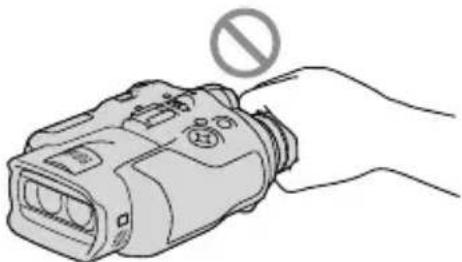
- Do not hold this product by the following parts, and also do not hold this product by the jack covers.
Viewfinder
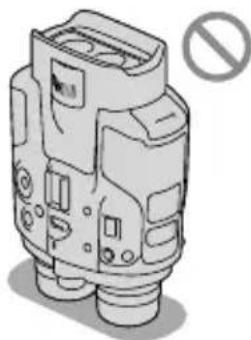
- Do not put this product with the viewfinder facing down.
- This product is not dustproofed, dripproofof or waterproofed. See "Precautions" (p. 46).
Menu items, viewfinder, and lens
-
A menu item that is grayed out is not available under the current recording or playback conditions.
-
The viewfinder is manufactured using extremely high-precision technology, so over 99.99% of the pixels are operational for effective use. However, there may be some tiny black points and/or bright points (white, red, blue, or green in color) that appear constantly in the viewfinder. These points are normal results of the manufacturing process and do not affect the recording in any way.
-
Exposing the viewfinder or the lens to direct sunlight for long periods of time may cause malfunctions.
- Do not aim at the sun. Doing so might cause this product to malfunction. Take images of the sun only in low light conditions, such as at dusk.
About language setting
- The on-screen displays in each local language are used for illustrating the operating procedures. Change the screen language before using this product if necessary (p. 24).
On recording
- To ensure stable operation of the memory card, it is recommended to format the memory card with this product before the first use. formatting the memory card will erase all the data stored on it and the data will be irrecoverable. Save your important data on your PC etc.
Before starting to record, test the recording function to make sure the image and sound are recorded without any problems.
Compensation for the contents of recordings cannot be provided, even if recording or playback is not possible due to a malfunction of this product, memory card, etc. - TV color systems differ depending on the country/region. To view your recordings on a TV, set [60i/50i Sel] to the setting required in your country/region before recording (p. 22).
- Television programs, films, video tapes, and other materials may be copyrighted. Unauthorized recording of such materials may be contrary to the copyright laws.
- Because of the way that the image device (CMOS sensor) reads out image signals, the following phenomena may occur.
-
The subjects passing by the frame rapidly might appear crooked depending on the recording conditions. (This phenomenon may be notable in displays having high motion resolution.)
Horizontal lines appear on the screen during recording under fluorescent lights. The phenomena can be reduced by adjusting the shutter speed. -
Images on the screen look horizontally divided when a subject is lighted with a flash. The phenomena can be reduced by using a slower shutter speed.
-
Use this product in accordance with local regulations.
See page 24 for the memory card you can use with this product.
Notes on playing back
- You may not be able to play back normally images recorded on this product with other devices. Also, you may not be able to play back images recorded on other devices with this product.
DVD media recorded with high definition image quality
- DVD media recorded with high definition image quality can be played back with devices that are compatible with the AVCHD standard. You cannot play discs recorded with high definition image quality with DVD players/ recorders as they are not compatible with the AVCHD format. If you insert a disc recorded with the AVCHD format (high definition image quality) into a DVD player/recorder, you may not be able to eject the disc.
Save all your recorded image data
- To prevent your image data from being lost, save all your recorded images on external media periodically.
- The type of discs or media on which the images can be saved depend on the [REC Mode] selected when the images were recorded. Movies recorded with [60p Quality PS] ([50p Quality PS]) or [Highest Quality Fxan be saved on external media devices or on Blu-ray discs.
Notes on battery pack/AC Adaptor
- Be sure to remove the battery pack or the AC Adaptor after turning off this product.
- Disconnect the AC Adaptor from this product, holding both this product and the DC plug.
Note on the binoculars/battery pack temperature
- When the temperature of this product or battery pack becomes extremely high or extremely low, you may not be able to record or play back on this product, due to the protection features of this product being activated in such situations. In this case, an indicator appears on the screen.
When this product is connected to a computer or accessories
- Do not try to format the memory card of this product using a computer. If you do so, this product may not operate correctly.
- When connecting this product to another device with communication cables, be sure to insert the connector plug in the correct way. Pushing the plug forcibly into the terminal will damage the terminal and may result in a malfunction of this product.
If you cannot record/play back images, perform [Format]
- If you repeat recording/deleting images for a long time, fragmentation of data occurs on the memory card. Images cannot be saved or recorded. In such a case, save your images on some type of external media first, and then perform [Format] by selecting [MENU] (MENU) → [Setup] → [Media Settings] → [Format] → OK → OK
Notes on optional accessories
We recommend using genuine Sony accessories.
- Genuine Sony accessories may not be available in some countries/regions.
About this manual, illustrations and on-screen displays
-
The example images used in this manual for illustration purposes are captured using a digital still camera, and therefore may appear different from images and screen indicators that actually appear on this product. And, the illustrations of this product and its screen indication are exaggerated or simplified for understandability.
-
In this manual, the DVD disc recorded with high definition image quality is called AVCHD recording disc.
- Design and specifications of this product and accessories are subject to change without notice.
Viewing 3D video images
- Some people may experience discomfort (such as eye strain, fatigue, or nausea) while watching 3D video images.
Sony recommends that all viewers take regular breaks while watching 3D video images. The length and frequency of necessary breaks will vary from person to person. You must decide what works best.
If you experience any discomfort, you should stop watching the 3D video images until the discomfort ends; consult a doctor if you believe necessary.
You should also review the instruction manual of any other device or media used with this product.
The vision of young children (especially those under six years old) is still under development. Consult your doctor (such as a pediatrician or eye doctor) before allowing young children to watch 3D video images.
Adults should supervise young children to ensure they follow the recommendations listed above.
Notes on use
- Be careful of your surroundings when using this product. Especially, do not use this product while walking. Doing so may cause accidents or injury.
-
Do not do any of the following. Otherwise, the memory card may be damaged, recorded images may be impossible to play back or may be lost, or other malfunctions could occur.
-
ejecting the memory card when the access lamp (p. 25) is lit or flashing
-
removing the battery pack or AC Adaptor from this product, or applying mechanical shock or vibration to this product when the (Movie)/Photo) lamps (p. 28) or the access lamp (p. 25) are lit or flashing
- When using the neck strap, do not carry this product on your back. Doing so may cause injury. And do not allow this product to knock against another object.
About manuals for this product
Two manuals have been prepared for this product, the "Operating Guide" and the "Digital Recording Binoculars Handbook (PDF)." The "Operating Guide" introduces basic operations and the "Digital Recording Binoculars Handbook (PDF)" explains details of functions.
Operating Guide
This manual introduces the basic operations of this product, such as recording and playback.
Digital Recording Binoculars Handbook (PDF)
This manual explains various operations, such as how to use the setting menu and how to save images on other devices.
How to read Digital Recording Binoculars Handbook (PDF)
Install the "Digital Recording Binoculars Handbook" on your computer from the supplied CD-ROM.
-
For a Windows computer When the installation screen appears, click [Handbook] the desired language and the model name [Install], and follow the on-screen instructions to install the Handbook. The short-cut icon is created on the computer screen.
-
For a Mac Open the [Handbook] - [GB] folder on the CD-ROM, then copy [Handbook.pdf] to your computer.
- You need Adobe Reader to read the "Digital Recording Binoculars Handbook." If it is not installed on your computer, you can download it from the Adobe Systems web page. http://www.adobe.com/
Table of contents
IMPORTANT SAFETY INSTRUCTIONS 4
Read this first 7
Viewing 3D video images 12
Notes on use 12
About manuals for this product 12
Getting started
Step 1: Checking the supplied items . . . . . . 15
Attaching the supplied items 16
Step 2: Charging the battery pack. 17
Charging the battery pack installed into this product 17
Charging the battery pack using the AC Adaptor/Charger (DEV-5K) 19
Step 3: Turning the power on, and setting up this product. 21
Changing the language setting 24
Watching the recorded movies on a TV 24
Step 4: Inserting a memory card 24
Binoculars/Recording/Playback
Using this product as binoculars 26
Recording 28
Recording movies 28
Shooting photos. 29
Controlling the image settings manually with the MANUAL dial . . . 30
Acquiring location information using the GPS (DEV-5/5K) 31
Selecting the recording mode 31
Playback on this product 32
Saving movies and photos
Preparing a computer 34
Step 1 Checking the computer system. 34
Step 2 Installing the supplied software "PMB". 34
Starting PMB
(Picture Motion Browser) 37
Customizing this product
Using menus 38
Operating menus 38
Menu lists. 39
Additional information
? Troubleshooting 42
Self-diagnosis display/Warning indicators 43
Recording time of movies/number of recordable photos 44
Expected operating time with each battery pack 44
Expected recording time of movies 45
Expected number of recordable photos 45
Precautions 46
Specifications 48
Quick reference
Screen indicators 51
Parts and controls. 52
Index 54
Getting started
Step 1: Checking the supplied items
When opening the box for the first time, make sure that all of the supplied items listed below are included. The numbers in () are the supplied quantity.
| Items DEV-3 DEV-5 DEV-5K | |||
| ☐ Digital Recording Binoculars (1) √ √ √ | |||
| ☐ Carrying case (1) - √ √ | |||
| ☐ Neck strap (1) | √ √ | √ | |
| ☐ Lens cover (1) | - √ | √ | |
| ☐ Finder cap (1) | - √ | √ | |
| ☐ Large eyecup (2) | - √ | √ | |
| ☐ AC Adaptor/Battery charger (AC-VQV10) (1) | - √ | ||
| ☐ Connecting cord (DK-225) (1) - - √ | |||
| ☐ AC Adaptor (AC-L200) (1) √ √ - | |||
| ☐ Power cord (Mains lead) (1) √ √ √ | |||
| ☐ Rechargeable battery pack (1) | NP-FV70 NP-FV70 NP-FV100 | ||
| ☐ A/V connecting cable (1) | √ √ | √ | |
| ☐ Component A/V cable (1) | - - | √ | |
| ☐ USB cable (1) | √ √ | √ | |
| ☐ USB Adaptor Cable (1) | - - | √ | |
| □ CD-ROM Video Camera Application Software (1) - “PMB” (software, including “PMB Help”) - Digital Recording Binoculars Handbook (PDF) | ✓ | ✓ | |
| □ “Operating Guide” (This manual) (1)✓ | ✓ | ||
Attaching the supplied items
Attaching the neck strap
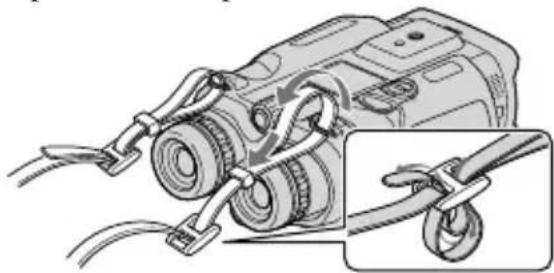
To avoid dropping this product, attach the neck strap to the binoculars following the steps below.
Insert one end of the neck strap into the strap mount on the binoculars. Then, fasten the neck strap, placing the end of the neck strap into the clasp.
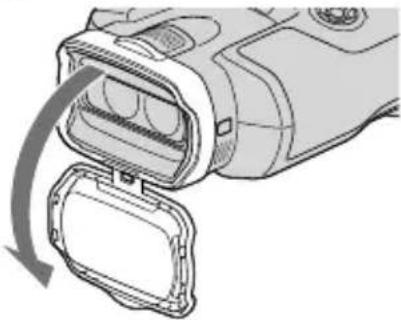
Attaching the lens cover (DEV-5/5K)
When you do not intend to use this product, store this product with the lens cover attached.
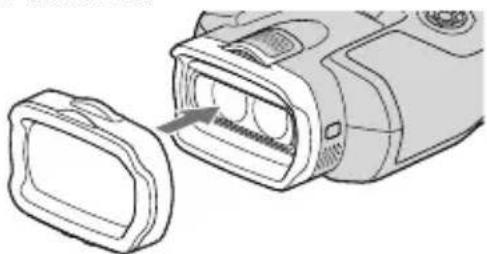
You can use this product with the lens cover attached.
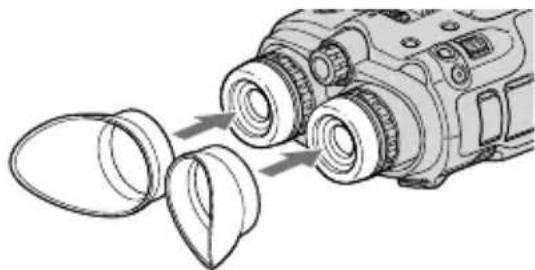
Attaching the large eyecup (DEV-5/5K)
If you cannot see the picture in the viewfinder clearly under bright light, use the large eyecup.
Align the large eyecup with the eyecup groove in the viewfinder.
Attaching the finder cap (DEV-5/5K)
When you do not intend to use this product, store this product with the finder cap attached.
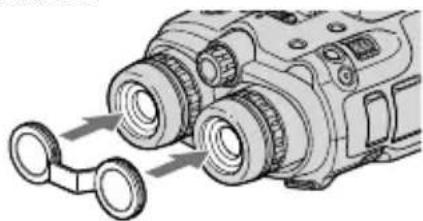
You can attach the finder cap to the neck strap as illustrated when it is not being used.
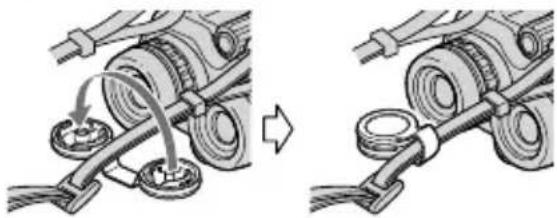
Step 2: Charging the battery pack
You can charge the "InfoLITHIUM" battery pack (V series).
Notes
- You cannot use any "InfoLITHIUM" battery pack other than NP-FV70/FV100 to this product.
Charging the battery pack installed into this product
1 Set the POWER switch to OFF (CHG) by pressing the green button.

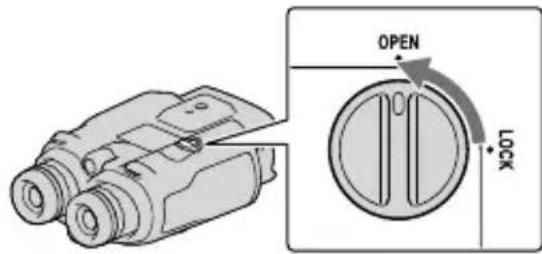
2 Turn the battery cover lock to OPEN and open the battery cover.
3 Align the battery with the groove in the battery compartment (①), and slide the battery until it clicks (②).
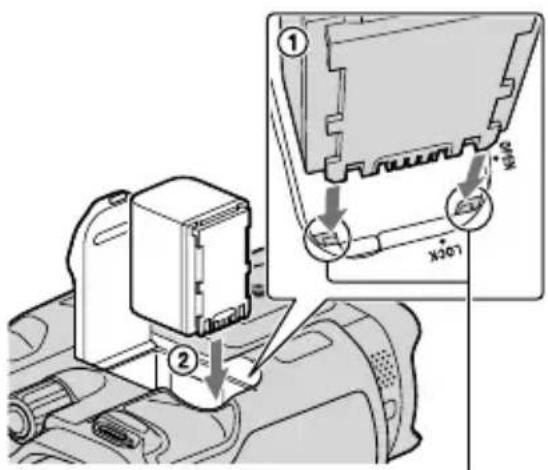
Align the battery with the groove.
4 Close the battery cover and turn the battery cover lock to LOCK.
5 DEV-3/5: Connect the AC Adaptor and the power cord (mains lead) to this product and the wall outlet (wall socket).
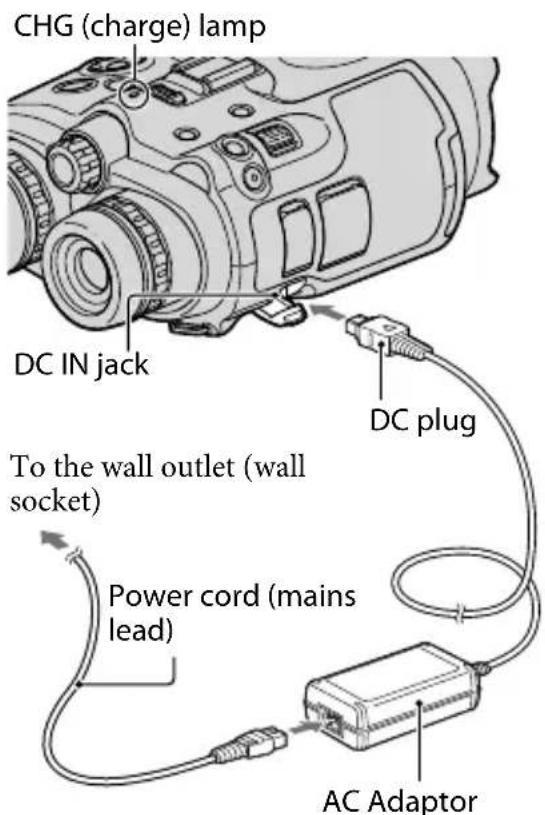
DEV-5K: Connect the power cord and the connecting cord (DK-225) to the AC Adaptor/Charger.
- Set the mode switch on the AC Adaptor/ Charger to VCR/CAMERA.
CHG (charge) lamp
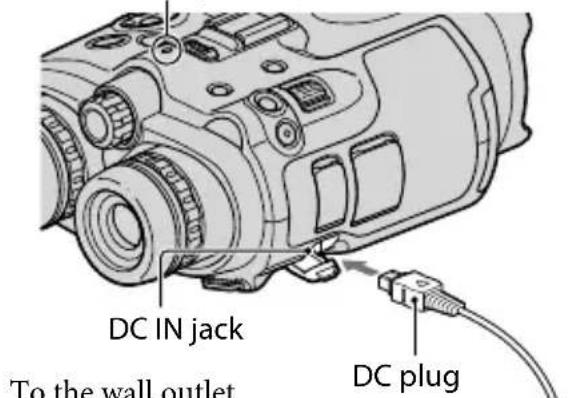
To the wall outlet (wall socket)
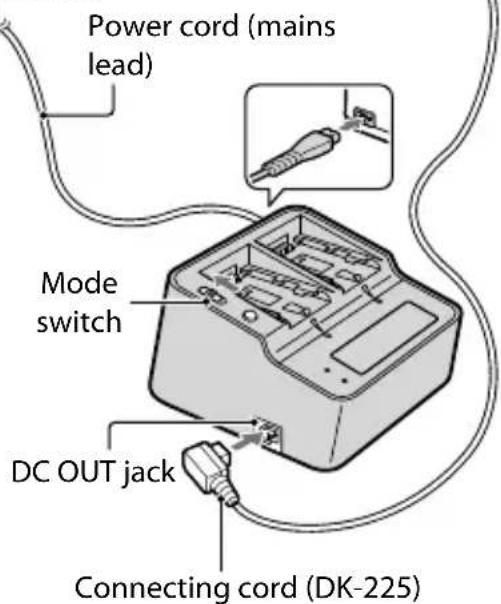
The CHG (charge) lamp lights up and charging starts. The CHG (charge) lamp turns off when the battery pack is fully charged.
6 When the battery is charged, disconnect the AC Adaptor from the DC IN jack of this product.
Charging the battery pack using the AC Adaptor/Charger (DEV-5K)
The AC Adaptor/Charger can charge the battery pack faster than charging it with this product.
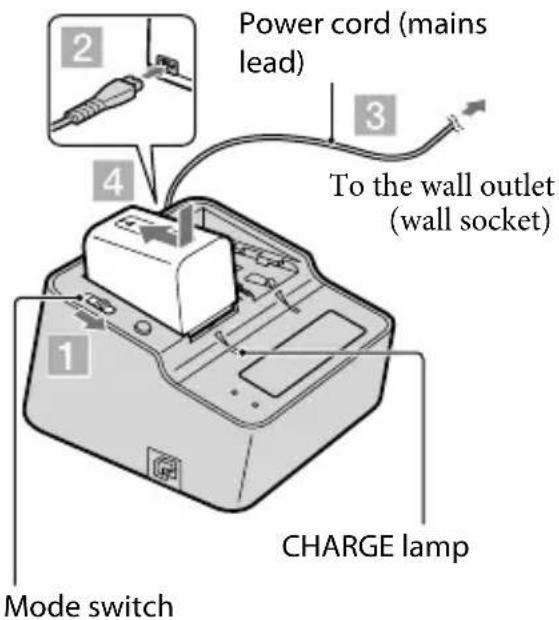
1 Set the mode switch on the AC Adaptor/Charger to CHARGE.
2 Connect the power cord (mains lead) to the AC Adaptor/Charger.
3 Connect the power cord (mains lead) to a wall outlet (wall socket).
4 Attach the battery pack to the AC Adaptor/Charger by sliding it in the direction of the arrow.
The CHARGE lamp lights up a charging starts.
When charging is complete, the battery mark is displayed (
If you continue to charge the battery after normal charging is complete until the battery mark shows "FULL," the battery pack can be used slightly longer than when in the normal charged state.
Charging time
Approximate time (min.) required when you fully charge a fully discharged battery pack.
Charging with this product
| Battery pack Charging time |
| NP-FV70 195 |
| NP-FV100 390 |
Charging with AC Adaptor/Charger (supplied with DEV-5K)
| Battery pack | Charging time (NORMAL) | Charging time (FULL) |
| NP-FV70 70 130 | ||
| NP-FV100 125 185 | ||
- The charging times shown in the table above are measured when charging this product at a temperature of 25^ (77^) . It is recommended that you charge the battery in a temperature range of 10^ to 30^ (50^ to 86^) .
Tips
See page 44 on recording and playing time.
- When this product is on, you can check the approximate amount of remaining battery power (expected recording and playing time) with the remaining battery indicator at the upper right on the screen.
To use a wall outlet (wall socket) as a power source
Make the same connections as "Step 2: Charging the battery pack" (p. 17). Even if the battery pack is installed, the battery pack is not discharged.
To remove the battery pack
① Set the POWER switch to OFF (CHG).
② Open the battery cover (p. 17).
③ Slide the battery release lever and remove the battery.
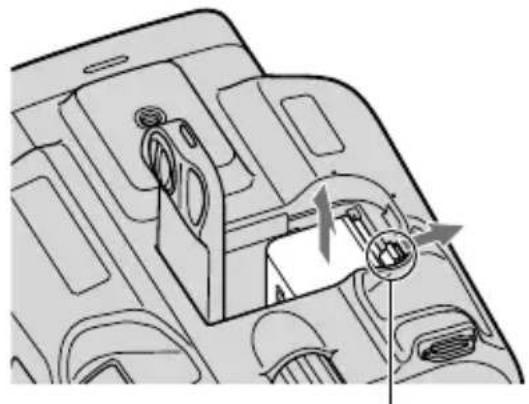
Battery release lever
Charging the battery pack abroad
You can charge the battery pack in any countries/regions using the AC Adaptor (supplied with DEV-3/5) or the AC Adaptor/ Charger (supplied with DEV-5K) within the AC 100 V - 240 V, 50 Hz/60 Hz range.
Notes
- Do not use an electronic voltage transformer.
Notes on the battery pack
-
When you remove the battery pack or disconnect the AC Adaptor, turn this product off and make sure that the (Movie)/ (Photo) lamps (p. 28), the access lamp (p. 25) are turned off.
-
The CHG (charge) lamp flashes during charging under the following conditions:
The battery pack is not installed correctly. - The battery pack is damaged.
- The temperature of the battery pack is low. Remove the battery pack from this product and put it in a warm place.
- The temperature of the battery pack is high. Remove the battery pack from this product and put it in a cool place.
Notes on the AC Adaptor
- Use the nearby wall outlet (wall socket) when using the AC Adaptor. Disconnect the AC Adaptor from the wall outlet (wall socket) immediately if any malfunction occurs while using this product.
- Do not use the AC Adaptor placed in a narrow space, such as between a wall and furniture.
- Do not short-circuit the DC plug of the AC Adaptor or battery terminal with any metallic objects. This may cause a malfunction.
Step 3: Turning the power on, and setting up this product

Notes
- Do not turn the power on with the USB cable connected.
- Do not connect the USB cable until the following procedure is completed.

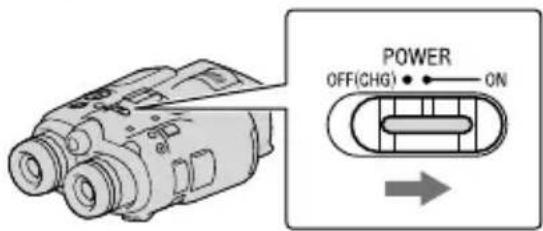
Set the POWER switch to ON by pressing the green button.
This product is turned on.

Adjust the diopter until you can see a clear image with each eye by turning the diopter adjustment dial.
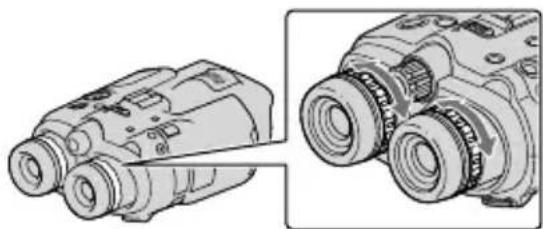
- If this product is used by more than one person, adjust the diopter each time the user changes.
- Adjust the diopter for each eye separately.

Pull out the IPD ADJ dial.
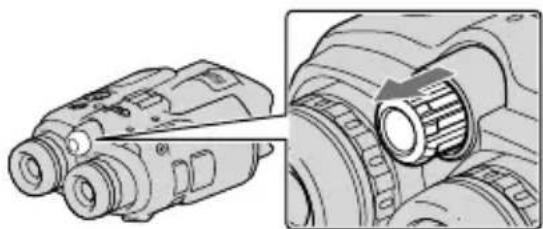
4
Adjust the width between the left and right viewfinder to fit your eyes using the IPD ADJ dial.
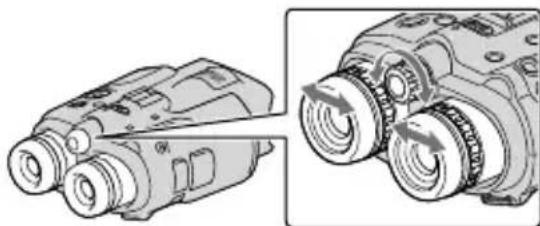
- Adjust the width so that left and right images overlap.
- Make sure that the image in the viewfinder does not look like it has a double image.
- If this product is used by more than one person, adjust the width each time the user changes.

Push the IPD ADJ dial back into this product.

Set the language, area, summer time, date & time format, and date & time using the / / / Enter button, then confirm each setting.
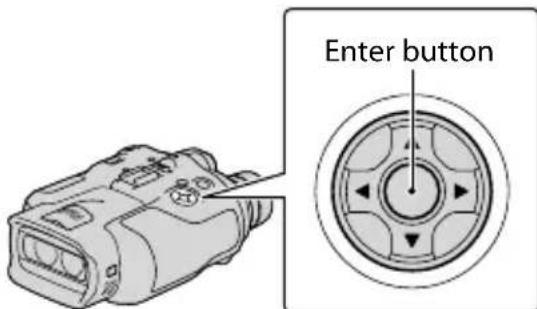
When each setting have been completed, select [Next] and press Enter.
To set the date and time again, select (MENU) [Setup] [Clock Settings]) [Date & Time Setting] [Date & Time]. When [Date & Time] is not on the screen, press / until the item appears.
7
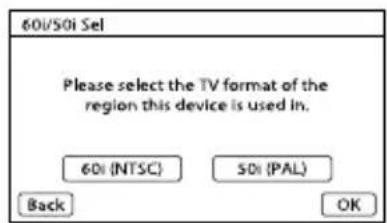
Select [60i (NTSC)] or [50i (PAL)] to suit the TV color system used in your country/region, then press Enter.
When the 60i/50i selection is made, this product restarts to update the system.
See page 24 for details on the TV color system in your country/region.
8
Confirm the warning about continuous use and the warning about viewfinder adjustment, then select [Next].
9
Adjust the relative vertical position of the right and left viewfinder.
Make sure that the horizontal line overlaps the vertical lines.
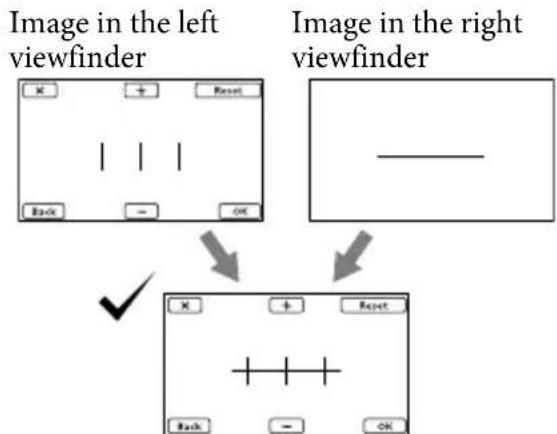
Image viewed by both eyes If the horizontal line and the vertical lines do not overlap, adjust the position of the image in the right viewfinder by selecting +/the lines overlap, then select OK.
- If you see the image below, the device works correctly.
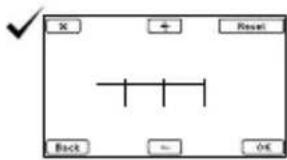
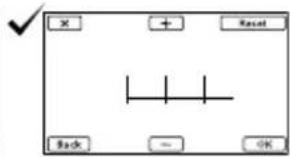
- If you see the image below, stop using this product.
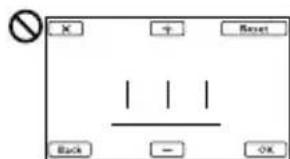
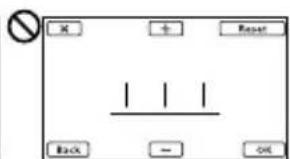
The horizontal line and the vertical lines do not overlap.
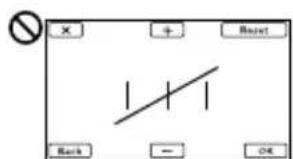
The horizontal line is extremely tilted.
If you cannot see images correctly, this product may be damaged. Contact your Sony dealer or local authorized Sony service facility.
10Select [Run].
![SONY DEV5K - 10Select [Run]. - 1](/content/2026/02/399840/images/96ba3673fc7aa1dedc1ff270c749e23a22555a70f6d413349be18e685ea9e2b9.jpg)
- If you select [Run Later], the recording mode screen appears. When you turn on this product next time, the [Auto 3D Lens Adjust] screen will appear.
11Adjust the 3D lens.
Aim this product at a subject to display it on the screen.
- Be sure that the subject produces a scale higher than the mark.
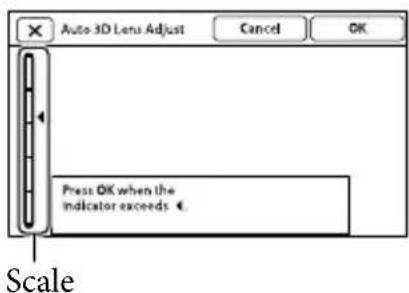
12 Select OK
- Do not change the subject until the adjustment is completed.

Notes
- If this product failed [Auto 3D Lens Adjust], select [Run Again].
Type of subjects that should be displayed on the screen for [Auto 3D Lens Adjust]
The scale indicated varies depending on the subject displayed on the screen.
Subjects that indicate a higher scale:
Bright subjects, such as objects outdoors in daylight
- Subjects with various colors and shapes
![SONY DEV5K - Type of subjects that should be displayed on the screen for [Auto 3D Lens Adjust] - 1](/content/2026/02/399840/images/b990dc3cea3aa584be2215beb235b70290fa097c53f15d93f5e055471c5e820a.jpg)
![SONY DEV5K - Type of subjects that should be displayed on the screen for [Auto 3D Lens Adjust] - 2](/content/2026/02/399840/images/9929587e4c10d72d7f0bc7b078082d8a6ff81056b0f109b2a34c10e171b87677.jpg)
Subjects that indicate a lower scale and result in adjustment failure:
- Dark subjects, such as objects viewed at night
- Subjects within 2m (6 ft. 6 3/4 in.) away from this product
- Plain, non-colorful subjects
- Subjects that repeat the same pattern, such as rows of windows on buildings
- Moving subjects
![SONY DEV5K - Type of subjects that should be displayed on the screen for [Auto 3D Lens Adjust] - 3](/content/2026/02/399840/images/80257c403a4ba134097908872af3d75a95afde926587af0e8cd278781a50aafe.jpg)
![SONY DEV5K - Type of subjects that should be displayed on the screen for [Auto 3D Lens Adjust] - 4](/content/2026/02/399840/images/57a189bf4df627298b44c1d6f51e5e3a403ecd8849b5aa7117bc38940497e557.jpg)
Notes
- You may see primary colors, red, blue, or green, shimmering in the viewfinder when you move your line of sight. This is not a malfunction. The shimmering colors will not be recorded on the memory card.
The date and time does not appear during recording, but they are automatically recorded on the memory card, and can be displayed during playback. To display the date and time, select MENU (MENU) [Setup] [Playback Settings]) [Data Code] [Date/Time] OK
Step 4: Inserting a memory card
To turn off the power
Set the POWER switch to OFF (CHG).
The (Movie) lamp flashes for a few seconds and this product is turned off.
Changing the language setting
You can change the on-screen displays to show messages in a specified language.
Select (MENU) [Setup]
[General Settings)] [Language
Setting] a desired language OK

Watching the recorded movies on a TV
To watch recorded movies on a TV, record movies after selecting the appropriate [60i/50i Sel] setting for the TV color system of the country/region where you are using this product.
Countries/regions where you need to set [60i/50i Sel] to [60i (NTSC)]
Bahama Islands, Bolivia, Canada, Central America, Chile, Colombia, Ecuador, Guyana, Jamaica, Japan, Korea, Mexico, Peru, Surinam, Taiwan, the Philippines, the USA, Venezuela, etc.
Countries/regions where you need to set [60i/50i Sel] to [50i (PAL)]
Argentina, Australia, Austria, Belgium, Bulgaria, Brazil, China, Czech Republic, Denmark, Finland, France, Germany, Guiana, Holland, Hong Kong, Hungary, Iran, Iraq, Italy, Kuwait, Malaysia, Monaco, New Zealand, Norway, Paraguay, Poland, Portugal, Russia, Singapore, Slovak Republic, Spain, Sweden, Switzerland, Thailand, Ukraine, United Kingdom, Uruguay, etc.
Types of memory card you can use with this product
| -“Memory Stick PRO Duo” media (Mark2) -“Memory Stick PRO-HG Duo” media | - SD memory card* - SDHC memory card* - SDXC memory card* |
| SONY | SONY |
| Described in this manual, “Memory Stick PRO Duo” media | Described in this manual, SD card |
- SD Speed Class 4 or faster is required.
Operation with all memory cards is not assured. - "Memory Stick PRO Duo" media, half the size of "Memory Stick", or standard size SD cards can be used for this product.
- Do not attach a label or the like on memory card or memory card adaptor. Doing so may cause a malfunction.
- "Memory Stick PRO Duo" media of up to 32 GB and SD cards of up to 64 GB have been verified to operate with this product.
![SONY DEV5K - Countries/regions where you need to set [60i/50i Sel] to [50i (PAL)] - 1](/content/2026/02/399840/images/eb0ba08cf090a10eeb7cf2d876779b862c4bde3a232ae24aec07767b7a05270c.jpg)
Notes
- A MultiMediaCard cannot be used with this product.
- Movies recorded on SDXC memory cards cannot be imported to or played back on computers or AV devices not supporting the exFAT* file system by connecting this product to these devices with the USB cable. Confirm in advance that the connecting equipment is supporting the exFAT system. If you connect an equipment not supporting the exFAT system and the format screen appears, do not perform the format. All the data recorded will be lost.
- The exFAT is a file system that is used for SDXC memory cards.
1 Open the cover, and insert the memory card with the nothched edge in the direction as illustrated until it clicks.
- Close the cover after inserting the memory card.
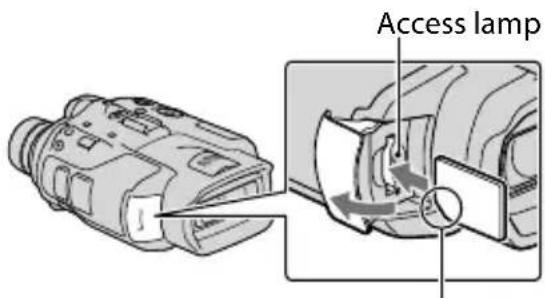
Note the direction of notched corner.
The [Preparing image database file. Please wait.] screen appears if you insert a new memory card. Wait until the screen disappears.
2 Close the cover.
Notes
- If [Failed to create a new Image Database File. It may be possible that there is not enough free space.] is displayed, format the memory card.
- Confirm the direction of the memory card. If you forcibly insert the memory card in the wrong direction, the memory card, memory card slot, or image data may be damaged.
- Do not open the cover during recording.
- When inserting or ejecting the memory card, be careful so that the memory card does not pop out and drop.
To eject the memory card
Open the cover and lightly push the memory card in once.
Binoculars/Recording/Playback
Using this product as binoculars
1 Set the POWER switch to ON by pressing the green button.
This product is turned on.
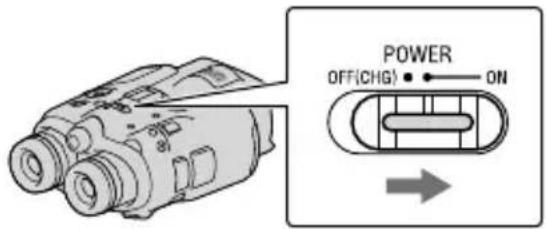
Some settings screen may appear depending on the status of this product when it is turned on. Use this product after completing any necessary adjustments.
2 Make sure that the diopter, the width, and the relative vertical position of the right and left viewfinder fit you (p.21).
Hold this product with both hands and aim it at the subject.
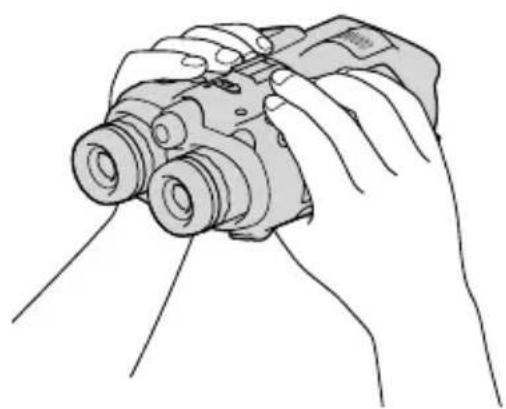
- You can magnify images with the power zoom lever.
- This product adjusts the focus automatically with the auto-focus function (default setting).

Tips
- [SteadyShot] is set to [Active] in the default setting.
About zooming
Magnifications available are as follows.
Binoculars magnification (approx.)
| DEV-3 | DEV-5/5K | |
| Movie recording (2D mode)*1 | 0.8 × to 10 × | 0.8 × to 20 ×*2 0.8 × to 10 ×*3 |
| Movie recording (3D mode)*1 | 0.5 × to 5.4 × | 0.5 × to 5.4 × |
| Photo recording | 0.5 × to 10 × (16:9) 0.3 × to 7.5 × (4:3) | 0.5 × to 20 ×*4 (16:9) 0.3 × to 15 ×*4 (4:3) |
Zoom ratio (approx.)
| DEV-3 | DEV-5/5K | |
| Movie recording (2D mode) | 12× | 24×*212×*3 |
| Movie recording (3D mode) | 10× | 10× |
| Photo recording | 22× | 44×*4 |
1 [SteadyShot] is set to something other than [Active]
[Digital Zoom] is set to [On] (The image quality decreases when you use the large magnification)
[Digital Zoom] is set to [Off]
*1 The image quality decreases when you use the large magnification

Tips
- The binoculars magnification indicates how big the subject looks with the binoculars compared with your naked eye.
- The zoom ratio indicates the ratio of the focal lengths between the minimum and maximum value.
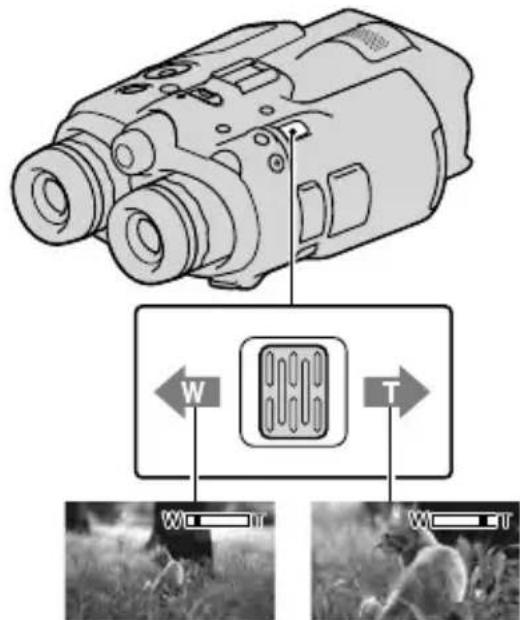
Wider range of view (Wide angle)
Close view (Telephoto)
Move the power zoom lever slightly for a slower zoom. Move it further for a faster zoom.

Notes
- Be sure to keep your finger on the power zoom lever. If you move your finger off the power zoom lever, the operation sound of the power zoom lever may also be recorded.
To adjust the focus manually
① Select Menu NU) [Camera/Mic]
[√m(nual Settings)] [Focus] using the ▲/▼/△/Enter buttons.
2 Select (nearby subject)/ (distant subject) and press Enter several times to adjust the focus.

Tips
- To adjust the focus automatically, select [Auto].
To switch the viewfinder display between 2D and 3D
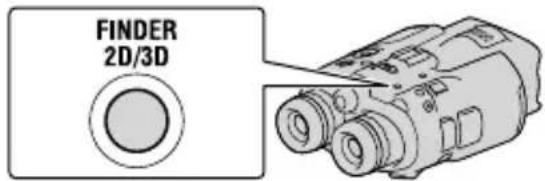
Press FINDER 2D/3D to switch the viewfinder display between 2D and 3D.

Tips
- In the 3D display mode for the viewfinder, this product displays the image from the left lens in the left viewfinder, and the image from the right lens in the right viewfinder. In the 2D display mode, this product displays the image from the left lens in both the left and right viewfinder.
Recording
In the default setting, images in the viewfinder are displayed in 3D (p. 27), but movies are recorded in 2D.
Set the POWER switch to ON by pressing the green button.
This product is turned on.
Recording movies
1 Press MODE to turn on the (Movie) lamp.
MODE button
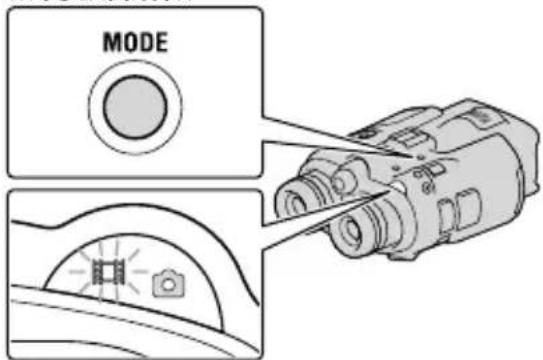
(Movie): When recording a movie
( Photo): When recording a photo
2 Press START/STOP to start recording.
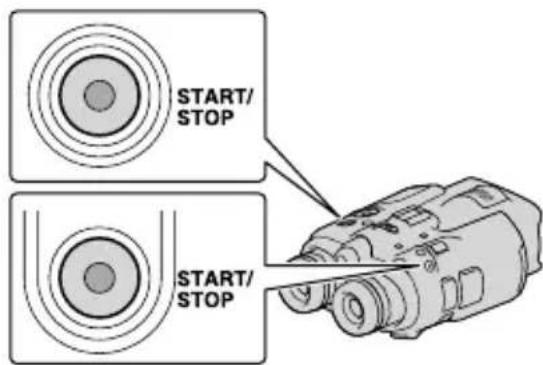
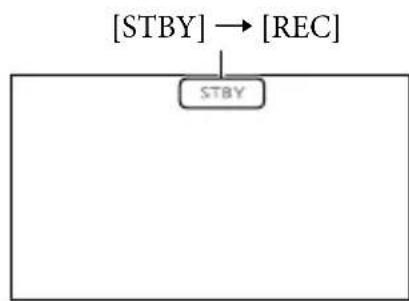
The recording lamp lights in red during recording.
To stop recording, press START/STOP again.
To display items on the screen again Press the / / / Enter button or any other button. You can change the settings using the [Display Setting] menu.

Notes
The maximum continuous recordable time of a movie is as follows.
-2D: about 13 hours
-3D: about 6 hours 30 minutes
-
When a movie file exceeds 2 GB, the next movie file is created automatically.
-
It will take several seconds until you can start recording after you turn on this product. You cannot operate this product during this time.
-
The following states will be indicated if data is still being written onto the memory card after recording has finished. During this time, do not apply shock or vibration to this product, or remove the battery or AC Adaptor.
- Access lamp (p. 25) is lit or flashing
- The media icon in the upper right of the screen is flashing

Tips
See page 45 on the recordable time of movies.
- You can check the recordable time, estimated remaining capacity, etc., by selecting (MENU) [Setup] [Media Settings]) [Media Info].
To switch the 2D and 3D recording mode
You can select a recording mode of either 2D or 3D.
To switch 2D and 3D, select (MENU) [Image Quality/Size] [2D/3D Mode Select].

Tips
- When you change the [2D/3D Mode Select] setting, movies played back on this product and movies output from the HDMI OUT jack are changed between 2D and 3D automatically.
Optimum distance from the subject and zooming level
The distance at which you can obtain good 3D movies varies depending on the zooming level.
| Distance from the subject Zoom | |
| about 80 cm to 6 m (3 ft. to 20 ft.) | W T |
| about 2.5 m to 10 m (8 ft. to 32 ft.) | W T |
| about 7.5 m to 20 m (25 ft. to 65 ft.) | W T |

Notes
- When you record 3D movies, the binocular magnification can be set to up to about 5 times. If you want to monitor* or record a subject using a larger image, set [2D/3D Mode Select] to [2D].
- In this manual, "monitor" means that the user watches or views a subject without recording.
Data code during recording
The recording date, time, condition and coordinates (DEV-5/5K) are recorded automatically on the memory card. They are not displayed during recording.
However, you can check them as [Data Code] during playback. To display them, select MENU (MENU) [Setup] [Playback Settings]) [Data Code] a desired setting OK OK
Shooting photos

Press MODE to turn on the (Photo) lamp.
The screen display switches for photo recording mode.
MODE button
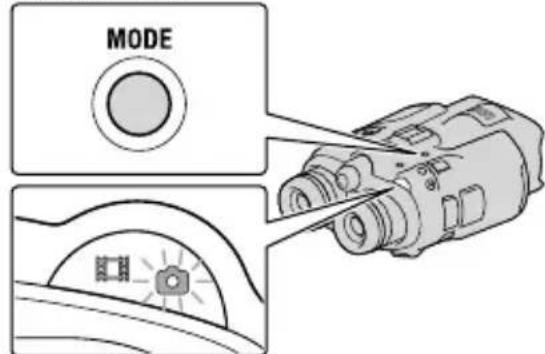
(Movie): When recording a movie (Photo): When recording a photo
2 Press PHOTO lightly to adjust the focus, then press it fully.
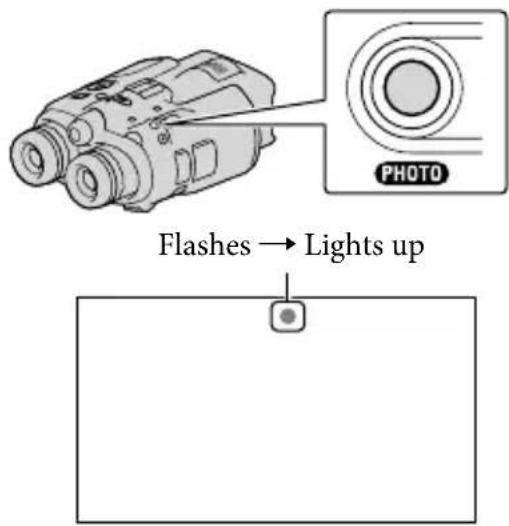
When appears, the photo is recorded.

Note
- You cannot shoot photos in 3D. Select (MENU) → [Image Quality/Size] → [2D/3D Mode Select] → [2D].

Tips
See page 45 on the recordable number of photos.
To change the image size, Select MENU (MENU) → [Image Quality/Size] → [Image Size] → a desired setting OK.
- You cannot record photos while is displayed.
Controlling the image settings manually with the MANUAL dial
It is convenient to assigning a menu item to the MANUAL dial.
The menu items that can be used differ between the movie mode and the photomode.
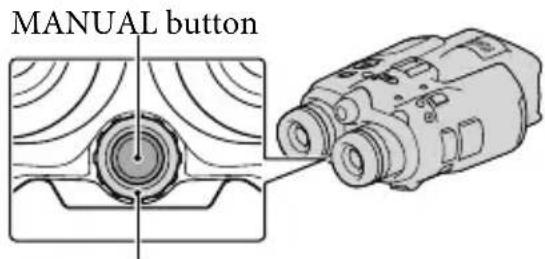
MANUAL dial
Movie recording:
[3D Depth Adjustment], [Focus], [Exposure], [AE Shift], [White Balance Shift]
Photo recording: [Focus], [Exposure], [IRIS], [Shutter Speed], [AE Shift], [White Balance Shift]
To assign a menu item
Press and hold MANUAL for a few seconds to display the setting screen. Rotate the MANUAL dial to assign a menu item.
To use the MANUAL dial
Press MANUAL to use the assigned menu. Rotate the MANUAL dial to make the adjustment.
Acquiring location information using the GPS (DEV-5/5K)
Select (MENLI U) [Setup] [General Settings]) [GPS Setting] [On]. appears on the screen, and this product starts acquiring the location information. The acquired location information is recorded on movies and photos. The indicator changes according the strength of GPS signal reception.

Tips
- If you import GPS Assist Data from your computer to this product using the supplied software "PMB," the time it takes this product to acquire your location information. Connect this product to a computer that is connected to the Internet. The GPS Assist Data will be updated automatically.
-
The GPS Assist Data may not function in the following cases:
-
When the GPS Assist Data are not updated for about 30 days or more
- When the date and time of this product are not correctly set
- When this product is moved for a long distance
Selecting the recording mode
Select MENU U) [Image Quality/ Size] [REC Mode] to change the movie quality for 2D recording.
Types of media that images can be saved on will depend on the recording mode selected.
| Types of media | Recording mode | |||
| 3D | PS* | FX | FH/HQ/LP | |
| External media (USB storage devices) | ✓ | ✓ | ✓ | ✓ |
| Blu-ray discs | ✓ | ✓ | ✓ | ✓ |
| AVCHD recording discs | — — — | ✓ | ||
- [PS] can be set only when [Erase Rate] is set to [60p] ([50p]).
Playback on this product
You can play back images recorded with this product.

Tips
- If you want to play back 3D images, set [2D/3D Mode Select] to [3D].
1 Set the POWER switch to ON by pressing the green button.
This product is turned on.
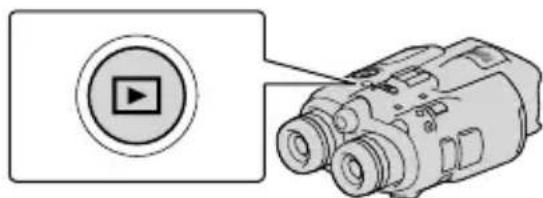
2 Press View Images).
The Event Index screen appears after some seconds.
3 Select an image you want to view using / / / , then press Enter. Playback starts.
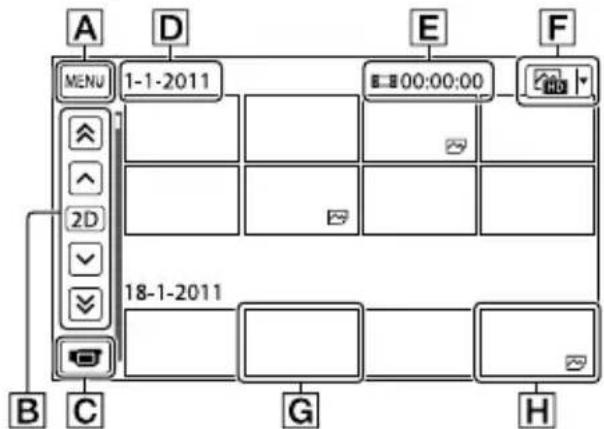
A To the MENU screen
B previous image/ext image previous event/ext event
C Change to the movie/photo recording mode
Event title
E Total time of movies/Total number of photos in the event
Switch Image Type button (2D only) (MOVIE, PHOTO, MOVIE/PHOTO*)
G Movie
H Photo
- If you start playback from the [MOVIE/PHOTO] screen, movies and photos are played back in the mixed order by shooting date and time.
This product organizes images into a group that is called an event, based on the date and time, and information on how often you record images.
Operations available on the playback display
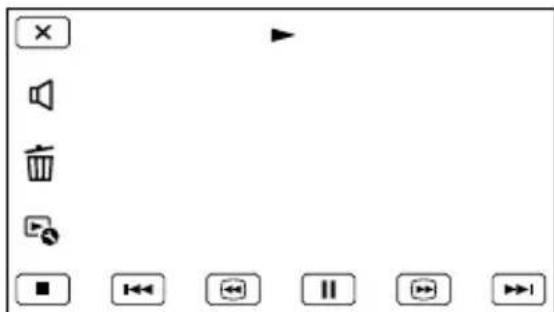
| Pause/Play | |
| Stop | |
| Previous/Next image | |
| Fast-reverse/Fast-forward | |
| Play slide show | |
| Volume | |
| Delete | |
| Context |
- Some buttons may not be displayed depending on the playback image.

Notes
- You may not be able to play back the images with other devices than this product.

Tips
- When playback from the selected image reaches the last image, the screen returns to the INDEX screen.
- Select / during pause to play back movies slowly.
- As you repeat pressing Enter after selecting /driving playback, movies are played as fast as about 5 times about 10 times about 30 times about 60 times.
The recording date, time, and shooting conditions are recorded automatically during recording. This information is not displayed during recording, but you can display it during playback by selecting (MENU) [Setup] [Playback Settings]) [Data Code] a desired setting OK X - To play a Slideshow, select [PHOTO] from the Switch Image Type button on the Event Index screen. To repeat Slideshow, select [Slideshow Set].
Saving movies and photos
Preparing a computer
You can perform following operations using "PMB (Picture Motion Browser)."
- Importing images to a computer
Viewing imported images - Uploading images to websites
To save movies using a computer, install "PMB" from the supplied CD-ROM beforehand.
Step 1 Checking the computer system
OS\*1
Microsoft Windows XP SP3*Windows Vista SP2*/Windows 7 SP1
CPU*4
Intel Core Duo 1.66 GHz or faster, or Intel Core 2 Duo 1.66 GHz or faster (Intel Core 2 Duo 2.26 GHz or faster is required when processing FX, FH, or 3D movies, and Intel Core 2 Duo 2.40 GHz or faster is required when processing PS movies.) However, Intel Pentium III 1 GHz or faster is sufficient for the following operations:
- Importing the movies and photos to the computer
One Touch Disc Burn - Creating a Blu-ray disc/AVCHDrecording disc
- Copying a disc
Memory
For Windows XP: 512 MB or more (1 GB or more is recommended.)
For Windows Vista/Windows 7: 1 GB or more
Hard disk
Disk volume required for installation: Approximately 500MB (10 GB or more may be necessary when creating AVCHD
recording discs. 50GB maximum may be necessary when creating Blu-ray discs.)
Display
Minimum 1,024× 768 dots
Others
USB port (this must be provided as standard, Hi-Speed USB (USB 2.0 compatible)), Blur ray disc/DVD burner (CD-ROM drive is necessary for installation) Either NTFS or exFAT file system is recommended as the hard disk file system.
- Standard installation is required. Operation is not assured if the OS has been upgraded or in a multi-boot environment.
64-bit editions and Starter (Edition) are not supported. Windows Image Mastering API (IMAPI) Ver.2.0 or newer is required to use disc creation function, etc.
^3 Starter (Edition) is not supported.
*1Faster processor is recommended.
Notes
Operation with all computer environments is not assured.
When using a Mac
The supplied software "PMB" is not supported by Mac computers. To import the movies and photos to the computer, please contact Apple Inc.
Step 2 Installing the supplied software "PMB"
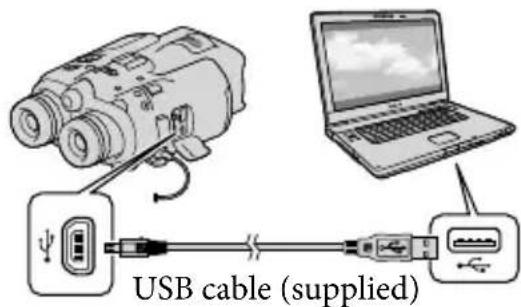
Install "PMB" before connecting this product to a computer.
Notes
- If a version of "PMB" under 5.0.00 has been installed on your computer, you may be unable to use some functions of those "PMB" when installing the "PMB" from the supplied CD-ROM. Also, "PMB Launcher" is installed from the supplied CD-ROM and you can start "PMB" or other software by using the "PMB Launcher." Double-click the "PMB Launcher" short-cut icon on the computer screen to start "PMB Launcher."
1 Confirm that this product is not connected to the computer.
2 Turn on the computer.
- Log on as an Administrator for installation.
- Close all applications running on the computer before installing the software.
3 Place the supplied CD-ROM in the disc drive of your computer.
The installation screen appears.
- If the screen does not appear, click [Start] [Computer] (in Windows XP, [My Computer]), then double-click [SONYPMB (E:)] (CD-ROM)*.
- Drive names (such as (E:)) may vary depending on the computer.
4 Click [Install].
5 Select the country or region.
6 Select the language for the application to be installed, then proceed to the next screen.
7 Read the terms of the license agreement carefully. If you agree to the terms, change to and then click [Next] → [Install].
8 Follow the instructions that appear on the computer screen to continue the installation.
- You may be required to install some other applications included on the disc at the same time. If the installation display appears, follow the instructions that appear on the screen.
- When you are required to restart the computer, follow the instructions that appear on the screen and restart it.
- Connect this product to the computer when you are instructed to do so.
9 Connect this product to the computer using the USB cable, then select [USB Connect] on the screen of this product.
10 When the installation is completed, remove the CD-ROM from the computer.
- Click (PMB icon) that appears on the desktop of the computer to start up the software.
Notes
To create discs or use other functions on Windows XP, Image Mastering API v2.0 for Windows XP should be installed. If Image Mastering API v2.0 for Windows XP has not been installed yet, select it from required programs on the installation screen and install it following the procedures displayed. (The computer must be connected to the internet for the installation.) You may install Image
Mastering API v2.0 for Windows XP in response to the message displayed when you try to start those functions.
Operation is not guaranteed if you read or write video data from or to this product using software other than the supplied "PMB." For the information on the compatibility of the software you are using, consult the manufacturer of the software.
To disconnect this product from the computer
① Click the icon at the bottom right of the desktop of the computer → [Safely remove USB Mass Storage Device].
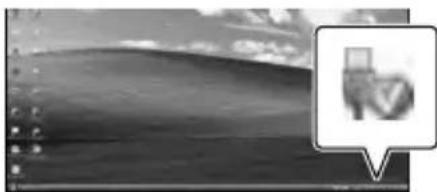
② Select [Cancel] [Yes] on the screen of this product.
③ Disconnect the USB cable.
- If you are using Windows 7, the icon may not appear on the desktop of the computer. In this case, you can disconnect this product from your computer without following the procedures described above.
Notes
-
Do not format the memory card in this product using a computer. If you do this, this product will not operate correctly.
-
Do not insert AVCHD recording discs that have been created using the "PMB" software to DVD players or recorders, as these devices do not support the AVCHD standard. If you do, you may not be able to remove the disc from these devices.
-
When you access this product from the computer, use the supplied software "PMB." Do not modify the files or folders on this product from the computer. The image files may be damaged or may not be played back.
Operation is not guaranteed, if you operate the data on this product from the computer.
-
This product automatically divides an image file that exceeds 2 GB or larger and saves the parts as separate files. All image files may be shown as separate files on a computer, however, the files will be handled properly by the import function of this product or the "PMB" software.
-
Use the supplied "PMB" software when you import long movies or edited images from this product to a computer. If you use other software, the images may not be imported correctly.
-
When you delete image files, select MENU (MENU) → [Edit/Copy] → [Delete].
-
You can create a Blu-ray disc from 2D movies by using a computer with a Blu-ray disc burner. Install the BD Add-on Software for "PMB."
Starting PMB (Picture
Motion Browser)
1 Double-click the "PMB" short-cut icon on the computer screen.
The PMB software starts up.
2 Double-click the "PMB Help" short-cut icon on the computer screen to see how to use "PMB."
Notes
- If the icon is not displayed on the computer screen, click [Start] → [All Programs] → [PMB] → the desired item.
Tips
- Double-click "PMB Launcher" on the desktop of the computer. This allows you to start the desired function (application) by selecting one from a list of "PMB" functions.
Customizing this product
Using menus
You can enjoy using this product more by making good use of menu operations.
This product has various menu items under each of 6 menu categories.
Shooting Mode (Items for selecting a shooting mode) p. 39
Camera/Mic (Items for customized shooting) p. 39
Image Quality/Size (Items for setting up image quality or size) p. 40
Playback Function (Items for playback) p. 32
Edit/Copy (Items for editing) p. 40
Setup (Other setup items) p. 40
Operating menus
Select (MENU) using the / / / / Enter buttons and set the menu items.
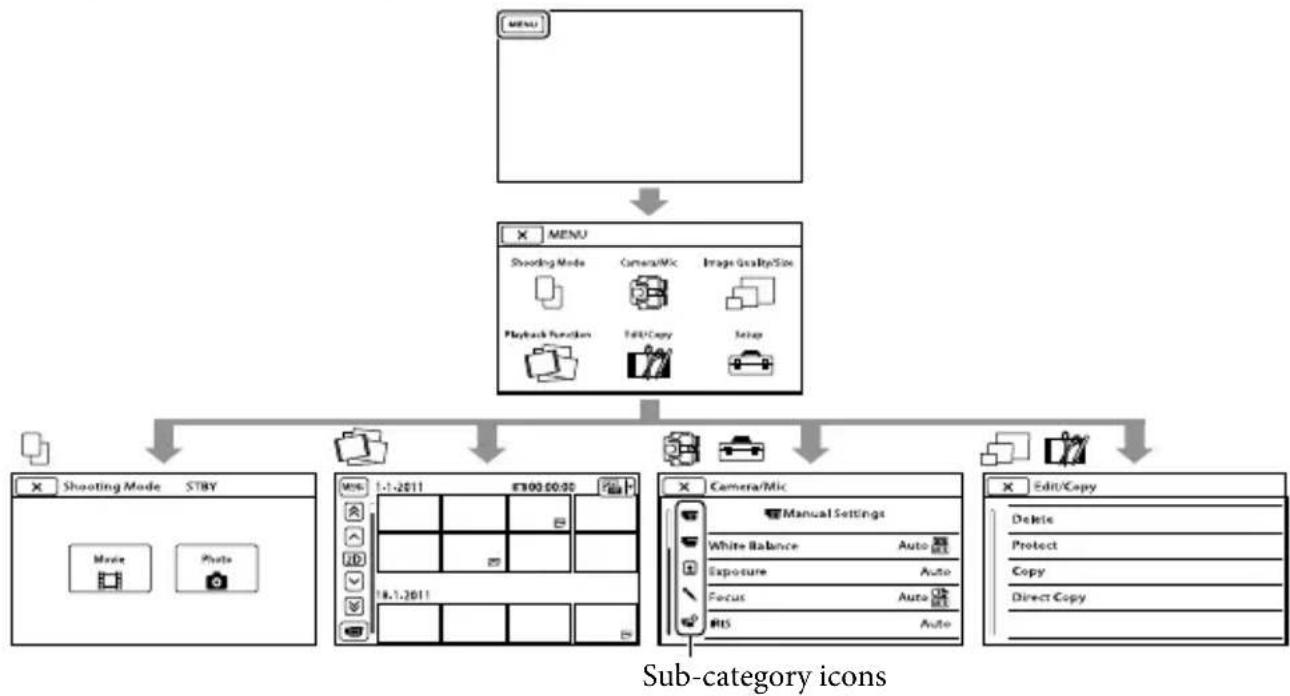
The [Camera/Mic] and [Setup] menus have sub-categories. Select the sub-category icon, and the screen changes to other sub-category menus.
Grayed out menu items or settings are not available.

Notes
- You may not be able to set some menu items, depending on the recording or playback conditions.
- Select to finish setting the menu or to return to the previous menu screen.
Menu lists
The available menu items differ between the movie mode (and photo mode ()
Shooting Mode
| Movie | Records movies. |
| Photo | Shoots photos. |
Camera/Mic
| ( Manual Settings) | |
| White Balance | Adjusts the color balance to the brightness of the recording environment. |
| Exposure | Adjusts the brightness of movies and photos. |
| Focus | Focuses manually. |
| IRIS | Adjusts the iris. |
| Shutter Speed | Adjusts the shutter speed. |
| AE Shift | Adjusts the exposure based on the results of the automatic exposure measurement. |
| White Balance Shift | Adjusts the white balance manually. |
| Low Lux | Records bright color images in the dim. |
T (Gema Settings)
| Auto 3D Lens Adjust | Automatically corrects the vertical position of the right and left movies to record 3D movies that can be viewed comfortably, without blurring. |
| Scene Selection | Selects an appropriate recording setting according to the type of scene, such as night view or beach. |
| Self-Timer | Sets the self-timer when this product is in photo recording mode. |
| Tele Macro | Shoots a subject in focus with the background out of focus. |
| SteadyShot | Sets the SteadyShot function when recording movies. |
| SteadyShot | Sets the SteadyShot function when shooting photos. |
| Digital Zoom* | Sets the digital zoom. |
| Auto Back Light | Adjusts the exposure for backlit subjects automatically. |
| Dial Setting | Assigns a function to the MANUAL dial. |
(ce)
| Face Detection | Adjusts the image quality of the face(s) automatically. |
| Microphone) | |
| Wind Noise Reduct. | Reduces the wind noise. |
| Micref Level | Sets the microphone reference level. |
| Audio Output Timing | Sets the audio output timing to be used when recording movies. |

Footing Assist)
Guide Frame Displays the frame to make sure the subject is horizontal or vertical.
Display Setting Sets the duration that icons or indicators are displayed in the viewfinder.

Image Quality/Size

REC Mode
Sets the mode to record movies. When recording fast moving subject, a high image quality is recommended.

Frame Rate
Sets the frame rate to record movies.
2D/3D Mode Select
Switches the movie recording type between 2D and 3D.

x.v.Color
Records wider range of colors.

Image Size
Sets the photo size.

Playback Function
Plays back movies or photos.

Edit/Copy
Delete
Deletes movies or photos.
Protect
Protects movies or photos to avoid deleting.
Copy
Copies movies or photos to external media devices.
Direct Copy
Copies all movies and photos that have not yet been saved on an external media device.

Setup

Media Settings)
Media Info Displays information on the memory card, such as free space.
Format Deletes all data on the memory card.
Repair Img. DB F. Repairs the image database file on a memory card.
File Number Sets how to assign the file number.

Playback Settings)
Data Code Displays the detailed recording data during playback.
Volume Adjusts the volume of playback sound, and the volume of sound output to monitoring headphones during recording.

Connection)
TV Type Sets the aspect ratio to suit the connected TV.
Component Select this option when you connect this product to a TV with the component input jack.
| HDMI 3D Setting | Select the output format of the right and left images when you connect this product to a 3D TV with the HDMI cable (sold separately). |
| HDMI Resolution | Select the output image resolution when connecting this product to a TV with the HDMI cable (sold separately). |
| CTRL FOR HDMI | Sets whether or not the TV's Remote Commander is to be used when this product is connected to a “BRAVIA” Sync compatible TV with the HDMI cable (sold separately). |
| USB Connect | Connects this product to an external device via USB. |
| Disc Burn | Selecting this item allows you to save images onto discs via a computer. |

(General Settings)
| VF Brightness | Adjusts the brightness of the viewfinder. |
| Viewfinder Adjust | Adjusts the relative vertical position of the right and left viewfinder. |
| GPS Information* | Displays location information. |
| GPS Setting* | Sets the GPS. |
| REC Lamp | Sets the recording lamp to light up or not. |
| Beep | Sets whether this product sounds operation beeps or not. |
| A. Shut Off | Changes the [A. Shut Off] setting. |
| Language Setting | Sets the display language. |
| 60i/50i Sel | Switch 1080/60i (NTSC-system) and 1080/50i (PAL-system). |
| Battery Info | Displays the battery information. |

(Clock Settings)
| Date & Time Setting | Sets the [Date & Time Format], [Summer Time], or [Date & Time]. |
| Area Setting | Adjusts for a time difference without stopping the clock. |
| Auto Clock ADJ* | Compensates for time automatically by acquiring location information from the GPS system. |
| Auto Area ADJ* | Compensates for time differences automatically by acquiring location information from the GPS system. |
- DEV-5/5K
? Troubleshooting
If you run into any problems using this product, follow the steps below.
① Check the list (p. 42 to 43), and inspect this product.
② Remove the power source, attach the power source again after about 1 minute, and turn this product on.
③ Press RESET (p. 53) using a pointed object, and turn this product on. If you press RESET, all settings, including the clock setting, are reset.
④ Contact your Sony dealer or local authorized Sony service facility.
- See the Digital Recording Binoculars Handbook (p. 12) for details on the symptoms of this product, and "PMB Help" (p. 37) on connecting this product to a computer.
The power does not turn on.
- Attach a charged battery pack to this product (p. 17).
- Connect the plug of the AC Adaptor to the wall outlet (wall socket) (p. 20).
This product does not operate even when the power is set to on.
- It takes a few seconds for this product to be ready to shoot after the power is turned on. This is not a malfunction.
-
Disconnect the AC Adaptor from the wall outlet (wall socket) or remove the battery pack, then reconnect it after about 1 minute. If this product still does not work, press RESET (p. 53) using a pointed object. (If you press RESET, all settings, including the clock setting, are reset.)
-
The temperature of this product is extremely high. Turn off this product and leave it for a while in a cool place.
- The temperature of this product is extremely low. Leave this product with the power turned on. If you still cannot operate this product, turn off this product and take it to a warm place. Leave this product there for a while, then turn on this product.
This product gets warm.
- This product may become warm during operation. This is not a malfunction.
The power abruptly turns off.
- Use the AC Adaptor (p. 20).
- Charge the battery pack (p. 17).
Pressing START/STOP or PHOTO does not record images.
- Press MODE to turn on the Movie) or (Photo) lamp.
- This product is recording the image you have just shot on the memory card. You cannot make any new recordings during this period.
- The memory card is full. Delete unnecessary images.
- Total number of movie scenes or photos has exceeded the recordable capacity of this product (p. 45). Delete unnecessary images.
The recording stops.
- The temperature of this product is extremely high/low. Turn off this product and leave it for a while in a cool/warm place.
"PMB" cannot be installed.
- Check the computer environment or installation procedure required to install "PMB" (p. 34).
"PMB" does not work correctly.
- Quit "PMB" and restart your computer.
This product is not recognized by the computer.
- Disconnect devices from the USB jack of the computer other than the keyboard, mouse, and this product.
- Disconnect the USB cable from the computer and this product, and restart the computer, then connect the computer and this product again in an orderly manner.
Self-diagnosis display/Warning indicators
If indicators appear on the viewfinder screen, check the following. If the problem persists even after you have tried to fix a couple of times, contact your Sony dealer or local authorized Sony service facility. In this case, when you contact them, give them all the numbers of the error code beginning with C or E.
C:04:□□
The battery pack is not an "InfoLITHIUM" battery pack V series. Use an "InfoLITHIUM" battery pack (V series) (p. 17).
- Connect the DC plug of the AC Adaptor to this product securely (p. 17).
C:06:□□
- The battery pack temperature is high. Change the battery pack or place it in a cool place.
C:13:□□ / C:32:□□
- Remove the power source. Reconnect it and operate this product again.
E:□□:□□
- Follow the steps from ② on page 42.
#
- Battery power is low.
A[1]
- The battery pack temperature is high. Change the battery pack or place it in a cool place.
#
- When the indicator flashes, there is not enough free space for recording images. Delete unnecessary images, or format the memory card after storing the images on other media.
- The Image Database File is damaged. Check the data base file by selecting (MENU) → [Setup] → [Media Settings] → [Repair Img. DB F.].
3
- The memory card is damaged. Format the memory card with this product.
[2]
- Incompatible memory card is inserted (p. 24).
#
The memory card is write-protected.
- Access to the memory card was restricted on another device.
()
- This product is unsteady. Hold this product steady with both hands. However, note that the camera-shake warning indicator does not disappear.
#
The memory card is full. Delete unnecessary images.
- Photos cannot be recorded during processing. Wait for a while, then record.
Recording time of movies/number of recordable photos
Expected operating time with each battery pack
Recording time
Approximate time available when you use a fully charged battery pack.
2D
| (unit: minute) | |
| Battery pack Continuous recording time | Typical recording time |
| NP-FV70 180 90 | |
| NP-FV100 360 180 |
3D
| (unit: minute) | |
| Battery pack Continuous recording time | Typical recording time |
| NP-FV70 150 75 | |
| NP-FV100 305 150 |
Monitoring time
Approximate time available when you use a fully charged battery pack.
2D
| (unit: minute) | |
| Battery pack Continuous monitoring time | |
| NP-FV70 195 | |
| NP-FV100 395 | |
3D
| (unit: minute) | |
| Battery pack Continuous monitoring time | |
| NP-FV70 185 | |
| NP-FV100 370 | |
Playing time
Approximate time available when you use a fully charged battery pack.
(unit: minute)
| Battery pack 2D 3D | |
| NP-FV70 290 250 | |
| NP-FV100 | 580 500 |
Each operating time in the 2D mode is measured with [REC Mode] set to [Standard HQ].
Typical recording time shows the time when you repeatedly start/stop recording, switch the MODE lamp, and zoom.
- Times measured when using this product at 25 °C (77°F). 10 °C to 30 °C (50°F to 86°F) is recommended.
- The recording, monitoring, and playback time will be shorter when you use this product in low temperatures.
- The recording, monitoring, and playback time will be shorter depending on the conditions under which you use this product.
- The remaining battery indicator (p. 51) shows the expected recording and playing time.
Expected recording time of movies
Memory card
(unit: minute)
| 2GB 4GB 8GB 16GB 32 GB | |||||
| 3D | 9(9) | 15(15) | 35(35) | 75(75) | 150(150) |
| PS | 9(9) | 15(15) | 35(35) | 75(75) | 150(150) |
| FX | 10(10) | 20(20) | 40(40) | 90(90) | 180(180) |
| FH | 10(10) | 30(30) | 60(60) | 120(120) | 245(245) |
| HQ | 25(20) | 50(40) | 105(80) | 215(165) | 440(330) |
| LP | 45(35) | 90(75) | 190(155) | 380(310) | 770(630) |
Each number is measured when the Sony's memory card is used.
Notes
- The recordable time and the available monitoring time may vary depending on the recording conditions and the subject, [REC Mode], and [Frame Rate] (p. 40).
The number in () is the minimum recordable time.
Tips
- You can record movies of a maximum of 3,999 scenes with 3D, 3,999 scenes with 2D.
The maximum continuous recordable time of a movie is as follows.
-2D: about 13 hours
-3D: about 6 hours 30 minutes
- This product uses the VBR (Variable Bit Rate) format to automatically adjust image quality to suit the recording scene. This technology causes fluctuations in the recording time of the media. Movies containing quickly moving and complex images are recorded at a higher bit-rate, and this reduces the overall recording time.
Expected number of recordable photos
Memory card
| 16:9 5.3M 7.1M | 4:3 | |
| 5.3M | 7.1M | |
| 2 GB 620 560 | ||
| 4 GB 1250 1100 | ||
| 8 GB 2500 2250 | ||
| 16 GB 5000 4550 | ||
| 32 GB 10000 9200 | ||
Each number is measured when the Sony's memory card is used.
- The number of recordable photos of memory card shown is for both the maximum image size of this product and the default image size. The actual number of recordable photos is displayed on the screen during recording (p. 51).
The number of recordable photos of memory card may vary depending on the recording conditions.
Notes
- The unique pixel array of Sony's ClearVid and the image processing system allow still image resolution equivalent to the sizes described.
Tips
-
The following list shows the bit-rate, pixels and aspect ratio of each recording mode (movie + audio, etc.).
-
3D movie:
Max. 28 Mbps 1,920 × 1,080 pixels/16:9
- 2D movie:
PS: Max. 28 Mbps 1,920 × 1,080 pixels/16:9
FX: Max. 24 Mbps 1,920 × 1,080 pixels/16:9
FH: Approx. 17 Mbps (average) 1,920 × 1,080 pixels/16:9
HQ: Approx. 9 Mbps (average) 1,440 × 1,080 pixels/16:9
LP: Approx. 5 Mbps (average) 1,440 × 1,080 pixels/16:9
Precautions
$$ 3, 0 7 2 \times 2, 3 0 4 \mathrm {d o t s} / 4: 3 $$
$$ 3, 0 7 2 \times 1, 7 2 8 \mathrm {d o t s} / 1 6: 9 $$
$$ 1, 6 0 0 \times 1, 2 0 0 \mathrm {d o t s} / 4: 3 $$
$$ 6 4 0 \times 4 8 0 \mathrm {d o t s} / 4: 3 $$
- The photo recording pixels and the aspect ratio.
- Photo recording mode:
On use and care
- Do not use or store this product and accessories in the following locations:
- Anywhere extremely hot, cold or humid. Never leave them exposed to temperatures above 60^ (140^) , such as under direct sunlight, near heaters or in a car parked in the sun. They may malfunction or become deformed.
- Near strong magnetic fields or mechanical vibration. This product may malfunction.
- Near strong radio waves or radiation. This product may not be able to record properly.
- Near AM receivers and video equipment. Noise may occur.
-
On a sandy beach or anywhere dusty. If sand or dust gets in this product, it may malfunction. Sometimes this malfunction cannot be repaired.
-
Operate this product on DC 6.8 V/7.2 V (battery pack) or DC 8.4 V (AC Adaptor).
- For DC or AC operation, use the accessories recommended in these operating instructions.
- Do not let this product get wet, for example, from rain or sea water. If this product gets wet, it may malfunction. Sometimes this malfunction cannot be repaired.
- If any solid object or liquid gets inside the casing, unplug this product and have it checked by a Sony dealer before operating it any further.
- Avoid rough handling, disassembling, modifying, physical shock, or impact such as hammering, dropping or stepping on the product. Be particularly careful of the lens.
- Keep this product turning off when you are not using this product.
- Do not wrap this product with a towel, for example, and operate it. Doing so might cause heat to build up inside.
- When disconnecting the power cord (mains lead), pull it by the plug and not the cord (lead).
- Do not damage the power cord (mains lead) such as by placing anything heavy on it.
- Do not use a deformed or damaged battery pack.
-
Keep metal contacts clean.
-
If the battery electrolytic liquid has leaked:
- Consult your local authorized Sony service facility.
- Wash off any liquid that may have contacted your skin.
- If any liquid gets in your eyes, wash with plenty of water and consult a doctor.
When not using this product for a long time
- To keep this product in optimum state for a long time, turn it on and let it run by recording and playing back images about once a month.
- Use up the battery pack completely before storing it.
On handling the casing
- If the casing is soiled, clean this product body with a soft cloth lightly moistened with water, and then wipe the casing with a dry soft cloth.
-
Avoid the following to avoid damage to the finish:
-
Using chemicals such as thinner, benzine, alcohol, chemical cloths, repellent, insecticide and sunscreen
-Handling this product with above substances on your hands
-Leaving the casing in contact with rubber or vinyl objects for a long period of time
About care and storage of the lens
-
Wipe the surface of the lens clean with a soft cloth in the following instances:
-
When there are fingerprints on the lens surface
-In hot or humid locations -
When the lens is exposed to salty air such as at the seaside
-
Store in a well-ventilated location subject to little dirt or dust.
- To prevent mold, periodically clean the lens as described above.
On charging the pre-installed rechargeable battery
This product has a pre-installed rechargeable battery to retain the date, time, and other settings even when this product is turned off. The pre-installed rechargeable battery is always charged while this product is connected to the wall outlet (wall socket) via the AC Adaptor or while the battery pack is attached. The rechargeable battery will be fully discharged in about 3 months if you do not use this product at all. Use this product after charging the pre-installed rechargeable battery. However, even if the pre-installed rechargeable battery is not charged, this product operation will not be affected as long as you are not recording the date.
Procedures
Connect this product to a wall outlet (wall socket) using the supplied AC Adaptor, and leave it with this product turned off for more than 24 hours.
Note on disposal/transfer of memory card
Even if you delete data in the memory card or format the memory card on this product or a computer, you may not delete data from the memory card completely. When you give the memory card to somebody, it is recommended that you delete data completely using data deletion software on a computer. Also, when you dispose of the memory card, it is recommended that you destroy the actual body of the memory card.
Specifications
System
Signal format:
HDTV 1080/60i, 1080/60p specification
NTSC color, EIA standards
HDTV 1080/50i, 1080/50p specification
PAL color, CCIR standards
Movie recording format:
HD:
2D: MPEG-4 AVC/H.264 AVCHD format
Ver.2.0 compatible
3D: MPEG-4 MVC/H.264 AVCHD format
Ver.2.0 compatible
Audio recording system:
Dolby Digital 2ch (48 kHz 16 bit)
Dolby Digital Stereo Creator
Photo file format
DCF Ver.2.0 Compatible
Exif Ver.2.3 Compatible
MPF Baseline Compatible
Recording media (Movie/Photo)
"Memory Stick PRO Duo" media
SD card (Class 4 or faster)
Viewfinder: Electronic viewfinder × 2 : color
Picture: 1.1cm (0.45 type, aspect ratio 16:9)
Total number of pixels: 1226880 (852×
3 [RGB] × 480
Eye relief: 14.3mm (19/32 in.)
Real field of view*1:
DEV-3:
43.9^ - 3.8^ (2D movie)*2
DEV-5/5K:
43.9^ - 3.8^ (2D movie, [Digital Zoom] is set to [Off])^*2
43.9^ - 1.9^ (2D movie, [Digital Zoom] is set to [On])*2
Apparent field of view*: 35.6^ (16:9), 29.4^
(4:3)
Field of view at 1000m / yds
DEV-3:
806m - 66m (2419 ft. - 197 ft.) (2D
movie)*2
DEV-5/5K:
806m - 66m (2419 ft. - 197 ft.) (2D movie,
[Digital Zoom] is set to [Off])^*2
806m - 33m (2419 ft. - 98 ft.) (2D movie,
[Digital Zoom] is set to [On])
Interpupillary distance adjust:
55mm - 75mm (21/4 in.-3 in.)
Diopter adjustment: -3.5 to +3.5
Image device:
4.5mm (1/4 type) CMOS sensor
Recording pixels (photo):
Max. 7100000 pixels*3072 × 2304)4:3
Gross: Approx. 4200000 pixels
Lens: G lens
Magnification (approx.):
DEV-3:
0.8 × -10 × (2Dmovie)^30
0.5 × -5.4 × (3D movie)*2
0.5× -10× (photo, 16:9)
0.3× -7.5× (photo, 4:3)
DEV-5/5K:
0.8 × -10 × (2D movie, [Digital Zoom] is set
to [Off])*2
0.8 × -20 × (2D movie, [Digital Zoom] is set
to [On])*2
0.5 × -5.4 × (3Dmovie)^*2
0.5× -20× (photo, 16:9)
0.3× -15× (photo,4:3)
Zoom ratio (approx.):
DEV-3:
12× (2D movie)
10 × (3D movie)
22× (photo)
DEV-5/5K:
12 × (2D movie, [Digital Zoom] is set to
[Off])
24× (2D movie, [Digital Zoom] is set to [On])
10 × (3D movie)
44× (photo)
F1.8 - F3.4
When converted to a 35mm still camera DEV-3:
f = 53.7mm - 660mm (21/8 in.-26 in.) (2D movie)*
f = 34.4mm - 344mm (1 3 / 8 in.-135/8in.)
(3D movie)*2
f = 29.8mm - 660mm (13/16 in.-26 in.)
照片,16:9)
f = 27.4mm - 606mm (1 1/8 in. - 23 7/8 in.)
照片,4:3)
DEV-5/5K:
f = 53.7mm - 660mm (21/8 in.-26 in.) (2D
movie, [Digital Zoom] is set to [Off])^*2
f = 53.7mm - 1320mm (21/8 in.-52 in.)
(2D movie, [Digital Zoom] is set to [On])*2
f = 34.4mm - 344mm (1 3 / 8 in.-135/8in.)
(3D movie)*2
f = 29.8mm - 1320mm (13/16 in. - 52 in.)
照片,16:9)
f = 27.4mm - 1213mm (1 1/8 in. - 47 7/8 in.)
照片,4:3)
Minimum illumination
11 lx (lux) (in default setting, shutter speed
1/60 second*4, 1/50 second*5)
Minimum focus distance: 2D movie: 1cm (4 in.) (wide)/ 80 cm (31 1/2 in.) (telephoto) 3D movie: 80~cm (31 1/2 in.) (wide)/ 7.5 m (25 ft.) (telephoto) Photo: 1cm (4 in.) (wide)/80 cm (31 1/2 in.) (telephoto)/25 cm (9 7/8 in.) (tele macro)
^1 Diagonal dimension ^2 [SteadyShot] is set to [Standard] or [Off].
3 The unique pixel array of Sony's ClearVid and the image processing system allow still image resolution equivalent to the sizes described.
^4 [60i/50i Sel] is set to [60i (NTSC)]. ^5 [60i/50i Sel] is set to [50i (PAL)].
Input/Output connectors
A/V Remote Connector: Component/video and audio output jack
USB jack: mini-AB (output only)
Headphone jack: Stereo minijack (Φ 3.5 mm)
MIC input jack: Stereo minijack ( 3.5mm
General
Power requirements: DC 6.8 V (battery pack) DC 8.4 V (AC Adaptor)
Average power consumption: Monitoring: 2D: 3.9 W, 3D: 4.2 W Recording: 2D: 4.3 W, 3D: 5.0 W
Operating temperature: 0^ to 40^ (32°F to 104°F)
Storage temperature: -20^ to +60^ (-4^ to +140^)
Dimensions (approx.): 155mm× 88mm× 219mm (61 / 8 in. × 31/2 in. × 85 / 8 in.) (w/h/d) including the projecting parts 166mm× 165mm× 270mm (65 / 8 in. × 61/2 in. × 103 / 4 in.) (w/h/d) (DEV-5/5K) including the projecting parts, and the supplied lens cover and large eyecup attached
Mass (approx.): 1 130g (2 lb 7 oz) main unit only
DEV-3: 1 230g (2 lb 11 oz) including the rechargeable battery pack (NP-FV70) and "Memory Stick PRO Duo" media
DEV-5: 1 300g (2 lb 13 oz) including the rechargeable battery pack (NP-FV70), "Memory Stick PRO Duo" media, lens cover, and large eyecup
DEV-5K: 1400g 3 lb 1 oz including the rechargeable battery pack (NP-FV100), "Memory Stick PRO Duo" media, lens cover, and large eyecup
AC Adaptor AC-L200C/AC-L200D (supplied with DEV-3/5)
Power requirements: AC 100 V - 240 V, 50Hz / 60Hz
Current consumption: 0.35 A - 0.18 A
Power consumption: 18 W
Output voltage: DC 8.4 V*
Operating temperature: 0^ to 40^ (32°F to 104°F)
Storage temperature: -20^ to +60^ (-4^ to +140^)
Dimensions (approx.): 48mm× 29mm× 81mm (1 15/16 in. × 1 3/16 in. × 3 1/4 in.) (w/h/d) excluding the projecting parts
Mass (approx.): 170g (6.0 oz) excluding the power cord (mains lead)
- See the label on the AC Adaptor for other specifications.
AC Adaptor/Charger AC-VQV10 (supplied with DEV-5K)
Power requirements: AC 100 V - 240 V, 50 Hz/60 Hz
Power consumption: 26 W
Output voltage: DC 8.4V^*
Operating temperature: 0^ to 40^ (32°F to 104°F)
Storage temperature: -20^ to +60^ (-4^ to +140^)
Dimensions (approx.): 100mm× 67mm× 111mm (4in.× 23 / 4in.× 43 / 8in.) w/h/d) excluding the projecting parts
Mass (approx.): 330g (11.7 oz) excluding the power cord (mains lead)
- See the label on the AC Adaptor/Charger for other specifications.
Rechargeable battery pack NP-FV70 (supplied with DEV-3/5)
Maximum output voltage: DC 8.4 V
Output voltage: DC 6.8 V
Maximum charge voltage: DC 8.4 V
Maximum charge current: 3.0A
Capacity Typical:14.0 Wh (2 060 mAh)
Minimum: 13.0 Wh (1 960 mAh)
Type: Li-ion
Rechargeable battery pack NP-FV100 (supplied with DEV-5K)
Maximum output voltage: DC 8.4 V
Output voltage: DC 6.8 V
Maximum charge voltage: DC 8.4 V
Maximum charge current: 3.0A
Capacity Typical:26.5 Wh (3 900 mAh) Minimum:25.0 Wh (3 700 mAh)
Type: Li-ion
Design and specifications of this product and accessories are subject to change without notice.
Manufactured under license from Dolby Laboratories.
On trademarks
- "AVCHD 3D/Progressive" and "AVCHD 3D/Progressive" logo are trademarks of Sony Corporation and Panasonic Corporation.
"Memory Stick," "Memory Stick Duo," "MEMORY STICK DUO," "Memory Stick PRO Duo," "MEMORY STICK PRO DUO," "Memory Stick PRO-HG Duo," "MEMORY STICK PRO-HGDuo," "MagicGate," "MAGICGATE," "MagicGate Memory Stick" and "MagicGate Memory Stick Duo" are trademarks or registered trademarks of Sony Corporation. - "InfoLITHIUM" is a trademark of Sony Corporation.
- "x.v.Color"/ "x.v.Color" is a trademark of Sony Corporation.
- "BRAVIA" is a registered trademark of Sony Corporation.
- "DVDirect" is a trademark of Sony Corporation.
- Blu-ray Disc^TM and Blu - ray^TM are trademarks of the Blu-ray Disc Association.
- Dolby and the double-D symbol are trademarks of Dolby Laboratories.
- HDMI, the HDMI logo and High-Definition Multimedia Interface are trademarks or registered trademarks of HDMI Licensing LLC in the United States and other countries.
- Microsoft, Windows, Windows Vista, and DirectX are either registered trademarks or trademarks of Microsoft Corporation in the United States and/or other countries.
Mac and Mac OS are registered trademarks of Apple Inc. in the U.S. and other countries. - Intel, Intel Core, and Pentium are trademarks or registered trademarks of Intel Corporation or its subsidiaries in the United States and other countries.
- "Land "PlayStation" are registered trademarks of Sony Computer Entertainment Inc.
- Adobe, the Adobe logo, and Adobe Acrobat are either registered trademarks or trademarks of Adobe Systems Incorporated in the United States and/or other countries.
- SDXC logo is a trademark of SD-3C, LLC.
- MultiMediaCard is a trademark of MultiMediaCard Association.
All other product names mentioned herein may be the trademarks or registered trademarks of their respective companies. Furthermore, ^TM and ^ are not mentioned in each case in this manual.
Quick reference
Screen indicators
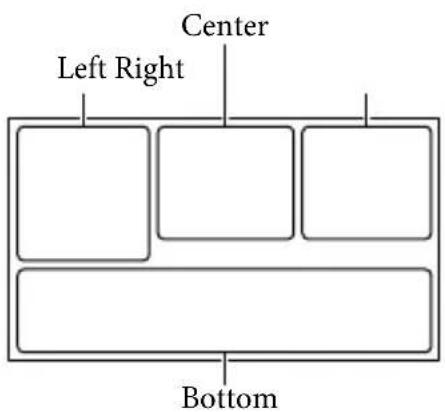
Left
| Indicator Meaning | |
| MENU | MENU button |
| Self-timer recording | |
| X11 | GPS triangulating status |
| Face Detection | |
| Manual focus | |
| Scene Selection | |
| White Balance | |
| SteadyShot off | |
| WS | White Balance Shift |
| Tele Macro | |
| (COLOR) | x.v.Color |
| Destination | |
| Intelligent Auto | |
Center
| Indicator Meaning | |
| [STBY]/[REC] Recording status | |
| → | Slide show set |
| ← | Warning |
| → | Playback mode |
Right
| Indicator Meaning | |
| 60i HQ | Frame rate (60p (50p)/60i (50i)) and recording mode (PS/FX/FH/HQ/LP) |
| 60min | Remaining battery (expected recording and playing time) |
| 16:9 5.3M | Photo size |
| 4:3 19M 4:3 VGA | |
| Recording/playback/ editing media | |
| An external media device is connected | |
| 0:00:00 | Counter (hour:minute: second) |
| 00min | Estimated recording remaining time |
| 9999 → | Approximate number of recordable photos and photo size |
| 101 | Playback folder |
| 100/112 | Current playing movie or photo/Number of total recorded movies or photos |
| 2D | 2D record or playback |
| 3D | 3D record or playback |
Bottom
| Indicator Meaning | |
| □ | View Images button |
| ↓ | Micref Level low |
| ↑ | Low Lux |
| - | Exposure |
| EV AE Shift | |
| 500 | Shutter Speed |
| F1.8 | IRIS |
| iAUTO | Intelligent Auto |
Parts and controls
| Indicator Meaning | |
| Slide show button | |
| 101-0005 | Data file name |
| Protected image | |
| 3D Depth Adjustment | |
| AUTO | Automatic |
| MANUAL | Exposure is set manually. |
- Indicators and their positions are approximate and may differ from what you actually see.
- Some indicators may not appear, depending on the model.
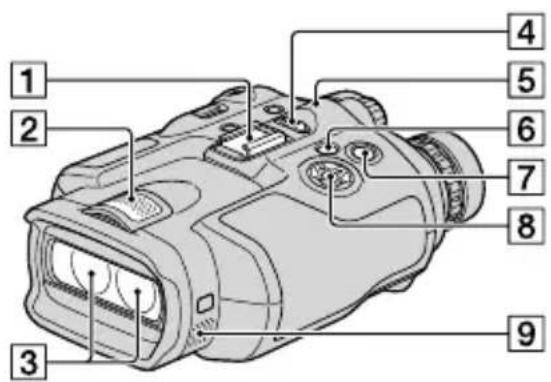
Figures in () are reference pages.
1 Accessory shoe
2Built-in microphone
3 Lens
4 POWER switch (21)
CHG(charge)lamp(17)
6 View Images) button (32)
7 START/STOP button (28)
8▲/▼/<Enter buttons
9 Speakers
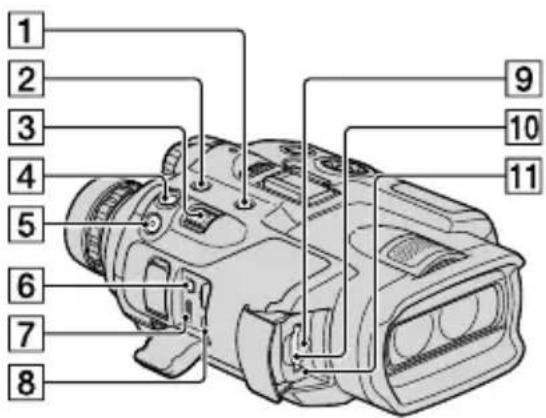
1 MODE button (28)
FINDER 2D/3D (display) button (27)
3 Power zoom lever (26)
4 PHOTO button (30)
5 START/STOP button (28)
6 A/V Remote Connector
7 HDMI OUT jack
8 (USB) jack (35)
9 Memory card access lamp (25) While the lamp is lit or flashing, this product is reading or writing data.
10 Memory card slot (25)
11 RESET button Press RESET using a pointed object. Press RESET to initialize all the settings including the clock setting.
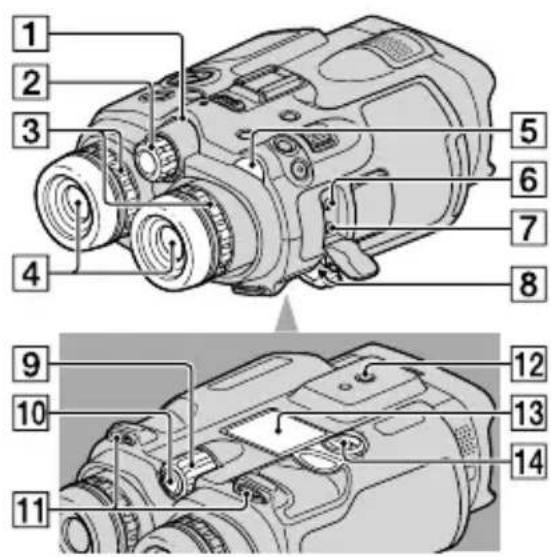
1 Camera recording lamp The camera recording lamp lights up in red during recording. The lamp flashes when the remaining memory card capacity or battery power is low.
IPD ADJ dial (21)
Diopter adjustment dial (21)
4 Viewfinder
5 Movie)/ (oto) lamps (28)
MIC (PLUG IN POWER) jack
7 (headphones) jack
DCIN jack (17)
9 MANUAL dial (30)
10 MANUAL button (30)
11 Strap mount (16)
12 Tripod receptacle Attach a tripod (sold separately) to the tripod receptacle using a tripod screw (sold separately: the length of the screw must be less than 5.5mm 7/32 in.).
13 Battery cover (17)
14 Battery cover lock (17)
Index
B
Battery pack. 17
Binoculars 26
C
Care 46
Charging the battery pack. 17
Charging the battery pack abroad 20
Clock Set 22
Computer. 34
Computer system 34
Connecting cord 18
D
Data Code 23,33
Date & Time 23
E
Event Index 32
F
Fully charged 17
D
Install 34
L
Language Setting 24
M
Mac 34
Maintenance 46
Memory card 24
"Memory Stick" media 24
"Memory Stick PRO-HG Duo media 24
"Memory Stick PRO Duo" media 24
39
Movies 28,32
P
Photos 29
Playback Function 32
Playing. 32
PMB
(Picture Motion Browser) 34
Power on 21
Precautions 46
R
Recording 28
Recording and playback time ...44
Recording time of movies/ number of recordable photos ...44 RESET 53
S
Screen indicators 51
Self-diagnosis display 43
Setting the date and time 21
Software 34
Specifications 48
Supplied items 15
T
Tripod. 53
Troubleshooting 42
Turning the power on 21
V
Volume 32
W
Warning indicators 43
Windows 34
You will find the menu lists on pages 39 to 41.
Additional information on this product and answers to frequently asked questions can be found at our Customer Support Website.
http://www.sony.net/
1440× 1080 pixels/16:9
1440× 1080 pixels/16:9
Consommation electrique:26 W
Tension de sortie: 8,4 V CC*
Type: 14,0 Wh (2 060 mAh)
Minimum: 13,0 Wh (1960 mAh)
Type: ion lithium
Minimum: 25,0 Wh (3700 mAh)
Type: ion lithium
Responsible : Sony Electronics Inc.
Adresse: 16530 Via Esprillo, San Diego, CA 92127 E.-U.
3 Retirez le IPD ADJ cadran.
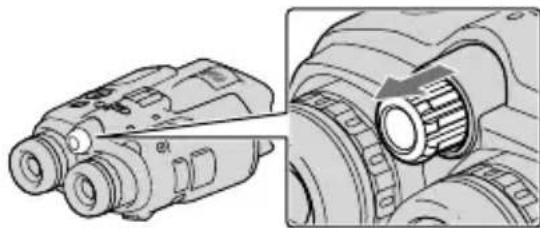
La lecture commence.
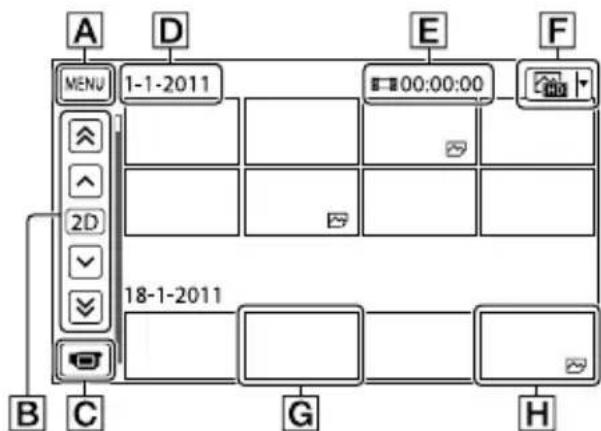
A Vers l'écran MENU
Agrandissement (approx.):
DEV-3:
0,8× -10× (film en 2D)*2
0,5× -5,4× (film en 3D)*2
0,5× -10× (photo, 16:9)
0,3× -7,5× (photo,4:3)
DEV-5/5K:
Dimensions (approx.):
155mm× 88mm× 219mm(61 / 8po×
3 1/2 po × 8 5/8 po) (l/h/p) y compris les parties saillantes
166mm× 165mm× 270mm(65 / 8po×
61 / 2po× 103 / 4po) (1 / h / p) (DEV-5/5K) y
Minimum: 13,0 Wh (1960 mAh)
Type: Li-ion
Minimum: 25,0 Wh (3700 mAh)
Type: Li-ion
Capacidad Tipica:14,0 Wh (2 060 mAh) Minima:13,0 Wh (1 960 mAh)
"Memory Stick PRO-HG Duo" 19
"Memory Stick PRO Duo".19
Menus 34
P
Peluculas 23,28
PMB (Picture Motion Browser) 29
Precauciones 43
R
Reproduccion 27
RESET 50
S
1440× 1080 pixels/16:9
1440× 1080 pixels/16:9
Capacidad Normal:14,0 Wh (2 060 mAh) Minimo:13,0 Wh (1 960 mAh)
Tip: Iones de litio
Bateria recargable NP-FV100 (suministrada con DEV-5K)
Voltaje maximalo de salute: cc 8,4 V
Minimo: 25,0 Wh (3700 mAh)
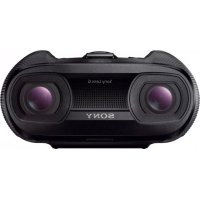
- WARNING
- To reduce fire or shock hazard, do not expose the unit to rain or moisture.
- CAUTION
- Battery pack
- AC Adaptor
- Note on the power cord (mains lead)
- For customers in the USA
- IMPORTANT SAFETY INSTRUCTIONS
- SAVE THESE INSTRUCTIONS.
- DANGER - TO REDUCE THE RISK OF FIRE OR ELECTRIC SHOCK,
- CAREFULLY FOLLOW THESE
- INSTRUCTIONS.
- Oceania
- North America
- Central America
- South America
- Middle East
- Africa
- Read this first
- RECYCLING LITHIUM-ION BATTERIES
- For the customers in the U.S.A.
- Regulatory Information
- Declaration of Conformity
- Note
- For the customers in Canada (For DEV-5)
- Notice for customers in the United Kingdom
- FOR CUSTOMERS IN EUROPE
- CE
- Notice for the customers in the countries applying EU Directives
- ATTENTION
- Notice
- Using this product
- Viewfinder
- Menu items, viewfinder, and lens
- About language setting
- On recording
- Notes on playing back
- DVD media recorded with high definition image quality
- Save all your recorded image data
- Notes on battery pack/AC Adaptor
- Note on the binoculars/battery pack temperature
- When this product is connected to a computer or accessories
- If you cannot record/play back images, perform [Format]
- Notes on optional accessories
- About this manual, illustrations and on-screen displays
- Viewing 3D video images
- Notes on use
- About manuals for this product
- Operating Guide
- Digital Recording Binoculars Handbook (PDF)
- How to read Digital Recording Binoculars Handbook (PDF)
- Table of contents
- Getting started
- Binoculars/Recording/Playback
- Saving movies and photos
- Customizing this product
- Additional information
- Quick reference
- Step 1: Checking the supplied items
- Attaching the supplied items
- Attaching the neck strap
- Attaching the lens cover (DEV-5/5K)
- Attaching the large eyecup (DEV-5/5K)
- Attaching the finder cap (DEV-5/5K)
- Step 2: Charging the battery pack
- Notes
- Charging the battery pack installed into this product
- Charging the battery pack using the AC Adaptor/Charger (DEV-5K)
- Charging time
- Tips
- Notes on the AC Adaptor
- Step 3: Turning the power on, and setting up this product
- 4
- 7
- 8
- 9
- 10Select [Run].
- 11Adjust the 3D lens.
- Select OK
- Type of subjects that should be displayed on the screen for [Auto 3D Lens Adjust]
- Step 4: Inserting a memory card
- Changing the language setting
- Watching the recorded movies on a TV
- Countries/regions where you need to set [60i/50i Sel] to [60i (NTSC)]
- Countries/regions where you need to set [60i/50i Sel] to [50i (PAL)]
- To eject the memory card
- Using this product as binoculars
- About zooming
- To adjust the focus manually
- To switch the viewfinder display between 2D and 3D
- Recording
- Recording movies
- To switch the 2D and 3D recording mode
- Optimum distance from the subject and zooming level
- Data code during recording
- Shooting photos
- Press MODE to turn on the (Photo) lamp.
- Controlling the image settings manually with the MANUAL dial
- To assign a menu item
- To use the MANUAL dial
- Acquiring location information using the GPS (DEV-5/5K)
- Selecting the recording mode
- Playback on this product
- Preparing a computer
- Step 1 Checking the computer system
- OS\*1
- CPU*4
- Memory
- Hard disk
- Display
- Others
- When using a Mac
- Step 2 Installing the supplied software "PMB"
- To disconnect this product from the computer
- Starting PMB (Picture
- Motion Browser)
- Using menus
- Operating menus
- Menu lists
- Shooting Mode
- Camera/Mic
- T (Gema Settings)
- (ce)
- Footing Assist)
- Image Quality/Size
- REC Mode
- Frame Rate
- 2D/3D Mode Select
- x.v.Color
- Image Size
- Playback Function
- Edit/Copy
- Setup
- Media Settings)
- Playback Settings)
- Connection)
- (General Settings)
- (Clock Settings)
- ? Troubleshooting
- The power does not turn on.
- This product does not operate even when the power is set to on.
- This product gets warm.
- The power abruptly turns off.
- Pressing START/STOP or PHOTO does not record images.
- The recording stops.
- "PMB" cannot be installed.
- "PMB" does not work correctly.
- This product is not recognized by the computer.
- Self-diagnosis display/Warning indicators
- C:04:□□
- C:06:□□
- C:13:□□ / C:32:□□
- E:□□:□□
- #
- A[1]
- 3
- [2]
- ()
- Recording time of movies/number of recordable photos
- Expected operating time with each battery pack
- Recording time
- Monitoring time
- Playing time
- Expected recording time of movies
- Memory card
- Expected number of recordable photos
- Precautions
- On use and care
- When not using this product for a long time
- On handling the casing
- About care and storage of the lens
- On charging the pre-installed rechargeable battery
- Procedures
- Note on disposal/transfer of memory card
- Specifications
- System
- Input/Output connectors
- General
- AC Adaptor AC-L200C/AC-L200D (supplied with DEV-3/5)
- AC Adaptor/Charger AC-VQV10 (supplied with DEV-5K)
- On trademarks
- Screen indicators
- Parts and controls
- Index
- B
- C
- D
- E
- F
- L
- M
- P
- R
- S
- T
- V
- W
- Bateria recargable NP-FV100 (suministrada con DEV-5K)
Brand : SONY
Model : DEV5K
Category : Binoculars