WD40FX1170 - Television WESTINGHOUSE - Free user manual and instructions
Find the device manual for free WD40FX1170 WESTINGHOUSE in PDF.



| Product Type | LED Television |
| Brand | Westinghouse |
| Model | WD40FX1170 |
| Screen Size | 40 inches (102 cm) |
| Resolution | 1920 x 1080 pixels (Full HD) |
| Screen Format | 16:9 |
| Screen Type | TFT LED |
| Power Supply | AC 120V, 60 Hz |
| Power Consumption (Operation) | 75 W (Home Mode < 61.4 W) |
| Power Consumption (Standby) | < 0.5 W |
| TV System | ATSC / NTSC |
| Audio Power | 2 x 8 W |
| Input Connectors | HDMI (x3), VGA (PC), YPbPr, AV, USB, RF Antenna |
| Audio Outputs | Digital Optical, Headphone |
| Functions | OSD Menu, Remote Control, Parental Control (V-Chip), Subtitles, Timer, Energy Star Mode |
| Supported USB Formats | JPEG, M-JPEG |
| Menu Languages | French, English, Spanish |
| Dimensions (with Stand) | 929 x 218 x 601 mm |
| Dimensions (without Stand) | 929 x 86 x 550 mm |
| Net Weight | 7.7 kg |
| Gross Weight | 10.2 kg |
| Included Accessories | Remote Control, Batteries, Stand, Screws |
| Cleaning | Soft dry cloth; unplug before cleaning |
| Safety | Do not expose to water or heat; do not block ventilation |
| Repairs | Refer to qualified personnel; do not open |
Frequently Asked Questions - WD40FX1170 WESTINGHOUSE
User questions about WD40FX1170 WESTINGHOUSE
0 question about this device. Answer the ones you know or ask your own.
Ask a new question about this device
Download the instructions for your Television in PDF format for free! Find your manual WD40FX1170 - WESTINGHOUSE and take your electronic device back in hand. On this page are published all the documents necessary for the use of your device. WD40FX1170 by WESTINGHOUSE.
USER MANUAL WD40FX1170 WESTINGHOUSE
The lightning flash with arrowhead symbol, within an equilateral triangle, is intended to alert the user to the presence of un-insulated dangerous voltage within the products enclosure that may be of sufficient magnitude to constitute a risk of electric to persons.

The exclamation point within an equilateral triangle is intended to alert the user to the presence of important operating and maintenance (servicing) instruction the literature accompanying the appliance.
CAUTION: USE OF ANY CONTROLS, ADJUSTMENTS, OR PROCEDURES OTHER THAN THOSE SPECIFIED HEREIN MAY RESULT IN HAZARDOUS RADIATION EXPOSURE.
CAUTION: These servicing instructions are for use by qualified service personnel only. To reduce the risk of electric shock, do not perform any servicing other than that contained in the operating instructions unless you are qualified to do so.
Refer to service manual for servicing instructions.
Important Safety Instructions
Note:
- Read these instructions.
- Keep these instructions.
3.Heed all warnings.
4.Follow all instructions.
5.Do not use near water. - Clear only with dry cloth.
- Do not block any ventilation openings. Install in accordance with the manufacturer's instructions.
- Do not install near any heat sources such as radiators, heat registers, stoves, or other apparatus (including amplifiers) that produce heat.
-
Do not defeat the safety purpose of the polarized or grounding-type plug. A polarized plug has two blades with one wider than the other. A grounding type plug has two blades and a third grounding prong. The wide blade or the third prong are provided for your safety. If the provided plug does not fit into your outlet, consult an electrician for replacement of the obsolete outlet.
-
Protect the power cord from being walked on or pinched particularly at plugs, convenience receptacles, and the point where they exit from the apparatus.
- Only use attachments / accessories specified by the manufacturer.
- Use only with the cart, stand, tripod, bracket, or table specified by the manufacturer, or sold with the apparatus. When a cart is used, use caution when moving the cart / apparatus combination to avoid injury from tip-over.

natural_image
Symbolic illustration of a person pushing a large cylindrical object, enclosed in a circle with no text or symbols.- Unplug this apparatus during lightning storms or when unused for long periods of time.
- Refer all servicing to qualified service personnel. Servicing is required when the apparatus has been damaged in any way, such as power-supply cord or plug is damaged, liquid has been spilled or objects have fallen into the apparatus, the apparatus has been exposed to rain or moisture, does not operate normally, or has been dropped.
- Apparatus shall not be exposed to dripping or splashing and that no objects filled with liquids, such as vases, shall be placed on the apparatus.
- WARNING: To reduce the risk of fire or electric shock, do not expose this apparatus to rain or moisture.
- Mains plug or appliance coupler is used as the disconnect device, shall be readily operable.
- The apparatus shall be connected to a MAINS socket outlet with a protective earthing connection.
19.WARNING:The batteries shall not be exposed to excessive heat such as sunshine, fire or the like. -
The ON-MODE Power under Home Mode should be less than 61.4W.
-
The Sleep Mode power should be less than 0.5W.
-
This equipment is a Class II or double insulated electrical appliance. It has been designed in such a way that it does not require a safety connection to electrical earth.
This Westinghouse product has earned the Energy Star® for meeting U.S. Federal energy efficiency guidelines as set by the Department of Energy and Environmental Protection agency. The Energy Star® program exists to provide energy saving guidelines and help promote energy efficient products and practices. Changes to certain features, settings and functions of this TV can change and/or increase its power consumption. Depending on how settings are changed, power consumption may exceed the limits required for Energy Star® qualification. This Westinghouse TV will operate at optimal energy efficiency in “Home” mode.
Licensing and Patent Information
This WESTINGHOUSE product may be covered by one or more U.S. and foreign patents and patent applications.
How to install the stand!
Follow instructions below to install the base of the TV, reverse the instructions to remove the base.

Lay the TV face-down on a flat, cushioned surface to avoid the screen from damage or scratches.
Fix the stand base to the TV using 4pcs screws.
Complete Installation.
3. PREFACE
Thank you for buying this TV! Please read this manual thoroughly before operating the TV. Make sure the TV was not damaged in transit. Should the TV be damaged, do not install it and contact your dealer. Check that you have all the accessories according to the model.
4. SAFETY PRECAUTIONS
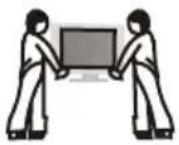
Put the TV on a stable surface.

Do not place any material on the TV.

Do not use the TV with fixtures other than those provided or suggested by the manufacturer.
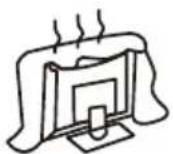
Do not block or cover the ventilation openings on the TV. If you have a wall mount, check that it is steady.
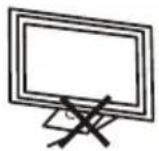
Power cord and cables must be properly routed and protected to prevent people from stepping on them and causing the TV to fall.
natural_image
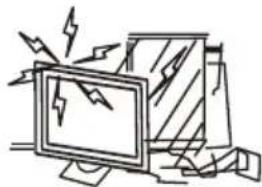
Cartoon illustration of a computer monitor with lightning bolts and a stack of books (no text or symbols)Keep the TV dry and away from humidity.
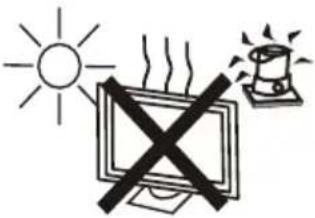
Keep the TV away from heat sources.
natural_image
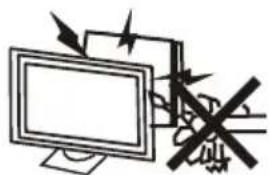
Illustration of a computer monitor with arrows indicating motion or signal flow, no text or symbols presentUnplug the TV before cleaning it. Do not use solvent or liquid to clean the TV.
Only clean the TV with a soft and dry cloth.
natural_image
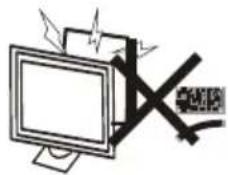
Illustration of a computer monitor with a crossed-out X symbol, no text or symbols presentIn case of troubleshooting, do not use spare parts other than those suggested by the manufacturer. Using inadequate spare parts can lead to electric shocks, short-circuits, fire or other incidents.
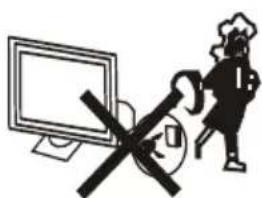
Unplug the TV during lightning storms or when unused for long periods of time.
5. CONTENTS
natural_image
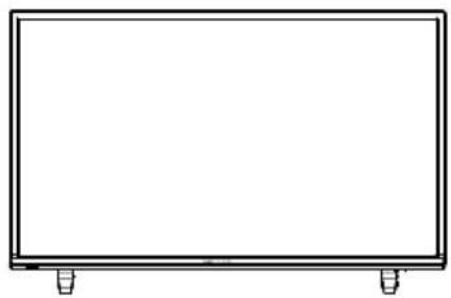
Simple line drawing of a blank rectangular frame with two corner connectors at the bottom (no text or symbols)LED TV SET

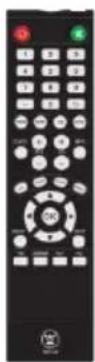
Remote Control

USER'S MANUAL
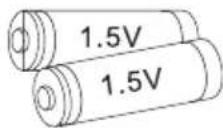
AAA Batteries

Warranty Card

Quick Connect Guide
6. FRONT/BACK CONNECTIONS OF LED TV
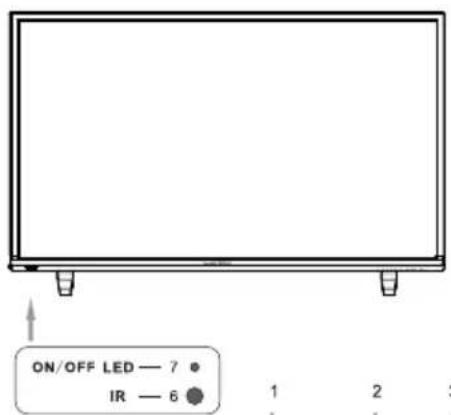
Front View

- Press "VOL+" or "VOL-" to increase or decrease the volume.
- Press "CH+" or "CH-" to scan through channels.
- Press "MENU" to bring up the main menu on the screen.
- Press "SOURCE" to select the input source.
- Press "POWER" button to turn the TV on or off.
- REMOTE SENSOR: infrared sensor for the remote control.
- POWER INDICATOR: Blue when TV is powered on. 5 Red when TV is powered off.
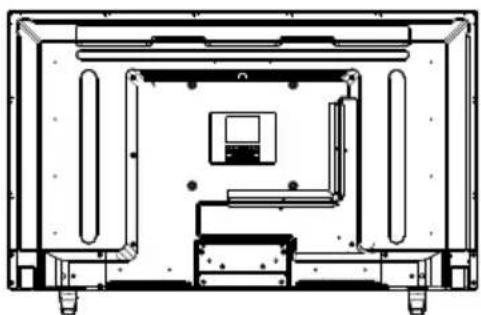
Back View and Control Connections

7. TV INSTALLATION
Power Cord Connection
- Connect the power cord correctly as shown.

natural_image
Technical line drawing of an electronic device interior with wiring and a wall-mounted power outlet (no text or symbols)Antenna Connection
To ensure good picture and sound, TV antenna system needs to be installed. The antenna system as shown can be sourced from TV equipment shops, which will provide service for correct installation and connection. After installation, insert the 75-ohm antenna plug into the antenna jack as shown.

flowchart
graph TD
    A["VHF ANTENNA"] --> B["OUTDOOR ANTENNA AMPLIFIER"]
    C["UHF ANTENNA"] --> D["INDOOR ANTENNA AMPLIFIER"]
    B --> E["Power PLUG OF ANTENNA AMPLIFIER"]
    D --> F["75 OHM ANTENNA PLUG"]
    G["RF IN"] --> F
AV Connection
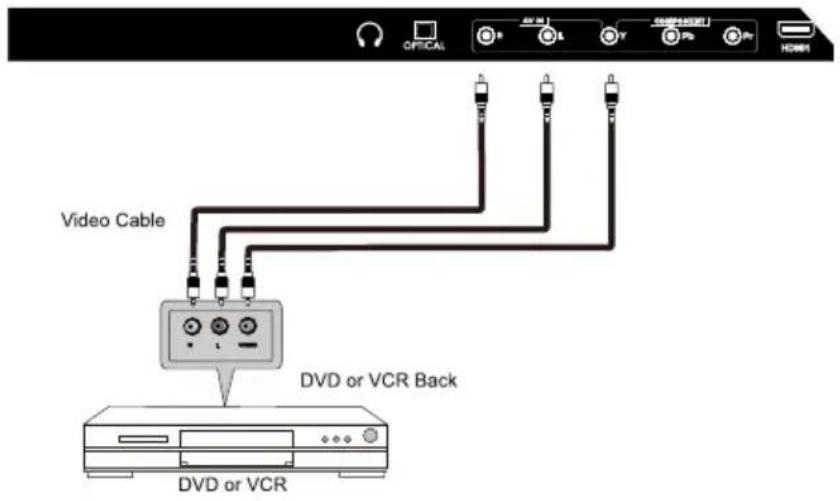
Connect the VIDEO and AUDIO output jack of the DVD or VCR to the VIDEO jacks on the set using the RCA cable. Match the jack colors: Video is yellow, Audio left is white, and Audio right is red. Select the AV input source using the SOURCE button on the remote control.
YPbPr (Component) Connection
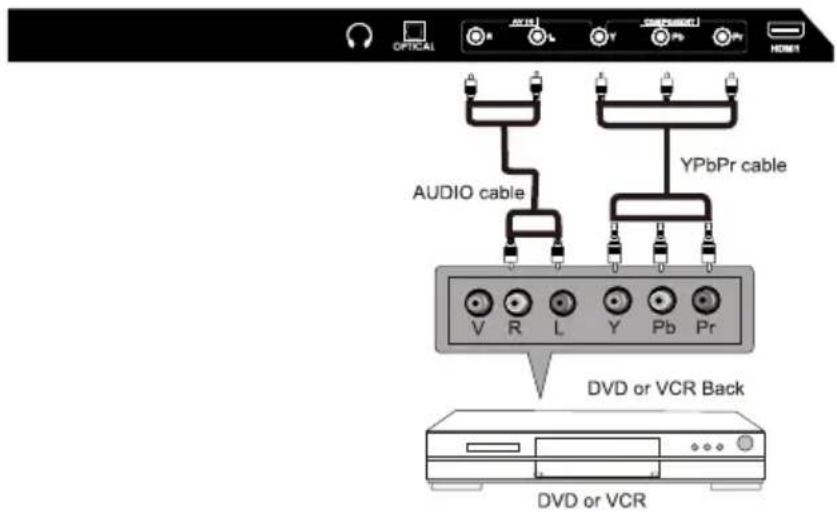
Connect the YPbPr output of the DVD or VCR to the YPbPr input on the set. The picture quality is improved; compared to connecting a regular VCR to the video input. Connect the Audio output of the DVD or VCR to the Audio input jacks on the set using the RCA cable. Match the jacks colors:Y is green,Pb is blue,Pr is red,Audio left is white and Audio right is red. Select component input source using the SOURCE button on the remote control.
VGA(PC) Connection
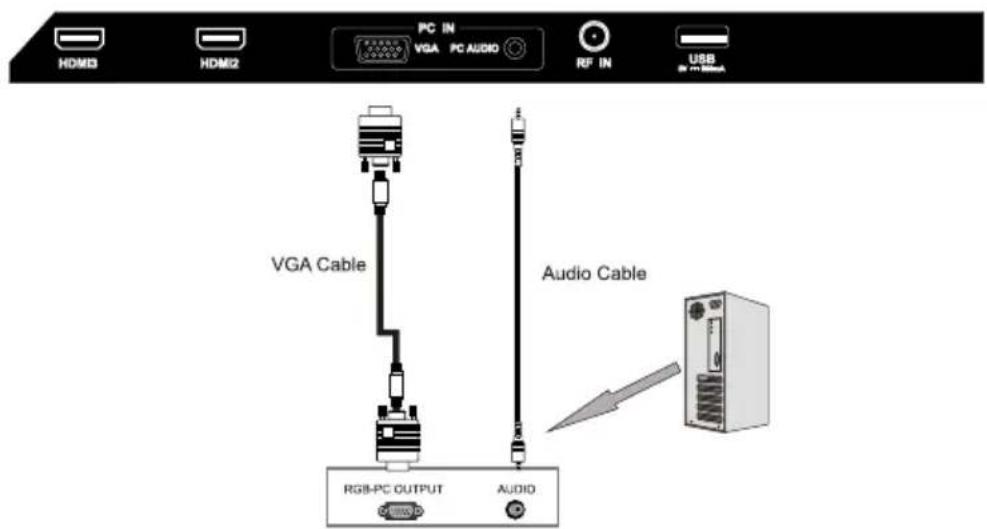
Connect the RGB output of the PC to the VGA(PC) jack on the set. Connect the AUDIO output of The PC to the PC AUDIO jack on the set. Select the VGA input source with using SOURCE button on the remote control.
USB Port Function

HDMI Connection
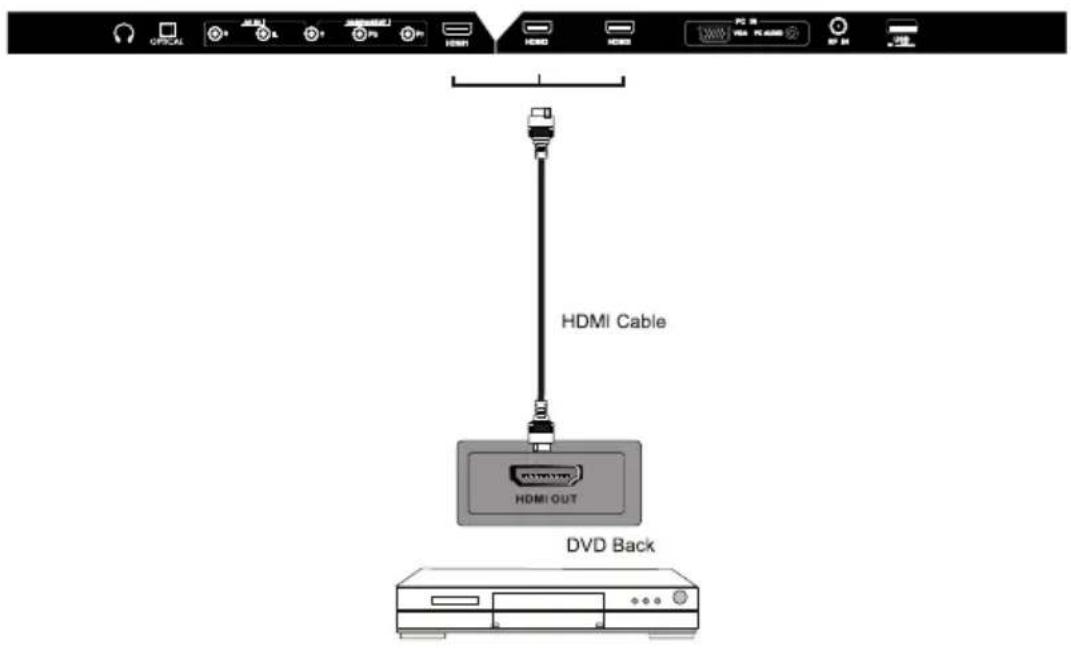
HDMI plug which replaces the HDMI connection allows transfer of all audio/video control signals through one cable only. These signals are transferred in digital.
8. REMOTE CONTROL
Remote control instructions in TV mode

POWER Turn the LED TV on or off.
MUTE Press once to disable the audio and press again to enable the audio.
NUMBER BUTTONS Press 0-9 to directly change the TV channel.
— Press this button to enter a program number for multiple program channel such as 2-1, etc.
Return to the previous channel viewed.
P.MODE Select the picture mode.
S.MODE Select the sound mode.
MTS Press to adjust between available audio channel.
SLEEP Set the Sleep Timer
SOURCE Press Source to display the OSD input source, press ▲▼ to select an input source, and then press OK to confirm
CH+/CH- Press to scan through channels.
VOL+/VOL· Press to increase / decrease the sound level.
INFO Displays the source and channel information
cc Press to set the closed caption.
V-CHIP Switch to V-CHIP input.
CH.LIST Press to display TV program list.
ASPECT Press to select Aspect Ratio.
THUMBSTICK(▲/▼/◄/►/ok)
Allows you to navigate the on-screen menus and adjust the system settings to your preference.
MENU Displays the main TV menu.
EXIT Exit the main TV menu.
FAV Press to display the favourite program list.
ADD/ERASE Add/Erase channel to favourite program list.
FAV+ FAV-
Press these two keys to switch to your favourite program.
Remote control setup
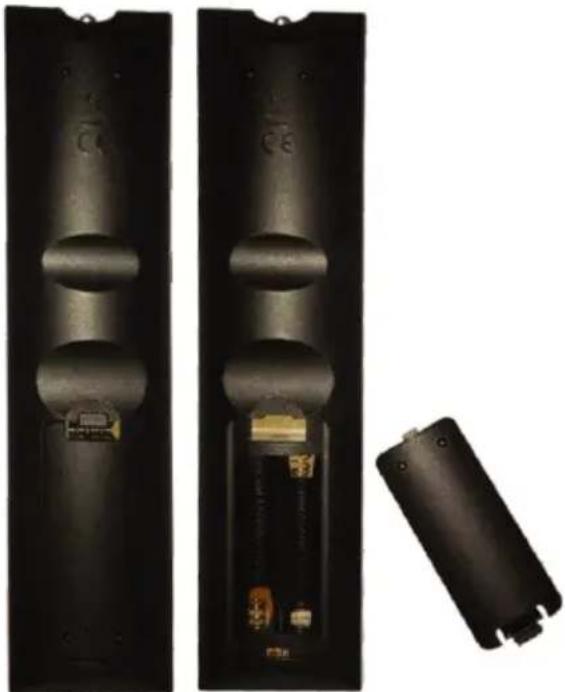
- Open the cover.
- Uses AAA size batteries. When inserting the batteries, make sure correct polarities "+" and "-" marks on the batteries line up correctly with compartment markings.
- Replace the battery cover.
To prevent battery leakage which may result in bodily injury or damage to the remote:
- Install all batteries correctly, and as marked on the remote control.
- Do not mix batteries:(OLD and NEW or CARBON and ALKALINE, etc) Remove batteries when the remote is not used for a long period of time.
natural_image
Two black remote control panels with visible battery modules and a separate battery pack (no text or symbols)9.Menu Operation
SETUP WIZARD
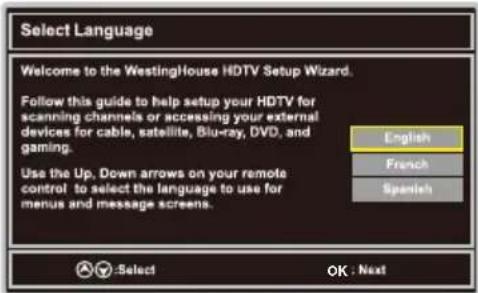
Select Language
Power On Mode

flowchart
graph LR
    A["Power On Mode"] --> B["Use the Up, Down arrows on your remote control to select power on mode."]
    B --> C["Home optimizes the video settings for Energy Star® qualification."]
    C --> D{Do you want to set Home mode(Energy saving)?}
    D -->|Yes| E["Select OK Next"]
    D -->|No| F["OK Next"]

    G["Power On Mode"] --> H["Use the Left/Rig hit arrows on your remote control to select power on mode."]
    H --> I["Retail optimizes the video settings for use on a retail showroom floor or demo environment."]
    I --> J{Do you want to set Retail mode?}
    J -->|Yes| K["Select OK Next"]
    J -->|No| L["OK Next"]

    M["Let's Get connected..."] --> N["Click here to connect a Cable Box or ReticBox Box"]
    N --> O["Click here to connect a Game, Bio-Ray, DVD, or other player"]
    O --> P["Click here to scan channel from the Antenna or cable code input"]
    P --> Q["OK Next"]
Home Mode (Energy Saving) : Select Home Mode to maximize energy efficiency. Please note if you select Home Mode the picture will be darker. This mode meets the requirements of Energy Star® Qualification.
Retail Mode : Select Retail Mode if you would like your picture to be brighter. At times this mode may use more energy to operate the Volume/Sound Mode and the Picture Mode. In this setting, the power consumption may possibly exceed the limited requirement of the Energy Star® Qualification.
Energy Star® is a set of power-saving guidelines issued by the U.S. Environmental Protection Agency(EPA).
Energy Star® is a joint program of the U.S. Environmental Protection Agency and the U.S. Department of Energy helping us all save money and protect the environment through energy efficient products and practices.
The ON-MODE Power under Home Mode should be less than 61.4W.
The SLEEP-MODE Power should be less than 0.5 W.
flowchart
graph TD
    A["Let's Get connected..."] --> B["Antenna"]
    B --> C["Scan Channels from the Antenna or coaxial cable input"]
    B --> D["Cable or Satellite Source Input"]
    C --> E["Scanning Channels"]
    D --> E
    E --> F["Source Input List"]
    style A fill:#f9f,stroke:#333
    style B fill:#ccf,stroke:#333
    style C fill:#cfc,stroke:#333
    style D fill:#fcc,stroke:#333
    style E fill:#ffc,stroke:#333
    style F fill:#fcc,stroke:#333
Select Input Source
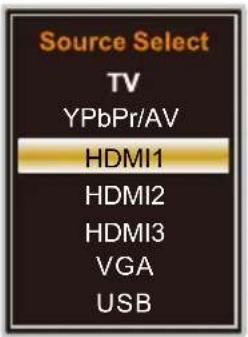
- Press SOURCE button to display the input source list.
- Press ▼/▲ button to select the input source you want to watch.
- Press ok button to enter the selected source.
Basic Operation

- Press MENU button to display the MAIN OSD MENU.
- Press ◀/▶ button to select the MENU you want.
- Press ok button to enter the sub menu.
- Press ▼/▲ button to select the option and then press ◀/▶ to adjust the value in the sub menu.
- You can press MENU button to go back to the upper menu or EXIT button to close the OSD.
For TV Mode:
Picture Menu

- Press ◀/▶ button to select Picture in the main menu.
- Press ▼/▲ button to select the option that you want to adjust in the Picture menu.
- Press ◀/▶ button to desired level.
- When you have changed the settings, you can exit from the menu by pressing MENU.
Picture Mode
Press ▼/▲ button to select Picture Mode, then press ◀/▶ button to adjust.
Available picture mode: Energy Star, Retail, Movie, User.
Brightness
Press ▼/▲ button to select Brightness, then press ◀/▶ button to adjust.
Contrast
Press ▼/▲ button to select Contrast, then press ◀/▶ button to adjust.
Color
Press ▼/▲ button to select Color, then press ◀/▶ button to adjust.
Sharpness
Press ▼/▲ button to select Sharpness, then press ◀/▶ button to adjust.
Color Temperature
Press ▼/▲ button to select Color Temperature, then press ◀/▶ button to adjust.
Advanced Settings
Press ▼/▲ button to select Advanced Settings, then press ok button to enter. Adjust advanced video features to fine tune the picture.
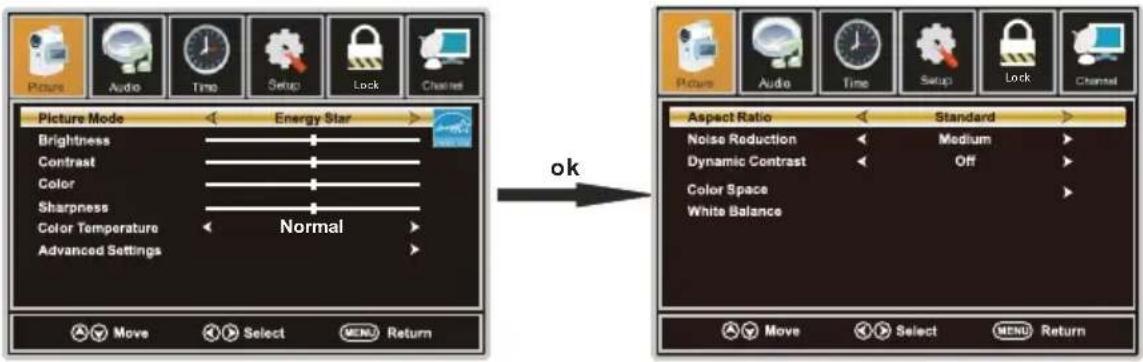
Aspect Ratio
Press ▼/▲ button to select Aspect Ratio, then press ◀/▶ button to adjust. Available Aspect Ratio: Standard, Fill, Over Scan.
Noise Reduction
Press ▼/▲ button to select the item Noise Reduction, then press ◀/▶ button to adjust. Available Noise Reduction: Off, Weak, Medium, Strong.
Dynamic Contrast
Press ▼/▲ button to select Dynamic Contrast, then press ◀/▶ button to adjust On or Off. It can adjust the contrast corresponding to the input signal in order to improve the picture quality displayed.
Color Space
Press ▼/▲ button to select Color Space, then press ok button to enter.

Color Mode
Press ▼/▲ button to select Color Mode, then press ◀/▶ button to adjust. Available Color
Mode: Auto, Native, Custom.
Color
Press ▼/▲ button to select Color, then press ◀/▶ button to adjust. Available Color Mode: Red,
Green, Blue, Yellow, Cyan, Magenta.(It is available in Custom mode.)
Hue
Press ▼/▲ button to select Hue, then press ◀/▶ button to adjust.(It is available in Custom mode.)
Saturation
Press ▼/▲ button to select Saturation, then press ◀/▶ button to adjust.(It is available in Custom mode.)
Brightness
Press ▼/▲ button to select Brightness, then press ◀/▶ button to adjust.(It is available in Custom mode.)
Reset
Press ▼/▲ button to select Reset, Press ok to enter, then press ◀/▶ button to select No or Yes.
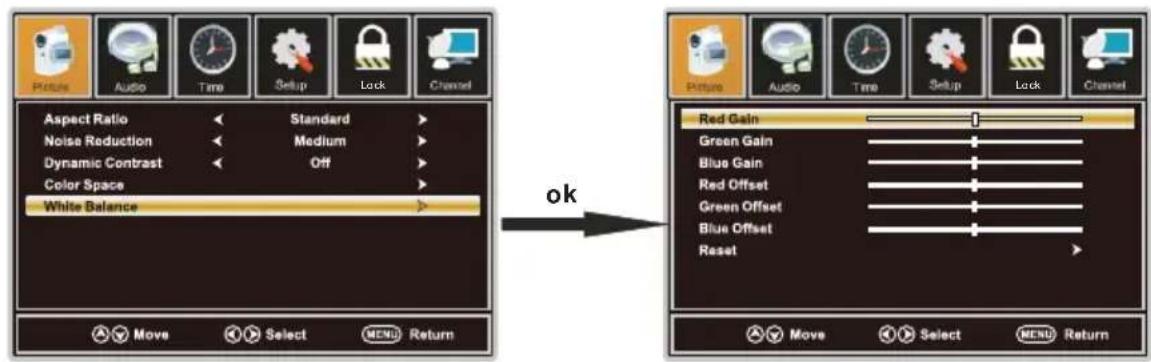
White Balance
Press ▼/▲ button to select White Balance, then press ok button to enter.
Press ▼/▲ button to select the option you want ,then press ◀/▶ button to adjust.
Audio Menu

- Press ◀/▶ button to select Audio in the main menu.
- Press ▼/▲ button to select the option that you want to adjust in the Audio menu.
- Press ◀/▶ button to desired level.
- When you have changed the settings, you can exit from the menu by pressing MENU.
Sound Mode
Press ▼/▲ button to select the item Sound Mode, then press ◀/▶ button to select the desired mode. Available Sound Mode: Sports, User, Standard, Music, Movie. Select a sound mode to achieve ideal sound.
Bass
Press ▼/▲ button to select Bass, then press ◀/▶ button to adjust.
Treble
Press ▼/▲ button to select Treble, then press ◀/▶ button to adjust.
Balance
Press ▼/▲ button to select Balance, then press ◀/▶ button to adjust.
MTS
Press ▼/▲button to select MTS, then press ◀button to adjust.
Audio Language
Press ▼/▲button to select Audio Language, then press ◀ button to adjust.
Digital Audio Output
Press ▼/▲ button to select the item Digital Audio Output, then press ◀/▶ button to select the desired digital audio output. Available digital audio output: PCM, Raw and Off.
Surround Mode
Press ▼/▲ button to select the item Surround Mode, then press ◀/▶ button to select On or Off.
AVL
Press ▼/▲ button to select the item AVL, then press ◀/▶ button to select ON or OFF. Auto Volume Level can set the volume automatically adjust corresponding to the input audio.
Time Menu
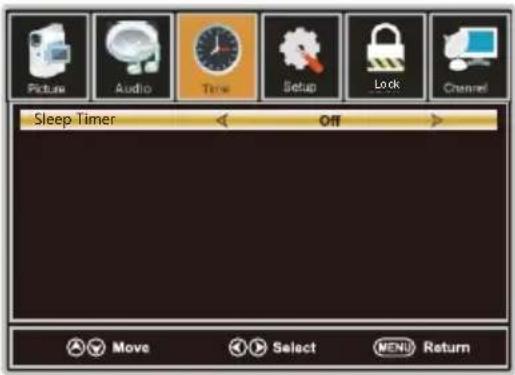
- Press ◀/▶ button to select Time in the main menu.
- Press ▼/▲ button to select the option that you want to adjust in the Time menu.
- Press ◀/▶ button to desired level.
- When you have changed the settings, you can exit from the menu by pressing MENU.
Sleep Time
Press ▼/▲ button to select Sleep Timer, then press ◀/▶ button to set. Available Sleep Timer: Off, 5Min, 10Min, 15Min, 30Min, 60Min, 90Min, 120Min, 180Min, 240Min.
Setup Menu

- Press ◀/▶ button to select Setup in the main menu.
- Press ▼/▲ button to select the option that you want to adjust in the Setup menu.
- Press ◀/▶ button to desired level.
- When you have changed the settings, you can exit from the menu by pressing MENU.
Menu Language
Press ▼/▲ button to select the item Menu Language, then press ◀/▶ button to adjust. Available Language: English, French, Spanish.
OSD Timeout
Press ▼/▲ button to select OSD Timeout, then press ◀/▶ button to set. Available OSD Timeout: 5Sec., 15Sec., 30Sec., 45Sec., 60Sec..
Closed Caption
Press ▼/▲ button to select Closed Caption, then press OK button to enter.

CC Mode
Press ▼/▲ button to select CC Mode, then press ◀/▶ button to select CC Off, CC On, CC on Mute.
Analog CC
Press ▼/▲ button to select Analog CC, then press ◀/▶ button to select.
Available Analog CC: CC1, CC2, CC3, CC4, Text1, Text2, Text3, Text4.
Digital CC
Press▼/▲ button to select Digital CC, then press ◀/▶ button to select Service1, Service2
Service3, Service4, Service5, Service6.
Option
Press ▼/▲ button to select Option, then press ▶ button enter submenu.
Other Settings
Press ▼/▲ button to select Other Settings, then press OK button to enter.

Audio Only
Press ▼/▲ button to select Audio Only, then press ◀/▶ button to set On or Off.
Restore Default
Press ▼/▲ button to select Restore Default, then press ok button to select No or Yes.
Change power on options or reset TV to factory default. (0000)

Lock Menu

- Press ◀/▶ button to select Lock in the main menu.
- Press ▼/▲ button to select the option that you want to adjust in the Lock menu.
- Press ◀/▶ button to desired level.
- When you have changed the settings, you can exit from the menu by pressing MENU. Input password to enter, default password is "0000".
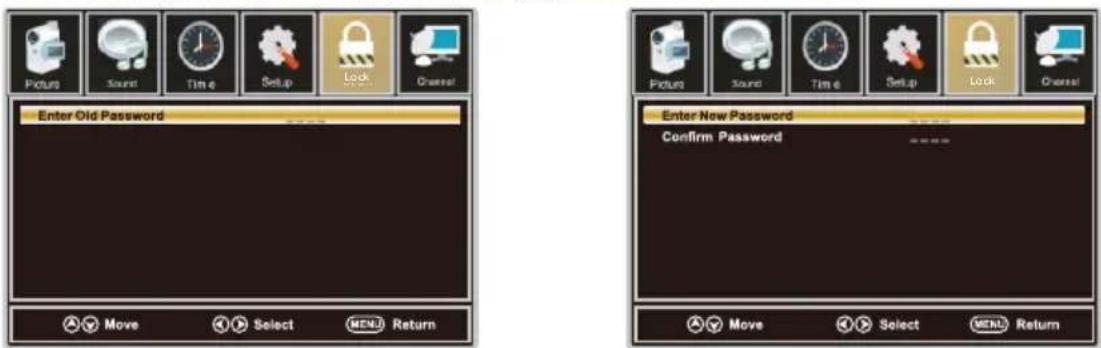
Change Password
Press ▼/▲ button to select Change Password, then press ok button to adjust the value. a sub menu will appear as below. If the password is changed, all of the passwords in the menu will be changed at the same time.
Note: If you forget your password, you can use "8899" to enter any menu locked.
System Lock
Press ▼/▲ button to select System Lock, then press ◀/▶ button to set On or Off. Only available when "System Lock" is "On".
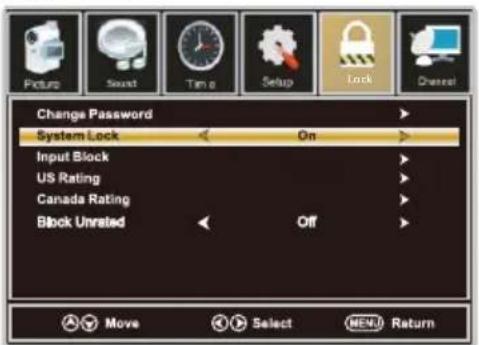
Input Block
Press ▼/▲ button to select Input Block, then press ◀/▶ button to enter.
Press ◀/▶ button to select Unblock or Block the input sources.

US Rating
Press ▼/▲ button to select US Rating, then press ◀/▶ button to enter. A sub menu will appear as below.
The TV rating composes of two aspects: age-based and content -based.
This system defines the rating control which comes from MPAA rules.

Canada Rating
Press ▼/▲ button to select Canada Rating, then press ◀/▶ button to enter. Press ◀/▶ button to select.

Canada English
Press ▼/▲ button to select Canada English, then press ◀/▶ button to set.
Available Canada English: Off, C, C8+, G, PG, 14+, 18+.
Canada French
Press ▼/▲ button to select Canada French, then press ◀/▶ button to set.
Available Canada French: Off, G, 8ans+, 13ans+, 16ans+, 18ans+.
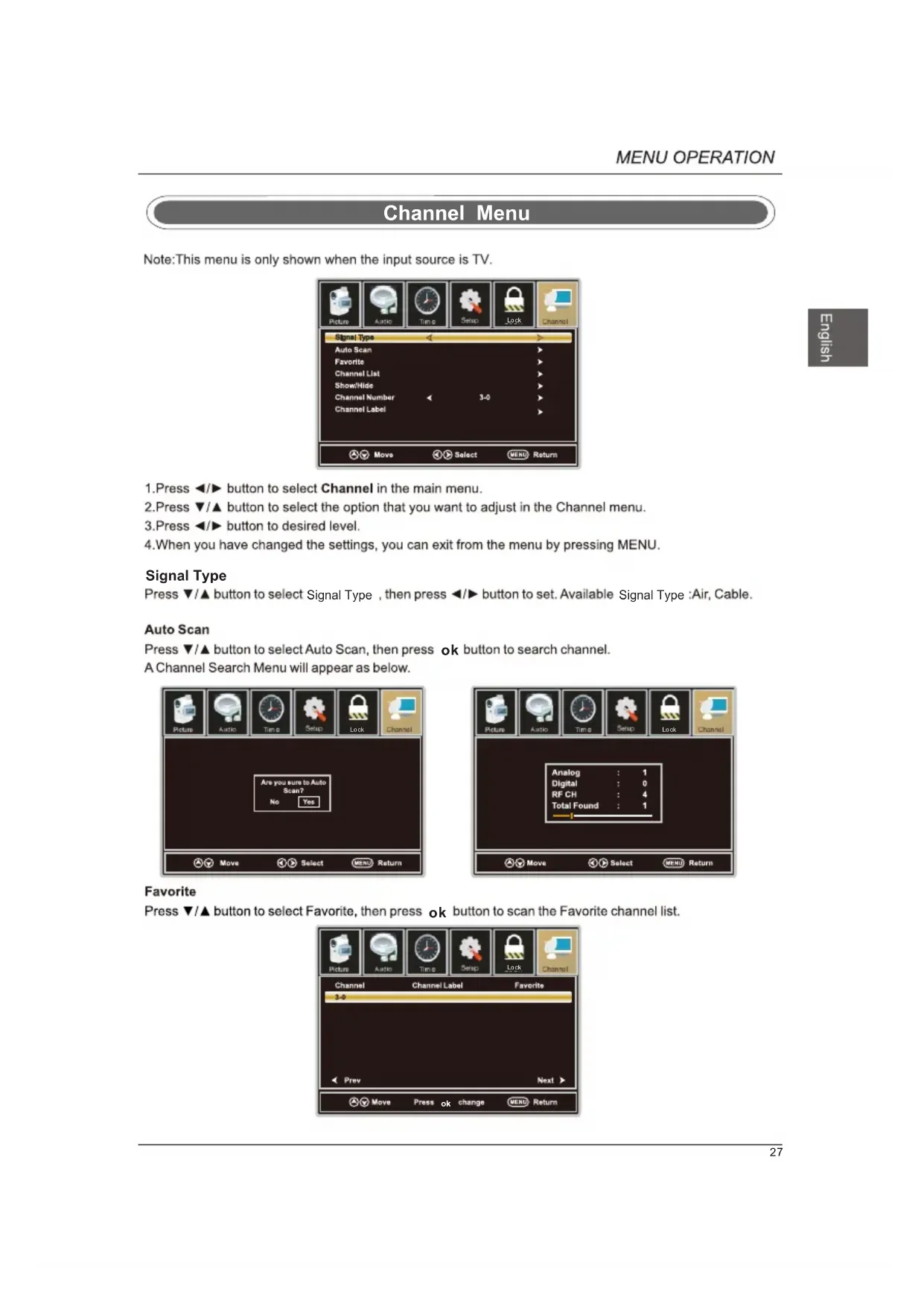
Channel Menu
Note: This menu is only shown when the input source is TV.
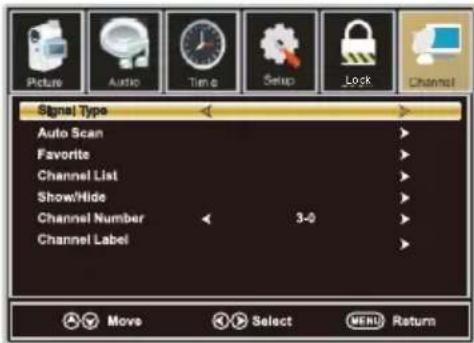
- Press ◀/▶ button to select Channel in the main menu.
- Press ▼/▲ button to select the option that you want to adjust in the Channel menu.
- Press ◀/▶ button to desired level.
- When you have changed the settings, you can exit from the menu by pressing MENU.
Signal Type
Press ▼/▲ button to select Signal Type, then press ◀/▶ button to set. Available Signal Type :Air, Cable.
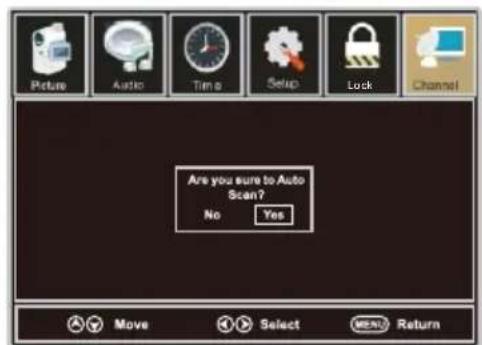
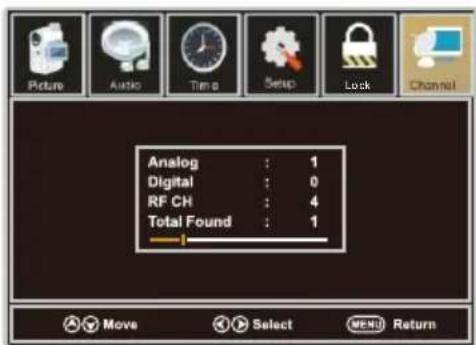
Auto Scan
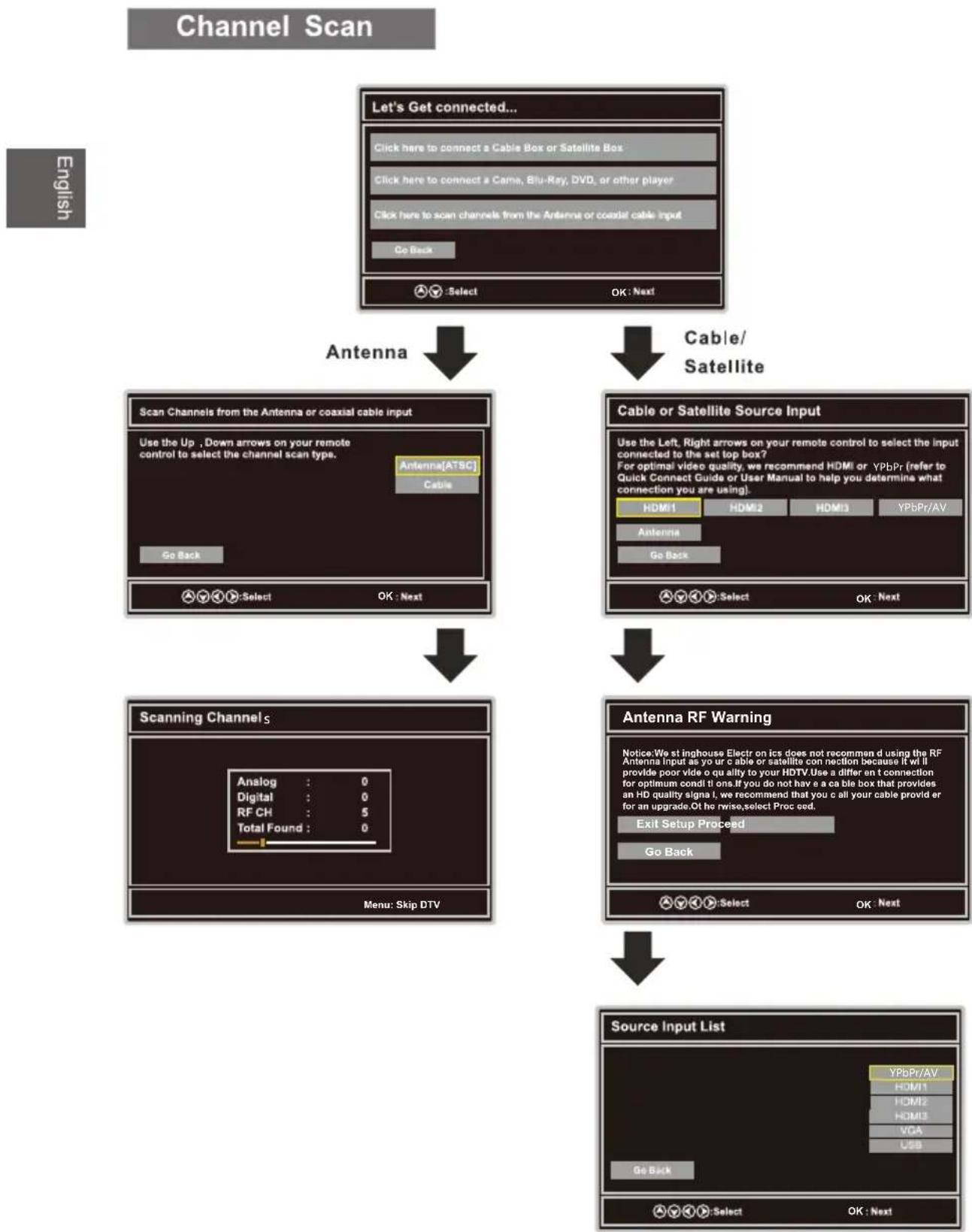
Press ▼/▲ button to select Auto Scan, then press ok button to search channel.
A Channel Search Menu will appear as below.
Favorite
Press ▼/▲ button to select Favorite, then press ok button to scan the Favorite channel list.
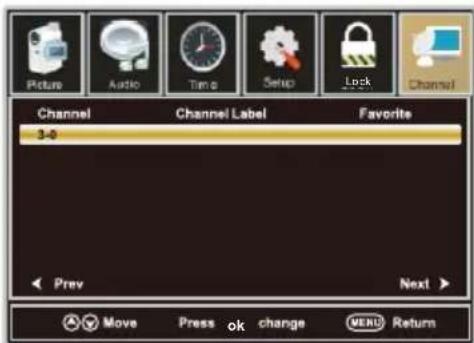
Channel List
Press ▼/▲ button to select Channel List, then press ok button to scan the Channel List.

Show/Hide
Press ▼/▲ button to select Show, then press ok button to enter.
Show or hide the channels in your program list.
Channel Number
Press ▼/▲ button to select Channel Number, then press ◀/▶ button to adjust.
Channel Label
Press ▼/▲ button to select Channel Label, then press ok button to enter. Create labels for channels, up to 7 characters.
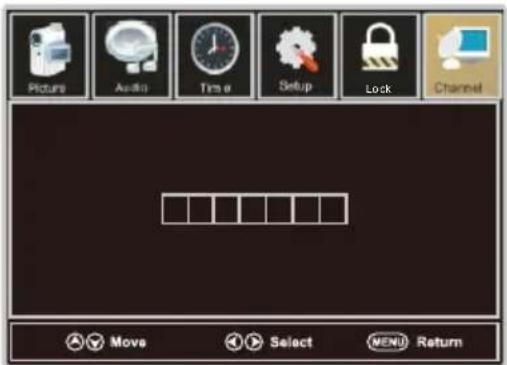
Setup Menu
For VGA Mode:
- Press ◀/▶ button to select Setup in the main menu.
- Press ▼/▲ button to select VGA Settings, then press ok button to enter.
A sub menu will appear as below.

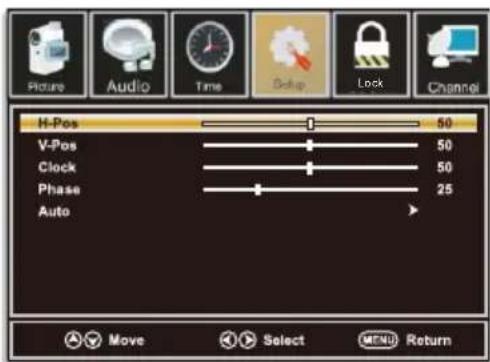
H-Pos
Press ▼/▲ button to select H-Pos, then press ◀/▶ button to adjust.
V-Pos
Press ▼/▲ button to select V-Pos, then press ◀/▶ button to adjust.
Clock
Press ▼/▲ button to select Clock, then press ◀/▶ button to adjust.
Phase
Press ▼/▲ button to select Phase, then press ◀/▶ button to adjust.
Auto
Press ▼/▲ button to select Auto, then press ok button to enter. Adjust to the PC signal timing automatically.
- PICTURE menu and description are the same as that for TV mode.
- Audio Language in AUDIO menu is invalid.
- TIME menu and description are the same as that for TV mode.
- Close Caption in SETUP menu is invalid.
5.US, Canada, RRT Setting and Reset RRT in LOCK menu is invalid
6.PC mode has no CHANNEL menu.
Note: The operation and description of the hot key are programmable on your remote control.
USB Menu
Note: Before operating Media menu, Plu in USB device, then press SOURCE button to set the Input Source to USB.
Press ▲▼button to select USB in the Source menu, then press OK button to enter.

Press ◀/▶button to select the option you want to adjust in the main Media menu, then press OK button to enter.
Press ◀/▶ button to select JPEG in the main menu, then press OK button to enter. Press Exit button to return back to the previous menu.

Press ◀/▶button to select drive disk you want to watch, then press OK button to enter. Press ◀/▶button to select Return option to go back to the previous menu.


Press ◀/▶ button to select the file you want to watch in the file selecting menu, then press OK button to display picture.
When highlighting the option you select, the file information will appear on the right and picture will be previewed in the center.
Press ◀/▶ button to select M-JPEG in the main menu, then press OK button to enter.
Press Exit button to return back to the previous menu.
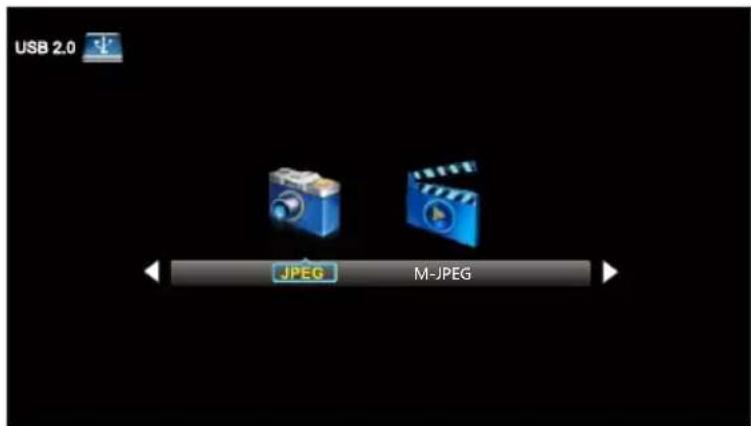
Press ◀/▶ button to select drive disk you want to watch, then press OK button to enter.
Press ◀/▶ button to select Return option to go back to the previous menu.
When highlighting the option you select, the file information will appear on the right and Movie will be previewed in the center.
Press OK button to play the selected movie.
Press display button to show select menu in the bottom.
Press ◀/▶button to select menu in the bottom you want to run, then press OK button to operate.
10. Troubleshooting
Please check if you can solve problems by troubleshooting yourself.
| Troubleshooting | Control |
| No signal | Please check that all cables are correctly plugged in. |
| No color shades | Adjust the contrast, the color and the brightness. |
| Stain on the screen | May be the result from a lighting signal from car, motor, neon light and other electrical devices or appliances. |
| Double or multiple display image | May be the result of an electrical wave disturb from other TV, Computer and Game machine or Radio. |
| Snow on the screen | The cables of the antenna are not correctly plugged in. |
| The remote control does not work | Please check the batteries order and alignment. Check that the IR of the remote control is not hidden by something. |
| "Zip" made noise on TV cover | Even if the display image is correct, the noise may come from an unsteady fixation of the panel. |
| No sound | Make sure that you have not press the MUTE button of the remote control. |
11. SPECIFICATIONS
This manual is only for your reference, any change to the design and specification will not be advised.
| Screen Size | 40Inch | |
| Display Type | TFTLED | |
| Resolution(Pixel) | 1920 X 1080 | |
| Aspect Ratio | 16:9 | |
| Power Supply | AC120V 60Hz | |
| Power Consumption | 75 W | |
| TV System | ATSC/NTSC | |
| Video Input Format | PAL/NTSC | |
| Audio Output Power | L/R 2X8W | |
| SUPPORT | ANTENNA | YES |
| AV-IN | YES | |
| YPbPr - IN | YES | |
| HDMI - IN | YES | |
| VGA(PC) - IN | YES | |
| VGA(PC) AUDIO - IN | YES | |
| SCART - IN | -- | |
| SCART - OUT | -- | |
| HEADPHONE - OUT | YES | |
| S-VIDEO - IN | -- | |
| OPTICAL-OUT | YES | |
| COMMON INTERFACE | -- | |
| USB | JPEG,M-JPEG | |
| IPOD | -- | |
| DVD | Disc Physical Format | -- |
| DVDVideoOutputFormat | -- | |
| Dimensions | Inc Stand (LxWxHmm) | 929 x 218 x 601 mm |
| Exc Sand (LxWxHmm) | 929 x 86 x 550 mm | |
| Weight | Net (Kgs) | 7.7 |
| Gross (Kgs) | 10.2 | |
TABLE DES MATIÈRES
natural_image
Silhouette of a person lifting a ladder inside a circular frame (no text or symbols)How to install the stand!
Follow instructions below to install the base of the TV, reverse the instructions to remove the base.

1
natural_image
Illustration of a computer monitor with broken-out fragments and lightning bolts (no text or symbols)natural_image
Illustration of a computer monitor with arrows indicating motion, and a crossed-out hand symbolizing no change or damage (no text or labels)natural_image
Illustration of a computer monitor with a crossed X symbol and a circuit board nearby (no text or symbols present)natural_image
Front view of a blank rectangular monitor with two side supports at the bottom (no text or symbols)MANUEL D'UTILISATION

Piles AAA
Carte de garantie
Guide de connexion rapide
6.CONNEXIONS FRONT / ARRIERE DU TELEVISEUR LED
Vue Frontale
Français
natural_image
Technical line drawing of an electronic device interior with wiring and a wall socket (no text or symbols)Français
natural_image
Two black rectangular devices with internal components, one open and one partially visible (no text or symbols)9. Menu d'Opération
natural_image
Silhouette of a person climbing a ladder inside a circular frame (no text or symbols)natural_image
3D technical illustration of a rectangular electronic device casing with internal compartments and mounting holes (no text or symbols)1
natural_image
3D technical illustration of a computer monitor chassis with mounting hardware (no text or symbols)2
natural_image
Front view of a blank rectangular monitor with two side supports at the bottom (no text or symbols)3
natural_image
Cartoon illustration of a computer monitor with lightning bolts and broken sheets (no text or symbols)natural_image
Illustration of a computer monitor with arrows indicating motion or signal flow, no text or symbols presentnatural_image
Illustration of a computer monitor with a crossed X symbol and a warning sign (no text or symbols present)natural_image
Simple line drawing of a blank rectangular frame with two corner buttons at the bottom (no text or symbols)LED TV SET
Mando a distancia

Manual de usuario
Pila AAA

Tarjeta de garantía

Back View and Control Connections
natural_image
Technical line drawing of a mechanical or electrical component with no visible text, numbers, or symbols.natural_image
Technical line drawing of an electronic device interior with wiring and a wall socket (no text or symbols)Español
Conexión de Antena
CONECIÓN HDMI
FAV+/FAV- Canal favorite+/canal favorite
natural_image
Two black remote control panels with visible battery modules and a separate external battery casing (no text or symbols)flowchart
Customer interface flowchart for 'HOME' and 'Retail' services, showing steps from mode selection to connection with product options.
- Important Safety Instructions
- Note:
- Licensing and Patent Information
- How to install the stand!
- PREFACE
- SAFETY PRECAUTIONS
- CONTENTS
- FRONT/BACK CONNECTIONS OF LED TV
- TV INSTALLATION
- Power Cord Connection
- Antenna Connection
- AV Connection
- YPbPr (Component) Connection
- VGA(PC) Connection
- USB Port Function
- HDMI Connection
- REMOTE CONTROL
- Remote control instructions in TV mode
- Remote control setup
- 9.Menu Operation
- SETUP WIZARD
- Select Language
- Power On Mode
- Select Input Source
- Basic Operation
- For TV Mode:
- Picture Menu
- Picture Mode
- Brightness
- Contrast
- Color
- Sharpness
- Color Temperature
- Advanced Settings
- Audio Menu
- Sound Mode
- Bass
- Treble
- Balance
- MTS
- Audio Language
- Digital Audio Output
- Surround Mode
- AVL
- Time Menu
- Sleep Time
- Setup Menu
- Menu Language
- OSD Timeout
- Closed Caption
- Other Settings
- Restore Default
- Lock Menu
- Change Password
- System Lock
- Input Block
- US Rating
- Canada Rating
- Canada English
- Canada French
- Channel Menu
- Signal Type
- Auto Scan
- Favorite
- Channel List
- Show/Hide
- Channel Number
- Channel Label
- For VGA Mode:
- H-Pos
- V-Pos
- Clock
- Phase
- Auto
- USB Menu
- Troubleshooting
- SPECIFICATIONS
- 1
- 6.CONNEXIONS FRONT / ARRIERE DU TELEVISEUR LED
- Vue Frontale
- Menu d'Opération
- 2
- 3
- Conexión de Antena
- CONECIÓN HDMI
Brand : WESTINGHOUSE
Model : WD40FX1170
Category : Television