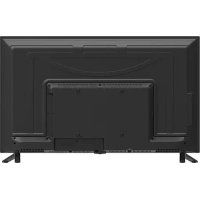
USER MANUAL LED40E1090H CHANGHONG
natural_image
Abstract geometric pattern composed of colorful squares and lines (no text or symbols)
CHANGHONG
Make your imagination fly
Operation Manual
Model: LED40E1090H
CHANGHONG
CHANGHONG EUROPE ELECTRIC S.R.O
Argentinska 286/38, 170 00 Praha 7, Czech Republic
Tel: 0042 (0) 242408849
Fax: 0042 (0) 220951190
Service E-mail: info@changhongeurope.cz
Http://www.changhong.eu

natural_image
Child holding a small wooden stick next to a colorful globe (no text or symbols visible)
flowchart
graph TD
    A["LED TV Backlighting"] --> B["Component 1"]
    A --> C["Component 2"]
    A --> D["Component 3"]
    B --> E["Color Block"]
    C --> F["Color Block"]
    D --> G["Color Block"]
    E --> H["Blue Box"]
    F --> I["Blue Box"]
    G --> J["Blue Box"]
    H --> K["Blue Box"]
    I --> L["Blue Box"]
    J --> M["Blue Box"]
    K --> N["Blue Box"]
    L --> O["Blue Box"]
    M --> P["Blue Box"]
    N --> Q["Blue Box"]
    O --> R["Blue Box"]
    P --> S["Blue Box"]
    Q --> T["Blue Box"]
    R --> U["Blue Box"]
    S --> V["Blue Box"]
    T --> W["Blue Box"]
Contents
Warning....1
Safety instructions....3
Getting Started....5
Using the remote control....5
Installing Batteries in the Remote Control....5
Battery replacement....5
Connection and setup....6
Cable Installation....6
Remote Control....7
Basic Operation....9
QUICK START GUIDE....9
Turning on and off the TV....9
Programme Selection....10
Volume adjustment....10
Changing the Input Source....10
How to Navigate Menus....10
Configuring the Picture Menu....11
Configuring the Sound Menu....12
Configuring the Channel Menu....13
Configuring the Lock System Menu....15
Configuring the Setup Menu....16
Using MEDIA mode....18
PROGRAM GUIDE....21
Channel List....21
Favorite List....21
Teletext....22
Using the teletext feature....22
Troubleshooting Guide....23
Troubleshooting....23
Maintenance....24
Specifications....25

CAUTION
RISK OF ELECTRIC SHOCK
DO NOT OPEN

WARNING:
TO REDUCE THE RISK OF ELECTRIC SHOCK DO NOT REMOVE COVER (OR BACK). NO USER SERVICEABLE PARTS INSIDE. REFER TO QUALIFIED SERVICE PERSONNEL.

The lightning flash with arrowhead symbol, within an equilateral triangle, is intended to alert the user to the presence of uninsulated "dangerous voltage" within the products enclosure that may be of sufficient magnitude to constitute a risk of electric shock to persons.

The exclamation point within an equilateral triangle is intended to alert the user to the presence of important operating and maintenance (servicing) instructions in the literature accompanying the appliance.
This equipment generates uses and can radiate radio frequency energy and, if not installed and used in accordance with the instructions, may cause harmful interference to radio communication. However, there is no guarantee that interference will not occur in a particular installation. If this equipment does cause harmful interference to radio or television reception, which can be determined by turning the equipment off and on, the user is encouraged to try to correct the interference by one or more of the following measures:
-Relocate the receiving antenna.
-Increase the separation between the equipment and receiver.
-Connect the equipment into an outlet on a circuit different from that to which the receiver is connected.
-Consult the dealer or experienced radio/TV technician for help.
Any changes or modifications not expressly approved by the party responsible for compliance could void the user's authority to operate the equipment.
CAUTION
DO not attempt to modify this product in any way without written authorization from supplier. Unauthorized modification could void the user's authority to operate this product.
It is not recommended to keep a certain still image displayed on the screen for a long time as well as displaying extremely bright images on screen.
Figures and illustrations in this User Manual are provided for reference only and may differ from actual product appearance. Product design and specifications may be changed without notice.
WARNING
To Reduce The Risk Of Fire Or Electric Shock, Do Not Expose This Apparatus To Rain Or Moisture.
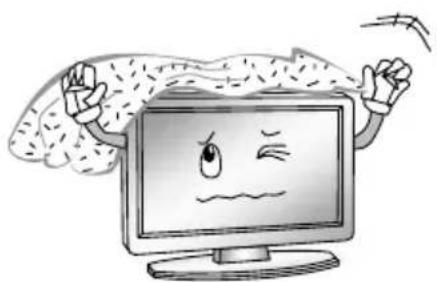
The ventilation should not be impeded by covering the ventilation openings with items, such as newspapers, table-cloths, curtains, etc.
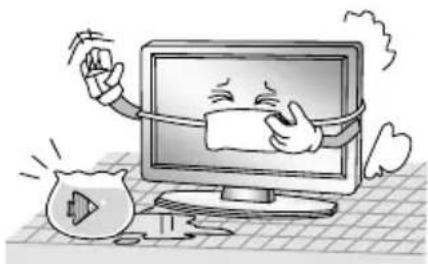
The Apparatus shall not be exposed to dripping or splashing and that no objects filled with liquids, such as vases, shall be placed on the apparatus.
Attention should be drawn to the environmental aspects of battery disposal. Don't throw used batteries in dustbin. Please contact your retailer in order to protect the environment.
When you install your TV, maintain a distance of at least 4 inches between the TV and other objects (walls, cabinet sides, etc.) to ensure proper ventilation. Failing to maintain proper ventilation may result in a fire or a problem with the product caused by an increase in its internal temperature.
No naked flame sources, such as lighted candles, should be placed on the apparatus;
To prevent the spread of fire, keep candles or other open flames away from this product at all times.
The device may be malfunction when under electrostatic discharge. It can be manually resumed by power off and power on again.
CAUTION connecting the Power Cord
Most appliances recommend they be placed upon a dedicated circuit; that is, a single outlet circuit which powers only that appliance and has no additional outlets or branch circuits.
Do not overload wall outlets. Overloaded wall outlets, loose or damaged wall outlets, extension cords, frayed power cords, or damaged or cracked wire insulation are dangerous. Any of these conditions could result in electric shock or fire. Periodically examine the cord of your appliance, and its if appearance indicates damage or deterioration, unplug it, discontinue use of the appliance, and have the cord replaced with an exact replacement part by an authorized servicer. Protect the power cord from physical or mechanical abuse, such as being twisted, kinked, pinched, closed in a door, or walked upon. Pay particular attention to plugs, wall outlets, and the point where the cord exits the appliance.
The MAINS plug is used as the disconnect device, and the disconnect device shall remain readily operable.
Operating Temperature: 5°C to 35°C Storage Temperature: -15°C to 45°C
Operating Humidity: ≤slant 80% Storage Humidity: ≤slant 90%
This product complies with EU directive requirements on electromagnetic compatibility and electrical safety.

IMPORTANT SAFETY INSTRUCTIONS
- Read these instructions.
- Keep these instructions.
- Heed all warnings.
- Follow all instructions.
natural_image
Cartoon illustration of a smiling computer monitor holding an open book (no text or symbols present)
- Do not block any of the ventilation openings. Install in accordance with the manufacturer's instructions.
natural_image
Cartoon illustration of a computer monitor with a sad face and raised arms, surrounded by abstract cloud-like shapes (no text or symbols)
- Do not use this apparatus near water.
natural_image
Cartoon illustration of a computer monitor with a smiling face and a sad face, surrounded by a distressed pot and a bag (no text or symbols)
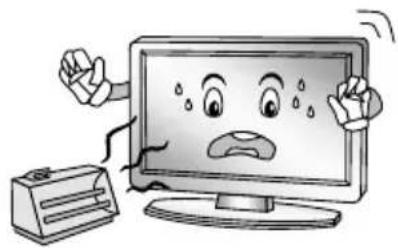
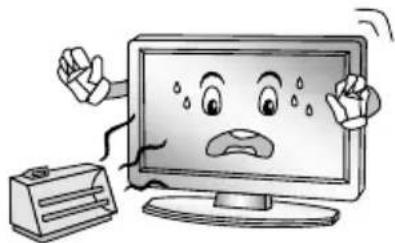
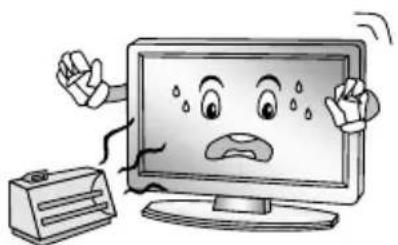
- Do not install near any heat source such as radiators, heat registers, stoves, or other apparatus (including amplifiers) that produce heat.
natural_image
Cartoon illustration of a computer monitor with a sad face and two people reacting, no text or symbols present.
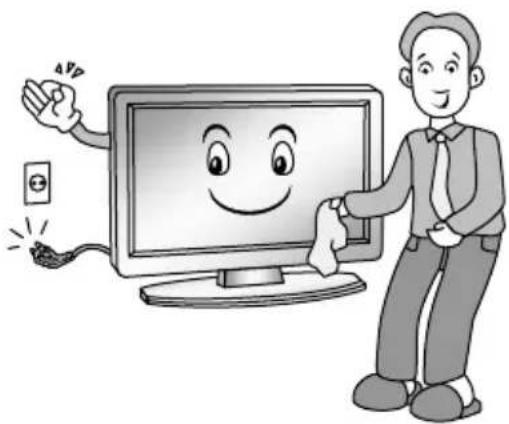
- Clean only with a dry cloth.
natural_image
Illustration of a man standing beside a smiling computer monitor with a smiley face, emitting electrical power lines (no text or symbols)
- Do not defeat the safety purpose of the polarized or grounding type plug. A polarized plug has two blades with one wider than other. A grounding type plug has two blades and a third grounding prong. The wide blade or the third prong is provided for your safety. When the provided plug does not fit into your outlet, consult an electrician for replacement of the obsolete outlet.
Safety instructions
- Protect the power cord from being walked on or pinched particularly at plugs, convenience receptacles, and the point where they exit from the apparatus.
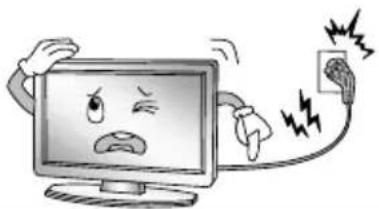
natural_image
Cartoon illustration of a computer monitor with an angry face and lightning bolts, connected to a plug (no text or symbols)
-
Only use the attachments/ accessories specified by the manufacturer.
-
Use only with a cart, stand, tripod, bracket, or table specified by the manufacturer, or sold with the apparatus. When a cart is used, use caution when moving the cart/ apparatus combination to avoid injury from tip-over.

natural_image
Symbolic illustration of a person climbing a ladder inside a circle (no text or symbols)
- Unplug this apparatus during lightning storms or when unused for long periods of time.
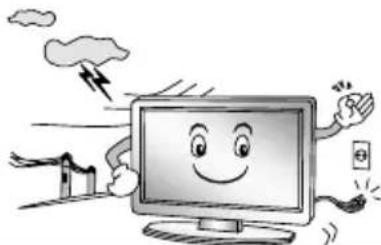
natural_image
Cartoon illustration of a smiling computer monitor with hands and speech bubbles, surrounded by clouds and industrial equipment (no text or symbols)
- Refer all servicing to qualified service personnel. Servicing is required when the apparatus has been damaged in any way, such as power supply cord or plug is damaged, liquid has been spilled or objects have fallen into the apparatus, the apparatus has been exposed to rain or moisture, does not operate normally, or has been dropped.

natural_image
Cartoon illustration of a smiling computer monitor and a worker pointing at a box (no text or symbols)
ON DISPOSAL
-Do not dispose of this product with general household waste.
-Disposal of this product must be carried out in accordance to the regulations of your local authority.
NOTE
-If the TV feel cold to the touch, there may be a small "flicker" when it is turned on. This is normal, there is nothing wrong with TV.
-Some minute dot defects may be visible on the screen, appearing as tiny red, green, or blue spots. However there have no adverse effect on the monitor's performance.
-Avoid touching the screen or holding your finger(s) against it for long periods of time. Doing so may produce some temporary distortion effect on the screen.
Using the remote control
When using the remote control, aim it at remote sensor on the television. If there is an object between the remote control and the remote sensor on the unit, the unit may no operate.
◆ Point the remote control at the REMOTE SENSOR located on the television.
- When using this television in a very brightly lit area, the infrared REMOTE CONTROL SENSOR may not work properly.
◆ The recommended effective distance for using the remote control is about 7 metres.
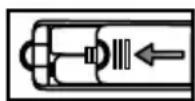
Installing Batteries in the Remote Control
- Open the cover at the back of the remote control.
- Install two AAA size batteries. Make sure to match the “+” and “-” ends of the batteries with the diagram inside the compartment.
- Replace the cover.
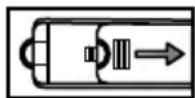
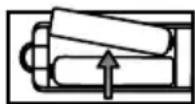
Battery replacement
You will need to install the batteries into the remote control to make it operate following the instruction below.
When the batteries become weak, the operating distance of the remote control will be greatly reduced and you will need to replace the batteries.
Notes on Using Batteries:
The use of the wrong type of batteries may cause chemical leakage and/or explosion. Please note the following:
◆ Always ensure that the batteries are inserted with the + and - terminals in the correct direction as shown in the battery compartment.
- Different types of batteries have different characteristics. Do not mix different types.
- Do not mix old and new batteries. Mixing old and new batteries will shorten battery life and/or cause chemical leakage.
◆ Replace batteries as soon as they do not work.
- Chemicals which leak from batteries may cause skin irritation. If any chemical matter seeps out of the batteries, wipe it up immediately with a dry cloth.
- The batteries may have a shorter life expectancy due to storage conditions. Remove the batteries whenever you anticipate that the remote control will not be used for an extended period.
- The batteries (battery pack or batteries installed) shall not be exposed to excessive heat such as sunshine, fire or the like.
CAUTION:
- It may result in an explosion if batteries are replaced incorrectly.
- Only replace batteries with the same or equivalent type.
Cable Installation
Please read the relevant content in "Notice for Maintenance and Safety" carefully before the installation and use.
- Take out the TV from the package and put it in a drafty and flat place.
NOTE:
- When you plug or unplug the TV, computer or other equipments, you must make sure that the AC power has been already shut down; when unplugging the power cable or signal cable, please hold the plug (the insulated part), do not draw the body of the cable.
- The RF output terminal can be connected with the RF input port of the TV.
- The output AV terminal of DVD can be connected with the AV input port of the TV through AV cable.
NOTE:
◆ Component and AV can not be used at same time for they share of one audio channel.
- If COMPONENT (YPbPr) and AV works as mini terminal, and shared same audio, please choose to use a one-to-three audio&video cable.
- The output COMPONENT(YPbPr) terminal of DVD can be connected with the COMPONENT(YPbPr) input port of the TV through AV cable.
- Connect one end of the VGA cable with the VGA port on computer, connect the other end of the VGA cable with the VGA port on the TV, and tighten the bolts clockwise on the each end of VGA cable.
NOTE:
- While connecting the 15-pin VGA, please do not insert the plug overexertedly, for fear the pin might be broken.
- Connect one end of the HDMI cable with HDMI output port, connect the other end of the HDMI cable with the HDMI port on the TV.
NOTE:
◆ While connecting the HDMI, please aim at carefully, do not insert overexertedly, for fear the pin might be broken.
- Connect SCART socket input or output from an external device to these jacks.
- Sending the TV's audio signal to external audio equipment via the Digital Audio Output port.
- Check and make sure that all AV cables are connected with the corresponding ports correctly.
- Connect the AC power cable with 100-240V\~ power supply.
NOTE:
◆ The range of power input for the TV is 100-240V\~50/60Hz, do not connect the TV power input port with the AC power out of the above range.
◆ Please hold the insulated part of the plug when you are unplugging the power cable, do not touch directly the metallic part of the cable.
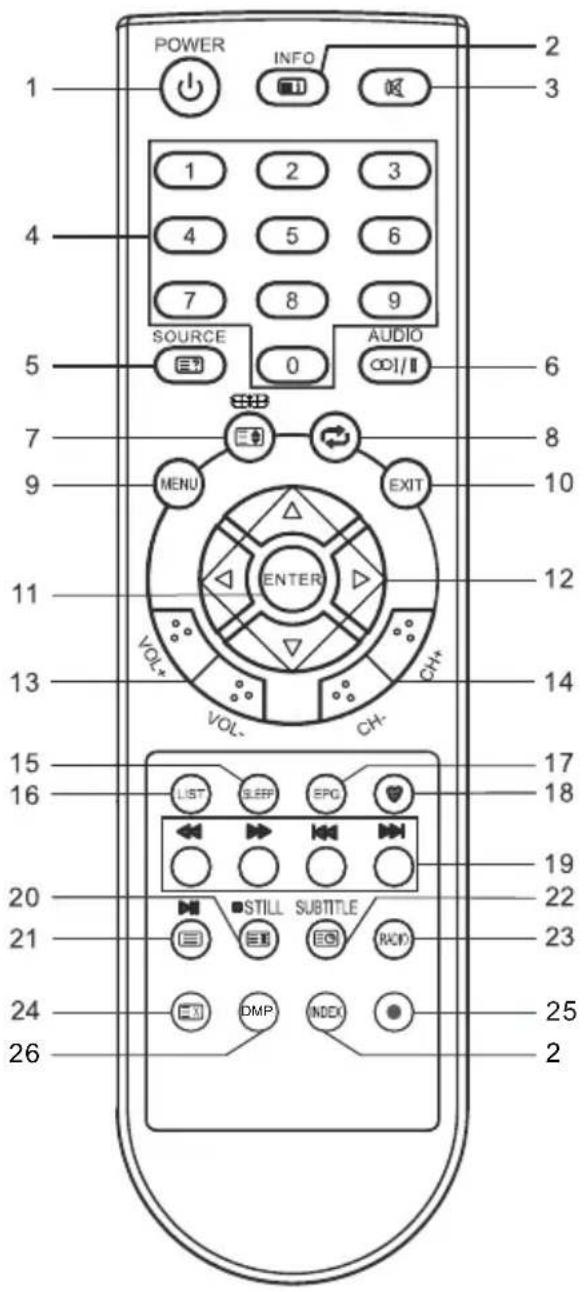
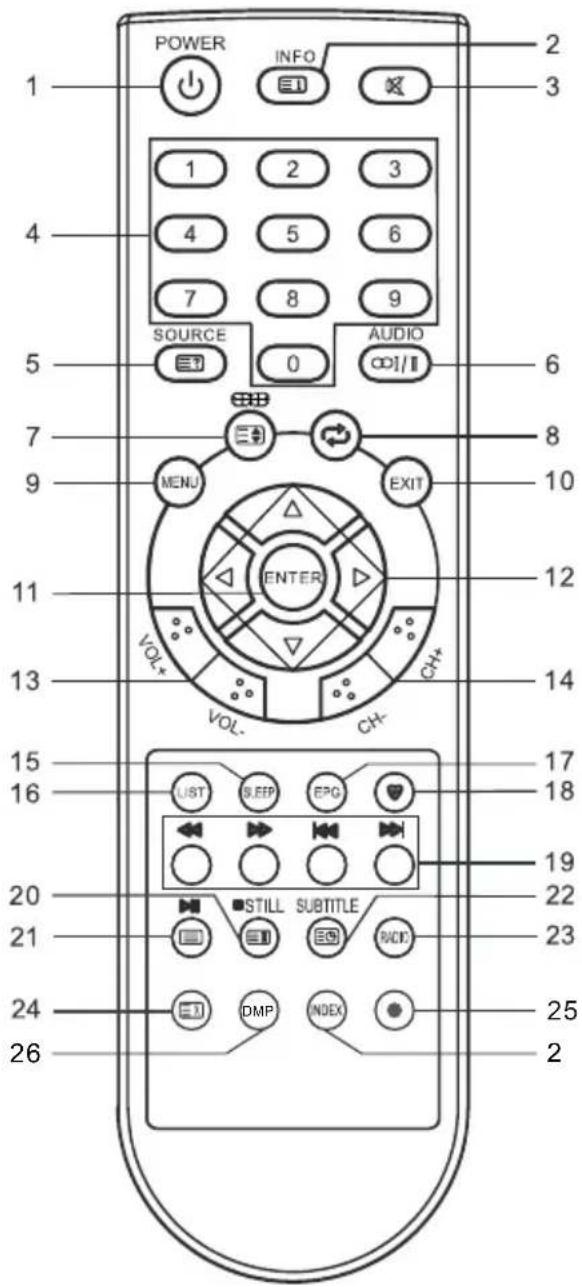
The buttons of the original remote control are as following:
text_image
POWER INFO
1 2 3
4 5 6
7 8 9
SOURCE AUDIO
0
COI/II
MENU EXIT
ENTER
VOL+ CH+
VOL- CH+
LIST SLEEP EPG
20 STILL SUBTITLE
21 RACE
24 DMP INDEX
26
2
15 17
16 18
19
22
23
25
2
- ⏻: Power, switch on or off TV set.
- INFO: Press to display the current program information on the screen.
☐: Go to the index page.
- ☒: Press to mute or restore sound.
- NUMBER BUTTONS: Choose channels or password importation.
- SOURCE: Press to select signal source.
?: Reveal the hidden information of some teletext pages.
- AUDIO ( I/II): The button can be used to switch between Dual I / Dual II / Dual I+II / Stereo/ Mono and switch Audio language in DTV mode.
- ☐: Press to select different images sizes.
☐: Change size of teletext screen in display mode.
- ↗: Return to last viewed program.
- MENU: Press to enter the menu screen for various optional adjustable settings.
- EXIT: Exit OSD Menu.
- ENTER: Press to execute the selected item in the menu screen.
- ▲/▼/◄/►: To select the direction.
- VOL+/VOL-: Press to adjust the volume level up or down.
- CH+/CH-: Press to select channels in ascending or descending order.
- SLEEP: Press to set the sleep timer. When the preset length of time has passed, the TV set enters standby mode.
- LIST: Press to call up the channel list. Press again to exit it.
- EPG: Electronic Program Guide, use in the DTV mode.
- ♥: Switch on/off the favorite programs list.
text_image
POWER INFO
1 2 3
4 5 6
7 8 9
SOURCE AUDIO
0 ∞1/Ⅱ
6
7 8
9 MENU EXIT
10
ENTER
11
VOL+ CH+
12
13 VOL- CH+
14
15 UST SLEEP EPG
16
20 STILL SUBTITLE
21 BACK
20 22
21
24 DMP INDEX
25
26
2
- COLOR BUTTONS: Red/ green/ yellow/blue key navigation link.
◀: Fast reverse (in MEDIA mode).
▶: Fast forward (in MEDIA mode).
◀: Previous (in MEDIA mode).
▶: Next (in MEDIA mode).
- STILL: Press to hold the picture.
☐: Hold the teletext page on display, press again to release.
■: Stop (in MEDIA/PVR mode).
- ☐: Enter the Teletext, press again for MIX mode, press this button again to exit.
▶: Play / Pause (in MEDIA mode).
- SUBTITLE: Enter the subtitle menu.
☐: Enter subtitle mode or subpage.
- RADIO: Press to interchange Radio and DTV programs when there is Radio program (In DTV mode).
- ☒: Cancel the teletext but not to exit teletext, press again to exit.
- ●: Press ●button to start recording. (In DTV mode).
- DMP: Press to switch to the media mode.
27 INDEX: Press to enter the quick menu. (In MEDIA mode) Press to enter the PVR Settings(In DTV mode).
NOTE:
- All pictures in this manual are examples, only for reference, actual product may differ from the pictures.
◆ The buttons not mentioned here are not used.
QUICK START GUIDE
- Connection
- Connecting the mains and antenna.
- If TV has a power switch, turn it on firstly. Then press ⏻Power button on the remote to turn on the TV.
- First Time Setup
When the TV is initially powered on, a sequence of on-screen prompts will assist in configuring basic settings.
OSD Language
Press the ◀/▶ button to select the desired OSD (On Screen Display) language.
Mode Setting
Press the ◀/▶ button to select Home Mode or Store Mode.
Country
Press the ◀/▶ button to select the country you want to.
Tuner Type
Press the ◀/▶ button to select Antenna or Cable.
Auto Scan
Press the ◀/▶ button to select mode: DTV+ATV, DTV, ATV.
LCN
Press the ◀/▶ button to select On or Off.
Auto Channel Update
Press the ◀/▶ button to select On or Off.
When selecting Cable: A step appears allowing you to set parameters to the channels. For more information, refer to Channel (Auto Scan).
Turning on and off the TV
- Turn on the TV
Connect the AC input cable. If TV has a power switch, turn it on firstly. Press the ⏻ button on remote control can turn on TV from standby mode.
- Turn off the TV
Press the ⬤button on the remote control to enter standby mode.
Do not leave your set in standby mode for long periods of time. It is best to unplug the set from the mains and aerial.
- No signal
There is No Signal menu on screen when there is no input signal. In ATV/DTV mode, if there is no signal in 15 minutes, the TV will turn off automatically. In PC mode, the TV set will automatically turn off in 1 minute if no input signal. When VGA cable is connected, the TV turns on automatically.
Programme Selection
- Using the CH+/CH- on the panel of TV or on the remote control.
Press CH+ to increase channel number.
Press CH - to decrease channel number.
• Using 0-9 digital buttons.
You can select the channel number by pressing 0 to 9. (In ATV, DTV mode)
- Example
To select - channel (e.g. Channel 5): Press 5.
To select -- channel (e.g. Channel 20): Press 2 and 0 in a short time.
Volume adjustment
- Press the VOL+/- button to adjust the volume.
- If you want to switch the sound OFF, press the ⏻
- You can release mute by pressing the ⚫ or increase the volume.
You can select the input source by pressing the SOURCE button on the remote control. Press the ▲/▼ button to cycle through the input source, and press the ENTER button to confirm your choice.
Before using the TV follow the steps below to learn how to navigate the menu in order to select and adjust different functions. The access step may differ depending on the selected menu.
- Press the MENU button to display the main menu.
- Press the ◀/▶ button to cycle through the main menu.
- Press the ▲/▼ button to select the desired sub item.
- Press the ENTER button to access the submenu.
- Press the ▲/▼/◄/► button to select the desired value. The adjustment in the OSD may differ depending on the selected menu.
- Press the MENU button to return to the previous menu.
- Press the EXIT button exit from the menu.
NOTE:
- When an item in MENU is displayed gray, it means that the item is not available or cannot be adjusted.
- Buttons on the TV have the same function as corresponding buttons on the remote control. If your remote control is lost or couldn't work, you may use the buttons on the TV to select menus. This manual focuses on operation of the remote control.
- Some items in the menus may be hidden depending on modes or signal sources used.
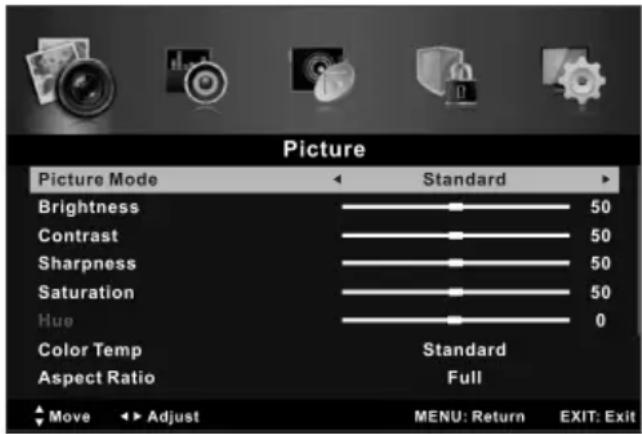
- Picture Mode
You can select the type of picture which best corresponds to your viewing requirements.
The manufacture's recommendation mode is Standard.
- Brightness
Adjusts the base level of the signal in the picture.
- Contrast
Adjusts the signal level between black and white in the picture.
text_image
Picture
Picture Mode Standard
Brightness 50
Contrast 50
Sharpness 50
Saturation 50
Hue 0
Color Temp Standard
Aspect Ratio Full
Move Adjust MENU: Return EXIT: Exit
- Sharpness
Adjusts the level of crispness in the edges between the light and dark areas of the picture.
- Saturation
Adjusts intensity of all colours.
- Hue (Only in the NTSC mode)
Adjusts the balance between red and green levels.
- Color Temp
Select the color temperature of the picture.
- Aspect Ratio
You can select the picture size which best corresponds to your viewing requirements.
• PC Setup (In PC mode)
Auto Adjust: Adjust the image automatically.
H Position: Centre the image by moving it left or right.
V Position: Centre the image by moving it up or down.
Phase: Minimize horizontal distortion.
Clock: Minimize vertical stripes in the screen image.
- Screen Mode (In HDMI mode)
Press the ▲/▼ button to select Screen Mode, then press the ◀/▶ button to select Auto, Video or PC.
- Advanced Settings
NR: Set options to reduce video noise.
Dynamic Contrast: Automatically adjust picture detail and brightness.
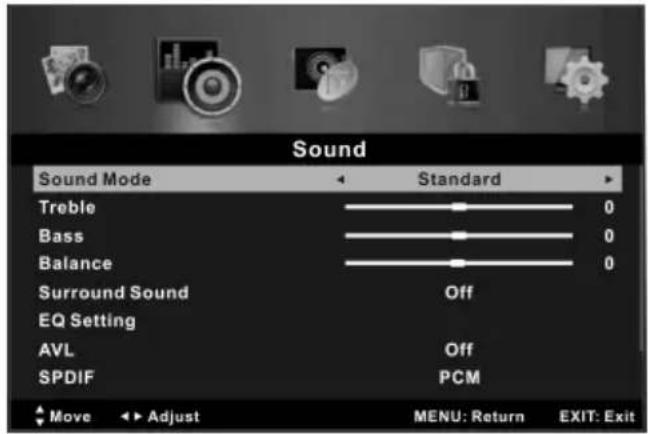
- Sound Mode
You can select a sound mode to suit your personal preferences.
- Treble
Adjust the treble effect. Increases or devreases high-pitched sounds.
• Bass
Adjust the bass effect. Increases or decreases lower-pitched sounds.
• Balance
You can adjust the sound balance of the speakers to preferred levels.
- Surround Sound
You can select a desired Surround Sound mode.
- EQ Setting
Adjust the curve of 7 bands equalizer.
EQ Mode: Only in User mode, the following can be manually adjusted.
120Hz/300Hz/500Hz/1.2KHz/3.0KHz/7.5KHz/10KHz: Adjusts the level of specific bandwidth frequencies.
Based on your favorites about which frequency band need to be adjusted, make small adjustment with certain frequency band at a time. Suggest NOT making too large changes.
• AVL
AVL automatically remains on the same level of volume if you change programmes. Because each broadcasting station has its own signal conditions, volume adjustment may be needed every time when the channel is changed. This feature allows users to enjoy stable volume levels by making automatic adjustments for each program.
- SPDIF
You can select a desired SPDIF Output mode.
• Audio Description (In DTV mode)
Press the ▲/▼ button to select Audio Description, then press the ▶ button to enter sub-menu.
Press the ▲/▼ button to select Mode, then press the ◀/▶ button to select On, Off. When the mode is On, Volume can be adjusted by users.
• Sound Type (In DTV mode)
Press the ▲/▼ button to select Sound Type, then press the ◀/▶ button to select.
text_image
Sound
Sound Mode Standard
Treble 0
Bass 0
Balance 0
Surround Sound Off
EQ Setting
AVL Off
SPDIF PCM
Move Adjust MENU: Return EXIT: Exit
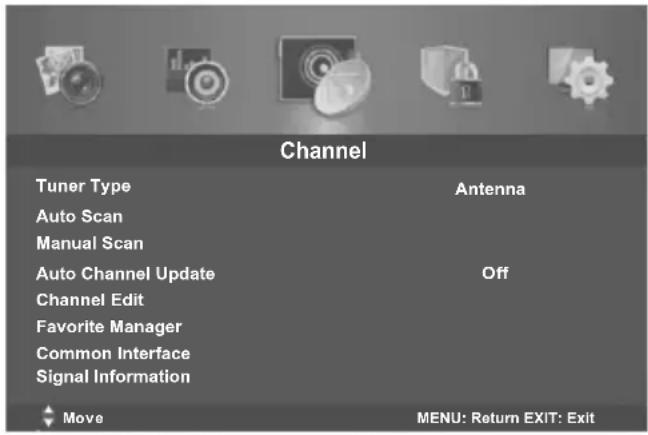
- Tuner Type
Before your TV can begin memorizing the available channels, you must specify the type of signal source that is connected to the TV (i.e. an Antenna or a Cable system). Wrong setting of signal type maybe cause finding no channel. Found numbers do not include encryption programs.
- Auto Scan
Press the ENTER button to enter sub-menu.
text_image
Channel
Tuner Type Antenna
Auto Scan
Manual Scan
Auto Channel Update Off
Channel Edit
Favorite Manager
Common Interface
Signal Information
Move MENU: Return EXIT: Exit
Tuner Type is Antenna:
Country: Press the ◀/▶ button to select country.
Mode: Press the ◀/▶ button to select Mode: DTV+ATV, DTV, ATV.
Start: Press the ENTER button to start the auto searching.
Tuner Type is Cable:
Country: Press the ◀/▶ button to select country.
Mode: Press the ◀/▶ button to select Mode: DTV+ATV, DTV, ATV.
Scan Type: Press the ◀/▶ button to select Scan Type: Advanced, Quick, Full.
Network ID: Press the ◀/▶ button to select Network ID: Auto or enter digital numbers.
Frequency: Press the ◀/▶ button to select Frequency: Auto or enter digital numbers.
Symbol Rate: Press the ◀/▶ button to select Symbol Rate: Auto or enter digital numbers.
Start: Press the ENTER button to start the auto searching.
- Manual Scan
Press the ENTER button to enter sub-menu.
- Digital Manual Scan: Press the ▲/▼ button to select the Digital Manual Scan, then press the ENTER button to enter sub-menu.
Tuner Type is Antenna:
Digital Scan: Press the ◀/▶ button to select the channel number.
Start: Press the ENTER button to start the channel searching.
Frequency: Display the frequency of current TV signal.
Strength: Display the quality of current TV signal.
Tuner Type is Cable:
Network ID: Press the ◀/▶ button to select Network ID: Auto or enter digital numbers.
Frequency: Enter a user-defined frequency.
Symbol Rate: Press the ◀/▶ button to select Symbol Rate: Auto or enter digital numbers.
Modulation: Press the ◀/▶ button to select Modulation: Auto, 16QAM, 32QAM, 64QAM, 128QAM, 256QAM.
Start: Press the ENTER button to start the channel searching.
Strength: Display the quality of current TV signal.
- Analog Manual Scan: Press the ▲/▼ button to select the Analog Manual Scan, then press the ENTER button to enter sub-menu.
Analog Scan: Press the ◀/▶ button to select Analog Scan.
Channel to Save: Press the ◀/▶ button to select channel.
Color System: Press the ◀/▶ button to select Color System.
Sound System: Press the ◀/▶ button to select Sound System.
AFC: Press the ◀/▶ button to select On or Off.
Start: Press the ENTER button to start the channel searching.
• Auto Channel Update
Press the ◀/▶ button to select auto channel update On or Off.
- Channel Edit
First press the ▲/▼ button to highlight the channel you want to delete, skip, rename or swap, then: Press the red button to delete the channel.
Press the green button to skip the select channel. (Your TV set will skip the channel automatically when using CH+/- to view the channels.)
Press the yellow button to rename the channel. (In ATV mode)
Press the blue button to set the channel to swapping state, then press the ▲/▼ button to swap it to the positon you want to put.
- Favorite Manager
Press the ▲/▼ button to select the items.
Press the ◀/▶ button to page up or down the Favorite list.
Press red, green, yellow, blue button to select the desired favorite group.
- Common Interface (In DTV mode)
This function enables you to watch some encrypted services (pay services).
Please insert CI card into the PCMCIA slot according to the arrow on the CI card.
NOTE: ◆ The function can only be gotten when CI slot is available.
◆ Please do not insert or pull out the CI card when power on.
- Do not insert or pull out the CI card frequently so as to avoid any damages of the TV and the CI card.
◆ During initialization of the CI card, please don't operate the TV.
• Signal Information (In DTV mode)
Display the current Signal Information.
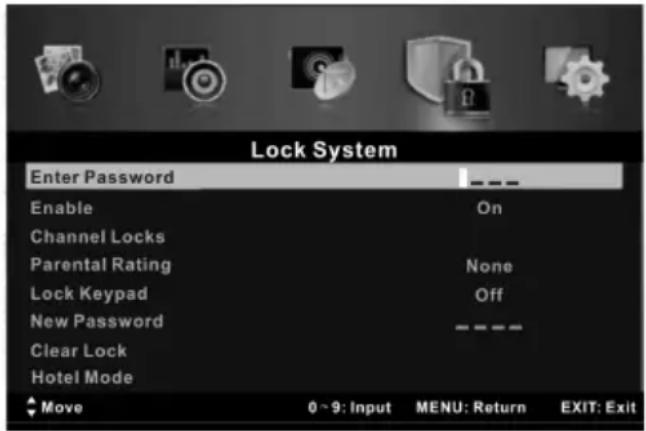
- Enter Password
The following items are only available if the password input is correct.
Default password is 0000, and if forget what you set, please call the service center.
- Enable
Channel Locks, Parental Rating and Lock Keypad are available when Enable is On.
- Channel Locks
Press ▲/▼ to select the channel you want to lock, then press ENTER to set it to lock.
text_image
Lock System
Enter Password
Enable
Channel Locks
Parental Rating
Lock Keypad
New Password
Clear Lock
Hotel Mode
Move
0 ~ 9: Input
On
None
Off
----
MENU: Return
EXIT: Exit
• Parental Rating (In DTV mode)
Press the ▲/▼ button to select Parental Rating, then press ◀/▶ button to select.
- Lock Keypad
Set to prevent it from being used by young children, or other unexpected usage.
- New Password
Press the ▲/▼ button to select New Password, then enter a 4-digital number you want to set twice.
- Clear Lock
Restore the Lock System settings to the factory default.
- Hotel Mode
Press the button to select Hotel Model, then press ENTER button to enter Hotel
Model.
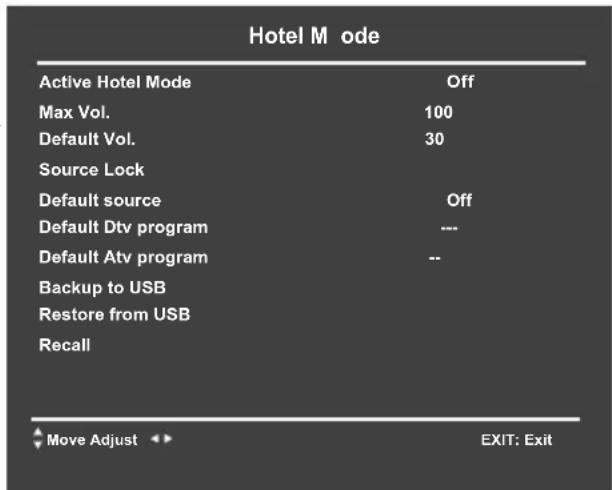
- Active Hotel Mode
Set hotel mode On or Off.
NOTE: ◆The following settings work only when Active Hotel Mode is set to be ON.
- Max Vol.
Set the max volume that you can adjust.
- Default Vol.
Set the Default volume for every time you open the TV, the default volume is 20.
- Source Lock
To lock the input sources that you want.
- Default source
Set the default input source when turning on your TV.
- Default Dtv program
Only available when the Default Source is set to DTV.
- Default Atv program
Only available when the Default Source is set to ATV.
- Backup to USB
Backup data to USB.
text_image
Hotel M ode
Active Hotel Mode Off
Max Vol. 100
Default Vol. 30
Source Lock
Default source Off
Default Dtv program ---
Default Atv program --
Backup to USB
Restore from USB
Recall
Move Adjust EXIT: Exit
- Restore from USB
Restore data from USB.
- Recall
Recall the default settings of Hotel mode.
- OSD Language
Select your preferred On Screen Display language.
• Audio Languages (In DTV mode)
Select your preferred audio language. (Available for digital channels if multiple audio languages are broadcasted.)
Press the ▲/▼ button to select Audio Languages, then press ENTER button to enter sub-menu.
Press the arrow button to select the Audio Primary Language and Audio Secondary Language.
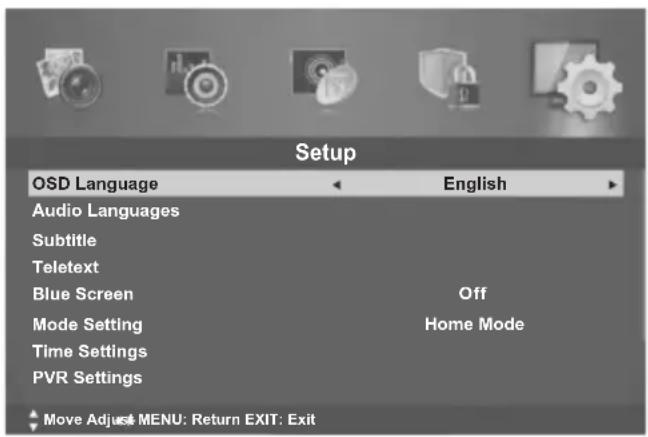
text_image
Setup
OSD Language English
Audio Languages
Subtitle
Teletext
Blue Screen Off
Mode Setting Hom Mode
Time Settings
PVR Settings
Move Adjust MENU: Return EXIT: Exit
- Subtitle (In DTV mode)
Press the ▲/▼ button to select Subtitle, then press ENTER button to enter sub-menu.
Press the ▲/▼ button to select Mode, then press ◀/▶ button to select On or Off.
Press the arrow button to select the Subtitle Primary Language and Subtitle Secondary Language.
Press the ▲/▼ button to select Hearing Impaired, then press ◀/▶ button to select On or Off.
- Teletext
Adjust Teletext settings. Only available under DTV and ATV source.
Press the ▲/▼ button to select Teletext, then press ENTER button to enter sub-menu.
Under DTV source, press ◀/▶ button to select Digital Teletext Language.
Under ATV source, press ◀/▶ button to select Decoding Page Language.
- Blue Screen
Press the ◀/▶ button to select blue screen On or Off.
- Mode Setting
Press ◀/▶ button to select Store Mode or Home Mode.
- Time Settings
Press the ▲/▼ button to select Time Settings, then press ENTER button to enter sub-menu.
OSD Timer: Select On-Screen Menu displaying time.
Sleep Timer: Select the time to turn the TV to standby mode automatically.
Auto Sleep: Select the Auto Sleep time you want.
Time Zone: Select your time zone.
Time: Press the ▲/▼ button to select Time, then press ENTER button to enter sub-menu. Set Auto Sync to Off, then you can set the time manually.
Note: In the case of loss of power, the clock setting will be lost.
• PVR Settings (In DTV mode)
Press the ▲/▼ button to select PVR Settings, then press ENTER button to enter sub-menu.
It will check the USB.
File Manager: To display the Recorded list.
Replay: Press the red button to replay video.
Delete One: Press the green button to delete a video.
Delete All: Press the yellow button to delete all video.
Full: Press the blue button to zoom in the video.
Device List: When multiple recording devieds are connected, the recording devices are listed. Select one recording device in the Device List.
Format: Press the red button to format USB disk.
Scheduled Record: To set the parameters for scheduled recording.
Press the ENTER button to set the parameters for recording.
Delete One: Press the green button to delete a video.
Delete All: Press the yellow button to delete all video.
Digital program recording
-
Insert an U disk, Press ● button to record the current program. During the recording, press ● button to zoom in/out the record menu.
-
Press ■button to stop recording, it will return to normal b broadcast television.
NOTE:
◆ USB disk at least the capacity with 512MB.
◆ Please format the inserted USB disk when it could not be recorded to.
During the Device formatting, do not disconnect the device while formatting is in progress. If you format the device, all files will be deleted. Before formatting your device to the TV, please back up your files to prevent them from damage or loss of data. If USB disk in some virus meeting formats turn failure.
- When an USB device has several partitions, the PVR system can help to choose anyone of that to perform recording.
◆ If PVR recording system is used all the time, it will exit PVR system automatically.
◆ USB memory must support USB2.0 high-speed specification.
- Some of nonstandard USB device may not be supported.
- First Time Setup
This is a guide to help you to setup the TV.
- Reset
Restore the system settings to the factory default.
- Connect an USB device.
- Press SOURCE button to display the main menu. Use the ▲/▼ to highlight MEDIA, and the ENTER button to access the MEDIA mode.
- You may also use the signal source selection menu to exit from the MEDIA mode.
NOTE:
◆ Special USB device may be not or well supported.
◆ USB max. Load: DC5V 500mA
| Multimedia Categories | File Extension | Decoder | Notes |
| Video Decode | Decode |
| Movie | *.avi | MPEG-1MP MPEG-4 SPMPEG-4 ASPMPEG-4 XVIDDivX(AVC) H.264MP@Level 4H.264(AVC)el 4 HP@Level 3 | MPEG-2MPEG-1 Layer 2MPEG-1 Layer 3MPEG-2 Layer 3LC AAC-HE-AAC V1HE-AAC V2 | MPGE1/MPEG2/MPEG4:Up to 1080p @ 30FH.264: Up to 1080p@ 25FAAC: AAC-LC(type 2),HE-AAC v1(type 5,SBR),HE-AAC v2(type 29,SBR+PS) |
| MPEG(*.mpeg,*.mpg, *.dat, *vob) | MPEG-1 MP MPEG-2 MP |
| MPEG-4(*.mp4) | MPEG-4 SPMPEG-4 ASPMPEG.-4 XVIDH.264(AVC)MP@Level 4H.264(AVC)HP@Level 4 |
| TS(*.ts, *.trp, *tp) | MPEG-1MP MPEG-2H.264(AVC)MP@Level 4H.264(AVC)HP@Level 4 | |
| MKV(*.mkv) | MPEG-1MP MPEG-2MPEG-4 SPMPEG-4 ASPMPEG-4 XVIDH.264(AVC) MP@ Level 4H.264(AVC) HP@ Level 4 | |
| *.flv | H.264(AVC) MP@ Level 4H.264(AVC) HP@ Level 4 | | |
| Music | *.mp3 | | MPEG-1 Layer 3 | Bit Rate: up to 320KbpsSample Rate: 32KHz, 44.1KHz, 48KHz |
| MPEG-2 Layer 3 | |
| AAC(*.aac,*m4a) | | AACHE-AAC V1HE-AAC V2 | |
| *.wav | | LPCMADPCM | |
| *.jpg*.jpeg | Baseline Mode | | 72x72 < Baseline resolution < 7680x4320Photo |
| Progressive Mode | | Progressive Mode Size <=1280x1024File Size <=10MB |
| Text | *.txt | | UTF-8UNICODEASCII | File Size <=1MB |
| No x 500 files su d each folder. te: Ma pporte |
NOTE:
I algorithm documents may not Specialwell be supported by the USB.
◆ The USB supports the format mentioned above, if the file format is not supported, change it to the given format.
- ain Operating Interface M
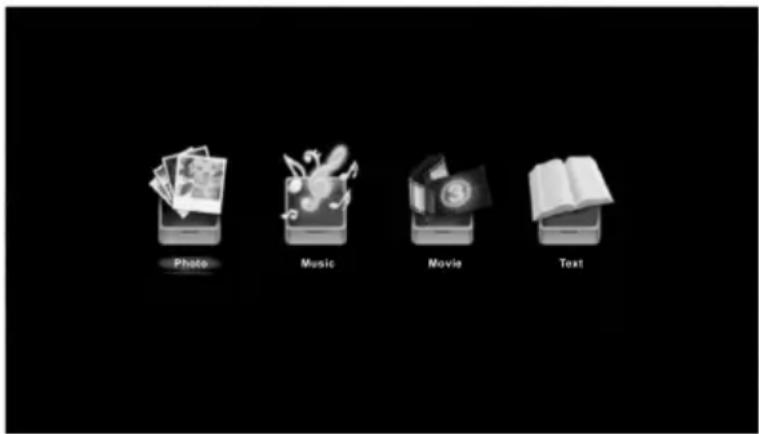
text_image
Photo
Music
Movie
Text
Use the ◀/▶ button to select Photo, Music, Movie or Text. Press ENTER button enter into sub-menu.
Photo
Press the ◀/▶ button to select Photo in the main menu, then press ENTER button to enter.
Press the ◀/▶ button to select disk you want to watch, then press ENTER button to enter.
Press the CH+/- button to change page.
Press the INDEX button to access to the quick menu.
Use the arrow buttons to highlight the folder, and then press the ENTER button.
Use the arrow buttons to highlight a file, and then press the ▶button to play.
Press the ■ to stop the playing files.
Press the EXIT button to back to the previous menu.
Music
Press the ◀/▶ button to select Music in the main menu, then press ENTER button to enter.
Press the ▲/▼ button to select disk you want to watch, then press ENTER button to enter.
Press the ◀/▶ button to change page.
Press the INDEX button to access to the quick menu.
Use the ▲/▼ button to highlight the folder, and then press the ENTER button.
Use the ▲/▼ button to highlight a file, and then press the ▶ button to play.
Press the ■ to stop the playing files.
Press the EXIT button to back to the previous menu.
Movie
Press the ◀/▶ button to select Movie in the main menu, then press ENTER button to enter.
Press the ▲/▼ button to select disk you want to watch, then press ENTER button to enter.
Press the ◀/▶ button to change page.
Press the INDEX button to access to the quick menu.
Use the ▲/▼ button to highlight the folder, and then press the ENTER button.
Use the ▲/▼ button to highlight a file, and then press the ▶|| button to play.
Press the ■ to stop the playing files.
Press the EXIT button to back to the previous menu.
Text
Press the ◀/▶ button to select Text in the main menu, then press ENTER button to enter.
Press the ▲/▼ button to select disk you want to watch, then press ENTER button to enter.
Press the ◀/▶ button to change page.
Press the INDEX button to access to the quick menu.
Use the ▲/▼ button to highlight the folder, and then press the ENTER button.
Use the ▲/▼ button to highlight a file, and then press the ▶|| button to play.
Press the EXIT button to back to the previous menu.
PROGRAM GUIDE (In DTV mode)
Press the EPG button to enter PROGRAM GUIDE menu.
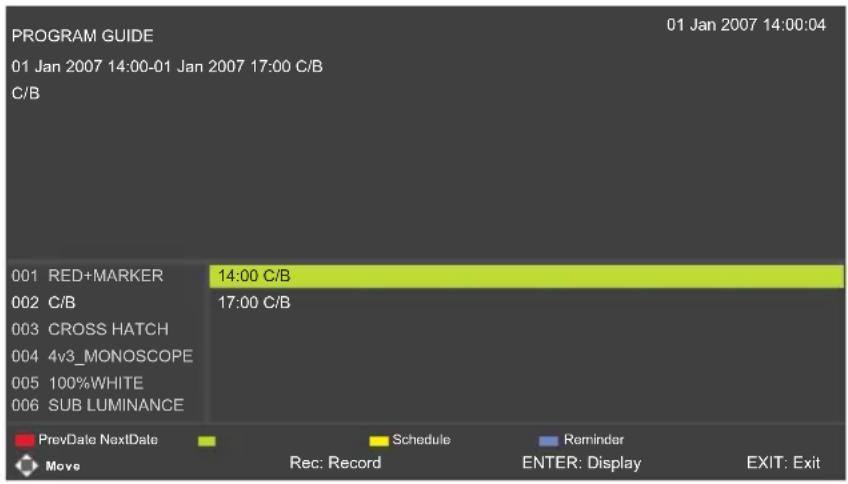
text_image
PROGRAM GUIDE
01 Jan 2007 14:00-01 Jan 2007 17:00 C/B
C/B
001 RED+MARKER 14:00 C/B
002 C/B 17:00 C/B
003 CROSS HATCH
004 4v3_MONOSCOPE
005 100%WHITE
006 SUB LUMINANCE
PrevDate NextDate Schedule Reminder
Move Rec: Record ENTER: Display EXIT: Exit
Press the ● button to set the parameters for recording. You can choose the time of the appointment to record you want. The unit is able to do schedule recording when TV is turning on or in standby mode. When recording starts in standby mode, there will be no picture or sound from the unit.
Press the red button to view the previous date's guide.
Press the green button to view the next date's guide.
Press the yellow button to display the EPG Schedule List.
Press the blue button to book program.
Press the EXIT button to exit.
Channel List
Press LIST button to display the Channel List.
Press ▲/▼ to select the items. Press ENTER button to enter the channel.
Press ◀ / ▶ button to page up or down the Channel list.
Press EXIT button to exit.
Favorite List
Press ♥ button to display the favorite list.
Press the ▲/▼ button to select the items. Press ENTER button to enter the channel.
Press the ◀/▶ button to select the Favorite 1,2,3,4.
Press CH+/CH- button to page up or down the Favorite list.
Press EXIT button to exit.
Using the teletext feature
- Display teletext
- Select a TV station with a teletext signal.
- Press the 📄 button to enter teletext mode.
- Press the ☐ button 2nd to enter Mix mode, this function enables you to superimpose the teletext page over the TV program.
- Press the ☐ button 3rd return or exit to the normal ATV/DTV mode.
- Page selection
- Enter the page number (three digits) using the number buttons. If you press a wrong number during input, you must complete the three digit number and then reenter the correct page number.
- The CH+/CH- button can be used to select the preceding or following page.
- Hold
You can press the ☐ button to hold a page, and press it again to release the page.
- Index
Press the ☐ button to enter the main index page directly.
- Enlarging Text
When a page is displayed, you can double the size of the text to make it easier to read.
- Press the 📄 button to enlarge the top half of the page.
- Press the Ⓞ button again to enlarge the bottom half of the page.
- Press the 📋 button once more to return to the normal display.
- Reveal mode
You can display concealed teletext information (e.g. Answer to puzzles or riddles etc.) by pressing ☐ button. Press ☐ button again to remove the information from the display.
- Subpage
Some teletext may contain several sub-pages which are automatically paged in a certain cycle by the TV station.
- Yon can enter into a certain sub page by pressing the button directly and select the page number with number buttons. Enter the sub page number (e.g. 0003) for the third sub page.
- Press the button again to exit the sub page mode.
Press these buttons to access directly to the corresponding color pages displayed at the lower part of the teletext screen.
Troubleshooting
Before contact the service technician, perform the following simple checks. If any program still persists, unplug the TV and calling for serving.
| PROBLEM | POSSIBLE SOLUTION |
| No sound and picture | - Check whether the main plug has been connected to a wall let.- Check whether you have pressed the POWER button on the front of TV set.- Check the picture contrast and brightness settings. |
| Normal picture but no sound | - Check the volume.- Sound muted? Press the MUTE button.- Try another channel, the problem may be with the broadcast.- Are the audio cables installed properly? |
| The remote control does not work | - Check to see if there any object between the product and remote control Causing obstruction.- Are batteries installed with correct polarity (+ to +,- to -)?- Correct remote operating mode set: TV, VCR etc.?- Install new batteries |
| Power is suddenly turned off | - Is the sleep timer set?- Check the power control settings. Power interrupted.- No broadcast on station tuned with auto activated. |
| Picture appears slowly after switching on | - This is normal, the image is muted during the product startup process. Please contact your service center, if the picture has not appeared after five minutes. |
| No or poor color or poor picture | - Adjust the color in menu option.- Keep a sufficient distance between the product and the VCR.- Try another channel, the problem may be with the broadcast.- Are the VIDEO cables installed properly?- Activate the any function to restore the brightness of the picture. |
| Horizontal/vertical bars or picture shaking | - Check for local interference such as an electrical appliance or power tool. |
| Poor reception on some channels | - Station or cable product experiencing problems. Tune to another station.- Station signal is weak, reorient antenna to receive weaker station.- Check for sources of possible interference. |
| Lines or streaks in pictures | - Check the antenna (Change the direction of the antenna). |
| No output from one of the speakers | - Adjust balance in menu option. |
Troubleshooting Guide
NOTE: There is a problem in VGA mode (Only VGA mode applied).
| PROBLEM | POSSIBLE SOLUTION |
| The signal is out of range. | - Adjust resolution, horizontal frequency, or vertical frequency.- Check it whether the signal cable is connected or loose.- Check the input source. |
| Vertical bar or stripe on back ground & Horizontal Noise & Incorrect position. | - Work the auto configure or adjust clock, phase, or H/V position. |
| Screen color is unstable or single color. | - Check the signal cable.- Reinstall the PC video card. |
Maintenance
Early malfunctions can be prevented. Careful and regular cleaning can extend the amount of time you will have your new TV. Be sure to turn the power off and unplug the power cord before you begin any cleaning.
Cleaning the screen
- Here's a great way to keep the dust off your screen for a while. Wet a soft cloth in a mixture of lukewarm water and a little fabric softener or dish washing detergent. Wring the cloth until it's almost dry, and then used it to wipe the screen.
- Make sure the excess water is off the screen, and then let it air-dry before you turn on your TV.
Cleaning the cabinet
To remove dirt or dust, wipe the cabinet with a soft, dry, lint-free cloth. Please be sure not to use a wet cloth.
Extended Absence

If you expect to leave your TV dormant for a long time (such as a vacation), it's a good idea to unplug the power cord to protect against possible damage from lightning or power surges.
Disposal of old electrical appliances
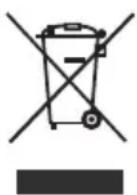
The European directive 2012/19/EU on Waste Electrical and Electronic Equipment (WEEE), requires that old household electrical appliances must not be disposed of in the normal unsorted municipal waste stream. Old appliances must be collected separately in order to optimize the recovery and recycling of the materials they contain, and reduce the impact on human health and the environment.
The crossed out “wheeled bin” symbol on the product reminds you of your obligation, that when you dispose of the appliance, it must be separately collected.
Consumers should contact their local authority or retailer for information concerning the correct disposal of their old appliance.
This equipment is a Class II or double insulated electrical appliance. It has been designed in such a way that it does not require a safety connection to electrical earth.
| Specification | |
| Model | LED40E1090H |
| Screen size | 40"(102cm) |
| Aspect ratio 16:9 | |
| WXGA resolution | 1920×1080 |
| Brightness(cd/m2) | 250 |
| Maximum color 16.7M | |
| Contrast Ratio | 5000:1 |
| Response time | 6.5ms |
| Video system PAL/SECAM | |
| Audio system B/G,D/K,I,L/L' | |
| RF(75Ω) | 1 |
| AV input | 1 |
| Component (Ypbpr) | 1 |
| SCART | 1 |
| PC Audio input | 1 |
| VGA | 1 |
| HDMI | 3 |
| Digital Audio output | 1 |
| USB | 1 |
| Headphone output | 1 |
| CI Slot | YES |
| Standby power consumption (approx.) | ≤0.5 W |
| Nominal voltage | 100-240V~ 50/60Hz |
Obsah
Varování....1
natural_image
Cartoon illustration of a smiling computer monitor holding a book and a document (no text or symbols present)
natural_image
Cartoon illustration of a computer monitor with a sad face and raised arms, surrounded by a brain (no text or symbols)
natural_image
Cartoon illustration of a computer monitor with a sad face and a broken handle, surrounded by flying documents and a megaphone (no text or symbols)
natural_image
Illustration of a smiling computer monitor with a power cord and plug, accompanied by a person standing beside it (no text or symbols present)
natural_image
Cartoon illustration of a computer monitor with a sad face and a distressed expression, accompanied by an electric fan (no text or symbols)
natural_image
Cartoon illustration of a computer monitor with a sad face and electrical plug, showing electrical connections (no text or symbols)
natural_image
Symbolic icon of a person climbing a ladder inside a circle (no text or symbols)
natural_image
Cartoon illustration of a smiling computer monitor with hands and lightning bolts, surrounded by clouds and industrial equipment (no text or symbols)
natural_image
Cartoon illustration of a smiling computer monitor and a worker pointing at a box (no text or symbols)
LIKVIDACE
• Auto Channel Update
Kabelinstallation....6
Fernbedienung....7
PROGRAMMFÜHRER....21
Kanalliste....21
Favoritenliste....21
Videotext....22
natural_image
Cartoon illustration of a smiling computer monitor holding an open book (no text or symbols present)
natural_image
Cartoon illustration of a computer monitor with a smiling face and a bandaged head, surrounded by floating icons (no text or symbols)
natural_image
Cartoon illustration of a smiling man presenting to a computer monitor with an electrical plug (no text or symbols)
natural_image
Cartoon illustration of a computer monitor with a sad face and raised arms, surrounded by a brain (no text or symbols)
natural_image
Cartoon illustration of a computer monitor with a sad face and two anthropomorphic appliances (no text or symbols)
natural_image
Cartoon illustration of a computer monitor with a sad face and electrical plugging (no text or symbols)
natural_image
Cartoon illustration of a smiling computer monitor character with arms and legs, surrounded by lightning and smoke (no text or symbols)
natural_image
Cartoon illustration of a smiling computer monitor and a delivery worker pointing at a box (no text or symbols)
Entsorgung
GUIDE DES PROGRAMMES....21
natural_image
Cartoon illustration of a smiling computer monitor holding a book (no text or symbols present)
natural_image
Cartoon illustration of a computer monitor with a sad face and raised arms, surrounded by a brain (no text or symbols)
natural_image
Cartoon illustration of a computer monitor with a smiling face and a falling document, symbolizing online or digital overload (no text present)
natural_image
Illustration of a man standing beside a smiling computer monitor with a power plug, no text or symbols present.
natural_image
Cartoon illustration of a computer monitor with a sad face and a distressed expression, accompanied by a printer (no text or symbols present)
natural_image
Cartoon illustration of a computer monitor with a sad face and electrical plugging (no text or symbols)
natural_image
Cartoon illustration of a smiling computer monitor with hands and speech bubbles, surrounded by clouds and a small phone (no text or symbols)
natural_image
Cartoon illustration of a smiling computer monitor and a worker holding a box (no text or symbols)
Recyclage
natural_image
Three schematic diagrams of a battery with internal components and directional arrows indicating flow or movement (no text or labels)
Remplacer les piles
Controllo remoto....7
GUIDA PROGRAMMI....21
Elenco canali....21
Elenco preferiti....21
Teletext....22
natural_image
Cartoon illustration of a smiling computer monitor holding an open book (no text or symbols present)
natural_image
Cartoon illustration of a computer monitor with a smiling face and a money bag, symbolizing online shopping or digital commerce (no text present)
natural_image
Illustration of a smiling man holding a computer monitor with an electrical plug, no text or symbols present
natural_image
Cartoon illustration of a computer monitor with a sad face and raised arms, surrounded by clouds (no text or symbols)
natural_image
Cartoon illustration of a computer monitor with a sad face and two hands, accompanied by a printer (no text or symbols present)
natural_image
Cartoon illustration of a computer monitor with an angry face and a power cord emitting electrical shock (no text or symbols)
natural_image
Cartoon illustration of a smiling computer monitor with hands and lightning bolts, no text or symbols present
natural_image
Illustration of a smiling computer monitor and a worker pointing at a box (no text or symbols)
natural_image
Three schematic diagrams of a battery with internal components and directional arrows indicating flow (no text or labels)