
W320F8U - Television CHANGHONG - Free user manual and instructions
Find the device manual for free W320F8U CHANGHONG in PDF.


| Product Type | LED TV |
| Screen Size | 32 inches (approximately) |
| Resolution | 1366 x 768 (HD) |
| Refresh Rate | 60 Hz |
| Contrast Ratio | 3000:1 (typical) |
| Viewing Angle | 178° horizontal/vertical |
| Audio Output | 2 x 8W |
| Dimensions (W x H x D) with stand | 730 x 480 x 180 mm |
| Dimensions (W x H x D) without stand | 730 x 430 x 80 mm |
| Weight with stand | 4.5 kg |
| Weight without stand | 4.0 kg |
| VESA Mount Pattern | 200 x 200 mm |
| Power Supply | AC 100-240V, 50/60Hz |
| Power Consumption (typical) | 50 W |
| Standby Power | <0.5 W |
| Inputs | HDMI (2), USB (1), VGA (1), Composite AV, RF |
| Features | USB media playback, sleep timer, parental lock, EPG |
| Cleaning | Use a soft dry cloth. Do not use liquid cleaners. |
| Safety | Keep away from moisture. Allow proper ventilation. |
| Repairability | Contact authorized service center for repairs. |
| Warranty | 1 year from date of purchase (check local terms) |
Frequently Asked Questions - W320F8U CHANGHONG
User questions about W320F8U CHANGHONG
0 question about this device. Answer the ones you know or ask your own.
Ask a new question about this device
Download the instructions for your Television in PDF format for free! Find your manual W320F8U - CHANGHONG and take your electronic device back in hand. On this page are published all the documents necessary for the use of your device. W320F8U by CHANGHONG.
USER MANUAL W320F8U CHANGHONG
LCD COLOR TELEVISION
W260F8U
W320F8U
W370F8U
OPERATION MANUAL
Please read this manual carefully before operation.
CONTENTS
IMPORTANT SAFETY INSTRUCTIONS .... 1
USING THE REMOTE CONTROL .... 3
BATTERIES FOR REMOTE CONTROL 3
PACKING LIST 4
GENERAL INFORMATION......4
BRIEF INTRODUCTION....6
REMOTE CONTROL....9
INSTALLATION 11
GENERAL OPERATION....11
MENU OPERATION 12
FUNCTION INTRODUCTION 12
Using the Channel Setting Menu.... 12
Using the Picture Setting Menu 13
Using the Audio Setting Menu 14
Using the General Setting Menu 14
Using the Timer Setting Menu 15
Using the Vchip Setting 16
Using the PC Setting Menu 17
OTHER FUNCTIONS INTRODUCTION 17
Standby Mode 17
Signal Switch....17
Channel Switch 17
Volume Control 18
Mute 18
Sound Mode Selection 18
Picture Mode Selection....18
Information Display....18
Sleep Function 18
Recall 18
Scaler Mode 19
Still....19
PIP/POP/PBP Function 19
TROUBLESHOOTING....21
SPECIFICATIONS 22
Note:
The OSD and illustration in this manual may be somewhat different from the actual situation. Please take the LCD TV as standard.
All the features and specifications are subject to change without notice for improvement.
W260F8U/W320F8U/W370F8U
JUJ6.491.1164

Important Safety Instructions
Electrical energy can perform many useful functions, but it can also cause personal injuries and property damage if improperly handled. This product has been engineered and manufactured with the highest priority on safety. But IMPROPER USE CAN RESULT IN POTENTIAL ELECTRICAL SHOCK OR FIRE HAZARD. In order to prevent potential danger, please observe the following instructions when installing, operating and cleaning the product. To ensure your safety and prolong the service life of your LCDTV product, please read the following precautions carefully before using the product.
- Read these instructions---All operating instructions must be read and understood before the product is operated.
- Keep these instructions---These safety and operating instructions must be kept in a safe place for future reference.
-
Heed all warnings--- All warnings on the product and in the instructions must be observed closely.
-
Follow all instructions---All operating instructions must be followed.
-
Attachments---Only use attachments/accessories specified by the manufacturer. Do not use attachments not recommended by the manufacturer. Use of improper attachments can result in accidents.
-
Power source---This product is intended to be supplied by a listed power supply indicated on the marking label. If you are not sure of the type of power supply to your home, consult your product dealer or local power company. For added protection for this product during a lightning storm, or when it is left unattended and unused for long periods of time, unplug it from the wall outlet and disconnect the cable system.
-
Power cord protection ---Protect the power cord from being walked on or pinched particularly at plugs, convenience receptacles, and the point where they exit from the apparatus.
-
Overloading---Do not overload wall outlets, extension cords, or convenience receptacles on other equipment as this can result in a risk of fire or electric shock.
-
Entering of objects and liquids---Never insert an object into the product through vents or openings. High voltage flows in the product, and inserting an object can cause electric shock and/or short internal parts. For the same reason, do not spill water or liquid on the product.
-
Servicing---Refer all servicing to qualified service personnel. Servicing is required when the apparatus has been damaged in any way, such as power-supply cord or plug is damaged, liquid has been spilled or objects have fallen into the apparatus, the apparatus has been exposed to rain or moisture, does not operate normally, or has been dropped.
-
Damage requiring service---If any of the following conditions occurs, unplug the power cord from the AC outlet, and request a qualified service person to perform repairs.
a. When the power cord or plug is damaged.
b. When a liquid is spilled on the product or when objects have fallen into the product.
c. When the product has been exposed to rain or water.
d. When the product does not operate properly as described in the operating instructions.
Do not touch the controls other than those described in the operating instructions. Improper adjustment of controls not described in the instructions can cause damage, which often requires extensive adjustment work by a qualified technician.
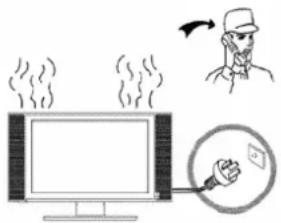
e. If the product has been dropped or the cabinet has been damaged in any way.
f. When the product displays an abnormal condition or exhibits a distinct change in performance. Any noticeable abnormality in the product indicates that the product needs servicing.
- Replacement parts---In case the product needs replacement parts, make sure that the service person uses replacement parts specified by the manufacturer, or those with the same characteristics and performance as the original parts. Use of unauthorized parts can result in fire, electric shock and/or other danger.
- Safety checks---Upon completion of service or repair work, request the service technician to perform safety checks to ensure that the product is in proper operating condition.
- Wall mounting---Be sure to install the product according to the method recommended by the manufacturer. This is a safety feature.
- Stand---Use only with the cart, stand, tripod, bracket, or table specified by the manufacturer, or sold with the apparatus. Do not place the product on an unstable trolley, stand, tripod or table. Placing the product on an unstable base can cause the product to fall, resulting in serious personal injuries as well as damage to the product. When mounting the product on a wall, be sure to follow the manufacturer's instructions. Use only the mounting hardware recommended by the manufacturer.
- Careful move---When a cart is used, use caution when moving the cart/apparatus combination to avoid injury from tip-over. Sudden stops, excessive force and uneven floor surfaces can cause the product to fall from the trolley.
- Lightning---Unplug this apparatus during lightning storms or when unused for long periods of time.
For added protection for this television equipment during a lightning storm, or when it is left unattended and unused for long periods of time, unplug it from the wall outlet and disconnect the antenna. This will prevent damage to the equipment due to lightning and power-line surges.
- Do not use this apparatus near water---for example, near a bathtub, washbowl, kitchen sink, or laundry tub, in a wet basement, or near a swimming pool, and the like.
Do not use immediately after moving from a low temperature to high temperature environment, as this causes condensation, which may result in fire, electric shock, or other hazards.
- Clean only with dry cloth---Unplug this product from the wall outlet before cleaning. Do not use liquid cleaners or aerosol cleaners. Use a damp cloth for cleaning.
- Ventilation---Do not block any ventilation openings. Install in accordance with the manufacturer instructions. The vents and other openings in the cabinet are designed for ventilation. Do not cover or block these vents and openings since insufficient ventilation can cause overheating and/or shorten the life of the product. Do not place the product on a bed, sofa, rug or other similar surface, since they can block ventilation openings. This product is not designed for built-in installation; do not place the product in an enclosed place such as a bookcase or rack, unless proper ventilation is provided or the manufacturer's instructions are followed.
- Heat sources---Do not install near any heat sources such as radiators, heat registers, stoves, or other apparatus (including amplifiers) that produce heat.
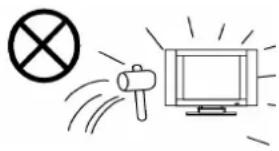
- Panel protection---The LCD panel used in this product is made of glass.

Therefore, it can break when the product is dropped or impacted upon by other objects. Be careful not to be injured by broken glass pieces in case the LCD panel breaks.
23.Pixel defect---The LCD panel is a very high technology product, giving you finely detailed pictures. Occasionally, a few non-active pixels may appear on the screen as a fixed point of blue, green or red. Please note that this does not affect the performance of your product.
natural_image
Simple line drawing of a megaphone emitting exhaust smoke from a computer monitor (no text or symbols)Using the Remote Control
- Use the remote control by pointing it towards the remote sensor window of the set. Objects between the remote control and sensor window may prevent proper operation. Cautions regarding use of remote control
Note: the illustration is for your reference only, the remote sensor may locate differently with different model.

Cautions regarding use of remote control
- Do not expose the remote control to shock. In addition, do not expose the remote control to liquids, and do not place in an area with high humidity.
- Do not install or place the remote control under direct sunlight. The heat may cause deformation of the unit.
● The remote control may not work properly if the remote sensor window of the main unit is under direct sunlight or strong lighting. In such a case, change the angle of the lighting or LCD TV set, or operate the remote control closer to the remote sensor window.
Batteries for Remote Control
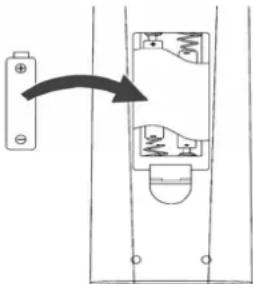
If the remote control fails to operate the LCDTV functions, replace the batteries in the remote control.
1 Open the battery cover.
2 Insert two size-AAA batteries.
- Place the batteries with their terminals corresponding to the (+) and (-) indications in the battery compartment.
3 Replace the cover until the lock clicks.
Precaution on battery use
Improper use of batteries can result in a leakage of chemicals and/or explosion. Be sure to follow the instructions below.
- Place batteries with their terminals corresponding to the (+) and (-) indications.
● Different types of batteries have different characteristics. Do not mix batteries of different types. - Do not mix old and new batteries. Mixing old and new batteries can shorten the life of new batteries and/or cause old batteries to leak chemicals.
- Remove batteries as soon as they are non-operable. Chemicals that leak from batteries can cause a rash. If chemical leakage is found, wipe with a cloth.
● The batteries supplied with the product may have a shorter life expectancy due to storage conditions.
If the remote control is not used for an extended period of time, remove the batteries from the remote control.
PACKING LIST
| LCD TV | 1 |
| Operation Manual | 1 |
| Infrared Remote Control | 1 |
| AC Power Cable | 1 |
| AAA Batteries | 2 |
Note:
Please keep the wrapping box and the padding well for future convenient use when you convey them.
GENERAL INFORMATION
■ Radio Frequency input; support CATV
Capable of receiving the full-append cable programs in 470MHZ
■ AV input
Capable of receiving NTSC, PAL, SECAM color system; Convenient to watch VCR (video cassette recorder), Pickup Camera, other Disc's programs
■ AV output
Capable of transmitting signal of different AV/RF systems to other AV receivers through the current AV cable
■ Y/C component signal input (same to S-Video input)
Convenient to receive the Y/C high definition component signal from DVD
■ YPbPr input
Capable of receiving the high definition YPbPr signal in 480i, 480p, 576i, 720p, 1080i, and 1080p formats
■ PC input
a. Convenient to connect with the host computer
b. Use as the display terminal
c. Connect the 3.5mm(diameter) audio cord to your computer's audio main board, you can listening the beautiful music transmitted from your host computer
■ DVI input
Convenient to receive DVI signal
■ PIP, POP, PBP function
■ Turn on with intelligence
■ Zoom mode
■ LTI, CTI, and black field
■ BBE sound technology
■ MTS sound technology
■ Trusurround sound technology
■ Full-light display
■ Picture amending display function
■ Fleshtone enhancement and improvement
■ Super definition display panel
■ 3:2, 2:2 Pull Down
■ TV program scan function
■ Timer function
Automatically off at certain preset time, and enters into the standby mode
■ Blue background with noise reduction
In TV, AV1, AV2 and YPbPr modes, screen displays soft blue background if there is no signal input
■ Auto Off if no signal input
In TV mode, the LCD TV will automatically power off within 15 minutes and enter into the Power Energy Saving Mode if there is no signal input.
■ Multi Language On-Screen Display menu
Ordinary and graphical user interface makes the menu operation more user-friendly
■ Power Energy Saving Mode (power management mode)
In PC mode, the LCD TV will automatically power off within 15 seconds and enter into the Power Energy Saving Mode if there is no VGA signal input. It will automatically exit from the Power Energy Saving Mode and work again when it received a valid VGA signal or press any button on the panel/remote control.
■ Plug and Play
No installation software is needed to use the TV as computer terminal display equipment
■ Auto adjustment
Adjust the picture's quality automatically
■ No flicker, no radiation, environment-protective and healthy
■ Legerity, convenient, low power consumption
- Favorite Channel, we can edit or select favorite channels conveniently
BRIEF INTRODUCTION
Front Panel
W260F8U/W320F8U

W370F8U

Panel Buttons
W260F8U/W320F8U

W370F8U

| Button | Description |
| 【TV/AV】 | To switch among TV, AV1, AV2, YPbPr, PC, and DVI modes.The same function to【AV】on remote control. |
| 【MENU】 | To enter or exit from the OSD (On-Screen Display) menu. |
W260F8U/W320F8U/W370F8U
| 【VOL-】 | To decrease the sound volume. Adjust functions in menu operation. |
| 【VOL+】 | To increase the sound volume. Adjust functions in menu operation. |
| 【CH-】 | 1.To decrease channel number in TV mode2. to select functions in menu operation. |
| 【CH+】 | 1.To increase channel number in TV mode2.to select functions in menu operation. |
| To turn the LCD TV on or enter into STANDBY.The same function to【💡】on remote control. |
Note:
In this operation manual, 【】symbol means Button.
Rear Panel

| Items | Description |
| AC input AC power input jack | |
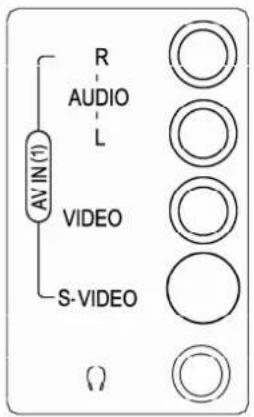
| Signal input/output terminal AV input (1), headphone output, see illustration 1 | |
| Signal input/output terminal | TV signal input, AV input (2), AV output , YPbPr input, see illustration 2 |
| Signal input/output terminal PC and DVI input, see illustration 3 | |
Enlarged View of Signal Input/Output Terminals 1:
Enlarged View of Signal Input/Output Terminals 2:

Enlarged View of Signal Input/Output Terminals 3:
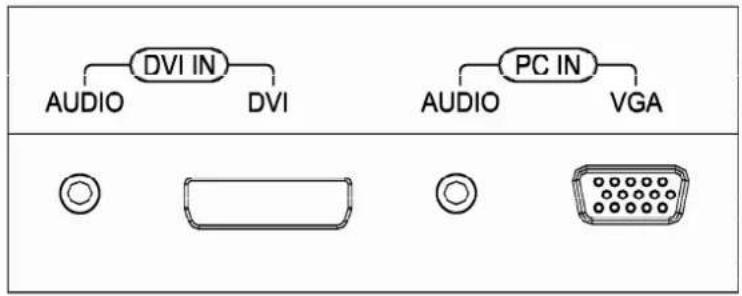
| Items Description | |
| AV IN (1) | One-way AV input port; one-way S-Video input terminal; S-Video 1 is the first if VIDEO, S-Video 1 connect at one time, and the screen displays AV1 (Y/C) |
| HEADPHONE OUT | Headphone audio signal output |
| AV IN(2) | One-way AV input port; one-way S-Video input terminal; S-Video 2 is the first if VIDEO, S-Video 2 connect at one time, and the screen displays AV2 (Y/C) |
| AV OUT For TV, AV1, and AV2 modes only | |
| COMPONENT IN | Capable of transmitting YPbPr signal from DVD or other equipments to YPbPr input port |
| DVI IN Digital video signal input | |
| PC IN PC signal input | |
REMOTE CONTROL

TV Functions Except Teletext Functions
- RECALL : Return to last viewed program
- ZOOM : Adjust displayable aspect ratio
- POWER ON/OFF : Switch on or off TV set
4.0-9 Number Keys: Key in the alphanumeric digits to switch to the designated channel directly - AV : Toggle between different signal sources available
- MENU : To go to the On Screen Display(OSD) menus
- P MODE : Select different mode of picture setting
- S MODE : Select different mode of sound setting
- P+ : Scroll to next channel
- P- : Scroll to previous channel
- V- : Decrease audio volume
- V+ : Increase audio volume
- OK : Select or confirm sub menu of the OSD
- DISPLAY : Show info of current program
- SLEEP : Select time of TV to sleep mode
- MUTE : Mute sound
- ∞I/II: Select between mono or stereo and SAP
- SCAN : Enter multi pip quickly
- FAVOR : Edit or select the favorite channels
- STILL : Freeze the current picture
- PIP SOURCE SELECTION : Select source of sub-Picture source
- PIP LOCATION : Adjust position of Picture in PIP
- PIP CHANNEL UP: Switch to the next channel of sub-Picture
- PIP SWAP : Interchange main picture displayed with sub-Picture source
- PIP STILL : Freeze screen of sub-Picture source
- PIP SIZE : Adjust size or mode of sub-Picture
- PIP CHANNEL DOWN : Switch to the previous channel of sub-Picture
- PIP ON/OFF : Turn on or off sub-Picture function
INSTALLATION
- Remove the LCD TV from the box and place it on a flat surface in a well-ventilated location.
- Connect the output terminal of RF cable to the corresponding TV input terminal.
- Connect AV signal output (DVD or other equipments) to AV input terminal of the LCD TV with AV connector. Ensure that every AV signal cable is connected correctly to the corresponding port.
- Connect one side of PC, DVI terminals to the corresponding signal source terminal, and connect the other side to the corresponding LCD TV terminal. Screw down the thumbscrews on both sides to secure it. Affix the plug with care to avoid damage.
- Connect the power cord to the AC outlet. Do ensure that other connected devices to the same power source are switched off.
Caution:
Please refer the power range of this product to the back label on the back cover, do not connect to any power supply, which is out of this range. When unplugging the power cord, do not touch the metal part.
When connecting, plug directly and lightly to the interface, otherwise you will damage the stitch.
GENERAL OPERATION
To Turn the TV On
-
When you turn on the power, the indicator light on the front panel will blink till the TV displays pictures.
-
In Standby mode, press 【⏻】 on the remote control or front panel to enter to Power On mode.
To Turn the TV Off
-
Press【⏻】on the remote control or the front panel to switch off the TV.
-
Unplug the power cord from the AC outlet to turn the TV off completely.
Caution: The TV will be shut off automatically when the power trips. The following will occur if the power cord is plugged the AC outlet then:
a. The TV will be in standby mode when switched on
b. The TV will be automatically on if it was in other modes (such as AV/PC mode) apart from TV mode
Do not turn on/off the TV too often
Auto Off if No Signal Input
The TV will auto off and enter into Standby mode after 15 minutes when there is no signal (For instance, no program signal transmitted from the TV Station) input or no operation of pressing buttons.
Indicator Light
| Status | Light | Color | Description |
| Working mode Off | The TV works normally | ||
| Standby Red In Standby Mode | |||
| Timer On Green Timer | On is valid. | ||
| Timer Off Green Timer | Off is valid | ||
| Power Off | No Indicator | The TV is turned off | |
| Sleep (PC, DVI) | Yellow | Sleep in PC/DVI mode; To start working again by pressing any key or any signal is received |
MENU OPERATION
- Use the On Screen Display MENU to adjust the picture's quality.
- multiple operating languages are available.
- The display time for the menu ranges from 3\~60 seconds. This can be adjusted in the General Setting menu.
- Use the Panel buttons or the Remote Control to operate the MENU.
FUNCTION INTRODUCTION
Using the Channel Setting Menu (For TV use Only)
1) Press 【MENU】 and then use 【V+】/【V-】 to select the Channel Setting menu in TV mode.
2) Use 【P+】/【P-】 to make the desired adjustment.
Current Channel
Press 【V+】/【V-】 to increase/decrease the channel number.
Channel Label
Press【OK】to enter the edit mode.
Press 【P+】/【P-】to select the desired letter, press 【V+】/【V-】for next operation.
Skip
After Auto Search, there may be some repeated programs stored. Skipping the repeated programs can shorten the program selection.
- Press【P+】/【P-】to search for the Program skipped.
- Input the channel number directly to resume the Program Number skipped.
![Channel Setting Current Channel ▶ 13 ◀ Channel Label → Color System ▶ PAL ◀ Sound System ▶ DK ◀ Skip → Auto Search → Manual Search → Fine → Channel Table ▶ Cable ◀ Auto Scan → Exchange → [V+]/[V-]Select [P-]/[OK] Enter [Menu] Exit](/content/2026/06/1190038/images/6ad9b4d3033bc0e2640c6d9d8cb7d05a4a4e441fc7f214f9dcec3a9686c42955.jpg)
![Channel Label 8 CCTV_8 9 CCTV_9 10 CCTV10 11 CCTV11 12 CCTV12 13 HUNAN 14 FENGH 15 [P+]/[P-] Select [Menu] Exit](/content/2026/06/1190038/images/ac42bd89eb812d539a478952f0093af1a8ae5a5811d08cc2d92ee084b5ac6877.jpg)
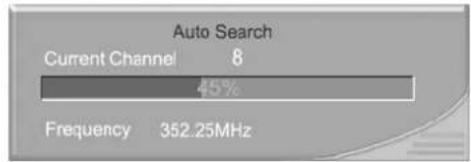
Auto Search
In the Channel Setting Menu, press 【P+】/【P-】 to select Auto Search and press【OK】/【V+】to start Auto Searching mode.
- During searching, the sound and color systems are automatically adjusted and programs are stored.
- When search is finished, all 125 channels are stored, or【MENU】is pressed during the search process, the search will automatically stop and go to the channel setting menu with channel one.
Manual Search (This option would be in gray, which means invalid to operate in the current mode)
In TV mode, select Manual Search option and press 【OK】/【V+】 to enter into Manual Search.
Fine (This option would be in gray, which means invalid to operate in the current mode)
When the picture and sound of a channel are not satisfactory after Auto Search or Manual Search, please use the Fine function.
Note:
During auto search, manual search, and fine tune operation, you will be asked to enter the password if any program is locked.
Channel Table
Two kinds of program list, Air & Cable for you to choose, 2\~69 for Air list, and 1\~125 for Cable list. (for U.S.A users)
Auto Scan
In TV mode, select Auto Scan to activate the scan mode. All pictures will be displayed in the current channel. The current program will be displayed in the middle of the screen, with twelve small pictures around the middle picture. All pictures are scanned, beginning with the current program, from the upper-left side screen in clockwise direction. Use 【P+】/【P-】 and 【V+】/【V-】 to select the desired channel; Use 【OK】 to exit from the Auto Scan mode and watch only the selected channel. Use 【MENU】 to exit from the Auto Scan mode directly.
Exchange (This option would be in gray, which means invalid to operate in the current mode)
Using the Picture Setting Menu
1) Press 【MENU】and then use 【V+】/【V-】to select the Picture Setting menu.
2) Press 【P+】/【P-】 to make the desired adjustment.
Full light Watch
Adjusts the brightness of the LCD TV according to the environment.
Picture Mode
Four modes to be selected: Standard, Mild, Bright, User.
Brightness
To adjust the picture's brightness.
![Picture Setting Full light Watch Dim Pictrue Mode User Brightness 50 Contrast 50 Saturation 50 Sharpness 10 Hue 50 Color Temp Normal Fleshtone ON [V+]/[V-]Select [P-]/[OK] Enter [Menu] Exit](/content/2026/06/1190038/images/ccfc5633968b5925c3f7e2d4a2649c15cc9e9c4c4c6d50e378a63ed2f9a08db6.jpg)
Contrast
To adjust the picture's contrast.
Saturation
To adjust the picture's saturation.
Sharpness
To adjust the picture's definition.
Hue
To adjust the picture's tint. (For NTSC signal only)
Color Temp
Four modes can be chosen: Warm, Normal, Cool, and User. (User mode is valid for PC & DVI only)
Fleshtone
To adjust the human skin tones
Using the Audio Setting Menu
1) Press【MENU】and then use【V+】/【V-】to select the Audio Setting menu.
2) Press [P+] / [P-] to make the desired adjustment.
Sound Mode
To select the desired sound mode among Standard, News, Music and User
Bass
To adjust the accompanying sound's bass
Treble
To adjust the accompanying sound's treble
Surround
To select the surround mode among Off, Normal and Spatial
Balance
To adjust the balance between the left and right tracks
MTS
- Stereo Select for stereo reception when viewing a program
- Select to automatically switch the LCD TV to second audio programs when a signal is received. (If no SAP signal is presented, the LCD TV remains in stereo mode.)
- Select for mono reception (Use to reduce noise during weak stereo broadcasts).
![Audio Setting Sound Mode User Bass 50 Treble 50 Surround OFF Balance 0 MTS Mono BBE OFF TruSurround OFF Volume 30 [V+]/[V-]Select [P-]/[OK] Enter [Menu] Exit](/content/2026/06/1190038/images/4143c202298bb55c1b8907fa5700b509692e0e558385e4f3b5d2821efc358bcb.jpg)
BBE
To turn BBE On or Off
TruSurround
To turn TruSurround On or Off
Volume
To increase or decrease the volume
Using the General Setting Menu
To adjust the OSD position horizontally
OSD V Position
To adjust the OSD position vertically
OSD Timeout
To adjust the length of time the OSD to be displayed on the screen without any commands
Blue Screen
To set the Blue Screen on/off when there is no signal input in TV, AV, AV1, AV2, YPbPr modes
![General Setting Language OSD H Position OSD V Position OSD Timeout Blue Screen Close Caption Scaler Mode Factory Reset Transparency English 0 0 3D ON OFF Fill Screen 7 [V+]/[V-]Select [P-]/[OK] Enter [Menu] Exit](/content/2026/06/1190038/images/c39291fad428aba291fde0200d8a3bd232e712f0afafed8f0c9488891bed3d04.jpg)
Close Caption
Only valid for U.S.A users
Scaler Mode
To select viewable screen modes of Fill Screen, 4:3, Wide, Cinema and Sub Title.
Factory Reset
All users' settings can be reset to the default settings except the TV programs
Transparency
To adjust the OSD transparency
Using the Timer Setting Menu
1) Press 【MENU】 and then use 【V+】/【V-】 to select the Timer Setting menu.
2) Press [P+] / [P-] to make the desired adjustment.
Sleep Time
To set the sleep time of the TV. This can be set with the remote control 【SLEEP】button.
Current Time
Press【OK】/【V+】to enter the mode. Press【V+】/【V-】to set the Minute/Hour and press【P+】/【P-】to adjust the time value.
![Timer Setting Sleep Time ▶ 20 Min ◀ Current Time 12 : 15 On Time 15 : 30 On Channel 8 Off Time 13 : 00 Timer Mode ▶ Once ◀ [V+]/[V-]Select [P-]/[OK] Enter [Menu] Exit](/content/2026/06/1190038/images/3166775d5cfbc4b8ccba8c50b1386781990a6d59006fbda87e6fde4e6395c537.jpg)
On Time
Press [V+] / [V-] to set the Minute/Hour and press [P+] / [P-] to adjust the time value.
On Channel
To set the default channel when turning on the TV. Press [V+] / [V-] to change the channel number.
Off Time
Press【V+】/【V-】to set the Minute/Hour and press【P+】/【P-】to adjust the time value.
Timer Mode
Set the clock time mode.
Using the Vchip Setting
1) Press 【MENU】and then use 【V+】/【V-】to select the Vchip Setting menu.
2) Press [P+] / [P-] to make the desired adjustment.
When Enter VChip Menu, Input Correct Password. The initial password is "1601", you can set or change your password by "Change Password" Item, but the password "1601" is always valid.
Parental Lock
Press【P+】/【P-】to select the parental lock, press 【V+】/【V-】 to cycle the following selections:

flowchart
graph LR
    A["Off"] --> B["Child"]
    B --> C["Youth"]
    C --> D["Y. Adult"]
    D --> E["Custom"]
-
Off To turn Parental Lock off
-
Child To allow programs for ages up to 6
-
To allow programs for ages 7 and older
-
Youth Adult To allow programs for ages 14 and older
-
Custom To set Custom ratings
Change Password
To change your password.
![Vhip Setting Parental Lock > Custom < Change Password → Movie Rating → TV Rating → Unrated > Block < [V+]/[V-] Select [P-]/[OK] Enter [Menu] Exit](/content/2026/06/1190038/images/d9c82e7ad4a0a381eebb9372af40b02a699391475657f3f441f7f2ceabbbc712.jpg)

Movie Rating
Press [P+] / [P-] to select these options.
Press【OK】to block or unblock.
| Age | Description |
| G All Children and General Audience | |
| PG Parental Guidance Suggested | |
| PG-13 Parental Guidance for Children under 13 | |
| R Restricted viewing, Parental Guidance is Suggested for Children under 17 | |
| NC-17 No one 17 and under allowed | |
| X All the audience | |
If the current program rating is superior to that of Vchip setting, the current picture would be blocked. Meanwhile, this dialogue box(see it right) appears on the screen, which show the current program rating.

TV Rating
Block programs by their rating, content or both.
1) Press [P+] / [P-] to select these options.
2) Press 【OK】 to block or unblock.
Using the PC Setting menu (for PC mode only)
1) Press 【MENU】 and then use 【V+】 / 【V-】 to select the PC Setting menu.
2) Press【P+】/【P-】to make the desired adjustment. Five modes for you to choose: Auto
Tracking, Clock, Phase, H position, V position.
- Auto Tracking
To adjust automatically the picture's clock, phase, H Position and V Position to get the best visual effect.
- Phase
To adjust pictures' sampling phase in PC mode
- Clock
To adjust pictures' sampling frequency.
● H Position
To adjust picture's position horizontally in PC mode.
● V Position
To adjust picture's position vertically in PC mode.
![PC Setting Auto Tracking Clock 50 Phase 50 H Position 50 V Position 10 [V+]/[V-]Select [P-]/[OK] Enter [Menu] Exit](/content/2026/06/1190038/images/d39e982e6d74a879610b274e8c7589635c47a10eaa5041139717a636cc79f1f9.jpg)
Note:
In the menu, gray items means invalid to operate in the current mode.
OTHER FUNCTIONS INTRODUCTION
Standby Mode
Press 【💡】 on the TV panel/Remote Control, the LCD TV will store the current setup and enter into standby mode with a red indicator light. To Power on the LCD TV, press the button again.
Signal Switch
Press 【AV】on the remote control to select the signal sources orderly. They are TV, AV1, AV2, YPbPr, PC, and DVI.
The upper-right corner of the screen will display the corresponding information.
Channel Selection
Press 【CH+】 / 【CH-】 on the panel or 【P+】 / 【P-】 on the remote control to change the channels. If a channel number is in SKIP ON mode, the next channel will be displayed. A maximum of three channel numbers can be input at one time on the remote control.
Note: The biggest number you can input is 125 or 69 and use number buttons to input your desired channel number. During this input operation you can change to the corresponding channel directly with pressing 【OK】, and press 【MENU】 to cancel.
Volume Control

Press 【V+】/【V-】 to increase or decrease the volume continuously when the main menu is not displayed on the screen. The range is 0-100.
The Volume menu will automatically be off if there is no operation about 4 seconds.
Mute
Press the【MENU】on the remote control to turn On/Off the MUTE mode. Alternatively, press 【MUTE】, change the volume level to turn the MUTE off.
The Mute symbol will appear bottom-left corner of the screen the Mute function is switched on.
The Mute symbol is hidden when the menu operation is entered, but the feature is still valid. It appears again when the menu operation is exited. When there is no valid signal input, the TV will be mute (but no mute symbol) with a blue background.
Sound Mode Selection
Press【S.MODE】to select standard, News, Music, and User modes.
The value of Standard, News, Music modes are the default setting, and they cannot be adjusted. Only User mode can be altered.
Picture Mode Selection
Press【P.MODE】to Switch among Standard, Mild, Bright and User modes
Information Display
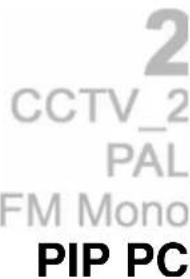
Press 【DISPLAY】to reveal the current signal source and its corresponding information of Channel Number, Channel label, Color System, Stereo/FM Mono and signal source of PIP. Characters in green on the upper-right side display information for the main picture in TV mode while characters in red displays the source information for the sub-picture. Press again to exit.
Sleep Function
Press 【SLEEP】to select the sleep time between intervals of 10, 20, 30, 60, 90, 120, 180 minutes or switch off the SLEEP function. A prompt will appear when it is one minute from SLEEP. Press any button to exit.

Recall
Press 【RECALL】to revert to the previous channel in TV mode, or the previous signal source.
Scaler Mode
Switch among Fill-screen, 4:3, Wide, Cinema and Subtitle modes.
STILL
Press【STILL】to freeze or unfreeze the current image.
Program Scan
Press 【SCAN】to browse TV programs, this function is the same as “Auto scan” in Channel Setting Menu
Favorite channel
Press 【FAVOR】 to select or set your favorite channels as show in the right picture
You can press【P+】/【P-】to select the desired Item.
Mode
To select Mode Item, press 【V+】/【V-】 to select Auto or Manual Mode.
| Favorite | ||
| Mode | Manual | |
| Sort | Channel | Label |
| 1 | 2 | CCTV |
| 2 | 14 | HTV |
| 3 | 28 | MUSIC |
| 4 | 58 | CABLE |
| 5 | 120 | AIR |
(1) In Auto mode, the channel is auto sorted by the time, if we watch the channel over ten minutes, it v
(2) In Manual mode, you can press digit keys on the remote control to edit each channel. In edit status, you may press 【MENU】 to exit or press 【OK】 to confirm your operation, and then the channel you edited will be set.
Once you enter into the selected Channel item, the channel will be set
You can press any button of 【MENU】,【OK】 to exit from the Favorite Menu.
MTS switch
You can press ( ∞ I/II) to select among Mono, Stereo and SAP, in each channel, Stereo and SAP mode your selection will be stored.
CCD
Press【CC】to select the caption option, same function to Close Caption item of the menu.
PIP/POP/PBP Function
Press【】to enter into or exit from the sub-picture mode. In this mode, you can realize these functions as follows:
- Press【】to switch the sub-picture signal source among TV、AV1、AV2、YPbPr、PC and DVI in cycle.
- Press 【】 to switch the sub-picture mode among PIP、PBP and POP.
- PIP Mode: To overlap a sub-picture (PIP) in small size wherever you want to locate;
- PBP Mode: To place two pictures in the same size side by side. Both main picture and sub-picture (PBP) cover half of the display screen area.
- POP Mode: A main picture covers 12/16 of the display screen area while a sub-picture (POP) covers 1/16.
- Press【】to switch between main picture and sub-picture.
- Press【】to freeze or continue the current sub-picture.
- Press【】to adjust the sub-picture position on display in PIP mode.
Switches of the sub-picture's channel can be realized by pressing [CH + ] / [CH - ] in TV mode.
The sub-picture can enter into TV mode directly by pressing [CH+] / [CH-] in other modes.
| Sub Pic\Main Pic | TV | AV1 | AV2 | YPbPr | PC | DVI |
| TV | ● | ● | ● | ● | ● | ● |
| AV1 | ● | ● | ● | ● | ● | ● |
| AV2 | ● | ● | ● | ● | ● | ● |
| YPbPr | ● | ● | ● | ● | ● | |
| PC | ● | ● | ● | ● | ● | |
| DVI | ● | ● | ● | ● | ● | ● |
Note: All buttons mentioned in this operation are on the remote control, signs of “●” mean that both pictures can be displayed at the same time and the blanks mean that both modes can not be displayed at the same time.
TROUBLESHOOTING
Before calling a technician, please check the following table to see if the below mentioned symptoms can be diagnosed and fixed.
| Symptoms | Possible Reasons | |
| No picture, no sound, and no indicator light on | 1.The power cord is not plugged in2.The power is off | 1.Plug the power cord in2.Turn the power on |
| No picture, no sound, but the green light indicator | 1.Contrast, sharpness, color and volume are all in the minimum value or TV is in mute mode2.PC has no signal in PC mode3.The signal cord is not correctly connected | 1. Alter the value of contrast, sharpness, color and volume2.Press any button or input PC signal3.Connect the signal cord correctly |
| Picture and sound with abnormality | 1.Contrast, sharpness, and color are set improperly2.Color system is set improperly3.Sound system is set improperly | 1.Adjust the value of Contrast, sharpness, and color2.Set the Color system to the country broadcasting standard3.Set the Sound system to the country broadcasting standard |
| Picture is spotted or with snow | Signal source is low-grade or the signal cord is in a lower quality | Use the qualified signal cord |
| Blue background in AV mode | No Video signal or the signal cord is improperly/not connected | Connect the signal cord properly |
| Picture is unclear, or moves or have black stripes on horizontal position in PC mode | Picture is not well adjusted | Adjust automatically by selecting Auto Adjust or adjust Clock、Phase、H Position、V Position manually after entering into the PC Setting menu to solve this problem |
| PC Picture is not in the middle of the screen | ||
| No sound | No Audio signal or the signal cord is improperly/not connected | 1.Connect the audio signal cord properly2.Set the sound system properly |
| The remote control does not work | Batteries are improperly installed or exhausted | 1.Make sure the positive and the negative polarities are correct.2.Check if there is a loose contact between the batteries and the springs3.Replace the batteries |
| Colors of PC Picture on display are improper | The user made the wrong Color Temp adjustment | Readjust the Color Temperature |
Correction
SPECIFICATIONS
Model: W260F8U
| Items | Specifications | |
| LCD panel items | Size (diagonal) 26 inch | |
| Recommended Resolution 1280X768 | ||
| Dot Pitch 0.4425mm(H) X0.1475mm (V) | ||
| Number of Dots 1280XRGBX768 | ||
| Viewable Area 566.4mm(H) x339.84mm (V) | ||
| Color Display 16.7million | ||
| Color System NTSC | ||
| Sound System M | ||
| PC, DVI Qualified Input Format VGA/SVGA/XGA/WXGA 60Hz | ||
| YPbPr Input Format 480i, 480p, 576i, 576p, 720p, 1080i, 1080p | ||
| Audio Output Consumption 2x5w | ||
| AV Output One way | ||
| Headphone Output | One way | |
| AV (S-Video) Input | Two ways (audio is using in community) | |
| YPbPr Input | One way | |
| PC Input | One way | |
| DVI Input | One way | |
| Voltage Input | Please refer to the back label | |
| Rated Power Consumption | ||
| Standby Power Consumption | ≤2W | |
| Unit Dimension | 804mm (W) ×510mm(H)×294mm(D)(including the pedestal)804mm (W) X436mm (H) X106mm (D)(Not Including the pedestal) | |
| Recommended resolution in PC mode | 1280x768 60Hz | |
| Unit Weight | 17.5kg (Approx.) | |
SPECIFICATIONS
Model: W320F8U
| Items | Specifications | |
| LCD panel items | Size (diagonal) 31.56 inch | |
| Resolution | 1366X768 | |
| Dot Pitch 0.1703mm(H) X0.51 | 08mm (V) | |
| Number of Dots 1366XRGBX768 | ||
| Viewable Area 697.685mm(H) | x392.256mm (V) | |
| Color Display 16.7million | ||
| Color System NTSC | ||
| Sound System M | ||
| PC, DVI Qualified Input Format | VGA/SVGA/XGA/WXGA 60Hz | |
| YPbPr Input Format 480i, 480p, 576i, 576p, 720p, 1080i, 1080p | ||
| Audio Output Consumption 2x5w | ||
| AV Output One way | ||
| Headphone Output | One way | |
| AV (S-Video) Input | Two ways (audio is using in community) | |
| YPbPr Input | One way | |
| PC Input | One way | |
| DVI Input | One way | |
| Voltage Input | Please refer to the back label | |
| Rated Power Consumption | ||
| Standby Power Consumption | ≤2W | |
| Unit Dimension | 954mm (W) × 579mm(H) × 314mm(D)(including the pedestal)954mm (W) X502mm (H) X105mm (D)(Not Including the pedestal) | |
| Recommended resolution in PC mode | 1280x768 60Hz | |
| Unit Weight | 21.5kg(Approx.) | |
SPECIFICATIONS
Model: W370F8U
| Items | Specifications | |
| LCD panel items | Size (diagonal) 37.02 inch | |
| Resolution | 1366X768 | |
| Dot Pitch 0.200mm(H) X0.600mm (V) | ||
| Number of Dots 1366XRGBX768 | ||
| Viewable Area 819.6mm(H) x460.8mm (V) | ||
| Color Display 16.7million | ||
| Color System NTSC | ||
| Sound System M | ||
| PC, DVI Qualified Input Format | VGA/SVGA/XGA/WXGA 60Hz | |
| YPbPr Input Format 480i, 480p, 576i, 576p, 720p, 1080i, 1080p | ||
| Audio Output Consumption 2x5w | ||
| AV (Video,Y/C) Input One Way | ||
| Headphone Output One Way | ||
| AV1 (Video, RGB) Input | One Way | |
| AV1 (TV-Video)Output | One Way | |
| AV2(Video, Y/C) Input | One Way | |
| AV2(TV-Video,) Output | One Way | |
| YPbPr Input | One Way | |
| PC Input | One Way | |
| DVI Input | One Way | |
| Voltage Input | Please refer to the back label | |
| Rated Power Consumption | ||
| Standby Power Consumption | ≤2W | |
| Unit Dimension | 1118mm (W) ×646mm(H)×334mm(D)(including the pedestal)1118mm (W) X587mm (H) X106mm (D)(Not Including the pedestal) | |
| Recommended resolution in PC mode | 1280x768 60Hz | |
| Unit Weight | 29.5kg (Approx.) | |
- LCD COLOR TELEVISION
- OPERATION MANUAL
- CONTENTS
- IMPORTANT SAFETY INSTRUCTIONS .... 1
- USING THE REMOTE CONTROL .... 3
- BATTERIES FOR REMOTE CONTROL 3
- PACKING LIST 4
- GENERAL INFORMATION......4
- BRIEF INTRODUCTION....6
- REMOTE CONTROL....9
- INSTALLATION 11
- GENERAL OPERATION....11
- MENU OPERATION 12
- FUNCTION INTRODUCTION 12
- OTHER FUNCTIONS INTRODUCTION 17
- TROUBLESHOOTING....21
- SPECIFICATIONS 22
- Note:
- Important Safety Instructions
- Using the Remote Control
- Cautions regarding use of remote control
- Batteries for Remote Control
- Precaution on battery use
- PACKING LIST
- GENERAL INFORMATION
- BRIEF INTRODUCTION
- REMOTE CONTROL
- TV Functions Except Teletext Functions
- INSTALLATION
- Caution:
- GENERAL OPERATION
- To Turn the TV On
- To Turn the TV Off
- Auto Off if No Signal Input
- MENU OPERATION
- FUNCTION INTRODUCTION
- Using the Channel Setting Menu (For TV use Only)
- Current Channel
- Channel Label
- Skip
- Auto Search
- Manual Search (This option would be in gray, which means invalid to operate in the current mode)
- Fine (This option would be in gray, which means invalid to operate in the current mode)
- Channel Table
- Auto Scan
- Exchange (This option would be in gray, which means invalid to operate in the current mode)
- Using the Picture Setting Menu
- Full light Watch
- Picture Mode
- Brightness
- Contrast
- Saturation
- Sharpness
- Hue
- Color Temp
- Fleshtone
- Using the Audio Setting Menu
- Sound Mode
- Bass
- Treble
- Surround
- Balance
- MTS
- BBE
- TruSurround
- Volume
- Using the General Setting Menu
- OSD V Position
- OSD Timeout
- Blue Screen
- Close Caption
- Scaler Mode
- Factory Reset
- Transparency
- Using the Timer Setting Menu
- Sleep Time
- Current Time
- On Time
- On Channel
- Off Time
- Timer Mode
- Using the Vchip Setting
- Parental Lock
- Change Password
- Movie Rating
- TV Rating
- OTHER FUNCTIONS INTRODUCTION
- Standby Mode
- Signal Switch
- Channel Selection
- Volume Control
- Mute
- Sound Mode Selection
- Picture Mode Selection
- Information Display
- Sleep Function
- Recall
- STILL
- Program Scan
- Favorite channel
- Mode
- MTS switch
- CCD
- PIP/POP/PBP Function
- TROUBLESHOOTING
- SPECIFICATIONS
Brand : CHANGHONG
Model : W320F8U
Category : Television