
TOPACTIONDV 720P - Camcorder BRAUN - Free user manual and instructions
Find the device manual for free TOPACTIONDV 720P BRAUN in PDF.

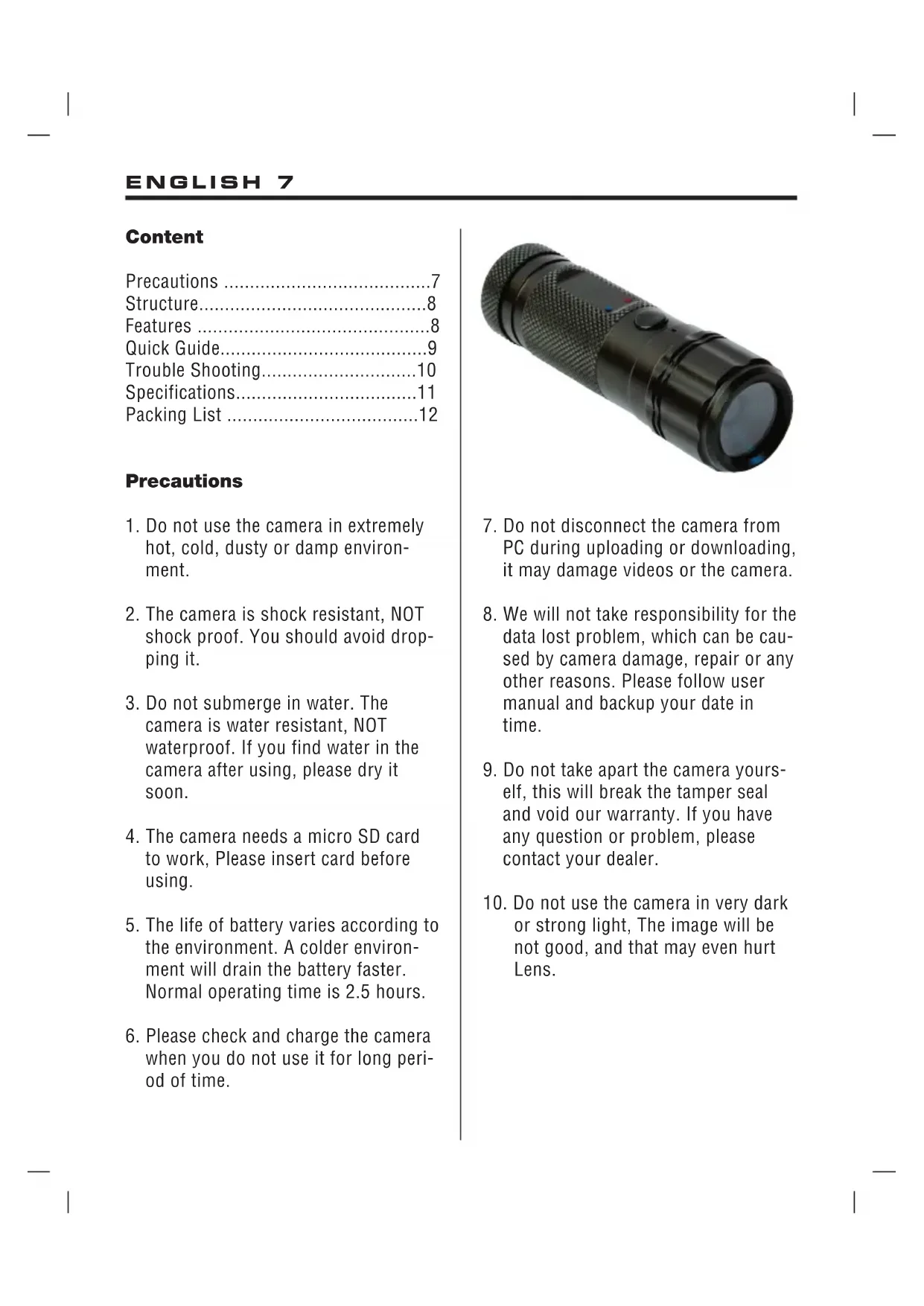


| Product type | Sports camcorder |
| Brand | Braun |
| Model | TOPACTIONDV 720P |
| Sensor | CMOS |
| Viewing angle | 120 degrees |
| Video resolution | 1280 x 720 pixels |
| Recording speed | 30 frames per second |
| Video format | AVI |
| Estimated video file size | 75 MB per minute |
| Maximum duration per sequence | 20 minutes |
| Memory | Micro-SD card (not included), up to 32 GB |
| Battery life | 2.5 hours |
| Charging time | Approximately 3 hours |
| Dimensions | 9.5 x 2.8 x 2.8 cm |
| Weight | 64 grams |
| Water resistance | Water-repellent IP65 |
| Shock resistance | Yes, but not shockproof |
| Main functions | Video recording, PC camera mode, date/time stamp, cyclic recording, auto mode (start/stop on external power) |
| Power supply | Built-in rechargeable battery via USB |
| Mounting | Headband, Velcro, wrist strap, bike and car mount (optional) |
| Package contents | Camera, charger, USB cable, headband, Velcro, wrist strap, manual, waterproof case, bike and car mount (optional) |
Frequently Asked Questions - TOPACTIONDV 720P BRAUN
User questions about TOPACTIONDV 720P BRAUN
0 question about this device. Answer the ones you know or ask your own.
Ask a new question about this device
Download the instructions for your Camcorder in PDF format for free! Find your manual TOPACTIONDV 720P - BRAUN and take your electronic device back in hand. On this page are published all the documents necessary for the use of your device. TOPACTIONDV 720P by BRAUN.
USER MANUAL TOPACTIONDV 720P BRAUN
Precautions 7 Structure. 8 Features 8 Quick Guide. 9 Trouble Shooting. 10 Specifications. 11 Packing List 12
Precautions
- Do not use the camera in extremely hot, cold, dusty or damp environment.
- The camera is shock resistant, NOT shock proof. You should avoid dropping it.
- Do not submerge in water. The camera is water resistant, NOT waterproof. If you find water in the camera after using, please dry it soon.
- The camera needs a micro SD card to work, Please insert card before using.
- The life of battery varies according to the environment. A colder environment will drain the battery faster. Normal operating time is 2.5 hours.
- Please check and charge the camera when you do not use it for long period of time.
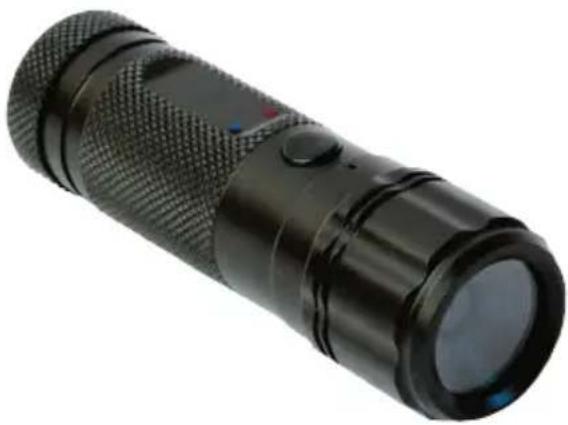
- Do not disconnect the camera from PC during uploading or downloading, it may damage videos or the camera.
- We will not take responsibility for the data lost problem, which can be caused by camera damage, repair or any other reasons. Please follow user manual and backup your date in time.
- Do not take apart the camera yourself, this will break the tamper seal and void our warranty. If you have any question or problem, please contact your dealer.
- Do not use the camera in very dark or strong light, The image will be not good, and that may even hurt Lens.
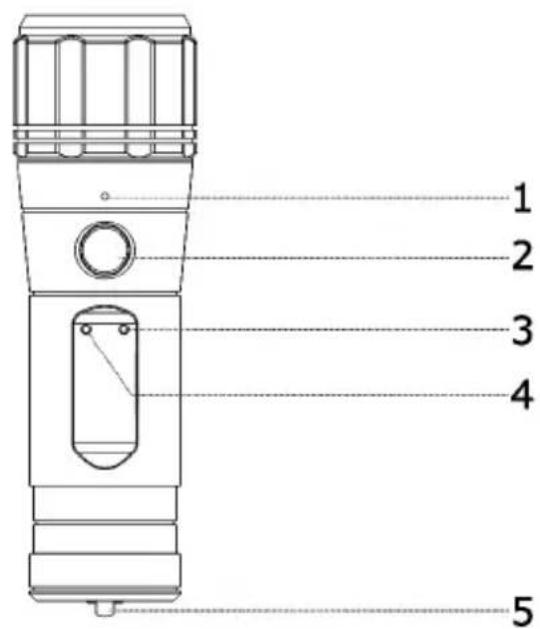
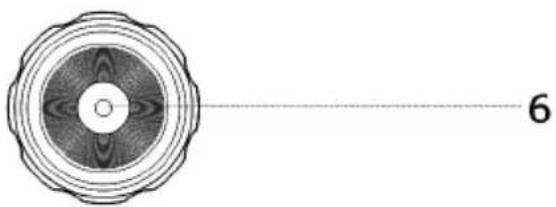
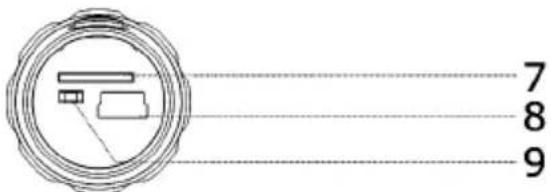
Structure
(1) Microphone (2) Record/stop (3) Record indicator (4) Power indicator (5) Ring hole (6) Lens (7) Card slot (8) USB jack (9) Reset
Features
Professional hands-free sport camera. - Skid-proof fashion pattern design. Water resistant, IP65. - Shock resistant. - Date/Time stamp on video (selectable). - Support recording while charging.
- Support overwrite when card is full (selectable).
- Save power, turn off automatically after 1 minute when standby, if no further action.
- The simplest operation, plug and play. Alloyed appearance, fireproof, can even work in high temperature for a while. Video with audio recording. Support Auto mode. Record when external power starts, save then stop when external power stops, automatically.
- Easy installation, especially on helmet, bike, car and shotgun.
- Suitable for biking, skiing, surfing, horsing, hunting and racing.
Quick Guide
Record
- Put the micro SD card (SELL SEPARATELY) into card slot.
- Press and hold the button until indicators turn on (left is red, right is blue), it is now in standby. Attention: It will turn off automatically after 60 seconds if no further action when standby.
- Then press the button again, right indicator flashes, the camera is now recording.
- Press the button again, right indicator stops flashing, camera stops recording and saves video file automatically.
- Press and hold the button, until indicators turn off. This turns off the camera.
Playback
- Keep the card in, connect camera with computer by USB cable.
- It shows found new hardware on computer (note this can take up to 30 seconds).
- Open Removable Disc on computer, you will see video files. Please transfer to your computer to play the files. You can copy or delete the files from the card.
- Remove camera from computer.
PC Camera
- Press and hold the button, connect camera with computer by USB cable. Release the button until it shows found new hardware on computer.
- Find the PC camera icon, open and use it.
- Remove camera from computer.
Charging
- Connect camera to charger by USB cable.
- Plug the charger into power jack, left indicator on camera will turn red then flashes.
- After around 3 hours, it stops flashing. It is full charged.
- Remove it from charger.
Set Date/Time
- Create a new ".txt" file, name it as "time.txt".
- Put the correct date and time into the file according below format. I.e. 2011-05-01 08:55:00
2011 is the year, 05 is the month, 01 is the day, 08 is the hour, 55 is the minute, 00 is the second.
- Save the file and copy it into the micro SD card.
- Remove the camera from the computer, restart it, then record; the date and time are set up successfully.
Setup
- Insert the card, turn on then turn off the camera.
- Connect the camera to the computer using a USB cable.
- Open the removable disc and find the file named "setup.ini" on the card. CycleRecord = No, Timestamp = Yes, VideoImageSize = 0, AutoRecOnExternPower = No (Auto mode). Set CycleRecord, TimeStamp, and AutoRecOnExternPower to "Yes" or "No". Set VideoImageSize to 0, 1600.
CycleRecord = Yes
Overwrite and continue recording automatically when the card is full.
CycleRecord = No
Stop and turn off when the card is full.
Timestamp = Yes
With date/time stamp on video recordings.
Timestamp = No
Without date/time stamp on video recordings.
VideoImageSize = 0
Standard: Video resolution is 1280*720
@ 30 FPS
VideoImageSize = 1600
Option 2: Video resolution is 1600*1200 @ 15 FPS
AutoRecOnExternPower = Yes
Auto mode, record when external power starts, save then stop when external power stops
AutoRecOnExternPower = No
Manual mode, press button to record.
Troubleshooting
Q1: It does not work, what shall I do?
A1: 1. Check if it has power. 2. Check if you put card yet. 3. Try to change another card or reset it.
Q2: It is not able to charge, what should I do?
A2: 1. Try to change another USB cable or AC adapter. 2. Try to reset it.
Q3: How can I know the card is full?
A3: When you turn off cycle record function, the blue indicator flashes quickly when the card is full, then camera turns off automatically. When you turn on cycle record, the full card will not be indicated, but gets overwritten from beginning.
Q4: How can I know the power is low? A4: The red indicator flashes quickly, then camera turns off automatically. Q5: No file in card after recording, how should I do? A5: Format or change the card, try to record again. According to user manual, step by step. Q6: Why is the video not clear enough? A6: Check the lens to make sure it's clean. And confirm you do not shake strongly while recording. Q7: The video and audio are out of step when played on PC, why? A7: Try to play videos with another player, such as VLC Media Player or Storm Player.
Specifications
Image Sensor: CMOS
View Angle: 120 degrees
Recording Resolution: 1280 x 720
Recording Frame: 30 FPS
Video Format: AVI
Video File Size: 75 MB/minute
Video Recording Section: 20 minutes
USB Interface: USB 2.0
Memory: No flash built-in.
Support micro SD card up to 32GB
Battery Working Time: 2.5 hours
Battery Charging Time: 3 hours
Color: Black
Dimension: 9.5 × 2.8 × 2.8 cm
Weight: 64 grams
Time stamp: Selectable
Cycling Record: Selectable
Packing list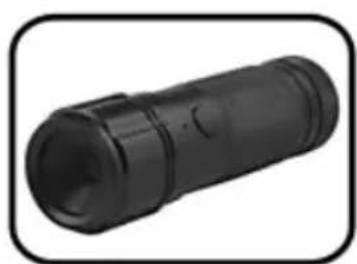
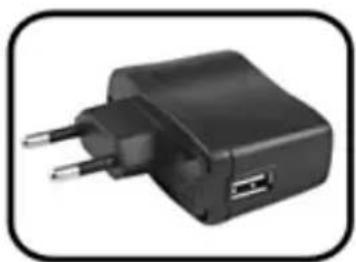
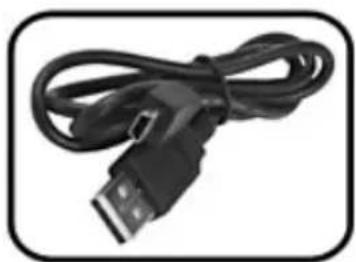
Camera Charger USB cable
Head Band Velcro Arm Band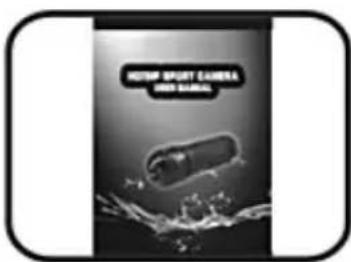
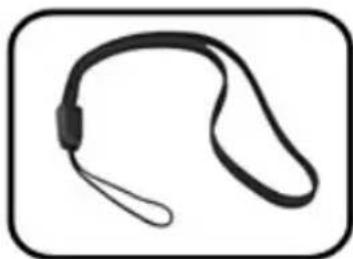
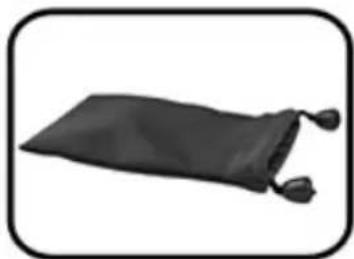
User Manual Wrist Ring Waterproof case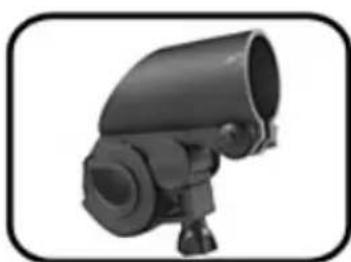
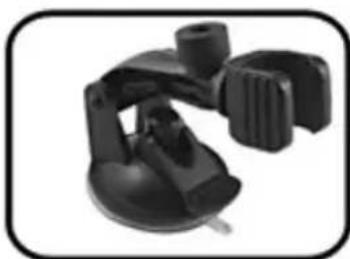
Mount for bike Holder for car Car charger (optional) (optional)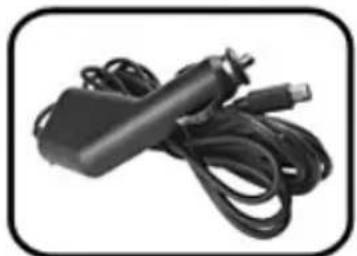
Table of contents

Brand : BRAUN
Model : TOPACTIONDV 720P
Category : Camcorder