
RMX7BT - Remote control SONY - Free user manual and instructions
Find the device manual for free RMX7BT SONY in PDF.
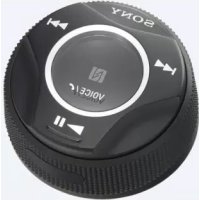



| Product type | Bluetooth remote for car |
| Brand and model | Sony RMX7BT |
| Remote dimensions | Approx. 5 × 3 × 1.5 cm |
| Adapter dimensions | Approx. 10 × 4 × 2 cm |
| Total weight | Approx. 80 g |
| Remote power supply | CR2032 lithium battery |
| Adapter power supply | USB port (5 V, 500 mA) |
| Battery life | About 1 year depending on usage |
| Connectivity | Bluetooth, NFC, infrared (between adapter and remote) |
| Supported Bluetooth profiles | A2DP, AVRCP, HFP, HID |
| Audio codecs | SBC, AAC |
| Main functions | Music control, hands-free calling, voice recognition (Sony Assistant or Siri), zoom for Waze (Android) |
| Audio input | 3.5 mm AUX jack |
| Microphone | Built-in microphone + external microphone input |
| Operating temperature | 0 °C to 40 °C |
| Care and cleaning | Clean with a dry cloth; avoid water and abrasive products |
| Safety | Do not install near airbags; secure firmly; do not obstruct IR signals |
| Spare parts and repairability | Replaceable battery; optional external microphone; adhesive mount included |
| General information | Manual available online; Sony support |
Frequently Asked Questions - RMX7BT SONY
User questions about RMX7BT SONY
0 question about this device. Answer the ones you know or ask your own.
Ask a new question about this device
Download the instructions for your Remote control in PDF format for free! Find your manual RMX7BT - SONY and take your electronic device back in hand. On this page are published all the documents necessary for the use of your device. RMX7BT by SONY.
USER MANUAL RMX7BT SONY
Operating Instructions
Mode d'emploi
Guide to Parts and Controls. 3
Connection/Installation
Cautions 5
Parts List for Installation. 5
Connection 6
Installation. 7
Getting Started
Turning the Power on. 9
Setting on the Car Audio Unit 9
Preparing a BLUETOOTH Device 10
Playback
Playing a BLUETOOTH Device 12
Handsfree via BLUETOOTH
Receiving a Call. 13
Using Voice Recognition 14
Additional Information
Troubleshooting 15
Features
Bring your smartphone to easily control calls, music and more. This In-car Bluetooth®
Commander for Smartphone has Sony's voice technology app activation and an intuitively designed keypad, so you can keep using your Smartphone without ever taking your eyes off the road. All you need to get started is an AUX input and USB power supply.
Guide to Parts and Controls
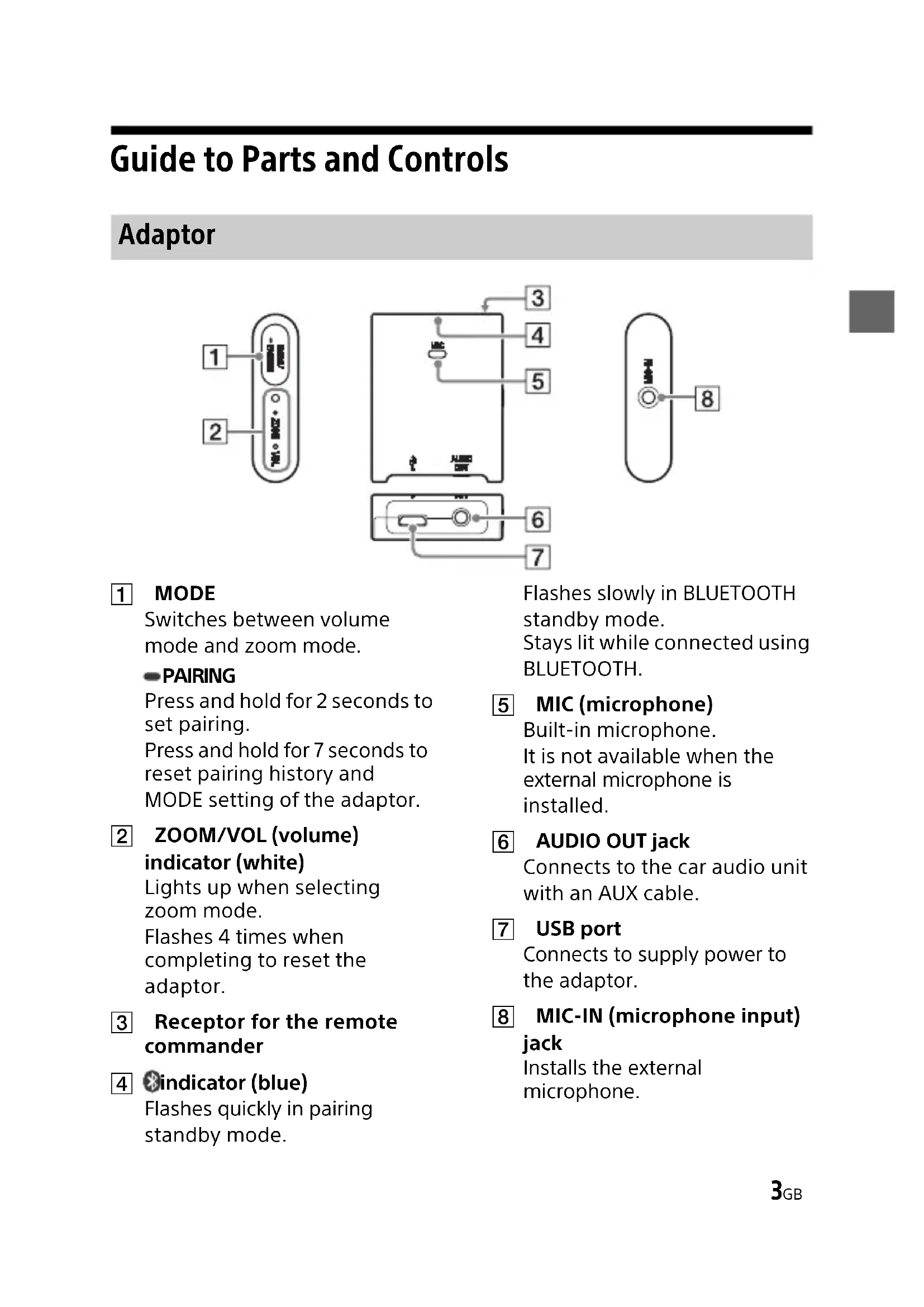
Adaptor
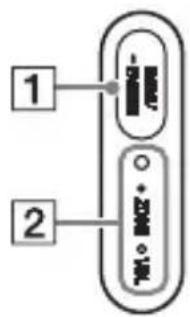
1 MODE
Switches between volume mode and zoom mode.
PAIRING
Press and hold for 2 seconds to set pairing.
Press and hold for 7 seconds to reset pairing history and MODE setting of the adaptor.
2 ZOOM/VOL (volume) indicator (white)
Lights up when selecting zoom mode.
Flashes 4 times when completing to reset the adaptor.
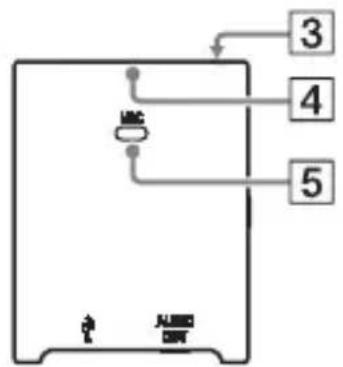
3 Receptor for the remote commander
4 indicator (blue)
Flashes quickly in pairing standby mode.
Flashes slowly in BLUETOOTH standby mode.
Stays lit while connected using BLUETOOTH.
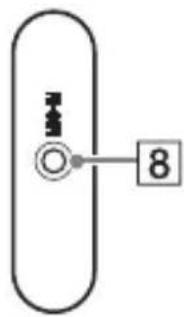
MIC (microphone)
Built-in microphone. It is not available when the external microphone is installed.
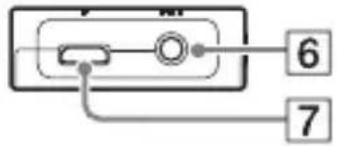
6 AUDIO OUT jack
Connects to the car audio unit with an AUX cable.
7 USB port
Connects to supply power to the adaptor.
MIC-IN (microphone input) jack
Installs the external microphone.
RM-X7S Remote commander
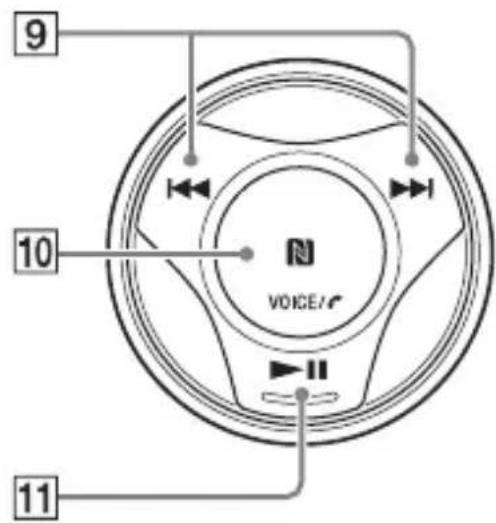
9
Forward/reverse the track on the music app.
10 N-Mark
Touch with an Android smartphone to make a BLUETOOTH connection.
VOICE
Activate the Assistant for RMX7BT function (only Android smartphones installed with the app) or the Siri function (iPhone only). Press and hold for 2 seconds to activate voice dial (Android smartphones only).
(call)
Receive/end a call.
11
Play/pause the track on the music app.
12 Emitter of infrared rays
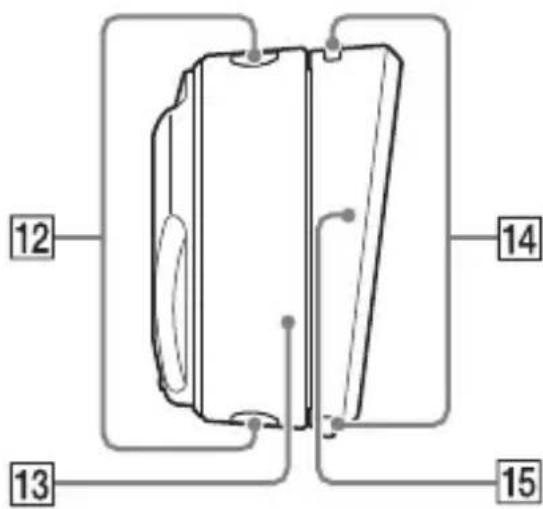
13 Ring
When selecting VOL (volume) on the adaptor, you can adjust the volume on the smartphone.
When selecting ZOOM on the adaptor, you can use the zoom function on the "Waze" app (Android™ smartphone only).
For details, refer to the help of the application.
14 Holder release button
15 Holder
Connection/Installation
Cautions
It is extremely dangerous if the cord becomes wound around the steering column or gearstick. Be sure to keep it and other parts from interfering with your driving operations. - Avoid installing the adaptor and remote commander in areas subject to dust, dirt, excessive vibration, or high temperature, such as in direct sunlight, on the dashboard or near heater ducts. - The adaptor is controlled with infrared rays from the remote commander. The adaptor and remote commander are not connected with BLUETOOTH. - Do not place obstacles between the adaptor and remote commander because it may interfere with communication with infrared rays. - Do not cover the emitter on the remote commander with your fingers. It is recommended to place the adaptor near the operator as the microphone is installed to the adaptor. If your car's ignition has no ACC position, remove the USB cable each time you turn the ignition off to prevent battery drain.
Parts List for Installation
(1)
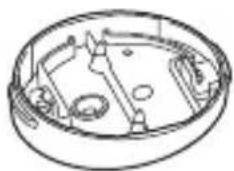
(2)
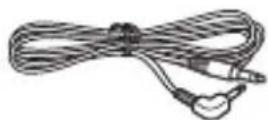
(3)
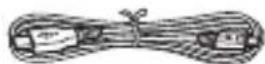
(4)

5

6

This parts list does not include all the package contents.
Connection
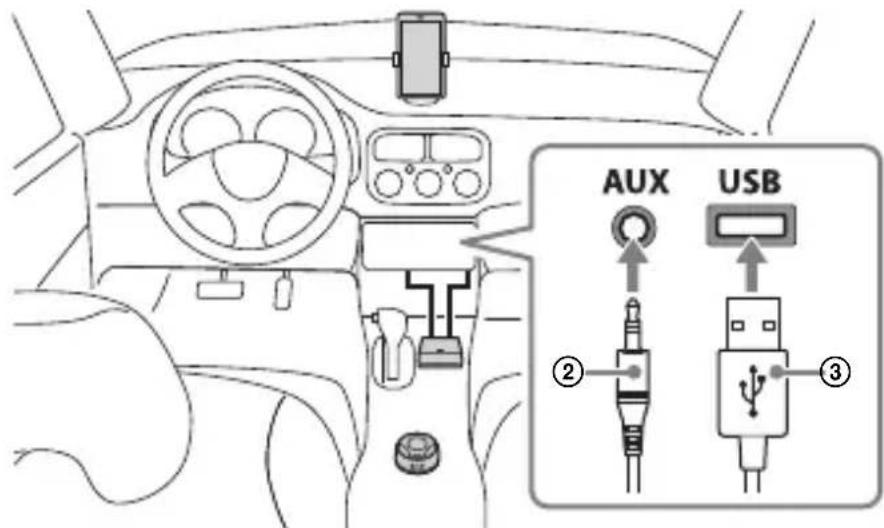
Connecting to an AUX input jack/USB port in the console box
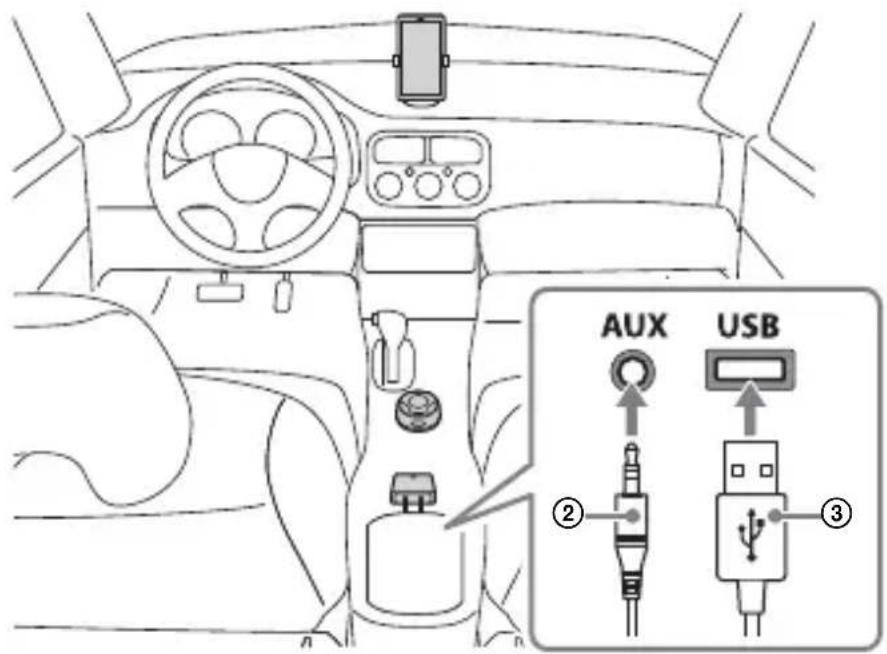
Connecting to an AUX input jack/USB port under the console panel
Notes
- Connect the adaptor with the AUX cable ② and USB cable ③.
- Install the adaptor to a site where it can receive the IR signal of the remote commander.
Installation
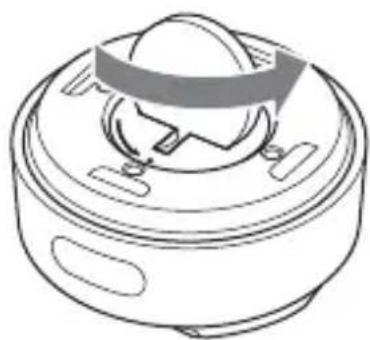
Installing the lithium battery
1 Open the cover on the bottom of remote commander with a coin, etc.
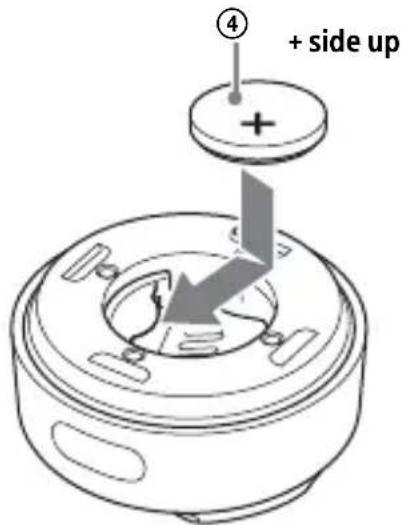
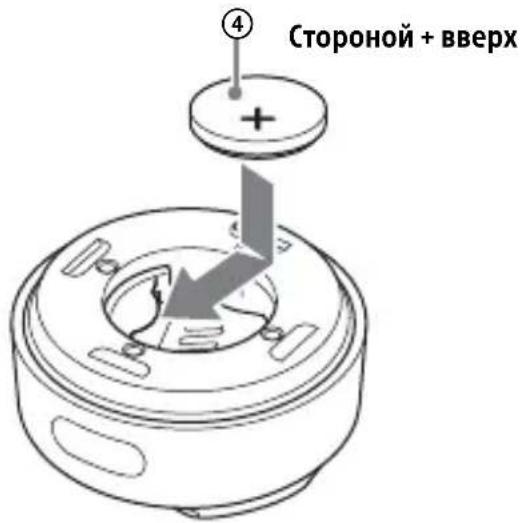
2 Install the supplied lithium battery ④ to the remote commander.
To replace the lithium battery
Under normal conditions, the battery will last approximately 1 year. (The service life may be shorter, depending on the conditions of use.)
When the battery becomes weak, the range of the remote commander becomes shorter.
CAUTION
Danger of explosion if battery is incorrectly replaced. Replaced only with the same or equivalent type.
Notes on the lithium battery
- Keep the lithium battery out of the reach of children. Should the battery be swallowed, immediately consult a doctor.
- Wipe the battery with a dry cloth to ensure good contact.
- Be sure to observe the correct polarity when installing the battery.
- Do not hold the battery with metallic tweezers, otherwise a short-circuit may occur.
Installing the remote commander
Before installing
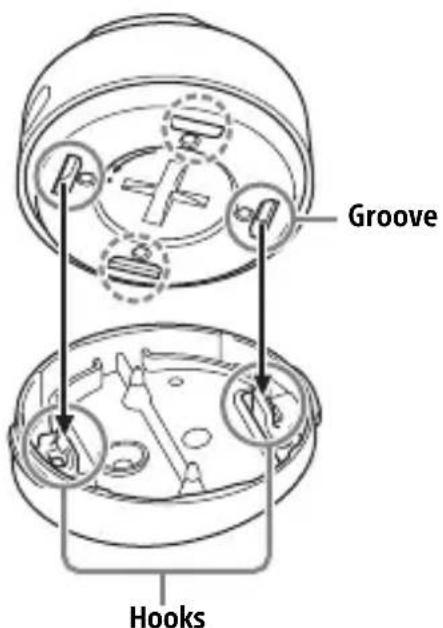
- Make sure that the angle of slant at the holder ① or the direction of remote commander is suitable for the installation site. There are 4 grooves on the remote commander and 2 hooks on the holder ①, and depending on the situation, you can install the remote commander four different ways.
- To prevent making unnecessary holes or attaching tape to an unsuitable site of the car, install the remote commander and adaptor to a site where they can definitely send and receive the IR signal.
Note
Be careful not to damage cables and other items in the car when making a hole on the car or tightening the screw.
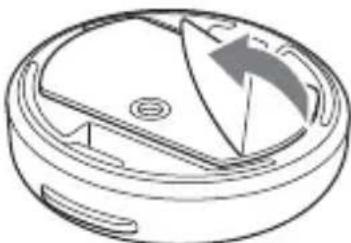
1 Make a hole with a diameter of 2 mm on the installation site of your car. 2 Peel the tape on the bottom of the holder ① and attach it on the installation site. Fix the hole of the holder ① on the hole of the car.
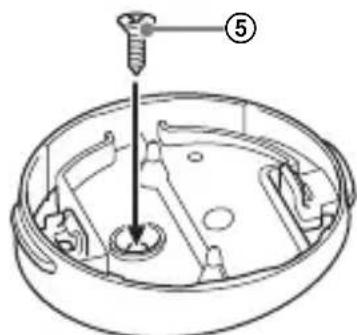
3 Install the supplied screw ⑤ to the hole of the holder ① and secure it to the installation site.
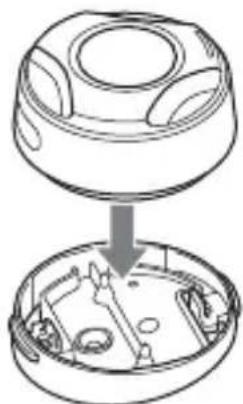
4 Set the remote commander with the lithium battery to the holder ①. Insert the groove of the remote commander in the hook of the holder ①, and push the remote commander until it clicks.
To remove the remote commander
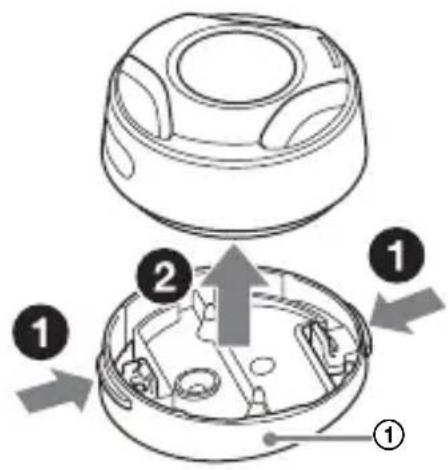
1 Pull the remote commander while pressing holder release buttons on both sides of the holder ① at the same time to remove it from the holder ①.
Installing the adaptor
1. Attach the adaptor to the installation site using the supplied double-sided tape ⑥.
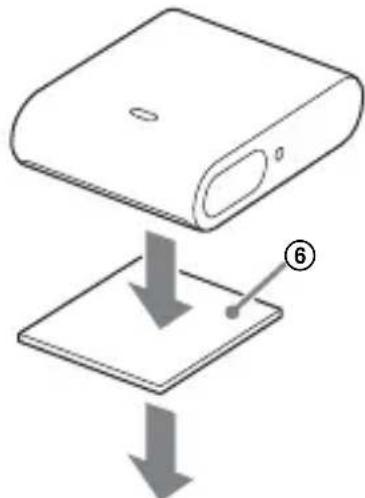
2. Connect the AUX cable and USB cable.
Note
Before attaching the tape, clean each installation site of the adaptor and remote commander with a dry cloth.
Getting Started
Turning the Power On
1. Turn the ignition on or set the ignition to ACC.
The adaptor turns on.
To turn the power off
Turn the ignition off.
The adaptor turns off.
Note
If your car's ignition has no ACC position, remove the USB cable each time you turn the ignition off to prevent battery drain.
Setting on the Car Audio Unit
1 Switch the source on the car audio unit to the AUX source. When connecting the adaptor to the car audio unit, the sound of the device connected to the adaptor is output from the speaker on the car audio unit.
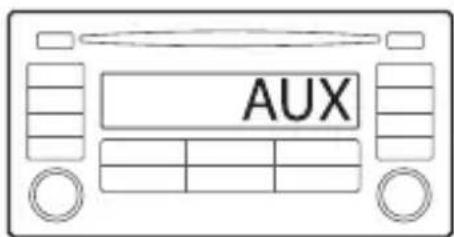
For details, refer to the operating instructions supplied with the car audio unit.
Preparing a BLUETOOTH Device
You can enjoy music, or perform handsfree calling depending on the BLUETOOTH compatible device such as a smartphone, cellular phone and audio device (hereafter "BLUETOOTH device" if not otherwise specified). For details on connecting, refer to the operating instructions supplied with the device.
Before connecting the device, turn down the volume of the car audio unit; otherwise, loud sound may result.
Connecting with a Smartphone by One touch (NFC)
By touching the N-Mark on the remote commander with an NFC* compatible smartphone, the adaptor is paired and connected with the smartphone automatically.
- NFC (Near Field Communication) is a technology enabling short-range wireless communication between various devices, such as mobile phones and IC tags. Thanks to the
NFC function, data communication can be achieved easily just by touching the relevant symbol or designated location on NFC compatible devices.
For a smartphone with Android OS 4.0 or lower installed, downloading the app "NFC Easy Connect" available at Google PlayTM is required. The app may not be downloadable in some countries/regions.
1 Activate the NFC function on the smartphone. For details, refer to the operating instructions supplied with the smartphone.
2 Touch the N-Mark part of the remote commander with the N-Mark part of the smartphone.
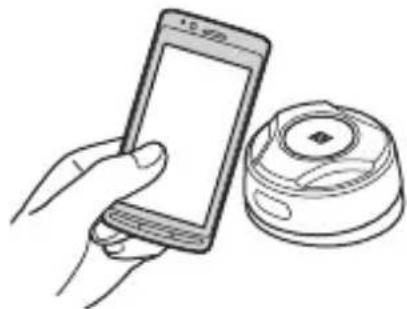
Make sure that lights up on the adaptor.
To disconnect by One touch Touch the N-Mark part of the remote commander with the NMark part of the smartphone again.
Notes
- When making the connection, handle the smartphone carefully to prevent scratches.
- One touch connection is not possible when the adaptor is already connected to another NFC compatible device. In this case, disconnect the other device, and make connection with the smartphone again.
Pairing and connecting with a BLUETOOTH device
When connecting a BLUETOOTH device for the first time, mutual registration (called "pairing") is required. Pairing enables this adaptor and other devices to recognize each other.
1 Place the BLUETOOTH device within 1 m (3 ft) of this adaptor. 2 Press and hold PAIRING for 2 seconds.
flashes quickly while the adaptor is in pairing standby mode.
3 Perform pairing on the BLUETOOTH device so it detects this adaptor. 4 Select [RM-X7BT] (your model name) shown in the display of the BLUETOOTH device. If your model name does not appear, repeat from step 2.
5 If passkey input is required on the BLUETOOTH device, input [0000].
When pairing is made, flashes.
6 Select this adaptor on the BLUETOOTH device to establish the BLUETOOTH connection.
lights up when the connection is made.
Notes
- While connecting to a BLUETOOTH device, this adaptor cannot be detected from another device. To enable detection, enter the pairing mode and search for this adaptor from another device. Depending on the status of the BLUETOOTH device, it may not be possible to obtain your model name.
To start playback
For details, see "Playing a BLUETOOTH Device" (page 12).
To cancel pairing
Perform step 2 to cancel the pairing mode after this adaptor and the BLUETOOTH device are paired.
Connecting with a paired BLUETOOTH device
To use a paired device, connection with this adaptor is required. Some paired devices will connect automatically.
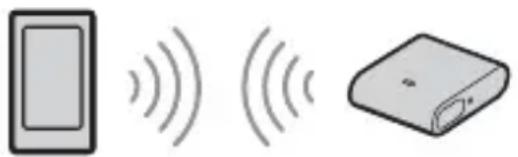
Tips
The adaptor remembers the 5 most recently paired devices. - If the BLUETOOTH signal is on, when the ignition is turned on, this adaptor automatically reconnects to the most recently connected smartphone.
Playback
Playing a BLUETOOTH Device
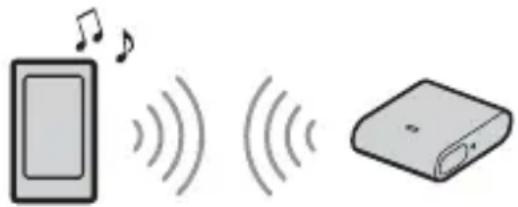
The adaptor supports various BLUETOOTH audio profiles. You can play contents on a connected device that supports BLUETOOTH A2DP (Advanced Audio Distribution Profile).
Notes
- The adaptor supports the SBC/AAC codec. The codec is automatically switched depending on the connected device.
- The remote commander may not work properly depending on the performance of the connected device or music app.
- As the music app operates with the HID (Human Interface Device Profile), connect a smartphone that supports HID or AVRCP.
- When connecting with HID, the software keyboard on a smartphone does not appear. If you use the software keyboard, deactivate HID on the smartphone.
1 Make BLUETOOTH connection with the audio device (page 11).
2 Make sure that stays lit. If a connection has not been established, select [RM-X7BT] on the BLUETOOTH device. 3 Press on the remote commander. Start audio playback with the music app on the connected BLUETOOTH device.
Note: Once the adaptor and the BLUETOOTH device are connected, you can control playback by pressing ▸ and ←/→.
Handsfree via BLUETOOTH
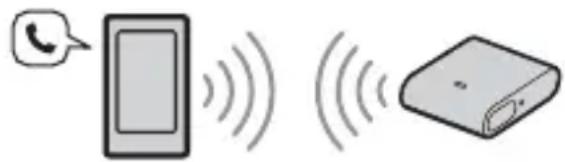
You can operate a smartphone handsfree by simply speaking into the built-in microphone or an external microphone installed on the adaptor. Installing the external microphone helps increase voice recognition.
To use a smartphone, connect it with this adaptor. For details, see "Preparing a BLUETOOTH Device" (page 10).
Receiving a Call
1 Press when a call is received with a ringtone. The phone call starts.
Note
The ringtone and talker's voice are output only from the speakers of the car audio unit.
To reject the call
Press and hold for 2 seconds.
To end the call
Press again.
To switch between handsfree mode and handheld mode
During a call, press and hold to switch the phone call audio between the adaptor and smartphone.
Using Voice Recognition
You can control an application by voice command.
Note
For your safety, follow your local traffic laws and regulations, and do not operate the application while driving.
Using Assistant for RM-X7BT with an Android smartphone
By installing Assistant for RMX7BT, you can use an Android smartphone handsfree by simply speaking into the microphone. For details, refer to the help of the application.
http://s-assistant.suny.net/


Note
To make use of the app features, see the details on your Android smartphone.
1 Activate the app function on the Android smartphone.
2 Press VOICE. 3 After the Android smartphone beeps, speak into the microphone.
The app starts responding.
To deactivate the app
Press VOICE.
Notes
- The Android smartphone may not recognize your voice depending on usage conditions.
- The Android smartphone may not recognize your voice under noisy conditions such as loud sound from the car audio, road noise or air conditioner noise.
- The app may not function properly, or the response time may lag in locations where mobile network signals are difficult to receive.
- There is no audio sound while the app is activated.
Using Siri Eyes Free
Siri Eyes Free allows you to use an iPhone handsfree by simply speaking into the microphone. You can perform the handsfree registration for an iPhone that supports Siri Eyes Free. Availability is limited iPhone 4s or later. Make sure that your iPhone is running the latest iOS version.
1 Activate the Siri function on the iPhone. For details, refer to the operating instructions supplied with the iPhone. 2 Press VOICE. The voice command display appears. 3 After the iPhone beeps, speak into the microphone. The iPhone beeps again, then Siri starts responding.
To deactivate Siri Eyes Free Press VOICE.
Notes
- The iPhone may not recognize your voice depending on usage conditions.
- The iPhone may not recognize your voice under noisy conditions such as loud sound from the car audio, road noise or air conditioner noise.
- Siri Eyes Free may not function properly, or the response time may lag in locations where iPhone signals are difficult to receive.
- There is no audio sound while Siri Eyes Free is activated.
Additional Information
Troubleshooting
The following checklist will help you remedy problems you may encounter with your adaptor and remote commander.
Before going through the checklist below, check the connection and operating procedures.
If the problem is not solved, visit the support site on the reference guide (separate document).
General
No sound or the sound is very low.
The volume of the connected device is very low. Increase the volume of the connected device. Check that the adaptor is connected to the car audio unit with the AUX cable. Check that the source of the car audio unit is set to the AUX source.
The smartphone does not work.
Check that the emitter on the remote commander is not covered with your fingers. Check that the adaptor is installed to a site where it can receive the IR signal of the remote commander.
Check that the battery of remote commander becomes full. If you use an iPhone, update iOS to the latest version.
NFC function
One touch connection (NFC) is not possible.
If the smartphone does not respond to the touching.
- Check that the NFC function of the smartphone is turned on. Move the N-Mark part of the smartphone closer to the N-Mark part on this remote commander. If the smartphone is in a case, remove it.
NFC receiving sensitivity depends on the device.
If One touch connection with the smartphone fails several times, make BLUETOOTH connection manually.
BLUETOOTH function
The connecting device cannot detect this adaptor.
→ Before pairing, set this adaptor to pairing standby mode.
→ While connected to a BLUETOOTH device, this adaptor cannot be detected from another device. Disconnect the current connection and search for this adaptor from another device.
No ringtone.
→ Depending on the connecting device, the ringtone may not be sent properly.
The sound skips during playback of a BLUETOOTH audio device.
→ Reduce the distance between the adaptor and the BLUETOOTH audio device. → If the BLUETOOTH audio device is stored in a case that interrupts the signal, remove the audio device from the case during use. Several BLUETOOTH devices or other devices that emit radio waves are in use nearby.
- Turn off the other devices.
- Increase the distance from the other devices.
The playback sound stops momentarily when the connection between this adaptor and the smartphone is being made. This is not a malfunction.
The connected BLUETOOTH audio device cannot be controlled.
→ Check that the connected BLUETOOTH audio device supports HID or AVRCP.
A call is answered unintentionally.
The connecting phone is set to answer a call automatically.
If these solutions do not help improve the situation, consult your nearest Sony dealer.
Table of Contents
Features 2
Connection/Installation
Caution 6
Main licenses via BLUETOOTH
Connection/Installation
Caution
Installing the remote control battery
1 Open the lid on the lower part of the remote control using a coin, etc.

2 Insert the supplied AA battery into the remote control.
Replacing the remote control battery
Under normal conditions, the battery lasts approximately 1 year. (The battery service life may be shorter depending on usage conditions.) When the battery is discharged, the operating range of the remote control decreases.
WARNING
If the battery is incorrectly installed, there is a risk of explosion. Replace the battery only with the same or equivalent type.
- Do not make unnecessary holes and do not stick the tape in an inappropriate place on the vehicle. Install the remote control adapter so that nothing prevents it from sending or receiving IR signals.
Note
When working in the vehicle or tightening screws, be careful not to damage the cables and other vehicle components.
1. Drill a 2 mm diameter hole in the chosen location on the vehicle. 2. Peel the adhesive tape from the lower part of the holder 1 and attach it at the installation location. Position the holder hole 1 over the hole in the vehicle.
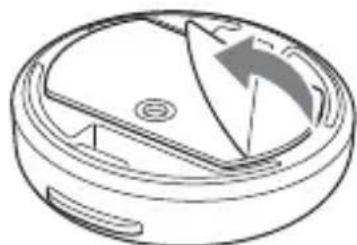
3. Insert the screw from the supply kit ⑤ into the hole of the holder ① and tighten it to secure the holder in place.
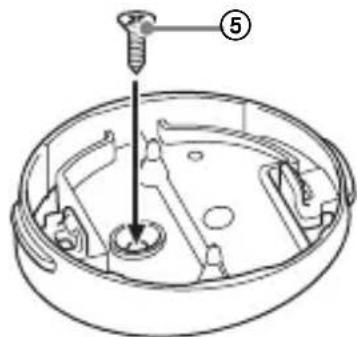
4. Place the remote control with the lithium battery into the holder ①. Insert the groove of the remote control into the catch of the holder ① and press the remote control until it clicks.

BLUETOOTH USING HANDS-FREE
You can control the smartphone by voice using voice commands through the built-in microphone or an external microphone connected to the adapter. Connecting an external microphone improves voice recognition quality. To use the smartphone, connect it to this adapter. For more details, see "Bluetooth Device Setup" (p. 13).
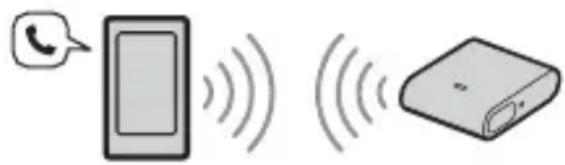
Answering a Call
1. When a call comes in and the ringtone sounds, press the button. The call starts on the phone.
Note
The ringtone and the voice of the caller are output only through the speakers of the vehicle's audio system.
Rejecting a Call
Press and hold the button for 2 seconds.
Ending a Call
Press and hold the key.
Switching between loudspeaker mode and handset mode
During a call
Press and hold the key to switch the call audio between the adapter and the smartphone and vice versa.
The smartphone does not work.
Make sure you do not cover the transmitter on the remote control with your fingers. Make sure the adapter is installed in a place where it can receive the IR signal from the remote control. Make sure the remote control battery is charged. When using an iPhone, update iOS to the latest version.
NFC function
It is impossible to make a connection with a single tap (NFC).
If the smartphone does not respond to the tap: - Make sure the NFC function of the smartphone is enabled. - Bring the NFC symbol on the smartphone closer to the corresponding symbol on the remote control. - If the smartphone is in a case, remove it.
NFC reception sensitivity depends on the device. If the connection with a single tap with the smartphone cannot be made after several attempts, make the connection via BLUETOOTH manually.
BLUETOOTH function
The connected device cannot recognize the adapter data.
Before connecting, wait for the connection to be established. After connecting to a BLUETOOTH device, the adapter data cannot be detected by another device. End the current connection and perform a search for the adapter data from the other device.
There is no ringtone.
Depending on the connected device, the ringtone may be sent incorrectly.
When performing audio playback via BLUETOOTH, there is no sound.
Reduce the distance between this adapter and the BLUETOOTH audio device. If the BLUETOOTH audio device is stored in a case that interferes with the signal, remove the audio device from the case during use. If several other BLUETOOTH devices are used nearby, they may emit radio waves.
Turn off other devices. Increase the distance from other devices.
Audio playback stops immediately when a connection is established between this adapter and a smartphone. This is not a malfunction.
It is not possible to control the connected BLUETOOTH audio device.
Make sure that the connected BLUETOOTH audio device supports HID or AVRCP.
Answering a call is performed automatically.
The connected phone has the automatic call answering function set.
If the problem cannot be resolved after following the suggested actions, contact your nearest Sony dealer.

http://www.sony.net/
©2016 Sony Corporation Printed in China
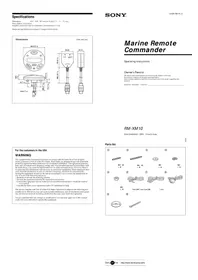
- CONNECTION/INSTALLATION
- GETTING STARTED
- PLAYBACK
- HANDSFREE VIA BLUETOOTH
- ADDITIONAL INFORMATION
- FEATURES
- GUIDE TO PARTS AND CONTROLS
- ADAPTOR
- MODE
- PAIRING
- ZOOM/VOL (VOLUME) INDICATOR (WHITE)
- RECEPTOR FOR THE REMOTE COMMANDER
- INDICATOR (BLUE)
- MIC (MICROPHONE)
- AUDIO OUT JACK
- USB PORT
- MIC-IN (MICROPHONE INPUT) JACK
- RM-X7S REMOTE COMMANDER
- N-MARK
- VOICE
- (CALL)
- EMITTER OF INFRARED RAYS
- RING
- HOLDER RELEASE BUTTON
- HOLDER
- CAUTIONS
- PARTS LIST FOR INSTALLATION
- CONNECTION
- CONNECTING TO AN AUX INPUT JACK/USB PORT IN THE CONSOLE BOX
- CONNECTING TO AN AUX INPUT JACK/USB PORT UNDER THE CONSOLE PANEL
- NOTES
- INSTALLATION
- INSTALLING THE LITHIUM BATTERY
- TO REPLACE THE LITHIUM BATTERY
- CAUTION
- NOTES ON THE LITHIUM BATTERY
- INSTALLING THE REMOTE COMMANDER
- BEFORE INSTALLING
- NOTE
- TO REMOVE THE REMOTE COMMANDER
- INSTALLING THE ADAPTOR
- TURNING THE POWER ON
- SETTING ON THE CAR AUDIO UNIT
- PREPARING A BLUETOOTH DEVICE
- CONNECTING WITH A SMARTPHONE BY ONE TOUCH (NFC)
- PAIRING AND CONNECTING WITH A BLUETOOTH DEVICE
- TO START PLAYBACK
- TO CANCEL PAIRING
- CONNECTING WITH A PAIRED BLUETOOTH DEVICE
- TIPS
- PLAYING A BLUETOOTH DEVICE
- RECEIVING A CALL
- TO REJECT THE CALL
- TO END THE CALL
- TO SWITCH BETWEEN HANDSFREE MODE AND HANDHELD MODE
- USING VOICE RECOGNITION
- USING ASSISTANT FOR RM-X7BT WITH AN ANDROID SMARTPHONE
- TO DEACTIVATE THE APP
- USING SIRI EYES FREE
- TO DEACTIVATE SIRI EYES FREE PRESS VOICE
- TROUBLESHOOTING
- GENERAL
- NO SOUND OR THE SOUND IS VERY LOW
- THE SMARTPHONE DOES NOT WORK
- NFC FUNCTION
- ONE TOUCH CONNECTION (NFC) IS NOT POSSIBLE
- BLUETOOTH FUNCTION
- THE CONNECTING DEVICE CANNOT DETECT THIS ADAPTOR
- NO RINGTONE
- THE SOUND SKIPS DURING PLAYBACK OF A BLUETOOTH AUDIO DEVICE
- THE CONNECTED BLUETOOTH AUDIO DEVICE CANNOT BE CONTROLLED
- A CALL IS ANSWERED UNINTENTIONALLY
- TABLE OF CONTENTS
- MAIN LICENSES VIA BLUETOOTH
- INSTALLING THE REMOTE CONTROL BATTERY
- REPLACING THE REMOTE CONTROL BATTERY
- WARNING
- BLUETOOTH USING HANDS-FREE
- ANSWERING A CALL
- REJECTING A CALL
- ENDING A CALL
- SWITCHING BETWEEN LOUDSPEAKER MODE AND HANDSET MODE
- IT IS IMPOSSIBLE TO MAKE A CONNECTION WITH A SINGLE TAP (NFC)
- THE CONNECTED DEVICE CANNOT RECOGNIZE THE ADAPTER DATA
- THERE IS NO RINGTONE
- WHEN PERFORMING AUDIO PLAYBACK VIA BLUETOOTH, THERE IS NO SOUND
- IT IS NOT POSSIBLE TO CONTROL THE CONNECTED BLUETOOTH AUDIO DEVICE
- ANSWERING A CALL IS PERFORMED AUTOMATICALLY
Brand : SONY
Model : RMX7BT
Category : Remote control