
Z5450 - Hi-fi system LOGITECH - Free user manual and instructions
Find the device manual for free Z5450 LOGITECH in PDF.

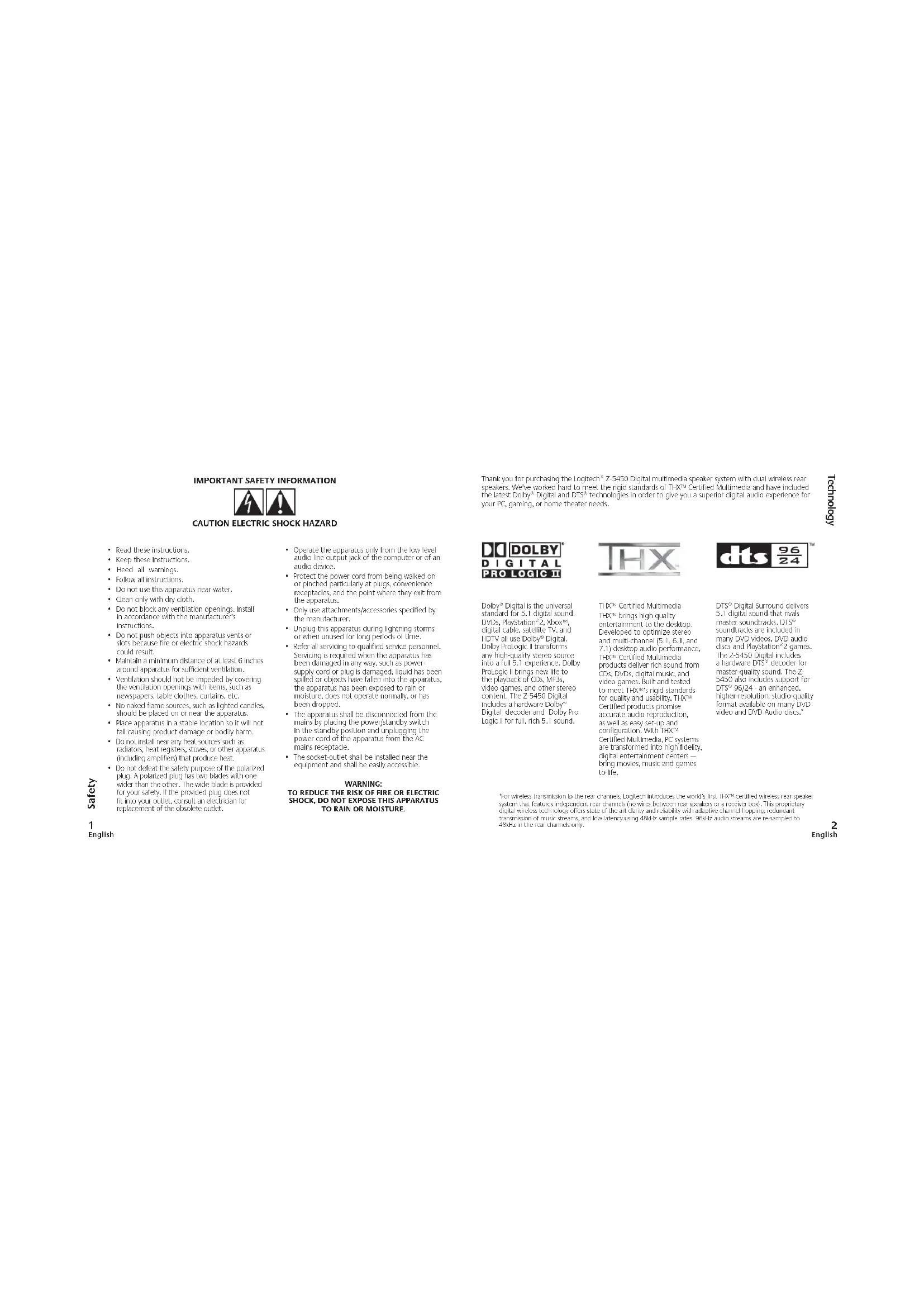


| Product type | 5.1 Multimedia Speaker System |
| Brand | Logitech |
| Model | Z5450 |
| Channels | 5.1 (front left/right, center, rear left/right, subwoofer) |
| Wireless technology | Wireless rear speakers with digital transmission |
| Audio decoding | Dolby Digital, Dolby Pro Logic II (Movie/Music), DTS, DTS 96/24 |
| Certification | THX Multimedia |
| Digital inputs | 2 optical (S/PDIF), 1 coaxial (S/PDIF) |
| Analog inputs | 6 channel direct (3 x 3.5mm mini-jack), 3 stereo inputs (mini-jack), 1 side input |
| Headphone output | 3.5mm stereo mini-jack |
| Frequency response | 35 Hz – 20 kHz |
| Maximum sound pressure level | 103 dB |
| Input impedance | 9500 ohms |
| Satellite transducers | 6.35 cm with aluminum phase plug |
| Subwoofer transducer | 16.5 cm high excursion |
| Power supply | Mains (subwoofer and wireless rear speakers) |
| Maintenance | Clean with a dry cloth; do not block vents |
| Safety | Keep 15 cm clearance for ventilation; do not expose to water or heat |
| Included accessories | Speaker cables (4.5 m), D-Sub cable (20.3 cm), remote control, 3.5mm audio cables |
| Warranty | Limited (details in manual) |
Frequently Asked Questions - Z5450 LOGITECH
User questions about Z5450 LOGITECH
0 question about this device. Answer the ones you know or ask your own.
Ask a new question about this device
Download the instructions for your Hi-fi system in PDF format for free! Find your manual Z5450 - LOGITECH and take your electronic device back in hand. On this page are published all the documents necessary for the use of your device. Z5450 by LOGITECH.
USER MANUAL Z5450 LOGITECH
IMPORTANT SAFETY INFORMATION
A
CAUTION ELECTRIC SHOCK HAZARD
Read these instructions.
- Keep these instructions.
Heed all warnings.
Follow all instructions.
Do not use this apparatus near water.
Clean only with dry cloth.
Do not block any ventilation openings. Install in accordance with the manufacturer's instructions.
Do not push objects into apparatus vents or slots because fire or electric shock hazards could result.
- Maintain a minimum distance of at least 6 inches around apparatus for sufficient ventilation.
- Ventilation should not be impeded by covering the ventilation openings with items, such as newspapers, table cloths, curtains, etc.
- be naked flame sources, such as lighted candles, should be placed on or near the apparatus.
- Place apparatus in a stable location so it will not fall causing product damage or bodily harm.
- Do not install near any heat sources such as radiators, heat registers, stoves, or other apparatus (including amplifiers) that produce heat.
Do not defeat the safety purpose of the polarized plug. A polarized plug has two blocks with one wider than the other. The wide blade is provided for your safety. If the provided plug does not fit into your outlet, consult an electrician for replacement of the obsolete outlet.
- Operate the apparatus only from the low level audio line output jack of the computer or of an audio device.
Protect the power cord from being walked on or pinched particularly at plugs, convenience receptacles, and the point where they exit from the apparatus.
Only use attachments/accessories specified by the manufacturer. - Unplag this apparatus during lightning storms or when unused far long periods of time.
Refer all servicing to qualified service personnel. Servicing is required when the apparatus has been damaged in any way, such as power-supply cord or plug is damaged, liquid has been spilled or objects have fallen into the apparatus, the apparatus has been exposed to rain or moisture, does not operate normally, or has been dropped. - The apparatus shall be disconnected from the mains by placing the powerstandby switch in the standby position and unplugging the power cord of the apparatus from the AC mains receptacle.
- The socket-pullout shall be installed near the equipment and shall be easily accessible.
Thank you for purchasing the Logotech® 2-5450 Digital multimedia speaker system with dual wireless near speakers. We've worked hard to meet the rigid standards of THK™ Certified Multimedia and have included the latest Dobby® Digital and DTS® technologies in order to give you a superior digital audio experience for your PC, gaming, or home theater needs.
DOLBY
DIGITAL
PROLOGIC II
Dolby Digital is the universal standard for 5.1 digital sound. DVDs, PlayStation2, Xbox3D digital cable, satellite TV, and HDTV all use Dolby Digital. Dolby Prologic II transforms any high-quality stereo source into a full 5.1 experience. Dolby Prologic II brings new life to the playback of CDs, MP3s, video games, and other stereo content. The 24540 Digital includes a hardware Dolby Digital decoder and Dolby Pro Logic II for full, rich 5.1 sound.

THX® Certified Multimedia
THX® brings high quality entertainment to the desktop. Developed to optimize stereo and multi-channel (5,1,6,7, and 7,1) desktop audio performance, THX® Certified Multimedia products deliver rich sound from CDs, DVDs, digital music, and video games. Built and tested to meet TTX® rigid standards for quality and usability, THX® Certified products promise accurate audio reproduction, as well as easy set-up and configuration. With THX® Certified Multimedia, PC systems are transformed into high fidelity, digital entertainment centers — bring movies, music and games to life.

DTS Digital Surround delivers 5.1 digital sound has,自主研发, master soundtracks. DTS' soundtracks are included in many DVD videos, DVD audio discs and PlayStation® games. The 7-5450 Digital includes a hardware DTS decoder for master-quality sound. The 2-5450 also includes support for DTS' 96/21 - an enhanced, higher resolution, studio quality format available on many DVD video and DVD Audio discs."
The wireless transmission in the near channels, highest inductors (the world's first 114kΩ) satisfied wireless near-sensor system (that features independent near channel (no ties between near-sensors or a receiver link). This proprietary digital wireless technology offers a wide set of the art clarity and reliability with adjacent channel packing, redundant transmission, and enhanced low latency using 48Hz basic档次 rates. 96kΩ audio streams are co-arranged to 48kHz in the near channels only.
Important:
For your safety, set up the entire system before plugging it into a power source.
To setup your system, see the Quick Start guide.
Digital SoundTouch™ Control Center Overview
Digital LCD
-
Input: Use to select audio source [Optical 1-2, Coax, 6 ch, Direc or Stere 1-3]
-
Filect:Use to selcct sound effect (Stereo,Dolby Pro Logica),etc.)
-
Selling: Adjust parame
-
Mute: Mute the system
-
Level: Use to select subwoofer, center, rear or main volume
-
Pro-audio style knob: Adjusts volume, subwoofer, center, and other levels
-
System Power: Toggles between Ready and Standby modes
-
Antenna: Transmits tell and right rear audio signals to the wireless rear speakers
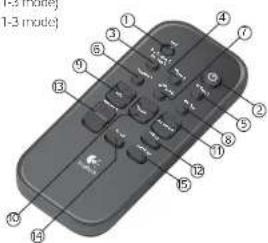
Remote Control
All functions are available on the remote control
- Test: The Test State is only available from the remote.
See the section on "Test State" for a full description of this mode.
-
System Power
-
6ch.Drect|Stereo1:Select6ch.Direct input source(when In Stereo-3,this button will selct Stereo1 Input source)
-
Steren 2: Select Stereo 2 input source (only works in Steren 1-3 mode)
-
Stereo 3: Select Stereo 3 input source [only works in Stereo 1-3 mode]
-
Optical 1: Select Optical 1 input source
-
Optical 2: Select Optical 2 Input
-
Coax: Select Coax input source
-
Sub up/down: Adjust subwoofer level
-
Center up/down: Adjust center channel level
-
Surround up/down: Adjust surround (near) level
-
Effect: Select sound effect
-
Volume up/down: Adjusts main volume
-
Mute: Mute the system
-
Settings: Adjusts parameters of digital surround sound effects. This Information is also shown on the Quick Start guide.
Important:
For your safety, set up the entire system before plugging the subwoofer and the wireless rear speakers into a power source.
Initial Setup Overview:
- Front Satellite Speakers
Before attaching the cables, position the two front satellite speakers on either side of your computer monitor or television about the same distance from each other as from you. Angle them to face you. Place the two rear speakers behind you and about the same distance apart as the front speakers. Your Logitech 5450 speaker satellites are wall mountable. Unscrew the satellite stand from the satellite speaker base, exposing the stability pins on the base. Rotate the speaker star 180 degrees and realch the stand to the base, ensuring the stability pins line up with the openings provided. Do not over tighten the screw. Mount the speakers using appropriate wall anchors through the holes in the stands.
For a proto-audi look, remove the cloth grilles by pulling them straight off. Removing the grilles will not affect sound quality.
2. Center Channel Speaker
Depending on your configuration, place your center channel speaker on your desk (ranged up), on top of your monitor or television (angled down), or wall mounted (angled down). Your Logitech® 2-5450 speaker satellites are wall mountable. Unscrew the satellite stand from the satellite speaker base, exposing the stability pins on the base. Rotate the speaker stand 180 degrees and reattach the stand to the base, ensuring the stability pins line up with the openings provided. Do not over lighten the screw. Mount the speakers using appropriate wall anchors through the holes in the stands.
3.Subwoofer
Because bas frequencies are non-directional, the subwoofer can be placed anywhere in relation to the other speakers. To ensure optimum sound quality, do not block the driver or the bass port. To achieve the strongest bass, place the subwoofer near a wall, corner or under a desk. Note: Please ensure adequate ventilation around the subwoofer. Keep the cooling fins on the back of the subwoofer at least 6 inches away from any object.
4. Digital SoundTouch Control Center
Position The Digital SoundTouch Control Center where it is easy to reach.
- Which the power oil and the speakers in place, connect the speaker wire to the spring clips on the front and center satellite speakers and to the corresponding spring clips on the subwoofer. For each speaker wire, make sure to match the red and black spring clip terminals on the subwoofer with the corresponding terminals on the speakers. To connect, push the tab on the spring clip, insert the wire into the connector, and release the tab. Make sure that you match the wire color to the spring clip colors on both the subwoofer and the satellite.
6. Wireless Rear Speakers
Plug in the wireless rear speakers and the Digital SoundTouch™ Control Center. When the link LEDs on the back of the Control Center turn solid, and the LEDs on each rear speaker are solid blue, the system is connected.
7. Use the remote control or the control pad to select an input source.
8. When using a digital connection: Follow the instructions on the audio device to enable confirm digital audio output.
9. For 5:1 output; Enable Delby or DTS out on your game or movie. Follow the game or movie audio menu for instructions.
10. If using digital content: The control pad will automatically detect and display the digital stream you selected in step 7.
If the effect does not appear on the control pad, see the troubleshouting section of this guide.
11. If using stereo content: The effect button allows you to select between Stereo (front left/right speakers only) and Dulby Pro Logic® Music or Movie Mode to create 5.1 audio from a 2-channel stereo source.
12. Once the input and effect are correctly displayed on the control pod, you are ready to enjoy your new speakers.
Pairing the Wireless Rear Speakers
The wireless near speakers are automatically paired with the system at the factory. When you first setup the system, the system will automatically locate the near speakers. A successful connection is indicated by solid LEDs on both the Digital Soundouch™ Control Center and the wireless near speakers.
Troubleshooting the Wireless Rear Speakers
If the wireless rear speakers lose their connection to the system, first use the Wireless LEDs to diagnose the problem (see below). To re establish a link, first locate the pinhole for the connect button on the bottom of the Control Center. Using a paperclip, push the connect button through the pinhole. The system will start looking for the wireless rear speakers, as indicated by the flashing Link LEDs on the back of the Control Center. The system will continue looking for the rear speakers for 2 minutes.
During the 2 minutes that the system is searching for the rear speakers, open the sealing plug on the back of each rear satellite. Using a paperclip, push the connect button through the pinhole on the back of the rear speakers. The speakers will start searching for the system, as indicated by the flashing blue LEDs on the front of the speakers. Once the speakers link up with the system, all LEDs will change to a solid color.
Wireless LEDs
| LED States No power | Power Searching System Standby Read | (Power On) Data Loss | ||
| Control Center | Off | Fast Flashing Green | Off | Solid Green |
| Rear Speaker | Off | Flashing Blue | Sole Red | Sole Blue |
Speaker Cables
3x 15' (4.6m) lengths of standard 20 gauge speaker wire.
PCs
Digital Connection
If your sound card has a digital output jack, you can use it to connect to the Digital SoundTouch™ Control Center. The control center supports either an optical or a coaxial connection. Check your sound card documentation for instructions on how to enable the sound card's digital output.
Analog Connection
Use the 5-channel direct input cables to connect the Digital SoundTouch™ Control Center to the analog jacks on your sound card. For optimal sound, connect only those cables necessary for your sound card and leave the other cables unplugged at both ends:
- 6-channels sound card: Connect the orange, black, and green plugs to the Digital SoundTrackTM Control Center and to the color-coded jacks on the sound card.
- 4-channels sound card: Connect the green and black plugs to the Digital SoundTouch™ Control Center. Connect the green plug to the sound card's front jack and the black plug to the sound card's rear jack. Leave the orange plug unattached at both ends.
- 2-channel sound card: Connect the green plug to the Digital SoundTouch™ Control Center and to the "line out" jack on your sound card. Leave the orange and black plugs unattached at both ends
System States
Your 2-5450 Digital talkers have two basic states: Standby (off), and Ready. There is also a main on/off switch on the rear of the subwoofer (see the quick start guide).
- Standby (off): The power to the front/center speakers is off, the rear wireless speakers are in standby mode, the LCD is blank, and the power LED is red. Use the standby button to turn the system on.
- Ready (ON): The speakers are on and the power LED is blue. Pressing the standby button will put the system into standby (off) mode.
Inputs/Outputs
SoundTouch Digital Control Center inputs:
- (2) Digital S/PDIF optical connection; For DVD or CD players, PlayStation®2, Xbox®®4, or PC sound cards (requires optical cable, solid separately); black Tadolin Jack
- (1) Digital S/PDF cross connection: For DVD or CD players or PC sourced cards (requires coaxial cable, solid separately); black RCA jack.
(1) 6 channel direct (3 stereo-min 3.5mm stereo jacks w/green (front satellite inputs), black (near satellite inputs), and orange (subwoofer and center channel inputs)): For 2, 4, or 6 channel PC sound card analog connections OR - (3) Stereo inputs 3 stereo-mini 3.5mm stereo jacks wjgren (Stereo 1 Input), black (Stereo 2 Input), and orange (Stereo 3 Input): For 3 stereo-mini analog audio sources, like CD and DVD players, PlayStation™, Xbox™, or 2 channel PC sound cards (some devices may require stereo-mini to dual RCA adaptor, sold separately)
(1) Analog stereo-mini (on side panel of control pool): For portable CD, MP3, or MiniDisc players - 2-position switch (near analog [acks]: Switch between '6 ch direct' and 'stereo 1-3' modes
Digital LCD
While in the Ready state, the first line of the LCD displays the current source input. The second line displays the current surround sound effect.
Input: Optical1 Effect: Digital

96 24
96 kHz / 24 bit bitstream
DTS^® Digital Surround delivers 5.1 digital sound that rivals master soundtrack. DTS^® soundtrack are included in many DVD videos, DVD Audio discs and PlayStation®2 games. The 2-5450 Digital includes a hardware DTS® decoder for master quality sound. The 2-5450 Digital also includes support for DTS® 9624 - an enhanced, higher resolution, studio-quality format available on many DVD video and DVD Audio discs.
For wireless transmission to the rear channels, Logitech introduces the world's first TIDN-certified wireless rear speaker system that features independent rear channels (no wires between rear speakers or a receiver box). This proprietary digital wireless technology offers state of the art clarity and reliability with adaptive channel hopping, redundant transmission of music streams, and low latency using 48kHz sample rates. Sekkiz audio streams are re-sampled to 48kHz in the rear channels only.
Input: Optical1 Effect: DTS Digital
Selecting Your Source Input
Pressing the Input button cycles through the various audio input sources.
The inputs will always cycle in the same order, as shown below.
With 2-position Switch in '6 Ch. Direct' Mode:
- Direct: input stream from the analog inputs
Optical 1: input stream from the Optical 1 input
Optical 2: input stream from the Optial 2 input
Coag. inu#l s#ream from the coag. inu#l
Cycling through the inputs is always the same unless you have the 2 position switched to 'Stereo 1-3' mode.
With 2-position Switch in 'Stereo 1-3' Mode:
- Stereo 1: Use the Front L/R analog input (green) as a stereo input
Stereo 2:Use the Rear L8 analog Input (black) as a stereo input. - Stereo 3: Use the Center/Sub analog input (orange) as a stereo input.
- Optical 1: input stream from the Optical 1 input
Optical 2: input stream from the Optical 2 input
Coax: input stream from the coax input
Table 1 - Surround Sound/Audio Effects Available by Input Stream
| POSSIBLE EFFECTSINPUT | DTS* DOUBY* DIGITAL | DOUBLY* PRO LOGIC* II MUSIC | DOUBLY* PRO LOGIC* III MUSIC | 6 CHANNEL DIRECT | STEREO | |
| optical 1-2 / coax\( (DT^3 +5.1\) dimens) | ● | |||||
| optical 1-2 / coax\( (X\lambda\sigma^2 +C\)ulat 5.1 chl) | ● | |||||
| optical 1-2 / coax\( (X\lambda\sigma^2 +C\)ulat 2.0 Stereot) | ● | ● | ● | |||
| optical 1-2 / texes\( (C\lambda\sigma^2 +C) \) stenosis) | ● | ● | ● | |||
| Direct | ● | ● | ● | ● | ||
| Stenosis 1-3 | ● | ● | ● | |||
Effects
The effect button is used to select the type of surround sound or audio technology you want to use with a particular input. In many cases, the control pod will recognize what audio technology is streaming from your audio device, and will automatically select it.
For example, if you are watching a DVD and have selected the Dolby® Digital 5.1 stream on the DVD, then when you select the DVD audio input, Dolby® Digital will automatically be the selected effect. The control pad will default to the last effect used by whatever input source you are using.
You can use the 'effect' button to select a different audio technology if you wish to change it. Note that not all effects are available for all inputs (refer to the table).
Repeatedly pressing the 'effect' button rotates through the available options for that type of input. If only one effect option is available, then the effect button will have no impact.
Whenever the input or bitstream changes, the previously selected effect will be automatically re-selected. For example, if you select Dolby® Pro Logic™ while listening to the 6th Direct input, Dolby® Pro Logic™ will be stored in memory for Use 'Direct' Input. The next time you select the Direct input, Dolby® Pro Logic™ will be automatically selected as the effect.
When returning from Standby, the previously selected input and effect will be shown on the control pad. Each effect is described on the next page. For more information about surround sound and other digital audio technologies, visit www.lugitech.com.
- DTS*: Descode the DTS stream using the DTS decoding algorithm (or DTS'9G24 algorithm, depending on the bitstream). Your audio source must have a DTS'5.1 soundtrack.
WHAT IT IS: DTS2b is a digital audio stream that gives you discrete 5.1 audio. When enabled it will give you full surround sound with separate front, rear, and center channels.
For wireless transmission to the near channels, Logitech introduces the world's first THX®-certified
wireless rear speaker system that features independent near channels (no wires between near speakers or a receiver body). This proprietary digital wireless technology offers state of the art clarity and reliability with adaptive channel hopping, redundant transmission of music streams, and low latency using 48kHz sampling rates. 96kHz audio streams are resampled to 48kHz in the near channels only.
- Dolby Digital: Decode the Dolby Digital 5.1 stream using the Dolby Digital decoding algorithm. Your audio source must have a Dolby Digital soundtrack.
WHAT IT IS: Dolby® Digital 5.1 is a digital audio stream that gives you discrete 5.1 audio. When enabled it will give you full surround sound with separate front, rear, and center channels.
- Dolby Pro Logic II Movie: Decode the Dolby® Digital stereo, PCM stereo, or analog 2 channel stream using the Dolby® Pro Logic™ II Movie decoding algorithm.
WHAT IT IS: Dolby Pro Logic II Movie is a surround sound format that creates 5.1 surround sound from stereo movie sources. When enabled it will give you full surround sound with front, rear, and center channels from a stereo signal. PL2 movie is optimized for movie content.
- Dolby® Pro Logic® II Music: Decode the Dolby® Digital, PCM stereo, or LQR analog 2 channel stream using the Dolby® Pro Logic® II Music decoding algorithm.
WHAT IT IS: Dolby® Pro Logic® II Music is a surround sound format that creates 5.1 surround sound from stereo music sources. When enabled it will give you full surround sound with front, rear, and center channels from a stereo signal. PL2 music is optimized for music playback.
- 6 Channel Direct: Send all 6 channels from the direct input straight to the amplifiers without applying any decoding algorithm.
WHAT IT IS: This direct analog stream is raw audio, without decoding. Depending on the audio type, you may or may not receive surround sound.
- Stereo: Send the Dolly® Digital stereo, PCM stereo, or LIR analog 2 channel stream to the front speakers only without applying any cdecoding algorithm.
WHAT IT IS: This effect will send the stereo audio to the front speakers only.
Adjusting Volume and Other Levels
To adjust the main volume, simply rotate the knob.
To adjust your trim levels for the subwoofer, center channel, or the surround (rear) speakers, press the 'level' button to cycle through them. For each one, rotate the knob to adjust the level. Note that each level setting is a "global" setting, meaning that the levels will remain the same regardless of what input or effect is selected.
The CD will return to its previous state if it left alone for 5 seconds.
Headphones
When the headphones are plugged in, the speakers will mute and all sound will go to the headphones. The LCD will display "Headphones" as the active effect. Only a stereo signal will go the headphones, regardless of the input or surround sound effect. When listening to material with surround sound content, the audio will be "downmixed" so that all the sounds are heard in the headphones. When the headphones are unplugged, the speakers will automatically return to their previous state.
Wall-Mounting
There is 1 slot on the underside of the Satellite Speaker that can be used for wall mounting.
When wall mounting the unit, ensure that it is within reach of the power outlet.
You will need 1 screw (4.4 mm) to wall mount the unit. To do this:
- Ensure that the wall you use is smooth, flat, dry and sturdy.
- Fix the screws into the wall, leaving their heads 3 mm (0.12 in.) clear of the wall surface.
- Remove any connections to the unit and locate it over the screw heads. When in line, gently push the
unit on to the wall and move it downwards to secure.
Muting the Speakers
To mute the speakers, simply press the mute button. The speakers will be muted and the control pod LCD will display 'Mute Or'. The speakers will remain muted until any of the following occur:
- 'Standby' button is pressed. Speakers go into standby mode.
- 'Mute' button is pressed again. The speaker volume returns to previous volume level and speakers go to Ready state.
- 'Level', 'input', 'effect', or 'settings' button is pressed. The speaker volume returns to the previous level and the product performs the appropriate action for the button that was pressed.
Control knob is rotated (disengages mute and adjusts Main volume).
TEST button is pressed on the remote [puts system in Test Mode].
Changing Surround Sound Settings
To change the surround sound settings, press the 'settings' button. Not all settings are available for each effect (see table below). If the active effect does not have changeable settings, then the LCD will show 'No settings for this effect'.
Table 2 - Available Settings for Each Effect
| SETTING\EFECTS | DT52 DIGITAL 5.1 DO | SY7 DIGITAL 5.1 PROLOGIC II MOVIC PRO LOGIC | MUSIC |
| Panorama | |||
| Dimension | |||
| Center Width | |||
| Surround Delay | |||
| Night Mode |
Cables
Satellites:
-1Rcardlength:154.5m
- C cord length: 75° (4.5m)
Cables:
- 8"3-pair cable with (3) 3.5mm male stereo connectors on each end - color-coded to match the jacks on the control pod
- Subwoofer;
Control pod connection: Female D-SuB Jack
- Powered connections to front center satellites: spring clips
- Subwoofer connection: 8° D-SuB cable
Performance Specs
Total RMS power: 315 Watts RMS
Satellites: 199 watts RMS (2 x 38W front, 2 x 40.5W rear, 42W center)
Subwoofer: 116 watts RNS
Total peak power: 630 Wals
Maximum SPI:103 dB
·FENXUYIPOINS35HZ-20KHz
-Input impedance: 9.50Ω abps
* Amplifier: Ultra-linear high-capacity analog
-Exomers
Satellites: 2.1/2" aluminum phase plug driver
Band-pass Subwoofer: 61/2" high-excursion driver
- Surround sound effects:
Hardware decoding (or Dulby Digital, DTS and DTS 95/24 soundtractors)
Dolby Pro Logic II (Movie and Music modes)
E-channel direct
, Steven
Supported digital formals:
Dolly Dinita
DIS and DIS 96/24
For wireless transmission to the rear channels, Logitech introduces the world's first THX®-certified wireless rear speaker system that features independent rear channels (no wires between the rear speakers or a receiver box). This proprietary digital wireless technology offers state of the art clarity and reliability with adaptive channel hopping, redundant transmission of music streams, and low latency using 48kHz sample rates. 36kHz audio streams are re-sampled to 48kHz in the rear channels only.
- PCM(uncompressed stereo): 44.1 kHz/16 bit Urough 96 k2/24 bit
Source Inputs:
(2) Digital optical for DVD or CD players, PlayStation™, Xbox™, ur PC sound cards (requires optical cable, sold separately).
- [1] Digital coaxial for DVD or CD players or PC sound cards (requires coaxial cable, sold separately)
- (1) 6-channel direct (3 stereo-mini connectors), for 2, 4 or 6-channel PC sound cards OR - (3) stenoin mini connectors for 3 stereo analog audio sources, such as CD and DVD players, PlayStation™2.
Xbox™, or 2 channel PC sound cards (some devices may require stereo mini to dual RCA adapter, sold separately)
(1) Analog stereo-mini (on side panel of control center) for portable CD, MP3, or MiniDisc players (requires stereo-mini cable, sold separately)
3.5mm stereo headphone output
Requies Xbox Advanced AV Pack or Xbox High Definition AV Pack sold separately
Troubleshooting
For an up to date and comprehensive list of FAQs or troubleshooting and customer support, please visit www.logitech.com, or call 702-269-3612.
LCD Error Messages
No Digital Data: Appears when a digital input is selected and no stream exists on that input.
Unknown Digital Data: Appears when a digital input is selected and it is a stream that cannot be decoded by the Z 5450 Digital.
Test State
The "test" state is only accessible by pressing the "Test" button on the remote control. When in this state, a pink noise: "Test tone" will be played from each speaker instead of the selected source input. This tone will come from one speaker at a time, in 2.5 second intervals, in the following order: left front, center, right front, right rear, left rear, sub. To exit this state, just press the "Test" button again.
Use the Test state to verify that your speakers are connected properly, or to set levels between the rear, front, and center channels.
Frequently Asked Questions
Q. Can I extend the speaker cables?
A. Yes, Purchase standard speaker wire, ZOAWG and cut and strip to desired length. Using any other gauge wire is not recommended, may damage the system and may hold your warranty.
Q. There is no sound coming from one (or more) speakers.
A. Confirm that the speaker is connected properly. When inserting the wire, make sure the bare wire sits on the metal connector in the spring clip. This is critical – metal must be on metal – or the connection will not be sufficient. Sometimes the plastic wire shielding is pushed onto the metal connector, which prevents the wire from making a solid contact with the connector in the spring clip. This will also prevent your speaker from working. If this is the case, simply pull the wire out some so that the wire makes a clean contact with the metal part of the connector.
Q. What happens if the speaker wires are reversed? (red wire to black spring clip on one speaker, red wire to red spring clip on the subwoofer, or vice versa)
A. If the wires are not connected to the same color spring clip on both the satellite and the subwoofer, then the speaker will be out of phase. This will result in noticeably poor or muddy sound. To fix this problem, simply connect the speaker and the satellite so that the red wire goes in the red spring clip on both the satellite and the subwoofer.
Q. Where can I learn more about my speakers? A. www.logitech.com
Limited Warranty
Logitech® warrants that any hardware product accompanying this documentation shall be free from significant defects in material and workmanship for a period of two (2) years from the date of purchase. Logitech's limited warranty is nontransferable and is limited to the original purchaser. This warranty gives you specific legal rights, and you may also have other rights which vary under local laws.
Remedies Logitech's entire liability and your exclusive remedy for any breach of warranty shall be, at Logitech's option, to: (a) repair or replace the hardware, provided that the hardware is returned to the point of purchase or such other place as Logitech may direct, with a copy of the sales receipt, or (b) refund the price paid. Any replacement hardware will be warranted for the remainder of the original warranty period or thirty [30] days, whichever is longer. These remedies are void if failure of the hardware has resulted from accident, abuse, or misapplication, or any unauthorized repair, modification or disassembly. Upon request from Logitech, you must prove the date of original purchase of the hardware by a dated bill of sale or dated itemized receipt.
Disclaimer of warranty. The warranties expressly set forth in this agreement replace all other warranties. Logitech AND ITS SUPPLERS expressly disclose all other warranties, including, but not limited to, the implied warranties of merchantability and fitness for a particular purpose and noninfringement of third-party rights with respect to the HARDWARE. No Logitech dealer, agent, or employee is authorized to make any modification, extension, or addition to this warranty. Some jurisdictions do not allow limitations on how long an implied warranty lasts, so the above limitation may not apply to you.
Limitation of liability. In no event will Logitech or its suppliers be liable for any costs of procurement, of substitute products or services, cost, loss or information or data, or any other special, indirect, consequential, or incidental damages arising in any way out of the sale of, use of, or inability to use any Logitech product or service, even if Logitech has been advised of the possibility of such damages. In no case shall Logitech's AND ITS SUPPLIERS' TOTAL LIABILITY exceed the actual money paid for the Logitech product OR SERVICE GIVING RISE TO THE LIABILITY. Some jurisdictions do not allow the exclusion or limitation of incidental or consequential damages, so the above limitation or exclusion may not apply to you. The above limitations will not apply in case of personal injury where and to the extent that applicable law requires such liability.
Regulatory Information
FCC and ICC Statement
This Class B digital apparatus complies with Canadian IEC5-003 and part 15 of the FCC Rules. Operations is subject to the following two conditions: (1) This device may not cause harmful interference, and (2) this device must accept any interference received, including interference that may cause undesired operation. Note: The manufacturer is not responsible for ANY interference, for example RADIO OR TV Interference, caused by unauthorized modications to this equipment. Such modifications could void the user's authority to operate the equipment.
NOTE: This equipment has been tested and found to comply with the limits for a Class 5 digital device, pursuant to Part 15 of the ICC Rules. These limits are designed to provide reasonable protection against harmful interference in a residential installation. This equipment generates, uses and can radiate radio frequency energy and, if not installed and used in accordance with the instructions, may cause harmful interference to radio communications. However, there is no guarantee that interference will not occur in a particular installation. If this equipment does cause harmful interference to radio or television reception, which can be determined by turning the equipment off and on, the user is encouraged to try to correct the Interference by one or more of the following measures:
- Regnant or relocate the receiving antenna.
Increase the separation between the equipment and receiver. - Connect the equipment into an outlet on a circuit different from that to which the receiver is connected.
- Consult the dealer or an experienced radio TV technician for help.
This radio has been FCC authorized as a mobile device. As such, users and nearby persons are cautioned to maintain at least a 20~cm (8 inches) separation distance from the radio and its antenna during operation.
CONSIGNES DE SECURITE IMPORTANTES
A A
ATTENTION: RISQUE DELECTROCUTION
Spcifications de performance
Puisance RMS totale: 315 watts R
Satellles: 199 walls RMs [2 x 38W avanti, 2 x 40.5W amiere, 42W centre]
Subwoofer: 116 watts RMS
Puisance de crele lute; 630 wails
40.250000000000000000000000000000000000000000000000000000
rnnnne nnnnne
Al综合素质: Al lei i 10000000000000000000000000000000000000000000000000000000000000000000000000000000000000000000000000
8205 Logist. All rights reserved, Logist, the Logist's name, and all Logist's names are known by logist and may be required. All other trademarks are the property of their owners, Logist's owners, or their agents. Responsibility for any errors or any actions in this manual, information contained herein is subject to change without notice.
Manufactures under lease from baby laboratories, factory, "hot lock" and the stock-10 system are made of finely Laboratories.
10.1 and the 10.100gate are invariable of 10.100dowth may be replaced in some jurisdictions, 20 rights reserved.
[10] and [10, 16, 24] are undermarks of Digital Theoretic Systems, Inc.
PlayStation is a modern version of Sony Computer Entertainment Inc.
Xbox is a trade mark of Microsoft Corporation.
© 2005 Journals. This can create access. Journals, logics, ethics and its own journals logics, ethics and its proper ethics of logics, ethics and its proper ethics of logics. Journals are not necessarily open to publication. Journals are not necessarily open to publication. Journals are not necessarily open to publication. Journals are not necessarily open to publication.
Parky was born in Sydney, a chemist. In 1960 he joined the University of Sydney as a researcher in Sydney Laboratories.
*DSTs 15.34247648649648649 Digital Theatre Systems, Inc.
Psychiatry is the marital depression company . Completel Life Insurance Inc .
Sh#n+u+upinMswellCo
To 2005, legends, reversals and statements of depositions, signatories, to the degree of signatory and de-legal maniae or bequested preferentially by the parties. The signatories were also subject to a series of restrictions: importances (highly important) in responding to a respondent's presence or presence of persons in the present maniae. In addition, the signatories were required to sign a copy of the signature of the person who was
Production is an important segment of the StoryComputer Entertainment Inc.
Moore's theorem on the structure of vanishing cohomology
- IMPORTANT SAFETY INFORMATION
- A
- CAUTION ELECTRIC SHOCK HAZARD
- DOLBY
- DIGITAL
- PROLOGIC II
- Important:
- Initial Setup Overview:
- Center Channel Speaker
- 3.Subwoofer
- Digital SoundTouch Control Center
- Wireless Rear Speakers
- Pairing the Wireless Rear Speakers
- Troubleshooting the Wireless Rear Speakers
- Speaker Cables
- PCs
- Digital Connection
- Analog Connection
- System States
- Inputs/Outputs
- Digital LCD
- kHz / 24 bit bitstream
- Selecting Your Source Input
- With 2-position Switch in '6 Ch. Direct' Mode:
- With 2-position Switch in 'Stereo 1-3' Mode:
- Effects
- Adjusting Volume and Other Levels
- Headphones
- Wall-Mounting
- Muting the Speakers
- Changing Surround Sound Settings
- Cables
- Performance Specs
- Troubleshooting
- LCD Error Messages
- Test State
- Frequently Asked Questions
- Limited Warranty
- Regulatory Information
- FCC and ICC Statement
- CONSIGNES DE SECURITE IMPORTANTES
- A A
- ATTENTION: RISQUE DELECTROCUTION
- Spcifications de performance
Brand : LOGITECH
Model : Z5450
Category : Hi-fi system