D710 - Phone MOTOROLA - Free user manual and instructions
Find the device manual for free D710 MOTOROLA in PDF.



User questions about D710 MOTOROLA
0 question about this device. Answer the ones you know or ask your own.
Ask a new question about this device
Download the instructions for your Phone in PDF format for free! Find your manual D710 - MOTOROLA and take your electronic device back in hand. On this page are published all the documents necessary for the use of your device. D710 by MOTOROLA.
USER MANUAL D710 MOTOROLA
D711_IPU_Multilingual_cover.fm Page 0 Friday, August 24, 2007 6:57 PM

natural_image
Two motorola phone models: one with a digital keypad and the other with a speaker unit (no visible text or symbols on devices)

[NO TEXT]
[NO TEXT]
[NO TEXT]
[NO TEXT]
[NO TEXT]

D711_1PU_LN_for_LU.Book Page 1 Friday, August 24, 2007 3:58 PM
Welcome...
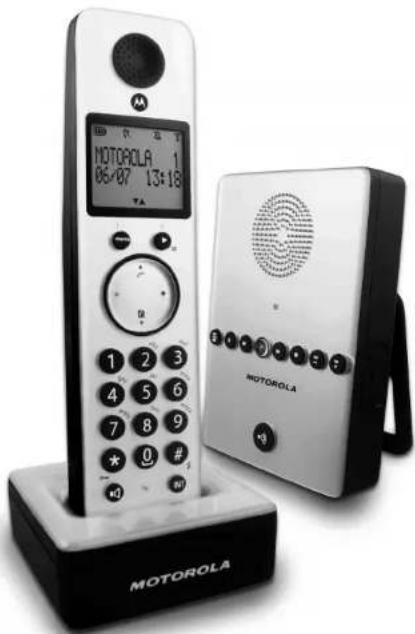
to your new Motorola D711 Digital Cordless Phone!
- All handsets fully cordless for locating anywhere within range.
• 100 Name and number phonebook
• Copy phonebook entries between other handsets.
• Answering machine with 12 minutes digital recording time. - Caller Display shows you who's calling and see details of the last 50 callers in a Calls list. ^1
- Register up to 5 handsets to a single base and register each handset with up to 4 different bases.
-
Make internal calls, transfer external calls, hold 3-way conversation between two internal callers and an external caller.
-
You must subscribe to your network provider's Caller Display or Call Waiting service for these features to work. A quarterly fee may be payable.
Please note that this equipment is not designed for making emergency telephone calls when the power fails. Alternative arrangements should be made for access to emergency.
Alternatively, you may find the answer in the 'Help' section at the back of this guide.
This User Guide provides you with all the information you need to get the most from your phone.
Before you make your first call you will need to set up your phone. Follow the simple instructions in 'Getting Started', on the next few pages.
IMPORTANT
Only use the telephone line cord supplied.
This equipment is not designed for making emergency telephone calls when the power fails. Alternative arrangements should be made for access to emergency services.
Got everything?
• D711 handset & charger
• D711 base
- Quick start guide
- Battery door
• 2 x AAA NiMH rechargeable batteries
• Mains power adapter for the base
• Mains power adapter for the charger
• Telephone line cord
If you have purchased a D711 multiple pack you will also have the following additional items:
• D711 handset & charger
- 2 x AAA NiMH rechargeable batteries
• Mains power adaptor for the charger
| 1. | Getting started....5 |
| Location....5 | |
| Setting up....5 | |
| Connecting up the large base....5 | |
| Connecting the handset and charger....5 | |
| Setting up your D7 11....6 | |
| Welcome screen....5 | |
| Set date and time manually....5 | |
| 2. | Getting to know your phone....6 |
| Overview of your handset....5 | |
| Handset display....7 | |
| Overview of the base....8 | |
| Navigating the menus....8 | |
| 3. | Using the phone....9 |
| Calls....9 | |
| Make a call....9 | |
| Pct-dial....9 | |
| Dial one touch numbers 1 to 9....7 | |
| Call from the phonebook....9 | |
| Call from the calls list....9 | |
| Answer a call....9 | |
| Adjust volume....9 | |
| Rule....9 | |
| End a call....9 | |
| Switch handset on/off....9 | |
| Call a second external number....9 | |
| Intercam....9 | |
| Call another handset....10 | |
| Transfer an external call to another handset....10 | |
| Switch between an internal and external call....10 | |
| Three-party conference call....10 | |
| Voicercall....10 | |
| Dial your network voicemail service....10 | |
| 4. | Phonebook....11 |
| View and dial phonebook entries....11 | |
| Store an entry....11 | |
| Entering names....11 | |
| Character map....11 | |
| Enter a pause....11 | |
| View an entry....11 | |
| Edit an entry....12 | |
| Delete an entry....12 | |
| Delete all entries....12 | |
| Copy phonebook to another handset....12 | |
| One touch keys....12 | |
| Dial a one touch number....12 | |
| Store a phonebook entry as a one touch number....12 | |
| Delete a one touch number....12 | |
| 5. | Caller display and Calls list....13 |
| Calls list....13 | |
| View the calls list....13 |
| Dial from the calls list | 13 |
| Save a number from the calls list to the phonebook | 13 |
| Delete a calls list entry | 13 |
| Delete entire calls list | 13 |
| Total | 13 |
| Radial the last number | 13 |
| View and dial a number in the redial list | 13 |
| Copy a redial number to the phonebook | 13 |
| Delete a redial list entry | 13 |
| Delete entire redial list | 14 |
| Pick & Alarm | 14 |
| Date and time | 14 |
| Alarm | 14 |
| Alarm melody | 14 |
| Alarmal settings | 15 |
| Sett tones | 15 |
| Ring volume | 15 |
| Ring melody | 15 |
| Group melody | 15 |
| Key lenses on/off | 15 |
| First ring | 15 |
| dset name | 16 |
| pick up | 15 |
| to hang up | 15 |
| Play language | 15 |
| yct mode on/off | 16 |
| yct | 16 |
| light on/off | 16 |
| pad lock | 16 |
| Ranced settings | 16 |
| Call time | 16 |
| mode | 16 |
| Temporarily switch from Pulse to Tone dalling | 16 |
| barring | 16 |
| Switch call baming on/off | 16 |
| Set a number to be barred | 17 |
| y call | 17 |
| Switch baby call on/off | 17 |
| Set the baby call number | 17 |
| Dal a baby number | 17 |
| istration | 17 |
| Lister a handset | 17 |
| Set a base | 17 |
| Register a handset | 17 |
| Set | 17 |
| set | 18 |
| Suit settings | 18 |
| To prefix | 18 |
| entry | 18 |
| position | 18 |
| Do mode | 18 |



D711_1DU_LN_for_LU.Book Page 4 Friday, August 24, 2007 3:58 PM

MOTOROLA
- Using your Answering machine....19
D711 Base Answer Machine Control Keys....19 Switch out/off....19
Play messages 19
Delete all messages 19 Record a memo 10
Record a mention....19 Outgoing messages....19
Answer & Record 19
Answer Only 19 Set answer mode 19
Record, play or delete your own outgoing message 20
Answering machine settings....20
Ring delay 20 Note access 20
Remote Access on/off 20
Call screening....20 E-mail: headset call screening or staff....70
Switch handset call screening on/off 20 Switch base station call screening on/off 20
ess answering machine menu via the Calls list 21 - Help 21
- General Information....22
Safety information 22
Cleaning 22
Environmental 22 Product disposal instructions 22
Product disposal instructions 23 Warranty information 23
Declaration of Conformance 23
Inserting a pause 23
Recall
4





natural_image
Pure structural diagram with no text, numbers, or symbols
D711_1PU_LN_for_LU.Book Page 5 Friday, August 24, 2007 3:58 PM

MOTOROLA

1. Getting started
WARNING
Do not place your D711 in the bathroom or other humid areas.
Location
You need to place your D711 base within 2 metres of the mains power socket and telephone socket so that the cables will reach.
Make sure it is at least 1 metre away from other electrical appliances to avoid interference. Your D711 works by sending radio signals between the handset and base. The strength of the signal depends on where you site the base. Putting it as high as possible ensures the best signal.
HANDSET RANGE
The D711 has a range of 300 metres outdoors when there is a clear line of sight between the base and handset. Any obstruction between the base and handset will reduce the range significantly. With the base indoors and handset either indoors or outdoors, the range will normally be up to 50 metres. Thick stone walls can severely affect the range.
SIGNAL STRENGTH
The ton on your handset indicates when you are in range. When out of range of the base, the screen shows SEARCHING the lashes and the handset gives an out-of-range warning tone every minute. This tone is repeated until you move back into range.
If you are on a call, the line will hang up. Move back within in range. The handset will automatically re-connected to the base.
Setting up
IMPORTANT
The base station must be plugged into the mains power at all times. Do not connect the telephone line cord into the wall socket until the handset is fully charged. Only use the power and telephone cables supplied with the product.
WHICH POWER ADAPTOR?
The power adaptor with a clear connector is for the base unit and the power adaptor with a red colour connector is for the charger unit.
Connecting up the large base
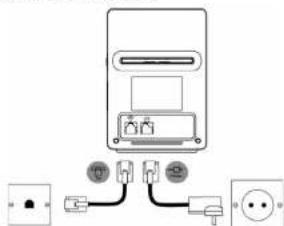
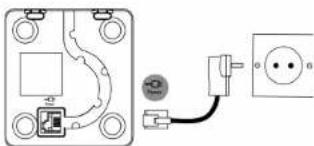
Plug the large mains power cable into the socket marked -the underside of the base and plug the other end into the mains power wall socket and switch the power on.
Connecting the handset and charger
If you have purchased a multiple pack, this process will need to be carried out for all handsets and chargers:
- Plug the small mains power cable into the socket marked — in the underside of the charger.
natural_image
Pure electrical circuit lines without any symbols- Insert the 2 x AAA NiMH batteries supplied into the handset. Then slide the compartment cover into place.
- Place the handset on the charger to charge for at least 24 hours. When the handset is fully charged the handset will indicate that it is fully charged.
- After 24 hours, plug the telephone line cord from the large base into the telephone wall socket.
Getting started 5


D711_1PU_LN_for_LU.Book Page 6 Friday, August 24, 2007 3:58 PM

MOTOROLA
BATTERY LOW WARNING
If the icon flashes in the display, you will need to recharge the handset before you can use it again.
During charging, the 📄 can will scroll in the display.
BATTERY PERFORMANCE
BATTERY PERFORMANCE In diesel conditions, fully charged betterise should give about 10 hours talk time or 100 hours standby time on a single charge.
Note that new batteries do not reach full capacity until they have been in normal use for several days.
To keep your batteries in the best condition, leave the handed off the base for a few hours at a time.
Running the batteries right down at least once a week will help them last as long as possible.
The charge capacity of rechargeable batteries will reduce with time as they wear out, giving the handset less talk/standby time. Eventually they will need to be replaced.
After charging your handset for the first time, subsequent charging time is about 6–8 hours a day. Batteries and handset may become warm during charging. This is normal.
Setting up your D711
Welcome screen
-
WELCOME is displayed and scrolls in different languages. Press Ⓞ. The country name is shown on the display.
-
Scroll ⬆ or Ⓥ to your country and press ⏻ CONFIRM† is displayed.
-
Press of to confirm.
The handset and base will reset to load the correct settings. The standby screen is then displayed and your phone is ready to use.
You can still make and receive calls without first selecting your country and network operator, however the Welcome screen will re-appear until you have configured your phone country settings.
Date and time
Providing you have subscribed to your network's Caller Display service, the date and time is set automatically for all handsets every time a call is received.
The date and time is recorded with each answering machine message you receive.
If you do not have a Caller Display service you can set the date and time manually.
Set date and time manually
-
Press ⊕ and scroll Ⓧ to CLOCK/LARM. Press ⊕. Display shows DATE & TIME, then press ⊕.
-
Enter the date using the formal DUMM e.g. 04:18 for 4th August
-
Press 15 and enter the time using the 24 hour information, e.g. 14:45 in 2:45 pm
e.g. 14.43 to 2.45pm
- Press (5) to confirm of (1) to return to standby
Your D711 is now ready for use.
2. Getting to know your phone
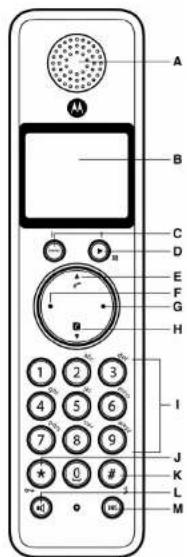
Overview of your handset
6 Getting to know your phone





D711_IFU_EN, in Page 7 Friday, August 24, 2007 4:20 PM

MOTOROLA

A Earpiece
B Display
See page 7 for an overview of the display icons.
C. Menu key
Enter the main menu. Select the option displayed on screen. Confirm menu option -OK is
displayed on screen
D. Redial / Scroll right / Clear / Mute
Open the redial list. Scroll to the right.
Delete characters on screen when entering names and numbers.
Mute / unmute the microphone during a call. Go back to previous menu level -BACK displayed on screen.
E Call log / Scroll Up / Volume up
Open the calls log.
Scroll up through lists and settings.
Increase the earpiece volume during a call.
E. Talk / Recall
Make or answer a call
Use recall (R) functions
C. End | Exit (Switch handset on/off
6 End/Exit/Switch handset onion End a call
When in a menu, no back in standby mode. Press and hold to switch handset off (when in
slandby) or cn.
H. Pheasbook | Scroll Down | Volume down
A PhoneBook? Copy
Open the phonebox. Scroll down through lists and menus.
Scoll down through lists and themes. Decrease the universe value
Decrease the car piece volume
I K e y p a d
Press to deal number in during a call or in predial.
Press and rule a key 1-9 for one touch dialing of pre-set numbers.
J * / Keypad lock
Press and hold to lock/unlock the keypad.
During a call, press and hold to switch from pulse dialling to tone dialling.
Dial a star.
K. N / Ringer off / Pause
Press and hold to switch handset ringer on or off.
When disilling or storing a number, press and hold to enter a pause (P)
Dial a 0.
- Loudspeaker key
Activate and deactivate the loudspeaker during a call.
WARNING
HANDSTRE activation can suddenly increase the volume in the parpierce to a very high level. Make
sure the handset is not too close to your ear.
- Intercom - int/past 2 headsets needed
M Intercom (at least 2 handsets needed) In standby works, on to make an interval salt
in standard mode, use to make an internal call. During a call, use in transfer an external call to avoid barriers.
Handset display
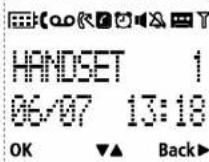
A Display icons
On when the line is in use.
Flashes when there is an incoming call.

Flashes when you have new voicemail messages.
Off when you have no voicemail messages

On when you have missed calls and new number(s) in the Calls list.

Phonebook is open.

The alarm clock has been set.

Hardsfree mode

Handset ringer is off.

Answering machine On. Off when answering machine is off. Flashes when you have new messages. Flashes fast when the memory is full.

Sleady when the handset is registered and within range of the base. Flashes when the handset is out of range or searching for base.
The approximate power levels of your battery are indicated as below:
Battery is fully charged.
Battery is partially charged.
Battery is running low
Getting to know your phone 7


D711_1FU_EN_for_EU.book Page 8 Friday, August 24, 2007 3:58 PM

MOTOROLA
B OK displayed
Press the ⏻ key to select and validate a setting
C ▲ ▼ displayed
Press Ⓐ or Ⓕ to scroll through the options in a menu, to open the phonebook or calls list when in standby.
D Back▶ displayed
Press ▶ to go back to the previous menu option, to cancel an action or to delete a character.
Overview of the base
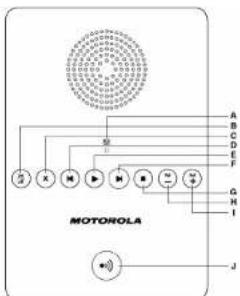
B Answering machine On/Off
C Delete
D Skip back
E Play F S k l p f o r w a r d
G Stop
H Volume Down
I Volume U
J Paging key
Paging is a useful way of finding lost handsets.
- Press ☐ on the base.
All bandsets ring.
- Press ③ again to cancel the paging call or press any key on the handset to stop the paging call.
Navigating the menus
The basic steps of navigating through the menu and on-screen options.
- From the standby screen press
The main menu is opened
-
Use the Ⓐ or ⏻ keys to scroll through the menu
-
Split key potions OK and BACK are displayed. Press → to select OK and open a sub-menu or
validate an option.
Press ☑ to select BACK and go back to previous menu level, correct a character or cancel an
action.
- Press ⚙ to return to standby.
If you do not press any button on the handset for 15 seconds the display will automatically return
to standby. It will also return to standby when the handset is placed on the base or charger.

A LED
Indicates when the answering machine is on or off, and when you have messages.
Status Action
On Answer machine on.
Off
Answer
machine
off.
Long then short flashes New message(s)
Flashes evenly
Recording
Flashes quickly
Memory Full
8 Getting to know your phone


3. Using the phone
Calls
Make a call
- Dial the telephone number.
Pre-dial
-
Enter the phone number (maximum 24 digits). If you make a mistake press (▶)
-
Press ▶ to dial the phone number entered.
Dial one touch numbers 1 to 9
- Press and hold a key from (1) to 9: until the number is displayed and called.
- If no number is stored, you hear s been
Call from the phonebook
-
Press ①. The first entry in the phonebook is displayed.
-
Scroll (5) or (4) to the only you want.
- Press 1 to dial the number.
TIP
Instead of scrolling to browse the phonebook entries, press the numeric key corresponding to the first letter of the entry you wish to locate. For example, pressing ② will show the entries starting with A. Pressing ② again will show the entries starting with B. etc..
Call from the calls list
NOTE You need to subscribe to your network's Caller Line Identification service to be able to see the caller's number in the calls list. See "Calls list" on page 13 for more details.
- Press ② to enter CALL LOG menu. You have the options to access CALL LIST or ANSW MACHINE.
Press ⊖ to enter CALL LIST. The first entry in the call list is displayed.
- Scrib ② or ① is the entry you want.
-
Drop ③ to dial line numbers
-
Press © to did the number.
Answer a call
- When the phone rings and flashes in the display, press ▶ or press ▼ to shower the call via the loudspeaker.
WARNING
When the phone is ringing, avoid holding the earpiece too close to your ear as it may damage your hearing. Handsfree activation can suddenly increase the volume in the earpiece to a very high level. Make sure the handset is not too close to your ear.
NOTE
If you have subscribed to your Network's Caller Identity service and assigned a VIP Group to the caller's number, the caller's details are displayed before the phone starts ringing (see "Store an entry" on page 11 and "Group melody" on page 15). You can set your phone to give the default ringtone as soon as the call is received then once the caller's identity is displayed, the assigned ringtone will start. See "First ring" on page 15.
TIP
If Auto Pick up mode (see page 15) is on, simply lift up the handset from its base to answer the call. The default setting is On, in which case you will need to press Ⓞ to answer a call.
NOTE
An incoming call has priority over other events. Whenever there is an incoming call, other operations in progress such as phone settings, menu navigation, etc. will be ended.
Adjust volume
- During a call, press ⚙ or ⏻ to adjust the earpiece or loudspeaker volume.
The level is shown in the handset display.
Mute
Mute the microphone so that you can talk to someone else in the room without your caller hearing you.
- During a call, press
- The microphone is muted.
- Press ▶ again to turn the microphone back on.
End a call
- Press
After you hang up, the duration of your call is displayed for 5 seconds.
NOTE
If auto hang-up is on (see page 15) simply replace the handset on the base to end the call. The default setting is ON.
Switch handset on/off
-
Press and hold ⚙ until the handset switches off.
-
Press and hold ① again to switch the handset back on.
Call a second external number
Put an external caller on hold to make a second external call. You can then switch between both callers or hold a 3-way conference call.
-
During your call, press Ⓞ. Scroll ⏻ to INIT 2ND CALL.
-
Press ⊖
- Display showCALLING R
-
Enter the second number.
-
When your second caller answers, press ⊖ to open the option menu:
CONFERENCE - press → to initiate a 3-way with an external caller and internal caller.
SWITCH CALLS - press to switch between the two callers.
- Press 1 to hang up
Intercom
This feature is only available when there are at least 2 registered handsets. It allows you to make internal calls, transfer external calls from one handset to another and use the conference option.
Using the phone 9

D711_IFU_IN_for_EU.book Page 10 Friday, August 24, 2007 3:58 PM

MOTOROLA
Call another handset
- Press
- If you have two handsets, the other handset is called automatically.
- If more than two handsets are registered to the base, their numbers are displayed, e.g.2345'.
Enter the number of the handset you want to call or press ✦ to ring all handsets.
- Press ⚙ to hang up.
NOTE
If the handset does not belong to D700/710 range, this function may not be available.
Transfer an external call to another handset
- During an external call, press ①
- Your caller is put on hold.
- Enter the number of the handset you want to call or press (*) to ring all handsets
- If there are only two handsets, the other handset is called automatically.
- When the other handset answers, announce the caller then press ⚙ to transfer the call. If the
other handset does not answer, press to talk to your caller again.
Switch between an internal and external call
- During an external call press (5)
- Your caller is put on hold.
- Enter the number of the handset you want to call or press (*) to ring all handsets
- If there are only two handsets, the other handset is called automatically.
-
When the other handset answers you can speak privately to your internal caller.
-
Press (sh) to switch between both callers.
-
Press ⚡ to hang up
Three-party conference call
Three-party conference ca.
- During an external call, press
-
Your caller is put on hold
-
Enter the number of the handset you want to call or press (★) to ring all handsets.
- If there are only two handsets, the other handset is called automatically.
-
When the other headset answers, announces the call lines price and hold, to connect both
-
When the outer handset answers, announce the call often press and hold up to call calls. If the other handset does not answer press, to talk to your caller again.
-
Press ② to hang up
Voicemail
If you have subscribed to your network's voice-mail service (if available), your D711 displays QQ
when you have a new message. Depending on your country and network services, the voicemail
number may be pre-stored in your handset for one touch dialling using the ① butto
NOTE
NOTE The unpaid mail number is pre-stated only if the country where the phone was purchased offers a
The voicemail number is pre-stated only if the country where the phone was purchased directly at voicemail service. If the voicemail number is not pre-stated you can add a number, or overwrite
the existing stored numb
Dial your network voicemail service
- Press and hold ①
- The number is displayed and dialled. Follow the voice prompts to play, save and delete
your messages.
10 Using the phone





4. Phonebook
The D711 handset phonebook can store up to 100 names and numbers.
NOTE
Numbers can be up to 24 digits long and names up to 12 characters long. Entries are stored in alphabetical order.
View and dial phonebook entries
-
Press ①. Display shows the first entry
-
Scroll (2) or (1) to the entry you want.
Or
To search alphabetically, press ① then press the key with the first letter of the name, e.g. if
the name begins with N, press (6) twice.
- The display shows the first entry beginning with N. If required, press ⚠ or ⏱ to scroll to
the exact entry.
- Press ☐ to dial the entry displayed.
Store an entry
-
Press ⊖. PHONEBOOK is displayed.
-
Press ⚡️. NEW ENTRY is displayed.
-
Press ⚡️ ENTER HAVE is displayed.
-
Enter a name and press ⊖.
-
Enter a number. Press ⊕ to save. Press ➕ or ➕ to select NO GROUP, GROUP A, B or C and press
(2) to confirm.
- Press ⚙ to return to standby.
NOTE
You can assign individual contacts to specific groups of your choice. For example, Group A contains phone numbers of all your co-workers. You can also assign a specific ring melody to that group (see 'Group melody' on page 15). You can benefit from this feature only if you have subscribed to Caller Line Identification service from your network provider. If it is the case, every time someone from that group calls you, you will hear the designated ringtone for that group.
NOTE
Cancel storing an entry by pressing ⬤ at any time during the process.
Entering names
Use the alphanumeric keypad to enter names in the phonebook.
For instance to enter the name Paul
[Non-Text]
[Non-Text]
[Non-Text]
[Non-Text]
[Non-Text]
enter a space press ①
Press ▶ to delete a character or press and hold ▶ to delete all characters.
Character map
Use the keypad to enter names and characters.
①
①
② A B C 2
③ B E F
-
-
- 5
-
④ G H I 2
-
-
- 5
-
②
6 M N D E
(2) _1 _2 _3 _4 _5
② F u h a t
B T U V I ?
- 陈浩 汉
⑨ w λ r z
(1)
Enter a pause
If your D711 is connected to a switchboard, you may need to enter a pause in a stored number.
This gives the switchboard time to get an outside line. A Pause is normally stored after the
switchboard access code (e.g. 9)
- When storing a number press and hold it, until the display shows P. You can then continue
storing the phone number.
View an entry
in standby:
-
Page 1
-
Enter the first letter of the varum to search alphabetically then recall ④ or ⑤ to the exact
entry. The name is displayed.
- Press ▶ to display the number. If there are more than 12 digits, press ▶ again to see the
rest of the number.
- Press ① to return to standby.
Quin'ya csii
-
Press 📂 twice to copy the abprabank menu
-
Enter the first letter of the name you want then scroll ④ or ⑤ if necessary to the exact name
Price ▶ to display the number. If there are more than 12 digits, none ▶ again to see the
rest of the number.
-
Press ⚙ to cancel the phonebook display.
-
Press again to end the call.

D711_1DU_LN_for_LU.book Page 12 Friday, August 24, 2007 3:58 PM

MOTOROLA
Edit an entry
- Press ☑
- Scroll ☑ or ☑ to the entry you want to exit and press ☑. EDIT ENTRY is displayed. Press ☑ again.
- Edit the name and press ⏻ to confirm. Use ⬇ to delete characters.
- Press ⊕ and edit the number.
- Press ⊖ to confirm.
- Scroll ☑ or ☒ to select NO GROUP, GROUP A, B or C and press ≡ to confirm.
- Press ⚙ to return to standby.
Delete an entry
- Press ①.
- Scroll to the entry you want to delete and press □.
- Scroll (♀) to TELE CENTER and press
- Display shows confirm, Press
Delete all entries
- Press twice
- Scroll (1) to DELETE ALL and press (2)
- Display shows CONFIRM? Press
- Press 5 to return to standby
Copy phonebook to another handset
- Press twice.
- Scroll (☐) to PO TRANSFER and press ⊖.
- Scroll 🔒 or Ⓧ to the number of the handset you want the phonebook copied to. Press ⏻
- Press ⑤ to return to standby.
- Press twice.
- Scroll (☐) to PO TRANSFER and press ⊖.
- Scroll 🔒 or Ⓧ to the number of the handset you want the phonebook copied to. Press ⏻
NOTE
If an entry with the same name and number is already stored in the receiving handset, it will not
be copied across.
One touch keys
The keys ① to ⑨ enable one touch dialing of entries stored in the phonebook.
Dial a one touch number
- Press and hold a number key ① to ②.
- The number is displayed and dialled.
- Press (5 to cancel the dialing and return to standby.
- Press and hold a number key ① to ②.
- The number is displayed and dialled.
Store a phonebook entry as a one touch number
- Press to twice
- Scroll (1) to DIRECT MEN and press ⊖.
- Press ⚫ or ⚫ to select KEY1-9 and press ⚡. The current entry, if any, is displayed.
- Press again to open the options menu.
- Press ⊖ to ADD an entry from the phonebook
- Scroll ☑ or ☐ to the entry you want. Press ⊖ to confirm or ☐ to return to standby.
Delete a one touch number
- Press ≡ twice then scroll ⚠ or ⏱ to DIRECT NEW and press ⊖.
- Scroll ↗ or Ⓤ
- Press ⊖ to display the current entry. Press ⊖ again to open the options menu.
- Scroll (1) to DELETE and press (2)
- Display shows CONFIRM? Press
- Press ▶ to return to standby



Copy phonebook to another handset
NOTE
If an entry with the same name and number is already stored in the receiving handset, it will not
be copied across.
One touch keys
The keys ① to ⑨ enable one touch dialing of entries stored in the phonebook.
Dial a one touch number


12 Phonebook


5. Caller display and Calls list
If you have subscribed to Caller Line Identification (CLI), and provided the identity of the caller is not withheld, the number of the caller will be displayed together with the date and time of the call (if provided by the network).
NOTE
• If the caller's number is stored in your phonebook along with a name, the name will also be
displayed.
- If the telephone number is not available for incoming calls, the handset will display unavailable. - Information about incoming calls will vary by country and network operator. Some operators may charge a subscription for their Caller Line Identification service.
Calls list
The calls list contains details of missed and received call. Details include the date and time of the call. Entries are displayed in chronological order with the most recent call at the top of the list.
NOTE
- When the calls list is full, a new call replaces the oldest in the list.
• The received and missed calls log holds details of up to 50 calls.
- If you receive more than one call from the same number, only the most recent call is kept in the calls list.
When you have missed calls (incoming calls that you haven't answered) the 800 will be displayed in the display on all handsets registered to the base.
If one handset is used to view the calls log, the icon on the other handsets continue to flash (Multiack user only)
View the calls list
- Press ➕ to enter CALL LOG option menu, then press ➕ to enter CALL LIST
The most recent number or name it stored in the phonebook is displayed. New calls are
marked with (non flashing
- Scroll ② or ① through the calls log.
At the end of the log, you will hear a beep.
Press ▶ to see the number. If the number has more than 12 digits, press ▶ to see the rest of the number.
- Press ⚙ to return to standby
NOTE
The 10n stops flashing once all new calls have been viewed.
Dial from the calls list
-
Press (2) to enter the CALL LOG option menu, then press (4) to enter CALL LIST. The most recent call is displayed.
-
Scroll ▲ or ⚫ to the entry you want.
-
Press 2 or 4 to dial
Save a number from the calls list to the phonebook
-
Press ② then ⚫. The most recent call is displayed.
-
Scroll ⚠ or ⚡ to the number you want.
-
Press ←, SAVE NUMBER is displayed.
-
Press ⚡️, ENTER NAME is displayed. Use the keypad to enter the name.
-
Press ⊖ then the number is displayed, the user can then edit the number if required and must press ⊖ to save the number (even if has not been edited).
-
Press ↗ or ⏻ to select NO GROUP, GROUP A, B or ⊙ and press ≡ to confirm.
-
Press ⊖ to confirm.
-
Press ⚙ to return 10 standby.
Delete a calls list entry
-
Press ④ then ⑤. The most reset call is displayed
-
Scroll ☑ or ⏱ to the number you want
-
Press then scroll to DELETE and press
-
Display shows CONFIRM? Press 📋 to confirm.
-
Press ⚙ to return to standby.
Delete entire calls list
-
Press (2) then (3). The most recent call is displayed
-
Scroll ⑨ to DELETE ALL and press ⏰.
-
Display shows CONFIRM?, Press ⬇ to confirm, Press ⬇ to return to standby.
Redial
The D711 lets you detail any of the last 10 numbers called. Numbers can be up to 24 digits long.
Radial the last numbo
- Press ▶ The 'last number dialled' is displayed
If the number has more than 12 digits, the display shows ▶ and the cursor blinks. Press ▶ to display the rest. If the number is stored in the Phonebook, the name is displayed as well.
- Press ⊙ to die
View and dial a number in the redial list
- Press ▶. The last number dialled is displayed.
If required, scroll (2) or (1) to display the number you want.
- Press ☐ to dial the number
Copy a redial number to the phonebook
-
Press ▶ and scroll ⚙ or ⏱ to the entry you want.
-
Press
-
Display shows SAVE NUMBER Press
-
Enter the name and press (→).
-
Edit the number if required and press
-
Press (A) or (B) to select NO GROUP GROUP A, B or C and press (E) to confirm
-
Press (● to return to standb
Delete a redial list entry
-
Press ▶. Scroll ▶ or ▶ to display the number you want.
-
Press and scroll to DELETE then press
-
Display shows CONFIRV? Press ⏻ to confirm, then ⚙ to return to standby.

D711_IFU_IN_for_EU.book Page 14 Friday, August 24, 2007 3:58 PM

MOTOROLA
Delete entire redial list
- Press ▶ then press
- Scroll (■) to DELETE ALL and press (⊖)
- Display shows CONFIRM ^2 . Press ⚫ to confirm. Press ⚙ to return to standby.

6. Clock & Alarm
If you subscribe to your network's Caller Identification service, the time on your D711 may be set automatically each time you receive a call, depending on your network provider.
You can also set or adjust the time using the Clock & Alarm menu.
Set date and time
-
Press ⊕ and scroll Ⓧ to CLOCKALARM. Press ⊖. Display shows DATE & TIME, then press ⊖.
-
Enter the date using the format DOWN e.g. 10'08 for 4th August
-
Press ⊕ and enter the time using the 24 hour format M:W,
e.g. 14:45 for 2.45pm.
- Press to confirm.
-
Press □ to answer to also
-
Press ▼ to return to standby.
NOTE
The date and time is retained during a power failure or when the ballenes are discharged.
Set alarm
-
Press ⊖, scroll ⏻ to CLOCK/ALARV and press ⊖.
-
Scroll ☑ to SET ALARM and pres
-
Scroll (A) or (B) to OFF, ON/OCE or ON/DAILY and press (-)
-
If you select ON ONCE or ON DAILY enter the time using the 24 hour format HH-VIN e.g 14:45 for
2:45pm and press
- Press 1.5 to return to standby. When the alarm goes off, press any key to stop the ring.
NOTE
Once the alarm is set to on, the alarm is displayed.
The alarm will ring at the medium level. ALARM ON and the flash on the display
Set alarm melody
There are three alarm ringtones.
- Press ⊕ and scroll ⏱ to CLOCKALARM.
Press - Scroll ⬆ to ALARM TONE and press ⊖.
- Melodies are played
- Scroll (4) as 5 and 6





14 Clock & Alarm


7. Personal settings
Handset tones
WARNING
When the phone is ringing, avoid holding the earpiece too close to your ear as it may damage your hearing.
Ring volume
Choose from: Ringer Off, Low, Medium, High, Boost and Progressive (increasing ring volume).
NOTE
The default setting is High.
-
Press 📂, scroll ⏻ to PERSONAL SET and press 🌐
-
HANDSETTONE is displayed. Press
-
RING VOLUME is displayed. Press ☑.
-
Scroll (♦) or (♥) to adjust the ringer volume level
-
Press ⊕ to save the settings
-
Press ⬆ to return to standby
Ring melody
Choose from 10 finger melodies.
-
Press 📄 scroll 📋 in PERSONAL SET and press 📄
-
HANDSET TONE is displayed. Press 📄 and scroll 🌐 to RING MELCDY Press 🏠
-
Press 2 or 3 to select the rinctone
- A sample of the ringtone is played
-
Press 6 to confirm
-
Press ⚠ to return to standby.
Group melody
To benefit from this feature, you must subscribe to the Caller Line Identification service. This menu enables you to select and set the melodies to be played when there is an external incoming call from a contact whose name is stored in your phonebook and is part of a group. You can associate 1 ring melody to each group. There are three phonebook groups (Group A, B, C) available for you to organize your contacts. Each group can be assigned a unique melody.
-
Press ≡ scroll (→) to PERSONAL SET and press ≡
-
HANDSET TONE is displayed. Press and scroll (E) to GROUP VELOCITY. Press
-
Scroll (▲) or (■) to select: GROUP A, FOR C, then press
-
Press ② or ① to select the ringtone you want for the group and press ⏰.
-
Press ⚙ to return to standby
Key tones on/off
When you press a key on the bandset you hear a beep. You can switch these beeps on or off.
-
-
-
-
-
-
-
-
-
-
-
-
-
-
-
-
-
-
-
-
-
-
-
-
-
-
-
-
-
-
-
-
-
-
-
-
-
-
-
-
-
-
-
-
-
-
-
-
-
-
-
-
-
-
-
-
-
-
-
-
-
-
-
-
-
-
-
-
-
-
-
-
-
-
-
-
-
-
-
-
-
-
-
-
-
-
-
-
- 90.
-
-
-
-
-
-
-
-
-
-
-
-
-
-
-
-
-
-
-
-
-
-
-
-
-
-
-
-
-
-
-
-
-
-
-
-
-
-
-
-
-
-
-
-
-
-
-
-
-
-
-
-
-
-
-
-
-
-
-
-
-
-
-
-
-
-
-
-
-
-
-
-
-
-
-
-
-
-
-
-
-
-
-
-
-
-
-
-
Press ○, scroll ▼ to ELDAMWE SET and PLES ●.
-
HANDSEET TONE is displayed. Dress (●) and scroll (●) to KEY TONE. Dress (●)
-
Scroll (▲) or (■) in project ON or OFF
-
Press to confirm
-
Press + to return to standby.
First ring
Your D711 will automatically detect the Caller identification (Subscription dependent). If you do not wish to hear the ring before the caller identification is displayed you can manually set FIRST RING to OFF. The default setting is ON.
-
Press ⏰, scroll ⏱ to PERSONAL SET and press ⏽.
-
HANDSET TOVE is displayed. Press → and scroll to FIRST RING. Press
-
Scroll ④ or ⑧ is select ON OR OFF
-
Press In confirm
-
Press ⚙ to return to standby.
Personalise your handset, with a name or location for example Peter or Bedroom. Maximum 10
characters.
-
Press → scroll → to PERSONAL SET and press →
-
Scroll ⚙ to HANDSET NAME and press ⚡. The current name is displayed.
-
Press ▶ to delete the current name
-
Enter the name you want - maximum 10 characters and press (e)
to save.
- Press ⚙ to return to standby.
Auto pick up
With Auto pick up switched on, you can answer a call just by lifting the handset off the base or charger. If switched off, you will have to press (*) to answer a call. The default setting is On.
-
Press scroll to PERSONAL SET and press
-
Scroll ① to AUTO PICK UP Press
-
Scroll 4 or 5 to select OK or OFF
-
Press to confirm
-
Press ⚙ to return to standby.
(四)本议案尚需提交股东大会审议。
Auto hang up
With Auto hang up switched on, you can end a call just by replacing the handset on the base or charger. If switched off, you have to press ⚙ to hang up. The default setting is On.
-
Press ≡ scroll 1 to PERSONAL SET and press ≡
-
Scroll ② to AUTO HANG UP Press
-
Scroll ② or ⑨ to select ON or OFF
-
Press → to confirm
-
Press: to return to standby.
(1) 2017年1月1日(星期六)
Display language
You can change the display language.
-
Press → scroll → to PERSONAL SET and press →
-
Scroll ☑ to LANGUAGE. Press
-
Scroll ② or ③ to select the language you want.
-
Press to confirm
-
Press ③ to return to standby.
Babysit mode on/off
Leave one handset in a room and use another handset to hear sounds in that room.
-
Press ⏻, scroll ⏻ to PERSONAL SET and press ⏻.
-
Scroll ☑ to BABYSIT VCODE. Press ⊖
-
Press ↗ or ⬇ to select ON or OFF.
-
Press ≈ to confirm.
When switched On, you can leave this handset in the room you wish to monitor. Only the
microphone is on. Anyone in the room cannot hear you.
Babysit
-
Switch a handset's babysit mode setting On and place that handset in the room.
-
At a second handset, press and enter the number of the handset you are using as a room
monitor. You can now hear sounds coming from the room.
TIP
To stop room monitoring at any time, press
Backlight on/off
-
Press ⚡, scroll Ⓥ to PERSONAL SET and press ⚡
-
Scroll ☑ to BACKLIGHT. Press
-
Press ↗ or ⬇ to select ON or OFF.
-
Press (S) to confirm
Keypad lock
Prevent accidental dislling while carrying the handset by locking the keypad.
- Press and hold ★
- The display shows KEPS LOCKED
- To unlock the handset, press and hold ✝ again.
NOTE
While the keypad is locked, you can answer incoming calls as normal.
8. Advanced settings
This setting is useful to access certain network and PABX/switchboard services.
Recall time
The default D711 recall time is suitable for your country and network operator. It is unlikely that you should need to change this setting unless advised to do so.
-
Press → scroll → to ADVANCED SET and press
-
RECALL TIME is displayed. Press
-
Press ④ or ⑤ to select the setting you want: SHORT, MEDIUM, LONG
-
Press ⊕ to confirm.
-
Press ⚙ to return to standby
NOTE
The use of your D711 cannot be guaranteed on all PABX.
Dial mode
The default D711 dislling mode is suitable for your country and network operator. It is unlikely that you should need to change this setting unless advised to do so.
-
Press ⏻, scroll ⏱ to ADVANCED SET and press ⏻.
-
Scroll ① to DIAL MODE, Press
-
Press ② or ⑦ to select TONE or PULSE
-
Press ⊕ to confirm.
-
Press ☐ to return to standby
Temporarily switch from Pulse to Tone dialling
- Press and hold ⚙.
The dial mode will change from Pulse to Tone for the duration of the call.
Call barring
Prevent certain numbers from being dialled from your D711. Store up to four specific numbers,
each up to 4 digits – for example, international or local prefixes.
Bypass call barring by switching the setting Off or On.
NOTE
If you switch Call barring on. BARR VCODE ON will be displayed on your screen in standby mode.
Switch call barring on/off
-
Press ⬇, scroll Ⓤ to ADVANCED SET and press ⬇
-
Scroll ① to CALL BARRING. Press
-
Enter the master PIN (default setting 0000) and press (2).
-
MODE is displayed. Press ⊖.
-
Press ⚙ or ⏱ to select ON or OFF. Press ⊕ to confirm.
-
Press ⚙ to return to standby. You can now set the number
(See below)
16 Advanced settings


Set a number to be barred
-
Press ⚡, scroll ⚡ to ADVANCED SET and press ⚡.
-
Scroll (W) to CALL BARRING, Press
-
Enter the master PIN (default setting 0000) and press ☑.
-
Scroll (7) to NOVER, Press 5.
-
If necessary, scroll √ or √ to the next available slot.
-
Down √ and value the number at the (in view) row in box. Down √
-
PRESS √ to confirm
-
Press ⚙ to return to standby.
Baby cell
Baby call When activated, this feature allows you to find a number by triggering any key on your banner.
(except ⓣ). This feature is very useful for access to emergency services.
Switch baby call on/off
-
Press ⊖, scroll ⏻ to ADVANCED SET and press ⊖
-
Scroll (1) to BABY CALL. Press (-).
-
Enter the master PIN (default setting 0000) and press
-
NODE is displayed. Press ☑ then press ☑ or ☑ to select ON or OFF. Press ☑ to confirm
-
Press ⚙ to return to standby
NOTE
If you switch Baby call on, BABY CALL ON will be displayed on your screen in standby mode.
To switch Baby call off again:
-
Press
-
OFF? is displayed. Press ⊖ to confirm.
Set the baby call number
-
Press ☐, scroll ☑ to ADVANCED SET and press ☐
-
Scroll Ⓥ to BABY CALL. Press
-
Enter the master PIN (Default setting 0000) and press ⊖.
-
Scroll (W) to NUMBER. Press
-
Enter the number. Press ⏻ to confirm
-
Press ⚙ to return to standby.
Dial a baby number
- When a baby call number has been stored and the baby call setting switched on, press any
key (apart from 5), to dial a number.
NOTE
When baby call is switched on, you can still answer any incoming call as normal.
Registration
Up to 5 handsets can be registered to one base station. Additional handsets must be registered
to the base before you can use it
• The instructions described below apply specifically to your D711 handset. If you wish to
register another manufacturer's handset, the instructions may vary. In this case, please refer to
the manufacturer of the additional handset.
- The Master PIN is required before you can register or unregister handsets. The default PIN is 000.
Register a handset
At the case.
- Press and hold the Ⓤ button on the base station for at least 3 seconds. The base station emits a beep when it is ready to accept registration. You have 90 seconds in which to register a handset.
At the handset
-
Press ⊖ and scroll ① to ADVANCED SET and press ⊖
-
Scroll ⏻ to REGISTRATION and press ⊕
-
If necessary, scroll (✗) or (✗) to display REGIST.BASE and press ⏻, BASE 1214 is displayed and the registered base number is flashing. Enter the number of the base on which you wish to register your handset.
If you have only 1 base station, press ①. If you have 2 base stations, press ① or ②, etc.
- When the display shows PIN---, enter the base PIN.
- When the handset registers with the base, it is assigned a handset number.
Select a base
You can register your D711 handset with up to 4 bases. Once registered, you can switch between
bases, for example, bases at home and at work
-
Press and scroll to ADVANCED SET end press
-
Scroll to REGISTRATION and press
-
SELECT BASE is displayed. Press
- The available bases are displayed with the current base number flashing
- Enter the number of the base you want - 1,2,3 or 4 and press
- When the base is found you hear a beep. If not found, the display shows UNREGISTERED.
Unregister a handset
-
Press ⊖ and scroll ⏱ to ADVANCED SET and press ⊖
-
Scroll ⚙ to UNREGISTER and press ⊖.
-
Enter the 4 digit master PIN and press
- Display shows the registered handset numbers.
- Scroll Ⓧ or Ⓤ to select the handset you want to delete and press ⊖.
UNREGISTERED is displayed on the handset screen.
PIN
The 4-digit master PIN is used when registering or unregistering a handset and when changing some settings on your D711. The default setting is 0000. You can change this PIN for more security.
-
Press ⊖, scroll Ⓞ to ADVANCED SET and press ⊖.
-
Scroll ☑ to PIN Press
-
Enter the current 4 digit master PIN and press ⏻ (Default setting 0000)
-
Enter the new PIN and press.

MOTOROLA
NOTE
Make a note of your PIN. If you forget your PIN you will need to reset your product.
Reset
This will reset your D711 to its default settings.
-
Press ⚡, scroll ⏱ to ADVANCED SET and press ⚗.
-
Scroll ⏻ to RESET UNIT. Press ⊖.
-
CONFIRM? is displayed. Press ⊖.
NOTE
Entries stored in the phonebook and new answering machine messages are retained. After reset, depending on your country, the welcome mode setting may be shown on the handset display.
Default settings
Handset name Handset
Key tone On
First ring On
Auto pick up. On
Auto push up On
Auto hang up On
Ringer melody Ring 1
Ringer volume High
Earpiece volume 3
Phonebook Unchanged
Call log Empty
Redel list Empty
Master PIN 6000
Keypad lock Off
| Clock | 00:00 |
| Alarm | Off |
| Dial mode | Tone |
| Answer Machine | On |
| Answer Mode | Answer & Record |
| Outgoing message | Pro-defined |
| Ring delay | 15 seconds |
| Remote Access | On |
| Handset screening | Off |
| Base screening | On |
Auto prefix
You can set the D711 to detect a dialing number and replace it with another number. The number
to be detected can be up to 5 digits long. It can be replaced with a number up to 10 digits.
-
Press ⊖, scroll ⏻ to ADVANCED SET and press ⊖.
-
Scroll ☑ to PREFIX. Press ⊕
-
DETECT DIGIT is displayed. Press
-
Enter the number you want to be detected and press ⊖.
-
Scroll to PREFIX MIN, and press
-
Enter the number you want it replaced with and press ☐.
-
Press 3 to return to stance
Country
If you move to another country you can set your phone to be compatible with the network settings
of that country.
NOTE
If you make a mistake during welcome mode country selection, you can also reset your country.
Depending on your country. This option may be displayed as NOT AVAL, or you country may not be
displayed.
-
Press ☐ scroll ☑ to ADVANCED SET and press ☐
-
Scroll Ⓥ to SEL COUNTRY. Press
-
Enter the 4-digit master PIN and press
-
Scroll Ⓧ or Ⓧ to display the required country.
-
Press ⊖ to confirm.
Intrusion
When an external call is taking place, another handset registered to the base can join in, making
the call a 3-way conference, just by pressing
To enable this. Intrusion must be switched On.
-
Bress to scroll to ADVANCED SET and screen
-
Press ( ), scroll ( ) to ADVANCED
-
Scroll ( ) to INTRUSION PRESS ( )
-
Scroll ② or ⑤ to ON or OFF
-
Press ⊖ to confirm.
-
Press ⚙ to return to standby
ECO mode
To reduce the level of power emissions, you can select low power or ECO mode. When the ECO
mode is set to OK, the base transmission power will be reduced.
To turn ECO Made to ON or OFF
-
Press me scroll ① in ADVANCED SET and press
-
Scroll (1) to ECO WOPE and press
-
Press ▲ or ▼ to highlight ON or OFF then press ⊕ to confirm
- A confirmation beep is smiled and the handset display will switch between the handset's
nsine and ECO MODE.
NOTE
When Eco Mode is set to 0H, the handset range will be reduced.
18 Advanced settings


9. Using your Answering machine
Your D711 answering machine records unanswered calls when it is activated. It can store up to 59 messages within the maximum recording time of 12 minutes. Each message can be up to 3 minutes long. Your personal outgoing messages can be up to 1 minute long.
D711 Base Answer Machine Control Keys

Press to turn the answering machine on/off

Play new messages

Press to stop playback

Skip to the next message during message playback

Replay current message

Press twice to skip back to previous message

Increase speaker volume during message playback

Decrease speaker volume during message playback
Switch on/off
- Press ⏻ scroll Ⓐ or ⏱ to ANSW MACHINE and press ⏱
- Scroll (1) to ANSW ON! OFF and press ⊖
- Scroll ↗ or Ⓤ to display OK or OFF
- Press 8 to confirm
- Press ⚙ to return to standby
Play messages
-
Press ⊖ and scroll Ⓧ or Ⓥ to ANSW MACHINE and press ⊖ PLAY is displayed.
-
Press Ⓧ to play new messages.
The display shows the number of new messages. If there are no new messages, all stored
messages are played.
- Press ▶ to display the callers identification. Press ▶ again to see the date and time of the call.
NOTE
If you have not subscribed to the Caller Line Identification this option is not available. This also applies for memo recordings.
- During playback press Ⓧ to display a list of options. Use the Ⓧ and Ⓧ keys to change the options:
• REPEAT - press ⊖ to repeal current message
• NEXT VESSAGE – press ⊖ to play next message
- PREV MESSAGE – press Ⓧ to play previous message
- DELETE- press ⏱ to delete the current message.
- SAVE NUMBER – press ⏻ to store the number, if available, in the phonetook.
NOTE
If you have not subscribed to the Caller Line Identification this option is not available.
- Press ⚙ to stop playback and return to standby
Delete all messages
-
Press scroll to ANSW MACHINE and press
-
Scroll to DELETE ALL and press
-
Display shows command. Press ☑ to confirm.
Record a memo
You can record a memo which is stored on your answering machine and played back like a normal message.
- Press scroll (本) or (图) to A/SW MACHINE and press
- Scroll (1) to RECORD MEMO and press (2). Display shows RECOORDING
- Speak your message. Press ⊖ to end recording.
Outgoing messages
This is the message your callers hear on the answering machine. There are two pre-recorded outgoing messages, or you can record your own.
Answer & Record
The caller can leave a message. The pre-recorded message is "Hello, your call cannot be taken at the moment, so please leave your message after the lone."
Answer Only
The caller can listen to your announcement but cannot leave a message. The pre-recorded
message is "Hello, your call cannot be taken at the moment, and you cannot leave a message, so please call later".
Set answer mode
Set your machine to Answer & Record or Answer Only.
1. Press (4) scroll (5) or (6) to (7) WITH MACHINE and GPS
2. Scroll ① to ANSWER VOCE and voice (→)
- This current answer mode is displayed
Using your Answering machine 19

MOTOROLA
-
Scroll (A) or (B) to select ANSWER & REC or ANSWER ONLY and press (C).
-
Scroll ⬆ or ⬇ to display the message type you want: PERSONALISED to set your own recorded
message of REEHEED for the pre-recorded message. 5. Brass to confirm
If you select PERSONALIZED, see following paragraph.
Record, play or delete your own outgoing message
Answer & Record invites your callers to leave a message. Answer Only lets callers hear your
announcement but they cannot leave a message
-
Press scroll to AMSW MACHINE and press
-
Scroll ☑ to ANSWER VODE and press ☑.
-
Scroll ☑ or ☑ to select ANSWER & PBC or ANSWER ONLY and press ☑ Use the ☑ or ☑ route
-
Scroll ☑ of ☑ to select ANSWER & RED OR ANSWER ONLY and press ⚫. Use the ⚫ or ☎ key to select PERSONALISED, then press 📄.
-
PLAY is displayed. Press ⊖
- Current message is played back.
- Scroll (1) to select RECORD WESS – press 2. Display shows RECORDING and a beep is emitted.
Speak your message. Press ( ) to end recording. • DELETE - press ( ) The pre-recorded message will
- Press ✉ to confirm.
Answering machine settings
Ring delay
Select the duration of rings before your answering machine picks up the call. Choose from 5/10/15/20/26/30 seconds on Tall Survey
15/20/23:30 seconds of Tall Server.
NOTE
If Toll Saver is selected, then:
- If you have new messages your phone answers after 10 seconds.
- If there are no new messages it will answer after 20 seconds. So you have the option to hang
- If the memory is full, it will answer after 30 seconds in Answer Only mode.
-
Press ② petrol (A) or (B) to (C) use HADPHASE and press
-
Press ☑ scroll ☑ to KON MCHINE and press ☐
-
Scroll ☐ to KON SETTING and PRESS ☐
-
RING DELAY is displayed. Press
-
Scroll 📄 or 🌐 to select 5/10/15/20/25/30 seconds or TOLL SVER.
-
Press ⊖ to confirm.
Remote access
Remote access allows you to operate your answering machine and listen to your messages by
calling your D711 from another phone.
The default setting is on.
-
Call your D711. When you hear your gulping message, press it.
-
Enter your 4 digit PIN. The default code is 0000.
- You hear a confirmation help.
NOTE
Change this code for increased security, see "PIN" on page 17.
- After entering your PIN as stated above, use the keypad to operate your D711 answering
machine:
Play messages 2
Play previous message 1
Play next message 3
Delete message playing 6
Switch answer machine on 7
Stop playback.
Switch answer machine off 9
Remote Access on/off
-
Press Ⓤ, scroll ⏻ to ANSI MACHINE and press ⏱
-
Scroll ⑦ to AMSW SETTINGS and press
-
Scroll ① to REMOTE ACC and press (2)
-
Scroll (2) or (€) to select ACTIVATED OF DEGULATED.
- Since (1) to confirm
Call screening
Use your handset or base speaker to hear a caller leaving a message. You can then choose to
ignore the caller or pick up the call.
The default settings are
- Handset call screening: Off
- Base call screening: On
At the handleaf:
- If you want to interrupt and take the call press 📄 or 📋
At the base:
- When a caller is leaving a message, press Ⓜ or ⏱ to adjust the volume to listen to your
caller.
- To interrupt and take the call on the handset, press ☐ or ☒
Switch handset call screening on/off
-
Press ⏻, scroll ⚫ or ⏱ to ANSW MACHINE and press ⏽.
-
Scroll ☑ to AMSW SETTINGS and press
-
Scroll to HS SCREENING and press
-
Scroll (2) or (1) to select ON OR OFF.
-
Choose (2) to confirm
-
Press to confirm.
Switch base station call screening on/off
- Press Ⓤ, scroll Ⓣ to ANSW MACHINE and press Ⓤ
20 Using your Answering machine


D711_IFU_IN_for_EU.book Page 2: Friday, August 24, 2007 3:58 PM

MOTOROLA

- Scroll ⬇ to ANSW SETTINGS and press ⊖.
- Scroll Ⓥ to BS SCREENING and press ⊖.
- Press ② or ③ to select ON or OFF.
- Press to confirm.
Access answering machine menu via the Calls list
When the 📄 is flashing to indicate new messages you can see caller details via Ⓧ or press 🌐 again to go to AOSW MACHINE to play new messages.
- P. ① SNUTT is the only
- Press: , OIL List is displayed.
- Press ☐, ASM MACHINE is displayed.
- Press ☐, 71% in display
- Press ☐, FLAT is displayed.
- Press es, the handset will start the new message playback. Once all messages are played, the handset will return to standby.
NOTE
NOTE During message playback, press ⚙ anytime to return to standby.
Memory full
The memory is full if there is less than 15 seconds of recording time left or if the maximum total of 59 messages has been reached.
12. The following table is part of the 2017 Annual Report on Form 14:
When the memory becomes full:
• The LED will flash quickly.
• 100% hes quickly on the handset display.
• The machine will automatically switch to Answer Only mode
If the memory becomes full while a caller is leaving a message, they will hear a beep and the call is ended.
10. Help
Charging
The 100h is not scrolling when the handset is placed on the base
- Bad battery contact – move the handset slightly
- Dirty contact – Clean the battery contact with a cloth moistened with alcohol
- Battery is full – no need to charge
Calls
No dialling tone
- No power – check the connections. Reset the phone: unplug and plug back in the mains
- Batteries are empty – charge the batteries for at least 24 hours
- You are too far from the base – move closer to the base
- wrong line cable – use the line table provided
- Line adaptor (when needed) is not connected to the line cord – connect the line adaptor (when needed) to the line cord.
1.2022年,公司实现扭亏为盈。
Poor audio quality
The base is too close to electrical appliances, reinforced concrete walls or metal doorframes -
move the base at least one metre away from any electrical appliances
The Y icon is blinking
- Handset is not registered to the base – register the handset to the base
- You are too far from the base – move closer to the base
No ring tone
• The ring tone is deactivated,
• Increase the volume.
Caller Line Identification (CLI) service does not work
Check your subscription with your network operator
Phonebook
A phonebook entry cannot be stored
The phonebook is full. Delete an entry to free memory
Display
No display
• Tax recharging or replacing the installers
- Try disconnection and connection the base power supply
- If LED is not lit up, then try disconnecting and connecting the base power supply.
Registration
Unable to register another handset
• Maximum number of 5 handsets has been reached.
- The display showSEARCHING. You must unregister a handset in order to register a new one.


Help 21


Interference
Noise interference on your radio or television
Your base or charger may be too close. Move it as far away as possible.
Answering machine
Answering machine does not record messages
- Switch the answering machine on.
• The memory may be full. If so, you will need to delete some messages.
• Answer mode may be set to ANSWER ONLY.
Change the mode to ANSWER & REC.
Cannot access messages remotely
- Remote access may be switched off.
- If wrong PIN is entered a beep is played. You can enter the PIN once again.
Cannot record outgoing message
- The memory may be full. If so, you will need to delete some messages.
Answering machine steps automatically
• The memory may be full. If so, you will need to delete some messages.
• The maximum message length is 3 minutes.

11. General information
IMPORTANT
This equipment is not designed for making emergency telephone call when the power fails. Alternative arrangements should be made for access to emergency services.
This product is intended for connection to analogue public switched telephone networks and private switchboards in the United Kingdom.
Safety information
- Only use the power supply suitable for the D711 range. Using an unauthorised power supply will invalidate your guarantee and may damage the telephone.
• Use only the approved rechargeable batteries supplied. - Do not open the handset (except to replace the handset batteries) or the base. This could expose you to high voltages or other risks.
- Radio signal transmitted between the handset and base may cause interference to hearing aids.
- It is recommended that advice from a qualified expert be sought before using this product in the vicinity of emergency/intensive care medical equipment.
- It is recommended that if you have a pacemaker fitted you check with a medical expert before using this product.
- Your product may interfere with other electrical equipment, e.g. TV and radio sets, clock/ alarms and computers if placed too close.
It is recommended that you place your product at least one metre away from such appliances to minimise any risk of interference. - Never dispose of batteries in a fire. There is a serious risk of explosion and/or the release of highly toxic chemicals.
Cleaning
- Clean the handset and base (or charger) with a damp (not wet) cloth, or an anti-static wipe. Never use household polish as this will damage the product. Never use a dry cloth as this may cause a static shock.
Environmental
- Do not expose to direct sunlight.
- The handset may become warm when the batteries are being charged or during prolonged periods of use. This is normal. However, we recommend that to avoid damage you do not place the product on antique/veneered wood.
- Do not stand your product on carpets or other surfaces which generate fibres, or place it in localities presenting the free flow of air over its surfaces.
- Do not submerge any part of your product in water and do not use it in damp or humid conditions, such as bathrooms.
- Do not expose your product to fire, explosive or other hazardous conditions.
- There is a slight chance your phone could be damaged by an electrical storm. We recommend that you unplug the power and telephone line cord during an electrical storm.
22 General information


Product disposal instructions
The symbol shown here and on the product means that the product is classed as Electrical or Electronic Equipment and should not be disposed with other household or commercial waste at the end of its working life.
The Waste of Electrical and Electronic Equipment (WEEE) Directive (2002/06/EC) has been put in place to recycle products using best available recovery and recycling techniques to minimize the impact on the environment, treat any hazardous substances and avoid the increasing landfill.
Product disposal instructions for residential users
When you have no further use for it, please remove any batteries and dispose of them and the product per your local authority's recycling processes. For more information please contact your local authority or the retailer where the product was purchased.
Product disposal instructions for business users
Business users should contact their suppliers and check the terms and conditions of the purchase contract and ensure that this product is not mixed with other commercial waste for disposal.
Warranty Information
The authorized Motorola dealer or retailer where you purchased your Motorola product will honour a warranty claim and/or provide warranty service.
Please return your radio to your dealer or retailer to claim your warranty service. Do not return your telephone to Motorola. In order to be eligible to receive warranty service, you must present your receipt of purchase or a comparable substitute proof of purchase bearing the date of purchase. The telephone should also clearly display the serial number. The warranty will not apply if the type or serial numbers on the product have been altered, deleted, removed, or made illegible.
What Is Not Covered By The Warranty
- Defects or damage resulting from use of the Product in other than its normal and customary manner or by not following the instructions in this user manual.
- Defects or damage from misuse, accident or neglect.
- Defects of damage from improper testing, operation, maintenance, adjustment, or any alteration or modification of any kind.
- Breakage or damage to serials unless caused directly by defects in material or workmanship.
- Products disassembled or repaired in such a manner as to adversely affect performance or prevent adequate inspection and testing to verify any warranty claim.
• Defects or damage due to range.
• Defects or damage due to moisture, liquid or spills.
- All plastic surfaces and all other externally exposed parts that are scratched or damaged due to normal use.
- Products rented on a temporary basis.
• Periodic maintenance and repair or replacement of parts due to normal usage, wear and tear.
Technical Information
How many telephones can I have?
All items of telephone equipment have a Ringer Equivalence Number (REN), which is used to calculate the number of items which may be connected to any one telephone line. Your D711 has a REN of 1. A total REN of 4 is allowed. If the total REN of 4 is exceeded, the telephones may not ring. With different telephone types there is no guarantee of ringing, even when the REN is less than 4.
Any additional handsets and chargers that you register have a REN of 0.
Declaration of Conformance
Hereby, Motorola declares that this D711 is in compliance with the essential requirements and other relevant provisions of Directive 1999/5/EC.
The Declaration of Conformance for the D711 is published on the website: http://
www.motorola.com/ieu/radios/technics/documentation
Inserting a pause
With some switchboards, after dialling the access code you may have to wait for a moment while the switchboard picks up an outside line so you will need to enter a pause in the dialing sequence.
Since and split (8) to insert a copy (9) before entering the televisions number
You may also need to enter a pause when storing international numbers or charge card numbers.
Recall
You may need to use the recall function if you are connected to a switchboard/PBX (Private
Branch Exchange), contact your PBX supplier for further information.

D711_1DU_FR.book Page 1 Friday, August 24, 2007 5:24 PM
Bienvenue...
D711_1DU_FR.book Page 4 Friday, August 24, 2007 5:24 PM

MOTOROLA
D711_1DU_FR.book Page 5 Friday, August 24, 2007 5:24 PM

MOTOROLA

1. Pour commencer
ATTENTION
natural_image
Pure electrical circuit lines without any symbolsD711_1DU_FR.book Page 6 Friday, August 24, 2007 5:24 PM

MOTOROLA
ALERTE DE BATTERIE FAIBLE
D711_IFU_FR.book Page 7 Friday, August 24, 2007 5:24 PN

MOTOROLA

A Ecouteur
BÉcran
D711_IFU_FR.book Page 8 Friday, August 24, 2007 5:24 PM

MOTOROLA
B OK
The image is too blurry to recognize any text content.
EMARQUE
D711_IPU_FR.book Page 14 Friday, August 24, 2007 5:24 PM

MOTOROLA
aux services d'urgence.
- Batteries complement chargee – recharge inlet
Appels
Pas de tonalité
D711_1PU_DE_for_EU.Book Page 1 Friday, August 24, 2007 2:37 AM
D711_IPU_DE_for_EU.book Page 4 Friday, August 24, 2007 2:37 AM

MOTOROLA
natural_image
Pure structural diagram with no text, numbers, or symbols
D711_1PU_DE.in Page 5 Friday, August 24, 2007 4:37 PM

MOTOROLA

1. Inbetriebnahme
ACHTUNG!
natural_image
Pure electrical circuit lines without any symbolsD711_IFU_DE_for_EU.book Page 7 Friday, August 24, 2007 2:37 AM

MOTOROLA

2. Erste Schritte
A Hörer
B Display
The following table provides the information in English:
D711_IPU_DE.in Page 8 Friday, August 24, 2007 4:33 PM

MOTOROLA
ACHTUNG
D711_IFU_DE_for_EU.Book Page 25 Friday, August 24, 2007 2:37 AM

MOTOROLA

D711_1DU_IT_for_EU.book Page 1 Friday, August 24, 2007 6:12 PM
Benvenuti...
natural_image
Pure geometric lines and shapes without any text, numbers, or symbols
D711_1DU_IT_for_EU.Book Page 4 Friday, August 24, 2007 6:12 PM

MOTOROLA
D711_1FU_IT_for_EU.book Page 5 Friday, August 24, 2007 6:12 PM

MOTOROLA


1. Per iniziare
AVVERTENZA
natural_image
Pure electrical circuit lines without any symbolsD711_1DU_IT_for_DU.book Page 6 Friday, August 24, 2007 6:12 PM

MOTOROLA




[Non-Text]
[Non-Text]
[Non-Text]
[Non-Text]
[Non-Text]
[Non-Text]
[Non-Text]
[Non-Text]
[Non-Text]
[Non-Text]


D711_1DU_1T_for_EU.Book Page 7 Friday, August 24, 2007 6:12 PM

MOTOROLA




A Auricolare
B Display
D711_1DU_IT_for_EU.Book Page 8 Friday, August 24, 2007 6:12 PM

MOTOROLA
B OK visualizzato
D711_1DU_1C_for_DU.book Page 17 Friday, August 24, 2007 6:12 PM

MOTOROLA

V. Fienere √ per tonnage in January.
- Appare RIPRODUCL Premere
D711_IDU_ES.book Page 1 Friday, August 24, 2007 6:49 PM
Bienvenido...
D711_1DU_ES.book Page 4 Friday, August 24, 2007 6:49 PM

MOTOROLA
natural_image
Pure structural diagram with no text, numbers, or symbols

D711_1DU_ES.book Page 5 Friday, August 24, 2007 6:49 PM

MOTOROLA


1. Introducción
ADVERTENCIA
natural_image
Pure electrical circuit lines without any symbolsD711_1DU_ES.book Page 6 Friday, August 24, 2007 6:49 PM

MOTOROLA
D711_IFU_ES.book Page 7 Friday, August 24, 2007 6:49 PM

MOTOROLA

A Auricular
B Pantalla
D711_IFU_ES.book Page 8 Friday, August 24, 2007 6:49 PM

MOTOROLA
B Se muestra OK
D711_IPU_ES.book Page 12 Friday, August 24, 2007 6:49 PM

MOTOROLA
Editar una entrada
D711_IPU_ES.book Page 14 Friday, August 24, 2007 6:49 PM

MOTOROLA
D711_IPU_ES.book Page 16 Friday, August 24, 2007 6:49 PM
