D801 - Phone MOTOROLA - Free user manual and instructions
Find the device manual for free D801 MOTOROLA in PDF.



| Product type | DECT cordless telephone |
| Brand | Motorola |
| Model | D801 |
| Display | Color 1.4 inch |
| Directory capacity | 250 names and numbers |
| SMS service | Send and receive (with caller ID subscription) |
| Caller ID | Yes (network subscription required) |
| Maximum number of handsets | 5 per base |
| Outdoor range | 300 meters (line of sight) |
| Typical indoor range | 50 meters |
| Talk time | Up to 10 hours |
| Standby time | Up to 100 hours |
| Base power supply | Mains adapter (included) |
| Handset batteries | 2 x AAA NiMH rechargeable |
| Wall mounting | Possible for base and charger |
| Call functions | Internal calls, transfer, 3-party conference, hands-free |
| Built-in calendar | Up to 5 events with reminder |
| Call log | 30 entries (missed, received, dialed calls) |
| Cleaning | Damp cloth (not wet), no household cleaners |
| Safety | Do not expose to water, do not dispose of batteries in fire |
Frequently Asked Questions - D801 MOTOROLA
User questions about D801 MOTOROLA
0 question about this device. Answer the ones you know or ask your own.
Ask a new question about this device
Download the instructions for your Phone in PDF format for free! Find your manual D801 - MOTOROLA and take your electronic device back in hand. On this page are published all the documents necessary for the use of your device. D801 by MOTOROLA.
USER MANUAL D801 MOTOROLA
natural_image
Black Motorola phone with a handset 1 and navigation screen, displayed on a base (no text or symbols on device body)
MOTOROLA
Motorola D800 Series
Digital Cordless Phone
Warning
Use only rechargeable batteries.
Charge the handset for 24 hours before use.
EN
to your new Motorola D801 Digital Cordless Phone!
- Wall mountable freedom base – all handsets fully cordless for locating anywhere within range.
• 1.4" colour display.
• 250 Name and number phonebook. - Copy phonebook entries between other handsets or your mobile phone SIM card.
• Screensaver clock display. - Send and receive text messages.
- Caller Display shows you who's calling and see details of the last 30 callers in a Calls list. ^2
- Register up to 5 handsets to a single base and register each handset with up to 4 different bases.
-
Make internal calls, transfer external calls, hold 3-way conversation between two internal callers and an external caller.
-
You must subscribe to your network provider's Caller Display Service for text messaging to work and you must not withhold your telephone number. A quarterly fee may be payable. Some other network provider lines may not be compatible with this text messaging service.
- You must subscribe to your network provider's Caller Display or Call Waiting service for these features to work. A quarterly fee may be payable.
Please note that this equipment is not designed for making emergency telephone calls when the power fails. Alternative arrangements should be made for access to emergency.
Alternatively, you may find the answer in the 'Help' section at the back of this guide.
This User Guide provides you with all the information you need to get the most from your phone.
Before you make your first call you will need to set up your phone. Follow the simple instructions in 'Getting Started', on the next few pages.
IMPORTANT
Only use the telephone line cord supplied.
This equipment is not designed for making emergency telephone calls when the power fails. Alternative arrangements should be made for access to emergency services.
Got everything?
• D801 handset & charger
• D801 base
- Quick start guide
• 2 x AAA NiMH rechargeable batteries
- Mains power adaptor for the base
• Mains power adaptor for the charger - Telephone line cord
• Wall mounting screws and wall plugs
If you have purchased a D801 multiple pack you will also have the following additional items:
• D801 handset & charger
• 2 x AAA NiMH rechargeable batteries
Mains power adaptor for the charger
1. Getting started 4
Location 4
Setting up 4 Corporation up the lines here 4
Connecting the handset and charger 4
Setting up your DB01
Set date and time manually 5
2. Getting to know your phone 5
Overview of your handset 5
Handset Display
Display icons 6 Overview of the here 6
Navigating the menus.
Navigating if Menu map 7
Character map 8
3. Using the phone 8
Switch the handset on 7 off 8
Make a call 8
Preparatory daming 8 End a call 9
Receiving a cell 9
Adjust the earpiece/receiver volume B
Society 8
Call another handset 6
Transfer a call 8
3-way conference call 8
Make a nanostree call v
Answer a call in handsfree 9
Redial a number from the redial lists 9
Save a number from the redial list to the phonebook's Delete a redial number who delete all redial D.
To lock the keysed 8
PacingFind handset
Store a name and num
View an entry 9
Dial an entry 9
Edit a name and number 9
Edit ringtone 10
Delete an entry 10
Delete entire phonebook 10
Copy an entry to another handset to
Copy the entire phonebook to another handset to Money states 10
Memory status TO
copy an entry to a SIM card to
Copy all entries to or from a SIM card 10
Change the dialling code 10
4. Handset settings 11
Handset ringtone 11 Handset singer volume 11
Receiver volume 11
Handset name 11
Display language 11
Wallpaper 11
Menu colour 11
Screensaver 11
Light timeout 11
Display contrast 11
Auto Talk 11
Key deep IT BABY
PABX access code 12 see settings 12
5. Base settings 12 Base rington 12
Base ringer volume 12
Dialling mode 12
Ring priority 12
Recall mode 12
First ring 12
System PIN 12
Restore default settings 13
ECO mode 13
6. Clock & alarm 13
Date & time 13
Set alarm 13
Alain Off Cell 13
Switch oil alarm ring 13 Time format 12
7. Agenda 14
Add a new event 14
Switch off agenda ring 14
Show agenda details 14
Edit agenda 14
Send agenda as a text message 14
Delete agenda 14
Delete all agendas 14
8. Calls lists 14
Callor Display 14
Calls 1818 14
New calls alert 14
View new missed calls 14
View and dial from a Calls list 15
Copy a Calls list number to the phonebook 15
Send a text message
Delete an entry 15
Delete all entries 15
9. Call Waiting 15
10. Voicemail 15 11. Text messaging 16
Subscribe to the text messaging service 16
Send a lexl message 16
Standard text entry 16
Receiving and reading text messages.16
Read a new message 16
Read, forward, delete, view and save numbers of texts
in the Inbox 16
Edit or send texts in the Drafts box 17
Forward or delete texts in the Outbox 17
Edit templates 17
Deleting texts 17
Add or change Service Centre numbers 17
Set send centre 1
Message alert tone 17
Set message size 17
Add a User mailbox 15
Open and read a mailbox text 18
Edit a user mailbox 18
Delete a user mailbox 18
Set common mailbox sub address 18
- Using additional handsets 19
Registering an additional handset 18 Select a base 10
Select a base 10 Descriptive bucket 49
12. Helv 19
14. General Information 20
Safely information 20
Cleaning 2
Environmental 20
Product disposal instructions 21
Warranty Information 21
Declaration of Conformance 21
Inserting a pause 21
Recall 21
- Wall mounting 22

MOTOROLA
1. Getting started
WARNING
Do not place your D601 in the bathroom or other humid areas.
Location
You need to place your DB01 base within 2 metres of the mains power socket and telephone socket so that the cables will reach.
Make sure it is at least 1 metre away from other electrical appliances to avoid interference. Your D601 works by sending radio signals between the handset and base. The strength of the signal depends on where you site the base. Putting it as high as possible ensures the best signal.
To wall mount your D801 base, see "Wall mounting" on page 22.
HANDSET RANGE
The D801 has a range of 500 metres outdoors when there is a clear line of sight between the base and handset. Any obstruction between the base and handset will reduce the range significantly. With the base indoors and handset either indoors or outdoors, the range will normally be up to 50 metres. Thick stone walls can severely affect the range.
The ☐on on your handset indicates when you are in range.
When out of range of the base, the screen shows Searching—the flashes and the handset gives an out-of-range warning tone every minute. This tone is repeated until you move back into range.
If you are on a call, the line will hang up. Move back within in range. The handset will automatically re-connect to the base.
Setting up
IMPORTANT
The base station must be plugged into the mains power at all times. Do not connect the telephone line cord into the wall socket until the handset is fully charged. Only use the power and telephone cables supplied with the product.
WHICH POWER ADAPTOR?
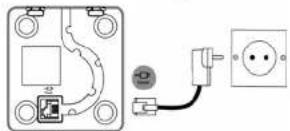
The power adaptor with a clear connector is for the base unit and the power adaptor with a red colour connector is for the charger unit.
Connecting up the large base
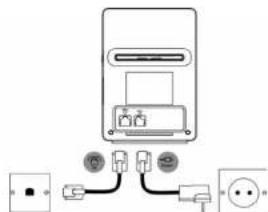
Plug the large mains power cable into the socket marked on the underside of the base and plug the other end into the mains power wall socket and switch the power on.
Connecting the handset and charger
If you have purchased a multiple pack, this process will need to be carried out for all handsets and chargers:
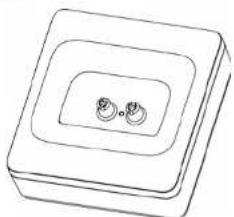
- Plug the small mains power cable into the socket marked on the underside of the charger.
- Insert the 2 x AAA NiMH batteries supplied into the headset. Then elite the equipment uses info piec
-
Place the handset on the charger to charge for at least 24 hours. When the handset is fully charged the button will indicate that it is fully charged.
-
After 24 hours, plug the telephone line cord from the large base into the telephone wall socket.
BATTERY LOW WARNING
If the Icon flashes in the display, you will need to recharge the handset before you can use it again.
During charging, the 1 will scroll in the display.
BATTERY PERFORMANCE
In ideal conditions, fully charged batteries should give about 10 hours talk time or 100 hours standby time on a single charge.
Note that new batteries do not reach full capacity until they have been in normal use for several days.
To keep your batteries in the best condition, leave the handset off the base for a few hours at a time.
Running the batteries right down at least once a week will help them last as long as possible.
The charge capacity of rechargeable batteries will reduce with time as they wear out, giving the handset less talk/standby time. Eventually they will need to be replaced.
After charging your handset for the first time, subsequent charging time is about 6–8 hours a day. Battenes and handset may become warm during charging. This is normal.
Setting up your D801
Welcome screen
-
The Welcome screen will briefly appear, then a list of
-
Scroll 📄 or 🔒 to your country (operator) and press Select. The handset and base will reset to load the correct settings. The standby screen is then displayed and your phone is ready to use
You can still make and receive calls without first selecting your country and network operator, however the Welcome screen will re appear until you have configured your phone country settings.
Date and time
Providing you have subscribed to your network's Caller Display service. the date and time is set automatically for all handsets when you receive your first call.
The date and time is recorded with each answering machine
4 Getting started


D811_10U_1N.1m Page 5 Friday, September 7, 2007 8:01 PM


MOTOROLA

message you receive.
If you do not have a Caller Display service you can set the date and time manually.
Set date and time manually
-
Press Menu and scroll 📋 or ⏻ to Clock & Alarm then press Select
-
Date & Time is highlighted. Press Select
-
Enter the date using the format DD/MM/YY e.g. 09 06 07 for 9th June 2007. Enter the time in 12 or 24 hour time format. Press Save. To change the Time Format see page 13.
-
Press ☐ or Back until you return to standby.
Your D801 is now ready for use.
2. Getting to know your phone
Overview of your handset
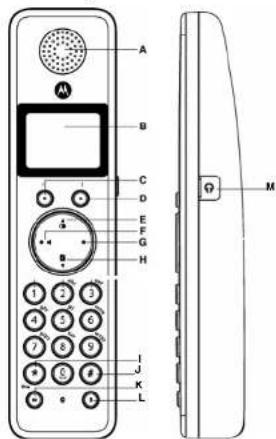
Press to select options displayed on screen.
E Redial/ Up
In standby, press to open and scroll through the Redial list. page 9.
In talk mode, press to adjust volume.
In menu mode, press to scroll through the options.
When storing an entry in the phonebook, press and hold to enter a Pause, page 21.
F Talk/ Handstree
In standby mode, press to make and receive calls, page 8. In talk mode, press to switch handstree on and off, page 8.
G End call/ Power on/off
Press to end a call, page 8
In menu mode, press to return to standby.
In standby, press and hold to switch the handset off. When off, press to switch the handset back on.
H Phonebook' Down
In standby, press to open and scroll through the Names list, page 9.
in talk mode, press to adjust volume.
In menu mode, press to scroll through the options.
1
Press and hold to switch between Tone and Pulse dalling,
page 12
Jπ/Lock
Press and hold to lock the keypad, page 9.
To unlock, select Unlock and follow the on screen instructions.
K Int (Intercom)
Used for internal calls, page 19.
L R (Recall)
For use with switchboard/PBX.
M Wired Headset Socket
Please use 2 pin headset with 2.5mm connector.
Handset Display
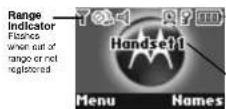
Battery status Scrolls when charging
Handset name/number



Getting to know your phone 5


A Earpiece
B Display
See page 6 for an overview of the display icons.
C Option button (left)
Press to open the Menu
Press to select options displayed on screen.
D Option button (right)
In standby, press to open the phonesbook menu, page 9.


D811_IFU_I:N.fm Page 6 Friday, September 7, 2007 8:01 PM

MOTOROLA
Charger
natural_image
Simple line drawing of a square electronic component with two circular holes (no text or symbols)Display Icons
Displayed in standby mode to indicate handset is in
Flashes if you move out of range.
Displayed if ECO Mode is switched on
3 Hardrol sinter volume is Off
-4
Deployed in handsfree talk mode.
An alarm is set.
The keypad is locked.
You have SMS text messages.*
You have volceral messages.
You have missed calls.*
The approximate power levels of your battery are indicated as below:
Battery is fully charged.
Battery is partially charged.
Battery is running low.
Battery is almost fully discharged (Red).
* For this feature to work you must subscribe to your network provider's Caller Display service. A quarterly fee may be payable.
NOTE
When the memory for TAM, SMS or voicemail messages is full, a white line will appear below their corresponding reminder icon.
Overview of the base
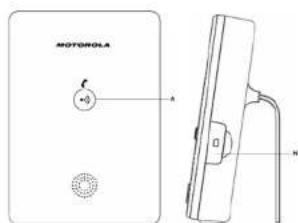
A Paging Key
In standby, press to ring the handset(s), page 9. Press and hold to enter registration mode when registering handsets, page 19.
N SIM card slot
Insert your mobile phone SIM card here to copy to and from the phonebook.
Navigating the menus
Your DB01 has an easy to use menu system.
Each menu has a list of options, which you can see on the menu map on the following page.
When the handset is switched on and in standby:
- Press Menu to open the main menu.
- Then ⚠ use ⏱ or buttons to scroll through the available options
- Press the Select option button to select a menu option or the Back option button to go back to the previous screen.
To return to the previous menu level, press Back,
To exit the menu and return to standby press
If no buttons are pressed for 30 seconds, the handset returns to standby automatically.

6 Getting to know your phone


D811_10U_1N.1m Page 7 Friday, September 7, 2007 8:01 PM

MOTOROLA


Menu map
| Text Messaging | Calls Lists | Agenda | Clock & Alarm | Settings | Registration | Names | Press Names during a call: |
| Write Message | Missed Calls | If there is an Event, the following options will be displayed. | Date & Time | Set Handset | Register Handset | From menu in standby: | Phonebook list is displayed. |
| Inbox | Received Calls | Alarm | Ringtone | Select Base | Search | Select OPTIONS: | |
| Drafts | Dialled Calls | Time Format | Ringer Volume | De-register | Add Entry | Add Entry | |
| Outbox | Delete Calls | Add Event* | Receiver Volume | Copy Phonebook | Show Details | ||
| Templates | Show Details | Handset Name | Dialling Codes | Edit Entry | |||
| Delete Messages | Edit Event | Language | Memory Status | Delete Entry | |||
| Text Settings | Send as a Text | Wallpaper | Delete Phonebook | ||||
| Delete Event | Menu Colour | Press ( ) in standby: | |||||
| Delete All Events | Scriconsvayer | ||||||
| Light Timeout | Phonebook list is displayed | ||||||
| Display Contrast | Select OPTIONS: | ||||||
| Auto Talk | Show Details | ||||||
| Key Clock | Send Message | ||||||
| PABX Access Code | Edit Entry | ||||||
| Copy Entry | |||||||
| Set Base | Ringtone | ||||||
| Ringtone | Delinq Entry | ||||||
| Ringer Volume | |||||||
| Dialling Mode | |||||||
| Ring Priority | |||||||
| Recall Mode | |||||||
| First Ring | |||||||
| System PIN | |||||||
| Master Reset | |||||||
| ECO Mode |
EN




Getting to know your phone 7


Character map
Key Case Assigned characters and symbols
| 1 | LU* | , . - ? | i L' @ : : / 1 |
| 2 | L | a b c 2 à a à à c |
| U | A B C 2 À É À C | |
| 3 | L | d e f 3 è e |
| U | D E F 3 É | |
| 4 | L | g h i 4 l |
| U | G H I 4 | |
| 5 | L | | k l s |
| U | J K L 5 | |
| 6 | L | m n o 6 o o ó n |
| U | M N O 6 O ō ŝ | |
| 7 | L | p q r s 7 8 |
| U | P Q R S 7 | |
| 8 | L | t u v 8 ō ŝ |
| U | T U V 8 0 | |
| 9 | L | w x y z 9 |
| U | W X Y Z 9 | |
| 10 | LU | ←→ 0 |
| * | L/U bring up leg to be able to tie | |
| # | L/U | short press to switch between Altc, able; ABC and 123 mode long press to switch between input |
languages
*L = Lower
U = Upper
3. Using the phone
CALL TIMER
Your handset will automatically time the duration of all external calls. The handset display shows the call duration both during and for a few seconds after your call.
Switch the handset on / off
- In standby, press and hold ☐ to switch the handset off. When off, press ☐ to switch back on.
Make a call
- When you hear the dial tone, dial the number.
If the number dialled matches an entry in the phonebook, the name is displayed.
Preparatory dialling
- Dial the number first. If you make a mistake press clear to
delete the last digit. 2. Press to dial
If the number dialled matches an entry in the phonebook, the name is displayed.
End a call
Receive a call
When you receive an external call, the phone rings. The display shows External Call and the caller's number or, if the number matches an entry stored in the phonebook, the name is displayed.
- Press ☐ to answer the call.
Adjust the earpiece/receiver volume
- During a call, press 🔒 or ⬇ to increase or decrease the volume. The display shows the level.
Secrecy
During a call, you can talk to someone nearby without your cater hearing.
-
During a call, press Secrecy. The display shows Secrecy On and your caller cannot hear you.
-
Press on to return to your caller.
Internal calls
Call another handset
If you have more than one handset registered to the base, you can make internal calls between two handsets.
-
Press then the number (1-5) of the handset you want to call
-
Press OK to dial.
When an internal call is received, the display shows internal Call Handset X (where X is the calling handset) and the handset number.
Transfer a call
You can transfer an external call to another handset registered to the base.
During your call:
-
Press 📄 then the handset number (1-5) you want.
-
Press OK to dial or press End to cancel the calls request and return to the caller.
-
When the other handset answers you can announce the color.
-
Press ☑ to complete the transfer or ☑ to switch back and forth between both callers. If the other handset does not answer, pressEnd to return to your original caller.
3-way conference call
You can hold a 3-way conference call between 2 internal callers and 1 external caller.
During a call to an external caller:
-
Press then the handset number (1-5) you want.
-
Press OK to dial.
- When the other handset answers you can announce the
cater.
-
Press Join to begin the conference call. Display shows
-
Press ☐ to hang up
Handsfree
Handsfree lets you talk to your caller without holding the handset. It also enables other people in the room to listen to your conversation over the loudspeaker.

8 Using the phone


Make a handsfree call
- Dial the number then press ☐.
-
Press 🎨 again. The icon is displayed and you hear your call over the handset loudspeaker.
-
Press 📋 to switch the call between the earpiece and the loudspeaker.
-
Press ⚙ to end the call
During a hand-free call, press ⚙ or ⚠ to change the volume.
Answer a call in handsfree
When the phone rings, press ☺ twice to answer in hands-free talk mode.
Redial
The last 20 telephone numbers called are saved to a redial list. You can then select any of the numbers to redial, delete or copy to the phonebook.
Redial numbers can be up to 32 digits long.
Redial a number from the redial lists
- Press the last number you called is displayed.
- Press ☐ or ☑ to scroll to the number you want.
- Press ☐ to dial.
Save a number from the redlal list to the phonebook
Please see "Copy a Calls list number to the phonebook" on page 15 for instructions and select the Dialled Calls option.
Delete a redlal number/delete all redlal
Please see "Delete a redial number/delete all redial" on page 9 for instructions and select the Dalled Calls option.
To lock the keypad
You can lock the keypad so that it cannot be used accidentally while carrying it around.
IMPORTANT
When the keypad is locked you can still answer incoming calls and operate the handed as normal. When the call is ended, the keypad lock comes on again.
-
Press and hold Ⓞ. The handset beeps and displayed. To unlock the keypad:
-
Press Unlock. Display shows Press # to Unlock Keys
- Press ④.
Paging/Find handset
You can alert a handset user that they are wanted or locate a missing handset.
Paging calls cannot be answered by a handset.
-
Press Ⓤ on the base. All handsets registered to the base will ring and display Paging Call.
-
Press ☑ on the base again to stop the ringing or, on any handset, press Stop or any button on the handset to stop all handsets ringing.
Phonebook
You can store up to 250 names and numbers in the phonebook. Names can be up to 12 characters long and numbers up to 24 digits. You can also select different ring tones for phonebook entries.
SEARCH ALPHABETICALLY
Press
Or
Press Names
Search is highlighted. Press Select.
The list of entries is displayed
Enter the first letter of the name you want. The first name beginning with that letter is displayed.
Scroll ⚙ to view any other entries beginning with that letter.
Store a name and number
If you subscribe to a Caller Display Service and want the name of your caller displayed instead of the number, save the full telephone number including the dialing code to your phonebook.
You can store multiple entries with the same name but, to prevent unnecessary duplicates, you can only store one number once.
-
From standby, press names. The phonebook menu is displayed.
-
Search is highlighted. Scroll ☐ to Add Entry and press Select
- Enter the name and press OK.
When storing a name the first character is upper case and the rest lower case.
To change the case manually. Press ①. To store a Pause in the number field, press and hold ②. To store a Recall in the number field, press ③. 4. Enter the number and press save.
-
Scroll 📄 or 📋 to the ringlone you want and press Select. The display shows
Saved and returns to the phonebook menu. -
Press Back to return to the previous menu level or Ⓧ to return to standby.
ENTERING NAMES
Use the keypad letters to enter names, e.g. to store TOM: Pages ①, page 10, enter T.
Press 6. three times to enter O
Press 6 once to enter M.
WRITING TIPS
Press Clear to delete the last character or digit.
Press ⚠ or ⚠ to move backwards or forwards through character/digits.
Press ④ to switch between upper and lower case. Press ⑩ to insert a space.
Use ① for other punctuation characters. You must enter a name to go with a number.
OPEN THE PHONEBOOK DURING A CALL
-
During your conversation, press Names.
-
Press Options to select Add Entry, Show Details, Edit Entry or Delete Entry
View an entry
-
Press ①. The first entry is displayed
-
Scroll 📄 or 📋 to the entry you want or search alphabetically
alphabetically
-
Press options, The display highlights show details
-
Press select its display the name, number and angione.
-
Press dial to call the number or park to return to the
-
Press will to call the number of days to return to the previous level.
Dial an entry
-
In standby, press ⚫. The first entry is displayed.
-
Scroll ☐ or ☑ to the entry you want or search
alphabetically
- Press ☐ to dial the displayed number.
Edit a name and number
-
Press
-
Scroll or to the entry you want
-
Press Options and scroll to Edit Entry and press Select
-
Press Clear to delete characters, use the keypad to enter new ones then press OK
-
Press Clear to delete digits, use the keypad to enter new ones then press SAW.
Using the phone 9


MOTOROLA
-
Scroll 📄 or 🌐 to the ringlone you want and pressSelect to save the entry.
-
Press back to return to the previous menu level
Edit ringtone
- Press 2. Overall 3.
- Search ▪ Br ▪ to the diary you want.
- Price Options and comll ▪ to Ringlons and price Select
- Press options and scroll to millions and press buttons.
- Scroll, or, to the image you want and selectSelect to
- Scroll 4 of 1 to the time you will save the entry or select Default Melody
- Press Back to return to the previous menu level.
Delete an entry
- Press
- Scroll ☐ or ☑ to the entry you want.
- Press Options and scroll to Delete Entry and pressSelect
-
Press Yes to confirm or No to cancel.
-
Press Back to return to standby.
Delete entire phonebook
- Press Na
- Scroll ☐ or ☑ to Delete Phonebook and press Select
- Press Yes to confirm or No to cancel.
- Press Back to return to standby.
Copy an entry to another handset
When you have more than one handset registered to your D801
base, you can copy entries between handsets.
-
Press
-
Scroll ☐ or ☑ to the empty you want
- Press Options and scroll (W) to Copy Entry and press Select
- To Handsel is displayed. Press Select
- Available handsets are displayed. Scroll ☐ or ☑ to the
- Handset you want and press Select Copy Phonebook? Is prompted on the receiving handset. Press Yes to accept or No to cancel. When completed the sending handset displays
Copied. - Press Back to return to the previous menu level.
Copy the entire phonebook to another handset
In just a low minutes, you can copy all your phonebook contacts to another handset.
At the handset you are copying from:
1. Page Names
2. Scroll ☐ to Copy Phonebook and press Select
10 Using the phone
- To Handset is displayed. Press Select
- Available handsets are displayed. Scroll ⚙ or ⏻ to the handset you want and pressSelect. When completed the display shows the number of entries copied.
- Press Back to return to the previous menu level.
At the receiving handset: - The display shows Copy Phonesbook? Press Yes to begin copying or No to cancel.
Memory status
You can check how much of the phonebook memory is available.
1. Press Names
2. Scroll ⚠ to Memory Status and preen Select
3. Display shows the number of Memory Used and Memory Free
or display
entries
4. Press Back to return to the previous menu level.
Copy an entry to a SIM card
- Insert the SIM card into the SIM READER slot on the side of the base
- Press 1. To open the phonebook list than press Options
- Scroll (■) to Copy Entry and cross Select
- Scroll to To SIM and pressSelect
- If requested, enter your SIM PIN then press OK
The PIN number will be displayed as set risks for security
THE 14th Number will be displayed as details for security.
25.1 - Display shows Please wait...XN as it copies entries from the
SIM. When completed the display shows - Press Back to return to the previous menu level.
Copy all entries to or from a SIM card
- Insert the SIM card into the SIM HEADER slot on the side of the base.
-
Page Number
-
Press Names.
- Scroll (■) to Canv Plcnsbank and press. Select
- Scroll (V) to copy Handbook and press Select.
- Scroll (W) to either From SIM or To SIM, and press Select
- Scull ④ to either from all of 10 on and pressed
- Requested customer SIM QIN Lther price OK
- In requested, enter your SIM PIN then press on The PIN number will be displayed as asterisks for security reasons.
- Display shows the name of each entry as they are copied.
When completed the display shows the number of entries. - Press Back to return to the previous menu level.
COPYING TO A SIM CARD
While copying to and from SIM, it is pressed on any
handset to make a call or try to send a text, the copying process will stop immediately.
However, if an incoming call is received, the copying process is cancelled so that the call can be taken.
If the memory becomes full during copying from a SIM, the display shows Memory Full Not All Copied.
Most SIM cards are supported, but if the SIM Card format is not compatible, the display shows SIM Format Not Supported.
COPYING FROM A SIM CARD
When copying from a SIM only the first 12 characters of each name are copied and the first 24 digits in a number are copied. If an entry with a duplicate number is found, the entry will not be copied.
Please insert SIM Card will be displayed if you have not already inserted a SIM card into the base.
Change the dialling code
The Dialing Codes function automatically converts SIM entries beginning with international dialing codes to the local code. For example, on a SIM card, + is the international code and 44 is the country code.
These will be replaced automatically by the local code 0 so that a number beginning +44207 will be converted to 0207.
1. Page Names
2. Scroll ⚫ to Dialling Codes and press Select
a. Scroll ④ to the part of the dialling code you need to
change, International, Country or Local and press Select.
4. Enter the new code and press Save
5. Press Back to return to the previous menu level

10 Using the phone


4. Handset settings
Handset ringtone
You can set different ringtones for external calls and internal calls.
Select from 10 handset ringtones.
You will hear a sample ring for each one you highlight.
-
Press Menu scroll to Settings and create Select
-
Set Handsel is highlighted. Press Select.
-
Ringtone is highlighted. Press Select.
-
Press ⚠ or ⚡ to highlight External Call or Internal Call. Press
Save to confirm.
-
Scroll (4) or (5) to highlight the ringtone you want.
-
Press select to confirm
-
Press based return to the previous bond level of to return to standby.
Handset ringer volume
The handset has 5 ringer volume settings plus Off.
If the volume is set to Off the 100n is displayed.
-
Press Menu scroll ① to Settings and create Select
-
Set Handset is highlighted. Press Select
-
Script ① to Ringer Volume and press Select
-
Press 📄 or ⚠ to display the volume level you want. Press
Site to confirm.
- Press based return to the previous menu level or to return to standby.
Receiver volume
This sets the standard volume level for the handset earpiece.
There are 5 levels to choose from
-
Press Menu, scroll to Settings and press Select.
-
Set Handset is highlighted. Press Select.
-
Scroll to Receiver Volume and press Select
-
Press ☐ or ⏻ to display the volume level you want. Press Sava to confirm
-
Press Bankto rep
-
Price-based return to the previous third level of 0.10% to remain to standby.
Handset name
If you are using more than one handset with your D801 base, you can
give each handset a personalised name to easily distinguish between the bandsets.
A name can be up to 10 characters long.
-
Press Menu, scroll ( ) to Settings and press Select.
-
Set Handset is highlighted. Press Select
-
Scroll (■) to Handset Name and press Select
-
Use the keypad to enter the name and press save.
-
Press back to return to the previous menu level or □ to return to standby
Display language
The available languages include:
English, Francais, Deutsch, Italiano and Espanol.
-
Press Menu scroll ⚡ to Settings and press Select.
-
Set Handsel is highlighted. Press Select
-
Scroll to Language and press Select
-
Scroll ☐ or to the language you want and press Select
-
Press Back to return to the previous menu level or ☐ to return
Wallpaper
-
Press Menu, scroll ⚪ to Settings and press Select.
-
Set Handset is highlighted. Press Select
-
Scroll ① to Wallpaper and pressSelect
-
Scroll or to the newspaper you want and pressView
-
On the preview screen, scroll 📄 or 🌐 to see available
wallpapers.
- Press Auto confirm the wallpaper
-
Paper Back to return to the review
-
Press look to return to the previous metric level of to return to standby.
Menu colour
-
Press Menu, scroll ☐ to Settings and press Select
-
Set Handsel is highlighted. Press Select
-
Scroll to Menu Colour and press Select
-
Scroll 📋 or 🌐 to select the colour you want: blue, orange, vinyl and press. Spotify
of pink and press joints
- Press back to return to the previous menu level or □ to return to standby.
Screensaver
When the screensaver is set to Clock an analogue clock is
displayed
The screensaver comes on when the screen backlight switches
off in standby mode. To change the backlight timeout setting,
see Light Breakout.
-
Press Menu, scroll 📋 to Settings and press Select.
-
Set Handset is highlighted. Press Select.
-
Scroll to screen/after and press select.
-
Scroll ☐ or ☑ to set the
-
Draw Select to Select Clock
-
Press about to send cloth.
-
Press Back to return in the
-
Press back to return to the previous menu level of to return to standby.
Light timeout
Set how long the backlight stays on after the handset has
returned to standby screen
-
Press Menu, scroll ① to Settings and press Select.
-
Set Handsel is highlighted. Press Select,
-
Scroll to Light Timeout and press Select
-
Scroll ☐ or ☑ to set the timeout period you want then
press subject.
- Press back to return to the previous menu level or * to return
Display contrast
-
Press Menu, scroll ① to Settings and press Select.
-
Set Handset is highlighted. Press Select
-
Scroll to Display Contrast and press Select
-
Scroll ☐ or ☑ to Low, Medium or High then press Select
-
Press back to return to the previous menu level on 10 to return to signally
Auto talk
If you set Auto Talk to ON, when you receive an incoming call you
can answer it just by lifting your handset from the charger. You do
not need to press
-
PressMenu, scroll to Settings and press Select.
-
Set Handsel is highlighted. Press Select
-
Scroll to Auto Talk and press Select
-
Scroll ☐ or ⏻ to On or Off then press Select
-
Press Back to return to the previous menu level or ① to return
Key beep
When you press a button on the D801 handset you hear a
beep. You can switch this on or off.
-
Press Menu scroll to Settings and press Select.
-
Set Handset is highlighted. Press Select
-
Scroll to Key Beep and press Select
-
Scroll 🔊 or ⏻ to Off or On then press Select

MOTOROLA
- Press Back to return to the previous menu level or ● to return to standby.
PABX access code
If your D801 is connected to a switchboard, you may need to
enter a
one-digit access code in the dialling sequence to be able to
connect to the outside line.
The access code will be displayed at the beginning of a number on the screen.
The access code will not be used when you dist the number yourself (rather than for example from the phonebook). This allows you to make calls to other switchboard extensions.
1. Press Menu, scroll ① to Settings and press Select.
2. Set Handset is highlighted. Press Select.
3. Scroll to PABX Access Code and pressSelect
4. Scroll ☑ or ☑ to On, Off or Sel Code then press Select.
If you select Set Code, enter the switchboard access code
e.g. 9 then press Save
5. Press Back to return to the previous menu level or ⚙ to return to standby.
5. Base settings
Base ringtone
Select from 5 base ringtones.
You will hear a sample ring for each one you highlight.
1. Press Menu scroll ( ) to Settings and press Select
2. Scroll ☑ to Set Base and press Select
3. Ringland is highlighted. Press Select
4. Scroll ① or ② highlight the ringtone you want.
5. Prase Select to confirm
6. Press Back to return to the previous menu level or ☐ to return to standby.
Base ringer volume
The base has 5 ringer volume settings plus Off.
1. Press Menu scroll ⑦ to Settings and press. Select
2. Scroll ⚡ to Set Base and press Select
3. Scroll ▼ to Ringer Volume and press Select.
4. Press ☐ or ⏻ to display the volume level you want. Press Select to confirm.
5. Press Baidu return to the previous menu level or ⚙ to return to standby.
Dialling mode
Your D801 is pre-set to Tone dialing. You should not normally need to change this setting. The dial mode options are Tone or Pulse.
1. Press Menu scroll ☑ to Settings and press Select
2. Scroll ⚡ to Set Base and press Select
3. Scroll to Dialing Mode and press Select
4. Press ☐ or ☑ to highlight Pulse or Tone then press Select to confirm.
5. Press Bacito return to the previous menu level or ⚙ to return to standby.
Ring priority
When you have more than one handset registered to your base, you can set one handset to ring before the other handsets. This allows one handset user to answer all incoming first, like a receptionist.
Choose All Handsets if you want all handsets to ring at the same time or Select Handset to nominate a handset to ring two times before the others.
1. Press Menu scroll (▼) to Settings and press Select
2. Scroll ⏻ to Set Base and press Select
3. Scroll ☑ to Ring Priority and prese Select.
- Press ☐ or ☑ to highlight All Handsets or Select Handset (then press Select)
If you choose Select Handset all available handsets are displayed. Scroll 🔒 or ⏻ to highlight the handset you want then press Select.
Scroll 📄 or 🌐 to the number of rings you want to set 2, 4 or 6 and press Select. - Press Back to return to the previous menu level or ⚙ to return to standby.
Recall mode
- Press Menu, scroll to Settings and press Select
- Scroll 📋 to Set Base and pressSelect.
- Scroll ☑ to Recall Node and press Select.
- Press ☐ or ☑ to highlight Recall 1 or Recall 2 then press Select to confirm
- Press Back to return to the previous menu level or ⚙ to return to standby.
First ring
If you have subscribed to your network's Caller Display service, your D801801 does not ring until the caller information has been received and displayed.
However, if you want your handset to ring without waiting for the caller information to be displayed, set First Ring to On. Please note that this will mean the first ring you hear will be the default rington. This will change to any rington you have set once the caller information is displayed.
- Press Menu, scroll to Settings and press Select
- Scroll ① to Set Base and press Select.
- Scroll ⚙ to First Ring and press Select.
- Press ☑ or ☑ to On or Off then press Select to confirm.
- Press Back to return to the previous menu level or ☑ to return
System PIN
The System PIN is used when changing certain settings and registration / de-registration. The default setting is 0000. You can change this to your own preferred number up to 8 digits. When you enter a PIN the digits are shown as ****.
- Page Menu, ctrl ① to Settings and press Select
- Scroll ⚠ to Set Base and pressSelect.
- Scroll to System PIN and press Select
- Enter the old PIN (original setting 0000) and press OK.
- Enter the new PIN and press OK
12 Base settings





- Re-enter the new PIN and press OK
- Press Back to return to the previous menu level or Ⓞ to return to standby.
You can restore your D801 to its default (original) settings. It will not affect the phonebook, calls list or user's data, including personal/recorded ougning messages and answer machine messages. All handsets registered to the base will be retained. All text, answer machine, handset and base settings will be reset.
1. Press Menu, scroll to Settings and press Select.
2. Scroll to Sel Base and press Select.
3. Scroll ① to Master Reset and press St
4. Select Yes to confirm or Note Cancel.
5. Enter the system PIN (original setting 0000) then press OK. The display will show Reset Compots and the unit will restart. If the welcome mode is available then the user is presented with the country selection screen. Please refer to welcome mode section.
ECO mode
To reduce the level of power emissions, you can select low power or ECO mode. When the ECO mode is set to On, the base transmission power will be reduced.
To turn ECO Mode to Other Off:
1. Press Menu scroll to Settings and press Select
2. Scroll ☐ to Set Base and press Select.
3. Scroll to ECD Mode and press Select
4. Press ☐ or ☑ to highlight On or Off then press Select to confirm.
The display will show Sel to ON or Sel to OFF depending on the selection together with a confirmation tone.
Signal icon in ECO mode
When set to DN, which is displayed in piece of the standard signal icon.
NOTE
When ECO mode is set to OK, the handset range will be reduced.
6. Clock & alarm
Date & time
If you subscribe to your network's caller display service, the base sets the date and time for all handsets whenever a call is received. You can manually set the time on an individual handset.
- Press Menu, scroll ☑ to Clock & Alarm and press Select.
- Date & Time is highlighted, press Select
- Enter the date using the format DD/MM/YY.
- Enter the time and press ready.
- Press Back to return to the previous menu level or ⚙ to return to standby.
Set alarm
When the alarm is set, the display shows the 'open.
Each handset can have a different alarm setting.
1. Press Menu scroll ( ) to Clock & Alarm and press Select
2. Script to Alarm and press: Select.
3. Press ☑ or ☒ to select On and press Select
4. Press 📁 or 🌐 to select Once, Monday-Friday or On Daily and
press select
5. Enter the time you want the alarm and pressave
6. Pass Back to return to the previous many level at
6. Press can to return to the provide inside level of to return to standby.
If the alarm was set to Once, the call disappear from the screen.
It set to On Daily or Monday-Friday, the 📄 will remain on the screen.
Alarm on /off
Once an alarm has been set, you can switch the setting On or Off
- Press Menu scroll (W) to Clock & Alarm and press Select
- Scroll to Alarm and press Select.
- Press ⚠ or ⚡ to select On or Off and press Select
- Press Back to return to the previous menu level.
Switch off alarm ring
When the alarm goes off, press Stop
If you are using the handset to make a call when the alarm ring
is due, the lashes and you hear a beep in the earpiece.
Time format
Set the time format to 12 or 24 hour setting
1. Press Menu scroll 📋 to Clock & Alarm and pressSelect
2. Scroll to Time Format and press Select
3. Press ④ or ① to select 12 Hour or 24 Hour and press Select
4. Press Back to return to the previous menu level.
Clock & alarm 13


MOTOROLA
7. Agenda
Add a new event
Use your D801 to remind you of details of up to five events such as birthdays, anniversaries or appointments. The entry can be up to 24 characters long.
Up to 24 characters can be entered as the subject.
-
Press Menu, scroll to Agenda and pressSelect
-
If no previous event is stored, Add Event is highlighted. Press Select.
If events are already stored, they are listed. Press Options. Add Event is highlighted. Press Select.
-
Enter the subject and press Save
-
Enter the date (DD/MM) and press Save.
-
Enter the time (HH:MM) and press Save. If the current time format setting is 12 hour, select all or all.
-
Press ⚠ or ⏱ to select Silent or Alarm and press Select.
If you press Alarm Scroll ① or ② to select Once or Annually and press Select. If Once is selected, scroll ④ or ⑤ to select when you want to receive the reminder At event time or 30 min before. Press Select. Display shows Saved
If Annually is selected, then the alarm will sound at the event's time.
- Press Back to return to the previous menu level or ⚙ to return to standby.
If you select a silent reminder, the event subject is displayed on screen but no alarm will sound.
When the event memory is full, the display showsMemory Full. You must delete an event before you can add a new one.
Switch off agenda ring
- The event is displayed. Press View to stop the alarm and see the details of the event. Or press Back to stop the alarm and return to the standby screen. If no button is pressed, the alarm stops after one minute.
Show agenda details
- Press Menu, scroll to Agenda and press Select.
- Stored events are displayed. If required, scroll ① to the event you want and press Options
- Scroll ☐ to Show Details and press Select The description,
date and time of the reminder are displayed. - Press Back to return to the previous menu level or ☐ to return to standby.
14 Agenda
Edit agenda
- Press Menu, scroll to Agenda and press Select
- Stored events are displayed. If required, scroll to the event you want and press Options.
- Scroll Ⓧ to Edit Event and press Select
- Edit the subject and press save.
- Edit the data and time than press save.
- Eat the date and time then press out.
- Press 📄 or 🔒 to select Silent or Alarm and press Select if you press Alarm
Scroll 🔒 or 🔒 to select Once or Annually and press Select. If Once is selected, scroll 🔒 or 🔒 to select when you want to receive the reminder At event time or 30 min before. Press Select Display shows Saved.
H Annually is selected, then the alarm will sound at the
event's time. - Press Back to return to the previous menu level or ⚙ to return to standby.
Send agenda as a text message
- Press Menu scroll (P) to Agenda and press Select
- Stored events are displayed. Scroll (P) to the event you want and press Options.
a. Scroll ⬆ in Send as a Text and press Select - The event is displayed. Press Options to select Send option and enter a destination key.
Delete agenda
- Press Menu, scroll to Agenda and press Select.
- Stored events are displayed. Scroll ⏻ to the event you want and press Options.
- Scroll ☐ to Delete Evenband press Select
- Press Yes to confirm or No to cancel.
- Press back to return to the reverse up
- Pressback to return to the previous menu level of C to return to standby.
Delete all agendas
- Press Menu, scroll 10 Agenda and press Select
- Stored events are displayed. Press Options.
- Scroll ☐ to Delete All Events and press Select
- Press 105 to confirm or No to cancel.
- Pressback to return to the previous menu level or ⚙ to return to standby.
8. Calls lists
IMPORTANT
To use Caller Display you must first subscribe to the service from your network provider. A quarterly fee may be payable.
To ensure the caller's name is displayed, make sure you have stored the full telephone number, including the dialling code in the phonebook.
If the caller's number is stored in the phonebook, the name assigned to it is displayed.
If the number is unavailable. Unavailable will be displayed.
If the call is from an international number, International will be displayed.
If the call is from the operator, Operator will be displayed.
If the call is from a payphone, Payphone will be displayed
If the call is from a ringback request, Ringback will be displayed.
Caller Display
If you have subscribed to a Caller Display Service, you will be able to see your caller's number on your handset display (provided it is not withheld) prior to answering the call.
If your caller's name and number are stored in the phonebook and a name/number match is found, you will see the caller's name on the display instead.
Calls lists
Each handset can hold details of up to 30 answered or unanswered calls and 20 dialled calls.
The caller's details are stored in a Calls list whether you answered the call or not. When the list is full, and a new call is received, the oldest entry will be deleted automatically.
New calls alert
When you have missed calls, the display shows You have X new missed calls. If you press Back, the screen returns to standby and the 📄 is displayed.
View new missed calls
- When you see the new calls alert, press View. You can now sort or through the Missed Calls list
- Press Options. Show Details is highlighted. Press Select to see the number, date and time of the call.
- Press Back to return to the previous menu level or ☐ to return to standby.






View and dial from a Calls list
- Press Menu, scroll 📋 to Calls Lists and press Select. Missed Calls is highlighted. Scroll 🔊 or 🔔 to choose Missed Calls. Received Calls or DIAled Calls.
- Press Select. You can now scroll 🔊 or ⚡ through the list
- Press Options. Show Details is highlighted.
- Press Select to see the caller's number, date and time of call.
- Press Dial to call the number.
- Press Back to return to the previous menu level or □ to return to standby.
Copy a Calls list number to the phonebook
- Press Menu, scroll ☑ to Calls Lists then press Select. Missed Calls is highlighted.
If required, scroll ⚠ or ⏱ to Received or Dialled Calls then group Select - Scroll 📁 or 🖱 to the entry you want and press Options.
- Scroll 📁 toSave Number, Press Select
- Enter a name then press OK. The number is displayed, press \$ave
If you need to edit the number, useClear to delete any unwanted digits, then enter new ones using the keypad. - Scroll ☐ or ☑ to the ring/ano you want and pressSelect
- Press Back to return to the previous menu level or ⚙ to return to standby.
See "Entering namee" and "Writing tips" on page 9.
Send a text message to a Calls list number.
- Press Menu, scroll ☐ to Calls Lists then press Select. Missed Calls is highlighted.
It required, scroll 🔒 or ⏻ to Received or Dialled Calls then press Select - Scroll 📄 or 🖱 to the entry you want and press Options.
- Scroll 📄 to Send Message, Phone, Safari
- Sard ④ Iodine massage, These denote.
- Write the message that were 'deliners
- Write the message then press options.
- Send is highlighted. Then press Select. (You can save, insert a symbol, emoji or template)
- The number is pre-entered on the Send to screen, press. Send to send the message.
- Press Back to return to the previous menu level or ⚙ to return to standby.
See page 16 for more information on text messaging.
Delete an entry
- Press Menu, scroll to Calls Lists then press Select. Missed Calls is highlighted.
If required, scroll ⚙ or 📋 to Received or Dalled Calls then press Select - Scroll 🔒 or ⏻ to the entry you want and press Options.
- Scroll 🔒 to Delete Call Press Select
- Press Back to return to the previous menu level or ⚙ to return to standby.
Delete all entries
You can delete all entries in an individual Calls list or all entries from all Calls lists.
- Press Menu, scroll 📋 to Calls List then press Select Missed Calls is highlighted
If required, scroll or to Delete Calls press Select. - Scroll ☐ or ☑ to highlight Missed Calls, Received Calls, Dialled Calls or All Calls. Press Select.
- Press Yes to confirm or No to cancel.
- Press Back to return to the previous menu level or ⚙ to return to standby.
9. Call Waiting
You must subscribe to your network's Callor Display service for Call Waiting to work. A quarterly fee may be payable.
- During a call, you hear a soft beep in the earpiece and the display shows the number of the caller or the name if it matches an entry in your phonebook. If these are not available, the display showsCall Waiting.
- Press Ⓡ to put your current caller on hold and speak to the new caller.
- Press R again to switch between both callers (In some countries, it is required to disl R + 2).
- Press ☐ to finish the current call or ☐ to end both calls.
10. Voicemail
If you have subscribed to your network operator's voicemail messaging service, your handset can inform you when you receive new voicemail.
If you have new voicemail, You have new voicemail is displayed.
- Press Listen to dial the voicemail number preset on the handset. If your voicemail number is different to the number stored in the handset, you can manually dial your preferred voicemail number.
- Or pressBack to listen to your voicemail at a later time. A reminder icon will be displayed.

MOTOROLA
11. Text messaging
Welcome to the text messaging Service on your D801. Your D801 can send and receive text messages from participating mobile networks and compatible landline telephones in the UK.
You must subscribe to your Network Provider's Callor Display service so that you can use text messaging and you must not withhold your telephone number.
A quarterly fee may be payable, please contact your network provider for more details.
Subscribe to the text messaging service
When you send your first text message from your D801 you will automatically be registered for the service.
If you have Set-Up problems, please check with your Network provider.
Send a text message
If you are writing a text and you receive a call, the text will be displayed again when Write Message is selected.
-
Press Menu, Text Messaging is displayed, pressSelect.
-
Write Message is highlighted. Press Select.
-
Use the keypad to enter your message.
- Page Options
Send is highlighted PressSelect to send the message. Enter the phone number or pressSearch to open the phonebook then scroll to the number you want and press Select. Now press Send
Or scroll or to:
Save
PressSelect to save the message in the Drafts folder.
Insert Symbol
Press Select. The symbol table is displayed. Press ⚠ or ⏱ to highlight the symbol you want, then press insert.
Press Select. The Emolicon table is displayed. Press ⚙ or ⏱ to highlight the Emolicon you want then press insert.
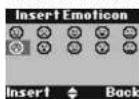
Insert Template Press Select. The list of templates is displayed. Press 🔒 or 🔒 to highlight the Template you want then press insert.
- When sending a message, the display shows Sending Message then Message Sent.
WRITING TIPS Press Clear to delete incorrect characters.
Use ⚫ or ⚪ to move the cursor through the text, if you want to insert delete text.
UPPER & LOWER CASE Press ① to switch between upper case ABC, lower case abc letters and numbers.
Maximum number of characters in a text message is 160. The display shows a character countdown from 160 down to 0 (Unless message size is set to 612 characters).
If the text is unsuccessful, the message Message Sending Failed will be displayed.
In order to send and receive text messages you must not withhold your number.
Standard text entry
With standard text entry you can enter a word by pressing each letter button a number of times to display the character you want on the screen. For example, to write the word 'Hello', press ④ twice, ③ twice, ⑤ three times, ⑤ three times and ⑥ three times.
Receiving and reading text messages
Your D801 can store up to a total of 50 short messages across all handset Outboxes. Drafts boxes and Inboxes.
When you receive a new text message, the X is displayed along with You have X new messages.
DO YOU HAVE TWO TEXT PHONE BASES
CONNECTED TO THE SAME PHONE LINE? If you have two text phone base stations plugged into one line, you are likely to experience problems receiving text messages. Normally, only one SMS enabled base unit (DECT or cordless) can be plugged into any line.
If you do want to use two base units and still receive written text you must delete receive service centre number from one of the base stations. To do this on your D601, see page 17.
This will allow you to send text via either base station but texts will only be received on the product with the active receive centre number.
If the base unit with the active receive centre number is a DECT product than all handsets registered to will be able to receive text messages.
MEMORY FULL ALERT
If the text mailboxes are full when you attempt to write a new message the display shows Memory Full Delete Messages. You must delete messages before you can write and send a new one.
Read a new message
Received messages are stored in the Inbox.
- The Inbox is opened and the list of messages displayed. If you press Back the message is stored in the Inbox for reading later.
- In the inbox scroll (to more recent messages) or (to earlier list of messages) through the list of messages.
- Highlight the message you want to read and press head or press Back to return to Text messaging menu.
- Press ☑ to return to standby
Read, forward, delete, view and save numbers of texts in the Inbox
When you see the new message alert, if you press Back the message is stored in your Inbox so you can read it later.
- To open the Inbox, press Menu, Text Messaging is displayed. Press Select.
- Scroll 📋 to Inbox and press Select. If you have new messages (indicated by a green dot), you will go straight to the Inbox, if not scroll 📋 to Inbox and press Select
- Scroll 📄 or 🌐 to the message you want and press Read. Scroll 🔒 or 🌒 through the message.
- Press Options and scroll ☑ or ☒ to:
Reply Press Select. Write your reply then press Options and select Send.
16 Text messaging


Forward
Press Select. The message is displayed. Press Options. Display highlights Send. Press Select and enter a number or search for the number then press Send.
Message Details
You can see who sent the message and then call them. Press Select the sender's number is displayed. Press Dial if you want to call the number.
Use Number
To call the sender, press Select. The display shows Call. Press Select to call the sender OR to save the number, scroll ☐ to Save and pressSelect. Enter a name and press OK, edit the number if required then press Save. Scroll ☐ or ☐ to the ringtone and press Select. The number is saved in the phonebook.
Delete
Press Select. Press Yes to confirm or No to cancel.
Delete
to search the phonebook. When the number is entered, press Send. Press Select then press Yes to confirm or No to cancel.
- Press ☐ to return to standby.
Edit templates
You can set the templates to your preferred message, up to a maximum of 32 characters. You can store up to 3 templates 1. Press Menu, Text Messaging is displayed. Press Select scroll to Templates and press Select
- Scroll 🔒 or Ⓧ to the template you want and press Options.
Edit Press Select. Press Clear to delete characters. Enter your template text and press Save Delete Press Select. Press Yes to confirm or No to cancel.
- Press ☐ to return to standby. If you delete a template without replacing the text it is marked as Empty.
Deleting texts
-
Press Menu, Text Messaging is displayed. Press Select scroll to Delete Messages and press Select.
-
Scroll ⚙ or ⏻ to inbox, Drafts, Outbox of All Messages and press Select
-
Press Yes to confirm or No to cancel.
- Press Back to return to standby. Selecting All messages will delete all messages stored in your inbox, Outbox and Drafts box.
Service Centre numbers
To send and receive text messages you need the telephone number of your Network's text Centre. If you accidentally delete the Outgoing or Incoming Service Centre numbers you will need to re-enter them in order for your text Service to work. You can enter up to 4 Service Centre numbers – two incoming and two outgoing.
If you have more than one 'Server Centre' stored on your D801 you will need to select which one you want to use for sending (see next section).
Add or change Service Centre
numbers
- Press Menu, Text Messaging is displayed. Press Select, scroll or to Text Settings and press Select.
- Service Centres is highlighted press select.
- Scroll ☐ or ☑ to Receive Centres or Send Centre and press Select.
- Scroll ☐ or ☑ to Receive Centre 1 or Receive Centre 2, or Send Centre 1 or Send Centre 2 and press Select.
- Enter the number for the centre and pressSave.
- Press Back to return to the previous menu level. To return to standby, close the cover or press ☐.
Set send centre
- Press Menu, Text Messaging is displayed. Press Select, Scroll
- Service Centres is highlighted press Select
- Press Select again to choose Set Sand Centre.
- Scroll ☐ or ☑ to Receive Centre 1 or Receive Centre 2 or Send Centre 1 or Send Centre 2 and pressSelect.
- Press Back to return to the previous menu level.
Message alert tone
When you receive a text message, the message alert tone will sound. There brings can be switched on or nil.
- Paper Menu Text Messaging is displayed. Paper Select Scroll
to Text Settings and press Select.
-
Scroll to Message Alert and press Select
-
Scroll 📄 or 🌐 to Off or Off and press. Select
-
Press back to return to the previous menu level.
Set message size
A standard text message is 160 characters long. You can set a message to be up to 612 characters and the message will be sent as up to 4 linked messages each up to 160 characters long.
-
Press Menu, Text Messaging is displayed. Press Select. Scroll to Text Settings and press Select.
-
Scroll ☐ to message size and press Select
-
Scroll ☐ or ☑ to highlight 160 or 612 characters, then press Select.
-
Press Back to return to the previous menu level.
User areas
Your D801 is pre-sol to make all text messages available to every user, with all messages sent from and received at a
Edit or send texts in the Drafts box
If you save a message to complete or send later it will be stored in the Dralls box. Only one message can be saved in each user's Dralls box.
- To open the Drafts box, press Menu, Text Messaging is
displayed. Press Select - Scroll to Drafts and press Select.
- Press Edit to exit your message as
- Press Eul to Eult your Message content.
- Press Options and scroll 🔒 or 🔒 to Send, Save, Insert Symbol,
Insert Emotion and Insert Template - When sending a message, the display shows Sending Message then Message Sent.
Forward or delete texts in the Outbox
Your DBO1's outbox is like a redial list. It holds a copies of up to 5 sent messages. When the Outbox is full, a new message replaces the oldest.
- To open the Outbox box, press Menu, Text Messaging is
displayed. Press Select. Scroll 📋 to Outbox and pressSelect. -
Scroll 🔒 or ⏻ to the message you want and press Read. Scroll 🔒 or ⏻ through the message.
-
Press Options and scroll ⚠ or 📁 to:
Forward Press Select. The message is displayed. Press Options. Display highlights Send. Press Select and enter the number or pressSearch
Text messaging 17




MOTOROLA
'Common Box'.
To keep your messages private, you can set up to 4 PIN protected personal user areas (sub-addresses). Each personal user area has its own Inbox and Outlook which are only accessible when the correct PIN is ordered.
You can also keep a common box sub address for incoming messages that do not need to be kept private.
Add a user mailbox
If you set-up personal user boxes you must tell people your user area number. They must put the relevant user area number at the end of your telephone number when they send you a text message. If they do not include the user area number, the messages will be stored in the common box and will be accessible to all users of your DB01.
The mailbox number can only be any number from 0-9 but must not be the same as another user's mailbox number or the common or public box number.
-
Press Menu, Text Messaging is displayed. Press Select. Scroll ① to Text Settings and press Select.
-
Scroll 🔊 to select and press select.
-
User 1 is highlighted. Scroll 🔊 or 🔊 to select another User.
-
Press Options, Edit is highlighted. Press Select
-
Use the single digit mailbox number displayed or enter your own single digit mailbox number than press Save
-
Enter a 4-digit mailbox PIN and press save
-
Enter the password again and press save.
- Press Back 10 return to the previous menu level.
Open and read a mailbox text
Once mailboxes have been set, when you open the Text Messaging menu, the mailboxes in use will be displayed. You can open the General User Mailbox without any password but each user area requires you to enter the 4-digit password PIN.
-
The display shows You have X new messages
-
Press Road. The mailboxes are displayed. Mailboxes with new passengers are marked with proper slots.
-
Scroll ① to the mailbox you want and press Select.
-
Enter the mailbox 4-digit PIN and press OK.
-
Scroll ☐ or ☑ to the message you want and press head. Or
-
If you have previously pressed Back, the display shows
图
- Press Menu, the text icon is displayed. Press Select
Mailboxes with new messages are marked with green dots.
- Scroll to the mailbox you want and pres
-
Ensure the mailbox 4 digit PIN and move OK
-
Enter the mailbox 4-digit PIN and
-
Scroll (1) to Inbox and Prase Select
-
Scroll 🔊 or 🔒 to the message you want and press Read
Edit a user mailbox
- Press Menu, Text Messaging is displayed. Press Select, Scroll
to the mailbox you want to edit and press Select.
- Enter the 4 digit mailbox password PIN and pressUK.
-
Get all (A) on (B) to Tavil Salbiser and Grace Select
-
Scroll (A) or (B) to two settings and press
-
Scroll (A) or (B) to lists and groups Select
-
Scroll ⚙ or ⏻ to the user mailbox you want to exit and
press Options.
-
Edit is highlighted, press Select
-
Enter the current mailbox PIN and press OK.
-
Enter the new name and press said.
-
Enter the new one-digit mailbox number and pressure.
-
Enter the new 4-digit mailbox approved and approved
-
Enter the how 4-digit mailbox password and press.
-
To enter new 4-digit the passwords and process
-
He-enter new 4-digit the password and pressable.
- Press Back to return to the previous menu level or * to
return to standby
Delete a user mailbox
- Press Menu, Text Messaging is displayed. Press Select, Scroll
① to the mailbox you want to exit and press Select.
- Enter the 4 digit mailbox password PIN and pressox
- Scroll ^® to Text Samples and group Select
a. Scratch ① or ② to real earnings and press select. b. Small ③ or ④ to listers and owners Select
- Scroll ⚠ or ⏻ to the user mailbox you want to delete and
press Options
-
Scroll ⏻ to Delete and press Select.
-
Press Yes to confirm or No to cancel
-
Enter the current mailbox PIN and press OK.
-
Press Back to return to the previous menu level or * to
return to standby
Set common mailbox sub address
The default sub-address setting is \$
-
Press Menu. Text Messaging is displayed. Press Select
-
Scroll ☑ or Ⓧ to Text Settings and press Sele
-
Scroll Ⓧ to Mailbox Number and press Select
-
Enter the single digit mailbox number you want and press
Save. If you enter a number already in use, you hear an
error beep. Enter a different number.
- Press Back to return to the previous menu level or ☐ to return to standby.





18 Text messaging
12. Using additional handsets
You can use up to five D801 additional handsets with your D801 base to extend your phone system without needing to install extension sockets for each new phone.
Your D801 handset can also be registered to up to 3 other bases. You can then select the base you would prefer to use. If you have purchased a D801 multiple pack any additional handsets come pre-registered to the base.
If you have purchased an additional handset separately you must register it to your D801 base before it can be used.
Registering an additional handset
At the base:
-
Press and hold ⚙ for 2 seconds until the base Power starts flashing. The base will remain in registration mode for 90 seconds. All the handset:
-
If the handset is now and the display shows Please Register, Press Menu, Scroll ☐ to Registration, Press Select Or If the handset has already been registered to another base the standby display is shown. Press Menu, scroll ☐ or 📋 to Registration and press Select.
-
Register Handset is highlighted. Press Select.
-
Bases are displayed. If necessary, scroll 🔒 or 🔔 to a new base you wish to register your D601 handset to and press Select
-
Enter the system PIN and press OK (Default setting = 0000)
-
The display shows Searching Base X (where X is the chosen base number) then Handset Registered. The handset is automatically assigned the next available handset number.
If registration is not successful first time, please repeat the process again in case the base registration period ran out of time.
If there are already 5 handsets registered to the base, the registration will fail. You must do register another handset before you can register the new one.
Select a base
If your DB01 handset is registered to more than one base, you can select which base to use.
-
Press Menu, scroll 📄 or 🕒 to Registration and press Select.
-
Script to Select Base and press Select.
- All base numbers are displayed. (In use) is added to bases where the handset was previously registered to Scroll or ☑ to the base you want and press Select.
- Display shows Searching Base..., then the standby display for that base.
De-register a handset
Use one handset to de-register another. You cannot de-register the handset you are using.
1. Press Menu, scroll 🔊 or ⏻ to Registration and press Select.
2. Scroll ① to De-register and press Select
3. Enter the system PIN and press OK (Default setting = 0000)
4. Scroll 🔒 or ⏻ to the handset you want to de-register and press Select
5. Press Yes to confirm or No to cancel.
6. Press Back to return to the previous menu level or Ⓧ to return to standby.
13. Help
Phone does not work
- Have you installed the batteries correctly? - Check that the mains votes is correctly re
No dial tone
• Is the telephone cord of the base plugged into the phone
socket?
- Check that the hands' power is bound to base and to the handset charger(s).
- Only use the telephone cord supplied with the phone.
Cannot dial out or receive calls
- Check that the mains power is correctly connected. - The batteries may need recharging.
- Has there been a power cut? If so, place the handset back on the base for 10 seconds and try again. If it still does not work disconnect the batteries and mains power for 10 minutes, then reconnect and try again.
You have a dial tone, but the phone will not dial out
- You may need to change the dial mode from tone to pulse,
- If you are connected to a switchboard, check whether you need to dial an access code.
Handset does not ring
- The finger volume may be switched off, see page 11.
- Check that the main power is correctly connected.
- Check that the line card is connected.
- Make sure the handset is registered to the base, see page 19.
No display
- The batteries may be flat, dead or incorrectly inserted. Recharge or replace the batteries.
icon flashes
- Is the handset registered correctly to the base, see page 19.
- Check that the mains power is correctly connected.
- The batteries are low, place the handset on the base charger to recharge.
Icon not scrolling
• Try cleaning the charging contacts.
- Check that the mains power is correctly connected.
You hear the busy tone when you press
- Before sure the hardware is in range of the base.

MOTOROLA
- Another handset registered to your D801 base may be on the line.
No Caller Display number/name displayed
- Have you subscribed to a Caller Display service from your network provider? See page 14
- The caller may have withheld their number.
- An exact name/number match was not found in your directory. Check that you have stored the full STD dialling code.
Cannot register a handset to a base
- You can register a total of 5 handsets to your D801 base and you can register your D801 handset to up to 4 bases. Check that you have not exceeded the limits.
- Check that you have entered the correct PIN number
(default PIN 0000).
- Check that you are at least one metre away from other electrical equipment to avoid interference when registering
Base unit does not ring, but the lights are on
- Have you connected the telephone line correctly?
- Is the base ringar s
- You may have a faulty line or socket. Try using another socket online.
Erocket of line.
Buzzing noise on my phone or on other electrical equipment nearby.
- Sometimes your D801 can interfere with other electrical equipment if it is placed too close. It is recommended that you place your D801 at least one metre away from electrical appliances or metal obstructions to avoid any risk of interferences.
Possible problems with text messaging
Text messages cannot be sent and screen
displays Message Sending Failed
- The base station power supply or telephone line cord might not be properly connected. Check that the base station power supply is plugged into the mains socket and switched on and that the telephone is plugged into the telephone wall socket.
- There might be a fault on the line. Check your telephone line is working properly.
- You might have deleted the server number in error. See page 17 for instructions on how to enter the number.
Cannot send text
- The send and receive service center numbers are pre-programmed. If you need to change them, please refer to "Add or change Service Centre numbers" on page 17 or contact your service provider.
Cannot receive text
- You will not be able to receive text messages until you have first sent a message. The first message sent registers you with the text service.
- More than one text messaging product is plugged into the
line. Remove other products. - Check service centre number is remont
- Ensure you have subscribed to a Caller Display service and that it is active. You can check this by noting if your phone displays your caller's number when you receive an incoming call.
- If you are using personal user areas please ensure you have given people your user area number and that they are entering it to the end of your telephone number when sending you a text message.
You keep hearing an error beep
- You have pressed the wrong button in a sequence. Check the prompts in the display or refer to instructions in this user guide.
14. General information
IMPORTANT
This equipment is not designed for making emergency telephone call when the power fails. Alternative arrangements should be made for access to emergency services.
This product is intended for connection to analogue public switched telephone networks and private switchboards in the United Kingdom.
Safety information
- Only use the power supply suitable for the D901 range. Using an unauthorised power supply will invalidate your guarantee and may damage the telephone.
- Use only the approved rechargeable batteries supplied.
- Do not open the handset (except to replace the handset batteries) or the base. This could expose you to high.
vollages or other risks.
- Radio signal transmitted between the handset and base may
cause interference to hearing aids.
- It is recommended that advice from a qualified expert be sought before using this product in the vicinity of emergency/intensive care medical equipment.
- It is recommended that if you have a pacemaker fitted you
check with a medical expert before using this product. Your product may interfere with other electrical equipment.
e.g. TV and radio sets, clock/arms and computers if placed too close.
It is recommended that you place your product at least one metre away from such appliances to minimise any risk of interference.
- Never dispose of batteries in a fire. There is a serious risk of explosion and/or the release of highly toxic chemicals.
Cleaning
- Clean the handset and base (or charger) with a damp (not wet) cloth, or an anti-static wipe. Never use household polish as this will damage the product. Never use a dry cloth as this may cause a static shock.
Environmental
- Do not expose to direct sunlight.
- The handset may become warm when the batteries are being charged or during prolonged periods of use. This is normal. However, we recommend that to avoid damage you do not place the product on antique/veenced wood.
- Do not stand your product on carpels or other surfaces which generate fibres, or place it in locations preventing the free flow of air over its surfaces.
- Do not submerge any part of your product in water and do not use it in damp or humid conditions, such as bathrooms. - Do not expose your product to fire, explosive or other hazardous conditions.
- There is a slight chance your phone could be damaged by an electrical storm. We recommend that you unplug the power and telephone line cord during an electrical storm.
Product disposal instructions
The symbol shown here and on the product means that the product is classed as Electrical or Electronic Equipment and should not be disposed with other household or commercial waste at the end of its working life.

The Waste of Electrical and Electronic Equipment (WEEE) Directive (2002/96/EC) has been put in place to recycle products using best available recovery and recycling techniques to minimize the impact on the environment, treat any hazardous substances and avoid the increasing landfill.
Product disposal instructions for residential users
When you have no further use for it, please remove any batteries and dispose of them and the product per your local authority's recycling processes. For more information please contact your local authority or the retailer where the product was purchased.
Product disposal instructions for business users
Business users should contact their suppliers and check the terms and conditions of the purchase contract and ensure that this product is not mixed with other commercial waste for disposal.
Warranty Information
The authorized Motorola dealer or retailer where you purchased your Motorola product will honour a warranty claim and/or provide warranty service.
Please return your radio to your dealer or retailer to claim your warranty service. Do not return your telephone to Motorola. In order to be eligible to receive warranty service, you must present your receipt of purchase or a comparable substitute proof of purchase bearing the date of purchase. The telephone should also clearly display the serial number. The warranty will
not apply if the type or serial numbers on the product have been altered, deleted, removed, or made illegible.
What Is Not Covered By The Warranty
- Defects or damage resulting from use of the Product in other than its normal and customary manner or by not following the instructions in this user manual.
- Defects or damage from misuse, accident or neglect.
- Defects of damage from improper testing, operation, maintenance, adjustment, or any alteration or modification of any kind.
- Breakage or damage to aenals unless caused directly by defects in material or workmanship.
- Products disassembled or repaired in such a manner as to adversely affect performance or prevent adequate inspection and testing to verify any warranty claim.
• Defects or damage due to range. - Detects or damage due to moisture, liquid or spills.
- All plastic surfaces and all other externally exposed parts that are scratched or damaged due to normal use.
- Products rented on a temporary basis.
- Periodic maintenance and repair or replacement of parts due to normal usage, wear and tear.
Technical Information
How many telephones can I have?
All items of telephone equipment have a Ringer Equivalence Number (REN), which is used to calculate the number of items which may be connected to any one telephone line. Your D801 has a REN of 1. A total REN of 4 is allowed. If the total REN of 4 is exceeded, the telephones may not ring. With different telephone types there is no guarantee of ringing, even when the REN is less than 4.
Any additional handsets and chargers that you register have a REN of 0.
Declaration of Conformance
Hereby, Motorola declares that this D601 is in compliance with the essential requirements and other relevant provisions of Directive 1999/5/EC.
The Declaration of Conformance for the D@01 is published on the website: http://www.motorols.com/suiracios/technicaldocumentation
Inserting a pause
With some switchboards, after dialing the access code you may have to wait for a moment while the switchboard picks up an outside line so you will need to enter a pause in the dialing sequence.
Press and hold ⚠ to insert a pause (P) before entering the telephone number.
You may also need to enter a pause when storing international numbers or charge card numbers.
Recall
You may need to use the recall function if you are connected to a switchboard/PBX (Private Branch Exchange), contact your PBX supplier for further information.
General information 21


D811_IFU_EN.fm Page 22 Friday, September 7, 2007 8:01 PM

MOTOROLA
15. Wall mounting
IMPORTANT
Before you wall-mount your D801, check that you are not drilling into any cylinder wings.
Before you drill, make sure the power and telephone line cables will reach the sockets.
1. Use the following templates to mark the drilling locations.
- To wall-mount the base, drill two holes in the wall 3.6cm apart horizontally using an 8mm drill bit.
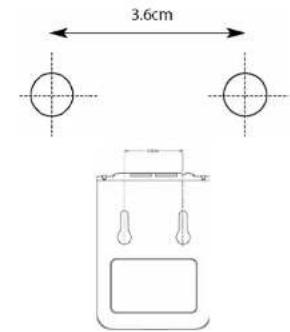
- To wall-mount the charger, drill two holes in the wall 4cm apart horizontally using an 8mm drill bit.

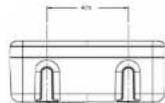
- Insert the wall plugs if necessary, then insert the screws leaving about 5mm protruding from the wall on which to hang the phone.
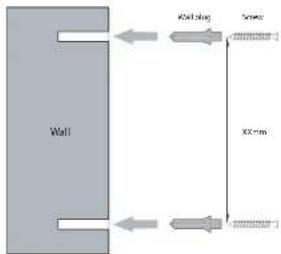
flowchart
graph LR
    A["Wall"] --> B["Sensor"]
    B --> C["Load"]
    B --> D["SSM"]
    style A fill:#ccc,stroke:#333
    style B fill:#fff,stroke:#333
    style C fill:#fff,stroke:#333
    style D fill:#fff,stroke:#333
- Pull the base/charger out of the stand and slot the holes on the back of the base over the screw heads and gently pull the base/charger down to make sure it is securely in place.

22 Wall mounting


Bienvenue...
FR
natural_image
Simple line drawing of a square electronic component with two circular ports (no text or symbols)lcônes d'affichage

10811_1FU_FR.m Page 25 Friday, September 7, 2007 8:01 PM


MOTOROLA
FR
15. Fixation murale
IMPORTANT


Fixation murale 25


DB11_IFU_DUE.mn Page 2 Friday, September 7, 2007 8:00 PM
Willkommen...
D811_IFU_DELfm Page 3 Friday, September 7, 2007 8:00 PM

MOTOROLA


1. Zu Beginn 4
Standort 4
Einrichtung
natural_image
Simple line drawing of a square electronic device with two circular ports (no text or symbols)Anzeigesymbole

D811_IFU_DE.fm Page 7 Friday, September 7, 2007 8:00 PM

MOTOROLA


Menükarte
D811_HFU_DE.6m Page 24 Friday, September 7, 2007 8:00 PM

MOTOROLA
DB11_IFU_DIE.fm Page 25 Friday, September 7, 2007 8:00 PM


MOTOROLA

15. Wandmontage
WICHTIG
D811_IFU_IT.In Page 5 Friday, September 7, 2007 8:00 PM


A Auricolare
B Display
in Modatta truhs, pramiera per tomara in standaby
D811_IFU_II.In Page 6 Friday, September 7, 2007 8:00 PM

MOTOROLA
Caricabatterle
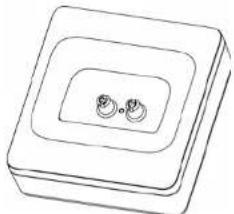
natural_image
Simple line drawing of a square electronic component with two circular ports (no text or symbols)Icone a display
D811_IFU_IT.In Page 7 Friday, September 7, 2007 8:00 PM

MOTOROLA


Mappa del menu
To be more registered and base.
Durante la chlamata:
Premore (b) the vote per inscore O.
The following table provides the original data:
Suggested for a , not the following line volts.
MAIUSCOLE E MINUSCOLE
D811_IFU_IT.fm Page 23 Friday, September 7, 2007 8:00 PM





















































D811_IFU_IT.fm Page 24 Friday, September 7, 2007 8:00 PM

MOTOROLA
A Auricular
B Pantalla
D811_IFU_ES.Im Page 6 Friday, September 7, 2007 8:00 PM

MOTOROLA
Cargador
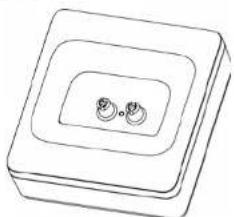
natural_image
Simple line drawing of a square electronic component with two circular holes (no text or symbols)Iconos de pantalla
① Aplicase and MMR Market
D811_IFU_1S. Im Page 7 Friday, September 7, 2007 8:00 PM

MOTOROLA


Mapa de menús
Insert. Emoticano

- MOTOROLA
- Motorola D800 Series
- to your new Motorola D801 Digital Cordless Phone!
- This User Guide provides you with all the information you need to get the most from your phone.
- Before you make your first call you will need to set up your phone. Follow the simple instructions in 'Getting Started', on the next few pages.
- IMPORTANT
- Got everything?
- Getting started 4
- Getting to know your phone 5
- Using the phone 8
- Handset settings 11
- Base settings 12 Base rington 12
- Clock & alarm 13
- Agenda 14
- Calls lists 14
- Call Waiting 15
- Voicemail 15 11. Text messaging 16
- Helv 19
- General Information 20
- Getting started
- Connecting the handset and charger
- Setting up your D801
- Date and time
- Getting started
- Set date and time manually
- Getting to know your phone
- Overview of your handset
- Handset Display
- Charger
- Display Icons
- NOTE
- Overview of the base
- A Paging Key
- N SIM card slot
- Navigating the menus
- Getting to know your phone 7
- Using the phone
- Switch the handset on / off
- Make a call
- Preparatory dialling
- End a call
- Receive a call
- Adjust the earpiece/receiver volume
- Secrecy
- Internal calls
- Call another handset
- Transfer a call
- 3-way conference call
- Handsfree
- Make a handsfree call
- Answer a call in handsfree
- Redial
- Redial a number from the redial lists
- Save a number from the redlal list to the phonebook
- Delete a redlal number/delete all redlal
- To lock the keypad
- Paging/Find handset
- Phonebook
- SEARCH ALPHABETICALLY
- Store a name and number
- View an entry
- Dial an entry
- Edit a name and number
- Edit ringtone
- Delete an entry
- Delete entire phonebook
- Copy an entry to another handset
- Copy the entire phonebook to another handset
- Memory status
- Copy an entry to a SIM card
- Copy all entries to or from a SIM card
- Change the dialling code
- Handset settings
- Handset ringtone
- Handset ringer volume
- Receiver volume
- Handset name
- Display language
- Wallpaper
- Menu colour
- Screensaver
- Light timeout
- Display contrast
- Auto talk
- Key beep
- PABX access code
- Base settings
- Base ringtone
- Base ringer volume
- Dialling mode
- Ring priority
- Recall mode
- First ring
- System PIN
- ECO mode
- Clock & alarm
- Date & time
- Set alarm
- Alarm on /off
- Switch off alarm ring
- Time format
- Agenda
- Add a new event
- Switch off agenda ring
- Show agenda details
- Edit agenda
- Send agenda as a text message
- Delete agenda
- Delete all agendas
- Calls lists
- Caller Display
- Calls lists
- New calls alert
- View new missed calls
- View and dial from a Calls list
- Copy a Calls list number to the phonebook
- Send a text message to a Calls list number.
- Delete all entries
- Call Waiting
- Voicemail
- Text messaging
- Subscribe to the text messaging service
- Send a text message
- Standard text entry
- Receiving and reading text messages
- MEMORY FULL ALERT
- Read a new message
- Read, forward, delete, view and save numbers of texts in the Inbox
- Forward
- Message Details
- Use Number
- Delete
- Edit templates
- Deleting texts
- Service Centre numbers
- Add or change Service Centre
- numbers
- Set send centre
- Message alert tone
- Set message size
- User areas
- Edit or send texts in the Drafts box
- Forward or delete texts in the Outbox
- Add a user mailbox
- Open and read a mailbox text
- Edit a user mailbox
- Delete a user mailbox
- Set common mailbox sub address
- The default sub-address setting is \$
- Using additional handsets
- Registering an additional handset
- At the base:
- Select a base
- De-register a handset
- Help
- Phone does not work
- Cannot dial out or receive calls
- You have a dial tone, but the phone will not dial out
- Handset does not ring
- No display
- icon flashes
- Icon not scrolling
- No Caller Display number/name displayed
- Cannot register a handset to a base
- Base unit does not ring, but the lights are on
- Buzzing noise on my phone or on other electrical equipment nearby.
- Possible problems with text messaging
- Text messages cannot be sent and screen
- Cannot send text
- Cannot receive text
- You keep hearing an error beep
- General information
- Safety information
- Cleaning
- Environmental
- Product disposal instructions
- Product disposal instructions for residential users
- Warranty Information
- What Is Not Covered By The Warranty
- Technical Information
- How many telephones can I have?
- Declaration of Conformance
- Inserting a pause
- Recall
- Wall mounting
- Wall mounting
- Bienvenue...
- Fixation murale
- Fixation murale 25
- Willkommen...
- Zu Beginn 4
- Anzeigesymbole
- Wandmontage
- Icone a display
- Iconos de pantalla
Brand : MOTOROLA
Model : D801
Category : Phone