RMP3 ALPHA - Cd player/recorder Reloop - Free user manual and instructions
Find the device manual for free RMP3 ALPHA Reloop in PDF.



| Product Type | MP3 CD player/recorder, USB media player, MIDI controller keyboard |
| Brand | Reloop |
| Model | RMP3 ALPHA |
| Dimensions (W x H x D) | 320 x 112.6 x 340 mm |
| Weight | 3.43 kg |
| Power Supply | 230 V ~ 50 Hz |
| Supported Audio Formats | CD audio, MP3 (MPEG 1/2/2.5 Layer 3), PCM, WAVE (via USB) |
| Max number of MP3 folders/files (CD) | 255 folders, 999 files |
| Max number of MP3 folders/files (USB) | 999 folders, 999 files per folder |
| Frequency Response | CD : 17 Hz – 20 kHz / USB : 17 Hz – 16 kHz |
| Signal-to-Noise Ratio | 85 dB |
| Audio Outputs | 2 x RCA (L/R), 1 x digital coaxial, 1 x 6.35 mm stereo headphone |
| Connectivity | USB (storage device, MIDI, audio link between 2 RMP-3), MIDI via USB, Relay/Faderstart (3.5 mm jack) |
| Built-in Effects | Skid, Filter, Phase, Echo, Flanger, Trans (Cut), Pan, Scratch, Pitch Bend, Key Lock |
| Sampling | 4 memories of 5 seconds, One Shot and Loop modes, up to 2000 Cue points/samples for 500 CDs |
| MIDI Control | 64 buttons/encoders, compatible with Traktor Pro, 4 virtual channels |
| Maintenance | Clean with a slightly damp cloth, no solvents. Regularly check the condition of the housing and cord. |
| Safety | Class 1 laser (EN 60825-1). Do not open the housing. Avoid moisture and shocks. Disconnect before cleaning. |
| Spare Parts / Repairability | Maintenance by qualified personnel only. Use original packaging for transport. |
| Included Accessories | Power cable, USB cable, 3.5 mm jack cable for Relay/Faderstart, CD-ROM with Database Builder |
Frequently Asked Questions - RMP3 ALPHA Reloop
User questions about RMP3 ALPHA Reloop
0 question about this device. Answer the ones you know or ask your own.
Ask a new question about this device
Download the instructions for your Cd player/recorder in PDF format for free! Find your manual RMP3 ALPHA - Reloop and take your electronic device back in hand. On this page are published all the documents necessary for the use of your device. RMP3 ALPHA by Reloop.
USER MANUAL RMP3 ALPHA Reloop
For your own safety, please read this operation manual carefully before initial operation! All persons involved in the installation, setting-up, operation, maintenance and service of this device must be appropriately qualified and observe this operation manual in detail. This product complies with the requirements of the applicable European and national regulations. Conformity has been proven. The respective statements and documents are deposited at the manufacturer.
RMP-3 ^
Professioneller Crossmedia Player
Mode d'emploi
ATTENTION!
To prevent fire or avoid an electric shock do not expose the device to water or fluids! Never open the housing!
ATTENTION!
Keep information for further reference!
Advanced Track Search:
a) Reverse/Deck Switch Button
• High Resolution = 1.024
- Low Resolution = 512
8. Display Brightness
- Track (Tracks Encoder)
Möglich sind:
Relative
Absolute
Note
- Jog (Jog Wheel)
Möglich sind:
Relative
Note
text_image
Setup - RMP3 Builder Welcome to the RMP3 Builder Setup Wizard This will install RMP3 on your computer. It is recommended that you close all other applications before continuing. Click Next to continue, or Cancel to exit Setup.text_image
Setup - RMP3 Builder Select Destination Location Where should RMP3 Builder be installed? Setup will install RMP3 Builder into the following folder. To continue, click Next. If you would like to select a different folder, click Browse. All Programme RMP3 Builder Browse... At least 19.4 MB of free disk space is required. < Back Next > Canceltext_image
Setup - RMP3 Builder Ready to Install Setup is now ready to begin installing RMP3 Builder on your computer. Click Install to continue with the installation, or click Back if you want to review or change any settings: Destination location: C:\Programme\RMP3\Builder < Back Install Canceltext_image
Setup - RMP3 Builder Installing Please wait while Setup installs RMP3 Builder on your computer. Extracting files... C:\Programmie\RMP3\Builder\Q1Gu4.dll Canceltext_image
Setup - RMP3 Builder Completing the RMP3 Builder Setup Wizard Setup has finished installing RMP3 Builder on your computer. The application may be launched by selecting the installed icons. Click Finish to exit Setup. Finishtext_image
D4Builder Tool Help ID3 Attribute Playlist: Title: Artist: Album: Genre: Build Cancel Progress: State: 0%text_image
DoBuilder Tool Help ID3 Attribute Playt: Title: Artist: Album: Genre: Total 16 Folder and 182 mp3/wav files processed Total 93 titles sorted and 89 no title files processed Total 16 artists sorted and 102 no artist files processed Total 16 albums sorted and 133 no album files processed Total +43 genres sorted and 39 no aerve files processed Spend about 160 seconds. Build Cancel Progress State: 0%text_image
ObBuilder Tool Help IDY Attitude Playlist Title Artist Album Organ Excell! Failed to open device OK Finish Cancel Program: Status: Get File Info. 16HINWEIS!
text_image
User Account Control An unidentified program wants access to your computer Don't run the program unless you know where it's from or you've used it before. dbb.exe Unidentified Publisher → Cancel I don't know where this program is from or what it's for. → Allow I trust this program. I know where it's from or I've used it before. Details User Account Control helps stop unauthorized changes to your computer.MAIN PLAYER
(with loaded USB Device)
text_image
USB CableSECOND PLAYER
text_image
CMP-3 CROSS METER PLUGAR @ FCSLOOP
HINWEIS!
For your own safety, please read this operation manual carefully before initial operation! All persons involved in the installation, setting-up, operation, maintenance and service of this device must be appropriately qualified and observe this operation manual in detail. This product complies with the requirements of the applicable European and national regulations. Conformity has been proven. The respective statements and documents are deposited at the manufacturer.
Congratulations on purchasing your Reloop RMP-3 Alpha MP3-CD player. Thank you for placing your trust in our disc jockey technology. Before operating this equipment we ask you to carefully study and observe all instructions.
Please remove the RMP-3 Alpha from its packaging. Check before initial operation to make sure that the device did not suffer any visible damage during transport. If you detect any damage to the power cable or the casing, do not operate the device. Contact your specialised dealer.
SAFETY INSTRUCTIONS
CAUTION! Please exercise particular caution when handling 230 V power voltage. This voltage rating may lead to a critical electrical shock! Any damage caused by the non-observance of this operation manual excludes any implied warranty claims. The manufacturer is not liable for any damage to property or for personal injury caused by improper handling or nonobservance of the safety instructions.

- This device left the works in a perfect condition. To maintain this condition and to ensure a risk-free operation the user must observe the safety instructions and warnings contained in this operation manual.
- For reasons of safety and certification (CE) the unauthorised conversion and/or modification of the device is prohibited. Please note that in the event of damage caused by the manual modification to this device any implied warranty claims are excluded.
- The inside of the device does not contain any parts which require maintenance, with the exception of wear parts that can be exchanged from the outside. Qualified staff must carry out maintenance, otherwise the implied warranty does not apply!
- Ensure that power is only supplied after the device has been fully set up. Always plug in the mains plug last. Ensure that the mains switch is in the „OFF“ position when connecting the device to power.
- Only use cables that comply with regulations. Observe that all jacks and bushes are tightened and correctly hooked up. Refer to your dealer if you have any questions.
- Ensure that when setting up the product the mains cable is not squashed or damaged by sharp edges.
- Prevent the mains cable from coming into contact with other cables! Exercise great care when handling mains cables and connections. Never touch these parts with wet hands!
- Connect the power cable exclusively to appropriate shock-proof outlets. The only supply point to be used is a supply outlet in accordance with specifications of the public supply network.
- Disconnect the device from the supply outlet when not in use and before cleaning! Be sure to hold the mains plug by the body. Never pull the mains cord!
- Position the device on a horizontal and stable low-flame base. When experiencing feedback, direct the wave field of your loudspeakers away from the device.
- Avoid any concussions or violent impacts when installing or operating the device.
- When selecting the location of installation make sure that the device is not exposed to excessive heat, humidity, and dust. Be sure that no cables lie around openly. You will endanger your own safety and that of others!
- Do not rest any containers filled with liquid that could easily spill on the device or in its immediate vicinity. If, however, fluids should access the inside of the device, immediately disconnect the mains plug. Have the device checked by a qualified service technician before re-use. Damage caused by fluids inside the device is excluded from the implied warranty.
-
Do not operate the device under extremely hot (in excess of 35^ ) or extremely cold (below 5^ ) conditions. Keep the device away from direct exposure to the sun and heat sources such as radiators, ovens, etc. (even during transport in a closed vehicle). Never cover the cooling fan or vents. Always ensure sufficient ventilation.
-
The device must not be operated after being taken from a cold environment into a warm environment. The condensation caused hereby may destroy your device. Do not switch on or operate the device until it has reached ambient temperature!
- Controls and switches should never be treated with spray-on cleaning agents and lubricants. This device should only be cleaned with a damp cloth. Never use solvents or cleaning fluids with a petroleum base for cleaning.
- When relocating, the device should be transported in its original packaging.
- When starting operation the cross-faders and volume controls of your amplifier must be set to minimum level. Bring the loudspeaker switches into the „OFF“ position. Wait between 8 to 10 seconds before increasing the volume to avoid shot noise created by transient effect, which could cause damage to loudspeakers and the diplexer.
- Always ensure that you place scratch-free, clean CDs into the player. When placing the CD into the tray, your hands should also be clean.
- To keep the laser head clean always close the CD tray.
• Devices supplied by voltage should not be left in the hands of children. Please exercise particular care when in the presence of children. - At commercial facilities the regulations for the prevention of accidents as stipulated by the association of professional associations must be observed.
- At schools, training facilities, hobby and self-help workshops the operation of the device must be monitored with responsibility by trained staff.
- Keep this operation manual in a safe place for later reference in the event of questions or problems.

ATTENTION: In the unlikely event of a return, please use the original packaging only to properly protect the equipment against any damage caused during transport. Damage caused during transport as a result of improper packaging could entail the cessation of the guarantee. The manufacturer does not accept liability for damage caused during transport as a result of improper packaging of a returned shipment to the seller. Such cost is for the account of the sender!
APPLICATION IN ACCORDANCE WITH REGULATIONS
- This device is a professional MP3 Player, CD Player, USB Media Player and MIDI Controller that can be used to control software and play music in the MP3 format.
- This product is authorised for connection to 230 V, 50 Hz and is designed exclusively for indoor application.
- If the device is used for any other purposes than those described in the operation manual, damage can be caused to the product, leading to the exclusion of implied warranty rights. Moreover, any other application that does not comply with the specified purpose harbours risks such as short circuit, fire, electric shock, etc.
- The serial number determined by the manufacturer must never be removed to uphold the implied warranty rights.
MAINTENANCE
- Check the technical safety of the device regularly for damage to the mains line or the casing, as well as for wear of wear parts such as rotary and sliding switches.
- If it is to be assumed that the safe operation is no longer feasible then the device must be disconnected and secured against accidental use. Always disconnect mains plug from the outlet!
- It must be assumed that a safe operation is no longer feasible if the device bears visible defects, if the device no longer functions, following longer storage under unfavourable conditions or after major transport stress.
CAUTION LASER RADIATION!
This device is equipped with two Class 1 laser diodes. To ensure a safe operation do not remove any covers or try to access the inside of the equipment. The inside of the device does not contain any parts which are subject to maintenance. Maintenance must only be carried out by qualified staff.
CLASS 1 LASER
EN 60825-1:94
text_image
USB 47 48 MODE 10 9 8 7 6 5 4 3 2 18 22 23 24 MP HDD MIDI 25 8888 8888 8888:88.88.88.88.88.88.88.88.88.88.88.88.88.88.88.88.88.88.88.88.88.88.88.88.88.88.88.88.88. 11 27 28 29 30 31 32 33 34 35 12 13 14 15 16 17 36 37 38 CMP-3α CROSS MEDIA PLAYER RELOOP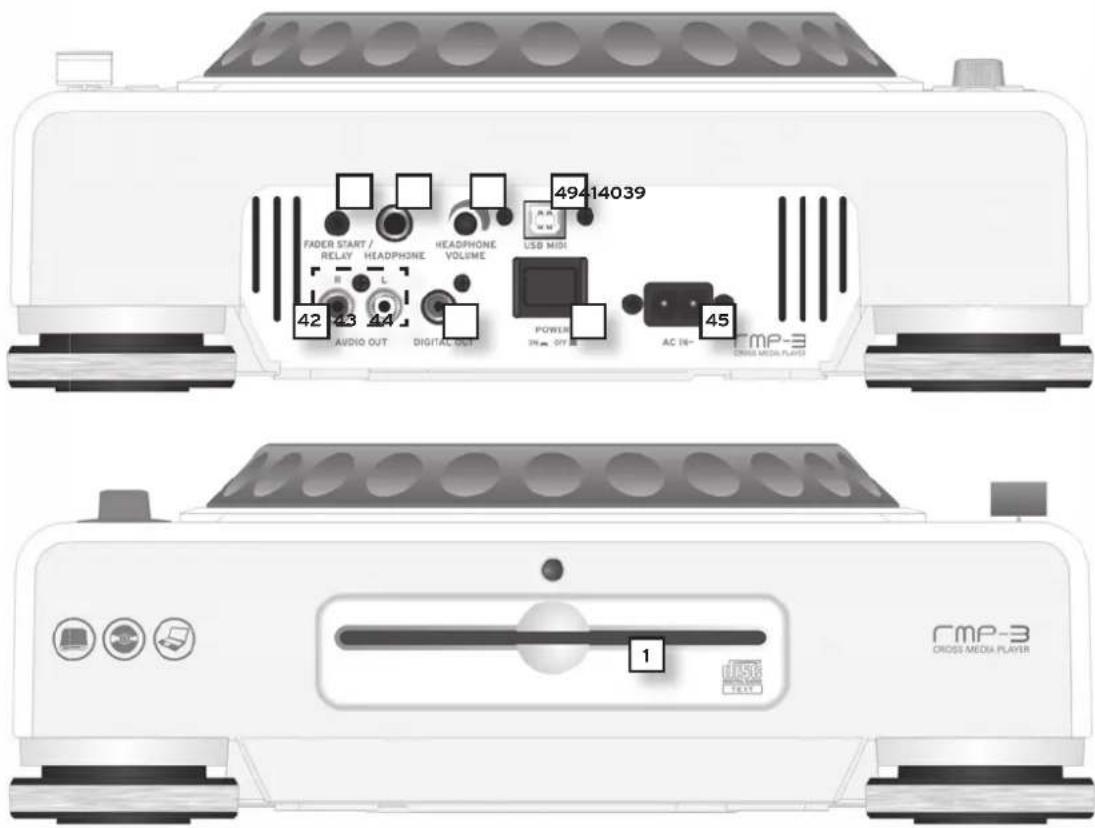
text_image
FADER START / RELAY 42 AUDIO OUT 43 44 HEADPHONE VEOLUME 49414039 USB MIDI DIGITAL OUT POWER 3M 2018 AC IN- CMP-3 CROSS MEDIA PLAYER CMP-3 CROSS MEDIA PLAYER 1INSTALLION NOTES
A) Connect the Out Hub -42- to the line in hub of your mixing console or amplifier. Optionally, connect the Digital Out Hub -43- with any device that features a digital in hub, such as a CD burner, MD recorder, digital mixer or audio card.
B) Connect the Hub -45- to the line cord and your our outlet.
C) The Relay Play Connection -39- can be used for Relay Play as well as for the Fader Start function. >>For more details go to item -39-.
D) Optionally, attach headphones to the 6.3mm stereo jack connection -40-. Use the Control Button -41- to set the volume.
E) After making all connections, switch the device on using the ON/OFF Switch -44-. If no CD is in the drive, the Status LED above the drive -1- is continually illuminated.
F) Gently slide a CD with the picture facing upwards into the slot -1-. The CD is automatically pulled in. When playing a CD with a diameter of less than 12 cm, use any conventional adapter. Press the Eject -19- button while in Pause/Cue mode to eject the CD.
OPERATION
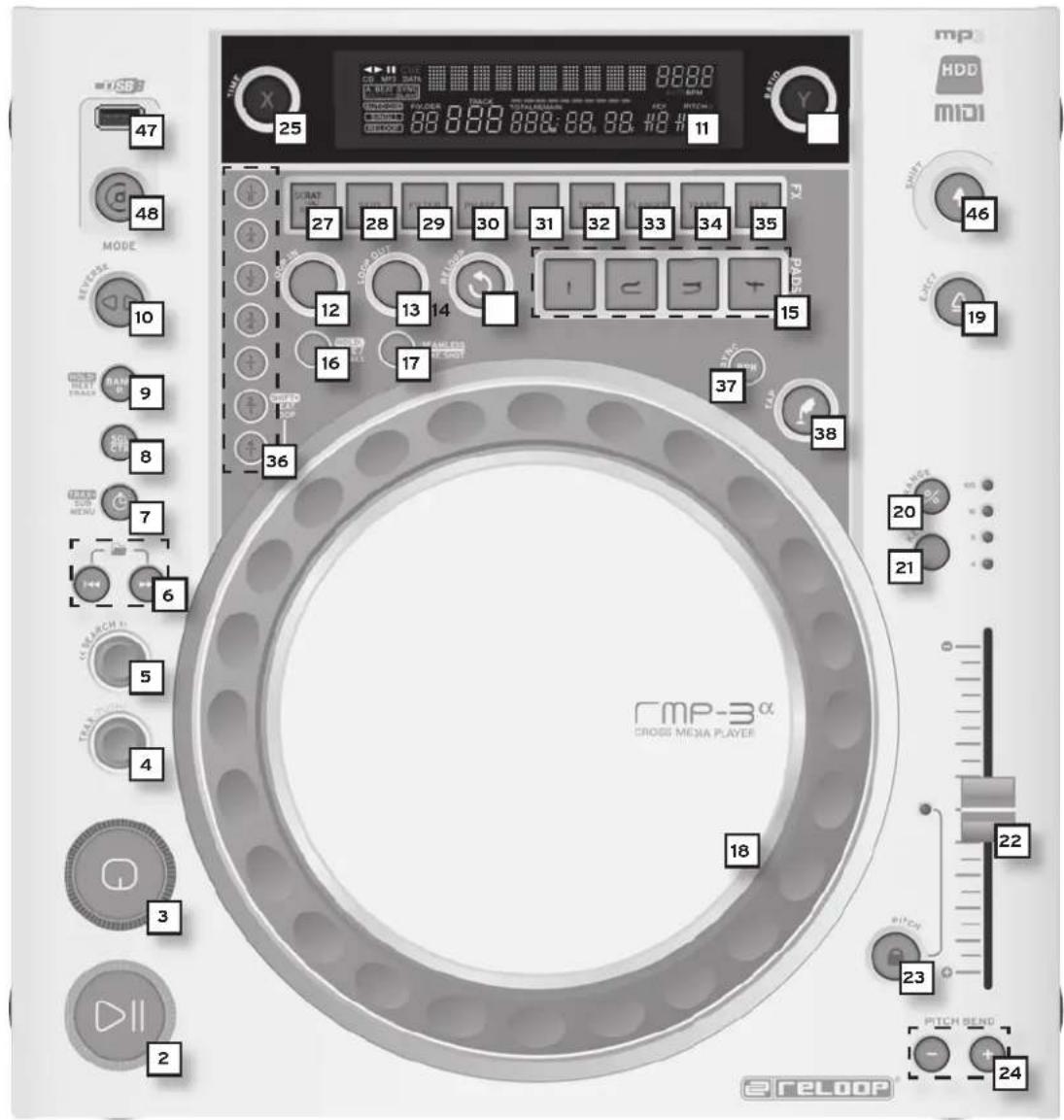
1. CD Drive
For information regarding the drive, please refer to the above installation notes.
see F
2. Play/Pause Button
Press the Play/Pause Button -2- to start play mode. Press again to activate Pause mode.
NOTE:
Your CD player goes into Auto-Cue mode after being switched on.
see also item 8 or item 11/0.
In this DJ-friendly mode, the Cue Point is automatically set on the first signal of a music track.
3. Cue Button
A Cue Point is a self-defined starting point, usually at the beginning of a beat. When activating the Cue Button -3- the CD player interrupts playing the track and returns to the last set Cue Point. To set a Cue Point, follow either of the following two options:
I.) Search the desired Cue Point using the Jog Wheel -18- or the Search Wheel -5- while in Pause mode. You will access the Frame Search mode (fragmented repeats =1/75 minute) and can precisely set your Cue Points. Then press the Play/Pause Button -2- to save the Cue Point. The player returns to Play mode.
II.) While in Play mode, press the Loop In Button -12- at the desired point to save the Cue Point. The player remains in Play mode. With a little practice, this is a faster way to set the desired Cue Point. Press the Cue Button -3- for the player to return to the Cue Point and go into Pause mode. By pressing and holding the Cue Button you will return to Play mode until you release the button again. The player will then return to the Cue Point and go into Pause mode. Press the Play/Pause Button -2- to permanently return to Play mode.
NOTE:
When pressing the Cue Button -3- while in Play mode when no Cue Point has been set, the player returns to the start of the track and goes into Pause mode (Auto-Cue). The player saves the Cue Point which can be prompted with the Cue Button for a single track only. When changing to another track, the previous Cue Point will no longer be saved.
4. Track Wheel
Use the Track Wheel -4- to select tracks. Press and turn the Track Wheel-4- at the same time to move in increments of ten through the selection of tracks.
Advanced Track Search:
If the Advanced Track Search mode is activated it is possible to search for the next track during playback. This works for USB media, MP3 and audio CDs. Proceed as follows. During playback press and hold the Bank P button -9- for approximately 2 seconds. The display Folder and Track -A- will start blinking. Via the Track Wheel -4- and the Folder Search Buttons -6- it is now possible to browse to the desired track. In order to play the track instantly, press the Treack Wheel -4- ditrectly. Otherwise your RMP-3 will play the next track automatically or it will load the track when in Single mode. In order to deactivate the Advanced Track Search mode please press the Bank P button -9-.
5. Search Wheel
Turn the Search Wheel -5- to advance the track clockwise and counterclockwise. The wheel features four different search speeds. The faster the wheel is turned in either direction, the faster you will advance. While in Pause mode, frame-search the track passages. The current frame (=1/75 minute) is constantly repeated.
6. Folder Search Buttons
If an MP3-CD is divided into folders, change directly into these folders using the Folder Search Buttons -6-.
7. Time Button
Use the Time button to change between three time modes:
I) Elapsed time of a track (no separate indication on display)
II) Remaining time of a track (display reads „Remain“)
III) Remaining time of entire CD (display reads „Total Remain“)
NOTE:
Press the Time Button -7- and the Track Wheel -4- simultaneously to access the preset menu. Turn the Track Wheel to select a desired menu item. Press to access the respective sub-menu. To exit the preset menu, press the Time Button -7- again. For further information regarding this issue please refer to the chapter „Submenu“ in this manual.
8. Single / Continue Button
Use the Single/Continue Button -8- to select two different play modes:
I) Single
The current title is played; the player then goes into Pause mode.
II) Continue
The entire CD will be played until you stop it or power is interrupted.
NOTE:
Deactivate the „Auto-Cue“ mode by pressing and holding the Single/Continue Button for two seconds. Press the same buttons slightly longer to reactivate them.
For more information regarding the „Auto-Cue“ mode go to item 2.
9. Bank Programme Button
Use the Bank Programme function -9- to play a sequence of loops saved on the banks. If loops have been saved on the sample banks, activate the Bank Programme function with the Bank Programme button -9-.
For details on how to save loops, go to the chapter entitled „Sampling“. The display indicates „Bank PO1“. By pressing the Cue/Sample Buttons 1 to 4 -15- in any sequence, an individualised sequence of up to 12 samples can be programmed.

NOTE:
There are two different play modes: An Endless mode and a One Shot mode. The Endless mode is activated by pressing the Sampler Button - 17 - once; the sampler LED is continually illuminated. In Endless mode the programmed sequence is played endlessly. The One Shot mode is activated by pressing the Sampler Button - 17 - again. The sampler LED flashes. In One Shot mode the programmed sequence is played once only. To play the above programmed sequence, press the Sampler Button -17- (once for Endless mode / twice for One Shot mode) and press the Bank Programme Button -9- to start playback. To stop playback, press the Sampler Button -17- once again until the LED is off.
10. Reverse Button
Activate the Reverse function -10- to play the track in reverse. The LED is on. Press the button again to deactivate this effect. The LED goes off.
11. Display
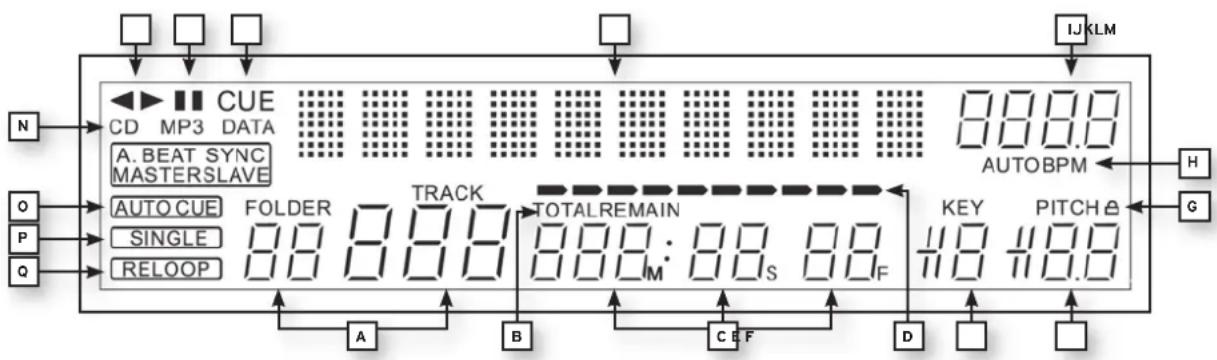
The Display -11- indicates all important functions of the player:
text_image
N O P Q CD MP3 DATA A. BEAT SYNC MASTERSLAVE AUTO CUE SINGLE RELOOP A B C D E F G IJKLM 888.0 AUTO BPM H KEY PITCH θ 110 110.0A) Track/Folder
Indicates the number of the current track or folder (folder for MP3-CD).
B) Time Mode
Indicates if the player shows the elapsed time of a track (nothing on display), the remaining time of a track (the display reads „Remain“) or the remaining time of the entire CD (the display reads „Total Remain“). Use the Time Button -7- to switch between the modes.
C) Time
Indicates the time in the chosen Time mode in minutes, seconds and frames (1/75 min.).
D) Playing Address
Visualises the time display and increases or decreases, depending on the Time mode. Shortly before a track ends, the entire bar fl ashes.
E) Anti-Shock Memory Display
Indicates how much music is saved in the Anti-Shock Memory and if the Instant Start function is available. „19“ is the maximum memory value and represents 10 seconds for the anti-shock memory.
F) Pitch Display
Indicates the set pitch value of a track in percent.
G) Key Lock
Indicates if Key Lock has been activated (shows the padlock symbol). If Key Lock is activated, the track's tone pitch remains the same when the tempo changes.
H) BPM Status
Indicates if the Auto BPM Counter (display reads „Auto BPM“) or manual BPM Counter (display reads „BPM“ only) is activated.
I) BPM Display
Indicates the current BPM value of the track.
J) Dot Matrix Information Display
Indicates the name of the folder, file, album, genre, artist and title while playing an MP3 CD with ID3 TAG or an audio CD with CD text. To change between the name of a folder, artist and title of an MP3-CD, press the Track Wheel -4-. This information display animates a virtual disc which shows the direction in which the CD turns and if the Jog Wheel has been touched while in Scratch mode. While in the pre-set menu, the necessary settings are made in the Dot Matrix Information Display.
K) CUE
Indicates if the player is in Cue mode (the display reads „Cue“).
L) Pause
Indicates if the player is in Pause mode (the display reads „||“).
M) Direction
Indicates if the player is in Forward or Reverse mode.
N) CD/MP3 Mode
Indicates if an audio CD (the display reads „CD“) or an MP3-CD (the display reads „MP3“) is playing.
O) Auto-Cue Status
Indicates if Auto-Cue is activated (the display reads „Auto Cue”). To de-/activate Auto-Cue press and hold the Single/Continue button -8- for two seconds.
P) Play Mode
Indicates if the player is in Single mode (the display reads „Single“) or in Continue mode (nothing on display).
Q) Reloop
Indicates if the player has stored a loop which can be prompted with the Reloop button -14- (the display reads „Reloop“). When „Reloop“ flashes, the loop is active.
12. Loop In Button
Activate the Loop In Button -12- to set the start point of a loop (endless loop) and also to set a current Cue Point. In order to newly set the Loop-In point push the Loop In Button while the loop is activated.
13. Loop Out Button
Activate the Loop Out Button -13- to set the end point of a loop (endless loop). If the Loop In Button was previously activated, the player goes into the Loop mode (seamless loop) - the display reads „Reloop“. To exit the loop, press the Loop Out Button again.
For more information about loops go to the chapter entitled „Sampling”.
In order to newly set the Loop Out point push and hold the Loop Out Button for approximately 2 seconds. Now you can shorten and lengthen the Loop Out point by turning the Jog Wheel.
14. Reloop Button
Press the Reloop Button -14- for the player to return to the last loop that was played. To exit the loop, press the Loop Out Button again.
For more information about loops go to the chapter entitled „Sampling”.
15. CUE/Sample Banks 1-4
When in Play mode, the Cue/Sample Banks 1 to 4 -15- can be used as Hot Cue buttons. Once the Sampler mode has been activated by using the Sampler Button -17- the player will play samples from the banks simultaneously with the playback. For every bank, a 5-second sample can be saved and played back. Press one of the respective Bank Buttons 1 to 4 to trigger the previously stored Cue Points or samples.
For more information about loops go to the chapter entitled „Sampling”.
16. Memory Button
Use the Memory Button -16- to assign and store loops in the four sample banks. After creating a Loop with the help of the Loop In and Loop Out Buttons, press the Memory Button -16-. The Memory LED goes on. Then select one of the four sample banks to store the Loop on the very same. The respective sample bank goes on. The Memory LED goes off. Repeat this process to replace the respective sample or to record a new one.
The memory function also makes it possible to lastingly store for up to 500 CDs four cue points or samples (altogether 2.000 cue points/samples). Read more information in the chapter entitled „Sampling“.
17. Sampler Button
To activate the sample mode, press the Sampler Button -17-.
NOTE:
There are two different sample play modes: An Endless mode and a One Shot mode. The Endless mode is activated by pressing the Sampler Button - 17 - once; the sampler LED is continually illuminated. In Endless mode the sample is played endlessly in a loop. The One Shot mode is activated by pressing the Sampler Button -17- twice. The sampler LED flashes. In One Shot mode the sample is triggered once. If the Sample mode has been activated, the loops previously stored in the Sample Banks 1 to 4 can be played simultaneously while playing back the CD.
18. Jog Wheel
Your CD player features an extra large Jog Wheel for a true vinyl-like operation. This is generally divided into two sections for scratch applications. The top section is touch sensitive and responds to the body's own electricity - similar to a vinyl record on the turntable. The outer rubberised ring has been designed for pitch bending - similar to the edge of a turntable's platter. If the Scratch function -27- has been deactivated, the entire Jog Wheel also works as a Search and Pitch Bend wheel. By turning clockwise and counterclockwise while in Cue and Pause mode, you can frame-search precisely (1/75 min.) for a Cue Point. While in Play mode, use the Jog Wheel, similar to a turntable, for pitch bending (during deactivated Scratch -27-). This is a quick increase (push start) or decrease (stop) of the pitch. The faster the Jog Wheel is turned, the quicker the change of pitch. The same effect can be achieved with the Pitch Bend Buttons -24-. Also, the Jog Wheel can be used with the help of the Time and Ratio Buttons -25/26- to modulate and set effects and samples. For this, read more on the individual effects -28 to 35- in the chapter entitled „Sampling“.
19. Eject Button
To insert a CD, slide the CD with the picture facing upwards carefully into the slot -1-. The CD is automatically pulled in. The Status LED above the drive flashes while loading the CD. As soon as the CD has been read and recognised, the Status LED goes off. When playing CDs with a diameter of less than 12 cm, use any conventional adapter. Press the Eject Button -19- to eject the CD.
20.Pitch Range Button
Press the Pitch Range Button -20- to select between a pitch range of +/- 4%, +/-8%, +/-16% or +/-100%.
21. Key Lock Button
When activating the Key Lock function with the button -21- the track's original tone pitch, regardless of the set pitch, is maintained. Press the button a second time to deactivate the Key Lock function.
22.Pitch Fader
Use the Pitch Fader -22- to infinitely change the pitch of the track within the selected range. The difference from the original pitch is shown on the display -11F- in percent. Adjustments in the +/-4 %, +/- 8% and +/-16% pitch ranges are effected in steps of 0,02% and in the +/- 100% pitch range in steps of 0,1%.
NOTE!
These steps can only be shown with one position after decimal point on the display -11 F-. The accurate value will temporarily appear on the display -11 J- when using the pitch fader.
23. Pitch On/Off Button
De-/Activate the Pitch Fader using the Pitch On/Off Button -23-.
24. Pitch Bend Buttons
Use the Pitch Bend buttons -24- to briefly change the pitch of the respective track by +4/8/16% (+ button), or by -4/8/16% (- button) by holding it. Release the button for the player to return to the pitch set with the Pitch Fader.
25.Parameter Time Button
Use the Parameter Time Button to modulate a chosen effect or a sample (beat frequency, pitch). >>For more information read about the individual effects -28 to 35- or go to the chapter entitled „Sampling”.
NOTE:
The last activated effect or sample is always assigned to the parameter.
26.Parameter Ratio Button
Modulate a chosen effect or a sample with the help of the Parameter Ratio Button. (intensity) >>For more information read about the individual effects -28 to 35- or go to the chapter entitled „Sampling”.
NOTE:
The last activated effect or sample is always assigned to the parameter.
27. Scratch Button (Vinyl mode)
Select the Scratch effect by pressing the Scratch Button -27-. Then scratch the track while in Play mode with the top section of the Jog Wheel -18- like a vinyl record, by moving it forward and backward and holding it. The Jog Wheel recognises the touch of your fingers. Press the Scratch Button a second time to deactivate the Scratch effect.
NOTES:
- When pressing and holding the Scratch Button for more than 2 seconds, the „Scratch-to-Cue“ mode is activated. If only the Jog Wheel is touched, the player instantly returns to the Cue Point without changing into the Pause or Playback mode. This is how to scratch a track from the desired Cue Point. Press the Scratch Button a further time to deactivate the Scratch mode.
- Personalise your preferred Jog Wheel sensitivity. Proceed as detailed in the chapter „Submenu“.
- Hold the Shift Button and press the Scratch Button until the LED blinks. This enables the Sample Scratch mode.
28.Skid Button
Select the Skid effect by first activating the Skid Button -28-. Press the Hold Button -31- to maintain the set parameters.
for more details go to item 31
The „Hold“ LED is illuminated. Now use the Jog Wheel -18- and the Time Parameter Button -25- to set the start time and in combination with the Ratio Parameter Button -26- the stop time of the player, each in steps of 0 - 9990 mSec.
NOTE:
To set the start or stop time to match the beat, press the respective Beat Link Buttons -36-; select between 1/8, 1/4, 1/2, 3/4, 1/1, 2/1 and 4/1 beat(s). The respective LED is illuminated.
When pressing the Play/Pause Button -2- to change into Pause mode, the player stops at the set speed until it comes to a standstill. When pressing the Play/Pause Button to change into Play mode, the Player runs at the set speed until the speed set with the Pitch Fader -22- has been reached. Use this function to simulate the renowned fade-out effect of a turntable. Press the Skid Button a second time to deactivate the Skid effect.
29. Filter Button
Use the Filter Button -29- to deactivate a band pass filter which permits playing at a certain frequency.
Your device synchronises the effects automatically for the current BPM value. Use the Beat Link Buttons -36- to adjust the frequency to match the beat.
To manually change the beat frequency of the effect, press the Parameter Time Button -25- and regulate the frequency mean of the Jog Wheel (von 0 - 9990 mSec.). To influence the intensity of the effect, press the Parameter Ratio Button -26- and adjust the volume with the Jog Wheel (from 0 - 255).
NOTE:
As soon as the Time or Ratio Buttons are activated, the Scratch mode is temporarily deactivated.
TIP:
To create a great filter sweep effect, set the Time Parameter value to „0“ mSec. and activate „Hold“. Use the Parameter Ratio Button and the Jog Wheel to infinitely filter the frequency of your track from the value „0“ (High Pass Filter) to the value of „255“ (Low Pass Filter).
30.Phase Button
Use the Phase Button -30- to activate the phase effect. Although similar to a flanger, it emphasises the upper pitch less and sounds slightly more harmonious.
Your device synchronises the effects automatically with the current BPM. Use the Beat link Buttons -36- to modify the frequency to match the beat. To manually change the beat frequency of the effect, press the Parameter Time Button -25- and regulate the frequency value using the Jog Wheel (von 0 - 9990 mSec.). To influence the intensity of the effect, press the Parameter Ratio Button -26- and set the volume with the Jog Wheel (from 0 - 255).
NOTE:
As soon as the Time or Ratio Buttons have been activated, the Scratch mode is temporarily deactivated.
31. Hold Button
When activating the Hold function with the button -31- your player maintains the set effect frequency. Otherwise, the effect value always returns to the original value.
ATTENTION:
The original value can be independently defined. For this, activate the Hold function -31- and set the desired valued. When deactivating the Hold function and changing the Frequency/Intensity value, the value will automatically jump to the defined original value.
32.Echo Button
Use the Echo Button -32- to activate a Reverb/Delay effect. Your device synchronises the effects automatically with the current BPM value. Using the Beat Link Buttons -36-, you can precisely set the frequency to match the beat.
To manually change the beat frequency of the effect, press the Parameter Time Button -25- and regulate the frequency value using the Jog Wheel (from 0 - 2000 mSec.). To influence the intensity of the effect, press the Parameter Ratio Button -26- and set the volume using the Jog Wheel (from 0 - 255).

NOTE:
As soon as the Time or Ratio Buttons have been activated, the Scratch mode is temporarily deactivated.
TIP:
The Echo effect sounds best if synchronous with the beat. Ideally, use the Beat Link Buttons -36-to vary the length of the effect.
33. Flanger Button
Use the Flanger Button -33- to activate the flanger effect. This frequently applied effect is similar to the Phase effect, but slightly more harmonious, emphasises the upper pitch more and is reminiscent of a flying aircraft. Your device synchronises the effects automatically with the current BPM value.
Use the Beat Link Buttons-36- to precisely set the frequency. To manually change the beat frequency of the effect, press the Parameter Time Button -25- and regulate the frequency value with the Jog Wheel (from 0 - 9990 mSec.).
To influence the intensity of the effect, press the Parameter Ratio Button -26- and set the volume with the Jog Wheel (from 0 - 255).
NOTE:
As soon as the Time or Ratio Buttons have been activated, the Scratch mode is temporarily deactivated.
TIP:
The Flanger effect is best when set to 4/1 beat with the Beat Link Button.
34. Trans Button
Use the Trans Button -34- to activate a Cut effect. This effect sounds as if cutting the signal quickly with the cross fader. Your device synchronises the effects automatically with the current BPM value. Use the beat Link Buttons -36- to change the frequency to match the beat.
To manually change the beat frequency of the effect, press the Parameter Time Button -25- and regulate the frequency value with the Jog Wheel (from 0 - 9990 mSec.). To influence the intensity of the effect, press the Parameter Ratio Button -26- and set the volume with the Jog Wheel (from 0 - 255).
NOTE:
As soon as the Time or Ratio Buttons have been activated, the Scratch mode is temporarily deactivated.
TIP:
This effect should also be varied for optimum results with the Beat Link Buttons -36-.
35.Pan Button
The Pan Button -35- activates a Balance effect. This effect, depending on the beat frequency, alternates the signal from the left to the right loudspeaker side. Your device synchronises the effects automatically to match the current BPM value. Use the Beat Link Buttons -36- to change the frequency to match the beat. To manually change the beat frequency of the effect, press the Parameter Time Button -25- and regulate the frequency value using the Jog Wheel (from 0 - 9990 mSec.). To influence the intensity of the effect, press the Parameter Ratio Button -26- and set the volume with the Jog Wheel (from 0 - 255).
NOTE:
As soon as the Time or Ratio Buttons have been activated, the Scratch mode is temporarily deactivated.
TIP:
This effect is best varied using the beat link buttons.
36.Beat Link Buttons
Press the Beat Link Buttons -36- to synchronise the chosen effects with the speed of the track. Select between a frequency of 1/8, 1/4, 1/2, 3/4, 1/1, 2/1 and 4/1 beat(s); the respective LED is on.
37. BPM Button
Your device has a manual and an automatic beat counter. The automatic beat counter is activated automatically after switching on the device. The display reads „Auto BPM“. Read the currently determined value on the display.
See also item 11/I
38.Tap Button
Press the Tap Button -38- repeatedly to the beat of the music to manually determine the speed of the track. The display currently reads the value in BPM (= beats per minute). Press the BPM Button -37- to reactivate the automatic beat counter.
39. Relay/Fader Start Connection Hub
When connecting your player via the Connection Hub -39- with another Reloop CD player (which also features a Relay/Fader Start connection hub) with the enclosed 3.5 jack cord, Relay Play is available. For this, select the Single Play mode on both players, using the Single/Continue Buttons -8-. Both displays read „Single“. Then activate the Play mode on one of the players with the Play/Pause Button -2-. The first track is played; the player then goes into Pause mode. The first track of the other player is then played; then this player goes into Pause mode. After that, the second track of the first player is played, etc.
NOTE:
Your player also supports the Fader Start function. For this, connect the supplied 3.5 jack cable of the Relay/Fader Start Connection Hub -39- with the Fader Start connection hub of a compatible mixing console, such as the Reloop RMX-40 DSP. By simply operating the fader of a mixing console you can start or stop playing from the CD player.
40.6.3mm Headphones Connection
Attach your headphones with a 6.3 mm jack cable for monitoring to this output -40-.
41. Volume Control For Headphones
Use the wheel -41- to adjust the volume of the headphones.
42.RCA output hub
Connect the output hubs -42- with the Line In hubs of your mixing console or amplifier.
43. Digital Output Hub
Connect the Digital Output Hub -43- to a device that features a digital input, for example a CD burner, MD recorder, digital mixer or audio card.
44. On/Off Switch
Switch your device on or off with this switch.
45.Line Cord Connection Hub
Connect the Connection Hub -45- with a line cord and insert it into an outlet.
46. Shift Button
By holding the Shift Button -46- it is possible to call up a second function of an element.
Auto Loop Function:
Hold the Shift Button -46- and push one of the Beat Link Buttons -36- in order to set an Auto Loop. Depending on the chosen bar you can choose between 7 different bar lengths (1/8 - 4/1). The more precise the BPM recognition the better the Auto Loop will function. In order to manually analyse the BPM value use the Tap Button -38-. In order to leave the loop push the Loop Out Button -13-.
MIDI Shift Function:
When in MIDI mode a second MIDI command can be carried out by using the Shift Button -46-. Further details regarding this function can be found in the chapter MIDI Mode.
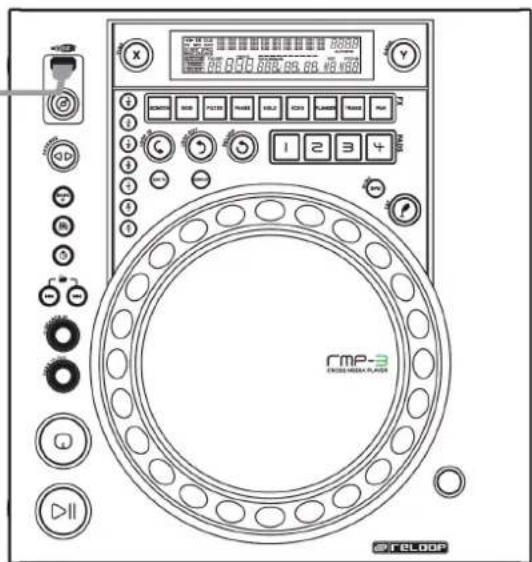
47.USB Media Port
You can connect external USB media to this port, like for example USB sticks or external USB hard disks. Supported formats are MP3, PCM and WAVE. The maximum file limitation is 341 MB or 233 minutes per track. Encoding with 32, 44.1 and 48 kHz are supported. The medium must be formed as FAT system. A maximum of 999 folders with 999 tracks each is readable.
48. Source Select Button
Via the Source Select Button it is possible to switch between the three media modes. When turning on the device the RMP-3 will automatically be in USB mode. In pause mode push the Source Select Button in order to change to CD mode. Hold the Source Select Button for approximately 2 seconds in order to switch to MIDI mode.
USB Mode = Source Select Button shines red
CD Mode = Source Select Button shines blue
MIDI Mode = Source Select Button shines purple
49. USB MIDI Port/USB Audio Link
MIDI Port Mode
Connect the included USB cord to the USB MIDI Port and to your computer. This port is also intended for MIDI assignments (e.g. control of DJ software like TRAKTOR). In the operating system the player will be automatically recognised as „RMP-3“ without any special drivers (Windows XP/Vista and Mac OS X compatible).
Audio Link Mode
It is possible to connect two RMP-3 players and using one combined USB audio source (external USB hard disk or USB stick). In order to activate this mode it is necessary to activate „USB = LINK“ in the submenu.
Path: Submenu (push Time + Track buttons) > C.MIDI SETUP > USB = LINK (adjust by pushing the Shift Button -46- and turning the Track Wheel -4-)
NOTE!
Please also refer to the chapter „USB Audio Link“ for further information.
SAMPLING
This chapter details the possibilities and settings of the mighty on-board sampler of your device.
A loop is the permanent repetition of a sequence between a chosen loop starting point and a chosen loop ending point. Select a loop starting point by pressing the Loop In Button -12-. Select the loop ending point by pressing the Loop Out Button -13-. The player goes automatically into Loop mode and the Reloop display flashes. The sequence thus chosen is seamlessly replayed until the Loop Out Button - 13- is pressed a second time. The player seamlessly goes into Play mode. To prompt the last played loop against, press the Reloop Button -14-. The player goes automatically into Loop mode.
Auto Loop Function:
Hold the Shift Button -46- and push one of the Beat Link Buttons -36- in order to set an Auto Loop. Depending on the chosen bar you can choose between 7 different bar lengths (1/8 - 4/1). The more precise the BPM recognition the better the Auto Loop will function. In order to manually analyse the BPM value use the Tap Button -38-. In order to leave the loop push the Loop-Out Button -13-.
NOTE:
- The player saves this loop for the current track only. When changing to a different track, no loop is stored.
- The currently saved loop starting point (set with the Loop In Button -12-) is also the current Cue Point. When saving a new Cue Point, after saving a Loop and exiting the Loop mode, this overwrites the current starting point. The re-loop display goes off and no loop is saved anymore.
- You have four sample banks available, each of 5 seconds. To record a sample, set a loop as described above using the Loop In and Loop Out Buttons. Then press the Memory Button -16- and then one of the four Memory Buttons -15- The loop thus set is now saved in the chosen sample bank and the Memory Button goes off. To play a sample, first press the Sampler Button -17-. Then press the desired one of the four memory buttons. The Sampler plays the sample from the chosen bank in an endless loop (Endless mode). Press the Sample Button once again to play the sample only once (One Shot mode). To end playing the sample, press the Sample Button again. The light goes off.
NOTE:
- When in Sampler mode, playing a sample is activated independently from CD play. In Play mode the current track can also be heard as the sample. In Cue and Pause mode, only the sample can be heard.
- Edit the saved loops with the help of the Parameter Time and Ratio Buttons while in Sampler mode. Use the Parameter Time Buttons to change the pitch of the loop (from -100% to +100%). Use the Parameter Ratio Button to vary the volume of the sample (from 0 - 255 max.). The player saves the samples set in this manner until they are overwritten by new ones or the device is switched off. Even when changing the track or the CD, the saved samples are stored. The button of an assigned Sample bank is always lit blue if the assigned (= sample's own) CD has been inserted. If a different CD is inserted (= non-sample) the respective button lights up in red. The button of the last assigned sample bank also flashes in the respective colour. A sample bank is overwritten when new samples are recorded. The four sample banks are also Hot Cue Point memories. When pressing the button of a sample bank without previously having activated the Memory button or the Sample button, the Player returns while in Play mode as well as in Pause mode to the beginning of the respective sample. This function is only available for CDs of samples or with sample banks that are illuminated in blue.
NOTES:
- If you wish to lastingly save the set Cue Points / Samples, press the Memory Button -16- for two seconds. The display reads „Saving“. This means that the Cue Points / Samples of the CD's own sample will be maintained even after switching the device off. It is possible to lastingly store for up to 500 CDs four cue points or samples. To prompt the saved Cue Points / Samples of a CD again, press the Memory Button -16- BEFORE inserting the CD. The display reads „Recall“. Now insert the CD and the previously stored Cue Points/Samples are automatically loaded. The respective storage banks flash blue and are ready for play.
- To completely delete the Cue Point / Sample Bank memory, first switch off the device with the ON/OFF switch -44-. Then turn the Search Wheel -5- counter-clockwise until the point of resistance and hold it in this position. Switch the device on with the ON/OFF switch. Release the Search Wheel again as soon as the display reads „Clear all“.
USB MODE
Choose the USB Mode via the Source Select Button -48- (the Source Select Button glows red). Now connect your USB medium to the USB Port -47- (e.g. USB stick or external USB hard disk). The player will load the first track from the alphabetically first folder. By turning the Track Wheel -4- it is possible navigate quickly through the single folders. When the last track of a folder has been played the player will automatically jump to the first track of the following folder. The current track and folder numbers will be shown in the display -A-.
NOTE!
Please also refer to the chapter „Submenu“ for selectable display options. Via the Folder Search Buttons -6- it is possible to navigate directly through the generated folders. All further player functions are equal to the normal CD/MP3 mode.
WORTH KNOWING!
Please also refer to the chapter „USB Audio Link“ in order to connect two RMP-3 players and to access one USB MIDI source.
MIDI MODE
By holding the Source Select Button -48- for a longer period of time you will change to MIDI Mode. The Source Select Button glows purple, „DeckA CH1“ appears on the display. The remark „DeckA CH1“ means that all elements are sending on MIDI channel 1. By pushing the Reverse/Deck Switch Button you can switch from channel 1 (Deck A) to channel 4 (Deck D). This way an easy handling of up to 4 virtual players becomes possible. Further information can be found in the chapter „Submenu“ and in the TRAKTOR PRO mapping.
NOTE!
Regularly check our website www.reloopdj.com for possible firmware updates and new mappings.
Each element of the player sends MIDI commands. Please also refer to the MIDI map included in this manual.
a) Reverse/Deck Switch Button
By pushing the Reverse/Deck Switch Button -10- it is possible to comfortably switch between 4 MIDI channels. The current channel and as the case may be the virtual deck drive will appear on the display. If, for example, you would like to control 4 virtual decks with one RMP-3 you can switch between the virtual decks via the Deck Switch Button. The channel presets can be adjusted in the submenu (also see chapter Submenu).
b) Shift Button
By holding the Shift Button -46- a second function of any element can be called up. This way the number of control elements will be doubled. Please also refer to the included MIDI Map in this manual.
c) Jog Wheel
The large, touch-sensitive Jog Wheel -18- can send MIDI commands in four different modes:
- normal mode
Sends data when turning/touching the Jog Wheel.
- X-Parameter
With activated X-Parameter Button -25- the Jog Wheel sends different data.
- Y-Parameter
With activated Y-Parameter Button -26- the Jog Wheel sends different data.
- Shift Mode
When holding the Shift button -46- the Jog Wheel also sends different data.
NOTE!
Two different MIDI sampling rates can be selected for the Jog Wheel.
• High Resolution = 1.024
- Low Resolution = 512
For further information please refer to the chapter „Submenu“.
d) MIDI Command Editing
Generally speaking each element is freely editable.
For further information please refer to the chapter „Submenu“.
e) TRAKTOR PRO Mapping
The RMP-3 is implemented as MIDI controller in the most current TRAKTOR PRO versions and it can be selected as controller in the defaults. The functions are assigned as follows:
The numeration is based on the drawing that can be found on page 30
| Control Function (Traktor) Description | ||
| 2 | Play/Pause | Starts and stops a loaded track in the selected deck |
| 3 | Set Cue + Play Cue | • If no cue point is set, a new point will be created• If a cue point has already been set, by pressing the cue button the track will play from this position as long as the button is being pushed |
| 4 | List/tree browse, open browse mode | • Navigation through the list view (> normal mode)• Shift + turning the track wheel: navigation through tree view (> normal mode)• Pressing the track knob: opens browse mode (>browse mode) |
| 5 | Seek (Search) | Searches through a track (acceleration depending on degree of turning) |
| 6 | Tree navigation, Open/ Close folders | • Navigation through tree view (> normal mode)• Open and close folders (> browse mode) |
| 7,8 | Loop size | Adjusts the loop's size |
| 9 | Effect rotation | Navigates through the list of available effects of active deck |
| 10 | Deck switch | Switches deck control; the selected deck is shown on the RMP-3's display (11) |
| 11 | Displays selected deck | Selected deck is shown on the RMP-3's display (11) |
| 12 | Loop IN | Sets loop-in point for the selected deck |
| 13 | Loop OUT | Sets loop-out point for the selected deck; the set interval is looped |
| 14 | Beat loop | Automatically sets a loop depending on the selected size |
| 15 | Hot cues/effect buttons | • Triggers saves hot cues (1-4) (> normal mode)• Shift + hot cues: triggers saved hot cues (5-8) (> normal mode)• Activates effect buttons of effect unit associated to the selected deck [A-e1, B-e2, C-e3, D-e4] (> effect mode) |
| 16 | Store cue | Stores cue points in the track bank |
| 17 | Cue/Play mode | Pressing the Cue/Play mode button returns to playback mode (> normal mode), deactivates effect (> effect mode) and scratch mode |
| 18 | Jog Wheel: Pitch bend/ scratch/ effect modulation/ browse | • Pitch bend (> normal mode)• Scratch (if Scratch button has been pressed)• Effect modulation during > effect mode - Browsing capabilities during > browse mode |
| 19 | Load track | Loads track selected in list view |
| 20 | FX Activate | Intelligent FX activation• Pressing FX in deck A: assign effect unit 1• Pressing Shift + FX in deck A: assign effect unit 2• Pressing FX in deck B: assign effect unit 2• Pressing Shift + FX in deck B: assign effect unit 1• Pressing FX in deck C: assign effect unit 3• Pressing Shift + FX in deck C: assign effect unit 4• Pressing FX in deck D: assign effect unit 4• Pressing Shift + FX in deck D: assign effect unit 3Note: Assigned effect units are indicated by the 4 LEDs near to FX Activate |
| 21 | Key lock | Activates/deactivates key lock |
| 22 | Pitch/Volume fader/Dry-Wet | • Pitch during > normal mode• Shift + moving the slider: adjust volume of selected deck• Dry/wet function of corresponding effect unit during > effect mode |
| 23 | Jog lock | Locks the Jog Wheel completely to prevent unintended pitch bend/scratch/effect modulation/browsing capabilities |
| 24 | Pitch bend/automatic crossfader | • Pitch bend• Shift + pitch bend buttons: automatically moves the crossfader to the left/right side |
| 25 | Jog: X parameter | • FX parameter 1 during > effect mode• Tree navigation during > browse mode• Slow scratch during activated scratch mode |
| 26 | Jog: Y parameter | • FX parameter 2 during > effect mode• List scrolling during >browse mode• Fast scratch during activated scratch mode |
| 27-30, 32-35 | Effect select | Select an effect that is assigned to a corresponding effect unit |
| 31 | Effect mode | Activates/deactivates > effect mode |
| 36 | Loop size | Directly adjusts the loop's size |
| 37 | Sync/Set to master | • Syncs selected deck to master deck• Shift + Sync: Sets selected deck to master deck |
| 38 | TAP | Pushing the TAP button to the beat of the music sets the manual BPM value |
| 46 | Shift | Allows a second function for certain controls |
Normal mode:
The normal mode is the default setting. In this mode, indicated by the cue mode LED, it is possible to control all general deck features.
| Control Behaviour | |
| Jog (18) | By turning the Jog Wheel without any activated Jog Wheel function temporarily changes the pitch of the selected deck - If the scratch button has been pressed, the Jog Wheel can be used to scratch the track. Please note that this feature will only work if the platter is touched while turning the Jog Wheel |
| PADs (15) | If a PAD (1-4, + Shift: 5-8) button is pressed, the track jumps to the saved cue point, if one has been set. Additionally as long as the button is pressed, the track will be played from the set cue point. If no cue point has been set the hot cue buttons will not affect anything. PAD Button assignment: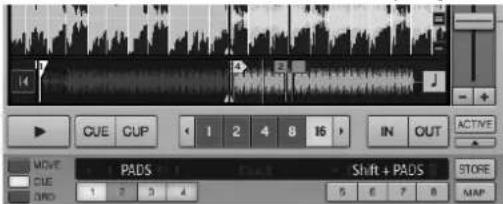 |
| Track Wheel (4) | By turning the track wheel it is possible to navigate through the track list viewShift + turning the track wheel allows navigation through the tree view. Note that the folder search buttons (6) can also be used to do the same in normal mode. If a larger track/tree list view is desired you have to activate > browse mode. |
Browse mode:
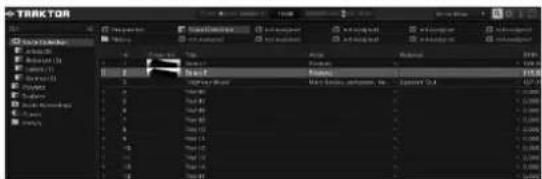
By pressing the track wheel the browse mode can be maximised and min imised. This allows a much more comfortable navigation through the tracks collection.
text_image
TRAKTOR File Edit View Insert Modify Tools Help Add New Add New Add New Add New Add New Add New Add New Add New Add New Add New Add New Add New Add New Add New Add New Add New Add New Add New Add New Add New Add New Add New Add New Add New Add New Add New Add New Add New Add New Add New Add New Add New Add New Add New Add Now Add Now Add Now Add Now Add Now Add Now Add Now Add Now Add Now Add Now Add Now Add Now Add Now Add Now Add Now Add Now Add Now Add Now Add Now Add Now Add Now Add Now Add Now Add Now Add Now Add Now Add Now Add Now Add Now Add Now Add Now Add Now Add Now Add NowIn this mode the jog and a lot of other controls work differently:
| Control Behaviour | |
| Jog (18) | Turning the jog allows navigation through the track collectionIf the jog is in X parameter mode (25), turning the jog results in scrolling through the tree viewIf the jog is in Y parameter mode (26), it is possible to scroll quickly through the tracks collection |
| Track Wheel (4) | Navigation through the tree list is possible by turning the track wheel. |
| Folder Search Buttons (6) | Pressing the folder search buttons (6), selected folders in the tree view can be opened and closed. |
Effect mode:
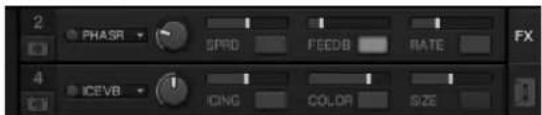
By pressing the HOLD button (31), the effect mode will be activated indicated by the HOLD button LED. The CUE mode button LED will be turned off. The jog and the PADs will now interact as effect modulation tool. Please note that only the advanced effect units are supported. It is possible that a mapping update will be Released to additionally support the chained effect unit. Regularly check the Reloop support forum for updates:
http://www.reloopdj.com/forum/
text_image
2 PHASR SPAD FEEDB RATE FX 4 ICEVB CNG COLOR SIZE| Control Behaviour | |
| Jog (18) | Turning the jog with inactive parameters (such as X or Y) the parameter 3 of the corresponding effect unit will be adjustedIf the jog is in X parameter mode (25), turning the jog results in modifying the effect parameter 1If the jog is In Y parameter mode (26), It is possible to change effect parameter 2 by turning the jog |
| PADs (15) | In effect mode the PADs (15) interact as effect buttons.PAD 1 > activates effect unitPAD 2 > FX resetPAD 3 > FX button 1PAD 4 > FX button 2 |
| Pitchfader (22) | Moving the pitchfader (22) will adjust the DRY/WET function of the effect unit. This will not affect the deck's pitch value. |
| SW name | Type | MIDI | MIDI2(Hold shift) | Remarks |
| W TRACK | SW/ENC | 2B/32 | 6A/71 | CC TYPE = RELATIVE |
| W TRACK | VR/CENTER | 32/2C | 71/6B | CC TYPE = ABSOLUTE |
| W TRACK | CW/CCW | 32/33 | 71/72 | CC TYPE = NOTE |
| JOG | SW/ENC | 20/35 | 5F/74(VR) | CC TYPE = RELATIVE |
| JOG | CW/CCW | 35/36 | -- | CC TYPE = NOTE |
| JOG X | SW/ENC | 20/37 | 5F/76(VR) | CC TYPE = RELATIVE |
| JOG X | CW/CCW | 37/38 | -- | CC TYPE = NOTE |
| JOG Y | SW/ENC | 20/39 | 5F/78(VR) | CC TYPE = RELATIVE |
| JOG Y | CW/CCW | 39/3A | -- | CC TYPE = NOTE |
| Pitch Silder | VR/CENTER | PITCHBEND/26 | 31/65 | |
| << SEARCH >> | VR | 15 | 54 | |
| BANK P. | SW | 25 | 64 | |
| SGL/CTN | SW | 1F | 5E | |
| Time | SW | 19 | 58 | |
| FOLDER >>| | SW | 0D | 4C | |
| FOLDER << | SW | 13 | 52 | |
| SHIFT | SW | 42 | ||
| EJECT | SW | 1B | 5A | |
| RELOOP | SW | 22 | 61 | |
| BPM | SW | 09 | 48 | |
| TAP | SW | 03 | 42 | |
| - | SW | 08 | 47 | |
| + | SW | 02 | 41 | |
| % | SW | 1A | 59 | |
| CUE | SW/LED | 07/07 | 46/07 | |
| ▶|| | SW/LED | 01/01 | 40/01 | |
| 1/8 | SW/LED | 05/05 | 44/05 | |
| 1/4 | SW/LED | 06/06 | 45/06 | |
| 1/2 | SW/LED | 2A/2A | 69/2A | |
| 3/4 | SW/LED | 24/24 | 63/24 | |
| 1/1 | SW/LED | 1E/1E | 5D/1E | |
| 2/1 | SW/LED | 0C/0C | 4B/0C | |
| 4/1 | SW/LED | 12/12 | 51/12 | |
| SCRATCH | SW/LED | 2F/2F | 6E/2F | |
| SKID | SW/LED | 29/29 | 68/29 | |
| FILTER | SW/LED | 11/11 | 50/11 | |
| PHASE | SW/LED | 0B/0B | 4A/0B | |
| HOLD | SW/LED | 1D/1D | 5C/1D | |
| ECHO | SW/LED | 23/23 | 62/23 | |
| FLANGER | SW/LED | 21/21 | 60/21 | |
| TRANS | SW/LED | 27/27 | 66/27 | |
| PAN | SW/LED | 2D/2D | 6C/2D | |
| LOOP IN | SW/LED | 16/16 | 55/16 | |
| LOOP OUT | SW/LED | 2E/2E | 6D2E | |
| 1 | SW/LED | 1C/1C | 5B/1C | |
| 2 | SW/LED | 0A/0A | 49/0A | |
| 3 | SW/LED | 10/10 | 4F/10 | |
| 4 | SW/LED | 0F/0F | 4E/0F | |
| SAVE TO | SW/LED | 04/04 | 43/04 | |
| SAMPLER | SW/LED | 28/28 | 67/28 | |
| G | SW/LED | 14/14 | 53/14 | |
| PITCH | SW/LED | 0E/0E | 4D/0E | |
| SCRATCH(2) | LED | 31 | ||
| 1(2) | LED | 32 | ||
| 2(2) | LED | 33 | ||
| 3(2) | LED | 34 | ||
| 4(2) | LED | 35 | ||
| 100 | LED | 36 | ||
| 16 | LED | 37 | ||
| 8 | LED | 38 | ||
| 4 | LED | 39 | ||
| PITCH 0 | LED | 3A | ||
| REVERSE | LED | 30 |
CC-ABSOLUTE (VR)
Control Change messages are sent with status 0xBn, where n is the channel, for the specified CC controller. Thus the controller MIDI ID is indicated with the channel along with the CC number. The value from 0x00 to 0x7F, directly related to the location of the controller.
CC-RELATIVE (ENC)
Control Change messages are status 0xBn, where n is the channel, for the specified CC controller. Thus the controller MIDI ID is indicated with the channel along with the CC number. The value from 0x40 to indicate the change in the controller. This is an offset to 0x40 "one's complement" notation. A message with data 0x43 indicates a positive change of 3. A messages with data 0x31 indicates a negative change of 15.
SWITCH ON/OFF (SW,CENTER,CW,CCW)
These messages are used for switches. Control Change messages are sent with status 0x9n, SWITCH On and Off value are 0x7F and 0x00, where n is the channel.
LED ON/OFF (LED)
These messages are used for LED. Control Change messages are sent with status 0x9n, LED On and Off value are 0x7F and 0x00, where n is the channel.
CONNECTING SEVERAL RMP-3 PLAYERS
If you would like to connect several RMP-3 players (e.g. in order to control DJ software) the following possibilities are suggestive:
- Two RMP-3 in use with TRAKTOR PRO
The RMP-3 mapping implemented in TRAKTOR PRO is layed out for channel 1 - 4 (Channel 1 = Deck A, Channel 2 = Deck B, Channel 3 = Deck C, channel 4 = Deck D). When using two players you should adjust player 1 via the Reverse/Deck Switch Button to „DeckA CH1“ for Deck A. For Deck B the player should be switched to DeckB CH2.
This way the left player 1 controls Deck A and the right player 2 controls Deck B. It is suggestive to assign a hardware ID to each player which can be adjusted in the submenu under B > MIDI Set > Name. Please also refer to the TRAKTOR assignment draft in this manual.
- Connecting Several RMP-3 Players
When using several RMP-3 players in order to control a software it is possible to
a) under B > MIDI Set > Name to assign a hardware ID to single players
b) under D > MIDI Channel to assign a channel preset to the single players (altogether 4 presets, 4 channels each).
SUBMENU
By pushing the Time Button -7- and the Track Wheel -4- simultaneously you enter the submenu. By pushing the Track Wheel again you will enter the corresponding submenu.
1. Version
Displays the current firmware version.
2. Playlist
If the Database Builder has been carried out for the USB drive it is possible to adjust various criteria in order to filter tracks in this menu.
Normal:
This is the default setting. The tracks are played corresponding to the established data structure.
Title:
If this criterion is selected it is possible to alphabetically navigate through the title names by pushing the Folder Search Buttons -6-. By turning the Track Wheel -4- it is possible to continuously and alphabetically browse through the title structure.
Artist:
If this criterion is selected it is possible to alphabetically navigate through the artist names by pushing the Folder Search Buttons -6-. By turning the Track Wheel -4- it is possible to continuously and alphabetically browse through the artist structure.
Album:
If this criterion is selected it is possible to alphabetically navigate through the album names by pushing the Folder Search Buttons -6-. By turning the Track Wheel -4- it is possible to continuously and alphabetically browse through the album structure.
Genre:
If this criterion is selected it is possible to alphabetically navigate through the genre names by pushing the Folder Search Buttons -6-. By turning the Track Wheel -4- it is possible to continuously and alphabetically browse through the genre structure.
Example:
We are looking for an artist whose name starts with a „g“ on the USB data carrier. Under Playlist we select the item „Artist“. Now we navigate to the letter „g“ by using the Folder Search Buttons -6-. All artists with the initial „g“ are shown in sequence. Hold the TIME button and turn the JOG WHEEL to choose the desired artist with the initial „g“. With the Track Wheel -4- we can now choose the desired track.
3. Sleep Time
Adjustable stand-by time from 0 - 120 minutes.
4. Stop Time
Adjustable interval from 0,5 - 12 seconds between the ticker information display repetition.
5. Run Time
Adjustment of the ticker speed from 50 - 2.000 milliseconds.
6. Jog Sensitivity
Adjustable Jog Wheel sensitivity from -20 - +20.
7.Pitch Bend Range
Adjustable Pitch Bend Range from +/-1% - +/-100% . This feature is adjustable independently from the adjusted Master Pitch Range.
8. Display Brightness
Adjustable display brightness from 1 - 10.
9. Repeat Mode
If Repeat mode has been activated (On) only tracks from the current track will be played. If Repeat has been set to „Off“ it is possible to navigate all folders via the Track Wheel -4-.
A. Information Setup
Mode 1: Folder name, ID3 TAG information will be displayed in a repeating loop.
Mode 2: Folder name will be displayed once, ID3 TAG information will be displayed repeatedly.
B. Bit Rate
Here you can determine whether the Bit Rate should be displayed or not.
C. MIDI Set
USB = LINK/MIDI Mode:
Here it can be selected whether the USB port -49- should function as MIDI data connection or as USB audio link connection. To do so hold the Shift Button -46- and turn the Track Wheel -4- in order to choose between the modes.
Pulse: MIDI sampling rate of the Jog Wheel. It is possible to choose between 1.024 and 512. To do so hold the Shift Button -46- and turn the Track Wheel -4-.
Jog Out:
Via the Jog Out function you can adjust the delay that the Jog Wheel should take in order to send MIDI data (Jog Wheel data delay) in milliseconds. The adjustable delay is 0 - 30 milliseconds. To do so hold the Shift Button -46- and adjust the desired value via the Track Wheel -4-.
NOTE!
Some DJ softwares are only able to process a limited number of MIDI events per second. For these cases this adjustment is suggestive. A value of 25 milliseconds corresponds to 40 events per second.
Edit:
Edit On/Off:
If Edit has been turned on it is possible to edit the MIDI parameters (MIDI Note, MIDI LED). If Edit is turned off the RMP-3 sends the preset MIDI commands. Please also refer to the MIDI Mapp in this manual.
Name:
Via the Name function it is possible to determine the player's hardware ID. The chosen name will be recognized by the computer.
The following names are selectable:
RMP-3
RMP-3B
RMP-3C
RMP-3D
RMP-3F
RMP-3G
RMP-3H
This is suggestive if you would like to connect several RMP-3 players on one computer. This way each player will be displayed with an individual hardware ID. Please also refer to the chapter „Connecting several RMP-3 players”.
I/O (Input/Output)
You can determine whether the MIDI parameters should be displayed. To do so hold the Shift Button -46- and turn the Track Wheel -4- in order to switch between „Display“ and „Hide“.
D. MIDI CC Type
In the MIDI CC Type menu you can assign individual control & change parameters to the Track encoder -4-, the Pitchfader -22- and the Jog Wheel -18-.
In order to change the CC Type hold the Shift Button -46- and turn the Track Wheel -4- until you reach the desired position.
- Track (Tracks Encoder)
The following is possible:
Relative
Absolute
Note
- Jog (Jog Wheel)
The following is possible:
Relative
Note
• Jog X (Jog Wheel with activated X parameters)
The following is possible:
Relative
Note
• Jog Y (Jog Wheel with activated Y parameters)
The following is possible:
Relative
Note
E. MIDI Channel
In this option you can determine on which two MIDI channels the RMP-3 should send.
The following is possible:
Channel 1 - 4
Channel 5 - 8
Channel 9 - 12
Channel 13 - 16
This way, when using several RMP-3 players, up to 4 devices can send on different MIDI channels.
Please also refer to the chapter „Connecting Several RMP Players“.
F. MIDI Note Edit
In this menu it is possible to edit the single MIDI elements and parameters.
Please also refer to the MIDI Map in this manual.
In order to change a parameter hold the Shift Button -46- and adjust the desired value via the Track Wheel -4-.
Example:
You would like to assign a different MIDI command to the Tap Button -38-. In the MIDI Map you can see that Tap is assigned to the MIDI command 03. In the MIDI Notee Edit menu select position 03. Now hold the Shift Button -46- and select the desired new MIDI value via the Track Wheel -4-.
NOTE!
In menu item G „Load Defaults“ you can load the defaults including the original MIDI values with the push of a button.
G. MIDI LED Edit
With the menu item MIDI LED Edit it is possible to edit the LEDs' glowing via MIDI parameters. Please refer to the MIDI Map in this manual. The editing of the single parameters follows the same procedure as described in item E. Please refer to the example listed there.
H. Load Defaults
With this adjustment it is possible to load the player's default settings. All player settings will be set to default. Confirm the defaults via the Track Wheel -4-.
I. Exit & Save
In order to save the adjusted parameters and leave the menu confirm the Exit & Save function via the Track Wheel -4-.
NOTE!
Alternatively you can also leave the menu by pushing the Time Button -7-.
USB AUDIO LINK
It is possible to connect two RMP-3 players in order to play tracks from one USB source. On the included CD you will find a special program „Database Builder“. This program analyzes the USB data carrier and creates special index files in order for the RMP-3 to access music files more easily and quickly. Furthermore it is possible to interactively search for criteria such as title or artist (also refer to the chapter „Submenu“, item 2. Playlist).
NOTE!
It is not mandatory to carry out the Database Builder in order to use it with two connected RMP-3 players but it is recommended (only PC version available).
Minimum System Requirements:
Operating system: Microsoft Windows XP (SP3), Vista (SP2)
CPU: Intel Pentium 4 1GHz processor or better,
Intel Centrino Mobile Technology 1.6 GHz
RAM: 512 MB RAM
Hard Disk: at least 100 MB free hard disk space required
Proceed as follows:
text_image
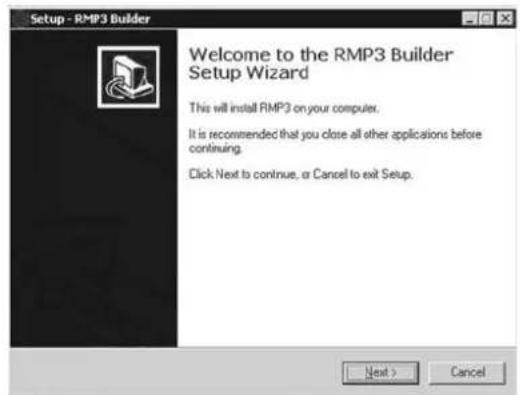
Setup - RMP3 Builder Welcome to the RMP3 Builder Setup Wizard This will install RMP3 on your computer. It is recommended that you close all other applications before continuing. Click Next to continue, or Cancel to exit Setup.- RMP-3 Database Builder Software Installation Carry out the program „Database Builder“ on the included CD. As first step click on „Next”.
text_image
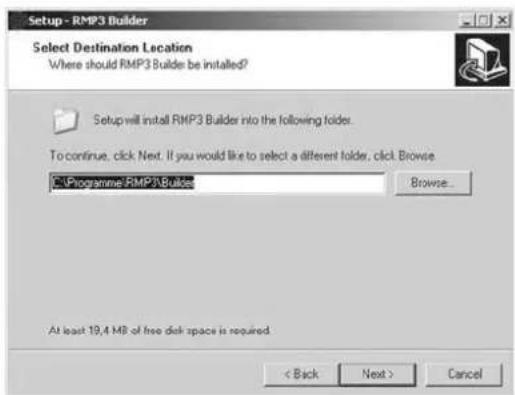
Setup - RMP3 Builder Select Destination Location Where should RMP3 Builder be installed? Setup will install RMP3 Builder into the following folder. To continue, click Next. If you would like to select a different folder, click Browse C:\Programme.RMP3\Builder Browse... At least 19.4 MB of free disk space is required. < Back Next > CancelSelect the folder where you wish to store the Database Builder and confirm by clicking „Next“.
text_image
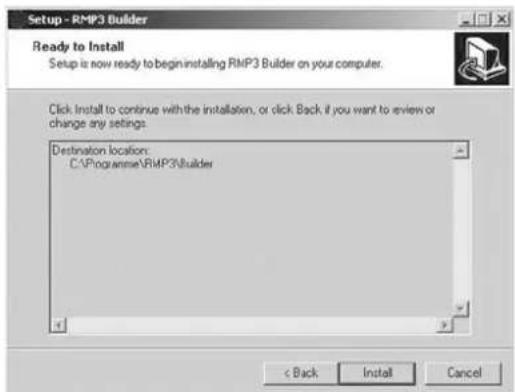
Setup - RMP3 Builder Ready to Install Setup is now ready to begin installing RMP3 Builder on your computer. Click Install to continue with the installation, or click Back if you want to review or change any settings. Destination location: C:\Programme\RMP3\builder < Back Install CancelNow the program can be installed. To do so click „Install“.
text_image
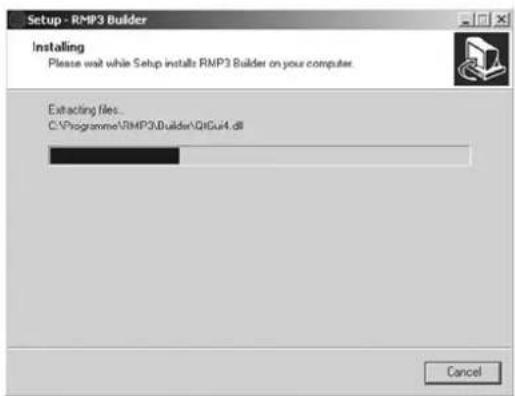
Setup - RMP3 Builder Installing Please wait while Setup installs RMP3 Builder on your computer. Extracting files... C:\Programme\RMP3\rbuilder\Q1Gu4.dll CancelNow the program is being installed.
text_image
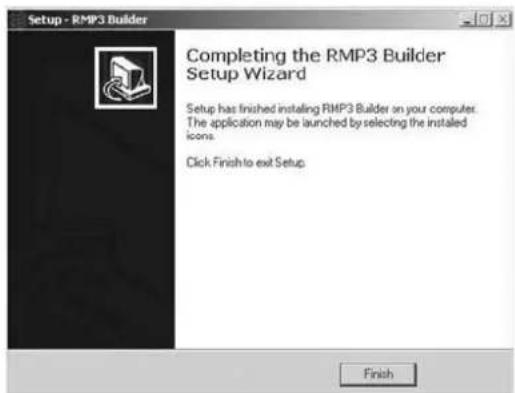
Setup - RMP3 Builder Completing the RMP3 Builder Setup Wizard Setup has finished installing RMP3 Builder on your computer. The application may be launched by selecting the installed icons. Click Finish to exit Setup. FinishIn order to successfully complete the installation click on „Finish“ in the last step.
text_image
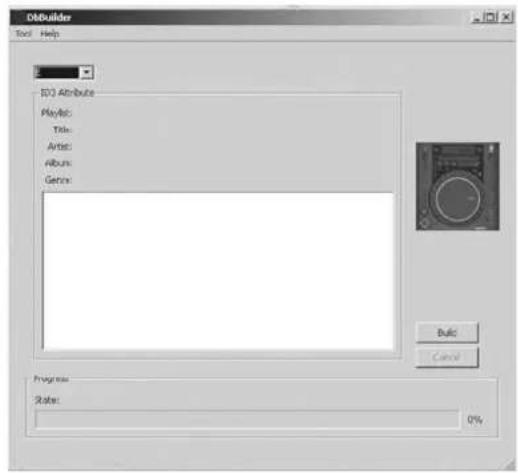
D&Builder Tool Help ID3 Attribute Title: Artist: Album: Genre: Build Cancel Progress: Rate: 0%2. Applying the Database Builder
In order to apply the Database Builder and to analyze your USB data carrier proceed as follows:
Start the installed program. In the first step select the desired USB data carrier and then click on „Build“.
Your USB data carrier will now be analyzed.
text_image
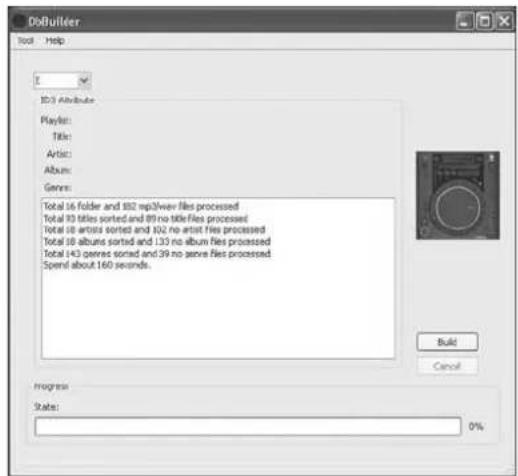
DoBuilder Tool Help ID3 Attribute Playlist: Titles: Artist: Album: Genre: Total 16 folder and 102 mp3/crew files processed Total 10 titles sorted and 89 no title files processed Total 10 artists sorted and 102 no artist files processed Total 10 albums sorted and 133 no album files processed Total (+3) genres sorted and 39 no serve files processed Spend about 160 seconds. Build Cancel Progress State: 0%After a successful analysis you can close the program. Your USB data carrier has now been successfully analyzed and is ready for application with the RMP-3.
text_image
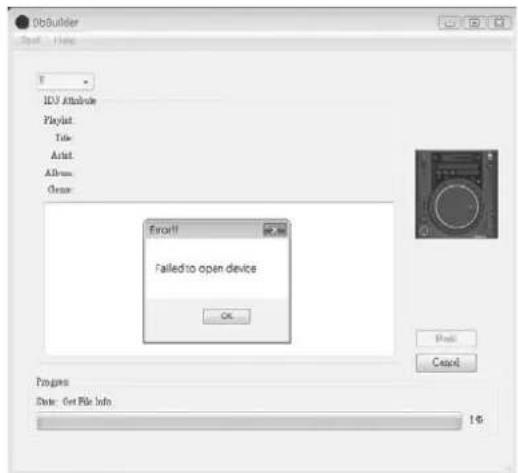
FileOff Failed to open device OK Progress Date: Get File Info 16NOTE! If the Database Builder causes problems under Windows Vista, please refer to the following trouble shooting.
Under Windows Vista it is not possible to carry out the Database Builder. This can be caused by UAC limitation.
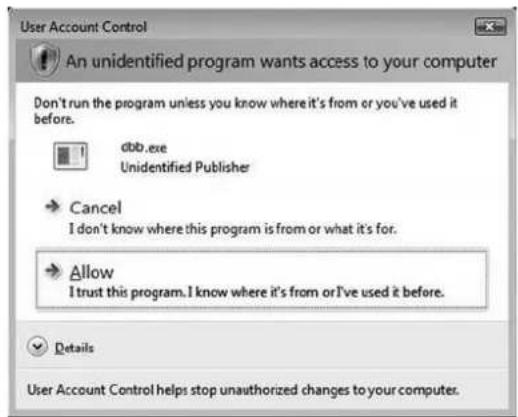
Click on the right mouse button in order to carry out the Database Builder with the option „Run as administrator“.
text_image
User Account Control An unidentified program wants access to your computer Don't run the program unless you know where it's from or you've used it before. dbb.exe Unidentified Publisher → Cancel I don't know where this program is from or what it's for. → Allow I trust this program. I know where it's from or I've used it before. Details User Account Control helps stop unauthorized changes to your computer.As next step click on „Allow“ in order to carry out the Database Builder.
3. Connecting Two RMP-3 Players for the Audio Link Mode
Player 1 (Master) = RMP-3 connected to the USB data carrier
For the master player select „USB = LINK“ in the submenu.
Path: push Time + Track Buttons > Item C. MIDI SET > USB = LINK
Hold the Shift Button -46- and turn the Track Wheel -4- in order to switch modes.
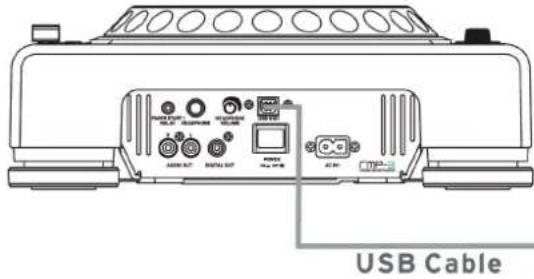
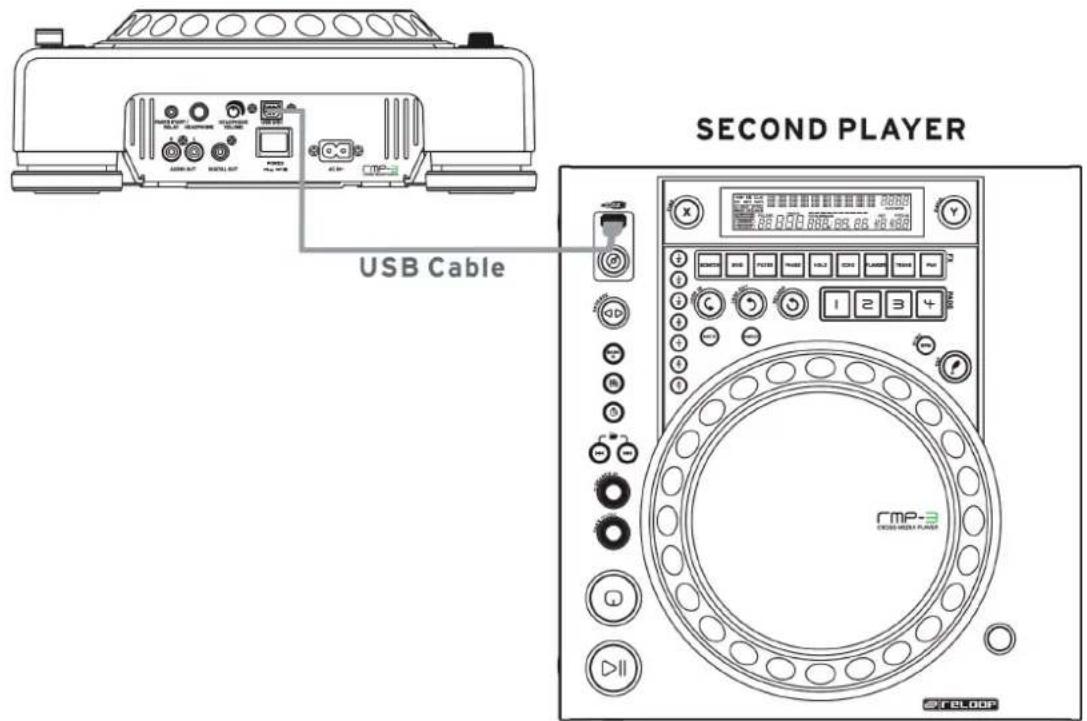
- Connect the USB data carrier to the upper USB port -47-.
- Connect the USB media port on the rear of the first player -49- to the USB data port -47- of the second player.
MAIN PLAYER
(with loaded USB Device)
text_image
SECOND PLAYER USB Cable CMP-3 TOMMELI KAN @FELDOP
NOTE!
It is recommended to use a USB cord which is no more than 1 meter.
Now you can access the USB drive of the first player (master) by using the second player in USB mode.
NOTE!
Pleas also refer to the chapter „Submenu“, item 2. Playlist regarding sorting and search functions.
TROUBELSHOOTING
If you should encounter any kind of trouble with the RMP-3 please check the following chart for the corresponding symptoms and follow the instructions that are listed.
Symptoms
- No power when activating the power ON/OFF switch.
• The CD replay does not start. - No sound.
- CD skips.
- Humming sound.
Possible cause
- Poor mains plug connection.
- The CD is upside down in the tray or it is soiled.
- Output cable is wrong or not correctly connected, wrong amplifier or mixing console operation.
- The CD player is continuously exposed to vibrations and shocks for longer than 20 seconds.
- Loose cable connections.
Corrective Measures
- Check the mains plug connection.
- Insert the CD with the label showing upwards.
- Check the output cords' connections and the settings of your amplifier and mixer respectively.
• Install your system in another location. - Check all sound plugs.
TECHNICAL INFORMATION
Global Distribution GmbH did not check the following manufacturer's data for plausibility and accuracy:
Frequency response: CD: 17 Hz - 20 kHz / USB: 17 Hz - 16 kHz
Channel separation: 85 dB
S/N ratio: 90 dB
D/A converter: 8-fold/1 Bit
MP3 Formats: MPEG 1 Layer 3 standard
MPEG 2 Layer 3 standard
MPEG 2.5 Layer 3 standard
Maximum MP3 folders: CD: 255 / USB: 999
Maximum MP3 files: CD: 999 / USB: 999 (each folder)
Dimensions: 320 x 112.6 x 340 mm
Weight: 3.43 kg
ENGLISH
MODE D'EMPLOI

ATTENTION!
Advanced Track Search:
23.Touche Pitch On/Off
text_image
TRAKTOR Track 1 Track 2 Track 3 Track 4 Track 5 Track 6 Track 7 Track 8 Track 9 Track 10 Track 11 Track 12 Track 13 Track 14 Track 15 Track 16 Track 17 Track 18 Track 19 Track 20 Track 21 Track 22 Track 23 Track 24 Track 25 Track 26 Track 27 Track 28 Track 29 Track 30 Track 31 Track 32 Track 33 Track 34 Track 35 Track 36 Track 37 Track 38 Track 39 Track 40 Track 41 Track 42 Track 43 Track 44 Track 45 Track 46 Track 47 Track 48 Track 49 Track 50 Track 51 Track 52 Track 53 Track 54 Track 55 Track 56 Track 57 Track 58 Track 59 Track 60 Track 61 Track 62 Track 63 Track 64 Track 65 Track 66 Track 67 Track 68 Track 69 Track 70 Track 71 Track 72 Track 73 Track 74 Track 75 Track 76 Track 77 Track 78 Track 79 Track 80 Track 81 Track 82 Track 83 Track 84 Track 85 Track 86 Track 87 Track 88 Track 89 Track 90 Track 91 Track 92 Track 93 Track 94 Track 95 Track 96 Track 97 Track 98 Track 99 Track 100Control Change messages are sent with status OxBn, where n is the channel, for the specified CC controller. Thus the controller MIDI ID is indicated with the channel along with the CC number. The value from Ox00 to Ox7F, directly related to the location of the controller.
CC-RELATIVE (ENC)
Control Change messages are status 0xBn, where n is the channel, for the specified CC controller. Thus the controller MIDI ID is indicated with the channel along with the CC number. The value from 0x40 to indicate the change in the controller. This is an offset to 0x40 "one's complement" notation. A message with data 0x43 indicates a positive change of 3. A messages with data 0x31 indicates a negative change of 15.
SWITCH ON/OFF (SW,CENTER,CW,CCW)
These messages are used for switches. Control Change messages are sent with status 0x9n, SWITCH On and Off value are 0x7F and 0x00, where n is the channel.
LED ON/OFF (LED)
These messages are used for LED. Control Change messages are sent with status 0x9n, LED On and Off value are 0x7F and 0x00, where n is the channel.
COMBINER PLUSIEURS RMP-3
8. Display Brightness
Edit On/Off (activer/désactiver la modification) :
Mémoire Vive: 512 Mo
text_image
Setup - RMP3 Builder Welcome to the RMP3 Builder Setup Wizard This will install RMP3 on your computer. It is recommended that you close all other applications before continuing. Click Next to continue, or Cancel to exit Setup.text_image
Setup - RMP3 Builder Select Destination Location Where should RMP3 Builder be installed? Setup will install RMP3 Builder into the following folder. To continue, click Next. If you would like to select a different folder, click Browse. C:\Programme\RMP3\Builder Browse... At least 19.4 MB of free disk space is required. < Back Next > Canceltext_image
Setup - RMP3 Builder Ready to Install Setup is now ready to begin installing RMP3 Builder on your computer. Click Install to continue with the installation, or click Back if you want to review or change any settings: Destination location: C:\Programme\RMP3\Builder < Back Install Canceltext_image
Setup - RMP3 Builder Installing Please wait while Setup installs RMP3 Builder on your computer. Extracting files... C:\Programmie\RMP3\Builder\Q1Gui4.dll Canceltext_image
Setup - RMP3 Builder Completing the RMP3 Builder Setup Wizard Setup has finished installing RMP3 Builder on your computer. The application may be launched by selecting the installed icons. Click Finish to exit Setup. Finishtext_image
D4Builder Tool Help ID3 Attribute Playlist: Title: Artist: Album: Genre: Build Cancel Progress: State: 0%text_image
DoBuilder Tool Help ID3 Attribute Playt: Title: Artist: Album: Genre: Total 16 Folder and 182 mp3/wav files processed Total 93 titles sorted and 89 no title files processed Total 16 artists sorted and 102 no artist files processed Total 16 albums sorted and 133 no album files processed Total +43 genres sorted and 39 no active files processed Spend about 160 seconds. Build Cancel Progress State: 0%text_image
ObBuilder Tool Help IDY Attitude Playlist Title Artist Album Organ Excell! Failed to open device OK Finish Cancel Program: Status: Get File Info. 16text_image
User Account Control An unidentified program wants access to your computer Don't run the program unless you know where it's from or you've used it before. dbb.exe Unidentified Publisher → Cancel I don't know where this program is from or what it's for. → Allow I trust this program. I know where it's from or I've used it before. Details User Account Control helps stop unauthorized changes to your computer.MAIN PLAYER
(with loaded USB Device)
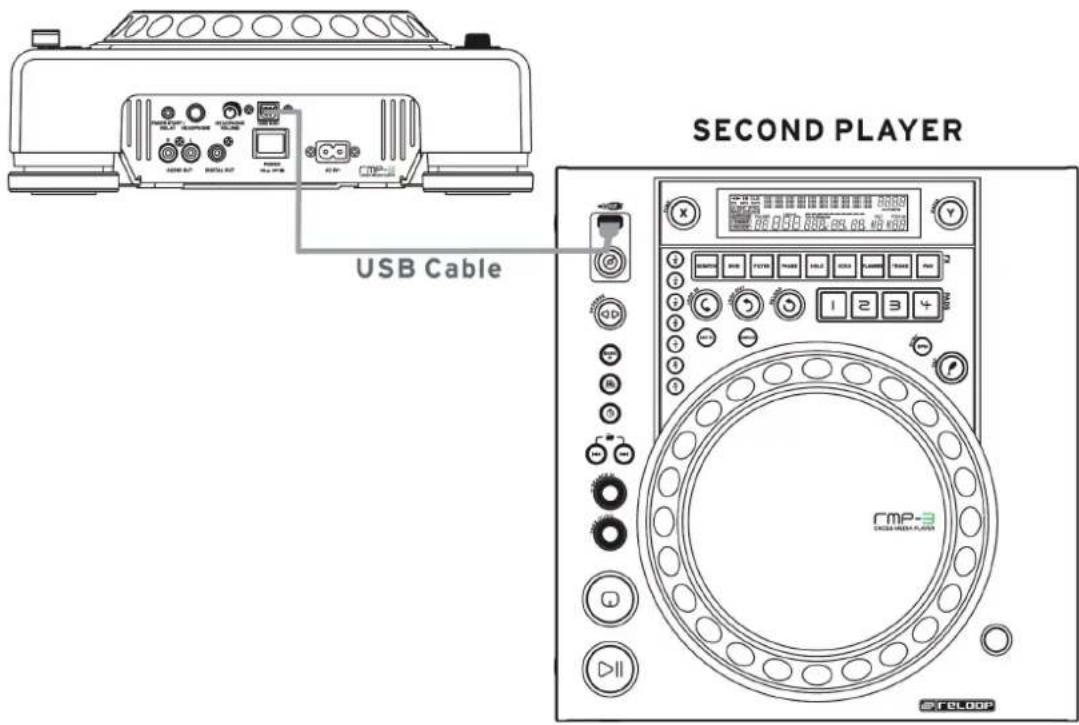
text_image
SECOND PLAYER USB Cable CMP-3 COLD HEMI-PLA @ FELLOOP