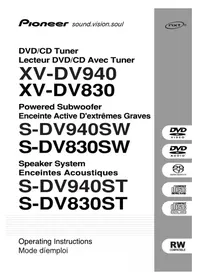
HTZ830DV - Home theater audio system PIONEER - Free user manual and instructions
Find the device manual for free HTZ830DV PIONEER in PDF.


| Brand | Pioneer |
| Model | HTZ830DV |
| Category | Home theater audio system |
| Product type | Home theater system with DVD/CD player, tuner, amplifier, speakers and subwoofer |
| Receiver/player dimensions (W x H x D) | 360 x 74 x 270 mm |
| Receiver/player weight | 3.2 kg |
| Display dimensions (W x H x D) | 274 x 44 x 35 mm |
| Display weight | 0.2 kg |
| Subwoofer dimensions (W x D x H) | 192 x 436 x 395 mm |
| Subwoofer weight | 12.5 kg |
| Power supply | 120 V AC, 60 Hz |
| Power consumption | 178 W (standby: 0.46 W) |
| Output power (RMS) | 60 W per channel (1 kHz, 1% THD, 6 Ω); subwoofer: 60 W (100 Hz, 1% THD, 6 Ω) |
| Compatible formats (playback) | DVD-Audio, DVD-Video, DVD-R/RW, SACD, Audio CD, Video CD, CD-R/RW, MP3, JPEG |
| Built-in audio decoders | Dolby Digital, DTS, Dolby Pro Logic II |
| Main functions | Disc playback, FM/AM tuner, 30 preset stations, surround modes (Auto, Pro Logic, Advanced), bass/treble adjustment, wake/sleep timer, Room Setup, image zoom, OSD display |
| Maintenance and cleaning | Clean the subwoofer vent with a vacuum cleaner; reading lens: use a suitable cleaner; avoid moisture |
| Safety | Do not open the device (risk of electric shock); maintain at least 5 cm of ventilation space around; do not expose to rain or moisture |
| Spare parts and repairability | No user-serviceable parts; refer servicing to qualified personnel |
| General information | 197-page user manual; warranty included; manufactured by Pioneer Corporation |
Frequently Asked Questions - HTZ830DV PIONEER
User questions about HTZ830DV PIONEER
0 question about this device. Answer the ones you know or ask your own.
Ask a new question about this device
Download the instructions for your Home theater audio system in PDF format for free! Find your manual HTZ830DV - PIONEER and take your electronic device back in hand. On this page are published all the documents necessary for the use of your device. HTZ830DV by PIONEER.
USER MANUAL HTZ830DV PIONEER
Operating Instructions
Mode diemploi





IMPORTANT

The lightning flash with arrowhead symbol, within an equilateral triangle, is intended to alert the user to the presence of uninsulated Odangerous voltageO within the product's enclosure that may be of sufficient magnitude to constitute a risk of electric shock to persons.
CAUTION
RISK OF ELECTRIC SHOCK DO NOT OPEN
CAUTION:
TO PREVENT THE RISK OF ELECTRIC SHOCK, DO NOT REMOVE COVER (OR BACK). NO USER- SERVICEABLE PARTS INSIDE. REFER SERVICING TO QUALIFIED SERVICE PERSONNEL.

The exclamation point within an equilateral triangle is intended to alert the user to the presence of important operating and maintenance (servicing) instructions in the literature accompanying the appliance.
H002_En
IMPORTANT SAFETY INSTRUCTIONS
READ INSTRUCTIONS - All the safety and operating instructions should be read before the product is operated.
REtain INSTRUCTIONS - The safety and operating instructions should be retained for future reference.
HEED WARNINGS - All warnings on the product and in the operating instructions should be adhered to.
FOLLOW INSTRUCTIONS - All operating and use instructions should be followed.
CLEANING - Unplug this product from the wall outlet before cleaning. The product should be cleaned only with a polishing cloth or a soft dry cloth. Never clean with furniture wax, benzine, insecticides or other volatile liquids since they may corrode the cabinet.
ATTACHMENTS - Do not use attachments not recommended by the product manufacturer as they may cause hazards.
WATER AND MOISTURE - Do not use this product near water for example, near a bathtub, wash bowl, kitchen sink, or laundry tub; in a wet basement; or near a swimming pool; and the like.
ACCESSORIES - Do not place this product on an unstable cart, stand, tripod, bracket, or table. The product may fall, causing serious injury to a child or adult, and serious damage to the product. Use only with a cart, stand, tripod, bracket, or table recommended by the manufacturer, or sold with the product. Any mounting of the product should follow the manufacturer's instructions, and should use a mounting accessory recommended by the manufacturer.
CART - A product and cart combination should be moved with care. Quick stops, excessive force, and uneven surfaces may cause the product and cart combination to overturn.
VENTILATION - Slots and openings in the cabinet are provided for ventilation and to ensure reliable operation of the product and to protect it from overheating, and these openings must not be blocked or covered. The openings should never be blocked by placing the product on a bed, sofa, rug, or other similar surface. This product should not be placed in a built-in installation such as a bookcase or rack unless proper ventilation is provided or the manufacturer's instructions have been adhered to.
POWER SOURCES - This product should be operated only from the type of power source indicated on the marking label. If you are not sure of the type of power supply to your home, consult your product dealer or local power company.
LOCATION - The appliance should be installed in a stable location.
NONUSE PERIODS - The power cord of the appliance should be unplugged from the outlet when left unused for a long period of time.
GROUNDING OR POLARIZATION
-
If this product is equipped with a polarized alternating current line plug (a plug having one blade wider than the other), it will fit into the outlet only one way. This is a safety feature. If you are unable to insert the plug fully into the outlet, try reversing the plug. If the plug should still fail to fit, contact your electrician to replace your obsolete outlet. Do not defeat the safety purpose of the polarized plug.
-
If this product is equipped with a three-wire grounding type plug, a plug having a third (grounding) pin, it will only fit into a grounding type power outlet. This is a safety feature. If you are unable to insert the plug into the outlet, contact your electrician to replace your obsolete outlet. Do not defeat the safety purpose of the grounding type plug.

POWER-CORD PROTECTION - Power-supply cords should be routed so that they are not likely to be walked on or pinched by items placed upon or against them, paying particular attention to cords at plugs, convenience receptacles, and the point where they exit from the product.
OUTDOOR ANTENNA GROUNDING - If an outside antenna or cable system is connected to the product, be sure the antenna or cable system is grounded so as to provide some protection against voltage surges and built-up static charges. Article 810 of the National Electrical Code, ANSI/NFPA 70, provides information with regard to proper grounding of the mast and supporting structure, grounding of the lead-in wire to an antenna discharge unit, size of grounding conductors, location of antenna-discharge unit, connection to grounding electrodes, and requirements for the grounding electrode. See Figure A.
LIGHTNING - For added protection for this product during a lightning storm, or when it is left unattended and unused for long periods of time, unplug it from the wall outlet and disconnect the antenna or cable system. This will prevent damage to the product due to lightning and power-line surges.
POWER LINES — An outside antenna system should not be located in the vicinity of overhead power lines or other electric light or power circuits, or where it can fall into such power lines or circuits. When installing an outside antenna system, extreme care should be taken to keep from touching such power lines or circuits as contact with them might be fatal.
OVERLOADING - Do not overload wall outlets, extension cords, or integral convenience receptacles as this can result in a risk of fire or electric shock.
OBJECT AND LIQUID ENTRY - Never push objects of any kind into this product through openings as they may touch dangerous voltage points or short-out parts that could result in a fire or electric shock. Never spill liquid of any kind on the product.
SERVICING - Do not attempt to service this product yourself as opening or removing covers may expose you to dangerous voltage or other hazards. Refer all servicing to qualified service personnel.
DAMAGE REQUIRING SERVICE - Unplug this product from the wall outlet and refer servicing to qualified service personnel under the following conditions:
- When the power-supply cord or plug is damaged.
- If liquid has been spilled, or objects have fallen into the product.
- If the product has been exposed to rain or water.
- If the product does not operate normally by following the operating instructions. Adjust only those controls that are covered by the operating instructions as an improper adjustment of other controls may result in damage and will often require extensive work by a qualified technician to restore the product to its normal operation.
If the product has been dropped or damaged in any way. - When the product exhibits a distinct change in performance — this indicates a need for service.
REPLACEMENT PARTS - When replacement parts are required, be sure the service technician has used replacement parts specified by the manufacturer or have the same characteristics as the original part. Unauthorized substitutions may result in fire, electric shock, or other hazards.
SAFETY CHECK - Upon completion of any service or repairs to this product, ask the service technician to perform safety checks to determine that the product is in proper operating condition.
WALL OR CEILING MOUNTING - The product should not be mounted to a wall or ceiling.
HEAT - The product should be situated away from heat sources such as radiators, heat registers, stoves, or other products (including amplifiers) that produce heat.
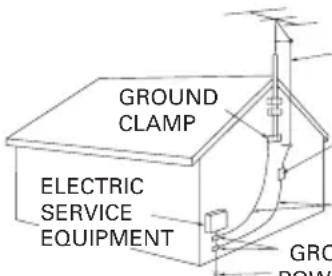
Fig. A
ANTENNA
LEAD IN WIRE
ANTENNA
DISCHARGE UNIT
(NEC SECTION 810-20)
GROUNDING CONDUCTORS
(NEC SECTION 810-21)
GROUND CLAMPS
POWER SERVICE GROUNDING
ELECTRODE SYSTEM
(NECART250,PARTH)
NEC - NATIONAL ELECTRICAL CODE
WARNING: TO PREVENT FIRE OR SHOCK HAZARD, DO NOT EXPOSE THIS APPLIANCE TO RAIN OR MOISTURE. H001_En
NOTE: THE NO USER-SERVICEABLE PARTS COMPARTMENT WARNING IS LOCATED ON THE APPLIANCE BOTTOM.
[For U.S. model]
IMPORTANT NOTICE
The serial number for this equipment is located on the bottom (DVD/CD Tuner) / Rear panel (Powered Subwoofer). Please write this serial number on your enclosed warranty card and keep it in a secure area. This is for your security.
NOTE: This equipment has been tested and found to comply with the limits for a Class B digital device, pursuant to Part 15 of the FCC Rules. These limits are designed to provide reasonable protection against harmful interference in a residential installation. This equipment generates, uses, and can radiate radio frequency energy and, if not installed and used in accordance with the instructions, may cause harmful interference to radio communications. However, there is no guarantee that interference will not occur in a particular installation. If this equipment does cause harmful interference to radio or television reception, which can be determined by turning the equipment off and on, the user is encouraged to try to correct the interference by one or more of the following measures:
- Reorient or relocate the receiving antenna.
- Increase the separation between the equipment and receiver.
- Connect the equipment into an outlet on a circuit different from that to which the receiver is connected.
- Consult the dealer or an experienced radio/ TV technician for help. H010_En
Information to User
Alteration or modifications carried out without appropriate authorization may invalidate the user's right to operate the equipment. H011_En
CAUTION
- Use of controls or adjustments or performance of procedures other than those specified herein may result in hazardous radiation exposure.
The use of optical instruments with this product will increase eye hazard. H013_En
This product includes FontAvenue® fonts licenced by NEC corporation. FontAvenue is a registered trademark of NEC Corporation.
WARNING:
Handling the power cord on this product or cords associated with accessories sold with the product will expos you to lead, a chemical known to the State of California and other governmental entities to cause cancer and birth defects or other reproductive harm.
Wash hands after handling.
[For Canadian model]
CAUTION: TO PREVENT ELECTRIC SHOCK, DO NOT USE THIS (POLARIZED) PLUG WITH AN EXTENSION CORD, RECEPTACLE OR OTHER OUTLET UNLESS THE BLADES CAN BE FULLY INSERTED TO PREVENT BLADE EXPOSURE.
ATTENTION: POUR PREVENIR LES CHOCSELECTRIQUES NE PAS UTILISER CETTE FICHEPOLARISEE AVEC UN PROLONGATEUR UNEPRISE DE COURANT OU UNE AUTRE SORTIEDE COURANT, SAUF SI LES LAMES PEUVENTETRE INSEREES A FOND SANS EN LAISSERAUCUNE PARTIE A DECOUVERT. H007A_2L
[For Canadian model]
This Class B digital apparatus complies with Canadian ICES-003.
ENERGY STAR and the ENERGY STAR certification mark are registered US marks.
K001C_En
Energy-saving design
This system is designed to use 0.78W of electricity when power is switched to standby.
This product is for general household purposes. Any failure due to use for other than household purposes (such as long-term use for business purposes in a restaurant or use in a car or ship) and which requires repair will be charged for even during the warranty period. K041_En
This product incorporates copyright protection technology that is protected by method claims of certain U.S. patents and other intellectual property rights owned by Macrovision Corporation and other rights owners. Use of this copyright protection technology must be authorized by Macrovision Corporation, and is intended for home and other limited viewing uses only unless otherwise authorized by Macrovision Corporation. Reverse engineering or disassembly is prohibited.
Installation precaution
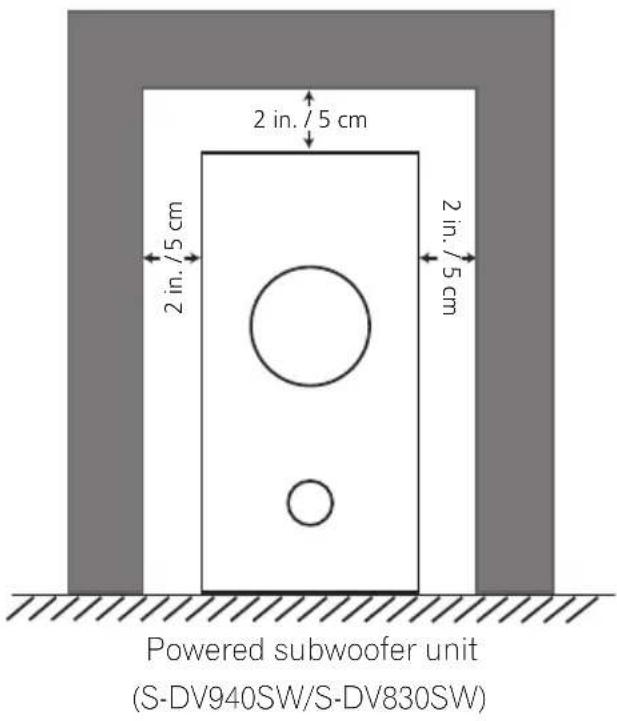
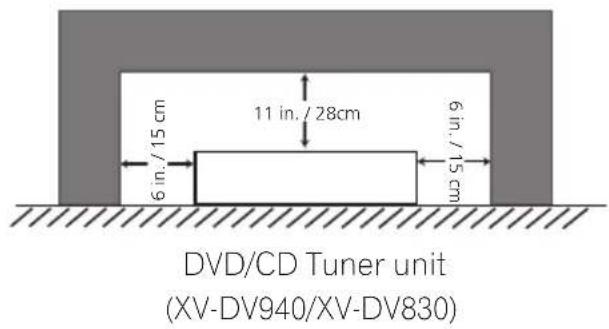
Install components so that there are no obstructions above or either side, and nothing blocking ventilation holes.
- Leave at least 2 in. / 5 cm of free space around the subwoofer and at least 11 in. / 28cm above and 6 in. / 15cm to the left and right of the DVD/CD Tuner, as shown below. Remember to also leave 6 in. / 15cm of space at the rear.
- Use a vacuum cleaner periodically to clean the port of the subwoofer to keep it free of dust.
Wall-mounting the center and surround speaker system
Before mounting
- Remember that the speaker system is heavy and that its weight could cause the wood screws to work loose, or the wall material to fail to support it, resulting in the speaker falling. Make sure that the wall you intend to mount the speakers on is strong enough to support them. Do not mount on plywood or soft surface walls.
- Mounting screws are not supplied. Use screws that are suitable for the wall material and that will support the weight of the speaker.


Note
- If you are unsure of the qualities and strength of the walls, consult a professional for advice.
- Pioneer is not responsible for any accidents or damage that result from improper installation.
Thank you for buying this Pioneer product.
Please read through these operating instructions so that you will know how to operate your model properly. After you have finished reading the instructions, put them in a safe place for future reference.
Contents
Installation precaution 5
Wall-mounting the center and surround
speaker system 5
01 Before you start
Features. 9
Introduction to home theater 10
General disc compatibility 10
CD-R/RW compatibility 11
DVD-R/RW compatibility 11
PC-created disc compatibility 11
Compressed audio compatibility 11
JPEG file compatibility 12
02 Controls and displays
Front panel. 13
Display unit 13
Display. 14
Remote control 16
03 Getting started
Switching on and setting up 19
Setting the clock 20
Setting up the remote to control your TV. 21
Using the Room Setup 21
Using the on-screen displays 22
Playing discs 23
Basic playback controls 24
Resume and Last Memory 25
DVD disc menus 26
Video CD PBC menus 27
Listening to the radio 28
Improving poor FM reception. 29
Memorizing stations 29
Listening to station presets 30
Listening to other sources 30
04 Home theater sound
Auto listening mode 31
Listening in surround sound 31
Dolby Pro Logic II Music settings 32
Listening in stereo. 32
Listening with headphones 33
Using the Advanced Surround effects. 33
Adjusting the Advanced Surround effect level. 34
Enhancing dialogue 34
Listening with a virtual surround back speaker 35
Using Quiet and Midnight listening modes 35
Adjusting the bass and treble 36
Boosting the bass level 36
Muting the sound 37
05 Playing discs
Introduction 38
Using the Disc Navigator to browse the contents of a disc 38
Scanning discs 39
Playing in slow motion 40
Frame advance/frame reverse 40
Looping a section of a disc 41
Using repeat play 41
Using the OSD 42
Using the display unit 42
Using random play 43
Using the OSD. 43
Creating a program list 44
Using the OSD 44
Using the unit display 47
Clearing the program list 47
Searching a disc 47
Playing DVD-Audio 'Bonus Groups'. 48
Switching subtiles 48
Switching DVD-Video audio language. 48
Switching DVD-Audio audio channels... 49
Switching Video CD audio channel 49
Zooming the screen 49
Switching camera angles. 50
Displaying disc information 50
OSD disc information 50
Display unit information 52
06 Viewing JPEG discs
Playing a JPEG slideshow 53
Using the JPEG Disc Navigator and Photo
Browser 53
Zooming the screen 54
07 Using the timer
Setting the wake-up timer 55
Turning the wake-up timer on/off 56
Setting the sleep timer 57
08 Surround sound setup
Setting up surround sound 58
System Setup menu options 58
Setting the channel levels 60
09 Video Adjust menu
Video Adjust. 61
Creating your own presets 61
10 Initial Settings menu
Using the Initial Settings menu 63
Digital Audio Mode Settings 63
Dolby Digital Out 63
DTS Out 63
Linear PCM Out 64
Video Output settings. 64
TV Screen 64
Component Out 65
S-Video Out 66
Language settings 66
Audio Language 66
Subtitle Language 66
DVD Menu Language. 67
Subtitle Display 67
Display settings 67
OSD Language 67
On Screen Display 67
Angle Indicator 68
Options 68
Parental Lock 68
Bonus Group. 70
Auto Disc Menu 71
GroupPlayback. 71
DVDPlaybackMode. 71
SACDPlayback. 72
PhotoViewer 72
11 Other connections
Connecting external antennas. 73
Connecting auxiliary components 73
Reducing the TV and line signal levels 74
Recording mode. 75
Connecting using the S-video output. 75
Connecting using the component video output 76
12 Additional information
Switching off the demo 77
Child Lock. 77
Changing the clock format 77
Changing the frequency step 77
Resetting the system. 78
Dimming the display 78
Using and taking care of discs 78
Titles, groups, chapters and tracks. 78
DVD Video regions 78
Handling discs 78
Storing discs. 79
Discs to avoid 79
Proper installation and maintenance of
this system 80
Hints on installation 80
Cleaning the pickup lens. 80
Problems with condensation 80
Moving the system unit. 80
Power cord caution. 81
Troubleshooting 82
General 82
DVD/CD/Video CD player 83
MP3/JPEG discs 84
Tuner 85
Error Messages. 85
Screen sizes and disc formats. 87
Widescreen TV users 87
Standard TV users. 87
Selecting languages using the language
code list 87
Language code list. 88
Country code list 88
Preset code list 89
Glossary 91
Specifications 94
Amplifier Section 94
Disc section. 94
FMtuner section 94
AMtuner section 94
Miscellaneous 94
Accessories 94
Satellite Speaker System(S-DV940ST) 95
Satellite Speaker System(S-DV830ST) 95
Powered subwoofer
Chapter 1 Before you start
Features
DVD-Audio and SACD compatible
Experience the super high-quality audio performance of DVD-Audio and Super Audio CD (SACD).
The on-board 24-bit/192kHz DAC means that this player is fully compatible with high sampling-rate discs, capable of delivering exceptional sound quality in terms of dynamic range, low-level resolution and high-frequency detail.
Excellent audio performance with Dolby Digital, Dolby Pro Logic, Dolby Pro Logic II\*1 and DTS\*2 software

Built-in Dolby Digital and DTS decoders let you enjoy true discrete multi-channel home theater sound with Dolby Digital and DTS encoded DVD discs.
Dolby Pro Logic and Dolby Pro Logic II decoding adds excitement to two-channel source material with surround sound playback.
Simple Room Setup for surround sound
Setting up basic surround sound is made a simple two step process with the Room Setup feature. Tell the unit the size of your listening room and your listening position, and the system automatically configures the surround sound.
Picture zoom
While a DVD or Video CD is playing, you can zoom in on any part of the picture at up to 4x magnification for a closer look. See Zooming the screen on page 49.
MP3 compatibility
This system is compatible with CD-R, CD-RW and CD-ROM discs that contain MP3 audio tracks. See also Compressed audio compatibility on page 11.
Graphical on-screen displays
Setting up and using your DVD home theater system is made very easy using the graphical on-screen displays.
Energy saving design
This system is designed to use 0.78W of power when in standby mode.
*1 Manufactured under license from Dolby Laboratories. "Dolby", "Pro Logic" and the double-D symbol are trademarks of Dolby Laboratories.
*2 "DTS" and "DTS Digital Surround" are registered trademarks of Digital Theater Systems, Inc.
Introduction to home theater
You are probably used to using stereo equipment to listen to music, but may not be used to home theater systems that give you many more options (such as surround sound) when listening to soundtracks.
Home theater refers to the use of multiple audio tracks to create a surround sound effect, making you feel like you're in the middle of the action or concert. The surround sound you get from a home theater system depends not only on the speakers you have set up in your room, but also on the source and the sound settings of the system.
DVD-Video has become the basic source material for home theater due to its size, quality, and ease of use. Depending on the DVD, you can have up to six different audio tracks coming from one disc, all of them being sent to different speakers in your system. This is what creates a surround sound effect and gives you the feeling of 'being there'.
This system will automatically decode Dolby Digital, DTS, or Dolby Surround DVD-Video discs, according to your speaker setup. In most cases, you won't have to make changes for realistic surround sound, but other possibilities (like listening to a CD with multichannel surround sound) are explained in Home theater sound on page 31.
General disc compatibility
This system was designed and engineered to be compatible with software bearing one or more of the following logos:



DVD-Video DVD-R DVD-RWDVD-Audio




Audio CD CDVR@CDRW

Super Audio CD


Fujicolor CD
KODAK Picture CD
- is a trademark of Fuji Photo Film Co. Ltd.
Other formats, including but not limited to the following, are not playable in this system:
DVD-RAM / DVD-ROM / CD-ROM*
- Except those that contain MP3 or JPEG. See also Compressed audio compatibility and JPEG file compatibility below.
DVD-R/RW and CD-R/RW discs (Audio CDs and Video CDs) recorded using a DVD recorder, CD recorder or personal computer may not be playable on this system. This may be caused by a number of possibilities, including but not limited to: the type of disc used; the type of recording; damage, dirt or condensation on either the disc or the player's pick-up lens. See below for notes about particular software and formats.
CD-R/RW compatibility
-
This system will play CD-R and CD-RW discs recorded in CD Audio or Video CD format, or as a CD-ROM containing MP3 or JPEG files. However, any other content may cause the disc not to play, or create noise/distortion in the output.
-
This system cannot record CD-R or CD-RW discs.
-
Unfinalized CD-R/RW discs recorded as CD Audio can be played, but the full Table of Contents (playing time, etc.) will not be displayed.
DVD-R/RW compatibility
-
This unit will play DVD-R/RW discs recorded using the DVD-Video format that have been finalized using a DVD-recorder.
-
This unit will play DVD-RW discs recorded using the Video Recording (VR) format.
DVD-RW shows in the display when a VR format DVD-RW disc is loading.
-
When playing a VR format DVD-RW discs that was edited on a DVD recorder, the screen may go momentarily black at edited points and/or you may see scenes from immediately before the edited point.
-
This unit cannot record DVD-R/RW discs.
-
Unfinalized DVD-R/RW discs cannot be played in this player.
PC-created disc compatibility
-
If you record a disc using a personal computer, even if it is recorded in a "compatible format" as listed above, there will be cases in which the disc may not be playable in this machine due to the setting of the application software used to create the disc. In these particular instances, check with the software publisher for more detailed information.
-
Check the DVD-R/RW or CD-R/RW software disc boxes for additional compatibility information.
Compressed audio compatibility
-
This unit will play CD-ROM, CD-R, and CD-RW discs containing files saved in the MPEG-1 Audio Layer 3 (MP3) format with a sampling rate of 32, 44.1 or 48kHz . Incompatible files will not play and the message Can't play this format will be displayed (No Play in the Display unit).
-
Fixed bit-rate MP3 files are recommended. Variable bit-rate (VBR) MP3 files are playable, but playing time may not be shown correctly.
-
The CD-ROM used to compile your MP3 files must be ISO 9660 Level 1 or 2 compliant. CD physical format: Mode1, Mode2 XA Form1. Romeo and Joliet file systems are both compatible with this player.
-
Use CD-R or CD-RW media for recording your files. The disc must be finalized (i.e. the session must be closed) in order to play in this unit. This player is not compatible with multi-session discs. Only the first session of a multi-session disc will be recognized.
-
This player only plays tracks that are named with the file extension .mp3 or .MP3.
-
When naming MP3 files, add the corresponding file name extension (.mp3). Files are played according to the file extension. To prevent noise and malfunctions, do not use these extensions for other kinds of files.
-
This player can recognize up to 999 files (MP3/JPEG) and up to 499 folders. If a disc exceeds these limits, only files and folders up to these limits will be playable.
Files and folders are read/ displayed in alphabetical order. Note that if the file structure is very complex, you may not be able to read/play all files on the disc.
- Folder and track names (excluding the file extension) are displayed.
- There are many different recording bitrates available to encode MP3 files. This unit was designed to be compatible with all of them. Audio encoded at 128Kbps should sound close to regular CD Audio quality. This player will play lower bit-rate files, but please note that the sound quality becomes noticeably worse at lower bit-rates.
JPEG file compatibility
- Baseline JPEG and EXIF 2.1 still image files up to 8 mega-pixels are supported (maximum vertical and horizontal resolution is 5120 pixels). (File format used by digital still cameras)
- The CD-ROM used to compile your JPEG files must be ISO 9660 Level 1 or 2 compliant. CD physical format: Mode1, Mode2 XA Form1. Romeo and Joliet file systems are both compatible with this player.
- This player only displays files that are named with the file extension .jpg or .JPG.
Chapter 2
Controls and displays
Front panel
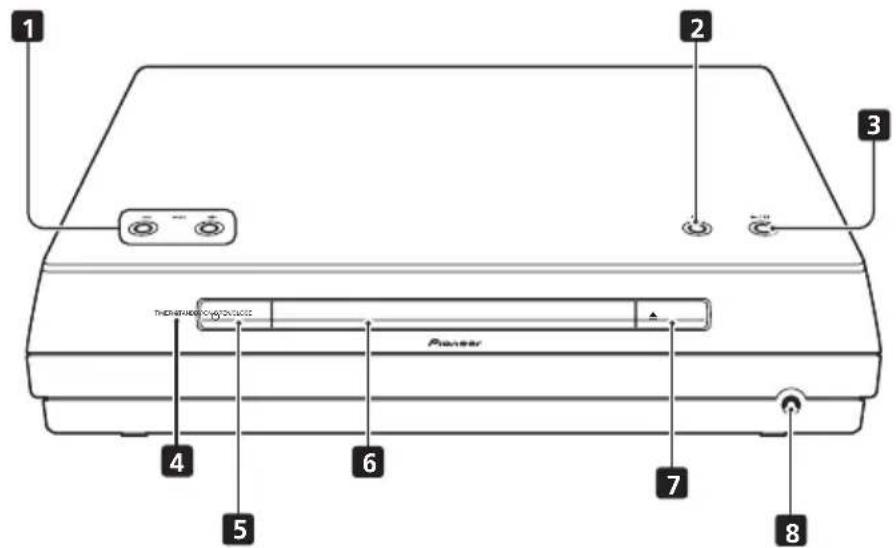
1 VOLUME buttons
Use to adjust the volume.

Press to stop playback.

Press to switch to the DVD/CD function. Also press to start/pause/resume playback.
4 Timer indicator
Lights when the wake-up timer is set (page 55).
Display unit
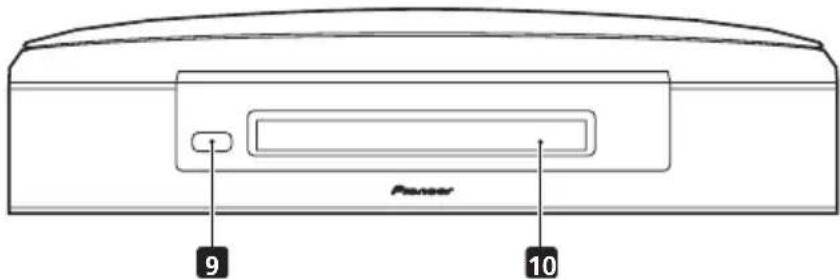
9 Remote sensor 10 Display
5 STANDBY/ON
Press to switch the system on or into standby.
6 Disc tray
7 ▲ OPEN/CLOSE
Press to open/close the disc tray.
8 PHONES JACK
Headphone jack.
See Display on page 14 for detailed information.
Display
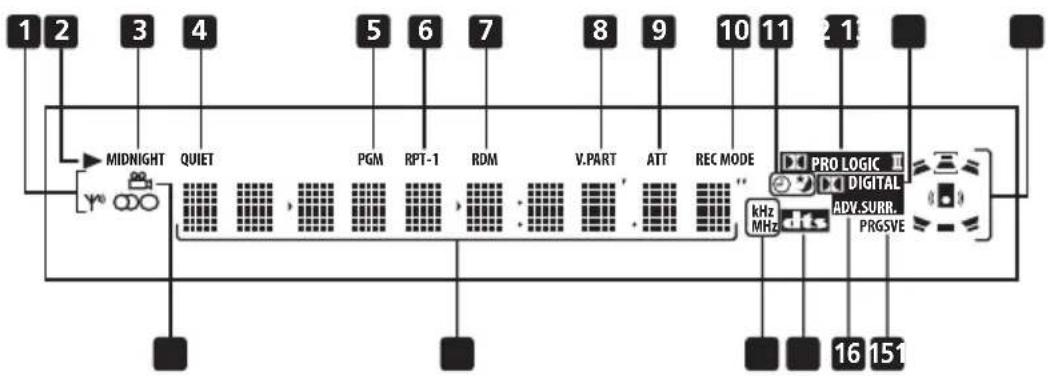
1 Tuner indicators

Lights when a broadcast is being received.

Lights when a stereo FM broadcast is being received in auto stereo mode.

Lights when FM mono reception is selected.

Lights when a disc is playing.
3 MIDNIGHT
Lights when the Midnight mode is selected (page 35).
4 QU I E T
Lights when the Quiet mode is selected (page 35).
5 PGM
Lights when a program list has been programmed (page 44).
6 RPT and RPT-1
RPT lights during repeat play. RPT-1 lights during repeat one-track play (page 41).
7 RDM
Lights during random play (page 43).
8 V . P A R T
Light when playing a video part of a DVD disc.
9 A T T
Lights when the input attenuator is active for the currently selected analog input (page 74).
10 REC MODE
Lights when Rec Mode is active (page 75).
11 Timer indicators

Lights when the wake-up timer is set (page 55).

Lights when the sleep timer is active (page 57).
12 PRO LOGIC II
Lights during Dolby Pro Logic decoding (page 31).
13 DIGITAL
Lights during playback of a Dolby Digital source (page 31).
14 Speaker indicators
These show which speakers are being used to output the current source. The illustrations below show some example displays.
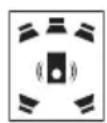
5.1 channel surround sound
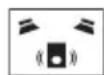
Stereo (2.1 channel) sound
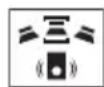
3.1 channel sound with Dialogue enhancement on the center channel
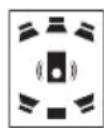
5.1 channel surround sound with Virtual Surround Back mode active
15 PRGSVE
Lights when progressive scan video output is selected (page 65).
16 ADV.SURR.
Lights when one of the Advanced Surround listening modes is selected (page 33).
17 DTS
Lights during playback of a DTS source (page 31).
18 kHz/MHz
Indicates the unit of the frequency shown in the character display (kHz for AM, MHz for FM).
19 Character display
20

Lights during multi-angle scenes on a DVD disc (page 50).
Remote control
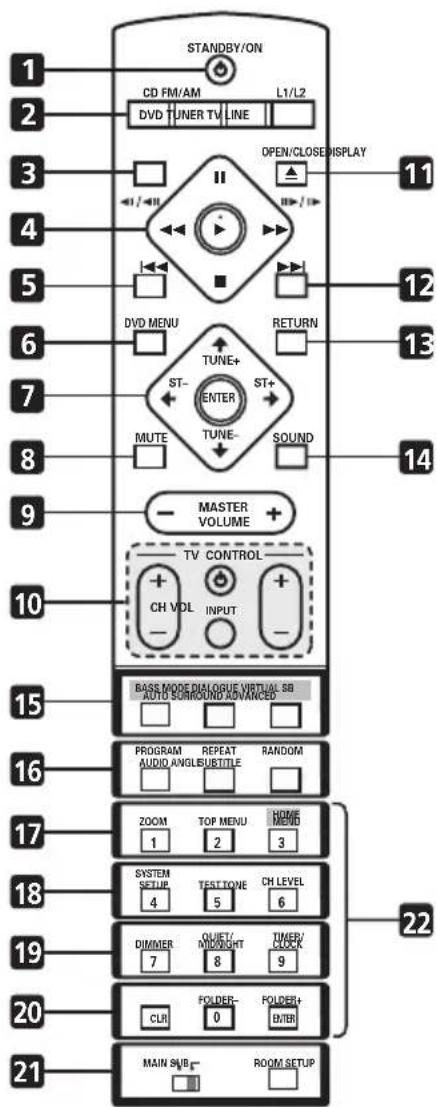

Important
- Functions printed in green on the remote control are accessed by switching the MAIN/SUB switch to SUB.
1 STANDBY/ON
Press to switch the system on or into standby.
2 Function select buttons
Press to select the source you want to listen to (DVD (CD). TUNER, TV, LINE)
3 DISPLAY
Press to display/change disc information shown on-screen (page 50).
4 Disc playback controls

ess to start or resume playback.

and
Use for reverse slow motion playback, frame reverse and reverse scanning.

and /1
Use for forward slow motion playback, frame advance and forward scanning.

Press to pause playback; press again to restart.

Press to stop playback.

Press to jump to the beginning of the current chapter/track, then to previous chapters/tracks.

VDM
ENU
Press to display a DVD disc menu, or the Disc Navigator if a VR format DVD-RW, CD, Video CD, MP3 or JPEG disc is loaded.
7 Cursor buttons, ENTER and tuning buttons
Cursor buttons
Use the cursor buttons ( / / /) to navigate on-screen displays and menus.
ENTER
Press to select an option or execute a command.
TUNE + / -
Use to tune the radio.
ST+/-
Use to select station presets when listening to the radio.
Controls and displays
8 MUTE
Press to mute all sound from the speakers and headphones (press again to cancel) (page 37).
9 MASTER VOLUME
Use to adjust the volume.
10 TV CONTROL (page 21)
Press to switch the TV on or into standby.
INPUT
Press to switch the TV input.
CH+/-
Use to select channels on the TV.
VOL + / -
Use to adjust the volume on the TV.
11 ▲ OPEN/CLOSE
Press to open/close the disc tray.
12
Press to jump to the next chapter/track.
13 RETURN
Press to return to a previous menu screen.
14 SOUND
Press to access the sound menu, from which you can adjust the DSP effect level, bass and treble, etc.
15 Surround sound mode/sound enhancement buttons
(In MAIN)
AUTO
Press to select the default decoding for the current source (page 31).
SURROUND
Use to select a Surround mode (page 31).
ADVANCED
Use to select an Advanced Surround (page 33).
(In SUB)
BASS MODE
Use to select a Bass Mode (page 36).
DIALOGUE
Use to select a Dialogue mode (page 34).
VIRTUAL SB
Press to switch the Virtual Surround Back speaker effect on/off (page 35).
16 DVD/CD buttons
(In MAIN)
AUDIO
Press to select an audio channel or language (page 48).
SUBTITLE
Press to display/change the DVD subtitle display (page 48).
ANGLE
Press to change camera angle during DVD multi-angle scene playback (page 50).
(In SUB)
PROGRAM
Use to program/play a program list (page 44).
REPEAT
Use to select a repeat play mode (page 41).
RANDOM
Use to select a random play mode (page 43).
17 (In SUB)
ZOOM
Press to change the screen zoom level (page 49).
TOP MENU
Use to display the top menu of a DVD disc in the play position (this may be the same as pressing DVD MENU).
HOME MENU
Press to display (or exit) the on-screen menu for Initial Settings, Play Mode functions, etc.
18 (In SUB)
SYSTEM SETUP
Use to make various system and surround sound settings (page 58).
TEST TONE
Use to output the test tone (for speaker setup) (page 60).
CH LEVEL
Use to adjust the speaker level (page 60).
19 (In SUB)
DIMMER
Press to dim or brighten the display.
QUIET/MIDNIGHT
Use to select the Quiet and Midnight modes (page 35).
TIMER/CLOCK
Press to display the clock and to access the timer menu (page 20 and page 55).
20 (In MAIN)
CLR
Press to clear an entry.
ENTER
Selects menu options, etc. (works exactly the same as the ENTER button in 7 above).
(In SUB)
FOLDER -
Press to jump to previous folders.
FOLDER +
Press to jump to the next folder.
21 MAIN / SUB
Change from MAIN to SUB to access functions printed in green.
(In MAIN)
ROOM SETUP
Press to start Room Setup (page 21).
22 (In MAIN)
Number buttons
Use the number buttons for selecting titles/chapters/tracks from a disc directly.
Chapter 3 Getting started
Switching on and setting up
After making sure everything is connected up properly, you're ready to switch on. The first thing to do is to tell the system what kind of TV you're using, standard or widenscreen.
After that you can set up the surround sound for your room, and set the clock so that you can use the timer features.
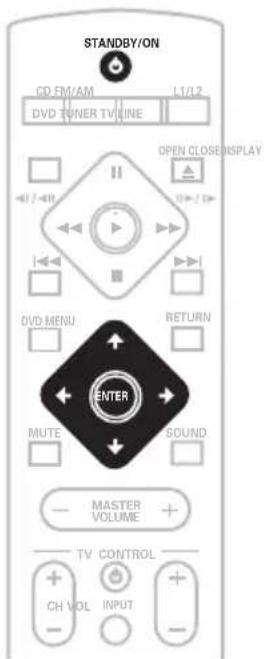
1 Press STANDBY/ON (on the remote or on the front panel) to switch the system on.
Also make sure that your TV is switched on and that the video input is set to this system.
You should see the welcome screen displayed.
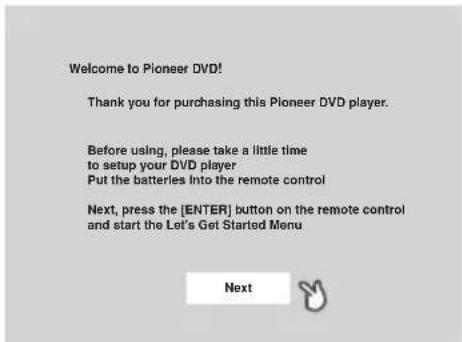
2 Press ENTER to move on to the next screen.
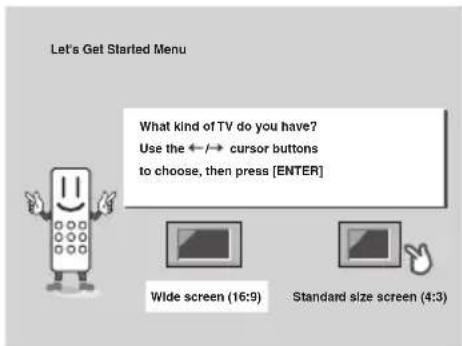
3 U s e t h e / (cursor left/right) buttons to select either 'Wide screen (16:9)' or 'Standard size screen (4:3)' according to the kind of TV you have, then press ENTER.
See also Screen sizes and disc formats on page 87 if you're not sure which one to choose.
4 Press ENTER again to finish setting up.
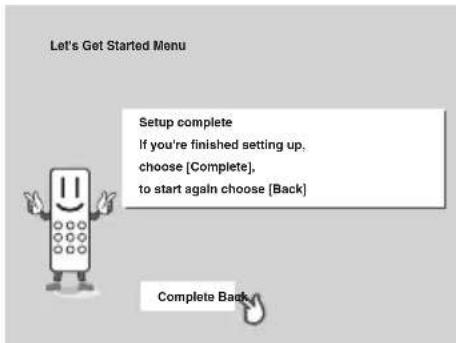
- Use the (cursor right) button to select Back then press ENTER if you want to go back and change the setting you just made.

Tip
- You can also use the function buttons (DVD/CD, TUNER, etc.) or the OPEN/CLOSE button to switch the system on from standby.
Setting the clock
Setting the clock allows you to use the timer features.
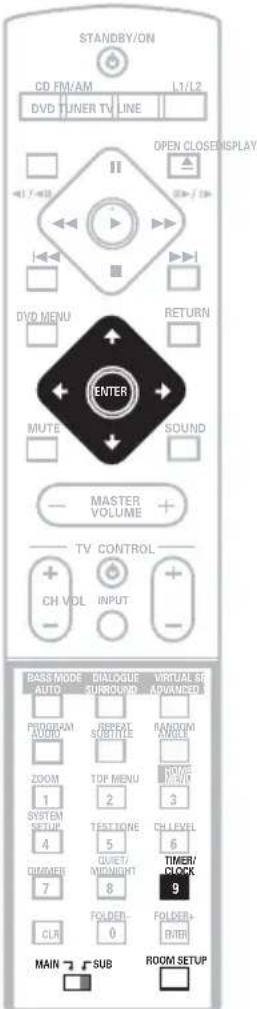
1 Press TIMER/CLOCK.
- If you are adjusting the clock, rather than setting it for the first time, press TIMER/CLOCK again.
2 If 'Clock ADJ?' isn't already showing in the display, press or (cursor left or right) until you see it.
3 Press ENTER.
4 Use the / (cursor up/down) buttons to set the hour.
5 Press ENTER.
6 Use the / (cursor up/down) buttons to set the minute.
7 Press ENTER to confirm.
The display flashes to indicate the clock is set.

Tip
- Press TIMER/CLOCK anytime to display the clock.

Note
- If you unplug the system from the wall outlet, or there is a power outage, you will need to set the clock again.
Setting up the remote to control your TV
You can set up the supplied remote to control your TV using the TV CONTROL buttons.
1 Switch on your TV.
2 Find the name of the manufacturer of your TV in the Preset code list on page 89
Next to each manufacturer is one or more three digit codes. These tell the remote what kind of TV you have.
If the name of the manufacturer of your TV does not appear in the table, you won't be able to set up this remote to control your TV.
3 Point the remote at your TV, hold down the CLR button, then enter the three digit code for your TV.
The remote transmits an on/off signal to the TV. If you've entered the correct code, your TV should switch off.
If your TV doesn't turn off, repeat the procedure using the next code in the list until your TV switches off successfully. Once set, you can then use the individual TV controls shown below.
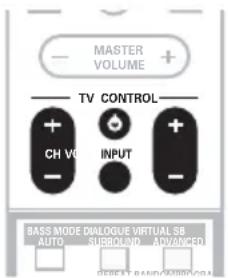
Button What it does
Switches your TV on or into standby.
CH + / - Changes the TV channel.
VOL + / - Adjusts the TV volume.
INPUT Switches the TV's input between the built in TV tuner and an external video source.

Note
- The default setting is for a Pioneer TV.
Using the Room Setup
Before using your system to enjoy surround sound playback, we recommend you spend a few minutes using the Room Setup. This is a quick and easy way to get good surround sound for your room.
Depending on the distance of the surround speakers from your main listening position, choose between S (small), M (medium), or L (large) room, then depending on your seating position relative to the front and surround speakers, choose Fwd (forward), Mid (middle), or Back.
1 If the system isn't already on, press
STANDBY/ON to switch it on.
2 Press ROOM SETUP.
- If you have previously set up the room type and seating position, the display will show the current room settings.
3 Press ENTER.
4 U s e t h e ↑/↓ (cursor up buttons to select a room type then press ENTER.
Choose one of the following depending on your room size:
- S - Smaller than average room
- M - Average room
L-Larger than average room
5 U s e t h e ↑/↓ (cursor up/down)
buttons to select a seating position setting, then press ENTER.
Choose one of the following depending on where your main listening position is:
- Fwd - If you are nearer to the front speakers than the surround speakers
- Mid - If you are equal distance from the front and surround speakers
- Back - If you are nearer to the surround speakers than the front speakers

Note
- The Room Setup automatically sets up both channel level and speaker distance. If you have already set the channel levels manually (see page 60) or speaker distance settings (see page 59), you will see Room Set? in the display when you first press the ROOM SETUP button.
-
Using the Room Setup will overwrite any previous settings you had for channel level and speaker distance.
-
For a more detailed surround sound setup, see Setting up surround sound on page 58.
Using the on-screen displays
For ease of use, this system makes extensive use of graphical on-screen displays (OSDs).
You should get used to the way these work as you'll need to use them when setting up the system, using some of the playback features, such as program play, and when making more advanced settings for audio and video.
All the screens are navigated in basically the same way, using the cursor buttons ( ,
, ) to change the highlighted item and pressing ENTER to select it.

Important
- Throughout this manual, 'Select' means use the cursor buttons to highlight an item on-screen, then press ENTER.

| Button What it does | |
| HOME MENU | Displays/exists the on-screen display |
| ←↑↓→ | Changes the highlighted menu item |
| ENTER | Selects the highlighted menu item (both ENTER buttons work in exactly the same way) |
| RETURN | Returns to the main menu without saving changes |

Tip
- The button guide at the bottom of every OSD screen shows you which buttons you'll need to use for that screen.
Playing discs
The basic playback controls for playing DVD, CD, SACD, Video CD and MP3 discs are covered here. Further functions are detailed in the chapter 5.

Important
Throughout this manual, the term 'DVD' means any kind of DVD disc (DVD-Video, DVD-Audio or DVD-R/RW).
1 If the player isn't already on, press STANDBY/ON to switch it on.
If you're playing a DVD or Video CD also turn on your TV and make sure that it is set to the correct video input.
2 Press OPEN/CLOSE to open the disc tray.
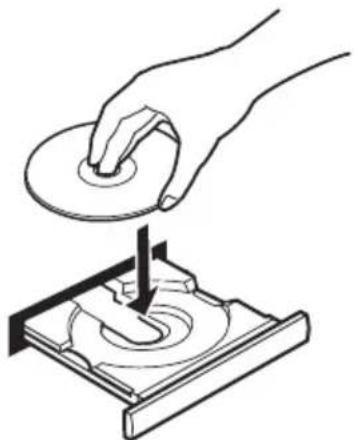
3 Load a disc.
Load a disc with the label side facing up, using the disc tray guide to align the disc (if you're loading a double-sided DVD disc, load it with the side you want to play face down).
4 Press (play) to start playback.
If you're playing a DVD or Video CD, a menu may appear. See DVD disc menus on page 26 and Video CD PBC menus on page 27 for how to navigate these.
If you're playing an MP3 disc, it may take a few seconds before playback starts, depending on the complexity of the file structure on the disc.
If you loaded a CD/CD-R/RW containing JPEGs, a slideshow will start. See Viewing JPEG discs on page 53 for more on playing these discs.
See also PhotoViewer on page 72 if the disc contains both MP3 audio files and JPEG picture files.
5 Use the MASTER VOLUME - / + button (or the top panel VOLUME buttons) to adjust the volume.
Basic playback controls
The table below shows the basic controls on the remote for playing discs. You can find other playback features in the chapter 5.
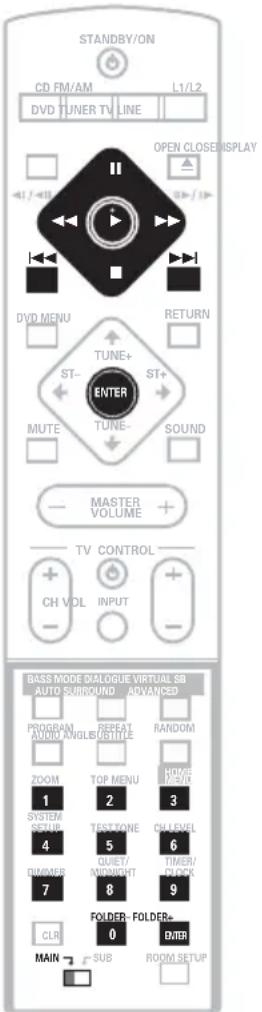
Button What it does
Starts playback.
DVD and Video CD: If the display shows Resume or Last Mem playback starts from the resume or last memory point (see also Resume and Last Memory below.)
| Button | What it does |
| ■ Pauses a disc that's playing, or restarts a paused disc. | |
| ■ Stops playback. DVD and Video CD: The display shows Resume. Press again if you want to cancel the resume function. (See also Resume and Last Memory below.) | |
| ▲ Press to start fast reverse scanning. Press▶ (play) to resume normal playback. | |
| ▲ Press to start fast forward scanning. Press▶ (play) to resume normal playback. | |
| ▲ Skips to the start of the current track or chapter, then to previous tracks/chapters. | |
| ▲ Skips to the next track or chapter. | |
| FOLDER +/- (SUB) | Skips to the next/previous folder when playing a JPEG or MP3 disc. |
| Numbers Use to enter a title/track/group/ chapter number. Press ENTER to select (or wait a few seconds). · If the disc is stopped, playback starts from the selected title/ group (for DVD-Video/DVD-Audio) or track number (for SACD/CD/Video CD/MP3). · If the disc is playing, playback jumps to the start of the selected chapter or track (within the current group for DVD-Audio). | |

Note
- You may find with some DVD discs that some playback controls don't work in certain parts of the disc. This is not a malfunction.
- Track skip and number buttons for track selection do not work with unfinalized CD-R/RW discs.
Using the top panel controls
The OPEN/CLOSE, / and (stop) buttons on the top panel work the same way as the remote control equivalents.
Resume and Last Memory
When you stop playback of a DVD or Video CD disc, Resume is shown in the display indicating that you can resume playback again from that point.
If the disc tray is not opened, the next time you start playback the display shows Resume and playback resumes from the resume point.
For DVD discs only: If you take the disc out of the player, the play position is stored in memory. When you load the disc next time, the display shows Last Mem and you can resume playback (this works for up to five discs).
If you want to clear the resume/last memory point, press (stop) while Resume or Last Mem is displayed.

Note
- When a Video CD is loaded, the Resume point is lost if the system is switched off, or switched to a function other than DVD (CD).
-
For the Last Memory function to work, you must press (stop) to stop playback before opening the disc tray.
-
Resume and Last Memory are not available with DVD-Audio discs.
- The Last Memory function doesn't work with VR format DVD-RW discs.
- With MP3 format discs, playback does not resume. Instead, playback begins of the first track of the folder containing the file that was playing when playback was stopped.

FAQ
After I load a DVD disc, it ejects automatically after a few seconds!
Most likely, the disc is the wrong region for your system. The region number should be printed on the disc; check it against the region number of the system (which you can find on the rear panel). See also DVD Video regions on page 78. If the region number is OK, it may be that the disc is damaged or dirty. Clean the disc and look for signs of damage. See also Using and taking care of discs on page 78.
- Why won't the disc I loaded play?
First check that you loaded the disc the right way up (label side up), and that it's clean and not damaged. See Using and taking care of discs on page 78 for information on cleaning discs.
If a disc loaded correctly won't play, it's probably an incompatible format or disc type, such as DVD-ROM. See General disc compatibility on page 10 for more on disc compatibility. - I have a widenscreen TV so why are there black bars at the top and bottom of the screen when I play some discs?
Some movie formats are such that even when played on a widescreen TV, black bars are necessary at the top and bottom of the screen. This is not a malfunction.
- I have a standard (4:3) TV and set the system to show widescreen DVDs in pan & scan format, so why do I still get black bars top and bottom with some discs?
Some discs override the display preferences of the system, so even if you have 4:3 (Pan & Scan) selected, those discs will still be shown in letterbox format. This is not a malfunction.
- Why can't I hear DVD-Audio and SACD audio through the digital outputs?
DVD-Audio and SACD audio is only available through the analog outputs. This is not a malfunction. - My DVD-Audio disc starts playing, but then suddenly stops!
The disc may have been illegally copied.
DVD disc menus
Many DVD-Video and DVD-Audio discs contain menus from which you can select what you want to watch or listen to. They may give access to additional features, such as subtitle and audio language selection, or special features such as slideshows. See the disc packaging for details.
Sometimes DVD menus are displayed automatically when you start playback; others only appear when you press DVD MENU or TOP MENU.

Important
- Some DVD-Audio discs feature a bonus group. To access this group you have to input a password which you can find on the disc packaging. See page 70 for more information.
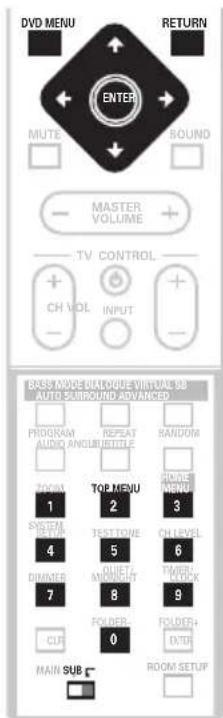
Button What it does
| TOP MENU | Displays the 'top menu' of a DVD disc—this varies with the disc. |
| DVD MENU | Displays a DVD disc menu—this varies with the disc and may be the same as the 'top menu'. |
| ←↑↓→ | Moves the cursor around the screen. |
| ENTER | Selects the current menu option. |
| RETURN | Returns to the previously displayed menu screen. On some DVD-Audio discs featuring browsable pictures, press to display the browser screen. |
| Numbers (MAIN) | Highlights a numbered menu option (some discs only). Press ENTER to select (or wait a few seconds). |
Video CD PBC menus
Some Video CDs have menus from which you can choose what you want to watch. These are called PBC (Playback control) menus.
You can play a PBC Video CD without having to navigate the PBC menu by pressing (stop) then starting playback using a number button to select a track, rather than (play) (or on the top panel).
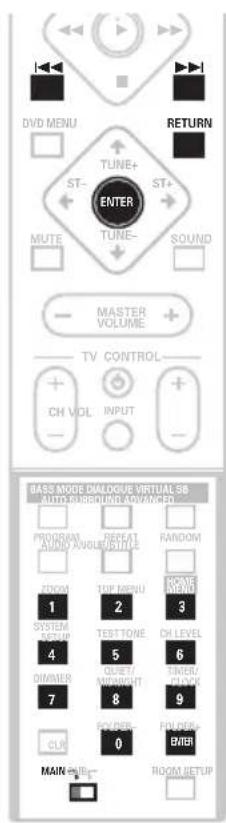
Button What it does
RETURN Displays the PBC menu.
Numbers Selects a numbered menu option.
Displays the previous menu page (if there is one).
▶▶1 Displays the next menu page (if there is one).
ENTER Press to select highlighted menu option.
Listening to the radio
The tuner can receive both FM and AM broadcasts, and lets you memorize your favorite stations so you don't have to manually tune in every time you want to listen.
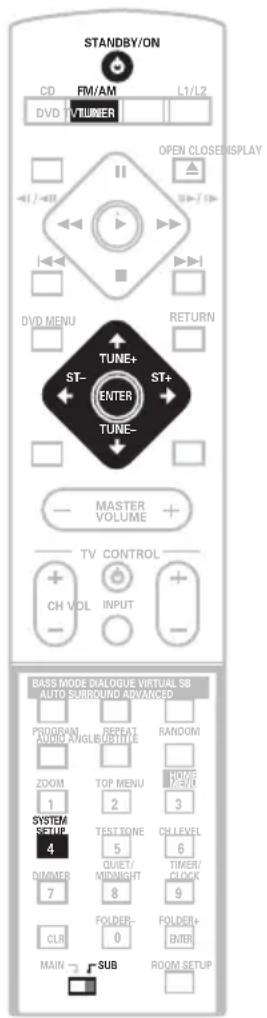
1 If the system isn't already on, press
STANDBY/ON to switch on.
2 Press TUNER to switch to the tuner, then press repeatedly to select the AM or FM band.
The display indicates the tuner band and the frequency.
3 Tune to a frequency.
There are three tuning modes—manual, auto, and high-speed:
- Manual tuning: Press TUNE +/- repeatedly to change the displayed frequency.
- Auto tuning: Press and hold TUNE +/- until the frequency display starts to move, then release. The tuner will stop on the next station it finds. Repeat to search for other stations.
- High-speed tuning: Press and hold TUNE +/- until the frequency display starts to move rapidly. Keep the button held down until you reach the frequency you want. If necessary, fine tune the frequency using the manual tuning method.
Improving poor FM reception
If you're listening to an FM station in stereo but the reception is weak, you can improve the sound quality by switching to mono.
1 Tune to an FM radio station.
2 Press SYSTEM SETUP.
3 Use the / (cursor left/right) buttons to choose 'FM Mode?' then press ENTER.
4 Use the / (cursor up/down) buttons to select 'FM Mono' then press ENTER.
The mono indicator (rights when the tuner is in mono reception mode.
Select FM Auto above to switch back to auto-stereo mode (the stereo indicator (rights when receiving a stereo broadcast).
Memorizing stations
You can save up to 30 station presets so that you always have easy access to your favorite stations without having to tune in manually each time.
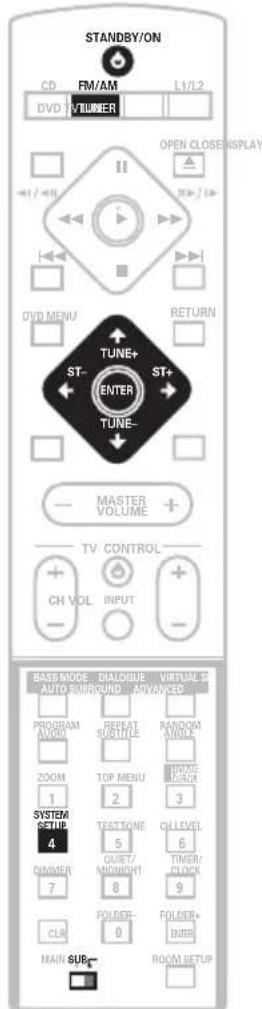
1 Tune to an AM or FM radio station.
For the FM band, select mono or auto-stereo reception as necessary. This setting is saved along with the preset.
2 Press SYSTEM SETUP.
3 U s e t h e (cursor left/right)
buttons to choose 'St. Memory?' then
press ENTER.
4 U s e t h e ↑/↓ (cursor up/down) buttons to select the station preset you want.
There are 30 preset locations; each can store one station preset.
5 Press ENTER to save the station preset.

Note
- If the system is unplugged from the power supply completely, saved stations will remain for several days, after which you'll have to save them again.
Listening to station presets
1 Make sure the TUNER function is selected.
2 Use the ST + / - buttons to select a station preset.
Listening to other sources
ght can connect up to four external sources (TV, satellite receiver, etc.) to this system, including two digital source. See also Connecting auxiliary components on page 73.
1 If the system isn't already on, press STANDBY/ON to switch on.
Also make sure that the external source (TV, satellite receiver, etc.) is switched on.
2 Select the source you want to listen to.
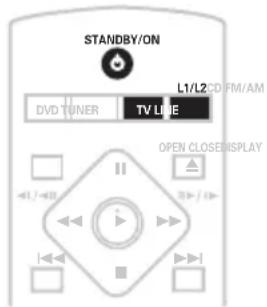
- Press TV to select the TV input, or use the LINE (L1/L2) button to select the LINE 1 ANA, LINE1 DIG or LINE 2 ANA, LINE 2 DIG input.
3 If necessary, start playback of the external source.
Chapter 4 Home theater sound
Using this system you can enjoy listening to sources, analog or digital, in either stereo or surround sound.
Auto listening mode
The Auto listening mode is the simplest way to listen to any source as it was mastered: the output from the speakers mirrors the channels in the source material.
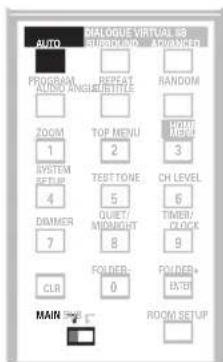
- Press AUTO to select the 'Auto' listening mode.
If the source is Dolby Digital or DTS, the DIGITAL or DTS indicator on the display unit lights.

Note
- Any previously active Dolby Pro Logic or Advanced Surround mode is canceled when Auto listening mode is selected.
Listening in surround sound
You can listen to any source—stereo or multichannel, analog or digital—in surround sound. Surround sound is generated from stereo sources (except SACD and DVD-Audio) using one of the Dolby Pro Logic decoding modes.

- Press SURROUND repeatedly to select a listening mode (or press SURROUND then use the / (cursor up/down) buttons).
The listening mode choices that appear in the display will vary according to the type of source that's playing.
- Auto - Auto listening mode (see above)
- Dolby Digital / DTS - Dolby Digital or DTS decoding (depending on the source). For a multichannel source, this will be the same as Auto.
- Pro Logic - 4.1 channel surround sound for use with any two-channel source
-
PL II Movie - Pro Logic II 5.1 channel surround sound, especially suited to movie sources, for use with any two-channel source
-
PL II Music - Pro Logic II 5.1 channel surround sound, especially suited to music sources, for use with any two-channel source (see also Dolby Pro Logic II Music settings below)
- Stereo - See Listening in stereo below

Tip
See also Using the Advanced Surround effects below, for further stereo and surround playback options.

Note
- You can't use the Surround modes with SACD, DVD-Audio and 96 kHz PCM sources.
- When headphones are connected, only the Stereo option is available.
- When listening in Dolby Digital / DTS mode, two-channel material will automatically be played in surround sound using Dolby Pro Logic decoding.
- Dolby Digital / DTS sources that use only the center channel cannot be played back in surround sound.
Dolby Pro Logic II Music settings
When listening in Dolby Pro Logic II Music mode, there are three further parameters you can adjust: Center Width, Dimension, and Panorama.
Default Settings:
CWidth:3
Dimen.: 0
Pnrm.: Off
1 With Dolby Pro Logic II Music mode active, press SOUND.
2 U s e t h e / (cursor left/right buttons to select 'C Width', 'Dimen.' or 'Pnrm.'
- C Width (Center Width): Makes the center channel wider (higher settings) or narrower (lower settings)
- Dimen. (Dimension): Makes the sound more distant (minus settings), or more forward (positive settings)
- Pnrm. (Panorama): Creates more spacious surround sound
3 U s e t h e / (cursor up/down) buttons to adjust the setting.
Center Width is adjustable between 0 and 7; Dimension between -3 and +3. Panorama is On or Off.
4 Press ENTER to confirm.
Listening in stereo
You can listen to any source—stereo or multichannel, analog or digital—in stereo. When playing a multichannel source, stereo sound is created by downmixing all channels to the front left/right speakers and the subwoofoer.
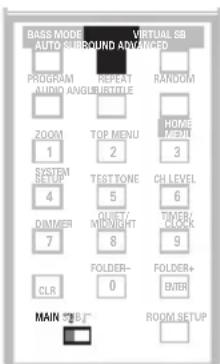
- Press SURROUND repeatedly until 'Stereo' shows in the display.
Any active Advanced Surround mode is canceled.

Tip
See also Using the Advanced Surround effects below, for further stereo and surround playback options.
Listening with headphones
When headphones are connected, only the Stereo (default) and Phones Surround (virtual surround sound for headphones) modes are available.
- With headphones connected, press ADVANCED to select 'Phones Surround' or SURROUND to select 'Stereo'.
Using the Advanced Surround effects
Advanced Surround effects can be used with multichannel or stereo sources for a variety of additional surround sound effects.
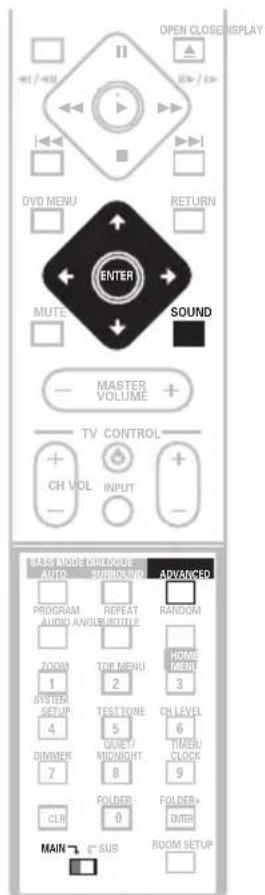
- Press ADVANCED to select an Advanced Surround mode (or press ADVANCED then use the / (cursor up/down) bottoms).
Press repeatedly to select from:
- Adv. Music - Gives a concert hall-type sound
- Adv. Movie - Gives a movie theater-type sound
- Expanded - Creates an extra wide stereo field
-
TV Surr. - Designed for mono or stereo TV broadcasts and other sources
-
Sports - Designed for sports and other programs based on commentary
- Game - Creates surround sound from video game sources
- ExPwrSurr. (Extra Power Surround) - Gives additional energy and width to stereo sources
- Virtual - Creates the impression of surround sound from just the front speakers
- 5ch Stereo - Designed to give powerful surround sound to stereo music sources

Note
- You can't use the Advanced Surround modes with SACD, DVD-Audio and 96 kHz PCM sources.
- You can use any of the above Advanced Surround modes with any type of source. The descriptions are given only as a guide.
- When headphones are connected, only the Phones Surround option is available.
Adjusting the Advanced Surround effect level
You can emphasize or reduce the effect of the Advanced Surround modes as you like. For each Advanced Surround mode you can set the effect level independently.
1 With one of the Advanced Surround modes active, press SOUND.
2 U s e t h e (cursor left/right) buttons to select 'Effect'.
3 U s e t h e / (cursor up/down) buttons to adjust the effect level.
The effect level can be adjusted from 10 (min) to 90 (max).
4 Press ENTER to confirm.
Enhancing dialogue
- Default setting: Dialog Off The Dialogue Enhancement feature is designed to make the dialog stand out from other background sounds in a TV or movie soundtrack.
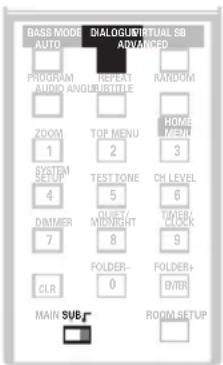
- Press DIALOGUE to select the amount dialog enhancement.
Press repeatedly to select from:
- Dialog Off - No dialog enhancement
- Dialog Mid - Moderate dialog enhancement
- Dialog Max - Strong dialog enhancement

Note
- You can't use Dialog Enhancement with SACD, DVD-Audio and 96 kHz PCM sources.
Listening with a virtual surround back speaker
- Default setting: Vir. SB Off
The Virtual Surround Back feature can be used when listening in surround sound to simulate an added surround back channel. In a real theater the surround back speaker would be directly behind you, creating more cohesive and realistic surround sound.
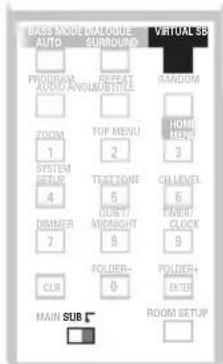
- Press VIRTUAL SB repeatedly to switch between 'Vir. SB On' and 'Vir. SB Off'.

Note
- You can't use Virtual Surround Back when listening in Stereo or Virtual listening modes.
- You can't use Virtual Surround Back when headphones are connected.
- If there is no surround channel, Virtual Surround Back has no effect.
- You can't use the Virtual Surround Back effect with SACD, DVD-Audio and 96 kHz PCM sources.
Using Quiet and Midnight listening modes
- Default setting: Off
The Quiet listening feature reduces excessive bass or treble in a sound source. You can use this feature if the music is a little bit harsh and you would like a smoother sound.
The Midnight listening feature allows you to hear effective surround sound of movies at low volume levels. The effect automatically adjusts according to the volume at which you're listening.
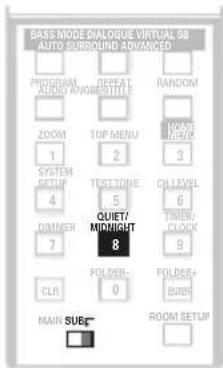
- Press QUIET/MIDNIGHT repeatedly to switch between 'Quiet', 'Midnight' and 'Off'.

Note
When the headphones are connected, you can't set Quiet/Midnight in the following cases:
- When an SACD or DVD-Audio disc is loaded.
Adjusting the bass and treble
- Default setting: Treble: 0, Bass: 0
Use the bass and treble controls to adjust the overall tone. Bass and treble adjustment is not possible when the Quiet or Midnight modes are active.
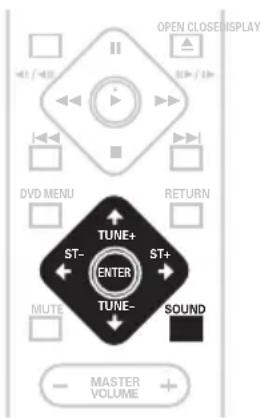
1 Press SOUND.
2 U s e t h e (cursor left/right) buttons to select 'Bass' or 'Treble'.
3 U s e t h e / (cursor up/down) buttons to adjust the sound.
The bass and treble can be adjusted from -3 to +3.
4 Press ENTER to confirm.

Note
When the headphones are connected, you can't adjust treble/bass in the following cases:
- When Recording Mode is ON
- When an SACD or DVD-Audio disc is loaded.
Boosting the bass level
There are three bass modes you can use to enhance the bass in a source.
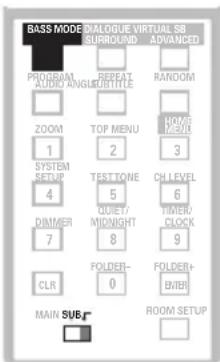
- Press BASS MODE repeatedly to choose an option that fits the source you're listening to.
Music - Can be used with music to give a deeper bass sound
- Cinema - Good for action movies or (ht) movies with lots of sound effects
P. Bass - Can be used with music sources n) to bring the beat of the music (or soundtrack) to the forefront
- Off

Note
- You can't use the bass mode with SACD and DVD-Audio sources.
- You can't use the bass mode when the headphones are connected.
Muting the sound
Use the MUTE button if you need to momentarily turn off all sound from the speakers.
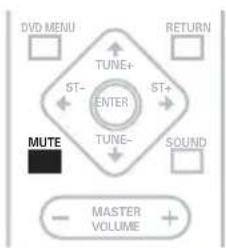
- Press MUTE to mute the volume.
To cancel, adjust the volume or press MUTE again.
Chapter 5 Playing discs
Introduction
Most of the features described in this chapter make use of on-screen displays. For an explanation of how to navigate these, see Using the on-screen displays on page 22.
Many of the functions covered in this chapter apply to DVD and SACD discs, Video CDs, CDs and MP3/JPEG discs, although the exact operation of some varies slightly with the kind of disc loaded.
Some DVD discs restrict the use of some functions (random or repeat, for example). This is not a malfunction.
When playing Video CDs, some of the functions are not available during PBC playback. If you want to use them, start the disc playing using a number button to select a track.

Remember
- To access functions printed in green on the remote, move the slider switch from MAIN to SUB.
Using the Disc Navigator to browse the contents of a disc
Use the Disc Navigator to browse through the contents of a disc to find the part you want to play. You can use the Disc Navigator when a disc is playing or stopped.
1 Press HOME MENU and select 'Disc Navigator' from the on-screen display. Alternatively, if a VR format DVD-RW, CD, Video CD or MP3/JPEG disc is loaded, you can press DVD MENU, which takes you straight to the Disc Navigator screen.
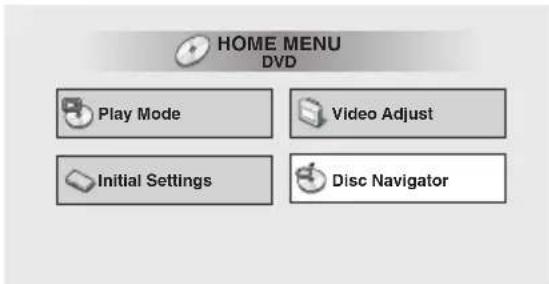
2 Select what you want to play.
Depending on the type of disc you have loaded, the Disc Navigator looks slightly different.
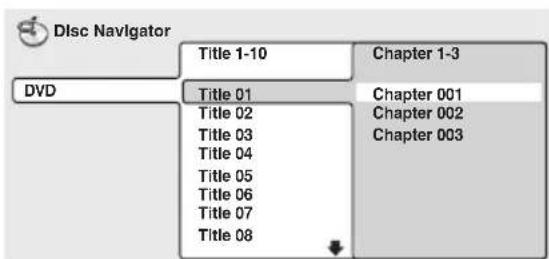
The screen for DVD-Video discs shows the titles on the left and the chapters on the right. Select a title, or a chapter within a title.
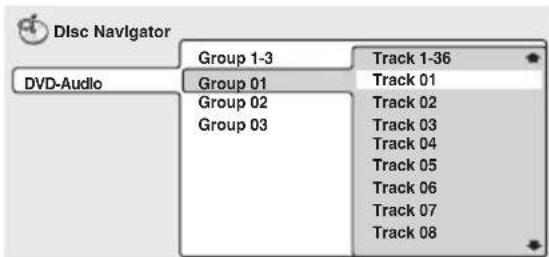
For DVD-Audio, select a group or a track within a group.
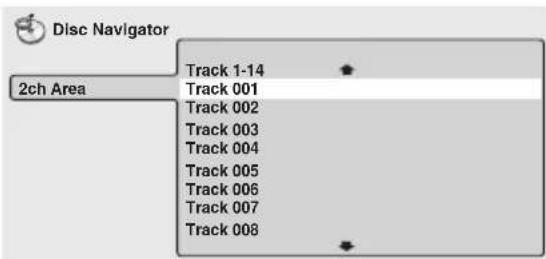
For SACD, select a track within the current playback area.
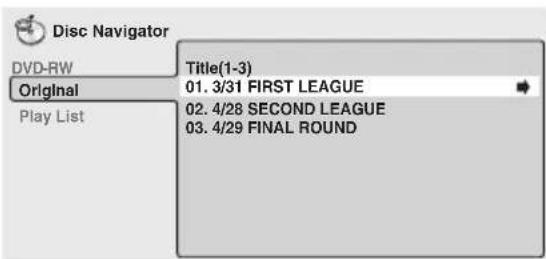
For a VR (Video Recording) mode DVD-RW disc select between the Playlist and Original areas of the disc, or a title. Press (cursor right) to preview the title.
It's not possible to switch between Original and Playlist during playback.
- Not all VR format DVD-RW discs have a Playlist.
The screen for CDs and Video CDs shows a list of tracks. (The screen below shows a CD loaded.)
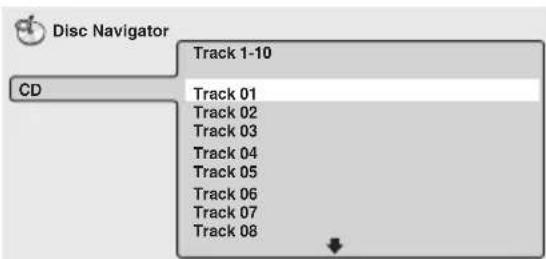
The screen for an MP3 disc shows the folder names on the left and the track names on the right (note that if there are more than 16 folders or names that contain accented or non-roman characters, tracks and folders may show up with generic names - F_033, T_035, etc.).
Select a folder, or a track within a folder.
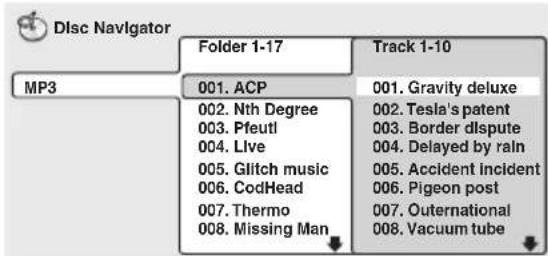
Playback starts after you press ENTER.

Tip
- The Disc Navigator is not available unless there is a disc loaded.
- It's not possible to use the Disc Navigator when playing a Video CD in PBC mode, or an unfinalized CD-R/RW disc.
Another way to find a particular place on a disc is to use one of the search modes. See Searching a disc on page 47.
Scanning discs
You can fast-scan discs forward or backward at various different speeds.
1 During playback, press or to start scanning.
2 Press repeatedly to increase the scanning speed.
- MP3 tracks can only be scanned at one speed.
- The scanning speed is shown on-screen.
3 To resume normal playback, press (play).

Note
Sound can be heard while scanning audio CDs, SACD and MP3 discs.
- When scanning a Video CD or MP3 track, playback automatically resumes at the end or beginning of the track.
- There is no sound while scanning DVD-Videos and Video CDs, and no subtitles while scanning DVD-Videos.
Depending on the disc, normal playback may automatically resume when a new chapter is reached on a DVD-Video disc.
Playing in slow motion
You can play DVD-Video, DVD-R/RW and Video CDs at four different forward slow motion speeds. DVD-Videos and DVD-R/RW discs can also be played at two reverse speeds.
1 During playback, press II (pause) ( / on the top panel).
2 Press and hold / or / until slow motion playback starts.
- The slow motion speed is shown on-screen.
- There is no sound during slow motion playback.
3 Press repeatedly to change the slow motion speed.
- The slow motion speed is displayed on-screen.
4 To resume normal playback, press (play).

Note
Video CD only supports forward slow motion playback.
- The picture quality during slow motion playback is not as good as during normal playback.
Depending on the disc, normal playback may automatically resume when a new chapter is reached.
Frame advance/frame reverse
You can advance or back up DVD-Video or VR format DVD-RW discs frame-by-frame. With Video CDs, you can only use frame advance.
1 During playback, press II (pause) ( / on the top panel).
2 Press / or / to reverse or advance a frame at a time.
3 To resume normal playback, press (play) ( / ) on the top panel).

Note
- The picture quality when using frame reverse is not as good as frame advance.
Depending on the disc, normal playback may automatically resume when a new chapter is reached. - When changing direction with a DVD disc, the picture may 'move' in an unexpected way. This is not a malfunction.
Looping a section of a disc
The A-B Repeat function allows you to specify two points (A and B) within a track (CD and Video CD) or title (DVD-Video and DVD-RW) that form a loop which is played over and over.

Important
- You can't use A-B Repeat with MP3 discs, DVD-Audio, SACD, Video CDs in PBC mode or unfinalized CD-R/RW discs.
1 During playback, press HOME MENU and select 'Play Mode'.
2 Select 'A-B Repeat' from the list of functions on the left.
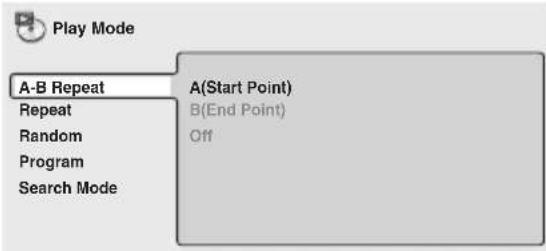
3 Press ENTER on 'A(Start Point)' to set the loop start point.
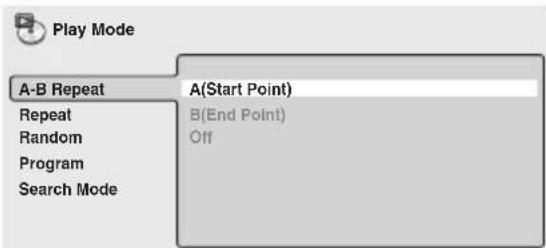
4 Press ENTER on 'B(End Point)' to set the loop end point.
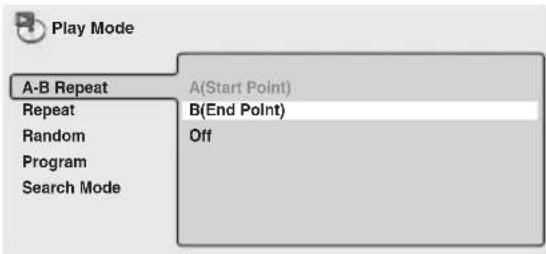
After pressing ENTER, playback jumps back to the start point and plays the loop.
The minimum loop time is 2 seconds.
5 To resume normal playback, select 'Off' from the menu.
Using repeat play
There are various repeat play options, depending on the kind of disc loaded. It's also possible to use repeat play together with program play to repeat the tracks/chapters in the program list (see Creating a program list on page 44).

Important
- You can't use Repeat play with Video CDs in PBC mode, or unfinalized CD-R/RW discs.
Using the OSD
1 During playback, press HOME MENU and select 'Play Mode'.
2 Select 'Repeat' from the list of functions on the left.
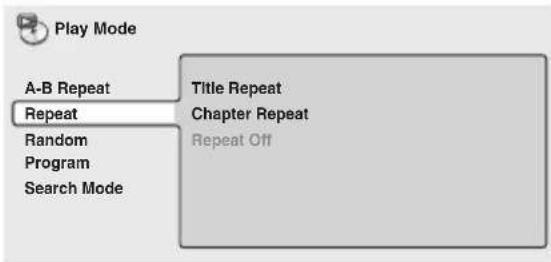
3 Select a repeat play option.
If program play is active, select Program Repeat to repeat the program list, or Repeat Off to cancel.
For DVD-Video and DVD-RW discs, select Title Repeat or Chapter Repeat (or Repeat Off).
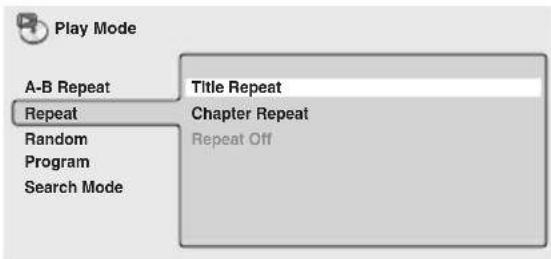
For DVD-Audio discs, select Group Repeat or Track Repeat (or Repeat Off).
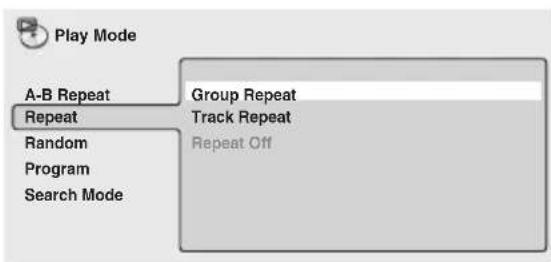
For SACDs, CDs and Video CDs, select Disc Repeat or Track Repeat (or Repeat Off).
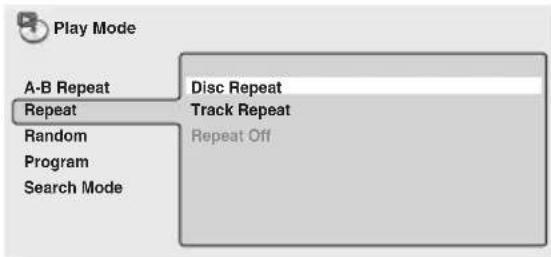
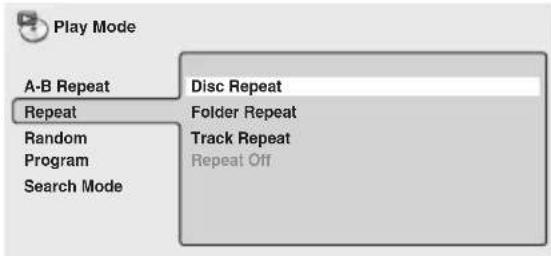
For MP3 discs, select Disc Repeat, Folder Repeat or Track Repeat (or Repeat Off).
Using the display unit
- During playback, press REPEAT to select a repeat play option.
Press repeatedly until the repeat play option you want is shown in the display.
The repeat options are the same as those available from the OSD (see above).

Tip
If you've created a program list, Program Repeat is also available.
- During playback, you can cancel repeat play by pressing CLR.

Note
- You can't use repeat and random play at the same time.
- If you switch camera angle during repeat play, repeat play is canceled.
Using random play
Use the random play function to play titles or chapters (DVD-Video), groups or tracks (DVD-Audio), or tracks (SACD, CD, Video CD and MP3 discs) in a random order.
You can set the random play option when a disc is playing or stopped.

Important
- You can't use random play with VR format DVD-RW discs, Video CDs playing in PBC mode or while a DVD disc menu is being displayed.
Using the OSD
1 During playback, press HOME MENU and select 'Play Mode'.
2 Select 'Random' from the list of functions on the left.
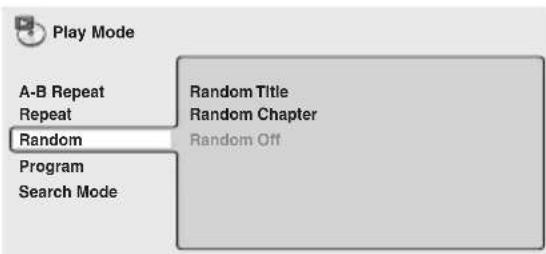
3 Select a random play option.
For DVD-Video discs, select Random Title or Random Chapter, (or Random Off).
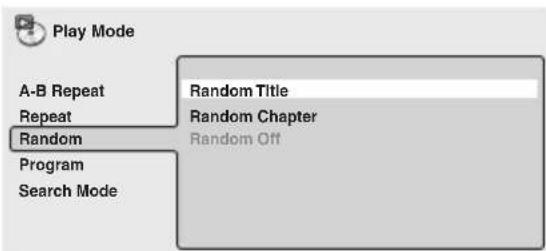
For DVD-Audio discs, select Random Group or Random Track (or Random Off).
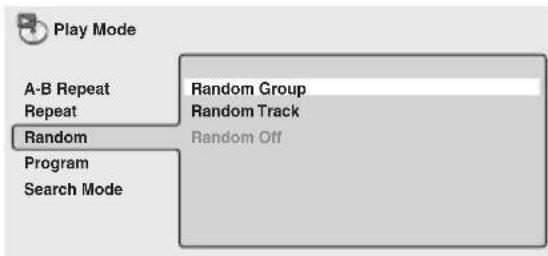
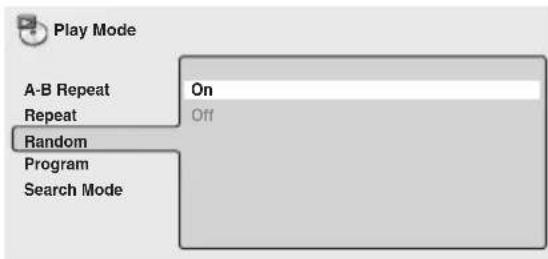
For CDs and Video CDs, select On or Off to switch random play on or off.
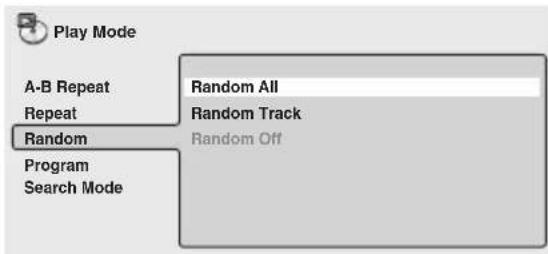
For MP3 discs, select Random All (all folders) or Random Track (current folder only), (or Random Off).

Tip
-
You can also use the RANDOM button on the remote to select a random play mode. The random mode is indicated in the display unit and on-screen. The random modes available are the same as when choosing from the Play Mode menu. Press ENTER to start random play.
-
To stop the disc and cancel random playback, press (stop).
-
To cancel random playback without stopping playback, press CLR. The disc will play to the end, then stop.
-
During random play, the and buttons function a little differently to normal: returns to the beginning of the current track/chapter. You can't go back further than this. selects another track/chapter at random from those remaining.
-
You can't use random play together with program or repeat play.
Creating a program list
This feature lets you program the play order of titles/groups/chapters/folders tracks on a disc.

Important
- You can't use Program play with VR format DVD-RW discs, Video CDs playing in PBC mode, or while a DVD disc menu is being displayed.
Using the OSD
1 During playback, press HOME MENU and select 'Play Mode'.
2 Select 'Program' from the list of functions on the left.
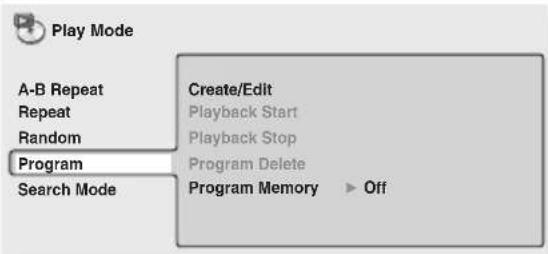
3 Select 'Create/Edit' from the list of program options.
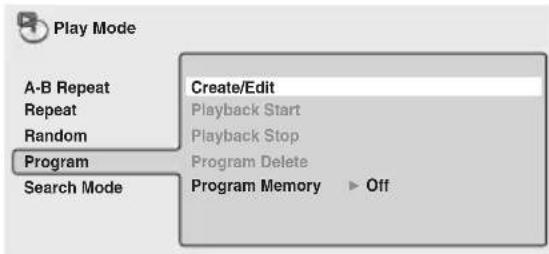
The Program edit screen that appears depends on the kind of disc loaded.
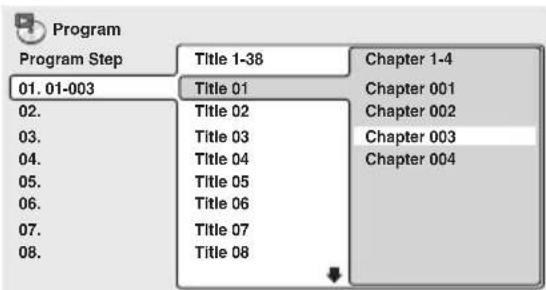
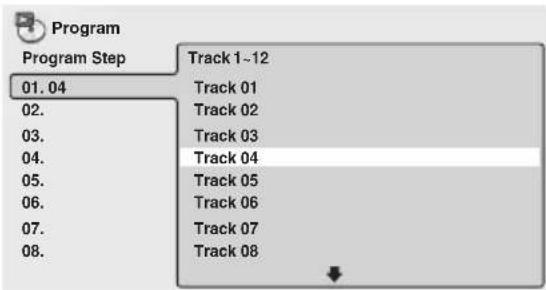
On the left side is the program list, then to the right is a list of titles (if a DVD-Video disc is loaded), groups (for DVD-Audio), tracks (for SACDs, CDs and Video CD), or folder names (for MP3 discs). On the far right is a list of chapters (for DVD-Video) or track names (for MP3).
4 Select a title, chapter, group, folder or track for the current step in the program list.
For a DVD-Video disc, you can add a whole title, or a chapter within a title to the program list.
- To add a title, select the title.
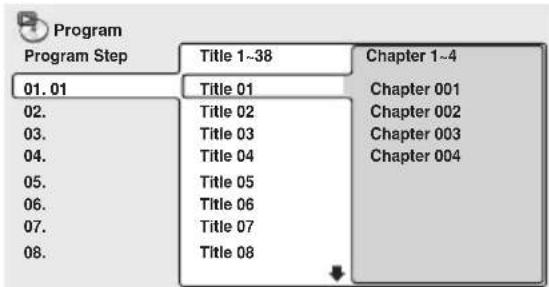
- To add a chapter, first highlight the title, then press (cursor right) and select a chapter from the list.
For a DVD-Audio disc, you can add a whole group, or a track within a group to the program list.
- To add a group, select the group.
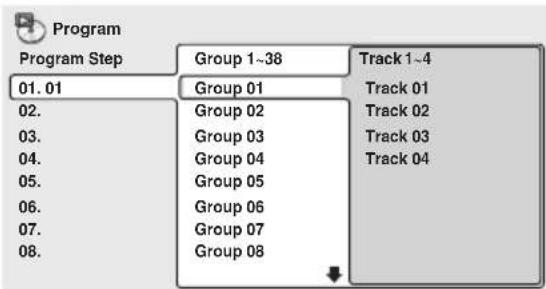
- To add a track, first highlight the group, then press (cursor right) and select a track from the list.
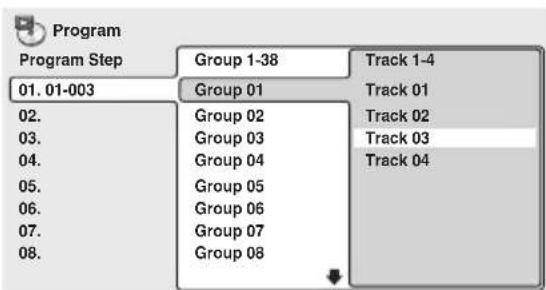
For an SACD, CD or Video CD, select a track to add to the program list.
For an MP3 disc, you can add a whole folder, or a track within a folder to the program list.
- To add a folder, select the folder.
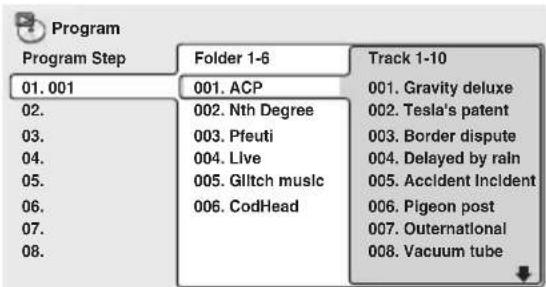
- To add a track, first find the folder, then press (cursor right) and select a track name from the list.
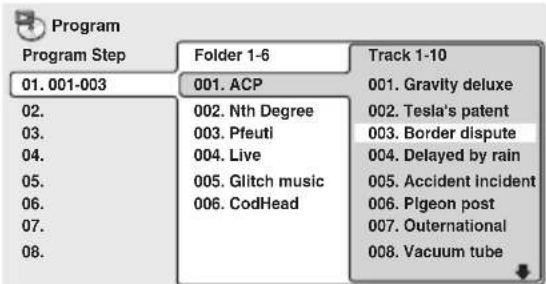
After pressing ENTER to select the title/ chapter/group/folder/track, the step number automatically moves down one.
5 Repeat step 4 to build up a program list.
A program list can contain up to 24 titles/chapters/group/folders/tracks.
6 To play the program list, press (play).
Program play remains active until you turn off program play (see below), erase the program list (see below), eject the disc or switch off the player or switched to a function other than DVD (CD).

Tip
- To save your program list and exit the program edit screen without starting playback, press HOME MENU. (Don't press RETURN - your program list won't be saved.)
- During program play, press▶▶I to skip to the next program step.
- Press CLR during playback to switch off program play. Press while stopped to erase the program list.
Editing a program list using the OSD
After creating a program list, you can add, delete and change steps.
1 During playback, press HOME MENU and select 'Play Mode'.
2 Select 'Program' from the list of functions on the left.
3 Select 'Create/Edit' from the list of program options.
4 To clear a step, highlight the step number and press CLR.
5 To insert a step in the middle of the program list, highlight the step where you want the new step to appear, then select a title/chapter/group/folder/track to add.
After pressing ENTER, the new step is inserted into the list.
6 To add a step to the end of the program list, highlight the next free step then select a title/chapter/group/folder/ track to add.

Tip
- To save your program list and exit the program edit screen without starting playback, press HOME MENU.
- If you want to exit the program edit screen without saving the changes you made, press RETURN.
Other functions available from the OSD program menu
As well as creating and editing a program list, you can start program play, cancel program play, erase the program list, and memorize a program list from the Play Mode menu.
1 During playback, press HOME MENU and select 'Play Mode'.
2 Select 'Program' from the list of functions on the left.
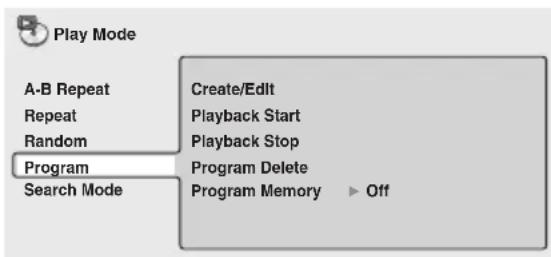
3 Select a program play function.
Create/Edit - See above
- Playback Start - Starts playback of a saved program list
- Playback Stop - Turns off program play, but does not erase the program list
- Program Delete - Erases the program list and turns off program play
- Program Memory (DVD-Video only) - Select On to save the program list for the disc loaded. (Select Off to cancel the program memory for the disc loaded)

Note
-
Program lists are saved for the DVD disc loaded. When you load a disc with a saved program list, program play is automatically turned on.
-
You can save program lists for up to 24 discs. After that, the oldest one is replaced with the new one saved.
Using the unit display
Even though the OSD is available for SACDs, CDs and MP3 discs, the Display unit provides enough information to make a program list easily. If a disc is playing, stop it first.
1 Press PROGRAM.
You're prompted to enter a track or folder for the first step in the program list.

2 Use / (cursor up/down) to set track or a folder, then press ENTER.

- For MP3 discs only: To select an individual track within a folder, use the ↑/↓ (cursor up/down) buttons to select the folder, then press →, then use ↑/↓ (cursor up/down) to select a track. Press ENTER.
Wait for the display to prompt you after completing each selection. If you make a mistake, press CLR to delete the last (most recently) programmed track.
3 Repeat step 2 to build up a program list.
A program list can contain up to 24 steps.
4 To play the program list, press (play).
Program play remains active until you press (stop), clear the playlist (see below), eject the disc or switch off the player.
Clearing the program list
You must clear the program list to program a new one.
1 If a disc is playing, press (stop).
2 Press CLR.
Searching a disc
You can search DVD-Video discs by title or chapter number, or by time. DVD-Audio discs can be searched by group or track, or by page. SACDs, CDs can be searched by track number, and Video CDs by track number or time. MP3 discs can be searched by folder or track number.
1 During playback, press HOME MENU and select 'Play Mode'.
2 Select 'Search Mode' from the list of functions on the left.
Select search options that appear depend on the kind of disc loaded. The screen below shows the DVD-Video search options.
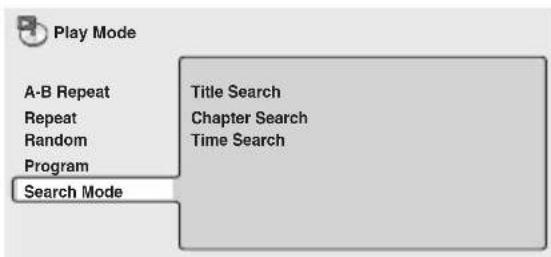
3 Select a search mode.
4 Use the number buttons to enter a title, group, chapter, folder or track number, or a time or a page.
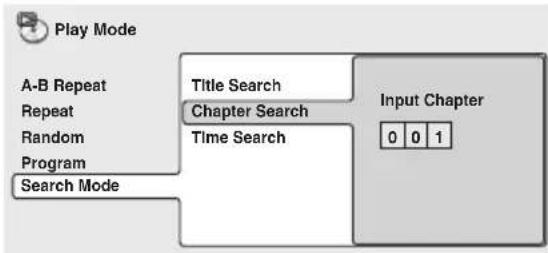
- For a time search, enter the number of minutes and seconds into the currently playing title (DVD-Video/DVD-RW) or track (Video CD) you want playback to resume from.
For example, press 4, 5, 0, 0 to have playback start from 45 minutes into the disc. For 1 hour, 20 minutes and 30 seconds, press 8, 0, 3, 0.
- Some DVD-Audio discs feature pages of browsable pictures. Enter the page number you want.
5 Press ENTER to start playback.

Note
- You can only use time search with DVD-Video and Video CD discs.
The disc must be playing in order to use time search.
Search functions are not available with Video CDs in PBC mode, or unfinalized CD-R/RW discs. - With more than two SACD discs you may not be able to select the first track of discs after the second disc.
Playing DVD-Audio 'Bonus Groups'
Some DVD-Audio discs have an extra 'bonus' group that requires a 4-digit key number to access. See the disc packaging for details and the key number. When you try and play the bonus group, the player will automatically ask you for the key number.
1 Use the number buttons to enter the 4-digit key number.
- It's also possible to enter the key number from the Options menu. See page 70.
Switching subtitles
Some DVD-Video discs have subtitles in one or more languages; the disc box will usually tell you which subtitle languages are available. You can switch subtitle language during playback.
- Press SUBTITLE repeatedly to select a subtitle option.

Current / Total
Subt1le English1/2

Note
- Some discs only allow you to change subtitle language from the disc menu. Press TOP MENU to access.
- To set subtitle preferences, see Subtitle Language on page 66.
Switching DVD-Video audio language
When playing a DVD-Video disc recorded with dialog in two or more languages, you can switch audio language during playback.
- Press AUDIO repeatedly to select an audio language option.

Current /Total
Audio French Dolby Digital 3/2.1CH1/2

Note
- Some discs only allow you to change audio language from the disc menu. Press TOP MENU to access.
To set audio language preferences, see Audio Language on page 66.
Switching DVD-Audio audio channels
Depending on the disc, you may be able to switch channels when playing DVD-Audio discs—see the disc box for details.
1 Press AUDIO repeatedly to select an audio channel option.

Audio Linear PCM 192kHz24bit
Digital Out Converted
2CH
When you change the audio channel, playback restarts from the beginning of the current track.

Note
- Some discs only allow you to change audio channel from the disc menu. Press TOP MENU to access.
To set audio language preferences, see Audio Language on page 66.
Switching Video CD audio channel
When playing a Video CD you can switch between stereo, just the left channel or just the right channel.
- Press AUDIO repeatedly to select an audio channel option.

Audio Stereo
Zooming the screen
Using the zoom feature you can magnify a part of the screen by a factor of 2 or 4, while watching a DVD-Video, DVD-Audio or Video CD.
1 During playback, use the ZOOM button to select the zoom factor.
Normal
2x
4x

Normal
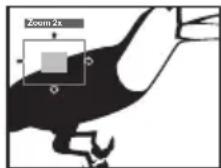
Zoom 2x
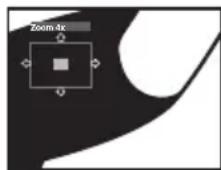
Zoom 4x
- Since DVD-Video, DVD-Audio and Video CD have a fixed resolution, picture quality will deteriorate, especially at 4x zoom. This is not a malfunction.
2 Use the cursor buttons to change the zoomed area.
You can change the zoom factor and the zoomed area freely during playback.
- If the navigation square at the top of the screen disappears, press ZOOM again to display it.

Note
- We do not recommend using DVD disc menus when the screen is zoomed as menu options will not be highlighted.
- If you are displaying subtitles, these will disappear when the screen is zoomed. They will reappear when you return the screen to normal.
Switching camera angles
Some DVD-Video discs feature scenes shot from two or more angles—check the disc box for details.
When a multi-angle scene is playing, a icon appears on screen to let you know that other angles are available (this can be switched off if you prefer—see Angle Indicator on page 68).
- During playback (or when paused), press ANGLE to switch angle.
Displaying disc information
Various track, chapter and title information, as well as the video transmission rate for DVD discs, can be displayed on-screen while a disc is playing.
OSD disc information
- To show/switch the information displayed, press DISPLAY.
When a disc is playing, the information appears at the top of the screen. Keep pressing DISPLAY to change the displayed information.
DVD-Video displays
| Play DVD | |||
| Current / Total Elapsed | Remain | Total | |
| Title | 2.0511/38 | 4.57 | 7.02 |
| French | English 1 | ||
| Audio Dolby Digital 3/2.1CH AngleSubtitle | |||
| Play | DVD | ||
| Current / Total Elapsed | Remain | Total | |
| Chapter | 2.0511/38 | 4.57 | 7.02 |
| Tr. Rate 8.6Mbps | |||
DVD-Audiodisplays
| Play | DVD-Audio | |||
| Current / Total | Elapsed | Remain | Total | |
| Track | 3.201/14 | 2.41 | 6.01 | |
| Audio | 1 Linear PCM | -- | 1 AngleSubtitle | |
| 192kHz 24bit 2/0CH | ||||
| Play | DVD-Audio | |||
| Group | Current / Total 1/3 | Elapsed 3.21 | Remain 53.20 | Total 56.41 |
| Tr. Rate : | 9.5Mbps | |||
- VR format DVD-RW displays
| Play | DVD-RW | Original | ||
| Current / Total | Elapsed | Remain | Total | |
| Title | 1/32 | 0.08 | 30.22 | 30.30 |
| 1 | -- | |||
| Audio Dolby Digital | 2/0CH | Subtitle | ||
| Play | DVD-RW | Original | |
| Chapter | Current / Total | ||
| 1/1 | |||
| Tr. Rate | 4.3Mbps | ||
- SACD displays
| Play | SACD | |||
| Current / Total | Elapsed | Remain | Total | |
| Track | 1/14 | 0.13 | 4.21 | 4.34 |
(During multichannel playback only)
| Play | SACD | |||
| Current / Total | Elapsed | Remain | Total | |
| Track | 1/9 | 0.22 | 3.38 | 4.00 |
| Audio | 3/2.1CH | |||
| Play | SACD | ||
| Elapsed | Remain | Total | |
| Disc | 0.05 | 73.00 | 73.05 |
- CD and Video CD displays
| Play CD | |||
| Current / Total Elapsed | Remain | Total | |
| Track | 1.072/16 | 4.40 | 5.47 |
| Play CD | |||
| Elapsed | Remain | Total | |
| Disc | 28.00 | 30.20 | 58.20 |
(During PBC playback only.)

- MP3 disc displays
| Play MP3 | |||
| Current / Total Elapsed | Remain | Total | |
| Track | 0.181/17 | 12.42 | 13.00 |
| Track Name | Outernational | ||
| Play MP3 ▶ |
| Current / Total |
| Folder 2/7 |
| Folder Name ACP |
- JPEG disc displays
| Play JPEG | |
| Current / Total | |
| File | 1/40 |
| File Name | FL000001 |
| Play JPEG | |
| Current / Total | |
| Folder | 2/6 |
| Folder Name | Holiday |

Note
- You can see disc information (number of titles/chapters, tracks, groups, folders and so on) from the Disc Navigator screen. See Using the Disc Navigator to browse the contents of a disc on page 38.
Display unit information
Limited disc information also appears in the display unit. Press DISPLAY to change the displayed information.
DVD-Video/DVD-RW displays
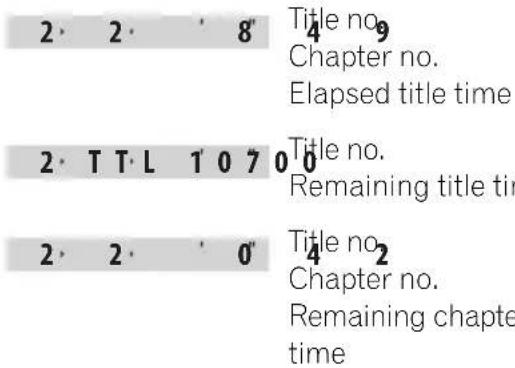
DVD-Audiodisplays
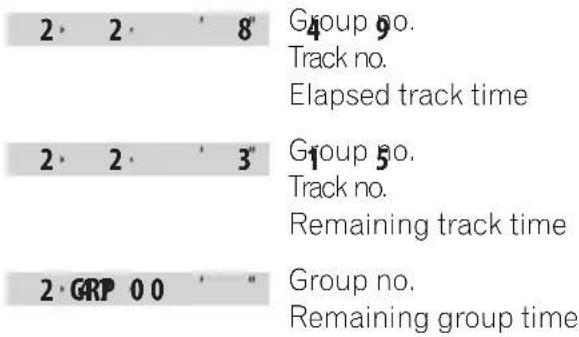
- SACD / CD displays
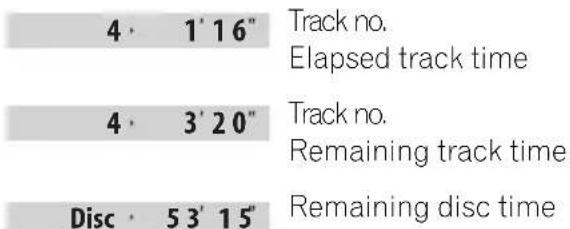
Video CD displays
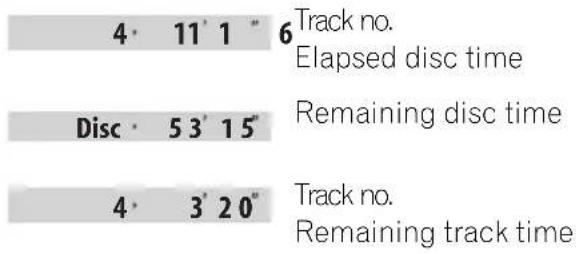
- MP3 disc displays
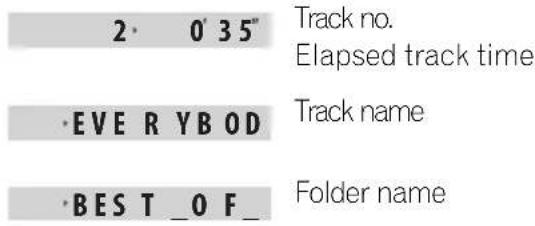
JPEG disc displays
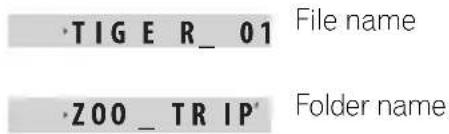
Chapter 6
Viewing JPEG discs
Playing a JPEG slideshow
After loading a CD/CD-R/RW containing JPEG pictures, press to start a slideshow from the first folder/picture on the disc. The player displays the pictures in each folder in alphabetical order.
Pictures are automatically adjusted so that they fill as much of the screen as possible (if the aspect ratio of the picture is different to your TV screen you may notice black bars at the sides, or at the top and bottom of the screen).
While the slideshow is running:
| Button What it does | |
| II Pauses the slideshow; press again to restart. | |
| ↓ Displays the previous picture. | |
| → Displays the next picture. | |
| ANGLE Pauses the slideshow and rotates the currently displayed picture 90° clockwise. Press▶ (play) to restart slideshow. | |
| ZOOM Pauses the slideshow and zooms the screen (see below). Press▶ (play) to restart slideshow. | |
| DVD MENU | Displays the Disc Navigator screen (see below). |
| FOLDER+/ FOLDER- | Skip to the next/previous folder when playing a JPEG disc. |

Note
- T h H, ANGLE and ZOOM buttons do not work while the display shows Loading.
- The time it takes for the player to load a file increases with large file sizes.
- Up to 999 files are viewable on a disc. If there are more files than this on a disc, only the first 999 files are viewable.
Using the JPEG Disc Navigator and Photo Browser
Use the JPEG Disc Navigator to find a particular folder or picture by filename on the disc in the play position; use the Photo Browser to find a picture within a folder by thumbnail image.
1 Press DVD MENU to display the Disc Navigator screen.
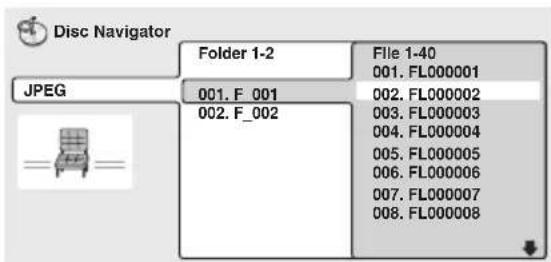
The left column shows the folders on the disc, the right column shows the files in a folder.
2 Use the cursor buttons ( / / / ) to navigate.
When a file is highlighted, a thumbnail image is displayed.
- When a folder is highlighted you can press ENTER to open the Photo Browser screen for that folder. See below for more on using the Photo Browser.
3 To resume the slideshow from the highlighted file, press ENTER.
Using the Photo Browser
The Photo Browser displays nine thumbnail images at a time from the current folder.
1 From the Disc Navigator screen, highlight a folder to display then press ENTER.
The Photo Browser screen opens with the first nine pictures displayed as thumbnails.
Photo Browser 2/40 Live at Soft
2 Use the cursor buttons ( / / / ) to highlight a thumbnail picture.
- Use the track skip buttons (▶ and▶) to see the previous / next page of thumbnails. Keep the button pressed if you want to skip several pages; release when you reach the page you want.
To return to the Disc Navigator screen, press RETURN.
3 Press ENTER to display the selected thumbnail full size on screen.
The slideshow resumes from the selected picture.
Zooming the screen
Using the zoom feature you can magnify a part of the screen by a factor of 2 or 4, while viewing pictures from a JPEG disc.
1 During slideshow playback, use the ZOOM button to select the zoom factor.
NormaI
- 2x
- 4x
Normal
Zoom 2x
Zoom 4x
- The slideshow is paused when the screen is zoomed.
- Since JPEG pictures have a fixed resolution, picture quality may deteriorate, especially at 4x zoom. This is not a malfunction.
2 Use the cursor buttons ( / / / ) to change the zoomed area.
You can change the zoom factor and the zoomed area freely.
3 To resume the slideshow, press (play).
Chapter 7 Using the timer
Setting the wake-up timer
Use the wake-up timer to set the system to switch on at any time and start playing whatever source you want.

Important
- The clock must be set to the correct time for the wake-up timer to work properly (see Setting the clock on page 20).
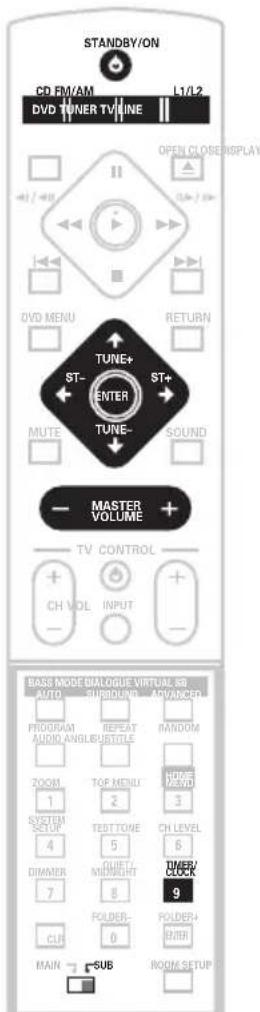
1 Select the source you want played.
For example, press TUNER to select the radio as your source.
2 Prepare the source.
For example, tune in the radio station you want to wake up to.
3 Set the volume.
4 Press TIMER/CLOCK twice to reach the timer menu.
5 Use the / (cursor left/right) buttons to select 'Wake-Up?' then press ENTER.
6 Use the / (cursor left/right) buttons to select 'TimerEdit?' then press ENTER.
7 Set the switch-on time.
Use the / (cursor up/down) buttons to set the hour, then press ENTER. Set the minute in the same way, pressing ENTER when you're done.
8 Set the switch-off time.
Use the / (cursor up/down) buttons to set the hour, then press ENTER. Set the minute in the same way, pressing ENTER when you're done.
After pressing ENTER this last time, the wakeup indicator lights, and the switch-on, switch-off times, the function (DVD/CD, etc.) and volume are confirmed in the display.
9 Switch the system into standby mode.
The wake-up timer will not work if the system is left on!

Tip
- You can check the timer settings in standby by pressing TIMER/CLOCK twice. (Press TIMER/CLOCK once to display the current time.)
Turning the wake-up timer on/off
If the wake-up timer is on, it will switch on the system everyday at the time you have set.
1 Press TIMER/CLOCK twice to reach the timer menu.
2 U s e t h e / (cursor left/right) buttons to select 'Wake-Up?' then press ENTER.
3 Use the / (cursor left/right) buttons to select 'Timer On?' or 'Timer Off?'.
- You must have the timer set (see above) to select ON. The wake-up timer switches on and off according to your previous settings.
4 Press ENTER.

Note
- The wake-up timer will automatically be canceled if the clock is reset.
Setting the sleep timer
The sleep timer switches off the system after a specified time so you can fall asleep without worrying about it.

Important
- If you set the sleep timer while either the wake-up timer is active, the earlier switch off time takes priority.
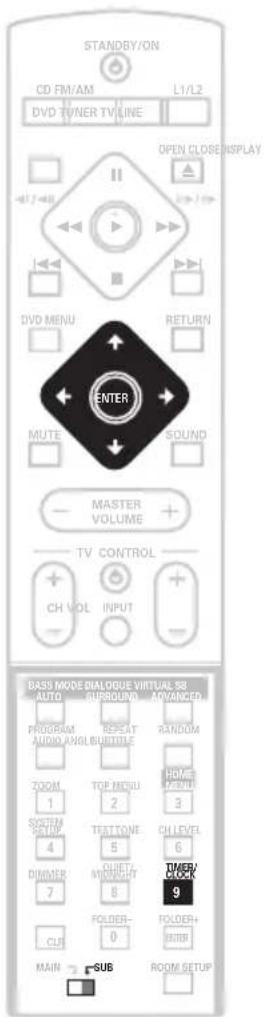
1 Press TIMER/CLOCK twice to reach the timer menu.
2 U s e t h e / (cursor left/ buttons to select 'Sleep?' then press ENTER.
3 U s e t h e ↑/↓ (cursor up/down) buttons to select a switch-off time then press ENTER.
Choose between the following options:
- Sleep Auto - System switches off automatically after the currently playing SACD, CD, Video CD or MP3 disc has finished.
- Sleep 90 - System switches off after 90 minutes
- Sleep 60 - System switches off after an hour
- Sleep 30 - System switches off after 30 minutes
- Sleep Off - cancels the sleep timer
4 To check how much time is left, repeat steps 1 and 2.
The remaining time is displayed momentarily.

Note
- Sleep Auto will not work with Video CDs during PBC playback or CDs in repeat play.
Chapter 8
Surround sound setup
Setting up surround sound
The Room Setup feature (page 21) is designed to give you a basic surround sound setup, however you can make the more detailed settings that may improve the surround sound in your listening room.
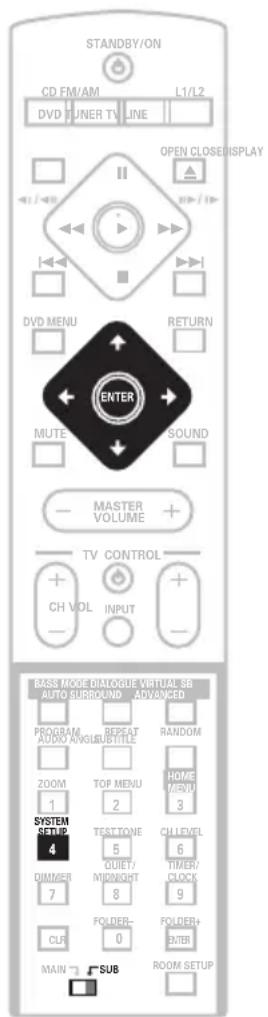

Note
- When you change speaker distance and channel level settings, these settings will override settings you made in the Room Setup.
1 Press SYSTEM SETUP.
2 U s e t h e / (cursor left/right buttons to choose the setting you want to adjust.
The current setting is shown for each option as you cycle through the display. See below for a full list and description of each.
3 Use the / (cursor up/down) buttons to adjust the setting.
4 Repeat steps 2 and 3 to make other settings.
5 When you're done, press ENTER to leave the System Setup menu.

Note
- The System Setup menu is exited automatically after 5 minutes of inactivity.
System Setup menu options
Below are all the available settings in the setup menu. The first setting in each section is the default. See also the notes in each section for additional information about the settings.
Front speakers distance setting
Specifies the distance from your listening position to the front speakers:
- Front 1 ft Front 30 ft - Distance can be set in increments of 1 ft. The default is 10 ft.
Center speaker distance setting
Specifies the distance from your listening position to the center speaker:
- Center 1 ft Center 30 ft - Distance can be set in increments of 1 ft. The default is 10 ft.
Surround speakers distance setting
Specifies the distance from your listening position to the surround speakers:
- Surr. 1 ft Surr. 30 ft - Distance can be set in increments 1 ft. The default is 10 ft.
Dynamic Range Control
Specifies the amount of dynamic range adjustment to Dolby Digital or DTS soundtracks:
- DRC Off - No dynamic range adjustment (use when listening at higher volume)
- DRC Mid - Mid setting
- DRC High - Dynamic range is reduced (loud sounds are reduced in volume while quieter sounds are increased)

Note
- This setting works only with Dolby Digital and some DTS soundtracks. For other sources you can create a similar effect using the Midnight mode (see Using Quiet and Midnight listening modes on page 35).
Dual mono setting
Specifies how dual mono encoded Dolby Digital or DTS soundtracks should be played. You can also use this setting to switch the audio channel on DVD-RW discs recorded with two separate soundtracks.
L-Ch1 R-Ch2 - Both channels are played through the front speakers
- Ch1 Mono - Only channel 1 is played
- Ch2 Mono - Only channel 2 is played

Note
- On the Ch1 Mono and Ch2 Mono settings the sound comes only from the center speaker (or from the front speakers if listening in STEREO mode).
- This setting works only with dual mono encoded Dolby Digital or DTS soundtracks. See the disc packaging for channel information.
LFE attenuator setting
Dolby Digital and DTS audio sources include ultra-low bass tones. Set the LFE attenuator as needed to prevent the ultra-low bass from distorting the sound.
- LFE ATT 0 - The LFE channel is played with no attenuation
- LFE ATT 10 - LFE channel is attenuated by 10dB
- LFE Off - LFE channel is not played
Setting the channel levels
You can set the relative channel levels from your main listening position for each listening mode, including all the Surround and Advanced Surround modes.
If you used the Room Setup feature (page 21), the channel levels for each listening mode will already be set. However, you can still fine-tune the levels here if you need to.
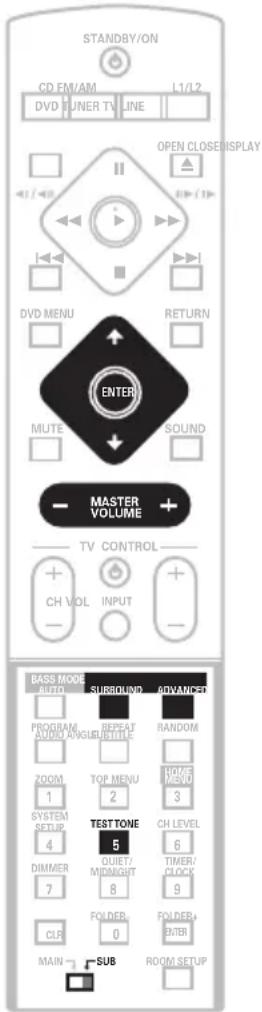
1 Press SURROUND or ADVANCED repeatedly to select a listening mode.
2 Switch the remote control to SUB, then press TEST TONE to hear the test tone.
The test tone is output in the following order (from the speakers active in the current listening mode):
L-Front left speaker
C Center speaker
R-Front right speaker
RS - Right surround speaker
- LS - Left surround speaker
- SW - Subwoofer
3 Use the MASTER VOLUME + / - button to adjust the volume to an appropriate level.
4 U s e t h e ↑/↓ (cursor up/down) buttons to adjust the speaker levels in turn.
You should hear the test tone at the same volume from each speaker when seated in the main listening position. The channel level range is ± 10 dB.
5 When you're done, press ENTER to exit test tone setup.

Tip
- The speaker volume can be adjusted while listening to any sound source you want by pressing CH LEVEL and then using the / (cursor up/down) buttons to adjust the channel levels. After you're finished with one channel, use the / (cursor left/right) buttons to move to the next.

Note
- Since the subwoofer produces ultra-low frequencies its sound may seem quieter than it actually is.
Chapter 9
Video Adjust menu
Video Adjust
- Default setting: Standard
From the Video Adjust screen you can select the standard video presentation or define presets of your own.
1 Press HOME MENU and select 'Video Adjust' from the on-screen display.

HOME MENU
DVD

Play Mode

Video Adjust

Initial Settings

Disc Navigator
2 U s e t h e (cursor left/right) buttons to select a preset.
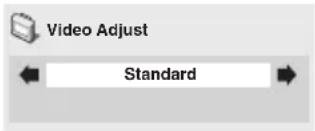
- Standard - Normal
- Memory1-2 - Use for saving your own presets (see below)
3 Press ENTER to make the setting and exit the Video Adjust screen.
Creating your own presets
You can create up to two presets of your own.
1 Select one of the Memory presets (see above).
2 Press ↓ (cursor down) to select 'Detailed Settings' then press ENTER.

Video Adjust
Memory1
Detailed Settings
3 Adjust the picture quality settings.
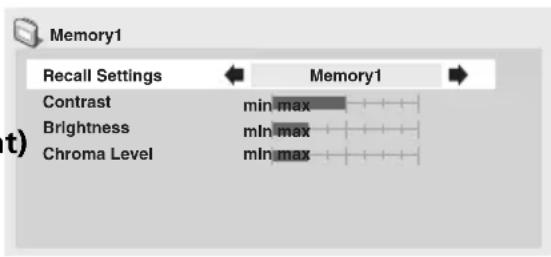
- Use the / (cursor up/down) buttons to select a setting.
- Use the / (cursor left/right) buttons to adjust the current setting.
- Press DISPLAY to switch between full and single view.
- You can change the preset number from the Recall Settings menu item.

Note
Depending on the disc and the TV/ monitor, you may not see the effect clearly.
Video Adjust menu
You can adjust any or all of the following picture quality settings:
- Contrast - Adjusts the contrast between light and dark.
- Brightness - Adjusts the overall brightness.
- Chroma Level - Adjusts how saturated colors appear.
4 Press ENTER to save the preset and exit the Video Adjust screen.
Chapter 10 Initial Settings menu
Using the Initial Settings menu
The Initial Settings menu gives you complete control in setting up your DVD system, including video output settings and parental lock settings, among others.
If an option is grayed out it means that it cannot be changed at the current time. This is usually because a disc is playing. Stop the disc, then change the setting.
1 Press HOME MENU and select 'Initial Settings' from the on-screen display.
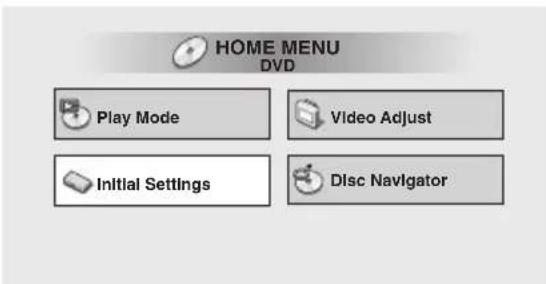
2 Select the setup category from the list on the left, then select an item from the menu list to the right.
3 Make the setting you want.

Note
- The language options shown in the on-screen display illustrations on the following pages may not correspond to those available in your country or region.
Digital Audio Mode Settings
Make these settings if you connect an external digital component to the optical digital output. Note that DVD-Audio and SACD audio is not output through this jack.
Dolby Digital Out
- Default setting: Dolby Digital
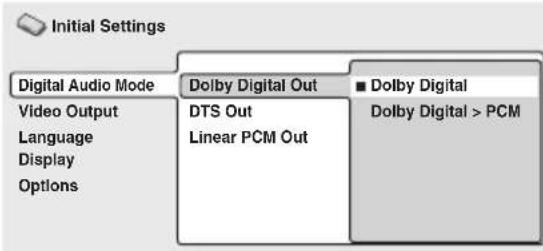
If the connected component is Dolby Digital compatible, set to Dolby Digital, otherwise set to Dolby Digital > PCM. Check the manual that came with the other component if you're unsure whether it is Dolby Digital compatible.
DTS Out
- Default setting: DTS
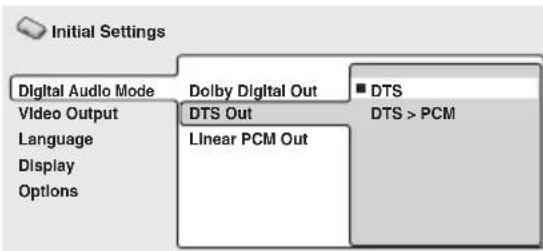
If the connected component has a built-in DTS decoder, set this to DTS, otherwise set to DTS > PCM. Check the manual that came with the other component if you're unsure whether it is DTS compatible.

Note
- If you set to DTS with non-DTS compatible equipment, noise will be output when you play a DTS disc.
- DTS-CDs are always output as DTS digital audio regardless of this setting.
Linear PCM Out
- Default setting: Down Sample Off
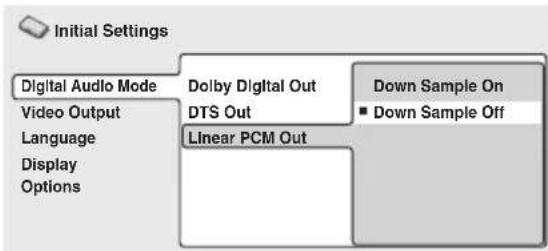
If the connected component is compatible with high sampling rates (96 kHz), set this to Down Sample Off, otherwise set it to Down Sample On (96 kHz audio is converted to a more compatible 48 kHz). Check the manual that came with the other component if you're unsure whether it is 96 kHz compatible.

Note
- Even when set to Down Sample Off, some discs will still output down-sampled audio through the digital outputs (you only get full sampling rate audio through the analog outputs).
Video Output settings
TV Screen
- Default setting: 16:9 (Wide)
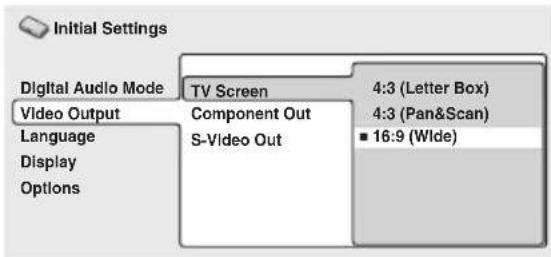
If you have a widescreen TV, select the 16:9 (Wide) setting—widenscreen DVD software is then shown using the full screen area. When playing software recorded in conventional (4:3) format, the settings on your TV will determine how the material is presented—see the manual that came with your TV for details on what options are available.
If you have a conventional TV, select either 4:3 (Letter Box) or 4:3 (Pan & Scan). In Letter Box mode, widescreen software is shown with black bars at the top and bottom of the screen. Pan & Scan chops the sides off widescreen material to make it fit the 4:3 screen (so even though the image looks larger on the screen, you're actually seeing less of the picture). See also Screen sizes and disc formats on page 87.
Component Out
You only need to make this setting if you connected this system to your TV using the component video outputs.
- Default setting: Interlace
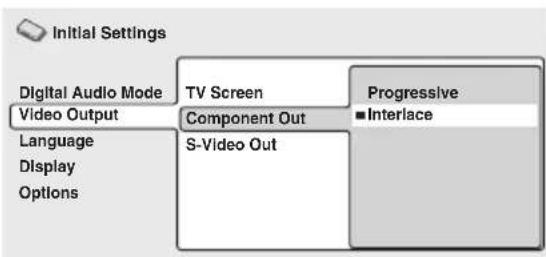
If you have a progressive-scan compatible TV, set this to Progressive for flicker-free video output. If your TV is not compatible with progressive-scan video, set to Interlace. Check the operating instructions that came with your TV if you're unsure about its compatibility.
When setting to Progressive, you have to press ENTER once more to confirm (or RETURN to cancel). See also below for important information on progressive scan video.
About progressive scan video
Compared to interlace video, progressive scan video effectively doubles the scanning rate of the picture, resulting in a very stable, flicker-free image. Progressive scan video is available only from the component video output.

Important
-
When Component Out (above) is set to Progressive, there is no video output from the VIDEO and S-VIDEO jacks. If you want to display video on more than one monitor simultaneously, make sure that it is set to Interlace.
-
If you connect a TV that is not compatible with a progressive scan signal and switch the system to progressive, you will not be able to see any picture at all. In this case, press STANDBY/ON to put the system in standby, then press and hold the front panel (stop) button for about 8 seconds until the display shows Mem.Clr.? Press the front panel VOL - or + button so that the display shows Interlace? Press the front panel button to set to interlace and switch the system back on.

Compatibility of this system with progressive-scan TVs.
This system is compatible with progressive video Macro Vision System Copy Guard.
CONSUMERS SHOULD NOTE THAT NOT ALL HIGH DEFINITION TELEVISION SETS ARE FULY COMPATIBLE WITH THIS PRODUCT AND MAY CAUSE ARTIFACTS TO BE DISPLAYED IN THE PICTURE. IN CASE OF 525 PROGRESSIVE SCAN PICTURE PROBLEMS, IT IS RECOMMENDED THAT THE USER SWITCH THE CONNECTION TO THE "STANDARD DEFINITION" OUTPUT. IF THERE ARE QUESTIONS REGARDING OUR TV SET COMPATIBILITY WITH THIS MODEL 525p DVD PLAYER, PLEASE CONTACT OUR CUSTOMER SERVICE CENTER.
This system is compatible with the following Pioneer displays and monitors: PDP-503HDG, PDP-433HDG progressive scan-compatible TVs.
S-Video Out
You only need to make this setting if you connected this system to your TV using an S-video cable.
- Default setting: S2
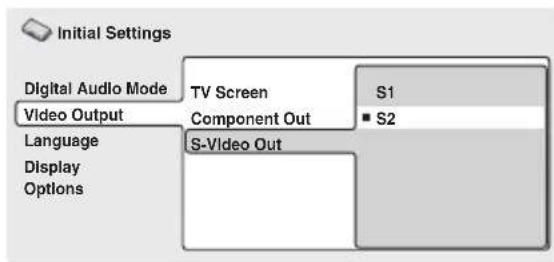
- If you find that the picture is stretched or distorted on the default S2 setting, try changing it to S1.
Language settings
Audio Language
- Default setting: English
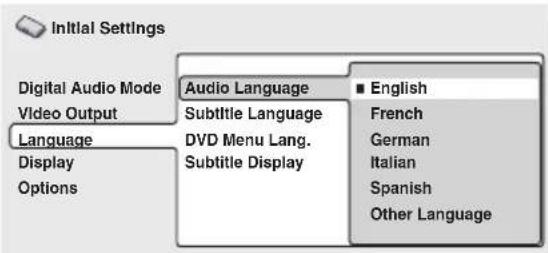
This setting is your preferred audio language for DVD-Video discs. If the language you specify here is recorded on a disc, the system automatically plays the disc in that language.
The DVD-Video format recognizes 136
different languages. Select Other Language
if you want to specify a language other th
those listed. See also Selecting languages
using the language code list on page 87.

Tip
- You can switch between the languages recorded on a DVD-Video disc during playback using the AUDIO button. (This does not affect this setting.) See Switching DVD-Video audio language on page 48.
- Some DVD-Video discs set the audio language automatically when loaded, overriding the Audio Language setting.
- Discs with two or more audio languages usually allow you to select the audio language from the disc menu. Press DVD MENU to access the disc menu.
Subtitle Language
- Default setting: English
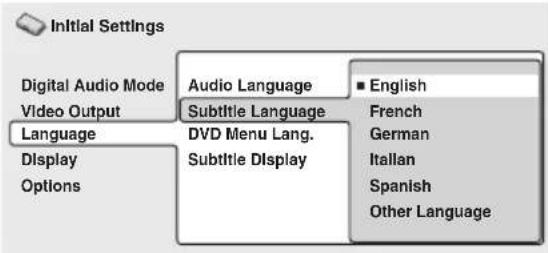
This setting is your preferred subtitle language for DVD-Video discs. If the language you specify here is recorded on a disc, the system automatically plays the disc with those subtitles.
The DVD-Video format recognizes 136 different languages. Select Other Language if you want to specify a language other than those listed. See also Selecting languages using the language code list on page 87.

Tip
- You can usually change or switch off the subtitles on a DVD-Video disc during playback using the SUBTITLE button. (This does not affect this setting.) See Switching subtitles on page 48.
- Some DVD-Video discs set the subtitle language automatically when loaded, overriding the Subtitle Language setting.
- Discs with two or more subtitle languages usually allow you to select the subtitle language from the disc menu. Press DVD MENU to access the disc menu.
Subtitle Display
- Default setting: On
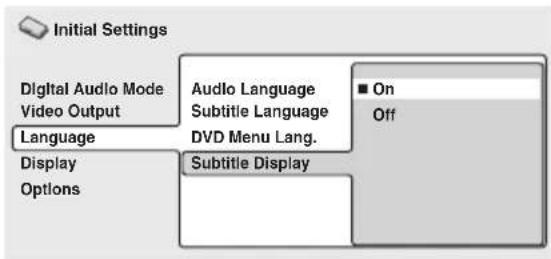
When set to On, the player displays subtitles according to the Subtitle Language setting. Set to Off to switch subtitles off altogether.
Display settings
DVD Menu Language
- Default setting: w/Subtitle Lang. Default Setting: English
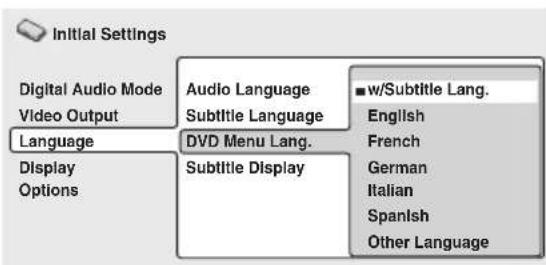
Some multilingual discs have disc menus in several languages. This setting specifies in which language the disc menus should appear. Leave on the default setting for menus to appear in the same language as your Subtitle Language—see above.
The DVD-Video format recognizes 136 different languages. Select Other Language if you want to specify a language other than those listed. See also Selecting languages using the language code list on page 87.
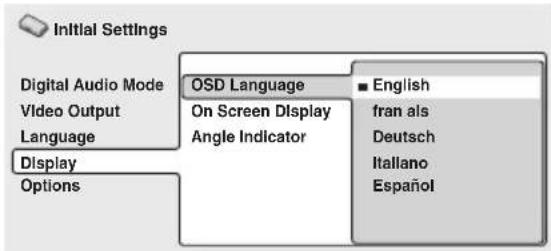
This sets the language of this system's on-screen displays.
On Screen Display
- Default setting: On
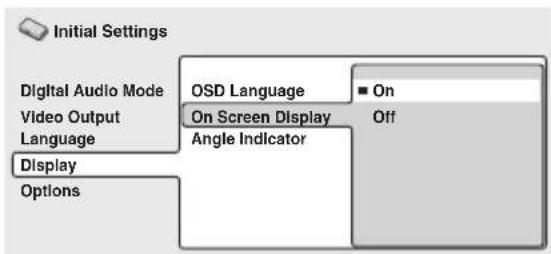
This sets whether operation displays are shown on-screen (Play, Resume, Scan and so on).
Angle Indicator
- Default setting: On
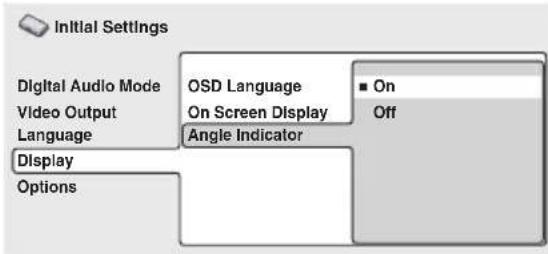
If you prefer not to see the camera icon on-screen during multi-angle scenes on DVD discs, change this setting to Off.
Options
Parental Lock
- Default level: Off
- Default password: none
- Default Country code: us (2119)
Some DVD-Video discs feature a Parental Lock level. If the player is set to a lower level than the disc, the disc won't play. This gives you some control about what your children watch on your DVD system.
Some discs also support the Country code feature. The player does not play certain scenes on these discs, depending on the Country code you set.
Before you can set the Parental Lock level or the Country code you must register a password. As the password owner, you can change the Parental Lock level or Country code whenever you like. You can also change the password.

Note
- Not all discs that you may consider inappropriate for your children use the Parental Lock feature. These discs will always play without requiring the password first.
- If you forget your password, you'll need to reset the system to its factory settings (see Resetting the system on page 78), then register a new password.
Registering a new password
You must register a password before you can change the Parental Lock level or enter a Country code.

1 Select 'Password'.
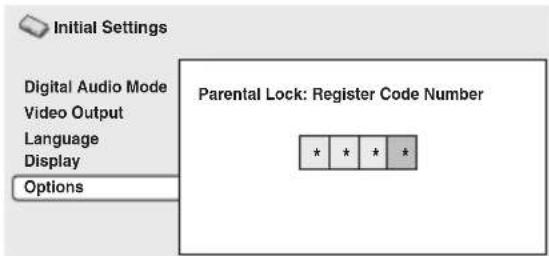
2 Use the number buttons to enter a 4-digit password.
The numbers you enter show up as asterisks (^*) on-screen.
3 Press ENTER to register the password and return to the Options menu screen. If you forget your password, you can reset the system then register a new one. See Resetting the system on page 78 for how to reset the system.
Changing your password
To change your password, confirm your existing password then enter a new one.
1 Select 'Password Change'.

Initial Settings
Digital Audio Mode
Video Output
Language
Display
Options
Parental Lock
Bonus Group
Auto Disc Menu
Group Playback
DVDPlaybackMode
SACDPlayback
Photo Viewer
Password Change
Level Change
Country Code
2 Use the number buttons to enter your existing password, then press ENTER.
The numbers appear as asterisks as you enter them.

Initial Settings
Digital Audio Mode
Video Output
Language
Display
Options
Parental Lock: Password Change
Password
New Password
3 Enter a new password.

Initial Settings
Digital Audio Mode
Video Output
Language
Display
Options
Parental Lock: Password Change
Password
New Password
4 Press ENTER to register the new password and return to the Options menu screen.
Setting/changing the Parental Lock level
1 Select 'Level Change'.

Initial Settings
Digital Audio Mode
Video Output
Language
Display
Options
Parental Lock
Bonus Group
Auto Disc Menu
GroupPlayback
DVD Playback Mode
SACD Playback
Photo Viewer
Password Change
Level Change
Country Code
2 Use number buttons to enter your password, then press ENTER.

Initial Settings
Digital Audio Mode
Video Output
Language
Display
Options
Parental Lock : Level Change
Password
的西
7 8 off
3 Select a new level.

Initial Settings
Digital Audio Mode
Video Output
Language
Display
Options
Parental Lock : Level Change
Password
1 2 3
7 8 off
Press (cursor left) repeatedly to lock more levels (more discs will require the password); press (cursor right) to unlock levels. You can't lock level 1.
4 Press ENTER to set the new level and return to the Options menu screen.
Setting/changing the Country code
You may also want to refer to the Country code list on page 88.
1 Select 'Country Code'.
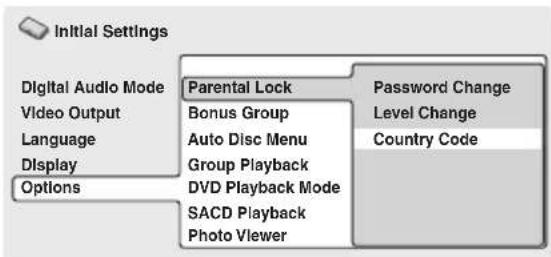
2 Use number buttons to enter your password, then press ENTER.
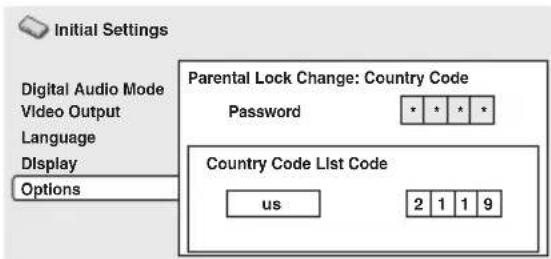
3 Select a Country code.
There are two ways you can do this.
- Select by code letter: Use ↑/↓ (cursor up/down) to change the Country code.
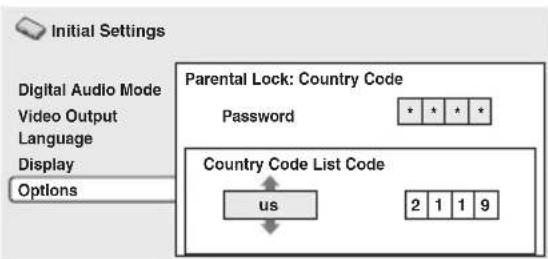
- Select by code number: Press → (cursor right) then use the number buttons to enter the 4-digit Country code (you can find the Country code list on page 88.)
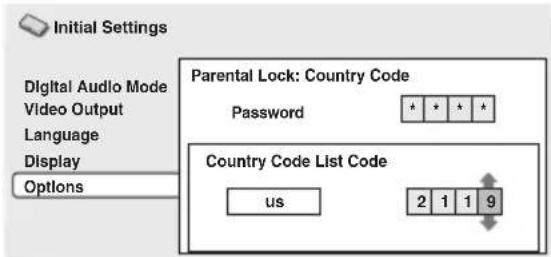
4 Press ENTER to set the new Country code and return to the Options menu screen.

- Changing the Country code does not take effect until the next disc is loaded (or the current disc is reloaded).
Bonus Group
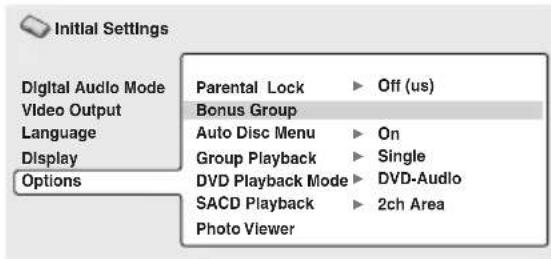
Some DVD-Audio discs have an extra 'bonus' group that requires a 4-digit key number to access. See the disc packaging for details and the key number.
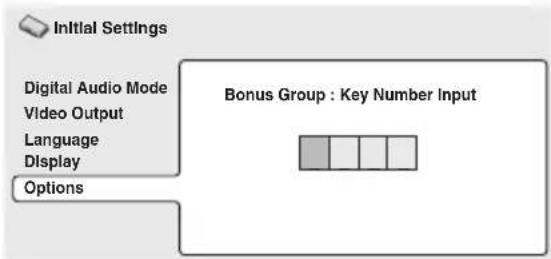
When you play a DVD-Audio disc that has a bonus group, the key number input screen appears automatically. You can also access the same screen here.

Note
- If you eject the disc, switch the power off, or unplug the player, you will need to re-enter the key number.
Auto Disc Menu
- Default setting: On
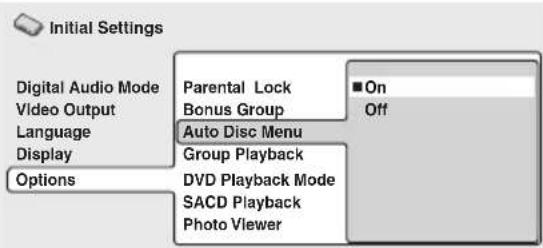
This specifies whether the menu (Top menu) is automatically displayed after loading a disc. Set to On if you want the menu displayed automatically, or Off if you don't want it displayed.

Note
Some DVD discs display a menu automatically regardless of this setting. If you press while a disc is loading, this setting is ignored.
GroupPlayback
- Default setting: Single
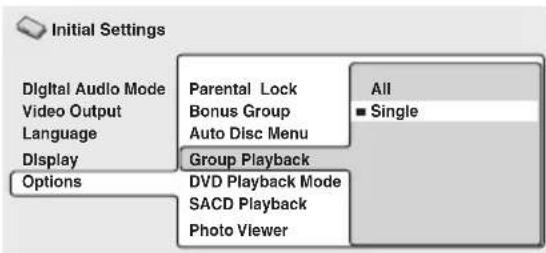
DVD-Audio discs can have up to 9 groups of tracks. When set to Single, the selected group plays and then the disc stops, or returns to the menu screen. Use the search function (page 47) to select the group to play. (You cannot use the track skip / ▷or scan buttons / ▷in this mode.)
Set to All if you want to play all the groups on a disc consecutively.

Note
- Even if the player is set to All but you select a group to play from the disc menu, only that group will play. If you stop playback, all groups will play again when you restart playback.
DVDPlaybackMode
- Default setting: DVD-Audio
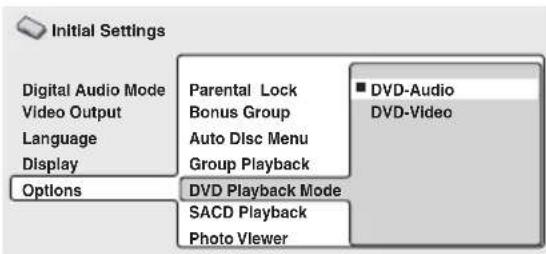
Some DVD-Audio discs contain DVD-Video content in addition to the DVD-Audio. Set to DVD-Video to play a DVD-Audio disc as if it were a DVD-Video disc. Note that in this case only the DVD-Video part of the disc will play.

Note
- This setting reverts to DVD-Audio when the function is changed, the disc tray is opened, or the power is switched into standby.
SACDPlayback
- Default setting: Multi-ch Area
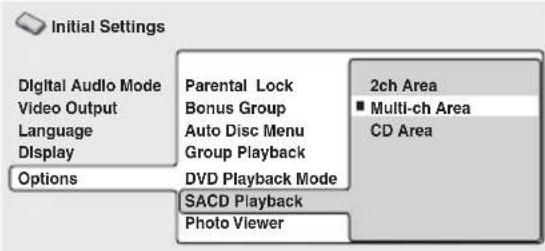
SACD discs can be divided up into several different areas - stereo audio (2ch Area), multi-channel audio (Multi-ch Area) and, for hybrid SACDs, standard CD audio (CD Area). Select which you want to listen to.

Note
- If you select an area that isn't on the disc loaded, a different area will play. For example, if you choose standard CD audio but the disc loaded is not a hybrid SACD, the stereo SACD area will play.
PhotoViewer
- D e f a u l t s e t t i n g

This setting is important if you load a disc that contains both MP3 audio files and JPEG picture files.
The default On setting allows you to view only the JPEG files on this kind of disc. Set to Off to be able to play the MP3 audio files.

Note
- Changing the PhotoViewer setting does not take effect until the next disc is loaded (or the current disc is reloaded).
Chapter 12
Other connections
Connecting external antennas
External AM antenna
Use 15-18 ft. (5-6 meters) of vinyl-insulated wire and set up either indoors or outdoors. Leave the AM loop antenna connected.
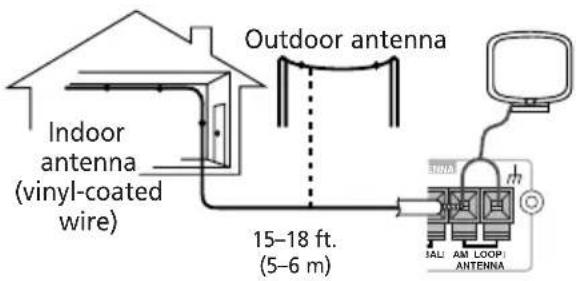
External FM antenna
Use a 75 coaxial cable to hook up an external FM antenna.
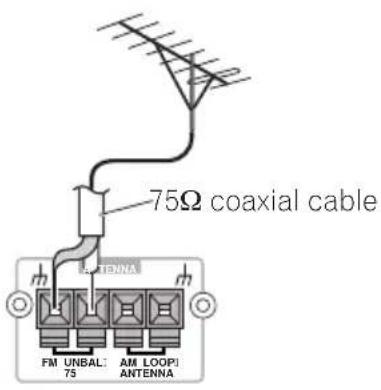
Connecting auxiliary components
This system has both stereo analog inputs and outputs, as well as two optical digital inputs and one optical digital output. Use these to connect external components, such as your VCR, MD or CD-R recorder.
- Connect the TV (IN) jacks to the audio outs of your TV (or VCR).
This will enable you to hear the TV (or VCR) through this system. Connect using RCA pinplug stereo cables. See also Reducing the TV and line signal levels below.
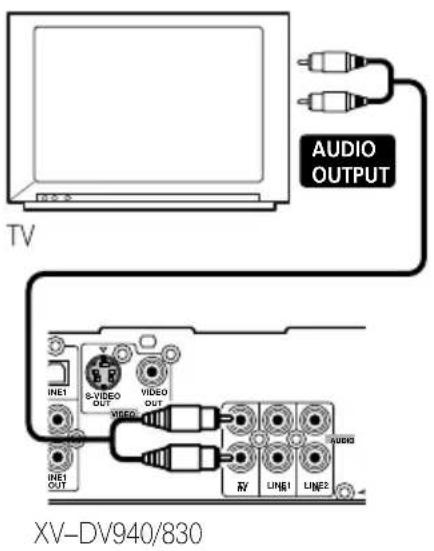
- Connect the LINE 1 (IN) jacks to the analog outputs of an external playback component.
These include components such as a VCR or cassette deck. Connect using RCA pin-plug stereo cables. See also Reducing the TV and line signal levels below. - Connect the LINE 1 (OUT) jacks to the analog inputs of an external recording component.
These include components such as a cassette deck, VCR, MD or another recorder with analog inputs. Connect using RCA pinplug stereo cables.
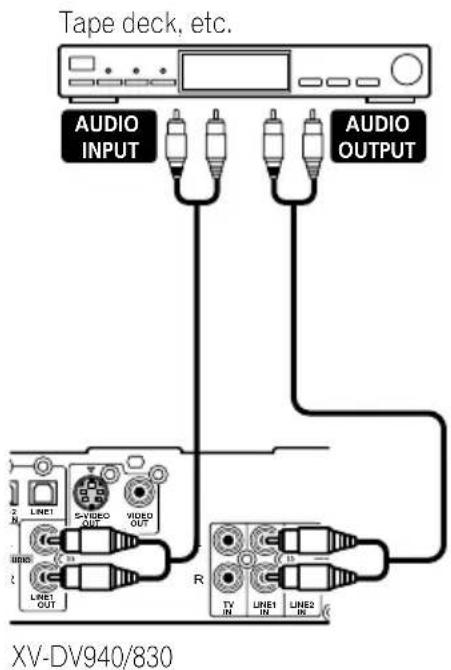
- Connect the OPTICAL DIGITAL OUT jack on the rear panel to the optical digital input of an external recording component.
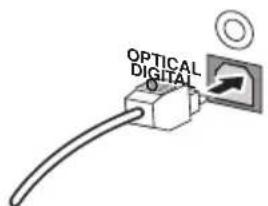
- Connect the LINE 1 or LINE 2 (OPTICAL IN) jacks on the rear panel to the optical digital output of an external playback component.
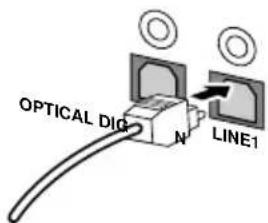
These include digital components such as an MD player, digital satellite, or a game system. Connect using a optical digital cable (not supplied).
Reducing the TV and line signal levels
- Default setting: ATT 6dB
Some sources may produce a high signal level which may produce unpleasant distortion from the speakers. In such cases, you may need to reduce the signal level of the auxiliary source (connected to the TV or LINE 1 or LINE 2 analog inputs) by switching on the attenuator.
1 Switch the system into standby.
2 Press SYSTEM SETUP.
3 Use the / (cursor left/right) buttons to select 'TV ATT?' or 'LINE1 ATT?' or 'LINE2 ATT?', then press ENTER.
4 Use the / (cursor up/down) buttons to select 'ATT Off', 'ATT 6dB' or 'ATT 10dB'.
If the ATT 6dB setting still results in distorted sound, try the ATT 10dB setting.
5 Press ENTER to confirm.
Recording mode
The Recording mode allows you to make analog recordings from the LINE 1 (OUT) jacks.
When Recording mode is on, most sound-related functions (including SURROUND, ADVANCED, AUTO, SYSTEM SETUP)
become inactive. The display will briefly blink RecMode On if you try and use a prohibited function while Recording mode is on.
When Recording mode is off, the audio from the analog output may be interrupted, depending on the operation.
1 Press SOUND.
2 Use the / (cursor left/right) buttons to select 'Rec Mode?'.
3 Press ENTER.
4 Use the / (cursor up/down) buttons to select 'R.Mode On' or 'R.Mode Off'.

Note
- When Recording Mode is On a stereo downmix of multi-channel DVD-Audio and SACD discs is output from the speakers and from the analog audio jacks. Note that with some DVD-Audio disc, only the front left/right channels are output. When set to Off, multi-channel DVD-Audio and SACD discs are played through all the speakers, but front L/R audio is output from the analog audio jack.
- When R.Mode On is selected while playing SACD, the unit will loose speaker SW output and bass will become inaudible.
Connecting using the S-video output
If your TV has an S-video input, you can use this instead of the standard video output for a better quality picture.
- Use an S-video cable (not supplied) to connect the S-VIDEO OUT to an S-video input on your TV.
Line up the small triangle above the jack with the same mark on the plug before plugging in.
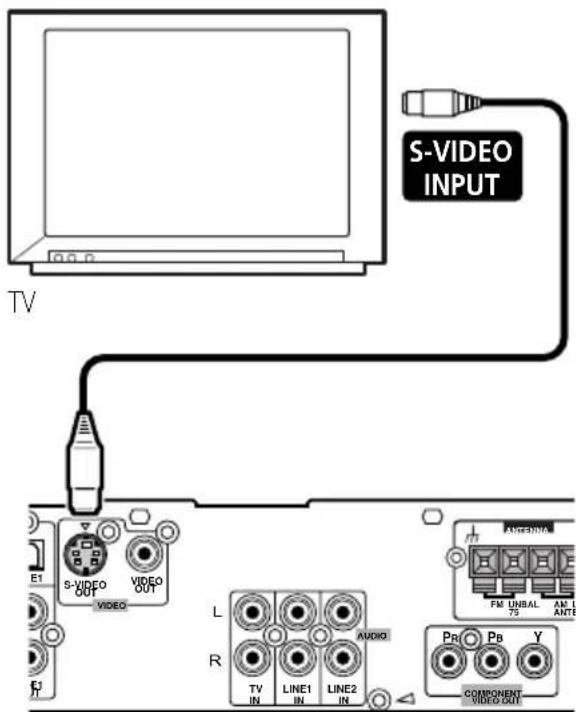
XV-DV940/830

Note
- The S-video ouptut is switchable between S1 and S2 formats for compatibility with all TVs. See S-Video Out on page 66 for more on this.
Connecting using the component video output
If your TV has component video inputs, you can use these instead of the standard video output to connect this system to your TV. This should give you the best quality picture from the three types of video output available.
- Use a component video cable (not supplied) to connect the COMPONENT VIDEO OUT to a set of component inputs on your TV.
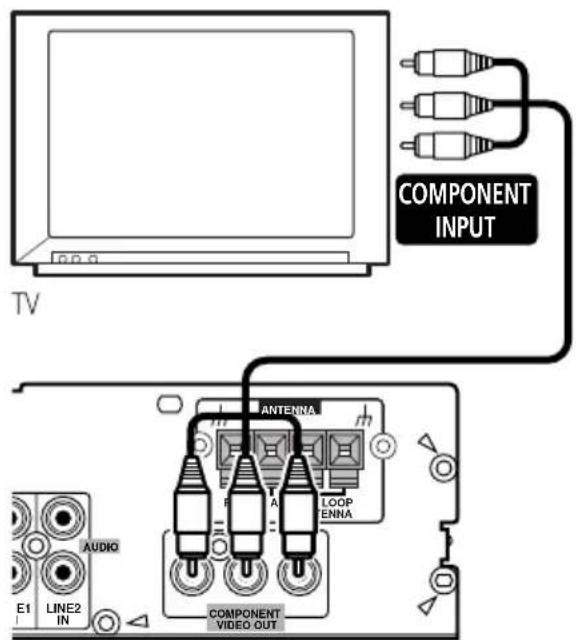
XV-DV940/830

Note
- The component video ouptut is switchable between interlaced and progressive formats. See Component Out on page 65 for more on this.
Chapter 12 Additional information
Switching off the demo
- Default setting: Demo On
This system has an automatic demo feature that starts when the system is plugged in for the first time.
1 Switch the system into standby.
2 Press SYSTEM SETUP.
3 U s e t h e / (cursor left/right)
buttons to select 'Demo Mode?', then press ENTER.
4 U s e t h e ↑/↓ (cursor up/down)
buttons to select 'Demo Off?' then press ENTER to confirm.

Note
- After setting the clock, the demo mode switches off automatically. However, if you unplug the system from the wall outlet, the demo mode will revert to Demo On (and the clock will be reset).
Child Lock
- Default setting: Lock Off This system has a child lock feature that makes the front panel buttons and controls inoperative.
1 Switch the system into standby.
2 Press SYSTEM SETUP.
3 U s e t h e / (cursor left/ri) buttons to select 'Child Lock?', then press ENTER.
4 U s e t h e ↑/↓ (cursor up/down), buttons to select 'Lock On?' or 'Lock Off?'.
5 Press ENTER to confirm.
Changing the clock format
- Default setting: 12-Hour
You can choose to display the clock in either 12 or 24 hour formats.
Switch the system into standby.
2 Press SYSTEM SETUP.
3n)U s e t h e / (cursor left/right) 1 buttons to select '12/24 Hour?', then press ENTER.
4 U s e t h e ↑/↓ (cursor up/down) buttons to select either '12-Hour?' or '24-Hour?'.
5 Press ENTER to confirm.
Changing the frequency step
- Default setting: FM 100 AM 10
If you find that you can't tune into stations successfully, the frequency step may not be suitable for your country/region.
1 Switch the system into standby.
2 Press SYSTEM SETUP.
3 U s e t h e / (cursor left/right) buttons to select 'FM AM Step?', then press ENTER.
4 U s e t h e ↑/↓ (cursor up/down)
buttons to select 'FM 50 AM 9?' or 'FM 100 AM 10?' then press ENTER to confirm.
Resetting the system
Use this procedure to reset all system settings (except for station memory) to the factory default.
1 Switch the system into standby.
2 Press and hold the top panel (Stop) button for about 8 seconds until the display shows 'Mem.Clr.?'
3 Press the top panel button.
The system's settings are now reset, and you should see the 'Welcome to Pioneer DVD!' screen.
Dimming the display
- Default setting: 3
The display has three brightness levels (1-3).
1 Press DIMMER to change the brightness level of the display unit.
Using and taking care of discs
Titles, groups, chapters and tracks
DVD discs are generally divided into one or more titles. Titles may be further subdivided into chapters.
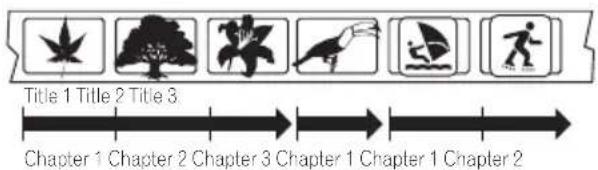
DVD-Audio discs are divided into one or more groups that can each contain a number of tracks.
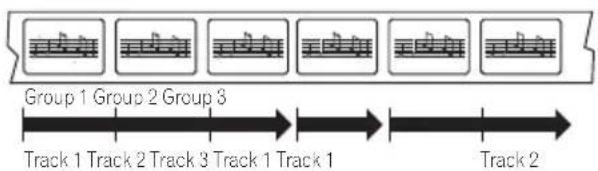
CDs, SACDs and Video CDs are divided into tracks.
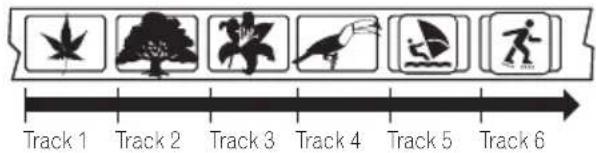
CD-ROMs contain folders and files. MP3 files are referred to as tracks.Folders may contain further folders.
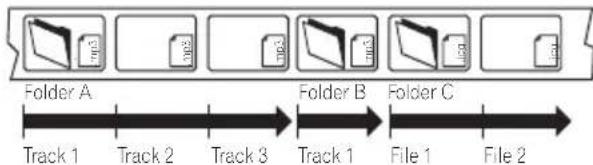
DVD Video regions
All DVD Video discs carry a region mark on the case somewhere that indicates which region(s) of the world the disc is compatible with. Your DVD system also has a region mark, which you can find on the rear panel. Discs from incompatible regions will not play in this player. Discs marked ALL will play in any player.
The diagram below shows the various DVD regions of the world.
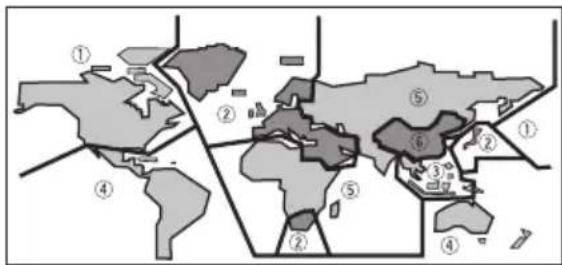
Handling discs
When holding discs of any type, take care not to leave fingerprints, dirt or scratches on the disc surface. Hold the disc by its edge or by the center hole and edge.
Damaged or dirty discs can affect playback performance. Take care also not to scratch the label side of the disc. Although not as fragile as the recorded side, scratches can still result in a disc becoming unusable.
Should a disc become marked with fingerprints, dust, etc., clean using a soft, dry cloth, wiping the disc lightly from the center to the outside edge as shown in the diagram below.
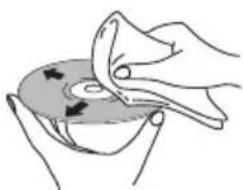
Wipe lightly from the center of the disc using straight strokes.
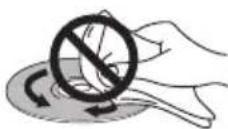
Don't wipe the disc surface using circular strokes.
If necessary, use a cloth soaked in alcohol, or a commercially available CD/DVD cleaning kit to clean a disc more thoroughly. Never use benzine, thinner or other cleaning agents, including products designed for cleaning vinyl records.
Storing discs
Although CDs and DVD discs are more durable than vinyl records, you should still take care to handle and store discs correctly. When you're not using a disc, return it to its case and store upright. Avoid leaving discs in excessively cold, humid, or hot environments (including under direct sunlight).
Don't glue paper or put stickers onto the disc, or use a pencil, ball-point pen or other sharp-tipped writing instrument. These could all damage the disc.

For more detailed care information see the instructions that come with discs.
Do not load more than one disc into the player at a time.
Discs to avoid
Discs spin at high speed inside the player. If you can see that a disc is cracked, chipped, warped, or otherwise damaged, don't risk using it in your player--you could end up damaging the unit.
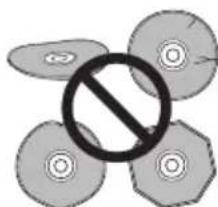
This unit is designed for use with conventional, fully circular discs only. Use of shaped discs is not recommended for this product. Pioneer disclaims all liability arising in connection with the use of shaped discs.
Proper installation and maintenance of this system
Hints on installation
We want you to enjoy using this system for years to come, so please bear in mind the following points when choosing a suitable location for it:
Do...
Use in a well-ventilated room.
Place on a solid, flat, level surface, such as a table, shelf or stereo rack.
Don't...
× Use in a place exposed to high temperatures or humidity, including near radiators and other heat-generating appliances.
× Place on a window sill or other place where the system will be exposed to direct sunlight.
× Use in an excessively dusty or damp environment.
× Place directly on top of an amplifier, or other component in your stereo system that becomes hot in use.
X Use near a television or monitor as you may experience interference—especially if the television uses an indoor antenna.
X Use in a kitchen or other room where the system may be exposed to smoke or steam.
X Use on a thick rug or carpet, or cover with cloth—this may prevent proper cooling of the system.
× Place on an unstable surface, or one that is not large enough to support all four of the unit's feet.
Cleaning the pickup lens
The DVD player's lens should not become dirty in normal use, but if for some reason it should malfunction due to dust or dirt, consult your nearest Pioneer authorized service center. Although lens cleaners are commercially available, we do not recommend using them since some may damage the lens.
Problems with condensation
Condensation may form inside the player if it is brought into a warm room from outside, or if the temperature of the room rises quickly. Although the condensation won't damage the player, it may temporarily impair its performance. For this reason you should leave it to adjust to the warmer temperature for about an hour before switching on and using.
Moving the system unit
If you need to move the main unit, first remove a disc if there's one in the player, then press STANDBY/ON on the front panel to turn the system off. Wait for Good Bye to disappear from the display, then unplug the power cable. Never lift or move the unit during playback—discs rotate at a high speed and may be damaged.

Note
- Unplugging the unit before Good Bye disappears from the display may cause the system to return to the factory settings.
Power cord caution
Handle the power cord by the plug. Do not pull out the plug by tugging the cord and never touch the power cord when your hands are wet as this could cause a short circuit or an electric shock. Do not place this unit, a piece of furniture, etc., on the power cord, or pinch the cord. Never make a knot in the cord or tie it with other cords. The power cords should be routed such that they are not likely to be stepped on. A damaged power cord can cause a fire or give you an electrical shock.
Check the power cord once in a while. When you find it damaged, ask your nearest Pioneer authorized service center or your dealer for a replacement.
Troubleshooting
Incorrect operations are often mistaken for trouble and malfunctions. If you think that there is something wrong with this component, check the points below. Sometimes the trouble may lie in another component. Investigate the other components and electrical appliances being used. If the trouble cannot be rectified even after exercising the checks listed below, ask your nearest Pioneer authorized service center or your dealer to carry out repair work.

Important
- If the system does not operate normally due to external effects such as static electricity disconnect the power plug from the outlet and insert again to return to normal operating conditions.
General
| Problem Remedy | |
| The power does not turn on. | ·Connect the power plug to the wall outlet. ·Disconnect the power plug from the outlet, and insert again. ·Make sure there are no loose strands of speaker wire touching the rear panel. This could cause the system to shut off automatically. |
| No sound is output when a function is selected. | ·If you're using the line input, make sure the component is connected correctly (see Connecting auxiliary components on page 73). ·Press MUTE on the remote control to turn muted off. ·Adjust the VOLUME. |
| No image is output when playing discs. | ·Make sure the TV is connected correctly (refer to the Setup Guide). ·Reset the video output to interlace (see Component Out on page 65) |
| No sound from surround or center speakers. | ·Refer to Setting the channel levels on page 60 to check the speaker levels. ·Check that you haven't selected the STEREO sound mode (see Listening in surround sound on page 31). ·Check that the Virtual mode is not on (Using the Advanced Surround effects on page 33). ·Connect the speakers properly (refer to the Setup Guide). |
| Can't operate the remote control. | ·Replace the batteries (refer to the Setup Guide). ·Operate within 23 ft. (7 m), 30° of the remote sensor on the display unit (refer to the Setup Guide). ·Remove any obstacles or operate from another position. ·Avoid exposing the remote sensor on the display unit to direct light. |
No display - Make sure everything is connected properly.
| Problem Remedy | |
| Timer indicator is blinking and the system will not switch on. | • Unplug the unit, then plug back in. Wait for one minute then switch on. • Make sure the fan at the AMP section of the unit is not being blocked. • Check that the speakers are connected correctly. • If the problem persists, take it to your nearest Pioneer authorized service center or your dealer for servicing. |
DVD/CD/Video CD player
| Problem Remedy | |
| The disc is ejected automatically after loading. | Clean the disc. Align the disc properly in the disc guide. If the region number on a DVD-video disc does not match the number on the player, the disc cannot be used (see DVD Video regions on page 78). Allow time for any condensation inside the player to evaporate. Avoid using the player near an air-conditioning unit. |
| Playback is not possible. | If the disc is loaded upside down, reload the disc with the label side face up. |
| Picture playback stops and the operation buttons cannot be used. | Press (stop), then play) to start playback again. Switch the power off once, then on again using the front panel STANDBY/ON button. |
| Settings are canceled. | When the power is cut due to power failure or by unplugging the power cable, settings will be canceled. |
| No picture/No color. | Check that connections are correct and that plugs are inserted fully. Check the instruction manual of the TV/monitor to make sure the TV/monitor settings are incorrect. If your TV/monitor is connected using an S-video cable, try changing the S-Video Out setting (see S-Video Out on page 66). |
| Screen is stretched or aspect does not change. | The TV Screen setting is incorrect. Set the TV Screen option to match the TV/monitor you're using (see TV Screen on page 64). |
| When recorded on a VCR or passed through an AV selector, there is disturbance in the playback picture. | This system uses copy-protection technology which may prevent recording or cause picture problems when connected through a VCR or AV selector. This is not a malfunction. |
Problem Remedy
Picture disturbance during playback or dark.
- This player is compatible with Macro-Vision System copy guard. Some discs include a copy prevention signal, and when this type of disc is played back, stripes etc., may appear on some sections of the picture depending on the TV. This is not a malfunction.
- Discs respond differently to particular player functions. This may result in the screen becoming black for a brief instant or shaking slightly when the function is executed. These problems are largely due to differences between discs and disc content and are not malfunctions of this player.
Noticeable difference in DVD and CD volume.
- DVDs and CDs use different recording methods. This is not a malfunction.
Incomplete sound from headphones when listening to a DVD-Audio disc.
- Some multichannel DVD-Audio discs only output the front/right channels through headphones.
MP3/JPEG discs
Problem Remedy
CD-ROM disc is not recognized by the system.
- Make sure that the CD-ROM was recorded using the ISO 9660 disc format. See General disc compatibility on page 10 for other disc compatibility information.
Files don't show up in the Disc Navigator/ Photo Browser.
- The files on the disc must be named with the correct file extension: .mp3 for MP3 files; .jpg for JPEG files (upper or lower-case is OK). See General disc compatibility on page 10 for other disc compatibility information.
JPEG files appear, but MP3 files don't show up.
- Set the PhotoViewer menu option in the Initial Settings menu to Off to be able to access the MP3 files. See PhotoViewer on page 72.
Tuner
| Problem Remedy | |
| Considerable noise in radio broadcasts. | ·Connect the antenna (refer to the Setup Guide). ·Fully extend the FM wire antenna, position for best reception, and secure to a wall. ·Connect an outdoor FM antenna (see Connecting external antennas on page 73). ·Adjust the direction and position for best reception. ·Connect an additional internal or external AM antenna (refer to the Setup Guide and Connecting external antennas on page 73). ·Turn off any other equipment that may be causing the noise or move it away from the main unit. ·The tuning interval is incorrect for your country or region. Try switching the tuning interval (frequency step) (see Changing the frequency step on page 77). |
| Auto tuning does not pick up some stations. | ·The radio signal is weak. Auto tuning will only detect radio stations with a good signal. For more sensitive tuning, connect an outdoor antenna. |
| Sound is mono only. | ·Check that the tuner is not set to FM mono (see Improving poor FM reception on page 29). |
Error Messages
| Message Description | |
| Child Lock | ·This message appears when the front panel buttons are pressed when the child lock feature is active. See Child Lock on page 77 for more on switching on/off the child lock. |
| Rec Mode On | ·Blinks rapidly for 2 seconds when an operation is prohibited because the Recording Mode is on (see Recording mode on page 75). |
| Phones In | ·Blinks rapidly for 2 seconds when an operation is prohibited because headphones are connected. |
| 96K Stereo | ·Blinks rapidly for 2 seconds when an operation is prohibited because the source is digital 88.2 or 96kHz PCM. |
| No Surr. SP | ·Blinks rapidly for 2 seconds when an operation is prohibited because there is no surround speaker output. |
| Muting | ·Blinks rapidly for 2 seconds when an operation is prohibited because the sound is muted (see Muting the sound on page 37). |
| Exit | ·Appears briefly when a menu is automatically exited after a set period of inactivity. |
Additional information
| Message Description | |
| DVD-AUDIO | • Blinks rapidly when one of the below buttons is pressed while a DVD-Audio disc is loaded. • AUTO·SURROUND·ADVANCED·DIALOGUE·VIRTUAL SB • BASS MODE |
| SACD | • Blinks rapidly when one of the below buttons is pressed while a SACD disc is loaded. • AUTO·SURROUND·ADVANCED·DIALOGUE·VVirtual SB • BASS MODE |
Screen sizes and disc formats
DVD-Video discs come in several different screen aspects, ranging from TV programs, which are generally 4:3, to CinemaScope widescen movies, with an aspect ratio of up to about 7:3.
Televisions also come in different aspect ratios; 'standard' 4:3 and widenscreen 16:9.
Widescreen TV users
If you have a widenscreen TV, the TV Screen setting (page 64) of this system should be set to 16:9 (Wide).
When you watch discs recorded in 4:3 format, you can use the TV controls to select how the picture is presented. Your TV may offer various zoom and stretch options; see the instructions that came with your TV for details.
Please note that some movie aspect ratios are wider than 16:9, so even though you have a widescreen TV, these discs will still play in a 'letterbox' style with black bars at the top and bottom of the screen.
Standard TV users
If you have a standard TV, the TV Screen setting (page 64) of this system should be set to 4:3 (Letter Box) or 4:3 (Pan&Scan), depending on which you prefer.
Set to 4:3 (Letter Box), widescen discs are shown with black bars top and bottom.
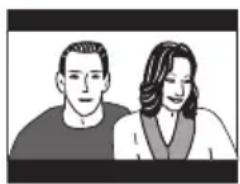
Set to 4:3 (Pan&Scan), widescen discs are shown with the left and right sides cropped. Although the picture looks larger, you don't actually see the whole picture.

Please note that many widescreen discs override the system's settings so that the disc is shown in letterbox format regardless of the setting.

Tip
- Using the 16:9 (Wide) setting with a standard 4:3 TV, or either of the 4:3 settings with a widescreen TV, will result in a distorted picture.
Selecting languages using the language code list
Some of the language options (see Language settings on page 66) allow you to set your preferred language from any of the 136 languages listed in the Language code list on page 88.
1 Select 'Other Language'.
2 U s e t h e / (cursor left/right) buttons to select either a code letter or a code number.
3 U s e t h e / (cursor up/down) buttons to select a code letter or a code number.
See the Language code list on page 88 (next page) for a complete list of languages and codes.
Language code list
Language(Language code letter),Language code
Japanese (ja), 1001
English (en), 0514
French (fr), 0618
German (de), 0405
Italian (it), 0920
Spanish (es), 0519
Dutch (nl), 1412
Russian (ru), 1821
Chinese (zh), 2608
Korean (ko), 1115
Greek (el).0512
Afar (aa), 0101
Abkhazian (ab), 0102
Hungarian (hu), 0821
Armenian (hy), 0825
Interlingua (ia), 0901
Interlingue (ie), 0905
Inupiak (ik), 0911
Indonesian (in). 0914
Icelandic (is), 0919
Hebrew (iw), 0923
Yiddish (ji), 1009
Javanese (jw), 1023
Georgian (ka), 1101
Kazakh (kk), 1111
Greenlandic (kl), 1112
Cambodian (km), 1113
Kannada (kn), 1114
Kashmiri (ks), 1119
Kurdish (ku), 1121
Kirghiz (ky), 1125
Latin (la), 1201
Lingala (In), 1214
Laothian (lo), 1215
Lithuanian (It), 1220
Latvian (lv), 1222
Malagasy (mg), 1307
Maori (mi), 1309
Macedonian (mk), 1311
Malayalam (ml), 1312
Mongolian (mn), 1314
Moldavian (mo), 1315
Marathi (mr), 1318
Malay (ms), 1319
Maltese (mt), 1320
Burmese (my), 1325
Nauru (na). 1401
Nepali (ne), 1405
Norwegian (no), 1415
Occitan (oc), 1503
Oromo (om), 1513
Oriya (or), 1518
Panjabi (pa), 1601
Polish (pl), 1612
Pashto,Pushto (ps),1619
Portuguese (pt), 1620
Quechua (qu), 1721
Rhaeto-Romance (rm).
1813
Kirundi (rn). 1814
Romanian (ro), 1815
Kinyarwanda (rw), 1823
Sanskrit (sa), 1901
Sindhi (sd). 1904
Sangho (sg), 1907
Serbo-Croatian (sh), 1908
Sinhalese (si), 1909
Slovak (sk), 1911
Slovenian (sl), 1912
Samoan (sm), 1913
Shona (sn), 1914
Somali (so), 1915
Albanian (sq), 1917
Serbian (sr), 1918
Siswati (ss), 1919
Sesotho (st), 1920
Vietnamese (vi), 2209
Volapuk (vo), 2215
Wolof (wo), 2315
Xhosa (xh), 2408
Yoruba (yo), 2515
Zulu (zu), 2621
Country code list
Country, Country code, Country code letter
Argentina, 0118, ar
Australia, 0121. au
Austria, 0120.at
Belgium, 0205, be
Brazil, 0218.br
Canada, 0301, ca
Chile, 0312. cl
China, 0314, cn
Denmark, 0411.dk
Finland, 0609, fi
France, 0618.fr
Germany, 0405, de
Hong Kong, 0811,hk
India, 0914. in
Indonesia. 0904.id
Italy, 0920.it
Japan, 1016.jp
Korea, Republic of, 1118
kr
Malaysia, 1325, my
Mexico, 1324, mx
Netherlands. 1412, nl
New Zealand, 1426, nz
Norway. 1415. no
Pakistan, 1611. pk
Philippines, 1608, ph
Portugal, 1620. pt
Russian Federation, 1821.
ru
Singapore, 1907, sg
Spain, 0519.es
Switzerland, 0308, ch
Sweden. 1905. se
Taiwan, 2023, tw
Thailand, 2008, th
United Kingdom, 0702.
United States of America,
2119.us
Preset code list
Please note that there are cases where only certain functions may be controllable after assigning the proper preset code, or the codes for the manufacturer in the list will not work for the model that you are using.
MANUFACTURER Code(s)
ACURA 644
ADMIRAL 631
AIWA 660
AKAI 632,635,642
AKURA 641
ALBA 607,639,641,644
AMSTRAD 642,644,647
ANITECH 644
ASA 645
ASUKA 641
AUDIOGONIC 607,636
BASIC LINE 641, 644
BAUR 631,607,642
BEKO 638
BEON 607
BLAUPUNKT 631
BLUE SKY 641
BLUE STAR 618
BPL 618
BRANDT 636
BTC 641
BUSH 607,641,642,644, 647,656
CASCADE 644
CATHAY 607
CENTURION 607
CGB 642
CIMLINE 644
CLARIVOX 607
CLATRONIC 638
CONDOR 638
CONTEC 644
CROSLEY 632
CROWN 638.644
CRYSTAL 642
CYBERTRON 641
DAEWOO 607,644,656
DAINICHI 641
DANSAI 607
DAYTON 644
DECCA 607,648
DIXI 607, 644
DUMONT 653
ELIN 607
ELITE 641
ELTA 644
EMERSON 642
ERRES 607
FERGUSON 607,636,651
FINLANDIA 635,643,655
FINLUX 632, 607, 645, 648, 653, 654, 655
FIRSTLINE 640,644
FISHER 632, 635, 638, 645
FORMENTI 632,607,642
FRONTECH 631,642,646
FRONTECH/PROTECH 632
FUJITSU 648,629
FUNAI 640,646,658
GBC632,642
GE 601,608,607,610,617, 602,628,618
GEC 607,634,648
GELOSO 632,644
GENEXXA 631,641
GOLDSTAR 610,623,621, 602,607,650
GOODMANS 607,639, 647,648,656
GORENJE 638
GPM 641
GRAETZ 631,642
GRANADA 607,635,642 643,648
GRADIENTE 630,657
GRANDIN 618
GRUNDIG 631,653
HANSEATIC607,642
HCM 618,644
HINARI 607, 641, 644
HISAWA 618
HITACHI 631,633,634, 636,642,643,654,606, 610,624,625,618
HUANYU 656
HYPSON 607,618,646
ICE 646,647
IMPERIAL 638,642
INDIANA 607
INGELEN 631
INTERFUNK 631, 632, 607, 642
INTERVISION 646, 649
ISUKAI 641
ITC 642
IT 631,632,642
JEC 605
JVC613,623
KAISUI 618,641,644
KAPSCH 631
KENDO 642
KENNEDY 632,642
KORPEL 607
KOYODA 644
LEYCO 607,640,646,648
LIESENK&TTER 607
LOEWE 607
LUXOR 632,642.643
M-ELECTRONIC 631,644
645,654,655,656,607
636,651
MAGNADYNE 632,649
MAGNAFON 649
MAGNAVOX 607,610, 603,612,629
MANESTH 639,646
MARANTZ 607
MARK 607
MATSUI 607,639,640, 642,644,647,648
MCMICHAE634
MEDIATOR 607
MEMOREX 644
METZ 631
MINERVA 631,653
MITSUBISHI 609,610,602, 621,631
MULTITECH 644,649
NEC 659
NECKERMANN 631,607
NEI 607.642
NIKKAI 605,607,641,646, 648
NOBLIKO 649
NOKIA 632,642,652
NORDMENDE 632,636, 651,652
OCEANIC 631,632,642
ORION 632,607,639,640
OSAKI 641,646,648
OSO 641
OSUME 648
OTTO VERSAND 631,632, 607,642
PALLADIUM 638
PANAMA 646
PANASONIC 631,607, 608,642,622
PATHO CINEMA 642
PAUSA 644
PHILCO 632,642
PHILIPS 631,607,634,656
PHOENIX 632
PHONOLA 607
PROFEX 642,644
PROTECH 607,642,644, 646,649
QUELLE 631,632,607,642, 645,653
R-LINE 607
RADIOLA 607
RADIOSHACK 610,623, 621,602
RBM 653
RCA 601, 610, 615, 616, 617, 618, 661, 662, 609
REDIFFUSION 632,642
REX631,646
ROADSTAR 641,644,646
SABA 631, 636, 642, 651
SAISHO 639,644,646
SALORA 631, 632, 642, 643
SAMBERS 649
SAMSUNG 607,638,644, 646
SANYO 635,645,648,621, 614
SBR 607,634
SCHAUBLORENZ 642
Additional information
SKANTIC 643
SOLAVOX 631
SONOKO 607,644
SONOLOR 631,635
SONTEC 607
SONY 604
SOUNDWAVE 607
STANDARD 641,644
STERN 631
SUSUMU 641
SYSLINE 607
TANDY 631,641,648
TASHIKO 634
TATUNG 607,648
TEC 642
TELEAVIA 636
TELEFUNKEN 636,637, 652
TELETECH 644
TENSAI 640,641
THOMSON 636,651,652, 663
THORN 631, 607, 642, 645, 648
TOMASHI 618
TOSHIBA 605,602,626, 621,653
TOWADA 642
ULTRAVOX 632,642.649
UNIVERSUM 631, 607, 638, 642, 645, 646, 654, 655
VESTEL 607
VICTOR 613
VOXSON 631
WALTHAM 643
WATSON 607
WATT RADIO 632,642, 649
WHITE
WESTINGHOUSE 607
YOKO 607,642,646
ZENITH 603,620
PIONEER 600,631,632, 607,636,642,651
Glossary
Analog audio
An electrical signal that directly represents sound. Compare this to digital audio which can be an electrical signal, but is an indirect representation of sound. See also Digital audio.
Aspect ratio
The width of a TV screen relative to its height. Conventional TVs are 4:3 (in other words, the screen is almost square); widenscreen models are 16:9 (the screen is almost twice as wide as it is high).
Bonus Group (DVD-Audio only)
An 'extra' group on some DVD-Audio discs that requires a key number to access. See also Bonus Group on page 70.
Browsing pictures (DVD-Audio only)
A feature of some DVD-Audio discs in which the user can browse still pictures recorded on the disc as the audio is played. See also Slideshow.
Digital audio
An indirect representation of sound by numbers. During recording, the sound is measured at discrete intervals (44,100 times a second for CD audio) by an analog-to-digital converter, generating a stream of numbers. On playback, a digital-to-analog converter generates an analog signal based on these numbers. See also Sampling frequency and Analog audio.
Dolby Digital

Using a maximum of 5.1 channels of audio, this high quality surround system is used in many of the finer movie theaters around the world.
The on-screen display shows which channels are active, for example showing 3/2.1. The 3 being the two front channels and the center channel; the 2 being the surround channels, and the .1 being the LFE channel.
Dolby Pro Logic / Pro Logic II
A matrix decoding system that extracts 4.1 (Dolby Pro Logic) or 5.1 (Dolby Pro Logic II) channel surround sound from a two channel source.
DTS

DTS stands for Digital Theater Systems. DTS is a surround system different from Dolby Digital that has become a popular surround sound format for movies.
Dynamic range
The difference between the quietest and loudest sounds possible in an audio signal (without distorting or getting lost in noise). Dolby Digital and DTS soundtracks are capable of a very wide dynamic range, delivering dramatic cinema-like effects.
EXIF (Exchangeable Image File)
A file format developed by Fuji Photo Film for digital still cameras. Digital cameras from various manufacturers use this compressed file format which carries date, time and thumbnail information, as well as the picture data.
File extension
A tag added to the end of a filename to indicate the type of file. For example, ".mp3" indicates an MP3 file.
ISO 9660 format
International standard for the volume and file structure of CD-ROM discs.
JPEG
A file format used for still images, such as photographs and illustrations. JPEG files are identified by the file extension“.jpg” or“.JPG”. Most digital cameras use this format.
MP3
MP3 (MPEG1 audio layer 3) is a compressed audio file format. Files are recognized by their file extension ".mp3" or ".MP3".
MLP / Packed PCM (DVD-Audio only)
A lossless compression system that enables more PCM audio to be stored on a DVD-Audio disc than would otherwise be possible.
MPEG audio
An audio format used on Video CDs and some DVD discs. This system can convert MPEG audio to PCM format for wider compatibility with digital recorders and AV amplifiers. See also PCM (Pulse Code Modulation).
MPEG video
The video format used for Video CDs and DVDs. Video CD uses the older MPEG-1 standard, while DVD uses the newer and much better quality MPEG-2 standard.
PBC (PlayBack Control) (Video CD only)
A system of navigating a Video CD through on-screen menus recorded onto the disc. Especially good for discs that you would normally not watch from beginning to end all at once—karaoke discs, for example.
PCM (Pulse Code Modulation)
The most common system of encoding digital audio, found on CDs and DAT. Excellent quality, but requires a lot of data compared to formats such as Dolby Digital and MPEG audio. See also Digital audio.
Regions (DVD-Video only)
These associate discs and players with particular areas of the world. This system will only play discs that have compatible region codes. You can find the region code of your system by looking on the rear panel. Some discs are compatible with more than one region (or all regions).
S1 S-video output
This S-video signal format includes aspect ratio information (4:3 or 16:9) within the video signal.
S2 S-video output
S2 is an enhanced version of S-video which, in addition to aspect ratio information, contains letterbox / pan & scan information.
Widescreen TVs which are compatible with S2 S-video automatically switch to the appropriate mode according to the signal.
Sampling frequency
The rate at which sound is measured to be turned into digital audio data. The higher the rate, the better the sound quality, but the more digital information is generated. Standard CD audio has a sampling frequency of 44.1kHz , which means 44,100 samples (measurements) per second. See also Digital audio.
Slide show (DVD, Video CD)
A feature of some DVD discs and Video-CDs in which still pictures recorded on the disc cycle automatically as the audio is played. See also Browsable pictures.
Super Audio CD (SACD)
Super Audio CD is a high quality audio disc format that can accommodate high sampling rate stereo and multi-channel audio, as well as conventional CD audio all on the same disc.
Specifications
Amplifier Section
Continuous Power Output (RMS):
Front, center, surround . . . . . . . . . . . . . . . . . . . . . . . . . . . . . . . . . . . . . . . . . . . . . . . . . . . . . . . . . . . . . . . . . . . . . . . . . . . (1 kHz, 10 % T.H.D., 6 Ω
Subwoofer . . . 75 W (100 Hz, 10% T.H.D., 6Ω)
Continuous Power Output:
Front, center, surround . . . . .60 W per channel (1 kHz, 1% T.H.D., 6Ω)
Subwoofer . . . . . . 60 W (100 Hz, 1 % T.H.D., 6 Ω)
Disc section
Digital audio
characteristics .DVD fs: 96 kHz, 24-bit
Type .DVD system, Video CD system and Compact Disc digital audio system
Frequency response
48 kHz sampling 4 Hz - 22 kHz
96 kHz sampling 4 Hz - 44 kHz
192 kHz sampling 4 Hz - 88 kHz
S/N ratio 108 dB
Dynamic range 95 dB
Total harmonic distortion. 0.005 %
Wow and Flutter . . . . . Limit of measurement
(±0.001 % W.PEAK) or less
FM tuner section
Frequency Range. 87.5 - 108MHz
Antenna. 75 Ω, unbalanced
AM tuner section
Frequency Range
With 9kHz step. . . . . . . 531 kHz to 1,602 kHz
With 10kHz step. . . . . . 530 kHz to 1,700 kHz
Antenna. Loop antenna
Miscellaneous
Power Requirements. AC 120 V, 60 Hz
Power Consumption 178 W
Power Consumption
in standby mode 0.46 W
Dimensions:
DVD/CD Tuner .360 (W) x 74 (H) x 270 (D) mm 14^3 / 16 W × 2^29 / 32 H × 10^5 / 8 D in.
Display Unit . . . . . 274 (W) x 44 (H) x 35 (D) mm 10^25 / 32 (W) x 1^-23 / 32 (H) x 1^3 / 8 (D) in.
Weight:
DVD/CD Tuner 3.2 kg/7 lb
Display Unit. 0.2kg / 7 oz
Accessories
Operating Instructions 1
Setup guide 1
Display unit 1
Remote control unit. 1
Power cord 1
Video Cord (yellow plugs) 1
Display cable (gray plugs). 1
Control cable A (blue plugs). 1
Control cable B (black plugs) 1
FM antenna 1
AM loop antenna 1
Dry cell batteries (AA/R6) 2
Speaker cords (5 m) 3
Speaker cords (10 m) 2
Non-skid pads (center speaker) (S-DV830ST only). 3
Speaker stands (front/surround speakers) . . . 4
Speaker stand (center speaker)
(S-DV940ST only). 1
Large screws (S-DV940ST only) 8
Medium screws (S-DV940ST only) 2
Small screws (S-DV940ST only) 16
Cover plate (S-DV940ST only) 4
Warranty Card. 1
Satellite Speaker System (S-DV940ST)
Type....... Flat panel type bookshelf
Speaker
Exciter 2.5 cm exciter x 3
Tweeter 2.6 cm (semi-dome type)
Nominal impedance 6
Frequency range. 100 - 35,000 Hz
Maximum power. 75 W
Front/ Surround speakers
Dimensions . . . . 120 (W) x 30 (D) x 450 (H) cm
4^3 / 4(W)× 1^3 / 16(D)× 17^11 / 16(H) in.
Weight .0.9 kg/2 lb. 0 oz
Center speaker
Dimensions . 420 (W) x 32 (D) x 120 (H) cm
16^9 / 16(W)× 1^1 / 4(D)× 4^3 / 4(H) in.
Weight .0.9 kg/2 lb. 0 oz
The S-DV940ST satellite speakers are flat-panel-type units that use NXT® speaker technology.
These slim style speakers allow for easy installation anywhere.
NXT and the logo are registered trademarks of New Transducers Limited.
Satellite Speaker System (S-DV830ST)
Type Sealed, antimagnetic
Speaker. .8.7 cm (cone type)
.5.2 cm (cone type)
Nominal impedance 6
Frequency range. 80 - 20,000 Hz
Maximum power. 75 W
Front/ Surround speakers
Dimensions . . . . 110 (W) x 59 (D) x 284 (H) cm
4^11 / 32 W × 2^5 / 16 D × 11^3 / 16 H) in.
Weight 0.7 kg/1 lb.9 oz
Center speaker
Dimensions. 284 (W) x 58 (D) x 110 (H) cm
11 3/16 (W) × 2 9/32 (D) × 4 11/32 (H) in.
Weight 0.7 kg/1 lb.9 oz
Powered subwoofer (S-DV940SW/S-DV830SW)
Type . . . . . Bass reflex floor type, antimagnetic
Speaker 18 cm (cone type)
Nominal impedance. 6
Frequency range. 25 - 220 Hz
Maximum power. 75 W
Dimensions. . . . 192 (W) x 436 (D) x 395 (H) cm
7^9 / 16(W)× 17^5 / 32(D)× 15^9 / 16(H) in.
Weight 12.5 kg/27 lb.9 oz

Note
- Specifications and design subject to possible modification without notice, due to improvements.
This product includes FontAvenue® fonts licenced by NEC corporation. FontAvenue is a registered trademark of NEC Corporation.
Published by Pioneer Corporation
Copyright ©2003 Pioneer Corporation
All rights reserved

Dear Customer:
Selecting fine audio equipment such as the unit you've just purchased is only the start of your musical enjoyment. Now it's time to consider how you can maximize the fun and excitement your equipment offers. This manufacturer and the Electronic Industries Association's Consumer Electronics Group want you to get the most out of your equipment by playing it at a safe level. One that lets the sound come through loud and clear without annoying blaring or distortion, and, most importantly, without affecting your sensitive hearing.
Sound can be deceiving. Over time your hearing "comfort level" adapts to higher volumes of sound. So what sounds "normal" can actually be loud and harmful to your hearing. Guard against this by setting your equipment at a safe level BEFORE your hearing adapts.
To establish a safe level:
- Start your volume control at a low setting.
- Slowly increase the sound until you can hear it comfortably and clearly, and without distortion.
Once you have established a comfortable sound level:
- Set the dial and leave it there.
Taking a minute to do this now will help to prevent hearing damage or loss in the future. After all, we want you listening for a lifetime.
We Want You Listening For A Lifetime
Used wisely, your new sound equipment will provide a lifetime of fun and enjoyment. Since hearing damage from loud noise is often undetectable until it is too late, this manufacturer and the Electronic Industries Association's Consumer Electronics Group recommend you avoid prolonged exposure to excessive noise. This list of sound levels is included for your protection.
Decibel
Level Example
30 Quiet library, soft whispers
40 Living room, refrigerator, bedroom away from traffic
50 Light traffic, normal conversation, quiet office
60 Air conditioner at 20 feet, sewing machine
70 Vacuum cleaner, hair dryer, noisy restaurant
80 Average city traffic, garbage disposals, alarm clock at two feet.
THE FOLLOWING NOISES CAN BE DANGEROUS UNDER CONSTANT EXPOSURE
90 Subway, motorcycle, truck traffic, lawn mower
100 Garbage truck, chain saw, pneumatic drill
120 Rock band concert in front of speakers, thunderclap
140 Gunshot blast, jet plane
180 Rocket launching pad
Information courtesy of the Deafness Research Foundation.

IMPORTANT

Welcome to Pioneer DVD!
Thank you for purchasing this Pioneer DVD player.
Before using, please take a little time
to setup your DVD player
Put the batteries into the remote control
Next, press the [ENTER] button on the remote control and start the Let's Get Started Menu
Next

Dans le cas des disques MP3, selectionnez Disc Repeat, Folder Repeat ou Track Repeat (ou Repeat Off).
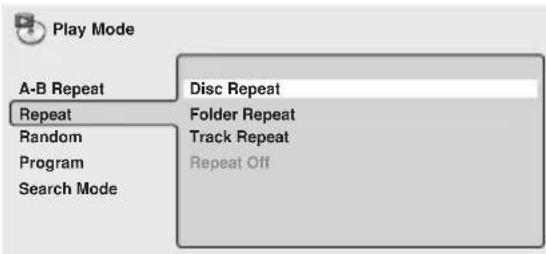
Dans le cas des DVD-Audio, selectionnez Random Group ou Random Track (ou Random Off).

| Play SACD | |||
| Current / Total Elapsed | Remain | Total | |
| Track | 0.131/14 | 4.21 | 4.34 |
| Play SACD | |||
| Current / Total Elapsed | Remain | Total | |
| Track | 0.221/9 | 3.38 | 4.00 |
| CD | 3/2.1CH | ||
| Audio | |||
| Play SACD | |||
| Elapsed | Remain | Total | |
| Disc | 0.05 | 73.00 | 73.05 |
| Play CD | |||
| Current / Total Elapsed | Remain | Total | |
| Track | 1.072/16 | 4.40 | 5.47 |
| Play | CD | ||
| Elapsed | Remain | Total | |
| Disc | 28.00 | 30.20 | 58.20 |
| Play MP3 | |||
| Track | Current / Total Elapsed | Remain | Total |
| 0.181/17 | 12.42 | 13.00 | |
| Track Name | Outernational | ||
| Play MP3 | |
| Current / Total | |
| Folder | 2/7 |
| Folder Name | ACP |
Cambodian (km), 1113
Canadien (kn), 1114
Kashmiri (ks), 1119
Kourde (ku), 1121
Kirghiz (ky), 1125
Latin (la), 1201
Lingala (In), 1214
Laosien (lo), 1215
Lithuanian (lt), 1220
Latvian (lv), 1222
Malagasy (mg), 1307
Maori (mi), 1309
Macedonian (mk), 1311
Malayalam (ml), 1312
Mongole (mn), 1314
Moldave (mo), 1315
Marathi (mr), 1318
Malay (ms), 1319
Maltais (mt), 1320
Burmese (my), 1325
Nauru (na), 1401
Népalais (ne), 1405
Norvegien (no), 1415
Occitan (oc), 1503
Oromo (om), 1513
Oriya (or), 1518
Panjabi (pa), 1601
Polish (pl), 1612
Pashto,Pushto (ps),1619
Portugais (pt), 1620
Quechua (qu), 1721
Rhaeto-Romance (rm),
1813
Kirundi (rn). 1814
Romanian (ro), 1815
Kinyarwanda (rw), 1823
Sanscrit (sa), 1901
Sindhi (sd), 1904
Sangho (sg), 1907
Serbo-Croat (sh), 1908
Sinhalois (si), 1909
Slovaque (sk), 1911
Slovenien (sl), 1912
Samoan (sm), 1913
Shona (sn), 1914
Somali (so), 1915
Albanien (sq), 1917
Serbe (sr), 1918
Siswati (ss), 1919
Sesotho (st), 1920
Sundanois (su), 1921
Suédois (sv), 1922
Swahili (sw), 1923
Tamil (ta), 2001
Telugu (te), 2005
Tajik (tg), 2007
Thai (th). 2008
Tigrinya (ti), 2009
Turkmène (tk), 2011
Tagalog (tl), 2012
Setswana (tn), 2014
Tonga (to). 2015
Turc (tr), 2018
Tsonga (ts), 2019
Tatar (tt), 2020
Twi (tw), 2023
FERGUSON 607,636,651
FINLANDIA 635,643,655
FINLUX632,607,645,648 653,654,655
FIRSTLINE 640,644
FISHER 632, 635, 638, 645
FORMENTI 632,607,642
FRONTECH 631,642,646
FRONTECH/PROTECH 632
FUJITSU 648,629
FUNAI 640,646.658
GBC632.642
GE601,608,607,610,617 602,628,618
GEC 607,634,648
GELOSO 632,644
GENEXXA 631,641
GOLDSTAR 610,623,621, 602,607,650
GOODMANS 607,639, 647,648,656
GORENJE 638
GPM 641
GRAETZ 631,642
GRANADA 607,635,642, 643,648
GRADIENTE 630,657
GRANDIN 618
GRUNDIG 631,653
HANSEATIC607,642
HCM 618, 644
HINARI 607, 641, 644
HISAWA 618
HITACHI 631,633,634, 636,642,643,654,606, 610,624,625,618
HUANYU 656
HYPSON 607,618,646
ICE 646, 647
IMPERIAL 638,642
INDIANA 607
INGELEN 631
INTERFUNK 631,632,607, 642
INTERVISION 646, 649
ISUKAI 641
ITC 642
ITT 631, 632, 642
JEC 605
JVC 613,623
KAISUI 618,641,644
KAPSCH 631
KENDO 642
KENNEDY 632,642
KORPEL 607
KOYODA 644
LEYCO607,640,646,648
LIESENK&TTER 607
LOEWE 607
LUXOR 632,642,643
M-ELECTRONIC 631,644, 645,654,655,656,607, 636,651
MAGNADYNE 632,649
MAGNAFON 649
MAGNAVOX 607,610, 603,612,629
MANESTH 639,646
MARANTZ 607
MARK 607
MATSUI 607,639,640, 642,644,647,648
MCMICHAE634
MEDIATOR 607
MEMOREX 644
METZ 631
MINERVA 631,653
MITSUBISHI 609,610,602, 621,631
MULTITECH 644,649
NEC 659
NECKERMANN 631,607
NEI 607,642
NIKKAI 605,607,641,646, 648
NOBLIKO 649
NOKIA 632,642.652
NORDMENDE 632,636, 651,652
OCEANIC 631,632,642
ORION 632,607,639,640
OSAKI 641,646,648
OSO 641
OSUME 648
OTTO VERSAND 631,632, 607,642
PALLADIUM 638
PANAMA 646
PANASONIC 631,607, 608,642,622
PATHO CINEMA 642
PAUSA 644
PHILCO 632,642
PHILIPS 631,607,634,656
PHOENIX 632
PHONOLA 607
PROFEX 642,644
PROTECH 607,642,644, 646,649
QUELLE 631,632,607,642, 645,653
R-LINE 607
RADIOLA 607
RADIOSHACK 610,623, 621,602
RBM 653
RCA601,610,615,616 617,618,661,662,609
REDIFFUSION 632,642
REX631.646
ROADSTAR 641,644,646
SABA 631, 636, 642, 651
SAISHO 639,644,646
SALORA 631,632,642,643
SAMBERS 649
SAMSUNG 607,638,644, 646
SANYO 635,645,648,621, 614
SBR 607,634
SCHAUBLORENZ 642
THOMSON 636,651,652, 663
THORN 631, 607, 642, 645, 648
TOMASHI 618
TOSHIBA 605,602,626, 621,653
TOWADA 642
ULTRAVOX 632,642,649
UNIVERSUM 631, 607.
638,642,645,646,654,655
VESTEL 607
VICTOR 613
VOXSON 631
WALTHAM 643
WATSON 607
WATT RADIO 632,642, 649
WHITE
WESTINGHOUSE 607
YOKO 607,642,646
ZENITH 603,620
PIONEER 600,631,632, 607,636,642,651
Glossaire
Audio analogue
EXIF (Exchangeable Image File)
Canaux avant, central, surround
.75Wpar canal(1kHz,DHT 10% ,6
Caisson des graves
75 W (100 Hz, DHT 10%, 6 Ω)
Canaux avant, central, surround
Compact Disc digital audio
Vis longues (S-DV940ST uniquement) .8
Dimensions. 120 (L) × 30 (P) × 450 (H) cm
4^3 / 4 L × 1^3 / 16(P)× 17^11 / _16 H) pouces
Poids .0.9 kg / 2 litres 0 onces
Enceinte centrale
Dimensions. 420 (L) x 32 (P) x 120 (H) cm
16^9 / 16 (L)× 1^1 / 4 (P) × 4^3 / 4 (H) pouces
Dimensions. 110 (L) x 59 (P) x 284 (H) cm
4^11 / 32 (L)× 2^5 / 16(P)× 11^3 / _16(H) pouces
Dimensions. 284 (L) x 58 (P) x 110 (H) cm
11^3 / 16 (L)× 2^9 / 32(P)× 4^11 / _32(H) pouces
Poids .0,7 kg / 1 lives 9 onces
Caisson de basses asservi (S-DV940SW/S-DV830SW)
© 2003 Pioneer Corporation.
Should this product require service in the U.S.A. and you wish to locate the nearest Pioneer Authorized Independent Service Company, or if you wish to purchase replacement parts, operating instructions, service manuals, or accessories, please call the number shown below.
800-421-1404
Please do not ship your product to Pioneer without first calling the Customer Support Division at the above listed number for assistance.
Pioneer Electronics (USA) Inc.
Customer Support Division
P.O. BOX 1760, Long Beach,
For warranty information please see the Limited Warranty sheet included with your product.
Should this product require service in Canada, please contact a Pioneer Canadian Authorized Dealer to locate the nearest Pioneer Authorized Service Company in Canada.
Alternatively, please contact the Customer Satisfaction Department at the following address:
Pioneer Electronics of Canada, Inc.
Customer Satisfaction Department
300 Allstate Parkway, Markham, Ontario L3R OP2
(905)479-4411
1(877)283-5901
For warranty information please see the Limited Warranty sheet included with your product.
300, Allstate Parkway, Markham, Ontario L3R OP2
(905)479-4411
1(877)283-5901
Published by Pioneer Corporation
Copyright ©2003 Pioneer Corporation
All rights reserved
PIONEER CORPORATION
4-1, Meguro 1-Chome, Meguro-ku, Tokyo 153-8654, Japan
PIONEER ELECTRONICS (USA) INC.
P.O. BOX 1540, Long Beach, California 90810-1540, U.S.A. TEL: (800) 421-1404
PIONEER ELECTRONICS OF CANADA, INC.
300 Allstate Parkway, Markham, Ontario L3R OP2, Canada TEL: (905) 479-4411
PIONEER EUROPE NV
Haven 1087, Keetberglaan 1, B-9120 Melsele, Belgium TEL: 03/570.05.11
PIONEER ELECTRONICS ASIACENTRE PTE. LTD.
253 Alexandra Road, #04-01, Singapore 159936 TEL: 656-472-1111
PIONEER ELECTRONICS AUSTRALIA PTY. LTD.
178-184 Boundary Road, Braeside, Victoria 3195, Australia, TEL: (03) 9586-6300
PIONEER ELECTRONICS DE MEXICO S.A. DE C.V.
Blvd. Manuel Avila Camacho 138 10 piso Col.Lomas de Chapultepec, Mexico,D.F. 11000 TEL: 55-9178-4270
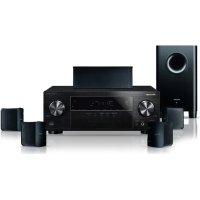
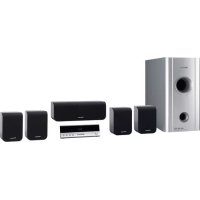
- Operating Instructions
- Mode diemploi
- IMPORTANT
- CAUTION
- RISK OF ELECTRIC SHOCK DO NOT OPEN
- CAUTION:
- IMPORTANT SAFETY INSTRUCTIONS
- GROUNDING OR POLARIZATION
- [For U.S. model]
- IMPORTANT NOTICE
- Information to User
- WARNING:
- [For Canadian model]
- Energy-saving design
- Installation precaution
- Wall-mounting the center and surround speaker system
- Before mounting
- Note
- Thank you for buying this Pioneer product.
- Contents
- Before you start
- Controls and displays
- Getting started
- Home theater sound
- Playing discs
- Viewing JPEG discs
- Using the timer
- Surround sound setup
- Video Adjust menu
- Initial Settings menu
- Other connections
- Additional information
- Chapter 1 Before you start
- Features
- DVD-Audio and SACD compatible
- Excellent audio performance with Dolby Digital, Dolby Pro Logic, Dolby Pro Logic II\*1 and DTS\*2 software
- Simple Room Setup for surround sound
- Picture zoom
- MP3 compatibility
- Graphical on-screen displays
- Energy saving design
- Introduction to home theater
- General disc compatibility
- DVD-RAM / DVD-ROM / CD-ROM*
- CD-R/RW compatibility
- DVD-R/RW compatibility
- PC-created disc compatibility
- Compressed audio compatibility
- JPEG file compatibility
- Chapter 2
- Controls and displays
- Front panel
- VOLUME buttons
- Timer indicator
- Display unit
- Remote sensor 10 Display
- STANDBY/ON
- Disc tray
- ▲ OPEN/CLOSE
- PHONES JACK
- Display
- Tuner indicators
- MIDNIGHT
- QU I E T
- PGM
- RPT and RPT-1
- RDM
- V . P A R T
- A T T
- REC MODE
- Timer indicators
- PRO LOGIC II
- DIGITAL
- Speaker indicators
- PRGSVE
- ADV.SURR.
- DTS
- kHz/MHz
- Character display
- Remote control
- STANDBY/ON
- Function select buttons
- DISPLAY
- Disc playback controls
- Cursor buttons, ENTER and tuning buttons
- Cursor buttons
- ENTER
- TUNE + / -
- ST+/-
- MUTE
- MASTER VOLUME
- TV CONTROL (page 21)
- INPUT
- ▲ OPEN/CLOSE
- RETURN
- SOUND
- Surround sound mode/sound enhancement buttons
- (In MAIN)
- AUTO
- SURROUND
- ADVANCED
- (In SUB)
- BASS MODE
- DIALOGUE
- VIRTUAL SB
- DVD/CD buttons
- AUDIO
- SUBTITLE
- ANGLE
- PROGRAM
- REPEAT
- RANDOM
- (In SUB)
- ZOOM
- TOP MENU
- HOME MENU
- (In SUB)
- SYSTEM SETUP
- TEST TONE
- CH LEVEL
- (In SUB)
- DIMMER
- QUIET/MIDNIGHT
- TIMER/CLOCK
- (In MAIN)
- CLR
- FOLDER -
- FOLDER +
- MAIN / SUB
- ROOM SETUP
- (In MAIN)
- Number buttons
- Chapter 3 Getting started
- Switching on and setting up
- Press STANDBY/ON (on the remote or on the front panel) to switch the system on.
- Press ENTER to move on to the next screen.
- Press ENTER again to finish setting up.
- Tip
- Setting the clock
- Press TIMER/CLOCK.
- Press ENTER.
- Press ENTER to confirm.
- Setting up the remote to control your TV
- Switch on your TV.
- Find the name of the manufacturer of your TV in the Preset code list on page 89
- Point the remote at your TV, hold down the CLR button, then enter the three digit code for your TV.
- Button What it does
- Using the Room Setup
- Playing discs
- If the player isn't already on, press STANDBY/ON to switch it on.
- Press OPEN/CLOSE to open the disc tray.
- Load a disc.
- Press (play) to start playback.
- Basic playback controls
- Starts playback.
- Using the top panel controls
- Resume and Last Memory
- FAQ
- DVD disc menus
- Video CD PBC menus
- Listening to the radio
- Improving poor FM reception
- Memorizing stations
- Tune to an AM or FM radio station.
- Listening to station presets
- Listening to other sources
- Chapter 4 Home theater sound
- Auto listening mode
- - Press AUTO to select the 'Auto' listening mode.
- Listening in surround sound
- - Press SURROUND repeatedly to select a listening mode (or press SURROUND then use the / (cursor up/down) buttons).
- Dolby Pro Logic II Music settings
- Listening in stereo
- Listening with headphones
- Using the Advanced Surround effects
- Adjusting the Advanced Surround effect level
- Enhancing dialogue
- - Press DIALOGUE to select the amount dialog enhancement.
- Listening with a virtual surround back speaker
- Using Quiet and Midnight listening modes
- Adjusting the bass and treble
- Press SOUND.
- Press ENTER to confirm.
- Boosting the bass level
- Muting the sound
- - Press MUTE to mute the volume.
- Chapter 5 Playing discs
- Introduction
- Remember
- Using the Disc Navigator to browse the contents of a disc
- Select what you want to play.
- Scanning discs
- During playback, press or to start scanning.
- Press repeatedly to increase the scanning speed.
- Playing in slow motion
- During playback, press II (pause) ( / on the top panel).
- Press and hold / or / until slow motion playback starts.
- Press repeatedly to change the slow motion speed.
- To resume normal playback, press (play).
- Frame advance/frame reverse
- Press / or / to reverse or advance a frame at a time.
- To resume normal playback, press (play) ( / ) on the top panel).
- Looping a section of a disc
- During playback, press HOME MENU and select 'Play Mode'.
- Select 'A-B Repeat' from the list of functions on the left.
- Press ENTER on 'A(Start Point)' to set the loop start point.
- Press ENTER on 'B(End Point)' to set the loop end point.
- To resume normal playback, select 'Off' from the menu.
- Using repeat play
- Using the OSD
- Select a repeat play option.
- Using the display unit
- Using random play
- Creating a program list
- Repeat step 4 to build up a program list.
- To play the program list, press (play).
- Editing a program list using the OSD
- Select 'Program' from the list of functions on the left.
- Select 'Create/Edit' from the list of program options.
- To clear a step, highlight the step number and press CLR.
- To insert a step in the middle of the program list, highlight the step where you want the new step to appear, then select a title/chapter/group/folder/track to add.
- Other functions available from the OSD program menu
- Select a program play function.
- Using the unit display
- Press PROGRAM.
- Repeat step 2 to build up a program list.
- To play the program list, press (play).
- Clearing the program list
- If a disc is playing, press (stop).
- Press CLR.
- Searching a disc
- Select 'Search Mode' from the list of functions on the left.
- Select a search mode.
- Press ENTER to start playback.
- Playing DVD-Audio 'Bonus Groups'
- Use the number buttons to enter the 4-digit key number.
- Switching subtitles
- - Press SUBTITLE repeatedly to select a subtitle option.
- Switching DVD-Video audio language
- Switching DVD-Audio audio channels
- Press AUDIO repeatedly to select an audio channel option.
- Switching Video CD audio channel
- Zooming the screen
- During playback, use the ZOOM button to select the zoom factor.
- Use the cursor buttons to change the zoomed area.
- Switching camera angles
- Displaying disc information
- OSD disc information
- Display unit information
- Chapter 6
- Viewing JPEG discs
- Playing a JPEG slideshow
- Using the JPEG Disc Navigator and Photo Browser
- Press DVD MENU to display the Disc Navigator screen.
- Use the cursor buttons ( / / ← / →) to navigate.
- To resume the slideshow from the highlighted file, press ENTER.
- Using the Photo Browser
- From the Disc Navigator screen, highlight a folder to display then press ENTER.
- Use the cursor buttons ( / / ← / →) to highlight a thumbnail picture.
- Press ENTER to display the selected thumbnail full size on screen.
- During slideshow playback, use the ZOOM button to select the zoom factor.
- Use the cursor buttons ( / / ← / →) to change the zoomed area.
- To resume the slideshow, press (play).
- Chapter 7 Using the timer
- Setting the wake-up timer
- Select the source you want played.
- Prepare the source.
- Set the volume.
- Set the switch-on time.
- Set the switch-off time.
- Switch the system into standby mode.
- Turning the wake-up timer on/off
- Setting the sleep timer
- Chapter 8
- Surround sound setup
- Setting up surround sound
- Press SYSTEM SETUP.
- U s e t h e ← / → (cursor left/right buttons to choose the setting you want to adjust.
- Use the / (cursor up/down) buttons to adjust the setting.
- Repeat steps 2 and 3 to make other settings.
- When you're done, press ENTER to leave the System Setup menu.
- System Setup menu options
- Front speakers distance setting
- Center speaker distance setting
- Surround speakers distance setting
- Dynamic Range Control
- Dual mono setting
- LFE attenuator setting
- Setting the channel levels
- Switch the remote control to SUB, then press TEST TONE to hear the test tone.
- Use the MASTER VOLUME + / - button to adjust the volume to an appropriate level.
- U s e t h e ↑/↓ (cursor up/down) buttons to adjust the speaker levels in turn.
- When you're done, press ENTER to exit test tone setup.
- Chapter 9
- Video Adjust menu
- Video Adjust
- Creating your own presets
- Chapter 10 Initial Settings menu
- Using the Initial Settings menu
- Press HOME MENU and select 'Initial Settings' from the on-screen display.
- Digital Audio Mode Settings
- Dolby Digital Out
- DTS Out
- Linear PCM Out
- Video Output settings
- TV Screen
- Component Out
- About progressive scan video
- Compatibility of this system with progressive-scan TVs.
- S-Video Out
- Language settings
- Audio Language
- Subtitle Language
- Subtitle Display
- Display settings
- DVD Menu Language
- On Screen Display
- Angle Indicator
- Options
- Parental Lock
- Registering a new password
- Changing your password
- Select 'Password Change'.
- Use the number buttons to enter your existing password, then press ENTER.
- Enter a new password.
- Setting/changing the Parental Lock level
- Select 'Level Change'.
- Use number buttons to enter your password, then press ENTER.
- Select a new level.
- Press ENTER to set the new level and return to the Options menu screen.
- Setting/changing the Country code
- Select 'Country Code'.
- Select a Country code.
- Press ENTER to set the new Country code and return to the Options menu screen.
- Bonus Group
- Auto Disc Menu
- GroupPlayback
- DVDPlaybackMode
- SACDPlayback
- PhotoViewer
- Chapter 12
- Other connections
- Connecting external antennas
- External AM antenna
- External FM antenna
- Connecting auxiliary components
- - Connect the TV (IN) jacks to the audio outs of your TV (or VCR).
- Reducing the TV and line signal levels
- Recording mode
- Connecting using the S-video output
- Connecting using the component video output
- Chapter 12 Additional information
- Switching off the demo
- Child Lock
- Changing the clock format
- Changing the frequency step
- Resetting the system
- Dimming the display
- Using and taking care of discs
- Titles, groups, chapters and tracks
- DVD Video regions
- Handling discs
- Storing discs
- Discs to avoid
- Proper installation and maintenance of this system
- Hints on installation
- Do...
- Don't...
- Cleaning the pickup lens
- Problems with condensation
- Moving the system unit
- Power cord caution
- Troubleshooting
- General
- DVD/CD/Video CD player
- Problem Remedy
- MP3/JPEG discs
- Tuner
- Error Messages
- Additional information
- Screen sizes and disc formats
- Widescreen TV users
- Standard TV users
- Selecting languages using the language code list
- Select 'Other Language'.
- Language code list
- Country code list
- Preset code list
- MANUFACTURER Code(s)
- Glossary
- Analog audio
- Aspect ratio
- Bonus Group (DVD-Audio only)
- Browsing pictures (DVD-Audio only)
- Digital audio
- Dolby Digital
- Dolby Pro Logic / Pro Logic II
- DTS
- Dynamic range
- EXIF (Exchangeable Image File)
- File extension
- ISO 9660 format
- JPEG
- MP3
- MLP / Packed PCM (DVD-Audio only)
- MPEG audio
- MPEG video
- PBC (PlayBack Control) (Video CD only)
- PCM (Pulse Code Modulation)
- Regions (DVD-Video only)
- S1 S-video output
- S2 S-video output
- Sampling frequency
- Slide show (DVD, Video CD)
- Super Audio CD (SACD)
- Specifications
- Amplifier Section
- Disc section
- FM tuner section
- AM tuner section
- Miscellaneous
- Accessories
- Satellite Speaker System (S-DV940ST)
- Satellite Speaker System (S-DV830ST)
- Powered subwoofer (S-DV940SW/S-DV830SW)
- Dear Customer:
- To establish a safe level:
- Once you have established a comfortable sound level:
- We Want You Listening For A Lifetime
- Decibel
- Level Example
- THE FOLLOWING NOISES CAN BE DANGEROUS UNDER CONSTANT EXPOSURE
- Glossaire
- Audio analogue
- Caisson de basses asservi (S-DV940SW/S-DV830SW)
- PIONEER CORPORATION
Brand : PIONEER
Model : HTZ830DV
Category : Home theater audio system