SoundOrb Aurora - Speaker GEAR4 - Free user manual and instructions
Find the device manual for free SoundOrb Aurora GEAR4 in PDF.


| Brand | GEAR4 |
| Model | SoundOrb Aurora |
| Product Type | 2.1 speaker system with wireless subwoofer |
| Subwoofer | Wireless 2.4 GHz with ambient lighting (Off, Glow, Fixed) |
| Compatibility | iPod and iPhone (with included Dock adapters) |
| Power Supply | Mains (power cable with EU and UK plugs) |
| Input Voltage | 100-240 V (standard estimate) |
| Connectivity | Dock for iPod/iPhone, RCA audio input, RCA video output |
| Sound Effects | Virtual DSP: Stereo, 3D, Wide |
| Remote Control | Yes, with navigation keys, volume, effects, etc. |
| Functions | Charge iPod/iPhone, video output to TV, TV audio input, mute ads |
| Box Contents | Main unit, subwoofer, 4 Dock adapters, power cables, RCA video cable, remote control, manual |
| Maintenance | Clean with a soft, dry cloth |
| Safety | Do not expose to moisture, do not open, use approved accessories |
| Warranty | Not specified, contact customer service |
| Trademark | GEAR4 is a trademark of Disruptive Ltd. |
Frequently Asked Questions - SoundOrb Aurora GEAR4
User questions about SoundOrb Aurora GEAR4
0 question about this device. Answer the ones you know or ask your own.
Ask a new question about this device
Download the instructions for your Speaker in PDF format for free! Find your manual SoundOrb Aurora - GEAR4 and take your electronic device back in hand. On this page are published all the documents necessary for the use of your device. SoundOrb Aurora by GEAR4.
USER MANUAL SoundOrb Aurora GEAR4
natural_image
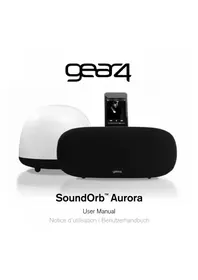
Two electronic devices, one white and one black, displayed against a plain background with no visible text or symbols.SoundOrb™ Aurora
User Manual
Thank you for buying the SoundOrb Aurora, stereo speaker with wireless Sub-Woofer for iPod and iPhone. Please read over this manual before use and retain it for future reference.
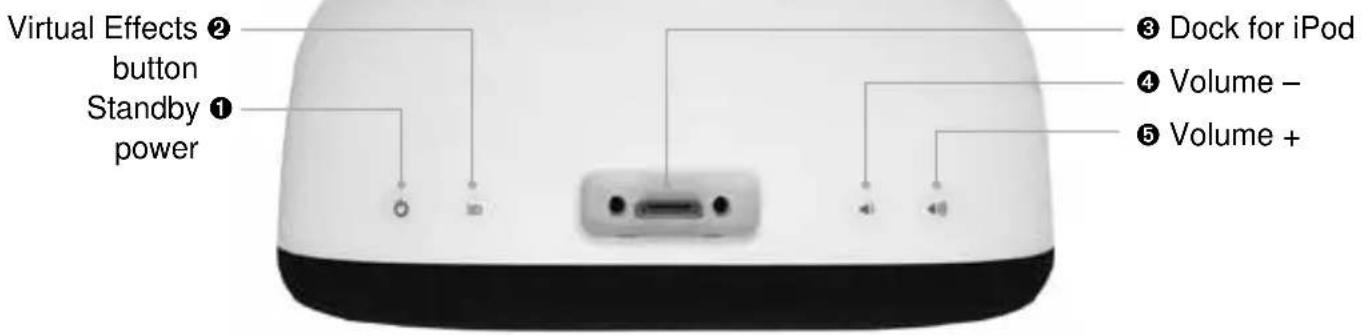
SoundOrb Aurora controls:
MAIN UNIT

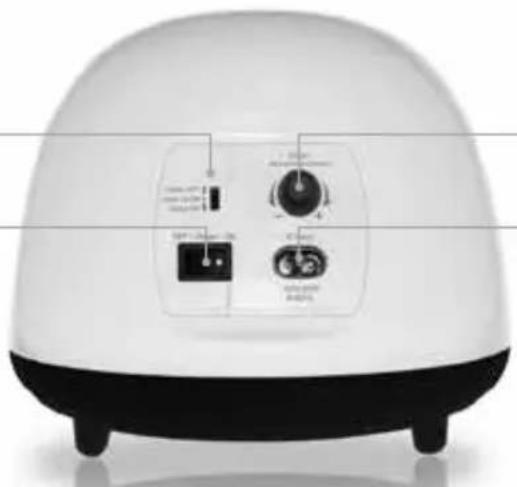
SUB-WOOFER

natural_image
Front view of a white dome-shaped electronic device with control knobs and buttons (no visible text or symbols)
Made for iPod

Works with iPhone
Made for iPod touch, iPod classic, iPod, iPod nano, iPod mini. Works with iPhone and iPhone 3G.
Box contents:
natural_image
Simple black rounded rectangle shape with white outline, no text or symbols present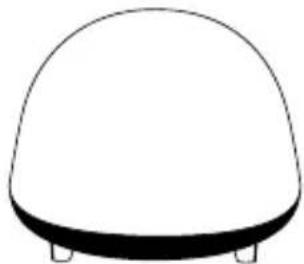
natural_image
Simple line drawing of a dome-shaped object with four legs (no text or symbols)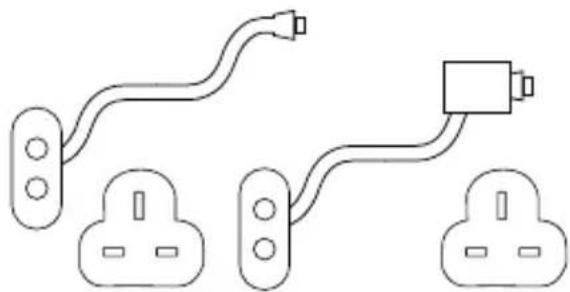
natural_image
Pure electrical circuit lines without any symbolsMain Unit and wireless Sub-Woofer
Unité principale et caisson de basses sans fil Hauptgerät und kabelloser Subwoofer
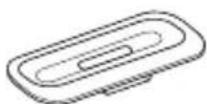
4 dock adapters for iPod / iPhone
User manual
Power cable for Sub-Woofer and power supply unit for Main Unit (both with UK / EU plugs)
natural_image
Simple line drawing of a U-shaped tube with two protruding leads (no text or symbols)Audio RCA cable
Câble RCA Audio-Cinch-Kabel
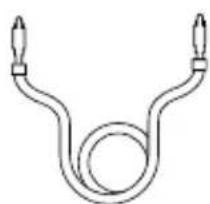
natural_image
Simple line drawing of a U-shaped tube with two protruding leads (no text or symbols)Video RCA cable
■ 2.1 wireless speaker system
■ 2.4 GHz wireless Sub-Woofer
■ DSP Virtual Effects
■ Adjustable ambient light in Sub-Woofer
■ Charges iPod / iPhone when docked
■ Backlit touch controls
■ Video output (from your iPod / iPhone to your TV)
■ Audio input (from your TV)
■ Remote control
Getting started:
- Plug the power supply unit into the back of the Main Unit and then into the mains supply.
- Plug the power cable into the back of the wireless Sub-Woofer and then into the mains supply.
- Press the power switch to 'ON' at the back of the Main Unit.
- Press the power switch to 'ON' at the back of the wireless Sub-Woofer (it will pick up the wireless signal from the Main Unit automatically).
■ Press on either the Main Unit or the remote control.
N.B. To turn the power supply off completely when not in use for a long period, press the power switch at the back of both the Main Unit and Sub-Woofer to the 'OFF' position.
For use with iPod / iPhone:
■ Select and insert the correct docking adapter to suit your iPod / iPhone.
- Carefully insert your iPod / iPhone into the dock, it will start charging upon connection.
■ Press on the Main Unit or remote control to power on.
■ Press on the remote control to play / pause your music.
■ Use the MENU button on the remote control to navigate through the iPod menus.
■ Press the ▲ and ▼ buttons on the remote control to navigate the various features of the iPod menus.
■ Press the ENTER button on the remote control to confirm your selection.
■ Press▶ on the remote control to scan through tracks.
■ Press the/ on the Main Unit or MAIN
+/- on the remote control to adjust the main volume of the Main Unit.
■ Press the SUB +/- on the remote control to adjust the volume of the Sub-Woofer.
N.B. when an iPod / iPhone is docked, SoundOrb Aurora will automatically select iPod mode and override other inputs (e.g. TV).
REPEAT / RANDOM PLAY:
■ To repeat the current track – press on the remote control once.
■ To repeat the whole album – press on the remote control twice. Press again to cancel.
■ To shuffle songs – press on the remote control. Press again to cancel.
DSP Virtual Effects:
SoundOrb Aurora has 3 sound presets:
- Stereo: Virtual surround sound is deactivated.
- 3D: Virtual surround sound is activated. This setting is best for music.
- Wide: Virtual wide stereo is activated. This setting is best for movies or live music. [ ]
■ To select your preferred setting: touch the 3D button repeatedly on the Main Unit to cycle through the 3 presets in order, or use the
STEREO, 3D or WIDE buttons on the remote control.
For use with TV:
To use SoundOrb Aurora as your home theatre sound system:
■ Connect the RCA cables to the back of your TV and then into the back of the Main Unit, matching the red and white colour coded plugs to the red and white colour coded ports on your TV (red and white are for audio; yellow is for video).
■ Press on the Main Unit or remote control to power on.
■ Check your TV settings to ensure audio is diverted via the RCA ports if necessary.
■ When watching your TV, the audio will now be played through SoundOrb Aurora.
N.B. When your iPod / iPhone is docked, iPod mode is always active. Remove your iPod / iPhone from the dock to automatically select TV mode.
To view your iPod / iPhone videos on your TV:
■ Select and insert the correct docking adapter to suit your iPod / iPhone.
■ Carefully insert your iPod / iPhone into the dock.
■ Press on the Main Unit or remote control to power on.
■ When your iPod / iPhone is docked, iPod mode is automatically activated.
■ Connect the RCA cables to back of your TV and then into the back of the Main Unit, matching the yellow colour coded plug to the yellow colour coded port on your TV (red and white are for audio; yellow is for video).
■ Select the correct source / mode on your TV.
■ Browse your iPod / iPhone menus and press
▶ on your iPod / iPhone or the remote control to start playing your selected video on your TV.
N.B. Some iPod models require you to have 'Video Out' settings turned on or enabled.
AD MUTE:
To minimise disruption from loud advertising breaks, SoundOrb Aurora's volume can be reduced to a low level by one touch. To do this:
■ Press and hold MUTE on the remote control for a few seconds, the volume level will be reduced to volume '25'.
■ Press and hold MUTE again to return to your original playing volume.
■ Tapping MUTE once will mute the volume completely.
Sub-Woofer:
To control the Sub-Woofer volume:
■ Press SUB VOLUME +/- on the remote control.
■ Press '3D' and +/- at the same time on the Main Unit.
RECOMMENDED SUB-WOOFER VOLUME SETTINGS:
■ To maintain the balance between low level bass-rich sound and higher, crisp notes, you may want to decrease the Sub-Woofer volume level if it is placed nearer to you and increase the Sub-Woofer volume if it is further away.
■ The volume of the Sub-Woofer should also be adjusted to match your environment / room, music and personal taste.
Ambient light function:
The Sub-Woofer has an adjustable ambient light function, capable of cycling through a full spectrum of colours.
■ To select the preferred mode, slide the switch at the back of the Sub-Woofer.
■ The ambient light has 3 settings:
- Off: the ambient light function is disabled.
- Glow: the ambient light will cycle through the full spectrum of colours. To set the
speed, make sure the light switch at the back of the Sub-Woofer is set to GLOW and turn the dial to increase / decrease the colour change speed.
- Fixed: the ambient light will be on in one colour. To set the colour, make sure the light switch at the back of the Sub-Woofer is set to FIXED and turn the dial to cycle through colours.
N.B. The Sub-Woofer is powered on/off by pressing ⏻ on the Main Unit or remote control. It must be powered on for the light to work.
Trouble shooting:
■ I am getting interference from other wireless devices (e.g. wireless broadband routers).
- Switch the Main Unit and Sub-Woofer off and then on again at the back of the units.
- Make sure that any other wireless equipment in your house is more than 1 metre away from the Main Unit and Sub-Woofer.
■ I am using the TV function, but audio is not playing through the Main Unit.
- Check the RCA cables are plugged into the right colour ports.
- Check your TV settings to ensure that audio is diverted via the RCA ports.
■ I am trying to watch video from my iPod on my TV, but there is no video playing.
- Check that your TV has the right input selected.
- Check the RCA cables are plugged into the right colour ports (including yellow).
- Check your iPod user manual for how to play video onto external devices from your specific model of iPod.
■ There is no sound from the Sub-Woofer
- Check the power switch on the Sub-Woofer is set to 'ON'.
– Turn the Main Unit off and on again.
For more trouble shooting tips / FAQs, please go to www.gear4.com
WARNING
To reduce the risk of fire or electric shock, do not expose this unit to rain or moisture.
CAUTION
Use of controls or adjustments of performance or procedures other than those specified may result in hazardous radiation exposure.
UNPACKING AND INSTALLATION
Unpack your unit carefully. We recommend that you save the packaging in case you ever need to store your unit. To avoid damage, never place
the unit or its batteries near radiators, in front of heating vents, under direct sunlight or near water.
FOR YOUR SAFETY
- When disconnecting the power cables, pull the plugs first. Do not pull the cords by themselves.
- Never handle the power plug with wet hands, as this could cause fire or electric shock.
– Refer servicing to qualified personnel only. - Do not open the housing.
- Do not twist or pinch the power supply cords. If the plugs or power supply cords need to be replaced, ensure that they comply with the manufacturer's recommendation.
- Only use GEAR4 approved accessories.
- Unplug the unit during lightning storms and when unused for extended periods of time.
DISPOSAL
According to the European Directive 2002/96/EC all electrical and electronic products must be collected separately by a local collection system. Please act according to your local rules and do not dispose of your old products with your normal household waste.
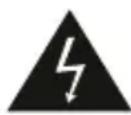
The lightning flash with arrowhead symbol, within an equilateral triangle, is intended to alert user to the presence of uninsulated ‘Dangerous Voltage’ within the product’s enclosure that may be of sufficient magnitude to constitute risk of electric shock to person.
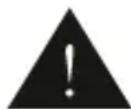
The exclamation point within an equilateral triangle is intended to alert user to the presence of important operating and maintenance (servicing) instruction in the literature accompanying the appliance.

CAUTION: TO REDUCE THE RISK OF ELECTRIC SHOCK DO NOT REMOVE COVER (OR BACK). NO USER-SERVICABLE PARTS INSIDE
REFER SERVICING TO QUALIFIED SERVICE PERSONNEL
To download some of the finest new music around for FREE, visit:
www.gear4.com/newmusic
Please ensure that your iPod / iPhone is using the latest software version. To update the software, connect your iPod / iPhone to iTunes. If there is a newer software version available you will be prompted to upgrade.
To activate your warranty, please register at: www.gear4.com/warranty
All rights reserved. Reproduction in whole or in part is prohibited. GEAR4 and product names are trademarks of Disruptive Ltd. iPod is a trademark of Apple Inc., registered in the US and other countries. iPhone is a trademark of Apple Inc. All other product names are or may be trademarks of and used to identify products or services of their respective owners. Brands are used for illustration purposes only and should not be used to infer any relationship between GEAR4 and respective owners.
"Made for iPod" means that an electronic accessory has been designed to connect specifically to iPod and has been certified by the developer to meet Apple performance standards.
“Works with iPhone” means that an electronic accessory has been designed to connect specifically to iPhone and has been certified by the developer to meet Apple performance standards.
Apple is not responsible for the operation of this device or its compliance with safety and regulatory standards.
FCC RuLES
You are cautioned that changes or modifications not expressly approved by the party responsible for compliance could void the user's authority to operate the equipment. This equipment has been tested and found to comply with the limits for a Class B digital device, pursuant to part 15 of the FCC rules.
These limits are designed to provide reasonable protection against harmful interference in a residential installation. This equipment generates, uses and can radiate radio frequency energy and, if not installed and used in accordance with the instructions, may cause harmful interference to radio communications.
However, there is no guarantee that interference will not occur in a particular installation. If this equipment does cause harmful interference to radio or television reception, which can be determined by turning the equipment off and on, the user is encouraged to try to correct the interference by one or more of the following measures:
– Reorient or relocate the receiving antenna.
– Increase the separation between the equipment and receiver.
- Connect the equipment into an outlet on a circuit different from that to which the receiver is connected.
- Consult the dealer or an experienced radio/TV technician for help.
OPERATION IS SuBjECT TO ThE FOLLOWING TWO CONDiTiONS:
1) This device may not cause interference and
2) This device must accept any interference, including interference that may cause undesired operation of the device.
www.gear4.com/newmusic
GEAR4 One-Year Warranty
Disruptive Ltd owners of the GEAR4 brand warrants this product to be free from defects in workmanship and materials, under normal use and conditions, for a period of one (1) year from the date of original purchase (“Warranty Period”).
THE WARRANTY DESCRIBED IN THIS PARAGRAPH SHALL BE IN LIEU OF ANY OTHER WARRANTY, EXPRESS OR IMPLIED, INCLUDING BUT NOT LIMITED TO, ANY IMPLIED WARRANTY OF MERCHANTABILITY OR FITNESS FOR A PARTICULAR PURPOSE.
This warranty does not apply to damage or defects caused by failure to follow the enclosed instructions, accident, abuse, misuse, misapplication, product modification, faulty ancillary equipment, improper voltage or current, lightning or other acts of God, commercial non-home use, normal wear and tear, shipping damage or loss, damage to digital media players or damage caused by service performed by anyone other than GEAR4.
GEAR4 will, at its option, repair or replace any product covered by this warranty that proves to be defective in workmanship or materials. If your product is no longer being manufactured or is out of stock, at its option, GEAR4 may replace your product with a similar or better product. GEAR4's liability is limited to the repair or replacement, at our option, of any defective product under warranty and shall not include any incidental or consequential damages. This warranty is valid only in Europe, is not transferable and does not extend to users other than the original purchaser.
Return Policy / Warranty Service
Proof of Purchase as evidence the unit was purchased from an authorised dealer within the Warranty Period is required for warranty service. In order to make a warranty claim, the purchaser must contact GEAR4 within 60 days of occurrence. If service is required, do not return the product without first contacting GEAR4. To get this product repaired or replaced, you must contact GEAR4 during the Warranty Period by email (support@gear4.com). You must include your email address, name, address, telephone number, date and place of purchase, alternative contact and a detailed description of the problem you are experiencing and the name / details of the product.
If the problem appears to be based on a defect in workmanship or materials, GEAR4 will provide a Return to Manufacturer Authorisation number and instructions for return shipment. Return shipments are at the customer's expense, and the return MUST be accompanied by the original proof of purchase. GEAR4 is not responsible for lost or damaged product during shipment. Any product returned without the original proof of purchase will be returned at the customer's expense.
To avoid any charges, all returns and exchanges must include the original packing materials, product box, all included accessories which may include, without limitation, power adapter or power cord, connecting cables, remote control, adapters, inserts cards and instruction manuals. Any replacement units or parts may be new or rebuilt. GEAR4 will not be liable for inconvenience, loss of time, loss of use of the product, lost profits or exemplary or consequential damages caused by or relating to this product.
This warranty gives you specific legal rights. You may also have other rights that vary from country to country. Some countries do not allow the exclusion or limitations of incidental or consequential damages or limitations on how long an implied warranty lasts, so the above may not apply to you.
Purchase or use of the GEAR4 product constitutes your acknowledgement of, and agreement to completely abide by, the forgoing warranty and disclaimers.
Declaration of Conformity
Product Name: GEAR4 SoundOrb Aurora
Address: Windsor House, Turnpike Road,
Model: PG448 High Wycombe, Bucks,
Distributor: Disruptive Ltd. HP12 3NR, United Kingdom.
Declare that the product described below is in conformity with the relevant provisions of the following directives and National Laws and Regulations adopting these directives.
The Low Voltage Directive 2006/95/EC
The EMC Directive 2004/108/EC
The product has been tested and assessed by application of the following standards or specifications. Together with all relevant National Technical Standards and Specifications as applicable.
Standard
Year
Description
EN55013 2001 Sound and television broadcast receivers and associated
+A1:2003 equipment - radio disturbance characteristics - limits and
+A2:2006 methods of measurement
EN55020 2002+A1 Sound and television broadcast receivers and associated
2003+A2:2005 equipment - immunity characteristics - limits and methods of measurement
EN61000-3-2 2000+ A2:2006 Power Harmonics
EN61000-3-3 1995+A1:2001 Voltage fluctuations and flicker
+A2:2005
EN 61000-4-2 1995+A1:1998 Electronic discharge immunity test
+A2:2001
EN 61000-4-4 2004 Electrical fast transient / Burst
EN 60065 2007 Audio, video and similar electronic apparatus Safety requirements
EN 300 328 V1.7.1 2006-10 Wideband transmission systems; Data transmission equipment operating in the 2.4 GHz ISM band and using wide band modulation techniques;
EN 301 489-1 V1.6.1 2005-09 Electro Magnetic Compatibility (EMC) standard for radio equipment and services;
EN 301 489-17 V1.2.1 2002-08 5 GHz high performance RLAN equipment and 5.8 GHz Broadband Data Transmitting Systems
Issued in:
High Wycombe, Bucks, United Kingdom Date: 22/09/09
Authorised Representative: Carl Walastyan Signature:
Position: Commercial Director