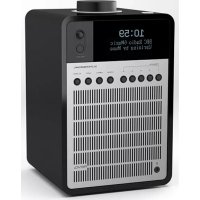
USER MANUAL SuperSignal REVO
Should you encounter problems using this product, please refer to the troubleshooting section on page 21 of this owner's guide.
Alternatively, call Revo technical support on :
UK 01555 666161
From outside the UK + 44 1555 666161
Alternatively, e-mail support@revo.co.uk or visit the troubleshooting section of our website at: www.revo.co.uk/support
ENVIRONMENTAL INFO
PRODUCT DISPOSAL INSTRUCTIONS (WEEE DIRECTIVE)

The symbol shown here and on the product means that it is classed as Electrical or Electronic Equipment and should not be disposed with other household or commercial waste at the end of its working life.
The Waste of Electrical and Electronic Equipment (WEEE) Directive (2002/96/EC) has been put in place to recycle products using best available recovery and recycling techniques to minimise the impact on the environment, treat any hazardous substances and avoid the increasing landfill.
For more information please contact your local authority or the retailer where the product was purchased.
RoHS COMPLIANT & CE MARK

RoHS COMPLIANT

This product has been designed to comply with international directives on the Restriction of Hazardous Substances (RoHS) and has been designed and type-tested to comply with EU requirements and carries a CE mark.
SAFETY WARNINGS
- Do not operate this radio near water
- Do not remove screws or casing parts
- Use only the power supply unit supplied
- Avoid small objects and liquids from entering the product

WARRANTY
Revo Technologies Ltd warrants to the end user that this product will be free from defects in materials and workmanship in the course of normal use for a period of one year from the date of purchase. This guarantee covers breakdowns due to manufacturing faults and does not apply in cases such as accidental damage, general wear and tear, user negligence, modification or repair not authorised by Revo Technologies Ltd.
To register your purchase please visit www.revo.co.uk/register
COPYRIGHTS AND ACKNOWLEDGEMENTS
Copyright 2014 Revo Technologies Ltd. All rights reserved.
No part of this publication may be copied, distributed, transmitted or transcribed without the permission of Revo Technologies Limited.
REVO and SUPERSIGNAL and are trademarks or registered trademarks of Revo Technologies Ltd.
The Bluetooth® word mark and logos are registered trademarks owned by Bluetooth SIG, Inc. and any use of such marks is under license. aptX® is a trademark of CSR plc.
Revo Technologies Ltd
The Inox Building, Caldwellside, Lanark,
Scotland, United Kingdom, ML11 7SR
Tel: 01555 66 61 61 Int. Tel: +44 1555 66 61 61
Fax: 01555 66 33 44 Int. Fax: +44 1555 66 33 44
Email: enquiries@revo.co.uk Website: www.revo.co.uk
DISCLAIMER
Revo Technologies Limited makes no representation or warranties with respect to the content of this publication, and specifically disclaims any implied warranties of merchantability or fitness for any particular purpose. Further, Revo Technologies Limited reserves the right to make changes to this publication from time to time, without notification to any person or organisation.
CONTENTS
| 02 | Technical | Support | |
| 02 | Environmental | Info | |
| 02 | Warranty | | |
| 02 | Copyrights | and | Acknowledgements |
| 02 | Disclaimer | | |
| 03 | Welcome / Unpacking | | |
| 04 | Anatomy | | |
| 05 | Remote | Control | |
| 06 | Power | Supply | |
| 06 | Set-Up | | |
| 07 | Control | | |
08 - 09 DAB Radio Mode
10 - 11 DAB Mode Menu Options
12 - 13 FM Radio Mode / AUX IN Mode
14 - 15 Bluetooth Mode
16 - 17 Alarm Clock
18 - 20 System Settings
21 Troubleshooting
WELCOME
Thank you for purchasing our SUPERSIGNAL radio.
SUPERSIGNAL is an expression of our design and engineering philosophy, and the result of the experience gained through 10 years of award-winning product design and development. Functionalism meets craft and technology, a next-generation audio device that will provide you with many years of enjoyment and reliable service.
This guide has been designed to quickly get you up-and-running with your radio, offer guidance on the more complex features of this product and provide information on safety, warranty details and troubleshooting.
UNPACKING YOUR RADIO
The SUPERSIGNAL box should include the following items:
- SUPERSIGNAL radio
- Remote control
• Power supply with multi-country adaptors
- Screen cleaning cloth
- Warranty card
- Owner's guide
Should any item be missing or damaged, please contact your point of purchase or call Revo directly on +44 (0) 1555 66 61 61
NOTE: All packaging should be retained for possible future use, it is the safest way to transport your radio should it be necessary.
ANATOMY OF SUPERSIGNAL
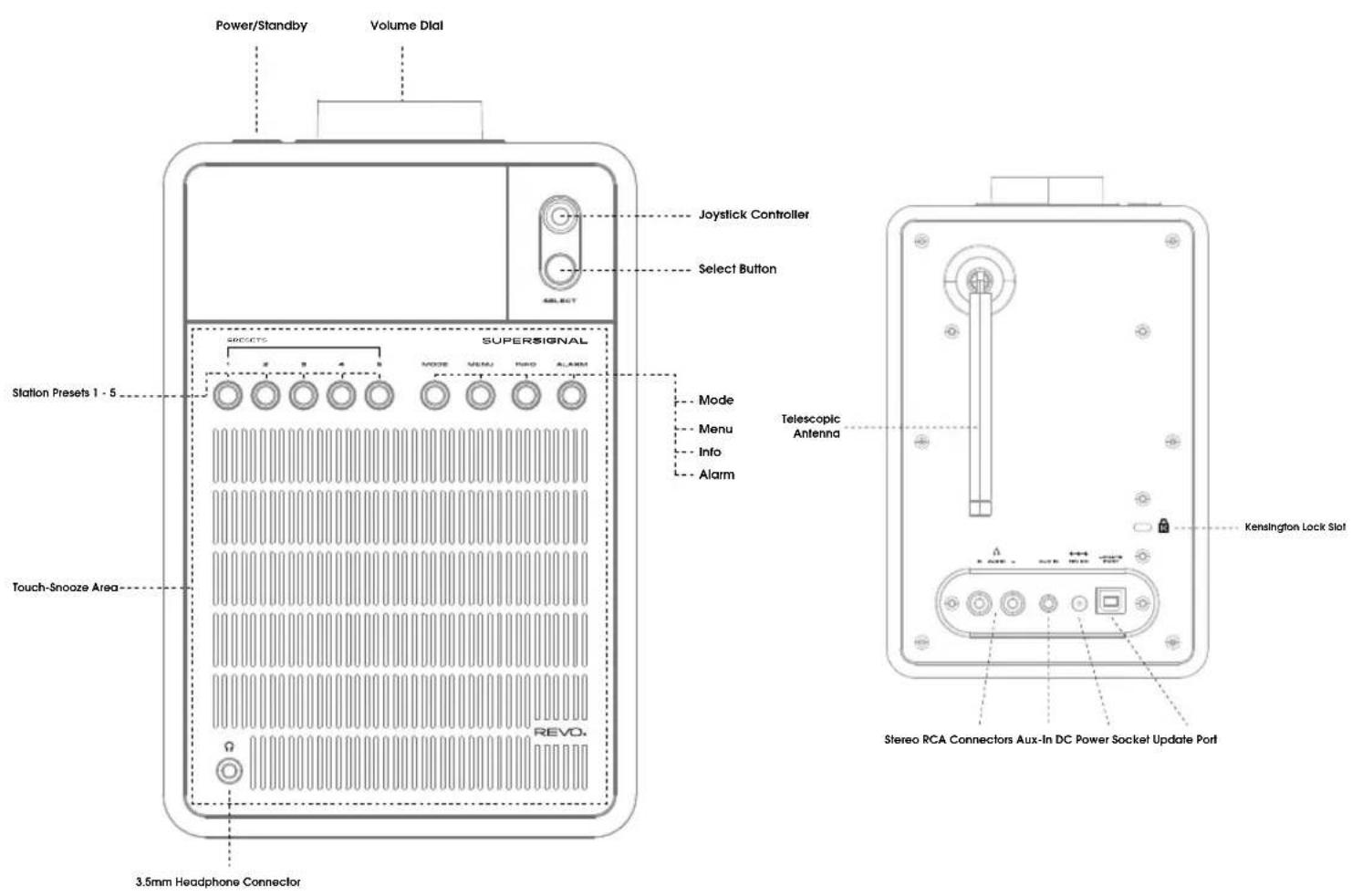
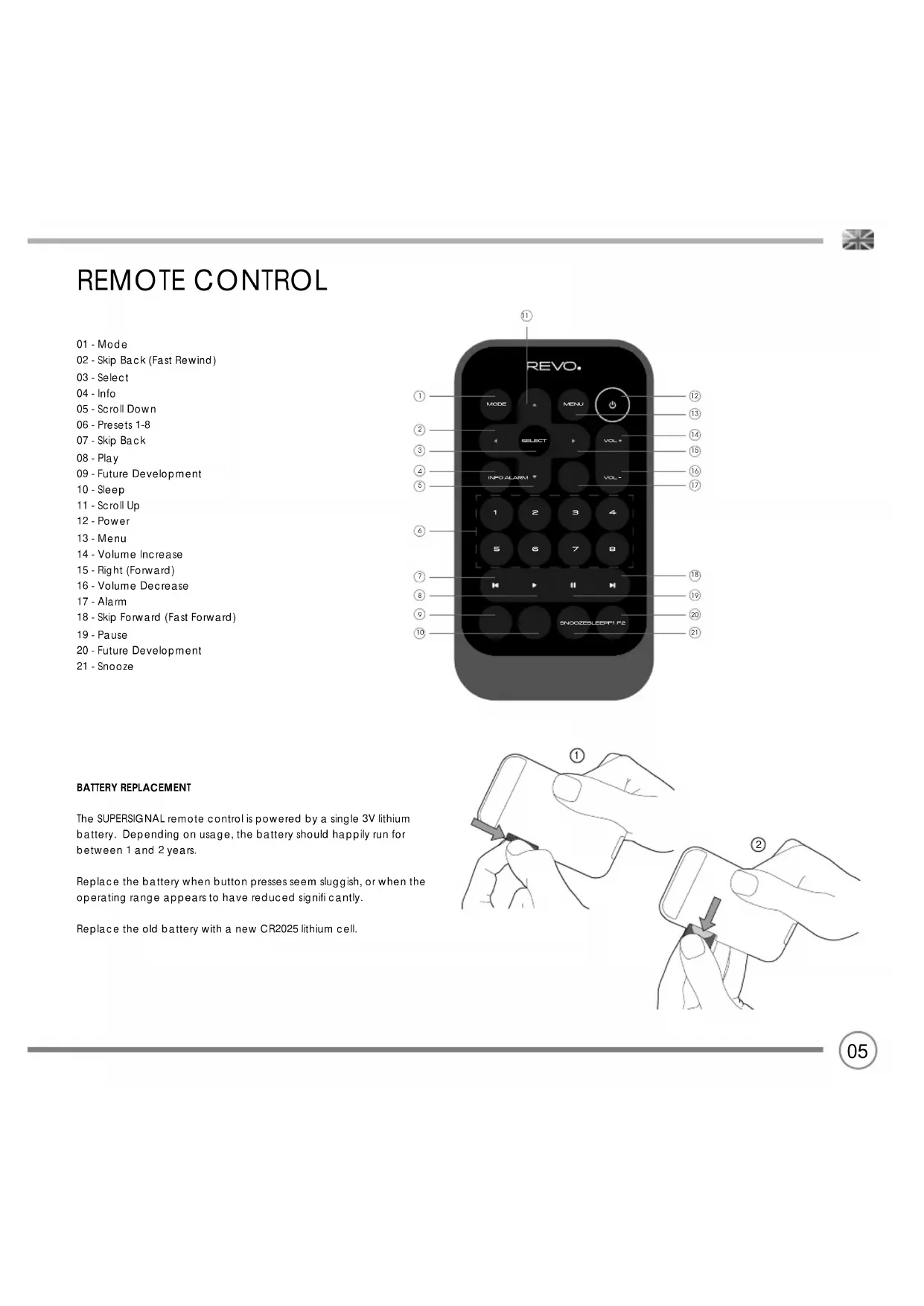
REMOTE CONTROL
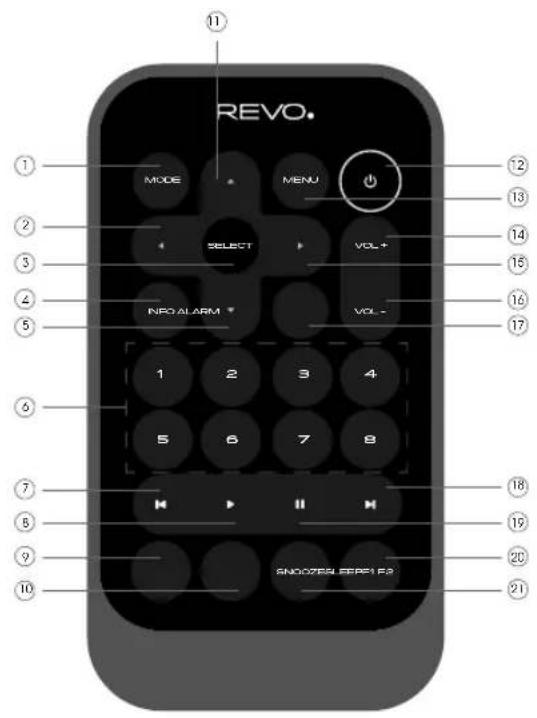
01 - Mode
02 - Skip Back (Fast Rewind)
03 - Select
04 - Info
05 - Scroll Down
06 - Presets 1-8
07 - Skip Back
08 - Play
09 - Future Development
10 - Sleep
11 - Scroll Up
12 - Power
13 - Menu
14 - Volume Increase
15 - Right (Forward)
16 - Volume Decrease
17 - Alarm
18 - Skip Forward (Fast Forward)
19 - Pause
20 - Future Development
21 - Snooze
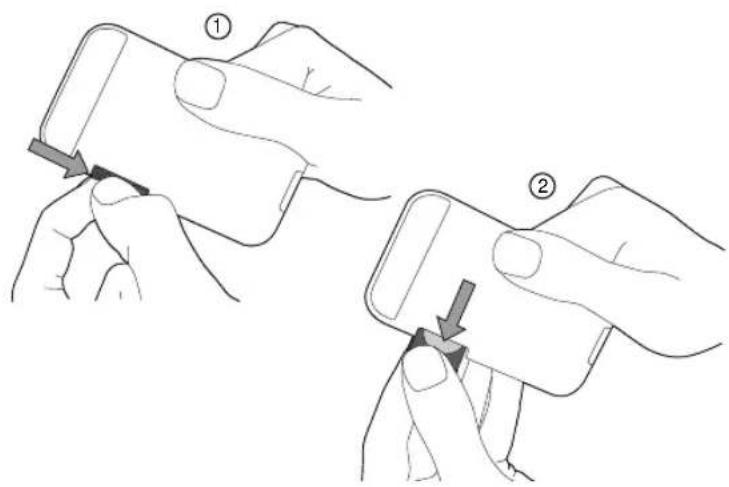
BATTERY REPLACEMENT
The SUPERSIGNAL remote control is powered by a single 3V lithium battery. Depending on usage, the battery should happily run for between 1 and 2 years.
Replace the battery when button presses seem sluggish, or when the operating range appears to have reduced significantly.
Replace the old battery with a new CR2025 lithium cell.
POWER SUPPLY (PSU)
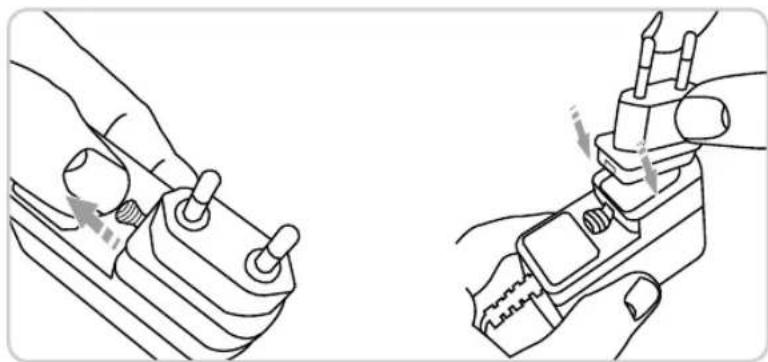
Your SUPERSIGNAL radio is supplied with a multi-region power supply, meaning that it can be operated in a number of countries around the world.
Simply choose the correct adaptor for your country from the selection supplied, then follow the instructions below.
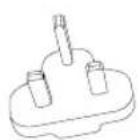
UK
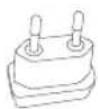
EURO

U.S.A

AUSTRALIA
natural_image
Technical line drawing showing two hands operating a mechanical clamp or tool (no text or symbols present)
SET-UP
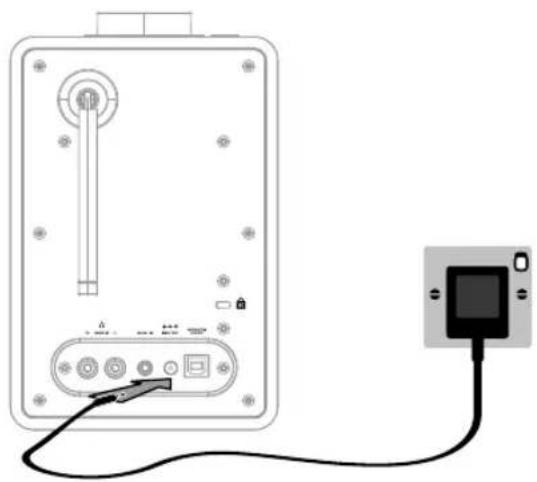
① Using the PSU supplied, connect one end to the DC power socket found on the rear of your radio, then plug the opposite end into the mains socket on the wall.
natural_image
Diagram of a device rear panel connected to a separate black-and-white card via cable (no text or symbols visible)
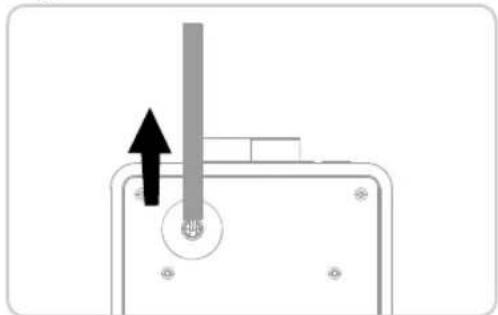
② SUPERSIGNAL will automatically perform a scan to see what DAB stations are being broadcast in your area. Therefore please fully extend the antenna before switching on.
natural_image
Pure mechanical diagram showing a lever and pivot point without any text or symbols
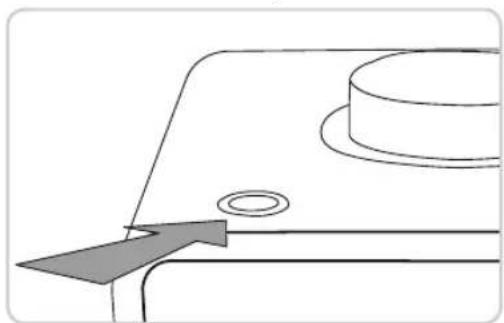
③ Press the POWER button once to get started.
natural_image
Pure technical line drawing of a mechanical component with no text or symbols
CONTROLLING SUPERSIGNAL
In order for you to get the most from your radio, it is important for you to understand how its joystick and menu system operates.
JOYSTICK CONTROL
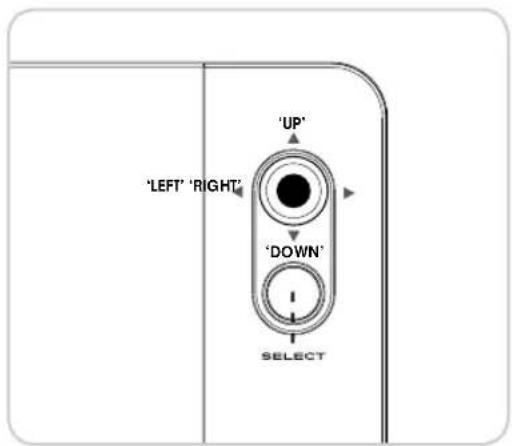
Your radio uses a joystick based control system for ease of use.
The joystick controller has four functions (UP, DOWN, LEFT and RIGHT) and is used in conjunction with a separate SELECT button.
Pressing the MENU button will take you to the Mode Menu for the particular mode of operation you are in. For example, pressing MENU when in DAB Mode will take you to the DAB MODE MENU.
Pressing the MENU button for a second time will return you to the 'playing screen' that you just left.
You can use the Ⓜ button at any time to reverse out of any menu that you're navigating through.
The following system settings can be accessed from any of the mode menus:
- Sleep
- Equaliser
- Time
- Contrast
- Language
- Factory Reset
- Software Upgrade
- Software Version
See SYSTEM SETTINGS on Page 18 for further details
Pressing the MODE button will sequentially cycle through each of SUPERSIGNAL's modes of operation.

DAB RADIO MODE
Please ensure that the radio's antenna is extended before operation in DAB Mode.
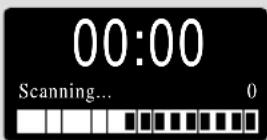
When you switch on SUPERSIGNAL for the first time, it will automatically perform a scan to see what stations are being broadcast in your area, before storing them alphabetically in the radio's memory.
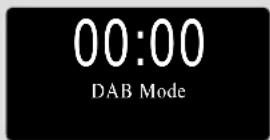
To enter DAB MODE, press the screen is displayed.

button until the DAB MODE intro
It may be necessary to perform a FULL SCAN from time to time, in order to update your radio's station list. This may be required for any one of the following reasons:
- Station availability can change from time to time as new stations appear, or existing stations cease broadcasting.
- Reception was poor during the initial automatic scan, if for example the radio's antenna was not completely extended, it may be that the station list is incomplete or even empty.
- You have poor reception on some of the stations (resulting in broken or poor quality audio), you may wish to list only stations that have a strong signal strength.
To start a manual scan, press the from the menu list.

button then select FULL SCAN
When the scan is complete, your radio will list all available stations.
To remove stations that are listed but unavailable, press MENU then choose PRUNE. When asked whether you wish to "PRUNE?", select YES.
00:00
Prune?
Yes
DAB RADIO MODE
SELECTING A STATION
To access your radio's station list, press UP/DOWN or LEFT/RIGHT on the joystick controller at any time, alternatively press MENU then select STATION LIST.
Scroll through the available stations using UP/DOWN or LEFT/RIGHT on the joystick controller, then press the SELECT button to select your station choice.
14:12
Station List
FAVOURITE STATION PRESETS
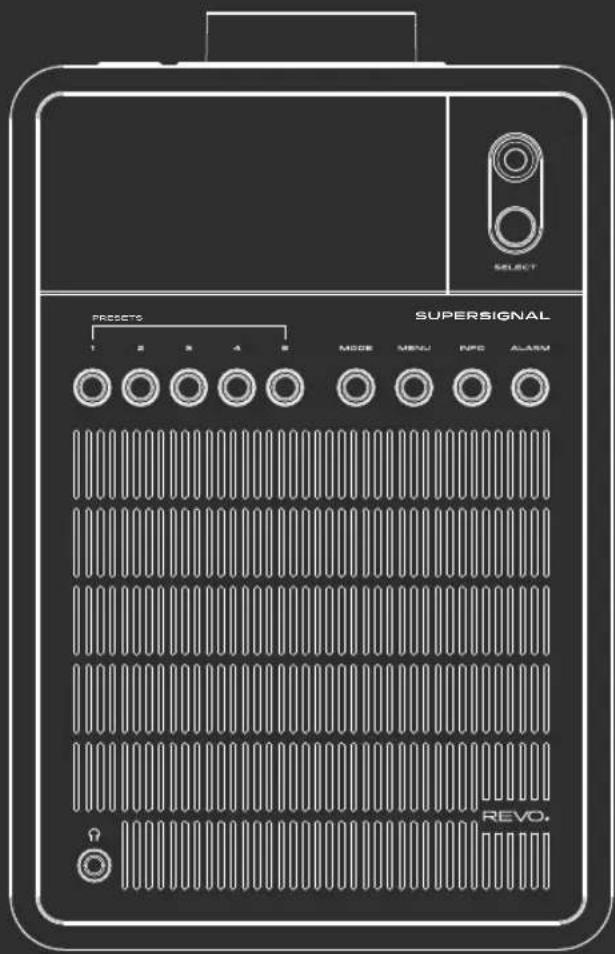
SUPERSIGNAL allows you to store your favourite stations as presets, either via its 5 front panel mounted 'hot-keys', or the numbered preset buttons located on the remote control.
To store the station you are currently listening to as a preset, simply press and hold a preset button until "Preset Stored" is displayed on your radio's screen.
14:12
BBC Radio 6Music Playing
14:12
Preset Stored
If you want to change a particular preset in the future, repeat the process and the previously stored preset will be automatically overwritten.
STATION INFO
In DAB MODE, SUPERSIGNAL is capable of displaying various pieces of information on its screen. By pressing the INFO button, you can sequentially cycle through the following types of information.
STANDARD DAB SCREEN Shows scrolling text info from broadcaster
PROGRAMME TYPE For example News, Rock Music, Classical etc.
MULTIPLEX AND FREQUENCY Multiplex owner and station frequency
SIGNAL STRENGTH Station's current signal strength
BIT RATE AND CODEC Audio format, sample rate, mono or stereo
DATE
Today's
date
14:12
BBC Radio 6Music Playing
14:12
BBC Radio 6Music
Rock Music
14:12
BBC Radio 6Music
12B 225 648MHz
14:12
BBC Radio 6Music Signal Level:99
14:12
BBC Radio 6Music
128kbps / DAB
14:12
BBC Radio 6Music
6-11-2013
DYNAMIC RANGE COMPRESSION (DRC)
If you are listening to music with a high dynamic range in a noisy environment (for example, classical music while cooking), you may wish to compress the audio's dynamic range. This has the effect of making quiet sounds louder, and loud sounds quieter.
To change the DRC setting, press MENU then choose the DRC option, before selecting OFF, LOW or HIGH.
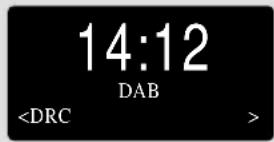
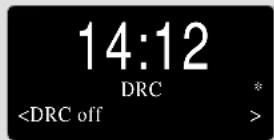
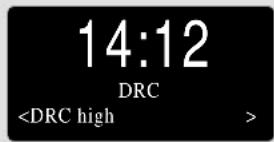

FM RADIO MODE
FM OPERATION
Please ensure that the radio's antenna is extended before operation in FM MODE.
To enter FM MODE, press the MODE button until the FM MODE intro screen is displayed.
14:12
FM Mode
If this is the first time that SUPERSIGNAL has been used in FM MODE, it will start at the beginning of the frequency range (87.50MHz), otherwise SUPERSIGNAL will default to the station that was being listened to last.
14:12
87.50MHz
Pressing the SELECT button will start the radio scanning for the next available station. SUPERSIGNAL will automatically stop scanning when a station is found.
To fine tune, use UP/DOWN or LEFT/RIGHT on the joystick controller to incrementally change the frequency.
When on an FM station that has a strong signal and is broadcasting RDS information, SUPERSIGNAL will display the station name and other pieces of text information on-screen.
14:12
BBC R2
Other Music
FAVOURITE STATION PRESETS
SUPERSIGNAL allows you to store your favourite stations as presets, either via its 5 front panel mounted 'hot-keys', or the numbered preset buttons located on the remote control.
To store the station you are currently listening to as a preset, simply press and hold a preset button until "Preset Stored" is displayed on your radio's screen.
14:12
Preset Stored
If you want to change a particular preset in the future, repeat the process and the previously stored preset will be automatically overwritten.
FM RADIO MODE
FM SETTINGS
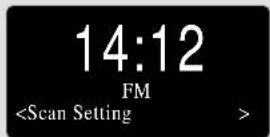
Press the MENU button to access the FM MODE MENU. From here you can set some FM preferences such as SCAN SETTING and AUDIO SETTING.
SCAN SETTING allows you to decide whether the radio should stop scanning only when it finds a station with a strong signal.
AUDIO SETTING gives you the option of listening to a station in mono, should the signal strength not be sufficiently strong to allow stereo reception.
AUX IN MODE
AUX IN MODE allows you to play audio from an external source (such as an MP3 player) through your radio.
To do so, connect your external audio source to the 3.5mm AUX IN connector on the rear of SUPERSIGNAL.
Turn the volume down low on both SUPERSIGNAL and, if adjustable, the external device.
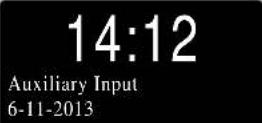
Now press MODE until the Auxiliary Input mode intro screen is displayed.
Adjust the volume of SUPERSIGNAL and, if necessary, the external audio device as required.
14:12
Auxiliary Input
14:12
Auxiliary Input 6-11-2013
BLUETOOTH MODE
Wirelessly stream music from your Bluetooth smartphone, tablet, laptop or other Bluetooth enabled device directly to SUPERSIGNAL, without the need for physical docking or connection.
PAIRING WITH BLUETOOTH DEVICES
'Pairing' occurs when two Bluetooth devices talk to each other and establish a connection. This connection is stored in the memory of both devices, meaning that once you 'pair' a particular device with SUPERSIGNAL, you shouldn't have to go through the pairing process again.
14:12
Bluetooth Mode
HOW TO PAIR A BLUETOOTH DEVICE WITH SUPERSIGNAL
To enter Bluetooth mode, press the MODE button until the Bluetooth mode intro screen is displayed. SUPERSIGNAL will now enter pairing mode, and will state 'Discoverable...' on screen.
14:12
Discoverable...
On your Bluetooth device, ensure that Bluetooth is enabled then initiate a 'Search' for a new device. When the search process has been completed, your device will list all the available Bluetooth devices in your close proximity.
Select SUPERSIGNAL from the list.
Your Bluetooth device will confirm when pairing has been completed, and SUPER SIGNAL will now display "Device Connected" on screen.
14:12
Device Connected
PASSKEY
During the pairing process some Bluetooth devices may prompt you to enter a Passkey. Should your device require a Passkey, enter 0000.
Should you experience problems when pairing your device with SUPERSIGNAL, please see the Bluetooth Troubleshooting section on page 21.
BLUETOOTH MODE
STREAMING MUSIC
Selecting and controlling music playback can be done in one of two ways: either directly from the source device (smartphone, tablet or laptop etc.), or by using the 🔊 🔒 🔒 buttons on SUPERSIGNAL's remote control.
Please note, the playback volume level can be independently controlled from either SUPERSIGNAL or the source device.
MANAGEMENT OF MULTIPLE BLUETOOTH DEVICES
If you have paired only one Bluetooth device, on entering Bluetooth mode SUPERSIGNAL will automatically seek to connect with this device.
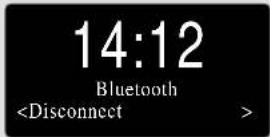
Should you wish to pair another device, press MENU then select 'Disconnect'. SUPERSIGNAL will now disconnect its current Bluetooth device and enter pairing mode again. This will allow you to repeat the 'Pairing with Bluetooth Devices' procedure.
SUPERSIGNAL will remember up to 8 individual Bluetooth devices. When you reach the point of having a 9th device you wish to pair, SUPERSIGNAL will pair with the 9th device and automatically erase the oldest-paired device from its memory.
You can continue to pair new devices and your radio will always remember the previous 8 devices it has paired with.
aptX®
SUPERSIGNAL's Bluetooth solution is equipped with CSR's patented aptX® technology, meaning that when it is used in conjunction with a device that also supports aptX®, the streamed audio will be of CD quality rather than the MP3 quality of a standard Bluetooth stream.

ALARM CLOCK
SETTING AN ALARM
SUPERSIGNAL is able to store two individual alarm settings. Select which of the Alarms (Alarm 1 or Alarm 2) you would like to modify or enable by pressing ⒶALARM once or twice, then select.
14:12
Alarm 1 Setup
Use the joystick controller to set each preference (listed below) for your alarm, pressing select to move onto the next preference.
- Time
• Duration of Alarm
• Source: Buzz, DAB or FM
- Preset: Last listened or favourite station preset 1-8
• Frequency: Daily, Once, Weekends or Weekdays.
• Volume Level: (Use Joystick to select volume)
- Alarm ON or Alarm OFF, (pressing select will now save your preferences)
14:12
Alarm 1 Wizard
On time 06:00
14:12
Alarm 1 Wizard
Duration 15 Mins
Press ALARM to cycle through ALARM 1 and ALARM 2 settings, enabling and disabling them, then press select to confirm your option. If the alarm icon is displayed, the alarm is enabled, if not, it is switched off.
14:12
STOPPING AN ALARM
When an alarm is sounding, pressing ⏻ or ⒽARM will STOP the alarm.
PLEASE NOTE: To wake you gently, SUPERSIGNAL will slowly increase the volume of the alarm from silent to your preset volume level over a 30 second period.
ALARM CLOCK
SNOOZE FUNCTION
SUPERSIGNAL includes a TOUCH-SNOOZE feature which is incorporated into your radio's aluminium front panel. SNOOZE is activated by tapping anywhere on the metal area during an alarm. SNOOZE allows you to temporarily silence the alarm for a period of up to 30 minutes.
The SNOOZE duration can only be set when your radio is actually in the process of alarming. At this point, simply tap the FRONT PANEL to cycle through a range of pre-set SNOOZE durations, either 5, 10, 15 or 30 minutes.
When SNOOZE is activated, SUPERSIGNAL will return to standby for the set period with the snoozed alarm time shown on-screen.
SLEEP FUNCTION
SUPERSIGNAL is equipped with a Sleep function which can be found in the MAIN MENU under SYSTEM SETTINGS, see page 18 for further information.
14:12
Snooze 5 minutes

SYSTEM SETTINGS
SLEEP
By using the SLEEP function, you can set SUPERSIGNAL to automatically switch itself into STANDBY mode.
Press MENU then select SLEEP. You can now set the SLEEP timer to any one of the following; 15, 30, 45, 60 or 90 minutes.
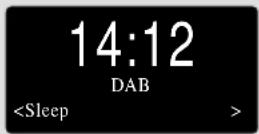
When you have selected a sleep duration, SUPERSIGNAL will return to the MODE MENU and will display a small clock icon on the top left of the screen.
EQUALISER
SUPERSIGNAL provides the user with a significant degree of control over its standard (factory default) audio settings. This includes control over BASS and TREBLE.
To adjust the audio settings, press MENU then select EQUALISER from the menu.
To configure your own EQ setting, select BASS or TREBLE, adjust as desired and press select to save.

TIME
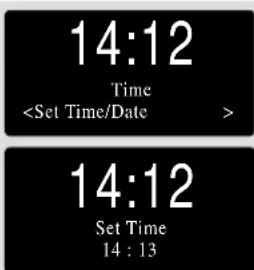
Found in the MAIN MENU, this menu offers you the option of changing a number of time/date related settings. The TIME menu has four listings as follows:
SET TIME / DATE : Allows you to manually set the time/date.
AUTO UPDATE : Choose from three different automatic setting options.
SET 12/24Hr : Choose whether you would like to use 12hr or 24hr formats.
SET DATE FORMAT : Select how you want the date to be displayed
SYSTEM SETTINGS
AUTO UPDATE
Update from ANY: Automatically takes time/date from DAB or FM signals. SUPERSIGNAL needs to have been operated in DAB or FM MODE (and have received a signal) before this information can be extracted.
UPDATE FROM DAB : Forces the radio to take the time/date from DAB signal.
UPDATE FROM FM : Forces the radio to take the time/date from FM signal.
CONTRAST
SUPERSIGNAL allows a degree of control over the contrast of its OLED display, meaning that both its STANDBY and POWER ON contrast levels can be independently set to HIGH, MEDIUM or LOW brightness levels.
To change the contrast settings, press MENU then select CONTRAST from the menu list. You will now be able to modify the default brightness level settings for the two modes of operation - STANDBY and POWER ON. Select the mode you'd like to change from these two options, then choose your desired brightness level. Your chosen setting will be held in memory indefinitely, but can be changed at any time.
LANGUAGE
The default language on your radio is English, though 3 other languages are supported as follows:
French German Italian
To change the current language setting, select LANGUAGE from the MAIN MENU, then select your choice.
14:12
Auto Update *
14:12
Contrast
14:12
Language
SYSTEM SETTINGS
FACTORY RESET
By selecting FACTORY RESET from the SYSTEM SETTINGS menu, you can reset SUPERSIGNAL to its default factory values, erasing any personal settings that may have been configured (time/date and presets will be erased).
To perform a factory reset, press MENU then select FACTORY RESET. Now answer YES.
14:12
Factory Reset?
Yes
SOFTWARE UPGRADE
The SOFTWARE UPGRADE option should only be used when you are asked to do so by Revo Technologies' technical support department.
If you are required to do this, further instructions will be issue at that time.
14:12
Upgrade?
Yes
SW VERSION
When dealing with a technical support issue, you may be asked for the SOFTWARE VERSION of your radio. This information can be found under the SW VERSION menu.
Press MENU then select SW VERSION.
14:12
SW Version
dab-mmi-FS2052-0000-0
TROUBLESHOOTING
| PROBLEM CAUSE SOLUTIONS | |
| FM: HISS | Low signal strength. Check/move antenna. | |
| DAB: Burbling/Intermittent | | Move radio to another location.Rescan local (high-strength)stations only. |
| DAB: Cut-Out | | For DAB, check local coverage at www.ukdigitalradio.com/coverage |
| DAB: ‘No stations available’ | | |
| Bluetooth Mode: Can’t connect to a paired device | | Select DISCONNECT from the Bluetooth menu on the radio, and delete SUPERSIGNAL’s profi le from your Bluetooth device, then re-pair the devices as normal. |
| Bluetooth Mode: Poor audio quality | Your Bluetooth device may be out of range.Electromagnetic interference. | Move your Bluetooth device closer to SUPERSIGNALMove your Bluetooth device away from other sources of interference such as other Bluetooth devices, wireless routers etc. |


NOTES
REVO.
SUPERSIGNAL
Bedienungshandbuch
v1.1

Deutsch
TECHNISCHE HILFE
Revo Technologies Ltd
The Inox Building, Caldwellside, Lanark,
Scotland, United Kingdom, ML11 7SR
Tel: 01555 66 61 61 Int. Tel: +44 1555 66 61 61
Fax: 01555 66 33 44 Int. Fax: +44 1555 66 33 44
Email: enquiries@revo.co.uk Website: www.revo.co.uk
NETZANSCHLUSS (PSU)
natural_image
Line drawing showing two hand tools in a mechanical assembly, one adjusting a bolt and the other adjusting a tool (no text or symbols present)
EINSTELLUNGEN
natural_image
Diagram of a device rear panel connected to a separate black-and-white card via cable (no text or symbols visible)
natural_image
Pure mechanical diagram showing a lever and pivot point without any text or symbols
natural_image
Pure technical line drawing of a mechanical component with no text or symbols
Auxiliary Input 6-11-2013
BLUETOOTH-MODUS
14:12 Device Connected
PASSWORD
Revo Technologies Ltd
The Inox Building, Caldwellside, Lanark,
Scotland, United Kingdom, ML11 7SR
Tel: 01555 66 61 61 Int. Tel: +44 1555 66 61 61
Fax: 01555 66 33 44 Int. Fax: +44 1555 66 33 44
Email: enquiries@revo.co.uk Website: www.revo.co.uk
AVERTISSEMENT
ALIMENTATION ÉLECTRIQUE (PSU)
natural_image
Line drawing showing two hands using a tool to adjust or install a mechanical component (no text or symbols present)
RÉGLAGE
natural_image
Diagram of a device rear panel connected to a separate black-and-white card with cable (no text or symbols visible)
natural_image
Pure mechanical diagram showing a lever and pivot point without any text or symbols
natural_image
Pure technical line drawing of a mechanical component with no text or symbols
CONTRÔLER SUPERSIGNAL
14:12 Auxiliary Input
MODE BLUETOOTH
Your Bluetooth device will confirm when pairing has been completed, and SUPER SIGNAL will now display "Device Connected" on screen.
14:12 Device Connected
MOT DE PASSE

RoHS COMPLIANT

Revo Technologies Ltd
The Inox Building, Caldwellside, Lanark,
Scotland, United Kingdom, ML11 7SR
Tel: 01555 66 61 61 Int. Tel: +44 1555 66 61 61
Fax: 01555 66 33 44 Int. Fax: +44 1555 66 33 44
Email: enquiries@revo.co.uk Website: www.revo.co.uk
DISCLAIMER
ALIMENTAZIONE (PSU)
natural_image
Technical line drawing showing two hands operating a mechanical clamp or tool (no text or symbols present)
CONFIGURAZIONE
natural_image
Diagram of a device rear panel connected to a separate black-and-white card with cable (no text or symbols visible)
natural_image
Pure mechanical diagram showing a lever and pivot point without any text or symbols
natural_image
Pure technical line drawing of a mechanical component with no text or symbols
COMANDI SUPERSIGNAL
Auxiliary Input
6-11-2013
MODALITÁ BLUETOOTH
14:12 Device Connected
PASSKEY
E-MAIL - support@revo.co.uk
WEB - www.revo.co.uk/support