Endurance 2 BND92 - Sewing machine BABY LOCK - Free user manual and instructions
Find the device manual for free Endurance 2 BND92 BABY LOCK in PDF.



| Product Type | Sewing and Embroidery Machine |
| Brand | Baby Lock |
| Model | Endurance 2 BND92 |
| Dimensions (approx.) | 50 x 30 x 40 cm |
| Weight (approx.) | 15 kg |
| Power Supply | 120 V – 240 V, 50/60 Hz |
| Power Consumption | 60 W |
| Display Screen | Color LCD screen with brightness adjustment |
| Number of Needles | 1 (single needle bar) |
| Main Functions | Sewing, embroidery, appliqué, Link function (PC connection), light pointer |
| Embroidery Speed | Up to 1000 stitches per minute (estimated) |
| Maximum Embroidery Area | Up to 200 x 200 mm (depending on hoop) |
| Types of Embroidery Hoops | Supports A, B and C (optional) for round and rectangular hoops |
| Compatible Data Formats | PES (.pes) |
| Number of Built-in Designs | Over 200 designs (including alphabets and appliqué designs) |
| Connectivity | USB port for computer connection (cable provided) |
| Maintenance and Cleaning | Regularly dust the bobbin and needle area. Use a soft cloth for the screen. |
| Safety | Automatic stop in case of error; built-in circuit breaker |
| Spare Parts and Repairability | Hoop supports, embroidery hoops, needle bar, bobbins, needles available. Repair by authorized center. |
| Included Accessories | Embroidery hoops (4), supports A and B, USB cable, instruction guide |
| General Information | Made in Taiwan. Manual available in multiple languages. |
Frequently Asked Questions - Endurance 2 BND92 BABY LOCK
User questions about Endurance 2 BND92 BABY LOCK
0 question about this device. Answer the ones you know or ask your own.
Ask a new question about this device
Download the instructions for your Sewing machine in PDF format for free! Find your manual Endurance 2 BND92 - BABY LOCK and take your electronic device back in hand. On this page are published all the documents necessary for the use of your device. Endurance 2 BND92 by BABY LOCK.
USER MANUAL Endurance 2 BND92 BABY LOCK
Instruction and Reference Guide Addendum
Model BND9-2

FOR THE LOVE OF SEWING
To register your machine warranty and receive Baby Lock product updates and offers, go to babylock.com/profile. If you have questions with registration, visit your Authorized Baby Lock Retailer.
Baby Lock Consumer Helpline: 800-313-4110
www.babylock.com
Before using the machine, carefully read both this manual and the Instruction and Reference Guide included with your machine.
Contents
Pattern Type Selection Screen 2
Additional keys 2
Checking the Needle Drop Point with LED Pointer 2
Turning the LED pointer "ON" or "OFF". 3
Various Types of Embroidery Frame Selections 3
Embroidery frame holders 3
When It Is Difficult to Reach the Embroidery Frame. 4
Changing the Embroidery Position Using Various Speed Keys. 4
Moving the Needle on the Error Message Screen 5
Information about Applique Display 5
Indicating when the machine stops 5
A specific needle bar number for appliqué. 5
Adjusting the Brightness of the Screen Display. 6
Cancelling the Thread Color Settings for All Previously Stitched Designs 7
Moving Five Hundred Stitches Forward/Back. 8
Editing Patterns as a Group 8
Sewing the repeated pattern without sorting colors 9
Sending Embroidery Patterns From a Computer to the Machine (Link Function) 10
Operations available with the Link function. 10
Embroidering using the Link function 11
Disabling the Link function 14
Error messages in the Link function 15
Selecting the Thread Color Information for "PES" Format Data. 15
Checking the Length of Time until the Machine's Next Stop 16
Checking the Temporary Needle Bar Setting. 16
Cancelling the Temporary Needle Bar Setting 17
New Character Patterns 18
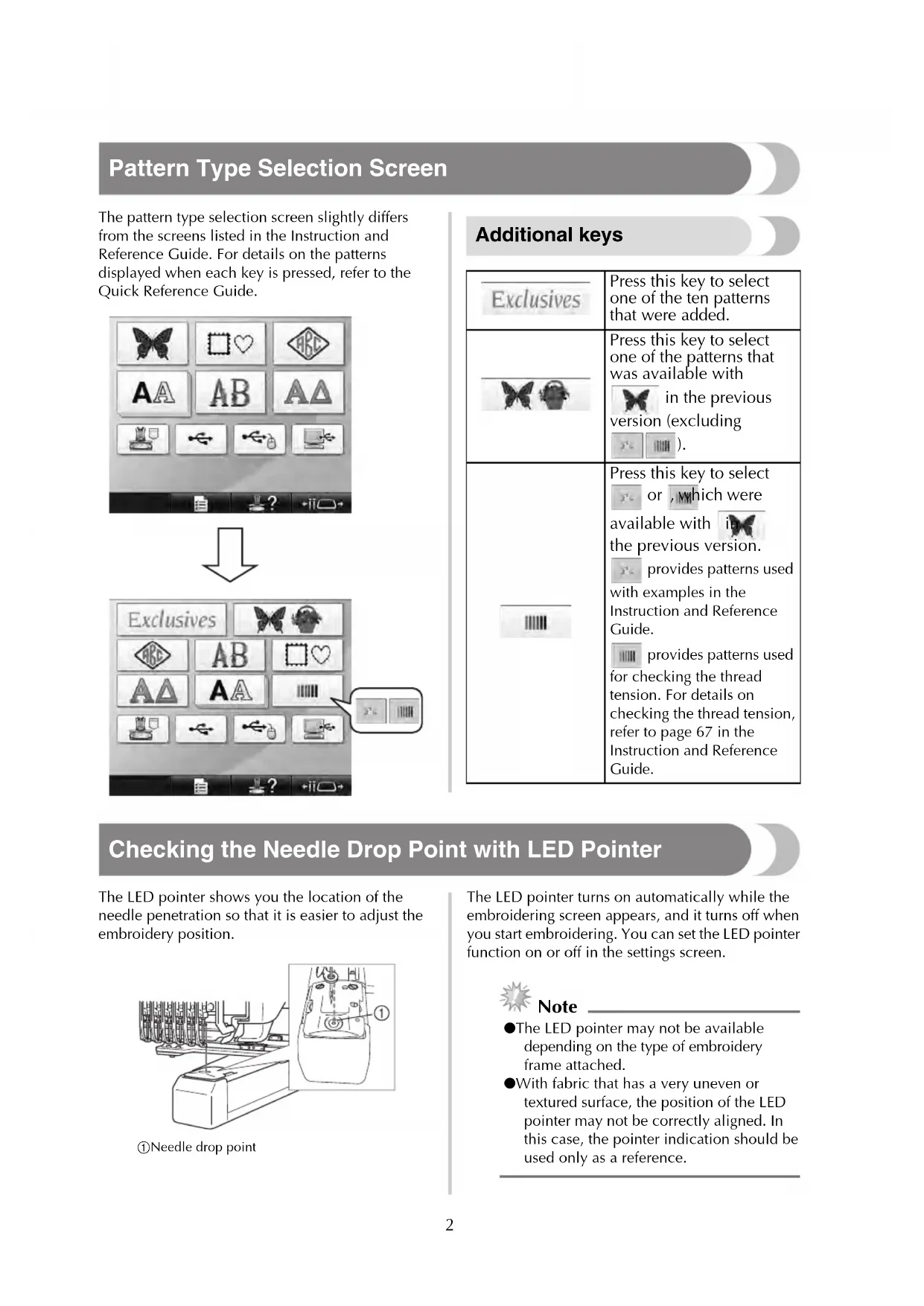
Pattern Type Selection Screen
The pattern type selection screen slightly differs from the screens listed in the Instruction and Reference Guide. For details on the patterns displayed when each key is pressed, refer to the Quick Reference Guide.

Additional keys
| Exclusives | Press this key to select one of the ten patterns that were added. |
| Press this key to select one of the patterns that was available with in the previous version (excluding ). | |
| Press this key to select or , which were available with in the previous version. provides patterns used with examples in the Instruction and Reference Guide. provides patterns used for checking the thread tension. For details on checking the thread tension, refer to page 67 in the Instruction and Reference Guide. |
Checking the Needle Drop Point with LED Pointer
The LED pointer shows you the location of the needle penetration so that it is easier to adjust the embroidery position.
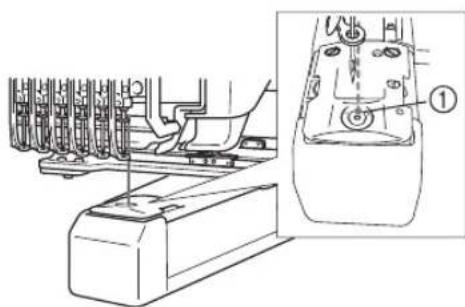
① Needle drop point
The LED pointer turns on automatically while the embroidering screen appears, and it turns off when you start embroidering. You can set the LED pointer function on or off in the settings screen.

Note
The LED pointer may not be available depending on the type of embroidery frame attached.
- With fabric that has a very uneven or textured surface, the position of the LED pointer may not be correctly aligned. In this case, the pointer indication should be used only as a reference.
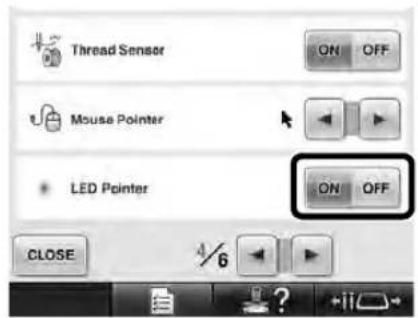
Turning the LED pointer "ON" or "OFF"

Press

Display page 4 of the settings screen.

Press to turn on the LED pointer to check the needle drop point.
The key appears as when "ON" is
selected, and it appears as when "OFF" is selected.
- Each touch of the key turns the setting either on or off.
Various Types of Embroidery Frame Selections
Various types of embroidery frames can be used with this machine to suit your project by changing the embroidery frame holders.
Embroidery frame holders
Two types of embroidery frame holders (embroidery frame holder A and embroidery frame holder B) are included with this machine. Embroidery frame holder A is used with the four included embroidery frames. Embroidery frame holder B is used with the optional embroidery frames. In addition, if optional embroidery frame holder C is used, a frame from the optional round frame series can be installed. For details on which embroidery frame can be installed on each embroidery frame holder, refer to "Embroidery frame types and applications" listed in the Instruction and Reference Guide.
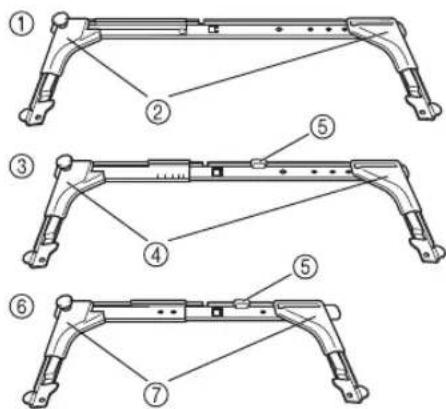
① Embroidery frame holder A
② White corner covers
③ Embroidery frame holder B
④Light gray corner covers
⑤Magnet
⑥ Embroidery frame holder C (optional)
⑦Dark gray corner covers
When It Is Difficult to Reach the Embroidery Frame
Depending on the position of the needle bars, it may be difficult to reach the embroidery frame. In that case, follow the procedure described below to move the embroidery frame.

Press
The needle bar move screen appears.
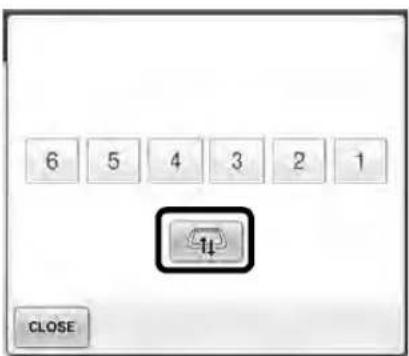

Press

The carriage automatically moves to a position where the embroidery frame can easily be reached/removed.
- Touch to close the needle bar move screen and to move the carriage to the previous position.
Changing the Embroidery Position Using Various Speed Keys
The embroidery position can be moved using the three variable speed keys.
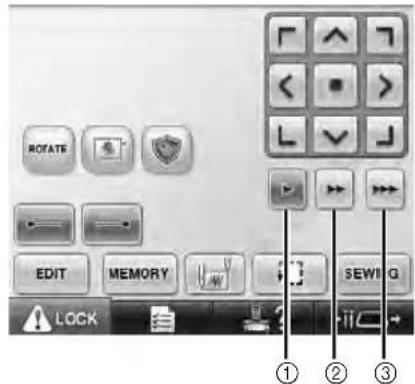
①Move the position by 0.1mm
②Move the position by 0.5mm
③Move the position at maximum speed.

Note
-Move the pattern in desired direction
using after the speed is selected,
for maximum speed press and hold.
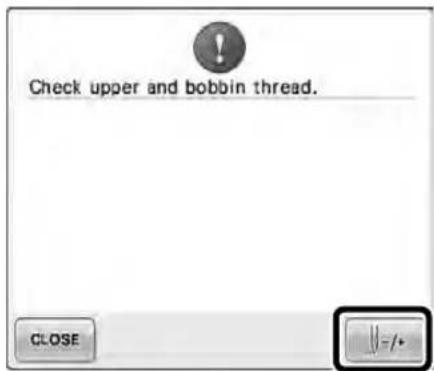
Moving the Needle on the Error Message Screen
Press to move the needle backward or forward to the position desired after correcting the error.
Information about Appliqué Display
There is information about the appliqué display which helps your operation.
Refer to "Applique Sewing" listed in the Instruction and Reference Guide for the detailed instruction.
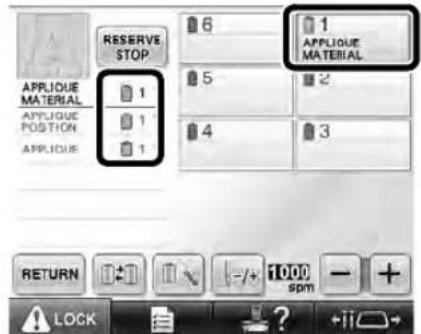
Indicating when the machine stops
If an appliqué pattern was selected, it appears in the screen at places where the machine is stopped to create appliqué.

A specific needle bar number for appliqué
If an appliqué pattern was selected, "APPLIQUE MATERIAL", "APPLIQUE POSITION" and "APPLIQUE" are all assigned to a specific needle bar number. Set the thread colors to be used for the appliqué to that specific needle bar.
Adjusting the Brightness of the Screen Display
If the LCD screen is too dark or too light, you can adjust the brightness of the screen display.

Press


Display page 5 of the settings screen.

Press or to adjust the brightness of the screen display.
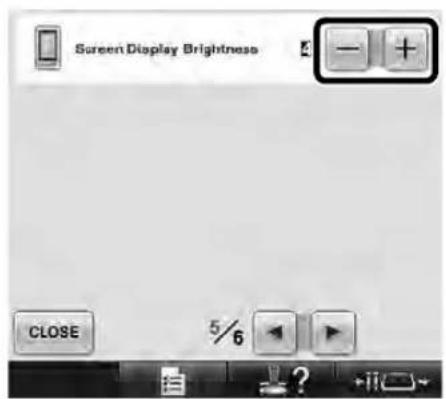
- The screen will appear dimmer if the number on the settings screen decreases. The screen will appear brighter as the number increases.
Cancelling the Thread Color Settings for All Previously Stitched Designs

Note
The color settings will be completely canceled even if the machine is in the middle of the embroidery.

Touch

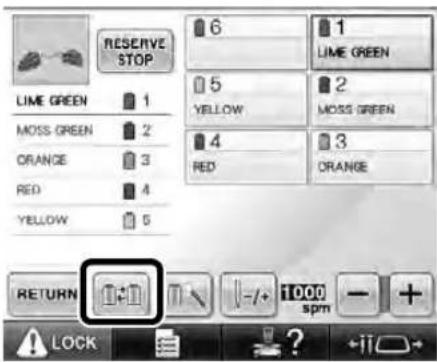

Touch

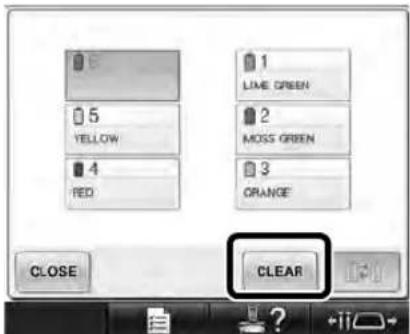

The thread color setting is canceled.
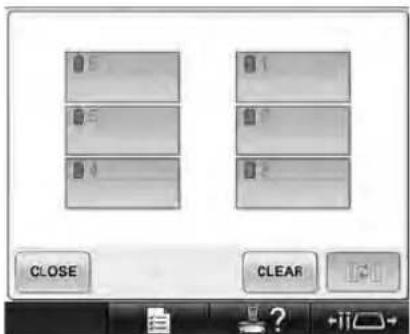

Touch CLOSE
- Thread colors are assigned by the machine again, regardless of the previous spool setting.

Note
This function will not clear anchor settings of any of the needles which have been assigned a thread color (Refer to "Reserved Needle Bar Settings" listed in the Instruction and Reference Guide).
Moving Five Hundred Stitches Forward/Back
-500 and h500 been added to the stitch navigation screen. For details on moving forward or backward through the stitching, refer to "Embroidering From the Beginning or Middle of the Pattern" listed in the Instruction and Reference Guide.
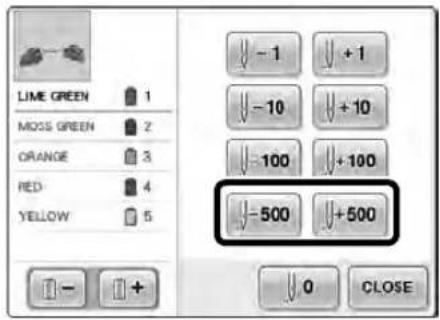
Each touch of this key moves five hundred stitches back through the stitching. Each touch of this key moves five hundred stitches forward through the stitching.
Editing Patterns as a Group
Combined patterns can be grouped and can all be edited (rotated, resized, etc.) at the same time.

Touch so that it changes to .

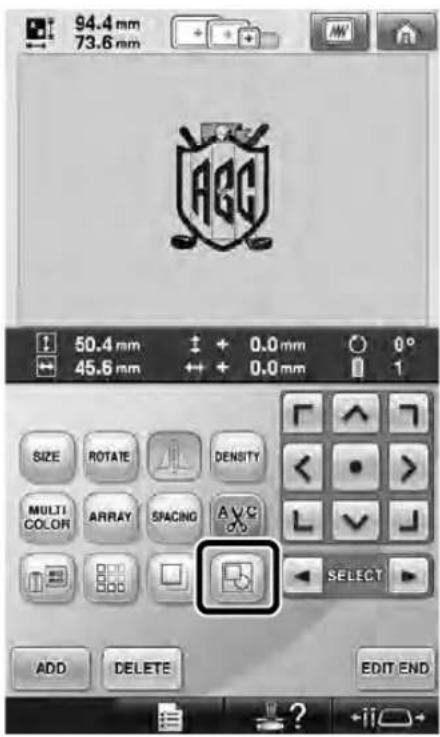
All patterns displayed in the pattern display area are grouped.
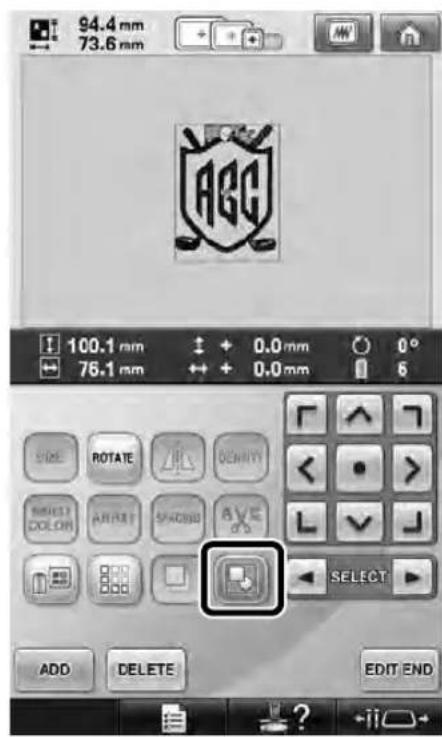
- Touch to ungroup the patterns. If there are multiple grouped patterns, the selected pattern group is ungrouped.
Sewing the repeated pattern without sorting colors
With repeated patterns created using the border function, pressing automatically changes
the sewing order of the colors so that the same color can be continuously sewn. You can edit the pattern according to the procedure below to sew the repeated pattern without sorting the colors.
Create the combined border embroidery pattern (Refer to "Designing repeated patterns" listed in the Instruction and Reference Guide).
Touch so that it changes to .
The border function is canceled.

If necessary, touch so that the patterns are regrouped.
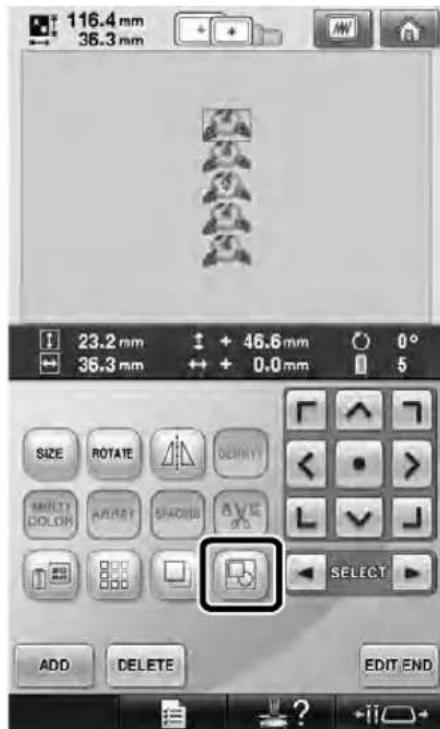
All patterns displayed in the pattern display area are grouped.
4 If necessary touch to sew the thread mark, and then touch CLOSE
(Refer to "Assigning thread marks" listed in the Instruction and Reference Guide)
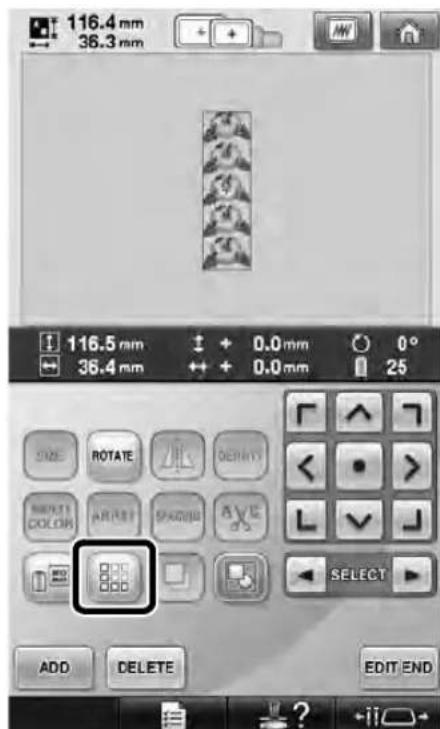

Touch


Sending Embroidery Patterns From a Computer to the Machine (Link Function)
Operations available with the Link function
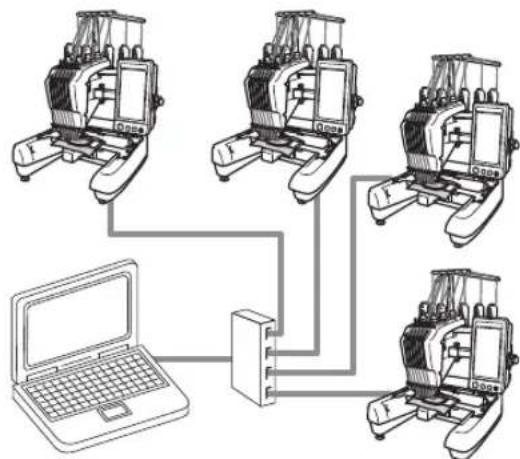
■Send multiple embroidery patterns to connected embroidery machines
As many as 100 embroidery patterns can be transferred to an embroidery machine, and the embroidering status of the patterns being transferred can be viewed from the computer monitor.
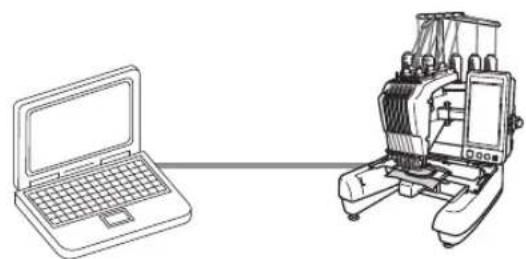
Use the included USB cable to connect the embroidery machine to a computer.
Check the sewing status of the embroidery machine (this model) from the computer
(Example of multiple machines connected)

Memo
- When connecting multiple embroidery machines to the computer, use a commercially available USB hub. Please note that we recommend using a self-powered USB hub. Do not use USB extension cables or repeater cables. For details on using the USB hub, refer to its operating instructions.
Embroidering using the Link function
First, use the embroidery editing software to create the embroidery pattern to be sent to the embroidery machine.

Note
-Only embroidery data in the PES format (.pes) can be embroidered using the Link function.
- You cannot select .dst data to send from a computer using the Link function.
The Link function cannot be used with large-size (split) embroidery patterns.
- Attach to the embroidery machine the embroidery frame for the size of the pattern to be sent.

Touch
en touch


to display page 5 of the machine settings screen.

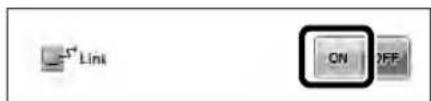
Touch to enable the Link function.
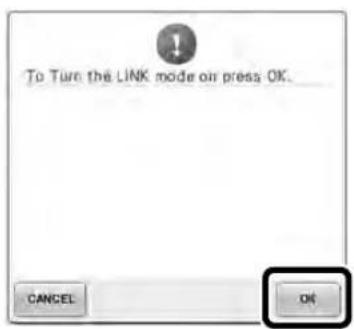
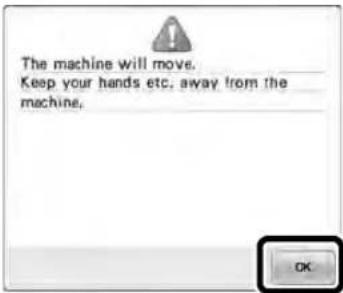
When the following message appears, touch OK

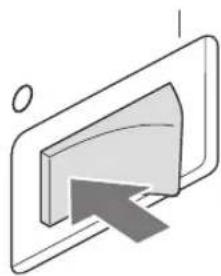
Turn off the machine.

Use the included USB cable to connect the embroidery machine to the computer.

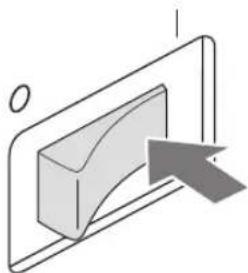
Turn on the machine.

Using embroidery editing software provided with the Link function, such as Palette 9, or later, will allow you to send the embroidery pattern(s) to the machine in the Link mode from your computer.

When the following message appears, touch

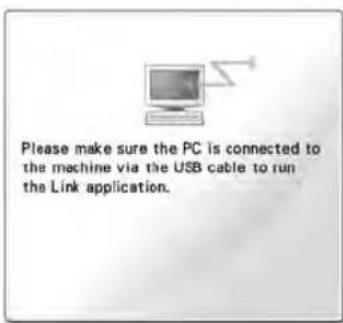
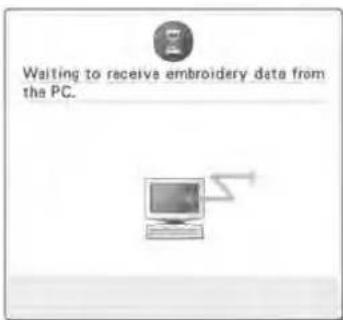
A message appears in the machine's LCD while the machine is connecting to PC.

Note
For details on using the embroidery editing software, refer to the Instruction Manual included with the software.
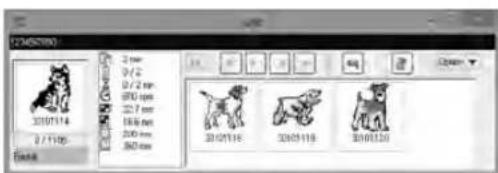
- This Link dialog box is found in Palette 9 software.
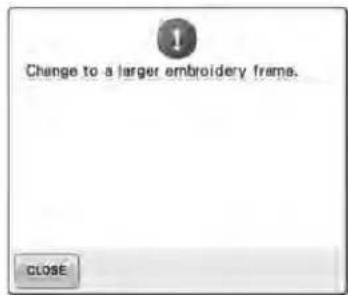
If the following error message appears, the type of embroidery frame installed on the machine is not compatible with the size of the pattern. Replace the embroidery frame with one compatible with the size of the pattern.

After the embroidery pattern has been opened by the machine, the embroidering screen appears.
The opened embroidery pattern appears in the pattern display area with the icon for the Link function.
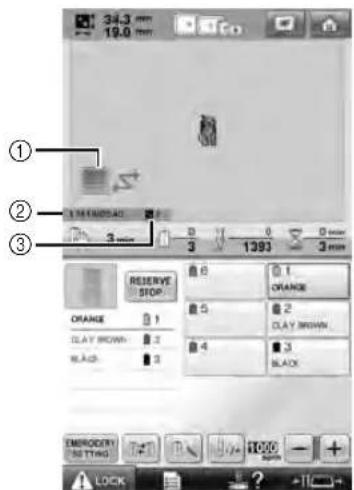
①Icon for Link function
②10-digit machine ID
③Number of the pattern in the queue
- Touch to delete the pattern.

Memo
While the embroidery machine is connected to the computer, the machine's status can be displayed by using a function of the embroidery editing software. If multiple embroidery machines are connected at the same time, check the status of the machines using the 10-digit machine ID that appears in the machine's screen.

To change the embroidery settings for the opened embroidery pattern, touch EMBOIDERY SETTING
- Touch when the following message appears. Touch to return to the embroidering screen.
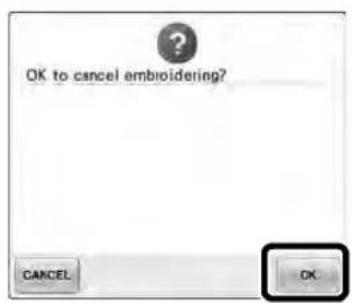
The embroidery settings screen appears.

After the desired settings have been specified, touch to return to the embroidering screen.
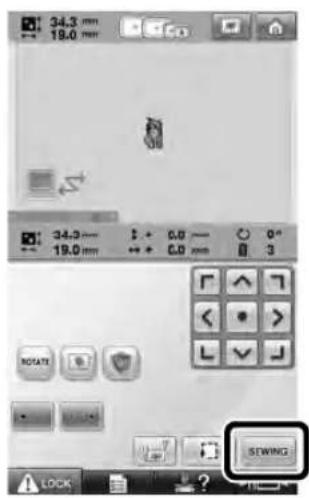

Touch and then press the start/stop button to start embroidery.
When embroidering is finished, the following message appears.
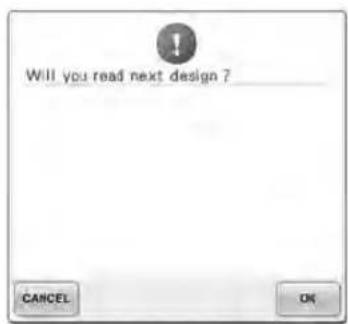

To open another pattern sent from the computer, touch, and then repeat the procedure starting from step ③ to continue embroidering.
To stop embroidering or to embroider the same pattern again, touch CANDEL

Note
The embroidery screen settings specified in step 10 are saved even if warts touched to continue sewing after.
embroidering is finished.

Memo
If the embroidery machine is turned off while it is embroidering, the resume operation can be used the next time it is turned on.
Disabling the Link function

Touch and then touch or to display page 5 of the mac screen.


Touch to disable the Link function.
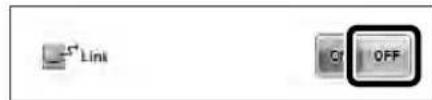
When the following message appears, touch OK
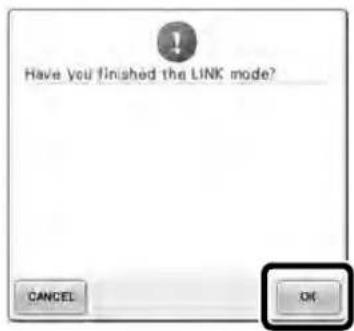

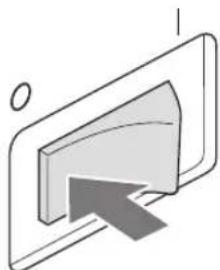
Turn off the machine.
Error messages in the Link function
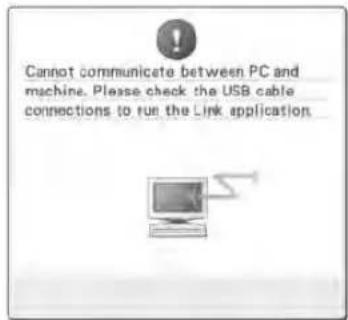
Machine cannot receive any data from the PC in the Link mode. Turn off the machine, and check the USB connection. After connecting the USB cord securely, turn on the machine again.
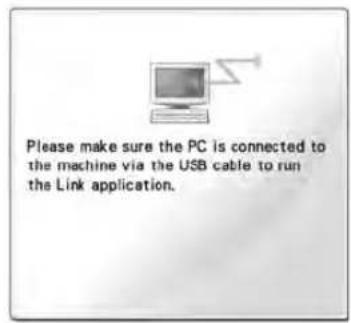
Machine failed to communicate with the PC in the Link mode. Turn the machine off, and then turn the machine on again.

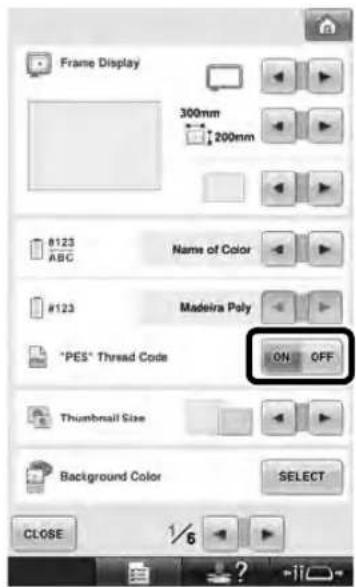
Selecting the Thread Color Information for "PES" Format Data
You can display the thread color for "PES" format data according to the machine setting, or setting from the Palette, Palette petite or Palette PTS (embroidery editing software).
(Refer to "Changing the thread color information" listed in the Instruction and Reference Guide for the machine setting of thread color.)
The "PES" Thread Code can be selected from page 1 of the settings screen.
ON: The thread color information will be displayed according to the Palette, Palette petite or Palette PTS (embroidery editing software) settings.
OFF: The thread color information displayed will be according to the machine setting.
When the machine is purchased, "ON" is selected.
Checking the Length of Time until the Machine's Next Stop
The length of time until the embroidery machine's next stop can be viewed in the embroidering screen.
The machine stops when a spool change is required, or when the machine is set to be stopped by other settings. If the spool change indicator appears, the machine will require a spool change. When the time is indicated in red, this signals the last color to be embroidered before the machine stops.
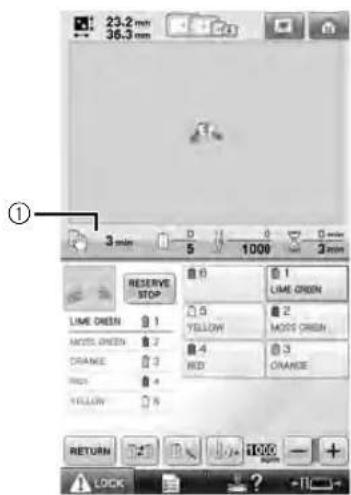
① Time until the machine stops

Note
The displayed information differs from that described in the Instruction and Reference Guide.

Checking the Temporary Needle Bar Setting
The needle bar with the temporary needle bar setting applied can be viewed in the embroidering screen.
For details on the temporary needle bar setting, refer to the Instruction and Reference Guide.
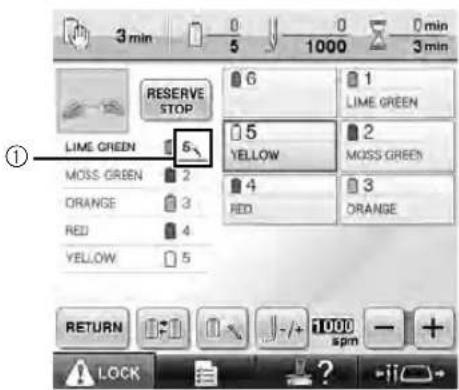
The needle bar number changes and appears to indicate the selected needle bar.
Cancelling the Temporary Needle Bar Setting

Press to cancel the temporary needle bar setting.
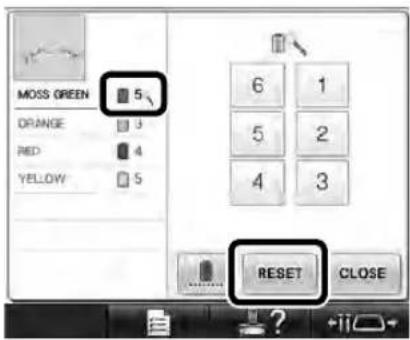

The needle bar settings return to the original setting.
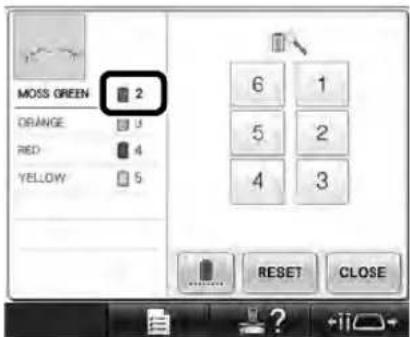
New Character Patterns

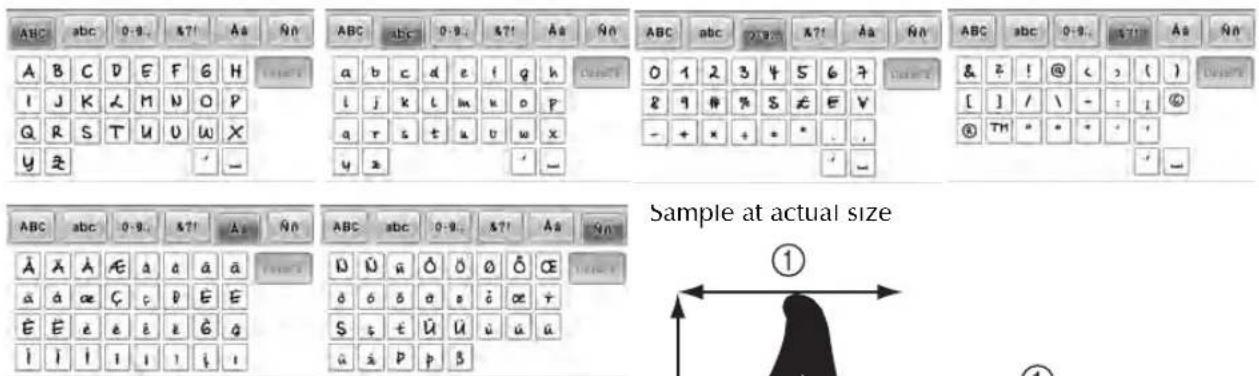
Alphabet patterns
ABC
②
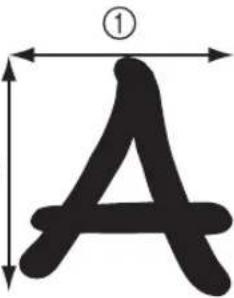
| LMS | LMS | LMS | |
| ① | 25.0 mm(1 inch) | 12.5 mm(31/64 inch) | 8.3 mm(5/16 inch) |
| ② | 27.8 mm(1-7/64 inch) | 13.8 mm(35/64 inch) | 9.0 mm(11/32 inch) |
ABC


| LMS | LMS | LMS | |
| ① | 15.8 mm (5/8 inch) | 7.9 mm (5/16 inch) | 5.3 mm (13/64 inch) |
| ② | 23.4 mm (59/64 inch) | 11.7 mm (29/64 inch) | 7.7 mm (19/64 inch) |


- INSTRUCTION AND REFERENCE GUIDE ADDENDUM
- CONTENTS
- PATTERN TYPE SELECTION SCREEN
- ADDITIONAL KEYS
- CHECKING THE NEEDLE DROP POINT WITH LED POINTER
- NOTE
- TURNING THE LED POINTER "ON" OR "OFF
- VARIOUS TYPES OF EMBROIDERY FRAME SELECTIONS
- EMBROIDERY FRAME HOLDERS
- WHEN IT IS DIFFICULT TO REACH THE EMBROIDERY FRAME
- PRESS
- CHANGING THE EMBROIDERY POSITION USING VARIOUS SPEED KEYS
- MOVING THE NEEDLE ON THE ERROR MESSAGE SCREEN
- INFORMATION ABOUT APPLIQUÉ DISPLAY
- INDICATING WHEN THE MACHINE STOPS
- A SPECIFIC NEEDLE BAR NUMBER FOR APPLIQUÉ
- ADJUSTING THE BRIGHTNESS OF THE SCREEN DISPLAY
- CANCELLING THE THREAD COLOR SETTINGS FOR ALL PREVIOUSLY STITCHED DESIGNS
- TOUCH
- TOUCH CLOSE
- MOVING FIVE HUNDRED STITCHES FORWARD/BACK
- EDITING PATTERNS AS A GROUP
- SEWING THE REPEATED PATTERN WITHOUT SORTING COLORS
- SENDING EMBROIDERY PATTERNS FROM A COMPUTER TO THE MACHINE (LINK FUNCTION)
- OPERATIONS AVAILABLE WITH THE LINK FUNCTION
- MEMO
- EMBROIDERING USING THE LINK FUNCTION
- AFTER THE EMBROIDERY PATTERN HAS BEEN OPENED BY THE MACHINE, THE EMBROIDERING SCREEN APPEARS
- TO CHANGE THE EMBROIDERY SETTINGS FOR THE OPENED EMBROIDERY PATTERN, TOUCH EMBOIDERY SETTING
- DISABLING THE LINK FUNCTION
- ERROR MESSAGES IN THE LINK FUNCTION
- SELECTING THE THREAD COLOR INFORMATION FOR "PES" FORMAT DATA
- CHECKING THE LENGTH OF TIME UNTIL THE MACHINE'S NEXT STOP
- CHECKING THE TEMPORARY NEEDLE BAR SETTING
- CANCELLING THE TEMPORARY NEEDLE BAR SETTING
- NEW CHARACTER PATTERNS
- ABC
Brand : BABY LOCK
Model : Endurance 2 BND92
Category : Sewing machine