Pulse Soundbar - Hi-fi system Bluesound - Free user manual and instructions
Find the device manual for free Pulse Soundbar Bluesound in PDF.


User questions about Pulse Soundbar Bluesound
0 question about this device. Answer the ones you know or ask your own.
Ask a new question about this device
Download the instructions for your Hi-fi system in PDF format for free! Find your manual Pulse Soundbar - Bluesound and take your electronic device back in hand. On this page are published all the documents necessary for the use of your device. Pulse Soundbar by Bluesound.
USER MANUAL Pulse Soundbar Bluesound
Included Accessories

120V AC Power Cord

230V AC Power Cord

Stereo RCA to RCA Cable

Ethernet Cable

Two Kickstand Feet

Two Kickstand Extenders

Wall Mount Bracket

Wall Mount Bracket Template
PULSE SOUNDBAR
All-In-One Wireless Streaming Audio System
English 4
Français 8
Espanol 9
Italiano 10
Portugues 11
Deutsch 12
Nederland 13
Svenska 14
Pycckn 15
1
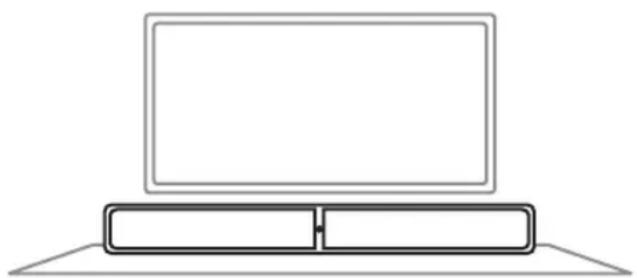
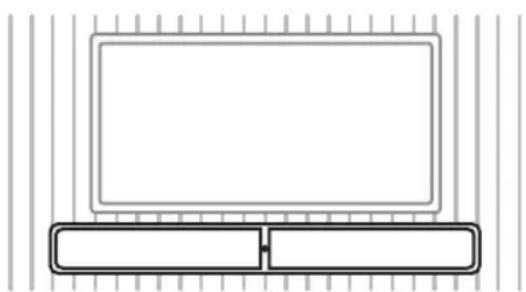
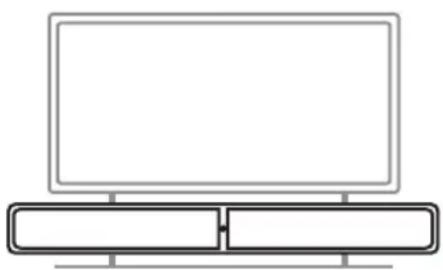
CHOOSE PLACEMENT
1 TABLETOP
Place the PULSE SOUNDBAR on a flat surface. Attach the supplied Kickstand Feet. Depending on the speaker orientation, you may need to add

Kickstand Extenders to ensure the Kickstand Feet are long enough to support your PULSE SOUNDBAR.
2 ON THE WALL
Use the supplied wall mount bracket to attach the PULSE SOUNDDBAR to the wall. Refer to the wall mount bracket template sheet with instructions for mounting the PULSE SOUNDDBAR.
3 BLUESOUND TV STAND
Use the Bluesound TS100 Panel TV Stand (sold separately) to raise the height of your TV if you find the PULSE SOUNDDBAR covering a portion of the TV screen. Attach both the PULSE SOUNDDBAR and your TV to the TS100. Refer to the instruction sheet supplied with the TS100 for complete assembly instructions.
2

3

CONNECT TO TV
A Using the supplied RCA to RCA cable, connect the audio RCA output of your TV to the corresponding AUDIO IN (L/R) of PULSE SOUNDBAR.
B Alternatively, if your TV is equipped with digital optical output, use an optical audio cable (not supplied) to connect the digital optical output of your TV to the corresponding OPTICAL IN of PULSE SOUNDBAR.
CONNECT TO POWER
A Select the AC Power Cord appropriate for your region and plug it into the Player, and then into your wall outlet.
B The PULSE SOUNDBAR's LED indicator should turn Solid Green indicating that the Player is in Hotspot Mode and ready to be added to your home WiFi network.
Never force a power cord into a wall outlet. An adaptor may be necessary in certain regions.
4
CONNECT TO WiFi

Your PULSE SOUNDBAR emits its own WiFi signal when in Hotspot mode to make setup easier. Look for the solid green LED indicator on the front of the PULSE SOUNDBAR, which tells you it is in Hotspot mode.
A. In the Settings menu of your tablet or smartphone, locate and select the WiFi Hotspot matching your PULSE SOUNDBAR's network unique ID. The Network ID is displayed as follows: PULSESOUNDBARXXXX, where XXXX is the last four digits of the MAC (Machine Access Control) address.
B. Open a web browser on your controller device and enter the web address setup.bluesound.com, and press GO. A control panel page for the PULSE SOUNDBAR will be displayed.
C. Select Configure WiFi.
D. From the Configure Wireless dropdown list, select your home WiFi network.
E. Type your WiFi Password.
F. Select or create a Room Name.
G. Press Update and wait for the PULSE SOUNDBAR's LED indicator to turn solid blue, indicating the PULSE SOUNDBAR has successfully joined your network.
Repeat steps A-G for each additional Bluesound Player.
Note: When finished, ensure that you reselect your home WiFi network from the Settings menu of your tablet or smartphone.
Alternatively, you can connect the PULSE SOUNDDBAR directly to your wired home network or router using the supplied Ethernet cable.
Visit www.bluesound.com/setup for helpful tips and tricks
5
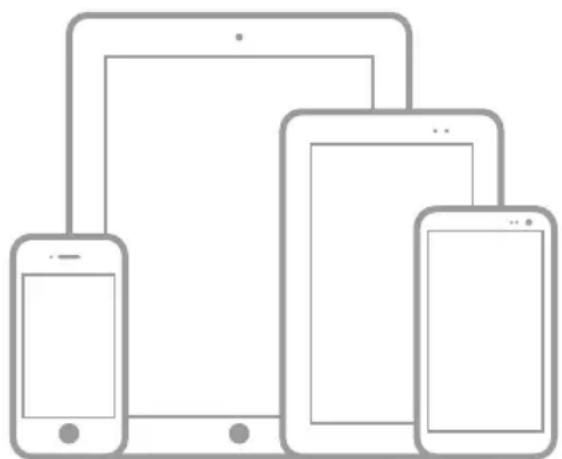
DOWNLOAD THE APP AND CONNECT TO MUSIC
A Download the BluOS Controller App.
B Ensure your controller device is connected to the proper home network.
C Follow the in-App prompts to finish setting up your PULSE SOUNDBAR.
D Use the left-hand Navigation Printer to add or select a music source.
All BluOS Controller Apps for Apple iOS devices (iPhone, Pad, iPod), Android devices, Kindle Fire, and Windows or Mac desktops are available for download at www.bluesound.com/downloads.
Visit www.bluesound.com/setup for helpful tips and tricks
Français
1 SELECTION DE L'EMPLACEMENT
TABLE
4 CONNETTERE ALLA RETE WiFi
© Bluesound International. Bluesound, the stylized wordmark and "B" logotype, the phrase "HiFi for a wireless generation", PULSE SOUNDBAR and all other Bluesound product names and taglines are trademarks or registered trademarks of Bluesound International, a division of Lenbrook Industries Limited. All other logos and services are trademarks or service marks of their respective owners.