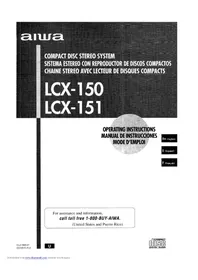
LCX150 - Hi-fi system AIWA - Free user manual and instructions
Find the device manual for free LCX150 AIWA in PDF.


| Product type | Stereo system with CD player, cassette deck and FM/AM tuner |
| Brand | Aiwa |
| Model | LCX150 |
| Main unit dimensions (W×H×D) | 160 × 236.2 × 209.3 mm |
| Main unit weight | 2.6 kg |
| Power supply | 120 V AC, 60 Hz |
| Power consumption | 22 W |
| Output power | 1% total harmonic distortion, 4 ohms (value not specified) |
| FM range | 87.5 MHz to 108 MHz |
| AM range | 530 kHz to 1710 kHz (10 kHz step) / 531 kHz to 1602 kHz (9 kHz step) |
| Antennas | FM: 75 Ω terminals; AM: loop antenna |
| CD player | Semiconductor laser (λ = 780 nm), 1-bit dual conversion |
| Cassette deck | 4-track, 2-channel stereo, type I (normal) |
| Connectors | Headphone jack (ø3.5 mm), AUX jacks (RCA), speaker terminals |
| Equalization modes | ROCK, POP, JAZZ |
| Special functions | Random playback, programmed (30 tracks), repeat, timer, sleep |
| Maintenance | Clean with a soft, dry cloth; clean cassette heads every 10 hours |
| Included accessories | Remote control, FM/AM antennas, user manual |
Frequently Asked Questions - LCX150 AIWA
User questions about LCX150 AIWA
0 question about this device. Answer the ones you know or ask your own.
Ask a new question about this device
Download the instructions for your Hi-fi system in PDF format for free! Find your manual LCX150 - AIWA and take your electronic device back in hand. On this page are published all the documents necessary for the use of your device. LCX150 by AIWA.
USER MANUAL LCX150 AIWA
For assistance and information, call toll free 1-800-BUY-AIWA.
(United States and Puerto Rico)
CL6-903-01
)220AYK-H-6
U

ENGLISH
WARNING
TO REDUCE THE RISK OF FIRE OR ELECTRIC SHOCK, DO NOT EXPOSE THIS APPLIANCE TO RAIN OR MOISTURE.
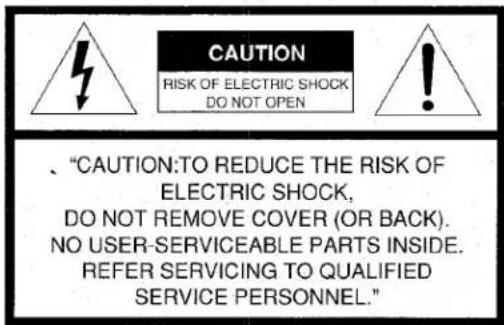
Explanation of Graphical Symbols:
The lightning flash with arrowhead symbol, within an equilateral triangle, is intended to alert the user to the presence of uninsulated "dangerous voltage" within the product's enclosure that may be of sufficient magnitude to constitute a risk of electric shock to persons.
The exclamation point within an equilateral triangle is intended to alert the user to the presence of important operating and maintenance (servicing) instructions in the literature accompanying the appliance.
PRECAUTIONS
Read the Operating Instructions carefully and completely before operating the unit. Be sure to keep the Operating Instructions for future reference. All warnings and cautions in the Operating Instructions and on the unit should be strictly followed, as well as the safety suggestions below.
Installation
1 Water and moisture — Do not use this unit near water, such as near a bathtub, washbowl, swimming pool, or the like.
2 Heat — Do not use this unit near sources of heat, including heating vents, stoves, or other appliances that generate heat. It also should not be placed in temperatures less than 5°C (41°F) or greater than 35°C (95°F).
3 Mounting surface — Place the unit on a flat, even surface.
4 Ventilation — The unit should be situated with adequate space around it so that proper heat ventilation is assured. Allow 10 cm (4 in.) clearance from the rear and the top of the unit, and 5 cm (2 in.) from the each side.
- Do not place the unit on a bed, rug, or similar surface that may block the ventilation openings.
- Do not install the unit in a bookcase, cabinet, or airtight rack where ventilation may be impeded.
5 Objects and liquid entry — Take care that objects or liquids do not get inside the unit through the ventilation openings.
6 Carts and stands — When placed or mounted on a stand or cart, the unit should be moved with care.
Quick stops, excessive force, and uneven surfaces may cause the unit or cart to overturn or fall.

PREPARATIONS
7 Condensation — Moisture may form on the CD pickup lens when:
- The unit is moved from a cold spot to a warm spot
- The heating system has just been turned on
- The unit is used in a very humid room
- The unit is cooled by an air conditioner
When this unit has condensation inside, it may not function normally. Should this occur, leave the unit for a few hours, then try to operate again.
8 Wall or ceiling mounting — The unit should not be mounted on a wall or ceiling, unless specified in the Operating Instructions.
Electric Power
1 Power sources — Connect this unit only to power sources specified in the Operating Instructions, and as marked on the unit.
2 Polarization — As a safety feature, some units are equipped with polarized AC power plugs which can only be inserted one way into a power outlet. If it is difficult or impossible to insert the AC power plug into an outlet, turn the plug over and try again. If it still does not easily insert into the outlet, please call a qualified service technician to service or replace the outlet. To avoid defeating the safety feature of the polarized plug, do not force it into a power outlet.
3 AC power cord
- When disconnecting the AC power cord, pull it out by the AC power plug. Do not pull the cord itself.
- Never handle the AC power plug with wet hands, as this could result in fire or shock.
- Power cord should be routed to avoid being severely bent, pinched, or walked upon. Pay particular attention to the cord from the unit to the power socket.
- Avoid overloading AC power plugs and extension cords beyond their capacity, as this could result in fire or shock.
4 Extension cord — To help prevent electric shock, do not use a polarized AC power plug with an extension cord, receptacle, or other outlet unless the polarized plug can be completely inserted to prevent exposure of the blades of the plug.
5 When not in use — Disconnect the AC power cord from the AC outlet if the unit will not be used for several months or more. When the cord is plugged in, a small amount of current continues to flow to the unit, even when the power is turned off.
Outdoor Antenna
1 Power lines — When connecting an outdoor antenna, make sure it is located away from power lines.
2 Outdoor antenna grounding — Be sure the antenna system is properly grounded to provide protection against unexpected voltage surges or static electricity build-up. Article 810 of the National Electrical Code, ANSI/NFPA 70, provides information on proper grounding of the mast, supporting structure, and the lead-in wire to the antenna discharge unit, as well as the size of the grounding unit, connection to grounding terminals, and requirements for grounding terminals.
Antenna Grounding According to the National Electrical Code

NEC-NATIONAL ELECTRICAL CODE
1 ENGLISH
Welcome to the Aiwa Stereo System
Congratulations on your purchase of an Aiwa Stereo System. To optimize the performance of this system, please take the time to read through these Operating Instructions and become familiar with the operating procedures.
Check your system and accessories
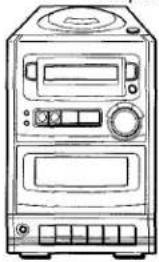
LCX-150/LCX-151
Compact disc stereo system
natural_image
Line drawing of a vintage electronic device with front panel, control buttons, and speaker grille (no text or symbols)FM antenna
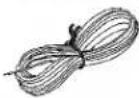
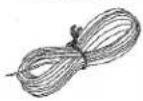
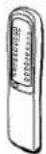
Remote control


natural_image
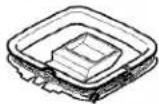
Two identical wireframe diagrams of a container with a mesh interior, no text or symbols present.AM antenna

Operating Instructions, etc.
Owner's record
For your convenience, record the model number and serial number (you will find them on the rear of your set) in the space provided below. Please refer to them when you contact your Aiwa dealer in case of difficulty.
| Model No. | Serial No. (Lot No.) |
| LCX-150U/LCX-151U |
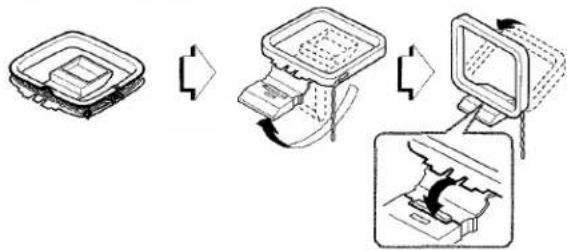
To stand the AM antenna on a surface
Fix the claw to the slot.
flowchart
graph TD
    A["Top View"] --> B["Device Insert"]
    B --> C["Front View"]
    C --> D["Device Remove"]
TABLE OF CONTENTS
PREPARATIONS
PRECAUTIONS 1
CONNECTIONS 3
BEFORE OPERATION 4
SOUND
TROUBLESHOOTING GUIDE 12
PARTS INDEX ...... Back cover
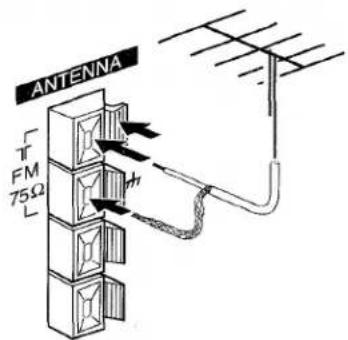
Connecting an outdoor antenna
For better FM reception, use of an outdoor antenna is recommended.
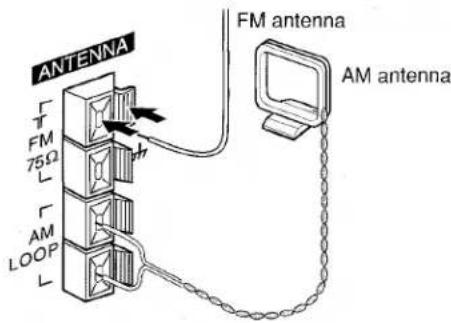
Connect the outdoor antenna to the FM 75 Ω terminals.
CONNECTIONS
Before connecting the AC cord
The rated voltage of your unit shown on the rear panel is 120 V AC. Check that the rated voltage matches your local voltage.
IMPORTANT
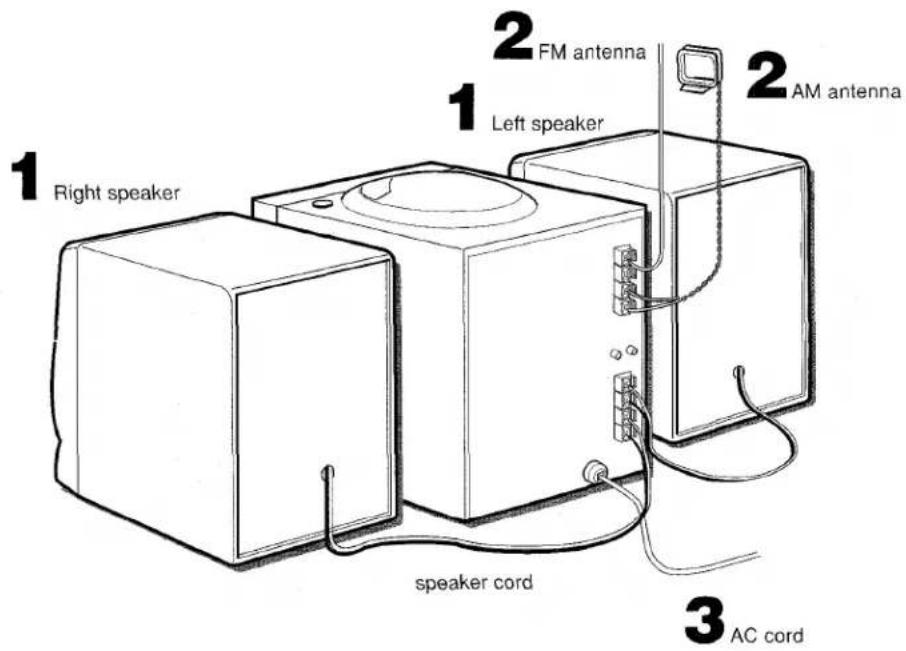
- Connect the speakers, antennas, and all optional equipment first. Then connect the AC cord in the end.
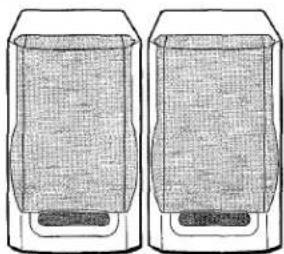
- There are no differences between the front speakers. Both speakers can be connected as L (Left) or R (Right).
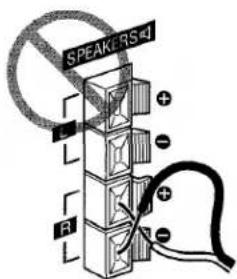
1 Connect the speaker cords to the main unit.
The cords with the white stripes should be connected to the terminals and the other cords to the terminals.

NOTE
Do not short-circuit the + and - speaker cord leads; otherwise the sound may become inaudible. If this happens, disconnect the AC cord from the AC outlet and reconnect the speaker cord correctly. Connect then the AC cord and turn the unit on again.
2 Connect the supplied antennas.
Connect the FM antenna to the upper one of the FM 75 Ω terminals and the AM antenna to the AM LOOP terminals.
3 Connect the AC cord to an AC outlet.
To position the antennas
FM antenna:
Extend this antenna and change the direction and angle to find the best reception.
AM antenna:
Position to find the best direction.
NOTE
- Do not leave objects generating magnetism near the speakers.
- Do not bring the FM antenna near metal objects or curtain rails.
- Do not bring the AM antenna near other optional equipment, the stereo system itself, the AC cord or speaker cords, since noise will be picked up.
- Do not unwind the AM antenna wire.
To connect other optional equipment → page 11.
3 ENGLISH
BEFORE OPERATION
To turn the unit on
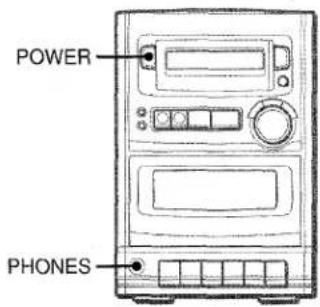
Press the POWER button.
After use
Press the POWER button to turn off the power. The display changes to the clock.
Using the headphones
Connect headphones to the PHONES jack with a stereo mini plug (ø3.5 mm, 18 inch).
No sound is output from the speakers while the headphones are plugged in.
REMOTE CONTROL
Inserting batteries into the remote control
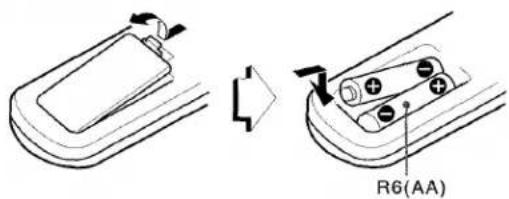
Detach the battery cover on the rear of the remote control and insert two R6 (size AA) batteries.
When to replace the batteries
The maximum operational distance between the remote control and the sensor on the main unit should be approximately 5 meters (16 feet). When this distance decreases, replace the batteries with new ones.
NOTE
- If the unit is not going to be used for an extended period of time, remove the batteries to prevent possible electrolyte leakage.
- The remote control may not operate correctly when:
- The line of sight between the remote control and the remote sensor (located in the POWER button) is exposed to intense light, such as direct sunlight
- Other remote controls are used nearby (television, etc.)

ADJUSTING THE SOUND


ADJUSTING THE VOLUME
Press the VOLUME control.
Press the upper side to increase the volume, and the lower side to decrease it.
The volume level is shown on the display for 4 seconds. It can be set from 0 (minimum) to 30, and then MAX (maximum).
The volume remains memorized even after the power is turned off. However, if the power is turned off when the volume is set to more than 20, it is automatically set to 20 the next time the power is turned on.
GRAPHIC EQUALIZER
Press one of the 3-MODE EQUALIZER buttons.
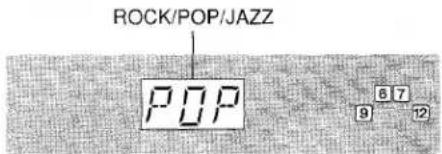

ROCK: Powerful sound emphasizing treble and bass.
POP: More presence in the vocals and midrange.
JAZZ: Sound enriched with heavy bass and fine treble.
To cancel the selected mode
Press the selected button again.
When using the remote control
Press the GEQ button until the desired equalization mode is displayed.
The equalization mode changes to ROCK, POP, JAZZ or no equalization cyclically.
SOUND ADJUSTMENT DURING RECORDING
The output volume and tone of the speakers or headphones may be freely varied without affecting the level of the recording.
PLAYING A CD
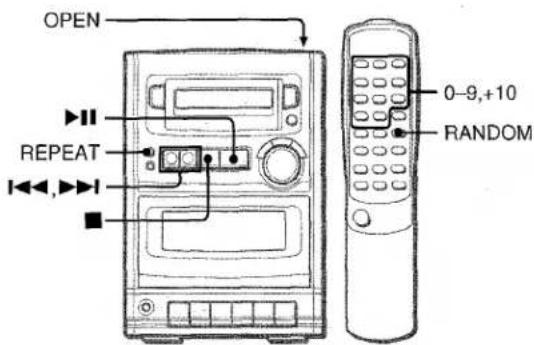
LOADING A DISC
Press the OPEN mark to open the disc compartment. Load a disc with the label side up and close the disc compartment.

PLAYING A DISC
Load a disc.
Press the ▶II button.
Play begins with the first track.
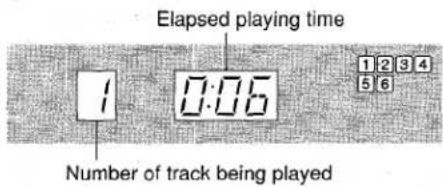
To stop play, press the ■ button.
To pause play, press the ▶■ button. To resume play, press again.
To search for a particular point during playback, keep the ◄◀◀ or ▶▶◀ I button pressed and release the button at the desired point.
To skip to the beginning of a track during playback, press the ◄◀◀ or ▶▶◀ button repeatedly.
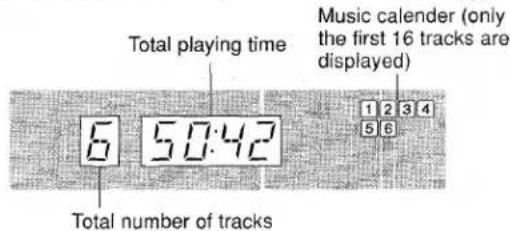
Display in stop mode
To start play when the power is off (Direct Play Function)
Press the ▶■ button. The power is turned on and play of the loaded disc begins.
If other than CD play is selected with the power on, one press of the ▶■ button selects the CD function and starts play.
To select a track with the remote control
Press the numbered buttons and the +10 button to select a track. Example:
To select the 25th track, press the +10, +10 and 5 buttons.
To select the 10th track, press the +10 and 0 buttons.
The selected track starts to play and play continues to the end of that disc.
NOTE
- Do not use irregular shape CDs (example: heart-shaped, octagonal ones). It may result in malfunction.
- Do not place more than one compact disc in the disc compartment.
- Do not try to open the disc compartment during play.
RANDOM PLAY
All the tracks on the disc can be played randomly.
Press the RANDOM button on the remote control in stop mode to display "RAN".
Press the ▶II button to start play.
To cancel random play, press the RANDOM button again in stop mode.
NOTE
- Even if the ◀◀ button is pressed, a previously played track cannot be skipped. The unit returns to the beginning of the current track only.
- When you select a track with the numbered buttons on the remote control during the random play mode, the selected track starts to play and the random play mode is cancelled.
REPEAT PLAY
One track, all the tracks or programmed tracks can be played repeatedly.
Press the REPEAT button to display "REPEAT 1" or "REPEAT ALL".
To repeat the current track only, display "REPEAT 1".
To repeat all the tracks, display "REPEAT ALL".
To cancel repeat play, press the REPEAT button to turn off "REPEAT".
To repeat the desired tracks only, program the tracks and press the REPEAT button to display "REPEAT ALL".
PROGRAMMED PLAY
Up to 30 tracks can be programmed from the inserted disc.
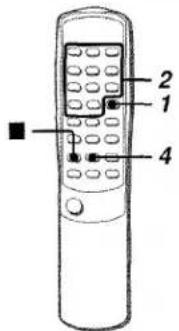
Use the remote control.
1 Press the SET button in stop mode.
"M" flashes on the display.

2 Press the numbered buttons and +10 button to program track.
Example:
To select the 12th track, press the +10 and 2 buttons.
To select the 20th track, press the +10, +10 and 0 buttons.
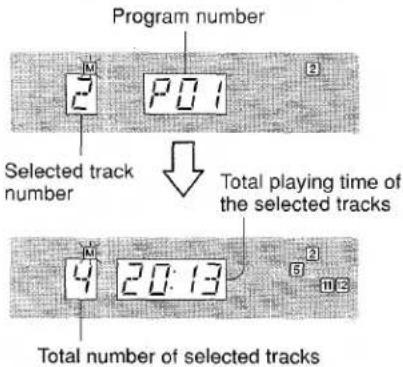
3 Repeat step 2 to program other tracks.
4 Press the ▶II button to start play.
To check the program
Each time the ▶▶I button on the main unit is pressed in stop mode, a track number and program number will be displayed.
To clear the program
Press the ■ button in stop mode.
To add tracks to the program
Before playing, repeat step 2. The track will be programmed after the last track.
To change the programmed tracks
Clear the program and repeat all the steps again.
NOTE
- During programmed play, the following operations cannot be performed.
- Random play
- One-track repeat (REPEAT 1)
- If the programmed time is more than 99:59 minutes, or the disc track number 31 or above is programmed, the display shows - - - as the total playing time.
MANUAL TUNING
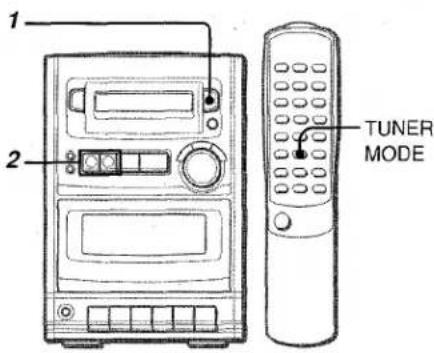
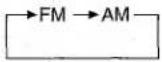
1 Press the BAND button repeatedly to select the desired band.
2 Press the ◀◀◀ or ▶▶◀ button to select a station. Each time the button is pressed, the frequency changes. When a station is tuned in, "TUNE" is displayed for a moment. During FM stereo reception, "STEREO" is displayed.
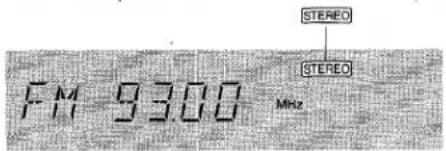
To play a tuned station when the power is off (Direct Play Function)
Press the BAND button. The power is turned on and the tuned stations is played.
To search for a station quickly (Auto Search)
Keep the ◄◀◀ or ▶▶◀ button pressed until the tuner starts searching for a station. After tuning in to a station, the search stops.
To stop the Auto Search manually, press the ◀◀ or ▶▶ button.
• The Auto Search may not stop at stations with very weak signals.
When an FM stereo broadcast contains noise
Press the TUNER MODE button on the remote control.
"MONO" appears on the display.
Noise is reduced, although reception is monaural.
To restore stereo reception, repeat the above again.
To change the AM tuning interval
The default setting of the AM tuning interval is 10 kHz/step. If you use this unit in an area where the frequency allocation system is 9 kHz/step, change the tuning interval.
Press the POWER button while pressing the BAND button.
To reset the interval, repeat this procedure.
NOTE
When the AM tuning interval is changed, all preset stations (see "PRESETTING STATIONS") are cleared. The preset stations have to be set again.
PRESETTING STATIONS
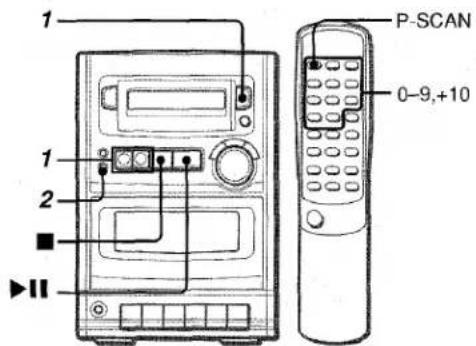
The unit can store a total of 32 preset stations. When a station is stored, a preset number is assigned to the station. Use the preset number to tune in to a preset station directly.
1 Press the BAND button to select a band. Then, press the ◀◀◀ or ▶▶◀ button to select a station.
2 Press the SET button to store the station.
A station is assigned a preset number, beginning from 1 in consecutive order for each band.
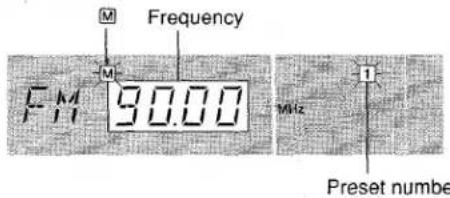
3 Repeat steps 1 and 2.
NOTE
Each band can only store a maximum of 16 preset stations.
To listen to preset stations
Use the remote control to select the preset number directly.
1 Press the BAND button to select a band.
2 Press the numbered buttons to select a preset number.
Example:
To select preset number 15, press the +10 and 5 buttons.
To select preset number 10, press the +10 and 0 buttons.
When operating on the main unit, press the ■ button repeatedly.
Each time the button is pressed, the next higher number is selected.
To clear a preset station
Select the preset number of the station to be cleared. Then, press the SET button, and press the ▶II button within 4 seconds while the frequency flashes.
The preset numbers of all other stations in the band with higher numbers are also decreased by one.
To scan preset stations
Press the P-SCAN button on the remote control until "P.SCAN" is displayed. The preset stations are received in order for 5 seconds each. The preset number flashes during reception.
To stop scanning, press the VOLUME button.
7 ENGLISH
PLAYING A TAPE
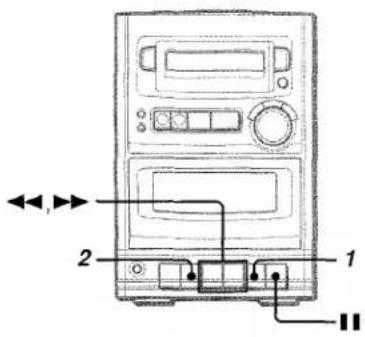
Use only type I (normal) tapes.
1 Press the ■/▲ button to open the cassette holder and insert a tape with the exposed side down. Push the cassette holder to close it.

natural_image
Diagram of a microwave oven with a digital display and control panel, showing signal waves and an arrow pointing to the top panel (no text or symbols present)2 Press the ▶ button.
TAPE function is selected and play begins. Only the side facing out from the unit can be played back.
To stop play, press the ■/▲ button.
To pause play, press the ▪ button. To resume play, press again. To fast forward or rewind, press the ◀◀ or ▶▶ button in stop mode. Then press the ■/▲ button to stop the tape.
To start play when the power is off (Direct Play Function)
Press the ▶ button. The power is turned on and play of the inserted tape begins.
RECORDING
This section explains how to record from the tuner, CD player or other external equipment.
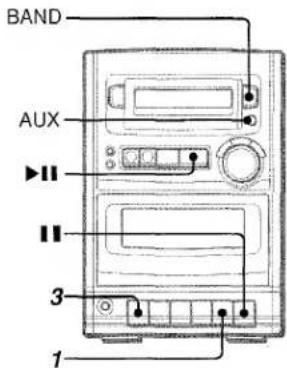
Preparation
• Wind up the tape to the point recording starts.
- Note that recording is done on only one side of the tape.
• Use only type I (normal) tapes.
1 Insert the tape to be recorded on into the deck. Insert the tape with the side to be recorded on facing out from the unit and the exposed side down.
2 Get the source ready for recording.
To record from a CD, press the ▶II button and load the disc.
To record from a radio broadcast, press the BAND button and tune in to a station.
To record from a connected source, press the AUX button and prepare the source for play.
3 Press the ● button to start recording.
The ▶ button is pressed simultaneously.
When the selected function is CD, playback and recording start simultaneously.
When the selected function is AUX, start playback manually.
To stop recording, press the ■/▲ button.
To pause recording, press the Ⅱ button. To resume recording, press again.
When the tape reaches its end, the tape stops and the ● button is released. During CD recording, CD play pauses automatically. Change the tape and press the ● button, then CD play will automatically resume.
To record the selected tracks of the CD
Program the tracks (see "PROGRAMMED PLAY") and press the ● button.
About cassette tapes
- 120-minute or longer tapes are extremely thin and easily deformed or damaged. They are not recommended.
• Take up any slack in the tape with a pencil or similar tool before use. Slack tape may break or jam in the mechanism.
COPYRIGHT
Please check the laws on copyright relating to recordings from discs, radio or external tape for the country in which the machine is being used.
ENGLISH 8
SETTING THE CLOCK

When the AC cord is connected for the first time, the time on the display flashes.
Set the time as follows while the power is off.
1 Press the SET button.
The hour flashes.

2 Press the ◀◀◀ or ▶▶◀ button to designate the hour.
3 Press the SET button to set the hour.
The hour stops flashing and the minute starts flashing.
4 Press the ◀◀◀ or ▶▶◀ button to designate the minute.
5 Press the SET button to set the minute and complete setting.
The minute stops flashing on the display and the clock starts from 00 seconds.
To correct the current time
Press the POWER button to turn the unit off and press the SET button. Then, carry out steps 1 to 5 above.
To display the current time
Keep the ■ button pressed until the clock is displayed. The time is displayed for 4 seconds.
To switch to the 24-hour standard
While the power is on, keep the ■ button pressed until the clock is displayed and then press the REPEAT button within 4 seconds. Repeat the same procedure to restore the 12-hour standard.
If the clock display flashes while the power is off
This is caused by a power interruption. The current time needs to be reset.
If power is interrupted for more than approximately 12 hours, all settings stored in memory after purchase need to be reset.
SETTING THE TIMER

The unit can be turned on at a specified time with the built-in timer.
Preparation
Make sure the clock is set correctly.
1 Press the TIMER button on the remote control to display ⏻, and press the SET button within 2 seconds.
④ is displayed, and the hour flashes.

NOTE
If you do not press the SET button within 2 seconds, another operation may start.
2 Designate the hour of the timer-on time by pressing the ◀◀ or ▶▶I button, and press the SET button. Repeat to designate the minute of the timer-on time.
3 Select the duration for the timer-activated period with the ◀◀ or ▶▶I button and press the SET button.
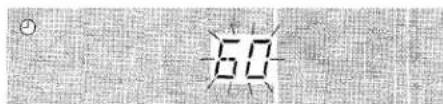
The duration for the timer-activated period can be set between 5 and 240 minutes in 5-minute steps.
4 Prepare the source.
To listen to a CD, press the ▶II button and load the disc. To listen to the radio, press the BAND button and tune in to a station.
5 Press the POWER button to turn the unit off after adjusting the volume.
④ remains on the display after the power is turned off (timer standby mode).
When the timer-on time is reached, the unit turns on and begins play with the selected source.
- You cannot set the volume level to 21 or higher.
To check the specified time
Press the TIMER button on the remote control. The timer-on time flashes for 2 seconds. However, the duration for the timer-activated period will not be displayed.
To cancel timer standby mode temporarily
Press the TIMER button on the remote control twice to turn off ⏻.
Using the unit while the timer is set
You can use the unit normally after setting the timer.
Before turning off the power, repeat step 4 to prepare the source, and adjust the volume.
NOTE
- Timer playback will not begin unless the power is turned off.
- Connected equipment cannot be turned on and off by the built-in timer of this unit. Use an external timer.
- When power is interrupted, Ⓐ display disappears and the clock flashes. Reset the clock and set the timer again.
SETTING THE SLEEP TIMER
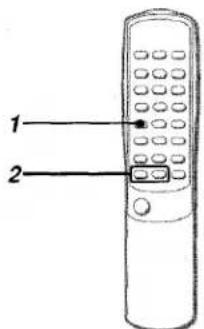
The unit can be turned off automatically at a specified time.
Use the remote control.
1 Press the SLEEP button.
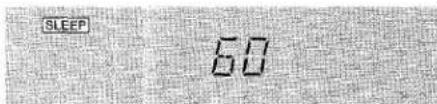
2 Within 4 seconds, press the ◀◀ or ▶▶ button to specify the time until the power is turned off.
Each time the button is pressed, the time changes between 5 and 240 minutes in 5-minute steps.
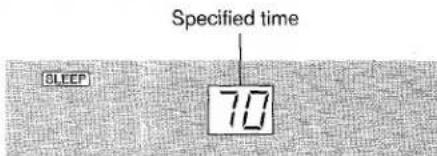

To check the time remaining until the power is turned off
Press the SLEEP button once. The remaining time is displayed for 4 seconds.
To cancel the sleep timer
Press the SLEEP button twice so that "SLEEP" on the display disappears.
NOTE
If the unit is turned off during tape playback, the ▶ button is kept pressed. Press the ■/▲ button to release the ▶ button.
OTHER CONNECTIONS
CONNECTING OPTIONAL EQUIPMENT
CONNECTING TO AUX JACKS
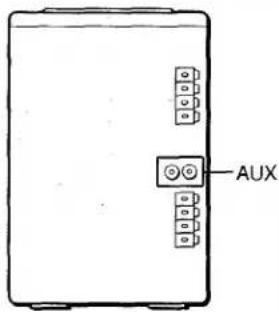
Sound signals can be input to this unit through the AUX jacks.
Use a cable with RCA phono plugs to connect equipment (turntables, LD players with analog output jacks, DAT decks, MD players, VCRs, TVs, etc.).
Connect the red plug to the R jack, and the white plug to the L jack.
Refer to the operating instructions of the connected equipment for details.
- The connecting cords are not supplied. Obtain the necessary connecting cords.
- Consult your local Aiwa dealer for recommended equipment.
When connecting a turntable
Use an Aiwa turnable equipped with a built-in equalizer amplifier.
LISTENING TO EXTERNAL SOURCES

To play equipment connected to the AUX jacks, press the AUX button and start play. "AUX" appears on the display.
GENERAL
CARE AND MAINTENANCE
Occasional care and maintenance of the unit and the software are needed to optimize the performance of your unit.
To clean the cabinet
Use a soft and dry cloth.
If the surfaces are extremely dirty, use a soft cloth lightly moistened with mild detergent solution. Do not use strong solvents, such as alcohol, benzine or thinner as these could damage the finish of the unit.
To clean the heads and tape paths
After every 10 hours of use, clean the heads and tape paths with a head cleaning cassette or cotton swab moistened with cleaning fluid or denatured alcohol. (These cleaning kits are commercially available.)
When cleaning with a cotton swab, wipe the recording/playback head, erasure head, capstan, and pinchroller.
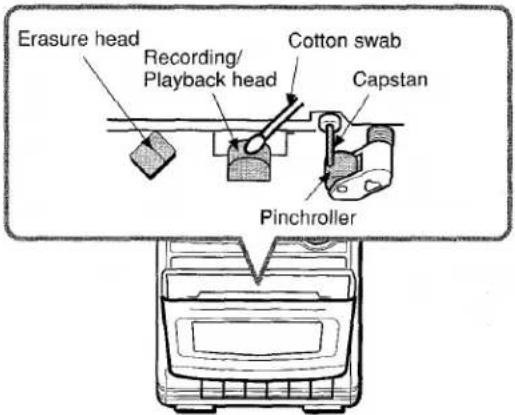
After cleaning the heads and tape paths with a head cleaning cassette or a moistened swab, wait until the cleaned parts are completely dry before inserting the tapes.
Care of discs
- When a disc becomes dirty, wipe the disc from the center out with a cleaning cloth.

natural_image
Illustration of a hand holding a disc with a cloth or tape, no text or symbols present• After playing a disc, store the disc in its case. Do not leave the disc in places that are hot or humid.
Care of tapes
- Store tapes in their cases after use.
- Do not leave tapes near magnets, motors, television sets, or any source of magnetism. This will downgrade the sound quality and cause noise.
- Do not expose tapes to direct sunlight, or leave them in a car parked in direct sunlight.
SPECIFICATIONS
Main unit
FM tuner section
| Tuning range | 87.5 MHz to 108 MHz |
| Antenna terminals | 75 ohms (unbalanced) |
AM tuner section
| Tuning range | 530 kHz to 1710 kHz (10 kHz step) |
| 531 kHz to 1602 kHz (9 kHz step) | |
| Antenna | Loop antenna |
Amplifier section
| Power output | 5 W + 5 W (1 kHz, T.H.D. 10 %, 4 ohms) |
| 3.5 W + 3.5 W (100 - 15 kHz, T.H.D. less than 1 %, 4 ohms) |
Cassette deck section
| Track format | 4 tracks, 2 channels stereo |
| Frequency response | Normal tape: 50 Hz – 12500 Hz |
| Recording system | AC bias |
| Erasure system | Magnet erase |
| Heads | Recording/playback head × 1Erase head × 1 |
Compact disc player section
| Laser | Semiconductor laser ( = 780 nm) |
| D-A converter | 1 bit dual |
| Wow and flutter | Unmeasurable |
Speaker system
| Speakers | 100 mm (4 in.) cone type, 4 ohms |
| Dimensions (W × H × D) | 150 × 236.2 × 210.5 mm( 6 × 9^3/_8 × 8^3/_8 in.) |
| Weight | 1.1 kg (2 lbs 7 oz.) |
General
| Power requirements | 120 V AC, 60 Hz |
| Power consumption | 22 W |
| Dimensions of main unit (W × H × D) | 160 × 236.2 × 209.3 mm ( 6^3/8 × 9^3/8 × 8^1/4 in. ) |
| Weight of main unit | 2.6 kg (5 lbs 12 oz.) |
Specifications and external appearance are subject to change without notice.
NOTE
This equipment has been tested and found to comply with the limits for a Class B digital device, pursuant to Part 15 of the FCC Rules. These limits are designed to provide reasonable protection against harmful interference in a residential installation.
This equipment generates, uses, and can radiate radio frequency energy and, if not installed and used in accordance with the instructions, may cause harmful interference to radio communications. However, there is no guarantee that interference will not occur in a particular installation. If this equipment does cause harmful interference to radio or television reception, which can be determined by turning the equipment off and on, the user is encouraged to try to correct the interference by one or more of the following measures:
- Reorient or relocate the receiving antenna.
- Increase the separation between the equipment and receiver.
- Connect the equipment into an outlet on circuit different from that to which the receiver is connected.
- Consult the dealer or an experienced radio/TV technician for help.
CAUTION
Modifications or adjustments to this product, which are not expressly approved by the manufacturer, may void the user's right or authority to operate this product.
TROUBLESHOOTING GUIDE
If the unit fails to perform as described in these Operating Instructions, check the following guide.
GENERAL
There is no sound.
• Is the AC cord connected properly?
• Is there a bad connection? (→ page 3)
- Was an incorrect function button pressed?
The sound becomes inaudible.
• There may be a short circuit in the speaker terminals.
→ Disconnect the AC cord from the AC outlet and re-connect the speaker cords correctly. Then connect the AC cord and turn the unit on again.
Sound is emitted from one speaker only.
• Is the other speaker disconnected?
TUNER SECTION
There is constant, wave-like static.
- Is the antenna connected properly? (→ page 3)
The reception contains noise interferences or the sound is distorted.
- Is the system picking up external noise or multipath distortion?
→ Change the orientation of the antenna.
→ Move the unit away from other electrical appliances.
CASSETTE DECK SECTION
The tape does not run.
• Is the deck in pause mode? (→ page 8)
The sound is off-balance or not adequately high.
• Is the playback head dirty? (→ page 11)
Recording is not possible.
- If the tab on a cassette broken off, cover the hole with adhesive tape.

• Is the recording head dirty? (→ page 11)
Erasure is not possible.
• Is the erasure head dirty? (→ page 11)
• Is a CrO_2 or metal tape being used?
High frequency sound is not emitted.
• Is the recording/playback head dirty? (→ page 11)
CD PLAYER SECTION
The CD player does not play.
- Is the disc correctly loaded? (→ page 5)
• Is the disc dirty? (→ page 11)
• Is the lens affected by condensation?
→ Wait approximately one hour and try again.
CLOCK AND TIMER SECTION
Timer setting is not possible.
- Does the clock flash on the display?
→ Reset the clock. (→ page 9)
To reset
If an unusual condition occurs in the display window or the cassette decks, reset the unit as follow.
1 Press the POWER button to turn off the power.
2 Press the POWER button to turn the power back on while pressing the ■ button. Everything stored in memory after purchase is canceled.
If the power cannot be turned off in step 1 because of a malfunction, reset by disconnecting the AC cord and repeat step 2.
ENGLISH
ESPANOL
ADVERTENCIA
PARA REDUCIR EL RIESGO DE INCENDIOS O DESCARGAS ELÉCTRICAS, NO EXPONGA ESTE APARATO A LA LLUVIA NI A LA HUMEDAD.
CAUTION
RISK OF ELECTRIC SHOCK DO NOT OPEN

"CAUTION: TO REDUCE THE RISK OF ELECTRIC SHOCK,
DO NOT REMOVE COVER (OR BACK). NO USER-SERVICEABLE PARTS INSIDE. REFER SERVICING TO QUALIFIED SERVICE PERSONNEL."
natural_image
Line drawing of a vintage computer tower with front panel and control buttons (no text or symbols)Antena FM
Control remoto
natural_image
Two identical wireframe containers with different internal shapes, no text or symbols visibleAntena AM
Manual de Instrucciones, etc.
CONEXIONES

AJUSTE DEL VOLUMEN
Presione el control VOLUME.
natural_image
Diagram of a device with an antenna and indicator lights, connected to a power outlet (no text or symbols)NOTA
natural_image
Illustration of hands holding a CD or DVD with a cloth partially covering the disc (no text or symbols)natural_image
Line drawing of a multi-tiered electronic device with front panel and control buttons (no text or symbols)Antenne FM

Télécommande


flowchart
graph TD
    A["Container with lid"] --> B["Device with tray"]
    B --> C["Computer with monitor"]
    C --> D["Final Packaging with cable"]
CONNEXIONS
RÉGLAGE DU VOLUME
natural_image
Diagram of a device with an antenna and control panel, no text or symbols presentnatural_image
Illustration of hands holding a CD or DVD disc, no text or symbols present5 W + 5 W (1 kHz, 10% de distorsion harmonique total, 4 ohms)
3.5 W + 3.5 W (100 - 15 kHz, moins
Dimensions (L x H x P)
Poids
100 mm type conique, 4 ohms
150×236.2×210.5mm
1,1 kg
principale (L x H x P)
The parts on the main unit and remote control are listed in alphabetical order with the pages on the right side. Refer to each page for instructions about each part.
INDICE DE LAS PARTES
▶◀, ▶▶TUNING DOWN, UP 5, 7, 9
VOLUME 4
0-9,+10 5,6,7
3-MODE EQUALIZER 4
For assistance and information,
call toll free 1-800-BUY-AIWA. (United States and Puerto Rico)
- ENGLISH
- WARNING
- Explanation of Graphical Symbols:
- PRECAUTIONS
- Installation
- PREPARATIONS
- Electric Power
- AC power cord
- Outdoor Antenna
- ENGLISH
- Welcome to the Aiwa Stereo System
- Check your system and accessories
- Owner's record
- To stand the AM antenna on a surface
- TABLE OF CONTENTS
- SOUND
- Connecting an outdoor antenna
- CONNECTIONS
- Before connecting the AC cord
- IMPORTANT
- Connect the speaker cords to the main unit.
- NOTE
- Connect the supplied antennas.
- Connect the AC cord to an AC outlet.
- To position the antennas
- FM antenna:
- AM antenna:
- ENGLISH
- BEFORE OPERATION
- To turn the unit on
- After use
- Using the headphones
- REMOTE CONTROL
- Inserting batteries into the remote control
- When to replace the batteries
- ADJUSTING THE SOUND
- ADJUSTING THE VOLUME
- Press the VOLUME control.
- GRAPHIC EQUALIZER
- To cancel the selected mode
- When using the remote control
- SOUND ADJUSTMENT DURING RECORDING
- PLAYING A CD
- LOADING A DISC
- PLAYING A DISC
- To start play when the power is off (Direct Play Function)
- To select a track with the remote control
- RANDOM PLAY
- REPEAT PLAY
- PROGRAMMED PLAY
- MANUAL TUNING
- To play a tuned station when the power is off (Direct Play Function)
- To search for a station quickly (Auto Search)
- When an FM stereo broadcast contains noise
- To change the AM tuning interval
- PRESETTING STATIONS
- Repeat steps 1 and 2.
- To listen to preset stations
- To clear a preset station
- To scan preset stations
- ENGLISH
- PLAYING A TAPE
- RECORDING
- About cassette tapes
- COPYRIGHT
- SETTING THE CLOCK
- Press the SET button.
- To correct the current time
- To display the current time
- To switch to the 24-hour standard
- If the clock display flashes while the power is off
- SETTING THE TIMER
- Preparation
- Prepare the source.
- To check the specified time
- To cancel timer standby mode temporarily
- Using the unit while the timer is set
- SETTING THE SLEEP TIMER
- Press the SLEEP button.
- Within 4 seconds, press the ◀◀ or ▶▶ button to specify the time until the power is turned off.
- To check the time remaining until the power is turned off
- To cancel the sleep timer
- OTHER CONNECTIONS
- CONNECTING OPTIONAL EQUIPMENT
- CONNECTING TO AUX JACKS
- When connecting a turntable
- LISTENING TO EXTERNAL SOURCES
- GENERAL
- CARE AND MAINTENANCE
- To clean the cabinet
- To clean the heads and tape paths
- Care of discs
- Care of tapes
- SPECIFICATIONS
- Main unit
- FM tuner section
- AM tuner section
- Amplifier section
- Cassette deck section
- Compact disc player section
- Speaker system
- CAUTION
- TROUBLESHOOTING GUIDE
- There is no sound.
- The sound becomes inaudible.
- Sound is emitted from one speaker only.
- TUNER SECTION
- There is constant, wave-like static.
- The reception contains noise interferences or the sound is distorted.
- The tape does not run.
- The sound is off-balance or not adequately high.
- Recording is not possible.
- Erasure is not possible.
- High frequency sound is not emitted.
- CD PLAYER SECTION
- The CD player does not play.
- CLOCK AND TIMER SECTION
- Timer setting is not possible.
- To reset
- ESPANOL
- ADVERTENCIA
- CONEXIONES
- AJUSTE DEL VOLUMEN
- Presione el control VOLUME.
- NOTA
- CONNEXIONS
- RÉGLAGE DU VOLUME
- INDICE DE LAS PARTES
Brand : AIWA
Model : LCX150
Category : Hi-fi system