Discover Karaoke - Karaoke system ION - Free user manual and instructions
Find the device manual for free Discover Karaoke ION in PDF.



| Product Type | Karaoke System |
| Brand | ION |
| Model | Discover Karaoke |
| Power Supply | Included AC adapter (power input) |
| Built-in Speaker | Yes |
| Number of Microphones Included | 2 (with 1/8" TRS cable) |
| Audio Inputs | iPad (3.5 mm jack), USB (for computer), 2 mic inputs |
| Audio Output | RCA line out (for external speakers) |
| Input Selector | PAD (iPad) / USB (computer) |
| Controls | Mic Volume 1 & 2, Master Volume, Echo Effect |
| System Compatibility | Windows (XP, Vista, 7) and Mac OS X |
| Connectivity | USB port, iPad port (jack), RCA output |
| Included Accessories | USB cable, 1/8" TRS cable, iPad stand, user guide |
| Recommended Software | The Karaoke Channel (online) / The Karaoke Channel Mobile App (iOS) |
| Country of Manufacture | Not specified |
Frequently Asked Questions - Discover Karaoke ION
User questions about Discover Karaoke ION
0 question about this device. Answer the ones you know or ask your own.
Ask a new question about this device
Download the instructions for your Karaoke system in PDF format for free! Find your manual Discover Karaoke - ION and take your electronic device back in hand. On this page are published all the documents necessary for the use of your device. Discover Karaoke by ION.
USER MANUAL Discover Karaoke ION
- iPad is a trademark of Apple, Inc., registered in the U.S.A. and other countries.
iPad and computer not included.
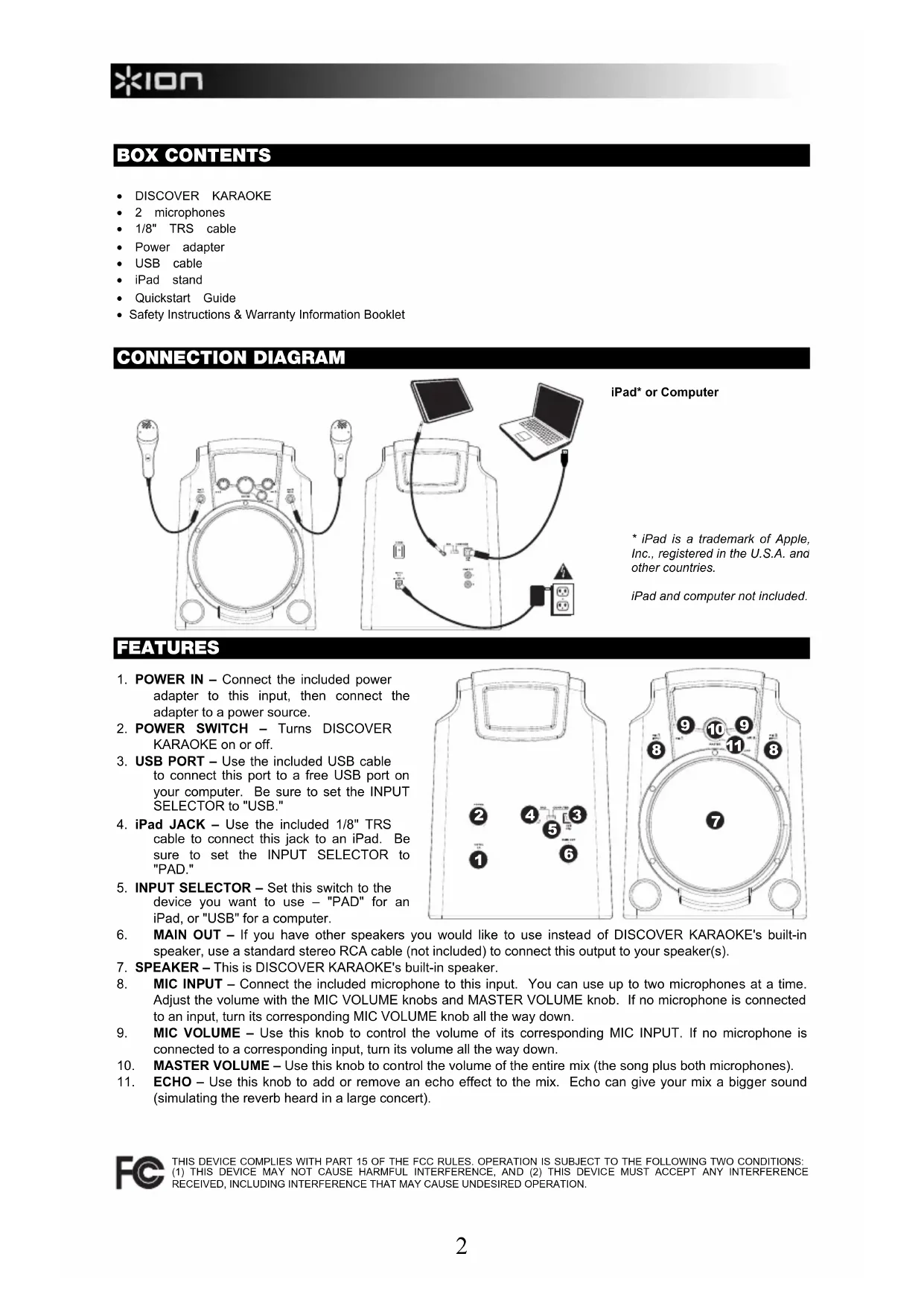
FEATURES
- POWER IN - Connect the included power adapter to this input, then connect the adapter to a power source.
- POWER SWITCH - Turns DISCOVER KARAOKE on or off.
- USB PORT - Use the included USB cable to connect this port to a free USB port on your computer. Be sure to set the INPUT SELECTOR to "USB."
- iPad JACK - Use the included 1/8" TRS cable to connect this jack to an iPad. Be sure to set the INPUT SELECTOR to "PAD."
- INPUT SELECTOR - Set this switch to the device you want to use - "PAD" for an iPad, or "USB" for a computer.
- MAIN OUT - If you have other speakers you would like to use instead of DISCOVER KARAOKE's built-in speaker, use a standard stereo RCA cable (not included) to connect this output to your speaker(s).
- SPEAKER - This is DISCOVER KARAOKE's built-in speaker.
- MIC INPUT - Connect the included microphone to this input. You can use up to two microphones at a time. Adjust the volume with the MIC VOLUME knobs and MASTER VOLUME knob. If no microphone is connected to an input, turn its corresponding MIC VOLUME knob all the way down.
- MIC VOLUME - Use this knob to control the volume of its corresponding MIC INPUT. If no microphone is connected to a corresponding input, turn its volume all the way down.
- MASTER VOLUME - Use this knob to control the volume of the entire mix (the song plus both microphones).
- ECHO - Use this knob to add or remove an echo effect to the mix. Echo can give your mix a bigger sound (simulating the reverb heard in a large concert).
SYSTEM REQUIREMENTS
Before beginning, make sure your computer meets these system requirements:
Computer with Microsoft Windows XP, Vista, Windows 7 or Mac OS X
- Internet connection
- Web browser with Adobe Flash Player USB port
Sound card
Note to Mac users:
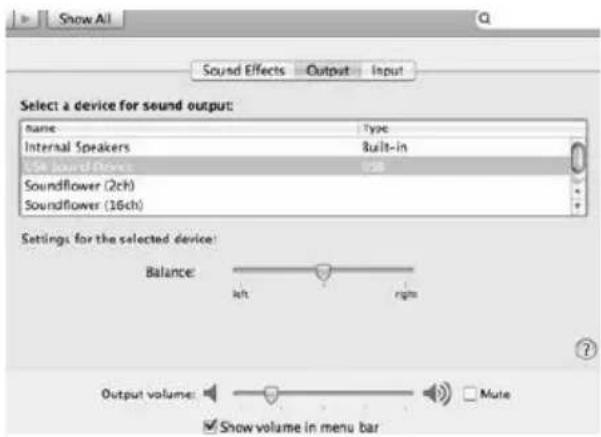
When you first connect the DISCOVER KARAOKE to your USB port, you need to select this as your USB device. Go to System Preferences > Sound > Output tab > select USB Sound Device.
Note to Windows users:
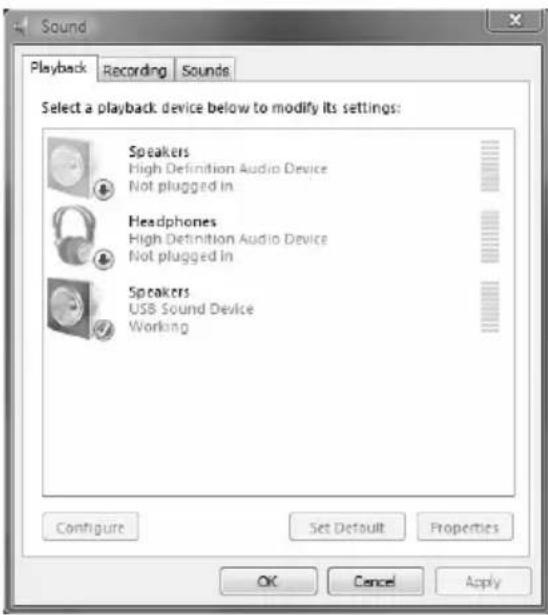
When you first connect the DISCOVER KARAOKE to your USB port, verify that this is selected as the default USB device. Go to Windows Control Panel > Sounds > Playback tab > select Speakers-USB Sound Device.
USING THE SOFTWARE
- Use the CONNECTION DIAGRAM to set up DISCOVER KARAOKE:
a. Connect the included microphones to DISCOVER KARAOKE's MIC INPUTS.
b. Use the included USB cable to connect DISCOVER KARAOKE'S USB port on the rear panel of your computer. Set the INPUT SELECTOR's switch to "USB."
c. Use the included power adapter to connect DISCOVER KARAOKE's POWER INPUT to a power source like a wall outlet.

- Turn DISCOVER KARAOKE's POWER SWITCH to the "on" position.
- DISCOVER KARAOKE is compatible with virtually all karaoke software. We recommend The KARAOKE Channel Online. Visit www.lonaudio.com/discoverkaraoke
USING THE APP
- Use the CONNECTION DIAGRAM to set up DISCOVER KARAOKE:
a. Connect the included microphones to DISCOVER KARAOKE's MIC INPUTS.
b. Use the included 1/8" TRS cable to connect DISCOVER KARAOKE'S iPad JACK to your iPad. Set the INPUT SELECTOR's switch to "PAD."
c. Use the included power adapter to connect DISCOVER KARAOKE's POWER INPUT to a power source like a wall outlet.

- Turn DISCOVER KARAOKE's POWER SWITCH to the "on" position.
- DISCOVER KARAOKE is compatible with virtually all karaoke apps. We recommend The KARAOKE Channel Mobile App (for iPhone/iPod touch/iPad). Visit www.thekaraokechannel.com/mobile/to download it.
TROUBLESHOOTING
| PROBLEM CAUSE SOLUTION | ||
| I cannot hear any sound coming out of the speaker. | The speaker's volume is too low. | Turn up the MASTER VOLUME knob on DISCOVER KARAOKE. |
| Your computer's volume is too low. | Double-click the "speaker" icon in your System Tray (next to the date and time in your Taskbar). Make sure the "Volume" sliders for "Speaker" and "Wave" are not set too low and that the "Mute" boxes are not checked. | |
| Your iPad's volume is too low. Turn up | your iPad's volume. | |
| DISCOVER KARAOKE is not selected as your computer's sound card. (This may be because you have other USB audio devices connected to your computer.) | Disconnect any other USB audio devices that are connected to your computer (e.g., USB speakers, mixers, etc.). | |
| Select DISCOVER KARAOKE as your default playback/output device for your computer: Windows XP: Click the "Start" menu in the Taskbar, click "Control Panel," and double-click "Sounds and Audio Devices." Click the "Audio" tab, then under "Sound playback," select "USB Sound Device" from the "Default device" drop-down menu. Windows Vista: Click the "Start" menu in the Taskbar, click "Control Panel," and double-click "Sound." Click the "Audio" tab, then under "Sound playback," select "USB Sound Device" from the "Default device" drop-down menu. Windows 7: Click the "Start" menu in the Taskbar, click "Control Panel," double-click "Hardware and Sound," then double-click "Sound." Click the "Playback" tab, then select "USB Sound Device" as your default device. | ||
| Another audio player may be using the sound card. | Close the software and disconnect DISCOVER KARAOKE from your computer. Close any other audio player programs that are operating (e.g., iTunes, Windows Media Player, QuickTime, etc.) Reopen the software and reconnect DISCOVER KARAOKE to your computer. | |
| I cannot hear my voice when I sing into the mic, but I can hear the music. | DISCOVER KARAOKE's microphone volume is too low. | Turn up the MIC VOLUME knob (1 or 2) on DISCOVER KARAOKE for your microphone (1 or 2). Also, make sure your microphone's on/off switch is set to "on." |
| The song does not play properly in the software. | Possible software bug or connection issues between software and DISCOVER KARAOKE. | Close the software and disconnect DISCOVER KARAOKE from your computer. Close any other audio player programs that are operating (e.g., iTunes, Windows Media Player, QuickTime, etc.) Reopen the software and reconnect DISCOVER KARAOKE to your computer. |
| The sound coming out of the speaker is distorted, fuzzy, or "clipped." | The volume is too loud. | Double-click the "speaker" icon in your System Tray (next to the date and time in your Taskbar). Make sure the "Volume" sliders for "Speaker" and "Wave" are not set too high. |
| Turn down the MASTER VOLUME knob on DISCOVER KARAOKE. | ||
www.ionaudio.com/supporthome www.ionaudio.com/discoverkaraoke
CONTENIDO DE CAJA
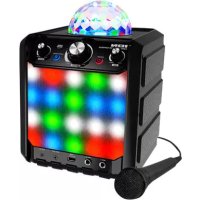
Brand : ION
Model : Discover Karaoke
Category : Karaoke system