Android Quad Core TV Box - Media player Renkforce - Free user manual and instructions
Find the device manual for free Android Quad Core TV Box Renkforce in PDF.



| Product type | Media player |
| Brand | Renkforce |
| Model | Android Quad Core TV Box |
| Operating system | Android KitKat 4.4.xx |
| Processor | Amlogic S802 Quad Core Cortex A9 2 GHz |
| Internal memory | 8 GB (expandable via microSD card up to 32 GB) |
| Power supply | 5 V DC via included power adapter |
| Connectivity | HDMI, USB 2.0 (x2), Ethernet 10/100, Wi-Fi 802.11 a/b/g/n, Bluetooth 4.0, TOSLINK optical, 3.5 mm AV jack, micro USB OTG, microSD card reader |
| Maximum video output | Ultra HD 4K (3840 x 2160) |
| Supported video formats | AVI, RM, RMVB, TS, VOB, MKV, MOV, ISO, WMV, ASF, FLV, DAT, MPG, MPEG |
| Supported audio formats | WMA, AAC, WAV, OGG, AC3, DDP, HD Audio, FLAC, APE |
| Supported image formats | HD JPEG, BMP, GIF, PNG, TIFF |
| Wireless functions | Wi-Fi Direct, Miracast, DLNA, AirPlay, Wi-Fi hotspot |
| Dimensions (diameter × height) | 131 × 26 mm |
| Weight | 150 g |
| Operating temperature | 5 to 35 °C (30-90% RH non-condensing) |
| Maintenance and cleaning | Unplug before cleaning; use a dry, soft cloth; do not use abrasive products or alcohol |
| Safety | Do not open the casing; use only the supplied adapter; avoid moisture and heat sources |
| Spare parts and repairability | No user-serviceable parts; contact a specialized workshop for any repairs |
| General information | Declaration of conformity available at www.conrad.com; disposal according to WEEE regulations |
Frequently Asked Questions - Android Quad Core TV Box Renkforce
User questions about Android Quad Core TV Box Renkforce
0 question about this device. Answer the ones you know or ask your own.
Ask a new question about this device
Download the instructions for your Media player in PDF format for free! Find your manual Android Quad Core TV Box - Renkforce and take your electronic device back in hand. On this page are published all the documents necessary for the use of your device. Android Quad Core TV Box by Renkforce.
USER MANUAL Android Quad Core TV Box Renkforce
GPU. Octo-core Mali-450MP GPU 600 MHz
Memory. 4 x Dual DDR3 2G (256 x 16)
Miracast. understands
- Explanation of symbols 34
- Safety instructions 35
- Installation 37
- Operating elements 38
- Operating system and Google integration 40
a) Google integration 40
b) Security. 40
- Connection 41
a) Power supply 41
b)HDMI 41
c) Micro USB (OTG) 41
d) USB (keyboard and mouse, external storage media) 41
e) Ethernet (LAN) 42
f) Toslink 42
g) microSD card 42
h) Audio-Video 42
- Navigation and device control 43
a) Basic control panels. 43
b) Remote control 43
- Basic steps and settings 44
a)Turning on and off 44
b) Display 44
c) Date and time. 45
d)Wi-Fi 45
e)Wi-Fi Hotspot 46
f) Ethernet (LAN) 46
g)Bluetooth 47
h) Keyboard and mouse. 47
- Advanced settings 48
- External storage 49
a) USB connection 49
b) microSD card (can be used to expand storage). 49
- Optical signal transmission 50
-
TV box as external storage 50
-
Apple AirPlay 51
18.Miracast. 52 - DLNA 53
- 4K, Blu-ray, 3D films 54
a) 4K quality. 54
b)Blu-ray 54
c) 3D films 54
- Maintenance and cleaning 55
22.Declaration of Conformity (DOC) 55 - Disposal 55
- Technical Data 56
1. Introduction
Dear customer,
Thank you for purchasing this product.
This product complies with the statutory national and European requirements.
To maintain this status and to ensure safe operation, you as the user must observe these operating instructions!

These operating instructions are part of this product. They contain important notes on commissioning and handling. Also consider this if you pass on the product to any third party.
Therefore, retain these operating instructions for reference!
All company names and product names are trademarks of their respective owners. All rights reserved.
If there are any technical questions, please contact:
International: www.conrad.com/contact
United Kingdom: www.conrad-electronic.co.uk/contact
Latest operating instructions
The latest edition of the operating instructions is always available for download on our website:
- Open www.conrad.com in a web browser.
- Navigate to the product page of your product and open the "Downloads" tab.
- Download the required operating instructions.
2. Intended use
Connect the Android TV box with the Android 4.4 Kitkat operating system to your TV or monitor using an HDMI cable.
The TV box enables you to play media (music, videos, photos) using various protocols and standards (W-Fi, Wi-Fi Hotspot, Ethernet, Bluetooth® Miracast, DLNA and Apple AirPlay) and platforms (e.g. Youtube, XBMC (Kodi)).
Supports playback of movies in 4K ultra HD quality, 3D films and Blu-ray.
External files can be easily transferred to the internal storage via USB or the card reader or played directly.
After logging in, you can use your Google account for file management (e.g. Google Drive) and playback (e.g. Youtube).
New apps can be easily installed via the Google Play Store.
For safety and approval purposes (CE), you must not rebuild and/or modify this product. If you use the product for purposes other than those described above, the product may be damaged. In addition, improper use can cause hazards such as short circuiting, fire, electric shock etc. Read the instructions carefully and keep them. Make this product available to third parties only together with its operating instructions.
This product complies with the statutory national and European requirements.
3. Delivery content
- TV box
- Power adapter
AV cable (length: approx. 1.2m - Operating instructions
4. Copyrights
a) HDMI®
HDMI® is a registered trademark of HDMI Licensing L.L.C.
b) Music and video
Music and video are/may be protected by copyright and are only intended for personal use. Always refer to the owner information before using the files/materials for other purposes.
5. Explanation of symbols

This symbol indicates a health hazard, e.g. electric shock.

The exclamation mark indicates specific risks associated with handling, function and use.

The "arrow" symbol indicates special tips and operating information.
6. Safety instructions

Read the operating instructions carefully and especially observe the safety information. If you do not follow the safety instructions and information on proper handling in this manual, we assume no liability for any resulting personal injury or damage to property. Such cases will invalidate the warranty/guarantee.
- The device is not a toy. Keep it out of the reach of children and pets.
- Do not leave packaging material lying around carelessly. These may become dangerous playing material for children.
- Protect the product from extreme temperatures, direct sunlight, strong jolts, high humidity, moisture, flammable gases, vapours and solvents.
- Do not place the product under any mechanical stress.
-
If it is no longer possible to operate the product safely, take it out of operation and protect it from any accidental use. Safe operation can no longer be guaranteed if the product:
-
is visibly damaged,
- is no longer working properly,
- has been stored for extended periods in poor ambient conditions or
-
has been subjected to any serious transport-related stresses.
-
Please handle the product carefully. Jolts, impacts or a fall even from a low height can damage the product.
- Also observe the safety and operating instructions of any other devices which are connected to the product.
- The mains outlet must be located near to the device and be easily accessible.
- As power supply, only use the supplied mains adaptor.
- Only connect the power adaptor to a normal mains socket connected to the public supply. Before plugging in the power adaptor, check whether the voltage stated on the power adaptor complies with the voltage of your electricity supplier.

- Never connect or disconnect power adaptors if your hands are wet.
- Never unplug the power adaptor from the mains socket by pulling on the cable; always use the grips on the plug.
- When setting up the product, make sure that the cable is not pinched, kinked or damaged by sharp edges.
- Always lay the cables so that nobody can trip over or become entangled in them. This poses a risk of injury.
- For safety reasons, disconnect the power adaptor from the mains socket during storms.
- Condensation can occur if the product is brought from a cold room into a warm one (e.g. during transportation).
- For this reason, let the product reach room temperature before connecting it to the power supply. This may take several hours. Moisture on the power adapter may result in a fatal electric shock!
- Do not touch the power adapter if it is damaged, as there is a risk of a fatal electric shock! Begin by fully disconnecting the mains voltage for the mains socket to which the power adapter is connected (e.g. turn off corresponding circuit breaker or unscrew fuse, then turn off the corresponding residual current circuit breaker). Then remove the power adapter from the mains socket and take the product to a specialist repair centre.
- In industrial facilities, the accident prevention regulations for electrical equipment and facilities issued by the Industrial Employers' Liability Association must be adhered to.
- In schools, educational facilities, hobby and DIY workshops, the product is to be operated under the responsible supervision of qualified personnel.
- If the product is not going to be used for an extended period of time (e.g. storage), disconnect it from the mains by removing the power adapter from the mains socket.
- The product becomes warm during use. For this reason, never cover it during operation.
- Never pour any liquids over electrical devices or put objects filled with liquid right next to the device. If liquid or an object enters the interior of the device, nevertheless, first power down the respective socket (e.g. switch off circuit breaker) and then pull the mains plug from the mains socket. Do not operate the product anymore afterwards, but take it to a specialist workshop.

- Never open the device.
- Consult an expert when in doubt about operation, safety or connection of the device.
- Maintenance, modifications and repairs are to be performed exclusively by an expert or at a qualified shop.
- If you have questions which remain unanswered by these operating instructions, contact our technical support service or other technical personnel.
7. Installation

The product must be well ventilated at all times. There are ventilation outlets on the bottom of the device; these must never be covered or become dirty. Regularly clean the surface on which the product is placed. Never cover the product during use.
Find a surface that is heat-resistant, even and stable.
- The product features a rubber foot (ring) which makes the product stable. However, please be aware that the rubber foot can leave marks on delicate surfaces.
- When placing the product on the surface, ensure that the cables can be easily connected and that the device can be turned on and off easily.
8. Operating elements
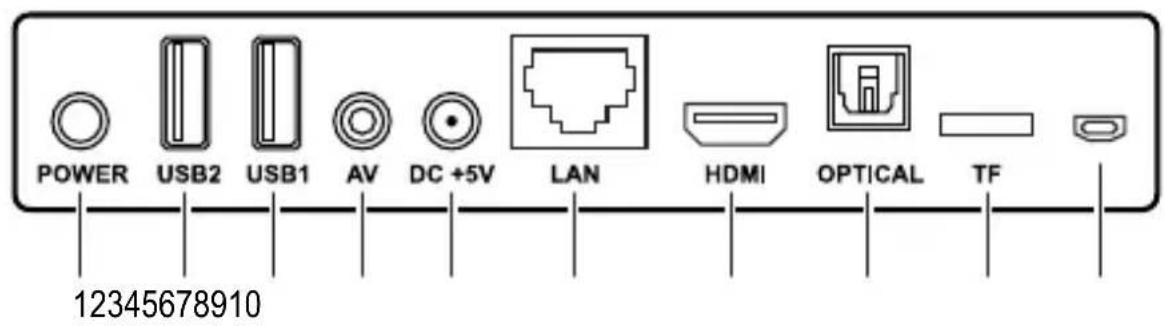
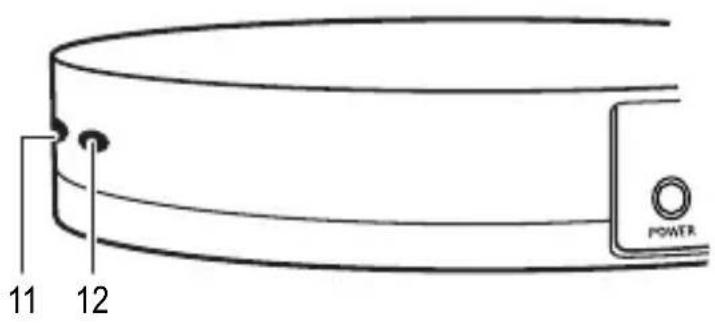

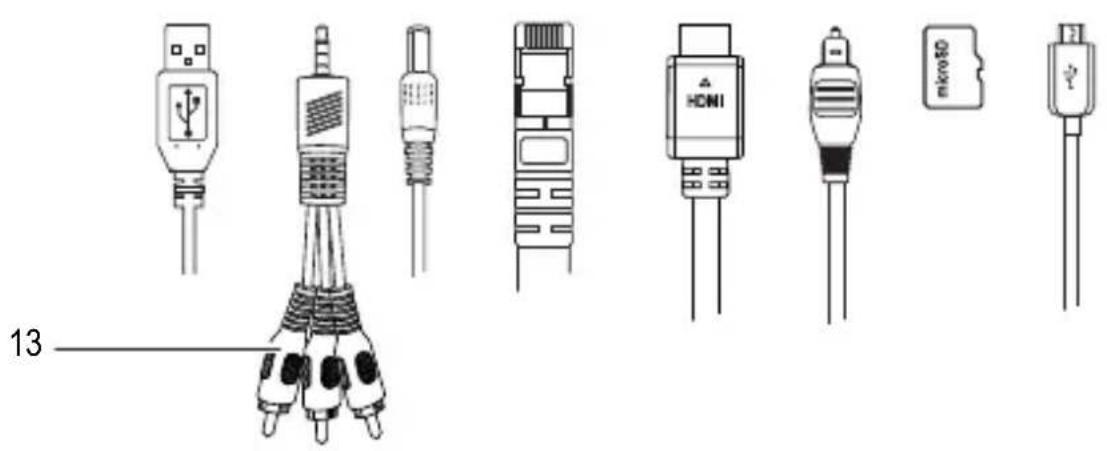
Cables not included (apart from (13))
Component Function
1 POWER button Turns TV box on and off
2 USB2 port Input: Connecting USB devices (e.g. mouse, keyboard)
3 USB1 port Input: Connecting USB devices (e.g. mouse, keyboard)
4 AV connection Output: Connecting a video or audio playback device via an RCA cable.
5 DC +5V power input Input: Power supply
6 LAN Ethernet connection Input: Connection to a local network (LAN)
7 HDMI connection Output: Connection to a TV or monitor
8 OPTICAL connection Output: Connecting a playback source via a TOSLINK cable
9 microSD card slot TF Input: Card slot for a microSD card
10 Micro USB port Input: Micro USB port for OTG (On-the-go) use
11 Status indicator Lights up when the TV box is on.
12 Receiver Signal receiver
13 AV cable Use together with the AV connection
9. Operating system and Google integration
- Android operating system, KitKat 4.4.xx
- 8 GB internal flash memory The memory can be expanded using a microSD card (max. 32 GB).
- The Android operating system, its control panels and settings are only described in these operating instructions when necessary. For a more detailed description of the Android operating system, please refer to the Android operating instructions, which are available from Google.
a) Google integration
- A Google account is required to install apps via Google Play and access Google services (e.g. Google Drive, Gmail).
b) Security
You can protect the TV box from unauthorised access using the security settings. The usual Android settings are available for this purpose. The following steps assume that no security settings were made.
- Refer to "12. Basic steps and settings" on page 44.
- Turn on the TV box and navigate to the homescreen.
- Open [Setting > Other > More Settings > More... > VPN]. You will first be asked to enter a password to access the security settings (important: you must remember this password!). Follow the subsequent instructions to set a PIN, password or pattern.
- You can change the security settings under [Setting > Other > More Settings > Security].
10. Connection
Certain functions require direct connections using a cable. Other functions (e.g. Wi-Fi) use other modes of transmission.
This chapter outlines the connection of cables. Additional information can be found in the following chapters.

Be sure to refer to the operating instructions for external devices before connecting these to the TV box.
a) Power supply
- Connect the low-voltage round plug on the power adapter to the DC +5V input (5).
- Connect the power adapter to a suitable mains socket.
b) HDMI
- Use the HDMI connection (7) to connect the product to a TV or monitor with an HDMI socket.
- An HDMI cable is required to connect the device.
c) Micro USB (OTG)
- Use the Micro USB port (10) to connect devices that support OTG (On-the-go), e.g. OTG adapters. You can also refer to "16. TV box as external storage" on page 50.
d) USB (keyboard and mouse, external storage media)
- The product can be operated/ navigated using a keyboard and mouse. Connect a USB keyboard and/or USB mouse to the USB 1 (3) and USB 2 (2) ports.
- External storage media (e.g. hard drives, card readers with memory card, memory sticks) can also be connected via the USB ports to transfer and access files. Depending on the power rating of the storage medium, an external power supply may be required.
e) Ethernet (LAN)
- Use an Ethernet cable to connect to your local network (LAN). Ensure that you choose a good quality cable (e.g. CAT 6 or CAT 7).
- Do not use any crossover cables.
- Place the end of the Ethernet cable (with RJ-45 connector) into the LAN Ethernet port. Ensure that the connector locks into place and then connect the other end of the cable to your router or a switch, depending on the network configuration.
f) Toslink
- Use the OPTICAL connection (8) to establish an optical connection with a suitable TOSLINK cable.
- Turn off the TV box and the receiver device before establishing the optical connection.
- Ensure that you do not damage the tip of the connector when making the connection.
g) microSD card
- To expand the storage capacity, a microSD card (max. 32 GB) can be inserted into the TF card slot (9) until it clicks into place.
Supported card types: SDHC, SDXC, max. 32 GB - Place the contacts facing downwards when inserting.
- Remove the card by pressing it as far as it will go and then release.
h) Audio-Video
- Insert the 3.5mm jack plug on the AV cable (13) into the AV connection (4).
- Connect the RCA connectors to a playback device:
»Red: Right audio channel
»White Left audio channel
Yellow: Video
11. Navigation and device control
a) Basic control panels
The basic control panels on the TV box are briefly outlined below:

Open file manager

Back, close
Home
Open windows/ applications
b) Remote control
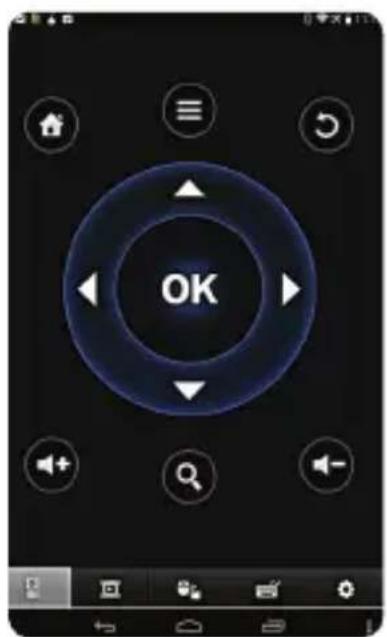
The product can be controlled using a virtual remote control. The "Smart iRemote" remote control app can be downloaded for free on Google Play.
-
Refer to "12. Basic steps and settings" on page 44.
-
Download the "Smart iRemote" app onto your Android mobile device (see the QR code and image on the right).
-
Turn on the Wi-Fi function on your mobile device and the TV box. The TV box can also be connected to the local network via an Ethernet connection.
-
Establish a connection to your local network. The mobile device and TV box must be on the same local network and "Client" subnet.
-
Ensure that the remote control function is switched on. Go to [Setting > Advanced]. "Remote Control" must be "ON".
-
Start the app. Use the search function in the app to search for compatible devices. The IP address of the TV box will be listed in the app.
-
Select the TV box.
-
Operate and control the TV box using the remote control.
Google Play
iRemote
12. Basic steps and settings
a) Turning on and off
- Connect the power supply. See section "a) Power supply" on page 41.
- Connect the TV box to a TV or monitor. See section "b) HDMI" on page 41. Turn on the TV/monitor.
- If desired, connect a mouse and keyboard. Refer to "d) USB (keyboard and mouse, external storage media)" on page 41 and "b) Remote control" on page 43.
- Press the POWER button (1). The TV box boots up and the homescreen appears after a few minutes. The status indicator turns blue.
- Turn off the TV box after you have finished using it. Press and hold the POWER button for about 10 seconds until the screen turns off.
- Turn off the power supply and remove the power adapter from the mains socket to turn off the TV box completely.
b) Display
Various settings are available for image transfer.
- Navigate to the TV box homescreen.
- Open the [Setting > Display] settings window.
- The following settings are available.
| HDMI auto-detection The monitor size is determined automatically by the TV box. Move the slide switch to “ON” to activate the function. | |
| HDMI Output Mode Setting Move the slide switch (HDMI auto-detection) to “OFF”. Choose the required resolution. | |
| Hide Status Bar You can display (“ON”) or hide (“OFF”) the status bar using the slide switch. | |
| Display Position Click on | “Display Position”. Make fine adjustments to the image size using the “-/+” buttons. |
Startscreensaver Activate the
screensaver after a time delay. The
screensaver will not turn on when the position is set to "Never".
c) Date and time
- Navigate to the homescreen.
- Open the settings window [Setting > Other > More Settings > Date & time].
- Set the date and time.
d)Wi-Fi
You can connect the TV box to your local network wirelessly via Wi-Fi.
- Navigate to the TV box homescreen.
- Open the [Setting > Network] settings window.
- Ensure that the "Wi-Fi" checkbox is selected. If not, click on the checkbox.
- Available networks will be searched for and listed automatically. Select a network, enter the password and click on "Connect Now".
- The network name and the IP address of the TV box will be displayed after connecting successfully. You will require the IP address if you control the TV box using the virtual remote control. Refer to "b) Remote control" on page 43.
e) Wi-Fi Hotspot
The TV box can function as a Wi-Fi hotspot that provides Internet access to other devices.
- Navigate to the TV box homescreen.
- Open [Setting > Other > More Settings > More... > Tethering & portable hotspot > Set up Wi-Fi hotspot ].
- Input a name, encryption type and password for the hotspot. Confirm the entries with "Save". If you are not familiar with the encryption types, "WPA2 PSK" is a good choice.
- Click on the "Portable Wi-Fi hotspot" checkbox to activate the hotspot. Remove the tick from the checkbox to disable the hotspot.
- A Bluetooth® tethering function is also available (hotspot via Bluetooth®). Click on the "Bluetooth tethering" checkbox to activate the function. Remove the tick to disable the function.
f) Ethernet (LAN)
With Ethernet, you can connect the TV box to your local network using an Ethernet cable.
- Connect the Ethernet cable. Refer to "e) Ethernet (LAN)" on page 42.
- Navigate to the TV box homescreen.
- Open the [Setting > Network]. settings window.
- Ensure that the "Ethernet" checkbox is selected. If not, click on the checkbox.
It is common that new devices are assigned DHCP addresses in a local home network (the IP addresses chosen automatically by the router). If you do not want this to happen, configure the IP address manually in [Setting > Other > More Settings > Ethernet > Ethernet configuration].
g) Bluetooth®
The TV box is equipped with Bluetooth® version 4.0. Bluetooth® devices can perform many different functions. They cannot be described in detail here due to space constraints.
Be sure to refer to the operating instructions of the Bluetooth® device that you wish to pair. It is important to note which Bluetooth® versions and Bluetooth® functions your device is compatible with.
Follow the steps below to pair Bluetooth® devices with the TV box.
- Navigate to the TV box homescreen.
- Open [Setting > Other > More Settings > Bluetooth].
- Activate the Bluetooth® function by moving the switch to "ON". Also activate the Bluetooth® function on the device that you wish to pair.
- Click on "Search For Devices" to search for pairable Bluetooth® devices. You must ensure that the device that you wish to pair is switched on and discoverable to the TV box.
- Click on the pairable device to start pairing. A pairing code may need to be entered depending on the device and the Bluetooth® version. Common codes are "0000" or "1234". Follow the instructions.

Establish the Bluetooth® connection within 2 minutes. After 2 minutes the TV box is no longer discoverable to other devices (pay attention to the countdown). Clicking on "Not visible to other Bluetooth devices" lets you search for pairable devices for another 2 minutes.
- For Bluetooth® tethering, refer to "e) Wi-Fi Hotspot" on page 46.
h) Keyboard and mouse
- Most of the mouse and keyboard inputs serve the same or similar functions as on a computer.
- However, functions may vary depending on settings. Try out the inputs for yourself.
- Tip: Pressing the right mouse button takes you back to the previous step.
13. Advanced settings
Open [Setting > Advanced]:
| Miracast For Miracast settings, refer to "18. Miracast" on page 52. | |
| Remote Control "ON" remote control on "OFF" remote control off | |
| CEC Control Consumer Electronics Control (CEC): Device control using HDMI-connected devices. Move the "CEC Switch" to "ON" to activate CEC functions. | |
| Application request to change orientation | Activated: Can change screen orientation Disabled: Cannot change screen orientation |
| Keep landscape mode on home screen | Active: Screen is always in landscape mode Inactive: Screen is in landscape or portrait mode |
| Digital audio auto-detection | "ON" automatic audio signal detection "OFF" manual setting: »PCM »SPDIF passthrough »HDMI passthrough |
14. External storage

Refer to "24. Technical Data" on page 56 regarding supported file formats.

It is important that externally connected storage is unmounted correctly from the TV box before unplugging in order to avoid data loss.
a) USB connection
- Connect a USB device such as a USB memory stick to one of the two USB ports, USB1 (3) or USB2 (2).
- Navigate to the TV box homescreen.
- Open the file manager with the control panel.
- The USB storage is listed in the overview and can be used for file management.
- Remove the USB storage from the TV box after use. Navigate to [Setting > Other > More Settings > Storage > USB Storage]. Click on "Unmount USB storage" to unmount the USB storage.
b) microSD card (can be used to expand storage)
- Insert a suitable microSD card (SDHC, SDXC) into the card slot. Refer to "g) microSD card" on page 42.
- Navigate to the TV box homescreen.
- Open the file manager with the control panel.
- The SD card storage is listed in the overview and can be used for file management/storage expansion.
- Remove the SD card from the TV box after use. Navigate to [Setting > Other > More Settings > Storage > SD Card]. Click on "Unmount SD card" to eject the card.
- Remove the card by pressing it as far as it will go and then release. Remove the card.
15. Optical signal transmission
You can transmit audio signals to compatible receiver devices (e.g. AV receiver) with an optical connection via a TOSLINK cable.
Read the operating instructions of your receiver device before establishing the optical connection.
Refer to "f) Toslink" on page 42 and establish the optical connection.
16. TV box as external storage
The TV box can be connected to a computer as external storage for data transfer.
Refer to "24. Technical Data" on page 56 regarding supported operating systems.
- Turn on the TV box and wait until the homescreen appears.
- Connect the TV box to a computer via the micro USB port (10) and a USB cable (micro USB to USB-A).
- Open [Setting > Other > More Settings > Storage > USB computer connection] and activate "Media Device (MTP)".
- The TV box will be listed as a drive and is available for data transfer on your computer.
- Disconnect the TV box from the computer after use.
17. Apple AirPlay
The TV box is compatible with Apple AirPlay technology, an interface on iOS and OSX devices for wireless transmission of audio, video and images.
AirPlay is outlined below with an iPhone.
- Be sure to refer to the operating instructions of your Apple device to learn more about using AirPlay with your device. There may be differences depending on the software version and device.
- It is important that the TV box and the Apple device are connected to the same Wi-Fi network.
- Navigate to the TV box homescreen.
- Open [My Apps > Media Center > AirPlayer].
- You can make settings here relating to starting AirPlay:
StartAirPlay: "ON", "OFF"
»Automatically Start: When set to "ON", AirPlay starts when the TV box is turned on.
Do not leave or close the window after activating AirPlay.
- Open a file such as an image on your iPhone and then display it on the TV box by selecting the AirPlay symbol on the iPhone.
- You will then be prompted to select and confirm the playback device (TV box) on your Apple device. In this instance, this is "AirPlay-Player-MediaCenter". If you wish to change the name, navigate to [My Apps > Media Center > Settings >Target Name]. Change the name and confirm the entry.
- The selected image will be displayed on the TV box. In the case of an iPhone, you can view multiple images one after another by scrolling.
18. Miracast
With this function you can display the screen content of your Android smartphone or tablet on a TV or monitor using the TV box. Your Android device must support Miracast in order to use this function.
Miracast is outlined below with a Nexus 7 Android tablet.
- Be sure to refer to the operating instructions of your Android device to learn more about the use of Miracast on your device. There may be differences depending on the software version and device.
- Warning! Before using the function you must disconnect all active data connections to the TV box! The Wi-Fi/LAN connection to your router must stay active.
- Turn on the Wi-Fi function on the Nexus 7.
- Navigate to the TV box homescreen.
- Open [My Apps > Miracast]. The TV box immediately starts to search for supported devices. The search can also be started manually with the control panel "SEARCH DEVICE".
- For a Nexus 7 tablet, navigate to [Settings > Display > Cast screen]. Activate the "Enable wireless display" function. The TV box will be listed as a supported device ("Device: xx") (e.g. Android_3422). The Miracast name of the TV box ("Device: xx") and the available devices ("Peer List: xx") will be shown in the bottom-left corner of the screen.
- On the Nexus 7, select the TV box and the connection will be established.
- After connecting successfully, the screen of the Android device will be shown on the monitor that is connected to the TV box.
19. DLNA
DLNA (Digital Living Network Alliance) is designed to "stream" multimedia files (video, audio, images) between digital devices. The TV box supports DLNA without additional requirements.
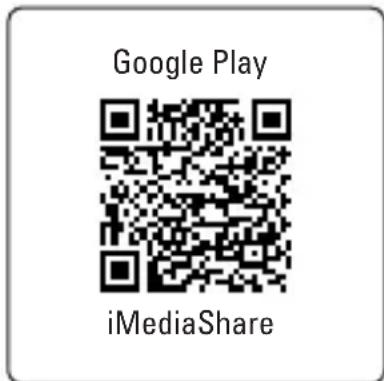
Ensure that your mobile device is suitable for DLNA. Additional software is required depending on the device. For example, a suitable app for Android devices would be "iMediaShare".
Be sure to refer the operating instructions for your device to learn more about the use of DLNA with your device.
Different devices have different DLNA functions. They cannot be described in detail here due to space constraints. However, if your device supports DLNA, we advise you to refer carefully to the information in the operating instructions.
DLNA is a complex technology. If you are not familiar with DLNA, we recommend that you acquire some basic knowledge by reading appropriate materials.
- Ensure that the TV box and the device that you wish to operate with DLNA are connected to the same local network.
- Navigate to the TV box homescreen.
- Open [My Apps > Media Center > DLNA_DMR].Start the DLNA function by moving the "Start DMR" (Digital Media Renderer) switch to the "ON" position.
To turn the DLNA function off later, move the "Start DMR" switch to the "OFF" position.
» If you wish to use the TV box as a "Digital media renderer", move the "Auto set local device as shared player" switch to "ON".
- Turn on the DLNA function (e.g. "iMediaShare") on your DLNA-supported device.
- Open "DLNA_DMP" (Digital media player) to search for compatible devices. Visible DLNA devices will be listed.
- Selected the desired device. Search for photos, music and videos on the selected device and play them back.
20. 4K, Blu-ray, 3D films
Be sure to refer to the supported file formats in "24. Technical Data" on page 56.
Ensure that you refer to the instructions/information regarding 4K, Blu-ray and 3D in the operating instructions for the TV or monitor.
a) 4K quality
The TV box supports a maximum image/video resolution of 4K× 2K
- A TV or monitor with an Ultra HD resolution (4K) is required.
b) Blu-ray
- Use the preinstalled app "XBMC" (Kodi) to play Blu-ray films.
c) 3D films
- 3D Blu-ray ISO format: Use the pre-installed app "XBMC" (Kodi) to play 3D Blu-ray films in ISO format.
- A TV or monitor with 3D support and an HDMI 1.4 cable is required to play 3D films.
21. Maintenance and cleaning
- Disconnect the TV box from the power supply before cleaning and let it cool down to room temperature.
- The product does not require maintenance except for occasional cleaning. Repair or maintenance work must only be carried out by a specialist or a repair centre. Under no circumstances should you service any of the components in the interior of the product, therefore never open it.
- A dry, soft and clean cloth is sufficient for cleaning the exterior.
- Never use aggressive detergents, rubbing alcohol or other chemical solutions, as these could damage the housing or even impair the functioning of the product.
- Dust can be removed using a soft and clean long-haired brush.
- It is extremely important that the ventilation outlets are kept free of dust and dirt.
22. Declaration of Conformity (DOC)
We, Conrad Electronic SE, Klaus-Conrad-Straße 1, D-92240 Hirschau, hereby declare that this product conforms to the fundamental requirements and the other relevant regulations of the directive 1999/5/EC.

The Declaration of Conformity for this product can be found at www.conrad.com.
23. Disposal
Electronic devices are recyclable waste and must not be disposed of in the household waste.
At the end of its service life, dispose of the product according to the relevant statutory regulations.
You thus fulfil your statutory obligations and contribute to the protection of the environment.
24. Technical Data
Chipset. AML8726-M8 (Amlogic s802 Quad core Cortex A9 2 GHz)
GPU . Octo-core Mali-450MP GPU 600 MHz
Memory. 4 x Dual DDR3 2G (256 x 16)
Operating system............Android KitKat 4.4.xx
Power supply. 5 V/DC, 2.0 A
Power adapter. Input: 100 - 240 V/AC, 50/60 Hz, max. 0.5 A
Output: 5.5V / DC 2.0 A
Storage Internal: 8 GB
External: max. 32 GB (microSD card)
File formats.FAT 16/FAT 32/NTFS (for external storage)
Wi-Fi 802.11 a/b/g/n
LAN.Ethernet 10/100 M,RJ-45
AV 3.5 mm jack socket
BluetoothBT4.0
Ultra HD 4K x 2K decoding
HDMI 4K x 2 K HDMI output
USB. USB2.0(5V/DC,max.500mA)
XBMC (Kodi). Supported via application
3D film Supported
Blu-ray Supported
Miracast. Supported
DLNA. Supported (DMR, DMP)
Video formats.. HD MPEG 1/2/4,H.264,HDAVC/VC-1,RM/RMVB Xvid / DivX 3/4/5/6,RealVideo 8/9/10
File formats.. AVI / RM / RMVB / TS / VOB / MKV / MOV / ISO / WMV/ ASF / FLV / DAT / MPG / MPEG
Music formats.. WMA/AAC/WAV/OGG/AC3/DDP/HD Audio / FLAC/APE
Picture formats.. HD JPEG/BMP/GIF/PNG/TIFF
Subtitle formats.. SRT / SMI / SUB / SSA / IDX+USB
Supported operating systems.......WindowsXP (Home, Pro, with SP1, SP2, SP3), 32 Bit, Vista 32/64 Bit, 7 32/64 Bit
Operating conditions. 5 to 35^, 30 - 90% RH (non-condensing)
Storage conditions. -20 to 60^, 10 - 90% RH (non-condensing)
Dimensions (0× H) 131 x 26 mm
Weight. 150 g
Table des matieres
Page
Chere cliente, cher client,
France (email): technique@conrad-france.fr
GPU . Octo-core Mali-450MP GPU 600 MHz
Mémoire 4x Dual DDR3 2G (256 x 16)
Alimentation. 5 V/DC, 2,0 A
Bloc d'alimentation....Entree: 100-240 V/AC,50/60 Hz,max.0,5A
Sortie: 5,5 V/DC, 2,0 A
Mémoire Interne: 8 GB
External: max. 32 GB (carte micro SD)
Open venster/ applications
b) Afstandsbediening
GPU. Octo-core Mali-450MP GPU 600 MHz
Geheugen. 4x Dual DDR3 2G (256 x 16)
Besturingsystem Android KitKat 4.4.xx
Stroombron 5V/DC,2,0A
Netspanningsadapter.. Ingang: 100 - 240 V/AC, 50/60 Hz, max. 0,5 A
Uitgang: 5,5 V/DC, 2,0 A
Geheugen.. Intern:8GB
External: max. 32 GB (microSD-kaart)
Copyright 2014 by Conrad Electronic SE.
Legal notice
This is a publication by Conrad Electronic SE, Klaus-Conrad-Str. 1, D-92240 Hirschau (www.conrad.com). All rights including translation reserved. Reproduction by any method, e.g. photocopy, microfilming, or the capture in electronic data processing systems require the prior written approval by the editor. Reprinting, also in part, is prohibited. This publication represent the technical status at the time of printing. Copyright 2014 by Conrad Electronic SE.
Information legales
Copyright 2014 by Conrad Electronic SE.
Colofon
Copyright 2014 by Conrad Electronic SE. V1_1114_01_JH


- Introduction
- If there are any technical questions, please contact:
- Latest operating instructions
- Intended use
- Delivery content
- Copyrights
- a) HDMI®
- b) Music and video
- Explanation of symbols
- Safety instructions
- Installation
- Operating elements
- Component Function
- Operating system and Google integration
- a) Google integration
- b) Security
- Connection
- a) Power supply
- b) HDMI
- c) Micro USB (OTG)
- d) USB (keyboard and mouse, external storage media)
- e) Ethernet (LAN)
- f) Toslink
- g) microSD card
- h) Audio-Video
- Navigation and device control
- a) Basic control panels
- b) Remote control
- Basic steps and settings
- a) Turning on and off
- b) Display
- c) Date and time
- d)Wi-Fi
- e) Wi-Fi Hotspot
- f) Ethernet (LAN)
- g) Bluetooth®
- h) Keyboard and mouse
- Advanced settings
- External storage
- a) USB connection
- b) microSD card (can be used to expand storage)
- Optical signal transmission
- TV box as external storage
- Apple AirPlay
- Miracast
- DLNA
- 4K, Blu-ray, 3D films
- a) 4K quality
- b) Blu-ray
- c) 3D films
- Maintenance and cleaning
- Declaration of Conformity (DOC)
- Disposal
- Technical Data
- Table des matieres
- b) Afstandsbediening
- Legal notice
- Information legales
- Colofon
Brand : Renkforce
Model : Android Quad Core TV Box
Category : Media player