
PNB S1015 - Laptop PEAQ - Free user manual and instructions
Find the device manual for free PNB S1015 PEAQ in PDF.


| Product type | Laptop |
| Brand | PEAQ |
| Model | PNB S1015 |
| Power supply | AC power adapter 100-240 V, 50/60 Hz |
| Battery | Integrated lithium-ion battery, rechargeable via included adapter |
| Wireless connectivity | Built-in Wi-Fi and Bluetooth |
| Optical drive | Built-in CD/DVD drive (Class 1 laser under normal operation) |
| Touchpad | Capacitive touchpad |
| Intended use | Private use, non-industrial/commercial |
| Operating conditions | Temperature 5 °C to 30 °C, humidity 20% to 80% non-condensing |
| Storage | Temperature 0 °C to 60 °C |
| Cleaning | Soft, dry, lint-free cloth; do not use solvents |
| Maintenance | No user-serviceable parts inside |
| Spare parts | Use only original parts; repair by authorized service center |
| Warranty | Void if used improperly or modified without authorization |
| Recycling | Do not dispose of with household waste; take to a WEEE collection point |
Frequently Asked Questions - PNB S1015 PEAQ
User questions about PNB S1015 PEAQ
0 question about this device. Answer the ones you know or ask your own.
Ask a new question about this device
Download the instructions for your Laptop in PDF format for free! Find your manual PNB S1015 - PEAQ and take your electronic device back in hand. On this page are published all the documents necessary for the use of your device. PNB S1015 by PEAQ.
USER MANUAL PNB S1015 PEAQ
This safety manual is part of your documentation. Store this safety manual together with the rest of your documentation.

m = 311 ;
GERÄT
1. About these instructions

Read this safety manual carefully and follow all instructions given. This guarantees reliable operation and a longer life expectancy for your notebook.
1.1. Symbols and Key words used in these Instructions
| ! | DANGER! Warning of immediate risk of fatal injury! WARNING! Warning: possible mortal danger and/or serious irreversible injuries! CAUTION! Warning: possible light or moderate injuries! |
| ! | CAUTION! Please follow the guidelines to avoid injuries and/or property damage. |
| i | PLEASE NOTE! Additional information on using the device |
| PLEASE NOTE! Please follow the guidelines in the operating instructions. | |
| WARNING! Warning: danger of electric shock! | |
| WARNING! Warning: danger due to excessive volume! | |
| ·Bullet point/information on operating steps and results | |
| ▶Tasks to be performed | |
1.2. Proper Use
This device is designed for the use, management and editing of electronic documents and multimedia content, as well as for digital communication. The device is intended for private use only and not for industrial/commercial use.
Please note that we shall not be liable in cases of improper use:
- Do not modify the device without our consent and do not use any auxiliary equipment which we have not approved or supplied.
- Use only spare parts and accessories which we have supplied or approved.
- Follow all the instructions in this instruction manual, especially the safety information. Any other use is deemed improper and can cause personal injury or damage to the product.
- Do not use the device in areas where there is a risk of explosion. This includes e.g. tank farms, fuel storage depots or areas in which solvents are processed. It is also not permitted to use this device in those areas where the air is polluted with fine particles (e.g. flour dust or sawdust).
- Do not use the device in extreme environmental conditions.
1.3.DeclarationofConformity
This product is supplied with the following wireless features:
- Wireless LAN
Bluetooth
We hereby declare that this product conforms to the following European requirements:
R&TTE Directive 1999/5/EC
- Ecodesign Directive 2009/125/EC
RoHS Directive 2011/65/EU
Should your device work with a network connection in the 5 GHz frequency range of the inbuilt wireless LAN solution, then it can only be used inside buildings in all EU countries.*
CE
2. Safety Instructions
2.1. Dangers for children and people with reduced ability to operate electronics
- This device is not intended for use by people (including children) with reduced physical, sensory or mental abilities or for those without experience and/or knowledge, unless they are supervised by a person responsible for their safety or they have been instructed in its use.
- Children should be supervised to ensure that they do not play with the device. Children should not be allowed to use this device without supervision.
- Keep the device and its accessories out of the reach of children.

DANGER!
Keep plastic packaging out of the reach of children. There is a risk of suffocation.
2.2. Operational Safety
Please read this section carefully and follow all instructions given. The instructions will help you to operate the Notebook reliably and increase its service life.
- Never open the housing of the Notebook, battery or mains adapter! This could result in an electric shock or even ignite a fire which will damage your Notebook.
- Optical drive (CD/CDRW/DVD) constitute class 1 laser equipment providing these devices are contained in a sealed Notebook housing. Do not remove the drive cover as invisible laser radiation may escape.
-
Do not insert anything into the Notebook through the slots and openings. This could result in an electric shock or even ignite a fire which will damage your Notebook.
-
The slots and openings on the Notebook are for ventilation purposes. Do not cover these openings as this could cause the device to overheat.
-
The Notebook is not intended for use by companies in the heavy industry sector.
-
To avoid damage from lightning strikes, do not operate the Notebook during thunderstorms.
-
Do not place any objects on top of the Notebook and do not exert pressure on the display. Otherwise, there is a risk that the display may break.
-
If the screen breaks, there is a danger of injury. If this happens, pick up the shattered pieces wearing protective gloves and send them to your service centre for professional disposal. Finally, wash your hands with soap, as the pieces may have been contaminated with chemicals.
-
Do not fold the display back by an angle of more than 120^ . Exceeding this value may damage the housing or the Notebook. Always hold the display firmly by the middle when folding it back, adjusting the position and closing it. Failure to do so may damage the display. Never use force to open the display.
-
To avoid damaging the screen, do not touch it sharp objects.
-
Never lift the Notebook up by the display as this could break the hinges.
-
Should the below occur, switch the Notebook off immediately/do not switch the Notebook on, disconnect the mains plug and contact customer services if
-
the mains adapter or the attached power cable or plug is burnt or damaged. Replace faulty mains cables/mains adaptors only with original parts. These parts should not be repaired under any circumstances.
-
the Notebook housing is damaged or liquid has penetrated into the device. Have the Notebook inspected by customer services. Otherwise, it may not be possible to operate the Notebook safely. There may be a risk of electric shock and/or harmful laser radiation!
If the notebook gets wet,
- do not switch it on.
- disconnect the power cable and switch off the notebook.
- do not switch it back on until it has dried off completely.
2.3. Never Carry Out Repairs Yourself
WARNING!
Never try to open or repair the device yourself. There is a risk of electric shock.
- If there is a fault, contact the Service Center or other suitable specialist workshop.
2.4.DataBackup

CAUTION!
Back up your data on external storage media before each update. We do not accept any liability for claims for compensation arising from loss of data or any consequential loss or damage.
2.5. Setup Location
- Keep your Notebook and all connected devices away from moisture and avoid dust, heat and direct sunlight. Non-compliance with these instructions can lead to faults or damage to the Notebook.
-
Do not use the Notebook outdoors because external elements, such as rain, snow, etc., could damage it.
-
Set up and operate all components on a stable, level and vibration-free surface to prevent the Notebook from falling down.
- Do not operate the Notebook or power adaptor for long periods on your lap or any other body part as the heat dissipation on the underside can result in uncomfortable overheating.
- In the first few hours of use new devices can give off a typical, unavoidable but totally harmless smell, which wears off with time. Ventilate the room regularly to prevent odour build-up.
- This device is not suitable for use with VDU workstations.
2.6. Environmental Requirements
- The notebook is most reliably operated at an ambient temperature between 5^ (+41^) and 30^ (+86^) and at a relative humidity between 20% and 80% (without condensation).
- When powered off, the notebook can be stored at temperatures between 0^ and 60^ (+32^ and 140^) .
- During a thunderstorm, disconnect the mains plug. For extra safety, we recommend using an overvoltage protection device to prevent the notebook from sustaining damage as a result of power surges or lightning strikes.
- After transporting the notebook, wait until the device has reached room temperature before switching it on. Large changes in temperature or fluctuations in humidity can cause moisture build up within the notebook due to condensation. This can cause an electrical short circuit.
- Keep the original packaging in the event the device needs to be sent in.
2.7. Connecting
Follow the instructions below to connect your notebook correctly and safely:
2.7.1. Power Supply
DANGER!
Do not open the housing of the mains adapter. There is a risk of electric shock when the housing is open. It does not contain any parts requiring maintenance.
- The socket outlet must be close to the notebook and easily accessible.
- To disconnect the power supply from your notebook (via the mains adaptor), pull the mains plug from the power outlet.
- Plug the notebook's mains adapter into AC 100–240 V~, 50 - 60 Hz earthed sockets only. If you are not sure about the power supply at the set-up location, please ask your power supplier.
- Only use this notebook and accompanying mains adapter with each other.
- For extra safety, we recommend using an overvoltage protection device to prevent your notebook from sustaining damage as a result of power surges or lightning strikes.

CAUTION!
Only use this notebook and accompanying mains adapter with each other.
WARNING!
Listening to a device at high volumes for an extended period via headphones/earphones can damage your hearing. Excessive volume when using headphones or earphones can damage your hearing. Before pressing play, set the volume to the lowest setting. Start playback and increase the volume to a comfortable level. Changing the basic settings of the equaliser can also increase the volume and thus cause permanent damage to your hearing. Changing the drivers, software, equaliser, operating system, etc., can also lead to an increase in the volume and thus cause permanent damage to your hearing.
2.8. Cabling
-
Position the cables so that they cannot be stepped on or might cause a risk for tripping.
-
To avoid damaging the cables, do not place any objects on them.
-
Do not connect peripheral devices – such as keyboards, mouse and monitor, etc. – when the notebook is switched on to avoid damage to the notebook or the devices. Some devices may also be connected while the computer is running. This is generally the case for devices with a USB connection. In all cases, observe the relevant operating instructions.
-
Maintain a distance of at least one metre from sources of high-frequency and magnetic interference (TV sets, loudspeakers, mobile phones, DECT telephones, etc.) in order to avoid malfunctions and data loss.
-
Please note that only shielded cables that are shorter than 3 metres may be connected to the external interfaces of this notebook. Please only use double-shielded cables for printer cable connections.
-
Do not exchange the supplied cable for another one. Use only the supplied cable as this cable has been extensively tested in our laboratory.
- In addition, when connecting your peripherals only use the connecting cables supplied with those devices.
- Ensure that all connection cables are connected to their corresponding peripheral device to avoid any interference radiation. Disconnect any cables that are not required.
- The only devices which may be connected to the notebook are those that meet the requirements set out in the EN60950 standard "Information Technology Equipment - Safety" or devices that meet the EN60065 standard "Audio, video and similar electronic apparatus - Safety requirements".
2.9. Information about the Touchpad
- The touchpad is operated with the thumb or another finger and reacts to the energy given out by the skin. Do not use pens or other objects as these can damage your touchpad.
- Dust or grease on the touchpad can affect its sensitivity. Remove the dust or grease from the surface of the touch pad with a soft, dry and lint-free cloth.
2.10. Notes on the Integrated Battery

CAUTION!
Danger of explosion if battery is incorrectly replaced. Replace only with the same or equivalent type recommended by the manufacturer.
Dispose of used batteries according to the manufacturer's instructions. Never attempt to disassemble or reassemble. Do not heat up above 45^ (113^) . Do not dispose of in fire or directly short circuit.
To increase the lifespan and performance of your battery and also to ensure reliable operation, you should also heed the following instructions:
- Use only the supplied mains adaptor to charge the battery. Make sure (via the notebook display or acoustic signal) that the battery is fully discharged before charging it again.
- Always charge the battery until the battery charging light goes out. Please also observe the information in "Charging the battery" to assess the charge status of your battery.
- The battery is built-in and cannot simply be replaced by the user.
2.11. Measures for protecting the display
- The display is the most sensitive component part of the notebook as it consists of thin glass. It can break if subjected to too much stress. Do not scratch the cover of the notebook, because it will not be possible to remove any scratches.
- Avoid contact between the display and hard objects (e.g. buttons, wristwatch).
- Do not place any objects on the display.
- Do not allow any objects to drop onto the display.
- Do not pour any fluids into the notebook, as this could damage it.
- Do not scratch the display with your fingernails or hard objects.
- Do not clean the display with chemical cleaning products.
- Clean the display with a soft, dry and lint-free cloth.

PLEASE NOTE!
The surfaces of the device are covered in protective film to prevent scratching during production and transport. Remove the film once the device has been set up properly and before you use it.
2.12. Transport
In order to avoid any transport damage, pack the notebook away in its original packaging.
2.13. Maintenance

CAUTION!
None of the parts inside the Notebook housing require cleaning or maintenance.
In order to avoid any damage to the device, ensure that the plug contacts do not come into contact with water under any circumstances. If this should nevertheless occur, it is imperative that the plug contacts are rubbed dry before the device is used again.
You can increase the lifespan of your Notebook with the following measures:
Always unplug the device, disconnect all cables and remove the battery before cleaning.
Clean the Notebook with a damp, lint-free cloth.
Do not use solvents, corrosive or aerosol-based detergents to clean the device.
- Do not use CD-ROM cleaning discs or similar products that clean the lens of the laser to clean your optical drive.
3. Upgrading/Modifying and Repair
- Upgrades and modifications to your Notebook should only be carried out by qualified specialists. If you do not have the necessary qualifications, have the work carried out by a qualified service technician. Please contact your customer service department if you have technical problems with your Notebook.
- If a repair must be carried out, please contact only our authorised service partners.
3.1. Notes for Service Technicians
- Only service technicians may open up the Notebook housing or upgrade or modify your Notebook.
- Use only original replacement parts.
- Before opening the housing, disconnect all power and connecting cables and remove the battery. If the Notebook is not disconnected from the power supply before being opened, there is a risk that components could be damaged.
- Internal components of the Notebook may be damaged by electrostatic discharge (ESD). Carry out repairs, as well as system enhancements or modifications, at an ESD workplace. If such a workplace is not available, wear an antistatic cuff or ensure you are touching an earthed, metallic object. We will charge for any repairs to damage caused by incorrect handling.
3.2. Information on Laser Radiation
- The Notebook can contain laser equipment classified as laser class 1 to laser class 3b. The equipment meets the requirements for laser class 1.
- By opening the housing of the optical drive, you will have access to laser equipment classified up to laser class 3b.
The following should be observed when removing and/or opening this laser equipment:
- The integrated optical drive contains no parts that require repair or maintenance.
- Repairs to the optical drive should only be carried out by the manufacturer.
- Do not look directly into the laser beam, even when using optical instruments.
- Do not expose the laser beam. Avoid exposing your eyes or skin to the laser beam – either directly or through scattered laser radiation.
4. Recycling and Disposal
Should you have any questions concerning the disposal please contact your dealer or customer service.

Packaging
Your device has been packaged to protect it against transportation damage. Packaging is raw material and can be re-used or added to the recycling system.
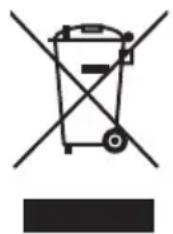
Device
The device is fitted with an integrated battery. At the end of its operating life, do not dispose of the device with your ordinary household rubbish. Consult your local authority to find out about collection centres for environmentally sound disposal of electrical and electronic scrap.