DVD 6311 - Car radio Renkforce - Free user manual and instructions
Find the device manual for free DVD 6311 Renkforce in PDF.



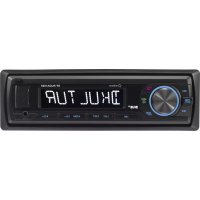
| Product Type | Car radio with DVD player |
| Brand | Renkforce |
| Model | DVD 6311 |
| Dimensions | 190 x 187 x 57 mm |
| Weight | 1.5 kg |
| Power supply | 12 V DC (10.8 - 15.6 V) |
| Fuse | Blade fuse 10 A |
| Output power | 4 x 40 W max. |
| Speaker impedance | 4 or 8 Ω |
| Display | TFT 3.5" |
| Playable formats | Audio CD, DVD video, VCD, S-VCD, MP3, MP4 |
| FM tuner | 87.5 - 108.0 MHz |
| FM sensitivity | 2.8 μV |
| Interfaces | USB, SD/MMC card, AUX input, LINE Out outputs |
| RDS functions | AF, TA, PTY, EON, CT |
| Dual Zone | Yes (independent sources driver/passengers) |
| Rear camera input | Yes (automatic switching in reverse) |
| Remote control | Infrared, CR2025 battery |
| Detachable panel | Yes (anti-theft) |
| Connectors | ISO connector |
| Maintenance and cleaning | Soft dry cloth; do not use harsh products |
| Safety | Class 1 laser; video locked with parking brake |
| Spare parts and repairability | 10A fuse, CR2025 battery; repairs by qualified professional |
| General information | Manual downloadable from notice-facile.com |
Frequently Asked Questions - DVD 6311 Renkforce
User questions about DVD 6311 Renkforce
0 question about this device. Answer the ones you know or ask your own.
Ask a new question about this device
Download the instructions for your Car radio in PDF format for free! Find your manual DVD 6311 - Renkforce and take your electronic device back in hand. On this page are published all the documents necessary for the use of your device. DVD 6311 by Renkforce.
USER MANUAL DVD 6311 Renkforce
These operating instructions are a publication by Conrad Electronic SE, Klaus-Conrad-Str. 1, D-92240 Hirschau (www.conrad.com). All rights including translation reserved. Reproduction by any method, e.g. photocop, microfilng or the capture in electronic data processing systems require the prior written approval by the editor. Reprintling, also in part, is prohibited. These operating instructions represent the technical status at the time of printing. Changes in technology and equipment reserved. © Copyright 2010 by Conrad Electronic SE.
F Information legales
Copyright 2010 by Conrad Electronic SE.
NL Colofon
Copyright 2010 by Conrad Electronic SE.
F Syntoniseur DVD
DVD6311 Notice d'Employ
DVD-Tuner DVD6311
Gebruiksaanwijizing
Pagina 140-185
- 实验原理
Operating Instructions
Page 48-93
F
12/12
BVD6371
Page 94-139
DVD-Tuner
DVD6311
Cobrilkeepwii
Page 140
Regina P. Rovier
- 实验原理
Best-Nr/ItemNo./
N° de commande / Bestnr.: 37 14 78
D
12/12
GB
12/12
13/14
12/12
Syntonise
DVD6311
Notice d'Employed
Page 94-139
DVD-Tune
DVD6311
Cobaltic securities
Basing 140.185
Regina P. Rovoo
- 实验原理及实验方法
Best-Nr /ItemNo.
A
01_0810_05
Inhaltsverzeichnis
Seite
Einführung 3
Bedienelemente 4
Programm Identification (PI)
Explanation of symbols 52
Product description 53
Safety instructions 54
Mechanical installation 55
Installation position 55
Removing and attaching the front control panel 56
Installation into the radio slot 57
Removal 58
Electrical connection 59
Connecting the loudspeakers to the power supply 60
Connecting the control wires 61
Connecting a back-up camera 62
Connecting additional amplifiers 62
Connecting additional monitors 63
Connecting an external video or audio source 63
Connecting the aerial 63
Operation 64
General operation 64
Menu settings 66
Radio mode 71
CD/MP3 mode 76
DVD/VCD/MP4 mode 79
AUX mode 86
USB/memory card mode 86
Reset 87
Maintenance 88
Changing the fuse 88
Replacing the remote control battery 89
Handling 90
Disposal 90
Troubleshooting 91
Specifications 93
Introduction
Dear Customer,
Thank you for purchasing this product.
This product complies with the applicable National and European specifications. We kindly request the user to follow the operating instructions, to preserve this condition and to ensure safe operation!
These operating instructions relate to this product. It contains important information concerning commissioning and handling. Please take this into consideration when you pass on the product to third parties. Please keep these instructions for further reference!
All names of companies and products are trademarks of the respective owner. All rights reserved.

Fon. +49 9604 / 40 88 80
Fax +49 9604/408848
e-mail: tkb@conrad.de
Mon to Thurs 8.00am to 4.30pm
Fri 8.00am to 2.00pm
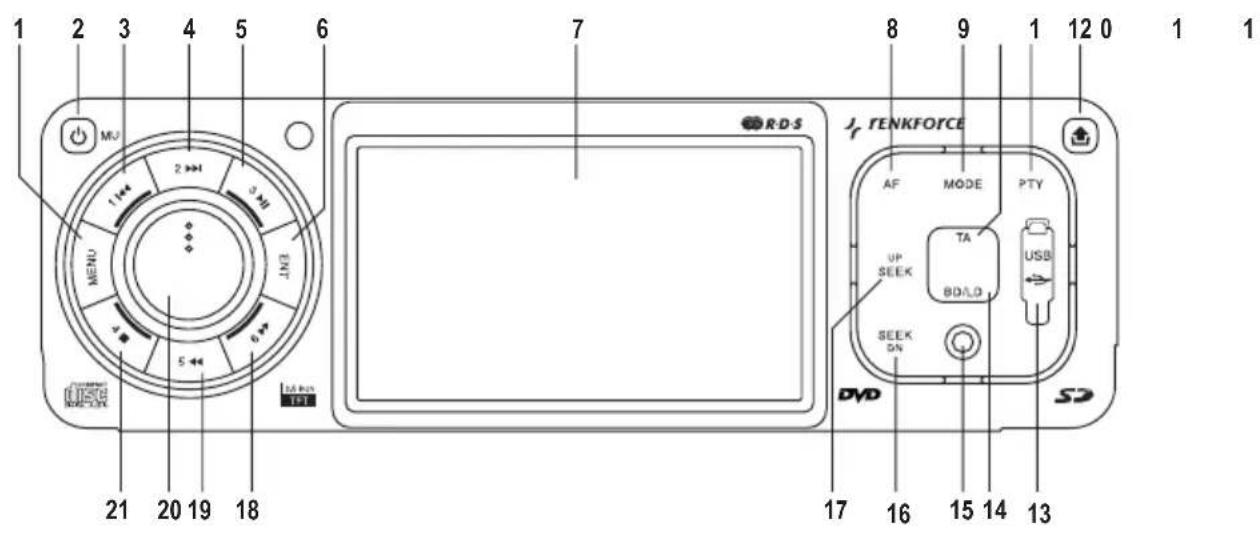
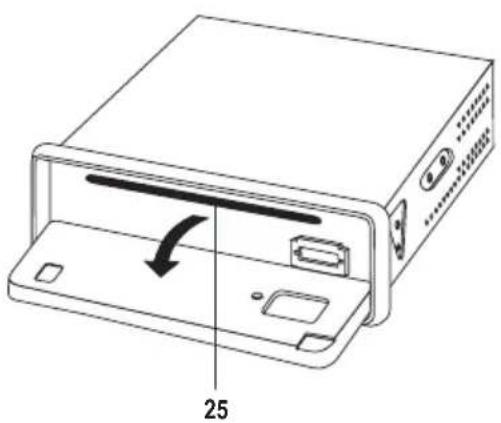
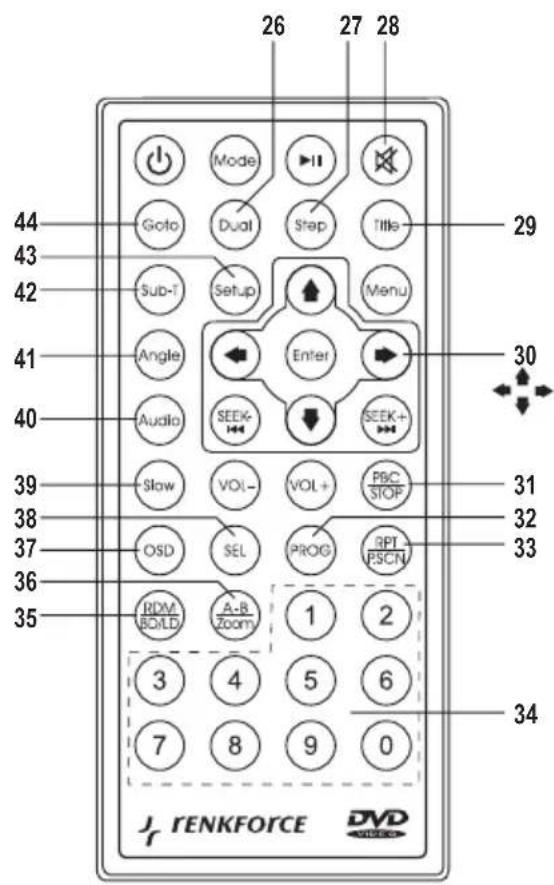

Buttons available on both the device and the remote control with the same function are not described for the remote control.
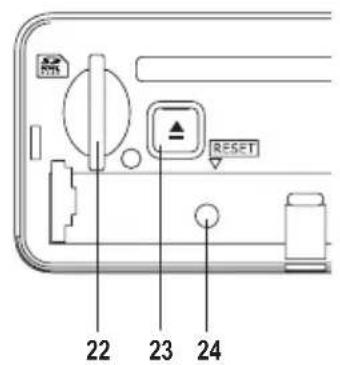
(1) MENU button (23) EJECT button
(2) button (24) RESET button
(3) Button 1/
(4) Button 2 /▶▶
(5) Button 3 / ▶
(6) ENT button (28) button
(7) Display (29) TITLE button
(8) AF button (30) Arrow buttons
(9) MODE button (31) PBC/STOP button
(10) TA button (32) PROG button
(11) PTY button (33) RPT/P.SCAN button
(12) button (34) Numeric buttons
(13) USB socket
(14)BD/LD button (36) A-B/ZOOM button
(15) AUX input
(16) SEEK DN button
(17) SEEK UP button
(18) Button 6 /
(19) Button 5 /
(20) Volume control wheel
(21) Button 4 /
(22) SD/MMC card slot
(25) CD/DVD slot
(26) DUAL button
(27) STEP button

(35) RDM/BD/LD button
(37) OSD button
(38) SEL button
(39) SLOW button
(40) AUDIO button
(41) ANGLE button
(42) SUB-T button
(43) SETUP button
(44) GOTO button
Intended use
The Renkforce DVD6311 DVD Tuner is intended for receiving VHF radio stations and for playing audio and video from compatible storage media.
The device must be connected to loudspeakers.
This product is only approved for the connection to 12V direct current on-board supply systems with the negative pole of the battery to the car body. The product may only be installed and operated in vehicles with this kind of onboard voltage.
The user must make sure that the way the product is installed protects the product from humidity and wetness.
Any use other than that described above can damage the product and may involve additional risks such as short circuits, fire and electric shocks.
No part of this product may be modified or rebuilt and the housing must not be opened.

Observe all safety instructions in this manual!
Explanation of symbols

The exclamation mark symbol indicates that the user should read and observe these operating instructions before using the product. Important information is marked with this symbol.

The hand symbol indicates special tips and operating information.
Product description
The device features the following:
- 3.5" TFT monitor
DVD/MP4/VCD/CD/MP3 playback - Dual zone playback (allows playback of different sources for driver and passengers)
SD/MMC card slot - USB port
High output (4× 40W .)
FM tuner with RDS function
IR remote control - AUX input for external audio or video sources
- Pre-amplifier outputs for the connection of power amplifiers
- Back-up camera input
- Tiltable and removable front panel
- Electronic volume, bass, treble, fader and balance control
- Equalizer with 3 presets
- Loudness correction
- Exact electronic tuning of the stations using PLL tuned
18 programmable station presets - Manual/automatic station search in both directions
Automatic station search and storage - ID3 day display for MP3 playback
ISO terminal

The guarantee/warranty will be void if damage is incurred resulting from non-compliance with these operating instructions. We assume no liability for any consequential damage!
Nor do we assume liability for damage to property or personal injury caused by improper use or failure to observe the safety instructions. In such cases the warranty is voided.

- The unauthorized conversion and/or modification of the product is inadmissible for safety and approval reasons.
- The device may only be used with the 12 V DC vehicle power supply (with the negative terminal of the battery connected to the body of the vehicle). Never connect the device to a different power supply.
- The driver must not be distracted from traffic by video playback. Connect the device as described further down in this manual to allow the display to play back only if the handbrake is pulled. When installing any additional monitors, make sure the driver will not be distracted by them.
- To make sure the device is operated properly, observe these operating instructions.
- This is a class 1 laser product. Do not open up the device and do not attempt to access interior components. Never look directly into the laser beam. Laser radiation can seriously damage your eyes.
Class 1 Laser
- This product is not a toy and should be kept out of reach of children! Children cannot judge the dangers involved when handling electrical devices.
- Do not expose the device to high temperatures, dripping or splashing water, strong vibrations or high mechanical stress.
- Do not operate the device when it is unattended.
- Do not leave packing material lying around unattended. It may become a dangerous toy for children.
- Comply with the safety and operating instructions of any other appliances that are connected to the device.
- If you are not sure about the correct connection or if questions arise which are not covered in these operating instructions, please do not hesitate to contact our technical support or another specialist.
Mechanical installation
Most vehicles are equipped with a radio slot. The position of the radio slot has been chosen taking safety aspects into account. Therefore, it is advisable to install the device in the designated slot.
The device requires a DIN installation slot with the dimensions 182 × 53 ~mm ; these dimensions are standardized and usually the vehicle manufacturers keep to them.
Should there be no such slot, please ask your car dealer about the correct place of installation for your device.

Please choose the place of installation carefully so that the device neither influences the driver's activity nor distracts him/her from traffic.
Only use the supplied installation material to guarantee a safe installation.
Any changes to the vehicle necessary for the installation of the DVD tuner or other components must be carried out in such a way that neither traffic safety nor the stability of the vehicle are affected. With many cars, the type approval will lapse if you merely saw out a section of the sheet metal.
Since the device produces heat during operation, the place of installation must be heat-resistant.
Before drilling attachment holes, make sure that no electric cables, brake lines, the fuel tank or similar are damaged.
When you use tools to install your car hi-fi components, observe the manufacturer's safety instructions.
When installing the car hi-fi system, take into consideration the risk of accident which can arise from devices being torn away in the case of an accident. Therefore, fasten each part securely in a location where it will not pose a risk to the passengers.

Before you install the device, check the depth of the designated installation slot.
Installation position
The angle of installation to the horizontal must be under 30^ . If the inclination of the device is high, it might malfunction.
Removing and attaching the front control panel
The front control panel can be removed to prevent theft.
Before removing the front control panel, hold down the button (2) (for about 1 second) until the device is off.
- Press the button (12) and open the front control panel.
- Push the front control panel to the right to unlatch it from the bracket on the left.
- Remove the front control panel and put it into the protective sleeve provided.
- To attach the front control panel, hold the right side into the bracket as shown below (step 1) and push it to the right.
- Let the left side of the front control panel snap in (step 2).
- Tilt up the front control panel until it snaps in.
- Do not press on the display or the buttons.
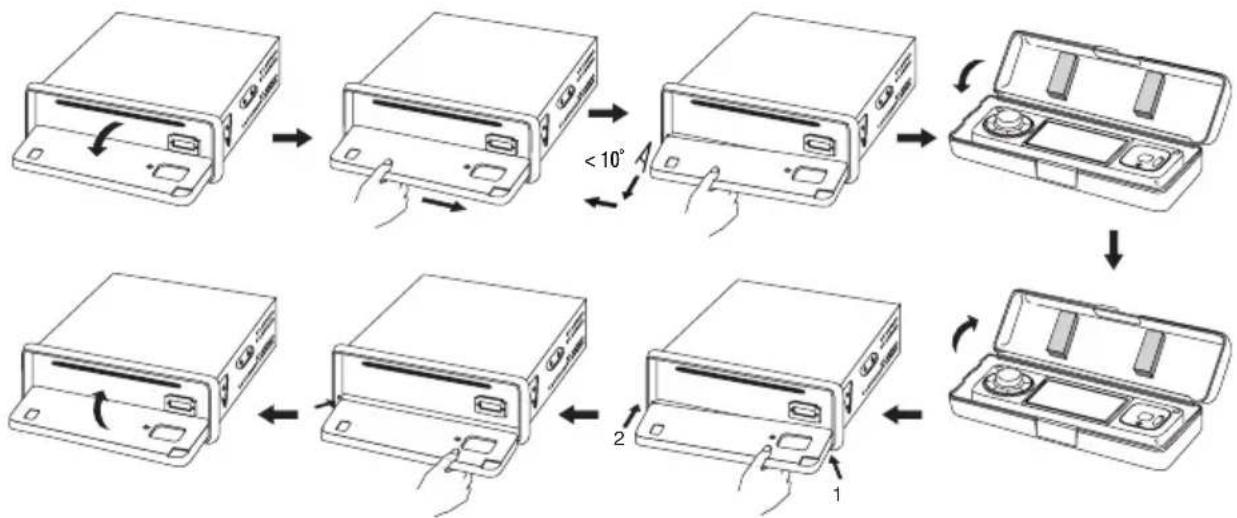

Make sure to attach the front control panel the right way.
When attaching the front control panel, do not press it too hard against the device. You can easily attach it by gently pushing it against the device.
When you take along the front control panel, put it into the protective sleeve provided.
Installation into the radio slot
- Remove the front control panel.

- Remove the two safety screws from the DVD drive (illustration 1, no. 1).
- Unlock the installation frame using the two unlocking keys (illustration 1, no. 2).
- Remove the installation frame towards the back of the system (illustration 1, no. 3).
- Insert the frame into the radio slot (illustration 2).
- Bend down some clips of the installation frame until the frame is securely fastened in the slot (illustration 3).
- When you have set up all the electrical connections (see "Electrical connection"), insert the device into the installation frame until it snaps in (illustration 4).

Keep the two unlocking keys. You will need them for future removal of the device.
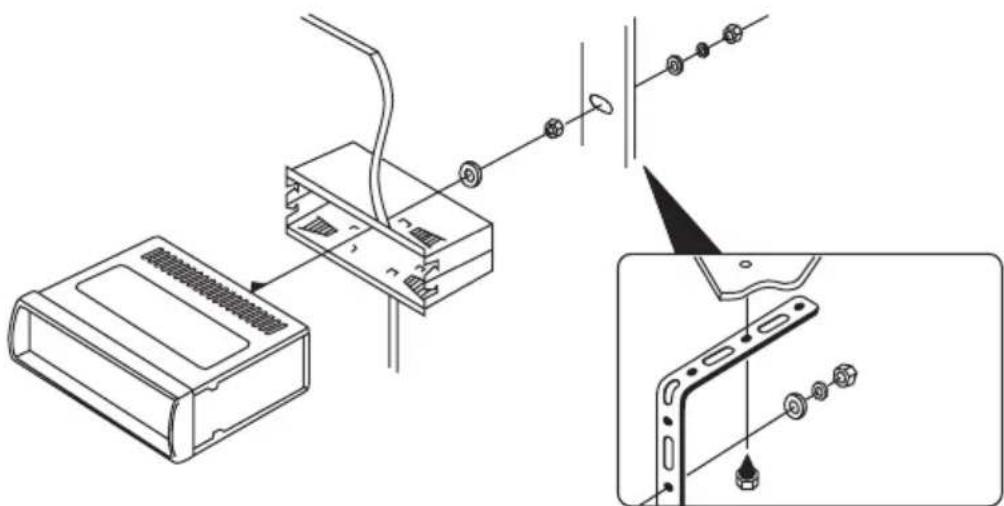
Protect the device against vibrations using the bolt at the back of the unit.
Most vehicles are already equipped with such a safety fastening. If this is not the case in your car, fasten the device using a punched metal strip or similar.
To fasten the device, proceed as illustrated below:
Removal
- Remove the front control panel.
- Insert the two unlocking keys into the lateral slots between the device and the installation frame until the device is unlocked.
- Remove the fastening screw at the back of the unit.
- Carefully pull the device out of the installation frame by pulling on the unlocking keys.
- Disconnect all electrical connections.
Electrical connection

The electrical connection should be done by a specialist.
To avoid short-circuits and resulting damages to the DVD tuner, the negative pole (ground) of the vehicle battery must be disconnected during installation.
Only re-connect the negative pole of the battery when the device is fully connected and after you have checked the connection.
You should only use a voltmeter or a diode test lamp for checking the voltage on the on-board cables as normal test lamps consume excessive currents and can thus damage the electrical system of the car.
When installing the cables, make sure they are not squashed or chafe against sharp edges! Use rubber bushings at passage points.
The loudspeakers must be connected using two-core cables. Insulate the bare wires at the connecting terminals. Make sure no cables are damaged by sharp edges.
Only use loudspeakers with sufficient performance (see "Specifications").
Make sure that all loudspeakers have the correct polarity, i.e. the plus and minus signs must match.
Usually, the connecting cables of the loudspeakers are coded: Some loudspeaker manufacturers indicate the (+) wire by means of an additional colour stripe, others use a corrugated cable for (+) and a smooth one for (-).
The device has been designed for loudspeaker impedances of at least 4 ohm. Never connect loudspeakers with lower impedance.
Only use shielded RCA cables for the audio and video connection to the RCA sockets. The use of other cables might cause disturbances.
Keep the connecting cables as short as possible.
Do not place the cables near other cables to avoid interferences.
To avoid distortions or mismatches that could damage the unit, the RCA sockets must only be connected to devices equipped with the same RCA sockets. Also note the information under "Specifications".
Connecting the loudspeakers to the power supply
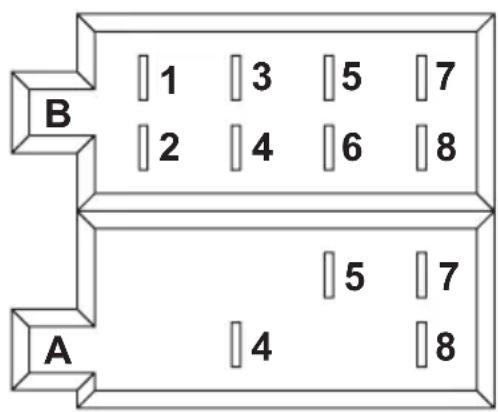
The DVD tuner has an ISO system plug.
Vehicles equipped with such a system plug can be connected directly to the device if the pin assignment is the same (please check before connection). If the assignments are different, you need to connect the device using an adapter.
Refer to the following illustrations for the pin assignment of the connection socket on the device.
Ask your car dealer for the assignment of your vehicle system plug.
System plug B (loudspeaker connection)
(1) Loudspeaker rear right (+)
(2) Loudspeaker rear right (-)
(3) Loudspeaker front right (+)
(4) Loudspeaker front right (-)
(5) Loudspeaker front left (+)
(6) Loudspeaker front left (-)
(7) Loudspeaker rear left (+)
(8) Loudspeaker rear left (-)
System plug A (power supply)
(1) Not assigned
(2) Not assigned
(3) Not assigned
(4) Continuous current +12V
(5) Aerial control output
(6) Not assigned
(7) Ignition +12 V
(8) Ground
-
The constant current +12V pin (4) must be connected to a cable that supplies 12V permanently even when the ignition is off (terminal 30 of the on-board network). This terminal serves to save the user settings, time, etc
-
The aerial control output (5) supplies a voltage of +12V when the device is switched on. This pin can be used for the power supply of an electrical aerial or as switch-on voltage for an in-vehicle amplifier.
-
The ignition +12 V pin (7) must be connected to a cable that is only live with +12 V when the ignition is on (terminal 15 of the on-board network).
Do not connect this pin to continuous current; otherwise the on-board battery could be discharged when the vehicle is parked for a longer period of time.
- Connect the ground pin (8) to the vehicle body.

Adhesive techniques, which become increasingly common, or painted metal parts reduce electrical conductivity. Therefore not every metal part is a suitable ground point.
In most vehicles, the cables for the electrical connection and for the connection to the loudspeakers have been laid directly to the radio slot.
If this is not the case, make sure that any cables laid later are secured by the respective on-board fuses (see vehicle operating instructions).
Connecting the control wires
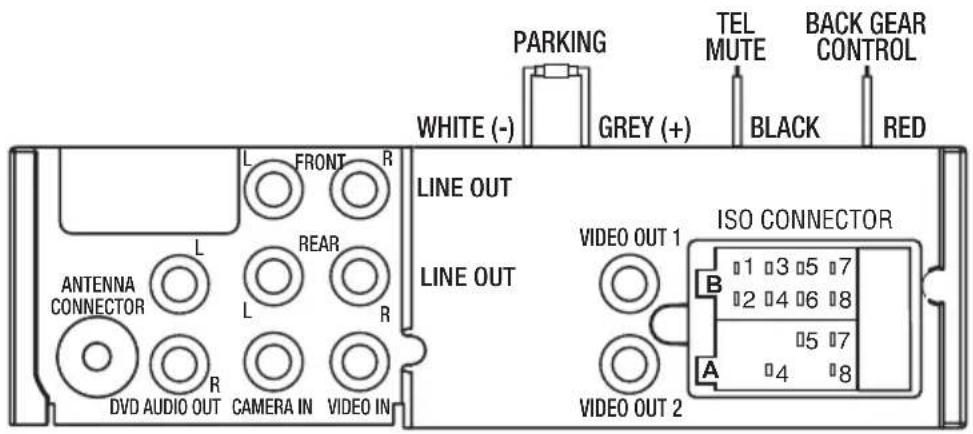
- Connect the grey PARKING (+) wire to the handbrake switch. The contact connected to this pin must have ground contact when the handbrake is pulled.

This makes sure the display (7) will only show films when the handbrake is pulled. This restriction only applies to the built-in display. External displays intended for passengers are not affected.
This is a safety measure to avoid accidents due to a distracted driver. Please find out about the applicable regulations for your country in this respect. It might be illegal to operate the device without this connection.
In case it is not required, you can connect the gray PARKING (+) wire with the white PARKING (-) wire. Films will then be displayed when driving.
- Connect the black TEL MUTE wire to the mute connection of your hands-free equipment. This will interrupt audio playback during phone calls.
Connecting a back-up camera
- Connect the red BACK GEAR CONTROL wire to the back-up light of your car (cable is live with +12V when car is in reverse).
- Connect the video output of your back-up camera to the CAMERA IN socket.

As soon as the car is in reverse, the display (7) will show the camera feed.
Connecting additional amplifiers
- Connect the LINE OUT FRONT sockets to the inputs of the front power amplifier.
- Connect the LINE OUT REAR sockets to the inputs of the rear power amplifier.

Connect the red socket to the right channel.
Connect the white socket to the left channel.
Connecting additional monitors
The DVD tuner features video outputs for additional monitors. They can be controlled separately using dual zone playback which allows passengers to watch movies, e.g. on headrest monitors, while the driver is listening to the radio.
- Connect the VIDEO OUT 1 and VIDEO OUT 2 sockets to the video inputs of the additional monitors.
- Connect the DVD AUDIO OUT sockets to the audio inputs of the additional monitors.
Connecting an external video or audio source
- Connect the VIDEO IN socket to the video output of the external video source.
- Connect the AUX input (15) to the audio output of the external video or audio source.

You can also operate an audio device on the AUX input (15) without using the Video IN socket on the back of the device. In this case, of course, there will be no video playback.
Connecting the aerial
- Connect the aerial plug of your vehicle to the ANTENNA CONNECTOR socket at the back of the device (socket next to the RCA sockets).
- If the aerial plug of your vehicle does not fit, use a suitable adapter available in specialist shops.
Operation

Do not turn on the device before you have read and understood these operating instructions.
Check all the connections again. When you have done so, reconnect the negative pole of the car battery.
General operation
Switch on/off
- Press the button (2) to switch on the device.
- To switch it off, hold down the button until the device shuts down.

To switch it on, you can press any of the buttons.
Volume Control
- Turn the volume control wheel (20) to adjust the volume.
- Turning it clockwise increases the volume, while turning it anti-clockwise decreases it.

The volume can also be controlled using the VOL+ and VOL- buttons on the remote control. VOL+ increases the volume, VOL- decreases it.
Muting
The button (2) mutes the sound.
- Press the button shortly, when you want to interrupt the current playback for a short time, for example if you want to ask someone for the way.
- To re-activate the sound, press the button (2) shortly again.

In order to mute or re-activate the sound using the remote control, press the button (28).
Loudness correction
- Hold down the BD/LD button (14) for a while to enable or disable loudness correction
The display (7) will show a message according to your selection.

At low volumes, the human ear does not perceive very low or very high sounds well. An increase in the frequency range for low volume (loudness correction) counteracts this effect and the music playback sounds more natural.
Loudness correction can be toggled on/off by holding down the RDM/BD/LD button (35) on the remote control for a while.
Selecting the playback source
- Press the MODE button (9) repeatedly in order to switch between the individual playback sources.
The playback sources are presented in the following order: Radio > CD/DVD > USB > SD/MMC > AUX

If no CD, USB flash drive or SD/MMC card is inserted, these sources are skipped during selection. Inserting a CD/DVD, USB flash drive or SD/MMC card will automatically activate the medium.
Inserting a CD/DVD
- Press the button (12) to open the front control panel. Insert the CD/DVD into the CD/DVD slot (25).

Always insert the CD with the printed side up.
Ejecting a CD/DVD
- Press the button (12) to open the front control panel.
- Press the EJECT button (23) to eject the CD/DVD.
- Tilt up the front control panel and close it.
Menu settings
- Press the MENU button (1) on the device to activate the setup menu.
- The display shows the setup menu items.
- To select a submenu, turn the volume control wheel (20) until the desired item is highlighted; then press the ENT button (6).
- To go back to the parent directory, press the MENU button (1).
- To select the current menu item, press the ENT button (6). To select a different menu item, turn the volume control wheel (20), then press the ENT button (6) on the highlighted item.

You can also use the arrow buttons (30) on the remote control to select a menu item.
AUDIO
BASS Sets the bass level
TREBLE Sets the treble level
BALANCE Sets the volume balance between the loudspeakers on the left and on the right
FADER Sets the volume balance between the loudspeakers in the front and in the rear
EQ Selects a sound preset
DSP OFF Sound adjustment off
FLAT Neutral sound preset
CLASSICS Sound adjustment for classical music
POP Sound adjustment for pop music
ROCK Sound adjustment for rock music
PICTURE

This menu item will only be visible if a data medium for visual playback has been inserted.
RED Adjustment of red contribution in the picture
GREEN Adjustment of green contribution in the picture
BLUE Adjustment of blue contribution in the picture
BRIGHTNESS Sets the brightness
CONTRAST Sets the contrast
SHARPNESS Sets picture sharpness
SCREEN Sets the screen size
4:3Playback format is 4:3
16:9Playback format is 16:9
FULL Stretches the picture to fit the screen
COLOR RESET Resets values to factory settings
DUAL
This function selects the source for dual zone playback.
Dual zone playback allows passengers to watch movies (e.g. on supplementary headrest monitors) while the driver is listening to the radio. To do this, the AV outputs for zone 2 (VIDEO OUT 1/2 and DVD AUDIO OUT) must be connected to appropriate playback devices.

You can also control this function using the DUAL button (26) on the remote control.
DUAL Turns dual zone playback on/off:
DUAL ON Turns on dual zone playback
DUAL OFF Turns off dual zone playback
KEY Selects the source to be controlled by the volume control wheel (20):
CURRENT Controls the volume of the driver's audio source
DVD Controls the volume of the passengers' audio source
VOL Separate control of the volume of the passengers' audio source
RDS SETUP
TA Action when traffic news station is lost:
SEEK The device starts searching for a new traffic news station providing traffic announcement code
ALARM The device issues an alarm signal
PI Action when 2 stations with different programme identification (PI) codes are on the same frequency:
SOUND The radio switches to the new channel for a few seconds and then switches back again
MUTE The radio is muted
RETUNE Delay of station search when traffic announcement code is lost:
SHORT Short delay
LONG Long delay
MASK Action when the current station can no longer be received:
ALL Alternative frequencies (AF) with different programme identification (PI) codes and any other stations with different PI on the same frequency will be masked
DPI Only alternative frequencies (AF) with different programme identification (PI) codes will be masked
EON TA Action when the reception of EON traffic news is poor:
LOCAL Only announcements of stations with good reception will be played
DX Any announcements will be played
REG Interpretation of regional codes when switching frequencies automatically:
ON Only stations with the same programme identification (PI) code will be switched to
OFF Stations with different programme identification (PI) codes will be switched to as well
TA VOL Volume setting for traffic announcements
EXPERT
DX/LOCAL Sensitivity of station search:
DX Station search will also stop for stations with poor reception
LOCAL Station search only stops for stations with good reception
STEREO/MONO Setting the reception mode:
STEREO Stereo reception
MONO Mono reception

When transmitter stations are weak, switching to mono reduces interferences.
BEEP Setting the button sound:
ALL Button sound is on permanently
2ND Button sound is triggered by secondary button functions (hold button down for a while)
OFF Button sound is off
LOUD Activation of loudness correction:
ON Loudness correction is activated
OFF Loudness correction is deactivated

At low volumes, the human ear does not perceive very low or very high sounds well. An increase in the frequency range for low volume (loudness correction) counteracts this effect and the music playback sounds more natural.
BACKLIGHT Setting display brightness:
LOW Low brightness
MID Medium brightness
HIGH High brightness
OSD COLOR Setting display background colour
CLOCK
CLOCK ON/OFF Turn on/off time display:
CLOCK ON Time display on
CLOCK OFF Time display off
CLOCK HOUR 12H Time display in 12h-format
24H Time display in 24h-format
CLOCK ADJUST Setting the time manually:
Set the hours by turning the volume control wheel (20) > press the ENT button (6) > set the minutes by turning the volume control wheel (20)

Many stations transmit the current time in the RDS data. When the device reads that signal, it sets the built-in clock automatically.
Radio mode
The receiving concept of RDS
The abbreviation RDS stands for Radio Data System, i.e. inaudible, additional information codes are transmitted by the VHF RDS station.
Your DVD6311 DVD Tuner is able to read this kind of data and most radio stations send RDS data.
The most essential data transmitted is:
- Program identification (PI)
- Traffic programme (TP)
- Traffic announcement (TA)
-Programme service name (PS) - Alternative frequency (AF)
-Programme type (PTY) - Enhanced other networks (EON)
- Clock time (CT)
Program identification (PI)
These data help the receiver to identify a station. They enable the radio to differentiate between ranges where the same programme is transmitted. When the reception gets weaker, the car radio only switches to a stronger station if it transmits the same programme identification
Traffic programme (TP)
This signal enables the receiver to detect when a traffic news station is being received.
Traffic announcement (TA)
Due to this signal, the receiver can detect a traffic announcement and interrupt the playback of another audio source.
Program service name (PS)
This information tells the receiver what station it is receiving. This information will be shown on the radio display, e.g. BAYERN 3.
Alternative frequency (AF)
A list of alternative frequencies that transmit the same programme is transmitted. If the signal of the current station becomes too weak, the receiver uses the AF signal to determine where to look for a station with a stronger signal.
Programme type (PTY)
This code provides information about the type of the transmitted programme (e.g. sports, classical music, news etc.). Thus, the listener can look for the programme of choice more specifically.
National disaster alarm can also be announced this way. However, not all radio stations offer PTY service.
Enhanced other networks (EON)
Many chains of radio stations with various programmes only have one programme with traffic information. If EON information is transmitted, a radio equipped with an EON function switches to the traffic news station when traffic announcements are made, even if a different programme of this chain is on.
If you listen to Bayern 4 for example (no traffic news), the radio will switch to Bayern 3 (traffic news) for the time of the traffic announcement.
Clock time (CT)
Many stations transmit the current time in the RDS data. When the device reads that signal, it sets the built-in clock automatically.
The advantage the RDS system offers is when you leave the transmission area, the device will automatically switch to a station with a stronger signal. However, it only switches if it detects a station with a stronger signal and the same programme.
The RDS system cannot respond to temporary signal drops as this would cause the radio to switch back and forth continuously. The listener would feel much more disturbed by this than by temporary reception difficulties.
Another advantage of the RDS system is that the station name is displayed. The station name of an RDS station is shown on the display of the car radio.
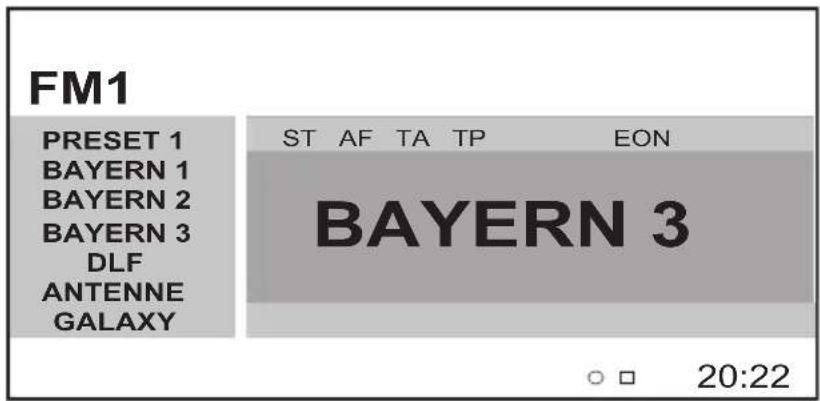
Display in radio mode
- The left side of the display shows the band range FM 1-3 and the station frequencies or their names respectively. The stations are stored under station buttons 1-6 (3, 4, 5, 18, 19, and 21).
- The right side of the display shows the selected functions (AF, TA, TP etc.) on top and the station name or the frequency in the middle.
- At the bottom of the display symbols indicate inserted media and the time is displayed.
Setting the options
All options that can be set for the RDS receiver have already been described under "Menu settings".
Please refer to that chapter for more information.
Button functions
BD/LD button (14) or RDM/BD/LD button (35)
- Press the button shortly to set band range FM1, FM2 or FM3. Every band range offers 6 presets to store radio stations.
SEEK UP (17) / SEEK DOWN (16) buttons
With these buttons the receiving frequency can be changed to adjust stations in radio mode.
- Press a button shortly to start automatic station search in the direction desired. The search will stop at the next station with a good signal.
- Hold down a button to activate manual station search. The search will stop as soon as you release the button.

The tuner will resume automatic station search if you do not press the button for a while.
Station buttons 1-6 (3,4,5,18,19,and 21)
-Shortly press a button to directly select a preset station.
- Hold down a button for a while to store the current station under that button.

Each of the three FM band ranges (FM 1-3) has six station buttons. This means you can assign 18 station buttons.
Numeric buttons 1-6 (34) on the remote control have the same function.
AF button (8)
Thus button toggles on/off the AF function. When the AF function is active, the display (7) shows "AF".
- AF off = The tuner does not automatically look for a better frequency to receive the station.
- AF on = The tuner automatically looks for a better frequency to receive the station.
TA button (10)
This button toggles on/off traffic announcements.
- If the current station is a traffic news station, the display will show "TP" (traffic programme).
- When you keep the TA button pressed, "TA" is displayed. Now you can only receive stations with TA signals.
If a different audio source is being played (a CD for instance), it will be muted during the traffic announcement. - If you listen to a radio programme at a very low volume, the volume will automatically be increased to a clearly audible level (volume can be set under RDS SETUP > TA VOL). When the traffic announcement is over, the previous volume will be restored.

Depending on whether you have set TA SEEK or TA ALARM (see "Menu settings"), the radio automatically seeks a new traffic news station or plays an alarm sound.
PTY button (11)
This button activates the PTY function.
- Press the button PTY (11), to change the PTY function.
- Press the button SEEK UP (17) or SEEK DOWN (16), until the desired type of program appears in the display.
- Select the programme type using station buttons 1-6 (3, 4, 5, 18, 19, and 21) or the numeric buttons (34) on the remote control.
- A station search for a station using the previously selected PTY code is started.
- If no station is found, the device issues a warning signal and shows PTY NONE on the display (7).
RPT/P.SCN button (33)
- If you press this button shortly, the stations stored on station buttons 1-6 (3, 4, 5, 18, 19, and 21) will be played for some seconds each. To stop this function, press the button again.
- If you hold the button down for a while, all stations with a good signal will automatically be stored under station buttons 1-6 (3, 4, 5, 18, 19, and 21).
- Then the stored stations will be played for some seconds as described above.
OSD button (37)
- Press the button repeatedly to display the station information:
Station name > station frequency > programme type (PTY code)
CD/MP3 mode
Playback/pause
Button 3/▶II (5) switches between pause and playback.
- Press this button to start playback.
- Press this button again to pause playback.
- Press this button again to resume playback where it was paused before.
Stop playback
Button 4/ (21) stops playback.
- Press this button to stop playback. The display (7) shows PRE STOP.
If you want to continue playback where you pressed the stop button, press button 3/▶II (5).
If you press button 4/ (21) again, the device will be set to the beginning of the CD.
Title search
Buttons 1/ | and 2 / | (3 and 4) allow you to select an individual title.

The arrows on the buttons indicate the selection direction (up or down).
- Press the buttons shortly to jump to the next or previous track.

You can also directly select a title using the numeric buttons (34) on the remote control.
Search within a title
Buttons 6/ ▶ ▶ and 5/ ▲ △ (18 and 19) allow you to search within a CD title.

The arrows on the buttons indicate the search direction (up or down).
- Press the buttons repeatedly to set the search speed.
The display (7) will show the search speed (2x, 4x, 8x, 20x) . - To go back to normal playback, press button 3/▶II (5) or keep pressing the button until PLAY appears on the display.
Navigating in MP3 mode
When an MP3 CD or a different medium carrying MP3 files (SD card, USB flash drive etc.) has been inserted, the display (7) shows a file overview.
- Folders are displayed on the left, files on the right.
- The chosen folders and the chosen files are marked.
- The title bar displays the name of the active title.
- Use the arrow buttons (30) on the remote control to browse through the folder structure. Use the ENT button (6) or the ENTER button on the remote control to select the highlighted folders or files.

You can also directly select a file using the numeric buttons (34) on the remote control.
Repeat function
- Press the RPT/P.SCAN button (33) on the remote control to activate the repeat function.
- Set the repeat function as follows:
Press once ≥ repeat title
Press 2 times > all titles in the folder are repeated (only for media where a folder structure is possible)
Press 3 times > all titles on the storage device are repeated
Random play
- Press the RDM/BD/LD button (35) on the remote control shortly to activate random play.
- Press the button shortly again to go back to normal playback.
Programming the playing order
You can programme a playing order of up to 16 titles.
- Press the PROG (32) button on the remote control to activate title programming.
- Select the titles in the desired order using the numeric buttons (34) and type them in on the display under PROGRAM.
- If your medium has a directory structure, you have to additionally type in the directory under DIR.
- Use the arrow buttons (30) on the remote control to browse.
- To save the title list, select ENTER with the cursor (30) and press the ENT button (6) or ENTER on the remote control.
- Use the arrow buttons (30) to select CLEAR ALL and press the ENT button (6) or the ENTER button on the remote control to delete the selected order.

To play the titles in normal order, press the PBC/STOP button (31) or 4(21) twice. The previously programmed order is not deleted.
DVD/VCD/MP4 mode
Playback
- Press the button (12) to open the front control panel. Insert a VCD/DVD into the VCD/DVD slot (25).

Always insert the VCD/DVD with the printed side up.
If you have already inserted a VCD/DVD, press the MODE button (9) until the drive is activated.
- Should the inserted medium have a menu, it will be displayed automatically.

VCDs only have a menu if they have PBC (playback control).
- Use the arrow buttons (30) on the remote control to browse through DVD menus to select the desired menu item; then press ENTER to select.
To select a menu item on the VCD with PBC, use the numeric buttons (34) on the remote control.

The VCD menu will only be displayed if the PBC function is active. In case this function is inactive, you can activate it by holding down the PBC/STOP button (31) on the remote control for a while.
- DVDs or VCDs without a menu or PBC will be played automatically.
Stop playback
- Press button 4/■ (21) or the PBC/STOP button (31) on the remote control to stop playback. The device remembers at what position playback was stopped.
- Press button 3/▶II (5) to resume playback at the position it was stopped at.
- Press button 4/■ (21) or the PBC/STOP button (31) on the remote control again to completely stop playback.
Fast forward/rewind
- During normal playback, press button 6/▶▶ (18) or button 5/▲(19) to fast forward or rewind.

The arrows on the buttons indicate the search direction (up or down).
- Playback is accelerated. You can change the speed by pressing the button again (2x, 4x, 8x, 20x).
To return to normal playback, press button 3/11 (5).

While this function is active, the sound is muted.
Chapter search
- During normal playback, press button 1 / (3) or button 2 / (4) to jump to the beginning of the current or the next chapter.

The arrows on the buttons indicate the selection direction (up or down).
Direct selection
- Press the GOTO button (44) on the remote control to directly select a title or a specific point of time.
- Use the arrow buttons (30) on the remote control to choose chapter, title or time selection.
- Then type in the appropriate data and confirm with the ENTER button.
- Playback will start at the designated point.
Pause playback
- Press button 3/▶II (5) to pause playback temporarily.
To resume playback where it was paused, press the same button again.
Display of single images
- Press the STEP (27) button to start the display of single images.
Each time the STEP button (27) is pressed, the device moves on one frame.
To return to normal playback, press button 3/11 (5).
Random play
- Press the RDM/BD/LD button (35) on the remote control shortly to activate random play.
- The titles or chapters will be played in random order.
- Press the button shortly again to go back to normal playback.
Repeat function
DVD mode:
- Press the RPT/P.SCAN button (33) on the remote control to activate the repeat function.
- Set the repeat function as follows:
Press1 time > Repeat function turned off
Press 2 times > Chapter repeat
Press 3 times > Title repeat
Press 4 times > Everything repeated
VCD mode:
- Press the RPT/P.SCAN button (33) on the remote control to activate the repeat function.
- The current title will be repeated.
- Press the button again to abort the repeat function.

This function is only available for VCDs when the PBC function is off.
Repeat segment
This function allows you to set a segment to be repeated continuously.
During playback, press the A-B/ZOOM button (36) on the remote control to set the starting point of the segment.
- Press the button again to set the endpoint of the segment.
- The segment will be repeated continuously.
- To return to normal playback, press the button again.
Title and chapter selection
- Use the 10-key keypad (34) on the remote control to enter the desired title or chapter numbers.
- The desired title or chapter will be played.

This function is only available for VCDs when the PBC function is off.
Selection of audio format during playback
If the DVD/VCD features several languages or audio formats, you can select them as follows:
Press the AUDIO button (40) on the remote control, until the desired language or audio format is displayed.

You can set the default audio format in the setup menu of the DVD player. For more information see "Setup menu" further on in this manual.
Some DVDs only allow you to set the audio language through the DVD menu.
Selection of subtitles during playback (DVD mode only)
If the DVD features subtitles, you can display them as follows:
- Press the SUB-T button (42) on the remote control until the desired language is displayed.

You can set the default subtitle language in the setup menu of the DVD player. For more information see "Setup menu" further on in this manual.
Some DVDs only allow you to set the subtitle language through the DVD menu.
Selection of camera perspective (DVD mode only)
If the DVD features different camera perspectives, you can display them as follows:
- Press the ANGLE button (41) on the remote control until the desired camera perspective is displayed.
Jump to first title (DVD mode only)
- Press the TITLE button (29) on the remote control.
The first DVD title will be played.

Depending on the DVD, the main menu may be displayed.
Jump to main menu (DVD mode only)
- Hold down the MENU button (1) for a while.
- The main menu will be displayed.
Slow motion
- During playback, press the SLOW button (39).
- Slow motion is activated.
- The speed can be changed by pressing the buttons repeatedly.
To return to normal playback, press button 3/II (5).

While this function is active, the sound is muted.
With some media, you might experience sound or display disturbances.
Zoom function
- During playback, hold down the A-B/ZOOM button (36) for a while.
The picture is zoomed accordingly. - The zoom factor can be changed by repeatedly holding down the A-B/ZOOM button (36) for a while.
$$ 2 x > 3 x > 4 x > 1 / 2 x > 1 / 3 x > 1 / 4 x > \text {n o r m a l p a y b a c k} $$
Display information
To get information about the inserted medium or the playback status, hold down the OSD button (37) for a while.
- Hold down the OSD button (37) for a while repeatedly to get additional information.
Programming the playing order
You can programme a playing order of up to 16 titles.
- Press the PROG (32) button on your remote control to activate title programming.
- Select the titles in the desired order using the numeric buttons (34) and type them in on the display under PROGRAM.
DVD titles must be typed in under "T", DVD chapters under "C". - Use the arrow buttons (30) on the remote control to browse.
- To save the title list, select ENTER with the cursor (30) and press the button ENT (6) or ENTER on the remote control.
- Use the arrow buttons (30) to select CLEAR and press the ENT button (6) or the ENTER button on the remote control to delete the selected order.

To play the titles in normal order, press the PBC/STOP button (31) or 4(21) twice. The previously programmed order is not deleted.
Setup menu
The setup menu allows you to configure the basic settings of the device.
- Use the arrow buttons (30) on the remote control to browse the menu.
- Press the ENTER button to select a menu item.

To access the setup menu, a DVD has to be inserted.
In this menu you can set the language in which messages are displayed. The following description refers to English which is the default language of the device.
When you change the language, the wording might be different from the wording described below.
SYSTEM SETUP
TV SYSTEM Sets up the TV system (country specific, normally PAL in Germany)
In the AUTO position, the TV system is automatically set to the playback medium.
SCREEN Saver Activates/deactivates the screen saver
VIDEO Adjusts the video format
TV TYPE Adjusts the margins on the screen
PASSWORD Enters the password for the child-security function (default setting 0000)
RATING Enables various levels to be set for the child-security function
DEFAULT Returns to default settings
LANGUAGE SETUP
OSD LANG Language selection for the On-Screen-Display
AUDIO LANG Language selection for replay
SUBTITLE LANG Language selection for the subtitles
MENULANGLanguage selection for theDVD menu
MP4 LANG Language selection for MP4 replay
AUDIO SETUP
KEY Changes the tone
VIDEO SETUP
BRIGHTNESS Adjusts the brightness
CONTRAST Adjusts the contrast
HUE Adjusts the colour tone
SATURATION Adjusts the colour saturation
SHARPNESS Adjusts the picture sharpness
DIGITAL SETUP
DYNAMIC RANGE OFF The maximum dynamic compression (loud tones are reduced, soft ones strengthened)
FULL Playback without any effect on the original dynamics
DUAL MONO
STEREO
Replay in stereo
MONOL
Play the left channel via both loudspeakers
MONOR
Play the right channel via both loudspeakers
MIX MONO Mono playback of both channels (L + R) via both loud speakers
AUX mode
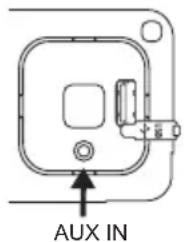
The AUX input (15) can be connected to audio outputs of external players (e.g. MP3 players).

If the Video IN input is connected to a video source, the AUX input (15) serves as audio input of the source.
- Connect the audio output of your external device to the AUX input (15).
- Use the MODE button (9) to select AV-IN and start playback on the external device.
USB/memory card mode
The device is equipped with a USB interface and a memory card reader for SD/MMC cards.
Audio and video data that are stored on these media can be played back.

Due to the great variety of devices with USB and SD/MMC card interfaces that sometimes have manufacturer-specific functions, we cannot guarantee that all media will be recognized and that all operational functions will be available with this device.
You cannot operate USB hard drives on the device.
SD/MMC cards with a capacity of more than 2 GB are not supported.
- Open the flap on the USB socket (13) and plug in your USB flash drive or the USB cable of your MP3 player.
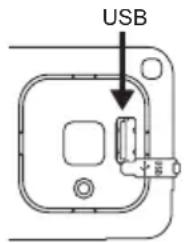
- When using a memory card, insert it into the SD/MMC card slot (22). In this case, the front control panel has to be opened.
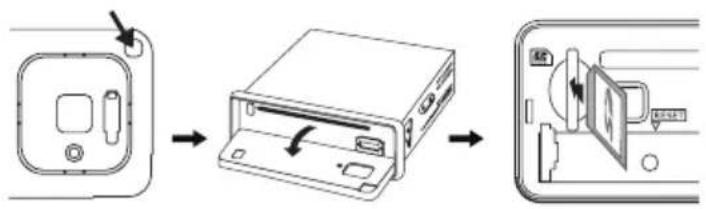
- Select the input by pressing the MODE button (9).
- Proceed exactly as described for CD/DVD playback.
Reset
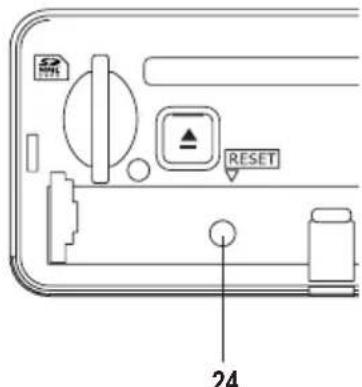
The RESET button (24) restores factory settings.
Press this button in the following cases:
- When you have completed the installation
- If the device does not respond to the buttons
- If the display shows undefined characters
Maintenance
Regularly check the technical safety of the DVD tuner, e.g. for damage of the cables or the housing.
If it can be assumed that safe operation is no longer possible, the device must be turned off and precautions are to be taken to ensure that it is not used unintentionally. Disconnect the car power system!
It can be assumed that safe operation is no longer possible if:
The device is visibly damaged
- The device does not function any more, or
- Following considerable mechanical stress
Before cleaning or servicing the DVD tuner, the following safety instruction must be observed:

Live components may be exposed if the covering is opened or components are removed.
The device must be disconnected from all power sources before carrying out any servicing or repair work.
Capacitors inside the device may still carry voltage even though they have been disconnected from all voltage sources.
Only qualified experts familiar with the hazards involved and the relevant regulations may perform repairs.
Changing the fuse
If the fused has to be changed, make sure that only fuses of the designated type and nominal current are used (see "Specifications").

Do not repair fuses or bridge the fuse holders.
- When the power supply has been disconnected (disconnect ISO plug!), carefully remove the fuse from the fuse holder next to the ISO terminal.
- Replace it with a fuse of the same type.
- Now you can re-connect the DVD tuner to the electrical on-board system.
- Should the fuse be triggered again, take the device to a specialised workshop for repair.
Apart from this, the device does not need any servicing. The outside should only be cleaned with a soft, dry cloth or a brush. Never use caustic cleaning agents or chemical solutions, as the surface of the housing may be damaged.
Replacing the remote control battery

Remove the battery if you do not use the device over a period of time.
Leaked or damaged batteries can burn your skin if touched. It is therefore advisable to use suitable protective gloves.
Make sure that the battery is not short-circuited or thrown into fire. Do not recharge the battery. There is danger of explosion.

An insulation pad is placed in the battery compartment of the remote control upon delivery which prevents unwanted discharging of the battery during transport. This pad must be removed prior to initial operation.
- If the remote control no longer functions properly, the battery is discharged and must be replaced with a battery of the same type.
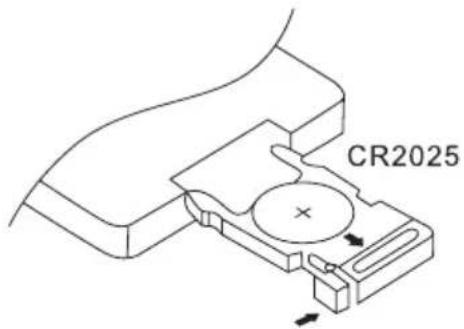
- Unlock the safety latch and pull out the battery holder on the backside of the remote control.
- Take out the discharged battery and put in a new 3V lithium CR2025 coin cell. The correct polarity is indicated on the battery holder.
- Slide the battery holder back into the remote control. The safety latch must audibly snap into place.
Handling
- If the volume inside your car is too high, you will not hear acoustic warning signals. This constitutes a danger to yourself and other road users. Therefore, make sure the volume is at a suitable level.
- Inattentiveness in traffic may lead to serious accidents. Therefore only operate the hi-fi system if the traffic situation permits this and if you are not distracted from traffic by operating the system. For safety reasons, the driver is not allowed to watch films when driving.
- Do not listen to excessively loud music over long periods of time. This may damage your hearing.
Disposal

Please dispose of the unserviceable device according to the current statutory requirements.
Troubleshooting
By purchasing the Renkforce DVD6311 DVD Tuner you have acquired a state-of-the-art product which operates reliably.
Nevertheless, problems or malfunctions may occur.
We would therefore like to describe how you can eliminate possible malfunctions:

Please observe the safety instructions!
No playback, no display, no light:
The car fuse is defective. Look up the respective fuse in the operating instructions of your car and check it.
- The fuse of the device is defective. Remove the device and check the fuse.
- The plus line/ground line is loose. Remove the device and check the connections.
Playback on one speaker only:
Balance control is wrongly adjusted. Adjust balance control as described.
- The speaker connection has come loose. Remove the device and/or the speakers and check the connections.
Playback on front or on rear speakers only:
Fader control is wrongly adjusted. Adjust fader control.
- The speaker connection has come loose. Remove the device and/or the speakers and check the connections.
In radio mode hardly any stations can be received:
- The aerial is not fully extended. Pull out the aerial to its full length.
- The aerial connection has come loose. Remove the device and check the connection.
- The aerial is defective. Check the connection, grounding and the aerial itself.
Playback interferences:
- Interferences get to the device through the plus line. Install an additional noise suppression choke on the plus line. If necessary also equip the vehicle with spark-plug suppressors, distributor arms etc. to suppress interferences.
When you press a station button, you only hear a hissing sound:
- No station has been programmed. Programme the stations as described above.
Every time you switch off the device, the station presets are lost:
- The continuous positive line is not connected or has come loose. Connect the continuous positive line as explained in the instructions or check whether the cable is connected properly. Check the fuse.
Some buttons do not work in DVD mode:
- The current DVD does not support the selected function.
USB flash drives or SD/MMC cards are not detected:
- The USB flash drive/the memory card is not compatible with the device.
- The USB flash drive/the memory card has not been formatted with a FAT or FAT32 file system.

Repairs other than those described above should only be performed by an authorised specialist.
Specifications
General
Operating voltage 12 V = (10.8 - 15.6 V=)
Fuse. Vehicle flat fuse 10A
Output power 4 x 40 W (max.)
Loudspeaker impedance 4 or 8 ohm
Interfaces USB and SD/MMC card
Compatible formats CD audio, DVD video, VCD video, S-VCD video, MP3, MP4
Dimensions 190 x 187 x 57 mm
Weight 1.5 kg
FM tuner
Reception range FM 87.5-108.0 MHz
Frequency step 50 kHz
Sensitivity 2.8 V
Stereo separation 30 dB
Signal-to-noise ratio 50 dB
DVD player
Frequency response 20 - 20,000 Hz
Signal-to-noise ratio. >60 dB
Channel separation. > 50 dB (1 kHz)
Compatible media. DVD, DVD+/-R, DVD+/-RW, DVD+/-DL, VCD, S-VCD, CD, CD-R, CD-RW
LINE output
Output voltage 5V max.
Output impedance 10 kOhm
Table des matieres
Page
Chere cliente, cher client,
Alternative frequencies (AF)
Weergave in slow motion
- F Information legales
- NL Colofon
- F Syntoniseur DVD
- F
- 12/12
- DVD-Tuner
- DVD6311
- Cobrilkeepwii
- D
- GB
- 13/14
- DVD-Tune
- Cobaltic securities
- Basing 140.185
- Regina P. Rovoo
- Inhaltsverzeichnis
- Seite
- Programm Identification (PI)
- Introduction
- Intended use
- Explanation of symbols
- Product description
- Mechanical installation
- Installation position
- Removing and attaching the front control panel
- Installation into the radio slot
- Removal
- Electrical connection
- Connecting the loudspeakers to the power supply
- System plug B (loudspeaker connection)
- System plug A (power supply)
- Connecting the control wires
- Connecting a back-up camera
- Connecting additional amplifiers
- Connecting additional monitors
- Connecting an external video or audio source
- Connecting the aerial
- Operation
- General operation
- Switch on/off
- Volume Control
- Muting
- Loudness correction
- Selecting the playback source
- Inserting a CD/DVD
- Ejecting a CD/DVD
- Menu settings
- AUDIO
- PICTURE
- DUAL
- RDS SETUP
- EXPERT
- CLOCK
- Radio mode
- The receiving concept of RDS
- Program identification (PI)
- Traffic programme (TP)
- Traffic announcement (TA)
- Program service name (PS)
- Alternative frequency (AF)
- Programme type (PTY)
- Enhanced other networks (EON)
- Clock time (CT)
- Display in radio mode
- Setting the options
- Button functions
- SEEK UP (17) / SEEK DOWN (16) buttons
- Station buttons 1-6 (3,4,5,18,19,and 21)
- AF button (8)
- TA button (10)
- PTY button (11)
- RPT/P.SCN button (33)
- OSD button (37)
- CD/MP3 mode
- Playback/pause
- Stop playback
- Title search
- Search within a title
- Navigating in MP3 mode
- Repeat function
- Random play
- Programming the playing order
- DVD/VCD/MP4 mode
- Playback
- Fast forward/rewind
- Chapter search
- Direct selection
- Pause playback
- Display of single images
- Repeat segment
- Title and chapter selection
- Selection of audio format during playback
- Selection of subtitles during playback (DVD mode only)
- Selection of camera perspective (DVD mode only)
- Jump to first title (DVD mode only)
- Jump to main menu (DVD mode only)
- Slow motion
- Zoom function
- Display information
- Setup menu
- SYSTEM SETUP
- LANGUAGE SETUP
- AUDIO SETUP
- VIDEO SETUP
- DIGITAL SETUP
- AUX mode
- USB/memory card mode
- Reset
- Maintenance
- Changing the fuse
- Replacing the remote control battery
- Handling
- Disposal
- Troubleshooting
- Please observe the safety instructions!
- No playback, no display, no light:
- Playback on one speaker only:
- Playback on front or on rear speakers only:
- In radio mode hardly any stations can be received:
- Playback interferences:
- Specifications
- General
- FM tuner
- DVD player
- LINE output
- Table des matieres
- Page
- Alternative frequencies (AF)
- Weergave in slow motion
Brand : Renkforce
Model : DVD 6311
Category : Car radio