MCDKIT15 - Portable DVD Player Marquant - Free user manual and instructions
Find the device manual for free MCDKIT15 Marquant in PDF.



| Product type | Portable DVD player |
| Brand | Marquant |
| Model | MCDKIT15 |
| Dimensions (L x W x H) | 205 x 155 x 37.3 mm |
| Weight | 672.5 g |
| Screen size | 7 inches (179 mm) |
| Power supply | DC 12V, 1.5 A |
| Power consumption | 16 W |
| Supported disc formats | DVD, audio CD, picture CD |
| Connectivity | USB, SD/MMC, AV output, headphone jack |
| Main functions | Play, pause, stop, navigation, volume, mute, A-B repeat, zoom, subtitles, audio, setup menu |
| Remote control | Yes (CR2025 battery included) |
| TV system | PAL / NTSC auto |
| Operating temperature | 5°C to 35°C |
| Operating humidity | 5% to 90% |
Frequently Asked Questions - MCDKIT15 Marquant
User questions about MCDKIT15 Marquant
0 question about this device. Answer the ones you know or ask your own.
Ask a new question about this device
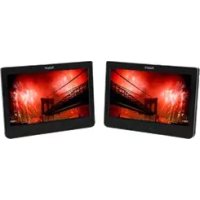
Download the instructions for your Portable DVD Player in PDF format for free! Find your manual MCDKIT15 - Marquant and take your electronic device back in hand. On this page are published all the documents necessary for the use of your device. MCDKIT15 by Marquant.
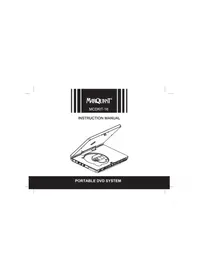
USER MANUAL MCDKIT15 Marquant
natural_image
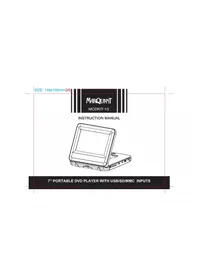
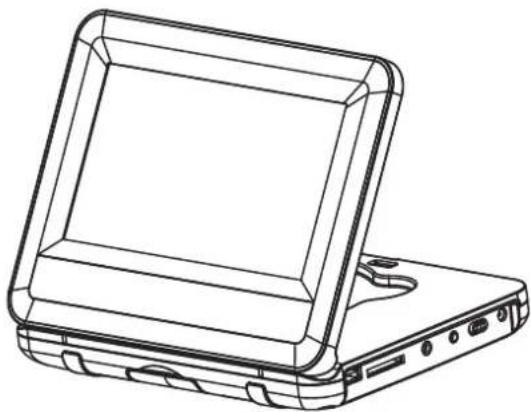
Line drawing of a laptop with front panel and rear panel, showing internal components (no text or symbols)7" PORTABLE DVD PLAYER WITH USB/SD/MMC INPUTS
WARNING
TO REDUCE THE RISK OF FIRE OR ELECTRIC SHOCK, DO NOT EXPOSE THIS APPLIANCE TO RAIN OR MOISTURE.
CAUTION
Use of controls or adjustments or performance of procedures other than those specified herein may result in hazardous radiation exposure.
This Compact Disc player is classified as CLASS 1 LASER product.
CAUTION!
Invisible laser radiation when open and interlocks defeated. Avoid exposure to beam.

- Do not damage the mains lead.
When not in use, disconnect the mains lead from the outlet. Grasp the plug, not the mains lead, when disconnecting the unit. - If water should enter the unit, electrical shock or a malfunction may result. Use in an area where there is low humidity and little dust.
- Do not disassemble or alter the unit in any way.
- Do not use the unit in areas where extremes in temperature occur (below 5°C or exceeding 35°C), or where it may be exposed to direct sunlight.
- Because of the CD player's extremely low noise and wide dynamic range, there is a tendency to turn the volume on the amplifier higher than necessary. Doing so may produce an
excessively high output from the amplifier which can cause damage to your speakers. Please be careful in this regard.
- Sudden changes in the surrounding temperature can cause dew to form on the optical pickup lens inside the unit. Under this condition the unit may be unable to operate properly. If this should occur, remove the disc and allow the player to adjust to the surrounding temperature.
- Please use the original DVD or VCD or CD or MP3 software, and any copy discs are not recommendable for use.
- The ventilation should not be impeded by covering the ventilation openings with items, such as newspapers, table-cloths, curtains, etc;
- No naked flame sources, such as lighted candles, should be placed on the apparatus;
- It shall not be exposed to dripping or splashing and that no objects filled with liquids, vases, shall be placed on the apparatus; such as
- Do not place the product in closed bookcases or racks without proper ventilation.
- Where the mains plug or an appliance coupler is used as the disconnect device, device shall remain readily operable.the disconnect
- Batteries (battery pack or batteries installed) shall not be exposed to excessive heat such as sunshine, fire or the like.
- Excessive sound pressure from earphones and headphones can cause hearing loss.
To prevent fire or shock hazard, do not expose this appliance to dripping or splashing. No objects filled with liquids, such as vases, shall be placed on the apparatus.
THIS UNIT SHOULD NOT BE ADJUSTED OR REPAIRED BY ANYONE EXCEPT PROPERLY QUALIFIED SERVICE PERSONNEL.
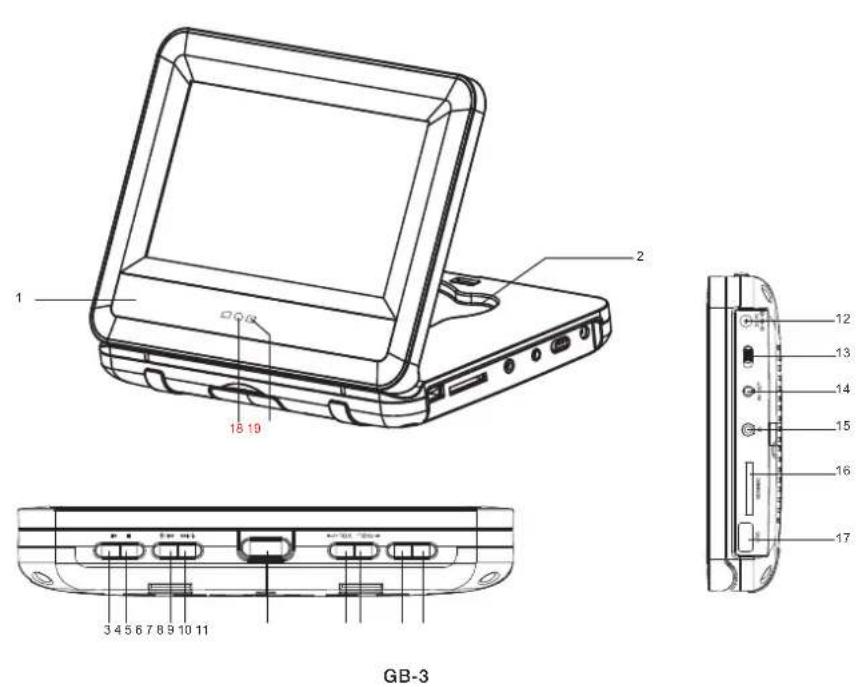
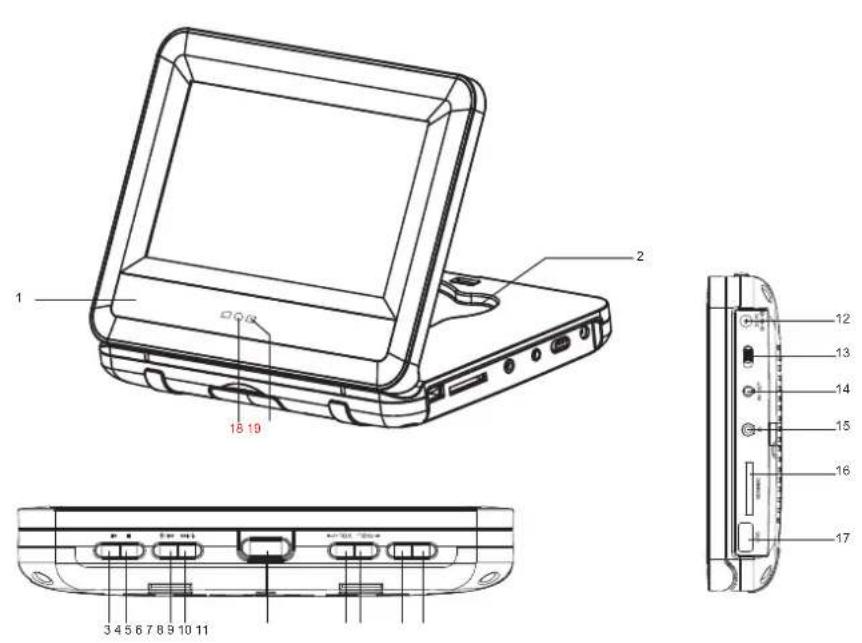
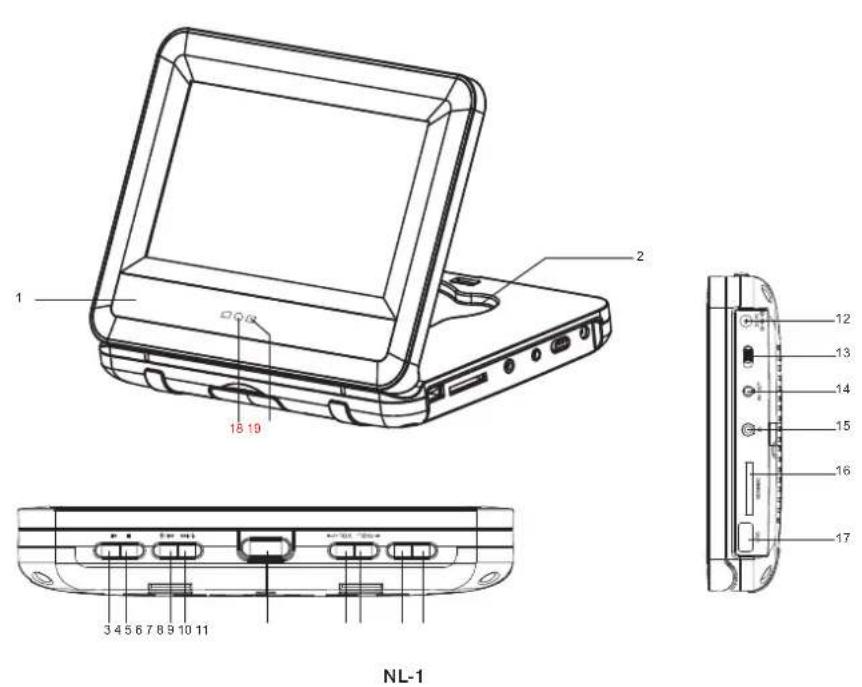
Portable DVD player description
-
Speakers
-
DVD compartment
-
PLAY / PAUSE button ▶/ ENTER button
4.STOP button
-
DOWN direction button ▼NEXT button
-
UP direction button ▲ PREVIOUS button
-
DVD compartment OPEN button
8.RIGHT direction button ▶ VOL+button
9.LEFT direction button /VOL-button
10.USB/SD button
-
SETUP button
-
DC IN 12V —adaptor jack
-
Power ON / OFF switch
-
A / V output jack
-
Headphone's output jack.
16.SD / MMC card socket
17.USB socket
18.Remote control sensor
19.Power indicator
-Red LED lights up when the unit on
-Red LED flashes when the unit enter into standby
REMOTE CONTROL
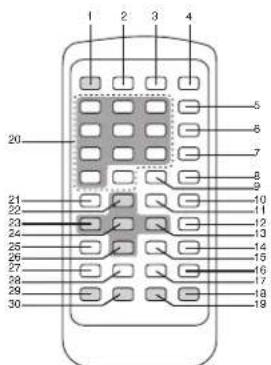
Battery information
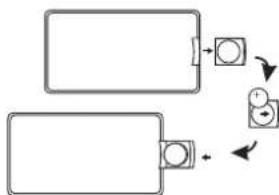
The first time you use the remote control, remove the battery tab located at the rear of the unit
Battery replacement
- Open the battery compartment cover by pressing the unlock switch to the right and then sliding the battery holder out.
- Remove the used battery and insert one lithium CR2025 3V -type battery (included) as illustrated.
-
Slide the battery cover in until it clicks firmly into place.
-
POWER / STANDBY key
- USB / CARD key
- DISPLAY key
- MUTE key
- REPEAT key
- A-B key
- GO TO key
- STOP key
- TITLE key
- VOLUME UP key
- ZOOM key
- VOLUME DOWN key
- RIGHT direction key
- PLAY / PAUSE key
- SUBTITLE key
- NEXT key
- PREVIOUS key
- MENU / PBC key
- PROGRAM key
- Numeric keys
- SETUP key
- UP direction key
- LEFT direction key
- OK key
- AUDIO key
- DOWN direction key
- FAST REWIND key
- FAST FORWARD key
- LCD-MODE key
- N / P key
flowchart
graph TD
    A["Rectangular Block"] --> B["Switch"]
    C["Rectangular Block"] --> D["Switch"]
    B --> E["Circle Component 1"]
    D --> F["Circle Component 2"]
    E --> G["Arrow Up"]
    F --> H["Arrow Down"]
GB-5
Non-rechargeable batteries are not to be recharged. Rechargeable batteries are to be removed from the product before being charged. Rechargeable batteries are only to be charged under adult supervision. Different types of batteries or new and used batteries are not to be mixed. Only batteries of the same or equivalent type as recommended are to be used. Batteries are to be inserted with the correct polarity. Exhausted batteries are to be removed from the product. The supply terminals are not to be short circuited. Do not throw batteries into a fire. Remove the batteries if you are not going to use the product for a long period of time.
WARNING: Malfunction or loss of memory may be caused by strong frequency interference or electrostatic discharge. Should any abnormal function occur, remove the battery and insert it again.
Corrosion, oxidation, battery-leakage and any other gradually acidic defect of this nature will invalidate the guarantee.
Using the remote control
- Effective distance between the remote control and DVD player remote sensor is three metres.
- When direct sunlight, an incandescent lamp, fluorescent lamp or any other strong light shines on the remote sensor of the unit, the remote operation may be unstable.
- When the battery becomes weak, the operating distance of the remote control reduces significantly and you need to replace the battery.
WARNING: Malfunction or loss of memory may be caused by strong frequency interference or electrostatic discharge. Should any abnormal function occur, unplug the AC / DC adaptor from the mains socket and plug it back in.
Power connection
Use the character adaptor (DC 12V) to qoritableDVD
player to a main socket.
Headphones connection
On the right side of the unit is a headphones socket, suitable for any normal earphones. When the headphones are in use, the speakers are turned off.
CAUTION: Too high volume, especially when using headphones, can damage your hearing. For this reason, please turn the volume down before connecting the headphones.
Note:
- Please switch off the DVD player before you make any connections.
DISC TYPES
| DVD |  | Audio + Video |
| CD AUDIO |  | Audio |
| CD-R |  | Audio or Video |
| CD-RW |  | Audio or Video |
| DVD-R |  | Audio or Video |
| DVD+R |  | Audio or Video |
| DVD-RW |  | Audio or Video |
| DVD+RW |  | Audio or Video |
DISC MAINTENANCE
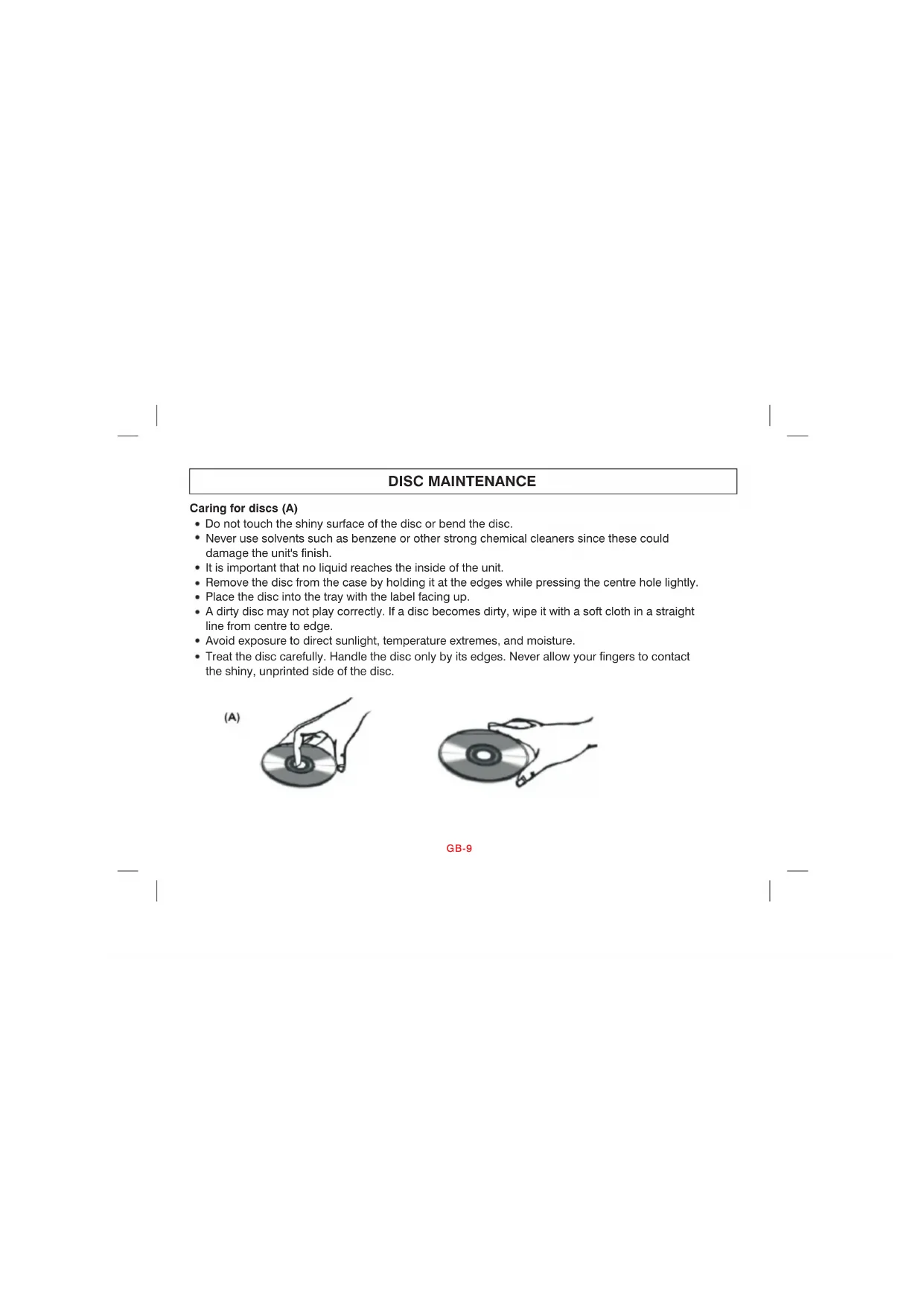
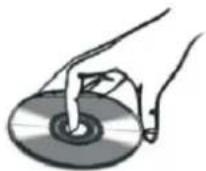
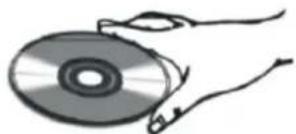
Caring for discs (A)
- Do not touch the shiny surface of the disc or bend the disc.
- Never use solvents such as benzene or other strong chemical cleaners since these could damage the unit's finish.
- It is important that no liquid reaches the inside of the unit.
- Remove the disc from the case by holding it at the edges while pressing the centre hole lightly.
- Place the disc into the tray with the label facing up.
- A dirty disc may not play correctly. If a disc becomes dirty, wipe it with a soft cloth in a straight line from centre to edge.
- Avoid exposure to direct sunlight, temperature extremes, and moisture.
- Treat the disc carefully. Handle the disc only by its edges. Never allow your fingers to contact the shiny, unprinted side of the disc.
(A)
natural_image
Hand holding a CD or DVD disc (no text or symbols visible)GB-9
Clean the discs (B)
- Do not attach adhesive tape, stickers, etc. to the disc label.
- Clean the disc periodically with a soft, lint-free, dry cloth. Never use detergents or abrasive cleaners to clean the disc. If necessary, use a CD cleaning kit.
- If a disc skips or gets stuck on a section of the disc, it is probably dirty or damaged (scratched).
- When cleaning the disc, wipe in straight lines from the centre of the disc to the outer edge of the disc. Never wipe in circular motions.
(B)
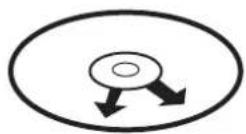
Correct
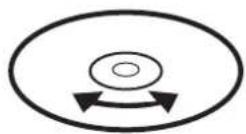
Incorrect
• Discs should be stored in their cases after each use to avoid damage.
- Do not expose discs to direct sunlight, high temperatures or dust, etc.
- Prolonged exposure or extreme temperatures can warp the disc.
- Do not stick or write anything on either side of the disc. Sharp writing instruments, or ink, may damage the surface.
KEY FUNCTIONS
IMPORTANT NOTE: The functions described below are mainly only available for DVD discs unless specified otherwise, i.e. audio CD. The on-screen messages and operations may be different for other type of discs.
Play / Stop
-
Slide the POWER switch to the ON position and then open the lid of the DVD player.
-
Press the OPEN button on the player to open the disc tray.
-
Hold the disc without touching either of its surfaces and place it on the tray with the printed title face up (for a Double-sided DVD Disc, put the disc with label A / 1 up).
-
Close the tray; the disc will load automatically.
If it is a DVD disc, the main menu or the title page will be displayed. Use the direction keys / ▲▼/◄/► of the remote control or of the device to select the desired option, and then press the PLAY key ► or the OK key to confirm.
- If it is a CD, the first track will play automatically.
- If it is a CD containing files saved in folders, use the direction keys of the remote control to select a folder or files and press the OK key to select and open it.
-
Press the STOP key ■ if you want to stop the disc playback. You can resume playback by pressing the PLAY key ▶ Playback will resume at the location where you have pressed the STOP key ■ .
-
Press the STOP key ■twice to cancel the resume function and completely stop the disc.
Volume
Press the VOL+ or VOL- keys to increase or decrease the volume.
Pause
-
Press the ▶key to pause the DVD or CD playback.
-
Press the ▶ikey again to resume playback.
Previous ◀/ Next ▶
During DVD or CD playback, press the key to return to the beginning of the previous chapter or track. Or press the key to move to the beginning of the next chapter or track.
Scan Forward ▶/ Backward ◀
Press the ▶key to search forward and the
←
key to search backward. Press either key repeatedly during playback to change the search speed: '2X', '4X', '8X' and '16X' and normal playback.
Note: Press the ▶key at any moment to resume to normal speed.
Mute
Press the MUTE key to silence the player. Press the MUTE key again to turn the sound on.
OTHER FUNCTIONS
DVD Menu
During DVD playback, press the MENU key on the player or the MENU/PBC key on the remote control to go to the DVD main menu. Use the direction keys to select the desired option and press the OK( ENTER) key to confirm.
Repeat Mode and A-B Repeat
This function is available for DVD and audio CD but with different effects.
- For DVD disc playback, press the REPEAT key once to repeat the current chapter; twice to repeat the current title; and three times to repeat the entire disc.
- For CD playback, press the REPEAT key once to repeat the current track, and twice to repeat the whole disc (repeat all tracks).
- Press the key repeatedly to cancel the repetition.
- To repeat a segment of the DVD or CD while in playback mode, press the A-B key once to set the start of the repeat; twice to signal the
end of the repeat; and three times to turn the repeat off.
Subtitle
Press the SUBTITLE key repeatedly to turn on and change the subtitle language shown onscreen.
Note:
Number of subtitles available depends on the DVD disc.
Audio
- During DVD playback, press the AUDIO key to change the audio language of the DVD disc (if this function is available with the disc). Press the AUDIO key repeatedly to change the language.
- During audio CD playback, press the AUDIO key repeatedly to select 'Stereo', 'Left', 'Right' or 'Mix'.
Search
You can jump to a specific time location, track, chapter or title.
-
Press the GO TO key to enter the search mode.
-
Press the ▲/▼keys to select the search criteria:
-
DVD a title, a chapter or specific time of a title.
-
CD a track, specific time of a track or specific time of the disc.
-
Use the numeric keys to enter the desired title, chapter, time or track.
- Press the OK key and the player will jump to the target location immediately.
Title
To search for a specific title on a DVD / audio CD, press the TITLE key and use the direction keys to select a title. Press the OK key to start playing the title.
Display
Press the DISPLAY key to show the time and status information on the screen (elapsed time, remaining title, elapsed chapter, remaining chapter ...). Press this key repeatedly to hide the information.
Zoom
Press the ZOOM key repeatedly to select zoom levels 1-4 or turn this feature off.
LCD-MODE
- To change the 'Brightness', 'Contrast' and 'Colour':
Press the LCD-MODE key. Use the /▲ keys to select the option and the /◀ keys to increase or decrease the setting. - To 'Flip' the screen, change the screen 'Mode' or 'Reset' all the LCD-MODE options: Press the LCD-MODE key. Use the /▲ keys to select the option and press OK to confirm.
Note:
when you are in the LCD-MODE menu, press the LCD-MODE key at any time to exit.
Program
To program the order of play:
- Press the PROG key.
- Use the numeric keys to enter the title and chapter for a DVD, or just the chapter for a VCD or an audio CD.
- Use the direction keys to move to the next setting.
- Select 'Play' to start playing the programmed order and press the OK key to confirm. (If you select 'Clear Program' the player will use the order of play on the disc.)
DVD SETTINGS
The portable DVD player provides four setting menus: 'Language', 'Video', 'Audio' and 'Misc'.
- To access the setting menus, the disc must be stopped (press the key once or twice).
- To enter the setting menus page, press the SETUP key.
- Use the ▲/▼ keys to select a menu.
-
Use the direction keys to navigate through the menus and select the available options. Press the OK key to confirm your settings.
-
To exit, press the SETUP key at any time.
LANGUAGE SETUP
Press the SETUP key, and use the ▲ keys to highlight 'Language'. Then press the key ▶ to enter the settings.
Note: Use the key to return to the previous menu.
Language
-
Use the ▲/ ▼ keys to select: • Language
-
Subtitle
- DIVX subtitle
- Audio
- DVD menu
- Press ▶ and then use the ▲ keys to select a language.
- Press the OK (ENTER) key to confirm your selection.
VIDEO SETUP
Press the SETUP key, and use the ▲ keys to highlight 'Video'. Then press the key to enter the settings.
Note: Use the ↓key to return to the previous menu.
Aspect Ratio
- Use the ▲/▼ keys to select 'Aspect Ratio' and press ▶.
-
Use the ▲/▼ keys to select:
-
'4.3LB' Use this setting if you have a normal TV to display a wide-screen picture.
- '4.3PS' Use this setting if you have normal TV with a non-wide-screen picture.
-
'16:9' Use this setting if you have a wide-screen TV.
-
Press the OK (ENTER) key to confirm your selection.
TV System
- Use the ▲/▼keys to select 'TV System' and press ▶.
-
Use the ▲/▼ keys to select:
-
'NTSC' Use this setting if the TV has a NTSC system.
- 'PAL' Use this setting if the TV has a PAL system.
-
Auto' Use this setting so the system can select the most appropriate setting.
-
Press the OK (ENTER) key to confirm your selection.
Note: To quickly switch between PAL and NTSC mode, press the N / P key when the player is stopped.
AUDIO SETUP
Press the SETUP key, and use the ▲ keys to highlight 'Audio'. Then press the key to enter the settings.
Note: Use the key to return to the previous menu.
- Press the OK (ENTER) key to confirm your selection.
Dual Mono
-
Use the / keys to select
-
Stereo
- Mono L
- Mono R
• MIX Mono:
MISC SETUP
Press the SETUP key, and use the /▲ keys to highlight 'Misc'. Then press the key to enter the settings.
Note: Use the ◀key to return to the previous menu.
Default Settings
Restores the player to the factory settings.
- Use the ▲/▼ keys to select 'Use Default Settings'.
- Press the OK key and then use the key to select 'Yes' or 'No'.
- Press the OK key to confirm your selection.
Screen Saver
- Use the ▲/▼ keys to select 'Screen Saver' and press ▶.
- Use the ▲/▼ keys to select 'On' or 'Off'.
- Press the OK key to confirm your selection.
Note: The screen saver default setting is 'On'.
Enable
Turns the disc resume function 'On' or 'Off'.
- Use the ▲/▼ keys to select 'Enable' and press ▶.
- Use the ▲▼ keys to select 'On' or 'Off'.
- Press the OK key to confirm your selection.
CD ADDITIONAL FUNCTIONS
Most of the CD functions are detailed earlier in this manual. However, when you load a CD and you are viewing the tracks menu screen, there are some additional functions in the right hand column:
Repeat - Select this option using the direction keys and press the OK key repeatedly to select
repeat 'Single', 'All' or turn this function 'Off'.
Mode Select this option using the direction keys and press the 'OK' key to 'Shuffle' and randomly play the songs; 'Music Intro' to listen to the start of each track and 'Normal' to return to normal play.
PICTURE CD
Picture CD
-
Load a picture CD into the tray. If the disc is identified, the player will automatically display the pictures.
-
To view the list of folders and photos stored on the CD, press the ▪key.
-
Use the ▲/▼keys to select a folder, then press the OK key to start browsing through the files.
-
Use the ▲▼ keys to select a photo, then press the OK key to launch a slide show of the pictures.
-
Press ▶to pause and/or resume the slide show.
-
Press <</ >> on the remote control to skip to the next picture or return to the previous picture.
-
Use the ▲/▼/◄/►direction keys to flip of rotate the pictures.
Note: During the slide show:
- The numeric keys can also be used to directly input the number corresponding to a photo. For numbers over 10 i.e. 12, press the 10+ key and then the number 2. You can press the ■key at any time to go back to the list of pictures.
- Press the DISPLAY key to show the file type and photo number i.e. 'Track 14 / 59'.
- Press the ZOOM key repeatedly to enlarge the picture.
USB and SD / MMC card
- Insert the USB or SD / MMC card into the USB socket or SD / MMC socket.
- Press the USB / SD key.
- Use the direction keys to select 'DISC', 'USB' or 'SD / MS' and press the OK key to confirm.
- If the player automatically starts playing
the Video, Audio or Picture files, press the STOP ■ key to view the file menu and select the files you wish to play.
5. For all other functions refer to the instructions earlier in this manual for playing DVD, Audio or picture files.
SPECIFICATIONS
GENERAL
Power source : DC = 12V 1.5A
Power consumption: 16W
External dimensions:205 x 155 x 37.3mm
(W) × (H) × (D)
Screen size179mm (7 inches)
Weight:672.5g
Operating temperature 5°C to 35°C (41°F to 95°F)
Operating humidity 5% to 90%
SYSTEM
LaserSemiconductor laser wave length 650nm
Signal system PAL / NTSC
S / N more than 70db
Dynamic range more than 70db
OUTPUT
Composite video 1.0V P-P
Audio output (Analogy) 0.5Vrms
TROUBLESHOOTING
| Problem | Solution |
| The player does not turn on. | - Check the power connection. |
| No sound. | - If the player is connected to other devices (TV or audio amplifier), check the connections.- Make sure the connected devices operate properly.- Check the unit's volume. |
| The player does not play the inserted disc. | - Make sure the disc is properly inserted.- Clean the disc. |
| The remote control does not operate properly or the player does not respond properly to the remote control. | - Make sure there are no obstacles between the remote control and the player's remote sensor.- Make sure to aim the remote control at the remote sensor on the front panel of the player.- Check the remote control's battery and replace it if necessary.- Make sure to use the remote control within three metres of the remote sensor. |
| Low quality picture. | - Check the disc for dirt and scratches.- Shut down the player, wait 10 seconds, and restart the unit. |
| The player's keys don't operate properly. | - Power surges or other electrical phenomena may cause malfunction. Shut down the player, wait ten seconds, and restart the unit. |
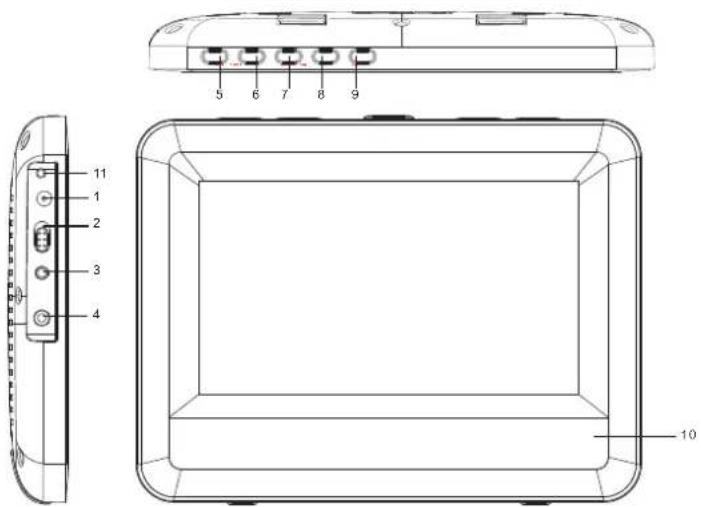
DISPLAY DESCRIPTION
THE FUNCTION PARTS OF THE UNIT
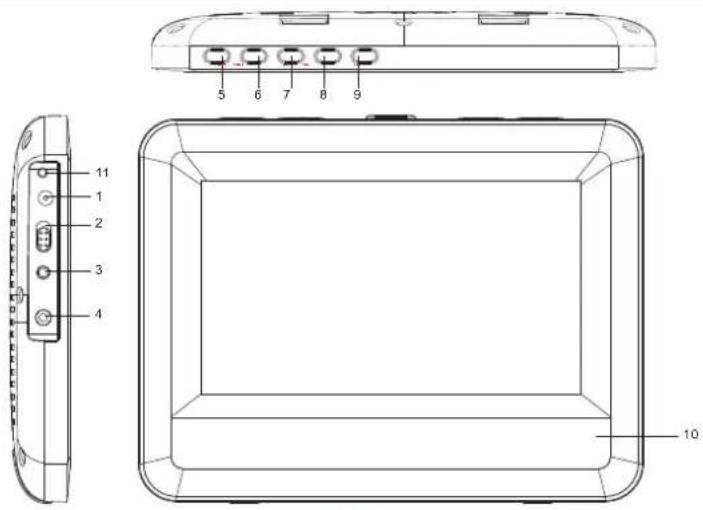
GB-21
CONTROLS
- DC IN 12V == adaptor jack
- SETUP button
- Power ON / OFF switch 8. VOL- button
- A / V input jack 9.VOL+ button
- Headphone's output jack 10.Speakers
- LEFT button 11.Power indicator
- RIGHT button
Power connection
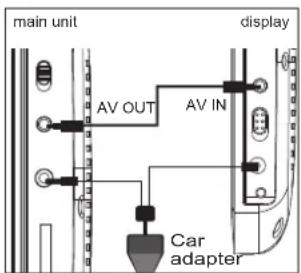
Use the car adaptor (DC 12V) or the other adaptor (DC 12V) to connect the display to DC12V socket.
Headphones connection
On the right side of the unit is a headphones socket, suitable for any normal earphones. When the headphones are in use, the speakers are turned off.
CAUTION: Too high volume, especially when using headphones, can damage your hearing. For this reason, please turn the volume down before connecting the headphones.
AV input connection
Suitable for normal AV cable to connect the display to other units.
How to connect with the main unit
AV IN jack via AV cable to connect with the main unit AV OUT jack.
GB-22
KEY FUNCTIONS
Volume
Press the VOL+ or VOL- keys to increase or decrease the volume.
SETUP
Press the SETUP key into system settings.
• BRIGHTNESS
- CONTRAST
- SATURATION
• HUE
- RESET
- Press the SETUP key to RESET option
-Press the RIGHT key to confirm your selection.
LEFT/RIGHT
Press the SETUP key to select a option
Press the LEFT or RIGHT keys to increase or
decrease the setup
SPECIFICATIONS
GENERAL
Power source : DC = 12V 1A
Power consumption: 10W
External dimensions:205 x 155 x 24.3mm
Screen size179mm (7 inches)
Weight: 373g
Operating temperature 5°C to 35°C (41°F to 95°F)
Operating humidity 5% to 90%
SYSTEM
S / N more than 70db
Dynamic range more than 70db
INPUT
Composite video 1.0V P-P
Audio input (Analogy) 0.5Vrms
SIZE: 148x105mmFR
MARQUANT
MCDKIT-15
GUIDE D'UTILISATION
natural_image
Line drawing of a laptop with front panel and rear panel, showing internal components (no text or symbols)LECTEUR DVD PORTABLE 7"AVEC PRISES USB / SD / MMC
FR-1
CONFIGURATIONS DIVERSES
$$ (I) \times (H) \times (P) $$
$$ (I) \times (H) \times (P) $$
natural_image
Line drawing of a laptop with front panel and rear panel, showing internal components (no text or symbols)7" DRAAGBARE DVD-SPELER MET USB/SD/MMC-INGANGEN
Composiet video 1,0 V P-P
Audio-uitgang (analoog) 0,5 Vrms
DISPLAY BESCHRIJVING
DE FUNCTIEDELEN VAN HET TOESTEL
NL-16
BEDIENINGSELEMENTEN
- WARNING
- CAUTION
- CAUTION!
- Portable DVD player description
- REMOTE CONTROL
- Battery information
- Battery replacement
- Using the remote control
- Power connection
- Headphones connection
- Note:
- DISC MAINTENANCE
- Caring for discs (A)
- Clean the discs (B)
- KEY FUNCTIONS
- Play / Stop
- Volume
- Pause
- Previous ◀/ Next ▶
- Scan Forward ▶/ Backward ◀
- Mute
- OTHER FUNCTIONS
- DVD Menu
- Repeat Mode and A-B Repeat
- Subtitle
- Audio
- Search
- Title
- Display
- Zoom
- LCD-MODE
- Program
- DVD SETTINGS
- LANGUAGE SETUP
- Language
- VIDEO SETUP
- Aspect Ratio
- TV System
- AUDIO SETUP
- Dual Mono
- MISC SETUP
- Default Settings
- Screen Saver
- Enable
- CD ADDITIONAL FUNCTIONS
- PICTURE CD
- USB and SD / MMC card
- SPECIFICATIONS
- GENERAL
- SYSTEM
- OUTPUT
- DISPLAY DESCRIPTION
- CONTROLS
- AV input connection
- How to connect with the main unit
- SETUP
- LEFT/RIGHT
- INPUT
- MARQUANT
- CONFIGURATIONS DIVERSES
- DISPLAY BESCHRIJVING
- BEDIENINGSELEMENTEN
Brand : Marquant
Model : MCDKIT15
Category : Portable DVD Player