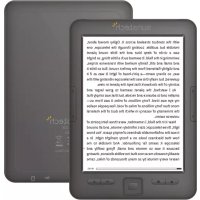
EBI5 - E-reader Sunstech - Free user manual and instructions
Find the device manual for free EBI5 Sunstech in PDF.




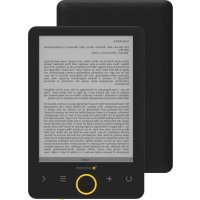
| Product Type | E-book Reader |
| Brand | Sunstech |
| Model | EBI5 |
| Screen | E-Ink screen |
| Supported book formats | TXT, EPUB, PDF, FB2, HTML, HTM |
| Supported audio formats | MP3, WAV, WMA, OGG |
| Supported image formats | JPG, BMP, TIF, PNG, GIF |
| Internal storage | Internal memory (capacity not specified) + TF card slot (microSD) |
| Power supply | Built-in rechargeable battery, charging via USB port |
| Connectivity | USB 2.0 port, 3.5mm headphone jack |
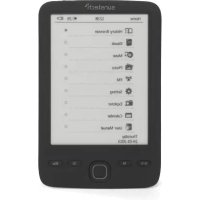
| Controls | Previous/next page buttons, home, menu, navigation pad (up/down/left/right), OK, back, refresh, power button |
| Navigation | Directional joystick |
| Main features | Reading books, music, images, file manager, settings (font, date, sleep, language), ability to add bookmarks and annotations |
| Operating temperature | 0 °C to 40 °C |
| Care and cleaning | Clean with a soft, dry cloth; do not use liquid chemical products |
| Safety | Do not expose to moisture, do not disassemble, avoid shocks and strong vibrations, turn off wireless functions near medical equipment |
| Warranty | 2 years from date of purchase (excluding misuse) |
| Manufacturer | Made in China, Sunstech (Barcelona) |
Frequently Asked Questions - EBI5 Sunstech
User questions about EBI5 Sunstech
0 question about this device. Answer the ones you know or ask your own.
Ask a new question about this device
Download the instructions for your E-reader in PDF format for free! Find your manual EBI5 - Sunstech and take your electronic device back in hand. On this page are published all the documents necessary for the use of your device. EBI5 by Sunstech.
USER MANUAL EBI5 Sunstech
Foreword
We are dedicated to keep improving product performance and product quality, and also make effort to ensure correctness and completeness of this manual, however the manual maybe subject to changewithout prior notice, if part so the software are not consistent with current version, please make use actual software as standard.
Our company could not bear any responsibility for data loss, software damage, expanded storageequipmentdamageandprivatecomputerdamageduetomalfunctioncausedbyuser's misuse.
Beforeusingthisproduct, pleasereadthismanualcarefully.
Tip:
If the device cannot power on for first using, please check the battery's capacity, please charging when battery is slower
Notes
Pleasekindlyreadcarefullyallthenotesbelowtoavoidunnecessarylossestothe maximum
I SafetyNotes
1 Thedevicedoesn'tpossesswaterproofperformance.Pleaseprohibitusingunderwet anddangerousenvironment.
2Neverplacethedeviceundersharpsunlightinordernottoshortenthebatterylife
3、Neversqueezedisplaypanelorputheavyobjecttoprotectthescreenfromgetting
broken
4、Stoperasingthedevicewithchemicalliquid.Pleasecleanusingcotton-freesoftcloth
5、Don'tleaveout,beatorvibratethedevice.Becausestrongvibrationorfallingdownwill causethedamageofthedeviceorrudetreatmentwillruininternalstructures
6、Don'tteardownthedevicepersonally.Thedevicemalfunctionwillbecauseby non-professionalmaintenancepersonswithoutourcompany.Thewarrantywon'tbe accepted.
7、Toensureflightsafety,makesurethenetworkisswitchedoffwhiletakingtheplane
8、Normalworktemperatureofdevicedisplaypanelis0-40 °C.Ifsurpassthescope,the
displayeffectwillbecomeworse
9、Close wireless near medical equipment, which may be interfered at hospital or health care organizations
10、Stopplacingthe devicearoundheatingequipmentbecauseheatingbatterywillcause
explosion
11、Stopusingifthebatteryisdamaged,distorted,discolored,overheatedorsmellsbad.
Ⅱ、ProductNotes
1 If thereader couldn't recognize the T-card inserted, please take out and insert again
2WhiletheT-cardisreadingdata,pleasestopinserting,shutdownorresettingT-card
3、Choose FAT format while formatting T-card
4、StopsavingordeletingonT-cardfrequentlyinordernottoshortentheT-cardlife
5、Avoidthedevicebeingbeatstrongly,staticorbatteryinterfereofotherdevices6lfthedeviceishardtoexitorsuspendtheoperation,pleasepressRESETbuttontorestart
◆Instruction
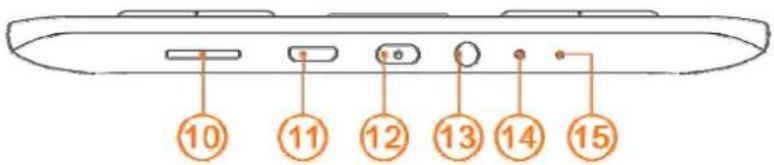
Topside :
Frontside :
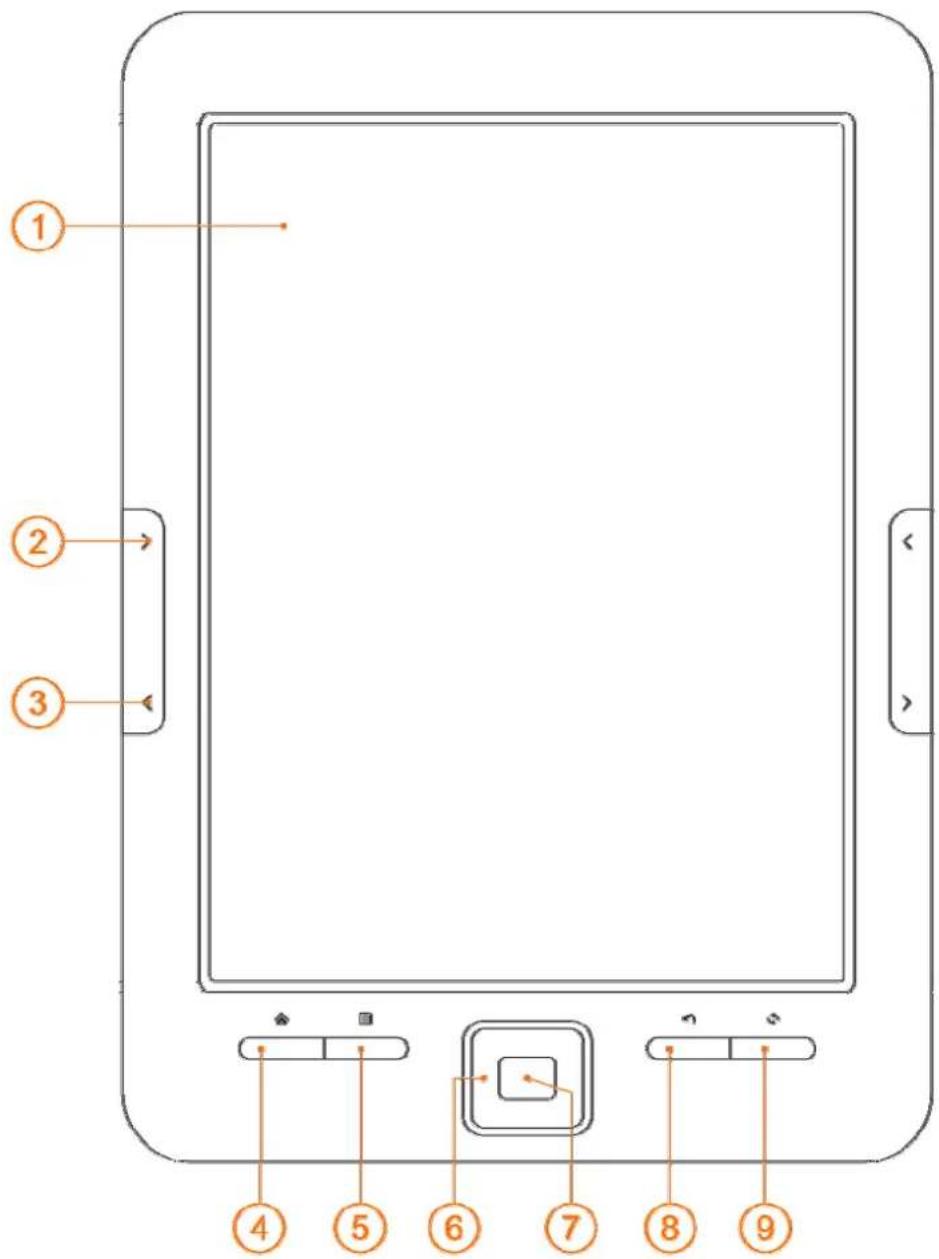
| 1 | E-inkPanel | E-inkpanelcontentsdisplayedarea,whichmakesyouenjoyreadinglikerealpapers |
| 2 | PreviousPage | Lookthoughcontentsonpreviouspage |
| 3 | NextPage | Lookthoughcontentsonnextpage |
| 4 | Home | Backtodesktop |
| 5 | Menu | Displaythemenuwindow |
| 6 | Joystick | Upanddown,rightandleftnavigation |
| 7 | OK | Confirmandexecutetheselecteditem. |
| 8 | BACK | Movetothepreviousscreen |
| 9 | Refresh | FullScreenRefresh |
| 10 | TF-cardSlot | InsertTF-cardrightintotheappointedslot |
| 11 | USBPort | Connecttothecomputertotransferfilesorconnecttothecomputerrecharge. |
| 12 | Power | Poweron/off,shortpressing5minstoshutdownandlongpressingtopoweron |
| 13 | Earphoneport | Connect3.5mmearphone |
| 14 | Reset | Resettorestart |
| 15 | Indicator | thisindicatorlightwhenchargingandpoweron/off |
◆Desktop
MainMenu: CurrentReading、Directory
Current Reading
The Art of War
Sun Tzu
35/52 67%

natural_image
Illustration of an open book and a globe with clock hands (no text or symbols)Recent

Books

Image

Music

natural_image
Icon depicting a magnifying glass over a document with city skyline background (no text or symbols)File Manager

Settings
Notes

Manual
Recent
RecentReadingicononmaininterfaceshowsonebookreadrecently.Clickingonthisbook willopenpreviousreadingpagestokeepreading.
Recent: Clickingon "recent" ondesktopwilldirectlyenterintorecentreadinglistspage, which savesmore recentreadingrecords. Andpresstheup&downbuttonsyoucancheckmore readingrecords
MENUFunctions

Delete:deleteselecteditems

DeleteAll:deletealltherecordslisted

MediaPlaying:checkmusicexecutedbymediaplayerandbackground

Turnoff:turnoffdevicefunction
Books
BooksshowedaresavedbooksandfoldersondocumentsfolderstoredonlocalmemoryandT-card;Booksinterfacesupportslistdetailsandshelfmethods.Shelfmethod:ifcoverscontainedonbooks,thedisplaywillbethroughcovers;ifopposite,defaultcoverswillbeadded,whichincludebooknames,formatsandtypes.Listdetailsmethod:displaybooktypes,sizesandbuildingtime.
09:48
9.5.2012
PM
Wednesday

Books(23)


natural_image
Portrait painting of a man and a woman in formal attire, no visible text or symbols


09:54
9.5.2012
PM
Wednesday

Books(15)


War of the Worlds, The - H. G. Wells
H. G. Wells
EPUB document

1008.5KB
2012.05.14

Herman Melville - Moby-Dick
Herman Melville
EPUB document

1.0MB
2012.05.14

Delete:deleteselecteditems

Shelfandlistmode:changemybooksintodisplayofshelfmethodorlistmethod

Sort:Supportsortbyfilename,filesize, filetype,buildingtimeanddescendingand ascending.Defaultsortisbyfilenameandascending.

Properties:checkpropertiesofselecteditems.Theinformationcontainsfilename, filetype,filesize, routeandbuildingtime

Mediaplayer:youcanturnonthemediaplayertoplatorstopplaymusic
◆Reading
it my first duty to have done so had I not been barred by a positive prohibition from his own lips, which was only withdrawn upon the third of last month.
It can be imagined that my close intimacy with Sherlock Holmes had interested me deeply in crime, and that after his disappearance I never failed to read with care the various problems which came before the public, and I even attempted more than once for my own private satisfaction to employ his methods in their solution, though with indifferent success. There was none, however, which appealed to me like this tragedy of Ronald Adair. As I read the evidence at the inquest, which led up to a verdict of wilful murder against some person or persons unknown, I realised more clearly than I had ever done the loss which the community had sustained by the death of Sherlock Holmes. There were points about this strange business which would, I was sure, have specially appealed to him, and the efforts of the police would have been supplemented, or more probably anticipated, by the trained observation and the alert mind of the first criminal agent in Europe. All day as I drove upon my round I turned over the case in my mind, and found no explanation which appeared to me to be adequate. At the risk of telling a twice-told tale I will recapitulate the facts as they were known to the public at the conclusion of the inquest.
The Honourable Ronald Adair was the second son of the Earl of Maynooth, at that time Governor of one of the Australian Colonies. Adair's mother had returned from Australia to undergo the operation for cataract, and she, her son Ronald, and her daughter Hilda were living together at 427, Park Lane. The youth moved in the best society, had, so far as was known, no enemies, and no particular vices. He had been engaged to Miss Edith
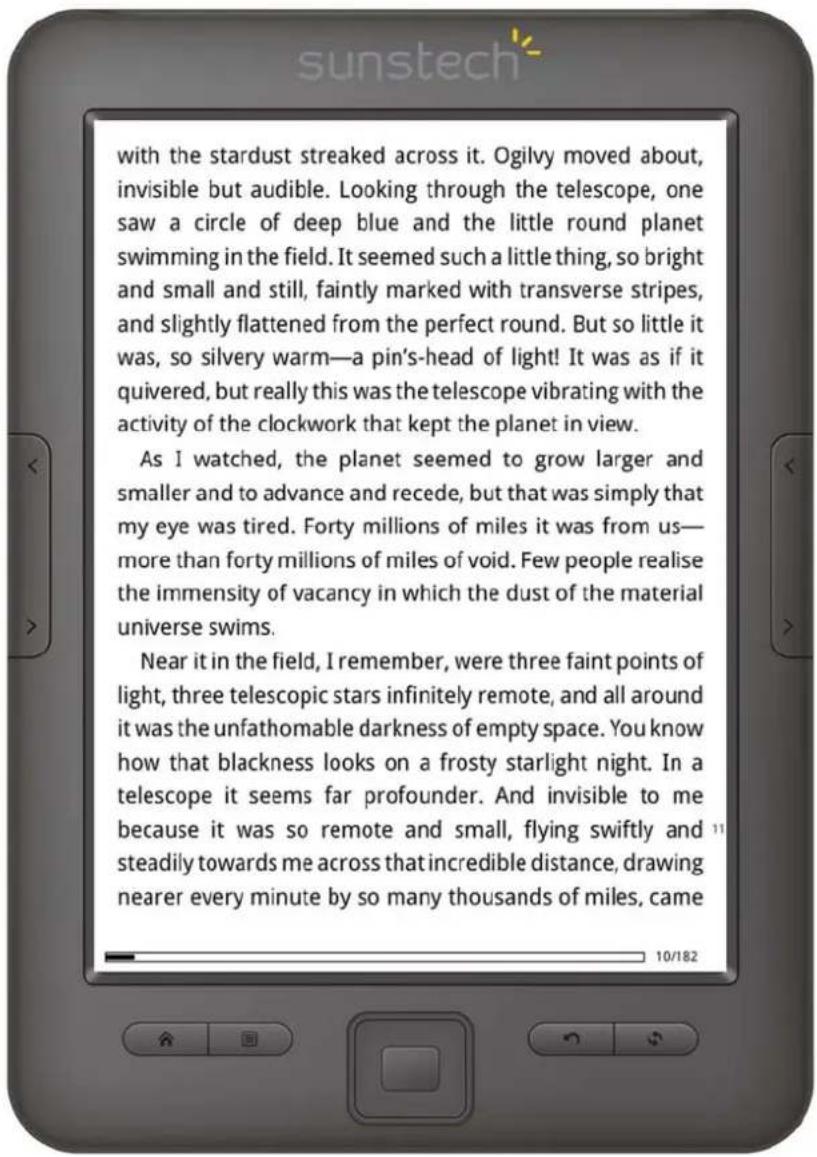
Readinginterfaceshowstheratioofreadingspeed,totalpagesandcurrentreadingpage. Allthebooksreadcouldrecordlastreadingpagesafterclosingandopeningagain.Use turningkeystoexecutereadingturning.
WarmTips :PagesNo.maybenotshowedimmediatelywhileopeningbooks.Waita momenttocalculatepageNo.Morebookcontents,longerittakestoshow.
ExecutivefunctionsonReadingInterface:
ReadingMenuFunctions

JumpPage:Jumptoinitialpage,lastpage,contents(onlycontentsincludedon books),andappointedpages.

Search: input the keywords and press confirm they can entre, these areched out contentswilldisplayedthroughblack&whiteinversemark

Pagesetting:youcanadjustthesizeofletters,zoomscale,Linespace,Margins, family

AddBookMarks:Addbookmarksforcurrentreadingpagesandbookmarkssigns willbeshowedonthetopcornerofthepage

CheckBookMarksandAnnotations:bookmarksandannotationsinterface
shows successfully added book marks and annotations. Press left and right navigation keys to change book marks and annotations list interface. The menu function supports singledeleteandwholedelete

OpenandCloseAuto-Turning:openandcloseauto-turning.Relevantauto-turning settingscouldfollowreadingsettinginstructions.

Rotate:selecttherightdirectionyouwant,thenpressok

ReadingSettings:Setcurrentreadingbylanguages,speedandvolume.Current supportChineseandEnglish.

Auto-TurningSettings:setauto-turning.Theunitisbysecond

BooksProperties:checkpropertiesofselecteditems.Theinformationcontainsfile name, filetype, filesize, route and building time.

MediaPlaying:checkmusicexecutedbymediaplayerandbackground
◆ Image
This devicesupportbelowmentionedpicturesformatandcomic :JPG、BMP、TIF、PNG、GIF
10:40
9.5.2012
PM Wednesday

Pictures(12)

natural_image
Close-up photo of a koala with open mouth and visible facial features (no text or symbols)
natural_image
Three penguins standing in a desert environment under a blue sky (no text or symbols visible)
natural_image
Lighthouse on rocky cliff at dusk with misty sea and trees in background (no text or symbols visible)
natural_image
Close-up of green maple leaves with blurred natural background (no text or symbols)
natural_image
Ink painting of a plum blossom branch with blossoms and leaves, no visible text or symbols
natural_image
Traditional East Asian ink painting of peonies and a rock, no text or symbols present
MypictureshowspicturesandfolderssavedonlocalmemoryandT-card
Throughmenuyoucansearch,delete,sort,jumptopageandseePropertiesetc
SupportedFormats :
WAV、WMA、OGG、MP3
MusicPlayingInterface :
11:32
9.5.2012
PM
Wednesday


natural_image
Illustration of a person in space suit inside a spacecraft cockpit with Earth and stars in background (no text or symbols)Current Reading
Завтра война
Александр Зорич
7/1153 0%

Recent

Books

Image
Music




00:06
21 Guns [featuring Green Day A
Green Day
21 Guns [featuring Green Day a
04:41

natural_image
Circular diagram with bidirectional arrows and a central double arrow, no text or symbols present

andT-card, Openmusictoselectmusicandexecuteplayingorclickonmusicplayeron desktoptoplay.Musicplayerinterfacecouldappearbymenukeyinreadinginterface.
MusicPlayerFunctionIntroduction :
Inmusicplayerinterface, Clickagaintopopoutmusicplayer. Use left and right navigation keystoplay previous and next song, and long pressing to forward and backward; Up and downnavigation keys are used to adjust volumes; Ok keyistosuspend and play. Music player interfaces shows names of the songs, singers, album names and others. Pressing menu key could conduct playing methods setting such as single loop, order playing, whole loop and random playing. Exit music player or execute background playing press back key.
◆FileManager
CheckallthefilesandfoldersonlocalmemoryandTcardbythisapplicationsuchas
Documents, Music, Pictures, Memo. If no folders showed on the device, please build according folder names manually or reboot the device. Besides, application interfaces corresponded with Documents, Music, Picture support sub-folders.
Documents:ifsearchforbookformatsonMyBooks,usersneedstorebooksintothis folder。
Music:ifplaymusicdirectlyonMyMusicormusicplayerondesktop,usersneedstore musicintothisfolder
Pictures:IflookthoughpicturesonMyPictures,pleasesavepicturesintothisfolder Memo:savenewly-builtrecordsonmemo
◆Settings
1、FontsSettings
Fivefontscanbeshowedindefault.Besides,usescouldcopyrequiredfontsintofonts foldertoinstallnewfonts.Shutdownandpoweron,thennewlyinstalledfontscouldbe displayedonfontssettings.
2、DateandTimeSettings
Reviseyear,month,date,hourandminbythisfunction.Pressleftandrightnavigation keystoadjustvaluesafterselectingtheitems.Pressbackkeytosaveandexit
12hourssystemand24hourssystemareoptional.
Ebookwillconnectnetworkandsynchronizenetworktimewhenselectnetworktime
3、Standbybytimesettings
Forscreenrefreshsettings, alarmsettings and restore factory
6、Languagesettings
Change the language you need, this ebook support more than 100 languages and restarttowork.
7、SystemInfo
ViewthePCBAversion,SN,memorycardandSDcardinfo.
8、Manual
Detaileddescriptionofoperatingthedeviceispresented.Userscouldbeguidedto operateanduserelevantfunctions.
Warrantyconditions
-Thewarrantyofthisproductisfor2yearssincethepurchasedate.
-Thewarrantywillexcludebreakdownscausedbybaduseoftheproduct,wronginstallationor
installation in not desirable places for a proper maintenance of the product, rips, updates of the products
thatarenotthesuppliedbythebrand,piecesworeawayforitsuseorfornotdomesticorinappropriate
use.Alsoareexcludedbreakdownscausedformanipulationsoftheproductsbypeopleorcompanies
alientoourcompany.
-Foranyrequestregardingthewarrantyterms,thepurchasereceiptmustbeattached.
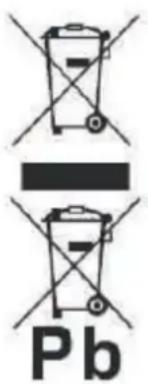
CorrectdisposalofthisProduct
(WasteElectrical&ElectronicEquipment(WEEE)
Yourproductisdesignedandmanufacturedwithhighqualitymaterialsand componentswhichcanberecycledandreused.
Thissymbolmeansthatelectricalandelectronicequipment,attheirendof-lifeshouldbedisposedofseparatelyfromyourhouseholdwaste.
Pleasedisposeofthisequipmentatyourlocalcommunitywastecollection/recyclingcentre.
IntheEuropeanUnionthereareseparatecollectionsystemsforused electricalandelectronicproducts.Pleasehelpustoconservethe environmentwelvein!
DECLARATION OF CONFORMITY
Council Directive(s) to which conformity is declared:
Directive (2004/108/EC) - EMC
Directive (2011/65/EU) - RoHS
Application of the Standards:
EN 61000-3-2:2006+A1:2009+A2:2009
EN 55022:2010
EN 55024:2010
EN 61000-3-3:2008
IEC 62321 Ed.1 - 111/95/CDV
Manufacturer's name:
AFEX SUNS, S.A.
Manufacturer's address:
C/Pallars 189, 08005 Barcelona
Type of equipment:
EBOOK
Trade:
SUNSTECH
Model no.:
EBI5
We, the undersigned, hereby declare under our sole responsibility that the specified equipment is in conformity with the above Directive(s) and Standard(s)
Place: Barcelona
(Signature)
Víctor Planas Bas
(Full name)
Date: 10 - March - 2015
General Manager
(Position)
sunstech ^1/2
e-booklector
EBI5
MANUALDEUSUARIO
Prólogo
Botónfunción:
Current Reading
The Art of War
Sun Tzu
35/52 67%

natural_image
Illustration of an open book and a globe with clock hands (no text or symbols)Recent

Books

Image

Music

natural_image
Icon depicting a magnifying glass over a document with city skyline background (no text or symbols)File Manager

Settings
Notes

Manual
◆ Reciente
natural_image
Historical portrait painting of a man and woman in 19th-century attire, with no visible text or symbols[Non-Text]
War of the Worlds, The - H. G. Wells
H. G. Wells
EPUB document

1008.5KB
2012.05.14

Herman Melville - Moby-Dick
Herman Melville
EPUB document

1.0MB
2012.05.14

it my first duty to have done so had I not been barred by a positive prohibition from his own lips, which was only withdrawn upon the third of last month.
It can be imagined that my close intimacy with Sherlock Holmes had interested me deeply in crime, and that after his disappearance I never failed to read with care the various problems which came before the public, and I even attempted more than once for my own private satisfaction to employ his methods in their solution, though with indifferent success. There was none, however, which appealed to me like this tragedy of Ronald Adair. As I read the evidence at the inquest, which led up to a verdict of wilful murder against some person or persons unknown, I realised more clearly than I had ever done the loss which the community had sustained by the death of Sherlock Holmes. There were points about this strange business which would, I was sure, have specially appealed to him, and the efforts of the police would have been supplemented, or more probably anticipated, by the trained observation and the alert mind of the first criminal agent in Europe. All day as I drove upon my round I turned over the case in my mind, and found no explanation which appeared to me to be adequate. At the risk of telling a twice-told tale I will recapitulate the facts as they were known to the public at the conclusion of the inquest.
The Honourable Ronald Adair was the second son of the Earl of Maynooth, at that time Governor of one of the Australian Colonies. Adair's mother had returned from Australia to undergo the operation for cataract, and she, her son Ronald, and her daughter Hilda were living together at 427, Park Lane. The youth moved in the best society, had, so far as was known, no enemies, and no particular vices. He had been engaged to Miss Edith
natural_image
Close-up photo of a koala with visible facial features and open mouth (no text or symbols)
natural_image
Three penguins standing in a row against a blue sky (no text or symbols visible)
natural_image
Lighthouse on a rocky cliff at dusk, no visible text or symbols
natural_image
Close-up of green maple leaves with visible veins and small buds (no text or symbols)
natural_image
Ink painting of a flowering branch with blossoms and leaves, no visible text or symbols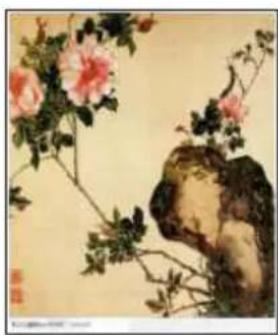
natural_image
Traditional ink painting of a figure climbing branches with pink flowers (no text or symbols)
1 / 2
natural_image
Illustration of a person in space suit inside a spacecraft cockpit with Earth and stars in background (no text or symbols)Current Reading
Завтра война
Александр Зорич
7/1153 0%

Recent

Books

Image
Music




00:06
21 Guns [featuring Green Day A
Green Day
21 Guns [featuring Green Day a
04:41

natural_image
Circular diagram with bidirectional arrows and a central double arrow, no text or symbols present

Directive (2004/108/EC) - EMC
Directive (2002/95/EU) - RoHS
IEC 62321 Ed.1 - 111/95/CDV
Avant-propos
Fonctiondubouton:
Current Reading
The Art of War
Sun Tzu
35/52 67%

natural_image
Illustration of an open book and a globe with clock (no text or symbols)Recent

Books

Image

Music

natural_image
Icon depicting a magnifying glass over a document with city skyline background (no text or symbols)File Manager

Settings
Notes

Manual
◆ Récent
natural_image
Illustration of a person in space suit inside a spacecraft with Earth and stars in background (no text or symbols)
natural_image
Historical painting depicting two figures in period attire, one seated and one standing, with no visible text or symbols.




09:54
PM
9.5.2012
Wednesday

Books(15)


War of the Worlds, The - H. G. Wells
H. G. Wells
EPUB document

1008.5KB
2012.05.14

Herman Melville - Moby-Dick
Herman Melville
EPUB document

1.0MB
2012.05.14

it my first duty to have done so had I not been barred by a positive prohibition from his own lips, which was only withdrawn upon the third of last month.
It can be imagined that my close intimacy with Sherlock Holmes had interested me deeply in crime, and that after his disappearance I never failed to read with care the various problems which came before the public, and I even attempted more than once for my own private satisfaction to employ his methods in their solution, though with indifferent success. There was none, however, which appealed to me like this tragedy of Ronald Adair. As I read the evidence at the inquest, which led up to a verdict of wilful murder against some person or persons unknown, I realised more clearly than I had ever done the loss which the community had sustained by the death of Sherlock Holmes. There were points about this strange business which would, I was sure, have specially appealed to him, and the efforts of the police would have been supplemented, or more probably anticipated, by the trained observation and the alert mind of the first criminal agent in Europe. All day as I drove upon my round I turned over the case in my mind, and found no explanation which appeared to me to be adequate. At the risk of telling a twice-told tale I will recapitulate the facts as they were known to the public at the conclusion of the inquest.
The Honourable Ronald Adair was the second son of the Earl of Maynooth, at that time Governor of one of the Australian Colonies. Adair's mother had returned from Australia to undergo the operation for cataract, and she, her son Ronald, and her daughter Hilda were living together at 427, Park Lane. The youth moved in the best society, had, so far as was known, no enemies, and no particular vices. He had been engaged to Miss Edith
natural_image
Close-up photo of a koala with open mouth and visible eye, surrounded by foliage (no text or symbols)
natural_image
Three penguins standing together on a beach under a clear sky (no text or symbols visible)
natural_image
Lighthouse on rocky cliff at dusk, no visible text or symbols
natural_image
Close-up of green maple leaves on a branch against a blurred blue sky (no text or symbols)
natural_image
Ink painting of a plum blossom branch with blossoms and leaves, no visible text or symbols
natural_image
Traditional ink painting of peonies and a rock with green leaves (no text or symbols)
MyPictureaffichelesphotosetlesdossiersenregistréssurlamémoirelocaleetdelacarte T
natural_image
Illustration of a person in a spacecraft cockpit with Earth and space background (no text or symbols)Current Reading
Завтра война
Александр Зорич
7/1153 0%

Recent

Books

Image
Music




00:06
21 Guns [featuring Green Day A
Green Day
21 Guns [featuring Green Day a
04:41

natural_image
Circular diagram with directional arrows and a central 'II' symbol, no text or labels present.

DÉCLARATION DE CONFORMITÉ
Directive (2004/108/EC) - EMC
Directive (2011/65/EU) - RoHS
IEC 62321 Ed.1 - 111/95/CDV
Nom du fabricant :
AFEX SUNS, S.A.
Prefácio
Botãofunção:
Current Reading
The Art of War
Sun Tzu
35/52 67%

natural_image
Illustration of an open book and a globe with clock hands (no text or symbols)Recent

Books

Image

Music

natural_image
Icon depicting a magnifying glass over a document with city skyline background (no text or symbols)File Manager

Settings
Notes

Manual
◆Recente
OíconedeLeituraRecentenainterfaceprincipalmostraumlivrolidorecentemente.Ao clicarnestelivroabriráaspáginasdeleituraanterioresparacontinuaraler.
natural_image
Historical photograph of a man in 19th-century attire seated beside a woman, with no visible text or symbols.[Non-Text]

[EMPTY]
War of the Worlds, The - H. G. Wells
H. G. Wells
EPUB document

1008.5KB
2012.05.14

Herman Melville - Moby-Dick
Herman Melville
EPUB document

1.0MB
2012.05.14

it my first duty to have done so had I not been barred by a positive prohibition from his own lips, which was only withdrawn upon the third of last month.
It can be imagined that my close intimacy with Sherlock Holmes had interested me deeply in crime, and that after his disappearance I never failed to read with care the various problems which came before the public, and I even attempted more than once for my own private satisfaction to employ his methods in their solution, though with indifferent success. There was none, however, which appealed to me like this tragedy of Ronald Adair. As I read the evidence at the inquest, which led up to a verdict of wilful murder against some person or persons unknown, I realised more clearly than I had ever done the loss which the community had sustained by the death of Sherlock Holmes. There were points about this strange business which would, I was sure, have specially appealed to him, and the efforts of the police would have been supplemented, or more probably anticipated, by the trained observation and the alert mind of the first criminal agent in Europe. All day as I drove upon my round I turned over the case in my mind, and found no explanation which appeared to me to be adequate. At the risk of telling a twice-told tale I will recapitulate the facts as they were known to the public at the conclusion of the inquest.
The Honourable Ronald Adair was the second son of the Earl of Maynooth, at that time Governor of one of the Australian Colonies. Adair's mother had returned from Australia to undergo the operation for cataract, and she, her son Ronald, and her daughter Hilda were living together at 427, Park Lane. The youth moved in the best society, had, so far as was known, no enemies, and no particular vices. He had been engaged to Miss Edith
natural_image
Close-up photo of a koala with visible facial features and open mouth (no text or symbols)
natural_image
Three penguins standing in a row against a blue sky (no text or symbols visible)
natural_image
Lighthouse on a rocky cliff at dusk, no visible text or symbols
natural_image
Close-up of green maple leaves with visible veins and small buds (no text or symbols)
natural_image
Ink painting of a flowering branch with blossoms and leaves, no visible text or symbols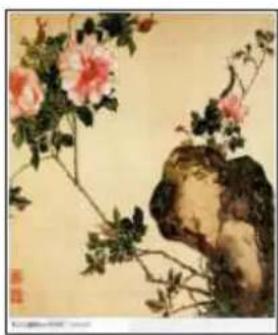
natural_image
Traditional ink painting of a figure climbing branches with pink flowers (no text or symbols)
natural_image
Illustration of a person in space suit operating a spacecraft with Earth and stars in background (no text or symbols)Current Reading
Завтра война
Александр Зорич
7/1153 0%

Recent

Books

Image
Music




00:06
21 Guns [featuring Green Day A
Green Day
21 Guns [featuring Green Day a
04:41

natural_image
Circular diagram with bidirectional arrows and a central double arrow, no text or symbols present

memórialocalecartãoT,abraMúsicaparaselecionaramúsicaeex cliquenoleitordemúsicanoambientedetrabalhoparareproduzir.Interfacedoleitorde músicapoderiaapareceratravésdateclademenunainterfacedeleitura.
Directive (2004/108/EC) - EMC Directive (2011/65/EU) - RoHS
IEC 62321 Ed.1 - 111/95/CDV
Nome do fabricante: AFEX SUNS, S.A.


- Foreword
- Notes
- I SafetyNotes
- explosion
- Ⅱ、ProductNotes
- ◆Instruction
- ◆Desktop
- Current Reading
- The Art of War
- Recent
- MENUFunctions
- Books
- 09:54
- ◆Reading
- ExecutivefunctionsonReadingInterface:
- ReadingMenuFunctions
- ◆ Image
- SupportedFormats :
- MusicPlayerFunctionIntroduction :
- ◆FileManager
- ◆Settings
- 1、FontsSettings
- 2、DateandTimeSettings
- 3、Standbybytimesettings
- 6、Languagesettings
- 7、SystemInfo
- 8、Manual
- Warrantyconditions
- CorrectdisposalofthisProduct
- DECLARATION OF CONFORMITY
- Directive (2004/108/EC) - EMC
- Directive (2011/65/EU) - RoHS
- We, the undersigned, hereby declare under our sole responsibility that the specified equipment is in conformity with the above Directive(s) and Standard(s)
- sunstech 1/2
- e-booklector
- EBI5
- MANUALDEUSUARIO
- Prólogo
- ◆ Reciente
- Directive (2002/95/EU) - RoHS
- Avant-propos
- ◆ Récent
- DÉCLARATION DE CONFORMITÉ
- Prefácio
- ◆Recente
- Directive (2004/108/EC) - EMC Directive (2011/65/EU) - RoHS
Brand : Sunstech
Model : EBI5
Category : E-reader