ManualGo.com
KG290 - Mobile Phone LG - Free user manual and instructions
Find the device manual for free KG290 LG in PDF.



Download the instructions for your Mobile Phone in PDF format for free! Find your manual KG290 - LG and take your electronic device back in hand. On this page are published all the documents necessary for the use of your device. KG290 by LG.
USER MANUAL KG290 LG
DIT APPARAAT VOLDOET AAN
- Zeer dringend! Bel me.
1. When this crossed-out wheeled bin symbol is attached to a product it means
the product is covered by the European Directive 2002/96/EC.
2. All electrical and electronic products should be disposed of separately from
the municipal waste stream via designated collection facilities appointed by the government or the local authorities.
3. The correct disposal of your old appliance will help prevent potential negative
consequences for the environment and human health.
4. For more detailed information about disposal of your old appliance, please contact
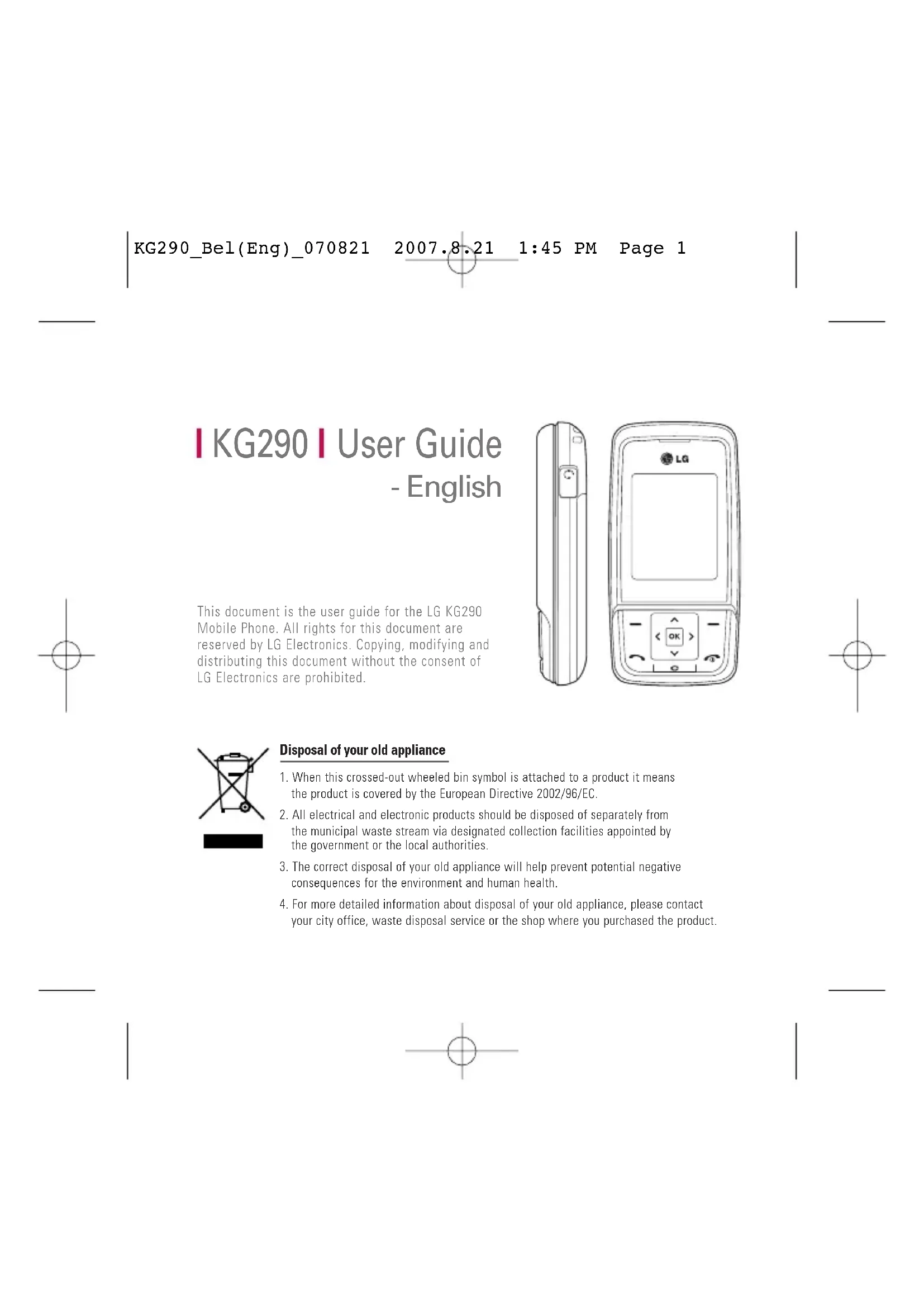
your city office, waste disposal service or the shop where you purchased the product. Disposal of your old appliance This document is the user guide for the LG KG290 Mobile Phone. All rights for this document are reserved by LG Electronics. Copying, modifying and distributing this document without the consent of LG Electronics are prohibited. KG290_Bel(Eng)_070821 2007.8.21 1:45 PM Page 1Call hi All call Missed Dialled Receiv Call du Call co Data in Introduction 6 For Your Safety 7 Guidelines for Safe and Efficient Use 8 KG290 Features 15 Parts of the phone Getting Started 20 Installing the SIM card and battery Charging the Battery 23 Disconnecting the charger 24 Access codes 25 General Functions 27 Making and answering calls Entering text 29 Changing the text input mode 30 Using the T9 Mode Using the ABC Mode 31 Using the 123 mode 32 Using the symbol mode Overview of Menu Functions 33 Orange World 35 Orange World Bookmarks Enter URL History 36 Saved pages Settings Network profiles View style Cache Cookies Security Certificates 37 Show image Java script Memory in use Information Table of Contents
Table of Contents KG290_Bel(Eng)_070821 2007.8.21 1:45 PM Page 2Call history 38 All calls Missed calls Dialled calls Received calls Call duration 39 Call costs Data information 40 Tools 41 Alarm clock Calendar 42 Calculator 43 Memo 44 To do Stopwatch 45 Unit converter Currency Area 46 Length Weight Temperature Volume 47 Velocity World time Multimedia 48 MP3 player All songs My playlist Settings Camera 49 Video camera 51 FM radio 53 Voice recorder Table of Contents
KG290_Bel(Eng)_070821 2007.8.21 1:45 PM Page 5Please Not fol be dang detailed manua Congratulations on your purchase of the advanced and compact KG290 mobile phone, designed to operate with the latest digital mobile communication technology. Introduction
IntroductionThis user’s guide contains importantinformation on the use andoperation of this phone. Please readall the information carefully foroptimal performance and to preventany damage to or misuse of thephone. Any changes or modificationsnot expressly approved in this user’sguide could void your warranty forthis equipment. WAR
- Kee sma part cho KG290_Bel(Eng)_070821 2007.8.21 1:45 PM Page 6Please read these simple guidelines. Not following these guidelines may be dangerous or illegal. Further detailed information is given in this manual. For Your Safety
- Mobile Phones must be switched off at all times in aircrafts.
- Do not hold the phone in your hand while driving.
- Do not use your phone near petrol stations, fuel depots, chemical plants or blasting operations.
- For your safety, use ONLY specified ORIGINAL batteries and chargers.
- Do not handle the phone with wet hands while it is being charged. It may cause an electric shock or seriously damage your phone.
- Keep the phone in a safe place out of small children’s reach. It includes small parts which, if detached, may cause a choking hazard.
- Not to charge a handset near flammable material as the handset can get hot and smoulder the Material, hence possible house fire. CAUTION!
- Switch off the phone in any area where required by special regulations. For example, do not use your phone in hospitals or it may affect sensitive medical equipment.
- Emergency calls may not be available under all mobile networks. Therefore, you should never depend solely on your mobile phone for emergency calls.
- Only use ORIGINAL accessories to avoid damage to your phone.
- All radio transmitters carry risks of interference with electronics in close proximity. Minor interference may affect TVs, radios, PCs, etc.
- Batteries should be disposed of in accordance with relevant legislation.
- Do not dismantle the phone or battery. KG290_Bel(Eng)_070821 2007.8.21 1:45 PM Page 7devic below becau opera to use reach close lower Befor sale t Europ show essen of the user a The h when
This guide norm Please read these simple guidelines. Not following these guidelines may be dangerous or illegal. Further detailed information is given in this manual. Certification information (SAR)
WAVES Your mobile device is a radio transmitter and receiver. It is designed and manufactured not to exceed the limits for exposure to radio frequency (RF) recommended by international guidelines (ICNIRP). These limits are part of comprehensive guidelines and establish permitted levels of RF energy for the general population. The guidelines were developed by independent scientific organizations through periodic and thorough evaluation of scientific studies. The guidelines include a substantial safety margin designed to assure the safety of all persons, regardless of age and health.
The exposure standard for mobile devices employs a unit of measurement known as the Specific Absorption Rate, or SAR. The SAR limit stated in the international guidelines is 2.0 W/kg*. Tests for SAR are conducted using standard operating positions with the device transmitting at its highest certified power level in all tested frequency bands. Although the SAR is determined at the highest certified power level, the actual SAR of the
Guidelines for Safe and Efficient Use Guidelines for Safe and Efficient Use KG290_Bel(Eng)_070821 2007.8.21 1:45 PM Page 8device while operating can be well below the maximum value. This is because the device is designed to operate at multiple power levels so as to use only the power required to reach the network. In general, the closer you are to a base station, the lower the power output of the device. Before a phone model is available for sale to the public, compliance with the European R&TTE directive must be shown. This directive includes as one essential requirement the protection of the health and the safety for the user and any other person. The highest SAR value for this device when tested for use at the ear is
This device meets RF exposure guidelines when used either in the normal use position against the ear or when positioned at least
1.5 cm away from the body.
When a carry case, belt clip or holder is used for body-worn operation, it should not contain metal and should position the product at least 1.5 cm away from your body. In order to transmit data files or messages, this device requires a quality connection to the network. In some cases, transmission of data files or messages may be delayed until such a connection is available. Ensure the above separation distance instructions are followed until the transmission is completed. The highest SAR value for this device when tested for use at the body is 1.01 W/kg. Guidelines for Safe and Efficient Use
for SAR vice fied ncy fied the
KG290_Bel(Eng)_070821 2007.8.21 1:45 PM Page 9] Do n
Do n as al or de There fire.
- The SAR limit for mobile devices used by the public is 2.0 watts/kilogram (W/kg) averaged over ten grams of body tissue. The guidelines incorporate a substantial margin of safety to give additional protection for the public and to account for any variations in measurements. SAR values may vary depending on national reporting requirements and the network band. For SAR information in other regions please look under product information at www.lgmobile.com. Product care and maintenance
Do not disassemble this unit. Take it to a qualified service technician when repair work is required.
Keep away from electrical appliances such as a TV's, radios or personal computers.
The unit should be kept away from heat sources such as radiators or cookers.
Never place your phone in a microwave oven as it will cause the battery to explode. Guidelines for Safe and Efficient Use
Guidelines for Safe and Efficient Use WARNING! Only use batteries, chargers andaccessories approved for use with thisparticular phone model. The use of anyother types may invalidate any approvalor warranty applying to the phone, andmay be dangerous. KG290_Bel(Eng)_070821 2007.8.21 1:45 PM Page 10] Do not drop.
Do not subject this unit to mechanical vibration or shock.
The coating of the phone may be damaged if covered with wrap or vinyl wrapper.
Do not use harsh chemicals (such as alcohol, benzene, thinners, etc.) or detergents to clean your phone. There is a risk of this causing a fire.
Do not subject this unit to excessive smoke or dust.
Do not keep the phone next to credit cards or transport tickets; it can affect the information on the magnetic strips.
Do not tap the screen with a sharp object as it may damage the phone.
Do not expose the phone to liquid or moisture.
Use accessories, such as earphones and headsets, with caution. Ensure that cables are tucked away safely and do not touch the antenna unnecessarily.
Please remove the data cable before powering on the handset. Electronic devices All mobile phones may get interference, which could affect performance.
Do not use your mobile phone near medical equipment without requesting permission. Avoid placing the phone over pacemakers. (i.e. in your breast pocket.) Guidelines for Safe and Efficient Use
Do n flamm explo your mobi In air Wirele interfe
Some hearing aids might be disturbed by mobile phones.
Minor interference may affect TVs, radios, PCs, etc. Road safety Check the laws and regulations on the use of mobile phones in the areas when you drive.
Do not use a hand-held phone while driving.
Give full attention to driving.
Pull off the road and park before making or answering a call if driving conditions so require.
RF energy may affect some electronic systems in your motor vehicle such as a car stereo or safety equipment.
If your vehicle is equipped with an air bag, do not obstruct it with installed or portable wireless equipment. It can cause serious injury due to improper performance. Blasting area Do not use the phone where blasting is in progress. Observe restrictions, and follow any rules or regulations. Guidelines for Safe and Efficient Use
Guidelines for Safe and Efficient Use KG290_Bel(Eng)_070821 2007.8.21 1:45 PM Page 12Potentially explosive atmospheres
Do not use the phone at a refueling point. Don't use near fuel or chemicals.
Do not transport or store flammable gas, liquid, or explosives in the compartment of your vehicle, which contains your mobile phone and accessories. In aircraft Wireless devices can cause interference in aircraft.
Turn off your mobile phone before boarding any aircraft.
Do not use it on the ground without crew permission. Children Keep the phone in a safe place out of small children's reach. It includes small parts which if detached may cause a choking hazard. Emergency calls Emergency calls may not be available under all mobile networks. Therefore, you should never depend solely on your mobile phone for emergency calls. Check with your local service provider. Guidelines for Safe and Efficient Use
You do not need to completely discharge the battery before recharging. Unlike other battery systems, there is no memory effect that could compromise the battery's performance.
Use only LG batteries and chargers. LG chargers are designed to maximize the battery life.
Do not disassemble or short-circuit the battery pack.
Keep the metal contacts of the battery pack clean.
Replace the battery when it no longer provides acceptable performance. The battery pack may be recharged hundreds of times until it needs replacing.
Recharge the battery if it has not been used for a long time to maximize usability.
Do not expose the battery charger to direct sunlight or use it in high humidity, such as the bathroom.
Do not leave the battery in hot or cold places, this may deteriorate the battery performance.
Risk of explosion if battery is replaced by an incorrect type.
Dispose of used batteries according to the manufacturer’s instructions. Guidelines for Safe and Efficient Use
Guidelines for Safe and Efficient Use KG290_Bel(Eng)_070821 2007.8.21 1:45 PM Page 14KG290 Features
KG290 Features Parts of the phone Front view Rear view Camera lensFront screenEarpieceNavigation keysBatteryAntennaHoles for a carrying strap Note
Never touch the antenna during acall. It may degrade speech quality.
er’s SIM card socketExternal memory slot KG290_Bel(Eng)_070821 2007.8.21 1:45 PM Page 1516 KG290 Features Open Alpha n In stannumbe
In men KG290 Features Left side view Right side view Side keys
In standby mode (open/closed): Keypad volume adjustment.
During a call: Earpiece volume adjustment. HeadsetCamera hot key KG290_Bel(Eng)_070821 2007.8.21 1:45 PM Page 16KG290 Features
Open view Earpiece Main screen
Top: Icons showing signal strength, battery level and various other functions
In standby mode: Input numbers to dial. Hold down: for international calls. to dial voice mail centre. to for speed dials.
In editing mode: Enter numbers & characters. Confirm key
Selects menu options and confirms actions.
WAP access (long key) Left soft key/ Right soft key
These keys perform the function Indicated in the bottom of the display. Clear key
Deletes a character with each press. Hold the key down to clear all input. Use this key to go back to a previous screen. Send key
Dials a phone number and answers a call.
In standby mode: Shows a history of calls made, received and missed. Navigation keys
In standby mode: Briefly: Write new Message (Hold down: present Messages pop-up) Briefly: List of Contacts Briefly: List of Profiles (Hold down: Activate/ Deactivate Vibrate mode) Briefly: List of Favourites
In menu: scroll up & down End/Power Key set KG290_Bel(Eng)_070821 2007.8.21 1:45 PM Page 17Display Information The screen displays several icons. These are described below. On-Screen Icons
KG290 Features Icon/ In KG290 Features Icon area Text and graphic area Right key indicators Icon/ Indicator Description Tells you the strength of the network signal. You can use GPRS service. The alarm has been set and is on. The bluetooth is set to On. The schedule has been set. Tells you the status of the battery. You have received a text message. Area Description First line Displays various icons. Middle lines Display messages, instructions and any information that you enter, such as number to be dialled. Last line Shows the functions currently assigned to the two soft keys. Menu Contact KG290_Bel(Eng)_070821 2007.8.21 1:45 PM Page 18KG290 Features
The quality of the conversation may change depending on network coverage. When the signal strength is below 2 bars, you may experience muting, call drop and poor audio. Please refer to this signal as an indicator for your calls. When there are no bars, that means that there is no network coverage: in this case, you won’t be able to access the network for any service (call, messages and so on). Icon/ Indicator Description You have received a voice message. Vibrate only menu in profile. Silent menu in profile. General menu in profile. Outdoor menu in profile. Headset menu in profile. You can divert a call. Indicates that the phone is accessing WAP. ngth of al.
en set set to been us of d a text KG290_Bel(Eng)_070821 2007.8.21 1:45 PM Page 192. Insta Insert t contact battery the bat down t snaps i Installing the SIM card and battery
1. Installing the SIM card.
Your SIM card contains your phone number, service details and contacts and must be inserted into your handset. If your SIM card is removed then your handset becomes unusable (even the emergency calls) until a valid one is inserted. Always disconnect the charger and other accessories from your handset before inserting and removing your SIM card. Slide the SIM card into the SIM card holder. Make sure that the SIM card is properly inserted and the gold contact area on the card is facing downwards. To remove the SIM card, press down lightly and pull it in the reverse direction.
Getting Started Getting Started Note
The can Pay card inst card To insert the SIM card To remove the SIM card KG290_Bel(Eng)_070821 2007.8.21 1:45 PM Page 202. Installing the battery. Insert the battery aligning the gold contacts on the battery with the battery terminals (gold contacts) in the battery compartment. Then push down the top of the battery until it snaps into place. Getting Started
The metal contact of the SIM cardcan easily be damaged by scratches.Pay special attention to the SIMcard while handling. Follow theinstructions supplied with the SIMcard.
KG290_Bel(Eng)_070821 2007.8.21 1:45 PM Page 21Char Before to the p the bat
show plug the s phon
3. To remove the battery.
Turn the power off. (If the power is left on, there is a chance you could lose the stored telephone numbers and messages.) Press the battery release latches and open the battery . Then remove the battery.
Getting Started Getting Started KG290_Bel(Eng)_070821 2007.8.21 1:45 PM Page 22Charging the Battery Before connecting the travel adapter to the phone you must first install the battery.
1. With the arrow facing you as
shown in the diagram push the plug on the battery adapter into the socket on the left side of the phone until it clicks into place.
2. Connect the other end of the travel
adapter to the mains socket.
3. The moving bars on the battery
icon will stop after charging is complete.
4. Ensure the battery is fully charged
before using the phone for the first time. Getting Started
Only use the charger included in the box. KG290_Bel(Eng)_070821 2007.8.21 1:45 PM Page 23Acce You can describ unauth The acc and PU using th [Menu PIN co The PIN Numbe card ag The PIN with th Code R phone w every ti the PIN your ph directly Disconnecting the charger Disconnect the travel adapter from the phone as shown in the diagram below.
Getting Started Getting Started WARNING! • Unplug the power cord and chargerduring lightning storms to avoidelectric shock or fire.• Make sure that no sharp-edged itemssuch as animal teeth or nails, comeinto contact with the battery. This may cause a fire.CAUTION!• Do not force the connector as this maydamage the phone and/or the traveladapter.• If you use the battery pack chargerwhen abroad, use an attachment plugadaptor for the proper configuration.• Do not remove your battery or the SIMcard while charging. KG290_Bel(Eng)_070821 2007.8.21 1:45 PM Page 24Access codes You can use the access codes described in this section to avoid unauthorised use of your phone. The access codes (except the PUK and PUK2 codes) can be changed by using the Change codes feature [Menu 9.6.6]. PIN code (4 to 8 digits) The PIN (Personal Identification Number) code protects your SIM card against unauthorised use. The PIN code is usually supplied with the SIM card. When the PIN Code Request is set to On, your phone will request the PIN code every time it is switched on. When the PIN Code Request is set to Off, your phone connects to the network directly without the PIN code. PIN2 code (4 to 8 digits) The PIN2 code, supplied with some SIM cards, is required to access functions such as Fixed Dial Number. These functions are only available if supported by your SIM card. PUK code (4 to 8 digits) The PUK (PIN Unblocking Key) code is required to unlock a PIN blocked phone. The PUK code may be supplied with the SIM card. If not, contact your network operator for the code. If you lose the code, also contact your network operator. Getting Started
from gram KG290_Bel(Eng)_070821 2007.8.21 1:45 PM Page 25Mak calls Makin
close Makin Conta It is eas number Contact PUK2 code (4 to 8 digits) The PUK2 code, supplied with some SIM cards, is required to unlock a blocked PIN2 code. If you lose the code, please contact your network operator. Security code (4 to 8 digits) The security code prevents unauthorised use of your phone. The default security code is set to ‘0000’ and the security code is required to delete all phone entries and to restore the handset to the factory settings. Getting Started
Getting Started KG290_Bel(Eng)_070821 2007.8.21 1:45 PM Page 26General Functions
Making and answering calls Making a voice call
1. Enter the number including the full
area code, or select the phone number from call logs by pressing
To delete a digit press . To delete all digits press and hold .
2. Press to make the call.
3. Press to finish the call, or
close the handset. Making a voice call from Contacts or close the handset It is easy to call anyone whose number you have stored in your Contacts.
1. Press to access the contacts
2. Scroll to the contact to make a
3. Press to make a voice call.
4. Press to finish the call.
Making international calls
1. Press and hold for the
and the phone number.
Adjusting the volume During a call, if you want to adjust the earpiece volume, use on the left side of the handset. General Functions KG290_Bel(Eng)_070821 2007.8.21 1:45 PM Page 27Signa You can signal b on the Signal inside b window Enter You can charact For exa Contact creating schedu all requ The fol availab In idle mode with the phone open, you can adjust the key volume using . Answering a call When you receive a call, the phone rings and the flashing phone icon appears on the screen. If the caller can be identified, the caller’s phone number (or name if stored in your Contacts) is displayed.
1. Open the phone and press to
answer an incoming call. If the answer mode is set to Press any key, any key will answer a call except for .
2. End the call by closing the handset or
General Functions General Functions Note
You can answer a call while usingContacts or other menu features. When the compatible headset isconnected, you can also answer acall using the headset key, as wellas using the phone. To reject anincoming call, press . You can mute the ringtone when acall comes in by pressing andholding the volume down side key. Note
To reject an incoming call, pressor the right soft key twice.
If you set Answer mode as Slide open (Menu 9.5.2), you can answerthe call simply by opening thephone. KG290_Bel(Eng)_070821 2007.8.21 1:45 PM Page 28Signal strength You can check the strength of your signal by the signal indicator ( ) on the left top of your phone screen. Signal strength can vary, particularly inside buildings. Moving close to a window may improve reception. Entering text You can enter alphanumeric characters using the keypad. For example, storing names in Contacts, writing a message, creating a personal greeting or scheduling events in the calendar all require entering text. The following text input methods are available with the handset. General Functions
set or T9 mode This mode lets you enter words with only one keystroke per letter. Each key on the keypad has more than one letter. The T9 mode automatically compares your keystrokes with an internal dictionary to determine the correct word, thus requiring far fewer keystrokes than the traditional ABC mode. This is sometimes known as predictive text. ABC mode This mode lets you enter letters by pressing the key labelled with the required letter once, twice, three or four times until the letter is displayed. ing
by pr To dele Press a entire w Changing the text input mode
1. When you are in a field that
allows characters to be entered, you will notice the text input mode indicator in the upper right corner of the LCD screen.
2. Press to switch between
T9Abc, T9abc, T9ABC, ABC, Abc, abc and 123. Using the T9 Mode The T9 predictive text input mode allows you to enter words easily with a minimum number of key presses. As you press each key, the handset begins to display the characters that it thinks you are typing based on a built-in dictionary. As new letters are added, the word changes to reflect the most likely candidate from the dictionary.
1. When you are in the T9 predictive
text input mode, start entering a word by pressing keys to . Press one key per letter.
The word changes as letters are typed. Ignore what’s on the screen until the word is typed completely.
General Functions General Functions 123 mode (Number mode) Type numbers using one keystroke per number. To change to 123 mode in a text entry field, press until 123 mode is displayed. KG290_Bel(Eng)_070821 2007.8.21 1:45 PM Page 30] If the word is still incorrect after typing completely, press once or more to scroll through the other word options. Example Press to type Hond. Press to get Home.
If the desired word is missing from the word choices list, add it by using the ABC mode.
2. Enter the whole word before
editing or deleting any keystrokes.
3. Complete each word with a space
by pressing . To delete letters, press . Press and hold down to erase entire words. Using the ABC Mode Use to to enter your text.
1. Press the key labelled with the
Once for the first letter.
Twice for the second letter.
once. To delete letters, press . Press and hold down to clear the display. Refer to the following table for more information on the characters available using the alphanumeric keys. General Functions
onary. word ely dictive ng a
The characters assigned to the keysand their order of appearancedepends on the language selectedusing the option Input method. Thetable above provides the charactersset for English language. You can item an From th corresp top men NOTE: second each vie so there accordi
c keys You can launch a menu by pressing in the idle screen. Move to the desireditem and press to go into the sub menu.From the main menu you can also go into a submenu by directly pressing thecorresponding numeric key as follows. The main menu consists of the followingtop menus and sub menus. NOTE: The menu in this phone can be displayed in 2 ways. One is by grid type or secondly in list format. Please note that menu number options are different ineach view. The default setting on the phone is set to show the menu in grid type,so therefore all the menu number selections throughout the manual are setaccording to that setting.3.1 Alarm clock3.2 Calendar3.3 Calculator 3.4 Memo3.5 To do3.6 Stopwatch 3.7 Unit converter3.8 World time
2.1 All calls2.2 Missed calls 2.3 Dialled calls2.4 Received calls2.5 Call duration 2.6 Call costs2.7 Data information
4.1 MP3 player4.2 Camera4.3 Video camera 4.4 FM radio4.5 Voice recorder
6.1 Images 6.2 Sounds6.3 Videos 6.4 Others 6.5 Games & Apps6.6 External memory
Overview of Menu Functions KG290_Bel(Eng)_070821 2007.8.21 1:45 PM Page 34Orange World Menu 1.1 You can launch the web browser and access the homepage of the web service provided by your Service Provider. Bookmarks Menu 1.2 You can store frequently accessed or favourite URLs/Pages. Several preconfigured URLs are stored as bookmarks. Adding a new bookmark
1. Select New Bookmark from the
2. Enter the title and associated URL
3. Press the left soft key [OK] to save.
Connecting to a desired bookmark Press or select Connect from the Options menu. Adding a new folder
1. Select New folder from the
3. Press the left key [OK] to save.
KG290_Bel(Eng)_070821 2007.8.21 1:45 PM Page 35Secur If store require here. C from th Show Allows image d History Menu 1.4 Shows the list of web page's titles accessed recently. You can access the web page easily. Saved pages Menu 1.5 The phone can save the page on display as an offline file. Settings Menu 1.6 You can change the settings for browser display, security, and certificates. Network profiles (Menu 1.6.1) Select the appropriate profile by pressing . This will activate the profile to initiate the browser launch. View style (Menu 1.6.2) You can change the browser screen size. (normal view or fit to screen) Cache (Menu 1.6.3) Enabling Cache allows you to store accessed pages to your phone. Once a page has been stored in the cache it will greatly enhance the page loading speed on subsequent browsing of the same page. Cookies (Menu 1.6.4) Enabling Cookies allows you to store cookies sent from the server. Disabling this function will prevent cookies from being stored on your phone. Orange World
Enabling this function will delaydisplaying images until thecompletion of transmission.Disabling this function will preventthe browser from downloadingimages from the server, thusallowing faster transmission. KG290_Bel(Eng)_070821 2007.8.21 1:45 PM Page 37Call d This fun duratio calls, R hours, m also res
The f Last Rece You can check the record of missed, received, and dialled calls only if the network supports Calling Line Identification (CLI) within the service area. The number and name (if available) are displayed together with the date and time at which the call was made. All calls Menu 2.1 Allows you to view the missed, received, and dialled call records. You can make a call or send a message to the number you have selected from the records. You can also save the number in the Contacts. Missed calls Menu 2.2 Allows you to view missed call records, make a call, send a message and save the number in Contacts. Dialled calls Menu 2.3 Allows you to view dialled call records, make a call, send a message and save the number in Contacts. Received calls Menu 2.4 Allows you to view received call records, make a call, send a message and save the number in Contacts. Call history
Call history KG290_Bel(Eng)_070821 2007.8.21 1:45 PM Page 38Call duration Menu 2.5 This function allows you to view the duration of your Last call, Dialled calls, Received calls and All calls in hours, minutes and seconds. You can also reset the call timers.
1. Press the left soft key [Menu] and
then press for direct access or use and to enter Call history.
2. Scroll to Call duration and Press
[OK]. The following 4 submenus: Last call, Dialled calls, Received calls and All calls. Call costs Menu 2.6 This function allows you to check the cost of your last call, all calls, remaining and reset the cost. To reset the cost, you need the PIN2 code.
1. Press the left soft key [Menu] and
then press for direct access or use and to enter Call history.
2. Scroll to Call costs and Press
[OK]. The following 3 submenus: Last call, All calls and Cost settings. Call history Menu 2.2
r in Menu 2.3 r in Menu 2.4 all r in Note
The actual cost invoiced for calls byyour service provider may vary,depending upon network features,rounding-off for billing, tax, and etc. KG290_Bel(Eng)_070821 2007.8.21 1:45 PM Page 39Alarm If you s on the alarm s Press ri alarm, Press th alarm s the sele can con
Call history KG290_Bel(Eng)_070821 2007.8.21 1:45 PM Page 40Alarm clock Menu 3.1 If you set the alarm, the appears on the indicator bar. The specified alarm sounds at the scheduled time. Press right soft key [Quit] to stop the alarm, and the alarm is released. Press the left soft key [Snooze]. The alarm sound stops and resumes after the selected Snooze duration. You can configure up to 5 alarms.
1. Select your desired alarm to
configure in the alarm list. If there is no alarm, press the right soft key [New] to add a new alarm.
2. Set/Cancel alarm: Set or cancel
the alarm using the options for specifying whether the alarm is on or by choosing the alarm time.
3. Input alarm time: Input your
desired alarm time by specifying Hour and Minute. Choose either ‘AM’ or ‘PM’ which is visible if 12 hour format is specified for the phone.
4. Select repeat mode: Select the
desired repeat mode using / or select the desired one from the list by pressing .
5. Select Alarm Tone: Select the
alarm tone to ring at the alarm time opening the list by pressing the left soft key [Options] > Sounds
6. Title: Input alarm name.
7. When you have finished setting
The alarm will go off even when thephone is switched off. KG290_Bel(Eng)_070821 2007.8.21 1:45 PM Page 41] Go to the d
Dele - De the you of. - De all t
Calcu The cal perform such as multipl as som Calendar Menu 3.2 You can refer to your schedule by months. The cursor is on the current date, and the registered date is marked. The schedule saved for the date where the cursor is located is represented by an icon. Pressing the shortcut key moves to the previous year and pressing move to the next year. Pressing moves to the previous month, and moves to the next month. You can move the date using the /
You can enter a schedule or memo in the scheduler by pressing the left soft key [Options].
View: Shows the schedule note or memo for the chosen day. Press the left soft key [Options] to edit or delete the note you selected.
New schedule: Select this to enter a new schedule or memo. After a schedule note is entered on a date, a special mark is shown on the date and appears on the left bottom of the screen. This function reminds you of your schedule. And the phone will sound an alarm tone if you set the phone to do so.
Scheduler tone: Adjust the Scheduler tone.
All schedules: Shows all the notes that are entered in the phone. Use the up/down navigation keys to browse through the note lists. Tools
Tools KG290_Bel(Eng)_070821 2007.8.21 1:45 PM Page 42] Go to date: Shows schedule of the date you put.
Delete more - Delete old: Select this to delete the expired schedule notes that you have already been notified of. - Delete all: Select this to delete all the schedule notes and memos. Calculator Menu 3.3 The calculator module allows you to perform basic arithmetic functions such as addition, subtraction, multiplication, and division as well as some scientific functions.
1. Press the left soft key.
2. Select the appropriate function.
You can enter numbers by using the number keys, and the operators by using the / / / direction keys. You can enter a decimal point by pressing . Whenever you press , characters are sequentially deleted in reverse order. Whenever you hold down, all the characters are deleted in reverse order in one go. When calculation is complete and the result is displayed on the screen, pressing a symbol saves the result into the symbol and continues calculation.
Dele You can or comp
Dele Mult to de tasks Memo Menu 3.4 Using the memo management function, you can view and manage saved memo contents and add new memo. Enter the contents of the memo. You can save the memo to the list by pressing the [OK] key. Add memo To add a new memo, press the left soft key [Options] and select New memo. Enter the contents of the memo. You can save the memo to the list by pressing the left soft key [Options] and select Save or just press the . Edit and delete memo Highlight the desired memo and press to view its contents. You can edit or delete the contents of a memo using the left soft key [Options]. You can select Multiple or All memos using the Mark/Unmark option and then delete a memo. To do Menu 3.5 You can view, edit and add tasks to do. Tasks are displayed in time order. Tasks that have been completed or not completed are displayed in different ways. Options
View: To view detailed task contents, locate the cursor on the desired item in the Tasks list, and then press .
New to do: To input the date, description and priority for the task Tools
Tools KG290_Bel(Eng)_070821 2007.8.21 1:45 PM Page 44and input the status. When you have finished entering the data, press the left soft key [Save] key to save the new task.
Status: You can view the status of task selected.
Delete: You can delete the task. You can display the tasks in progress or completed.
Calendar: You can view tasks of the day selected.
Delete more: You can select Multiple or All complete tasks to delete. And you can delete old tasks or all. Stopwatch Menu 3.6
1. Press [Start] to take time and
record the lap time by pressing [Lap].
2. Press [Stop] to ascertain the
3. Press [Reset] to default condition.
Unit converter Menu 3.7 Using this menu, users can convert Currency, Area, Length, Weight, Temperature, Volume and Velocity. Currency (Menu 3.7.1)
3. Enter the standard unit and view
on the t, and te, he task KG290_Bel(Eng)_070821 2007.8.21 1:45 PM Page 45Volum
4. To exit Currency conversion
3. Enter the standard unit and view
the converted value.
4. To exit the Area conversion
3. Enter the standard unit and view
your converted value.
4. To exit the length conversion
3. Enter the standard unit and view
the converted value.
4. To exit the Weight conversion
2. Position the cursor on the desired
unit by using the up or down arrow keys.
3. Enter the standard unit and view
the converted value.
4. To exit the Temperature conversion
3. Enter the standard unit and view
3. Enter the standard unit and view
the converted value.
4. To exit the Velocity conversion
function, press the [Back] key. World time Menu 3.8 The World clock function provides time information on major cities worldwide. You can view the time of the desired country or city by navigating using
You can select a desired city as a base by selecting the Change city menu in options. Tools Menu 3.7.4) view
wit MP3 player Menu 4.1 All songs (Menu 4.1.1) You can view all the music filesstored in the phone/external memory. My playlist (Menu 4.1.2) You can create your own playlists bychoosing tracks from the All tracksmenu list. Settings (Menu 4.1.3) Shuffle (Menu 4.1.3.1)If you want to play the musiccontinuously and randomly, selectthis option. Repeat (Menu 4.1.3.2)If you select One, only one song youselected will be repeated. And allthe songs in your playlist will berepeated if you select All. And norepeat and play just one song in caseof selecting No. Equalizer (Menu 4.1.3.3)You can choose the equalizer amongseveral genres of music. Jazz, Rock,Pop, etc. Player skin (Menu 4.1.3.4)There are 3 kinds of player skin andyou can change it as you want. Multimedia
Multimedia KG290_Bel(Eng)_070821 2007.8.21 1:45 PM Page 48Camera Menu 4.2 Press the Menu key and select Camera using the navigation keys. Or you can directly open the camera module by a press of the Camera key in standby mode. The camera module opens and you’ll see the view to be captured.
1. Press the left soft key to access Menu and set the desired environment as
Brightness setting: Move between the options menus with / .
Zoom setting: Select the desired value with / and confirm the selection with the left soft key or . Multimedia nu 4.1.3.2) g you all
3. Focus the camera on what you want to take and press .
4. Press to save the picture. It is saved in the Images folder of My stuff.
MultimediaResolution1280X960, 640x480, 320x240Normal, Fine, Super fine You can delay the camera shutter time. Off, 3 secs, 5 secs, 10 secs“ ” is shown when the timer is activated. You can view Full image or Full screen. 1 shot , 3 shots, 6 shots(Note: Available multishot depends on the size.)Off, Sepia, Mono, NegativeYou can adjust the tone of the background photo according to the weather.Auto, Daylight, Incandescent, Cloudy, FluorescentSelect the desired shutter sound. Off, Tone1, Tone2, Tone3Select the reset setting or notQualitySelf timerView mode Save the photos to your Phone or External memory. Save to MultishotEffectWhite balanceShutter toneReset setting KG290_Bel(Eng)_070821 2007.8.21 1:45 PM Page 50Video camera Menu 4.3 This application enables you to record a video clip. You can play and watch a saved video file in this menu. Once recorded, a video clip can be sent by Message or Bluetooth.
1. Press the left soft key to access Options and set the desired environment as
Brightness setting: Move between the options menus with
Zoom setting: Select the desired value with
and confirm the selection with . Multimedia
uff. Tone3 176 X 144 Press the to record the image.Options Album KG290_Bel(Eng)_070821 2007.8.21 1:45 PM Page 51FM r
2. After finishing all the settings, press the right soft key [Close].
3. Focus the camera on what to record and press to start recording.
And press to stop recording.
You can pause the recording by pressing the left soft key [Pause].
4. Press to save the video clip. It is saved in the Videos folder of My stuff.
Multimedia Mode Record a video in General/MMS mode.176X144, 128X96 Normal, Fine, Super fineSave the video clips to your Phone or External memory. You can adjust the tone of the background videoaccording to the weather.Auto, Daylight, Incandescent, Cloudy, FluorescentReset all the settings or not.ResolutionQualityOff, Sepia, Mono, Negative. Effect White balanceReset setting Note
Press the right soft key [Back] to go back to the preview mode without saving thevideo clip.Save to FrequeVolumChannTitle KG290_Bel(Eng)_070821 2007.8.21 1:45 PM Page 52FM radio Menu 4.4 If you press options, you can view the menus as follow:
Edit channel: You can edit the selected channel.
Auto scan: You can search for available channels by scanning automatically.
Reset channels: You can reset the channels.
Listen via: You can listen the FM radio via speaker or headset. Voice recorder Menu 4.5 In this feature you can record over 10 voice memos, up to a maximum of 60 seconds each. Multimedia
stuff. ory. the Shows the frequency indicating the current cursor. Frequency Controlling the volume Volume FM frequency and channel number which is now playing Channel Title Descriptions KG290_Bel(Eng)_070821 2007.8.21 1:45 PM Page 532. Pressrecip3. Once ente All m save after
Save in the T9 lalangu
Clea the w Exit:writitakenAlso have New message Menu 5.1 Text (Menu 5.1.1) You can write and edit textmessages up to 10 pages.1. Enter the Text menu by pressing[OK].2. To make text input easier, use T9. 3. Press [Options >>Insert] toattach the following: Insert
Symbol: You can add specialcharacters. Image: You can insert the Defaultgraphics or graphics in Mypictures that are available forshort messages. Sound: You can insert sounds thatare available for short messages. Text templates: You can use Texttemplates already set in thephone. Contacts: You can add phonenumbers or e-mail addresses inthe address book. My business card: You can addyour Business card to themessage.4. After you have completed themessage, to select the requiredoption, press the left soft key [Options]. Options
Send to: Sends text messages.1. Enter numbers of recipient. Also,you can select Options and choosefrom Contacts, or Recentmessages to send a text message. Messaging
Messaging KG290_Bel(Eng)_070821 2007.8.21 1:45 PM Page 542. Press key to add more recipients.
3. Once the numbers have been
entered, press the left soft key to send the message. All messages will automatically be saved in the outbox folder, even after a sending failure.
Save to drafts: Stores messages in the Drafts folder.
T9 languages: Select the desired language for T9 input mode.
Clear text: You can delete all of the words written.
Exit: If you press Exit whilst writing a message, you will be taken back to the message menu. Also the written message will not have been saved. Picture (Menu 5.1.2) A multimedia message can contain text, image, and/or sound clip.
1. Enter the Multimedia menu by
Insert] to attach following: Insert
Symbol: You can add special characters.
This phone supports EMS release 5,so is available to send colourpictures, sounds, text styles, etc.. Ifthe other parties handsets do notsupport such options, the pictures,sounds or texts sent may not bedisplayed correctly on their phones. KG290_Bel(Eng)_070821 2007.8.21 1:45 PM Page 55] Prev multi creat
T9 la langu T9 in off'.
Image: You can insert the Default graphics or graphics in My pictures that are available for short messages.
Video: You can insert videos that are available for short messages.
Sound: You can insert sounds that are available for short messages.
New photo/video/sound: You can insert new multimedia files that you create instantly to the short messages.
New slide: You can insert a new sheet of slide before or after current slide.
Contacts: You can add phone numbers or e-mail addresses in the address book.
My business card: You can add your Business card to the message. Maxium available file size, that can be inserted to MMS-message, is 300kb.
4. After you have completed the
Send to: You can send multimedia messages to multiple recipients, as well as save it to send al a later time.
Messaging Messaging KG290_Bel(Eng)_070821 2007.8.21 1:45 PM Page 56] Preview: You can preview multimedia message you have created.
T9 languages: You can choose languages and also deactivate the T9 input mode by selecting 'T9 off'.
New T9 word: You can add a new word to dictionary. (This menu is only shown when the T9 input mode is set ON.)
Others: You can set a slide duration or delete slide or edit subject.
Exit: Will take you back to the Message menu. Inbox Menu 5.2 You will be alerted when you have received messages. They will be stored in the Inbox. In the Inbox, you can identify each message by their icons. For detail, see the icon directive.
Icon directive Messaging
Dele mess Draft You can a draft. listed w they we list usin Each dr Press [O
Edit: mess If the phone shows ‘No space for SIM message’, you only have to delete the SIM messages from the Inbox. If the phone displays ‘No space for message’, you will then need to delete messages, media or applications to free up space. When you are notified that you have received a multimedia message, you have to wait for the message to be downloaded before you can view it. For notification setting, see (Menu
5.9.2.7) for detail.
To read a message, select one of the messages by pressing .
View: You can view the selected message.
Reply: You can reply to the sender.
Delete: You can delete the current message.
Forward: You can forward the selected message to another party.
Return call: You can call the sender back.
Information: You can view information about received messages; Sender's address, Subject (only for Multimedia message), Message date & time, Message size.
Messaging Messaging Note
SIM message: SIM messagemeans the message is exceptionallystored in the SIM card. KG290_Bel(Eng)_070821 2007.8.21 1:45 PM Page 58Messaging
Multi delete: You can delete multiple messages together.
Delete all read: You can delete all the read messages.
Delete all: You can delete all the messages. Drafts Menu 5.3 You can view the messages saved as a draft. The draft messages are listed with the date and time when they were saved. Scroll through the list using up/down navigation keys. Each draft has the following options. Press [Options].
View: You can view the selected message.
Edit: You can edit the selected message.
Delete: Deletes the selected message from the drafts folder.
Information: You can view the information of selected message: subject (only for multimedia message), the date and time when saved, message size.
Multi delete: You can delete multiple messages together.
Delete all: You can delete all the messages. ected current the
time, KG290_Bel(Eng)_070821 2007.8.21 1:45 PM Page 59Liste This me way of (if prov using th the voic your ne When a receive display press o directly check w details configu Outbox Menu 5.4 The Outbox is a temporary storage place for messages waiting to be sent. Failed messages are also placed in the Outbox.
View: You can view the message.
Delete: You can delete the message.
Resend: You can resend the message.
Edit: You can edit the message.
Information: You can check the information of each message.
Delete more - Multi delete: Deletes selected drafts at one time. - Delete all: You can delete all the messages in the outbox. Sent Menu 5.5 Shows the messages you sent (Message). Options
View: Opens the selected message.
Delete: Deletes the current message.
Forward: Forwards the selected message.
Multi delete: You can delete multiple messages together.
Delete all: You can delete all the messages.
Messaging Messaging KG290_Bel(Eng)_070821 2007.8.21 1:45 PM Page 60Listen voicemail Menu 5.6 This menu provides you with a quick way of accessing your voice mailbox (if provided by your network). Before using this feature, you must enter the voice mail number obtained from your network operator. When a new voice message is received, the symbol will be displayed on the screen. A long press of the key will take you directly into your voicemail. Please check with your service operator for details of their service in order to configure the handset correctly. Info messages Menu 5.7 (Dependent to network and subscription) Info service messages are text messages delivered by the network to your handset. They provide general information such as weather reports, traffic news, taxis, pharmacies, and stock prices. When you receive an info service message, you will see a popup message show you that or the info service message is directly displayed. To view the message again follow the sequence shown below; Messaging Menu 5.5 ected ion on
View selec Edit: temp
Send - Tex the by S - Mu to s mes Read (Menu 5.7.1) 1. When you have received an infoservice message and select Readto view the message, it will bedisplayed on the screen. You canread another message by scrolling, or [OK].2. The message will be shown untilanother message is selected. Topic (Menu 5.7.2)
View list: You can see Infoservice message numbers whichyou have added. If you press[Options], you can edit and deleteinfo message categories whichyou have added. Active list: You can select infoservice message numbers in theactive list. if you activate an infoservice number, you can receivemessages sent from the number. Templates Menu 5.8 Text (Menu 5.8.1) You can add, edit, and deletefrequently used useful phrases usingthe left soft key [Options].The followings are pre-defined texttemplates. Messaging
Depending on your service provider,useful phrases are saved as adefault. KG290_Bel(Eng)_070821 2007.8.21 1:45 PM Page 62• Please call me back.
- I’m late. I will be there at
- Very urgent! Please contact me.
- I love you. The following options are available.
View: Select this to view the selected template.
Send via - Text message: Use this to send the selected template message by SMS. - Multimedia message: Use this to send the selected template message by MMS.
Delete: Deletes the selected template from the text template list.
Delete all: Deletes all templates. Multimedia (Menu 5.8.2) After you have saved a new template, you can use the following options.
Send: You can write and send multimedia messages.
Delete: You can delete multimedia templates. Messaging
nfo n the info eive mber. Menu 5.8 Menu 5.8.1) s using d text vider, KG290_Bel(Eng)_070821 2007.8.21 1:45 PM Page 63] Prio of th Validserviyour at th Delivin thi whet succe
Read your recip depe
Message types: Text, Voice, Fax, Natl. paging, X.400, Email, ERMES Usually, the type of message is setto Text. You can convert your textinto alternative formats. Contactyour service provider for theavailability of this function. Validity period: This networkservice allows you to set how longyour text messages will be storedat the message centre. Delivery report: If you set to Yes,you can check whether yourmessage is sent successfully. Reply charging: When amessage is sent, it allows therecipients to reply and charge thecost of the reply to your telephonebill. Message centre number: Savesor changes the number of yourSMS centre when sending textmessages. You must obtain thisnumber from your service provider. Picture message (Menu 5.9.2)
Subject: You can entermultimedia messages subjectwhen this menu is on. Slide duration: You can set theduration of slides by the second. Messaging
Delivery report: If it is set to Yes in this menu, you can check whether your message is sent successfully.
Read report: You can check if your message is read by the recipient. This feature is dependent on the network.
Auto download: If you select On, you will receive multimedia messages automatically. If you select Off, you will receive only a notification message in the inbox and then you can check this notification. If you select Home network only, you will receive multimedia messages only when you are registered to your home network (not roaming).
Slide show Voicemail number (Menu 5.9.3) You can receive voicemail if your network service provider supports this feature. When a new voicemail is received, a symbol will be displayed on the screen. Please check with your network service provider for details of their service in order to configure the phone accordingly. Push message (Menu 5.9.4) You can set the option whether you will receive the message or not. Info message (Menu 5.9.5)
Receive - On: If you select this menu, your phone will receive Info service messages. - Off: If you select this menu, your phone will not receive Info service messages any more.
Alert - On: Your phone will beep when you have received Info service messages. - Off: Your phone will not beep even though you have received info service messages.
Languages - You can select the language you want by pressing . Then, the info service message will be shown in the language that you have selected. Messaging
Messaging KG290_Bel(Eng)_070821 2007.8.21 1:45 PM Page 66Images Menu 6.1 The Images folder consists of embedded links for downloading pictures through the Internet. Pictures taken using the camera are stored in the Images folder and you can create new folders to manage them. When a download link is selected, the following options will be displayed by pressing the left soft key [Options].
View: You can view the picture.
Set as: You can set as wallpaper or picture ID(contact image).
File info: You can view the file information.
Slide show: You can view slide show.
New folder: You can create a new folder within the folder currently selected.
Multi delete: Deletes the selected image.
Delete all: Deletes all images.
Sort by: You can sort the files by date, type or name. Sounds Menu 6.2 Here you can manage, send or set sounds as ringtones. When a download link is selected, the following options will be displayed by pressing the left soft key [Options].
Play: You can play the sound.
Set as: You can set as ringtone or ringtone ID(contact ring). My stuff My stuff
when vice eep eived ge you sage age KG290_Bel(Eng)_070821 2007.8.21 1:45 PM Page 67] Mult selec
Dele You can player. the list a desire
Select Play to Select t attach t messag When o and you be play pause t the play playbac
Information/ File info: You can view the file information.
New folder: You can create a new folder within the folder currently selected.
Multi delete: Deletes the selected image.
Delete all: Deletes all images.
Sort by: You can sort the files by date, type or name. Videos Menu 6.3 Here you can manage or send downloaded or captured videos clips. When a download link is selected, you can download video clips via the Internet. If you press , you can activate the video file and press the OK key again to start playing. The followings are available using the left soft key [Options] in the Video list.
File - Rename: You can rename the video. - Move to folder: Moves the file to other folder. - Information: Shows information on the selected video file.
New folder: You can create a new folder.
Sort by: You can sort files by name, date, or file type. My stuff
My stuff KG290_Bel(Eng)_070821 2007.8.21 1:45 PM Page 68] Multi delete: Deletes the selected video file.
Delete all: Deletes all video files. You can view a video using the video player. Video files are displayed in the list as thumbnails. You can select a desired video by using the /
Select a desired video and select Play to view the recorded video. Select the left soft key [Send] to attach the selected video to a message, Email. When option 1. Open is selected and you press , the video clip will be played with the Media Player. To pause the playback, press during the playback. To resume the paused playback, press once again. When viewing video clips in the Media Player, the following options are available:
Information: You can check information on files being played (File name, Size, Date, Type, Playback time, Copyright).
Send via: You can send the video via Picture message or Bluetooth if the file is not protected by Digital Rights Management (DRM).
Delete: Deletes the selected video. My stuff
the he file mation e a
According to your Service Provider, it varies whether you can download new Images or Sounds or Videos etc. through the Internet. KG290_Bel(Eng)_070821 2007.8.21 1:45 PM Page 69Others Menu 6.4 Any type of file can be stored here. This folder is mainly used for transporting files from one PC to another. Games & Apps Menu 6.5 You can easily download games and other applications in this menu. Please note that additional cost may be incurred when using online services. Games & Apps (Menu 6.5.1)
- Games: In this menu, you can manage the Java applications installed in your phone. You can play or delete downloaded applications, or set the connect option. The downloaded applications are organised in folders. After selecting a folder, press [Options] and then sub menus available to several options are displayed.
Open: You can see the stored games.
New folder: Create a new slide.
Delete all: You can delete all. My stuff
You can see only specific files in aspecific folder. That is, files in asuitable format to each folder areonly shown. (e.g. BMP, JPG, etc.files for the Images folder andMP3, WMA, etc. files for the Soundfolder, and so on) Java deve Sim dow the Expl can enab the base gam run dow can App sele Java phon form KG290_Bel(Eng)_070821 2007.8.21 1:45 PM Page 70• Applications: In this menu, you can manage the Java applications installed in your phone. You can play or delete downloaded applications, or set the connect option. The downloaded applications are organised in folders. Press the left soft key [Options] and select Open to open the selected slide or launch the selected midlet. My stuff
, is a technology developed by Sun Microsystems. Similar to the way you would download the Java Applet using the standard MS Internet Explorer browsers, Java MIDlet can be downloaded using a WAP enabled phone. Depending on the service provider, all Java based programs such as Java games can be downloaded and run on a phone. Once downloaded, the Java program can be viewed in the Games & Apps menu where you can select, execute, or delete. The Java program files saved in the phone are in .JAD or .JAR format. Note
The JAR file is a compressed format of the Java program and the JAD file is a description file that includes all detailed information. From the network, prior to download, you can view all detailed file descriptions from the JAD file. KG290_Bel(Eng)_070821 2007.8.21 1:45 PM Page 71Exter By usin connec the pho (Remov MP3 fil your PC Network profiles (Menu 6.5.2) A profile is the network information used to connect to the Internet. There are default profiles for some operators, stored in phone memory. It’s impossible to rename default profiles. Each profile has submenus as follows:
Edit: Use this to edit and change WAP settings for the selected profile.
New profile: You can add a new profile.
My stuff While being based on a standardlanguage (J2ME), not all Javaapplications are compatible with allhandsets on sale insofar as specificlibraries may be used for atelephone model. The software maybe blocked or switch itself on whenJava applications not specificallydeveloped for the phone this manualrefers to are downloaded, making itnecessary to “restart” the handset.We would like to point out thatthese problems are caused byincompatible applications and arenot a product fault.CAUTION!Only J2ME(Java 2 Micro Edition) basedprograms will run in a phoneenvironment. The J2SE(Java 2 StandardEdition) based programs will only run in aPC environment. Note
whi KG290_Bel(Eng)_070821 2007.8.21 1:45 PM Page 72External memory Menu 6.6 By using the USB cable, you can connect your phone to PC and use the phone as a mass storage (Removable Disk). You can transfer MP3 files, Images and Videos etc. in your PC to your phone. My stuff Menu 6.5.2) ation
ome mory. ult ected ange
When you format your SD Card, youshould set the file system as FATnot FAT32. This system doesn'tprovide FAT32 file format. Note
1. This function will only work in theidle mode.2. You can use an external memorywhich is up to 2GByte.
KG290_Bel(Eng)_070821 2007.8.21 1:45 PM Page 73Sear You can search on a na some o the sele Send m Multi d New You can address differen address also as include rington picture rington In Profiles, you can adjust and customise the phone tones for different events, environments, or caller groups. There are five preset profiles: General, Silent, Vibrate only, Outdoor and Headset. Each profile can be personalised (Except Vibrate only, Silent menu). Profiles
Profiles KG290_Bel(Eng)_070821 2007.8.21 1:45 PM Page 74Search Menu 8.1 You can see the contact lists. The search operation is performed based on a name. You can also perform some operations by option menu for the selected phone number; Edit, Send message, Delete, New contact, Multi delete, and Copy, etc.. New contact Menu 8.2 You can register a new contact address. You can enter the name, different phone numbers and email addresses of a new contact. You can also assign the contact to group, and include a picture and a specific ringtone. You can see the attached picture and hear the assigned ringtone when it's incoming call. Speed dials Menu 8.3 Speed dials are configured between 2-9 and set by the information stored in your SIM card and phone. You can just check which number is in the speed dials list and can't manage them optionally. Groups Menu 8.4 Using this menu you can manage contacts by grouping the handset stored contacts. There are 7 default groups you can make: Family, Friends, Colleagues, VIP, Group1, Group2, Group3. You can perform some operations by option menu for the selected Group; View members, Group ringtone, Group icon Add member, Remove member, Remove all member, Rename, and Reset all. Especially, you
Contacts Contacts KG290_Bel(Eng)_070821 2007.8.21 1:45 PM Page 75] My b allow busin a mo send Mult can hear the group ringtone for the contacts you assign to group and group ringtone. Copy all Menu 8.5 You can copy an entry from SIM to phone or from phone to SIM. Delete all Menu 8.6 You can delete all of the contact lists on SIM or Phone. Settings Menu 8.7 View options (Menu 8.7.1)
Name only: Set the phonebook list by displaying the name only.
Name & number: Set the phonebook list by displaying the name and number.
With picture: Set the phonebook list with the information and picture of contact. Information Menu 8.8
Service dial number: Use this function to access a particular list of services provided by your network operator (if supported by the SIM card).
Own number: You can save and check your own number in SIM card. Contacts
Contacts KG290_Bel(Eng)_070821 2007.8.21 1:45 PM Page 76] My business card: This option allows you to create your own business card featuring Name and a mobile phone number. You can send a business card via the Multimedia or Text message also. Contacts
Menu 8.8 this ar list ed by e and SIM KG290_Bel(Eng)_070821 2007.8.21 1:45 PM Page 77Lang Select t select A to chan SIM ca Displ This me display o menus e Wallp You can display Backl You can the Dis Date & Time Menu 9.1 Many features of your phone can be customised to suit your preferences. All of these features are accessed via the Settings menu. Set date (Menu 9.1.1)
1. Select the Date item from the
4. Press the left soft key [OK] to set
the date with the specified value. Date format (Menu 9.1.2) You can set the date format. Set time (Menu 9.1.3) You can enter the current time. Time format (Menu 9.1.4) You can set the time format between 24-hour and 12-hour. Auto update (Menu 9.1.5) When Auto Update is configured to On, the time and date are automatically updated according to the current time zone.
Settings Settings KG290_Bel(Eng)_070821 2007.8.21 1:45 PM Page 78Languages Menu 9.2 Select the display language. You can select Automatic language option to change display language to the SIM card supported language. Display Menu 9.3 This menu allows you to personalise the display options of the screens and of the menus entire graphic interface. Wallpaper (Menu 9.3.1) You can select an image to be displayed on the main screen. Backlight timer (Menu 9.3.2) You can set the backlight duration on the Display and Keypad individually. Brightness (Menu 9.3.3) The screen brightness can be adjusted. Home screen shortcut (Menu 9.3.4) You can display the shortcuts on the home screen. By using the shortcuts, you can enter a specific menu directly. Theme (Menu 9.3.5) You can change current theme to other one as you want. Menu style (Menu 9.3.6) You can select the desired menu style (Grid view or List view). Settings Menu 9.1.2)Menu 9.1.3) Menu 9.1.4) etween Menu 9.1.5) ed to ng to KG290_Bel(Eng)_070821 2007.8.21 1:45 PM Page 791. Gett
Standby text (Menu 9.3.7) If you select On, you can edit thetext which is displayed in standbymode. Network name (Menu 9.3.8) If the function is activated,networkname will be displayed on main LCD. Colourful dial font (Menu 9.3.9) If you select On, the colour of dialingfont get various(not just blackcolour). Connectivity Menu 9.4 Bluetooth (Menu 9.4.1) Bluetooth connection Your phone has built-in Bluetoothwireless technology which makes itpossible for you to connect yourphone wirelessly to other Bluetoothdevices such as a handsfree, PC,PDA or other phones.You can, for example, have aconversation via a cordless Bluetoothhandsfree or browse the Internet,wirelessly connected via a mobilephone. You can also exchange, forexample, business cards, calendaritems and pictures. Settings
the com ran may soli and KG290_Bel(Eng)_070821 2007.8.21 1:45 PM Page 801. Getting started
To use the Bluetooth function, you must first set On.
- My visibility: Set [My handset’s visibility] to [Show] so that other devices can detect your phone when they are searching for a Bluetooth device. If you select [Hide], other devices will not be able to detect your phone when they are searching for a Bluetooth device. - My name: You can name or rename your phone as it will appear on other devices. Your phone's name will be shown on other devices only when [My handset’s visibility] is set to [Show]. - My address: You can check the address of Bluetooth. Settings Menu 9.4Menu 9.4.1) oth kes it
We recommend that your phone andthe Bluetooth device you arecommunicating with be within arange of 10 meters. The connectionmay be improved if there are nosolid objects between your phoneand the other Bluetooth device. KG290_Bel(Eng)_070821 2007.8.21 1:45 PM Page 81The
3. Search and pair new device
<Searching new device> You can search new device as following menu.
1. To search for a Bluetooth device to
2. Screen shows Searching for
devices. Bluetooth devices within a range of 10m will be found.
3. If Bluetooth devices are found,
these devices are listed on the screen. If no Bluetooth device is found, you will be asked if you want to search again.
4. Pairing procedure
- Press . A window will appear on the screen asking you to enter your password. - After creating a password (of 1 to 16 digits), the user of the other device must enter the password for pairing. Settings
When user uses Bluetooth Device inthe handset, the security of thehandset is at risk.Therefore, we recommend thatBluetooth visibility be set to Hideafter configuration or device pairing.For incoming files via Bluetoothregardless of paired devices, youcan choose to accept or reject theconnection, after checking thesender details. KG290_Bel(Eng)_070821 2007.8.21 1:45 PM Page 82The user of the other device must know the password in advance for authentication.
KG290 supports follow Bluetooth services - Headset profile - Hands-free profile - Object push profile - Serial port profile - File transfer profile - Dial-up networking profile Option
1. If you want to open the
connection to the selected device, select the Connect.
2. If you want to close the
connection to the selected device, select the Disconnect.
New: Using this menu, you can pair a new Bluetooth device with your phone.
Remove: Using this menu, you can delete the paired Bluetooth device.
Remove all: Using this menu, you can delete all of the paired Bluetooth devices. <Removing devices>
1. Select a device to remove from
the Paired devices screen.
2. You can remove a device by
pressing the Delete key or by selecting Options > Remove. To remove all paired devices, select Options > Remove All. Settings
appear o enter (of 1
1. To transmit data from your phone
to another Bluetooth device, first select the application where the target data is saved. For example, to send data in the My stuff to another device, select Menu > 6. My stuff > 1. Images / 3. Videos / 4. Others > Select from option menu, Send via > Bluetooth
2. Transmitting data
1) Paired device found is
displayed. If the desired device does not exist in the list, select [Options > New].
2) Select the device to which you
want to transmit data from the devices on the screen and press
3) If the other party selects [Yes]
for [Connection request], the data is transmitted. Network (Menu 9.4.2) The Network feature enables you to indicate whether the network used when roaming(outside your home area) is selected automatically, manually or preferably. Settings
You can select a network other thanyour home network only if it has avalid roaming agreement with yourhome network. KG290_Bel(Eng)_070821 2007.8.21 1:45 PM Page 84Network selection (Menu 9.4.2.1) Automatic Use this to set the phone to automatically search for and select one of the networks available in your area. Manual If you want to select the desired network manually from a list of networks, you can activate this function. If the connection to the manually selected network is lost, the phone will give off a error tone and ask you to select a network again. The selected network must have a roaming agreement with your home network. The phone will let you select another network if the phone fails to access the initial selected network. The phone will default back to Automatic if it is switched off. Preferred You can set a list of preferred networks and the phone attempts to register with first, before attempting to register to any other networks. This list is set from the phone’s predefined list of known networks. Change frequency band (Menu 9.4.2.2) America(1900) Allows you to select America(1900) only depending on Network availiablilty. Europe(900/1800) Allows you to select Europe(900/1800) depending on Network availiablilty. Settings
h you m the d press [Yes] the Menu 9.4.2) you to used
than s a your KG290_Bel(Eng)_070821 2007.8.21 1:45 PM Page 85] All fwith unco
Canc corre GPRS attach (Menu 9.4.2.3)You can set GPRS service dependingon various situations. Access point (Menu 9.4.2.4)Allow you to select the access pointfrom the list. USB connection mode (Menu 9.4.3) You can activate USB connectonmode of your phone for serveralusages.If you use Mass storage function likeUSB memory card, select Massstorage in this menu. Mass storageis available for only external memorycard. If you use Data service such as PCsuite application, select Data servicein this menu. Call Menu 9.5 Call divert (Menu 9.5.1) The Call divert service allows you todivert incoming voice calls, fax calls,and data calls to another number. Fordetails, contact your service provider. All voice calls: Diverts all voicecalls unconditionally. If busy: Diverts voice calls whenthe phone is in use. If no reply: Diverts voice callswhich you do not answer. If out of reach: Diverts voice callswhen the phone is switched off orout of coverage. All data calls: Diverts to anumber with a PC connectionunconditionally. Settings
Settings KG290_Bel(Eng)_070821 2007.8.21 1:45 PM Page 86] All fax calls: Diverts to a number with a fax connection unconditionally.
Cancel all: Cancels all call divert service. The submenus Call divert menus have the submenus shown below.
Activate: Activates the corresponding service. - To voice mailbox: Forwards to message centre. - To other number: Input the number for call diverting. - To favourite number: You can check recent five diverted numbers.
Cancel: Deactivate the corresponding service.
View status: View the status of the corresponding service. Answer mode (Menu 9.5.2) Allows you to set the answering method. You can choose between Slide open, Any key and Send key only. Send my number (Menu 9.5.3)
Set by network: Configures with the default settings determined by the service provider.
On: Configures to send my phone number when making an outgoing call.
Off: Configures not to send my phone number when making an outgoing call. Settings Menu 9.5 Menu 9.5.1) you to x calls, ber. For ovider. voice when lls ce calls off or
KG290_Bel(Eng)_070821 2007.8.21 1:45 PM Page 87Secu PIN co In this m to ask f card wh If this f request
you n you s Call waiting (Menu 9.5.4)
Activate: Activates call waiting service. Selecting this item, displays requesting message and animation. When the network answers, the result of the operation is displayed.
Cancel: Deactivates Call waiting service. Selecting this item displays requesting message and animation. When the network answers, the result of the operation is displayed.
View status: Displays activated Call waiting service group item of the network. Selecting this item displays requesting message and animation. When the network answers, the result of the operation is displayed. Minute minder (Menu 9.5.5) Determines whether to sound a 1 minute tone every 1 minute when you are on the phone. Auto redial (Menu 9.5.6) Allows you to set the auto redial function when a call attempt has failed. Send DTMF tones (Menu 9.5.7) DTMF tones allow your phone to make use of an automated switchboard. Settings
Settings KG290_Bel(Eng)_070821 2007.8.21 1:45 PM Page 88Security Menu 9.6 PIN code request (Menu 9.6.1) In this menu, you can set the phone to ask for the PIN code of your SIM card when the phone is switched on. If this function is activated, you’ll be requested to enter the PIN code.
1. Select PIN code request in the
3. If you want to change the setting,
you need to enter PIN code when you switch on the phone.
4. If you enter the wrong PIN code
more than 3 times, the phone will lock out. If the PIN is blocked, you will need to key in the PUK code.
5. You can enter your PUK code up to
10 times. If you enter the wrong PUK code more than 10 times, you can not unlock your phone. You will need to contact your service provider. Auto key lock (Menu 9.6.2) If you activate this function, the keypad will be locked automatically after predefined delay time when the slide is closed. Settings Menu 9.5.5) a 1 hen Menu 9.5.6) ial
KG290_Bel(Eng)_070821 2007.8.21 1:45 PM Page 894. All i Whe in th calls
Whe in th calls Sele rece the u servi The the s The V users conf statu Requ anim Phone lock (Menu 9.6.3) You can lock your phone. The following 4 lock functions are available. Off: Deactivates the lock function. When power on: Locks the handset whenever the handset is switched on. When SIM changed: Locks the handset when the phone's SIM card has been changed. Immediately: Locks the handset immediately. You are requested to enter the security code to confirm the selection.
To unlock the handset, you need to enter the security code. Call barring (Menu 9.6.4)
When is selected, it receives the Barring password from user, and activates the barring service on the network. A requesting message and animation appears. When the network answers, the result of the operation is displayed.
2. Outgoing international
When is selected, it operates in the same way as the Outgoing calls menu.
3. O/G international except home
country When is selected, it operates in the same way as the Outgoing calls menu. Settings
Settings KG290_Bel(Eng)_070821 2007.8.21 1:45 PM Page 904. All incoming When is selected, it operates in the same way as the Outgoing calls menu.
5. Incoming when abroad
When is selected, it operates in the same way as the Outgoing calls menu. Select the Activate menu to receive the Barring password from the user and activate the barring service on the network. The Cancel menu sets the selected call restriction off. The View status menu enables users to view the current network configuration. Selecting View status menu displays the Requesting message with animation and the result of the operation when the network answers.
6. Cancel all barrings
You can cancel all barring services.
You can change the password for Call Barring Service. Fixed dial number (Menu 9.6.5)
ON/OFF: Select whether to activate or not. PIN authentication is required.
Number list: Displays the current Fixed dialist. You can edit, add, or delete fixed dial numbers. PIN2 authentication is required to edit the list. And the configuration information is saved on the SIM. Settings
erates going home erates going KG290_Bel(Eng)_070821 2007.8.21 1:45 PM Page 91PIN2 c PIN2 is Identifi to restr as with The PIN the sam code. 3 would In this c PUK2 c code ag times y code is PUK2 c the PIN Change codes (Menu 9.6.6) You can change the PIN, PIN2, Security code. PIN code PIN is the abbreviation for Personal Identification Number, and is used to restrict use by an unauthorised user. PIN code change procedure
1. Select ‘PIN code’ from the
‘Change codes’ list and then press .
2. Enter the current PIN code and
3. Enter the new PIN code and
4. Enter the new PIN code once
If the PIN code is different from that of step 3, the procedure is restarted from step 3.
When the PIN code is changed properly, a Changed message is displayed. If you enter an incorrect PIN code in step 2, the procedure is restarted from step 2, and the number of attempts you have left to enter the number is decreased by 1. Settings
Three incorrect PIN code entries inthe PIN code entry window wouldinvalidate the PIN code. In this case, you have to enter thePUK (PIN Unblock Key) code toconfigure the PIN code again. Themaximum number of times you mayenter the PUK code is 10. (Note: Ifyou enter an incorrect PUK code 10times, the SIM card will be blockedand must be replaced.) KG290_Bel(Eng)_070821 2007.8.21 1:45 PM Page 92PIN2 code PIN2 is the abbreviation for Personal Identification Number 2, and is used to restrict use by unauthorised users as with the PIN. The PIN2 code change procedure is the same as the one for the PIN code. 3 incorrect PIN2 code entries would invalidate the PIN2 code. In this case, you have to enter the PUK2 code in order to use the PIN2 code again. The maximum number of times you may try to enter the PUK2 code is 10, like PUK1. 10 incorrect PUK2 code entries would invalidate the PIN2 code. Security code The security code is used to change the mobile phone password. The maximum number of attempts to enter the security code is not limited as it is with PIN2. Flight mode Menu 9.7 If you acivate the Flight mode, you can use the phone without connecting the 2G wireless network. 2G wireless phone and FM radio signals from the phone or Bluetooth connections are prevented, but you can still do tasks which do not require the use of wireless network. With flight mode you cannot make any calls including emergency calls or use other features that require network service. Settings
t from ure is e is rect PIN
Standard Battery Portable Handsfree This connects to your phone, allowing handsfree operation. Travel Adapter This charger allows you to charge the battery whilst away from home or your office. There are various accessories for your mobile phone. You can select these options according to your personal communication requirements. Note
Always use genuine LG accessories. Failure to do this may invalidate your warranty. Accessories may be different indifferent regions; please check withour regional service company oragent for further inquires. KG290_Bel(Eng)_070821 2007.8.21 1:45 PM Page 95Technical data