
20LCD35 - TV PHILIPS - Free user manual and instructions
Find the device manual for free 20LCD35 PHILIPS in PDF.



| Product Type | LCD Television |
| Screen Size | 20 inches (diagonal) |
| Power Supply | DC 15V via AC-DC adapter (110-240 V) |
| Weight | Approximately 5 kg |
| TV System | PAL B/G, PAL D/K, SECAM B/G, SECAM D/K, PAL I/II, PAL L |
| Tuner | Analogue, channels C (01-69) and S (01-47) |
| Remote Control | Yes, with AUTO picture/sound, I-II, teletext, VCR buttons |
| Video Inputs | Antenna (75 Ω), AV1 (SCART), AV2 (RCA), S-Video, PC (VGA) |
| Audio Outputs | 3.5mm headphone jack, built-in stereo speakers |
| Audio Functions | Stereo, Nicam, Mono, equalizer, balance, AVL |
| Picture Functions | Contrast, brightness, color, sharpness, hue, AUTO presets |
| Teletext | Standard, TOP, FASTEXT, sub-pages, double height |
| Standby | Yes, with LED indicator |
| Security | Front button lock, automatic shutdown when no signal |
| Included Accessories | AC-DC adapter, 2 R6 1.5V batteries, manual |
| Warranty | Worldwide (separate document) |
Frequently Asked Questions - 20LCD35 PHILIPS
User questions about 20LCD35 PHILIPS
0 question about this device. Answer the ones you know or ask your own.
Ask a new question about this device
Download the instructions for your TV in PDF format for free! Find your manual 20LCD35 - PHILIPS and take your electronic device back in hand. On this page are published all the documents necessary for the use of your device. 20LCD35 by PHILIPS.
USER MANUAL 20LCD35 PHILIPS
natural_image
Black-and-white photo of a vintage CRT television displaying a cloudy sky with no visible text or symbols on the screen.Contents
Installation
Your remote control 2
Preparation 3
To use the menus 4
Store TV channels 4
Select the menu language 4
Automatic installation 5
Manual installation 6
Reshuffle the programme list 7
Displaying the programme list 7
Operation
Use of the remote control 8-9
Keys in front of the TV 10
Picture menu 11
Sound menu 11
Special menu 12
Teletext 13-14
Help?
If this instruction manual does not give an answer or if 'Tips' do not solve your TV problem, you can call your Local Philips Customer or Service Centre. See the supplied World-wide guarantee booklet. Please, have the Model and Product number which you can find at the back of your television set or on the packaging, ready, before calling the Philips helpline.
Model:
Product No:
Connect peripheral equipment
Connecting and selecting equipment 15-17
Video recorder keys 18
Tips 19
Index 20
Installation
Your remote control
Preparation
1 Place the TV on a solid surface.
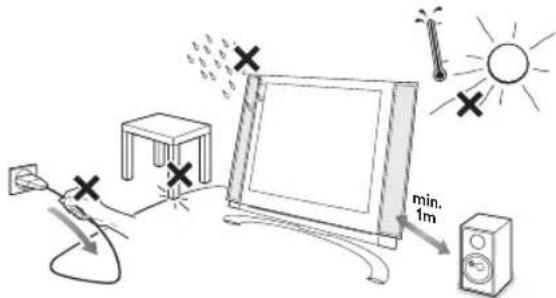
Ensure that the TV is placed in a position to allow free flow of air. Do not cover the ventilation openings on the back cover.
To prevent any unsafe situations, no naked flame sources, such as lighted candles, should be placed on or in the vicinity.
Avoid heat, direct sunlight and exposure to rain or water. The equipment shall not be exposed to dripping or splashing.
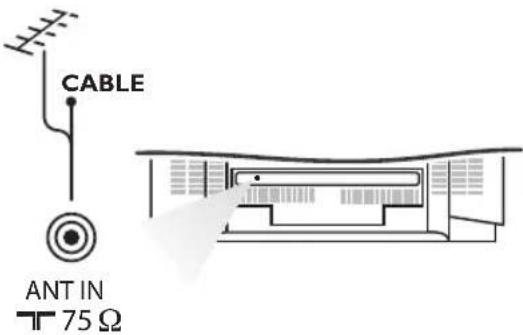
2 Insert the aerial plug firmly into the aerial socket ANT IN 75 Ω at the back of the TV.
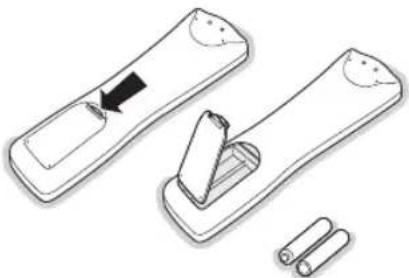
3 Remote control: Remove the cover of the battery compartment. Insert the 2 batteries supplied (Type R6-1.5V).
natural_image
Illustration of a remote control device with a black arrow indicating the left side and two cylindrical batteries on the right side (no text or symbols)R6 / 1,5 V
4 Power: This TV operates on a DC supply provided by the AC-DC adaptor. The voltage is as indicated on the label on the back cover.
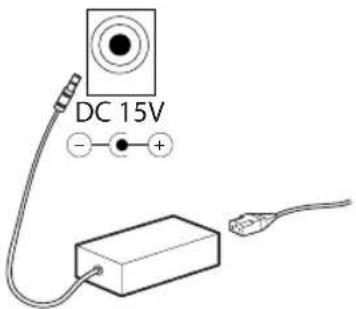
Only use the AC-DC adaptor supplied with the TV and never apply an AC mains to the TV directly. The AC-DC adaptor operates on an AC mains supply, the voltage is as indicated on the label of the AC-DC adaptor.
Connect the DC plug of the AC-DC adaptor to the DC 15V socket at the back of the TV.
Connect the AC-DC adaptor and its mains cord.
Insert the mains plug in the wall socket having a mains voltage of 110V-240V.
5 Switch the TV on: Press the power key at the front side of the TV to switch it on or off.
If the TV is in standby mode, the standby indicator in front of the TV illuminates brightly. Press the standby key ⏻ again or the -P + key or one of the digit keys on the remote control to switch the TV on.
To use the menus
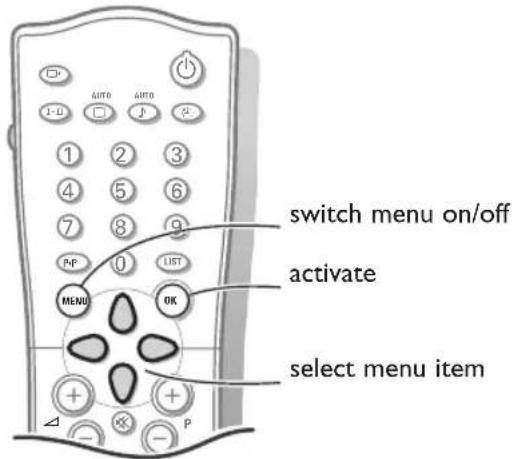
1 Press the MENU key repeatedly to display each menu.
2 Use the cursor up/down to select a menu item.
3 Use the cursor left/right to adjust the setting of a menu item or press the OK key to enter a submenu.
Automatic installation
Manual installation
Reshuffle
Language
▲▼ OK MENU
Store TV channels
Select the menu language
| Automatic installation |
| Manual installation |
| Reshuffle |
| Language |
| ▲▼ OK MENU |
1 Press the MENU key on the remote control once to select the installation menu.
2 Use the cursor down to select Language.
3 Press the OK key.
4 Press the cursor up/down to select your language.
5 Press the OK key.
You can search for and store the TV channels in two different ways: using Automatic installation, see p. 5 or Manual installation (tuning-in channel by channel), see p. 6.
Select your choice and press the OK key.
Automatic installation
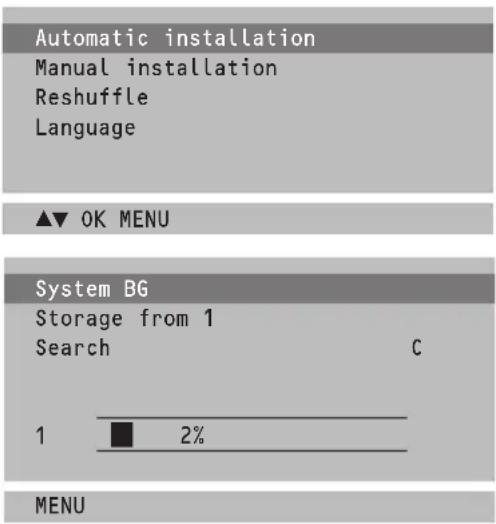
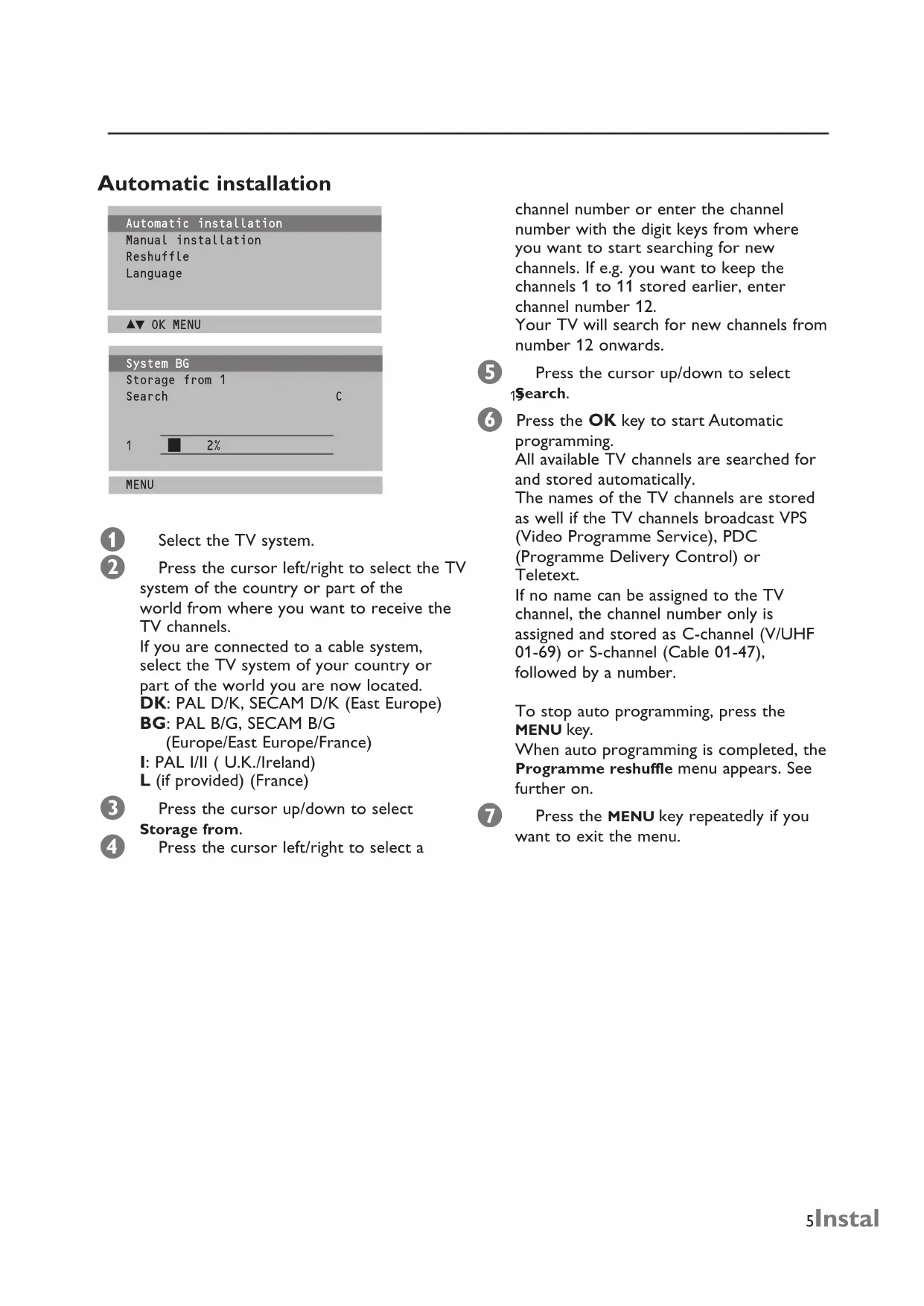
1 Select the TV system.
2 Press the cursor left/right to select the TV system of the country or part of the world from where you want to receive the TV channels.
If you are connected to a cable system, select the TV system of your country or part of the world you are now located.
DK: PAL D/K, SEÇAM D/K (East Europe)
BG: PAL B/G, SECAM B/G (Europe/East Europe/France)
I: PAL I/II (U.K./Ireland)
L (if provided) (France)
3 Press the cursor up/down to select Storage from.
4 Press the cursor left/right to select a
channel number or enter the channel number with the digit keys from where you want to start searching for new channels. If e.g. you want to keep the channels 1 to 11 stored earlier, enter channel number 12.
Your TV will search for new channels from number 12 onwards.
5 Press the cursor up/down to select 1Search.
6 Press the OK key to start Automatic programming.
All available TV channels are searched for and stored automatically.
The names of the TV channels are stored as well if the TV channels broadcast VPS (Video Programme Service), PDC (Programme Delivery Control) or Teletext.
If no name can be assigned to the TV channel, the channel number only is assigned and stored as C-channel (V/UHF 01-69) or S-channel (Cable 01-47), followed by a number.
To stop auto programming, press the MENU key.
When auto programming is completed, the Programme reshuffle menu appears. See further on.
7 Press the MENU key repeatedly if you want to exit the menu.
Manual installation
Automatic installation
Manual installation
Reshuffle
Language
▲▼ OK MENU
System BG
Channel S-ch/C-ch
Fine tune ▶▶▶
Search
Name C 01
Store 1
▲▼ ◀ ▶OK MENU
Searching for and storing TV channels is done channel by channel. Also you can assign a name to a TV channel with up to 5 letters or numbers.
You must go through every step of the manual programme menu.
1 Select Manual installation in the installation menu.
2 Press the OK key to enter the Manual installation menu.
3 Press the cursor left/right to select the TV system of the country or part of the world from where you want to receive the TV channel.
If you are connected to a cable system, select the TV system of your country or part of the world you are now located.
DK: PAL D/K, SECAM D/K (East Europe)
BG: PAL B/G, SECAM B/G
(Europe/East Europe/France)
I: PAL I/II ( U.K./Ireland)
L (if provided) (France)
4 Press the cursor up/down to select Channel.
5 Press the cursor left/right to select C-ch for aerial channels or S-ch for cable channels.
If you know the C- (01-69) or S-channel number (01-47), enter it directly with the digit keys 0 to 9.
Ask for a list from your cable company or dealer.
6 Press the cursor up/down to select Search.
7 Press the cursor left/right to start searching. If a channel is found the search will stop.
Fine tune
In case of poor reception, you can improve the reception by fine tuning.
Press the cursor up/down to select Fine tune.
Press the cursor left/right to fine tune for the best picture and sound.
Assigning a channel name
It is possible to change the name stored in the memory or to assign a name to a TV channel which has not yet been entered. A name with up to five letters or numbers can be given to the programme numbers 0 to 99.
Press the cursor up/down to select Name. Select the character with the cursor left/right.
Space, numbers and other special characters are located between Z and A. Press the OK key.
Select a following character.
Proceed with the following steps.
8 If the channel is the one required, press the cursor up/down to select Store.
9 Press the cursor left/right to select a channel number or enter the channel number with the digit keys.
10 Press the OK key to store the TV channel. Repeat steps 4 to 10 to store another TV channel.
Press the MENU key repeatedly if you want to exit the menu.
Reshuffle the programme list
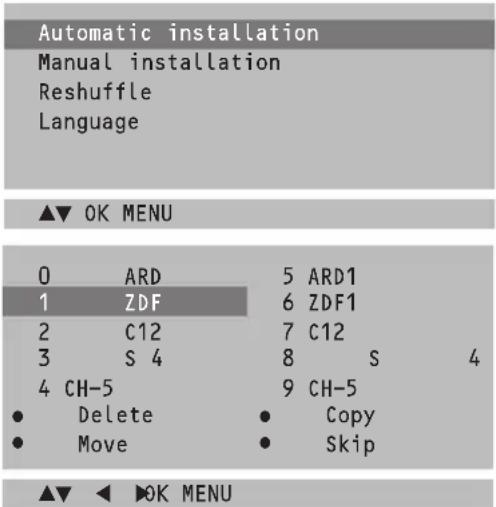
According to your preference you can delete or skip the stored TV channels. You can also change the order of the stored TV channels or insert a blank data into the selected channel number.
1 Press the cursor up/down to select Reshuffle in the Installation menu.
2 Press the OK key to enter the Reshuffle menu.
Deleting a TV channel
1 Press the cursor up/down, left/right to select a TV channel to be deleted.
2 Press the red key on the remote control twice.
The selected TV channel number is deleted, all the following channels are shifted up one position.
Copying a TV channel
1 Press the cursor up/down, left/right to select a TV channel to be copied.
2 Press the green key on the remote control.
All the following channel numbers are shifted down one position.
Moving a TV channel
1 Press the cursor up/down, left/right to select a channel number to be moved.
2 Press the yellow key on the remote control.
3 Press the cursor up/down, left/right to move the TV channel to the desired channel number.
4 Press the yellow key again to release this function.
Skipping a channel number
1 Press the cursor up/down, left/right to select a channel number to be skipped.
2 Press the blue key on the remote control. The skipped TV channel is displayed in blue.
3 Press the blue key again.
After leaving the installation you can browse through the TV channels by pressing the cursor keys up/down. Only those TV channels which are not skipped can be selected. Skipped TV channels can still be selected with the digit keys or in the programme list in which they will be displayed in blue.
Press the MENU key repeatedly to exit the menu.
Displaying the programme list
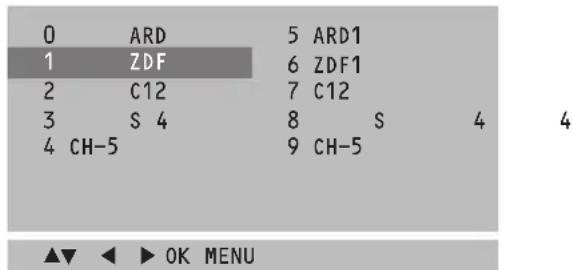
1 Press the LIST key on the remote control to display the programme list.
2 Press the cursor up/down, left/right to run through the list of 100 channel numbers.
3 Press the OK key to select the desired TV channel.
Note: TV channels displayed in blue have been set up to be skipped in the Reshuffle menu.
Operation
Use of the remote control

Source
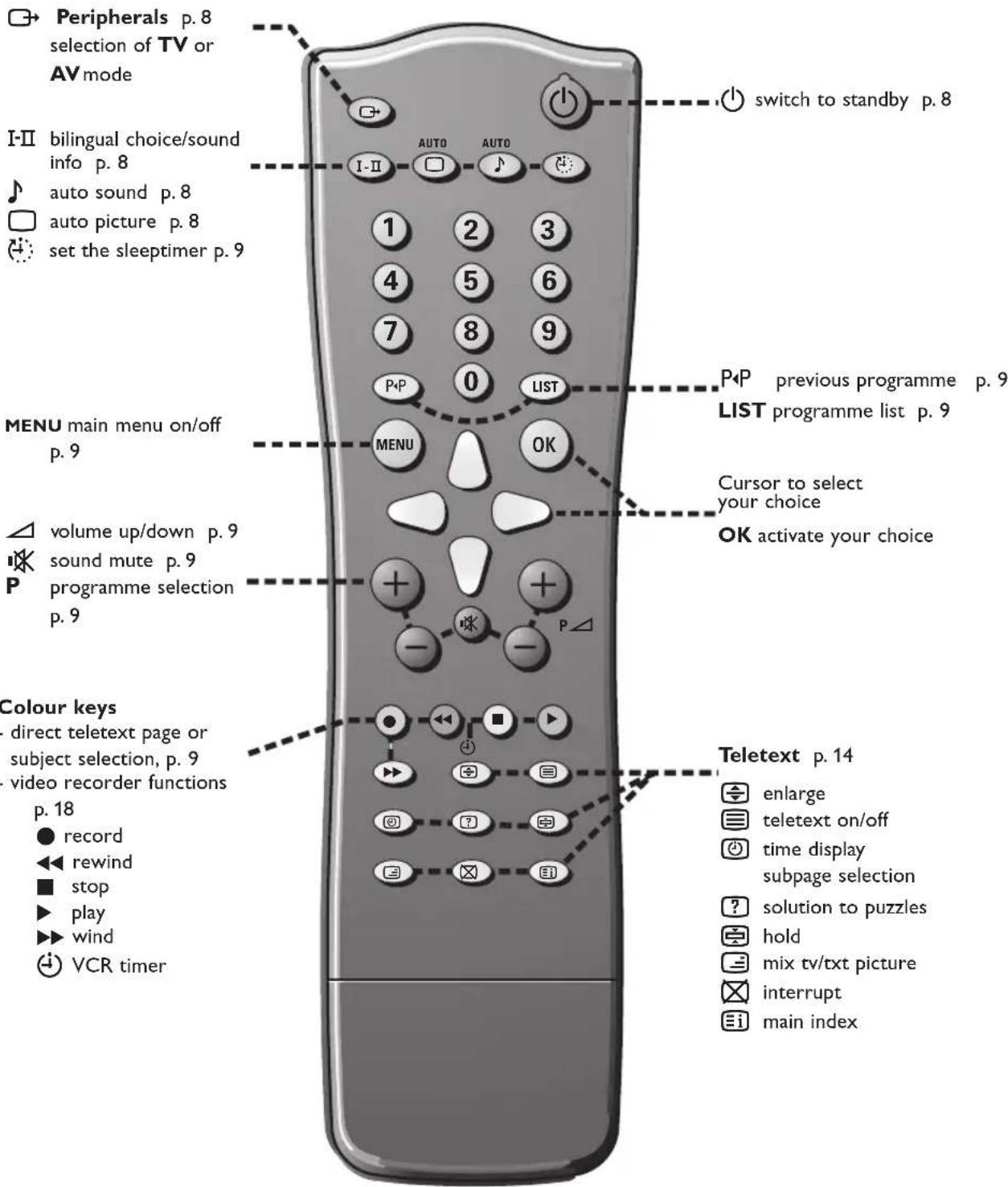
Select other peripherals: press repeatedly to select TV, AV1, AV2 or S-VIDEO mode.
I-II Bilingual choice and sound mode selection
Press this key
• to switch from Stereo to Mono sound in case of stereo transmission, or from Nicam Stereo to Nicam Mono, in case of digital transmission
• to switch from Nicam Dual I to Nicam Dual II or Nicam Dual I-II in case of Nicam Dual transmission
• to choose between Dual I, Dual II or Dual I-II in case of bilingual transmission:
Dual I sends the primary broadcast language to the loudspeakers;
Dual II sends the secondary broadcast language to the loudspeakers;
Dual I-II sends a separate language to each loudspeaker.
Note: in case of weak stereo sound signals, with stereo or Nicam stereo transmission, select mono reception.
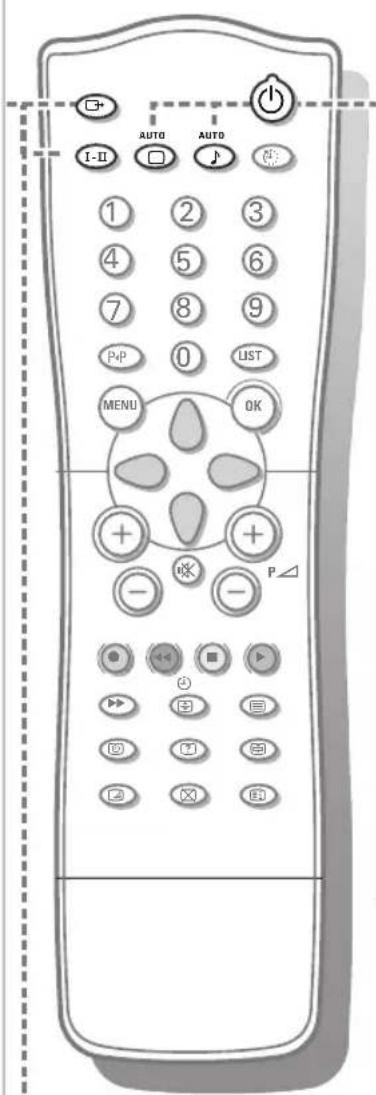

Standby
Switches the TV on from standby or off to standby.
AUTO keys
To select predefined picture and sound settings.

AUTO picture
Each time it is pressed, a different picture setting is selected, corresponding with specific factory settings of Contrast, Brightness, Colour and Sharpness.

AUTO sound
Each time it is pressed, a different sound setting is selected, corresponding with specific factory settings of treble and bass.
Personal refers to the personal preference settings of picture and sound selected and stored in the picture and sound menu.
Sound output selection in AV mode
In AV mode, you can select the output sound for the left and right loudspeakers.
Press the I-II key repeatedly to select:
- L+R: the audio signal from the audio L input is sent to the left loudspeaker, the audio signal from the audio R input to the right loudspeaker
- L+L: the audio signal from the audio L input is sent to the left and right loudspeakers
- R+R: the audio signal from the audio R input is sent to the left and right loudspeakers.
MENU Press repeatedly to display each menu.
OK Press this key to activate your choice, when in the menus.
Volume
Press + or - to adjust the volume.
Mute
Temporarily interrupt the sound or restore it.
P Programme selection
• to browse through the TV channels which are not skipped
• to switch the TV on from standby.
●◀◀ ■▶▶▶ Video recorder keys see p. 18.
Time display
The time, downloaded from the TV channel (with teletext broadcast) stored on programme number 1 or the lowest not skipped programme number, is displayed on the screen.
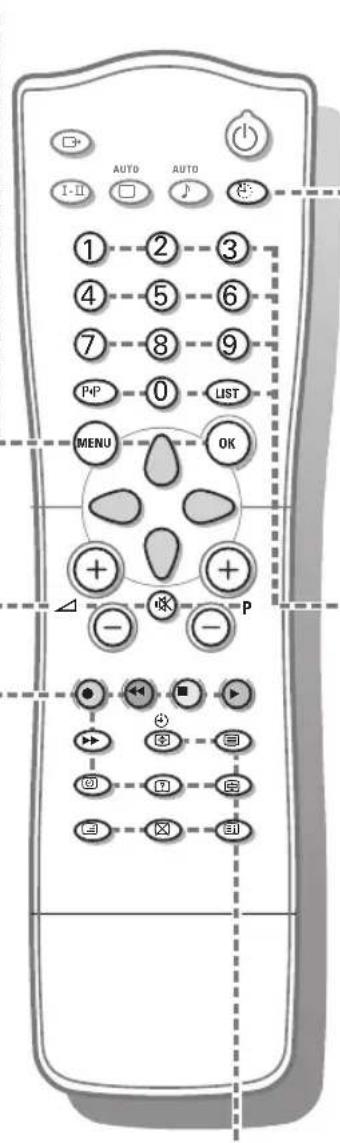
Sleeptimer
With this key you can set a time period after which the TV should switch itself to standby.
Press the key repeatedly to select the number of minutes.
The counter runs from ⏻ 0, 10, 20, 30.... to 240 minutes.
The timer begins to count down from the number of minutes selected.
Note: To view the remaining time, press the ⏻ key once. To cancel the sleep time, repeatedly press the ⏻ key until ⏻ 0 appears.
0/9 Digit keys
To select a TV channel. For a channel number under 10, first enter a 0, e.g. 05 for 5.
P◀ P Previous programme
To display the previously selected TV channel.
LIST Programme list
To display the programme list.
Teletext on/off see p. 13.
Teletext functions see p. 14.

Keys in front of the TV
natural_image
Line drawing of a flat-screen television mounted on a curved base (no text or symbols)
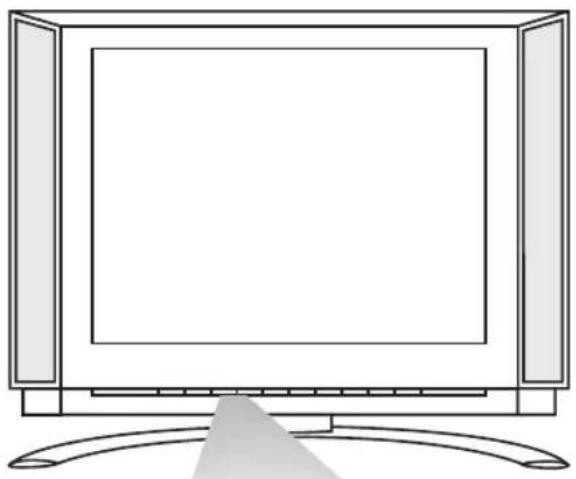
Should your remote control be lost or broken you can still operate your TV with the keys in front of the TV.
ON/OFF: Press the power ON/OFF key to switch the TV on or off
TV/VIDEO: Press repeatedly to select TV or AV mode
MENU: Press repeatedly to display each menu
OK: - Press this key to activate your choice when in the menu
- Auto demonstration: Keep the OK key pressed for about 10 seconds.
All the menus are being displayed automatically one after the other.
To stop Auto demonstration, press any key on the front panel.
-VOL +: - Press - or + to select a menu item;
- Press - or + to adjust the volume;
- Press - or + to adjust the menu settings.
- CH/PR +:- Press - or + to browse through the TV channels which are not skipped;
- Press - or + to select a menu item;
- To switch the TV on from standby.
(1): Switches the TV on from standby or off to standby.
The ⏻ indicator lights up brightly when the TV is in standby, dims when the TV is switched on.
Use of the menus
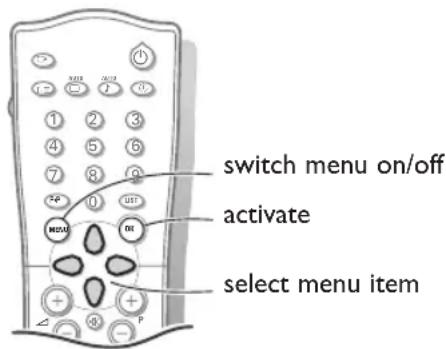
1 Press the MENU key repeatedly to display the picture, sound or special menu.
2 Use the cursor up/down to select a menu item.
3 Use the cursor left/right to adjust the setting of a menu item or press the OK key to enter a submenu.
4 Press the MENU key repeatedly if you want to exit the menu.
Picture menu
| Contrast | 100 |
| Brightness | 95 |
| Colour | 85 |
| Sharpness | 80 |
| Tint | |
 | |
You can adjust picture contrast, brightness, colour, sharpness and tint (NTSC AV only) to the levels you prefer.
Press the OK key to store the adjustments. The message Stored appears.
Now your picture settings are stored and can be recalled with the AUTO ☐ key on the remote control, selecting Personal. To select one of the predefined factory picture settings, press the AUTO ☐ key on the remote control.
Press the MENU key repeatedly to exit the menu
Sound menu
| Equalizer | |
| Balance | 0 |
| AVL | On/Off |
| Natural | ||||
| Music | 0.1 | 0.5 | 1.5 | 5.0 |
| Movie | 10 kHz | |||
| Speech | ||||
| Personal | ||||
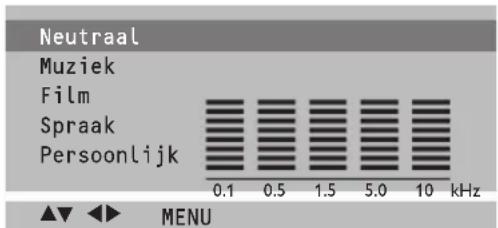
You can select your preferred sound setting or you can also adjust the sound frequency of equalizer and the balance of the right and left speaker's sound output.
Switch AVL On to maintain constant volume levels when switching TV channels.
Equalizer
1 Select Equalizer and press the OK key to enter the Equalizer menu.
2 Select one of the predefined factory sound settings or select Personal to adjust your personal sound settings of treble and bass.
Setting the equalizer Personal
1 Select Personal with the cursor up/down.
2 Press the cursor left/right to select a sound band.
3 Press the cursor up/down to adjust the appropriate sound level.
4 Press the OK key to store the Personal adjustments.
The message Stored appears.
Press the MENU key repeatedly to exit the menu.
Special menu
| Source | TV |
| Child Lock Off | |
| Auto off | Off |
Select TV or AV mode
1 Select Source in the Special menu.
2 Press the cursor left/right to select TV, AV1, AV2 or S-VIDEO.
- AV1 for a VCR connected to the 1 euroconnector. (See Connect Peripheral equipment, p. 15)
- AV2 for a VCR connected to the AV2 connector of the TV.
- S-VIDEO for a S-Video VCR connected to the S-Video connector of the TV.
Note: When a VCR is connected via the aerial socket, the TV is used in TV mode.
Alternatively you can select the TV or AV mode with the source key on the remote control.
To return to TV mode, press the cursor up/down or the digit keys.
Auto AV switching
If your VCR is connected to the euroconnector and the VCR is switched to playback, the TV is automatically switched to AV1 mode. If you want to keep on watching in TV mode, press the cursor up/down, + P - or press the digit keys.
Child lock
If the child lock is on, the TV can only be switched on and operated with the remote control. The keys in front of the TV cannot be used. In this way you can prevent unauthorised use of your TV. If the message Child lock On appears, the child lock must be switched off before you can use the front panel keys to select a TV channel.
1 Select Child lock in the Special menu.
2 Press the cursor left/right to select Child lock On.
3 Press the MENU key repeatedly to exit the menu.
Auto off
If Auto off is switched On, the TV automatically switches to standby if for a period of about 12 minutes no aerial signal is received.
1 Select Auto off in the Special menu.
2 Press the cursor left/right to select Auto off On.
3 Press the MENU key repeatedly to exit the menu.
Teletext
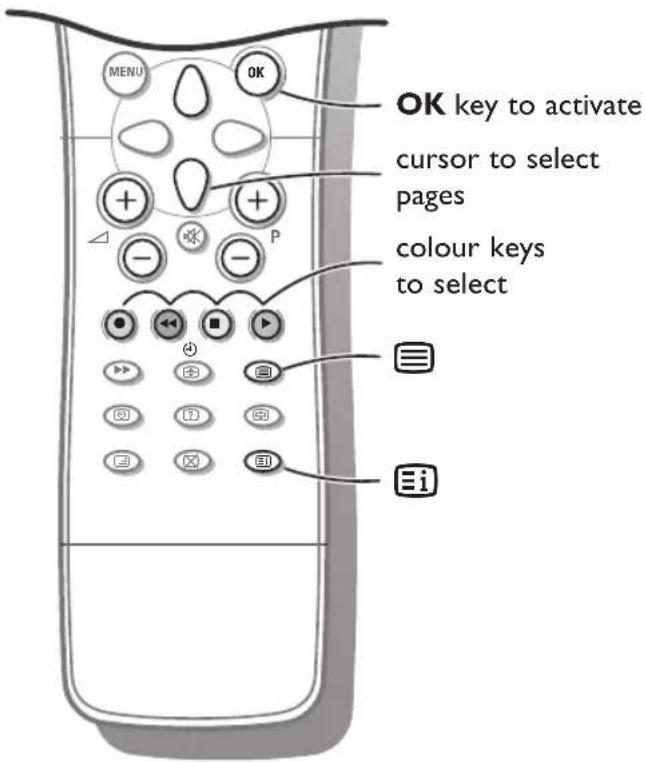
Most TV channels broadcast information via teletext.
Each channel which broadcasts teletext transmits a page with information on how to use its teletext system. Look for the teletext page with the main index (usually page 100). Depending on the TV channel, teletext is transmitted in different systems: Standard teletext, TOP and FASTEXT.
- Standard teletext consists of a number of pages which are selected by directly entering the corresponding page number.
- TOP and FASTEXT make use of the colours along the bottom line, corresponding with the colour keys of your remote control, to select teletext information
Switch Teletext on and off
Press ☐ to switch the teletext on or off. The main index page or the last selected page appears on the screen together with an information headline and an option line at the bottom of the screen.
Select a Teletext page
With the digit keys
Enter the desired page number with the digit keys.
The page counter seeks the page.
A message appears when you have entered a non existent or incorrect page number. Complete the 3-digit number and then re-enter the correct page number. Page numbers beginning with 0 or 9 do not exist.
With the bottom option line
Select with the colour keys, corresponding to the coloured options at the bottom of the screen, the desired subject.
With the cursor up/down
Press the cursor up/down to select the previous or the following page.
Select the index teletext page
Press the ☐i key to display the main index (usually p.100).
Only for TOP teletext broadcasts:
Not all TV channels broadcast TOP teletext. TOP orders the pages in categories and adds other possibilities of enhancing ease of use. Press the ☐i key. A TOP overview of the teletext subjects available is displayed. Make use of the colour keys to select teletext information or directly select the teletext pages with the digit keys.
Select subpages
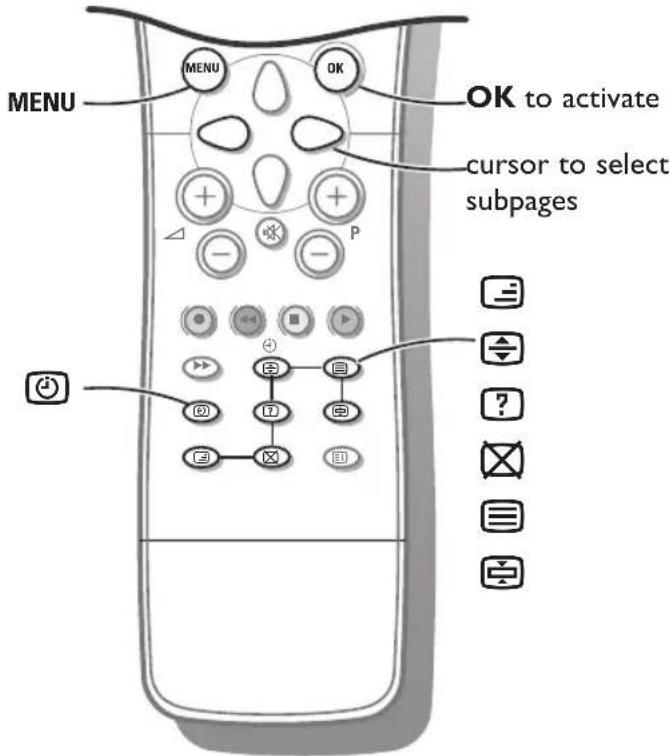
If subpages are available you can stop them from automatically rotating or select the described subpage yourself.
Press the ⏻ key.
The subpage number is displayed at the bottom of the screen.
Press the red or green key to select the previous or following subpage, or change the subpage with the cursor up/down or with the digit keys.
Press the Ⓐ key again to exit this function.
Special teletext functions
Enlarge
Press 🧑 repeatedly to display the upper part, the lower part and then to return to the normal page size. When the upper part is displayed, you can scroll the text, line by line using the cursor up/down.
Reveal
Press ☐ to reveal/conceal the hidden information, such as solutions to riddles and puzzles.
Hold
Press ☐ to stop the automatically rotating of the subpages if these are available.
The 📋 icon is displayed at the top of the screen.
Press the ☐ key again to continue the automatic rotating again
Mix
Press the ☐ key to display the teletext pages superimposed on the TV picture.
Press the ☐ key again to switch the TV picture off again.
Interrupt
Press ☒.
The TV programme appears.
at the top of the screen indicates that you are still in the teletext mode.
Before interrupting teletext, you may select a page number.
When the page has been found, the information line appears briefly on your screen.
Press ✉ again.
Teletext reappears.
Connect Peripheral Equipment
natural_image
Diagram of a computer monitor with scroll wheel and ventilation slots (no text or symbols)There is a wide range of video and audio equipment that can be connected to your TV. The following connection diagrams show you how to connect them.
Preparation
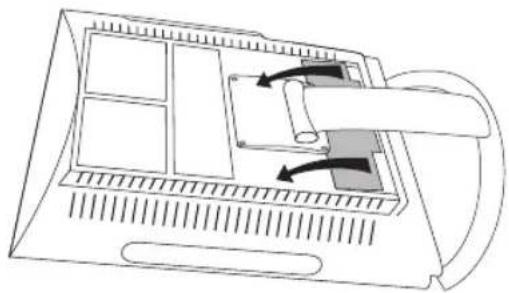
Remove the backplate at the back of the TV as shown on the illustration opposite.
Lay the LCD TV with the screen down on a table as it will be easier to connect your peripheral equipment. Please take your precautions not to damage the screen.
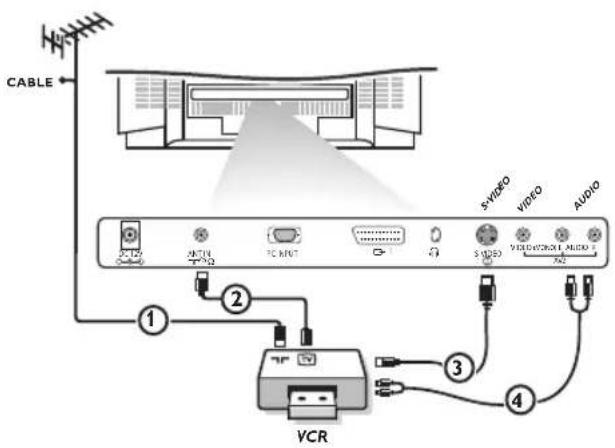
Video recorder
With a eurocable
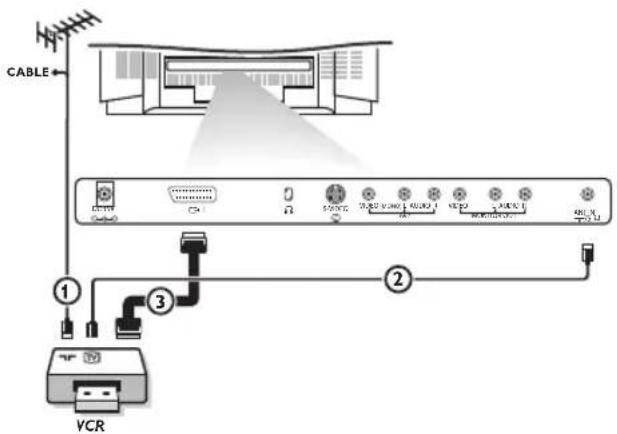
With a eurocable you will obtain a better picture quality than with an aerial cable only.
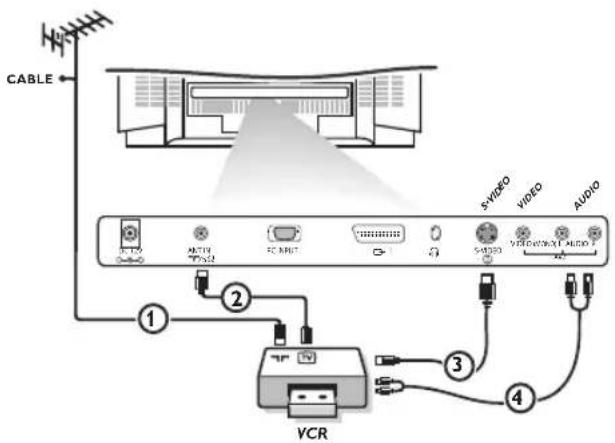
1 Connect the aerial cables ①, ② and the eurocable ③ as shown opposite.
2 Press the ▶ key on the VCR.
The TV will switch to AV1 mode automatically.
If you want to keep on watching in TV mode, press the cursor up/down, + P - or press the digit keys
With an aerial cable only
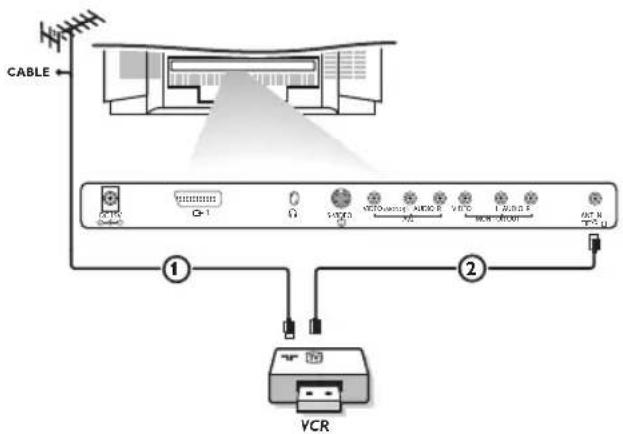
1 Connect the aerial cables ① and ② as shown opposite.
2 Search for and store the test signal of the VCR.
- Unplug the aerial cable ① from the aerial socket T of your VCR.
- Switch on your TV and put the VCR on the test signal. (See the handbook for your VCR)
- Search for the test signal of your VCR in the same way as you searched for and stored TV channels. See Manual programme tuning, p. 6.
- Store the test signal under a programme number.
- Replace the aerial cable in the aerial socket of your VCR after you have stored the test signal.
3 Select the programme number under which the VCR is stored.
4 Press the ▶ key on the VCR.
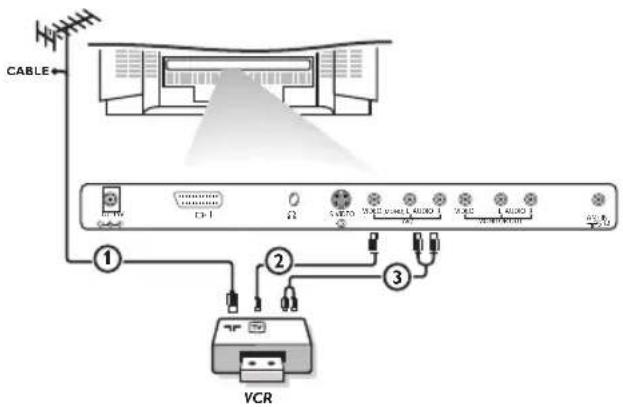
With Audio/Video cables
1 Connect the aerial cable ① and the Audio/Video cables ② and ③ as shown opposite.
2 Press the → key on the remote control or select Source in the Special menu (See p. 12) to select AV2.
3 Press the ▶ key on the VCR.
Note: If you have a mono VCR, connect the audio cable from the VCR to the AUDIO (MONO) L connector only at the back of the TV.
S-VHS video recorder
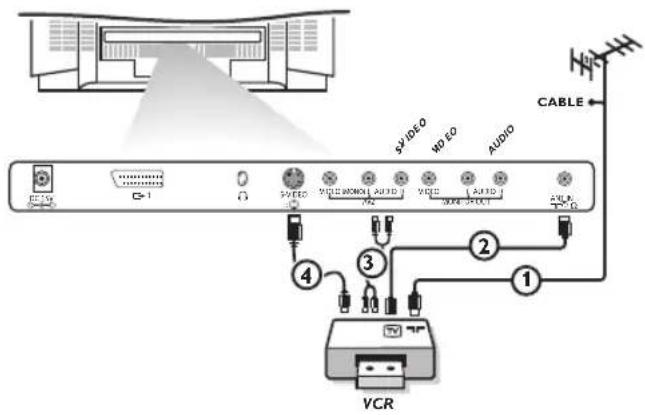
With an S-VHS VCR you will obtain a better picture quality.
1 Connect the aerial cables ① and ② as shown opposite.
2 Connect the S-Video cable ③ to the S-VIDEO socket of the TV.
3 Connect the audio cable ④ as shown opposite.
Note: Never connect to the same TV one VCR with S-VHS cables at the same time as one VCR with a euroconnector.
4 Press the key on the remote control or select Source in the Special menu (See p. 12) to select S-Video.
5 Press the ▶ key on the VCR.
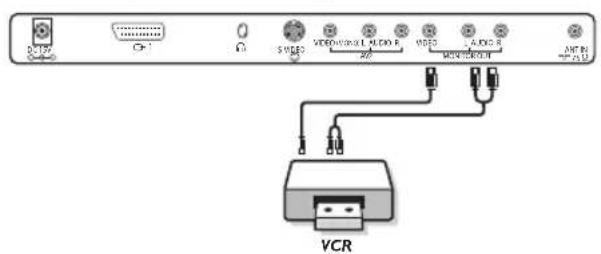
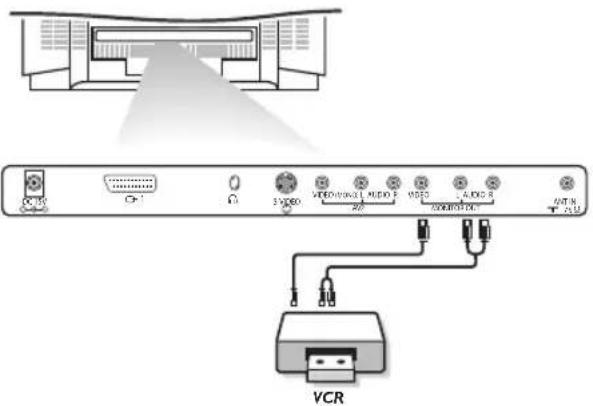
MONITOR OUT connections
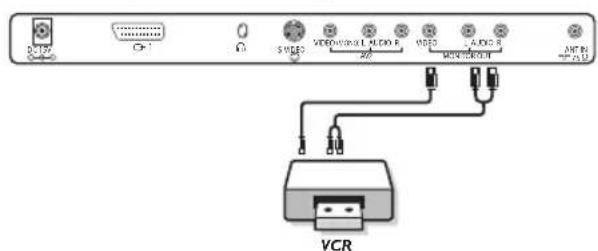
The MONITOR OUT connections can be used for daisy chaining or to record programmes from your TV.
Only when a VCR is connected to MONITOR OUT it is possible to record a programme from other equipment connected to the TV. When a video recorder is not connected to MONITOR OUT you can only record a programme from the aerial or from the cable system.
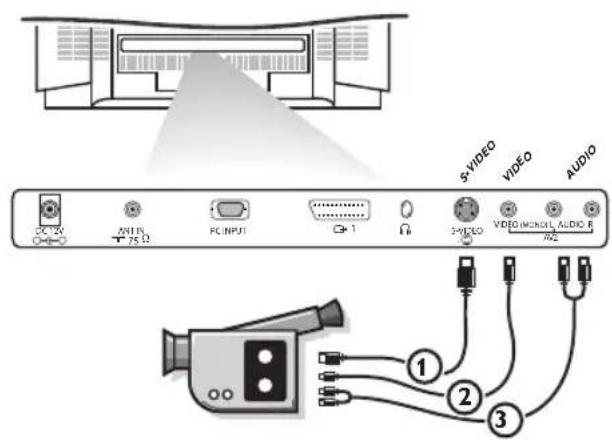
Camera & camcorder
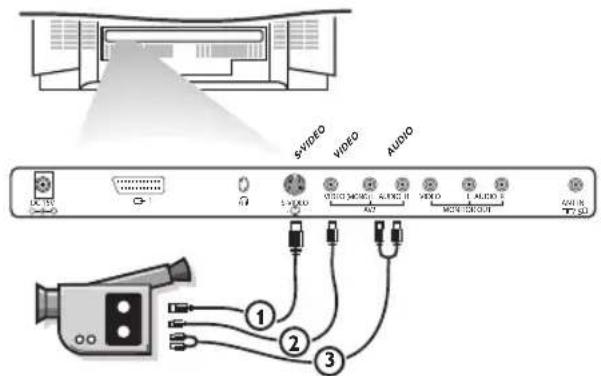
1 Connect your camera or camcorder to the VIDEO socket ② and AUDIO (MONO) L ③ for mono equipment.
2 For stereo equipment also connect AUDIO R ③.
S-VHS quality with an S-VHS camcorder is obtained by connecting the S-VHS cables with the S-VIDEO input ① and AUDIO input ③.
Headphone
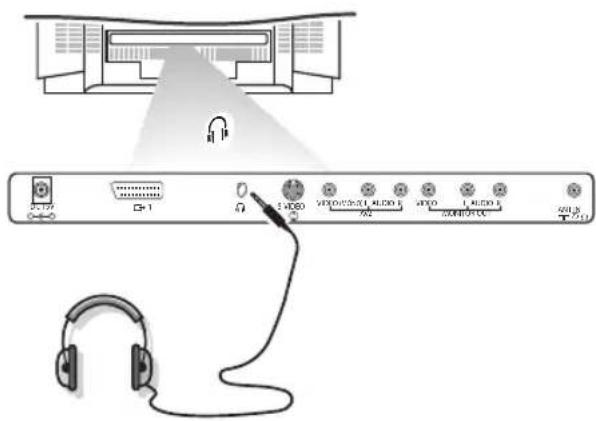
1 Insert the plug into the headphone socket at the back of the TV.
2 Press the ☑ key on the remote control to switch off the sound from the headphone and the internal loudspeakers of the TV.
3 Press the cursor left/right to adjust the volume.
Video recorder keys
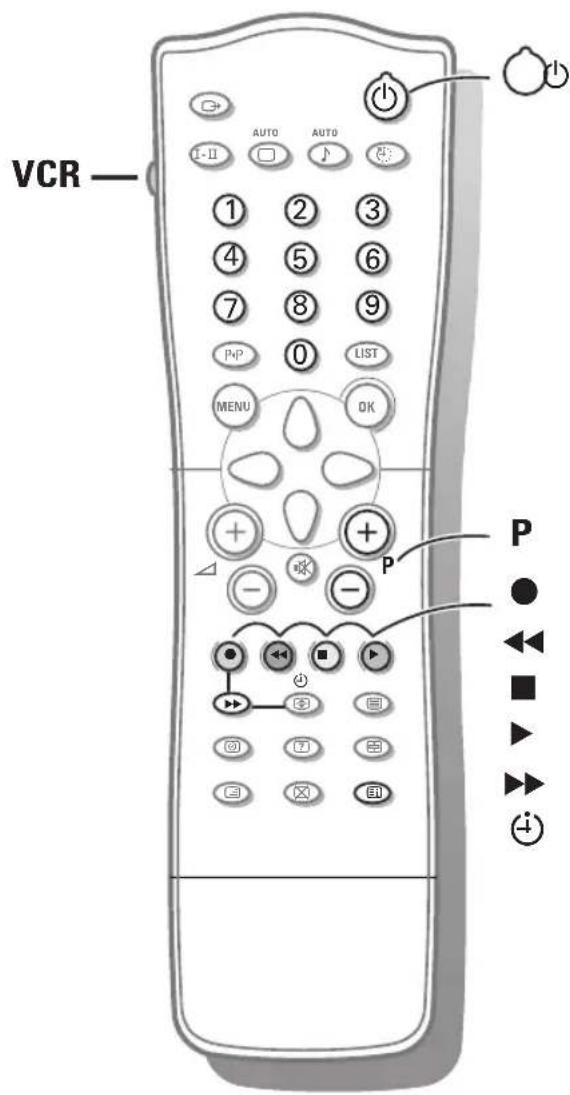
Most of the video equipment from our range of products can be operated with the remote control of your TV.
Keep the VCR key on the left side of the remote control pressed and simultaneously press:
● for record
◀◀ for rewind
for stop
▶ for play
▶▶ for fast forward
(1) for VCR timer
- P + for sequential programme selection from the VCR tuner
0 to 9 to select a programme number from your VCR tuner
to switch the VCR to standby
Tips
Care of the screen
Do not rub or strike the screen with anything hard as this may scratch, mar, or damage the screen permanently.
Unplug the screen before cleaning the screen. Dust the TV by wiping the screen and the cabinet with a soft, clean cloth. If the screen requires additional cleaning, use a clean, damp cloth. Do not use liquid cleaners or aerosol cleaners.
Mobile telephone warning
To avoid disturbances in picture and sound, malfunctioning of your TV or even damage to the TV, keep away your mobile telephone from the TV.
Poor Picture
- Have you selected the correct TV system?
- Are the cables connected properly? (The aerial cable to the TV or VCR, the VGA cables to the TV, the power cable.)
- Is your TV or house aerial located too close to loudspeakers, non-earthed audio equipment or neon lights, etc.?
- Mountains or high buildings can cause double pictures or ghost images. Sometimes you can improve the picture quality by changing the direction of the aerial.
- Are brightness and contrast out of adjustment? Press the AUTO or □ key to restore the predefined factory settings. Try another channel, perhaps the received signal is too weak
- Sometimes poor picture quality is possible when having an S-VHS VCR, camera or camcorder connected and another peripheral is connected to AV1 or AV2 at the same time. In this case switch off one of the other peripherals.
No picture
• Is the TV switched on
- Is the aerial connected properly? Are the plugs tightly connected in the aerial socket?
- Is the aerial cable in good condition and does it have suitable plugs?
No sound
No sound on any channel? Check the volume isn't at minimum. Is the sound interrupted with the mute key ❖?
Remote control
- If your TV no longer responds to the remote control, the batteries may be dead.
You can still use the keys in front of the TV. - Has the child lock been switched off?
No solution
Switch your TV off and on again once. Never attempt to repair a defective TV yourself.
Never remove the back cover of the TV. If the TV does not operate properly, unplug it and call your dealer or a TV technician.
End of life directives
We are paying a lot of attention to produce environmentally-friendly in green focal areas. Your new TV contains materials which can be recycled and reused.
At the end of its life specialised companies can dismantle the discarded TV to concentrate the reusable materials and to minimise the amount of materials to be disposed of.
Please ensure you dispose of your old TV according to local regulations.
How to dispose of batteries?
The batteries supplied do not contain the heavy metals mercury and cadmium. Nevertheless in many countries batteries may not be disposed of with your household waste. Please ensure you dispose of batteries according to local regulations.
Index
a auto picture, 8
auto sound, 8
automatic installation, 5
AVL, 11
b balance, 11
bass, 11
bilingual broadcast, 8
brightness, 11
c camcorder, 17
C-channels, 6
child lock, 12
colour, 11
e equalizer, 11
eurocable, 15
f factory settings, 8
fine tune, 6
h headphone, 17
I language, 4
m manual installation, 6
menu language, 4
mono, 8
mute, 9
n name, 6
nicam, 8
p programme list, 7
s S-channels, 6
search, 5
search for tv channels, 5
sharpness, 11
sleeptimer, 9
source, 12
sound adjustments, 11
stereo, 8
store TV channels, 4
S-VHS, 16
s-video, 16
switch TV on, 3
system, 5
t teletext, 13
tint, 11
treble, 11
v video recorder, 15
volume, 9
Inhaltsverzeichnis
Einstellung
Videotext/Teletext 13-14
Hilfe?
natural_image
Line drawing of a flat-screen monitor with open doors and a curved base (no text or symbols)
natural_image
Diagram of a computer monitor with scroll wheel and ventilation slots (no text or symbols)Mit A/V-Kabeln
MONITOR OUT Anschlüsse
natural_image
Line drawing of a flat-screen television with front panels and a curved base (no text or symbols)
natural_image
Diagram of a computer monitor with scroll wheel and internal components (no text or symbols)Magnétoscope S-VHS
Branchements MONITOR OUT
natural_image
Architectural line drawing of a modern building facade with a ceiling and window, featuring a stylized ear icon at the bottom (no text or symbols)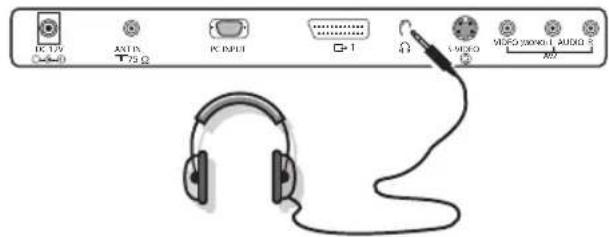
installation manuelle, 6
interruption de son, 9
I langage, 4
langage du menu, 4
natural_image
Line drawing of a flat-screen television mounted on a curved base (no text or symbols)
natural_image
Diagram of a computer monitor with scroll wheel and ventilation slots (no text or symbols)S-VHS videorecorder
natural_image
Architectural line drawing of a modern building facade with a ceiling and floor, featuring a stylized ear icon at the bottom (no text or symbols)b balans, 11 bass, 11 bron, 12
c camcorder, 17 C-kanalen, 6
e equalizer, 11 eurokabel, 15
f fabrieksinstelling, 8 fijnafstemming, 6
natural_image
Line drawing of a flat-screen television with front panel and backrest (no text or symbols)
natural_image
Diagram of a computer monitor with scroll wheel and scroll wheel (no text or symbols)Con cavi Audio/Video
Videocamera & camcorder
natural_image
Illustration of a remote control device with a black arrow indicating the left side (no text or symbols present)R6 / 1,5 V
natural_image
Line drawing of a flat-screen television mounted on a curved base (no text or symbols)
Teletexto reaparece.
natural_image
Diagram of a computer monitor with scroll wheel and ventilation slots (no text or symbols)natural_image
Architectural line drawing of a modern building facade with a ceiling and floor, featuring a stylized ear icon at the bottom (no text or symbols)Manuell installation 6
natural_image
Illustration of a remote control device with a black arrow indicating the left side and two cylindrical objects on the right (no text or symbols)R6 / 1,5 V
Manuell installation
Omfördelning
Språk
▲▼ OK MENU
Lagra TV-stationer
Välj menyspråk
Automatisk installation
Manuell installation
Omfördelning
Språk
▲▼ OK MENU
Manuell installation
Omfördelning
Språk

OK MENU
System BG
Lagring från 1
Sokning
C
1

2%
MENU
Manuell installation
Automatisk installation
Manuell installation
Omfördelning
Språk
▲▼ OK MENU
System BG
Kanal S-ch/C-ch
fininställning ▶▶▶
Sökning
Namn C 01
Lagring 1
▲▼ ◀ ▶OK MENU
natural_image
Line drawing of a flat-screen television with two front panels and a curved base (no text or symbols)
natural_image
Diagram of a computer monitor with scroll wheel and ventilation slots (no text or symbols)natural_image
Architectural line drawing of a modern building facade with a ceiling and floor, featuring an ear icon at the bottom (no text or symbols)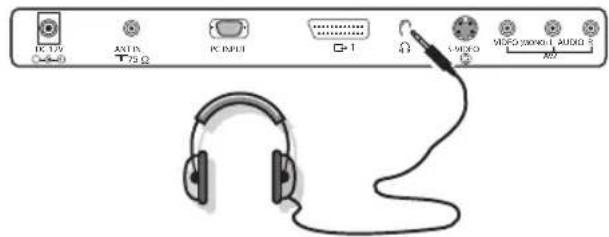
m manuelll installation, 6
menyspråk, 4
mono, 8
n namn, 6
nicam, 8
p programlista, 7
s S-kanaler, 6
skärpa, 11
slå på TV:n, 3
sökning, 5
Printed on recycled paper

- Contents
- Installation
- Operation
- Connect peripheral equipment
- Your remote control
- Preparation
- Place the TV on a solid surface.
- Insert the aerial plug firmly into the aerial socket ANT IN 75 Ω at the back of the TV.
- Remote control: Remove the cover of the battery compartment. Insert the 2 batteries supplied (Type R6-1.5V).
- Power: This TV operates on a DC supply provided by the AC-DC adaptor. The voltage is as indicated on the label on the back cover.
- Switch the TV on: Press the power key at the front side of the TV to switch it on or off.
- To use the menus
- Store TV channels
- Select the menu language
- Automatic installation
- Manual installation
- Fine tune
- Assigning a channel name
- Reshuffle the programme list
- Deleting a TV channel
- Copying a TV channel
- Moving a TV channel
- Skipping a channel number
- Displaying the programme list
- Use of the remote control
- Source
- I-II Bilingual choice and sound mode selection
- Standby
- AUTO keys
- AUTO picture
- AUTO sound
- Sound output selection in AV mode
- Volume
- Mute
- P Programme selection
- ●◀◀ ■▶▶▶ Video recorder keys see p. 18.
- Time display
- Sleeptimer
- 0/9 Digit keys
- P◀ P Previous programme
- LIST Programme list
- Teletext on/off see p. 13.
- Keys in front of the TV
- Use of the menus
- Picture menu
- Sound menu
- Equalizer
- Setting the equalizer Personal
- Special menu
- Select TV or AV mode
- Auto AV switching
- Child lock
- Auto off
- Teletext
- Switch Teletext on and off
- Select a Teletext page
- With the digit keys
- With the bottom option line
- With the cursor up/down
- Select the index teletext page
- Only for TOP teletext broadcasts:
- Select subpages
- Special teletext functions
- Enlarge
- Reveal
- Hold
- Mix
- Interrupt
- Video recorder
- With Audio/Video cables
- S-VHS video recorder
- MONITOR OUT connections
- Camera & camcorder
- Headphone
- Video recorder keys
- Tips
- Care of the screen
- Mobile telephone warning
- Poor Picture
- No picture
- No sound
- Remote control
- No solution
- End of life directives
- How to dispose of batteries?
- Index
- Inhaltsverzeichnis
- Einstellung
- Mit A/V-Kabeln
- MONITOR OUT Anschlüsse
- Magnétoscope S-VHS
- Branchements MONITOR OUT
- S-VHS videorecorder
- Con cavi Audio/Video
- Videocamera & camcorder
- Lagra TV-stationer
- Välj menyspråk
- System BG
- Manuell installation
Brand : PHILIPS
Model : 20LCD35
Category : TV