Vossor Phonebook V3 - Browser Seecode - Free user manual and instructions
Find the device manual for free Vossor Phonebook V3 Seecode in PDF.



| Product type | Landline phone with directory |
| Brand | Seecode |
| Model | Vossor Phonebook V3 |
| Category | Navigator (phone with navigation function) |
| Dimensions (approx.) | 20 x 15 x 10 cm |
| Weight (approx.) | 500 g |
| Power supply | Mains adapter (6V) or 2 AA batteries |
| Main functions | Contact directory, incoming/outgoing call, caller ID, call rejection, directory navigation |
| Display | Backlit LCD screen, 3 lines |
| Keypad | Numeric with navigation keys |
| Memory | Up to 100 contacts |
| Ringtone | Polyphonic, adjustable |
| Maintenance and cleaning | Clean with a soft, dry cloth. Do not use chemical products. |
| Safety | Use only with the supplied adapter. Do not expose to moisture. |
| Spare parts and repairability | Parts available from the manufacturer or authorized dealer. Professional repair recommended. |
| General information | User manual available in French and several languages. 2-year warranty. |
Frequently Asked Questions - Vossor Phonebook V3 Seecode
User questions about Vossor Phonebook V3 Seecode
0 question about this device. Answer the ones you know or ask your own.
Ask a new question about this device
Download the instructions for your Browser in PDF format for free! Find your manual Vossor Phonebook V3 - Seecode and take your electronic device back in hand. On this page are published all the documents necessary for the use of your device. Vossor Phonebook V3 by Seecode.
USER MANUAL Vossor Phonebook V3 Seecode
3.8.4DTMF(Dial Tone Modulation Frequency)
- The Device
1.1 Features
1.2Accessories
1.3 Part Description
1.4 Keys and Functions
1.5 Specification
1.6 LED and LCD Display Indicators
2.1.1.1
2.1Changming
2.2 Power On 2.3 Power Off
2.3 Palling/Corneccing the Vossor
2.3.1 First Time
2.3.2 Connecting
2.4 Setting up the Vossor
3.4.1.GDP Surplus
3.4.1.1 Contract
2.4.10VH
2.4.2Volume Control 10
2.4.3 Ring volume control
- Making Call
3.1 Making Call from phone book
3.2 Making Call from Call register/last dialed number
3.3 Making Call from speed dial
3.4Receiving Call
3.5 Rejection Call
1.2.1.1.1.1
3.6 CallrD Disp
3.7 Voice Dialing
3.8 Options during a Call
3.8.1 Call Waiting
3.3 Transfer Call between mobile and Vorder during conversation
3.5.3 Min Gain control and Multi
0
4 Call Features
4.1Rhopp Books
14.4.7.6
4.1.1ATCOMMAN
4.1.2 OPP [Ob]et Push
4.2 Speed Dialing
4.3 De-ting Phone Book Entry
5.Trouble Shooting
ENGLISH
ENGLISH
1. The Device
1.1 Features:
-Phone Book data transfer via either OPP (object Push Profile) or
AT command.
-lltra large phone book capacity
G
Scrolling Gaurer Name 2
-Supports Phone Status
(mobile phone signal strength and battery capacity)
of the Blue Gold mobile phone
Profe ricnol PDP for oth e p collction and opine entndion
- Professional DSP for ECE
- Microphone gain control
DTME (DUAL TONE MODULATION FREQUENCY)
- Speed Dialing
DigitalVolumeControl
DigitalVolume
- Dot Matrix LCD
- Call Register
Voice Dialing
Socio Contract Afoct
Screen Contact: Aajoshi
- Software Upgrs
Built-in Battery
*Not ALL mobile phones support this features, please consult you mobile phone
manufacturer for details
1.2 Accessories

Cigarette lighter adaptor

Rechargable battery

Manual
2
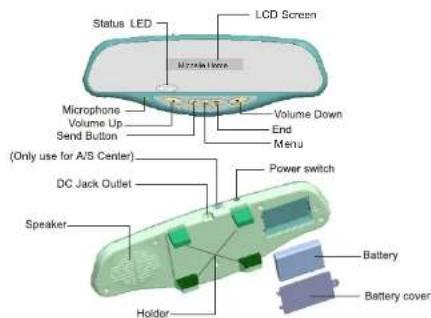
1.3 Part Description
1.4 Keys and Functions
| Receive callVoice dialingConversation transferYesBluetooth link connection | End callReject callNo |
| Volume + Upward Leftward Microphone gain control + | Volume Downward Rightward Microphone gain control - |
3
ENGLISH
DTMF (Dial Tone Modulation Frequency): Activate only during the line is connected.
Phone book Transforming the phone book contacts from mobile phone and SIM to Vossor via OPP or AT Command
LCD setting Contrast
Disconnect BT
Speed Dialing Offer 3 slots memory for speed dialing.
Del Phone Book Delete entire phone book content
4
1.5 Specification
| Function | Description |
| Battery | 3.7V, 1700mAh Li-Ion |
| Speaker | 8 Ω/1W(Normal) |
| MIC | -62 +/-2dB |
| Power Consumption | Max 200mA |
| Cigar Lighter Jack OUT : | 5V/650mA |
| Frequency range | 2400MHz to 2480MHz |
| Modulation Method | GFSK, 1Mbps, 0.5BT Gaussian |
| Transmission Power | Typ. 1.0dBm |
| Hopping | 1600 hops/sec 1MHz channel space |
| RX. Sensitivity | Typ. -83.0dBm |
| Built in Memory | Flash memory(8MBit) |
| Operating Temperature | -10~50°C |
| Storage Temperature | -20~70°C |
| Noise suppression | Yes |
| Echo Cancellation | Yes |
| Supported Profile | HSP, HFP, OPP |
| Standby Time | 280 hours |
| Talking Time | 15 hours |

ENGLISH
1.6 Indicator LCD Display Indicators:
*BT: Bluetooth™
| SEECODE | Welcome Screen |
| # | BT Paring Mode |
| # | BT Paring Successful |
| # | BT Search Mode (BLINKING) |
| SEECODE | BT Disconnected |
| • DAVID | Outgoing Call |
| • DAVID | Incoming Call |
| • DAVID | Missed Call |
| [m] | Menu |
| Reception signal strength Indicator(for mobile phone only) | |
| Battery level Indicator (for mobile phone only) | |
| Call Transfer to Mobile (During a call) | |
| L1+R | Line Switching in Call waiting |
| b | Voice Dialing |
| Call Register | Call Register |
| # | Volume Indicator |
| # | AT Command Inquire |
| # | AT Command Phone Book Transfer in process |
| # | AT Command Phone Book Transfer Finished |
| # | OPP Phone Book Transfer in process |
| LED Indicator | |
| Red Light | Steady: Battery charging in progress |
| Blinking (every 1 second): battery in low level, recharging is recommended | |
| Blue Light | Blinking (every 30 second): Unit is in on |
2. Get Started
2.1Charging:
Hint: To prolong the battery life, it is highly recommended to charge continuously for at least 8 hours before use.
Step to Charge Vassor
CIGAR LIGHTER CHARGING
STEP1:Connect the car charger to a power outlet
STEP2:Connect the DC power jack to VoSSOR
2.2 Power on:
- Power on the unit by switching the button on the top of the unit.
- The unit will then enter search mode
- Vossor will stay in search mode for 5 second
- If no device was found, will display on the screen. To search again, press once to activate search mode.
Before automatic connection, please make sure Bluetooth mode on your mobile phone is activated and you must at least successfully paired and connected to Vossor at least once in order to activate this feature.
2.3 Pairing / Connecting Vossor:
2.3.1 First time pairing
- Power on Vossor and wait until it is no longer searching.
- Press and hold MENU for 2 second and the screen shows
READY PAIRING
- Follow your mobile's operation menu on how to pair a device When Vossor was successfully found by your mobile, it will display the register ID on your mobile. The ID of Vossor is "SEECODE" and it will display on your mobile when linked.
- Enter "0000" when a passcode is requested.
Vossor will display $ 100 to indicate pairing is successful.
ENGLISH
2.3.2 Connecting
After pairing, you can connect the mirror via your mobile or by pressing the once. Make sure Bluetooth has been activated on the mobile phone before pressing the button. (Please refer to your mobile's operation manual about connecting Bluetooth device)
Once it is connected, user will hear "Beep" once. The mobile's ID will be displays on the screen. Ex: I MTODOLLA 23
2.4 Setting up Vossor
*Selup function only available when Vossor is connected to a device.
2.4.1 LC D Di spl ay:
- Press
- Scroll the menu by pressing or until you see LCD CONT RAS T
- Click OK
- Press to enter
2.4.1.1 Contrast
- In the contrast menu, you will see This is the status bar showing the contrast level of the LCD Display. There are 10 levels which user can adjust by pressing to their desired level.
- Press to save setting
2.4.2 Vol ume
User can adjust the volume by pressing the or during a call.
2.4.3 Ring Volume
User can adjust ring volume level by pressing the or in the root.
3. Making Call
User can make call either from mobile or Vossor
3.1 Making Call using Phone Book
- Press
- Scroll the menu by pressing or until you see PhoneBook
- Press to enter Phone Book
- To reduce search time, scroll the first character of the desired name by
pressing 一 or ,then press to select. - Press to dial
To setup phone bo ok, please refer to Pa ge 12 "Phone Bo ok" for detail
3.2 Making Call from Call Register / last dialed numb er
- Press
2.Scroll the phone list by pressing or until you find the desired
dialed number then press
3.3 Making Call through Speed Dialing
- Press and hold either
- Call will automatically dial out
HINTS: In order to use Speed Dialing, the phone book must be pre-setup.
Please refer to page 13 for detail.
3.4 Receiving Call
User can accept call either through the handset or Vossor
To accept Call using Vossor, simply press
3.5 Rejecting Call
To reject call, simply press

ENGLISH
3.6 Caller ID Display
Caller ID display is a network service, please consult your network provider
for detail:
Caller ID can be displayed in 3 ways:
-
By Name
Vossor can display the caller's name when receiving call. To display
the caller's name, the name must be stored in the phone book. -
By Phone Number
Phone number will be displayed if there is no record in the phone
book,
3. Withheld number
when a caller withheld his number, withheld will be displayed
3.7 Voice Dialing
To enter Voice dialing mode:
1.Hold key for 2 seconds
2. Speak the name after the tone
If failed to recognize, you will hear a deep beep tone twice, press to
exit and repeal above procedures.
3.8 Options during a call
3.8.1 Call Waiting:
**This is a network service, please consult your network provider for details
Accepting incoming call during a conversation
1. Press and it will automatically switch to Line2
2. To switch between to Lines, press and display will show Lio
3. Press to confirm
3.8.2 Transfer Call between mobile and Vossor during conversation
Press and hold for two seconds.
3.8.3 Mic Gain control and Mute
Mic Gain:
To increase Microphone Gain, press and hold for 2 seconds.
To decrease Microphone Gain hold for 2 seconds
Mute
To mute, simply press . To cancel, press once again.
ENGLISH
3.8.4DTMF(Dial Tone Modulation Frequency)
To use DTMF Function:
1.Hold for 2 second.
2.Scroll the desire number by pressing
3. Press to dial
HINTS: This function is available only during conversation
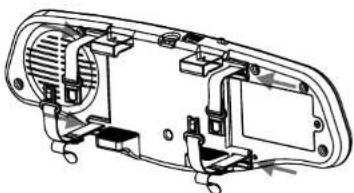
Fixing of the optional safetybelts
- Turn the backside of the mirror to you.
- Push the belts in the four adaptors near the holder, the part with the buckle must be on the upper side of the mirror.
- Adjust the length of the belts at the part with the latch, according to the size of your original reviewmirror.
- Put the Vossor on your mirror and push the latch in the buckle.
- To unbuckle it again, just push at the middle of the latch and pull it apart.
ENGLISH
4. Call Feature
4.1 Phone Book
AT command and OPP (Object Push Profile) function can automatically transfer the contacts from mobile to Vossor
HINTS NOT ALL MOBILES SUPPORT ABOVE FEATURES
4.1.1 AT Command
To Transfer the Phone Book from mobile via AT command:
(Pleases make sure the Vossor and the mobile is connected)
1. Press
2. Scroll the menu by pressing gr × until you see PHONEBOOK
3. Press to enter Phone Book Transfer Inquiry
4. Press to start or Press to cancel
5. When contacts transter is processing LG will show 103 and
blinking
6. Once transfer was succeeded, it will indicate
四
4.1.2 OPP (Object Push Profile)
Fossor supports single contact or group contacts transfer via OPP function. For detail operating procedures, please refer to your mobile phone's user manual.
To Transfer the Phone Book from mobile via OPP:
1.Disconnel Bluetooth link from Vossor setting
If it is currently connected
2. Do the proper selling on the mobile phone for copying and
Transferring the contacts from the mobile phone to Vossor
(Pleaseser to you mobile phone a user manual)
-
When the contact is transferring, display shows
-
After transferring done, display shows xxx records". The xxx is
a number representing the total contacts which have been
successfully transferred to Vossor - Conpaed Vossor again
Access phone book in Vossor to check whether the contacts were successfully transferred.
Some mobiles are able to register multiple phone numbers under the same
name:Vossor phonebook can distinguish the number by a suffix
M> (mobile).
ENGLISH
To activate speed dialing, phone book must be pre-setup.
4.2.1 Set up spe ed dial ing:
- Press
- Scroll the menu by pressing or × until you see SPEED DIALING
- Presse
- Browse for empty slot by pressing or , there are totally 3 slot.
each slot is represented by and M (M is representing button)
5.Once you find an empty slot.Press
(If phone book is empty, Press and Vossor will automatically
switch to AT Command Mode - Browse the phone number that you wish to set as speed dial
- Press to confirm
- To exit, simply press to return to main menu.
HINT: If a slot is empty, user can simply press the desired key for 2 second.
then follow the above procedures from 5 to 8.
4.2.2 Modifying/Deleting Speed Dialing Number
Once you have setup a number in a slot, you are required to delete it
bef or e set ting up a new number on the sa me slot.
To delete a number, in Speed Dialing Entry:
1.2
2. Precision or × until you see SPREADD. DIALING: then press
3. Press for the slit at which you would like to modl by
4. EORO 1000000000000000000000000000000000000000000000000
4. Press Web, and the screen will an
- Press
4.3 Del et ing Phone Boo k en try
1.Pres
2. Scroll the menu by pressing or until you see Del Phone Book.
3. Presse
4. Di sp lay shows Are you sur e?
do not allow deleting single entry. ALL entries will be deleted after
confimation
5. Press to confirm
6While delete is proceessing it will display Deletng BB
7. Display shows Deleted ALL when Phone Book is cleared
8 Press to return to Main Menu
ENGLISH
5.Trouble Shooting
Phone status showing:
It is depending on the availability and provides by the connected mo bile
phone
Mobile phone couldn't Pair with Vossor:
- Please power off and on again Vossor then repeat the pairing procedures
again
2.Set off all other Bluetooth devices before start pairing.
3.Either Vossor and the mobile phone are able to be ma ster or slave to pair
with other Bluetooth device, however pairing will not work if those are
being master or slave at the same time.
Loudspeaker sound level too low
Please increase the volume level to max ximum on the mo bile phone during
conver
Voice too low to be heard from the person who talking to Vossor user:
Do the following steps while conversational in progress.
1. Adjust the microphone gain to maximum on Vossor, or
2. the person who is talking to Vossor user adjust his/her mobile phone
volume to maximum
Strong echo heard from the person who is talking to Vossor user.
During Conversation, transfer the call to mobile and listen. If echo
disappeared, please transfer the call again from mobile phone to Vossor and
lower the loud speaker until echo is eliminated. If the echo is still remains,
that means the echo is generated by the network provider or mobile phone
itself. Vossor is unable to eliminate.
Loudspeaker volume of Vossor too low or high and unable to adjust it:
Please adjust the volume directly on the mo bile phone as desired, then fin
tune it by the volume control of Vossor
The number dialed by mo bile phone couldn't be found from Vossor:
All number which are dialed directly from the mobile are unable to save in
Vossor, please check it on the mobile phone.
The LCD display frozen or all buttons disabled
Simply turn off the unit and turn on again.

DECLARATION OF CONFORMITY
We hereby declare that the following designated product
Eear-View Minor Handisfree Kit
del MHFR6:Secode Veeer Phonebook
is in conformity to all the essential requirements of EMC Directive. The product
satisfies all the technical regulations applicable to the product within the scope of Council Decision 73/2018EC 89/14/16/EC and 108/4/EC.
Standard application
ETSIEN301429-1V1.6.1200509
ESIEN501489-17.1.2(2002-8)
JIN6910(17201)
1.2017年1月1日
EN/071(2002)
This declaration is in responsibility of the Manufacturer
Soccode Technology Ltd. & Co.KG
Krother Struie 333
51107Kohn
Germany
Date of Issue: 30 November 2007

Indhold
Apparate: 1.4 Features
3.8.4DTMF(Dial Tone Modulation Frequency)
For at benvite DTME fungtionen
1.Hold rade In sekundert.
2. Vila dat eoskoda summer med
3. Ink for at vakem
Dansk
Dansk
4.Valg
4.1 Telefonbg
Ved hjelasp f AT Commando eller OPP (Object Push Profile) Kan telfonbogen og SIM-kortels kontaktier synkrinseres med Vossor.
IKKEALLEMOBILTELEFONERUNDERSTOTTERDENNEFUNKTON
For synchronising at Telefonog via AT commande: Til dette formál skal mobilitéfonen were forbundet med Vossor)
- Tryk
- Naviger med 一 / 一 til menupunktPHONEBOOK,
- Tryk for at gà til menupunktet synkronisering af telefonbog.
- Tryk for at starte ell er tryk for at afbryde.
- Under synkroniseringen blinkervisingen [ ]displayet
- Nar synkroniseringen er opretet, vises
7.Hyis meddeJensen no Response xises,understater cin telefon
jkkeAT
4.1.2 OPP (Object Push Profile)
Hvis din Telefonke�� understater synkronsinering via AT commando kuan du ogaa sene incelte ellere allotektar via OPP til Vossor
Synkronising af telefonbg via OPP