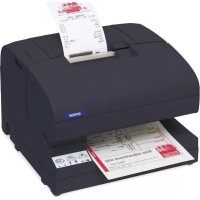
TMJ7500 - Printer EPSON - Free user manual and instructions
Find the device manual for free TMJ7500 EPSON in PDF.



| Product type | Inkjet printer |
| Brand | Epson |
| Model | TMJ7500 |
| Print technology | Inkjet |
| Power supply | PS-180 AC adapter (built-in) |
| Paper type | Roll paper and flat sheets (invoices, checks) |
| Ink cartridge | 1 black cartridge (replaceable) |
| Control panel | Indicators: POWER, ERROR, INK, CUT SHEET, PAPER OUT; Buttons: PAPER FEED, CLEANING |
| Main functions | Roll printing, flat printing, MICR reading (option) |
| Maintenance | Print head cleaning via CLEANING button; MICR cleaning with special sheet |
| Safety | Do not open while POWER is blinking; use specified power source; unplug if abnormal |
| Included parts | Ink cartridge, roll paper, switch cap, fixing plate for AC adapter |
| Repairability | Pump unit replacement by qualified repairer; spare parts available |
| General information | 96-page manual available in multiple languages; driver download at epson.com |
| Repairability index | Not evaluated (lack of information) |
Frequently Asked Questions - TMJ7500 EPSON
User questions about TMJ7500 EPSON
0 question about this device. Answer the ones you know or ask your own.
Ask a new question about this device
Download the instructions for your Printer in PDF format for free! Find your manual TMJ7500 - EPSON and take your electronic device back in hand. On this page are published all the documents necessary for the use of your device. TMJ7500 by EPSON.
USER MANUAL TMJ7500 EPSON
Standards and Approvals
The following standards are applied only to the printers that are so labeled. (EMC is tested using the Epson power supplies.)
Europe: CE marking
North America: FCC/ICES-003 Class A
Oceania: AS/NZS CISPR22 Class A
WARNING
This is a Class A product. In a domestic environment this product may cause radio interference in which case the user may be required to take adequate measures.
The connection of a non-shielded printer interface cable to this printer will invalidate the EMC standards of this device.
You are cautioned that changes or modifications not expressly approved by Seiko Epson Corporation could void your authority to operate the equipment.
CE Marking
The printer conforms to the following Directives and Norms:
Directive 2004/108/EC EN 55022 Class A
EN 55024
IEC 61000-4-2
IEC 61000-4-3
IEC 61000-4-4
IEC 61000-4-5
IEC 61000-4-6
Only for TM-J7000/J7100 IEC 61000-4-8
IEC 61000-4-11
FCC Compliance Statement For American Users
This equipment has been tested and found to comply with the limits for a Class A digital device, pursuant to Part 15 of the FCC Rules.
These limits are designed to provide reasonable protection against harmful interference when the equipment is operated in a commercial environment.
This equipment generates, uses, and can radiate radio frequency energy and, if not installed and used in accordance with the instruction manual, may cause harmful interference to radio communications.
Operation of this equipment in a residential area is likely to cause harmful interference, in which case the user will be required to correct the interference at his own expense.
For Canadian Users
This Class A digital apparatus complies with Canadian ICES-003.
| SW | Function On Off 1-7 | 1-8 Transmission speed | |
| 1 R | Reserved — Fixed to Off On On | 9600 bps | |
| 2 | Interface condition selection | By the DIP switch | By the memory switch |
| 3 | Handshaking | XON/XOFF | DTR/DSR |
| 4 W | word length 7 | bits 8 bits | |
| 5 | Parity check | Yes | No |
| 6 | Parity selection | Even | Odd |
| 78 | Transmission speed selection (See Serial transmission speed table.) | ||
Serial transmission speed
| Off | On | 19200 bps |
| On | Off | 38400 bps |
| Off | Off | 115200 bps |
Parallel
| SW | Function | On | Off |
| 1-8 | Reserved | Fixed to Off. | |
TM-J7000/J7100, TM-J7500/J7600 Specifications
| Receipt Slip Endorsement | (TM-J7000/J7100) | |||
| Print method Serial inkjet Dot Matrix Method | ||||
| Print density 180 × 180 dpi | ||||
| Print font Font (standard) Font A: 12 × 24, Font B: 9 × 17 | ||||
| Column capacity (columns) | 82.5 mm: 42/5676 mm: 40/5369.5 mm: 36/4857.5 mm: 30/40 | TM-J7000/J7100: 48/64TM-J7500/J7600: 80/106 | 46/61 | |
| Character size (W × H) (standard) | 1.41 × 3.38 mm/0.99 × 2.40 mm(not including horizontal spacing) | |||
| Character set 95 Alpha | numeric, 37 International, 128 × 11 Graphic | |||
| Characters per inch (standard) | Font A (12 × 24): 15 cpi, Font B (9 × 17): 20 cpi | |||
| Paper | Dimensions (mm) | 57.5 ± 0.5, 69.5 ± 0.5, 76 ± 0.5, 82.5 ± 0.5Maximum outside diameter: 83 mm | 68~230 (W) × 68~297 (L)(min. 68 × 152) | 68~101.6 (W) × 150~223 (L) |
| Thickness (mm) 0.06~0 | 09 0.09~0.2 0.09~0.13 | |||
| Print speed (Economy, High speed mode) | Character (font B) Paper | width 76 mm: 14.3 lps | TM-J7000/J7100: 13.7 lps * | |
| TM-J7500/J7600: 9.9 lps * | ||||
| Graphic Paper width 76 mm: 43 mm/s | TM-J7000/J7100: 40 mm/s * | |||
| TM-J7500/J7600: 29.1 mm/s * | ||||
| Bar code, Two-dimensional code | UPC-A, UPC-E, JAN13(EAN13), JAN8(EAN8), CODE39, CODE93, CODE128, ITF, CODABAR(NW7), PDF417 | |||
*Full-column printing
| TM-J7000/J7100 | TM-J7500/J7600 | ||
| Interface | RS-232 or IEEE 1284Dealer option: RS-485, USB, 10Base-T I/F | ||
| Data buffer | Receive buffer | 4 KB | |
| User defined buffer | 12 KB | ||
| User NV memory | 384 KB (Max.) | ||
| Ink cartridge | Color | Single color: Black SJIC8(K) (for TM-J7000 or TM-J7500 only)Two color: Black SJIC6(K) (for TM-J7100 or TM-J7600 only),Red SJIC7(R), Blue SJIC7(B), Green SJIC7(G) | |
| Life | Single color: Approx. 20 million charactersTwo color: Approx. 15 million characters | ||
| Power* | 24 VDC ± 10% | ||
| Power consumption | Operating | Mean: Approx. 0.5 A | |
| Stand-by | Approx. 70 mA | Approx. 80 mA | |
| D.K.D. function | 2 drives | ||
| TM-J7000/J7100 TM-J7500/J7600 | |||
| Reliability Life | Mechanism Receipt: 15,000,000 lines, Slip: 5,000,000 lines | ||
| Print head 1600 million shots/nozzle | |||
| Autocutter 1,500,000 cuts | |||
| Temperature /humidity | Printing 10~35°C {50~95°F} 20~80% RHMust be no condensation | ||
| Operating 5~40°C {41~104°F} 20~80% RHMust be no condensation | |||
| Storage Ink installed: -20~40°C {-4~104°F} 20~85% RHInk not installed: -20~60°C {-4~140°F} 5~85% RHMust be no condensation | |||
| Overall dimensions (mm) 195 × 237 × 188 (W × D × H) 251 × 237 × 188 (W × D × H) | |||
| Mass (approx.) 4.4 kg | (including the ink cartridge) | 4.9 kg(including the ink cartridge) | |
Ips: lines per second
cpi: characters per 25.4 mm (dots per inch)
* Be sure to use a safety-standards-applied power source that meets the following specifications.
Rated output: 24 V/2.0 A or more, Maximum output: 240 VA or less
C
natural_image
White portable scanner with open lid and paper clip, no visible text or symbols on device bodyTM-J7000/J7100
natural_image
White paper printer with a black cover and control panel, no visible text or symbols on the device itself.TM-J7500/J7600
D
natural_image
Close-up of a mechanical device with internal components and an arrow indicating direction (no visible text or symbols)E

natural_image
Close-up of a hand using a sewing machine to adjust internal components (no visible text or symbols)F

natural_image
Two abstract line drawings: one with a crossed-out circle and the other with a rolled document (no text or symbols)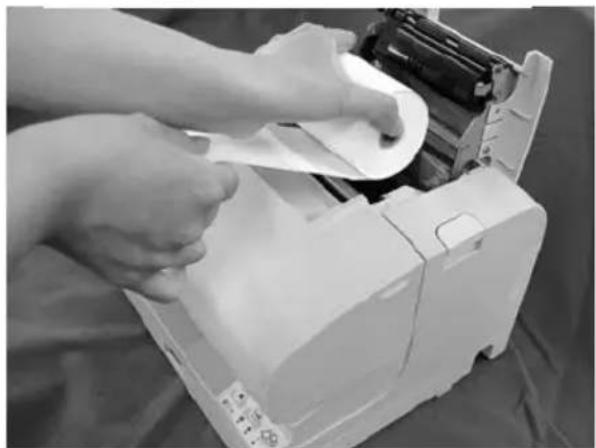
natural_image
Person using a printer to add a circular component, no visible text or symbolsG
natural_image
White electronic device with paper filter and control panel (no visible text or symbols)TM-J7000/J7100

natural_image
White paper printer with paper spool and paper holder, no visible text or symbolsTM-J7500/J7600
H
natural_image
White paper scanner device with black buttons and a small screen, shown against a plain background (no text or symbols visible)TM-J7000/J7100
natural_image
White paper printer with open lid and control panel, no visible text or symbolsTM-J7500/J7600
L
natural_image
White DSNR scanner with paper feed and paper clip, no visible text or symbols on the device itselfTM-J7000/J7100
M
TM-J7500/J7600
TM-J7000/J7100 TM-J7500/J7600
User's Manual
DIP Switches and Specifications
The technical specifications and the information about the DIP switches are at the beginning of this manual.
Illustrations
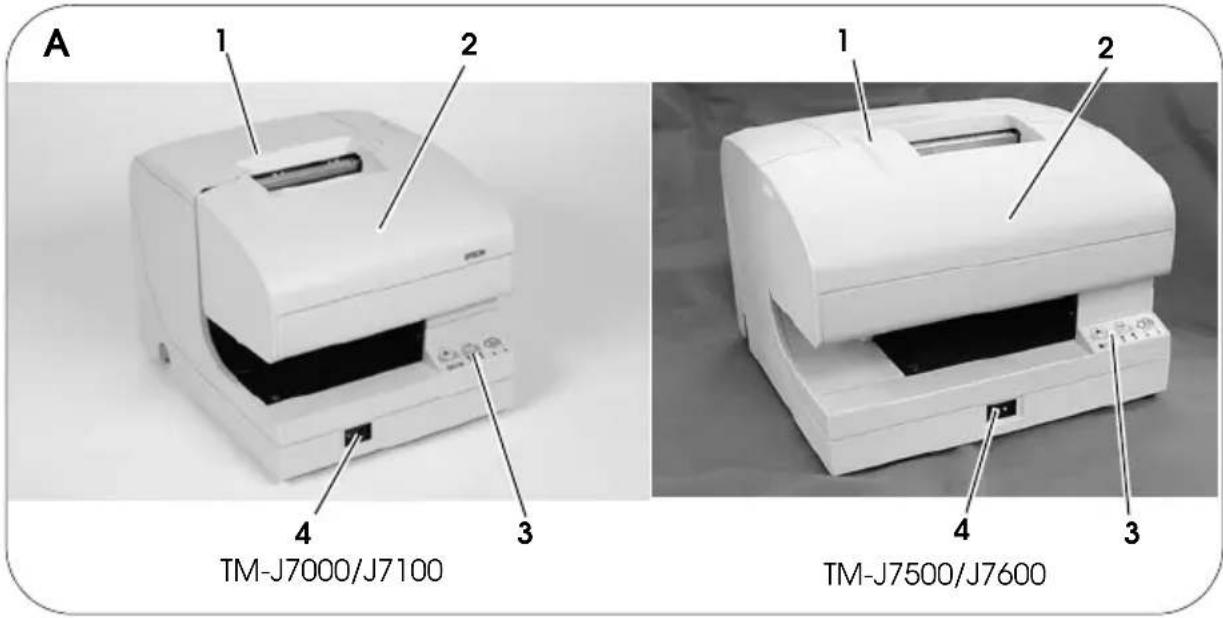
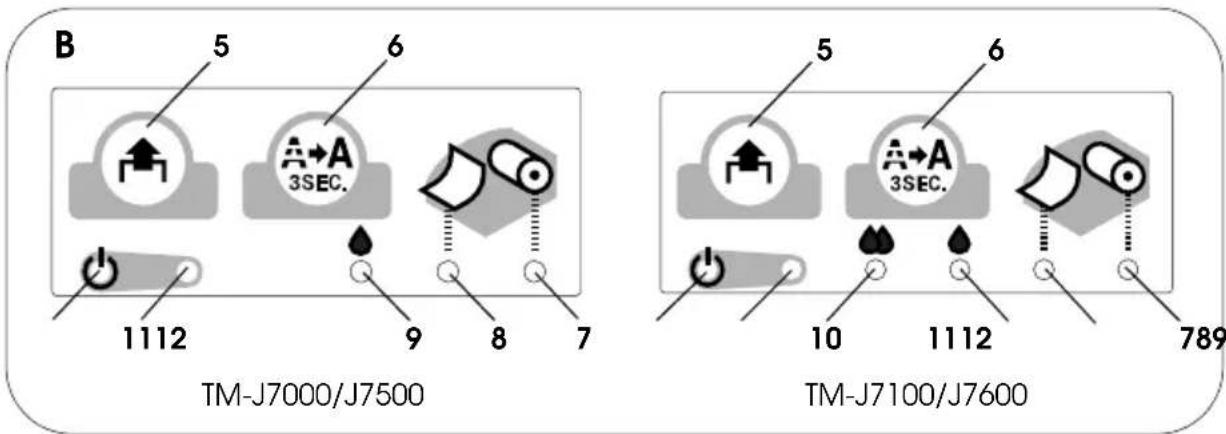
All of the illustrations are at the beginning of this manual. They are identified by letters (A, B, C . . .). In the text the illustrations are referred to by these letters. ("See illustration A," for example.) Some of these illustrations have numbered arrows or lines pointing to parts of the illustration. See the list below for the meaning of the numbers.
Illustration A Illustration B Illustration M
-
Roll paper cover
-
PAPER FEED
-
INK (Black)
-
Projections
-
Ink cartridge cover
-
CLEANING
-
INK (Color)
-
Screws
-
Control panel
-
PAPER OUT
-
ERROR
-
Fixing plate
-
Power supply switch
-
CUT SHEET
-
POWER
All rights reserved. No part of this publication may be reproduced, stored in a retrieval system, or transmitted in any form or by any means, electronic, mechanical, photocopying, recording, or otherwise, without the prior written permission of Seiko Epson Corporation. No patent liability is assumed with respect to the use of the information contained herein. While every precaution has been taken in the preparation of this book, Seiko Epson Corporation assumes no responsibility for errors or omissions. Neither is any liability assumed for damages resulting from the use of the information contained herein. Neither Seiko Epson Corporation nor its affiliates shall be liable to the purchaser of this product or third parties for damages, losses, costs, or expenses incurred by purchaser or third parties as a result of: accident, misuse, or abuse of this product or unauthorized modifications, repairs, or alterations to this product, or (excluding the U.S.) failure to strictly comply with Seiko Epson Corporation's operating and maintenance instructions.
Seiko Epson Corporation shall not be liable against any damages or problems arising from the use of any options or any consumable products other than those designated as Original Epson Products or Epson Approved Products by Seiko Epson Corporation.
EPSON is a registered trademark of Seiko Epson Corporation in Japan and other countries/regions.
NOTICE: The contents of this manual are subject to change without notice.
Copyright © 2003 by Seiko Epson Corporation, Nagano, Japan.
Important Safety Information
This section presents important information intended to ensure safe and effective use of this product. Read this section carefully and store it in an accessible location.
Key to Symbols
The symbols in this manual are identified by their level of importance, as defined below. Read the following carefully before handling the product.

WARNING:
Warnings must be followed carefully to avoid serious bodily injury.

CAUTION:
Cautions must be observed to avoid minor injury to yourself or damage to your equipment.
Safety Precautions

WARNING:
Shut down your equipment immediately if it produces smoke, a strange odor, or unusual noise. Continued use may lead to fire. Immediately unplug the equipment and contact your dealer or a Seiko Epson service center for advice.
Never attempt to repair this product yourself. Improper repair work can be dangerous.
Never disassemble or modify this product. Tampering with this product may result in injury or fire.
Be sure to use the specified power source. Connection to an improper power source may cause fire.
Do not allow foreign matter to fall into the equipment. Penetration by foreign objects may lead to fire.
If water or other liquid spills into this equipment, do not continue to use it. Continued use may lead to fire. Unplug the power cord immediately and contact your dealer or a Seiko Epson service center for advice.
Do not use aerosol sprayers containing flammable gas inside or around this product. Doing so may cause fire.

CAUTION:
Do not connect cables in ways other than those mentioned in this manual. Different connections may cause equipment damage and burning.
Be sure to set this equipment on a firm, stable, horizontal surface. Product may break or cause injury if it falls.
Do not use in locations subject to high humidity or dust levels. Excessive humidity and dust may cause equipment damage or fire.
Do not place heavy objects on top of this product. Never stand or lean on this product. Equipment may fall or collapse, causing breakage and possible injury.
To ensure safety, unplug this product before leaving it unused for an extended period.
Before moving the product, unplug it and unplug all cables connected to it. If ink leaks out of the printer, wipe up the ink with a cloth or similar material immediately and contact your dealer or a Seiko Epson service center for advice.
Safety Label

WARNING:
Do not connect a telephone line to the drawer kick out connector or to the display module connector; otherwise, the printer and the telephone line may be damaged.
Notes on Usage
☐When using the printer, be sure that the printer is installed horizontally.
☐Do not install the printer in a dusty place.
□Protect the printer from impact.
☐ Cords or other foreign objects must not be caught on the printer.
☐Do not apply excessive force to the printer case.
☐ Do not place food or beverages such as coffee on the case of the printer.
Restriction of Use
When this product is used for applications requiring high reliability/safety, such as transportation devices related to aviation, rail, marine, automotive, etc.; disaster prevention devices; various safety devices, etc.; or functional/precision devices, etc.; you should use this product only after giving consideration to including fail-safes and redundancies into your design to maintain safety and total system reliability. Because this product was not intended for use in applications requiring extremely high reliability/safety, such as aerospace equipment, main communication equipment, nuclear power control equipment, or medical equipment related to direct medical care, etc., please make your own judgment on this product's suitability after a full evaluation.
Downloading Drivers, Utilities, and Manuals
Drivers, utilities, and manuals can be downloaded from one of the following URLs.
For customers in North America, go to the following web site: http://www.epsonexpert.com/ and follow the on-screen instructions.
For customers in other countries, go to the following web site: http://www.epson-pos.com/
Purpose of This Manual
This manual provides information to operators of the TM-J7000/J7100 and TM-J7500/J7600 printers to describe basic operations to enable safe and correct use of the printer.
Unpacking
The following items are included for the standard specification printer. If any item is damaged, contact your dealer.
□Printer □Roll paper
☐Ink cartridge ☐Power switch cover
☐ Fixing plate for AC adapter and screws (only for the TM-J7500/J7600)
Instruction sheet
Peel away the 3 pieces of tape on the printer and remove the spacer from the slip paper path after unpacking.
Control Panel (LEDs and Buttons)
See illustration B.
LEDs
POWER
Lights when the power is on and is off when the power is off; flashes during cleaning and other operations such as power-on and power-off.
Note:
Never open the printer cover or turn off the printer when the POWER LED is flashing.
ERROR
Lights when the printer is offline (when the ink cartridge is removed because it is time to replace the ink cartridge, the roll paper is at the end, or the printer cover is open.) Off when the printer is online. Flashes when an error occurs. (See the Troubleshooting section.)
INK
Lights when the ink cartridge is not installed or it is time to replace the ink cartridge. Off when the ink cartridge is installed and ink is adequate. Flashes when the ink is low. The TM-J7100 and TM-J7600 have two INK LEDs, one for the color cartridge and one for the black cartridge.
Note:
To insure print quality, some ink remains in the cartridge after the INK LED comes on.
CUT SHEET
Lights when cut sheet (slip, check) is selected as print sheet. Off when roll paper is selected as print sheet. Flashes when the printer is in the cut sheet insertion or removal waiting state.
PAPER OUT
Lights when roll paper is out or nearly out.
Buttons
PAPER FEED
PAPER FEED feeds the roll paper or the cut sheet.
Note:
Paper cannot be fed using this button in the following cases:
- The printer cover is open.
- Printer is in the cut sheet insertion or removal state.
- When head cleaning is being performed or an error has occurred with any sheet selected.
- When check is selected as print sheet.
CLEANING
If printing becomes faint or uneven and the INK LED is not on or flashing, use this button to clean the print head. Press the button more than 3 seconds. When the cleaning stops, the printer is ready for normal printing.
Note:
Do not use the CLEANING button unless there is a problem with print quality. Unnecessary cleaning will waste ink.
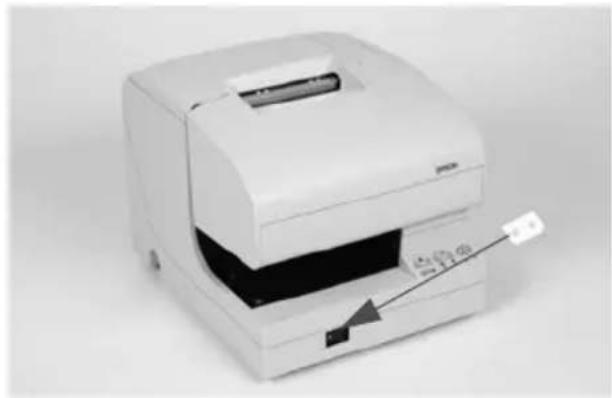
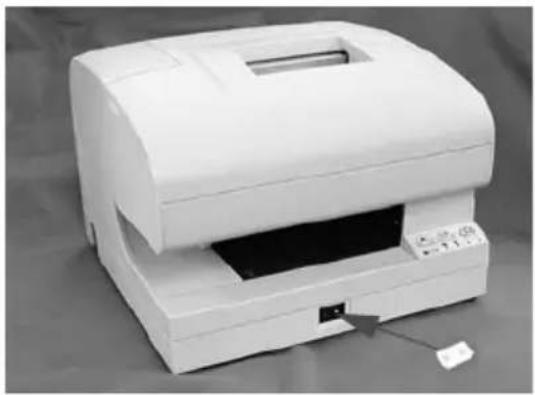
Power Switch and Power Switch Cover
The power switch is on the front of the printer. Press the power switch to turn on the printer.
To maintain print quality (by capping the print head), be sure to follow these instructions for turning off the power: Wait at least 8 seconds after printing on roll paper or after removing a cut sheet; then turn off the power switch.
Note:
Never open the printer cover or turn off the printer when the POWER LED is flashing.
Power Switch Cover
You can use the enclosed power switch cover to make sure that the power switch is not accidentally pressed. Just press the cover into place to install it. If you need to turn the power switch on or off with the cover attached, you can insert a thin tool into one of the holes in the cover to operate the switch. See illustration C.

WARNING:
If an accident occurs when the power switch cover is attached, immediately unplug the power supply cable to avoid fire.
If you are going to store the printer or leave it unused for a long time, turn it off using the power switch on the printer.
Installing or Replacing Roll Paper

CAUTION:
Be careful not to insert your fingers into the paper exit. The cutter blade is installed inside the paper exit and you might be injured.
See illustration D.

CAUTION:
Be sure to use roll paper that meets the specifications.
Follow these steps to install or replace paper:
- Make sure the printer is on.
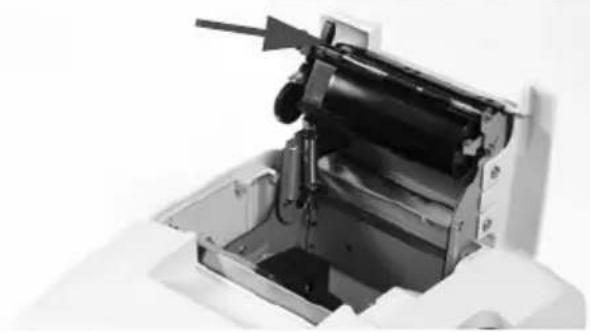
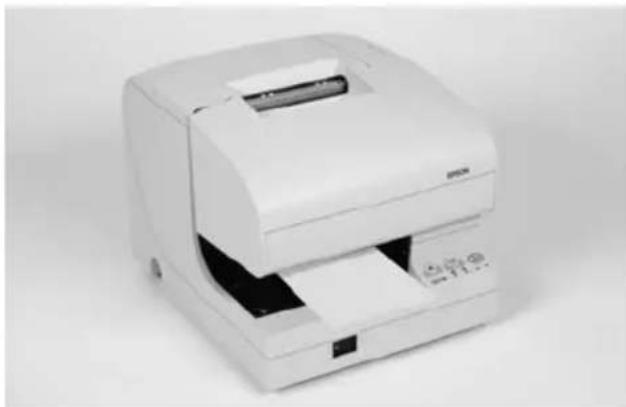
- Open the roll paper cover by pressing the cover open button. See illustration E.
- Remove the used roll paper core if there is one.
- Put the roll paper inside the printer in the correct direction, as shown in illustration F.
- Pull out the leading edge of the roll paper; then close the roll paper cover until it is firmly locked by pushing the top of the cover.
- The printer will automatically feed the roll paper to remove any slack in the paper.
Note:
Do not open the roll paper cover during printing or paper feeding.
Inserting Slip Paper
Note:
Be sure the paper is flat, without curls, folds, or wrinkles.
Use only single sheet paper. Do not insert any multiple sheet paper, as this may cause a paper jam.
Because the printer is an inkjet printer, pressure sensitive copy paper cannot be used.
To prevent jams, roll paper must be installed even for printing on slip paper.
Be sure to insert a slip with the right side of the paper against the right side of the paper guide as far as it will go, as shown in illustration G. See the label instructions attached to the printer as a guide.
Installing or Replacing an Ink Cartridge

CAUTION:
Usage:
Do not disassemble the cartridge. The ink can permanently stain clothing.
Do not refill ink cartridges. Spills can result, causing damage to the printer.
Do not remove the cartridge except to replace it or to prepare the printer for shipment. Otherwise, ink may be wasted and the life of the ink cartridge may be reduced.
For good printing quality, do not remove the ink cartridge from its packing until immediately before installing it.
Use up the ink cartridge within 6 months after unpacking it.
The expiration date is indicated on the cartridge box or the ink cartridge itself. Print quality problems may occur if an ink cartridge that is low (the INK LED flashes) is removed and reinstalled.
A used cartridge may have some ink on the convex part of the bottom of the cartridge. Avoid touching that part to keep your hands clean.
Do not puncture the convex part of the bottom of the ink cartridge or remove the transparent film on the bottom of the ink cartridge; otherwise the ink might leak.
Once the ink cartridge is used, the ink supply needle (plastic projection) in the ink cartridge holder that supplies ink to the printer is covered with ink. Avoid touching the cartridge holder to keep your hands clean.
Use Seiko Epson specified ink cartridges. Performance of the printer when other ink cartridges are used is not guaranteed.
Do not open or close the ink cartridge cover during printing. Misalignment of the print position will occur.
Storage:
Keep the ink cartridge out of the reach of children. Do not drink the ink.
Do not store the ink cartridge where it will be subject to high temperatures or freezing.
When the INK LED flashes, it is almost time to change the ink cartridge. Change the cartridge as soon as it is convenient. When the INK LED is on, printing stops and you must change the cartridge.
The TM-J7100 and TM-J7600 have two separate cartridges, one each for black and colored ink (either red, green, or blue). Therefore, the TM-J7100 and TM-J7600 have two INK LEDs, one for the black and one for the color.
Follow these steps to install an ink cartridge for the first time or to replace a used ink cartridge.
- Make sure the printer is on. If it is not on, plug in the power supply cable and turn on the power using the switch on the front of the printer.
- Make sure an INK LED is on or flashing. When using two colors, notice which ink cartridge INK LED is on or flashing; this indicates which cartridge should be replaced.
- Be sure that roll paper is installed.
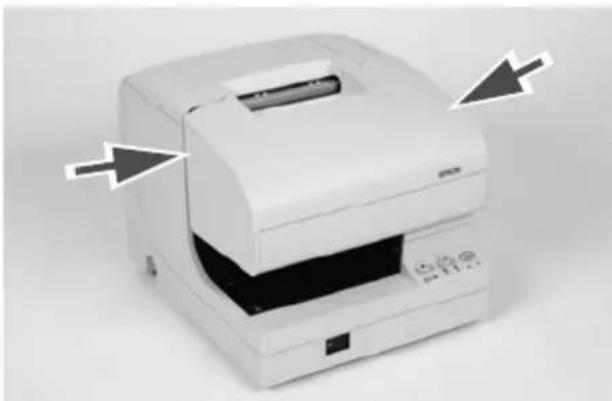
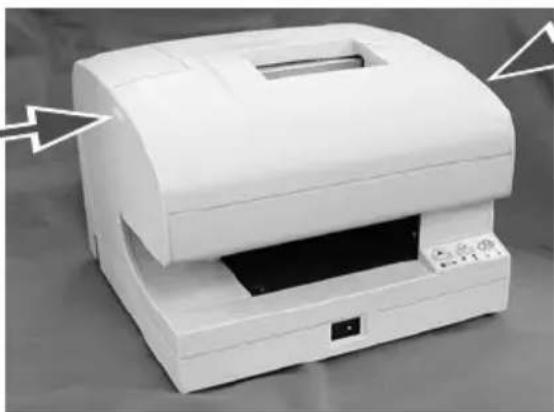
- Open the ink cartridge cover using the tabs on the sides of the cover. See illustration H.
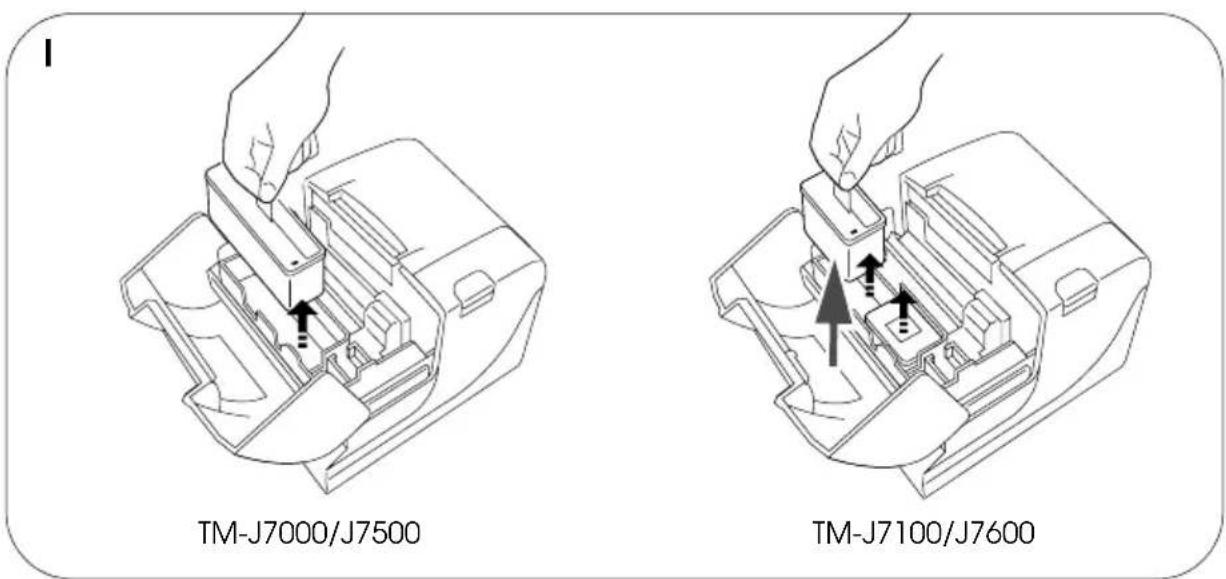
- Lift up the used ink cartridge by using the tab. See illustration I.

CAUTION:
Do not put your fingers inside the ink cartridge compartment or you may be injured by a plastic projection.
Once the ink cartridge is used, the ink supply needle (plastic projection) in the ink cartridge holder that supplies ink to the printer is covered with ink. Avoid touching the cartridge holder to keep your hands clean.
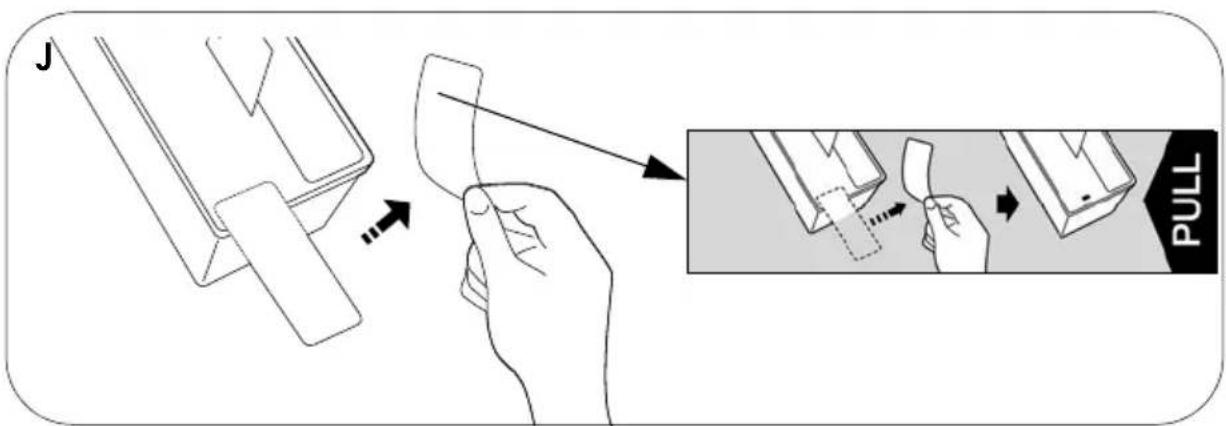
- Take a new ink cartridge out of its packing and remove the yellow tape. See illustration J.

CAUTION:
You must not remove any tape on which the EPSON logo is printed.
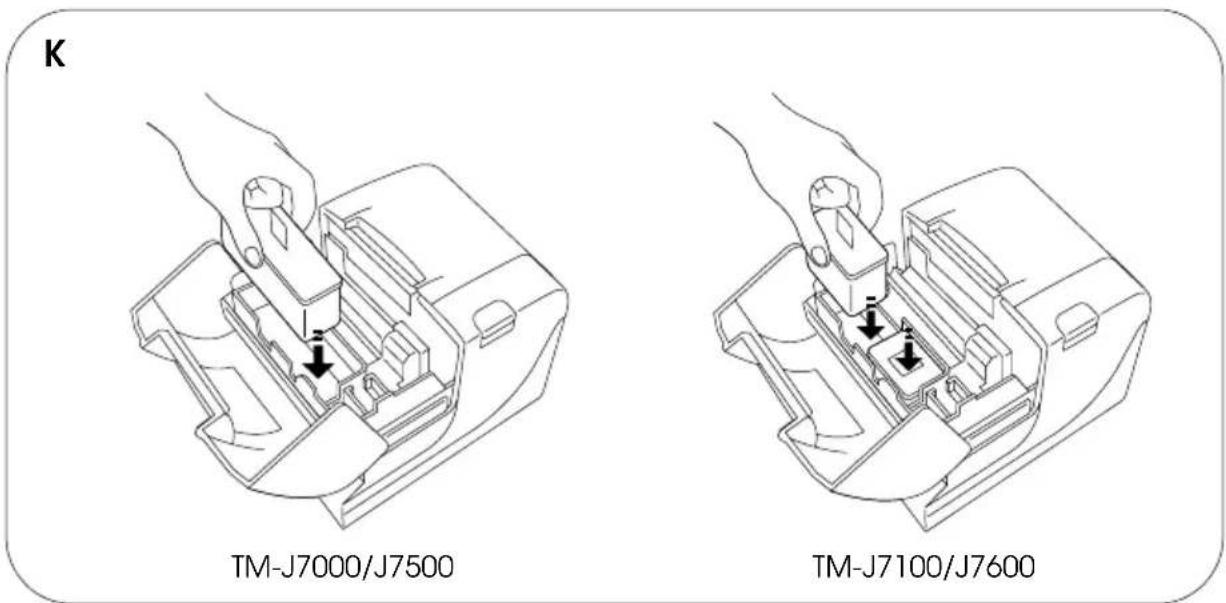
-
Carefully insert a new ink cartridge from the top and push it firmly but gently until it clicks into place. Be sure the inserting direction is correct, as shown in illustration K.
-
Close the ink cartridge cover completely.
Note:
The INK LED will now be off.
The POWER LED flashes for approximately 1 minute as the ink delivery system is charged. To save ink, this sequence will not be executed every time you replace an ink cartridge. The time to execute the sequence is controlled by the printer.
Note:
When the ink cartridge is installed for the first time, the printer uses ink to prepare for printing.
Do not turn off the power while the POWER LED is flashing. This will waste ink because the printer has to re-start the ink charging process. Be sure not to open the printer cover while the POWER LED is flashing.
When the POWER LED quits flashing and stays on, the printer is ready for printing.
Disposal of Used Cartridges
Dispose of used ink cartridges as industrial waste products. Observe the laws and regulations of your country and district.
Ink Cartridge Life
To make your ink cartridges last as long as possible, follow these simple rules:
☐ Do not turn off the power supply switch immediately after printing is completed.
☐ Do not remove an ink cartridge unless you are replacing the cartridge.
☐Do not turn the printer on and off unnecessarily.
☐ Do not press the CLEANING button unless the print is faint or uneven.
Note:
Cartridge yields vary based on such factors as type of item printed, print settings, paper type, frequency of use, and temperature.
Ink is used for print head maintenance. For the TM-J7100 and TM-J7600, both black and colored inks are used for print head maintenance.
Cleaning
If printing becomes faint or uneven and the INK LED is not on or flashing, press the CLEANING button until the printer mechanism begins to clean the print head (more than 3 seconds). The POWER LED flashes during cleaning. When the cleaning stops, the printer is ready for normal printing.
Note:
Do not use the CLEANING button unless there is a problem with print quality. Unnecessary cleaning will waste ink.
Do not turn off the power or open any covers while the POWER LED is flashing. If you turn off the power during cleaning and turn on the printer again, a noise will occur due to a carriage movement, but this is not a problem with the mechanism. Please be sure to wait until the cleaning is complete (the POWER LED is off.)
Message for Replacing Mechanical Unit
The following message will be printed every time the printer is turned on when the pump unit is near the end of its life. Please follow the instructions in the message.
Caution: The pump unit must be replaced. Contact a qualified service person.
Troubleshooting
ERROR LED is flashing or lit
☐ The print head temperature may be high or low. Wait until the print head cools or warms and the printer resumes printing automatically.
☐Make sure that the printer cover is properly closed.
☐ If a paper jam has occurred, open the roll paper cover or the ink cartridge cover and remove the jammed paper. Do not pull the jammed paper by force or use tools. Be sure to remove it manually.
☐ Turn off the power, wait several seconds, and then turn it on again. If the error remains, contact your supervisor or a qualified service person.
Transporting
To transport this printer, follow these steps:
- Remove the roll paper and ink cartridge.
- Turn off the power supply.
- Check that the POWER LED is off.
- Remove the power supply connector and other connectors.
Keep the printer upright and horizontal while you pack it and during transporting.
Be sure not to ship the ink cartridge that has been removed from the packing.
MICR Reading (Factory installed option only for the TM-J7000/J7100)

CAUTION:
Do not insert checks with staples in them. This may cause paper jams, MICR reading errors, and damage to the MICR head.
Never open the roll paper cover while the MICR reader is being used.
Be sure the checks are flat, without curls, folds, or wrinkles.
Do not use multipart checks.
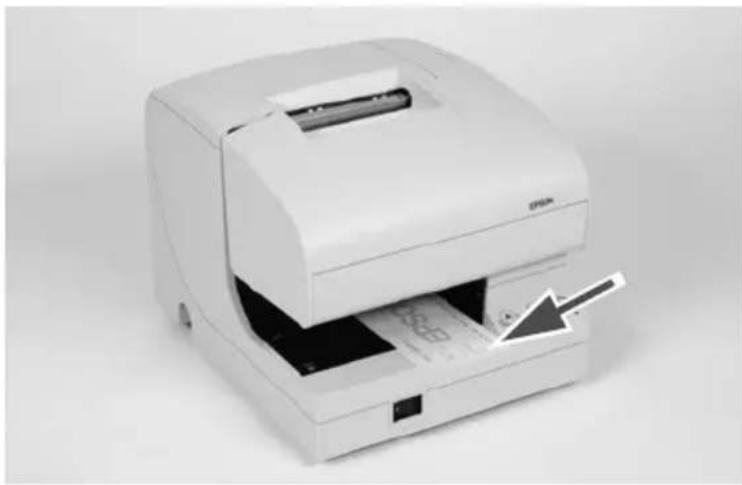
- Wait until the CUT SHEET LED flashes. Then insert the check face up with the right side of the check against the right side of the paper guide as far as it will go. Be sure that the MICR characters are on the right, as shown by the arrow in illustration L.
- The printer will detect the check and start drawing it in. When the printer starts drawing it in, let go of the check immediately. When the printer ejects the check and the CUT SHEET LED starts flashing again; remove the check by pulling it straight up; do not pull it at an angle.
Cleaning the MICR Mechanism
Approximately every 12 months clean the MICR head with a moistened cleaning sheet.
Use the following or an equivalent commercially available cleaning sheet: PRESAT brand (KIC) "CHECK READER CLEANING CARD."
Note:
Be sure not to use an adhesive cleaning sheet.
Follow the steps below:
-
Load roll paper in the printer; turn off the power; then open the roll paper cover and turn the power back on while holding down the CLEANING button.
-
Press the CLEANING button 7 times; then close the paper roll cover. The printer prints the following message on the roll paper and the CUT SHEET LED flashes.
**** RECOGNITION MODE **** Please set check.
- Insert the cleaning sheet like a standard check.

CAUTION:
Be sure that the sheet is inserted with the correct side up and that it is inserted in the correct direction.
Use a cleaning sheet only one time; then discard it.
Notes on using the MICR reader
Do not install the printer near any magnetic fields. Be especially careful where you install your display device and be sure to check the recognition rate of the MICR reader with the display device in place.
Make sure that the printer is not subjected to any impact or vibration when it is performing a MICR reading.
Attaching the Fixing Plate for AC Adapter (only for the TM-J7500/J7600)
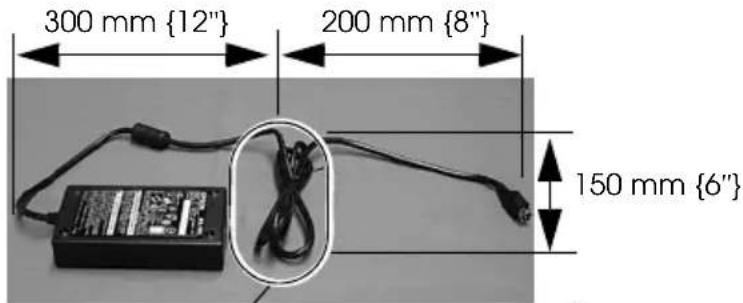
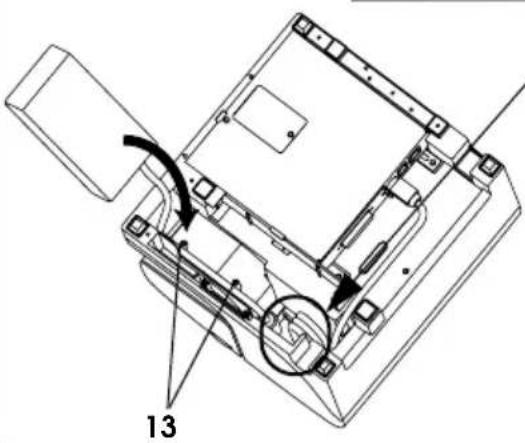
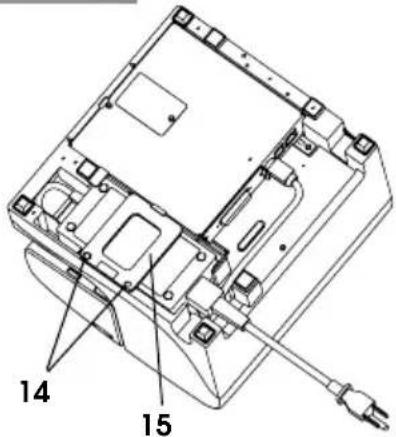
Refer to illustration M as you follow these steps. The bold numbers refer to the numbers in the illustration.
- Loop the middle of the power cord as shown in the illustration.
(The measurements are only approximate; use them as a guide.) - Put the looped part of the power cord inside the printer in the location indicated by the circle.
- Arrange the power cord beside the two projections (13) on the bottom of the printer to hold it in place; then place the power supply into the printer with the label side face up.
- Attach the fixing plate (15) and tighten the screws (14).
Notes:
When integrating the AC adapter in the printer, be sure to carry out the following.
- Be sure to use AC adapter PS-180.
- Use a straight plug for the AC inlet side of the power cable, if possible. If you do use an L-shaped plug, install the printer near the power outlet and be sure that the plug can be easily disconnected.
- Be sure to read the information on the label of the AC adapter (rating, Warning/Cautions) thoroughly and understand it well before you integrate the AC adapter into the printer unit.
TM-J7000/J7100 TM-J7500/J7600
Bedienungsanleitung
Copyright © 2003 Seiko Epson Corporation, Nagano, Japan.
WARNING
This is a Class A product. In a domestic environment this product may cause radio interference in which case the user may be required to take adequate measures.
EINZELBLATT (CUT SHEET)
Caution: The pump unit must be replaced.
Contact a qualified service person.
**** RECOGNITION MODE **** Please set check.
Caution: The pump unit must be replaced. Contact a qualified service person.
**** RECOGNITION MODE **** Please set check.
Caution: The pump unit must be replaced.
Contact a qualified service person.
Cautions must be observed to avoid minor injury to yourself or damage to your equipment.
Caution: The pump unit must be replaced. Contact a qualified service person.
Caution: The pump unit must be replaced. Contact a qualified service person.
**** RECOGNITION MODE **** Please set check.
Copyright © 2003 Seiko Epson Corporation, Nagano, Giappone.
AVVERTENZA
Caution: The pump unit must be replaced. Contact a qualified service person.
WEEE (Waste Electrical and Electronic Equipment) Directive
This information only applies to customers in the European Union, according to Directive 2002/96/EC OF THE EUROPEAN PARLIAMENT AND OF THE COUNCIL OF 27 January 2003 on waste electrical and electronic equipment (WEEE) and legislation transposing and implementing it into the various national legal systems. For other countries, please contact your local government to investigate the possibility of recycling your product.
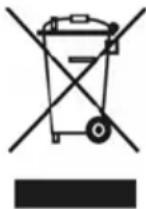
English
The crossed out wheeled bin label that can be found on your product indicates that this product should not be disposed of via the normal household waste stream. To prevent possible harm to the environment or human health please separate this product from other waste streams to ensure that it can be recycled in an environmentally sound manner. For more details on available collection facilities please contact your local government office or the retailer where you purchased this product.