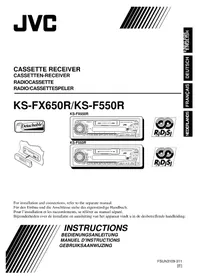
KSFX650R - Car stereo JVC - Free user manual and instructions
Find the device manual for free KSFX650R JVC in PDF.


User questions about KSFX650R JVC
0 question about this device. Answer the ones you know or ask your own.
Ask a new question about this device
Download the instructions for your Car stereo in PDF format for free! Find your manual KSFX650R - JVC and take your electronic device back in hand. On this page are published all the documents necessary for the use of your device. KSFX650R by JVC.
USER MANUAL KSFX650R JVC
natural_image
Technical line drawing of a device with two rectangular components and an arrow indicating a component (no text or symbols)KS-F550R
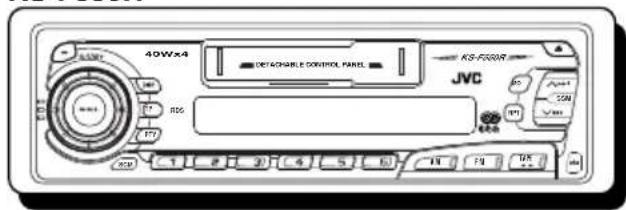
text_image
40Wx4 DETAGNABLE CONTROL PANEL KS-F200R JVC 1 2 3 4 5 6 10 11 12 13 14 15 16 17 18 19 20 21 22 23 24 25 26 27 28 29 30 31 32 33 34 35 36 37 38 39 40 41 42 43 44 45 42 43 44 45 46 47 48 49 50
For installation and connections, refer to the separate manual.
natural_image
Abstract black and white diagonal striped pattern with no text or symbolsINSTRUCTIONS
BEDIENUNGSANLEITUNG
MANUEL D'INSTRUCTIONS
GEBRUIKSAANWIJZING
Thank you for purchasing a JVC product. Please read all instructions carefully before operation, to ensure your complete understanding and to obtain the best possible performance from the unit.
CONTENTS
BASIC OPERATIONS 4
RADIO BASIC OPERATIONS .... 5
Listening to the radio ....5
Storing stations in memory....6
FM station automatic preset: SSM 6
Manual preset 7
Tuning into a preset station 8
RDS OPERATIONS 9
What you can do with RDS EON 9
Tracing the same programme automatically (Network-Tracking Reception) 9
Using Standby Reception 11
Selecting Your Favorite Programme for PTY
Standby Reception 12
Searching Your Favorite Programme 12
Other convenient RDS functions and adjustments......15
Automatic selection of the station when using the number buttons 15
Changing the display mode while listening to an FM station ..... 16
Setting the TA volume level 16
Automatic clock adjustment 16
TAPE OPERATIONS 17
Listening to a tape 17
Finding the beginning of a tune....19
Other convenient tape functions....20
Prohibiting cassette ejection 20
Skipping the blank portions on the tape 20
Playing the current tune repeatedly 20

SOUND ADJUSTMENTS 21
Adjusting the sound....21
Using the Sound Control Memory ....22
Selecting and storing the sound modes 22
Recalling the sound modes 23
Storing your own sound adjustments ....24
OTHER MAIN FUNCTIONS ...... 25
Setting the clock 25
Changing the general settings....26
Basic Procedure 26
Canceling Advanced SCM 27
Selecting 24-hour or 12-hour clock 28
Selecting the level display 28
Selecting the display mode while using the CD changer
(ONLY FOR KS-FX650R) 28
Selecting the telephone muting 29
Selecting the external component to use
(ONLY FOR KS-FX650R) 29
Detaching the control panel ....30

CD CHANGER OPERATIONS 31
(ONLY FOR KS-FX650R)
Playing CDs 31
Selecting CD playback modes....33
EXTERNAL COMPONENT OPERATIONS 34
(ONLY FOR KS-FX650R)
DAB TUNER OPERATIONS 35
Tuning into an ensemble and one of the services ....35
Storing DAB services in memory 37
Tuning into a preset DAB service ....39

MAINTENANCE 40
To extend the lifetime of the unit....40
How to reset your unit ....40

TROUBLESHOOTING 41
SPECIFICATIONS 42
Note:
For security reasons, a numbered ID card is provided with this unit, and the same ID number is imprinted on the unit's chassis. Keep the card in a safe place, as it will help the authorities to identify your unit if stolen.
BEFORE USE
* For safety....
- Do not raise the volume level too much, as this will block outside sounds, making driving dangerous.
- Stop the car before performing any complicated operations.
* Temperature inside the car....
If you have parked the car for a long time in hot or cold weather, wait until the temperature in the car becomes normal before operating the unit.
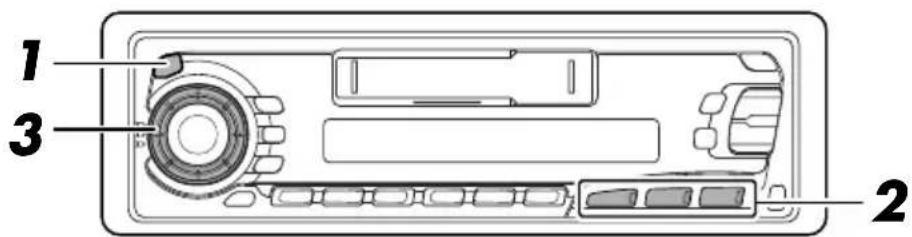
text_image
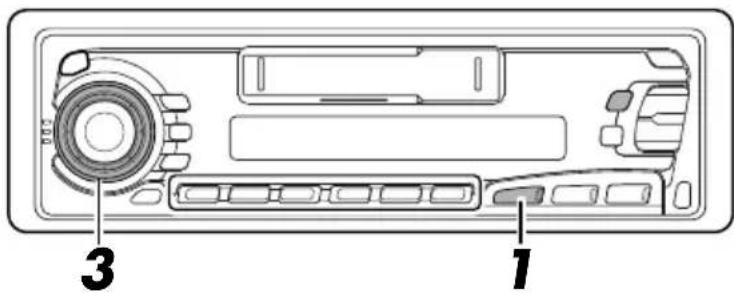
1 3 2Note:
When you use this unit for the first time, set the built-in clock (see page 25).
1
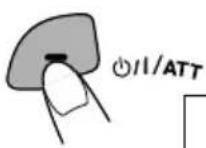
Turn on the power.
Note on One-Touch Operation:
When you select a source in step 2 below, the power automatically turns on. You do not have to press this button to turn on the power.
2
KS-FX650R
DAB
text_image
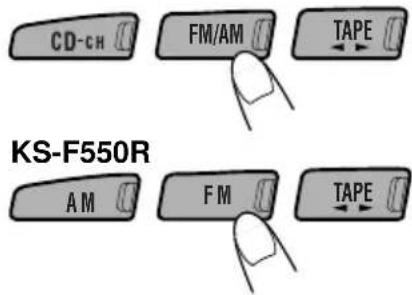
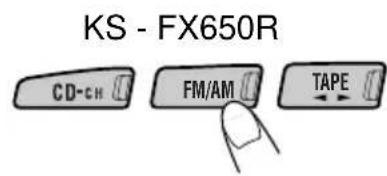
CD-CH FM/AM TAPE KS-F550R AM FM TAPESelect the source.
To operate the tuner, see pages 5 – 16.
To operate the tape deck, see pages 17 - 20.
For KS-FX650R
To operate the CD changer, see pages 31 - 33.
To operate the external component, see pages 34
To operate the DAB tuner, see pages 35–39
3
natural_image
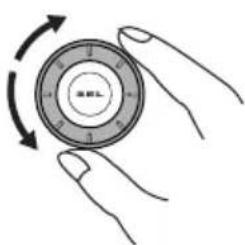
Illustration of a hand holding a circular mechanical component with directional arrows indicating rotation (no text or symbols)Adjust the volume.
Volume level appears

text_image
VOL 20 FM1 BEAT POP SOFTVolume level indicator
4 Adjust the sound as you want (see pages 21 - 24).
To drop the volume in a moment
Press briefly while listening to any source. "ATT" starts flashing on the display, and the volume level will drop soon.
To resume the previous volume level, press the same button briefly again.
To turn off the power
Press for more than 1 second.
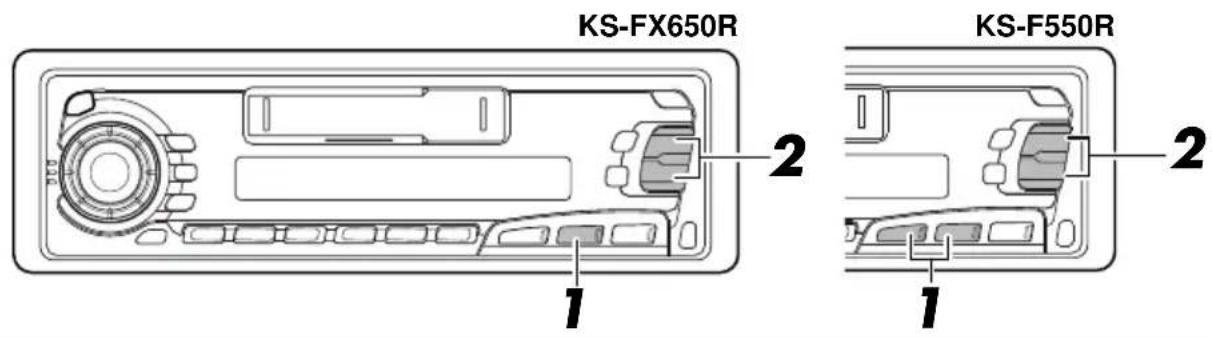
Listening to the radio
text_image
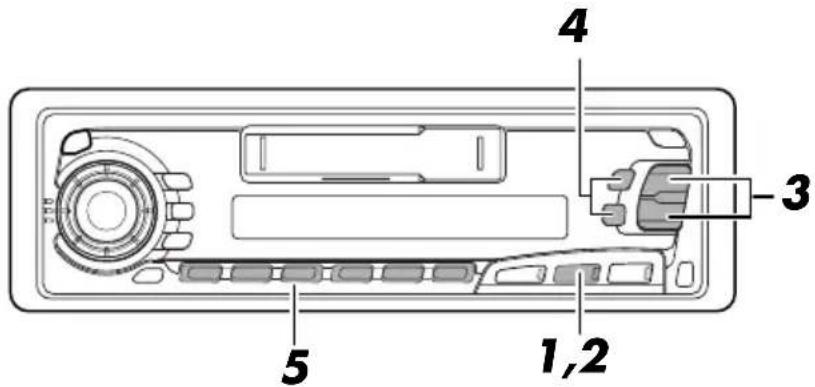
KS-FX650R KS-F550R 1 2 1 21
text_image
KS-FX650R FM/AM FM1 FM2 → FM3 AM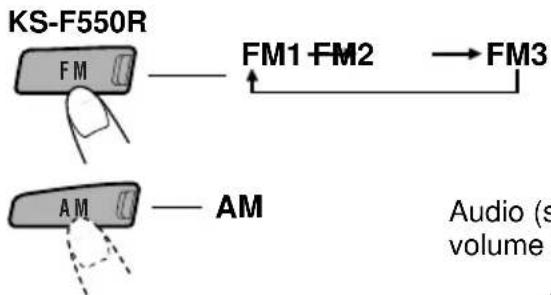
flowchart
graph TD
    A["KS-F550R"] --> B["FM"]
    B --> C["FM1-FM2"]
    C --> D["FM3"]
    E["AM"] --> F["AM"]
    style A fill:#f9f,stroke:#333
    style E fill:#f9f,stroke:#333
    note right of E Audio (s)
        volume
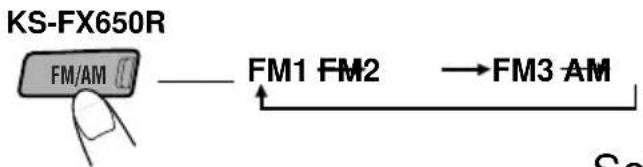
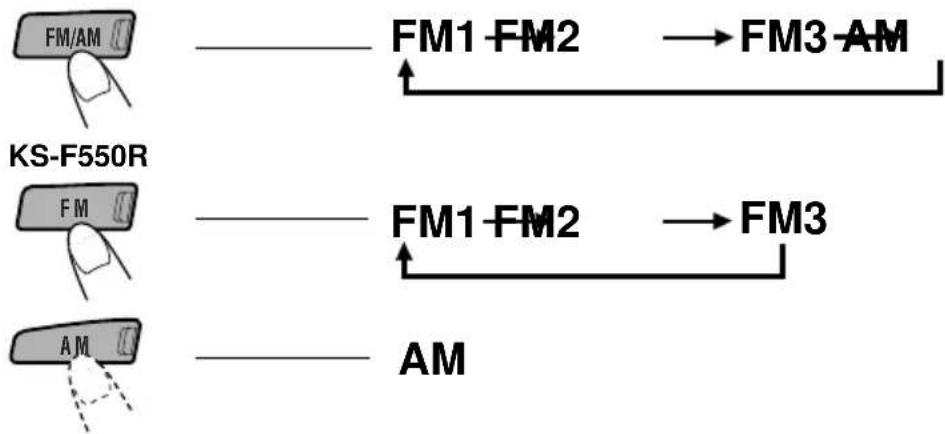
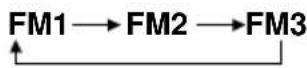
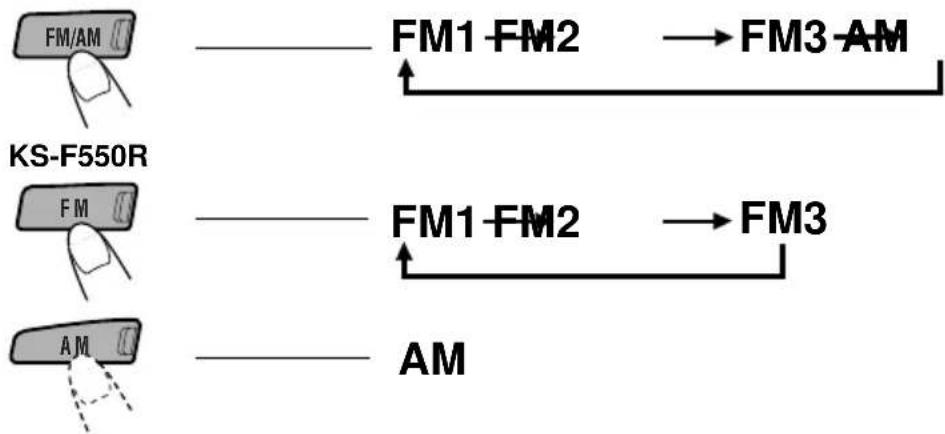
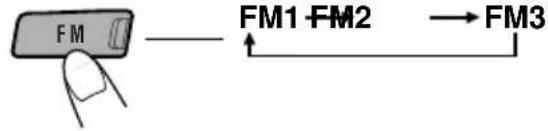
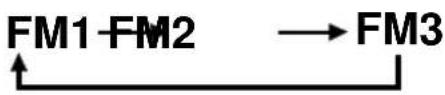
Select the band (FM1, FM2, FM3 or AM) you want.
You can select any one of FM1, FM2, and FM3 to listen to an FM station.
Audio (see page 28) or volume level indicator
Selected band appears

text_image
87.5 LEFT BEAT POP SOFT2
text_image
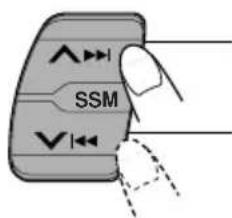
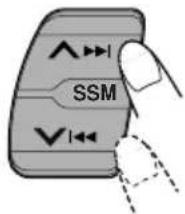
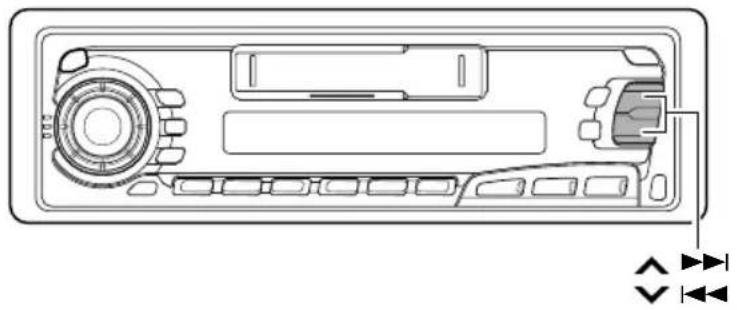
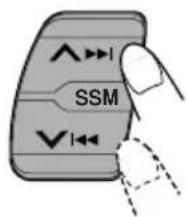
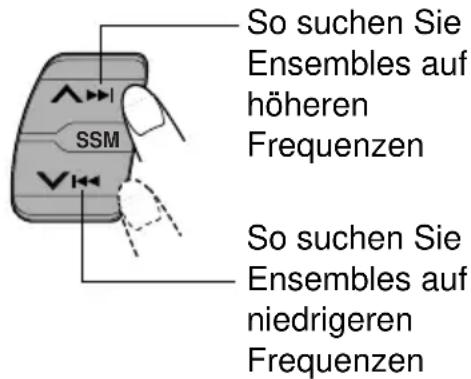
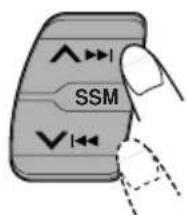
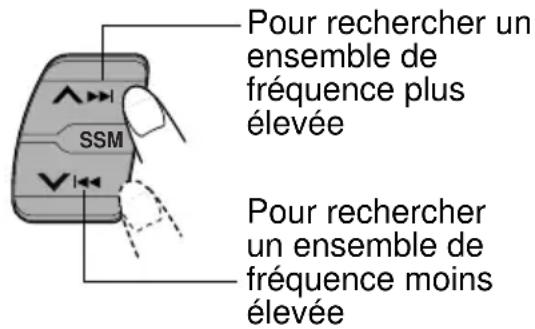
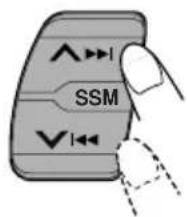
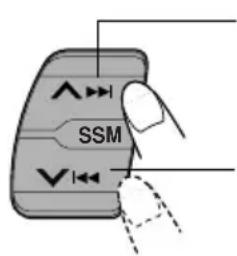
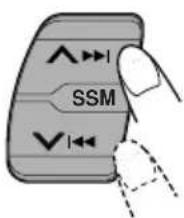
SSMTo search stations of higher frequencies.
To search stations of lower frequencies.
Start searching a station.
When a station is received, searching stops.

text_image
8.8.3 TEN1 BEAT POP SOFTTo stop searching before a station is received, press the same button you have pressed for searching.
To tune in a particular frequency without searching
1 Select the band (FM or AM).
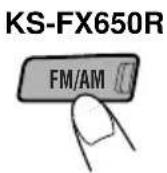
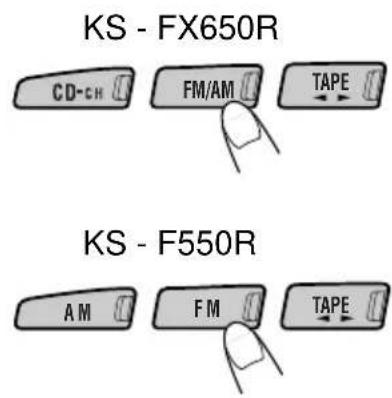
For KS-FX650R: Press FM/AM repeatedly.
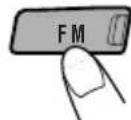
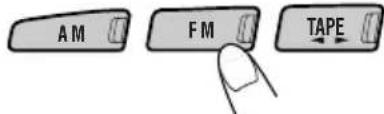
For KS-F550R: Press FM or AM.
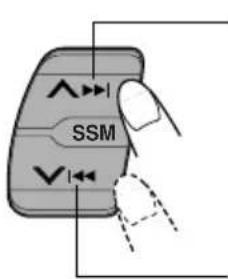
2 Press and hold ▲▶▶ or ▶◀ until “M” (for Manual) starts flashing on the display. Now you can manually change the frequency while “M” is flashing.
3 Press ▲▶▶ or ▼◀◀ repeatedly until the frequency you want is reached.
- If you hold down the button, the frequency keeps changing (in 50 kHz intervals for FM and 9kHz intervals for AM–MW/LW) until you release the button.
Storing stations in memory
You can use one of the following two methods to store broadcasting stations in memory.
• Automatic preset of FM stations: SSM (Strong-station Sequential Memory)
- Manual preset of both FM and AM stations
FM station automatic preset: SSM
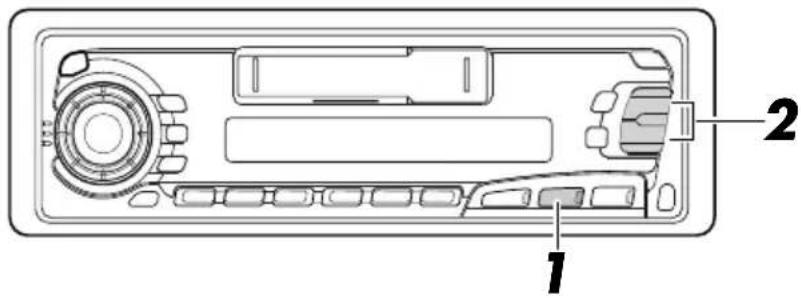
You can preset up to 6 local FM stations in each FM band (FM1, FM2, and FM3).
text_image
Technical diagram of a device rear panel with labeled components 1 and 21
KS-FX650R

KS-F550R
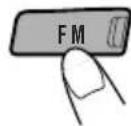
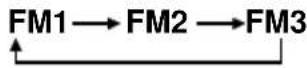
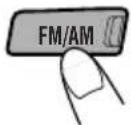
Select the FM band number (FM1, FM2 or FM3) you want to store FM stations into.
2
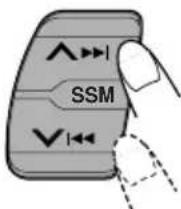
Press and hold both buttons for more than 2 seconds.

text_image
FM1 BEAT POP SOFT“SSM” appears, then disappears when automatic preset is over.
Local FM stations with the strongest signals are searched and stored automatically in the band number you have selected (FM1, FM2 or FM3). These stations are preset in the number buttons — No. 1 (lowest frequency) to No. 6 (highest frequency).
When automatic preset is over, the station stored in number button 1 will be automatically tuned in.
Manual preset
You can preset up to 6 stations in each band (FM1, FM2, FM3 and AM) manually.
EXAMPLE: Storing an FM station of 88.3 MHz into preset number 1 of the FM1 band
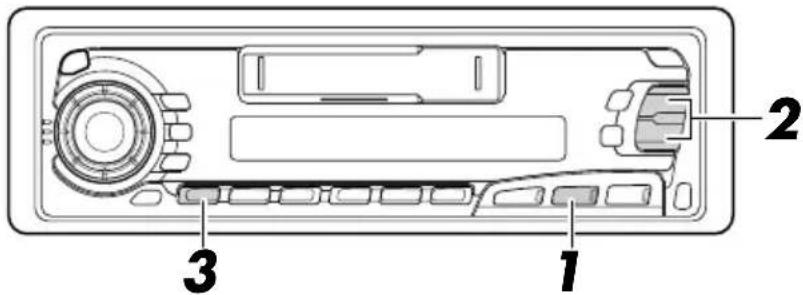
text_image
Technical diagram of a device rear panel with labeled components 1, 2, and 31
KS-F550RKS-FX650R
Select the FM1 band.
2
text_image
SSMTune into a station of 88.3 MHz.
See page 5 to tune into a station.

text_image
8.8.3 FM1 BEAT POP SOFT3
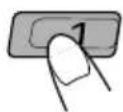
Press and hold the button for more than 2 seconds.

text_image
08:3 P 1 EM BEAT POP SOFT"P1" flashes for a few seconds.
4
Repeat the above procedure to store other stations into other preset numbers.
Notes:
- A previously preset station is erased when a new station is stored in the same preset number.
- Preset stations are erased when the power supply to the memory circuit is interrupted (for example, during battery replacement). If this occurs, preset the stations again.
Tuning into a preset station
You can easily tune into a preset station.
To do this, you must store stations first. If you have not stored them yet, see pages 6 and 7.
text_image
KS-FX650R MO RND 2 1 KS-F550R MO 11 KS-FX650R
flowchart
graph TD
    A["FM/AM"] --> B["FM1-FM2"]
    B --> C["→FM3-AM"]
    D["KS-F550R"] --> E["FM"]
    E --> F["FM1-FM2"]
    F --> G["→FM3"]
    H["AM"] --> I["AM"]
Select the band (FM1, FM2, FM3 or AM) you want.
2

text_image
1 2 3 4 5 6
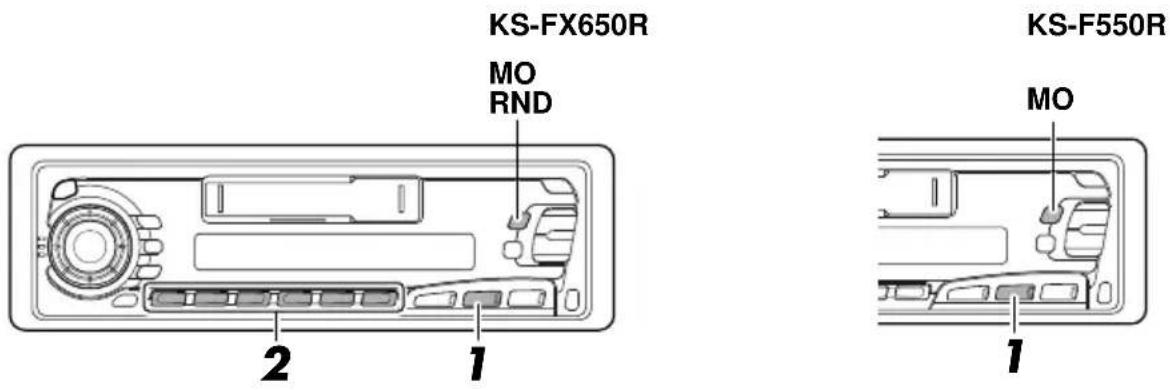
Select the number (1 - 6) for the preset station you want.
When an FM stereo broadcast is hard to receive:
Press MO RND (mono/random: for KS-FX650R) or MO (mono: for KS-F550R) while listening to an FM stereo broadcast. The MONO (mono) indicator lights up on the display. The sound you hear becomes monaural but reception will be improved.
To restore the stereo effect, press the same button again.
Lights up when receiving an
FM broadcast in stereo.

text_image
ST 88.3 FM1 BEAT POP SOFT MO MONO FM1 BEAT POP SOFTWhat you can do with RDS EON
RDS (Radio Data System) allows FM stations to send an additional signal along with their regular programme signals. For example, the stations send their station names, as well as information about what type of programme they broadcast, such as sports or music, etc.
Another advantage of RDS function is called “EON (Enhanced Other Networks).” The EON indicator lights up while receiving an FM station with the EON data. By using the EON data sent from a station, you can tune into a different station of a different network broadcasting your favorite programme or traffic announcement while listening to another programme or to another source such as Tape.
By receiving the RDS signals, this unit can do the following:
- Tracing the same programme automatically (Network-Tracking Reception)
- Standby Reception of TA (Traffic Announcement) or your favorite programme
• PTY (Programme Type) search
• TP (Traffic Programme) search
• And some other functions
Tracing the same programme automatically (Network-Tracking Reception)
When driving in an area where FM reception is not good, the tuner built in this unit automatically tunes in another RDS station, broadcasting the same programme with stronger signals. So, you can continue to listen to the same programme in its finest reception, no matter where you drive. (See the illustration on the next page.)
Two types of the RDS data are used to make Network-Tracking Reception work correctly — PI (Programme Identification) and AF (Alternative Frequency).
Without receiving these data correctly from the RDS station you are listening to, Network-Tracking Reception will not operate.
RDS
To use Network-Tracking Reception, press and hold TP/RDS (Traffic Programme/Radio Data System) for more than 1 second. Each time you press and hold the button, Network-Tracking Reception modes change as follows:
Mode 1 Mode 2 Mode 3
AF indicator REG indication

AFREG
FM1
BEAT POP SOFT
Mode 1
The AF indicator lights up but the REG indicator does not.
Network-Tracking is activated with Regionalization set to "off."
Switches to another station within the same network when the receiving signals from the current station become weak.
Note:
In this mode, the programme may differ from the one currently received.
Mode 2
Both the AF indicator and the REG indicator light up.
Network-Tracking is activated with Regionalization set to "on."
Switches to another station, within the same network, broadcasting the same programme when the receiving signals from the current station become weak.
Mode 3
Neither the AF indicator nor the REG indicator lights up.
Network-Tracking is deactivated.
The same programme can be received on different frequencies.
Programme 1 broadcasting on frequency A
Programme 1 broadcasting on frequency E
Programme 1 broadcasting on frequency B
Programme 1 broadcasting on frequency C
Programme 1 broadcasting on frequency D
Using Standby Reception
Standby Reception allows the unit to switch temporarily to your favorite programme (PTY: Programme Type) and Traffic Announcement (TA) from the current source (another FM station and TAPE (or CD Changer and other connected components for KS-FX650R)).
Note:
Standby Reception will not work if you are listening to an AM station.
TA Standby Reception
RDS
- When you press TP/RDS while listening to an FM station, the TP indicator is lit during reception of a TP (Traffic Programme) station and the TA standby mode is engaged.
Note:
When the station being received is not a TP station, the TP indicator flashes. Press ▲▶▶ or ▼ |◀◀ to engage the TA standby mode. “SEARCH” appears on the display, and TP station search starts. When a TP station is tuned in, the TP indicator is lit.
- If you are listening to TAPE (or CD Changer for KS-FX650R), and wish to listen to a TP station, press TP/RDS to enter the TA standby mode. (The TP indicator lights up.)
If a traffic programme starts broadcasting while the TA standby mode is active, "TRAFFIC" appears and the playback source changes to the FM band. The volume increases to the preset TA volume level and the traffic programme can be heard (see page 16).
To deactivate the TA standby mode, press TP/RDS again.
PTY Standby Reception
- When you press PTY while listening to an FM station, the PTY indicator is lit during reception of a PTY station and the PTY standby mode is engaged. The selected PTY name stored on page 12 flashes for 5 seconds.
Note:
When the station being received is not a PTY station, the PTY indicator flashes. Press ▲▶▶ or ▼ |◀◀ to engage the PTY standby mode. “SEARCH” appears on the display, and PTY station search starts. When a PTY station is tuned in, the PTY indicator is lit.
- If you are listening to TAPE (or CD Changer for KS-FX650R), and wish to listen to a selected PTY broadcast, press PTY to enter the PTY standby mode. (The PTY indicator lights up.)
If the selected PTY programme starts broadcasting while the PTY standby mode is active, the selected PTY name appears and the playback source changes to the FM band. The selected PTY programme can then be heard.
To deactivate the PTY standby mode, press PTY again.
Selecting Your Favorite Programme for PTY Standby Reception
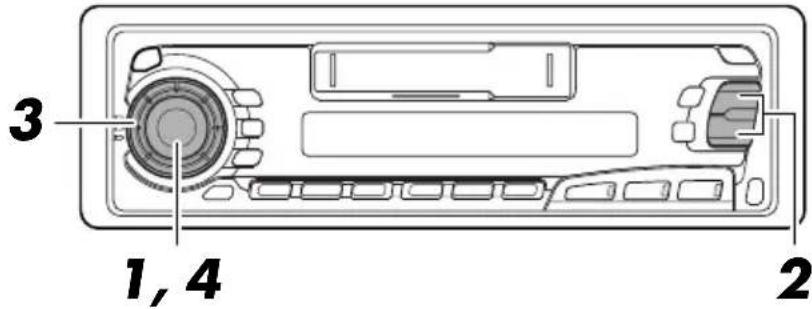
You can select your favorite programme for PTY Standby Reception to store in memory. When shipped from the factory, "NEWS" is stored as the programme type for PTY Standby Reception.
text_image
1, 4 2 31
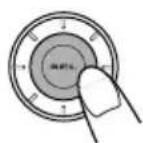
Press and hold SEL (Select) for more than 2 seconds to enter the general settings mode (see page 26).
2
text_image
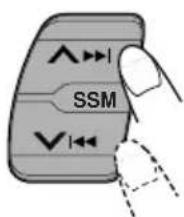
SSMSelect "PTY STBY (Standby)" if not shown on the display.
3
natural_image
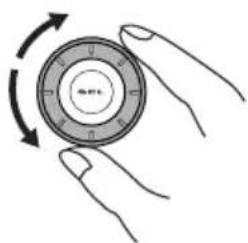
Illustration of hands holding a circular mechanical component with rotational arrows indicating rotation (no text or symbols)Select one of twenty-nine PTY codes. (See the table on page 15.)
Selected code name appears on the display and is stored into memory.
4
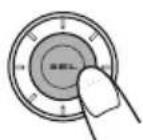
Finish the setting.
Searching Your Favorite Programme
You can search one of your 6 favorite programme types stored in memory.
When shipped from the factory, the following 6 programme types have been stored in the number buttons (1 to 6).
To change the factory preset settings, see page 13.
To search your favorite programme, see page 14.
| 1 | 2 | 3 | 4 | 5 | 6 |
| POP M | ROCK M | EASY M | CLASSICS | AFFAIRS | VARIED |
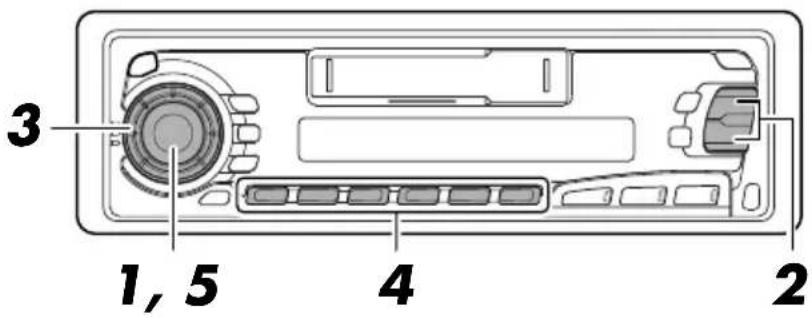
To store your favorite programme types
text_image
3 1, 5 4 21
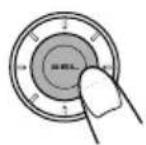
Press and hold SEL (Select) for more than 2 seconds to enter the general settings mode (see page 26).
2
text_image
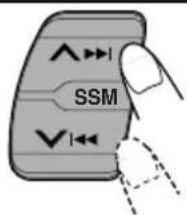
SSMSelect "PTY SRCH (Search)" if not shown on the display.
3
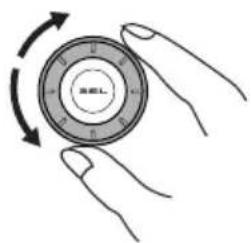
natural_image
Illustration of two hands holding a circular mechanical component with rotational arrows (no text or symbols)Select one of twenty-nine PTY codes. (See the table on page 15.)
Selected code name appears on the display.
- If the code already stored in memory is selected, it will flash on the display.
4

text_image
1 2 3 4 5 6 APress and hold the number button for more than 2 seconds to store the PTY code selected into the preset number you want.
The selected code name will flash on the display.
5
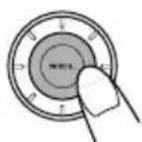
Finish the setting.
To search your favorite programme type
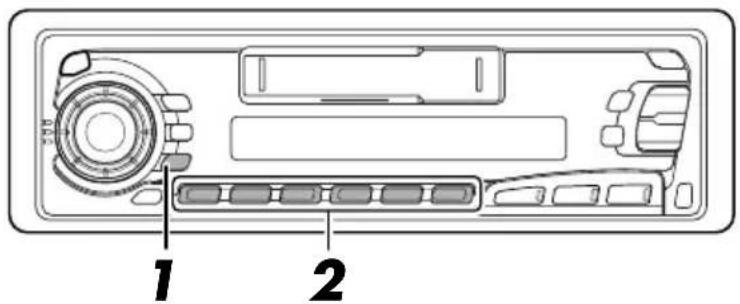
text_image
1 21
Press and hold PTY (Programme Type) for more than 1 second while listening to an FM station.
The last selected PTY code appears.

text_image
POP M FM1 BEAT POP SOFT2

text_image
1 2 3 4 5 6Select one of the PTY codes stored in the preset number buttons (1 - 6).

text_image
ROCK M BEAT POP SOFTEx. When "ROCK M" is stored in the preset number button 2
PTY search for your favorite programme starts after 5 seconds.
- If there is a station broadcasting a programme of the same PTY code you selected, that station is tuned in.
- If there is no station broadcasting a programme of the same PTY code you selected, the station will not change.
Note:
In some areas, the PTY search will not work correctly.
Other convenient RDS functions and adjustments
Automatic selection of the station when using the number buttons
Usually when you press the number button, the preset station is tuned in.
However, when the preset station is an RDS station, something different will happen. If the signals from that preset station are not sufficient for good reception, this unit, using the AF data, tunes in another frequency broadcasting the same programme as the original preset station is broadcasting. In case no other station is tuned in, you can also search all receivable frequencies for the same programme. (Programme search) To activate programme search, follow the procedure below.
-
Programme search takes a while.
• See also “Changing the general settings” on page 26. -
Press and hold SEL (select) for more than 2 seconds to call up the general setting mode.
- Press ∧ ►►I or ♥◄ to select "P(programme)-SEARCH."
- Select "ON" by turning the control dial clockwise.
Now programme search is activated.
To cancel programme search, repeat the same procedure and select "OFF" in step 3 by turning the control dial counterclockwise.
PTY codes
| NEWS: | News | |
| AFFAIRS: | Topical programmes expanding on current news or affairs | SOCIAL: Programmes on social activitiesRELIGION: Programmes dealing with any aspect of belief or faith, or the nature of existence or ethics |
| INFO: | Programmes which impart advice on a wide variety of topics | PHONE IN: Programmes where people can express their views either by phone or in a public forum |
| SPORT: | Sport events | |
| EDUCATE: | Educational programmes | |
| DRAMA: | Radio plays | TRAVEL: Programmes about travel destinations, package tours, and travel ideas and opportunities |
| CULTURE: | Programmes on national or regional culture | |
| SCIENCE: | Programmes on natural science and technology | LEISURE: Programmes concerned with recreational activities such as gardening, cooking, fishing, etc. |
| VARIED: | Other programmes like comedies or ceremonies | |
| POP M: | Pop music | |
| ROCK M: | Rock music | JAZZ: Jazz music |
| EASY M: | Easy-listening music | COUNTRY: Country music |
| LIGHT M: | Light music | NATION M: Current popular music from another nation or region, in that country's language |
| CLASSICS: | Classical music | |
| OTHER M: | Other music | |
| WEATHER: | Weather information | OLDIES: Classic pop music |
| FINANCE: | Reports on commerce, trading, the Stock Market, etc. | FOLK M: Folk music |
| CHILDREN: | Entertainment programmes for children | DOCUMENT: Programmes dealing with factual matters, presented in an investigative style |
Changing the display mode while listening to an FM station
You can change the initial indication on the display to station frequency, station name (PS NAME), station frequency (FREQ) or clock time while listening to an FM RDS station.
- See also "Changing the general settings" on page 26.
- Press and hold SEL (select) for more than 2 seconds to call up the general settings mode.
- Select "DISPMODE" with ▲▶▶ or ▼◀.
- Use the control dial to select the desired indication from the following: PS NAME (station name), FREQ (station frequency), and CLOCK (clock time).
Note:
By pressing DISP, you can also change the display while listening to an FM RDS station.
Each time you press the button, the following information appears on the display:

flowchart
graph LR
    A["PS NAME (Station name)"] --> B["FREQ (Station frequency)"]
    C["CLOCK (Clock time)"] <--_D["PTY (Programme type)"]
    B --> D
* The display returns to the initially preset mode after a short while.
Setting the TA volume level
You can preset the volume level for TA Standby Reception. When a traffic programme is received, the volume level automatically changes to the preset level.
- See also "Changing the general settings" on page 26.
- Press and hold SEL (select) for more than 2 seconds to call up the general setting mode.
- Press ▲▶▶ or ▼ ◀◀◀ to select "TA VOL (volume)."
- Set to the desired volume level with the control dial.
Automatic clock adjustment
When shipped from the factory, the clock built in this unit is set to be readjusted automatically using the CT (Clock Time) data in the RDS signal.
If you do not want to use automatic clock adjustment, follow the procedure below.
- See also "Changing the general settings" on page 26.
- Press and hold SEL (select) for more than 2 seconds to call up the general setting mode.
- Press ∧ ►►I or ∨ I◄► to select "AUTO ADJ (adjust)."
- Select "ADJ OFF" by turning the control dial counterclockwise.
Now automatic clock adjustment is canceled.
To reactivate clock adjustment, repeat the same procedure and select "ADJ ON" in step 3 by turning the control dial clockwise.
Note:
It takes about 2 minutes to adjust the time using the CT data. So, you must tune to the station for more than 2 minutes continuously; otherwise, the clock time will not be adjusted.
Listening to a tape
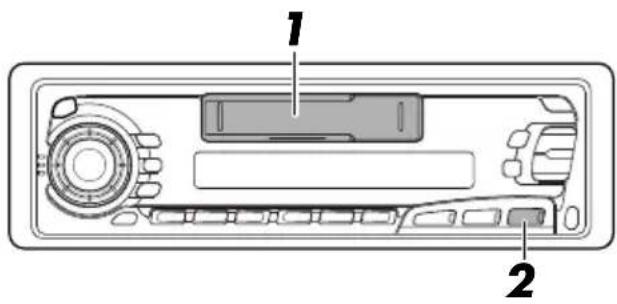
text_image
Diagram of a CD-ROM drive showing labeled components with numbered parts1
natural_image
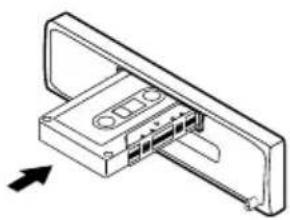
Technical line drawing of a mechanical component with an arrow indicating direction (no text or symbols)Insert a cassette.
The unit turns on and tape play starts automatically.
When one side of the tape reaches its end during play, the other side of the tape automatically starts playing. (Auto Reverse)
Note on One-Touch Operation:
When a cassette is already in the cassette compartment, pressing TAPE ◀▶ turns on the unit and starts tape play automatically.
2
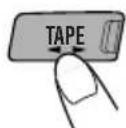
Select the tape direction.
Each time you press the button, the tape direction changes alternately – forward (TAPE;;) and reverse (TAPE;;
To stop play and eject the cassette
Press ▲.
Tape play stops and the cassette automatically ejects from the cassette compartment. If you change the source to FM/AM (or CD Changer for KS-FX650R), the tape play also stops (without ejecting the cassette this time).
- You can also eject the tape with the unit turned off.
To fast-forward and rewind a tape
- Press ▶▶ for more than 1 second to fast-forward the tape.
When the tape reaches its end, the tape is reversed and playback starts from the beginning of the other side. - Press √ ◀◀◀ for more than 1 second to rewind the tape.
When the tape reaches its end, playback of the same side starts.
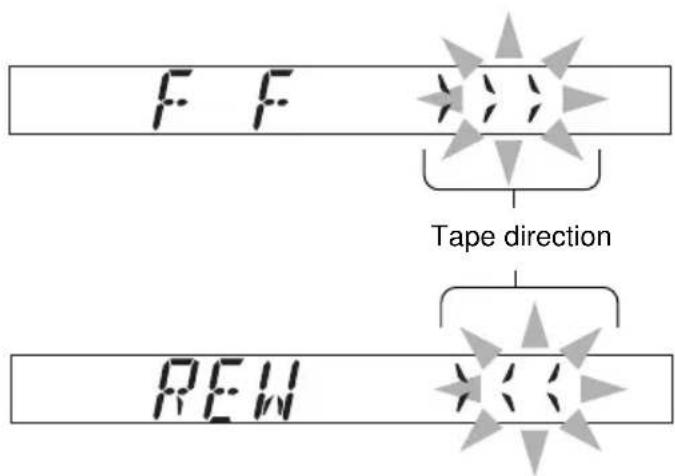
text_image
F F Tape direction REWTo stop fast-forward and rewind at any position on the tape, press TAPE ◀ ▶. Tape play starts from that position on the tape.
Finding the beginning of a tune
Multi Music Scan allows you to automatically start playback from the beginning of a specified tune. You can specify up to 9 tunes ahead of or before the current tune.
natural_image
Technical line drawing of a device rear panel with buttons and ventilation slots (no text or symbols)During playback
text_image
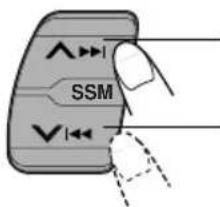
SSMTo locate a tune ahead of the current tune on the tape.
To locate a tune before the current tune on the tape.
Specify how many tunes ahead of or before the current tune the tune you want is located.

text_image
MM5 +3Each time you set the tune, the number changes up to ±9 .
When the beginning of the specified tune is located, playback starts automatically.
Notes:
• While locating a specified tune:
- If the tape is rewound to its beginning, playback starts from the beginning of that side. - If the tape is fast forwarded to the end, it is reversed and played from the beginning of the other side.
- In the following cases, the Multi Music Scan function may not operate correctly:
- Tapes with tunes having long pianissimo passages (very quiet parts) or non-recorded portions between tunes.
– Tapes with short non-recorded sections.
– Tapes with high level of noise or humming between tunes.
Other convenient tape functions
text_image
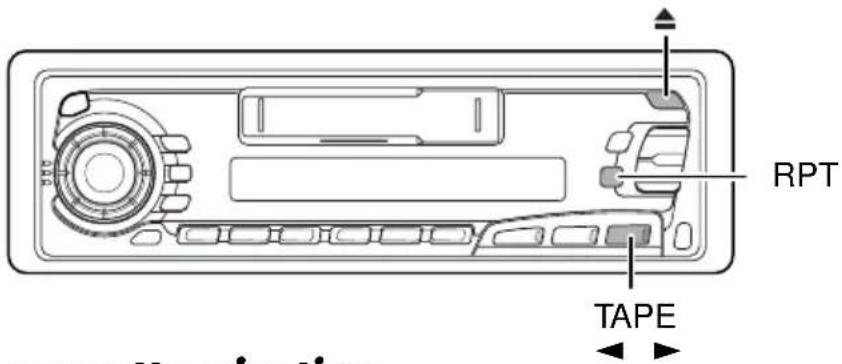
RPT TAPEProhibiting cassette ejection
You can prohibit the cassette ejection and can "lock" a cassette in the cassette compartment. Press and hold TAPE ◀▶ and ▲ for more than 2 seconds. "NO EJECT" flashes on the display for about 5 seconds, and the cassette is "locked".
To cancel the prohibition and “unlock” the cassette, press and hold TAPE◀▶ and ▲ for more than 2 seconds again. “EJECT OK” flashes again for about 5 seconds, and this time the cassette is “unlock”.
Skipping the blank portions on the tape
You can skip blank portions between the tunes. (Blank Skip)
When this function is on, the unit skips blank portions of 15 seconds or more, fast-forwards to the next tune, then starts playing it.
- See also "Changing the general settings" on page 26.
- Press and hold SEL (select) for more than 2 seconds to call up the general settings mode.
- Select "B.SKIP (blank skip)" with ▲▶▶ or ▼◀◀.
- Select the desired mode with the control dial.
The Blank Skip mode alternates between on and off.
Note:
When the tape reaches its end while fast-forwarding, the tape direction will be changed automatically.
Playing the current tune repeatedly
You can play the current tune repeatedly. (Repeat Play)
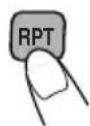
Each time you briefly press RPT while playing a tape, Repeat Play turns on and off alternately.

text_image
RPT REPEATLights up when Repeat Play is turned on
Press the RPT button while a tune you would like to hear over again is being played back. When the tape reaches the end of the tune, the tape is automatically rewound to the beginning of that tune and playback resumes from there. This operation will be repeated till the RPT button is pressed again.
Notes:
- In the following cases, Blank Skip and Repeat Play may not operate correctly:
- Tapes with tunes having long pianissimo passages (very quiet parts) or non-recorded portions during tunes.
– Tapes with short non-recorded sections.
– Tapes with high level noise or humming between tunes.
– Tapes with tunes recorded at low recording levels.
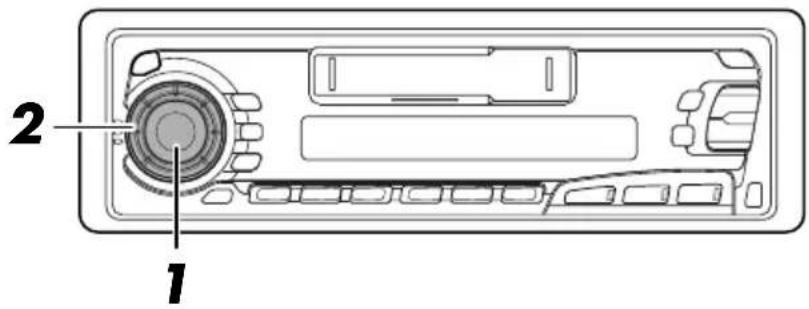
Adjusting the sound
You can adjust the sound characteristics to your preference.
text_image
2 11
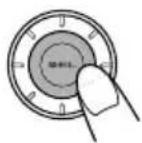
Select the item you want to adjust.

text_image
→BAS→TRE→FAD→BAL→LOUD→VOL-| Indication To do: Range | ||
| BAS Adjust (Bass) | the bass -06 (min.) — +06 (max.) | |
| TRE Adjust (Treble) | the treble -06 (min.) — +06 (max.) | |
| FAD Adjust (Fader)* balance | the front and rear speaker R06 (rear only) — F06 (front only) | |
| BAL Adjust (Balance) | the left and right speaker L06 (left only) balance — R06 (right only) | |
| LOUD (Loudness) | Boost low and high frequencies to produce a well-balanced sound at low volume level. | ON — OFF |
| VOL (Volume) | Adjust the volume | 00 (min.) — 50 (max.) |
Note:
* If you are using a two-speaker system, set the fader level to "00".
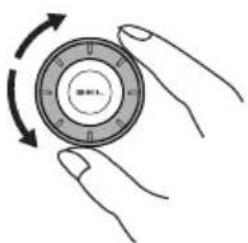
2
natural_image
Illustration of two hands holding a circular mechanical component with rotational arrows (no text or symbols)Adjust the level.
Note:
Normally the control dial works as the volume control. So you do not have to select "VOL" to adjust the volume level.
Using the Sound Control Memory
You can select and store a preset sound adjustment suitable to each playback source. (Advanced SCM)
Selecting and storing the sound modes
Once you select a sound mode, it is stored in memory, and will be recalled every time you select the same source. A sound mode can be stored for each of the following sources — FM1, FM2, FM3, AM, TAPE and CD Changer (and external components: ONLY FOR KS-FX650R).
- If you do not want to store the sound mode separately for each playback source, but want to use the same sound mode for all the sources, see “Canceling Advanced SCM” on page 27.
text_image
"Link" indicator 11
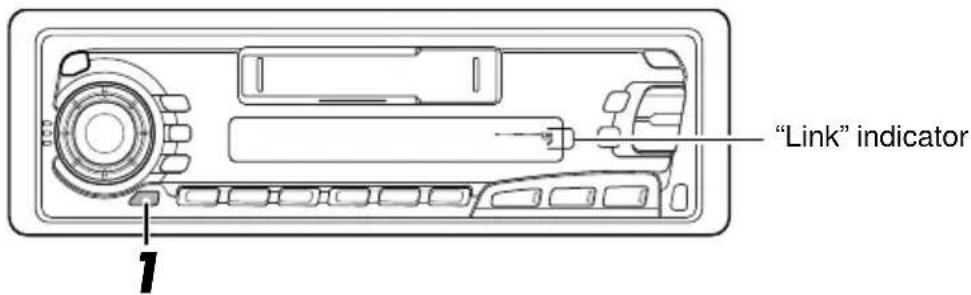
Select the sound mode you want.
Each time you press the button, the sound mode changes as follows:

flowchart
graph LR
    A["→SCM OFF"] --> B["BEAT"] --> C["POP"] --> D["SOFT"]
- If the “Link” indicator is lit on the display (with “SCM LINK” set to “LINK ON”—see page 27), the selected sound mode can be stored in memory for the current source, and the effect applies to the current source.
- If the "Link" indicator is NOT lit on the display (with "SCM LINK" set to "LINK OFF", the selected sound mode effect applies to any source.
| Indication For: Range | |||
| Bass Treble Loudness$ | |||
| SCM OFF (Flat sound) 00 00 On | |||
| BEAT Rock or disco music +02 00 | On | ||
| POP Light music +04 +01 Off | |||
| SOFT | Quiet background music | +01 | -03 Off |
Recalling the sound modes
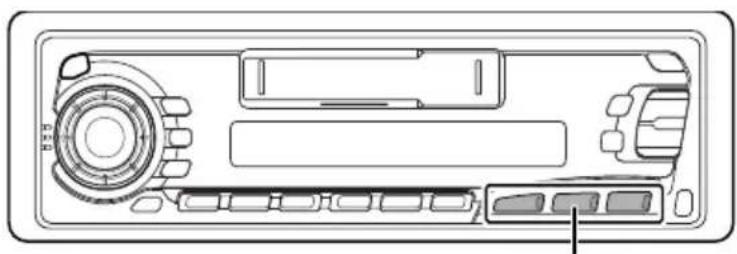
natural_image
Technical line drawing of a device rear panel with buttons and ports (no text or symbols)Source buttons
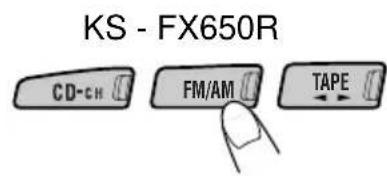
text_image
KS - FX650R CD-CH FM/AM TAPESelect the source while the "Link" indicator is lit on the display.
The "Link" indicator starts flashing, and the sound mode stored in memory for the selected source is recalled.
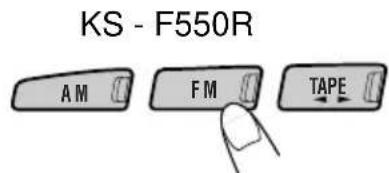
text_image
KS - F550R AM FM TAPEEqualization pattern of the selected sound mode appears.
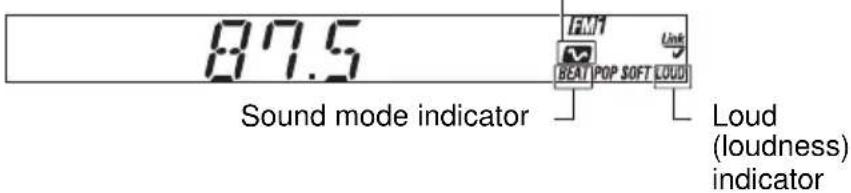
text_image
87.5 FM1 BEAT POP SOFT LOUD Sound mode indicator Loud (loudness) indicatorNotes:
- You can adjust each sound mode to your preference, and store it in memory.
If you want to adjust and store your original sound mode, see "Storing your own sound adjustments" on page 24. - To adjust the bass and treble reinforcement levels or to turn on/off the loudness function temporarily, see page 21. (Your adjustments will be canceled if another source is selected.)
Storing your own sound adjustments
You can adjust the sound modes (BEAT, POP, SOFT,: see page 22) to your preference and store your own adjustments in memory.
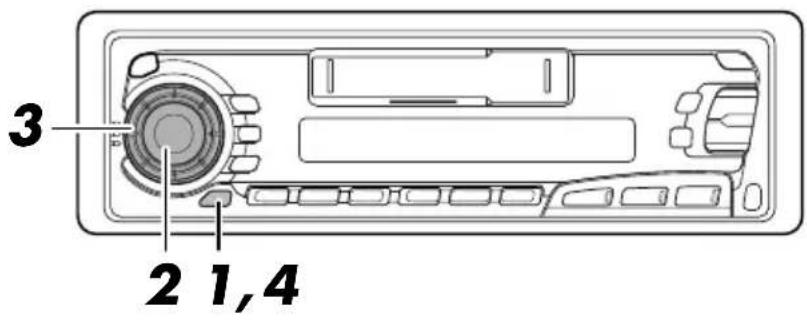
text_image
3 2 1,4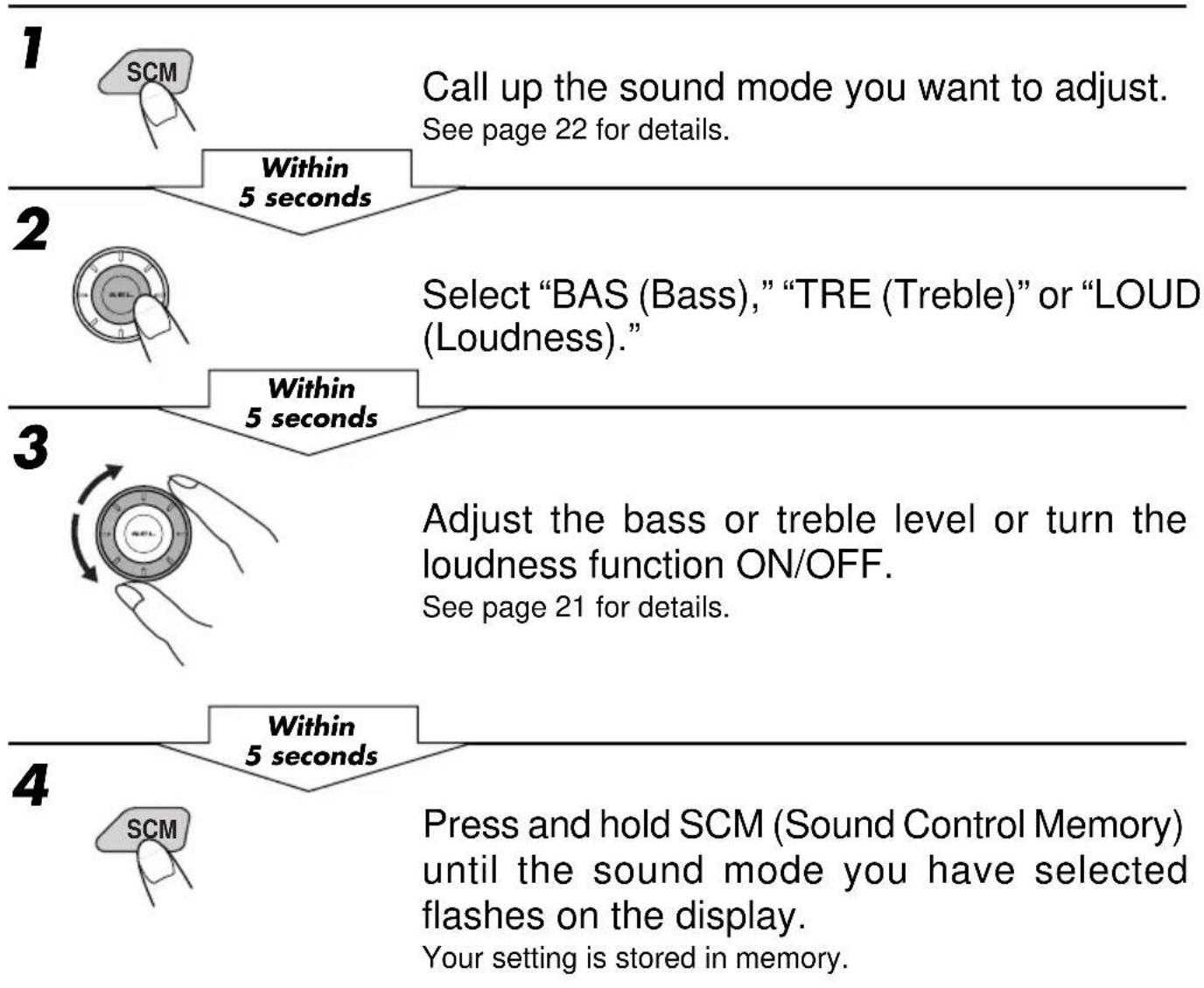
flowchart
graph TD
    A["1"] --> B["2"]
    B --> C["3"]
    C --> D["4"]

    subgraph Stage 1
        E["SCM"] --> F["Call up the sound mode you want to adjust. See page 22 for details."]
    end

    subgraph Stage 2
        G["Within 5 seconds"] --> H["Select "BAS (Bass)," "TRE (Treble)" or "LOUD (Loudness).""]
    end

    subgraph Stage 3
        I["Within 5 seconds"] --> J["Adjust the bass or treble level or turn the loudness function ON/OFF. See page 21 for details."]
    end

    subgraph Stage 4
        K["Within 5 seconds"] --> L["Press and hold SCM (Sound Control Memory) until the sound mode you have selected flashes on the display. Your setting is stored in memory."]
    end
5 Repeat the same procedure to store other settings.
To reset to the factory settings
Repeat the same procedure and reassign the preset values listed in the table on page 22.
Setting the clock
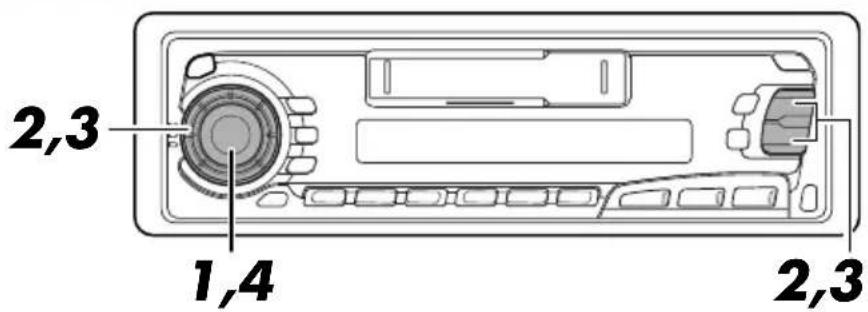
Press and hold SEL for more than 2 seconds to call up the general settings mode.
2
1
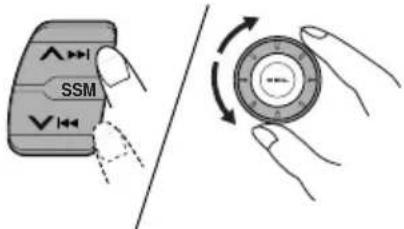
text_image
SSMSet the hour.
1 Select "CLOCK H" if not shown on the display.
2 Adjust the hour.
3
1
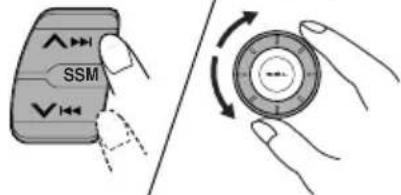
text_image
SSMSet the minute.
1 Select "CLOCK M".
2Adjust the minute.
4
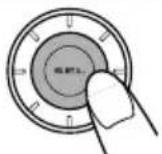
Finish the setting.
To check the current clock time (changing the display mode)
Press DISP repeatedly. Each time you press the button, the display mode changes as follows:
| During tuner operation:Clock ←→ FrequencyNote:For the indication change during RDS operation, see page 16. | During tape operation:Play mode ←→ Clock | During external component operation(ONLY FOR KS-FX650R):LINE IN ←→ Clock |
| During CD changer operation (ONLY FOR KS-FX650R):→ Clock → → Disc number Elapsed playing timeNote:For the indication change during DAB operation, see page 36. | ||
- If the unit is not in use when you press DISP, the power turns on, the clock time is shown for 5 seconds, then the power turns off.
Changing the general settings
You can change the settings of the items listed on the next page.
Basic Procedure
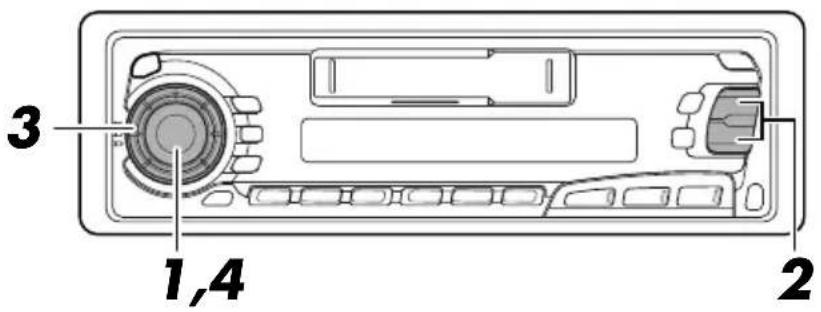
text_image
3 1,4 21
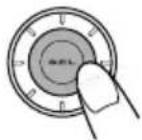
Press and hold SEL for more than 2 seconds to call up the general settings mode.
2
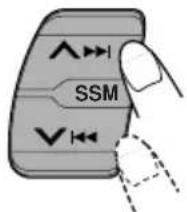
text_image
SSMSelect the item you want to adjust (see page 27.)
3
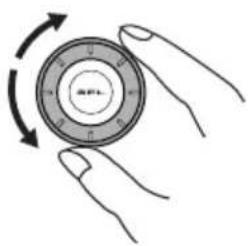
natural_image
Illustration of two hands holding a circular mechanical component with rotational arrows (no text or symbols)Select or adjust the item selected above.
4
Finish the setting.
1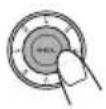 2 2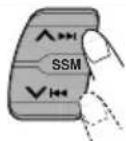 Select. Select. | 3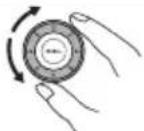 Set. Set. | Factory-presetsettings | Seepage | ||
| CLOCK H Hour adjustment Back Advance | 0:00 25 | ||||
| CLOCK M Minute adjustment Back Advance | |||||
| SCM LINK | Sound control memory linkage | LINK OFF | LINK ON | LINK ON | below |
| 24H/12H | 24/12-hour time display | 12H | 24H | 24H | 28 |
| AUTO ADJ | Automatic setting of the clock | OFF | ON | ON | 16 |
| DISPMODE | Display mode | PS NAME ↔ FREQ↑→ CLOCK ↔ | PS NAME | 16 | |
| CH DISP | Changer display(ONLY FOR KS-FX650R) | TIME | DISC | DISC | 28 |
| PTY STBY | PTY standby | 29 programmes types(See page 15.) | NEWS | 12 | |
| PTY SRCH | PTY search | (See pg 12.) | 12-14 | ||
| TA VOL | Traffic announcement volume | VOL (00 - 50) | VOL 20 | 11,16 | |
| P-SEARCH | Programme search | OFF | ON | OFF | 15 |
| LEVEL | Level display | AUDIO 1 ↔ AUDIO 2↑→ OFF ↔ | AUDIO 2 | 28 | |
| TEL | Audio mute for cellular phone system | OFF ↔ MUTING 1↑→MUTING 2↔ | OFF | 29 | |
| B.SKIP | Blank skip | OFF | ON | OFF | 20 |
| LINE IN* | External component(ONLY FOR KS-FX650R) | CHANGER | LINE IN CHANGER 29 | ||
★ Displayed only when one of the following sources is selected — FM, AM and TAPE.
- Press SEL (select) when the setting is complete.
Canceling Advanced SCM
You can cancel the Advanced SCM (Sound Control Memory), and unlink the sound modes and the playback sources.
When shipped from the factory, a different sound mode can be stored in memory for each source so that you can change the sound modes simply by changing the sources.
- LINK ON: Advanced SCM (different sound modes for different sources)
-
LINK OFF: Conventional SCM (one sound mode for all sources)
-
Press and hold SEL (Select) for more than 2 seconds to call up the general settings mode.
- Select "SCM LINK" with ▲▶▶ or ▼◀◀.
- Select the desired mode with the control dial.
The SCM LINK mode changes as follows: LINK ON ↔ LINK OFF
Selecting 24-hour or 12-hour clock
You can change the clock built in this unit either to 24-hour system or 12-hour system.
- Press and hold SEL (Select) for more than 2 seconds to call up the general settings mode.
- Select "24H/12H" with ▶▶ or ◀◀.
- Select "24H" or "12H" with the control dial.
The clock alternates between 24-hour system and 12-hour system.
←→12H24H
Selecting the level display
You can select the level display according to your preference.
When shipped from the factory, "AUDIO 2" is selected.
• AUDIO 1: Shows the audio level indicator and the equalization pattern indicator.
- AUDIO 2: Alternates “AUDIO 1” setting and illumination display.
- OFF: Erases the audio level indicator and the equalization pattern indicator.
- Press and hold SEL (Select) for more than 2 seconds to call up the general settings mode.
- Select "LEVEL" with ▶▶ or ◀◀.
- Select the desired mode with the control dial.
The level display setting changes as follows:

flowchart
graph LR
    A["AUDIO 1 AUDIO 2 OFF"] --> B["Arrow"]
Selecting the display mode while using the CD changer (ONLY FOR KS-FX650R)
You can change the initial indication on the display either to disc number or to elapsed playing time, while using the CD changer.
- Press and hold SEL (Select) for more than 2 seconds to call up the general settings mode.
- Select "CH DISP" with ▲▶▶ or ▼◀◀.
- Select "DISC" or "TIME" with the control dial.
TIMEDISC
Selecting the telephone muting
This mode is used when a cellular phone system is connected. Depending on the phone system used, select either “MUTING 1” or “MUTING 2”, whichever mutes the sounds from this unit.
When shipped from the factory, this mode is deactivated.
- MUTING 1: Select this if this setting can mute the sounds.
- MUTING 2: Select this if this setting can mute the sounds.
-
OFF: Cancels the telephone muting.
-
Press and hold SEL (Select) for more than 2 seconds to call up the general settings mode.
- Select "TEL" with ▲▶▶ or ▼◀◀.
- Select "MUTING 1", "MUTING 2" or "OFF" with the control dial.
The telephone muting mode changes as follows:

flowchart
graph LR
    A["MUTING 1 MUTING 2 OFF"] --> B["Arrow"]
    C["Arrow"] --> D["Arrow"]
Selecting the external component to use (ONLY FOR KS-FX650R)
You can connect the external component to the CD changer jack on the rear using the Line Input Adaptor KS-U57 (not supplied).
To use the external component as the playback source through this unit, you need to select which component — CD changer or external component — to use. When shipped from the factory, CD changer is selected as the external component.
• LINE IN: To use the external component other than CD changer
- CHANGER: To use the CD changer
- To change the source to FM, AM or TAPE, press FM/AM or TAPE ◀ ▶ .
- Press and hold SEL (Select) for more than 2 seconds to call up the general settings mode.
- Select "LINE IN" with ▶▶ or ◀◀.
- Select the desired mode with the control dial.
The external component selecting mode changes as follows:
←→ CHANGERLINE IN
Note:
For connecting the Line Input Adaptor KS-U57 and the external component, refer to the Installation/Connection Manual (separate volume).
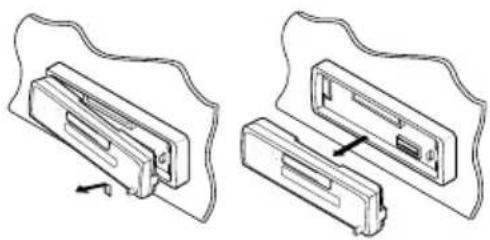
Detaching the control panel
You can detach the control panel when leaving the car.
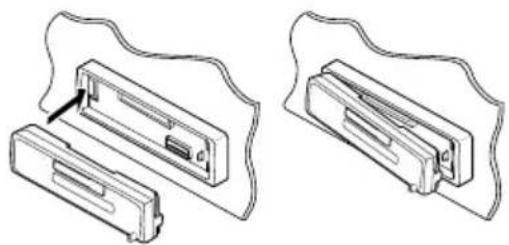
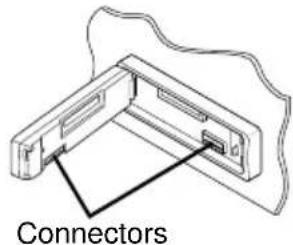
When detaching or attaching the control panel, be careful not to damage the connectors on the back of the control panel and on the panel holder.
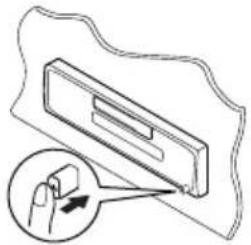
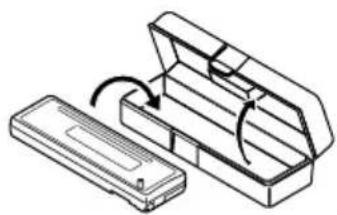
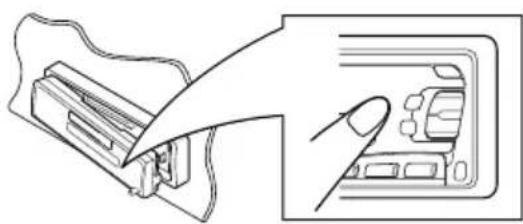
How to detach the control panel
Before detaching the control panel, be sure to turn off the power.
1 Unlock the control panel.
natural_image
Diagram of a device with a magnified inset showing a hand holding a small object (no text or symbols present)2 Lift and pull the control panel out of the unit.
natural_image
Technical line drawing of two mechanical components with arrows indicating assembly or movement (no text or symbols)3 Put the detached control panel into the provided case.
natural_image
Technical line drawing of a mechanical device with an open housing and a rectangular base, showing internal components (no text or symbols)How to attach the control panel
1 Insert the left side of the control panel into the groove on the panel holder.
natural_image
Technical line drawing of two mechanical components with no visible text or symbols2 Press the right side of the control panel to fix it to the panel holder.
natural_image
Line drawing of a device with a cable inserted into a folder, showing internal components (no text or symbols)Note on cleaning the connectors:
If you frequently detach the control panel, the connectors will deteriorate.
To minimize this possibility, periodically wipe the connectors with a cotton swab or cloth moistened with alcohol, being careful not to damage the connectors.
text_image
ConnectorsThis section is ONLY FOR KS-FX650R.
We recommend that you use one of the CH-X series with your unit.
If you have another CD automatic changer, consult your JVC IN CAR ENTERTAINMENT dealer for connections.
- For example, if your CD automatic changer is one of the KD-MK series, you need a cord (KS-U15K) for connecting it to this unit.
Before operating your CD automatic changer:
- Refer also to the Instructions supplied with your CD changer.
- If no discs are in the magazine of the CD changer or the discs are inserted upside down, "NO CD" or "NO DISC" will appear on the display. If this happens, remove the magazine and set the discs correctly.
- If "RESET 1 - RESET 8" appears on the display, something is wrong with the connection between this unit and the CD changer. If this happens, check the connection, connect the connecting cord(s) firmly if necessary, then press the reset button of the CD changer.
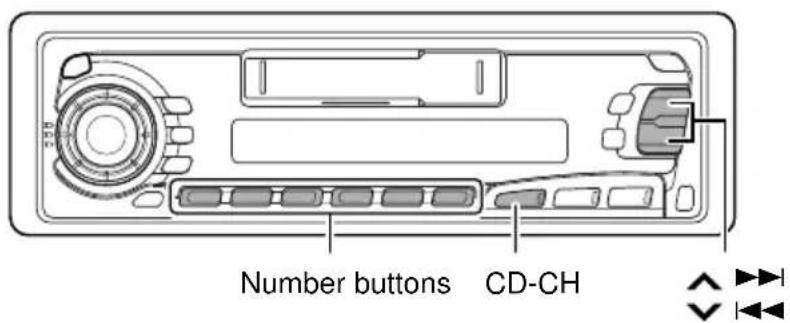
Playing CDs
text_image
Number buttons CD-CH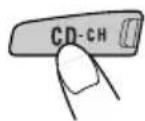
Select the CD automatic changer.
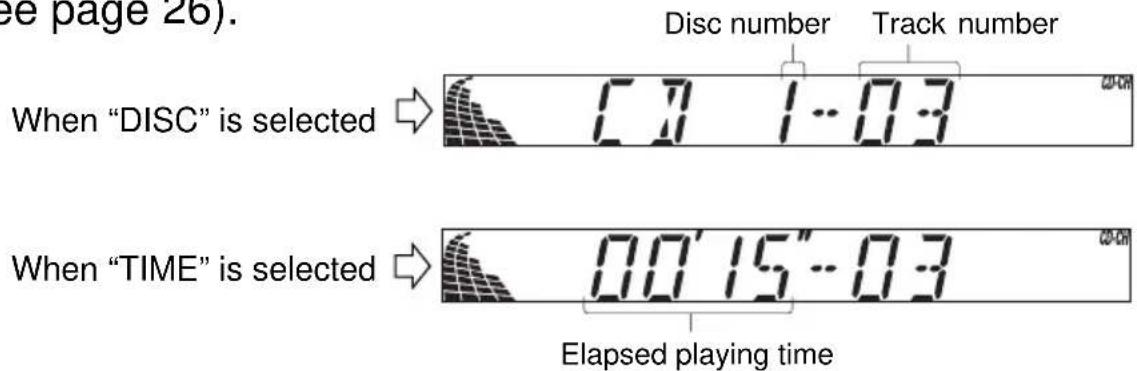
Playback starts from the first track of the first disc.
All tracks of all discs in the magazine are played back.
- “DISC” or “TIME” can be selected in the general settings mode (See page 26). Disc number Track number
text_image
ee page 26). Disc number Track number When "DISC" is selected → 1.7 1-0.3 When "TIME" is selected → 0.0'15"-0.3 Elapsed playing timeNote on One-Touch Operation:
When you press CD-CH, the power automatically turns on. You do not have to press ONMATT turn on the power.
To fast-forward or reverse the track

text_image
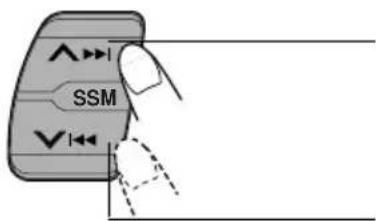
SSMPress and hold ▲▶, while playing a CD, to fast-forward the track. Press and hold ▼▶◀, while playing a CD, to reverse the track.
To go to the next track or the previous track
text_image
SSMPress ▶▶ briefly, while playing a CD, to go ahead to the beginning of the next track. Each time you press the button, the beginning of the next tracks is located and played back.
Press ▼ ◀◀ briefly, while playing a CD, to go back to the beginning of the current track. Each time you press the button, the beginning of the previous tracks is located and played back.
To go to a particular disc directly using the number button
789101112

text_image
1 2 3 4 5 6Ex. When disc number 5 is selected
Disc number Track number

text_image
07 5-03 CU-CMPress the number button corresponding to the disc number to start its playback (while the CD changer is playing).
• To select a disc number from 1 - 6:
Press 1 (7) - 6 (12) briefly.
• To select a disc number from 7 – 12:
Press and hold 1 (7) - 6 (12) for more than 1 second.
Selecting CD playback modes
text_image
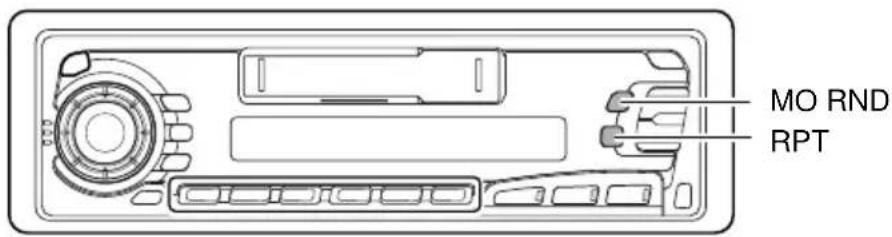
MO RND RPTTo play back tracks at random (Random Play)
Each time you press MO RND (Monaural/Random) while playing a CD, CD random play mode changes as follows:

flowchart
graph LR
    A["RND1 (Random1)"] --> B["RND2 (Random2)"]
    B --> C["Canceled"]
| Mode RND Indicator Plays at random | ||
| RND1 Lights | All tracks of the current disc, then the tracks of the next disc, and so on. | |
| RND2 Flashes | All tracks of all discs inserted in the magazine. | |
To play back tracks repeatedly (Repeat Play)
Each time you press RPT (Repeat) while playing a CD, CD repeat play mode changes as follows:

flowchart
graph LR
    A["RPT1\n(Repeat1)"] --> B["RPT2\n(Repeat2)"]
    B --> C["Canceled"]
| Mode RPT Indicator Plays repeatedly | |
| RPT1 Lights | The current track (or specified track). |
| RPT2 Flashes | All tracks of the current disc (or specified disc). |
This section is ONLY FOR KS-FX650R.
You can connect the external component to the CD changer jack on the rear using the Line Input Adaptor KS-U57 (not supplied).
text_image
Diagram of a CD-ROM drive showing labeled components with numbered annotationsPreparations:
- For connecting the Line Input Adaptor KS-U57 and the external component, refer to the Installation/Connection Manual (separate volume).
- Before operating the external component using the following procedure, select the external input correctly. (See “Selecting the external component to use” on page 29.)
1
Select the external component.
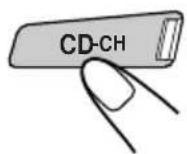
LINE IN
- If "LINE IN"* does not appear on the display, see page 29 and select the external input ("LINE IN").
* Displayed only when one of the following sources is selected — FM, AM and TAPE ◀ ▶ .
Note on One-Touch Operation:
When you press CD-CH, the power automatically comes on. You do not have to press ⏻/I/ATT to turn on the power.
2
Turn on the connected component and start playing the source.
3
natural_image
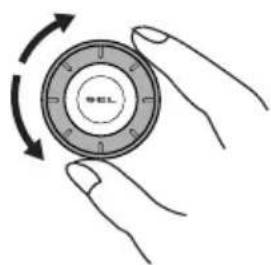
Hand holding a circular mechanical component with directional arrows indicating rotation (no text or symbols)Adjust the volume.
This section is ONLY FOR KS-FX650R, when used with a JVC DAB (Digital Audio Broadcasting) tuner (separately purchased). We recommend that you use DAB tuner KT-DB1500 with your unit.
If you have another DAB tuner, consult your JVC IN-CAR ENTERTAINMENT dealer.
- Refer also to the Instructions supplied with your DAB tuner.
What is DAB system?
DAB is one of the digital radio broadcasting systems available today. It can deliver CD quality sound without any annoying interference and signal distortion. Furthermore, it can carry text, pictures and data.
In contrast to FM broadcast, where each programme is transmitted on its own frequency, DAB combines several programmes (called “services”) to form one “ensemble”.
With the DAB tuner connected with this unit, you can enjoy these DAB services.
Tuning into an ensemble and one of the services
A typical ensemble has 6 or more programmes (services) broadcast at the same time. After tuning into an ensemble, you can select a service you want to listen to.
text_image
4 3 1,2Before you start....
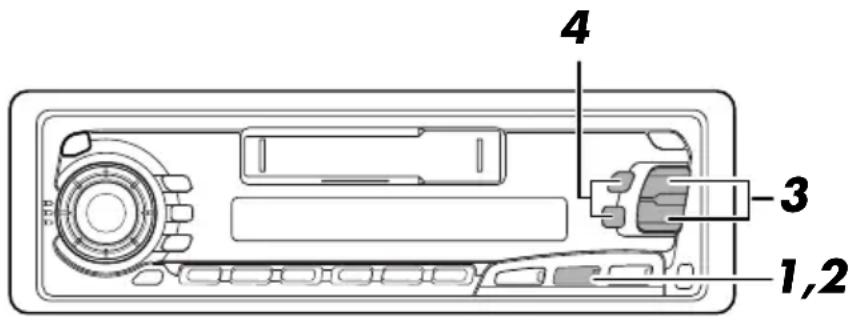
Press FM/AM/DAB briefly if you are selecting TAPE, CD changer or LINE IN as the source.
1
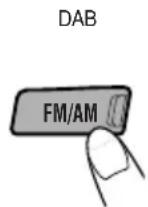
Select the DAB tuner.
Each time you press and hold the button for more than 1 second, the DAB tuner and the FM/AM tuner are alternately selected.
DAB ↔ FM/AM
2
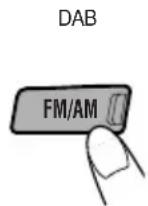
Select the DAB band (DAB1, DAB2, or DAB3).
You can select any one of DAB1, DAB2, and DAB3 to tune into an ensemble.

flowchart
graph LR
    A["DAB 1 DAB 2"] --> B["DAB 3"]
3
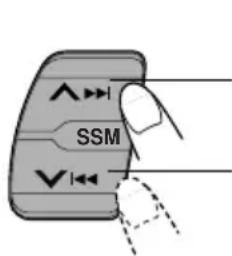
text_image
SSMTo search ensembles of higher frequencies.
To search ensembles of lower frequencies.
Start searching an ensemble.
When an ensemble is received, searching stops.
4
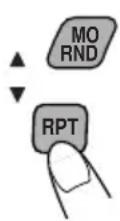
Select an service you want to listen to.
To stop searching before an ensemble is received, press the same button you have pressed for searching.
To change the display information while tuning into an ensemble
Normally service name is shown on the display.
By pressing DISP, you can also change the display while tuning into an ensemble.
Each time you press the button, the following information appears for a while on the display.

flowchart
graph LR
    A["Clock time Service name"] --> B["Ensemble name"]
    B --> C["Frequency"]
    C --> D["Channel no.Band/Preset n"]
To restore the FM/AM tuner
Press and hold FM/AM/DAB for more than 1 second again.
To tune in a particular ensemble without searching:
1 Press and hold FM/AM/DAB for more than 1 second.
2 Press FM/AM/DAB repeatedly to select the DAB band (DAB1, DAB2, or DAB3).
3 Press and hold ▶▶ or ▼◀◀ for more than 1 second.
4 Press ▲▶▶ or ▼◀◀ repeatedly until the ensemble you want is reached.
- If you hold down the button, the frequency keeps changing until you release the button.
Storing DAB services in memory
You can preset up to 6 DAB services in each DAB band (DAB1, DAB2 and DAB3) manually.
text_image
4 3 1,2 51
DAB
Select the DAB tuner.
Each time you press and hold the button, the DAB tuner and the FM/AM tuner are alternately selected.
DAB ↔ FM/AM
2
DAB
Select the DAB band (DAB1, DAB2, or DAB3) you want.
Each time you press the button, the DAB band changes as follows:

flowchart
graph LR
    A["DAB 1 DAB 2"] --> B["DAB 3"]
3
text_image
SSMTune into an ensemble you want.
4
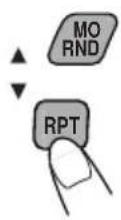
Select a service of the ensemble you want.
5
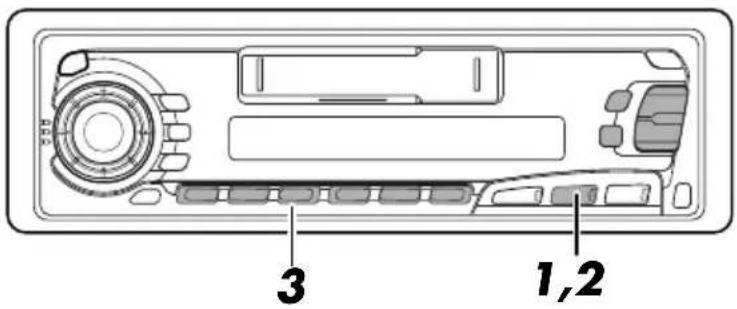
Press and hold the number button (in this example, 1) for more than 2 seconds.
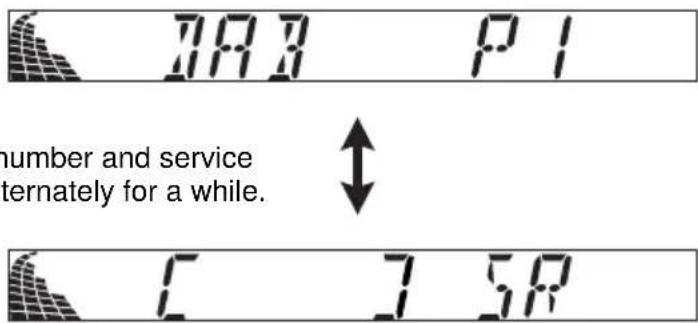
Band/preset number and service name flash alternately for a while.
text_image
7A3 P1 number and service ternately for a while. C 7 5R6
Repeat the above procedure to store other DAB services into other preset numbers.
Notes:
- A previously preset DAB service is erased when a new DAB service is stored in the same preset number.
- Preset DAB services are erased when the power supply to the memory circuit is interrupted (for example, during battery replacement). If this occurs, preset the DAB services again.
Tuning into a preset DAB service
You can easily tune into a preset DAB service.
Remember that you must store services first. If you have not stored them yet, see pages 37 and 38.
text_image
3 1,21
DAB
Select the DAB tuner.
Each time you press and hold the button, the DAB tuner and the FM/AM tuner are alternately selected.
DAB ↔ FM/AM
2
DAB
Select the DAB band (DAB1, DAB2, or DAB3) you want.
Each time you press the button, the DAB band changes as follows:

flowchart
graph LR
    A["DAB 1 DAB 2"] --> B["DAB 3"]
3

text_image
1 2 3 4 5 6
Select the number (1 - 6) for the preset DAB service you want.
To extend the lifetime of the unit
This unit requires very little attention, but you will be able to extend the life of the unit if you follow the instructions below.
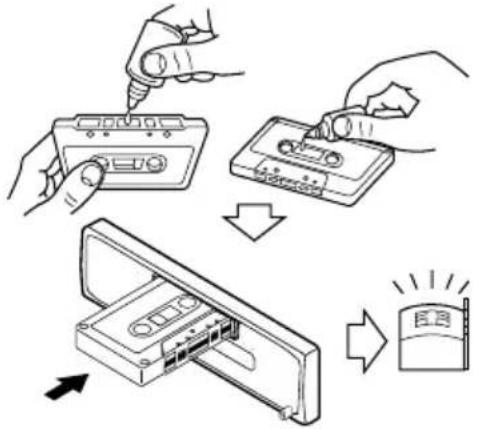
To clean the heads
text_image
Diagram illustrating the process of inserting a cassette into a device, showing step-by-step assembly and lighting.To keep the tape clean
natural_image
Illustration of a sun shining on a device and a cassette tape, both without any text or symbols.- Clean the heads after every 10 hours of use using a wet-type head cleaning tape (available at an audio store).
When the head becomes dirty, you may realize the following symptoms:
– Sound quality is reduced.
- Sound level decreases.
- Sound drops out.
- Do not play dirty or dusty tapes.
- Do not touch the highly-polished head with any metallic or magnetic tools.
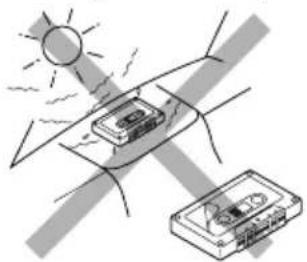
• Always store the tapes to their storage cases after use. - Do not store tapes in the following places:
– Subject to direct sunlight
- With high humidity
- At extremely hot temperatures
CAUTIONS:
- Do not play the tapes with peeling labels; otherwise, they can damage the unit.
- Tighten tapes to remove slack since loose tape may become entangled with the mechanism.
- Do not leave a cassette in the cassette compartment after use, as the tape may become slack.
The function below is also provided to ensure the longer life of this unit.
Ignition key-off Release/Ignition key-on play
- When you turn off the ignition key with a cassette in the compartment, the unit automatically releases the tape from its head.
- When you turn on the ignition key with a cassette in the compartment, playback automatically starts.
How to reset your unit
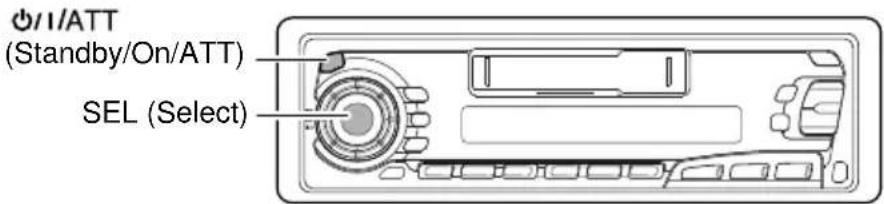
Press and hold both the SEL (Select) and d Standby/On/ATT) buttons at the same time for several seconds.
This will reset the built-in microcomputer.
NOTE: Your preset adjustments — such as preset channels or sound adjustments — will also be erased.
text_image
0/1/ATT (Standby/On/ATT) SEL (Select)What appears to be trouble is not always serious. Check the following points before calling a service center.
| Symptoms | Causes | Remedies |
| A cassette tape cannot be inserted. | You have tried to insert a cassette in the wrong way. | Insert the cassette with the exposed tape facing right. |
| Cassette tapes become hot. | This is not a malfunction. | —— |
| Tape sound is at very low level and sound quality is degraded. | The tape head is dirty. | Clean it with a head cleaning tape. |
| Sound is sometimes interrupted. | Connections are not good. | Check the cords and connections. |
| Sound cannot be heard from the speakers. | The volume control is turned to the minimum level. | Adjust it to the optimum level. |
| Connections are incorrect. | Check the cords and connections. | |
| SSM (Strong-station Sequential Memory) automatic preset does not work. | Signals are too weak. | Store stations manually. |
| Static noise while listening to the radio. | The antenna is not connected firmly. | Connect the antenna firmly. |
| “NO CD” or “NO DISC” appears on the display. | No CD is in the magazine. | Insert CDs into the magazine. |
| CDs are inserted incorrectly. | Insert them correctly. | |
| “RESET 8” appears on the display. | This unit is not connected to a CD changer correctly. | Connect this unit and the CD changer correctly and press the reset button of the CD changer. |
| “RESET 1-RESET 7” appears on the display. | —— | Press the reset button of the CD changer. |
| The unit does not work at all.The CD changer does not work at all. | The built-in microcomputer may function incorrectly due to noise, etc. | While holding SEL, press Ⓞ/I/ATT for more than 2 seconds to reset the unit. (The clock setting and preset stations stored in memory are erased.) (See page 40). |
AUDIO AMPLIFIER SECTION
Maximum Power Output:
Front: 40 W per channel
Rear: 40 W per channel
Continuous Power Output (RMS):
Front: 16 W per channel into 4 Ω, 40 Hz to 20,000 Hz at no more than 0.8% total harmonic distortion.
Rear: 16 W per channel into 4 Ω, 40 Hz to 20,000 Hz at no more than 0.8% total harmonic distortion.
Load Impedance: 4 Ω (4 Ω to 8 Ω allowance)
Tone Control Range
Bass: ±10 dB at 100 Hz
Treble:±10 dB at 10 kHz
Frequency Response: 40 Hz to 20,000 Hz
Signal-to-Noise Ratio: 70 dB
Line-Out Level/Impedance: 2.0 V/20 kΩ load
(250n\~Wb/m)
TUNER SECTION
Frequency Range
FM: 87.5 MHz to 108.0 MHz
AM: (MW) 522 kHz to 1,620 kHz
(LW) 144 kHz to 279 kHz
[FM Tuner]
Usable Sensitivity: 11.3 dBf (1.0 μV/75 Ω)
50 dB Quieting Sensitivity:
16.3 dBf (1.8 μV/75 Ω)
Alternate Channel Selectivity (400 kHz):
65 dB
Frequency Response: 40 Hz to 15,000 Hz
Stereo Separation: 30 dB
Capture Ratio: 1.5 dB
[MW Tuner]
Sensitivity: 20 μV
Selectivity: 35 dB
[LWTuner]
Sensitivity: 50 μV
CASSETTE DECK SECTION
Wow & Flutter: 0.11% (WRMS)
Fast-Wind Time: 105sec (C-60)
Frenquency Response:
30 to 16,000 Hz (Normal tape)
Signal-to-Noise Ratio: 56 dB
Stereo Separation: 40dB
GENERAL
Power Requirement
Operating Voltage: DC 14.4 V (11 V to 16 V allowance)
Allowable Operational Temperature:
0^ to +40^
Grounding System: Negative ground
Dimensions (W · H · D)
Installation Size:
Mass: 1.4 kg (excluding accessories)
Design and specifications subject to change without notice.
text_image
CD-CH FM/AM TAPE KS-F550R AM FM TAPEtext_image
Technical diagram of a CD-ROM drive showing labeled components with numbered parts1

KS-F550R
text_image
Diagram of a device rear panel with labeled components including ports, buttons, and indicators1
KS-F550RKS-FX650R
text_image
MO RND 2 1 MO 11 KS-FX650R
flowchart
graph TD
    A["FM/AM"] --> B["FM1-FM2"]
    B --> C["→FM3-AM"]
    D["KS-F550R"] --> E["FM"]
    E --> F["FM1-FM2"]
    F --> G["→FM3"]
    H["AM"] --> I["AM"]
natural_image
Illustration of hands holding a circular mechanical component with rotational arrows indicating rotation (no text or symbols)natural_image
Illustration of a hand holding a circular mechanical component with rotational arrows indicating rotation (no text or symbols)text_image
RACK M EMT BEAT POP SOFTnatural_image
Technical line drawing of a mechanical component with an arrow indicating direction (no text or symbols)Eine Kassette.
natural_image
Technical line drawing of a device rear panel with buttons and ports (no text or symbols)text_image
RPT REPEATnatural_image
Illustration of two hands holding a circular mechanical component with rotational arrows (no text or symbols)flowchart
graph LR
    A["→SCM OFF"] --> B["BEAT"] --> C["POP"] --> D["SOFT"]
natural_image
Technical line drawing of a device rear panel with buttons and ports (no text or symbols)Signalquellentasten
text_image
KS - FX650R CD-CH FM/AM TAPE KS - F550R AM FM TAPEnatural_image
Illustration of two hands holding a circular mechanical component with rotational arrows (no text or symbols)natural_image
Diagram of a device with a magnified inset showing a hand interacting with a component (no text or symbols present)natural_image
Technical line drawing of two mechanical components with arrows indicating assembly or movement (no text or symbols)natural_image
Technical line drawing of a mechanical device with an open housing and a rectangular base (no text or symbols)natural_image
Technical line drawing of two mechanical component assemblies (no text or symbols)natural_image
Line drawing of a car interior showing the dashboard and steering wheel (no text or symbols)natural_image
Technical line drawing of a mechanical bracket or mounting bracket (no text or symbols)Steckerkontakte
text_image
MO RND RPTtext_image
Diagram of a device rear panel with labeled components, showing internal layout and numbered parts.Vorbereitungen:
natural_image
Illustration of a hand holding a circular mechanical component with directional arrows indicating rotation (no text or symbols)→ DAB 1 → DAB 2 → DAB 3
3
flowchart
graph LR
    A["DAB 1 DAB 2"] --> B["DAB 3"]
3
text_image
SSMflowchart
graph LR
    A["DAB 1 DAB 2"] --> B["DAB 3"]
3

text_image
1 2 3 4 5 6
text_image
Diagram illustrating the process of inserting a CD into a device, showing steps from pinning to display.natural_image
Diagram showing sunlight illuminating a device on a curved surface with a smaller device nearby (no text or symbols)natural_image
Technical line drawing of a device rear panel with buttons and ports (no text or symbols)16.3 dBf (1.8 μV/75 Ω)
FONCTIONNEMENT RDS ......9
text_image
CD-CH FM/AM TAPE KS-F550R AM FM TAPEnatural_image
Illustration of a hand holding a circular mechanical component with rotational arrows indicating rotation (no text or symbols)Ajustez le volume.
text_image
Technical diagram of a device rear panel with labeled components 1 and 21
KS-FX650R

KS-F550R

text_image
Technical diagram of a device rear panel with labeled components 1, 2, and 31
KS-F550RKS-FX650R
text_image
EMT BEAT POP SOFT3
flowchart
graph TD
    A["FM/AM"] --> B["FM1-FM2"]
    B --> C["FM3-AM"]
    D["KS-F550R"] --> E["FM"]
    E --> F["FM1-FM2"]
    F --> G["FM3"]
    H["AM"] --> I["AM"]
natural_image
Illustration of a hand holding a circular mechanical component with directional arrows indicating rotation (no text or symbols)natural_image
Illustration of two hands holding a circular mechanical component with rotational arrows indicating rotation (no text or symbols)natural_image
Technical line drawing of a mechanical component with an arrow indicating direction (no text or symbols)natural_image
Technical line drawing of a device rear panel with buttons and ports (no text or symbols)Pendant la lecture
text_image
SSMtext_image
RPT REPEATnatural_image
Illustration of two hands holding a circular mechanical component with rotational arrows indicating rotation (no text or symbols)Ajustez le niveau.
Remarque:
flowchart
graph LR
    A["→SCM OFF"] --> B["BEAT"] --> C["POP"] --> D["SOFT"]
natural_image
Technical line drawing of a device rear panel with buttons and ports (no text or symbols)Touches de source
text_image
KS - FX650R CD-CH FM/AM TAPEtext_image
KS - F550R AM FM TAPEnatural_image
Illustration of hands holding a circular mechanical component with rotational arrows (no text or symbols)natural_image
Illustration of two hands holding a circular mechanical component with rotational arrows (no text or symbols)flowchart
graph LR
    A["MUTING 1 MUTING 2 OFF"] --> B["Arrow"]
natural_image
Diagram of a door handle with an arrow indicating direction, no text or symbols presentnatural_image
Technical line drawing showing two views of a device with internal components and a scroll-like outline (no text or symbols)natural_image
Technical line drawing of a mechanical device with an open box and a rectangular housing, showing internal components (no text or symbols)natural_image
Technical line drawing of two mechanical components with no visible text or symbolsnatural_image
Line drawing of a device with a cable inserted into a folder, showing internal components (no text or symbols)natural_image
Technical line drawing of a mechanical bracket or mounting bracket (no text or symbols)Connecteurs
text_image
MO RND RPTtext_image
Diagram of a CD-ROM drive showing labeled components with numbered annotationsPréparations:
→ DAB 1 → DAB 2 → DAB 3
3
flowchart
graph LR
    A["DAB 1 DAB 2"] --> B["DAB 3"]
3
text_image
SSMflowchart
graph LR
    A["DAB 1 DAB 2"] --> B["DAB 3"]
3

text_image
1 2 3 4 5 6
text_image
Diagram illustrating the process of inserting a cassette into a compact case, with directional arrows indicating sequence.natural_image
Illustration of a sun shining on a car with a cassette tape nearby (no text or symbols)natural_image
Technical line drawing of a device rear panel with internal components (no text or symbols)Dimensions (W x H x D)
"One-Touch" bediening:
text_image
CD-CH FM/AM TAPE KS-F550R AM FM TAPEnatural_image
Illustration of a hand holding a circular mechanical component with rotational arrows indicating rotation (no text or symbols)Regel het volume.
Volume level appears

text_image
Vol 20 EMT BEAT POP SOFTVolume level indicator
4
text_image
FM/AM FM1 FM2 → FM3 AMKS-F550R
text_image
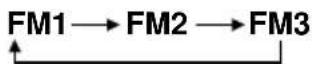
FM FM1 FM2 → FM3
Selecteer de golfband (FM1, FM2, FM3 of AM).
1 Kies de golfband (FM of AM).
text_image
Technical diagram of a device rear panel with labeled components 1 and 21


KS-F550R
text_image
... 5.5M ... EMT BEAT POP SOFTtext_image
Diagram of a device rear panel with labeled components including ports, buttons, and indicators1
KS-F550RKS-FX650R
Selecteer FM1.
2
text_image
SSMflowchart
graph LR
    A["FM1-FM2"] --> B["FM3-AM"]
    B --> C["↑"]
flowchart
graph LR
    A["FM1 FM2"] --> B["FM3"]
AM
Selecteer de gewenste golfband (FM1, FM2, FM3 of AM).
2

text_image
1 2 3 4 5 6
Programme 1 broadcasting on frequency D
natural_image
Illustration of a hand holding a circular mechanical component with directional arrows indicating rotation (no text or symbols)natural_image
Illustration of a hand holding a circular mechanical component with rotational arrows indicating rotation (no text or symbols)natural_image
Technical line drawing of a cassette tape holder with an arrow indicating assembly direction (no text or symbols)"One-Touch" bediening:
natural_image
Technical line drawing of a device rear panel with buttons and ventilation slots (no text or symbols)text_image
RPT REPEATnatural_image
Illustration of two hands holding a circular mechanical component with rotational arrows (no text or symbols)Pas het niveau aan.
Opmerking:
text_image
Link-indicator 11
flowchart
graph LR
    A["→SCM OFF"] --> B["BEAT"] --> C["POP"] --> D["SOFT"]
natural_image
Technical line drawing of a device rear panel with ports and buttons (no text or symbols)text_image
CD-CH FM/AM TAPEKS - F550R
text_image
AM FM TAPEnatural_image
Hand holding a circular mechanical component with rotational arrows indicating rotation (no text or symbols)flowchart
graph LR
    A["MUTING 1 MUTING 2 OFF"] --> B["Arrow"]
    B --> C["Arrow"]
natural_image
Diagram showing a door handle with a magnified inset of the handle (no text or symbols)natural_image
Technical line drawing showing two views of a device with internal components and an arrow indicating direction (no text or symbols)natural_image
Technical line drawing of a mechanical device with an open box and internal components, showing motion arrows (no text or symbols)natural_image
Technical line drawings of two mechanical components with no visible text or symbolsnatural_image
Line drawing of a door handle and interior panel with no visible text or symbolsnatural_image
Pure technical line drawing of a mechanical bracket or bracket (no text or symbols)Connectors
"One-Touch" bediening :
text_image
MO RND RPTtext_image
Diagram of a CD-ROM drive showing labeled components with numbered annotationsVoorbereiding:
"One-Touch" bediening :
natural_image
Illustration of hands holding a circular mechanical component with rotational arrows indicating rotation (no text or symbols)Regel het volume.
→ DAB 1 → DAB 2 → DAB 3
3
text_image
SSMflowchart
graph LR
    A["DAB 1 DAB 2"] --> B["DAB 3"]
3
text_image
SSMflowchart
graph LR
    A["DAB 1 DAB 2"] --> B["DAB 3"]
3

text_image
1 2 3 4 5 6
text_image
Diagram illustrating the process of inserting a cassette into a device, with Chinese text labels and directional arrows.natural_image
Illustration of a sun shining on a device and a cassette tape, both without any text or symbols.16.3 dBf (1.8 μV/75 Ω)
Stereo-scheiding: 30 dB
Vangbereik: 1.5 dB
[MW-zenders]
Gevoeligheid: 20 μV
Wow & Flutter: 0.11% (WRMS)
Having TROUBLE with operation? Please reset your unit
Refer to page of How to reset your unit
