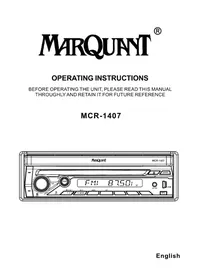
MCR1407 - Car radio Marquant - Free user manual and instructions
Find the device manual for free MCR1407 Marquant in PDF.



| Product Type | Multimedia car stereo with TFT touch screen |
| Brand | Marquant |
| Model | MCR1407 |
| Power Supply | 12 V DC (vehicle battery) |
| Playback Formats | DVD, VCD, SVCD, CD, MP3, SD card, USB flash drive |
| Main Functions | FM/AM RDS radio, hands-free Bluetooth and A2DP audio streaming, touch screen, infrared remote control, AV input, audio settings (bass, treble, balance, fader, preset equalizer) |
| Connectivity | USB port, SD slot, AV input (3.5 mm jack), antenna socket, front/rear audio outputs |
| Display | Color TFT LCD screen, brightness, contrast, saturation adjustment, adjustable viewing angle |
| Remote Control | Supplied with CR2025 battery, reduced range if battery low |
| Dimensions (approx.) | 1 DIN (178 x 50 x 160 mm) |
| Weight (approx.) | 1 kg |
| Bluetooth Functions | Hands-free calls (built-in microphone), A2DP audio streaming, dialing from remote control |
| Radio | FM/AM with RDS (AF, TA, PTY), auto search, auto preset memory (APS), 30 preset stations |
| Maintenance | Clean the screen with a soft dry cloth. Use a pointed object for reset (RESET button). |
| Safety | Parental control (level control), parent password (factory code 0000), reset possible |
| Spare Parts/Repairability | Remote control, CR2025 battery. Touch calibration possible. No user-repairable parts. |
| General Information | Manual available in multiple languages. Free PDF manual. |
Frequently Asked Questions - MCR1407 Marquant
User questions about MCR1407 Marquant
0 question about this device. Answer the ones you know or ask your own.
Ask a new question about this device
Download the instructions for your Car radio in PDF format for free! Find your manual MCR1407 - Marquant and take your electronic device back in hand. On this page are published all the documents necessary for the use of your device. MCR1407 by Marquant.
USER MANUAL MCR1407 Marquant
- TFT-LCD Display
- Disc Slot
- Fast Reverse Button/Next Track
- IR Sensor
- Fast Forward Button/Previous Track
- Reset Button
- Audio Volume/SEL Button
- Microphone (FOR B.T)
- Power/TFT ON/OFF Button
-
1/Play/PBC Button
-
2/Repeat Button
- 3/Random Button
- 4/INT Button
- 5 Button
- 6 Button
16.ModeButton - AVIN Interface
- Release Button
- USB Socket
-
LCD Display
-
Open Button
- EJECT Button
- Disc Lamp
- SD Card Slot
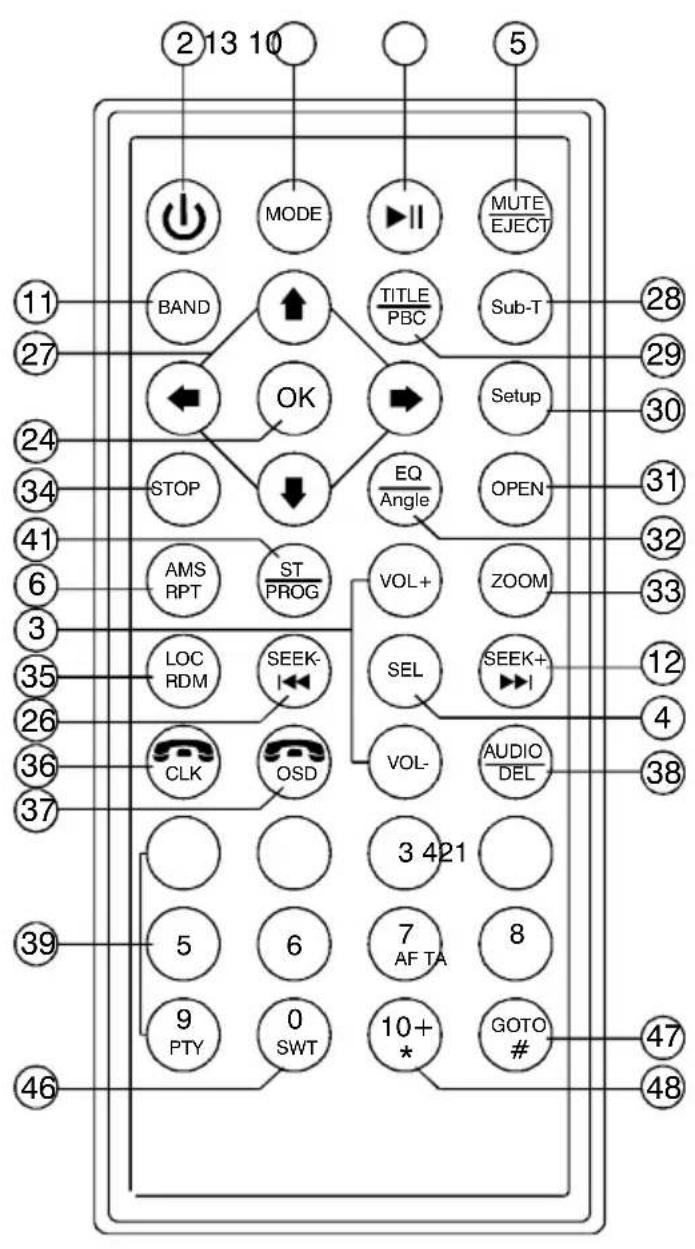
2 Power (TFT ON/OFF)
3 Volume + / -
4 Audio SEL
5 Mute / Eject
6 AMS/Repeat
10 Play / Pause
11 Band
12 Seek up/
13 Mode
24 OK
26 Seek Down/
27
28 Subtitle
29 Title Display / PBC
30 Setup
31 Open
32 EQ/Angle
33 Zoom
34 Stop
35 LOC / Random
36 Bluetooth Dialing (FORB.T)/CLK
37 Hangup(FOR B.T)/OSD
38 Audio / DEL(FOR B.T)
39 Number Keys
7/AF(FOR RDS)
8/TA(FOR RDS)
9/PTY(FOR RDS)
41 Stereo / Program
46 0/SWT(FOR B.T)
47 Playing Time Setting / # (FOR B.T)
48 10 + / * (FOR B.T)
Initial System Starts Up
Operating the unit for the first time or after replacing the car battery, Press RESET button with a pointed object (such as ballpoint) to set the unit to initial procedure.
NOTE: When some errors occur in the LCD display, you can also press RESET button to resume to normal. And it will erase the clock setting and some memorized functions.
Turning the Unit ON/OFF
Press POWER button to turn on the unit. When the unit is on:
Short press POWER button, turn off the monitor, press POWER button again to turn on the monitor.
Long press POWER button to turn off the unit.
Volume Control
Press + / - button for increase or decrease the sound volume.
Viewing Angle
Long Press the button "OPEN" on the front Panel or on the remote control "Open"Button repeatedly to adjust the angle view.
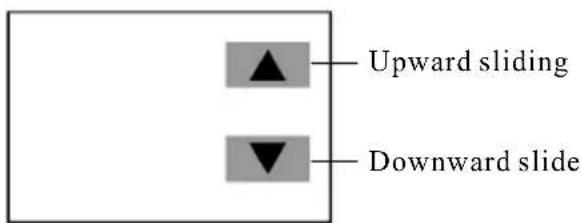
Touch screen Calibrate
If the position of touch occurs warp, you can calibrate by pressing the the "+" cursor . access the touch screen calibrate mode interface.
Click the icon to access the touch screen calibrate mode interface; Long Press the remote control Button"6" to access the Setting mode interface.
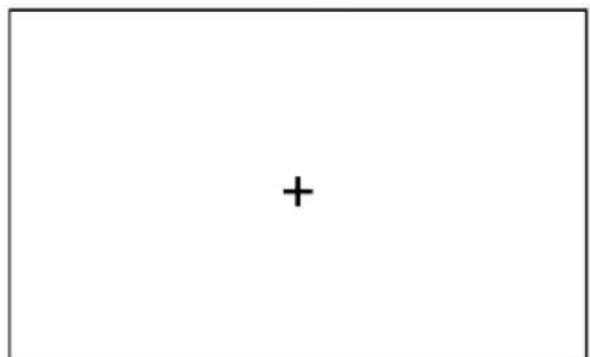
Aim at the "+" and click it, the symbol will moves around the touch screen, click it six times, system will finish calibration automatically and exit calibration mode.
If the calibration setting has been finished, the interface will pop up. Otherwise system need calibrate renewedly.
Menu Function
Press MENU button to enter as below main menu display screen, you can touch the icon of the screen to enter different working mode.
Long press MENU button to enter navigation mode directly, long press it again to exit navigation mode directly.
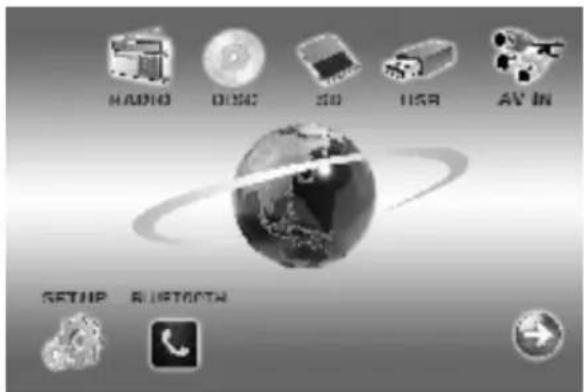
Setting the general & display & audio setup
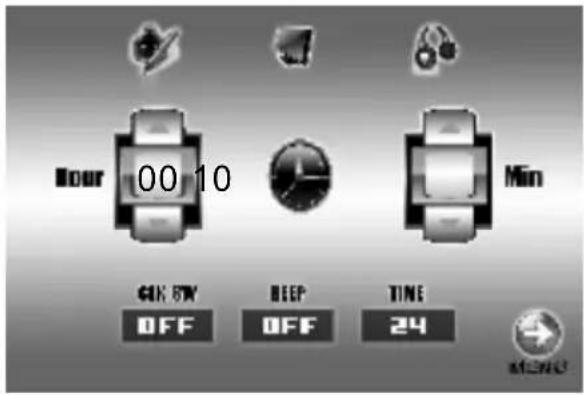
Touch icon in the screen to enter setting mode, as below picture. You can touch the screen to set up the audio, display, time parameters etc.

General Setup
This item is for Selecting a General.
- The time required for 12 hours,24 hours; Hour system or choice
- ON/OFF Beep.

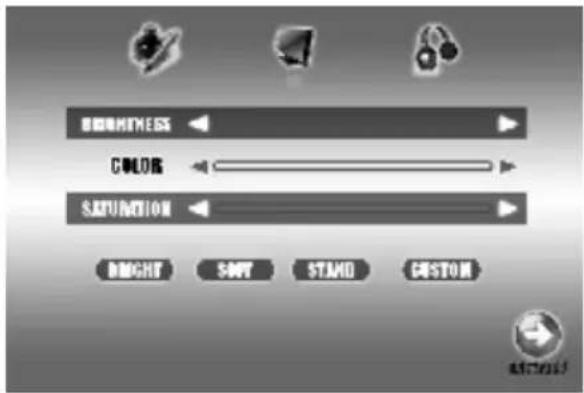
Display Setup
This item is for Selecting a Display. You can adjust each item by pressing the icon or in the touch screen.
-Brightness: 00 50
-Color:00~50
-Saturation:00\~50
Click the icon “Bright Soft Stand Custom” to access the System Default setup.

Audio Setup
This item is for Selecting a Audio. You can adjust each item by pressing the icon or in the touch screen.
-BASS: -7/+7
-TREBLE:-7/+7
-LOUD:ON/OFF
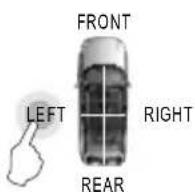
-Click the "Left/Right"to access the Balance Setup.
-Click the "Front/Rear"to access the Fader Setup.
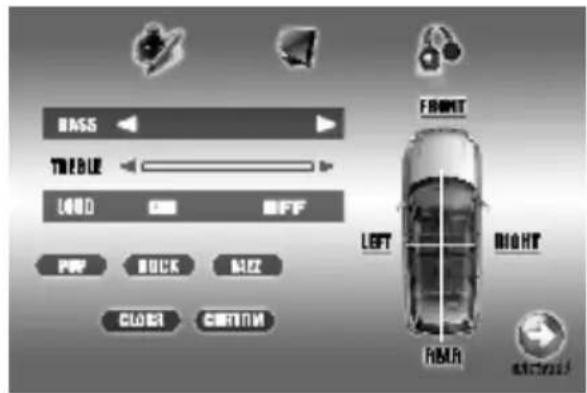
Click the icon “POP ROCK JAZZ CLASS CUSTOM” to access the EQ setup.
After finishing setting, click the icon

to exit the menu setup interface.
IR Sensor
Receiver for wireless IR remote control.
Radio Operation
- Touch the radio icon in the main menu display screen to select radio mode, the LCD will displays as following:
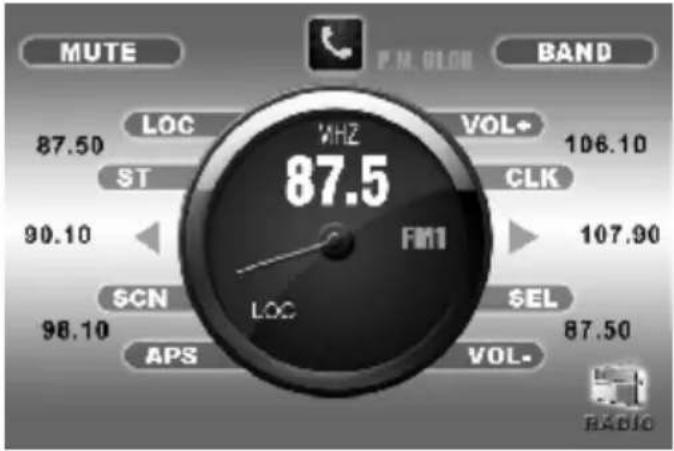
- Touch the icon "BAND" repeatedly to select bands in the following:
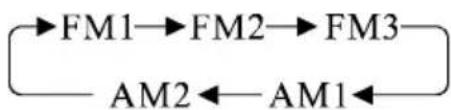
- Touch the icon "APS" or press key in IR handset shortly to activate automatically memory storing function.
- Press SEEKING+ or SEEKING-or icon shortly to manual seek the radio station
- Long pressSEEKING+ or SEEKING- or icon to automatically seek the radio station
- Touch the frequency bar in the display screen to select preset memory station.
- Long press icon "APS" to scan each preset memory station for 10S.
- Touch the icon "ST" or Press ST key in IR handset to set stereo or mono receiving mode.
- During radio mode, repeat press SEL button to select the desired mode in the following order:

After finishing setting, click the icon

to exit the menu setup interface.
AV-IN Operation
- Press the icon to enter main menu display screen.
- You can touch icon "AV-IN" to switch to your desired av in mode.
RDS operation
- Touch TFT displays "SEL" icon to access the RDS Setup interface.
- Long Press Click Using The Remote control "7" Button/Touch TFT displays "AF" icon, if showing AF in the LCD display, it is RDS mode, if no show AF, it is normal FM frequency.
- Long Press Click Using The Remote control "8" Button/Touch TFT displays "TA" icon, enter traffic information frequency. When broadcast traffic information can switch to RDS mode automotive.
- Long Press Click Using The Remote control "9"Button/Touch TFT displays "PTY"icon, You can select the title of RDS, press VOL + / - button to select as below program type:
| POP.M |
| NEWS |
| ROCK.M |
| AFFAIRS |
| EASY.M |
| INFO |
| LIGHT.M |
| SPORT |
| CLASSICS |
| EDUCATE |
| OTHER.M |
| DRAMA |
| JAZZ |
| CLUTURE |
| COUNTRY |
| SCIENCE |
| NATION.M |
| VARIED |
| OLDES |
| FINANCE |
| FOCK.M |
| CHILDREN |
| SOCIAL |
| RELIGION |
| PHONE.N |
| TRAVEL |
| LEISURE |
| DOCUMENT |
Bluetooth Telephone Function
-
Pair the mobile phone with Bluetooth and the unit.
-
Turn on the Bluetooth function of your mobile phone
- Use your mobile phone to search the Bluetooth device
Find out the Bluetooth device named "CAR KIT" - Connect the device by your mobile phone, please input "0000" while asking PIN code.
- If displaying the successful message in your mobile phone, then finish the pairing operation.
2. Answer a calling
- When coming call, the display will show the information of the calling phone number.
- Touch the icon, you can hear the caller voice, press VOL+/- button to adjust volume.
- Speak to the microphone in the front panel, then you can talk with caller.
- Press the icon to hang off the calling.
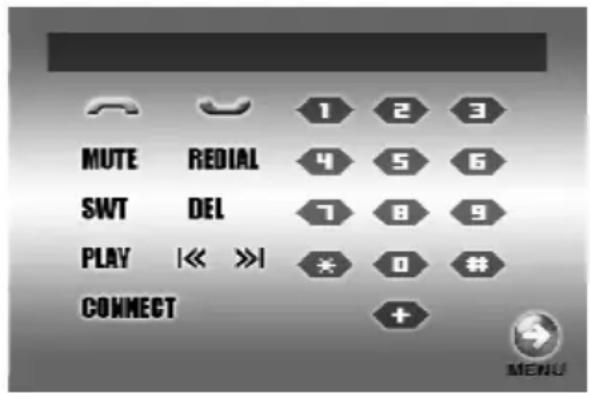
- Dial a phone number by IR remote handset
- Touch the icon to enter the Bluetooth mode in main menu screen.
- Touch the icon 0~9, *, # to enter the phone number, touch the icon DEL to delete the previous number.
- Touch the icon to confirm and dial out the phone number.
- Press the icon to hang off the calling.
4. Listen the Bluetooth Stereo Music (A2DP)
- Set your mobile phone Bluetooth to stereo music transmission
Play music through multimedia play application of your mobile phone. - Enter the Bluetooth mode.
Then you can hear the music which the Bluetooth transfer.
Press PLAY/PAUSE button to play or pause the music. - Touch the icon 1 or I to skip the next or previous chapter.
NOTE: This function require your mobile phone supports the Bluetooth A2DP protocol.
Playing USB storage device and SD Card
To enjoy the music and video in SD card and USB storage device, only need to insert USB and SD card into the slot, so the unit starts to play automatically. After leave this mode, you can press MENU button and touch the media icon or to switch to Play USB storage or SD card.
Playing DVD/VCD/SVCD/CD Disc
1. Insert the multimedia disc
To enjoy the music and video in DVD/VCD/SVCD/CD disc, only need to insert a disc with labeled side up into the disc slot, so the unit starts to play automatically. After leave this mode, you can press MENU button and touch the icon to switch to Play the multimedia disc again. After leave this mode, you can touch the icon to go back main menu.
2. Eject the disc
Press EJECT button to eject the disc.
Pause the playing
Touch the icon to pause the playing, touch it again to restore playing.
Playing the next /previous chapter
Touch the icon 1 or >>1 shortly to skip the next or previous chapter.
Fast forward or remind playing
Long touch the icon 1 or 1 to fast forward or remind the disc.
Repeat playing
Touch the icon "RPT" to play one track repeatedly, Press RPT key in IR handset to play the track repeatedly.
Random Playing
Touch the icon "RDM" or Press RDM key in IR handset to play any track randomly.
On Screen Display
Press OSD key in IR handset, the screen will display Track/Chapter nbr, current playing time etc.
Program Playing
Press PROG key in IR handset to enter programming page, press arrow key and number key in IR handset to program the tracks to be played.
Audio selector
Repeatedly pressAUDIO key in IR handset to change the different audio track mode.
Subtitle selector
Press SUB-T key in IR handset to select language.
Setting Disc playback time
Press GOTO key in IR handset to set the specific time to play, use arrow keys and number keys to set track/chapter on time, and press ENTER key to play.
Stop the playback
Press STOP key in IR handset to suspend the playback, press it again to stop the playback.
Multi-angle selector
Press ANGLE key in IR handset to watch the DVD content from different angle if the disc support.
Go to Title
Press TITLE key in IR handset to show all track's title on screen. Then press nbr keys or arrow keys to choose your desired track nbr and press ENTER key or PLAY/PAUSE key to start.
Enter setup model
- Press SETUP key in IR handset in the stop mode when playing multimedia.
- The main page of setup menu is displayed.
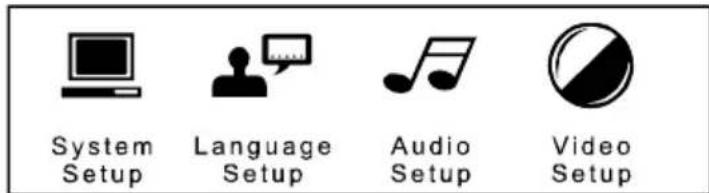
- Select the preferred item by using the arrow keys
- Press ENTER key to confirm setting.
Multimedia Playing Setup (system setup menu)
System Setup
The setup page include all the items of TV system, screen saver, TV type, password, rating & default features
TV system setup menu
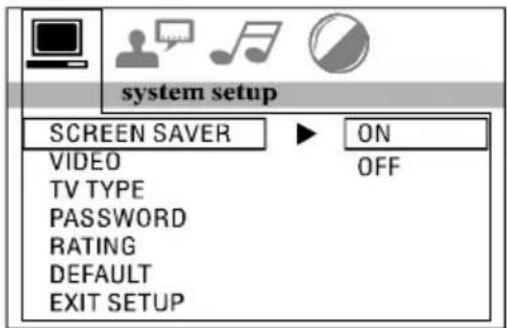
This player can play discs recorded in either PAL or NTSC format. Select NTSC format when you connected to NTSC TV. Select PAL format when you connected to PAL TV. If you select AUTO, the unit will auto select the format (PAL/NTSC) according to your disc content.
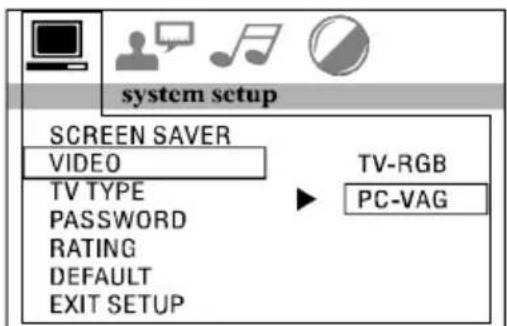
Video Setup Menu
TV Type Setup Menu
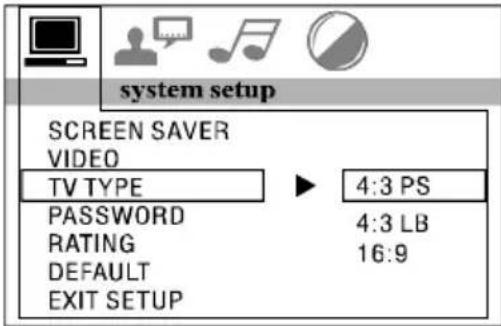
1. 4:3 PS
Playback in the PAN & SCAN style. (If connected to wide-screen TV, the left and right edges are cut off)
2. 4:3 LB
Playback in LEFTERR BOX style. (If connected to wide-screen TV, black bands appear at top and bottom of the screen).
3. 16:9
Select when a wide-screen TV set is connected.
Password Setup Menu
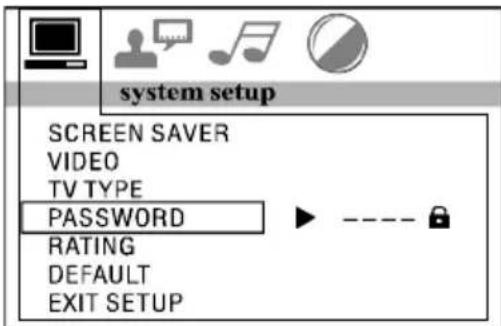
Enter the password and press ENTER button. Type the old password (The initial factory code is 0000) and key in 4 characters password now you want to use, and type again to confirm
Rating setup menu
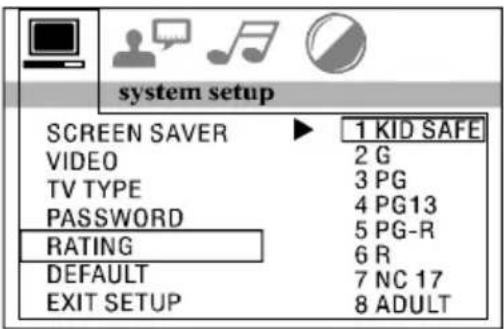
Select suitable guidance rating by the cursor button and confirmed by pressing ENTER key.
Rating 1: [KIDSAFE]
Select this when the program are safe to all kid view.
Rating 2: [G]
Select this that allows admission to person of all ages.
Rating 3: [PG]
Select following when children under 13 are forbidden to view
Rating 4: [PG13]
Select following when children under 13 are forbidden to view.
Rating 5: [PG-R]
Select this when the PG-R was printed on the DVD disc.
Rating 6: [R]
Select this when children under 17 are forbidden to view.
Rating 7: [NC 17]
Select this when children under 17 are forbidden to view.
Rating 8: [ADULT]
Select this when only allows admission to all adults.
Default setup menu
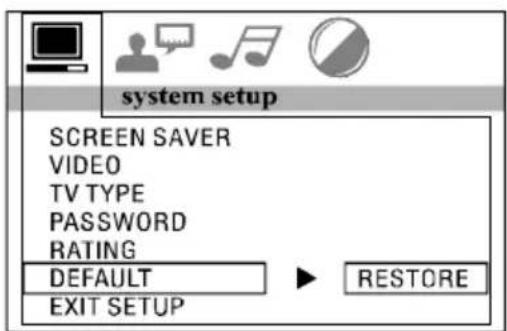
Select restore to become factory initial setting.
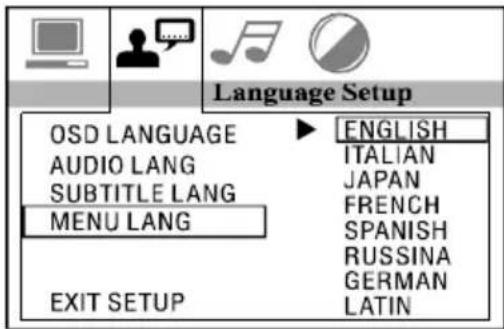
Language Setup
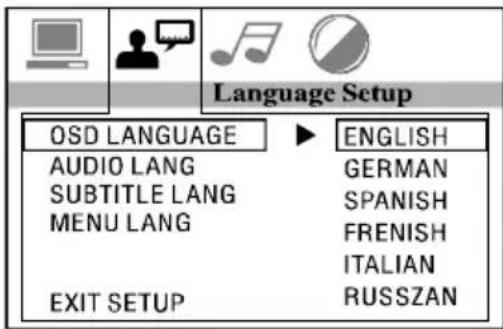
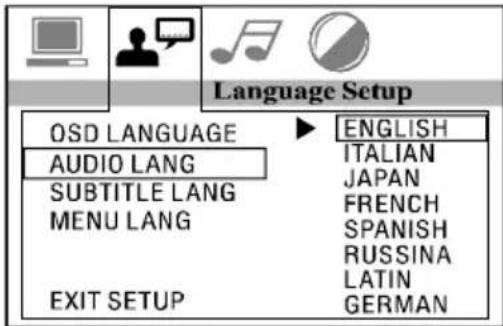
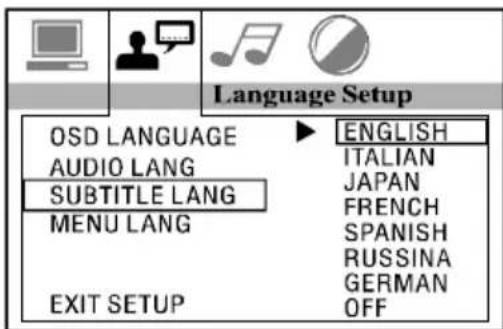
This setup page includes all the items of OSD language, Audio language, Subtitle Language and Menu Language features.
OSD Language Setup
Audio Language Setup
Subtitle Language Setup
Menu Language Setup
AUDIO SETUP
This setup page includes all the items for AUDIO.
Audio Out Setup
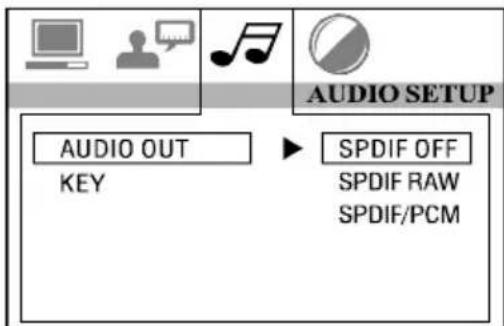
This is to activate the audio output from SPDIF OFF mode to SPDIF RAW mode or SPDIF PCM mode.
SPDIFOFF:
Analog or optical output port has no output signal at all.
SPDIFRAW:
When the player is connected with the power amplifier by the analog or optical port, please select this item when the playing disc which is recorded in Dolby Digital, DTS or MPEG. The analog or optical output signal of the unit will be the same as the digital signal (RAW format) of the playing disc. At the same time, the power amplifier you connected must have decode function of Dolby Digital, DTS or MPEG.
SPDIFPCM:
When the player is connected with the 2 channels, digital stereo amplifier, please select this item. When the playing disc which is recorded in Dolby Digital or MPEG. The analog or optical output will be modulated to 2 channels output by PCM.
Key Setup Menu
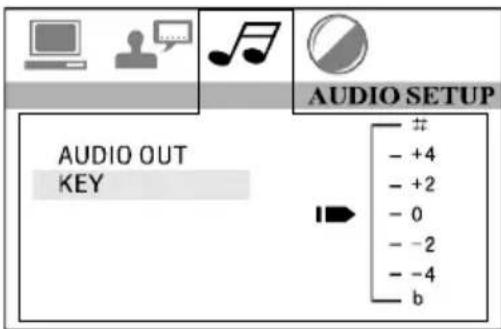
This is to select Treble or Bass according to your needs.
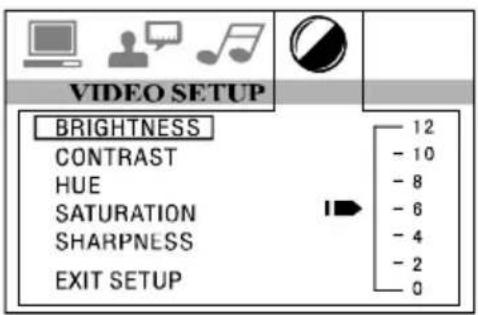
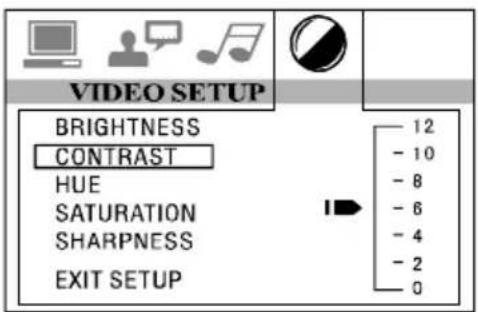
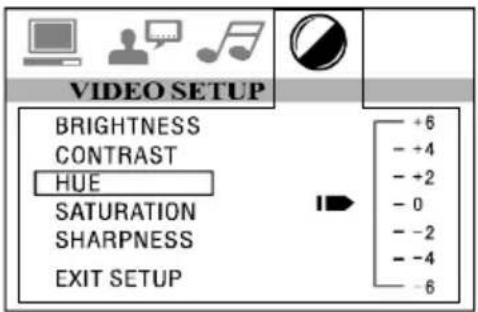
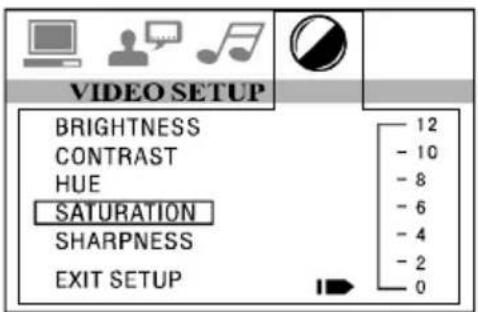
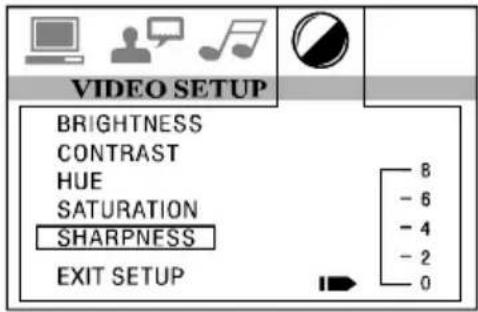
This is for the user to set Brightness, Contrast, Hue and Saturation of the picture by pressing the arrow left/right button.
Press ENTER key to confirm the change.
NOTE: Only on TV/AV mode, the Video setup is available.
VIDEO SETUP
This setup page includes all the items for VIDEO.
Brightness Setup Menu
Contrast Setup Menu
HUE Setup Menu
Saturation Setup Menu
Sharpness Setup Menu
Replace the Battery
When the operational range of the remote control becomes short or non-functions while operating. Replace a new CR2025 battery. Make sure the battery polarity before replacement.
- Pull out the battery holder while pressing the stopper 1.
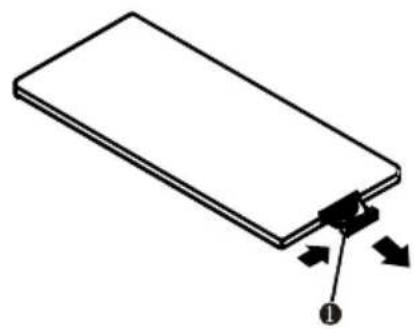
- Pull the button type battery (+) mark upward into the battery holder.
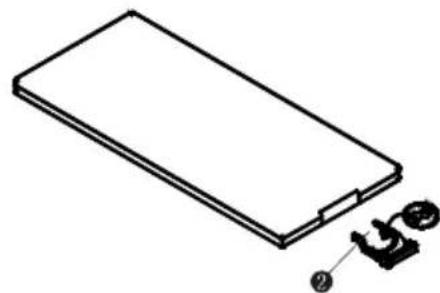
- Insert the battery holder into the remote controller.
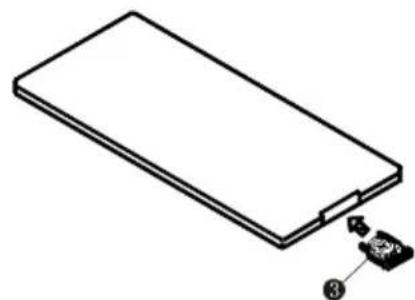
Bedienungsanleitung
TV Standard: PAL/NTSC.
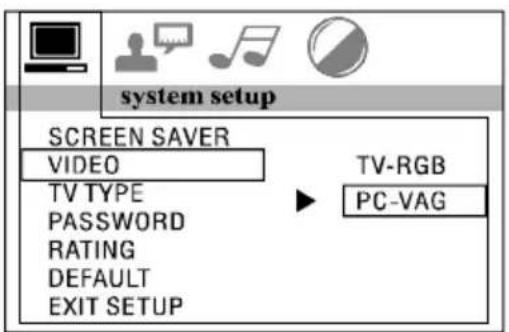
Video Setup Menu
Rating 1: [KID SAFE]
-Verzadiging: 00 50
Rating 1: [KID SAFE]


- Initial System Starts Up
- Turning the Unit ON/OFF
- Volume Control
- Viewing Angle
- Touch screen Calibrate
- Menu Function
- Setting the general & display & audio setup
- General Setup
- Display Setup
- Audio Setup
- IR Sensor
- Radio Operation
- AV-IN Operation
- RDS operation
- Bluetooth Telephone Function
- Answer a calling
- Listen the Bluetooth Stereo Music (A2DP)
- Playing USB storage device and SD Card
- Playing DVD/VCD/SVCD/CD Disc
- Insert the multimedia disc
- Eject the disc
- Pause the playing
- Playing the next /previous chapter
- Fast forward or remind playing
- Repeat playing
- Random Playing
- Program Playing
- Audio selector
- Subtitle selector
- Setting Disc playback time
- Stop the playback
- Multi-angle selector
- Go to Title
- Enter setup model
- Multimedia Playing Setup (system setup menu)
- System Setup
- TV system setup menu
- Video Setup Menu
- TV Type Setup Menu
- 4:3 PS
- 4:3 LB
- 16:9
- Password Setup Menu
- Rating setup menu
- Rating 1: [KIDSAFE]
- Rating 2: [G]
- Rating 3: [PG]
- Rating 4: [PG13]
- Rating 5: [PG-R]
- Rating 6: [R]
- Rating 7: [NC 17]
- Rating 8: [ADULT]
- Default setup menu
- Language Setup
- OSD Language Setup
- Audio Language Setup
- Subtitle Language Setup
- Menu Language Setup
- Audio Out Setup
- SPDIFOFF:
- SPDIFRAW:
- SPDIFPCM:
- Key Setup Menu
- VIDEO SETUP
- Brightness Setup Menu
- Contrast Setup Menu
- HUE Setup Menu
- Saturation Setup Menu
- Sharpness Setup Menu
- Replace the Battery
- Bedienungsanleitung
- Rating 1: [KID SAFE]
Brand : Marquant
Model : MCR1407
Category : Car radio